В Windows вы можете создавать собственные службы и запускать их, выполнив команду в командной строке. Net Start и Net Stop — это команды, используемые для запуска и остановки службы соответственно на устройстве, работающем в операционной системе Windows. При запуске пользовательской службы на компьютере с Windows некоторые пользователи сталкивались с ошибкой «Служба не сообщила об ошибке». Ошибка в основном возникает при запуске службы MySQL с помощью команды Net Start.
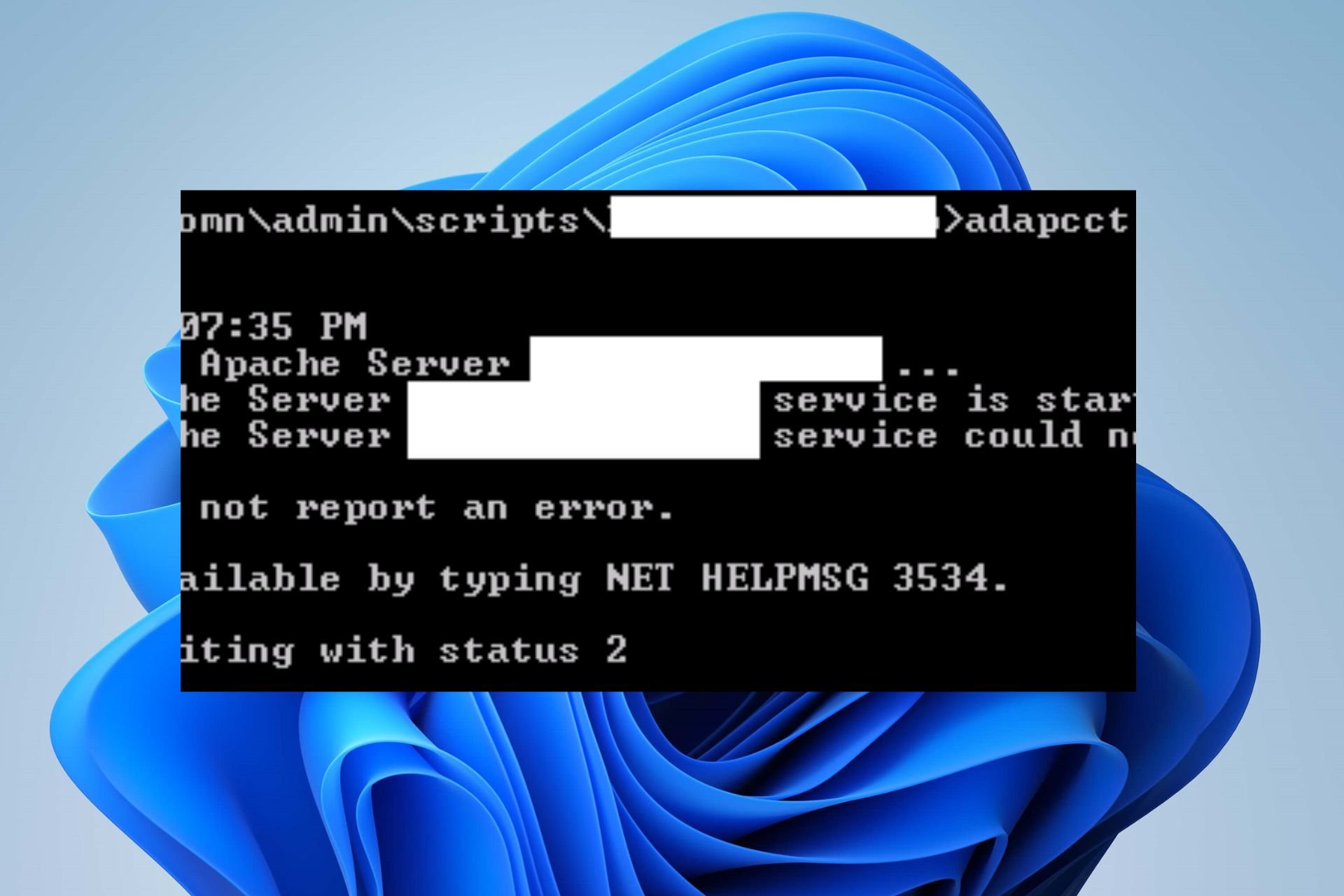
Полное сообщение об ошибке, которое появляется на экране:
Сервис не сообщил об ошибке.
Чтобы получить дополнительную справку, введите NET HELPMSG 3534.
Если вы получаете такую ошибку при запуске пользовательской службы, вы можете попробовать решения, представленные в этой статье.
NET HELPMSG — это команда, которая декодирует сообщение об ошибке Windows в строку. Эта команда полезна для получения сообщения об ошибке из кода ошибки. Если вы введете NET HELPMSG 3534 в командной строке, вы получите то же сообщение об ошибке «Служба не сообщила об ошибке».
Следующие рекомендации могут помочь вам решить эту проблему:
- Остановить службу через диспетчер задач
- Очистить каталог данных
- Скопируйте файл my.ini из каталога ProgramData в каталог Program Files.
- Измените формат кодировки файла my.ini с UTF-8 на ANSI.
Ниже мы подробно описали все эти исправления.
1]Остановите службу через диспетчер задач.
Хотя некоторые пользователи не могут запустить настраиваемую службу, некоторые пользователи получают сообщение об ошибке, несмотря на то, что служба уже запущена. Когда они попытались остановить службу, они получили еще одно сообщение об ошибке. Если это ваш случай, вы можете использовать Диспетчер задач, чтобы закрыть созданную вами пользовательскую службу. Инструкции следующие:
- Откройте диспетчер задач.
- Выберите вкладку «Процессы».
- Найдите сервис, который вы создали.
- Как только вы найдете его, щелкните его правой кнопкой мыши и выберите «Завершить задачу».
2]Очистите каталог данных
Если вы получаете сообщение об ошибке Служба не сообщила об ошибке при запуске службы MySQL, очистите каталог данных. Для этого откройте проводник, затем откройте диск C. Теперь откройте папку MySQL в соответствии с версией MySQL, установленной на вашем компьютере. Там вы найдете папку Data. Откройте папку Data и удалите все файлы внутри нее.
После очистки каталога данных выполните следующую команду:
mysqld —инициализировать
После успешного выполнения вышеуказанной команды вы сможете запустить службу MySQL, введя следующую команду:
net start mysql3]Скопируйте файл my.ini из каталога ProgramData в каталог Program Files
Еще одним эффективным решением этой проблемы является копирование файла my.ini из каталога ProgramData в каталог Program Files. По умолчанию файл my.ini находится в следующем месте на диске C:
C:ProgramDataMySQLMySQL Server 5.7
В приведенном выше пути MySQL Server 5.7 указывает номер версии MySQL, установленной на компьютере. Имя папки отличается для разных версий MySQL Server.
Если вы не нашли файл my.ini по указанному выше пути, вы можете попробовать следующие способы:
Откройте командную строку и введите следующую команду, а затем нажмите Enter.
эхо %PROGRAMDATA%
После успешного выполнения вышеуказанной команды вы увидите путь к файлу my.ini. Если это не сработает, попробуйте следующий метод.
- Откройте окно команды «Выполнить», нажав клавиши Win + R.
- Введите services.msc и нажмите OK. Это запустит приложение «Службы».
- Прокрутите вниз и найдите службу MySQL.
- Как только вы найдете службу MySQL, щелкните ее правой кнопкой мыши и выберите «Свойства».
- В окне «Свойства» выберите вкладку «Общие».
- Щелкните путь, отображаемый в разделе «Путь к исполняемому файлу». Теперь нажмите и удерживайте клавишу со стрелкой вправо, чтобы переместить курсор вправо. Продолжайте перемещать курсор, пока не найдете файл my.ini в пути.
- Теперь скопируйте этот путь и вставьте его в адресную строку проводника, а затем нажмите Enter.
Теперь скопируйте файл my.ini. После этого перейдите по следующему пути и вставьте туда скопированный файл.
C:Program FilesMySQLMySQL Server 5.7
Обратите внимание, что вы должны заменить MySQL Server 5.7 в указанном выше пути номером версии MySQL, установленной в вашей системе.
Теперь откройте командную строку и запустите службу MySQL, выполнив следующую команду:
чистый запуск mysql
На этот раз служба MySQL должна запуститься без каких-либо ошибок.
Follow these solutions to fix the NET HELPMSG 3534
by Henderson Jayden Harper
Passionate about technology, Crypto, software, Windows, and everything computer-related, he spends most of his time developing new skills and learning more about the tech world. He also enjoys… read more
Published on November 11, 2022
Reviewed by
Alex Serban

After moving away from the corporate work-style, Alex has found rewards in a lifestyle of constant analysis, team coordination and pestering his colleagues. Holding an MCSA Windows Server… read more
- Starting or stopping services on Windows can result in many errors.
- For example, the NET HELPMSG 3534 error code may appear due to MySQL issues on Windows.
- Clearing the MySQL data directory can fix the problem.
XINSTALL BY CLICKING THE DOWNLOAD FILE
This software will repair common computer errors, protect you from file loss, malware, hardware failure and optimize your PC for maximum performance. Fix PC issues and remove viruses now in 3 easy steps:
- Download Restoro PC Repair Tool that comes with Patented Technologies (patent available here).
- Click Start Scan to find Windows issues that could be causing PC problems.
- Click Repair All to fix issues affecting your computer’s security and performance
- Restoro has been downloaded by 0 readers this month.
Windows have several services users can enable and disable by running the net start and net stop commands on the command prompt. However, these can result in errors, prompting codes such as the NET HELPMSG 3534.
Likewise, when tweaking the BITS Service on Windows, you may encounter the NET HELPMSG 2182 error.
What does the NET HELPMSG 3534 mean?
Running commands in the Command Prompt on Windows computers allows you to toggle on and off services on your PC. However, issues may occur during the process, resulting in numerous error codes like the NET HELPMSG 3534.
Furthermore, the NET HELPMSG is a command that decodes Windows error messages by attaching a code. It can come with many codes, such as NET HELPMSG 2191, 2185, 3523, etc.
The NET HELPMSG 3534 error code occurs when starting the MySQL service on Windows.
However, the error asks users to type NET HELPMSG 3534 in the Command Prompt to decode it. Decoding the error message NET HELPMSG 3534 will show you The service did not report an error message. Instead, it can be due to several factors affecting the program or Windows.
How do I fix the NET HELPMSG 3534?
There are a couple of fixes users can try to fix the NET HELPMSG 3534 error on their PCs. However, we recommend you go through the preliminary checks below before proceeding:
- Update Windows to its latest build.
- Turn off background apps running on your PC.
- Disable antivirus software temporarily on your computer.
Some PC issues are hard to tackle, especially when it comes to corrupted repositories or missing Windows files. If you are having troubles fixing an error, your system may be partially broken.
We recommend installing Restoro, a tool that will scan your machine and identify what the fault is.
Click here to download and start repairing.
If the error persists after observing the check above, proceed with the solutions below to fix it:
1. End task for the service prompting the error
- Right-click on the Start button and choose Task Manager from the menu or use the Task Manager shortcut by pressing CTRL + Shift + Esc keys simultaneously.
- Click on the Processes tab, right-click the service prompting the error, and select the End task option from the drop-down.
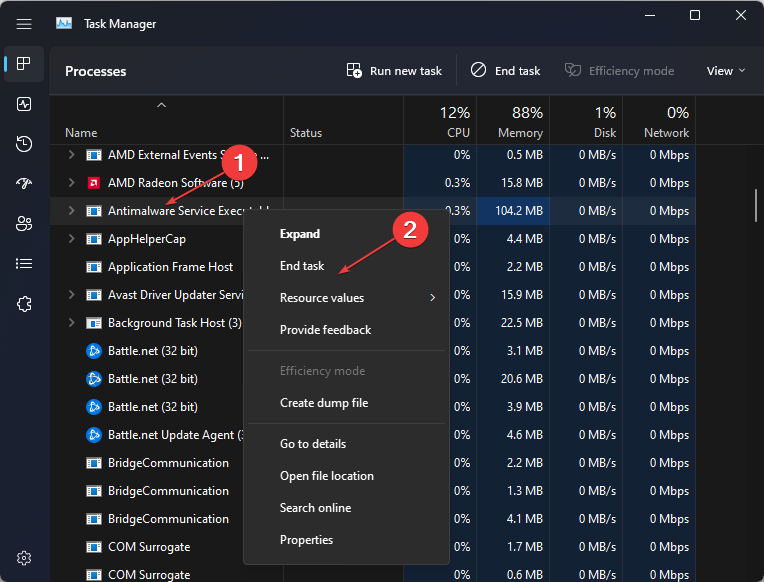
Ending tasks for the service showing the NET HELPMSG 3534 error can fix issues with its process. In addition, it will help it close any background activities on it.
If you have difficulties using the taskbar, check how to fix an unresponsive taskbar on Windows 10/11.
- Fix: Character Map is Not Working in Windows 11
- There’s No Compatibility Tab in Windows 11: How to Fix This
- The Request is Not Supported Error: 5 Ways to Fix It
- How to Reinstall Bluetooth Driver on Windows 11
2. Use the Program files directory
- Press Windows + R keys to open the Run dialog box, type in services.msc, and press ENTER to open the Services window.
- Right-click the MySQL service and select Properties from the drop-down.

- Click on the General tab and then click on the path displayed under the path to executable.
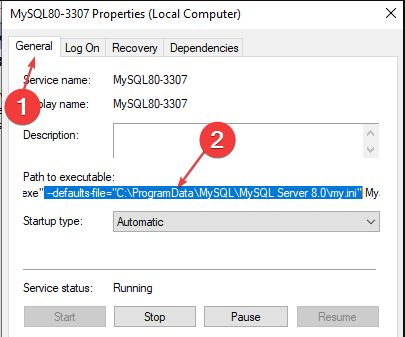
- Press and hold the arrow key pointing right, and stop moving the cursor when you find the my.ini in the path.
- Copy and paste the path into the File Explorer address bar, then press ENTER to show the my.ini file.
- Copy the my.ini file, navigate to the path below and paste it there:
C:Program FilesMySQLMySQL Server 5.7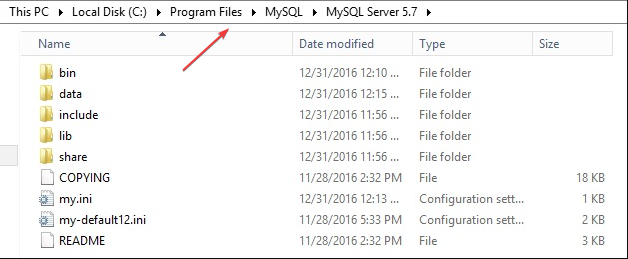
- Press Windows + R keys to prompt the Run dialog box, type cmd in the text box, then press Ctrl + Shift + ENTER to launch an elevated Command Prompt.
- Input the command below and press ENTER to start the MySQL services:
net start mysql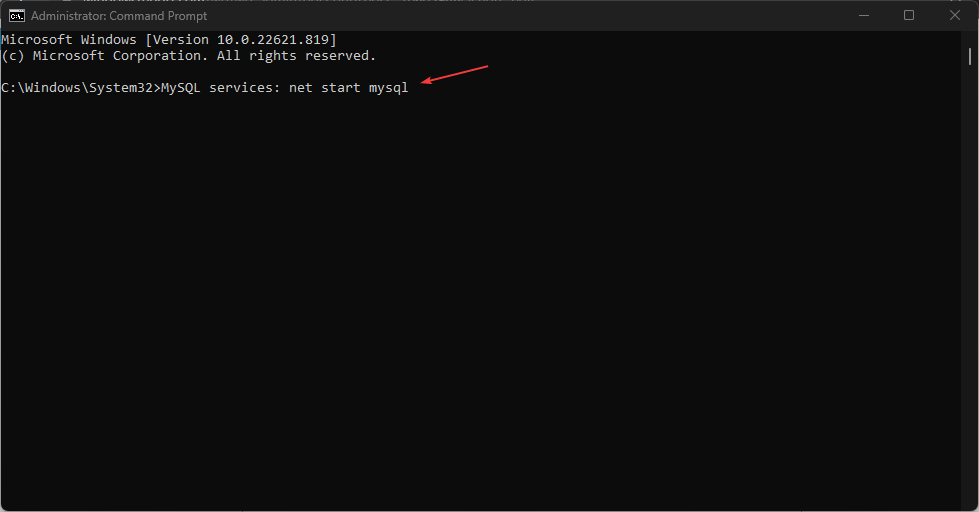

Tip
Change the MySQL Server 5.7 in the above path to the version of MySQL installed on your device.
The MySQL service should start without prompting any error. Copying the my.ini file from the ProgramData directory to the Program Files directory will fix any file issues causing the error.
3. Clear the MySQL data directory
- Click the File Explorer icon on the taskbar, then open your C drive.
- Navigate to the path below:
C:Program FilesMySQLMySQL Server 5.7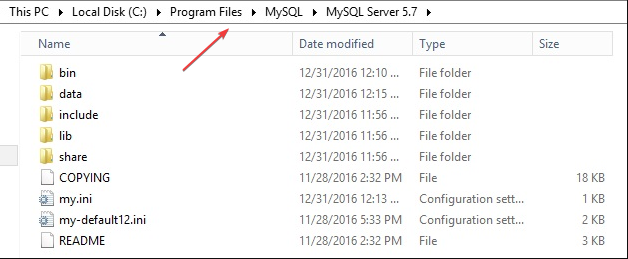
- Open the Data folder, delete all the files, and then close the File Explorer.
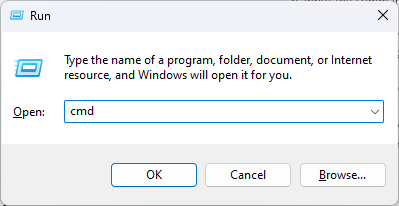
- Press Windows + R keys to prompt the Run dialog box, type cmd in the text box, and then press Ctrl + Shift + ENTER to launch an elevated Command Prompt.
- Input the command below and press ENTER:
mysqld --initialize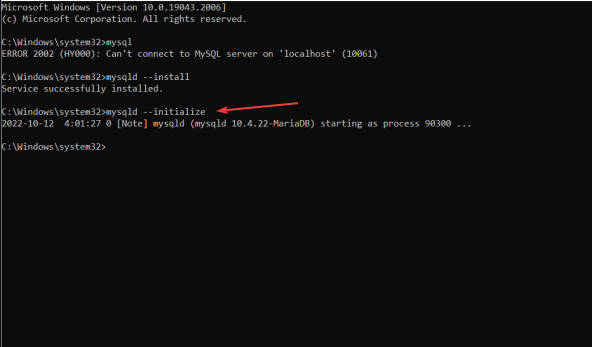
- Input the command below and press ENTER to start the MySQL services.
net start mysql
The MySQL service should start without running into any errors. For example, deleting the data directory will fix corrupt files in the MySQL directory.
Alternatively, you can read how to repair a corrupted database in an SQL server for more guidance.
Conclusively, users may be interested in how to add the Run command to the Start menu on their Windows 10/11 PCs for easy access.
For further questions and suggestions, kindly leave them in the comments below.
Still having issues? Fix them with this tool:
SPONSORED
If the advices above haven’t solved your issue, your PC may experience deeper Windows problems. We recommend downloading this PC Repair tool (rated Great on TrustPilot.com) to easily address them. After installation, simply click the Start Scan button and then press on Repair All.

Newsletter
Ошибка NET HELPMSG 2182 возникает у некоторых пользователей при попытке обновить Windows 10 или установить новые приложения MS Store.
В полном сообщении об ошибке говорится : «Проблема со службой BITS: запрошенная служба уже запущена». Чтобы получить дополнительную справку, введите NET HELPMSG 2182.
Таким образом, эта проблема обычно связана с BITS (фоновой интеллектуальной службой передачи), которая помогает загружать обновления с серверов Microsoft.
Пользователи не могут получать приложения или обновления Windows, когда возникает ошибка NET HELPMSG 2182. Однако, если вы столкнулись с этой проблемой, используйте наши решения и решите эту проблему.
Как исправить ошибку NET HELPMSG 2182 в Windows 10?
1. Запустите средство устранения неполадок Центра обновления Windows.
- Нажмите сочетание клавиш Windows + S, чтобы открыть настройки.
- Выберите Обновление и безопасность.
- Затем вы можете нажать «Устранение неполадок» на левой панели.
- Выберите Центр обновления Windows и нажмите «Запустить средство устранения неполадок«, чтобы запустить его.
- Затем вы можете просмотреть средство устранения неполадок Центра обновления Windows для возможных исправлений.
Во-первых, мы попытаемся запустить средство устранения неполадок Центра обновления Windows, которое может исправить многочисленные проблемы с обновлением. Это встроенный в Windows инструмент устранения неполадок, который может помочь вам решить множество проблем.
2. Запустите средство устранения неполадок BITS.
- Чтобы открыть средство устранения неполадок BITS, нажмите сочетание клавиш Windows +. R
- Войдите в «Панель управления» в поле « Открыть» и выберите вариант « ОК ».
- Нажмите «Устранение неполадок», чтобы открыть апплет панели управления, показанный непосредственно ниже.
- Нажмите Просмотреть все в левой части окна, чтобы открыть список средств устранения неполадок.
- Затем нажмите «Фоновая интеллектуальная служба передачи», чтобы открыть это средство устранения неполадок.
- Нажмите «Дополнительно«, чтобы выбрать параметр «Применить ремонт автоматически«, а затем нажмите кнопку «Далее».
Средство устранения неполадок фоновой интеллектуальной службы передачи может устранить проблемы с BITS, что необходимо сделать некоторым пользователям для устранения ошибки NET HELPMSG 2182.
3. Запустите проверку системных файлов
- Введите cmd в строке поиска Windows.
- Выберите параметр « Командная строка (администратор) », чтобы открыть окно приглашения с повышенными привилегиями.
- Перед запуском сканирования SFC введите следующую команду в командной строке и нажмите клавишу «Ввод», чтобы исправить повреждения образа Windows 10.
DISM /Online /Cleanup-Image /RestoreHealth - Введите sfc /scannow и нажмите клавишу «Ввод», чтобы запустить проверку системных файлов, которая может занять около получаса или дольше.
- Перезагрузите настольный компьютер или ноутбук, если сканирование SFC восстанавливает системные файлы.
Сканирование средства проверки системных файлов может исправить ошибки BITS и поврежденные системные файлы. Это еще один отличный встроенный в Windows инструмент для устранения неполадок, который вы можете использовать для решения различных проблем.
Если сканирование SFC полностью останавливается на вашем ПК до восстановления файлов, вы можете решить проблему, следуя правильным методам.
4. Перезапустите процесс Центра обновления Windows.
- Выберите Командная строка (Администратор), чтобы запустить эту утилиту командной строки.
- Введите следующие команды (и нажимайте Enter после ввода каждой), чтобы отключить Центр обновления Windows:
net stop wuauserv
net stop cryptSvc
net stop bits
net stop msiserver - Затем введите приведенную ниже команду ren и нажмите Enter. Эта команда переименует SoftwareDistribution в SoftwareDistribution.old.
C:WindowsSoftwareDistribution SoftwareDistribution.old - Затем введите следующую команду и нажмите Enter:
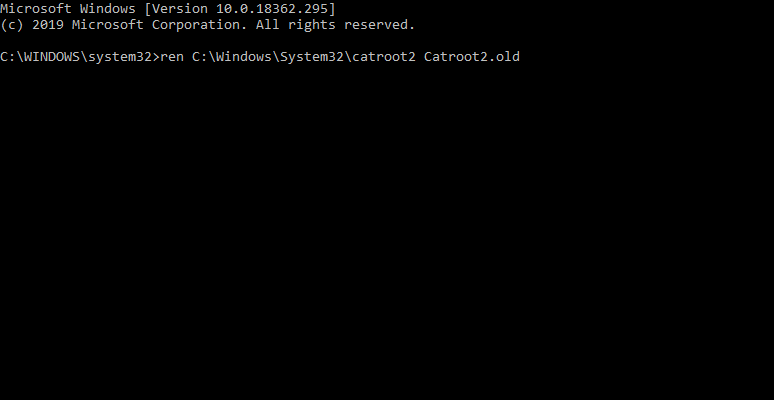
ren C:WindowsSystem32catroot2 Catroot2.old - Чтобы перезапустить Центр обновления Windows, введите приведенные ниже команды по отдельности:
net start wuauserv
net stop cryptSvc
net stop bits
net stop msiserver
Перезапуск Центра обновления Windows может исправить эту службу и ошибку NET HELPMSG 2182. Для этого выполните шаги, описанные выше, в точном порядке.
5. Сбросьте кэш Магазина Microsoft.
- Введите командную строку в поле поиска Windows 10.
- Щелкните правой кнопкой мыши командную строку, чтобы выбрать пункт контекстного меню « Запуск от имени администратора ».
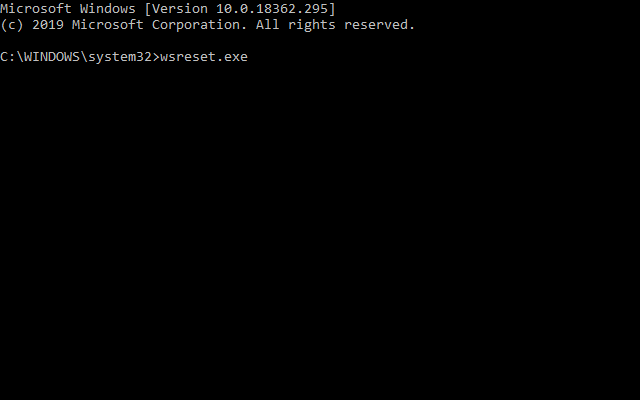
- Затем введите wsreset.exe в окне командной строки и нажмите кнопку «Возврат».
- Перезагрузите Windows после очистки кеша MS Store.
Это решение предназначено для пользователей, которым необходимо исправить ошибку NET HELPMSG 2182 для MS Store. Выйдите из MS Store перед очисткой кэша.
Приведенные выше решения исправили ошибку NET HELPMSG 2182 для некоторых пользователей. Таким образом, они являются наиболее вероятными решениями проблемы.
Если у вас есть какие-либо другие предложения, которые мы должны включить сюда, пожалуйста, напишите нам комментарий ниже.
 |
Номер ошибки: | Ошибка 3534 |
| Название ошибки: | Net Error 3534 | |
| Описание ошибки: | Ошибка 3534: Возникла ошибка в приложении .NET Framework. Приложение будет закрыто. Приносим извинения за неудобства. | |
| Разработчик: | Microsoft Corporation | |
| Программное обеспечение: | .NET Framework | |
| Относится к: | Windows XP, Vista, 7, 8, 10, 11 |
Фон «Net Error 3534»
«Net Error 3534» часто называется ошибкой во время выполнения (ошибка). Разработчики программного обеспечения пытаются обеспечить, чтобы программное обеспечение было свободным от этих сбоев, пока оно не будет публично выпущено. Хотя эти превентивные действия принимаются, иногда ошибки, такие как ошибка 3534, будут пропущены.
«Net Error 3534» может возникнуть у пользователей .NET Framework даже при нормальном использовании приложения. Когда это происходит, конечные пользователи программного обеспечения могут сообщить Microsoft Corporation о существовании ошибки 3534 ошибок. Microsoft Corporation может устранить обнаруженные проблемы, а затем загрузить измененный файл исходного кода, позволяя пользователям обновлять свою версию. Если есть уведомление об обновлении .NET Framework, это может быть решением для устранения таких проблем, как ошибка 3534 и обнаруженные дополнительные проблемы.
Что вызывает ошибку времени выполнения 3534?
Вполне вероятно, что при загрузке .NET Framework вы столкнетесь с «Net Error 3534». Причины сбоев обработки можно отличить, классифицируя ошибки 3534 следующим образом:.
Ошибка 3534 Crash — Номер ошибки вызовет блокировка системы компьютера, препятствуя использованию программы. Это происходит много, когда продукт (.NET Framework) или компьютер не может обрабатывать уникальные входные данные.
Утечка памяти «Net Error 3534» — когда происходит утечка памяти .NET Framework, это приведет к вялой работе операционной системы из-за нехватки системных ресурсов. Есть некоторые потенциальные проблемы, которые могут быть причиной получения проблем во время выполнения, с неправильным кодированием, приводящим к бесконечным циклам.
Ошибка 3534 Logic Error — Логическая ошибка возникает, когда ПК производит неправильный вывод, даже когда пользователь вводит правильный вход. Это может произойти, когда исходный код Microsoft Corporation имеет уязвимость в отношении передачи данных.
В большинстве случаев проблемы с файлами Net Error 3534 связаны с отсутствием или повреждением файла связанного .NET Framework вредоносным ПО или вирусом. Большую часть проблем, связанных с данными файлами, можно решить посредством скачивания и установки последней версии файла Microsoft Corporation. Кроме того, регулярная очистка и оптимизация реестра Windows предотвратит создание неправильных ссылок на пути к файлам Microsoft Corporation, поэтому мы настоятельно рекомендуем регулярно выполнять сканирование реестра.
Типичные ошибки Net Error 3534
Усложнения .NET Framework с Net Error 3534 состоят из:
- «Ошибка в приложении: Net Error 3534»
- «Net Error 3534 не является программой Win32. «
- «Net Error 3534 должен быть закрыт. «
- «К сожалению, мы не можем найти Net Error 3534. «
- «Отсутствует файл Net Error 3534.»
- «Ошибка запуска программы: Net Error 3534.»
- «Net Error 3534 не выполняется. «
- «Ошибка Net Error 3534. «
- «Ошибка в пути к программному обеспечению: Net Error 3534. «
Обычно ошибки Net Error 3534 с .NET Framework возникают во время запуска или завершения работы, в то время как программы, связанные с Net Error 3534, выполняются, или редко во время последовательности обновления ОС. Запись ошибок Net Error 3534 внутри .NET Framework имеет решающее значение для обнаружения неисправностей электронной Windows и ретрансляции обратно в Microsoft Corporation для параметров ремонта.
Корень проблем Net Error 3534
Заражение вредоносными программами, недопустимые записи реестра .NET Framework или отсутствующие или поврежденные файлы Net Error 3534 могут создать эти ошибки Net Error 3534.
В частности, проблемы Net Error 3534 возникают через:
- Недопустимый Net Error 3534 или поврежденный раздел реестра.
- Вредоносные программы заразили Net Error 3534, создавая повреждение.
- Net Error 3534 злонамеренно или ошибочно удален другим программным обеспечением (кроме .NET Framework).
- Net Error 3534 конфликтует с другой программой (общим файлом).
- Поврежденная установка или загрузка .NET Framework (Net Error 3534).
Продукт Solvusoft
Загрузка
WinThruster 2022 — Проверьте свой компьютер на наличие ошибок.
Совместима с Windows 2000, XP, Vista, 7, 8, 10 и 11
Установить необязательные продукты — WinThruster (Solvusoft) | Лицензия | Политика защиты личных сведений | Условия | Удаление
Check the status of the BITS service first to get a clear overview.
by Matthew Adams
Matthew is a freelancer who has produced a variety of articles on various topics related to technology. His main focus is the Windows OS and all the things… read more
Updated on October 26, 2022
Reviewed by
Vlad Turiceanu

Passionate about technology, Windows, and everything that has a power button, he spent most of his time developing new skills and learning more about the tech world. Coming… read more
- The NET HELPMSG 2182 error is a direct consequence of an unsolved problem with the BITS service.
- Check the status of the Background Intelligent Transfer Service or go ahead and use the dedicated troubleshooter.
- We also include a tool that will automatically perform the checks for you, so make sure you check it out.
XINSTALL BY CLICKING THE DOWNLOAD FILE
This software will repair common computer errors, protect you from file loss, malware, hardware failure and optimize your PC for maximum performance. Fix PC issues and remove viruses now in 3 easy steps:
- Download Restoro PC Repair Tool that comes with Patented Technologies (patent available here).
- Click Start Scan to find Windows issues that could be causing PC problems.
- Click Repair All to fix issues affecting your computer’s security and performance
- Restoro has been downloaded by 0 readers this month.
The NET HELPMSG 2182 error arises for some users when trying to update Windows 10 or install new MS Store apps.
The full error message states Problem with BITS service: The requested service has already been started. System.Management.Automation.RemoteException More help is available by typing NET HELPMSG 2182. System.Management.Automation.RemoteException
Thus, this issue usually pertains to the BITS (Background Intelligent Transfer Service) that assists update downloads from Microsoft servers.
Naturally, one of the first things to do is check the status of the Background Intelligent Transfer Service.
- To do this, simply type services.msc in the search area and open the Services app.
- Locate the BITS Service and make sure its Startup type is set to Manual.
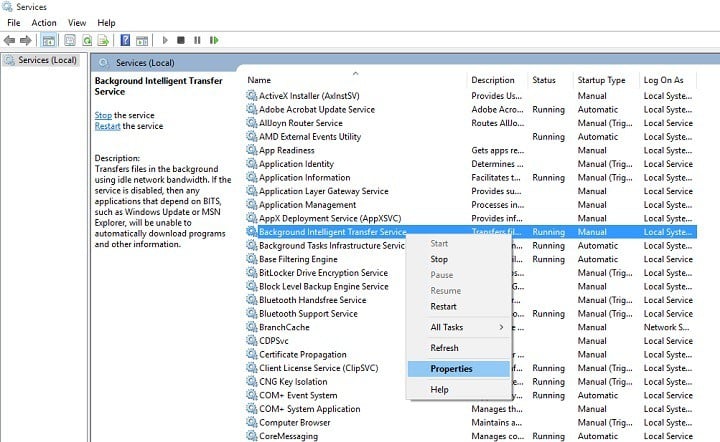
- Also, check the Status column and restart or start it should it be stopped.
Users can’t get Windows apps or updates when the NET HELPMSG 2182. system.management.automation.remoteexception error arises. If you encounter this issue, make sure you use our solutions below.
How do I fix the NET HELPMSG 2182 error in Windows 10?
- How do I fix the NET HELPMSG 2182 error in Windows 10?
- 1. Run the Windows Update troubleshooter
- 2. Run the BITS troubleshooter
- 3. Use a system repair software
- 4. Run a System File Checker scan
- 5. Restart the Windows Update process
- 6. Reset the Microsoft Store cache
1. Run the Windows Update troubleshooter
- Press the Windows key + S keyboard shortcut to open Settings.
- Select Update and Security.
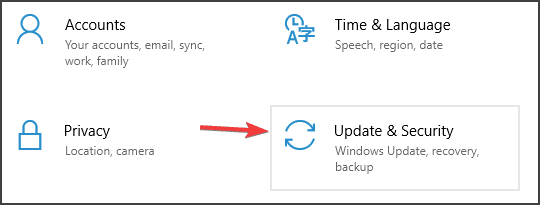
- Then you can click Troubleshoot from the left pane.
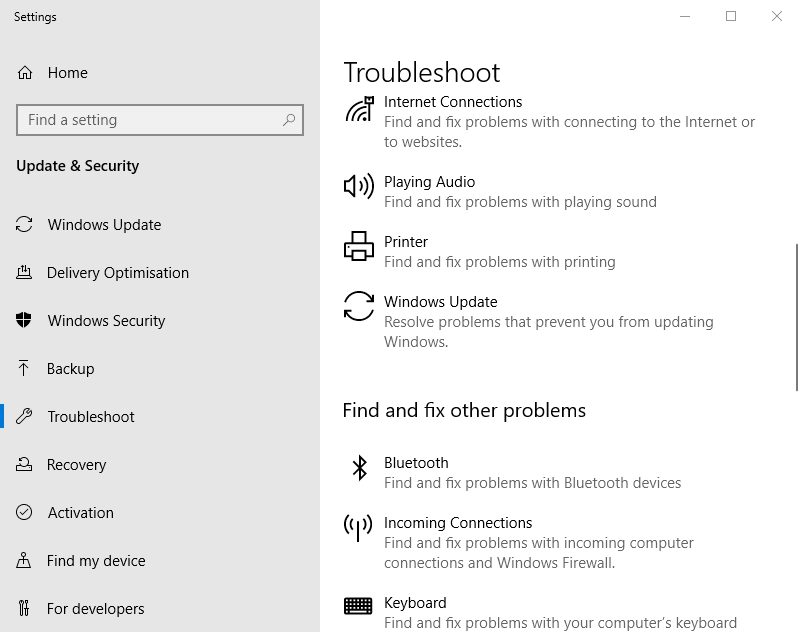
- Select Windows Update and click Run the troubleshooter to launch it.
- Then you can go through the Windows Update troubleshooter for potential fixes.
First, we will show you how to use the Windows Update troubleshooter, which can fix numerous update issues. This is a Windows built-in troubleshooting tool that can help you solve numerous issues.
2. Run the BITS troubleshooter
- To open the BITS troubleshooter, press the Windows + R keyboard shortcut.
- Enter Control Panel in the Open box, and select the OK option.
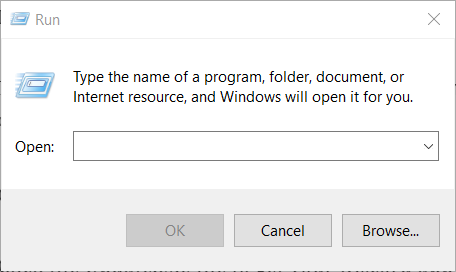
- Click Troubleshooting to open the Control Panel applet shown directly below.
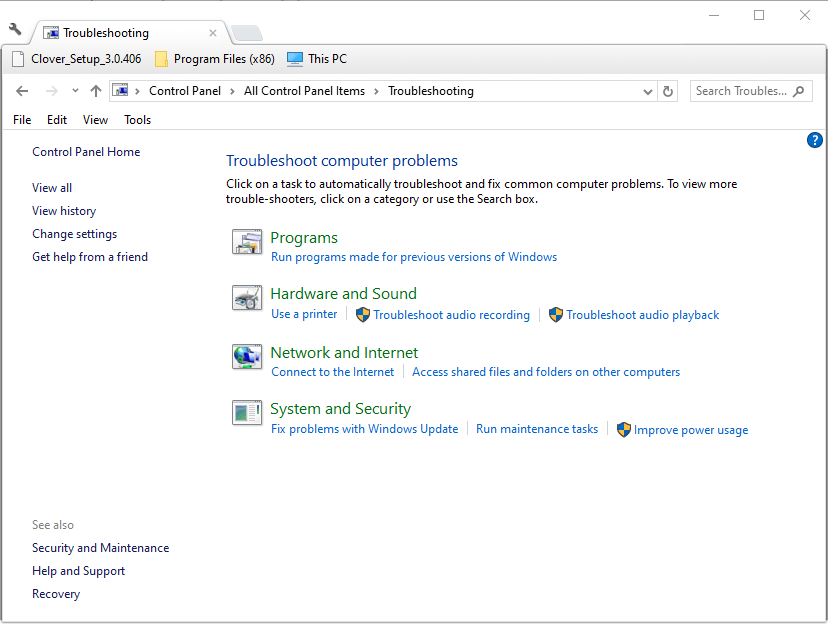
- Click View all on the left of the window to open the list of troubleshooters.
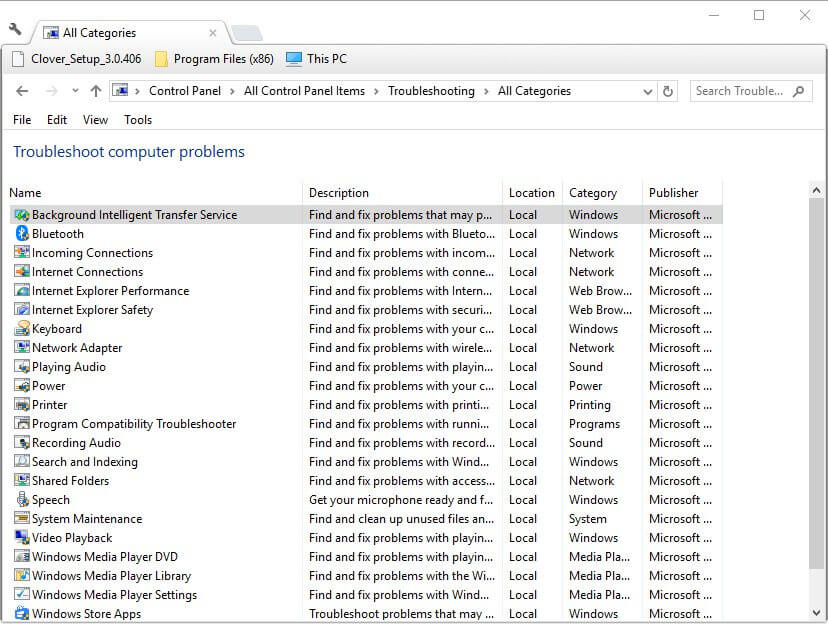
- Then click Background Intelligent Transfer Service to open that troubleshooter.
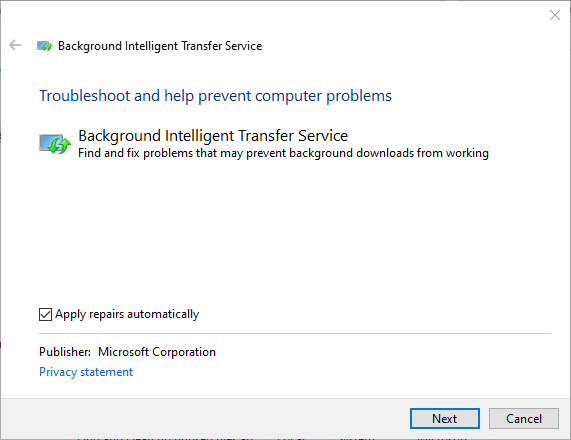
- Click Advanced to select the Apply repairs automatically option, and then press the Next button.
The Background Intelligent Transfer Service troubleshooter can fix BITS issues, which is what some users need to do to resolve the NET HELPMSG 2182 error.
- Werfault.exe Error on Windows 10: How to Fix & Main Causes
- Fix: Windows Cannot Access the Specified Device, Path or File
- Driver PNP Watchdog: 9 Easy Fixes For Windows
3. Use a system repair software
Even though you can always repair your system manually by following detailed guides on the topic, having good PC repair software at your disposal can simplify the entire process considerably.
Moreover, it can prevent your PC from encountering other similar issues in the future.
Restoro is a complex Windows system repair solution that scans your PC for various issues and fixes all critical system files and registry errors, as well as the damage left by viruses (not antivirus software). With a few clicks, the program frees up space on your disk and restores all compromised Windows settings to their default value.
Here’s how you can perform this action:
- Download and install Restoro.
- Launch Restoro.
- Wait for it to find any system stability issues and possible malware infections.
- Press Start Repair.
- Restart your PC for all the changes to take effect.
Restoro’s technology replaces severely damaged Windows system files with clean, up-to-date ones from its secure online database. You can allow it to perform this action without harming your user data.
This the ideal all-in-one tool for fixing Windows errors, PC crashes, or registry issues. It can boost the performance of your device and make it more secure within a few minutes.
⇒ Get Restoro
Disclaimer: This program needs to be upgraded from the free version in order to perform some specific actions.
4. Run a System File Checker scan
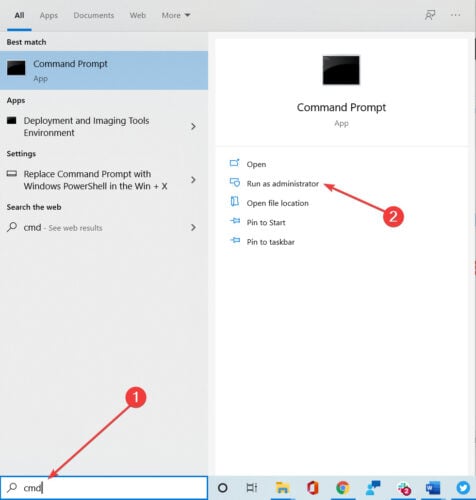
- Type cmd in the Windows search bar.
- Select the Command Prompt (Admin) option to launch an elevated Prompt window.
- Before initiating the SFC scan, enter the following command in the Command Prompt and press Return to fix Windows 10 image corruptions.
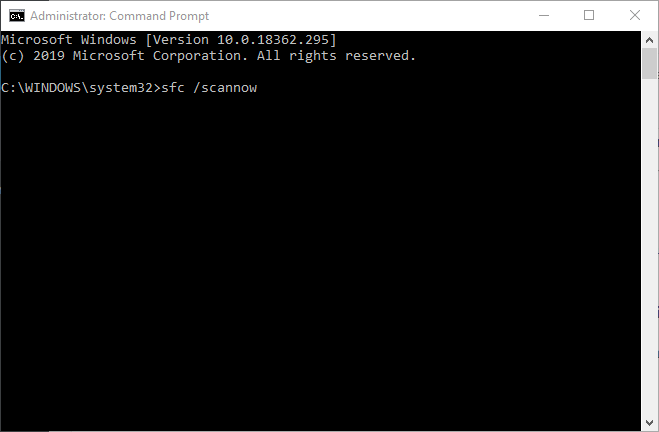
DISM /Online /Cleanup-Image /RestoreHealth - Enter sfc /scannow and press Return to run the System File Checker scan, which might take about half an hour or longer.
- Restart the desktop or laptop if the SFC scan does repair system files.
System File Checker scans can fix BITS errors and corrupted system files. It is another great Windows built-in troubleshooting tool you can use for various issues.
If the SFC scan stops completely on your PC before repairing the files, you can fix the problem by following the right methods.
5. Restart the Windows Update process
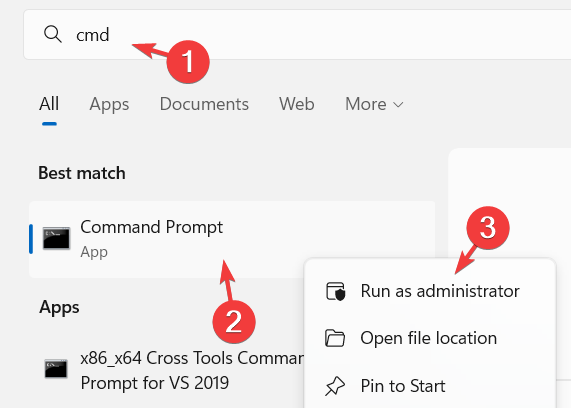
1. Press the Windows key and type cmd in the search box.
2. Right-click on the result for Command Prompt and select Run as Administrator.
Some PC issues are hard to tackle, especially when it comes to corrupted repositories or missing Windows files. If you are having troubles fixing an error, your system may be partially broken.
We recommend installing Restoro, a tool that will scan your machine and identify what the fault is.
Click here to download and start repairing.
3. Input the following commands (and press Enter after entering each one) to turn off Windows Update:
net stop wuauserv

net stop cryptSvc

net stop bits

net stop msiserver
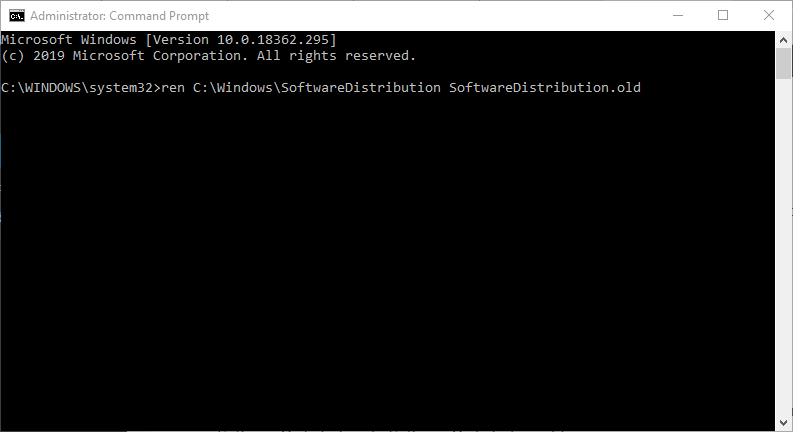
4. Next, input the below command and press Enter. That command will rename SoftwareDistribution to SoftwareDistribution.old:
C:WindowsSoftwareDistribution SoftwareDistribution.old
5. Then type the next command and press Enter: ren C:WindowsSystem32catroot2 Catroot2.old
6. To restart Windows Update, input the commands below separately, and press Enter after each one:
net start wuauserv

net stop cryptSvc

net stop bits

net stop msiserver
Restarting Windows Update might fix that service and the NET HELPMSG 2182 error. To do this, follow the steps above closely in exact order. You only need to use Command Prompt with administrator rights.
On a side note, these steps will also help if you’re having trouble with the Windows Update service itself.
6. Reset the Microsoft Store cache
- Enter Command Prompt in Windows 10’s search box.
- Right-click Command Prompt to select its Run as administrator context menu option.
- Then enter wsreset.exe in the Command Prompt window, and press the Return button.
- Restart Windows after clearing the MS Store cache.
This resolution is more specifically for users who need to fix the NET HELPMSG 2182 error for MS Store. Sign out of the MS Store before clearing its cache.
If you notice that Microsoft Store is not loading, be sure to tackle the issue with confidence (as always, we got your back!).
The resolutions above have fixed the NET HELPMSG 2182 error for some users. So, they are the most probable fixes for the issue.
If you have any other suggestions that we should include here, please write us a comment below.
Still having issues? Fix them with this tool:
SPONSORED
If the advices above haven’t solved your issue, your PC may experience deeper Windows problems. We recommend downloading this PC Repair tool (rated Great on TrustPilot.com) to easily address them. After installation, simply click the Start Scan button and then press on Repair All.
Newsletter
Check the status of the BITS service first to get a clear overview.
by Matthew Adams
Matthew is a freelancer who has produced a variety of articles on various topics related to technology. His main focus is the Windows OS and all the things… read more
Updated on October 26, 2022
Reviewed by
Vlad Turiceanu
Passionate about technology, Windows, and everything that has a power button, he spent most of his time developing new skills and learning more about the tech world. Coming… read more
- The NET HELPMSG 2182 error is a direct consequence of an unsolved problem with the BITS service.
- Check the status of the Background Intelligent Transfer Service or go ahead and use the dedicated troubleshooter.
- We also include a tool that will automatically perform the checks for you, so make sure you check it out.
XINSTALL BY CLICKING THE DOWNLOAD FILE
This software will repair common computer errors, protect you from file loss, malware, hardware failure and optimize your PC for maximum performance. Fix PC issues and remove viruses now in 3 easy steps:
- Download Restoro PC Repair Tool that comes with Patented Technologies (patent available here).
- Click Start Scan to find Windows issues that could be causing PC problems.
- Click Repair All to fix issues affecting your computer’s security and performance
- Restoro has been downloaded by 0 readers this month.
The NET HELPMSG 2182 error arises for some users when trying to update Windows 10 or install new MS Store apps.
The full error message states Problem with BITS service: The requested service has already been started. System.Management.Automation.RemoteException More help is available by typing NET HELPMSG 2182. System.Management.Automation.RemoteException
Thus, this issue usually pertains to the BITS (Background Intelligent Transfer Service) that assists update downloads from Microsoft servers.
Naturally, one of the first things to do is check the status of the Background Intelligent Transfer Service.
- To do this, simply type services.msc in the search area and open the Services app.
- Locate the BITS Service and make sure its Startup type is set to Manual.
- Also, check the Status column and restart or start it should it be stopped.
Users can’t get Windows apps or updates when the NET HELPMSG 2182. system.management.automation.remoteexception error arises. If you encounter this issue, make sure you use our solutions below.
How do I fix the NET HELPMSG 2182 error in Windows 10?
- How do I fix the NET HELPMSG 2182 error in Windows 10?
- 1. Run the Windows Update troubleshooter
- 2. Run the BITS troubleshooter
- 3. Use a system repair software
- 4. Run a System File Checker scan
- 5. Restart the Windows Update process
- 6. Reset the Microsoft Store cache
1. Run the Windows Update troubleshooter
- Press the Windows key + S keyboard shortcut to open Settings.
- Select Update and Security.
- Then you can click Troubleshoot from the left pane.
- Select Windows Update and click Run the troubleshooter to launch it.
- Then you can go through the Windows Update troubleshooter for potential fixes.
First, we will show you how to use the Windows Update troubleshooter, which can fix numerous update issues. This is a Windows built-in troubleshooting tool that can help you solve numerous issues.
2. Run the BITS troubleshooter
- To open the BITS troubleshooter, press the Windows + R keyboard shortcut.
- Enter Control Panel in the Open box, and select the OK option.
- Click Troubleshooting to open the Control Panel applet shown directly below.
- Click View all on the left of the window to open the list of troubleshooters.
- Then click Background Intelligent Transfer Service to open that troubleshooter.
- Click Advanced to select the Apply repairs automatically option, and then press the Next button.
The Background Intelligent Transfer Service troubleshooter can fix BITS issues, which is what some users need to do to resolve the NET HELPMSG 2182 error.
- Werfault.exe Error on Windows 10: How to Fix & Main Causes
- Fix: Windows Cannot Access the Specified Device, Path or File
3. Use a system repair software
Even though you can always repair your system manually by following detailed guides on the topic, having good PC repair software at your disposal can simplify the entire process considerably.
Moreover, it can prevent your PC from encountering other similar issues in the future.
Restoro is a complex Windows system repair solution that scans your PC for various issues and fixes all critical system files and registry errors, as well as the damage left by viruses (not antivirus software). With a few clicks, the program frees up space on your disk and restores all compromised Windows settings to their default value.
Here’s how you can perform this action:
- Download and install Restoro.
- Launch Restoro.
- Wait for it to find any system stability issues and possible malware infections.
- Press Start Repair.
- Restart your PC for all the changes to take effect.
Restoro’s technology replaces severely damaged Windows system files with clean, up-to-date ones from its secure online database. You can allow it to perform this action without harming your user data.
This the ideal all-in-one tool for fixing Windows errors, PC crashes, or registry issues. It can boost the performance of your device and make it more secure within a few minutes.
⇒ Get Restoro
Disclaimer: This program needs to be upgraded from the free version in order to perform some specific actions.
4. Run a System File Checker scan
- Type cmd in the Windows search bar.
- Select the Command Prompt (Admin) option to launch an elevated Prompt window.
- Before initiating the SFC scan, enter the following command in the Command Prompt and press Return to fix Windows 10 image corruptions.
DISM /Online /Cleanup-Image /RestoreHealth - Enter sfc /scannow and press Return to run the System File Checker scan, which might take about half an hour or longer.
- Restart the desktop or laptop if the SFC scan does repair system files.
System File Checker scans can fix BITS errors and corrupted system files. It is another great Windows built-in troubleshooting tool you can use for various issues.
If the SFC scan stops completely on your PC before repairing the files, you can fix the problem by following the right methods.
5. Restart the Windows Update process
1. Press the Windows key and type cmd in the search box.
2. Right-click on the result for Command Prompt and select Run as Administrator.
Some PC issues are hard to tackle, especially when it comes to corrupted repositories or missing Windows files. If you are having troubles fixing an error, your system may be partially broken.
We recommend installing Restoro, a tool that will scan your machine and identify what the fault is.
Click here to download and start repairing.
3. Input the following commands (and press Enter after entering each one) to turn off Windows Update:
net stop wuauserv

net stop cryptSvc

net stop bits

net stop msiserver
4. Next, input the below command and press Enter. That command will rename SoftwareDistribution to SoftwareDistribution.old:
C:WindowsSoftwareDistribution SoftwareDistribution.old
5. Then type the next command and press Enter: ren C:WindowsSystem32catroot2 Catroot2.old
6. To restart Windows Update, input the commands below separately, and press Enter after each one:
net start wuauserv

net stop cryptSvc

net stop bits

net stop msiserver
Restarting Windows Update might fix that service and the NET HELPMSG 2182 error. To do this, follow the steps above closely in exact order. You only need to use Command Prompt with administrator rights.
On a side note, these steps will also help if you’re having trouble with the Windows Update service itself.
6. Reset the Microsoft Store cache
- Enter Command Prompt in Windows 10’s search box.
- Right-click Command Prompt to select its Run as administrator context menu option.
- Then enter wsreset.exe in the Command Prompt window, and press the Return button.
- Restart Windows after clearing the MS Store cache.
This resolution is more specifically for users who need to fix the NET HELPMSG 2182 error for MS Store. Sign out of the MS Store before clearing its cache.
If you notice that Microsoft Store is not loading, be sure to tackle the issue with confidence (as always, we got your back!).
The resolutions above have fixed the NET HELPMSG 2182 error for some users. So, they are the most probable fixes for the issue.
If you have any other suggestions that we should include here, please write us a comment below.
Still having issues? Fix them with this tool:
SPONSORED
If the advices above haven’t solved your issue, your PC may experience deeper Windows problems. We recommend downloading this PC Repair tool (rated Great on TrustPilot.com) to easily address them. After installation, simply click the Start Scan button and then press on Repair All.
Newsletter
При использовании команды net start mysql сообщается об ошибке,
Служба mysql запускается:
Служба mysql не может быть запущена.
Служба не сообщала об ошибках.
Пожалуйста, введите NET HELPMSG 3534 для получения дополнительной помощи.
Объяснение: Эта проблема возникла при переустановке mysql5.7.28. (Не по теме: Поскольку я впервые установил версию mysql 5.5.x, эта версия не поддерживает наличие в таблице двух полей, содержащих тип отметки времени. Поэтому я решил переустановить MySQL).
Причиной возникновения этой ошибки является: версия mysql установочного пакета zip, которую я скачал на официальном сайте (ниже указан адрес загрузки). После разархивирования папки mysqlData нет, поэтому при запуске установки возникла ошибка. (Не возможно создать свой собственный)
https://dev.mysql.com/downloads/mysql/


Решение заключается в следующем: откройте cmd с правами администратора, войдите в папку bin в каталоге установки mysql, который вы скачали, и используйте mysqld —initialize-insecure, как показано на рисунке ниже (время будет немного больше при первом его использовании). Команда не возвращается, и затем вы можете запустить mysql, используя net start mysql.
mysqld --initialize-insecure // Восстановление папки mysqlData

Давайте продолжим ворчать. При решении этой проблемы мое первое решение — использовать netstat -ano для проверки занятости порта 3306. Однако нет. (Если это так, мы можем использовать команду taskkill / f / pid PID для завершения процесса. PID — это PID, соответствующий порту 3306, который вы видели при использовании netstat -ano).
netstat -ano // команда для просмотра номера портаКроме того, вы можете использовать команду mysqld —console для просмотра информации mysql. (Вы можете просмотреть информацию о времени выполнения MySQL, чтобы облегчить поиск проблемы)
Выше я надеюсь помочь тем, кто сталкивается с той же ошибкой!
И есть, это блог трех больших парней, на которых я ссылаюсь, за !!
https://blog.csdn.net/shinny195/article/details/82319218
https://blog.csdn.net/weixin_43250455/article/details/88372731
https://blog.csdn.net/qq_29250265/article/details/94460442