Microsoft Teams is reliable for providing the best security and maintaining a stable connection. People from every sector are now using Teams for remote work and its cross-platform support.
But sometimes, Microsoft Teams throws a Caa30194 error to its user when they try to connect. Usually, the error appears when you don’t use the app for a while, or multiple users use your PC.
However, we’ve discovered that the error only appears in the desktop client. The application works completely fine on mobile and web clients. As a fellow desktop client user, I’ve also faced the same problem, and I understand your frustration.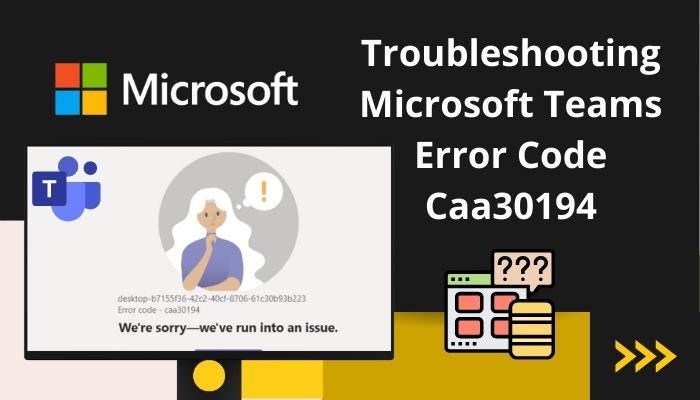
This article will help you to figure out all the reasons and the appropriate solutions to your problem. Let’s get this done!
Check out our separate post on how to Fix Microsoft Teams Error 0xcaa80000
Error code Caa30194 occurs when the user tries to log into the desktop client, but the application fails to connect with the server. When users encounter this issue, Microsoft Teams will show a We are sorry – we’ve run into an issue message and a Caa30194 code at the bottom left corner.
The problem mainly happens because of damaged temporary and cache files, corrupted JSON files, and security reasons. I’ve found that the error only shows up in the desktop client. The mobile version or web client user doesn’t face this error.
One of the main reasons can be Microsoft Teams desktop client is designed to use modern web technology. On the other hand, the web client is developed on Electron and uses Chromium for rendering.
After extensive research, I’ve found the reasons behind the error Caa30194 and the proper solutions for your problem. Read the complete article to learn about the cause and the ways to fix them.
Also, check out our separate post on how to Troubleshoot Microsoft Teams Error 80090016
The Reasons Behind Microsoft Teams Error Code Caa30194
Microsoft Teams error code Caa30194 appears due to corrupted temporary files, cache, and JSON files. Also, disabling the TLS option, using incompatible devices, and damaged profiles can create a connection issue in the Microsoft Teams desktop client.
You will get a better understanding by reading about the reasons widely. Read the following passage to learn more about the reasons.
Here are the reasons behind Microsoft Teams error code Caa30194:
Corrupted Temporary and Cache Files
Temporary and cache file stores all your data and information in the Microsoft Teams installed directory. They can contain bugs & issues and may get corrupted over time. It hampers the network connection and shows errors while logging in to the Teams application.
Check out our latest fix for Microsoft Teams Error 80090030.
JSON Files Issue
Microsoft Teams JSON file contains config, authorization, settings, sessions, and updates. These files may get damaged or corrupted, which can cause a Caa30194 error after opening Microsoft Teams.
Disabled TLS Option
Transport Layer Security TLS provides a secure connection while transferring your data over the network. Your device turns off the connection when it detects any breaching or insecurity.
TLS gives security at that moment and maintains the communication. But, your device fails to establish a connection in the Teams application when the TLS option is disabled.
Compatibility Problem
Your current version of Microsoft Teams can be incompatible with your device. Also, Windows plays a significant factor in software compatibility. Your device settings can affect the compatibility with Teams.
Profile Issue
Your data and information stored in the profile can be affected by corruption and bugs. A corrupted or bugged profile can obstruct you from connecting with the network.
You will find the solution effortless after reading all the causes behind the error. Once you read the reasons, let’s jump into the solutions.
Also, check out our separate post on how to fix Microsoft Teams you can’t send messages error.
How to Fix Microsoft Teams Error Code Caa30194?
Error code Caa30194 in Microsoft Teams can be fixed by clearing the temporary & cache files, deleting the JSON file, and enabling the TLS option. Additionally, you can change the compatibility mode, create a new profile and reinstall Microsoft Teams apps to solve the problem.
There are additional solutions to solve the error code Caa30194 in the Teams application. Consider reading the full articles to learn about them.
Here are the steps to fix Microsoft Teams Error Code Caa30194:
1. Clear Microsoft Teams Temporary Files and Cache
Temporary files and cache in your Microsoft Teams directory can store data and information over time. The files can be corrupted, which causes the error code Caa30194 in your application. You need to delete the temporary files and cache from the application directory.
Here are the ways to delete temporary files and cache of Microsoft Teams:
Log in with your account and check if the issue is still appearing.
Follow our guide on Microsoft Teams Lock Files
2. Delete the JSON file
Some JSON files in the Microsoft Teams installation folder contain config, settings, and session information. These files can prevent users from connecting to Microsoft Teams if they get corrupted. Delete all the JSON files from the installed directory.
Here is the procedure to delete the Microsoft Teams JSON file:
- Close Microsoft Teams.
- Open the Run dialog box, pressing the Win + R button together.
- Paste %appdata%Microsoftteams in the dialog box and press the Enter button.
- Find all the JSON files and delete them.
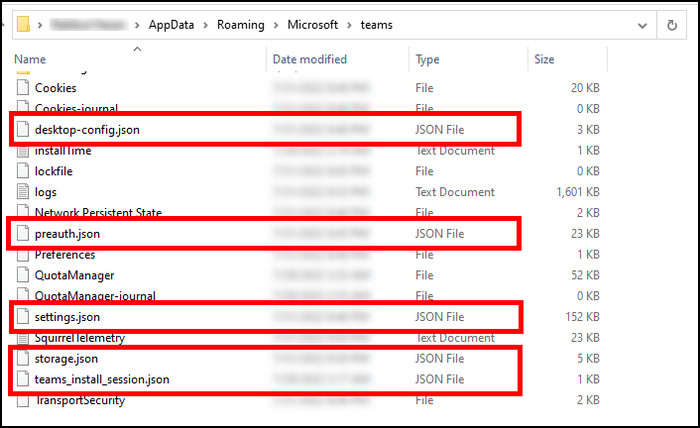
- Open Microsoft Teams again.
Reopening the Teams application re-creates the JSON file automatically. Your problem should be resolved if the JSON files are damaged or corrupted.
3. Enable TLS 1.0 / 1.1 and 1.2
Transport Layer Security TLS is an encryption protocol to keep the data and information safe when transferred via the network. Enabling the TLS will keep your data secure if it finds any insecurity during the data transmission.
Here are the processes to enable TLS 1.0/1.1 and 1.2:
- Search Internet Options from the Windows search box.
- Navigate to the Advanced tab.
- Scroll to the Settings list and go to the Security tab.
- Check all the boxes named TLS 1.0, 1.1, and 1.2.
- Confirm the changes by pressing OK.
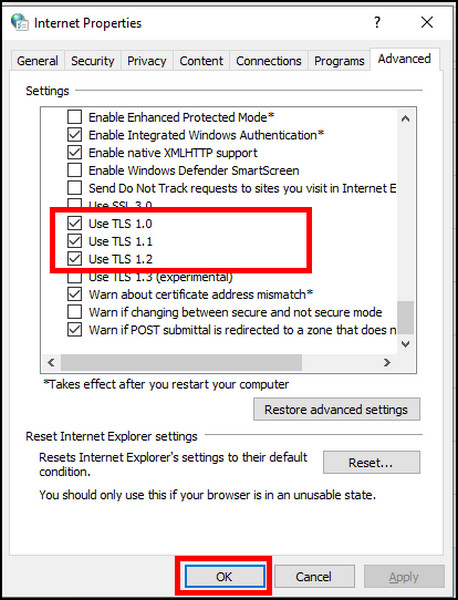
- Open Microsoft Teams to check if the issue is solved.
Generally, TLS 1.2 is enabled by default. Your Microsoft Teams should connect properly after enabling the TLS options.
Quickly check out our epic guide on Microsoft Teams set out of office alerts.
4. Change the Compatibility Mode
You may face compatibility issues because of your device configuration or changing some settings. Users have mentioned that changing the compatibility mode has fixed the problem with the error code Caa30194.
Here are the steps to change the compatibility mode:
- Find the Microsoft Teams from the Windows search box.
- Right-click on Microsoft Teams application.
- Tap on Open the file location.
- Right-click on Teams and select Properties.
- Go to the Compatibility window.
- Check the box labeled as Run this program in compatibility mode for.
- Select Windows 8 from the drop-down menu.
- Press on OK to confirm.
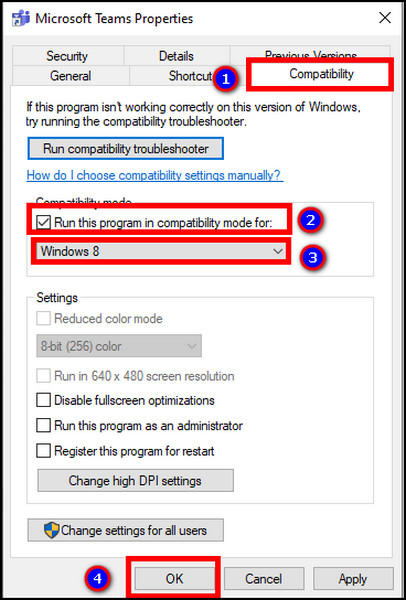
- Open the application.
The compatibility mode should solve all the application support issues and settings problems. Follow the procedures below if the issue persists.
Follow our guide on Microsoft Teams See Myself During Calls
5. Reinstall Microsoft Teams
Reinstalling Microsoft Teams clears all the cache and temporary files from the installed directory. A fresh install should solve your connection problem and fix the error code Caa30194.
Here is the procedure to reinstall Microsoft Teams on a PC:
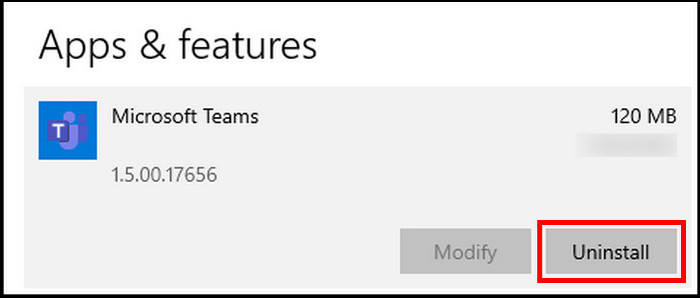
- Navigate to Apps & Features.
- Find Microsoft Teams from the list.
- Press on the application.
- Tap on Uninstall.
- Visit the Microsoft website and download the latest Teams for your computer.
- Go to the downloaded folder and install the application.
- Open Microsoft Teams and log in with your account.
Check out the easiest way to enable equation editor in Microsoft Word.
6. Create a New Profile
A corrupted profile can prevent you from connecting to the Teams application. Users have suggested that opening a new account has solved their connection issue.
So, create a new profile to avoid any connection error.
Here is the way to create a new profile:
Follow our guide on how to Microsoft Teams: How to Adjust Camera Brightness
7. Use Microsoft Teams Mobile/Web Version
After some good research, we’ve found that the error code Caa30194 only appears on the desktop client. The Microsoft Teams mobile and web versions don’t face this connection error. You can use the Teams mobile and web client to get rid of the error.
Here is the process for using the Microsoft Teams web client:
- Open your browser from the desktop.
- Visit Microsoft Teams web client and log in with your account.
To install Teams on your mobile device, follow the procedures below.
Here are the steps to install Microsoft Teams on Android:
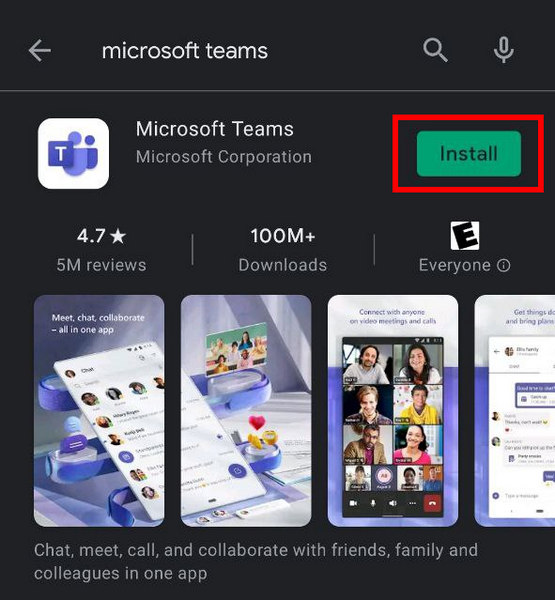
- Go Play Store from your android.
- Type Microsoft Teams from the search box.
- Tap on Install.
- Open the apps after completing the installation process.
Here is the procedure to install Teams on iOS:
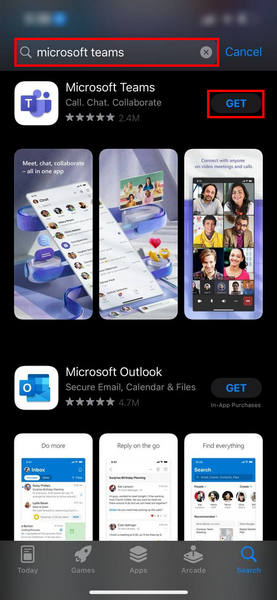
- Open the App Store on your iOS.
- Search Microsoft Teams.
- Tap on Get to install the application.
- Open the application and log in with your account.
Check out our separate post on how to Fix Microsoft Teams Hyperlinks Not Working
8. Contact Support
The above solutions should fix all your connection issues regarding the error code Caa30194. If you are still facing the problem, contact Microsoft support. They will provide further instructions and guidelines for your issue.
Frequently Asked Questions
Why do we need to clear Teams cache?
Clearing the Teams cache helps to resolve the sudden log-in issue and fix the gradually worsening performance problem.
How do I clear MS Teams cache?
To clear the MS Teams cache, open the Run dialog box > paste %appdata%MicrosoftteamsCache and press OK > delete all the files inside the cache folder.
What happens if you delete Teams cache?
Deleting the Teams cache files doesn’t clear any of your conversation or documentation from the Microsoft Teams. Teams rebuild all the temporary and cache files after reopening the program.
Conclusions
Microsoft Teams servers are reliable on every platform. Generally, users don’t face any downtime during their usage.
The Teams have taken the world by storm during and after the pandemic. For the massive traffic, users started facing issues in Teams.
In this article, I’ve provided the solutions to your Caa30194 error, and I believe you’ve been able to log in again in Microsoft Teams.
Cheers!
- Remove From My Forums
-
Question
-
When trying to logon to my click and install Office using my Office 365 Account, recently I always get error 0xcaa30194 You need the internet for this…
I am online, I do not use a proxy, the same happens on different networks…. Below that message in the same box I see login.microsoftonline.com, I can manually browse that, I can also browse portal.office.com and I can successfully login to both. I also
can access my OneDrive files… My account recently changed from Cloud to AD Server (Azure AD Connect). But this shouldn’t be the problem, the point is I don’t get to the state that I shall redirected to my ADFS. This redirection happens when I manually browse
e.g. portal.office.com and it works fine.kr
Dieter
Answers
-
Finally I ended up restoring my PC, not just because of this, but also.
One more hint, I guess this issue is correlated with others like, Windows Store cannot go online anymore or Edge Browser also feels like you’re offline (no proxy settings, also no wrong proxy settings).
So, no real solution, but if this issue occurs and Windows Store also does not work, and Edge too…..
Dieter
-
Marked as answer by
Wednesday, March 21, 2018 6:01 PM
-
Marked as answer by
Microsoft Teams – это надежный продукт, предлагаемый Microsoft, как и другие ее услуги, но в последнее время многие пользователи сообщают об ошибке входа в Teams, такой как ошибка CAA2000B, на многочисленных форумах онлайн-поддержки. Проблема возникает, когда пользователь пытается войти в свою учетную запись. Ошибка крайне неприятна, поскольку не позволяет пользователям использовать MS Teams, что в конечном итоге останавливает их учебную / деловую работу. Это создает неблагоприятный опыт для конечных пользователей, поскольку напрямую влияет на их работу. Уведомление об ошибке выглядит следующим образом:

По каким причинам не удается войти в Microsoft Teams с кодом ошибки CAA2000B?
Мы перечислили некоторые причины этой проблемы после подробного изучения отзывов пользователей и технических органов. Эта проблема может возникнуть по любой из следующих причин:
Примечание. Прежде чем пытаться применить какое-либо решение, выйдите из приложения Microsoft Teams из диспетчера задач, чтобы не потерять данные. Кроме того, войдите в MS Teams с помощью веб-браузера, чтобы узнать, можете ли вы войти в систему. На всякий случай, эта ошибка вызвана исключительно вашим настольным приложением Microsoft Teams.
Решение 1. Сбросьте настройки Интернета
Как описано в разделе “Причины”, причиной этой проблемы может быть плохое подключение к Интернету или неправильные настройки Интернета. Пользователи смогли решить эту проблему после сброса сетевых настроек. Следуйте инструкциям ниже:
Решение 2. Очистите кеш Microsoft Teams
Как описано в разделе “Причины”, поврежденные данные кэша блокируют сертификаты аутентификации, что в конечном итоге вызывает рассматриваемую ошибку. Многие пользователи сообщают, что сброс / очистка данных кеша MS Teams помогли им решить эту проблему. В этом решении представлены методы как для Windows 10, так и для macOS. Пожалуйста, следуйте инструкциям вашей операционной системы, чтобы исправить эту ошибку.
Для пользователей Windows 10:
Для пользователей macOS:
/ Library / Application Support / Microsoft / Teams / Application Cache / Cache
/ Library / Application Support / Microsoft / Teams / blob_storage
/ Library / Application Support. / Microsoft / Teams / databases
/ Library / Application Support / Microsoft / Teams / GPUCache
/ Library / Application Support / Microsoft / Teams / IndexedDB
/ Library / Application Support / Microsoft / Teams / Local Storage
Решение 3. Полное удаление и переустановка MS Teams
Если очистка кеша Microsoft Teams не устранила вашу проблему, есть большая вероятность, что некоторые системные файлы Microsoft Teams повреждены. Простое решение – полностью удалить MS Teams и переустановить последнюю свежую копию. Это оказалось полезным решением для многих пользователей Интернета. Для этого следуйте инструкциям ниже:
Fix Troubleshooting Microsoft Teams Error caa30194

Due to the unforeseen global health problems that caught the entire world off guard, remote work has become increasingly common. As a result, many businesses and professionals now use collaboration tools to run their day-to-day activities and operate from home. With tens of millions of users, Microsoft Teams is one of the most common remote work and collaboration software globally.
In this post, we’ll look at a particular Microsoft Teams error that’s been troubling many people recently: error code caa30194. This error normally occurs when users attempt to log into the platform through the desktop client, but the connection is lost.
How to Fix Microsoft Teams Error caa30194
1. Clear the Teams cache
This effectively means you’ll be removing all Microsoft Teams temporary files from your computer. The measures are as follows:
1. Close the Microsoft Teams desktop client if it’s open.
2. Open File Explorer
3. Now, type %appdata%Microsoftteams to open the Teams directory then access the folders stored there.
4. Remove all files from the Cache folder by going to Cache.

To quickly access the App Cache, you can even type %appdata%Microsoftteamsapplication cachecache in File Explorer.
5. Go to the Blob_storage folder, then delete all the files you find in that folder.
You can access the Blob_storage folder straight by typing %appdata%Microsoftteamsblob_storage in File Explorer.
6. After that, go to the Databases folder (%appdata%Microsoftteamsdatabases), then do the same.
7. Now, open the GPUCache folder (%appdata%MicrosoftteamsGPUcache) then delete all the files.
9. Navigate to Local Storage (%appdata%MicrosoftteamsLocal Storage), then delete all the files stored in the respective folder.
10. Finally, the last step is to go to the tmp folder (%appdata%Microsoftteamstmp) then delete all the files.
Now, you can restart Microsoft Teams then check if the issue is gone.
2. Delete JSON files
Occasionally, your JSON files in the Teams installation location (%appdata%Microsoftteams) probably get corrupted, & this could potentially prevent users from logging in.
To fix this issue, delete all 4 JSON files along with the logs file from %appdata%Microsoftteams.

Restart Teams to get the JSON files you just removed automatically recreated. After that, see if you’re still having trouble signing into Teams.
3. Allow TLS 1.0 / 1.1 and 1.2 in Internet Options
Another choice is to use Internet Options to allow TLS 1.0 / 1.1 and 1.2. This fast method has been verified to work by many users, so give it a shot.
These settings seem to be needed for Microsoft Teams to function properly. To trigger TLS 1.0 / 1.1 and 1.2, follow these steps:
1. Go to Start, then type Internet Options
2. Double-click on the first result
3. Now go to the Advanced tab
4. Scroll down to the Security section

5. Must ensure TLS 1.1 and TLS 1.2 are checked.

6. Afterward, save the changes if you checked the TLS boxes & close Internet Options.
4. Reinstall the desktop app
As a last resort, you can even try uninstalling & reinstalling the Microsoft Teams desktop app.
1. Open the Settings app.
2. Go to App and select Apps & Features.
3. Locate Microsoft Teams.
4. Please choose it and tap on the Uninstall button.

5. Wait until the app is entirely installed and restart your computer.
6. Go to the official Microsoft Teams website, then download the app again.
7. Install it and now check if you can sign in.
5. Use the web or mobile version of Microsoft Teams
The good news is that error caa30194 doesn’t impact Microsoft Teams on the web or mobile devices. If you don’t want to reinstall the desktop software, you can use one of these versions as a workaround.
There are five possible solutions to the Microsoft Teams error caa30194. If you’re lucky, the problem will go away after you’ve tried the first solution. However, you may need to use all of the methods mentioned in this guide to resolve the issue.
Источники:
https://ddok. ru/kak-ispravit-ne-udaetsya-vojti-v-microsoft-teams-s-kodom-oshibki-caa2000b-v-windows-10/
https://www. techcreative. org/fix-troubleshooting-microsoft-teams-error-caa30194/
Код ошибки caa30194 teams

Microsoft Teams — это онлайн-инструмент для создания видеоконференций, который упрощает удаленную работу в реальном времени и позволяет обмениватся файлами, видео и т. д.
Программа MS Teams иногда выдает код ошибки CAA7000a. Это ошибка, связана с сетью, которая в основном возникает при использовании версии Teams для компьютера. В этой инструкции мы рассмотрим различные способы устранения ошибки Microsoft Teams CAA7000a.
Для исправления ошибки вы можете сделать следующее:
Авторизация на сайте
Приведенные в статье способы устранения ошибки Microsoft Teams caa7000 должные помочь. Но если вы используете офисный компьютер, лучше всего связаться с вашим системным администратором и попросить найти решение.
Если вы знаете другой способ исправлением, пожалуйста, напишите в комментариях ниже.
Источники:
https://www. techcreative. org/fix-troubleshooting-microsoft-teams-error-caa30194/
https://tech-geek. ru/microsoft-teams-error-caa7000a/