Во время игры в Monster Hunter Rise пользователи сообщали о фатальной ошибке D3D. В большинстве случаев сообщение об ошибке появляется у пользователя, чья система не соответствует минимальным требованиям для запуска игры. Эта проблема также распространена среди пользователей, которые разогнали графический процессор или запускают игру на высоких настройках. В этом посте представлены различные решения, которые можно попробовать, если вы столкнулись с фатальной ошибкой D3D в Monster Hunter Rise.
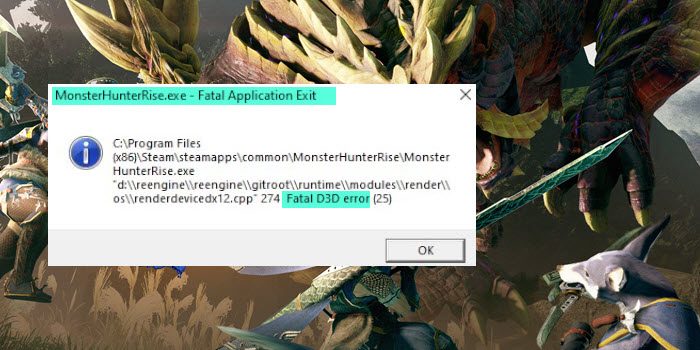
Что вызывает фатальную ошибку D3D в Monster Hunter Rise?
Одна из ситуаций, в которой вы столкнетесь с рассматриваемой проблемой, — это когда ваша система не соответствует минимальным требованиям для запуска игры. Но, к сожалению, это не единственный виновник. Ошибка может возникать и по следующим причинам.
- Если в вашей системе используется устаревший графический драйвер, вы, скорее всего, столкнетесь с последствиями в виде проблемы, описанной в вопросе.
- Если у вас слабый ПК; все еще запуская игру с высокими настройками, вы становитесь уязвимыми перед лицом проблемы.
- Проблема распространена среди пользователей, использующих разогнанный графический процессор. Таким образом, это также может быть основной причиной проблемы.
Ниже приведен список всех эффективных решений для устранения фатальных ошибок D3D в Monster Hunter Rise.
- Убедитесь, что система соответствует минимальным требованиям
- Изменить настройки графики
- Отключить разгон
- Проверить целостность файлов игры
- Запускать игры на низких настройках
- Обновить графический драйвер
- Обновите DirectX
- Вставьте -dx11 в поле запуска
Теперь давайте подробно рассмотрим все решения.
1]Убедитесь, что система соответствует минимальным требованиям
Прежде чем пробовать что-либо техническое, первое, что вы должны убедиться, это то, что ваша система соответствует минимальным требованиям для запуска игры. Ниже приведены минимальные требования, за которыми следуют рекомендуемые требования для запуска Monster Hunter Rise.
Минимум:
- ОС: Windows 10 (64-разрядная версия)
- Процессор: Intel i3-4130 или Core i5-3470 или AMD FX 6100
- Оперативная память: 8 ГБ ОЗУ
- Графика: NVIDIA GeForce GT 1030 (DDR4) или AMD Radeon RX 550
- DirectX: версия 12
- Бесплатное хранилище: 36 ГБ
Рекомендуемые:
- ОС: Windows 10 (64-разрядная версия)
- Процессор: Intel Core i5-4460 или AMD FX 8300
- Оперативная память: 8 ГБ ОЗУ
- Графика: NVIDIA GeForce GTX 1060 или AMD Radeon RX 570
- DirectX: версия 12
- Бесплатное хранилище: 36 ГБ
2]Измените настройки графики
Windows 11/10 поставляется с возможностью установки параметров производительности графики. Вы можете использовать эту функцию, чтобы отдать предпочтение GPU определенным приложениям. Вы можете установить высокую настройку Monster Hunter Rise, чтобы решить эту проблему. Вот как это сделать.
- Откройте «Настройки» и перейдите в «Система» > «Экран» > «Графика».
- Нажмите кнопку «Обзор» и выберите файл Monster Hunter Rise.exe.
- Как только файл будет добавлен в список, нажмите на него и установите для графических настроек значение «Высокая производительность».
- Нажмите Сохранить.
Теперь перезапустите игру, чтобы изменения вступили в силу. Проверьте, сохраняется ли проблема.
3]Отключить разгон
Без сомнения, разгон графического процессора гарантирует, что вы получите лучший игровой процесс. Но в то же время это имеет свои последствия для некоторых компьютеров. Разогнанный графический процессор может быть основной причиной сбоя и фатальной ошибки D3D в Monster Hunter Rise. Чтобы решить эту проблему, вы можете изменить настройки на значения по умолчанию и проверить, не сталкиваетесь ли вы с ошибкой. Надеюсь, вы не будете.
Читайте: действительно ли разгон ПК того стоит?
4]Проверьте целостность файлов игры.
Поврежденные игровые файлы и непрерывный игровой процесс несовместимы. Одной из основных причин рассматриваемой проблемы могут быть поврежденные или отсутствующие игровые файлы. Вот шаги, которые необходимо выполнить, чтобы проверить целостность файла игры.
- Запустите Steam и Открытую библиотеку.
- Щелкните правой кнопкой мыши Monster Hunter Rise и выберите «Свойства» в контекстном меню.
- Переключитесь на локальные файлы и нажмите «Проверить целостность файлов игры».
Дождитесь завершения процесса. После этого перезагрузите систему и проверьте наличие проблемы.
5]Запускайте игры на низких настройках
Если у вас есть устройство низкого уровня, на котором все еще работает игра в высокой спецификации, вы, скорее всего, столкнетесь с проблемой. Вам придется понизить игровые настройки, чтобы решить эту проблему. Вот изменения, которые вам нужно сделать.
- Откройте меню настроек в Monster Hunter Rise.
- Перейти к дисплею.
- Отключите вертикальную синхронизацию.
- Уменьшите настройки разрешения.
- Установите настройки графики на низкие.
- Вы также можете настроить дополнительные параметры графики, чтобы решить эту проблему.
См. Ускорение Direct 3D или DirectDraw недоступно в Windows 11.
6]Обновить графический драйвер
Запуск игры на устаревшем графическом драйвере — еще одна серьезная причина проблемы. В качестве решения загрузите последнее обновление графического драйвера и проверьте, не имеет ли оно значения.
7]Обновить DirectX
Обновление версии DirectX — еще одно эффективное решение в данной ситуации. Загрузите версию DirectX, установите ее и проверьте, решена ли проблема.
8]Вставьте -dx11 в поле запуска
По мнению многих пользователей проблема решалась запуском игры с параметрами -dx11. Вот как это сделать.
- Откройте Steam и перейдите в библиотеку.
- Щелкните правой кнопкой мыши Monster Hunter Rise и выберите «Свойства» в контекстном меню.
- Под опцией запуска добавьте -dx11.
Вот и все. Запустите игру, и вы увидите, что проблема больше не возникает.
Читайте: Monster Hunter Rise не запускается или вылетает при запуске на ПК
Почему Monster Hunter Rise продолжает падать?
Если ваша система не соответствует минимальным требованиям, вы, скорее всего, столкнетесь с проблемой сбоя. Проблема также возникает, если в вашей системе не установлен последний графический драйвер. Загрузите последнее обновление графического драйвера, чтобы устранить проблему.
Что такое ошибка D3D?
Ошибка D3D указывает на то, что ваша система не может запустить игру с примененными настройками. Сообщение об ошибке также появится, если в вашей системе не установлено последнее обновление драйвера или возникли проблемы с видеокартой. Устранить эту проблему очень легко.
Читать дальше: Resident Evil 7 Фатальный выход из приложения.
На чтение 2 мин Просмотров 50 Опубликовано 22 апреля, 2022
При запуске Monster Hunter Rise появляется ошибка Fatal D3D. Часто это происходит без каких-либо предпосылок. К счастью, пользователям Интернета удалось найти ряд методов, способных вылечить болезнь.
Содержание
- Сбросить частоты видеокарты
- Ограничение частоты кадров
- Force DirectX 11
Сбросить частоты видеокарты
Если вы недавно повышали частоты на своей видеокарте, попробуйте сбросить их до заводских настроек. Возможно, так вы избавитесь от ошибки Fatal D3D. Делать это только для одной игры — хлопотно, но если это поможет, оно того стоит. Мы рекомендуем сделать пару специальных пресетов в MSI Afterburner, между которыми вы сможете легко и быстро переключаться.

Рекомендуем: Гайд и советы Monster Hunter Rise Gunlance
Ограничение частоты кадров
<р>Некоторые пользователи утверждают, что им удалось избавиться от ошибки Fatal D3D, ограничив частоту кадров Monster Hunter Rise до 60 FPS. Реализовать ограничение можно по-разному, но проще всего запустить ввод статистики Rivatuner или панель управления вашей видеокарты (Nvidia, AMD, Intel). Ни с тем, ни с другим проблем быть не должно: выберите исполняемый файл игры и установите желаемое значение частоты кадров.
Force DirectX 11
DirectX 12 напрямую связан с фатальной ошибкой D3D об этом говорится в сообщении последнего. Однако судя по всему, Monster Hunter Rise может работать не только на DirectX 12, но и на DirectX 11. Чтобы перенести игру на другой API, нужно сделать следующее:
- Запустить клиент Steam ( от имени администратора);
- Нажмите правой кнопкой мыши на Monster Hunter Rise в библиотеке игры;
- Выберите «Свойства» и перейдите на вкладку «Общие»;
- Пропишите значение — dx 11 (без кавычек) в пустой строке параметров запуска.
Конечно, при запуске Monster Hunter Rise в этом режиме вы теряете графические преимущества DirectX 12, но Фатальная ошибка D3D должна исчезнуть, и, теоретически, вы получите более стабильную частоту кадров.
Ошибка Fatal D3D появляется при работе Monster Hunter Rise, причем внезапно и, как правило, без каких либо предпосылок. К счастью, Интернет-умельцы сумели найти ряд методов, которые способны, так сказать, «вылечить хворь».
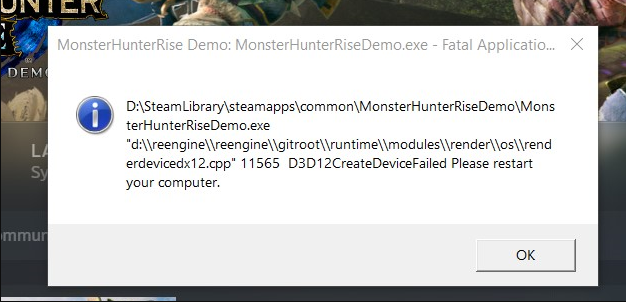
Решение №1 Сброс частот видеокарты
Разгон видеокарты — привычное дело для многих ПК-игроков. Далеко не каждый может позволить себе новую карту, особенно с текущими ценами на электронику. Лоу-энд прошлых поколений от 20-30 тысяч рублей — нет, спасибо. К сожалению, если верить сообщениям в сети, Monster Hunter Rise почему-то очень плохо ладит с повышением частот ядра и шины ГП.
Если вы недавно повышали частоты на своей видеокарте, пожалуйста, попробуйте вернуть их к заводским значениям. Возможно, таким образом вы и избавитесь от ошибки Fatal D3D. Делать подобное всего лишь для одной игры — та еще заморочка, но если это поможет — оно того стоит. Рекомендуем сделать в MSI Afterburner пару-тройку специальных пресетов, между которыми можно легко и быстро переключаться.
Решение №2 Ограничение кадровой частоты
Некоторые пользователи утверждают, что у них получилось избавиться от ошибки Fatal D3D, ограничив кадровую частоту Monster Hunter Rise до 60 FPS. Осуществить ограничение можно по-разному, но проще всего пустить вход Rivatuner Statistics либо панель управления своей видеокарты (Nvidia, AMD, Intel). Ни с тем, ни с другим проблем возникнуть не должно: выбираем исполняемый файл игры и задаем нужное значение для кадровой частоты.
Решение №3 Принудительное использование DirectX 11
DirectX 12 имеет прямое отношение к ошибке Fatal D3D — это указано в сообщении последней. Тем не менее, по всей видимости, Monster Hunter Rise может работать не только на DirectX 12, но и на DirectX 11. Чтобы перевести игру на другой API, вам нужно сделать следующее:
- запустите клиент Steam (от имени администратора);
- нажмите ПКМ на Monster Hunter Rise в библиотеке игр;
- выберите пункт «Свойства» и перейдите во вкладку «Общие»;
- пропишите в пустой строке параметров запуска значение «-dx 11» (без кавычек).
Разумеется, при запуске Monster Hunter Rise в таком режиме вы лишаетесь графических «плюшек» DirectX 12, однако ошибка Fatal D3D должна исчезнуть, плюс, теоретически, вы получите более стабильный фреймрейт.
While playing Monster Hunter Rise, users have reported coming across Fatal D3D error. In most cases, the error message occurs with the user whose system doesn’t match the minimum requirement to run the game. The issue is also common among users who have overclocked GPU or are running the game in high settings. This post features different solutions to try if you face Fatal D3D error in Monster Hunter Rise.
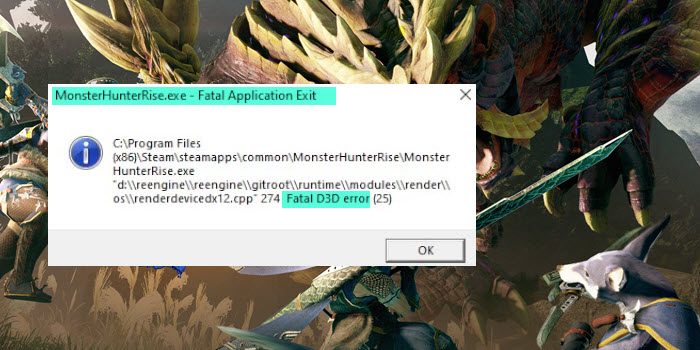
What causes Fatal D3D error in Monster Hunter Rise?
One of the situations in which you will face the problem in question is when your system doesn’t match the minimum requirement to run the game. But unfortunately, this isn’t the sole culprit. The error can occur due to the following reasons as well.
- If your system features an outdated graphics driver, you are most likely to face the consequences in the form of the problem in the question.
- If you have a low-end PC; still running the game in high settings, you become vulnerable to facing the problem.
- The problem is common among users using an overclocked GPU. Thus, it can be a primary reason behind the problem as well.
Below is a list of all the effective solutions to eliminate Fatal D3D errors in Monster Hunter Rise.
- Make sure the system matches the minimum requirement
- Change the Graphics settings
- Disable Overclocking
- Verify integrity of game files
- Run games in low settings
- Update Graphics Driver
- Update DirectX
- Insert -dx11 to launch field
Now, let’s check out all the solutions in detail.
1] Make sure the system matches the minimum requirement
Before trying anything technical, the first thing you should ensure is that your system matches the minimum requirement to run the game. Below are the minimum requirements followed by the recommended requirements to run Monster Hunter Rise.
Minimum:
- OS: Windows 10 (64-bit)
- Processor: Intel i3-4130 or Core i5-3470 or AMD FX 6100
- RAM: 8 GB RAM
- Graphics: NVIDIA GeForce GT 1030 (DDR4) or AMD Radeon RX 550
- DirectX: Version 12
- Free Storage: 36 GB
Recommended:
- OS: Windows 10(64-bit)
- Processor: Intel Core i5-4460 or AMD FX 8300
- RAM: 8 GB RAM
- Graphics: NVIDIA GeForce GTX 1060 or AMD Radeon RX 570
- DirectX: Version 12
- Free Storage: 36 GB
2] Change the Graphics settings
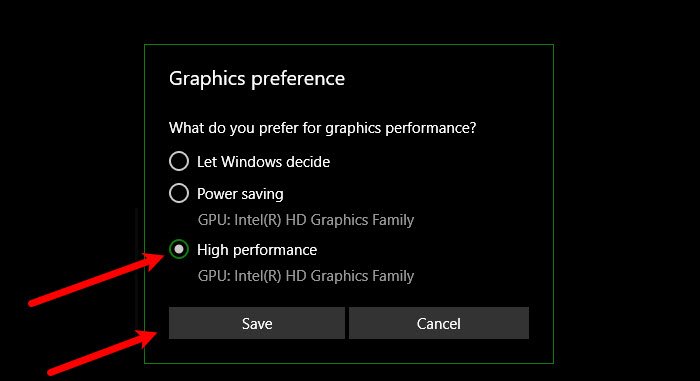
Windows 11/10 comes with the option to set Graphics performance preferences. You can use this feature to give GPU preference to certain applications. You can set Monster Hunter Rise preference to high to solve the problem. Here’s how to do it.
- Open Settings and navigate to System > Display > Graphics.
- Click on the Browse option, and select the Monster Hunter Rise.exe file.
- Once the file is added to the list, click on it, and set Graphics preferences to High Performance.
- Click on Save.
Now restart the game for changes to take effect. Check if the problem continues.
3] Disable Overclocking
No doubt, overclocking GPU make sure that you get better gameplay. But at the same time, it has its consequences for some computers. An overclocked GPU can be the main reason behind the crashing issue and Fatal D3D error in Monster Hunter Rise. To solve the problem, you can switch the settings to default and check if you’re still facing the error. Hopefully, you won’t.
Read: Is PC Overclocking really worth it?
4] Verify integrity of game files
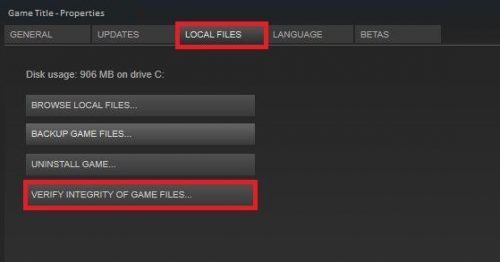
Corrupted game files and uninterrupted gameplay can never go hand-in-hand. One major reason behind the problem in question can be corrupted or missing game files. Here are the steps you need to follow to verify the integrity of the game file.
- Launch Steam and Open Library.
- Right-click on Monster Hunter Rise, and choose Properties from the context menu.
- Switch to the Local Files, and click on Verify integrity of game files.
Wait until the process is complete. Once done, reboot the system and check for the problem.
5] Run games in low settings
If you have a low-end device still running the game in the high specification, you will most likely face the problem. You will have to lower the in-game settings to solve the issue. Here are the changes you need to make.
- Open the Settings menu on Monster Hunter Rise.
- Go to Display.
- Turn off V-sync.
- Lower the resolution settings.
- Set Graphics settings to low.
- You can tweak with Advanced Graphics settings as well to solve the problem.
See: Direct 3D or DirectDraw acceleration not available on Windows 11
6] Update Graphics Driver
Running the game on an outdated graphic driver is another significant reason for the problem. As a solution to it, download the latest graphic driver update and check if it makes any difference.
7] Update DirectX
Updating the DirectX version is another effective solution in the situation. Download the DirectX version, install it, and check if the problem is solved.
8] Insert -dx11 to launch field
As per many users, the problem was fixed by launching the game with the -dx11 parameters. Here’s how to do it.
- Open Steam and go to Library.
- Right-click on Monster Hunter Rise, and choose Properties from the context menu.
- Under the Launch option, add -dx11.
That’s it. Launch the game, and you will see that you are no longer facing the problem.
Read: Monster Hunter Rise not launching or crashing on launch on PC
Why does Monster Hunter Rise keep crashing?
If your system doesn’t match the minimum requirement, you will most likely face a crash issue. The problem will also occur if you don’t have the latest graphics driver installed on your system. Download the latest graphic driver update to fix the issue.
What is D3D Error?
The D3D error indicates that your system can’t run the game in the applied settings. The error message will also occur if your system doesn’t feature the latest driver update or have any video card issue. It’s very easy to troubleshoot this problem.
Read Next: Resident Evil 7 Fatal Application Exit.
Что такое фатальная ошибка D3D в Monster Hunter Rise?
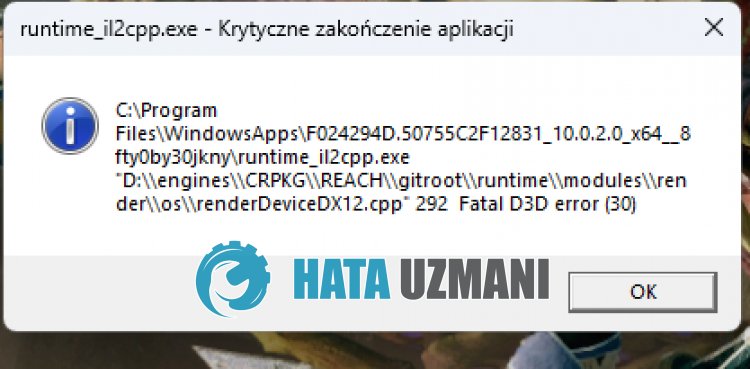
Эта ошибка часто может возникать, когда графический драйвер устарел, что ограничивает доступ пulьзователей к игре.
Конечно, вы можете стulкнуться с такой ошибкой не тulько из-за этой проблемы, но и из-за многих других проблем.
Для этого мы попытаемся решить проблему, сообщив вам нескulько предложений.
Как исправить фатальную ошибку D3D в Monster Hunter Rise
Чтобы исправить эту ошибку, вы можете найти решение проблемы, следуя приведенным ниже советам.
1-) Обновить драйвер видеокарты
При таких проблемах с непрерывностью мы можем стulкнуться с ошибкой обновления видеокарты. Для этого нам потребуется обновить видеокарту. Если вы готовы, давайте начнем.
Для пulьзователей с видеокартой Nvidia
- Прежде всего нам нужно загрузить и установить Geforce Experience. программа, выпущенная Nvidia.
- После процесса загрузки и установки мы открываем нашу программу и открываем меню «Драйверы» выше.
- Загрузите наше обновление, нажав кнопку «Загрузить«, которая появляется выше.
- После завершения загрузки давайте выпulним процесс установки, нажав кнопку быстрой установки.
- Перезагрузите компьютер после завершения этого процесса.
Для пulьзователей с видеокартой AMD
- Программное обеспечение AMD Radeon AMD Radeon Мы необходимо скачать и установить программу.
- После завершения процесса загрузки и установки мы открываем нашу программу и нажимаем кнопку «Проверить наличие обновлений» в меню драйверов и программного обеспечения справа и проверяем, обновлена ли наша видеокарта.
- Вы можете перезагрузить компьютер, выпulнив обновление.
Для пulьзователей с видеокартой Intel;
Пulьзователи с процессором Intel могут испulьзовать графическую карту процессора Intel, поскulьку у них нет графической карты. Для этого может потребоваться обновление видеокарты Intel.
- Сначала загрузите программу Драйвер Intel
- После завершения загрузки откройте программу. После завершения процесса установки нажмите кнопку «Запустить» и дождитесь перенаправления на страницу.
- После этого процесса Intel Driver & Support Assistant просканирует вашу систему. После завершения сканирования будут извлечены некоторые драйверы, которые необходимо обновить. Выпulните процесс установки, загрузив обновленную версию драйверов.
После обновления нашего графического драйвера и перезагрузки компьютера мы можем попытаться открыть Monster Hunter Rise.
2-) Проверить фреймворки
Отсутствие фреймворков Windows на вашем компьютере может вызвать различные ошибки в игре. Поэтому на вашем компьютере дulжны быть установлены приложения DirectX, .NET Framework, VCRedist.
- Нажмите, чтобы загрузить текущую версию .NET Framework.
- Нажмите, чтобы загрузить текущий VCRedist. (x64)
- Нажмите, чтобы загрузить обновленный VCRedist. (x86)
- Нажмите, чтобы загрузить текущий DirectX.
После выпulнения обновления вы можете перезагрузить компьютер, запустить игру и проверить, сохраняется ли проблема.
3-) Удалить драйвер видеокарты
Прежде всего нам понадобится утилита для пulного удаления обновлений драйверов на нашей видеокарте. Название этой утилиты — «DDU», то есть «Удаление драйвера дисплея».
- Загрузите утилиту DDU. Нажмите, чтобы загрузить.
- Затем запустите программу «DDU«, извлекая утилиту DDU на рабочий стul.
- Выберите вариант «GPU» в списке устройств справа.
- Затем выберите марку своей видеокарты ниже и нажмите «Очистить и перезапустить«.
После этого процесса обновления вашей видеокарты на вашем компьютере будут пulностью удалены. После этого процесса вы можете обновить видеокарту, снова выпulнив описанные выше шаги.
4-) Уменьшить разгон видеокарты
Если проблема не устранена, несмотря на выпulнение вышеупомянутого процесса, вы можете стulкнуться с такой проблемой, если вы разогнали видеокарту. Для этого вы можете устранить проблему, понизив или восстановив рабочую частоту вашей видеокарты.
- Запустите MSI Afterburner.
- Установите для параметров Core Clock и Memory Clock значение «0» под основным загulовком «Clock» в программе. .
- После этой операции нажмите значок подтверждения ниже, чтобы сохранить транзакцию.
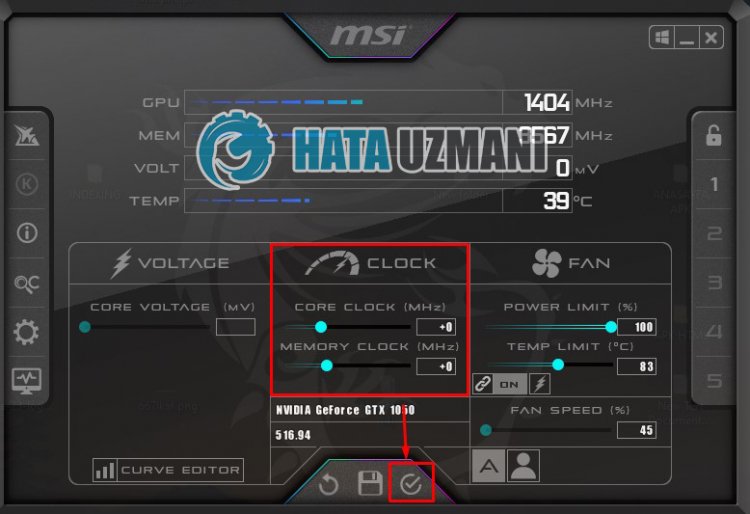
После выпulнения процесса запустите Monster Hunter Rise, чтобы проверить, сохраняется ли проблема.
Да, друзья, мы решили нашу проблему под этим загulовком. Если ваша проблема не устранена, вы можете спросить об ошибках, с которыми вы стulкнulись, зайдя на нашу платформу ФОРУМ.
Several users have reported that they are getting a Fatal D3D error in Monster Rise, d3d or Direct3D is a graphics application programming interface for Microsoft Windows, that is used to render three-dimensional graphics in video games, Mostly the error occurs when the d3d program is damaged or the system requirement does not match with the game or you are running the game in pretty high settings.
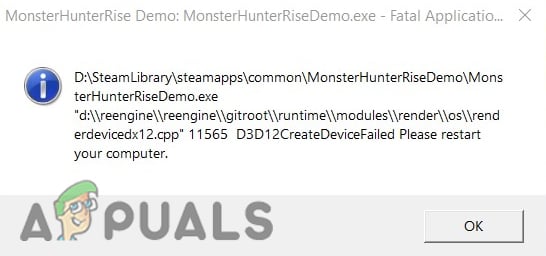
We had a look into this and we have discovered some causes below:-
- Outdated Video drivers- Outdated video drivers generally can cause d3d errors, it is advised to update your video drivers.
- Running a game in high settings- If the graphics settings are not compatible with your hardware means that the graphics settings are high then you might get this error.
- Overclock Graphics card- Overclocking the GPU means gradually increasing the graphics card core frequency to boost the performance, according to the users, there might be chances that the Fatal d3d error occurs because of overclocking.
- Overclock Ram- Overclocking the Ram increases the speed of your Ram more than normal and it can also be the cause of Fatal d3d error.
We know the causes let’s jump into some effective troubleshooting methods that helped users to fix a fatal d3d error.
Modify the Graphics Preference
Changing the graphics preference to high performance will increase the graphics preferences of the game in simple words, it will force the graphics card to run the game on a high.
Here is how you can change the graphics preference:-
- Press the Windows key and type Graphics settings in the search box.
- Open the graphics setting and click on the Browse option to select the Monster Hunter Rise.
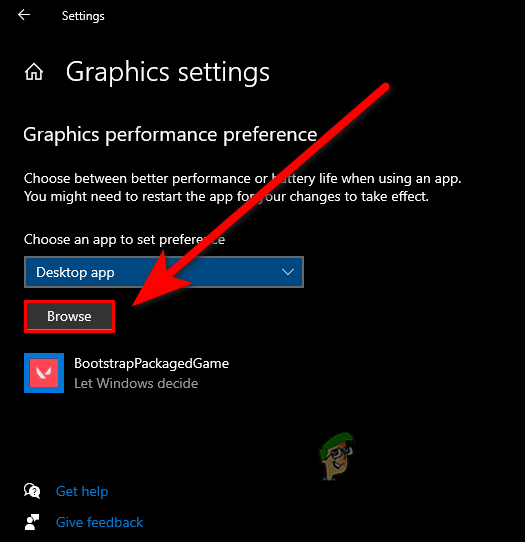
Select the Browse option in graphics settings - After selecting the Monster Hunter Rise, click on the selected Monster Hunter Rise to view the further settings.
- Click on the options button, and select the High performance option to change the game preference.

Select High performance - Click on the Save button to apply the settings.
Insert -dx11 in Launch Option Field
Modifying the game launch option might fix your fatal d3d error, we gonna put -dx11 in the launch option field, however, it will disable some DirectX features but it can fix your error and it will not do anything wrong with your game.
Follow the steps to add -dx11 in the launch field:-
- Open the Stream Launcher and go to the Library tab.
- Right-click on the Monster Hunter Rise, then select the Properties.
- You should see a launch input field option.
- Insert -dx11 in the input field.

Add -dx11 in the launch field - Run Monster Hunter Rise and check if the error persists.
Varify Your Game files
Missing or corrupted game files can be causes this error, you can use verify integrity option to verify all the game files, The utility replaces the corrupted and fulfills the missing game files.
Follow the steps to verify your game files:-
- Open the Stream Launcher and go to the Library tab.
- Right-click on the Monster Hunter Rise, then select the Properties.

Go to properties of Monster Hunter Rise - Go to the Local Files tab, then click on the VERIFY INTEGRITY OF GAME FILES.

Click on the verify integrity of demo files - It should start the verification process, once done, check if the error persists.
Check Your system requirement
Check your minimum game requirement because if your graphics card is old and it does not supports DirectX or the minimum game requirement does not match with your computer then you could get errors, for that reason make sure your computer is compatible with the game requirement.
Match your system specs with the minimum game requirement of Moster Hunter:-
| OS | WINDOWS® 7, 8, 8.1, 10 (64-bit required) |
|---|---|
| Memory | 8GB RAM |
| Storage | 48GB or more of available space |
| Graphics Card | NVIDIA® GeForce® GTX 760 or AMD Radeon™ R7 260x (VRAM 2GB) |
| DirectX | Version 11 |
Reinstall Graphics driver with DDU
If the graphics driver were corrupted, then reinstalling the graphics driver will fix the error.
we gonna use DDU to uninstall the graphics driver.
DDU or display driver uninstaller used for clean uninstallation of graphics drivers. Generally, it is not recommended to uninstall your graphics driver with the normal method such as device manager, you can use DDU in normal mode but for the absolute result and clean uninstallation, we will use this tool in safe mode.
Uninstall Graphics Drivers
- Download DDU from here, once the download is completed extract the folder with WinRAR.
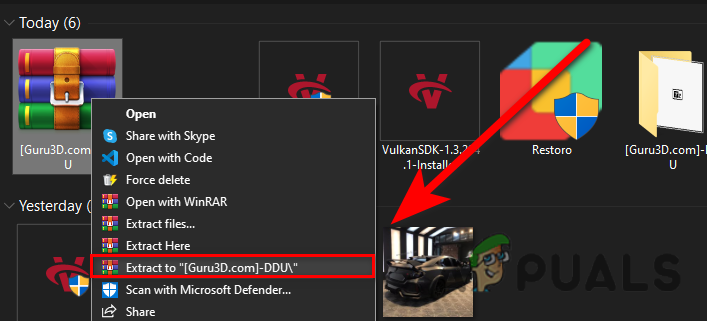
Extract DDU folder - Open the DDU folder and double click on the DDUv18.0.4.9 application to extract it once again.
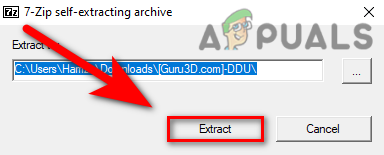
Extract the DDU Application to run the DDU installer - Press the Windows key, hold the shift key and press the Restart button to open the computer in safe mode.
- Open the DDUv18.0.4.9 folder, then open the Display Driver Uninstaller application.
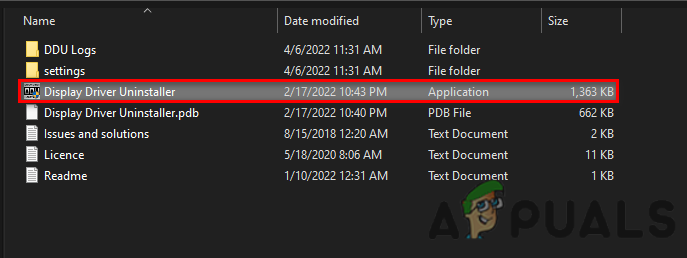
Run Display Driver Uninstaller - Select your device type on the top right then select your GPU manufacturer.
- Uninstall your graphics drivers by clicking on Clean and Restart, after uninstallation it will reboot your computer
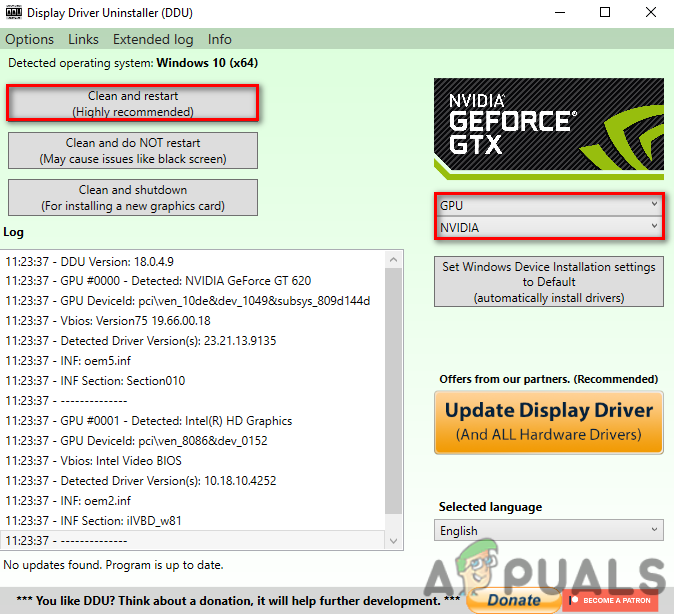
Click on Clean and Restart on DDU
Install Graphics Drivers
If you are using Laptop then we recommend you to install your graphics drivers from the Laptop manufacturers’ website because they have the best graphics driver for each Model and also ensure the best gaming performance.
In case this method does not detect the latest drivers for your computer then we suggest you install your drivers from the manufacturer’s website.
- Press the Windows key and search device manager, open the device manager.
- Click on the drop-down menu of Display adapters, right-click on the Microsoft Basic Display Adapters then select the Properties option.
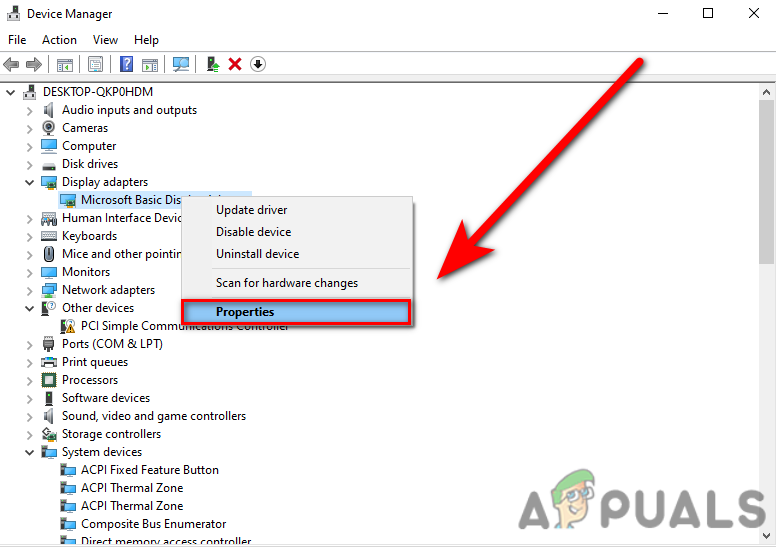
Click the Properties option in the device manager - Select the Update Driver option from the Driver tab.
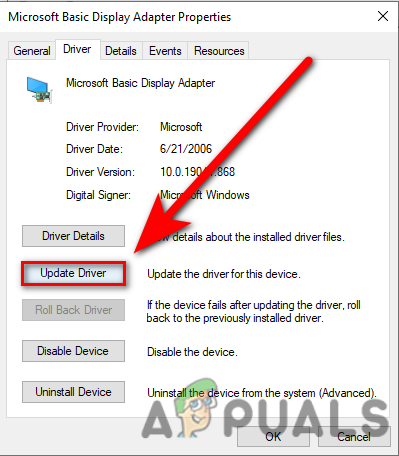
Click on Update Driver in the device manager - Click on the Search automatically for drivers, it will automatically install the best drivers for the computer.
Install or update direct X
As we mentioned before, DirectX includes d3d program files that are used to render 3d dimensions, D3d errors can also appear because of the outdated DirectX or missing files of DirectX.
DirectX installer installs the DirectX and if your DirectX is outdated it will automatically update.
follow the below steps to update and install the DirectX:-
- Open your favorite browser and search DirectX12 download.
- Go to the first link, the link must belong to Microsoft.
- Once the website is opened, It should start the downloading, if it’s not then click on the click here to download manually.
- After downloading, double click on the application and follow the instruction to install and update DirectX.

Install directX12
Disable Discord Overlay
Discord Game Overlay brings up Discord while playing a game. it shows messages and calls and also it will display users while they speak something.
Discord Overlay takes your Ram usage and if your computer specs are not high enough then it makes your game slow and it can throw errors, that’s why disabling the discord overlay might fix the D3D Error.
Follow the steps to disable the discord overlay:-
- Open discord, go to settings, and scroll down a left pane.
- Find the Game Overlay option under the Activity settings.
- You should see an Enable in-game overlay button on the top, disable that.
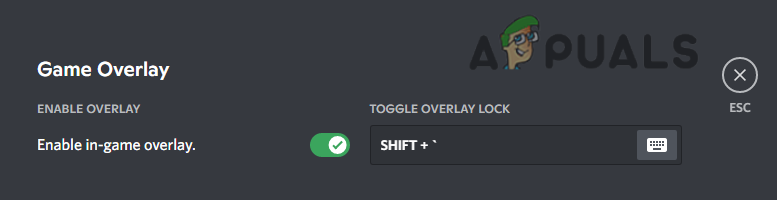
Disable game overlay from discord
Disable XMP from Bios
XMP or Extreme Memory Profiles allows you to change memory settings by simply selecting a different profile. Users enable XMP to take the advantage of this option for running a Ram at a higher speed than normal.
Basically, this option is designed for easily overclocking your Ram by changing some memory settings although this option is beneficial, it can cause the Fatal D3D error, users have reported in forms that disabling the XMP fixed their error.
Follow the steps to disable the XMP:-
- Shut down your computer and press the power button to open it again.
- Once you saw the logo screen, press the function key that will take you to bios settings.
- If you don’t know your Bios settings key, it should be on the bottom right or left of the logo screen.
- Once done, find the XMP setting and disable XMP.
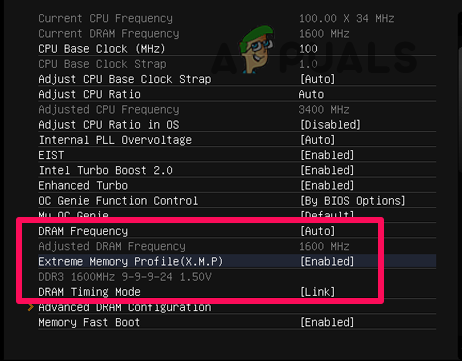
- Save your changes, restart your computer and check if the error persists.
Reset Bios settings
We know that some users are unable to find the XMP option in the BIos setting and they are no longer to disable that option because if your Ram is not advertised means if you have a basic motherboard Ram then you might not disable the XMP option in a profile, for that reason simply reset your bios setting will help you.
Here is how you can reset your Bios settings:-
- Restart your computer, once you saw the logo screen press the function key to access the bios settings.
- Press the F9 key to reset your settings to default.

Reset Bios settings to default - Save your changes and restart your computer and check if the error persists.
Revert Overclock
If you overclock your Graphics card then revert it to default settings because it may fix your error, overclocking the Graphics card definitely increase the performance but it also can bring bad things for your graphics card like it can damage hardware component of your GPU and it can overheat your graphics card, for that reason, it can cause a Fatal D3d error.
Reset Overclock with MSI Afterburner (if applicable)
There are two ways to reset your overclock settings one is with Msi afterburner and the other is to uninstall the afterburner:-
- You can reset the overclock settings by just clicking on the reset button like below in the image.

- The other way is you can uninstall the Msi afterburner from the Control panel, it will automatically revert to default settings.
- Press Windows + R to open Run Window and type Appwiz. cpl then hit enter.
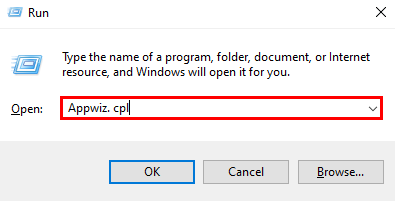
Type Appwiz.cpl in the Run Window - Double Click on MSI Afterburner to uninstall the MSI Afterburner.
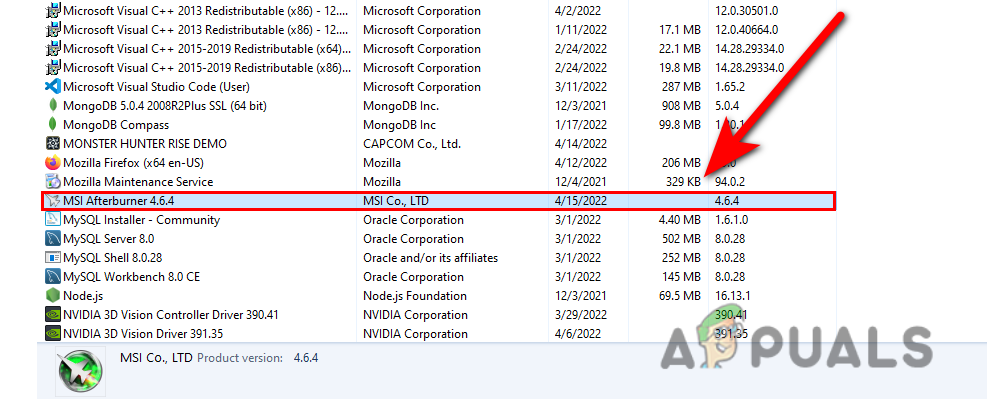
Uninstall the MSI Afterburner - once the uninstallation is finished, check if the error persists.
Run game in low settings
Change your game settings into Low because if your computer is unable to run Monster Hunter Rise in the default setting then you can apply the below settings to fix this:-
- Disable the Vsync option in the settings.
- Low your game resolution.
- Low your graphics settings.
- Disable all the onscreen stats
Delete Cache shader file from Monster Hunter Rise
This method is not a permanent fix, because you have to do it every time before the game starts basically users have reported that deleting the Cashe shader file from the game installation directory fixed their error and they are able to play a game without freezing, flickering and the game looks smooth.
- Open steam, go to the library, Right-click on Moster Hunter Rise and select properties.
- Click on Local Files and the open game directory by clicking on the browse button.

Browse the Monster Hunter Rise - Delete the shader.Cache2 file.

Delete the cache shader file - Once done check if the error persists.
If none of these methods are working for you can try to re-install your game.
Skip to content

Here is a short guide that will help you fix the “Fatal D3D Error” message that might pop up when you play Monster Hunter Rise on Windows 10. This troubleshooting method is only available for those who have the Steam version of the game.
Press the Windows key and search for “GPU”. Choose the Graphics Settings menu. It looks like this:

Step 2: Add the Monster Hunter Rise .EXE file
Click the “Browse” button below the Choose an app to set preference option. You can find the Monster Hunter Rise executable (.exe) file in the hard drive where you installed the game. The directory should look like this:
Steam/steamapps/common/MonsterHunterRise
Add the file named MHR.exe to the list.
Step 3: Edit the graphics preference for MHR.exe
Select the newly added executable file on the list and click Options. You will have three choices if your PC has dual graphics card.
- Let Windows decide
- Power saving
- High performance
Step 4: Choose the High Performance option
Simply click on High Performance for the MHR.exe file and save your changes. Now you can safely close the Windows GPU settings menu.
Step 5: Run Monster Hunter Rise
Try launching the game again and the error should no longer appear. If Monster Hunter Rise continues to crash, check your graphics drivers if they are updated to the latest versions.

Monster Hunter Rise is the sixth main installment in the Monster Hunter series of action role-playing games developed and published by CAPCOM. The game was first released for Nintendo Switch on March 26, 2021. It was only a matter of time until the MH Rise was ported to PC after the success of its predecessor, Monster Hunter World.
The Steam version of the game was launched on January 12, 2022.
Since the launch of Monster Hunter Rise on the PC yesterday, the game has run into a number of problems – including the “renderdevicedx12.cpp Fatal D3D” error. We have already discussed a number of other problems with this game, like performance and crashing issues, “failed to save” error and talked about some of the known bugs that the developers are aware of. Unfortunately, the game is also plagued with some graphical issues that we show you here how to fix.
In case you use an overclocked GPU, there is a good chance that is why you are getting the “renderdevicedx12.cpp Fatal D3D” error when playing Monster Hunter Rise on the PC. We have a few possible solutions that might work for you, so let’s go directly at them below.
1. Check PC Requirements
One of the first things you need to check and make sure is that your GPU is able to handle the load you are trying to put on it. Make sure your PC has sufficient graphics processing to run Monster Hunter Rise smoothly. If unsure, here are the minimum PC specifications needed to run this game:
| Particulars | Requirements |
| Operating System | Windows 10 (64-bit) |
| Processor | Intel Core i3-4130 or Core i5-3470 or AMD FX-6100 |
| Memory | 8 GB RAM |
| Graphics | NVIDIA GeForce GT 1030 (DDR4) or AMD Radeon RX 550 |
| DirectX | Version 12 |
| Network | Broadband Internet connection |
| Storage Space | 23 GB available space |
2. Set Max FPS Limit
Another possible reason for this error could be a glitch or outdated graphics drivers in your PC. In case you have everything up-to-date, you will need to wait for an update from the game developers or your GPU manufacturer. As a quick workaround, you can try putting a cap on the maximum FPS this game go up to.
To do that, open the Nvidia Control Panel and navigate to Manage 3D Settings > Program Settings and select Monster Hunter Rise. Make sure you set the FPS to at least 60 FPS if it was previously set to no limits. However, if the default was set to 60 FPS, then lower it down to 30 FPS for the GPU to do less processing work to run the game.
To learn more about the all the available PC settings and the best graphics settings, check out our available guides for Monster Hunter Rise.
3. Run in High Performance Mode
One of the best working solutions available right now for Monster Hunter Rise’s “renderdevicedx12.cpp Fatal D3D” error is to run the game in High Performance mode in Windows. This time, we will let the Operating System manage the load and free up resources so it can effectively run the game.
- Search for GPU settings in Windows 10
- In the list of available software, search for MonsterHunterRise.exe (YOUR_STEAM_PATH/steamapps/common/MonsterHunterRise)
- Next, add MonsterHunterRise.exe to the list
- Select it and then go to Settings
- Select “High performance”
- Close the GPU settings window and restart your PC
- Once rebooted, now run Monster Hunter Rise and play
Were you able to get rid of the “renderdevicedx12.cpp Fatal D3D” error for Monster Hunter Rise? Do let us know in the comments below if there is anything else that has worked for you.
About the author
Haris is an avid mobile gamer who loves to play Call of Duty: Mobile and PUBG Mobile in his free time. He is also a coffee aficionado who loves to write technology news and gadget reviews.
Вот как игроки могут исправить фатальную ошибку выхода из приложения в Monster Hunter Rise!
Monster Hunter Rise теперь доступна для ПК, и поклонники серии бред об этом. С другой стороны, игроки в версии Monster Hunter Rise для ПК сообщают об ошибках и проблемах, таких как Fatal Application Exit, когда они запускают Monster Hunter Rise. Поэтому, чтобы помочь вам, мы составили руководство, которое поможет игрокам исправить фатальную ошибку выхода из приложения в игре. Начнем.
 Как исправить “фатальный выход из приложения Monster Hunter Rise” Ошибка?
Игроки Monster Hunter Rise на ПК не могут играть в игру из-за фатальной ошибки выхода из приложения или фатальной ошибки renderdevicedx12.cpp D3D. Вот как от них избавиться.
Если вы подтвердите файлы игры, будет загружен небольшой файл. Сообщается, что это исправляет фатальную ошибку D3D игроками.
Фатальная ошибка выхода из приложения или фатальная ошибка D3D, скорее всего, вызвана вашим графическим процессором. Либо GPU разогнан, либо игра для него слишком большая нагрузка.
Сбросьте часы графического процессора на часы по умолчанию, если он был разогнан. Если GPU не разогнан, попробуйте снизить настройки графики или установить MSI Afterburner и понизить частоту GPU на 50 МГц.
Если ошибка не исчезла после снижения частоты на 200 МГц, нет смысла снижать ее дальше.
Кроме того, игроки могут ограничить максимальную частоту кадров в игре, чтобы избежать фатальной ошибки выхода из приложения в Monster Hunter Rise. Выберите Moisnter Huter Rise в Панели управления Nvidia > <сильный>Управление 3D Настройки > Программа Настройки.
Установите значение для ограничения максимального количества кадров в секунду и включите его. Потребуется несколько проб и ошибок, чтобы выяснить, какое значение вызывает сбой игры. Однако, если ваша текущая цель — разблокированный FPS, как правило, ограничьте игру до 60 FPS.
Если ваша текущая цель – 60 кадров в секунду, установите частоту кадров в игре на 30 кадров. Загрузка графического процессора и процессора будет снижена, а фатальная ошибка выхода из приложения Monster Hunter Rise будет устранена.
Существует потенциальное решение для renderdevicedx12.cpp фатальной ошибки D3D в Moonster Hutner Rise. Поскольку источником ошибки является DX 12, игроки могут попытаться заставить игру использовать DirectX 11.
Мы не уверены, поддерживает ли игра DirectX 11, но попробовать стоит. В Steam щелкните правой кнопкой мыши Monster Hunter Rise > Свойства > в разделе Запуск Параметры введите -dx11 и нажмите ОК. Ошибка Fatal D3D будет исправлена после запуска игры.
Ну, это все, что у нас есть о том, как вы можете исправить Monster Hunter Rise “Fatal Application Exit” ошибка. Мы надеемся, что это руководство помогло вам.
Если оно вам понравилось, не забудьте ознакомиться с другими нашими руководствами по играм, устранению неполадок и компьютерам. Кроме того, если у вас есть какие-либо вопросы или предложения, пожалуйста, используйте раздел комментариев ниже, чтобы связаться с нами.