Ошибка установки Minecraft 0x80131509 появляется, когда пользователи пытаются установить игру с помощью официального установщика. Эта ошибка указывает на проблему с подключением к Интернету.
Следующая проблема может быть вызвана устаревшей или поврежденной программой запуска Minecraft. Некоторые отсутствующие обновления Windows также могут быть причиной этой ошибки. Помимо этого, лаунчер может также конфликтовать с неофициальным лаунчером, установленным на вашем ПК. Minecraft, который вы пытаетесь установить, может быть недоступен для вашего ПК, если вы используете более раннюю версию Windows.
Вот список методов, которые покажут вам, как исправить ошибку установки Minecraft 0x80131509:
1. Войдите в приложение Xbox.
Первое, что вы можете сделать, это убедиться, что учетная запись, с которой вы вошли в приложение Xbox, совпадает с учетной записью Microsoft Store. Это может повлиять на игру, поскольку учетная запись, которую вы используете для ее установки, не совпадает с учетной записью приложения Xbox.
Откройте приложение Xbox и Microsoft Store и убедитесь, что учетная запись одинакова для обоих.
Если учетные записи не совпадают, нажмите «Выйти» и снова войдите в систему с правильной учетной записью.
После этого остается только попробовать установить игру еще раз.
Если ошибка установки Minecraft 0x80131509 все еще возникает, перейдите к следующему методу.
Следующее, что нужно сделать, это удалить любую неофициальную программу запуска Minecraft, установленную на вашем ПК. Это может вызвать проблему, поскольку официальная программа запуска конфликтует с несертифицированной. Файлы могут перекрываться, что приводит к неправильной работе программы запуска.
Перейдите в меню «Программы и компоненты», и вы увидите все программы запуска, установленные на вашем ПК. Удалите неофициальные.
Вот как вы можете это сделать:
- Нажмите клавишу Windows + R, чтобы открыть диалоговое окно «Выполнить», и введите «appwiz.cpl», затем нажмите Enter, чтобы открыть меню «Программы и компоненты».
- Затем просмотрите список приложений для неофициальных программ запуска Minecraft.
- Когда вы найдете его, щелкните его правой кнопкой мыши и выберите «Удалить».
- Следуйте инструкциям на экране, чтобы завершить процесс удаления.
- Если у вас их несколько, повторите процесс для каждой программы запуска, пока не уничтожите их все.
- Когда вы закончите, попробуйте снова установить Minecraft, используя официальный лаунчер.
Если ошибка установки Minecraft 0x80131509 все еще возникает, перейдите к следующему методу.
3. Переустановите программу запуска Minecraft с официального сайта.
Следующая проблема также может быть вызвана поврежденным установщиком. Вам следует зайти на официальный сайт и попробовать переустановить лаунчер. Если это не сработает, попробуйте установить его из Microsoft Store или приложения Xbox.
Вот руководство о том, как это сделать:
- Откройте любой браузер и зайдите на официальный сайт Майнкрафт.
- Войдите в систему, нажав кнопку Войти с помощью Microsoft.
- В своей учетной записи нажмите кнопку «Получить Minecraft» в правом верхнем углу и выберите «Компьютер».
- Затем нажмите кнопку «Загрузить», а затем нажмите кнопку «Загрузить» для Windows 10/11, чтобы подтвердить загрузку.
- Нажмите на установщик лаунчера и установите его.
- Если это не сработает, откройте Microsoft Store или приложение Xbox и найдите Minecraft.
- Когда вы найдете его, нажмите кнопку «Установить» и завершите процесс.
- Когда лаунчер установлен, попробуйте открыть игру, чтобы проверить, работает ли она.
4. Установите версию Minecraft для Windows 7/8 (если применимо).
Если вы используете более раннюю версию Windows, попробуйте загрузить более старую версию программы запуска Minecraft. Ошибка может появиться из-за того, что программа запуска, которую вы пытаетесь использовать, несовместима с вашей версией Windows.
Вы должны загрузить версию, совместимую с вашим ПК, с официального сайта Minecraft.
Вот как вы можете это сделать:
- Используя любой браузер, который вы хотите, посетите официальный сайт Майнкрафт и убедитесь, что вы вошли в свою учетную запись.
- Теперь нажмите кнопку «Получить Minecraft» в верхней правой части окна. Выберите Компьютер на следующем экране.
- Далее нажмите на кнопку Скачать.
- Прокрутите вниз, пока не увидите средство загрузки для Windows 7/8, и нажмите на него.
- Нажмите на установщик и завершите процесс.
- Откройте лаунчер, чтобы увидеть, исправлена ли ошибка
5. Обновите сборку Windows до последней версии (если применимо).
Следующее, что вы можете сделать, чтобы исправить следующую ошибку, — это проверить, есть ли какие-либо обновления Windows, которые вам не хватает. Эта проблема может возникнуть, если у вас нет одного или нескольких последних обновлений инфраструктуры Windows.
Выполните следующие действия, если вы не знаете, как обновить установку Windows:
- Нажмите клавишу Windows + R, чтобы открыть диалоговое окно «Выполнить», затем введите «ms-settings:» в строке поиска и нажмите Enter, чтобы открыть настройки Windows.
- Найдите Центр обновления Windows в левой части экрана и нажмите на него.
- Теперь установите все обновления, которые ожидают установки. Если нет, нажмите «Проверить наличие обновлений» и дождитесь завершения проверки.
- Если есть обновления, которые можно установить, обязательно сделайте это.
- Возможно, вам придется перезагрузить компьютер, чтобы применить обновления.
- Затем откройте программу запуска Minecraft и проверьте, работает ли она.
6. Загрузите все обновления игры из Microsoft Store.
Последнее, что вы можете попробовать, — это загрузить все обновления, доступные в магазине Microsoft. Даже если обновления не связаны с Minecraft, это может решить проблему, обновив компонент Windows, вызывающий проблему.
Вы можете обновить все приложения в Microsoft Store из библиотеки.
Вот руководство, которое покажет вам, как это сделать:
- Используйте панель задач для поиска и открытия Microsoft Store.
- Теперь нажмите кнопку «Библиотека», расположенную в левом нижнем углу.
- Если вы не видите доступных обновлений, нажмите кнопку «Получить обновления», чтобы найти их.
- Обязательно установите все доступные обновления.
- После этого остается только открыть программу запуска, чтобы посмотреть, исправлена ли ошибка установки Minecraft 0x80131509.
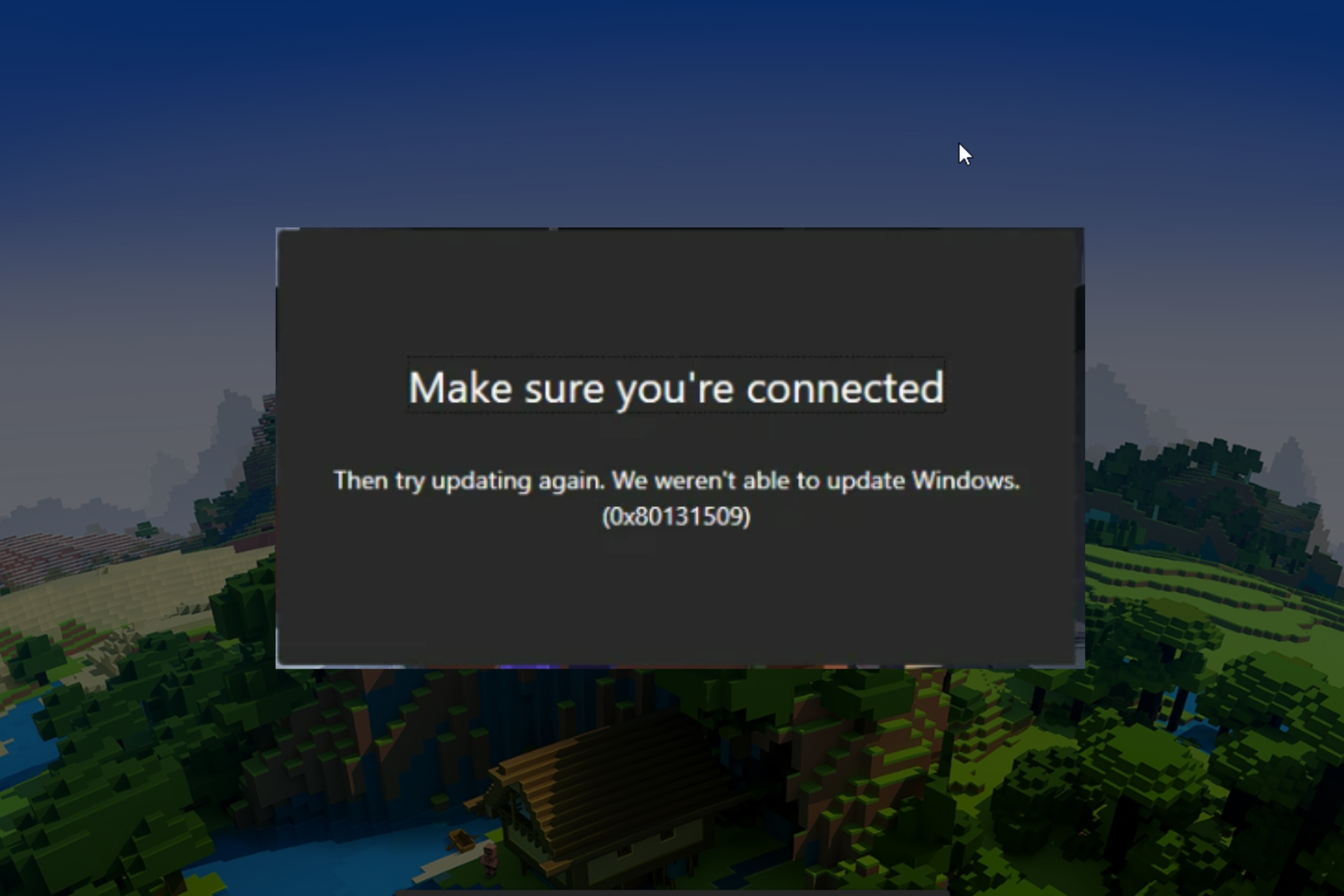
Lately, several users trying to install the latest Minecraft Launcher on their system received an error message “Make Sure You’re Connected” Then try updating again. We weren’t able to update Windows (0x80131509). This technical issue simply denotes that there is a problem with your internet connectivity and the system.
The most common causes of Minecraft Launcher installation error (0x80131509) are unconfigured system settings and network connectivity issues. If you are facing the same error message, then you can pursue this article to get all the solutions to tackle the same issue. Let’s move on to detailed solutions without talking further.
Contents
- 1 Fix 1: Restart the System:
- 2 Fix 2: Uninstall any Unofficial/Official Minecraft Launcher:
- 3 Fix 3: Check Internet Connection:
- 4 Fix 4: Sign in using the Same Account on Xbox App and Microsoft Store:
- 5 Fix 5: Install Minecraft Launcher Windows 7/8 Version:
- 6 Fix 6: Update Windows:
- 7 Fix 7: Install Minecraft Launcher from Xbox app or Microsoft Store:
Fix 1: Restart the System:
So to troubleshoot the Minecraft Launcher Installation Error (0x80131509), you must first restart the system. Restarting the system will clear all existing errors and bugs and start the system freshly. We strongly recommend this trick as it has helped many users.
Fix 2: Uninstall any Unofficial/Official Minecraft Launcher:
If you have an unofficial or official Minecraft Launcher installed on your system, you will receive the Minecraft Launcher Installation Error (0x80131509) error prompt. Here you need to uninstall and reinstall the launcher from its official site. To do so,
- Firstly, go to the Start menu and select Settings.
- Inside the Settings window, click on Apps and the Apps and features option.
- Then from the list of apps, search and select Minecraft Launcher.
- Once you find one, right-click over it and select Uninstall button.
- Finally, restart the system and reinstall it from a reliable source.
Fix 3: Check Internet Connection:
As we discussed earlier, one of the main reasons for the Minecraft Launcher Installation Error (0x80131509) error is poor internet connectivity. All you have to do here is connect to an Ethernet connection instead of Wi-Fi and see the result, as well as you, need to verify the speed of your internet connectivity. If your signal strength is low, you need to contact your network service provider for further assistance.
Fix 4: Sign in using the Same Account on Xbox App and Microsoft Store:
Another solution to overcome the Minecraft Launcher Installation Error (0x80131509) error is to sign to your Xbox app and Microsoft account using the same user account. To do so,
- Firstly, launch both the Xbox app and Microsoft Store.
- Then sign out from the account, and after a few moments, log in using the same username and password.

- And sign in to the Minecraft account using the same account you used to login in Xbox app and Microsoft Store.
- Finally, try to reinstall the Minecraft Launcher and see the above discussed error is resolved for you.
Fix 5: Install Minecraft Launcher Windows 7/8 Version:
If the Minecraft Launcher Installation Error (0x80131509) error still bothers you, then you need to download the Windows 7/8 version of the launcher. This fix has helped in many user’s cases. To do so,
- Firstly, go to Minecraft official site.
- Then scroll down and click on Download for Windows 7/8 option.

- Now double-click on the downloaded file and follow the on-screen instructions to install it on your system.
- Once done, restart the system and install the launcher again.
Fix 6: Update Windows:
Sometimes the Minecraft Launcher Installation Error (0x80131509) error occurs as a result of an outdated Windows. In this scenario, you need to update your Windows to the latest updates. To do so,
- Firstly, go to the Start menu and select the Settings app.
- Inside the Settings app, select Windows Update from the left pane menu.

- Now click on the Check for update blue button to install the latest updates on your system.
- Once done, retry to install the launcher on your system.
Fix 7: Install Minecraft Launcher from Xbox app or Microsoft Store:
If you have a launcher installed from any third-party website, you may receive the Minecraft Launcher Installation Error (0x80131509) error after the latest update. The best solution here is to make sure the Minecraft launcher is installed from the Xbox app or the Microsoft Store. If not, uninstall the old launcher and install the Minecraft launcher directly from the Microsoft Store or the Xbox app.
So, these are the potential fixes for the Minecraft Launcher Installation Error (0x80131509) error. All the above solutions are tried and tested by experts so that you can use them with full confidence. However, if you have any queries or doubts after reading this article, then please leave a comment in the below-given comment box.
As said, each time I try to install Minecraft (Java Edition) through the official newest version of the installer on my laptop, it just shows me this error code. I cannot find any information about it online, and Microsoft’s helping team didn’t help at all.
I already tried reinstalling the installer, I finished all of the possible update of my PC but nothing works.
It always says:
«Verify that you are connected»
«Then retry to update. We were unable to update windows. (0x80131509)»

asked Nov 3, 2021 at 12:27

2
Open the Microsoft Store and make sure that you are signed in to your Microsoft account. Then, download all upgrades. The problem is not your Windows version but a component of Windows.

pinckerman
31.1k18 gold badges102 silver badges140 bronze badges
answered Nov 3, 2021 at 19:38

3
Taken from: MS Windows Forums
Even though you say your Windows is updated to the latest version, if
you’re getting the error 0x80131509 then it’s highly likely you aren’t
running the latest Windows 10 build.The latest build is version 1903 (OS Build 18362.175). Are you
running this? To check, you can either type winver into the Windows
search box or, hold down the Windows key and tap R on your keyboard.
In the Run box, type winver and press enter.If you’re not running Windows version 1903 try this:
Try running Windows update from Windows Settings → Update and Security.
If that doesn’t work, you can update via the Windows Media Creation Tool.
Download the Tool and save it somewhere like your Windows Desktop.
Double click on program to run it. Choose ‘Upgrade this PC now’ and
follow the onscreen instructions.

Timmy Jim♦
50.9k31 gold badges175 silver badges232 bronze badges
answered Nov 3, 2021 at 12:54

SeanSean
312 bronze badges
1
For those of whom updating Windows didn’t work, download Minecraft for Windows 7. That will run.
answered Nov 12, 2021 at 14:42

3
Mojang’s Official Support Twitter has made a post (or rather retweeted one by their status account) about issues with Java users that own Game Pass not being able to use the game:
We’re aware that Game Pass members cannot yet access Minecraft Java Edition! We’re working on getting a resolution in place and will update soon.
From what I’ve researched, they released a new launcher and it seems to have some issues on their end. You will have to wait for them to release a fix unfortunately. The Mojang Status account made a post saying it should be fixed, but it does not appear to be for a number of users (see twitter replies chain).
answered Nov 3, 2021 at 20:09
Timmy Jim♦Timmy Jim
50.9k31 gold badges175 silver badges232 bronze badges
You must log in to answer this question.
Not the answer you’re looking for? Browse other questions tagged
.
Not the answer you’re looking for? Browse other questions tagged
.
As said, each time I try to install Minecraft (Java Edition) through the official newest version of the installer on my laptop, it just shows me this error code. I cannot find any information about it online, and Microsoft’s helping team didn’t help at all.
I already tried reinstalling the installer, I finished all of the possible update of my PC but nothing works.
It always says:
«Verify that you are connected»
«Then retry to update. We were unable to update windows. (0x80131509)»
asked Nov 3, 2021 at 12:27
2
Open the Microsoft Store and make sure that you are signed in to your Microsoft account. Then, download all upgrades. The problem is not your Windows version but a component of Windows.
pinckerman
31.1k18 gold badges102 silver badges140 bronze badges
answered Nov 3, 2021 at 19:38
3
Taken from: MS Windows Forums
Even though you say your Windows is updated to the latest version, if
you’re getting the error 0x80131509 then it’s highly likely you aren’t
running the latest Windows 10 build.The latest build is version 1903 (OS Build 18362.175). Are you
running this? To check, you can either type winver into the Windows
search box or, hold down the Windows key and tap R on your keyboard.
In the Run box, type winver and press enter.If you’re not running Windows version 1903 try this:
Try running Windows update from Windows Settings → Update and Security.
If that doesn’t work, you can update via the Windows Media Creation Tool.
Download the Tool and save it somewhere like your Windows Desktop.
Double click on program to run it. Choose ‘Upgrade this PC now’ and
follow the onscreen instructions.
Timmy Jim♦
50.9k31 gold badges175 silver badges232 bronze badges
answered Nov 3, 2021 at 12:54
SeanSean
312 bronze badges
1
For those of whom updating Windows didn’t work, download Minecraft for Windows 7. That will run.
answered Nov 12, 2021 at 14:42
3
Mojang’s Official Support Twitter has made a post (or rather retweeted one by their status account) about issues with Java users that own Game Pass not being able to use the game:
We’re aware that Game Pass members cannot yet access Minecraft Java Edition! We’re working on getting a resolution in place and will update soon.
From what I’ve researched, they released a new launcher and it seems to have some issues on their end. You will have to wait for them to release a fix unfortunately. The Mojang Status account made a post saying it should be fixed, but it does not appear to be for a number of users (see twitter replies chain).
answered Nov 3, 2021 at 20:09
Timmy Jim♦Timmy Jim
50.9k31 gold badges175 silver badges232 bronze badges
You must log in to answer this question.
Not the answer you’re looking for? Browse other questions tagged
.
Not the answer you’re looking for? Browse other questions tagged
.

There are certain times that despite Minecraft working fine, there’s bound to have new problems that pop up when launching the game, especially when it comes to the Minecraft launcher. Recently many players are unable to get into the game and seeing (0x80131509) error with the message ‘Make sure you are connected”. This frustrated a lot of players who can’t progress into the game and are searching for a fix on how to solve the launcher issue. If you’re also experiencing this, rest assured as it can be fixed with a few tweaks. Read on more to know how to fix the (0x80131509) error with the message “Make sure you are connected”.
How to fix Minecraft launcher error (0x80131509)
If you’re unable to install the Minecraft launcher on your system, make sure that you’ve updated windows, java, and checked compatibility mode. If you’re certain that you’ve checked everything and the game’s launcher still not functioning, follow the necessary steps.
Restart your PC
Many issues in gaming are often caused by unnecessary memory-hogging applications running in the background or faulty software that causes in-game issues. Restarting the PC often fixes some of the issues, so it is recommended to restart your PC and try to install the Minecraft launcher again and see if the error is fixed. If you’re still getting the (0x80131509) error, see the next workaround below.
Make sure you have installed only one launcher.
Another reason why you’re seeing a (0x80131509) error when installing the Minecraft launcher is that the other version of the launcher is interfering with the latest one. Make sure that you’ve uninstalled every official and non-official launcher of the game, restart the system and try installing the latest version of the launcher again. Follow the steps to remove other Minecraft launchers.
- Search “Settings” in the start menu and open it.
- In the “Settings”, go to “Apps and Feature” and look for other Minecraft launchers and uninstall them.

Log in on the Xbox app and Microsoft using the same account.
Sometimes entering different credentials in both the Xbox app and Microsoft can also cause Minecraft fetching (0x80131509) error. Open Microsoft Store and Xbox app and make sure that you’re logged in on the same account on both Xbox app and Microsoft Store and try to install the launcher again.
Log in to the Minecraft website
To fix the launcher issues,
- Head to the official Minecraft website and then click on “sign in with Microsoft”.
- After clicking it, enter your details and click on “Yes”.
Once you’re logged in, open this link, and on the website, you can see your ID logged on the Minecraft website. Click on “Download for Windows 10/11” and install it from there.
This should fix the error message popping up in the Minecraft launcher. Stay tuned for more updates at Digistatement.
Are you trying to install the latest Minecraft Java edition on Windows 10 OS and getting an error code 0x80131509? Have you tried relaunching the game launcher but still can’t install the Minecraft Jave version on your computer? This article will guide you on how to fix the error with the help of easy-to-follow troubleshooting steps.
Without spending on a big marketing budget, Minecraft has become one of the most popular games worldwide by word of mouth advertisement. The game is a virtual land where players create their experiences by making their own worlds.
Minecraft has many gaming editions that you can play on various devices such as computers, Xbox, smartphones, etc. However, users who try to install the official newest version of the Minecraft Java edition on their Windows 10 computer often get the 0x80131509 error.
What is the difference between Minecraft Java and Bedrock versions?

Let’s take a look at the few differences between the Minecraft Java and Bedrock editions so that you can better understand why players are sticking with the Java editions despite the 0x80131509 error code.
Minecraft Java:
- You can download any online skin or create your skin and customize it to upload and use it in the game.
- Minecraft Java Edition is only playable on Windows, Linux, and macOS computers.
- You can download community-made mods for a variety of gameplay experiences.
- You need higher computer specifications to run the Minecraft Java edition smoothly.
- Minecraft Java players can only play with other Java edition players.
- Java edition offers many online servers and communities with variations and mods to spice up the multiplayer experience.
Minecraft Bedrock:
- Minecraft Bedrock Edition is playable on mobile, PC, and Minecraft console.
- You can buy skin packs and Add-Ons from the marketplace to change the gameplay experience.
- Bedrock players can play with players of different game editions online, except Java players.
- You can run the Minecraft Bedrock edition with a minimum system requirement and run smoother than the Java edition.
- Bedrock edition lets the player switch to a controller for mobility and has touch controls on a mobile device.
- Bedrock edition is connected to the Xbox services that offer heavily moderated parental controls.
Why do I see Minecraft Java errors?

So if you have decided to choose the Minecraft Java edition over the Bedrock one and can’t install it on your Windows 10 computer, it could be due to the following reasons.
- The automatic Windows update option is turned off.
- You are not running the latest Windows 10 build.
- Windows Java is outdated.
How do I fix Minecraft Java?

To fix Minecraft Java error code 0x80131509 on Windows 10 PC, try the following troubleshooting steps.
Restart your PC
Restarting a Windows 10 PC works like a charm for various gaming issues. Therefore, it never hurts to give your system a quick reboot. It might be enough to fix the error code.
To do this, choose the restart option from the boot menu. When the system reboots, run the Minecraft Java launcher to get rid of the install error.
Run Windows update
Sometimes you think that your Windows 10 is running on the latest version. However, if you are getting the 0x80131509 while installing Minecraft Java, your Windows 10 build is probably not up to date.
To confirm your Windows 10 version, click on the start menu on your Windows 10 desktop and type “winver” in the search box. Alternatively, press and hold the Windows key on the keyboard and press R. Afterward, type “winver” in the Run box and press Enter.
Now you can see which Windows 10 build you are running. If you are not on the latest Windows 10 build, do the following steps to ensure that your Windows 10 is always up to date.
- Click on the Start button and then navigate to Settings –> Update & Security.
- Now click on the Windows Update option and then click on Check for updates.
- Once Windows 10 is updated, click on the Advanced options and select “Automatic (recommended)” under the “Choose how updates are installed” option.
Ensure Java is updated
If you want to install the Minecraft Java edition, ensure that you have the latest Java in your Windows 10. Minecraft community and Mojang both recommend keeping the Java up to date. Doing this lets you install the game effortlessly without any error and can enhance your gaming experience.
Change compatibility mode
Many Minecraft players have unresolved issues after the release of the new launcher for Windows 10. We believe Windows 10 is doing some extra checks that fail the launcher to install the game on your PC.
Well, here is some good news for you. If you have bought the game and are not just on GamePass, you can download and install the Windows 7/8 launcher and run it on your Windows 10 PC for now. The players have been using the Windows 7/8 launcher for years, and a few users installed Minecraft Java through it on Windows 10.
However, to do it right, you need to set the compatibility mode to Windows 8 in the following way.
- Download the old launcher (Windows 7/8) on your Windows 10 PC.
- Now right-click on the old launcher .exe file and click on Properties.
- Under the compatibility tab, check the box for the “Run this program in compatibility mode for” option.
- Now set the compatibility to Windows 8 and save changes.
- Finally, run the installer and verify that you don’t see the error anymore.
Wait for the devs to fix the issue
Since the release of a new Minecraft Java launcher, it seems to have some issues on the server end. However, game developers are aware of the problem. Unfortunately, you will have to wait for devs to release a new patch for the fix.
Conclusion
Minecraft Java is an excellent game for kids to play on a Windows 10 computer. We hope you can now install the game for your kids or students on your PC by following our troubleshooting steps. Also, Malware can interfere with the game installation. Therefore, ensure that you run the antivirus program before running the Minecraft installer on your PC.
Explore these easy fixes to get rid of the issue
by Loredana Harsana
Loredana is a passionate writer with a keen interest in PC software and technology. She started off writing about mobile phones back when Samsung Galaxy S II was… read more
Published on December 5, 2022
Reviewed by
Alex Serban

After moving away from the corporate work-style, Alex has found rewards in a lifestyle of constant analysis, team coordination and pestering his colleagues. Holding an MCSA Windows Server… read more
- Often, when you install Minecraft (JAVA edition) using the latest official installer, the error comes up.
- This usually happens due to a faulty or prolonged internet connection
- This guide will discuss all the possible fixes and causes of the issue.
XINSTALL BY CLICKING THE DOWNLOAD FILE
This software will repair common computer errors, protect you from file loss, malware, hardware failure and optimize your PC for maximum performance. Fix PC issues and remove viruses now in 3 easy steps:
- Download Restoro PC Repair Tool that comes with Patented Technologies (patent available here).
- Click Start Scan to find Windows issues that could be causing PC problems.
- Click Repair All to fix issues affecting your computer’s security and performance
- Restoro has been downloaded by 0 readers this month.
Getting error 0x80131509 while installing Minecraft (JAVA edition) is more common than you think. As a result, a lot of users have complained about the issue. But don’t worry, we can fix this in no time.
In this guide, we will discuss all the fixes available right after discussing the potential causes of the issue.
What causes Minecraft install error 0x80131509?
There are a handful of reasons why you got a Minecraft to install error, and we have mentioned some of the most popular ones:
- Windows Updates – The error message could appear if the Windows update is pending. Download and install Windows updates and try to install Minecraft again.
- Slow internet connection – If you are facing internet issues or your internet is faulty, then it could cause the installation to fail, and the error code might appear.
- No Xbox Account – If you don’t have an account on Xbox or have tried to use incorrect credentials for your Xbox account, it could trigger the issue.
- Old Minecraft launcher – If you have an old launcher along with the new launcher for Minecraft, it could conflict, hence the problem.
What can I do to fix Minecraft install error 0x80131509?
Before diving into detailed troubleshooting, let us try these quick fixes to resolve the problem:
- Restart your computer
- Make sure there is no pending Windows update.
- Check if any of the Microsoft apps need updates.
- Use the same account on Microsoft Store and Xbox app.
1. Uninstall Minecraft Launcher
- Press Windows + I to get Settings.
- Go to Apps from the left pane and click Installed Apps.
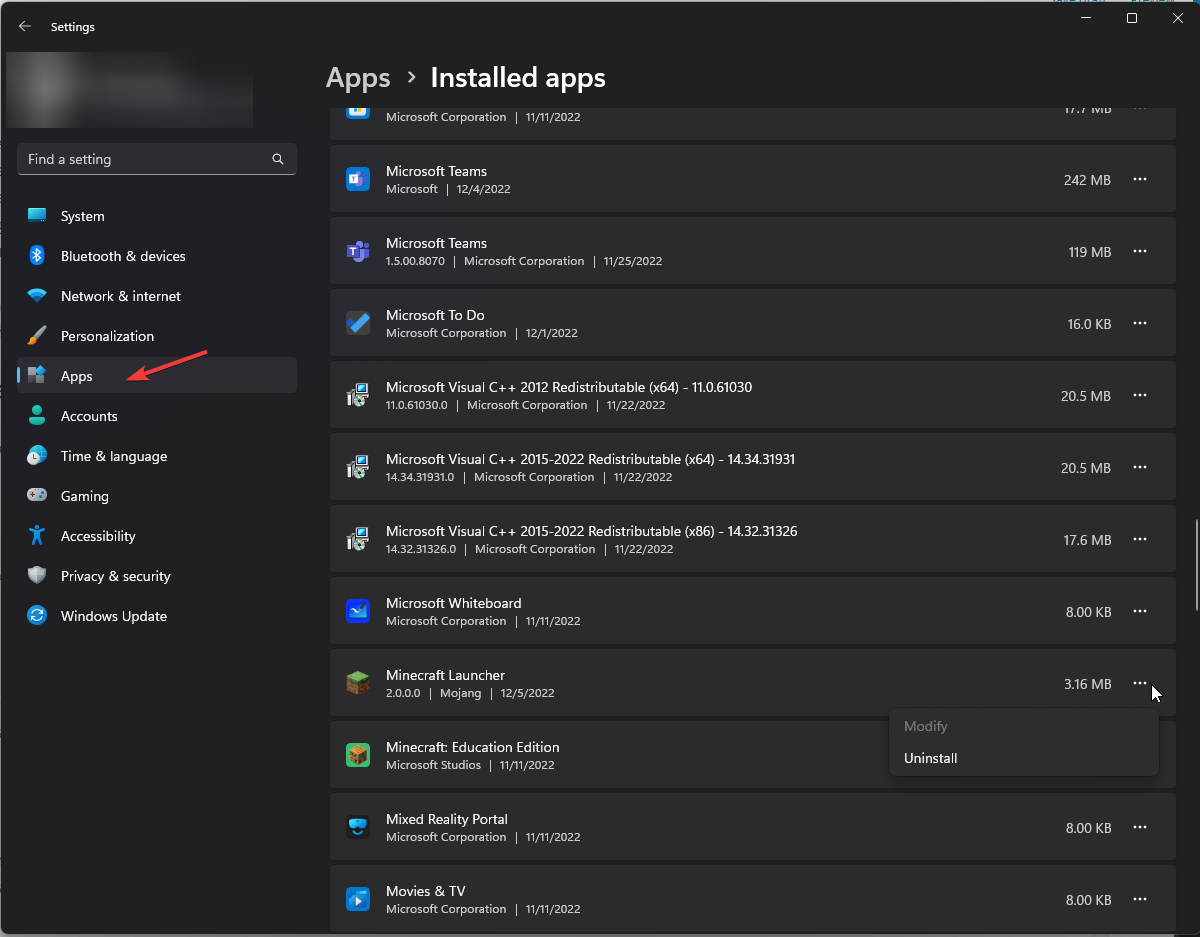
- Locate the Minecraft launcher, click on three dots, and click Uninstall.
2. Repair Game servicing app & Xbox app
- Press Windows + I to open Settings.
- Locate and click on Apps from the left-side pane, and click Installed Apps.
- Locate the Xbox app, click on three dots, and click Advanced options.
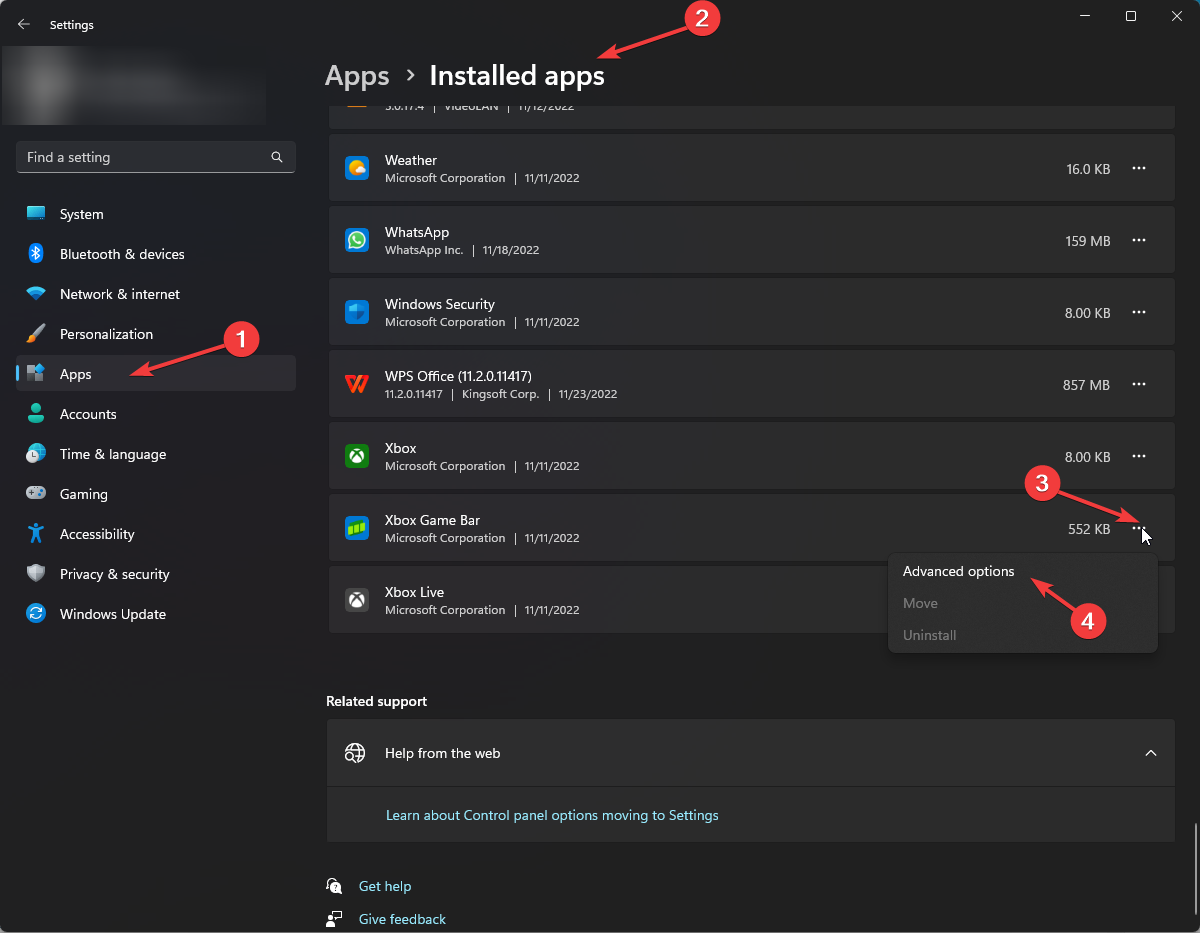
- On the next window, locate and click Repair.
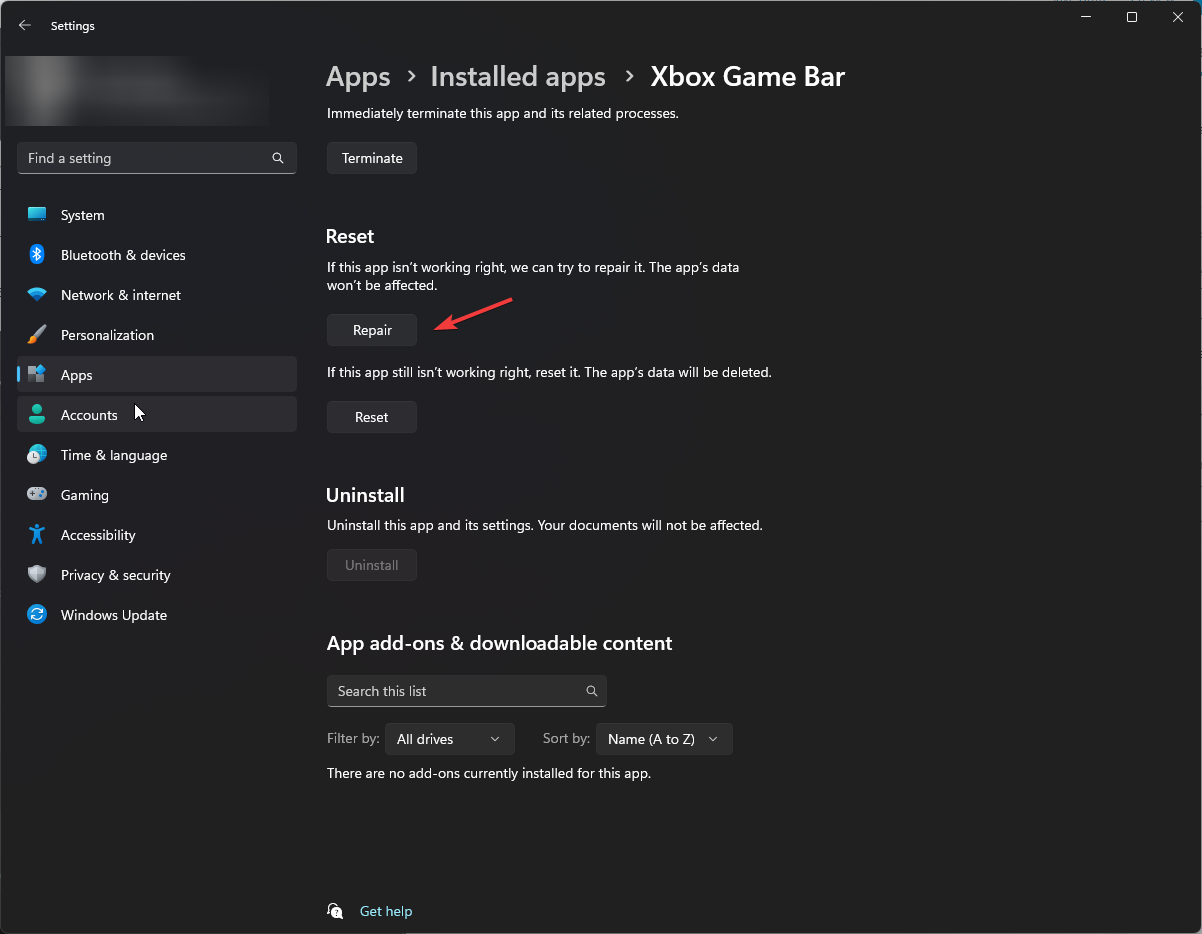
- Follow the same steps for the game servicing app to repair it.
- Fix: PUBG Keeps Crashing PC [On Startup, In-Game]
- Forza Horizon 4 0x89232001 Error: 3 Quick Ways to Fix It
- Sims 4 Lagging on PC: 4 Quick Fixes to Get Things Running
- How to Fix TheHunterCotW_F Has Stopped Working: 9 Ways
3. Uninstall & Reinstall Game services
- Press Windows + X and click Terminal (Admin) to open PowerShell.
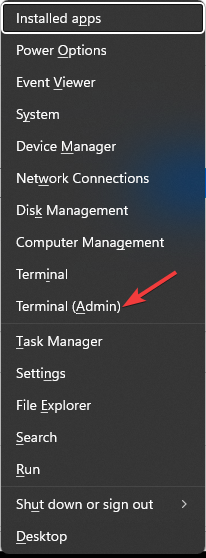
- Now type the following command and press Enter to uninstall Game services:
get-appxpackage Microsoft.GamingServices | remove-Appxpackage –allusers - Restart your computer.
- Open the Xbox Game Pass app, which will prompt you to install the gaming services again.
- Once done, try to rerun the Minecraft installer.
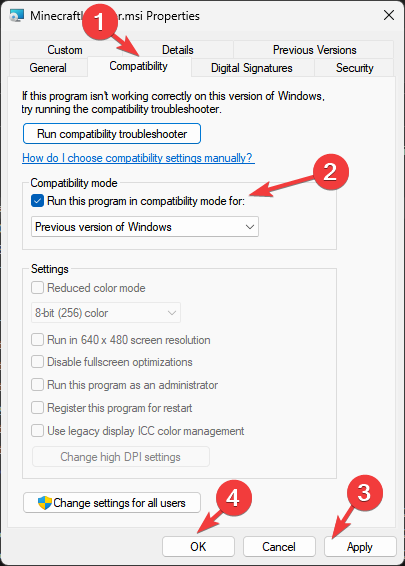
4. Run Minecraft in Compatibility Mode
- On Windows 11/10 computer, download the launcher compatible with Window7/8.
- Right-click on the launcher file and select Properties.
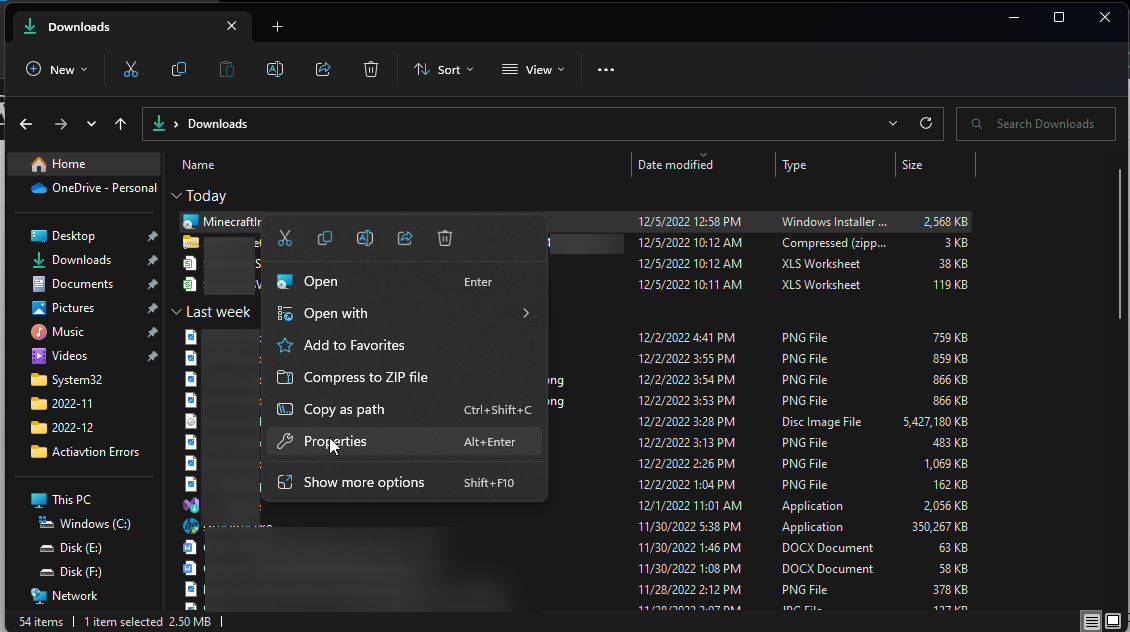
- Go to the Compatibility tab, and put a checkmark beside Run this program in compatibility mode. Now. Set the compatibility to Windows 8. Click Apply and OK.
5. Restore your OS using ISO

Tip
It is vital to back up personal files before starting the process.
- Go to Microsoft website for Windows 11.
- Under Download Windows 11 Disk Image (ISO), select Windows 11 (multi-edition ISO).
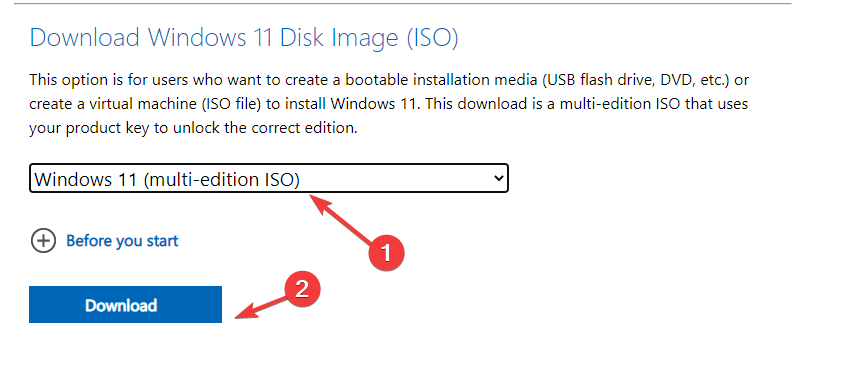
- Select the product language and click Confirm.
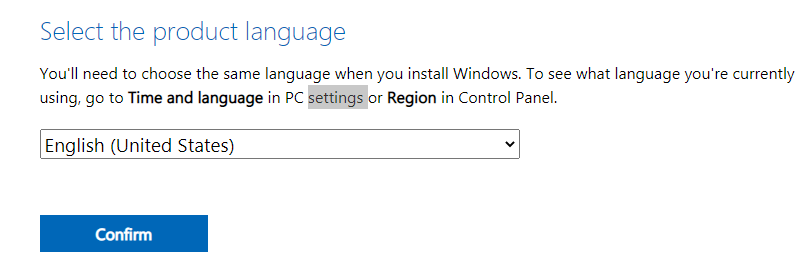
- Click Download and follow the on-screen prompts to complete.
So, these are methods that you need to follow to fix Minecraft install error 0x80131509. Try them and let us know which worked for you in the comments below.
Still having issues? Fix them with this tool:
SPONSORED
If the advices above haven’t solved your issue, your PC may experience deeper Windows problems. We recommend downloading this PC Repair tool (rated Great on TrustPilot.com) to easily address them. After installation, simply click the Start Scan button and then press on Repair All.
