Проблемы со входом могут иногда возникать, даже когда вы меньше всего этого ожидаете. Отсутствие возможности войти в свою учетную запись может вызывать беспокойство, особенно если это связано с активацией лицензии. Многие пользователи сталкиваются с проблемой при попытке войти в свою учетную запись Microsoft VLSC.
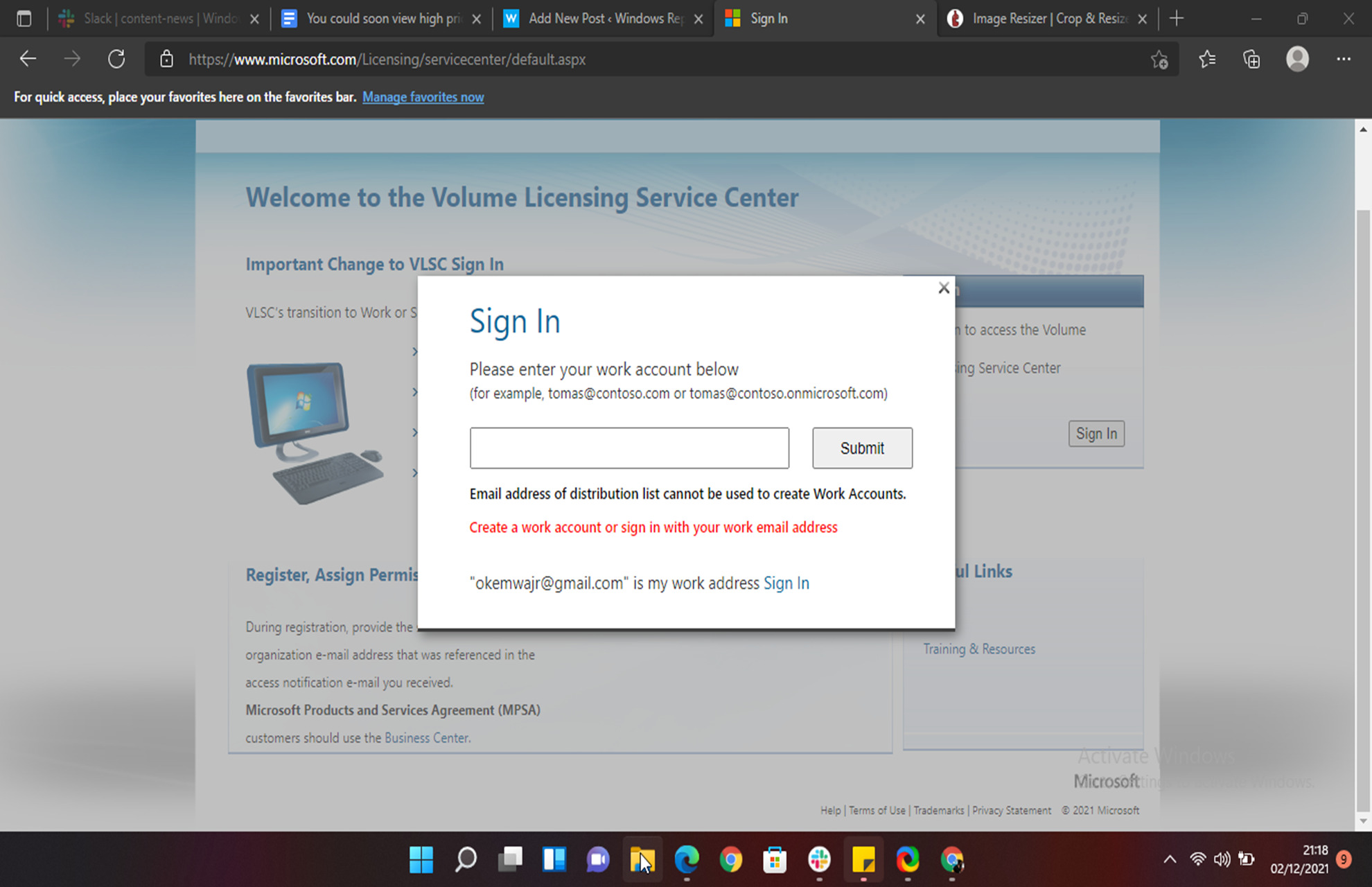
Коды ошибок входа в систему корпоративного лицензирования Microsoft (VLSC) E06 и 1000 не позволят вам получить доступ к информации вашей лицензионной учетной записи. В некоторых случаях пользователи видят проблему после обновления операционной системы Windows 10 до Windows 11. Они обнаруживают любое из следующих сообщений об ошибках:
«Мы не можем выполнить ваше действие. Код ошибки E06. Вы связали свою учетную запись VLSC со своей рабочей учетной записью «******@*****.onmicrosoft.com». Пожалуйста, используйте свою рабочую учетную запись для входа ».
«К сожалению, мы не можем выполнить ваше действие. Код ошибки E06. Вы связали свою учетную запись регистрации VLS со своей рабочей учетной записью. Пожалуйста, используйте свою рабочую учетную запись для входа ».

«Мы не можем выполнить ваше действие. Код ошибки: 1000»
Исправить и решить проблему корпоративного лицензирования Microsoft можно несколькими способами. Ознакомьтесь с приведенными ниже решениями по устранению неполадок и посмотрите, какое из них работает для вас при исправлении ошибки лицензии Windows.
Метод №1 — Вход через портал Office
- В вашем браузере перейдите на https://www.office.com/.
- Щелкните Войти.
- Войдите в свою учетную запись Microsoft Office.
- Выберите свой аватар.
- Зайдите в Моя учетная запись.
- Выберите подписку, в которой вы хотите проверить свою лицензию.
Метод № 2 — вход непосредственно на веб-сайт центра обслуживания корпоративных лицензий
 Кредитный снимок экрана: Windows Dispatch
Метод № 3 — используйте режим InPrivate или окно инкогнито в веб-браузере.
Метод №4 — Попробуйте снова войти в свою рабочую учетную запись
- Запустите страницу подписи в службе корпоративного лицензирования Microsoft.
- Перед тем, как войти в систему, убедитесь, что вы выбрали Войти со своей рабочей учетной записью.
- Затем войдите в свою рабочую учетную запись и проверьте, можете ли вы войти.
Метод № 5 — Очистите кеш браузера
Это может быть проблема с данными кеша в вашем браузере. Вам необходимо очистить кеш в вашем браузере и проверить, устраняет ли он ошибку. Перейдите в меню настроек и перейдите в историю. Выберите «Очистить данные просмотра» и установите временной диапазон «Все время».
Метод № 6. Обратитесь в службу поддержки Microsoft Volume Licensing Service.
Что еще вы сделали, чтобы исправить ошибку входа в учетную запись Microsoft VLSC? Мы хотели бы узнать больше решений, которые помогут другим пользователям решить эту проблему. Вы можете записать их ниже.
by Loredana Harsana
Loredana is a passionate writer with a keen interest in PC software and technology. She started off writing about mobile phones back when Samsung Galaxy S II was… read more
Published on December 8, 2021
- Microsoft Volume Licensing Login error code E06 has been experienced by Windows 11 users while they are trying to log into their VLSC accounts.
- You can either try resetting the browser to its default settings or log in directly to your account from the official page to resolve this issue.
- The error also occurs when people keep on creating accounts that they do not necessarily need.
XINSTALL BY CLICKING THE DOWNLOAD FILE
- Download Restoro PC Repair Tool that comes with Patented Technologies (patent available here).
- Click Start Scan to find Windows 11 issues that could be causing PC problems.
- Click Repair All to fix issues affecting your computer’s security and performance
- Restoro has been downloaded by 0 readers this month.
Users have lodged plenty of complaints about Microsoft Volume Licensing Login error code E06. They explained that it appears whenever they are trying to log into their accounts.
The problem usually starts immediately after users made the upgrade to Windows 11, ultimately making it difficult for them to log in to Microsoft and the rest of its products including VLSC.
Note that the main reason why the issue occurs is that users are creating unnecessary new accounts. Moreover, using the wrong browser to access their accounts may also contribute to the issue.
Do Microsoft Volume licenses expire?
No, Microsoft Volume Licenses do not expire, rather they are perpetual. However, subscription licenses such as the Retail and OEM licenses are available via Microsoft’s Volume Licensing program. 
The error prevents users from running their businesses regularly. However, this should not worry you, as we have come up with a list of methods that you can use to get out of this particular predicament.
What can I do to resolve Microsoft Volume Licensing login error code e06?
1. Log in directly from from the VLSC page
If you are experiencing the E06 error while you are trying to log in to your VLSC account, as an alternative, you should visit their website and log in from there directly. It will bring you right to your VLSC account.
2. Clear all browsing data and history
- Open the Microsoft Edge browser.
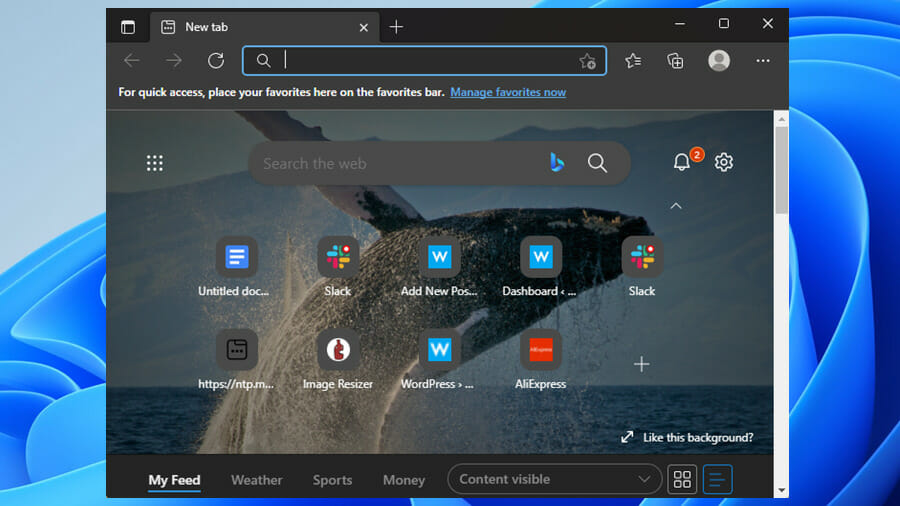
- In the top right corner of the browser, click the Settings button.
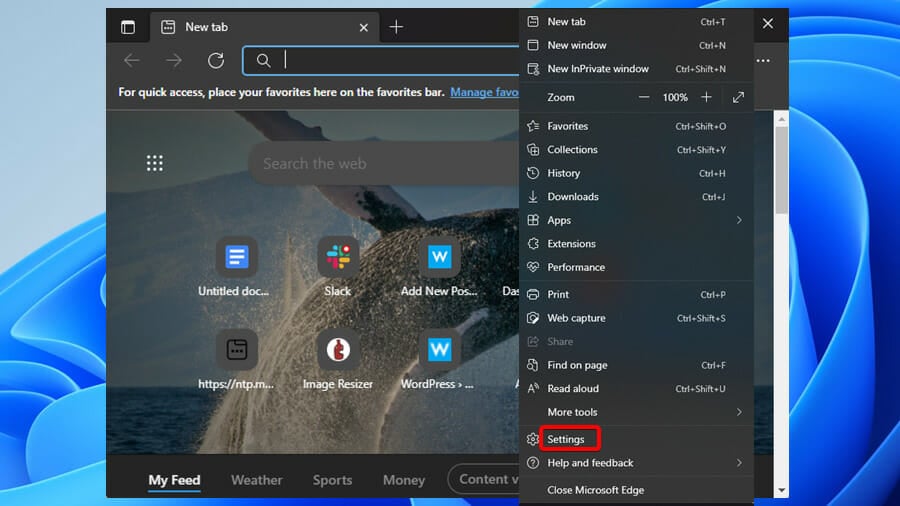
- Then, click on the History option when the new panel appears.

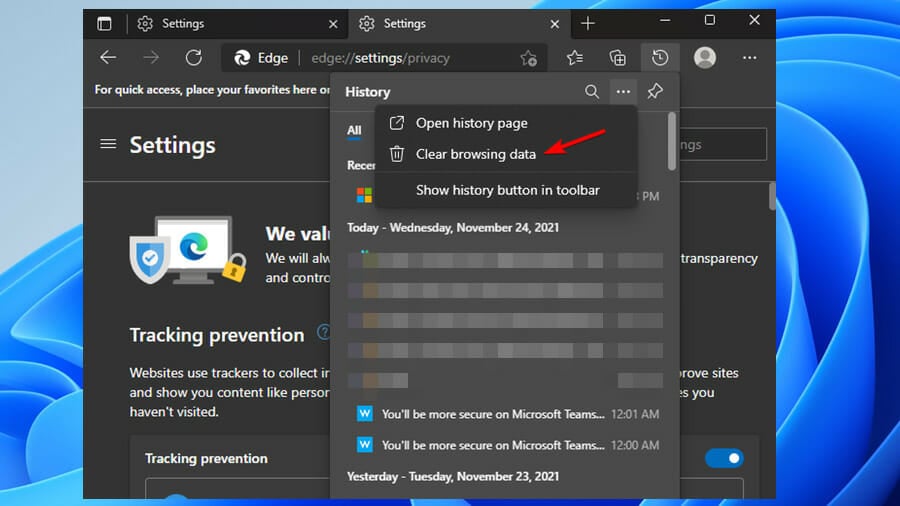
- Then, select the three dots on the History page and click the Clear browsing data option.
- Under the Time range drop-down menu, select All time.
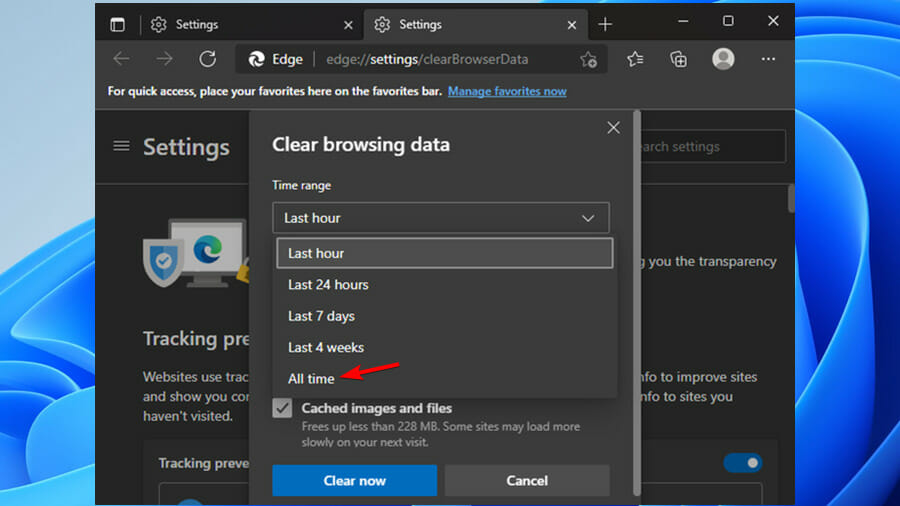
- Check all the boxes on that page, and then click the Clear Now button.
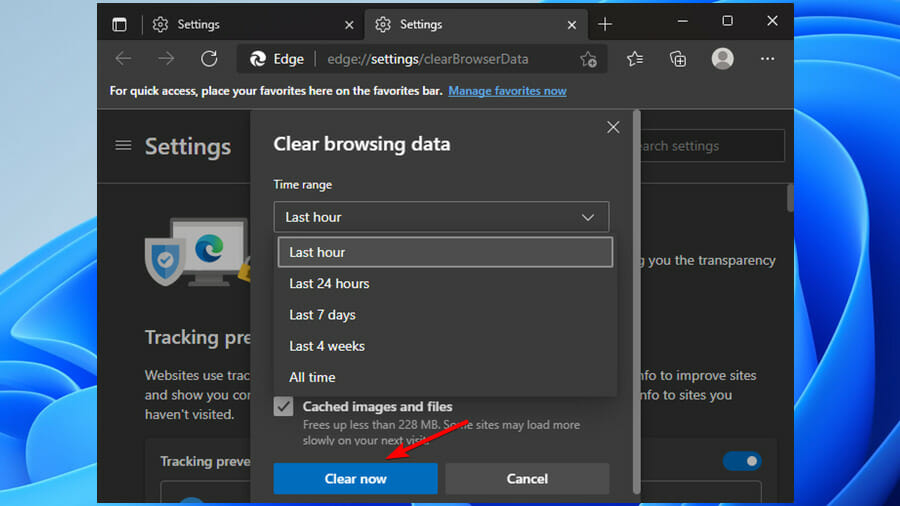
- Finally, once you have deleted all browsing data, you will see that the login page loads and functions normally unless there is another issue.
It is worth noting that web browsers store internet files temporarily, this helps hasten the process of loading web pages. Therefore, deleting these files might help you fix this problem.
3. Use a different browser to sign into your VLSC account
In some cases, the browser you are using to sign in to your VLSC account might be the one with the issue. Therefore, try using a different browser and see if the error will appear there.
Besides, users would prefer to have a wider array of options to pick from since Chrome, Firefox, or Opera are also tempting enough. Do not hesitate to check out our article on great browsers for Windows 11 and see for yourself how Microsoft Edge compares next to them.
4. Reset your browser to its default setting
- Open the Microsoft Edge browser.
- Click on the Settings option.
- From the left pane of the Settings page, click on the Reset settings option.

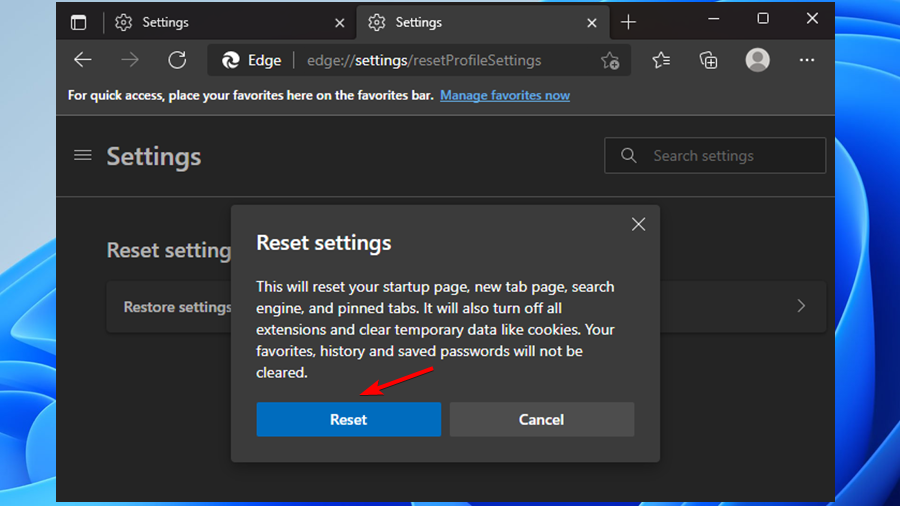
- Then, select Restore settings to their default values.

- Finally, click on Reset to confirm the changes.
If none of the above fixes have worked for you thus far, then you can try creating another account. Then, log into the new account using a different browser and check whether you will be subjected to the same issue.
It is important to note that resetting your browser to its default settings will also reset your search engine, startup page, and pinned tabs.
Some PC issues are hard to tackle, especially when it comes to corrupted repositories or missing Windows files. If you are having troubles fixing an error, your system may be partially broken.
We recommend installing Restoro, a tool that will scan your machine and identify what the fault is.
Click here to download and start repairing.
Furthermore, this fix will also turn off all the extensions you have enabled in your browser. It will also get rid of the temporary data, that is, cookies.
You can revert to your preferred settings by enabling them manually. However, it will not affect your saved passwords, history, and favorites.
5. Contact Microsoft Volume Licensing Support number
If the above methods do not work for you, then you may have to contact the Microsoft Volume Licensing Support number. You can call the VLSC Contact Center toll-free at (866) 230-0560 or submit a written request to them.
Also, be sure to visit their official website to get additional information on how to reach out to them.
We hope the methods that we provided above were able to get you over the hump, ultimately assisting you to get rid of the error code E06.
How can I get Volume Licensing Keys?
Some products licensed under Volume Licensing agreements use keys that cannot be accessed via the VLSC or the Microsoft Activation Center.
However, if you make use of the KMS activation, you will not need to enter a key for your products. This allows you to make use of them immediately.
In the event that the product is not listed, then there are two ways that you can use to get your VLKs:
- Go to the Product Keys section of the Volume Licensing Service Center (VLSC) for Open, Open Value, Select, Enterprise Agreements, and the Services provider License Agreement (SPLA)
- Call your Microsoft Activation Center
Keys help enhance the user’s organization. However, it is important that you keep this sensitive information to yourself. This is because you will be held accountable for any unauthorized use of VLKs as per the agreement. Therefore, avoid disclosing this information to anyone.
The VLSC is among the top solutions available that people use to manage software keys in their businesses. If you encounter issues with opening Microsoft Edge in Windows 11, we have prepared a list of steps that you can take to solve the problem at hand.
Compared with the older Microsoft Edge versions, the one is much more efficient, as Microsoft Edge got a massive overhaul on Windows 11. But that’s not all!
Did the above methods help you fix the Microsoft Volume Licensing login error code E06 in Windows 11? Let us know in the comments section below.
Still having issues? Fix them with this tool:
SPONSORED
If the advices above haven’t solved your issue, your PC may experience deeper Windows problems. We recommend downloading this PC Repair tool (rated Great on TrustPilot.com) to easily address them. After installation, simply click the Start Scan button and then press on Repair All.

Newsletter
by Loredana Harsana
Loredana is a passionate writer with a keen interest in PC software and technology. She started off writing about mobile phones back when Samsung Galaxy S II was… read more
Published on December 8, 2021
- Microsoft Volume Licensing Login error code E06 has been experienced by Windows 11 users while they are trying to log into their VLSC accounts.
- You can either try resetting the browser to its default settings or log in directly to your account from the official page to resolve this issue.
- The error also occurs when people keep on creating accounts that they do not necessarily need.
XINSTALL BY CLICKING THE DOWNLOAD FILE
- Download Restoro PC Repair Tool that comes with Patented Technologies (patent available here).
- Click Start Scan to find Windows 11 issues that could be causing PC problems.
- Click Repair All to fix issues affecting your computer’s security and performance
- Restoro has been downloaded by 0 readers this month.
Users have lodged plenty of complaints about Microsoft Volume Licensing Login error code E06. They explained that it appears whenever they are trying to log into their accounts.
The problem usually starts immediately after users made the upgrade to Windows 11, ultimately making it difficult for them to log in to Microsoft and the rest of its products including VLSC.
Note that the main reason why the issue occurs is that users are creating unnecessary new accounts. Moreover, using the wrong browser to access their accounts may also contribute to the issue.
Do Microsoft Volume licenses expire?
No, Microsoft Volume Licenses do not expire, rather they are perpetual. However, subscription licenses such as the Retail and OEM licenses are available via Microsoft’s Volume Licensing program.
The error prevents users from running their businesses regularly. However, this should not worry you, as we have come up with a list of methods that you can use to get out of this particular predicament.
What can I do to resolve Microsoft Volume Licensing login error code e06?
1. Log in directly from from the VLSC page
If you are experiencing the E06 error while you are trying to log in to your VLSC account, as an alternative, you should visit their website and log in from there directly. It will bring you right to your VLSC account.
2. Clear all browsing data and history
- Open the Microsoft Edge browser.
- In the top right corner of the browser, click the Settings button.
- Then, click on the History option when the new panel appears.
- Then, select the three dots on the History page and click the Clear browsing data option.
- Under the Time range drop-down menu, select All time.
- Check all the boxes on that page, and then click the Clear Now button.
- Finally, once you have deleted all browsing data, you will see that the login page loads and functions normally unless there is another issue.
It is worth noting that web browsers store internet files temporarily, this helps hasten the process of loading web pages. Therefore, deleting these files might help you fix this problem.
3. Use a different browser to sign into your VLSC account
In some cases, the browser you are using to sign in to your VLSC account might be the one with the issue. Therefore, try using a different browser and see if the error will appear there.
Besides, users would prefer to have a wider array of options to pick from since Chrome, Firefox, or Opera are also tempting enough. Do not hesitate to check out our article on great browsers for Windows 11 and see for yourself how Microsoft Edge compares next to them.
4. Reset your browser to its default setting
- Open the Microsoft Edge browser.
- Click on the Settings option.
- From the left pane of the Settings page, click on the Reset settings option.
- Then, select Restore settings to their default values.
- Finally, click on Reset to confirm the changes.
If none of the above fixes have worked for you thus far, then you can try creating another account. Then, log into the new account using a different browser and check whether you will be subjected to the same issue.
It is important to note that resetting your browser to its default settings will also reset your search engine, startup page, and pinned tabs.
Some PC issues are hard to tackle, especially when it comes to corrupted repositories or missing Windows files. If you are having troubles fixing an error, your system may be partially broken.
We recommend installing Restoro, a tool that will scan your machine and identify what the fault is.
Click here to download and start repairing.
Furthermore, this fix will also turn off all the extensions you have enabled in your browser. It will also get rid of the temporary data, that is, cookies.
You can revert to your preferred settings by enabling them manually. However, it will not affect your saved passwords, history, and favorites.
5. Contact Microsoft Volume Licensing Support number
If the above methods do not work for you, then you may have to contact the Microsoft Volume Licensing Support number. You can call the VLSC Contact Center toll-free at (866) 230-0560 or submit a written request to them.
Also, be sure to visit their official website to get additional information on how to reach out to them.
We hope the methods that we provided above were able to get you over the hump, ultimately assisting you to get rid of the error code E06.
How can I get Volume Licensing Keys?
Some products licensed under Volume Licensing agreements use keys that cannot be accessed via the VLSC or the Microsoft Activation Center.
However, if you make use of the KMS activation, you will not need to enter a key for your products. This allows you to make use of them immediately.
In the event that the product is not listed, then there are two ways that you can use to get your VLKs:
- Go to the Product Keys section of the Volume Licensing Service Center (VLSC) for Open, Open Value, Select, Enterprise Agreements, and the Services provider License Agreement (SPLA)
- Call your Microsoft Activation Center
Keys help enhance the user’s organization. However, it is important that you keep this sensitive information to yourself. This is because you will be held accountable for any unauthorized use of VLKs as per the agreement. Therefore, avoid disclosing this information to anyone.
The VLSC is among the top solutions available that people use to manage software keys in their businesses. If you encounter issues with opening Microsoft Edge in Windows 11, we have prepared a list of steps that you can take to solve the problem at hand.
Compared with the older Microsoft Edge versions, the one is much more efficient, as Microsoft Edge got a massive overhaul on Windows 11. But that’s not all!
Did the above methods help you fix the Microsoft Volume Licensing login error code E06 in Windows 11? Let us know in the comments section below.
Still having issues? Fix them with this tool:
SPONSORED
If the advices above haven’t solved your issue, your PC may experience deeper Windows problems. We recommend downloading this PC Repair tool (rated Great on TrustPilot.com) to easily address them. After installation, simply click the Start Scan button and then press on Repair All.
Newsletter
Posted by Nima-DE 2020-06-15T11:57:55Z
I am trying to log in to VLSC as usual, but I get these errors after logging in:
Unfortunately, we cannot complete your action.
Error code E06
You have linked your VLS registration account to your work account.
Please use your work account to log in.
I need to log in urgently today, because I need to license a VM.
Do you know this error?
6 Replies
-

DragonsRule

This person is a verified professional.
Verify your account
to enable IT peers to see that you are a professional.pure capsaicin
Microsoft Licensing Expert
-
check
215
Best Answers -
thumb_up
874
Helpful Votes -
format_list_bulleted
1
How-to
That sounds like you may have signed into the MS account using a personal account instead of work. Do you have O365? If so, go there and log out.
Either way, try to log back in and be sure to check the Work account option at the sign in page.

Was this post helpful?
thumb_up
thumb_down
-
check
-

DragonsRule
thanks for your answer.
that’s right.
So I’ll explain in a little more detail.
I have a Microsoft Live ID. A personal one.
To manage Office licenses with us, I’ve always used this account.
I wanted to log in today exactly as I always do.
When I click on Work Account and enter my login data, it tells me that my password is wrong.
But if I log in with Microsoft Account, I can log in, but then I get this error E06.
Was this post helpful?
thumb_up
thumb_down
-
DragonsRule
This person is a verified professional.
Verify your account
to enable IT peers to see that you are a professional.pure capsaicin
Microsoft Licensing Expert
-
check
215
Best Answers -
thumb_up
874
Helpful Votes -
format_list_bulleted
1
How-to
There are two pieces involved in the login. The first is using work or personal — the password needs to match the correct one.
Once that’s done the VLSC tries to authenticate you, using whichever account you logged in with.
So.. I figure there are two possibilities here.
1) Someone changed the VLSC account to work. You would need to have a work account (with associated PW) to get in, if this is the case.
2) Something is wrong with the authentication service in your region. I just tested and was able to get in, so it’s working in Central US.
Was this post helpful?
thumb_up
thumb_down
-
check
-
DragonsRule
This person is a verified professional.
Verify your account
to enable IT peers to see that you are a professional.pure capsaicin
Microsoft Licensing Expert
-
check
215
Best Answers -
thumb_up
874
Helpful Votes -
format_list_bulleted
1
How-to
-
check
-
DragonsRule
thanks for your answer and for link.
i will contact the support.
Was this post helpful?
thumb_up
thumb_down
-
Just curious, did you ever get this resolved? Im having the same issue.
Was this post helpful?
thumb_up
thumb_down
- Remove From My Forums
-
Вопрос
-
в процессе регистрации на eopen.microsoft.com я столкнулся со следующими проблемами — после нажатия на кнопку «я принимаю» регистрационной
формы, происходит переход на страницу
http://www.microsoft.com/library/errorpages/smarterror.aspx?aspxerrorpath=/worldwide/default.aspx. регистрация проходит, вход с учетными данными указанными в форме может быть выполнен, однако, далее требуется указать рабочии адрес электронной почты. я указал его, получил запрос на подтверждение ящика, перешел по ссылке в запросе, после чего мне было сказано, что рабочий ящик нужно регистрировать предварительно, вход не выполнен, обратитесь к администратору. однако, я и есть администратор нашей компании, о каком еще администраторе идет речь? как мне зарегистрироватся на сервисе VLSC?
Ответы
-
Судя по всему, задумка создателей VLSC выглядит примерно так:
1. Клиент заказывает лицензии у реселлера
2. Клиент сообщает реселлеру свои реквизиты, в том числе — E-mail контактного лица
3. При заказе лицензий в Microsoft реселлер указывает E-mail контактного лица Клиента
4. Клиент получает лицензии от реселлера
5. Клиент бодро идет на сайт VLSV
6. Клиент делает Вход на сайт VLSC с любым Live ID
7. После успешного Входа система VLSC просит указать Рабочий адрес электронной почты
8. Клиент указывает E-mail контактного лица (см .п.3)
9. Система VLSC посылает на указанный E-mail уникальную ссылку для проверки наличия доступа Клиента к данному E-mail.
10. Нажатие на ссылку связывает Live ID (см.п.6) с административными правами в системе VLSC по соответствующим лицензиям (см.п.3).
11. Клиент заходит на VLSC и имеет административный доступ к соответствующим лицензиям.
12. Пользователь с административными правами доступа к соответствующим лицензиям на сайте VLSC имеет возможность назначать права доступа другим пользователям.Все вроде бы красиво, но возникают трудности, если:
1. Клиент забыл пароли к своим E-mail и/или Live ID
2. Контактное лицо уволилось и Клиент утратил доступ к E-mail и/или Live ID.
3. Клиент вообще не в курсе про «какой-то там E-mail контактного лица».Стандартное решение проблем с VLSC:
Если при исполнении шагов 6-12 вышеописанной процедуры Клиент испытывает трудности или получает ошибки, то следует звонить по телефонам, указанным на странице https://www.microsoft.com/licensing/servicecenter/Help/Contact.aspx (нужно ткнуть на карте в Европу и выбрать из списка Россию).-
Предложено в качестве ответа
23 декабря 2009 г. 13:53
-
Помечено в качестве ответа
Yegor StartsevModerator
16 сентября 2010 г. 9:40
-
Предложено в качестве ответа
-
В связи с недавним обновлением центра VLSC и для обеспечения безопасности сведений каждого участника программ корпоративного лицензирования Майкрософт, некоторым пользователям придется подтвердить свои разрешения на сайте. Если при входе в систему VLSC вы не видите идентификаторы соответствующих лицензий, выполните следующие действия, чтобы получить доступ:
- Зайдите в систему VLSC.
- Откройте раздел «Settings» (параметры), а затем «Request Permissions» (запрос разрешений).
- Выберите соответствующую программу, введите идентификатор лицензии, установите флажки на необходимые разрешения, по необходимости введите дополнительный комментарий и щелкните кнопку «Submit» (отправить).
- Ваш запрос будет направлен администратору Соглашения (по идентификатору лицензии), который даст соответствующее разрешение или откажет в нем.
- Сведения ТОЛЬКО для участников программы Open License: получение сообщения «Request Permission Failure Notification» (уведомление об отклонении запроса на разрешение) означает, что в настоящее время для данной лицензии администратор не назначен (т. е. для данной лицензии не выделен рабочий адрес электронной почты):
- Чтобы определить свои права в отношении данной лицензии, клиентам необходимо обратиться в региональный центр поддержки клиентов. Агенты запросят такие сведения как номера лицензии и разрешения, наименование и адрес компании. По необходимости клиенты могут получить эти сведения у своих торговых посредников.
- Чтобы предоставить доступ, агент использует функцию «Add Administrator» (добавить администратора).
-
Помечено в качестве ответа
Yegor StartsevModerator
16 сентября 2010 г. 9:40

Инструкции по регистрации на сайтах и обзор личных кабинетов
Инструкция по регистрации
Личные кабинеты
Статьи

Как зарегистрироваться и войти в личный кабинет Ярэнерго для физических лиц. Функциональные возможности профиля, ответы на частые вопросы.
Вопрос-ответ
Последние комментарии
Здравствуйте!На электронную почту пришла ссылка, чтобы подтвердить регистрацию, но она не…
Ольга 25.01.2023 09:01
Как передать показания второго счетчика
Svetlana 27.01.2023 13:01
Такая же «петрушка»… На почту приходит неактивная ссылка(((
Наталья 26.01.2023 09:01
Такая же «петрушка»… На почту приходит неактивная ссылка(((
Наталья 26.01.2023 09:01
Совести у Вас не хватает, а так все нормально
Гость 24.01.2023 12:01
Источник https://www.youtube.com/watch?v=XeYUXg-apAU
Users have had several objections to the microsoft volume license connection error code e06. Several ways can help you fix and resolve your microsoft volume licensing issue. Open the subscription page on the microsoft volume licensing service. The microsoft volume licensing (vlsc) login error codes e will prevent you from getting access to your license account information. How to troubleshoot & fix microsoft volume licensing vlsc login error code e06 & 1000.
When trying to access the microsoft volume licensing service center you get this error we are unable to complete your action what you can try go back to the. Microsoft volume licensing login error code e06 was encountered by windows 11 users while attempting to log into their vlsc accounts. Users have lodged numerous complaints about microsoft volume license connection error code e06. I am trying to log in to vlsc as usual, but i get these errors after logging in.
Популярные запросы
Ремонт бытовой техники в Москве
Google,Google,Google,Google,Google,