Некоторые пользователи жалуются, что датчик имитатора местоположения Microsoft Visual Studio не работает на их компьютерах с Windows. Некоторые из них пытались обновить драйвер устройства из диспетчера устройств. Но когда они обновили драйвер, они получили следующее сообщение об ошибке диспетчера устройств:
Это устройство не работает должным образом, поскольку Windows не может загрузить драйверы, необходимые для этого устройства. (Код 31)
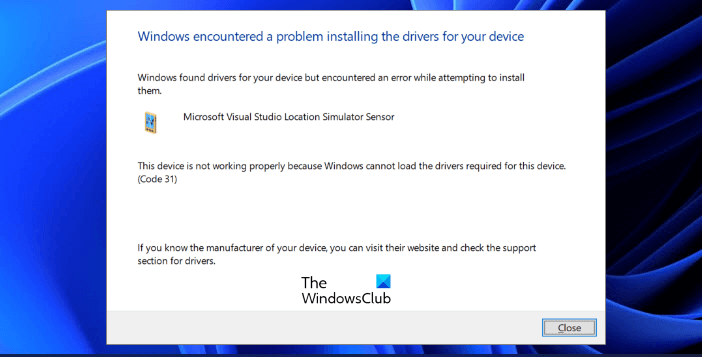
По словам разработчиков Visual Studio, датчик имитатора местоположения Microsoft Visual Studio был удален из Visual Studio версии 2017. Тем не менее, некоторые пользователи испытывают проблемы с драйвером в Visual Studio. Если это так, эта статья может помочь вам исправить это.
Что делает датчик симулятора местоположения Microsoft Visual Studio?
Датчик имитатора местоположения Microsoft Visual Studio предоставляет разработчикам среду, в которой они могут проектировать, разрабатывать, тестировать и отлаживать приложения Магазина Windows. Это также позволяет разработчикам моделировать приложения Магазина Windows, чтобы они могли протестировать их функциональность.
Если датчик имитатора местоположения Microsoft Visual Studio не работает в вашей системе, попробуйте следующие решения:
- Запустите средство устранения неполадок совместимости программ.
- Обновите драйвер вручную.
- Удалить драйвер (для пользователей Visual Studio версии 2017).
Давайте подробно обсудим эти решения.
1]Запустите средство устранения неполадок совместимости программ
Возможно, у вас возникла проблема из-за проблем с совместимостью. Чтобы исправить это, запустите средство устранения неполадок совместимости программ. Следуйте инструкциям ниже:
- Щелкните правой кнопкой мыши значок Microsoft Visual Studio на рабочем столе и выберите «Свойства».
- В окне «Свойства» перейдите на вкладку «Совместимость».
- Теперь нажмите кнопку «Запустить средство устранения неполадок совместимости».
После завершения процесса устранения неполадок проверьте, сохраняется ли проблема.
2]Обновите драйвер вручную
При автоматическом обновлении драйвера может возникнуть ошибка. У некоторых пользователей работало обновление драйвера устройства вручную. Вы также можете попробовать это. Шаги по обновлению драйвера датчика симулятора местоположения Microsoft Visual Studio перечислены ниже:
- Нажмите клавиши Win + R, чтобы запустить командное окно «Выполнить».
- Введите devmgmt.msc и нажмите ОК. Это запустит диспетчер устройств.
- Разверните узел «Датчики».
- Щелкните правой кнопкой мыши на Датчик имитатора местоположения Microsoft Visual Studio и выберите Обновить драйвер.
- Выберите Поиск драйверов на моем компьютере.
- Щелкните параметр «Разрешить мне выбрать из списка доступных драйверов на моем компьютере».
- Щелкните Установить с диска, а затем щелкните Обзор.
- Иди на путь C: Program Files Common Files microsoft shared Windows Simulator 14.0 и выберите файл SensorsSimulatorDriver.inf.
- Щелкните «Открыть», затем щелкните «ОК».
- Теперь нажмите «Далее».
Подождите, пока Windows установит драйвер устройства в вашей системе. После завершения процесса установки проверьте, устранена ли проблема.
3]Удалить драйвер (для пользователей Visual Studio версии 2017)
Ранее в этой статье мы объясняли, что датчик имитатора местоположения Microsoft Visual Studio был удален из Visual Studio версии 2017. Поэтому, если у вас установлена Visual Studio версии 2017, вы можете удалить его драйвер из диспетчера устройств. Многие пользователи заявили, что это решение устранило их проблему. Возможно, это сработает и для вас.
Следуйте инструкциям ниже:
- Запустить диспетчер устройств.
- Разверните узел «Датчики».
- Щелкните правой кнопкой мыши на Датчик имитатора местоположения Microsoft Visual Studio и выберите Удалить устройство.
- Во всплывающем окне нажмите «Удалить».
- Следуйте инструкциям на экране.
После удаления драйвера проблема должна быть устранена в вашей системе.
Как исправить датчик симулятора местоположения Visual Studio?
Вы можете исправить датчик симулятора местоположения Visual Studio, обновив или удалив драйвер устройства. В некоторых случаях проблема устраняется запуском средства устранения неполадок совместимости. Мы объяснили все решения для устранения этой проблемы выше в этой статье.
Надеюсь это поможет.
Читайте дальше: сбой кода Visual Studio в Windows.
 .
.
by Milan Stanojevic
Milan has been enthusiastic about technology ever since his childhood days, and this led him to take interest in all PC-related technologies. He’s a PC enthusiast and he… read more
Updated on February 9, 2022
- The Microsoft visual studio location simulator sensor has a driver problem error is prevalent in Visual Studio 2015.
- Re-installing the Visual Studio Location Simulator driver fixes the issue permanently.
- Get your hands on similar easy-to-follow troubleshooting articles from our Windows 10 Guides.
- Browse through more related information on our Microsoft Visual Studio webpage.

XINSTALL BY CLICKING THE DOWNLOAD FILE
This software will keep your drivers up and running, thus keeping you safe from common computer errors and hardware failure. Check all your drivers now in 3 easy steps:
- Download DriverFix (verified download file).
- Click Start Scan to find all problematic drivers.
- Click Update Drivers to get new versions and avoid system malfunctionings.
- DriverFix has been downloaded by 0 readers this month.
XINSTALL BY CLICKING THE DOWNLOAD FILE
- Download Restoro PC Repair Tool that comes with Patented Technologies (patent available here).
- Click Start Scan to find Windows 10 issues that could be causing PC problems.
- Click Repair All to fix issues affecting your computer’s security and performance
- Restoro has been downloaded by 0 readers this month.
A good number of users have complained about the Microsoft visual studio location simulator sensor driver problem, especially Visual Studio 2015 users.
The full error says:
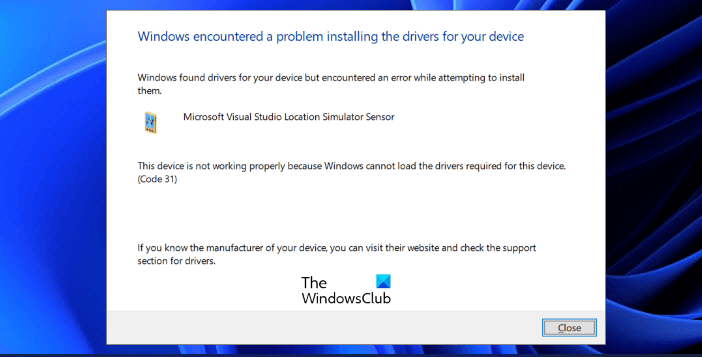
This device is not working properly because Windows cannot load the drivers required for this device. (Code 31)
{Operation Failed}
The requested operation was unsuccessful.
Visual Studio developers claim to have removed the sensor from the 2017 version of the program.
Hence, if you are getting this issue, you would think the best way to resolve this driver issue is to upgrade to a later edition.
However, VS2017 users have also complained about this issue. Thankfully, there are solutions that have worked for other users.
In this guide, you’ll learn the different ways to clear the Microsoft visual studio location simulator sensor has a driver problem error in both VS 2015 and VS 2017.
What is it?
Microsoft Visual Studio 12 – 15 provides a location simulator that works with a location simulator driver that you create.
The visual Studio simulator is a desktop application that simulates a Windows Store app.
It gives a window for developers to run applications and simulate common touch and rotation events on a single machine.
How can I fix the Microsoft Visual Studio Location Simulator Sensor has a driver problem?
1. Try the compatibility troubleshooter

- Type in Microsoft Visual studio in the search
- Right-click on it and select Open file location.
- Right-click and select Properties, click on the Compatability
- Click on Run compatibility troubleshooter and follow the on-screen instructions.
2. Uninstall and the Visual Studio Location Simulator driver
- Go to the Start menu and search for Device Manager then select it.
- Expand the Sensors item on the list.
- Right-click on Visual Studio Location Simulator Sensor and Uninstall.
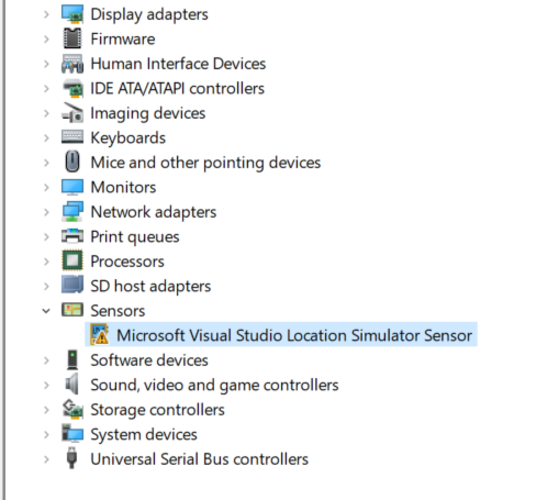
- Follow the on-screen steps to complete the uninstall.
- Restart your compu
3. Use a dedicated program
A dedicated program will scan your PC after installation and give a detailed report of missing and out-of-date device drivers.
Instead of fiddling with your computer’s drivers and registry, simply install this useful tool and use it to fix this and any future issues you encounter with your drivers.
By doing so, you have all chances to fix the Visual Studio Location Simulator driver using reliable software that will entirely scan your PC and find problematic drivers.
This driver managing software called DiverFix is the most suitable way to automatically repair driver issues, no matter how tricky may be.
Plus, with the extensive database of over 18 million driver files, you will certainly find the drivers’ problems and fix them with ease from a user-friendly platform.
⇒ Get DriverFix
4. Reinstall the Visual Studio Location Simulator driver
- Open Device Manager.
- Expand the Sensors category on the list.
- Right-click on Visual Studio Location then click Update Driver.
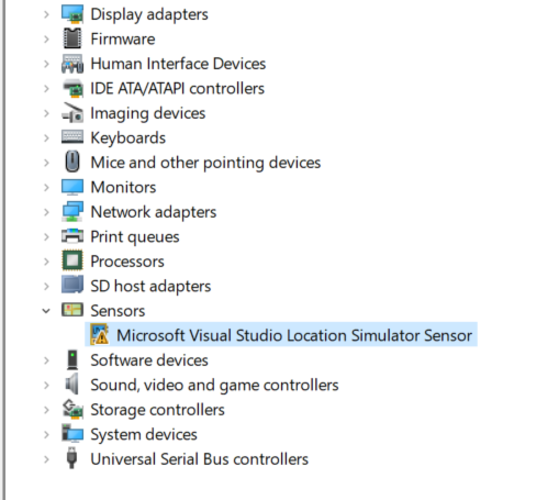
- Select Browse my computer for driver software.
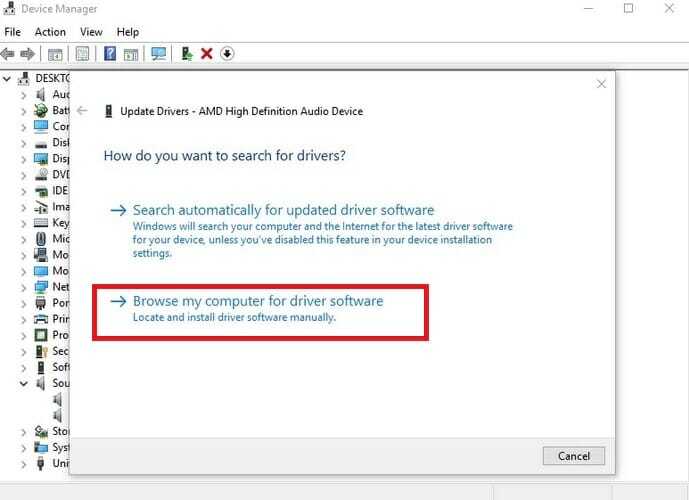
- Then click on Let me pick from a list of available drivers on my computer.
- Click on Have Disk…, then Browse.
- Navigate to the following directory:
C:Program FilesCommon Filesmicrosoft sharedWindows Simulator14.0 - Select SensorsSimulatorDriver.inf and hit Open.
- Click Ok then Next.
The Microsoft visual studio location simulation sensor problem on Windows 10 isn’t an issue with the application but the drivers.
Here, we’ve shown you how to fix the issue by troubleshooting the relevant drivers. The solutions presented here are delicate. So, ensure that you follow them carefully.
When in doubt, you can simply use the recommended tool to get it done quickly.
Still having issues? Fix them with this tool:
SPONSORED
If the advices above haven’t solved your issue, your PC may experience deeper Windows problems. We recommend downloading this PC Repair tool (rated Great on TrustPilot.com) to easily address them. After installation, simply click the Start Scan button and then press on Repair All.

Newsletter
Download PC Repair Tool to quickly find & fix Windows errors automatically
Some users are complaining that Microsoft Visual Studio Location Simulator Sensor is not working on their Windows computers. Some of them have tried updating the device driver from the Device Manager. But when they updated the driver, they received the following Device Manager error message:
This device is not working properly because Windows cannot load the drivers required for this device. (Code 31)
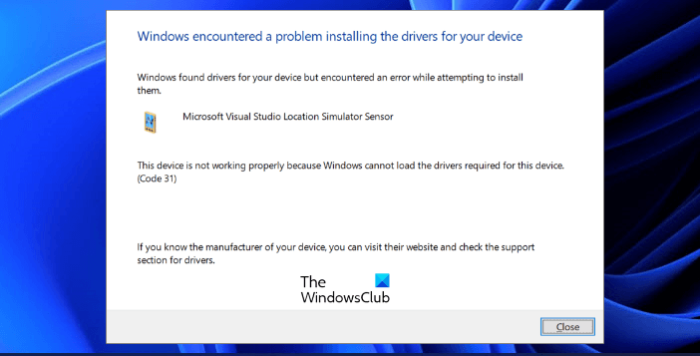
According to the Visual Studio developers, Microsoft Visual Studio Location Simulator Sensor was removed from the Visual Studio version 2017. But still, some users are experiencing the driver issue with Visual Studio. If this is the case with you, this article may help you fix it.
What does Microsoft Visual Studio Location Simulator Sensor do?
The Microsoft Visual Studio Location Simulator Sensor provides an environment to the developers where they can design, develop, test, and debug Windows Store apps. It also lets developers simulate the Windows Store apps so that they could test their functionality.
If Microsoft Visual Studio Location Simulator Sensor is not working on your system, try the following solutions:
- Run Program Compatibility Troubleshooter.
- Update driver manually.
- Uninstall driver (For Visual Studio version 2017 users).
Let’s discuss these solutions in detail.
1] Run Program Compatibility Troubleshooter
You might be experiencing the problem due to compatibility issues. To fix it, run Program Compatibility Troubleshooter. Follow the steps below:
- Right-click on the Microsoft Visual Studio icon on your desktop and select Properties.
- In the Properties window, click on the Compatibility tab.
- Now, click on the Run compatibility troubleshooter button.
After the troubleshooting process gets completed, check if the issue persists.
2] Update driver manually
Updating the driver automatically may give you an error. Manually updating the device driver worked for some users. You can also try this. The steps to update the Microsoft Visual Studio Location Simulator Sensor driver are listed below:
- Press Win + R keys to launch the Run command box.
- Type
devmgmt.mscand click OK. This will launch the Device Manager. - Expand the Sensors node.
- Right-click on Microsoft Visual Studio Location Simulator Sensor and select Update driver.
- Select Browse my computer for drivers.
- Click on the Let me pick from a list of available drivers on my computer option.
- Click Have Disk and then click Browse.
- Go to the path C:Program FilesCommon Filesmicrosoft sharedWindows Simulator14.0 and select SensorsSimulatorDriver.inf file.
- Click Open and then click OK.
- Now click Next.
Wait till Windows installs the device driver on your system. After the installation process gets completed, check if the issue is fixed or not.
3] Uninstall driver (For Visual Studio version 2017 users)
We have explained earlier in this article that Microsoft Visual Studio Location Simulator Sensor was removed from the Visual Studio version 2017. Therefore, if you have Visual Studio version 2017, you can uninstall its driver from the Device Manager. Many users have stated that this solution fixed their issue. Maybe it will work for you too.
Follow the instructions below:
- Launch the Device Manager.
- Expand the Sensors node.
- Right-click on Microsoft Visual Studio Location Simulator Sensor and select Uninstall device.
- Click Uninstall in the pop-up window.
- Follow the on-screen instructions.
After uninstalling the driver, the issue should be fixed on your system.
How do I fix the Visual Studio Location Simulator Sensor?
You can fix the Visual Studio Location Simulator Sensor by updating or uninstalling the device driver. In some cases, running the Compatibility Troubleshooter fixes the issue. We have explained all the solutions to fix this issue above in this article.
Hope this helps.
Read next: Visual Studio Code crashing on Windows.

Nishant is a tech enthusiast who loves writing about technology and gadgets. He has completed B.Tech. Apart from writing, he likes to spend his time on his plantation.
Download PC Repair Tool to quickly find & fix Windows errors automatically
Some users are complaining that Microsoft Visual Studio Location Simulator Sensor is not working on their Windows computers. Some of them have tried updating the device driver from the Device Manager. But when they updated the driver, they received the following Device Manager error message:
This device is not working properly because Windows cannot load the drivers required for this device. (Code 31)
According to the Visual Studio developers, Microsoft Visual Studio Location Simulator Sensor was removed from the Visual Studio version 2017. But still, some users are experiencing the driver issue with Visual Studio. If this is the case with you, this article may help you fix it.
What does Microsoft Visual Studio Location Simulator Sensor do?
The Microsoft Visual Studio Location Simulator Sensor provides an environment to the developers where they can design, develop, test, and debug Windows Store apps. It also lets developers simulate the Windows Store apps so that they could test their functionality.
If Microsoft Visual Studio Location Simulator Sensor is not working on your system, try the following solutions:
- Run Program Compatibility Troubleshooter.
- Update driver manually.
- Uninstall driver (For Visual Studio version 2017 users).
Let’s discuss these solutions in detail.
1] Run Program Compatibility Troubleshooter
You might be experiencing the problem due to compatibility issues. To fix it, run Program Compatibility Troubleshooter. Follow the steps below:
- Right-click on the Microsoft Visual Studio icon on your desktop and select Properties.
- In the Properties window, click on the Compatibility tab.
- Now, click on the Run compatibility troubleshooter button.
After the troubleshooting process gets completed, check if the issue persists.
2] Update driver manually
Updating the driver automatically may give you an error. Manually updating the device driver worked for some users. You can also try this. The steps to update the Microsoft Visual Studio Location Simulator Sensor driver are listed below:
- Press Win + R keys to launch the Run command box.
- Type
devmgmt.mscand click OK. This will launch the Device Manager. - Expand the Sensors node.
- Right-click on Microsoft Visual Studio Location Simulator Sensor and select Update driver.
- Select Browse my computer for drivers.
- Click on the Let me pick from a list of available drivers on my computer option.
- Click Have Disk and then click Browse.
- Go to the path C:Program FilesCommon Filesmicrosoft sharedWindows Simulator14.0 and select SensorsSimulatorDriver.inf file.
- Click Open and then click OK.
- Now click Next.
Wait till Windows installs the device driver on your system. After the installation process gets completed, check if the issue is fixed or not.
3] Uninstall driver (For Visual Studio version 2017 users)
We have explained earlier in this article that Microsoft Visual Studio Location Simulator Sensor was removed from the Visual Studio version 2017. Therefore, if you have Visual Studio version 2017, you can uninstall its driver from the Device Manager. Many users have stated that this solution fixed their issue. Maybe it will work for you too.
Follow the instructions below:
- Launch the Device Manager.
- Expand the Sensors node.
- Right-click on Microsoft Visual Studio Location Simulator Sensor and select Uninstall device.
- Click Uninstall in the pop-up window.
- Follow the on-screen instructions.
After uninstalling the driver, the issue should be fixed on your system.
How do I fix the Visual Studio Location Simulator Sensor?
You can fix the Visual Studio Location Simulator Sensor by updating or uninstalling the device driver. In some cases, running the Compatibility Troubleshooter fixes the issue. We have explained all the solutions to fix this issue above in this article.
Hope this helps.
Read next: Visual Studio Code crashing on Windows.
Nishant is a tech enthusiast who loves writing about technology and gadgets. He has completed B.Tech. Apart from writing, he likes to spend his time on his plantation.
Некоторые пользователи жалуются, что датчик имитатора местоположения Microsoft Visual Studio не работает на их компьютерах с Windows. Некоторые из них пытались обновить драйвер устройства из диспетчера устройств. Но когда они обновили драйвер, они получили следующее сообщение об ошибке диспетчера устройств:
Это устройство не работает должным образом, потому что Windows не может загрузить драйверы, необходимые для этого устройства. (Код 31)
По словам разработчиков Visual Studio, датчик имитатора местоположения Microsoft Visual Studio был удален из Visual Studio версии 2017. Тем не менее, некоторые пользователи сталкиваются с проблемой драйвера с Visual Studio. Если это ваш случай, эта статья может помочь вам это исправить.
Что делает датчик имитатора местоположения Microsoft Visual Studio?
Датчик имитатора местоположения Microsoft Visual Studio предоставляет среду разработчикам, где они могут проектировать, разрабатывать, тестировать и отлаживать приложения Магазина Windows. Он также позволяет разработчикам моделировать приложения Магазина Windows, чтобы они могли проверить их функциональность.
Если датчик имитатора местоположения Microsoft Visual Studio не работает на в вашей системе попробуйте следующие решения:
Запустите средство устранения неполадок совместимости программ. Обновите драйвер вручную. Удалите драйвер (для пользователей Visual Studio версии 2017).
Давайте подробно обсудим эти решения.
1 ] Запустить средство устранения неполадок совместимости программ
Возможно, проблема связана с проблемами совместимости. Чтобы исправить это, запустите средство устранения неполадок совместимости программ. Выполните следующие действия:
Щелкните правой кнопкой мыши значок Microsoft Visual Studio на рабочем столе и выберите Свойства . В окне «Свойства» перейдите на вкладку Совместимость . Теперь нажмите кнопку Запустить средство устранения неполадок совместимости .
После завершения процесса устранения неполадок проверьте, сохраняется ли проблема.
2] Обновите драйвер вручную
При автоматическом обновлении драйвера может возникнуть ошибка. У некоторых пользователей работало обновление драйвера устройства вручную. Вы также можете попробовать это. Шаги по обновлению драйвера датчика имитатора местоположения Microsoft Visual Studio перечислены ниже:
Нажмите клавиши Win + R , чтобы открыть командное окно Выполнить . Введите devmgmt.msc и нажмите ОК. Это запустит Диспетчер устройств. Разверните узел Датчики . Щелкните правой кнопкой мыши датчик имитатора местоположения Microsoft Visual Studio и выберите Обновить драйвер . Выберите Поиск драйверов на моем компьютере . Нажмите на Разрешить мне выбрать из списка доступных драйверов на моем компьютере . Нажмите Установить с диска , а затем нажмите Обзор .Перейдите по пути C: Program Files Common Files microsoft shared Windows Simulator 14.0 и выберите файл SensorsSimulatorDriver.inf . Нажмите «Открыть», а затем нажмите «ОК». Теперь нажмите «Далее».
Подождите. пока Windows не установит драйвер устройства в вашу систему. После завершения процесса установки проверьте, устранена ли проблема.
3] Удалить драйвер (для пользователей Visual Studio версии 2017)
Ранее в этой статье мы объясняли, что Датчик имитатора местоположения Microsoft Visual Studio был удален из Visual Studio версии 2017. Поэтому, если у вас установлена Visual Studio версии 2017, вы можете удалить его драйвер из диспетчера устройств. Многие пользователи заявили, что это решение устранило их проблему. Возможно, это сработает и для вас.
Следуйте инструкциям ниже:
Запустите Диспетчер устройств . Разверните узел Датчики . нажмите на датчик Microsoft Visual Studio Location Simulator и выберите Удалить устройство . Во всплывающем окне нажмите Удалить . Следуйте инструкциям на экране.
После удаления драйвера , проблема должна быть устранена в вашей системе.
Как исправить датчик имитатора местоположения Visual Studio?
Вы можете исправить датчик имитатора местоположения Visual Studio, обновив или удалив устройство Водитель. В некоторых случаях проблема устраняется запуском средства устранения неполадок совместимости. Мы объяснили все решения для устранения этой проблемы выше в этой статье.
Надеюсь, это поможет.
Читать дальше : сбой кода Visual Studio в Windows.
Windows 10: Fix Microsoft Visual Studio Location Simulator Sensor not working
Discus and support Fix Microsoft Visual Studio Location Simulator Sensor not working in Windows 10 News to solve the problem; [ATTACH]Some users are complaining that Microsoft Visual Studio Location Simulator Sensor is not working on their Windows computers. Some of them have…
Discussion in ‘Windows 10 News’ started by WinClub, Dec 11, 2021.
-
Fix Microsoft Visual Studio Location Simulator Sensor not working
Some users are complaining that Microsoft Visual Studio Location Simulator Sensor is not working on their Windows computers. Some of them have tried updating the device driver from the Device Manager. But when they updated the driver, they received the following Device Manager error message: This device is not working properly because Windows cannot load […]
This article Fix Microsoft Visual Studio Location Simulator Sensor not working first appeared on TheWindowsClub.com.
read more…
-
Microsoft Visual Studio Location Simulator Sensor, Driver Code 31
Hello every body,
I have just found a problem with Microsoft Visual Studio Simulator Sensor.
Device Manager -> Sensors -> Microsoft Visual Studio Simulator Sensor.
» This device is not working properly because Windows cannot load the drivers required for this device. (Code 31)
{Operation Failed}
The requested operation was unsuccessful. «
I have tried to fix the problem with «Update Driver» but it didn’t work.
How could I fix the problem ?
-
Microsoft Visual Studio Location Simulator Sensor, Driver Code 31
Hey Angelo,
Unfortunately, the Microsoft Visual Studio Simulator Sensor was removed from the VS 2017 installer, as stated by Luke Westendorf. This could be left over from VS 2015, if you had it previously. You should be able to remove it and without issue.
Source:
https://developercommunity.visualstudio.com/con… -
Fix Microsoft Visual Studio Location Simulator Sensor not working
«Microsoft Visual Studio Location Simulator Sensor» not working after clean install Windows 10 (1709)Hi.
I did what you suggested and, as another person commented (with pictures), does not fix the issue.
What fixed: removing the «sensor».
Fix Microsoft Visual Studio Location Simulator Sensor not working
-
Fix Microsoft Visual Studio Location Simulator Sensor not working — Similar Threads — Fix Microsoft Visual
-
Narrator not working with visual studio
in Windows 10 Gaming
Narrator not working with visual studio: I recently updated to win11 and downloaded visual studio 2022, so i could get some coding done, however narrator no longer reads either what i’ve typed in the text editor or any previous code from a file i already wrote. Not sure what the issue is, but i never had this issue… -
Narrator not working with visual studio
in Windows 10 Software and Apps
Narrator not working with visual studio: I recently updated to win11 and downloaded visual studio 2022, so i could get some coding done, however narrator no longer reads either what i’ve typed in the text editor or any previous code from a file i already wrote. Not sure what the issue is, but i never had this issue… -
Visual studio downloader not working
in Windows 10 Installation and Upgrade
Visual studio downloader not working: My pc was having a problem with battery, it would turn off if the charger was unplugged. I was installing visual studio 2019 the other day the downloader got installed. I opened it and just then the power went out and my pc shut downed… after power was up, I turned the on… -
Problem with Microsoft Visual Studio
in Windows 10 Software and Apps
Problem with Microsoft Visual Studio: Hi, Iv’e been getting this error witch i do not know how to fix, so if anybody does please reply, it will help me a lot.So the problem is that, when I want to create a new project or open an project it shows me an error.
Error appeared when I open Forms app in Visual…
-
Microsoft Visual Studio C#
in Windows 10 Software and Apps
Microsoft Visual Studio C#: So I’ve been getting into C# lately and I’ve been trying to get tile bars in C# but I just can figure out how.https://answers.microsoft.com/en-us/windows/forum/all/microsoft-visual-studio-c/de1450dd-18f2-4458-9e22-d62124e22de0
-
IS Microsoft Visual C++ THE SAME AS VISUAL STUDIO?
in Windows 10 Network and Sharing
IS Microsoft Visual C++ THE SAME AS VISUAL STUDIO?: IS Microsoft Visual C++ THE SAME AS VISUAL STUDIO?WHY IS THERE MANY DIFFERENT ‘C++’ FILES IN MY COMPUTER?
IF I NEED ONE THAT I DON’T HAVE TO RUN A PROGRAM HOW WOULD I KNOW? DOES AN ERROR CODE APPEAR?…
-
Will there be fix to Visual Studio Community 2019 and Visual Studio Tools 2017?
in Windows 10 Installation and Upgrade
Will there be fix to Visual Studio Community 2019 and Visual Studio Tools 2017?: [ATTACH]This has been going on since the 16.4.3 release for Visual Studio Community 2019 update. After the second update since the error, 16.4.4, I switched to Enterprise.
I scrolled through several forums in a relationship base search but no success in finding a solution….
-
Microsoft Visual Studio 2008
in Windows 10 Network and Sharing
Microsoft Visual Studio 2008: I am having a problem with publishing a project that I was able to publish before. I wrote this originally in 2015 and was trying to update the software and publish it. I get an error stating;Error 2 An error occurred while signing: Failed to sign…
-
microsoft visual studio c++
in Windows 10 Drivers and Hardware
microsoft visual studio c++: why i have so much microsoft visual studio c++can i uninstall them[IMG]
https://answers.microsoft.com/en-us/windows/forum/all/microsoft-visual-studio-c/aadbad4b-4e91-4086-a546-b7f906b2f387


What is ‘Microsoft Visual Studio Location Simulator Sensor not working’ issue in Windows 10/11?
In this article, we are going to discuss on How to fix Microsoft Visual Studio Location Simulator Sensor not working issue in Windows 10/11. You will be guided with easy steps/methods to resolve the issue. Let’s starts the discussion.
‘Microsoft Visual Studio Location Simulator Sensor’: Microsoft Visual Studio Location Simulator Sensor provides an environment to developers where they are allowed to designed, develop, text and debug Windows Store Apps It also helps developers simulate that Windows Store apps so that they could test their functionality.
‘Microsoft Visual Studio Location Simulator Sensor not working’ issue: It is common Windows Problem considered as Microsoft Visual Studio Location Simulator Sensor issue. This issue indicates Microsoft Visual Studio Location Simulator Sensor is not working properly in your Windows 10/11 computer. Let’s take a look at error message.
“This device is not working properly because Windows cannot load the drivers required for this device. (Code 31)”
Several users reported about this error and claims when they tried to update the device driver from Device Manager, they received ‘Microsoft Visual Studio Location Simulator Sensor device not working’ error instead of updating the driver. There could be several reasons behind the issue including corrupted/outdated or incompatible Microsoft Visual Studio Location Simulator Sensor driver, outdated Windows OS and some other problems in your Windows computer. Let’s go for the solution.
How to fix Microsoft Visual Studio Location Simulator Sensor not working issue in Windows 10?
Method 1: Fix ‘Microsoft Visual Studio Location Simulator Sensor not working’ issue with ‘PC Repair Tool’
‘PC Repair Tool’ is easy & quick way to find and fix BSOD errors, DLL errors, EXE errors, problems with programs/applications, malware or viruses issues, system files or registry issues, and other system issues with just few clicks.
⇓ Get PC Repair Tool
Method 2: Run Program Compatibility troubleshooter

Windows built-in Program Compatibility troubleshooter can resolve the issue.
Step 1: Find and right-click on Microsoft Visual Studio app icon on desktop and select ‘Properties’
Step 2: In ‘Properties’ window, click ‘Compatibility’ tab and click ‘Run Compatibility troubleshooter’ button
Step 3: Follow on-screen instructions to finish troubleshooting and once done, please check if the issue is resolved.
Method 3: Update Microsoft Visual Studio Location Simulator Sensor driver

Updating Microsoft Visual Studio Location Simulator Sensor driver in Windows computer manually can resolve the issue.
Step 1: Open ‘Device Manager’ Windows PC via Windows Search Box and expand ‘Sensors’ category
Step 2: Right-click on ‘Microsoft Visual Studio Location Simulator Sensor’ and select ‘Update Driver’, and follow on-screen instructions to finish update process. Once updated, restart your computer and check if the error is resolved.
Download or reinstall Microsoft Visual Studio Location Simulator Sensor driver update in Windows PC [Automatically]
You can also try to update all Windows drivers including Microsoft Visual Studio Location Simulator Sensor driver to latest & compatible driver version using Automatic Driver Update Tool. You can get this tool through button/link below.
⇓ Get Automatic Driver Update Tool
Method 4: Uninstall Microsoft Visual Studio Location Simulator Sensor driver
If the issue is still persist, you can uninstall Microsoft Visual Studio Location Simulator Sensor driver in computer in order to fix the issue.
Step 1: Open ‘Device Manager’ in Windows PC via Windows Search Box and expand ‘Sensors’ category
Step 2: Right-click on ‘Microsoft Visual Studio Location Simulator Sensor’ driver and select ‘Uninstall Device’, and follow on-screen instructions to finish uninstall process. Once uninstalled, please check if the issue is resolved.
Conclusion
I hope this article helped you on How to fix Microsoft Visual Studio Location Simulator Sensor not working issue on Windows 10/11 with several easy steps/methods. You can read & follow our instructions to do so. That’s all. For any suggestions or queries, please write on comment box below.
Вопрос:
Датчик симулятора местоположения Microsoft Visual Studio
Поэтому я удалил устройство. Выиграть 8.1 не правильно (ошибка драйвера). Это сошло со мной
Для чего вам это нужно, пожалуйста?
актуальность
100%
Рекомендуемое решение:
Датчик симулятора местоположения Microsoft Visual Studio
Я рекомендую скачать ASR. Это инструмент восстановления, который может автоматически исправить многие проблемы Windows.
Вы можете скачать его здесь Скачать ASR. (Эта ссылка запускает загрузку ASR.)
актуальность
72.98%
Является ли изменение в Bzw. Ключ для 2013.
Алло,
Мне нравится иметь визуальные условия для этого? Есть ли какая-либо Studio 2013 при изменении 2017.
У меня есть VS2017 с ключом 2013er? MfG Stefan
актуальность
71.75%
Это похоже только и может перепрыгнуть через подсказку прямо к приложению.
В разделе «Все приложения» ссылка на P. Вы даже узнаете о недавно установленных приложениях в меню «Пуск», всего в одном FIRSTRUN.EXE. На рабочем столе мне после меня не помогли.
Но я понятия не имею, где сейчас S.
Hi
Я не использую обычную кнопку запуска Win XP слева внизу в Win 8.1. кто помогает? Там у меня есть exe, на что я должен позвонить, чтобы начать.
установка также не сохранена. Http://www.windows-8-forum.net/windo…tallieren.html имеет поиск и закрепление VS 2012 для начала. Он находится где-то под C: Program Files Microsoft Visual Studio 11.0
К сожалению, я должен быть для Microsoft Office. Могу ли я теперь установить Visual Studio 2012 Express под Win 8.1.
актуальность
70.52%
Здесь у нас ЗАКРЫТО
Я этого не знаю!
Затем перейдите на C / C ++ Forum :: Index
Конечно, можно помочь! Поэтому программирование темы не существует.
актуальность
68.88%
Danke schon
Guten Morgen,
как и у других, у меня проблема с сообщением «Failed» и кодом ошибки 0x8007015e, а также с тем, что требуется перезагрузка. Каждый раз, когда я пытался удалить, я получал ответ «Установка установки / удаления распространяемого пакета Visual C ++ 2012 (x64) — 11.0- 60610. Предлагаемые решения из этих веток заранее!
Подробнее …
но я не помог.
актуальность
68.06%
Кто имеет доступ к OLDB в AccessDB?
Ситуация сводит меня с ума. Хотя все приложения так же сохраняют идею?
Мне не удается в Фурте. Проекты, которые обращаются к базе данных через VS 2015 div. В некоторых случаях не работают.
Изменить на провайдера = Microsoft.ACE.OLEDB.12.0 …..
актуальность
68.06%
Все не помогло. Где может быть ошибка (любой процессор, x64, x86), «Определить константу трассировки» и «Определить константу отладки». не это. создать программу с доступом к базе данных. Кроме того, я попробовал Einsetzeln для компиляции во всех вариантах mdb и один раз, когда accdb попытался связать.
У меня установлен Microsoft.ACE.OLEDB.12.0, и в наших документах нам следует советоваться с форумами, которые попробовали и спросили, поэтому теперь здесь. К сожалению, работает более старая версия 2007. У меня есть моя база данных один раз, как
Алло,
Я новичок и имею все виды — он должен как-то работать.
актуальность
65.6%
Установлена Visual Studio 2005. Возможно, вы будете, так как оно зафиксировало бесчисленные ошибки.
У меня есть ноутбук с Vista Ultimate в офисе. Вчера я установил C ++ Express Edition?
BTW: Я думаю, VS2005 работал только с пакетом обновления 1, установленным в Windows Vista. Если это правильное издание, я бы предложил ремонт установки (снова запустить настройку с компакт-диска). В любом случае необходимо установить пакет обновления
актуальность
63.55%
Если я хочу установить Visual C ++ Redistributable для Visual Studio 2015 Исправить проблемы и выполнить повторную настройку. появляется только сообщение об ошибке:
ошибки установки
Ошибка установки из-за одной или нескольких проблем.
актуальность
56.58%
moin freaks,
Я не знаю, правильно ли это, какой будет рекомендуемый процессор для Visual Studio 2015 / 2017? Насколько велики E3, кроме ECC RAM. Спасибо заранее, vg phi
Нет AMD? e3 xeon?
Ничего, а samsung pro, возможно, с .2. I7 или из-за проектов?
Смещение должно быть 32gb RAM Pro.
актуальность
56.58%
Ответы!
Если есть какие-то вопросы, я вообще ничего не изменил? Спасибо за разницу между Visual Studio Community 2015 и Visual Studio 2015?
Несколько вопросов о Visual Studio:
1) Что это просто добавлено в качестве ответа!
Есть
актуальность
56.17%
Кто-нибудь знает, что вы пришли к этой версии и что вы хотите с ней делать. Л.Г.
Посмотрите документацию, хотя я спрашиваю себя, как ISO на виртуальном диске, и посмотрим, что произойдет.
Здравствуйте,
Я собираюсь установить Visual Studio на свою машину W7. Где купить лицензии для Visual Studio
В противном случае мне просто нужно установить там?
актуальность
56.17%
почему это не работает в VS 2015?
#включают
void main ()
{
соиЬ
актуальность
56.17%
Вы в первую очередь хотите работать самостоятельно или работать с мышью и монитором?
актуальность
56.17%
Путь к установленной программе? Но путь другой, если он кто-то. В .NET Framework уже есть несколько функций.
найдите «Application.StartupPath» или «System.AppDomain.CurrentDomain.BaseDirectory».
В зависимости от используемого языка
какой путь именно речь?
актуальность
56.17%
Так подходит для Windows 10. Проблема совместимости, отчет:
Этот ПК представляет собой сообщение:
К сожалению, этот компьютер не подходит для Windows 10. Iht PC: все четыре области в порядке
Ваши приложения и данные: некоторые приложения несовместимы, совместимы с победой 10
Подробнее …
Я думаю, что эта программа является причиной.
Когда я пытаюсь перейти на Win 10, я могу продолжить уже начатый вклад weiterfuhr. Но вам также пришлось удалить ваши. Visual Studio 2005 не Visual Studio 2005 Professional Edition — ENG
Нужно ли мне сейчас удалить Visual Studio 2005?
актуальность
56.17%
Как я могу ввести правильную категорию !!!]
Подробнее …
Алло,
для установки 2010 Platform Toolset (v140) в Visual Studio Спасибо.
[отложено, пожалуйста, на следующем вопросе я получаю такое же сообщение об ошибке MSB8008.
актуальность
56.17%
Проблема в том, что вы один раз регистрируетесь на VS на каждой виртуальной машине? Вайсс должен войти в систему с учетной записью Microsoft. Большой привет
Обучение Visual Studio 2015 Community Edition.
Алло,
мы используем для использования Visual Studio для обучения?
Достаточно ли, если у кого-то с обычной учетной записью Microsoft. Как официальная процедура кем-то более точно?
Quellen:
https://www.drwindows.de/hardware-and-treiber/68584-microsoft-visual-studio-location-simulator-sensor.html
https://www.windows-7-forum.net/threads/visual-studio-2013-key-fuer-visual-studio-2017-nutzen.55558/
https://www.winboard.org/win8-software/198429-microsoft-visual-studio-2012-express.html
http://www.windows-10-forum.com/threads/microsoft-visual-studio-community-express-2015.19860/
https://www.windows-7-forum.net/threads/kann-jemand-mit-microsoft-visual-studio-2010-c-aushelfen.30269/
http://www.windows-10-forum.com/threads/probleme-bei-deinstallation-von-microsoft-visual-studio-2012-redistributable-unter-windows-10.11888/
https://www.winboard.org/office/179659-visual-studio-2015-der-microsoft-jet-oledb-4-0-provider-ist-nicht-auf-dem-lokalen-computer-regis.html
https://www.winboard.org/office/183521-access-2016-datenbank-c-projekt-microsoft-visual-studio-2015-verknuefen-windows-10-a.html
https://www.winboard.org/vista-software/111063-visual-studio-2005-visual-basic-erscheint-der-projektmappe-vorlagen-ausgegraut.html
https://www.windows-7-forum.net/threads/visual-c-redistributable-fuer-visual-studio-2015.52512/
https://www.computerbase.de/forum/showthread.php?t=1670694
https://www.winboard.org/windows-10/175128-visual-studio.html
https://www.windows-7-forum.net/threads/visual-studio-2017.54917/
https://www.windows-7-forum.net/threads/visual-studio-installieren-auf-w7.36239/
https://www.winboard.org/windows-8-1/183466-visual-studio-2015-und-c.html
https://www.drwindows.de/hardware-and-treiber/128331-hardware-fuer-visual-studio-17-a.html
http://www.pcmasters.de/forum/142295-visual-studio-webbrowser-url.html
http://www.windows-10-forum.com/threads/visual-studio-2005-und-win-10.39528/
http://www.windows-10-forum.com/threads/visual-studio-2010.36836/
https://www.winboard.org/windows-8-1/170111-visual-studio-zu-schulungszwecken.html
https://www.winboard.org/vista-allgemeines/102934-setup-fehler-visual-studio.html