Поклонники Майнкрафта при попытке зайти на сервера Хайпикселя могут столкнуться с ошибкой соединения: «Failed to authenticate your connection Hypixel». Это небольшая проблема и есть несколько основных моментов почему такое может произойти. В начале статьи расскажем основные причины этого сбоя, а ниже дадим советы как исправить.
Причины сбоя соединения на Хайпикселе
Ошибка «Failed to authenticate your connection hypixel» означает что ваше соединение не удалось аутентифицировать. Есть три основных проблемы из-за которых не пускает на Хайпикселя. Перед тем, как исправлять ошибку вы можете зайти на другой сервер и проверить подключение. Так же в настройках у вас должен быть прописан адрес «stuck.hypixel.net» или «mc.hypixel.net». К остальным проблемам относятся:
- Нерабочая лицензия или лицензия купленная не на официальном сайте.
- Временный баг на самом сервере.
- Проблемы с интернет соединением на компьютере.
- Вы переименовали свою лицензию.
- Брэндмауэр блокирует порты нужные для хоста hypixel.
Если это временный баг, то он будет исправлен разработчиками в ближайшее время, обычно все сбои и лаги пропадают после перезагрузки сервера. Временные неполадки с соединением исправляются быстро, если вас «не пускает» уже несколько часов или дней, попробуйте советы ниже, возможно стоит неправильный адрес хоста.
Как исправить ошибку?
Первое, что вы должны вспомнить – где покупалась лицензия. Для спокойной игры желательно приобретать ее на официальном сайте. Далее пробуем добавить сервер с правильным адресом:
- Открываем лаунчер Minecraft, заходим в Мультиплеер(Multiplayer) и кликаем «Добавить сервер»(Add Server).
- В строке прописываем актуальный адрес mc.hypixel.net.
- В любой непонятной ситуации перезапустите игру, лаунчер и переподключите(перезагрузите) роутер.

Устанавливаем адрес сервера mc.hypixel.net, нажимаем «Применить» и перезапускаем Лаунчер
Если адрес введён правильный, возможно вы меняли имя лицензии вручную или забыли обновить адрес хоста. Что бы всё заработало нужно перезайти в Лаунчер:
- Запускаем лаучнер. В правом верхнем углу есть надпись с вашим Ником.
- Нажимаем на никнейм, выбираем «Выйти», далее авторизуемся заново.
- Пробуем зайти заново и начать игру.
На официальном сайте [mask_link href=»https://hypixel.net/play/» target=»_blank»]https://hypixel.net/play/[/mask_link] указано, что сейчас играть можно вообще бесплатно, главное проверить настройки порта, должно быть прописано mc.hypixel.net – проверьте это и напишите в комментариях получилось ли зайти.
Так же разработчики заявили о поддержка Майнкрафта версии 1.8. Для входа и совместной игры с друзьями можно использовать версию 1.8 или 1.16 без переключения.
Выводы
Ошибка Failed to authenticate your connection hypixel появляется при попытке зайти и начать игру на хосте Хайпикселя. Обычно это временный баг или проблемы с лицензией после переименования. Можно перезайти в игру и лаунчер, о чем мы писали выше. Разработчики заявляют что переходят на бесплатный режим. Для игры рекомендуется использовать обновленный адрес: mc.hypixel.net и совместимую версию Майнкрафта 1.8 или ниже. Проверяйте советы из статьи и напишите в комментариях к этой странице какой способ помог вам.
Актуальное на этой неделе:

11.04.2022
Если вам на карту неожиданно пришли деньги, что делать?
Когда поступают деньги на карту, владелец обычно знает, что и откуда «падает». Родственник прислал, долг…
Далее

06.04.2022
Как добавить VPN на Андроид через настройки
Ограничения доступа в интернет раздражает и не дает использовать интересные подключения. Проблема решается…
Далее

06.04.2022
Как создать канал в Telegram: пошаговое руководство и советы
Собственный Telegram-канал может завести любой человек. Мессенджер в данном случае никого не ограничивает. При…
Далее

19.03.2022
Код ошибки 60-02 и 01-03 в Сбербанк Онлайн – как исправить?
«Сбербанк онлайн» — это удобный сервис, позволяющий проводить финансовые манипуляции из любой точки мира….
Далее
-
Partition Wizard
-
Partition Magic
- Fixed: Minecraft Failed to Authenticate Your Connection
By Ariel | Follow |
Last Updated April 27, 2020
Minecraft failed to authenticate your connection when attempting to join a server. It’s annoying that you can’t run Minecraft smoothly because of it. Don’t be alarmed. MiniTool explores 4 effective troubleshooting methods for you.
The Minecraft failed to authenticate your connection error usually indicates that there’s a bug with the Minecraft server. To build an inflow and outflow of data smoothly, Minecraft requires a stable and constant Internet connection. So, the error may be caused by the unstable or even faulty Minecraft server.
How to fix Minecraft failed to authenticate your connection error? Let’s try the 4 troubleshooting methods below one by one.
Fix 1. Restart the Minecraft Launcher
The first and simplest method to troubleshoot the error “ailed to authenticate your connection Minecraft” is to restart the launcher. As you know, this game won’t launch smoothly if some files are not loaded fully, which can cause Minecraft failed to authenticate your connection and unable to connect to the world.
To get rid of this error, you can try restarting the Minecraft launcher completely.
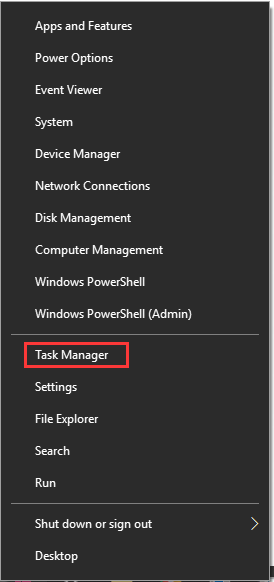
Step 1. Right-click the Start menu and select the Task Manager option from the context menu.
Step 2. Go to the Processes tab, and then find all processes related to Minecraft from the list.
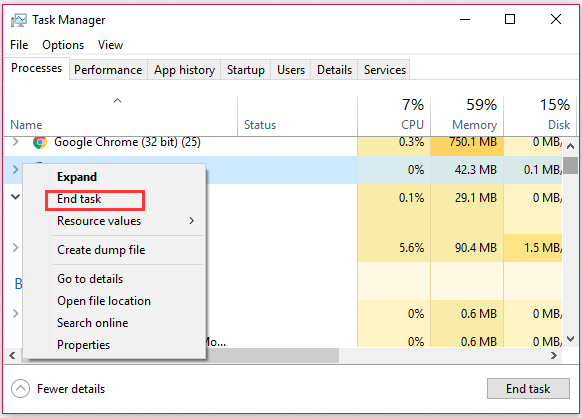
Step 3. Right-click the process and select End task from the context menu to close it entirely.
Tip: You should repeat these steps to close anything with Minecraft.
Step 4. Wait for several minutes and restart Minecraft launcher.
Now, you can try connecting to the server and see if the authentication to Minecraft.net failed is resolved. If not, move on to the next methods.
Fix 2. Restart the Internet Router
The Internet cache is also possible to cause Minecraft failed to authenticate your connection. This is because the built-up Internet cache may get corrupted, which will prevent you from establishing a secure connection with Minecraft server. It can also trigger the Minecraft connection timed out error.
For this situation, you can fix it simply by performing a power-cycling for your router. Here’s how:
Step 1. Make sure you have unplugged the internet router from the socket.
Step 2. Hold the Power button on the back of your router for about 15 seconds.
Step 3. Then plug the router into the socket again and press the Power button to restart it.
Now, you need to wait sometime for granting the internet access and check if the error “failed to authenticate your connection Minecraft” still persists.
Fix 3. Log in to the Minecraft Launcher Again
If you have an unauthorized login status, it is very likely to encounter the Minecraft failed to authenticate connection error. To fix this issue, you need to be re-authorized by the server. Here’s how to do that:
Step 1. Open your Minecraft launcher first and click on the Username icon at the upper right corner.
Step 2. Select the Logout option from the drop-down menu.
Step 3. Once your log out the account entirely, log in to your account from here again.
Now, you can try connecting to the server and see if the failed to authenticate your connection Minecraft error is fixed or not.
Fix 4. Directly Connect Minecraft to the Server
If all the above methods fail to work, you can try using the Direct Connect feature. It is a practical feature in the Play Multiplayer that can be used to connect to the server directly. Here’s how to use this feature:
Step 1. Open the Minecraft launcher and navigate to the server list screen.
Step 2. Click on the Direct Connect button at the bottom of this screen.
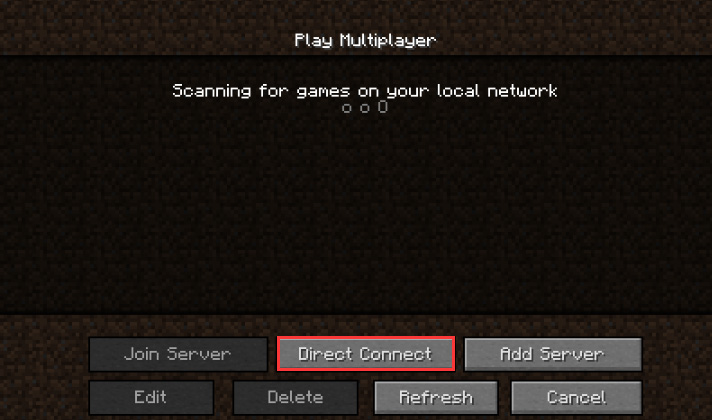
Step 3. In the pop-up window, type stuck.hypixel.net and click on the Connect button.
Step 4. Wait for some time to complete this connection and check if the error is resolved. If the game still failed to connect, which indicates it is most probably a bug comes with the Minecraft launcher. For this, you can reinstall this game or consult professional support.
About The Author

Position: Columnist
Ariel is an enthusiastic IT columnist focusing on partition management, data recovery, and Windows issues. She has helped users fix various problems like PS4 corrupted disk, unexpected store exception error, the green screen of death error, etc. If you are searching for methods to optimize your storage device and restore lost data from different storage devices, then Ariel can provide reliable solutions for these issues.
-
Partition Wizard
-
Partition Magic
- Fixed: Minecraft Failed to Authenticate Your Connection
By Ariel | Follow |
Last Updated April 27, 2020
Minecraft failed to authenticate your connection when attempting to join a server. It’s annoying that you can’t run Minecraft smoothly because of it. Don’t be alarmed. MiniTool explores 4 effective troubleshooting methods for you.
The Minecraft failed to authenticate your connection error usually indicates that there’s a bug with the Minecraft server. To build an inflow and outflow of data smoothly, Minecraft requires a stable and constant Internet connection. So, the error may be caused by the unstable or even faulty Minecraft server.
How to fix Minecraft failed to authenticate your connection error? Let’s try the 4 troubleshooting methods below one by one.
Fix 1. Restart the Minecraft Launcher
The first and simplest method to troubleshoot the error “ailed to authenticate your connection Minecraft” is to restart the launcher. As you know, this game won’t launch smoothly if some files are not loaded fully, which can cause Minecraft failed to authenticate your connection and unable to connect to the world.
To get rid of this error, you can try restarting the Minecraft launcher completely.
Step 1. Right-click the Start menu and select the Task Manager option from the context menu.
Step 2. Go to the Processes tab, and then find all processes related to Minecraft from the list.
Step 3. Right-click the process and select End task from the context menu to close it entirely.
Tip: You should repeat these steps to close anything with Minecraft.
Step 4. Wait for several minutes and restart Minecraft launcher.
Now, you can try connecting to the server and see if the authentication to Minecraft.net failed is resolved. If not, move on to the next methods.
Fix 2. Restart the Internet Router
The Internet cache is also possible to cause Minecraft failed to authenticate your connection. This is because the built-up Internet cache may get corrupted, which will prevent you from establishing a secure connection with Minecraft server. It can also trigger the Minecraft connection timed out error.
For this situation, you can fix it simply by performing a power-cycling for your router. Here’s how:
Step 1. Make sure you have unplugged the internet router from the socket.
Step 2. Hold the Power button on the back of your router for about 15 seconds.
Step 3. Then plug the router into the socket again and press the Power button to restart it.
Now, you need to wait sometime for granting the internet access and check if the error “failed to authenticate your connection Minecraft” still persists.
Fix 3. Log in to the Minecraft Launcher Again
If you have an unauthorized login status, it is very likely to encounter the Minecraft failed to authenticate connection error. To fix this issue, you need to be re-authorized by the server. Here’s how to do that:
Step 1. Open your Minecraft launcher first and click on the Username icon at the upper right corner.
Step 2. Select the Logout option from the drop-down menu.
Step 3. Once your log out the account entirely, log in to your account from here again.
Now, you can try connecting to the server and see if the failed to authenticate your connection Minecraft error is fixed or not.
Fix 4. Directly Connect Minecraft to the Server
If all the above methods fail to work, you can try using the Direct Connect feature. It is a practical feature in the Play Multiplayer that can be used to connect to the server directly. Here’s how to use this feature:
Step 1. Open the Minecraft launcher and navigate to the server list screen.
Step 2. Click on the Direct Connect button at the bottom of this screen.
Step 3. In the pop-up window, type stuck.hypixel.net and click on the Connect button.
Step 4. Wait for some time to complete this connection and check if the error is resolved. If the game still failed to connect, which indicates it is most probably a bug comes with the Minecraft launcher. For this, you can reinstall this game or consult professional support.
About The Author
Position: Columnist
Ariel is an enthusiastic IT columnist focusing on partition management, data recovery, and Windows issues. She has helped users fix various problems like PS4 corrupted disk, unexpected store exception error, the green screen of death error, etc. If you are searching for methods to optimize your storage device and restore lost data from different storage devices, then Ariel can provide reliable solutions for these issues.
The ‘Failed to Authenticate your Connection’ Error springs up while trying to join a Minecraft server. The error message prevents the player from being able to connect to the server and this usually indicates a bug with the Minecraft server. This is also seen in Hypixel servers. the steps listed below are seen to work for them as well.
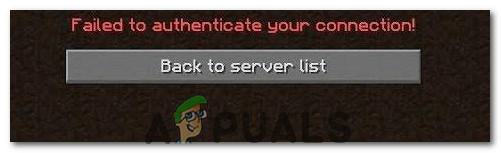
This particular error is mostly caused when the Minecraft servers are glitched or your connection isn’t stable. Minecraft requires the users’ connection to be stable and constant in order for it to successfully establish an inflow and outflow of data. Therefore, a faulty connection either on the users’ side or Minecraft’s’ side causes this error.
Solution 1: Power Cycle the Internet Router
In some cases, the error is displayed when the internet cache that has been built up by the router is corrupted and it prevents the user from establishing a secure connection with the servers. This error can also cause the connection to timeout. Therefore, in this step, we will be getting rid of that cache by completely power-cycling the internet router. For that:
- Unplug the internet router from the wall socket.
Unplugging the power from the wall socket - Press and hold the power button on the back of the router for at least 15 seconds.
- Plug the router back in and press the power button to turn it on.
plugging the Power cord Back in - Wait for the internet access to be granted and check to see if the issue persists.
Solution 2: Restart Launcher
Sometimes, the game doesn’t launch properly due to which some files aren’t loaded completely. This issue can also prevent the game from connecting to a world. Therefore, in this step, we will be completely restarting the launcher and the game to get rid of this problem. In order to do that:
- Right-click on the taskbar and select the “Task Manager” option.
Or press “Ctrl” + “Alt” + “Del” and select the “Task Manager” option.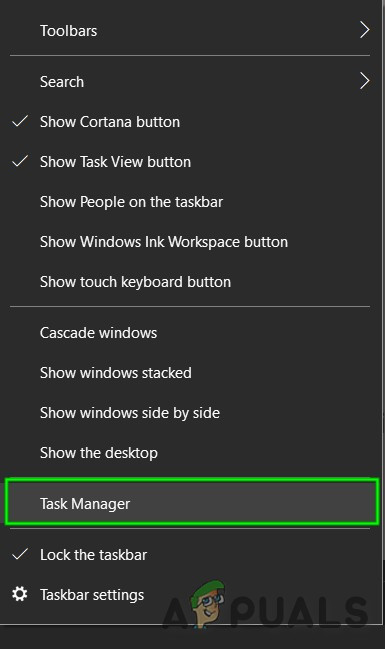
Open Task Manager - Scroll down in the “Processes” tab and look for anything with “Minecraft” in its name.
- Once found, click on the process and select the “End Task” option to close it completely.
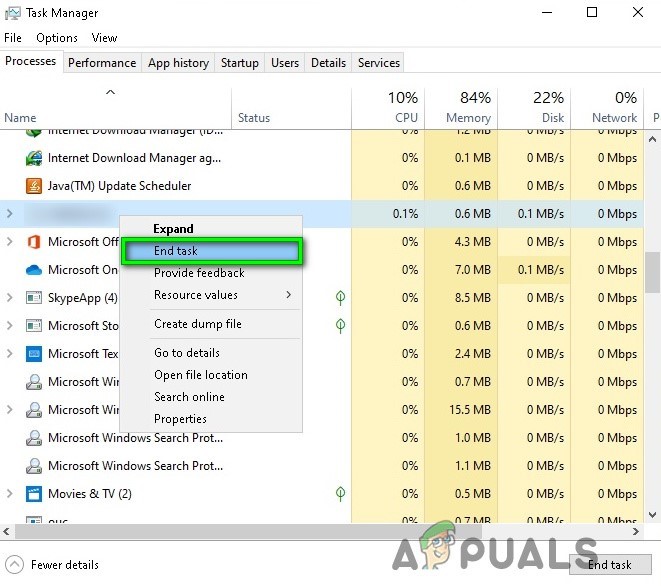
End Task in Task Manager - Once closed, wait for some time and restart the launcher.
- Start Minecraft, try to connect to the server, and check to see if the issue persists.
Solution 3: Use Direct Connect
In some cases, instead of connecting through the server list we can use the direct connect feature in the multiplayer to connect to the server. Since this problem is most prevalent with the “Hypixel” server, we will be using direct connect to get into it. For that:
- Launch the Minecraft launcher and get into the server list screen.
- Click on the “Direct Connect” option on the bottom of the screen.
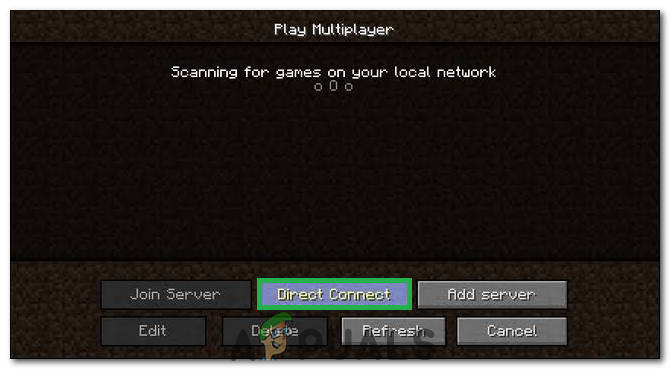
Clicking on the “Direct Connect” button inside the launcher - In the direct connect feature, type in “stuck.hypixel.net” and click on “Connect”.
- Wait for the connection to be established and check to see if the game is connected.
- If it is, this means that there is most probably a bug with the Minecraft launcher which is preventing you from connecting through the server list.
- You can either reinstall the game or wait for the glitch to go away and use the direct connect feature until it does.
Solution 4: Logout and Log Back into the Minecraft Launcher
A temporary glitch between your system and Minecraft servers may cause the ‘failed to authenticate’ issue (especially, if you have recently changed your user’s name in Minecraft) and may get cleared if your log out/log in to the Minecraft launcher.
- Quit Game (if applicable) in the Minecraft Launcher and close the launcher (make sure to end all of its relevant processes in the Task Manager of your system).
- Then open the Minecraft launcher and click on the user’s name (near the top right of the window).
- Now choose Logout and close the launcher (make sure no process related to it is operating in the Task Manager of your system).
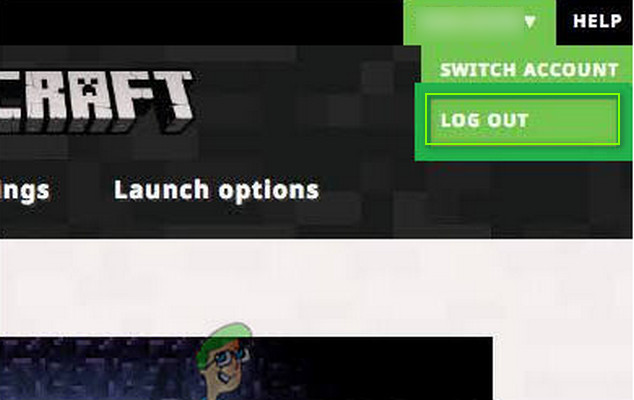
Log Out of the Minecraft Launcher - Then open the launcher again and log in using your credentials to check if the Hypixel issue is resolved.
- If the issue persists, then log out of the launcher (as discussed above) and launch a web browser.
- Now navigate to the Mojang website and click on Login.
- Then click on the Forgot Password link and in the next window, enter your registered email with the Mojang.

Click on the Forgot Your Password Link on the Mojang Website - Now click on Request Password Reset and then use the instructions in the email to reset the password.

Request Password Reset on the Minecraft Website - After resetting the password, launch the Minecraft launcher and log in using the new credentials to check if the ‘failed to authenticate’ issue is resolved.
Solution 5: Rejoin the Hypixel Server
A temporary glitch between your system and the Hypixel server may result in the ‘failed to authenticate’ issue. The glitch may get cleared if you rejoin the server.
- Exit the Minecraft launcher (make sure to Quit Game, if applicable) and make sure to end all of its relevant processes in the Task Manager of your system.
- Now open the Launcher and select Single Player.
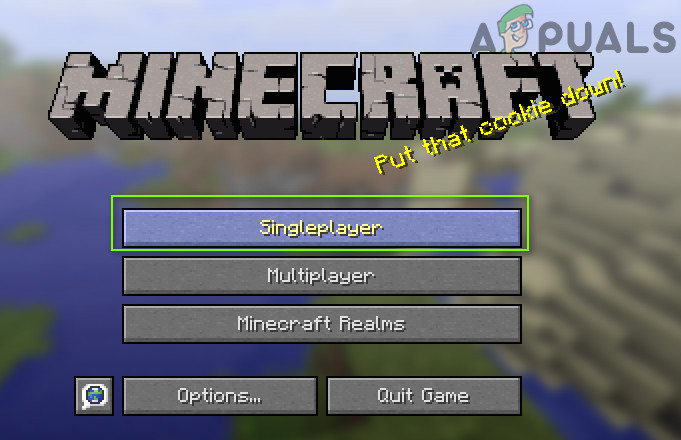
Play a Single Player Game - Then play the single-player world for 2 to 3 minutes and then exit the world.
- Now, select Multiplayer and click on Add Server.
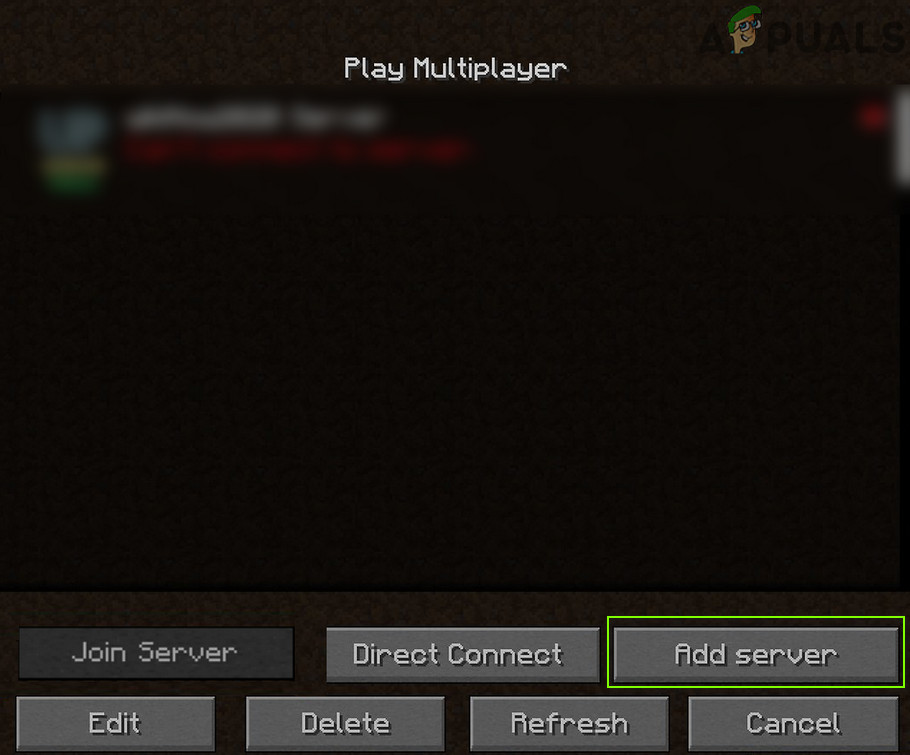
Click on Add Server in Multiplayer Menu of Minecraft - Then enter the following and click Done:
mc.hypixel.net
- Now check if the launcher is clear of the authentication issue.
- If the issue persists, then check if using the following (one by one) in the Server box resolves the issue:
hypixel.net

stuck.hypixel.net

Connect to the Stuck Hypixel Server in Minecraft - If the connection is made, then try again with the “mc.hypixel.net” in the Server Address box.
- If the issue persists, then try again after a system/internet equipment restart.
Solution 6: Edit the Hosts File
You may fail to authenticate your connection when using the Hypixel server if the Hosts file blocks your system’s access to an essential resource for the operation of the Minecraft launcher (usually, due to the use of an application like MCLeaks).
- First, uninstall the MCLeaks (or similar application) in Apps & Features and then perform a thorough system scan with antivirus/antimalware (like Malwarebytes) products.
- Now click Windows, type: Notepad, and right-click Notepad. Then choose Run as Administrator.
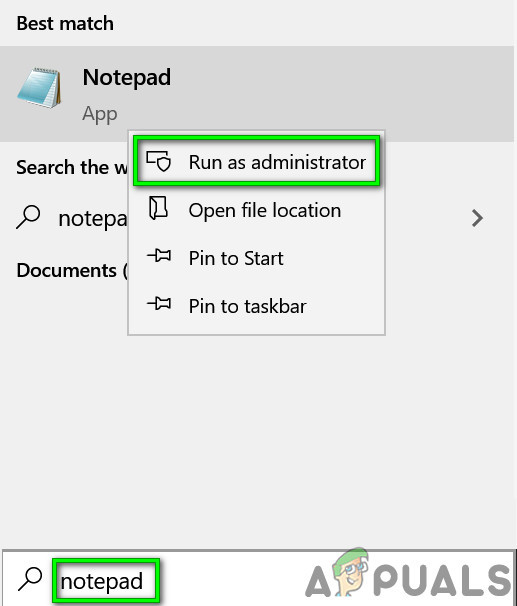
Open Notepad As Administrator - Then expand File and click on Open.
- Now navigate to the following path (copy-paste the address):
WindowsSystem32driversetc
- Then change the document type to All Files and double-click on the Hosts file.
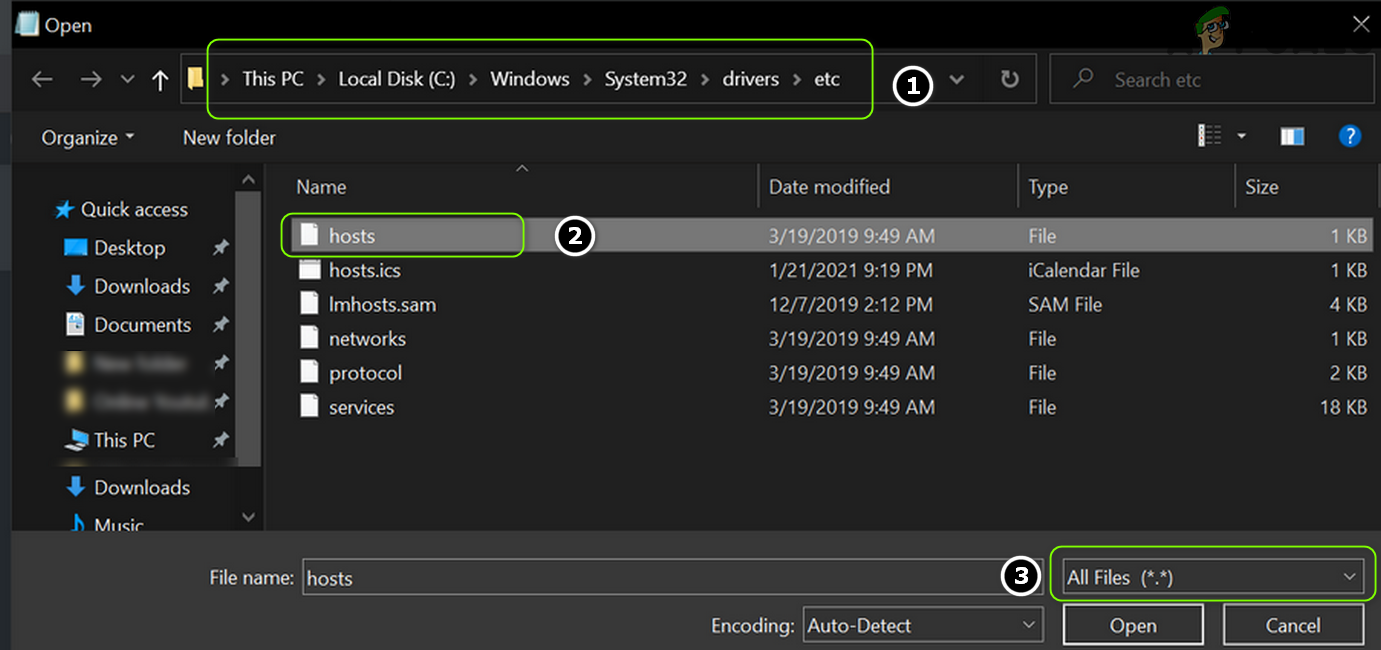
Open the Hosts File in the Notepad - Now expand the Edit menu and select Find.
- Then search for Mojang and remove all the entries pointing to it.
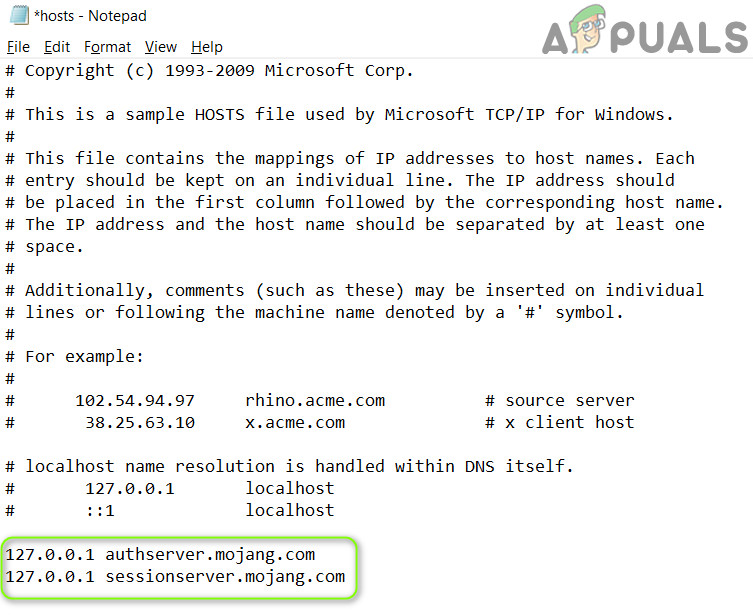
Delete Mojang Entries from the Hosts File - Now save your changes and check if the ‘Hypixel failed to authenticate’ issue is resolved.
Solution 7: Allow the Minecraft Traffic in the System’s Firewall
The Hypixel failed to authenticate your connection issue may arise if the Firewall of your system is blocking access to a resource essential for the operation of the Minecraft launcher. For illustration, we will discuss the process for the Windows Defender Firewall, you may follow the instructions as per your Firewall product.
Warning: Proceed at your own risk as editing the Firewall settings is a proficient task and if done wrong, you may expose your system/data to threats.
- Quit Game (if applicable) and exit the Minecraft launcher (make sure to end all the Minecraft-related processes in the Task Manager).
- Now click Windows, type: Firewall, and open Windows Defender Firewall with Advanced Security.
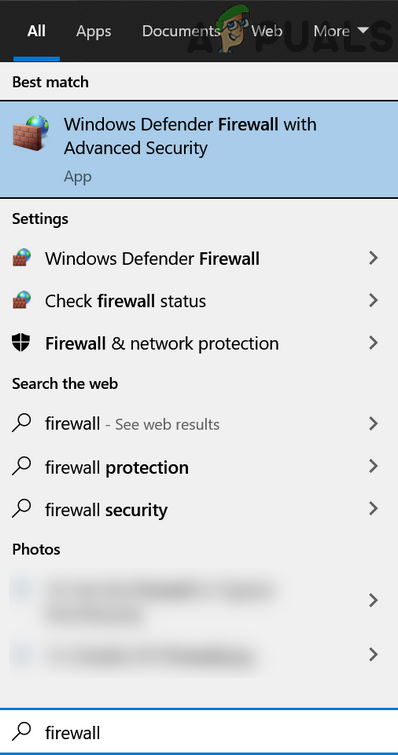
Open Windows Defender Firewall - Then, in the left pane, select Inbound Rules and make sure all the rules for the Minecraft/Java are set to Allow the Connection.
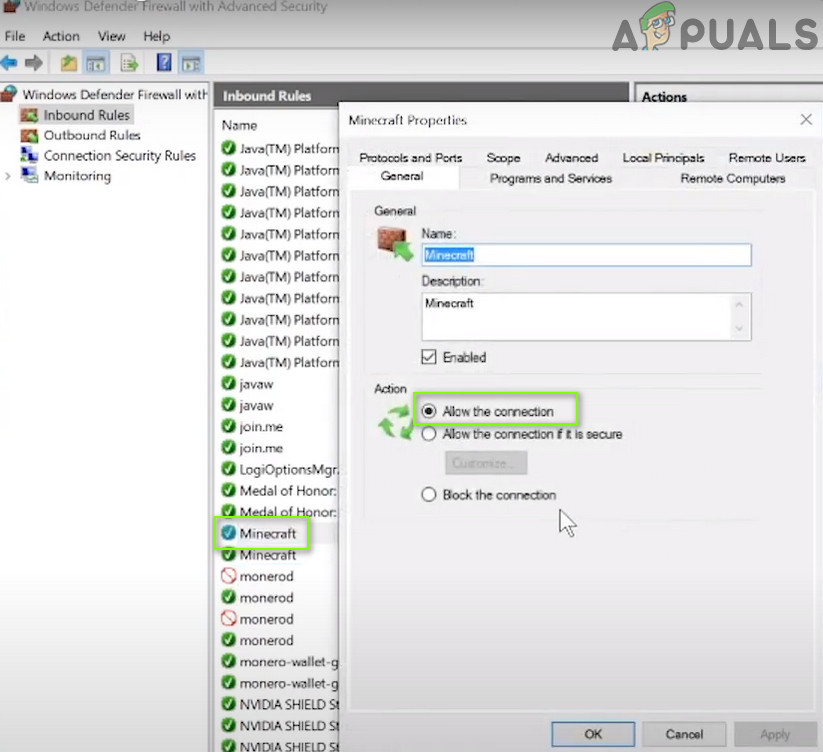
Allow the Minecraft Connection Through the Windows Defender Firewall - Now click New Rule in the right pane and select the radio button of Program.
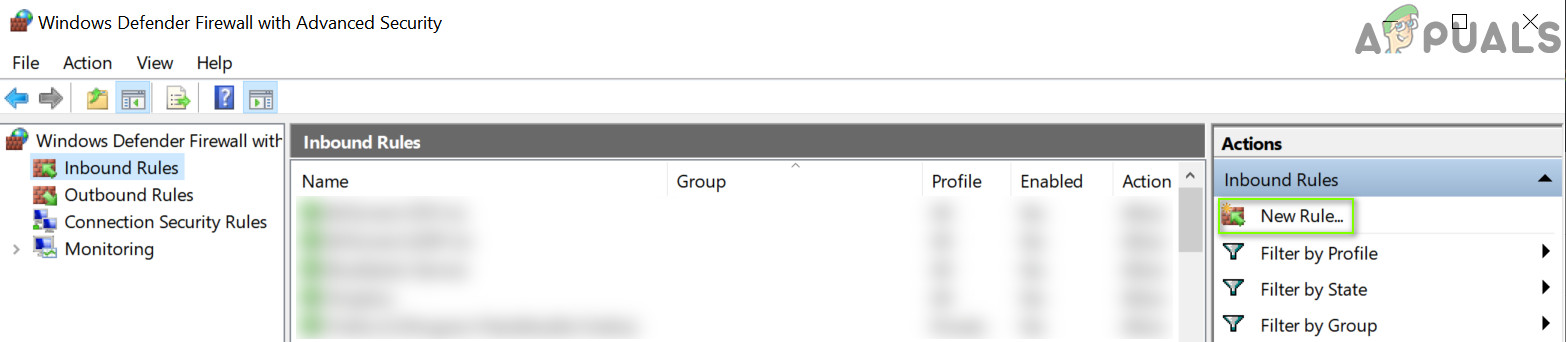
Create a New Inbound Rule - Then click Next and in front of This Program Path, click on Browse.
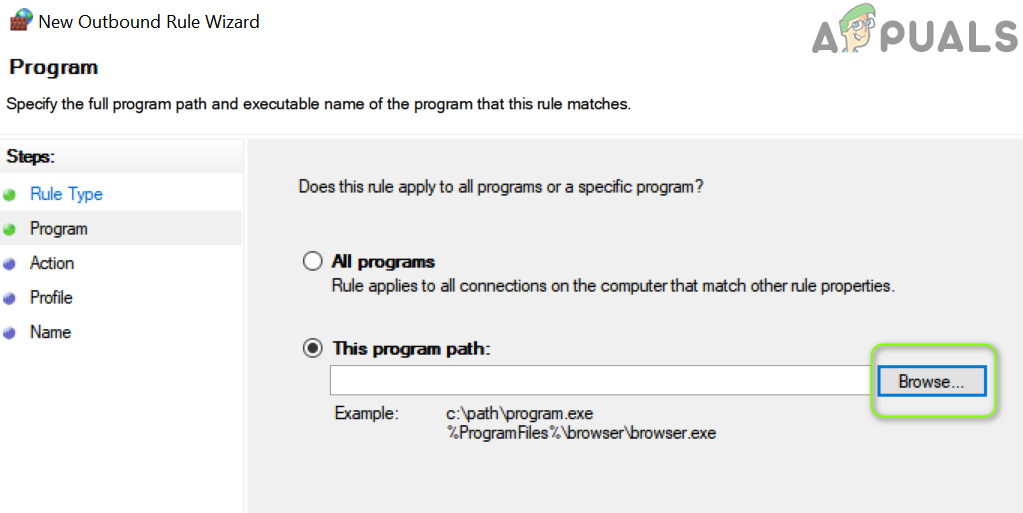
Open Browse and Steer to The Installation Directory of Minecraft - Now navigate to the installation directory of Minecraft. Usually,
C:Program Files (x86)Minecraftruntimejre-x64
- Then open the folder with the Java version number (the folder with JRE name) and double-click on the Bin folder (in some cases, the Bin folder may be located in the jre-x64 folder).
- Now double-click on javaw.exe and click on the Next button.
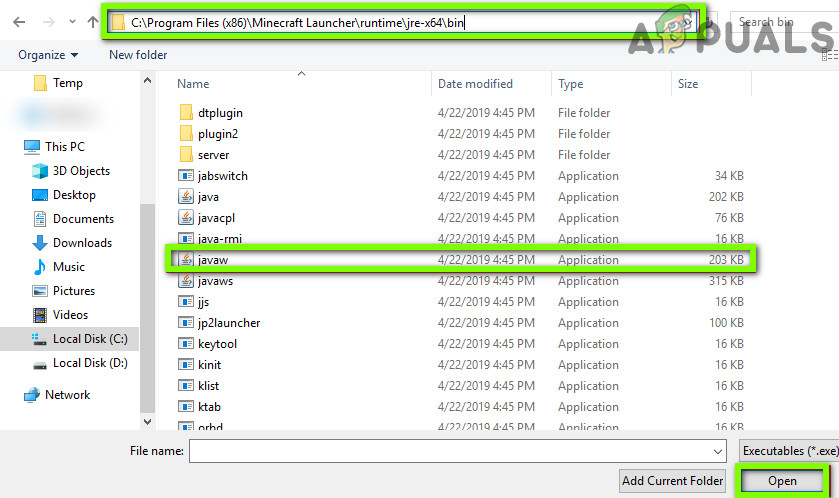
Add Javaw.exe of the Minecraft Installation Directory to the Firewall - Then select the radio button of Allow the Connection and select all the three profiles (i.e., Domain, Private, Public).

Select Allow The Connection in New Rule Window - Now name the rule as per your convenience and repeat the same for the Java.exe in the Bin folder, if present (step 7). If you have also installed a separate Java installation, make sure to add rules to allow it as well.
- Then repeat the same in the Outbound Rules tab and check if the Hypixel issue is resolved.
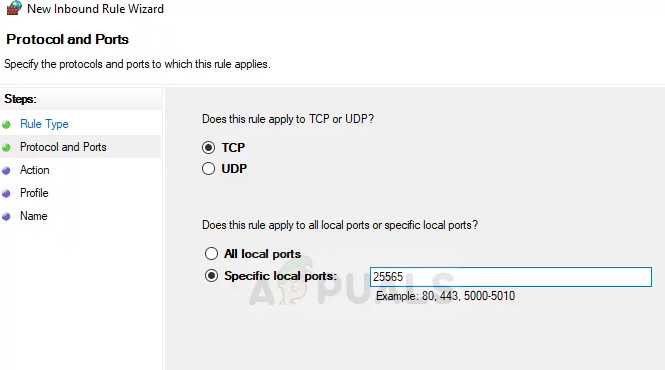
If the issue persists, then check if allowing the port 25565 in the Firewall settings (Action>> New Rule>> Port) resolves the issue. If that did not do the trick, make sure the router’s (or corporate) Firewall is not blocking access to port 25565.

Kevin Arrows
Kevin is a dynamic and self-motivated information technology professional, with a Thorough knowledge of all facets pertaining to network infrastructure design, implementation and administration. Superior record of delivering simultaneous large-scale mission critical projects on time and under budget.
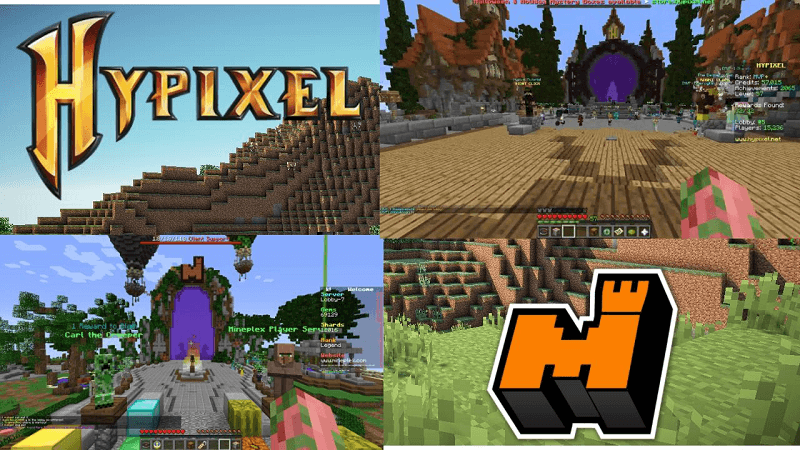
Hypixel и MinePlex являются одними из самых популярных серверов, многие игроки хотят играть на них, но не все понимают про некоторые особенности входа на эти сервера. В данной статье, вы узнаете как решить проблемы со входом на указанные проекты.
Содержание:
Вход на Hypixel
Вход на MinePlex
Вход на другие лицензионные сервера
Можно ли войти на Hypixel, Mineplex без лицензии? Нет! Для входа на любой лицензионный сервер, вы должны быть авторизованы под аккаунтом Mojang или Microsoft с купленной игрой. Через TLauncher вы можете войти под лицензией в управление аккаунтами, а после входить на любой сервер подобный Hypixel или Mineplex.
Вход на Hypixel

При входе у вас появляется ошибка: Failed to authenticate your connection!
Решение: Вам нужно входить под лицензионным аккаунтом Mojang или Microsoft.
Вход на MinePlex

При входе у вас появляется ошибка: Not authenticated with Minecraft.net.
Решение: Вам нужно входить под лицензионным аккаунтом Mojang или Microsoft.
Вход на другие лицензионные/локальные сервера
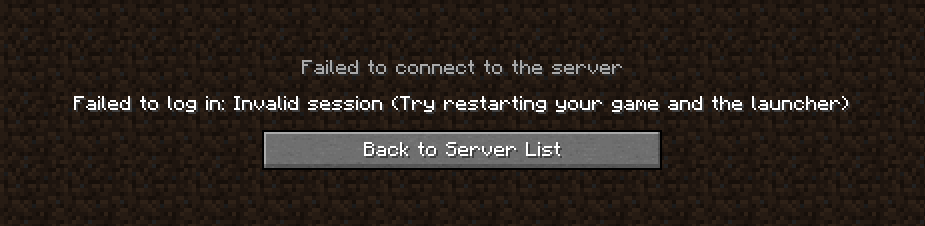
Текст ошибки: Failed to login in: Invalid session (try restarting your game and the launcher)
1) Ошибка может возникать при входе на лицензионные сервера (в том числе, если запускаете сами лицензионный сервер), для решения, нужно входить под лицензионным аккаунтом Mojang или Microsoft.
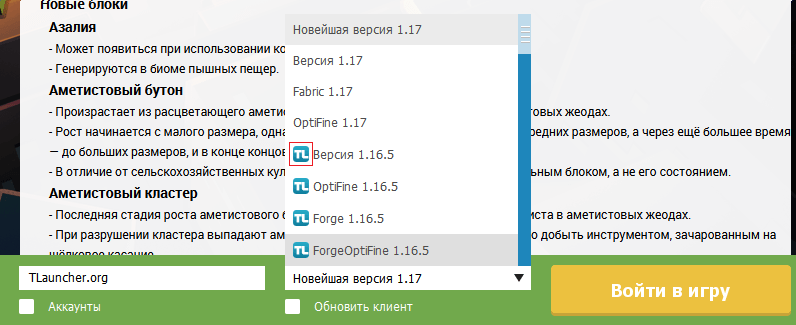
2) Ошибка возникает при входе на локальный сервер (в игре нажать Открыть для сети) при входе с TLauncher, значит вам нужно использовать версию с иконкой TL, если иконки нет, будет данная ошибка!
Читайте также:
— Как играть по локальной сети в Minecraft
— Как установить скин в Майнкрафт?
Обсудить эту тему можно в комментариях ниже:
Did you just face the “Minecraft failed to Authenticate your connection” pop-up on your screen?
JOIN @mrhack membership! Tap JOIN b…
Please enable JavaScript
It for sure would have upset you.
Firstly, What does Failed to Authenticate mean?
Mostly this error occurs due to a problem with the Minecraft server.
But,
Don’t worry!
One thing is for sure: the Minecraft server authentication error can be fixed easily. So, just stick along and resolve your error right now.
Get Minecraft On PS4
Minecraft is a very popular game with interesting features and comes with a crafting table that lets you craft things like Concrete, Dyes, Stone, and much more.
Why does Hypixel say failed to authenticate your connection?
If you are using Hypixel Minecraft servers then this error is very common in it. This error is mostly caused when your internet connection isn’t stable or there is a glitch in the Minecraft server.
Wondering why can’t Minecraft authenticate my connection?
I have put together 4 possible workable and easy solutions for you to try.
Solution 1: Power-cycle the Router
Sometimes “Minecraft failed to Authenticate your connection” occurs because the internet cache is corrupted. This can also cause the “Connection Timeout” error.
All you have to do is to power-cycle your router.
- Unplug the router from the socket.
- Long-press the router “power” button for at least 15 seconds.
- Then plug your router again.
See if the error goes. If not move to the next possible solution.
Use GPU to accelerate Minecraft – Buy the Right GPU?
Solution 2: Restart your launcher
Why does it say failed to authenticate your connection?
If the game does not launch properly, some essentials files are also not loaded properly and this can cause “Minecraft failed to Authenticate your connection”.
Restart your Launcher to resolve this issue.
- Right-click on the taskbar and click on Task Manager. OR press Ctrl+Alt+Del and click on Task Manager

- Select the “Processes” tab and look for anything related to Minecraft.

- Right-click on it and click on End task
Wait for some time and restart your launcher again. See if the error goes.
Solution 3: Use Direct connect to solve “Minecraft Failed to Authenticate your connection”
Try using “Direct Connect“, instead of connecting through the server list.
- Launch Minecraft and open the server list screen.
- Select the Direct Connection option.

- Type “stuck.hypixel.net” and click on connect.
If the game is connected then there is a problem with your launcher.
Reinstall the game or use the Direct Connect feature until the glitch goes away.
Solution 4: Login again to Fix Minecraft Failed to Authenticate Your Connection
This error may occur because your login hasn’t been authorized by the server. All you have to do is logout and login again.
- Launch your Minecraft.
- Click on the Username option and select logout.
- Wait for some time to complete the process.
- Enter your Minecraft credentials and log in again.
I hope this article helps you and your problem is solved. You can face different types of errors in the game like LAN not working or Minecraft not responding that have been solved too. Some users reported Minecraft Failed to Authenticate Your Connection Error after changing their name too.
If you know any other solution do tell me in the comments. Also, what led to this, Do share with us!
Does your Minecraft show the Minecraft failed to Authenticate your connection error on your screen? Are you worried about tackling it?
Do not panic if these situations are with you and you do not know how to deal with them. You have come to the right place then.
Here in this post, I will guide you on some troubleshooting ways to fix your Minecraft authentication connection issue and find out the reasons behind it.

So, why is Minecraft failed to Authenticate your connection?
Minecraft failed to authenticate your connection because of an unstable internet connection or glitched Minecraft servers. This error usually means there is a bug with the Minecraft server. When the connection between your network and the server breaks down, this problem occurs.
Keep reading the whole post and precisely follow the instructions to fix the issues.
Quick TIP: Use the Command Block to get any potions in seconds!!!
Minecraft says it failed to authenticate your connection because your internet connection is not secure and stable. The error message Minecraft failed to authenticate your connection usually means that the Minecraft server has a bug.
This error means users are unable to connect to the servers and play the game. This issue could be happening by a Minecraft server that is unstable or even defective. This error is also seen on Hypixel servers.
Minecraft requires a stable and consistent Internet connection to maintain a smooth data flow in and out to prevent this error.
Want to know how to tame horses? Simply use the saddles in Minecraft.
How do I fix the Minecraft failed to authenticate your connection error?
If you are having difficulties with the failure to authenticate your connection error in Minecraft, I will give you a list of the most effective solutions to fix this error. With a few system modifications, you can quickly fix this error.
Here are the steps to fix the Minecraft failed to authenticate your connection error:
1. Check Internet Speed & Restart WiFi Router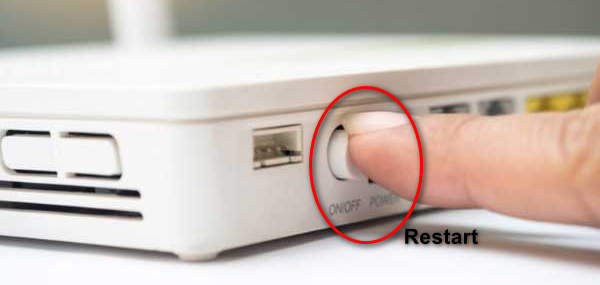
Usually, Minecraft fails to authenticate your connection for your unstable and unsafe internet connection. For this reason, Minecraft is not able to connect you with their servers.
Sometimes, it is a Minecraft own servers issue such as servers bug or unstable servers, or sometimes it is your connection issue. Minecraft requires a stable and consistent Internet connection to maintain a smooth data flow in and out to prevent this error.
So, first, you need to check your internet speed to ensure your internet speed is stable and safe. To confirm this, use Speedtest by Ookala or Fast.com to run a speed test to calculate your internet speeds.
Also, check out our separate post on how to fix Minecraft not using GPU.
If your speed test result is not good as you expected, then you can try to fix your error by restarting your router. Here are the steps how to restart your router correctly:
- Unplug the router power cable from the wall socket and router itself.
- Plug the power cable into the router and wall socket, then press the power button to turn on the router. Identify the router power button, connect the server. If you can connect the Minecraft server successfully, then the error is solved.
But, if you continue to have issues with your internet, you should contact your Internet Service Provider (ISP) and report the problem.
Check out our separate post on how to make rails in Minecraft for faster transport.
2. Restart Launcher / Restart Minecraft
Restarting the Minecraft launcher is the easiest and best way to fix your Minecraft authenticate connection error. If resource files are not working correctly, the game may not run properly, resulting in Minecraft failing to authenticate your connection and being unable to connect the servers.
You can also fix failed to authenticate connection errors in the Minecraft Hypixel server to follow the same way.
Check out the easiest way to make paper in Minecraft.
Follow the steps below to restart the Minecraft game or launcher correctly:
- Right-click on the taskbar and select the Task Manager option or press the CTRL+ALT+DEL button to open the Task Manager.
- Select or open the Process tab and find out the Minecraft app or related to Minecraft.
- Select the right Minecraft process and right-click on it.
- Choose the End task option to stop the process.
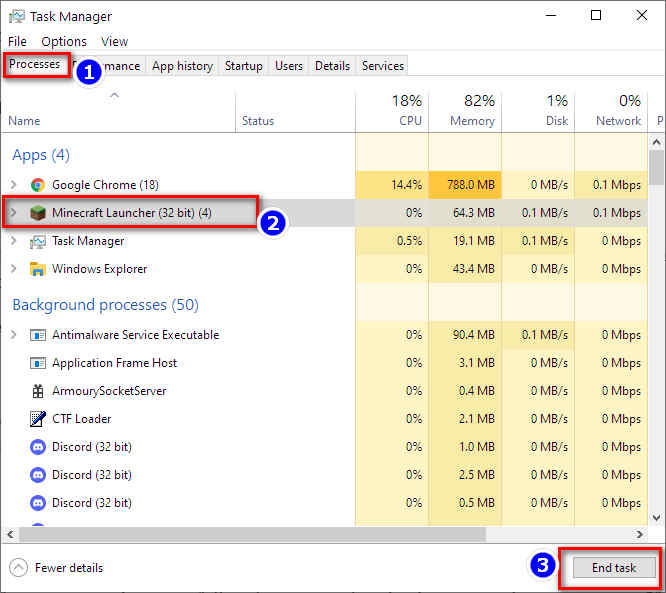
- Close the Task Manager after closing the process and wait for a few minutes.
- Relaunch the Minecraft game or launcher.
After restarting Minecraft or launcher, try to reconnect your account with the Minecraft server to see it successfully solve your authentication connection error or not. If this solution does not work for you, try another solution below and fix the problem.
Also, check out our separate post if Minecraft keeps crashing on your PC.
3. Use Direct Connect Feature
Another effective method is to use the direct connect feature to fix your Minecraft authenticate connection error.
You can use the Direct Connect feature if none of the other methods work. This feature allows you to connect directly to the server and does not require you to use the server list.
Follow the steps below to use the Direct Connect feature:
- Go to the server list screen after launching Minecraft.
- Select the Direct Connect button at the bottom of the window.
- Type stuck.hypixel.net into the pop-up window
- Select Connect button.
Now, wait a few minutes to establish the connection. If the game is connected successfully without any error, your problem is fixed, but your Minecraft launcher cannot. You need to reinstall your game correctly to prevent this problem.
Check out how you can easily fix Minecraft LAN not working.
4. Re-Login Minecraft Account
It is possible to get this error for your user account. Sometimes, your user account may not authorize the server due to server connection issues.
The Minecraft failed to authenticate connection problem is highly common if you have an unauthorized login status. This error also occurs if you change your username recently because the server still has not replaced your new username in the game database.
To fix this issue now, you need to re-login your account so that your game server refresh your username correctly. You can also fix failed to authenticate connection errors in the Minecraft Hypixel server to follow the same way.
Also check out how to find all Minecraft Biomes using Biome Finder.
Follow these steps to re-login your Minecraft account:
- Open Minecraft launcher.
- Click on your username and select the Logout option.
- Enter your Minecraft login credentials again after successful logout.
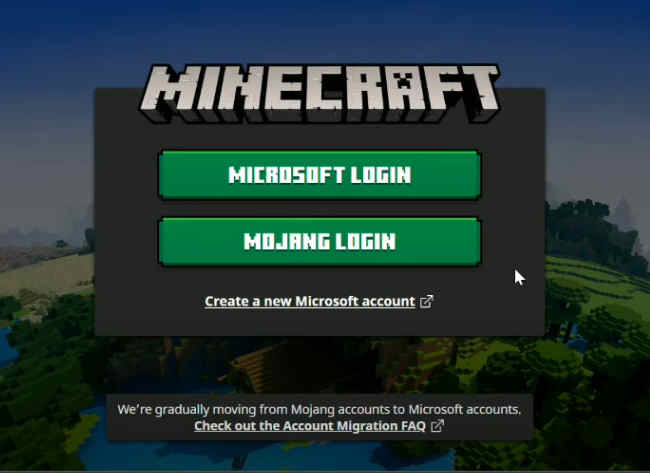
Now you can try reconnecting to the server and see the error is fixed or not.
Here’s a complete guide on how to get Bees in Minecraft.
5. Update Minecraft
Minecraft is a game that is constantly updated with new patches, repairs, and add-ons. The game is likely to crash if you are not continually connected to the internet or deactivate the automated patch.
Follow these steps to update the Minecraft game:
- Launch the Minecraft launcher.
- Click the Setting button on the bottom-left corner in the window.
- Wait for the game to update after selecting Force Update and clicking on Done.
After the update is complete, try connecting to Minecraft servers to see if the authentication issue has been fixed.
Also check our exclusive tutorial on keep inventory when you die in Minecraft.
Final Thoughts
This post discusses all the possible ways to fix Minecraft Failed to Authenticate your Connection error. I hope this post helps you to fix your Minecraft error without any problem.
If you’re having trouble with the issue ‘Failed to Authenticate Your Connection,’ you can use the thorough methods listed above to get it fixed.
Когда вы успешно входите в свою игру на компьютере, иногда вы сталкиваетесь с проблемами, связанными со связью между вашей сетью и сервером. На этот раз вы уже знакомы с ошибкой «Не удалось аутентифицировать ваше соединение», появившейся на экране. Многие пользователи неоднократно сталкивались с подобными ошибками.
Ошибка возникает при попытке подключиться к Шахтерское ремесло сервер. Ошибка «Не удалось аутентифицировать ваше соединение» возникает из-за некорректного Minecraft, или ваше соединение небезопасно. Minecraft всегда требует, чтобы соединение пользователя было безопасным и постоянным. В этой статье мы предлагаем несколько решений для исправления этой конкретной ошибки. Давайте посмотрим на решения.

Оглавление
- 1 Выключите и снова включите интернет-маршрутизатор:
- 2 Вы можете перезапустить лаунчер
- 3 Используйте функцию прямого подключения
- 4 Войдите снова
Выключите и снова включите интернет-маршрутизатор:
Иногда на компьютере появляется ошибка «Не удалось аутентифицировать соединение» из-за поврежденного интернет-кеша, который был усилен маршрутизатором. Эта проблема не позволяет пользователям установить безопасное соединение с сервером. Чтобы избежать этого беспорядка, вы можете выполнить следующие шаги и решить проблему.
- Прежде всего, отключите интернет-роутер от розетки.
- Удерживайте нажатой кнопку включения роутера не менее 10 секунд.
- Затем «подключите» роутер к розетке и включите кнопку «питание».
- Вам нужно дождаться доступа к сети и проверить, решена ли проблема или нет.
Вы можете перезапустить лаунчер
В некоторых случаях некоторые важные файлы загружаются не полностью, и игра не открывается должным образом. Пока возникает эта проблема, на экране появляется сообщение об ошибке «Не удалось аутентифицировать подключение». Чтобы избежать этой проблемы, перезапустите программу запуска. Выполните этот шаг, чтобы решить эту проблему.
- На панели задач щелкните правой кнопкой мыши «Диспетчер задач».
- Выберите вкладку «Процессы» и найдите все, что связано с «Майнкрафт».
- Когда найдете, нажмите на процесс и выберите «Завершить задачу».
- Затем «перезапустите» лаунчер.
- Теперь вы можете запустить Minecraft, подключиться к серверу и проверить, решена ли проблема.
Используйте функцию прямого подключения
Иногда вместо того, чтобы выбирать соединение из списка серверов, вы можете использовать функцию прямого соединения в многопользовательской игре. Чтобы организовать прямое соединение, вы можете выполнить следующие шаги.
- Открыть «Шахтерское ремесло» лаунчер и перейдите к экрану списка серверов
- Выберите «Прямое подключение», как вы можете видеть в нижней части окна.
- Пока вы находитесь в режиме прямого подключения, введите stuck.hypixel.net в указанном месте и нажмите «Подключиться».
- Подождите некоторое время и проверьте, подключена ли игра
- Если игра подключена, вы должны понимать, что существует проблема с вашей пусковой установкой Minecraft, которая не позволяет вам подключаться через список серверов.
- Теперь вы можете переустановить игру или воспользоваться функцией прямого подключения.
Войдите снова
Вполне разумно, что если сервер не авторизовал ваш вход, может возникнуть ошибка «Не удалось аутентифицировать ваше соединение». В этой ситуации вам необходимо выйти и снова войти в систему, чтобы решить проблему. Вы можете выполнить следующий шаг, чтобы продолжить процесс входа в систему.
- Откройте панель запуска Minecraft и выберите опцию «Имя пользователя».
- Затем нажмите кнопку «Выйти» и дождитесь завершения этого процесса.
- Теперь введите свои учетные данные и снова войдите в систему и проверьте, что проблема решена.
Формально ошибка «Не удалось аутентифицировать ваше соединение» возникает из-за проблемы с сервером Minecraft. В основном эта проблема возникает, когда сервер Minecraft выходит из строя или соединение не является безопасным. В этой ошибке может отображаться взломанное соединение со стороны пользователя или со стороны Minecraft.
В этой статье мы рассмотрели все возможные решения проблемы. Если у вас возникла ошибка «Не удалось аутентифицировать ваше соединение», вы можете воспользоваться описанными выше подробными решениями, чтобы исправить ее. Прочитав эту статью, вы сможете решить эту ошибку без помощи технических специалистов. Если у вас есть какие-либо вопросы или отзывы, напишите комментарий в поле для комментариев ниже.
Статьи по Теме:
- Бета-версия Minecraft: как включить бета-версию трассировки лучей
- Лучшие советы по ремонту в Minecraft: как работает исправление
- Лучшие идеи жилья в Minecraft для создания идеального дома
- Как играть в Minecraft в автономном режиме в Windows 10?