Summary: “The operation can’t be completed because an unexpected error occurred”… error message popped up on your screen when trying to copy folders and files to your Desktop? Or even when copying files from one USB drive to another? With our advice, you’ll learn the ways to remedy the issue.
Contents
- What Is Error Code 8058 on Mac?
- Why Does Your Mac Give Error 8058?
- How to Fix Mac Error Code 8058?
- Wrapping Up
- FAQ
What Is Error Code 8058 on Mac?
Many users have reported this problem after the upgrade to macOS Catalina. To put it simply, Mac error 8058 indicates that Finder preference files got corrupted (we’ll talk in detail about this file type and fixes involving it below).
Why Does Your Mac Give Error 8058?
The main factors that cause error 8058 are as follows:
- Your Mac is infected with malware which could have caused the files to be corrupt.
- The header files become corrupted.
- System bugs.
- Accidental formatting or file deletion.
- Incorrect app installation.
How to Fix Mac Error Code 8058?
To fix the “The operation can’t be completed”… issue and make copying and pasting work again, let’s do some tricks and start from the basic troubleshooting to rid your Mac of error code 8058.
1. Restart your Mac
Before trying any of the fixes below, quit all of the apps and restart your Mac:
- Click the Apple logo > choose Restart.
- Log in and check if the issue persists.
If your Mac still gives you trouble and shows the error code 8058, try the methods provided in the next sections.
2. Delete Corrupted com.apple.finder.plist File
Here’s another fix to the “The operation can’t be completed because an unexpected error occurred”
issue. We’ll deal with a plist file. Property list or plist (for more convenience) is a preference file and contains the preference settings for apps. In our case, we’ll trash a specific plist file that contains the preferences that have become corrupted.
Here’s how to fix the error code 8058 by deleting a corrupted plist:
1. Quit all the apps.
2. Click the Finder icon in the Dock > go to the Finder menu.
3. Choose Go > press the Option key to reveal the Library folder option.

4. Look for the Preferences folder.

5. In this folder, look for com.apple.finder.plist file.

6. Drag it to the desktop. If it’s impossible to copy it there — drag the item to the Documents folder.
7. After creating a copy > delete the original plist file by dragging it to the Trash and emptying it.
8. Restart your Mac and try to copy files to your desktop.
Your Mac’s performance won’t be affected after deleting the corrupted plist file. Once you restart your computer, Finder will create a new plist file. This plist file can “recreate” itself.
Note: If you have multiple users on your Mac, you might need to go through the procedure from each user’s profile.
3. Run a Malware Check on Your Mac
Malware might cause the error code 8058 on your Mac, among many other errors. It makes sense to check your Mac for malware if you’ve recently installed new apps or browser extensions. Let’s try these.
You can run a dedicated anti-malware tool or do a manual check. We’ll tell you more about the last one.
A. Activity Monitor
First things first, let’s check Activity Monitor and detect any app and background processes with malware-infected ones included.
- Open Activity Monitor > click the % CPU tab and sort processes from high to low.
- Check resource-hungry apps, and if you don’t recognize them — google the name to find out whether it’s malware.
- If yes — quit that process and delete the app.
B. Applications folder
Next, let’s inspect the Applications folder:
1. Open the Applications folder — look through the list of apps, and if you see one you don’t remember installing — use Google to check if it’s trustworthy or not.
2. If it’s malicious — drag the app to the trash and empty it.
C. Browser extensions
Has your default browser started acting up? If you’ve recently installed any browser extensions, make sure they are malware-free. Read this guide on how to remove malware-related extensions from browsers.
4. Update your Mac
Updating macOS (if your Mac is eligible for an update) is a great move to fix bugs and glitches, thus error code 8058 as well. First, make sure your Mac can be updated. I’ll try to update my MacBook Pro running macOS Catalina 10.15.17.
To update your macOS:
1. Click the Apple Logo > About This Mac.
2. In the Overview tab click the Software Update button.
3. Wait while your Mac is checking for updates.
4. Click the Upgrade Now/Update Now button.
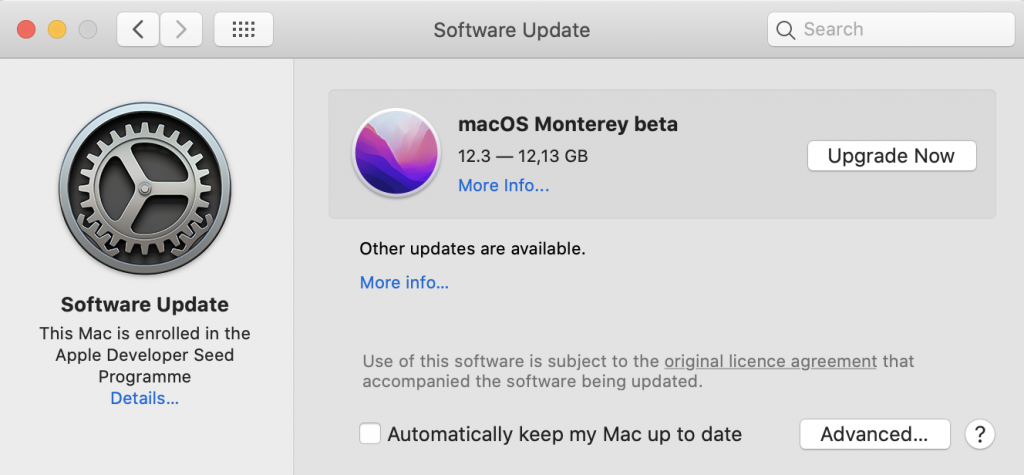
5. Let the macOS download.

6. Follow on-screen instructions.
The process is rather time-consuming, so be ready not to be able to use your Mac for a while.
Geek corner: Updating your macOS oftentimes results in data loss. Before getting started, it’s a good idea to create a Time Machine backup. If you haven’t used a backup solution before, you can recover missing files with the help of a data recovery software. Not that many apps offer free trials. However, Stellar Data Recovery lets you restore up to 1Gb for free, so I’ll show you how to do that.
Here’s how to retrieve files using Stellar Recovery app:
1. Download and install Stellar Data Recovery.
2. In the What to Recover window you’ll need to decide on the file type you want to recover. If you hesitate, choose all.
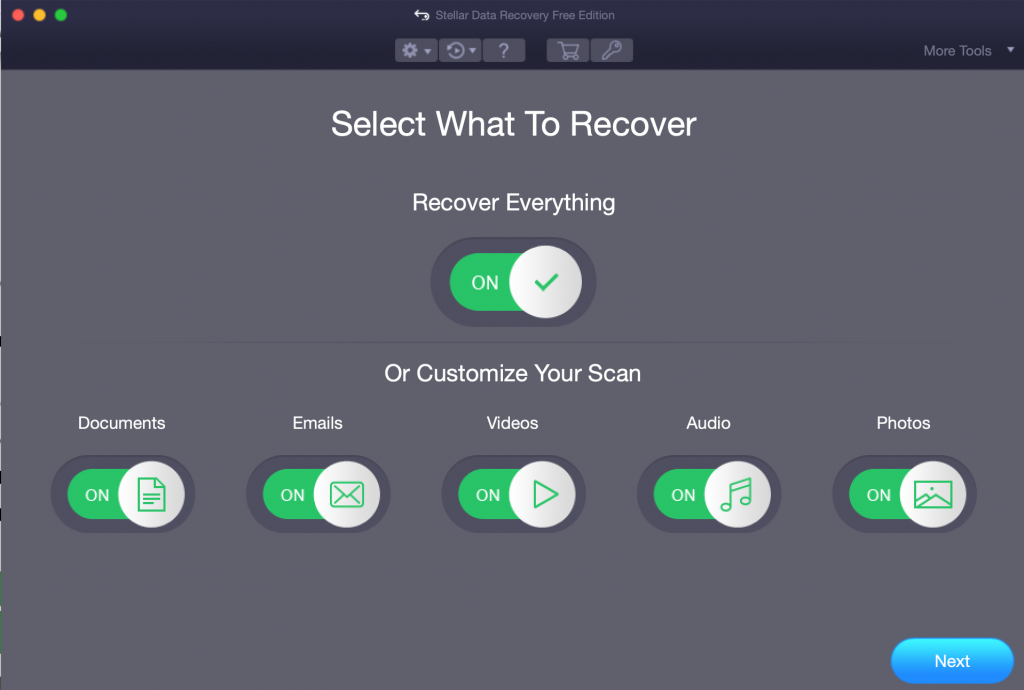
3. Click Next.
4. Select the desired volume in the Recover From window > click Start.
5. Wait for the scan results > press OK.
6. Look for the lost files and recover them.
Related reading: How to Update Your Mac the Right Way
Wrapping Up
Error code 8058 creates an inconvenience when trying to copy folders or files to your Desktop. It’s almost inevitable to prevent this from happening on your Mac, but if it did occur — with the help of the solutions described in this article, you’ll be able to remedy the issue all by yourself.
FAQ
How do I fix Mac error code?
Almost each error code has a unique solution. But the first step to take is to restart your Mac. If it didn’t help — consult apple.discussions forum or read this handy guide.
What is the purpose of error codes?
Error codes notify that there’s something wrong with your Mac. Each one has a number, like 8058 which makes it easier to identify the underlying problem.
About The Author
ruslana
Ruslana is a tech content writer whose true passion is finding out about everything Mac-related. She specializes in creating macOS guides and tips & tricks. In her spare time, you’ll find her doing yoga or discovering local coffee shops in search of the best filter coffee.
Best Selling Products

Stellar Data Recovery Professional for Windows
Stellar Data Recovery has the right Windows Recovery tool for all your data recovery
Read More

Stellar Data Recovery Professional for Mac
Stellar Data Recovery for Mac program performs safe..
Read More

Stellar Photo Recovery
A comprehensive photo recovery software to restore photos, music & video files
Read More

Stellar Repair for Video
Powerful video repair tool for repairing corrupt or damaged MOV and other video files
Read More
Without getting into the details of why in macOS Big Sur you cannot apply a Tag to the Documents folder, and until there is a more direct solution, here is a workaround that worked for me.
Note that these directions assume that one is the Admin and logged into an Admin account.
Please read this entire answer before proceeding and make sure you have a full backup of the entire contents of the Documents folder before processing these directions!
- From Finder, in your Home folder, create a temporary folder outside of the Documents folder to move the entire contents of your existing Documents folder to.
- Press the keyboard shortcut ⇧⌘. to show hidden Finder items, if they are not currently showing.
- Move the entire contents of your existing Documents folder to the temporary folder, the one you just created for this task, by using ⌘A to select all Finder items, then drag and drop the Finder items into the temporary folder created for this task.
- In Terminal, from your Home directory, create a directory named
Dusing the following command:mkdir -m 0700 D - In Finder, in your Home folder, add the Tag(s) to the D folder that you would like to have on the Documents folder.
- Make sure you have moved the entire entire contents of your existing Documents folder to the temporary folder created for this task. (Warning!)
- In Terminal, from your Home directory, run the following commands:
- NOTE: This will delete the existing Documents directory and rename the D directory to: Documents
chmod -N Documents
rm -r Documents; mv -v D Documents
chmod +a "everyone deny delete" Documents
killall Finder
-
Back in Finder, move the entire contents of your previous Documents folder, from the temporary folder created for this task, to the new Documents folder.
-
Delete the temporary folder previously created for this task after making sure it’s empty.
-
Press the keyboard shortcut ⇧⌘. to hide hidden Finder items, if that be your preference.
That’s it, you are done, and the Documents folder has Tag(s).
Notes:
If/when you want to change/modify/remove the Tag(s) on the Documents folder, you will need to replicate the directions herein.
These directions were tested in a clean install of macOS Big Sur 11.5.2, with Language & Region settings in System Preferences set to English (US) — Primary and worked for me without issue1.
- 1 Assumes necessary and appropriate settings in System Preferences > Security & Privacy > Privacy have been set/addressed as needed.
Additionally, I do not use iCloud and I’m logged in using a local Admin account without being signed in using my Apple ID, if any of that might matter to the successful execution of these directions.

Without getting into the details of why in macOS Big Sur you cannot apply a Tag to the Documents folder, and until there is a more direct solution, here is a workaround that worked for me.
Note that these directions assume that one is the Admin and logged into an Admin account.
Please read this entire answer before proceeding and make sure you have a full backup of the entire contents of the Documents folder before processing these directions!
- From Finder, in your Home folder, create a temporary folder outside of the Documents folder to move the entire contents of your existing Documents folder to.
- Press the keyboard shortcut ⇧⌘. to show hidden Finder items, if they are not currently showing.
- Move the entire contents of your existing Documents folder to the temporary folder, the one you just created for this task, by using ⌘A to select all Finder items, then drag and drop the Finder items into the temporary folder created for this task.
- In Terminal, from your Home directory, create a directory named
Dusing the following command:mkdir -m 0700 D - In Finder, in your Home folder, add the Tag(s) to the D folder that you would like to have on the Documents folder.
- Make sure you have moved the entire entire contents of your existing Documents folder to the temporary folder created for this task. (Warning!)
- In Terminal, from your Home directory, run the following commands:
- NOTE: This will delete the existing Documents directory and rename the D directory to: Documents
chmod -N Documents
rm -r Documents; mv -v D Documents
chmod +a "everyone deny delete" Documents
killall Finder
-
Back in Finder, move the entire contents of your previous Documents folder, from the temporary folder created for this task, to the new Documents folder.
-
Delete the temporary folder previously created for this task after making sure it’s empty.
-
Press the keyboard shortcut ⇧⌘. to hide hidden Finder items, if that be your preference.
That’s it, you are done, and the Documents folder has Tag(s).
Notes:
If/when you want to change/modify/remove the Tag(s) on the Documents folder, you will need to replicate the directions herein.
These directions were tested in a clean install of macOS Big Sur 11.5.2, with Language & Region settings in System Preferences set to English (US) — Primary and worked for me without issue1.
- 1 Assumes necessary and appropriate settings in System Preferences > Security & Privacy > Privacy have been set/addressed as needed.
Additionally, I do not use iCloud and I’m logged in using a local Admin account without being signed in using my Apple ID, if any of that might matter to the successful execution of these directions.
The Mac error code 8058 appears when a user attempts to copy and paste a file from one place to another. This error states that “The operation cannot be completed because an unexpected error occurred ”.
There are various reasons for this issue. The most common cause of this error is an internal issue within the Mac operating system. Additionally, a malware or virus infection can cause this error as well.
Effective Methods to Resolve Mac Error Code 8058
You can fix this issue by simply going through the following methods. Follow each step carefully as one of these methods will help you to effectively resolve this issue on your Mac.
Method 1- Remove Corrupted File from the Mac
Sometimes, the accumulation of unnecessary and corrupt files within the Mac can lead to this error. One file, in particular, is responsible for this issue. Thus, you can follow the steps below to remove this file from your system.
- First, head over to the topmost section and choose the ‘Finder’ option by holding the ‘Option’ key on your keyboard.
- Next, select the ‘Go’ option from the list and choose the ‘Library’ option.
- Now, a new window will appear. Here, you will see a list of all the system files and folders.
- From that window, navigate and open the ‘Preferences’ folder. Here, find and select the file with the name ‘com.apple.finder.plist’.
- Simply drag that file to the ‘Trash’ icon to delete it.
- Finally, log out from the Mac computer and then log back in once again. Check to see if this issue is still there or not.
Method 2 – Restart your Computer
The easiest way to resolve any problem is by simply rebooting your computer device. Therefore, you can try to fix your issue by doing this as well. Thus, follow the steps below to restart your system.
- First, go to the upper left corner of the desktop and then tap on the ‘Apple logo’.
- This will launch a drop-down menu within several options.
- Out of those options, choose the one that says ‘Restart…’.
- Now, as soon as you click on that option, a prompt window will appear on the screen. Within this window, click on the ‘Restart’ button.
- At last, the machine will reboot and you should check if this error comes up or not.
Method 3 – Scan and Remove Malicious Files
If the Mac has any malicious file within it, then you can face this issue. The best way to get rid of these files is by using licensed security software. Thus, follow these steps below to scan and remove malicious files from your system.
- First, launch the security software or Antivirus program on your Mac. It is important to use only authorized programs as opposed to free ones available on the internet. The free programs will only infect your system further.
- From the main window, choose the Scan option and wait for the scanning process to start.
- Usually, this takes a lot of time so make sure that the system is properly scanned. Thereafter, you can choose to either delete the malicious files or move them to the bin. Choose your preferred option and close the window.
Conclusion
Finally, you should be able to easily resolve Mac error code 8058 by simply going through one of the methods mentioned above.
If you’ve just upgraded to Mac Big Sur or Catalina, and have been receiving mac error code -8058, you may be seeking for an alternative right now. Well, the problem isn’t a new one for mac users. Apart from the Catalina update, it occurs due to some other reason. You will need to learn more about this problem by simply reading every part of this article.

- Part 1: What is Error Code 8058 on Mac?
- Part 2: 4 Ways to Fix Error Code 8050 on Mac?
- A Tip: How to Recover Disappeared Data Out of Mac Error Code 8050?
Part 1: What is Error Code 8058 on Mac?
Mac error 8058 is a problem that usually comes up whenever a Mac user is trying to copy a file or folder to their desktop. It usually indicates that your data is corrupt. This error code 8058 in Mac is usually caused by several factors.
Notable ones include:
- The accidental deletion, as well as formatting of files.
- Emptying the files from the recycle bin without recapping them.
- The invasion of malware
- Corrupt header files
- incorrect installation of some programs.
Part 2: 4 Ways to Fix Error Code 8050 on Mac?
There are some essential ways to fix this issue — (error code -8058) mac file. If you’ve been searching for the most comfortable means of resolving this challenge, then this is the right moment to consider the options below.
Fix #1: Restart Mac to Troubleshoot Mac Error Code 8050
The mac error code 8058 can delete if you can restart your Mac. The procedures to follow in this aspect include:
-
Choose Apple menu > Restart.
- Press and hold the power button until you see options, then click Restart or press R (or use the Touch Bar).
- If the pointer freezes on the screen or your Mac becomes unresponsive, press and hold Control-Command while you press the power button to force a restart.
Important: If you force a restart, you may lose unsaved changes in open documents.
Fix #2: Delete Corrupted Files to Fix Mac Error Code 8050
The simplest workaround for Mac error code -8058 is to drag the problematic file to the Trash and delete it permanently. The procedures to follow are :
- Select the file in the Finder. Hold down the option key, then go to the «File» menu and select «Show Inspector» (this item replaces «Get Info» when the option key is held).
- Go to the «Sharing and Permissions» section, then click the «Details» disclosure arrow.
- Click the small lock icon next to the «owner» menu, and enter your administrator password.
- Change ownership to your administrator account.
-
From the «You can:» menu, select «Read and write».
- You should now be able to uncheck the «Locked» box and delete the file
Fix #3: Insert Mac Bootable CD/Flash drive to Fix File System
You can also get past the mac os error code -8058 by simply inserting Mac Bootable CD/Flash drive into necessary ports. Once you insert the CD into your drive, kindly run it and follow the screen prompt to finalize the process.
Fix #4: Remove Malware with Antivirus Program
The mac os x error code 8058 problem can also be resolved when you remove the malware on your device. You will be needing an antivirus for the removal of such malware. The better way to go about this solution is by downloading an antivirus program and running its scanner. Once the scanner identifies the virus, click the remove option to get rid of the virus.
Part 3: A Tip: How to Recover Disappeared Data Out of Mac Error Code 8050?
When you’ve tried all the available techniques below and notice that the error code 8058 mac os x persist, you need powerful software to fix the challenge. A tool like 4DDiG — Mac Data Recovery is something that is much relevant for this nature of issue.
Be informed that Tenorshare 4DDiG — Mac Data Recovery helps people to recover data deleted, formatted or lost on their Mac system. The software is also great for restoring files from a hard drive and external storage devices. When you have this software on your device, you will easily be able to recover data from failed/crashed/dead MacBookNEW.
Also, when you’re experiencing error code 8058 mac os x, the software can quickly help you to find any data that was lost when the issue came up. Kindly follow the steps below to use the software for your data recovery work.




-
Click on the 4DDiG — Mac Data Recovery software icon to run it. Once the software is active on your device, click the «Scan» button to begin searching for your lost files.
-
Once the scanning is completed, you will see the results of the scans. Click on the file types you intend to recover.
-
Click «Recover» button to restore your lost files. Meanwhile you will need to choose your desired locations for the recovered files.
Conclusion
Apple Mac users on several occasions experiences the error 8058 code issue. When the problem is encountered ,users often see a message like “The Operation Cannot be Completed because an Unexpected Error Occurred (Error Code – 8058)”. Whenever a message like that occurs from the mac error code 8058, files are usually lost. Instead of panicking on such development, it’s advisable to quickly find the right data recovery tool to such a task. If you don’t want to experience much challenge to get the problem resolved, it’s best to use Tenorshare 4DDiG — Mac Data Recovery.
Apple Footer
-
This site contains user submitted content, comments and opinions and is for informational purposes
only. Apple may provide or recommend responses as a possible solution based on the information
provided; every potential issue may involve several factors not detailed in the conversations
captured in an electronic forum and Apple can therefore provide no guarantee as to the efficacy of
any proposed solutions on the community forums. Apple disclaims any and all liability for the acts,
omissions and conduct of any third parties in connection with or related to your use of the site.
All postings and use of the content on this site are subject to the
Apple Support Community Terms of Use.
See how your data is managed…
Copyright ©
Apple Inc. All rights reserved.
Как исправить время выполнения Ошибка 8058 Код ошибки Itunes 8058
В этой статье представлена ошибка с номером Ошибка 8058, известная как Код ошибки Itunes 8058, описанная как Ошибка 8058: Возникла ошибка в приложении iTunes. Приложение будет закрыто. Приносим свои извинения за неудобства.
О программе Runtime Ошибка 8058
Время выполнения Ошибка 8058 происходит, когда iTunes дает сбой или падает во время запуска, отсюда и название. Это не обязательно означает, что код был каким-то образом поврежден, просто он не сработал во время выполнения. Такая ошибка появляется на экране в виде раздражающего уведомления, если ее не устранить. Вот симптомы, причины и способы устранения проблемы.
Определения (Бета)
Здесь мы приводим некоторые определения слов, содержащихся в вашей ошибке, в попытке помочь вам понять вашу проблему. Эта работа продолжается, поэтому иногда мы можем неправильно определить слово, так что не стесняйтесь пропустить этот раздел!
- Код ошибки . Код ошибки — это значение, возвращаемое для предоставления контекста, почему произошла ошибка.
- Itunes — проприетарный цифровой приложение для медиаплеера.
Симптомы Ошибка 8058 — Код ошибки Itunes 8058
Ошибки времени выполнения происходят без предупреждения. Сообщение об ошибке может появиться на экране при любом запуске %программы%. Фактически, сообщение об ошибке или другое диалоговое окно может появляться снова и снова, если не принять меры на ранней стадии.
Возможны случаи удаления файлов или появления новых файлов. Хотя этот симптом в основном связан с заражением вирусом, его можно отнести к симптомам ошибки времени выполнения, поскольку заражение вирусом является одной из причин ошибки времени выполнения. Пользователь также может столкнуться с внезапным падением скорости интернет-соединения, но, опять же, это не всегда так.
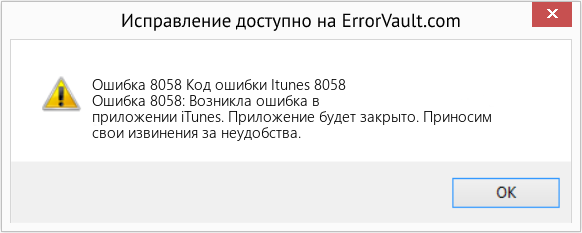
(Только для примера)
Причины Код ошибки Itunes 8058 — Ошибка 8058
При разработке программного обеспечения программисты составляют код, предвидя возникновение ошибок. Однако идеальных проектов не бывает, поскольку ошибки можно ожидать даже при самом лучшем дизайне программы. Глюки могут произойти во время выполнения программы, если определенная ошибка не была обнаружена и устранена во время проектирования и тестирования.
Ошибки во время выполнения обычно вызваны несовместимостью программ, запущенных в одно и то же время. Они также могут возникать из-за проблем с памятью, плохого графического драйвера или заражения вирусом. Каким бы ни был случай, проблему необходимо решить немедленно, чтобы избежать дальнейших проблем. Ниже приведены способы устранения ошибки.
Методы исправления
Ошибки времени выполнения могут быть раздражающими и постоянными, но это не совсем безнадежно, существует возможность ремонта. Вот способы сделать это.
Если метод ремонта вам подошел, пожалуйста, нажмите кнопку upvote слева от ответа, это позволит другим пользователям узнать, какой метод ремонта на данный момент работает лучше всего.
Обратите внимание: ни ErrorVault.com, ни его авторы не несут ответственности за результаты действий, предпринятых при использовании любого из методов ремонта, перечисленных на этой странице — вы выполняете эти шаги на свой страх и риск.
Метод 1 — Закройте конфликтующие программы
Когда вы получаете ошибку во время выполнения, имейте в виду, что это происходит из-за программ, которые конфликтуют друг с другом. Первое, что вы можете сделать, чтобы решить проблему, — это остановить эти конфликтующие программы.
- Откройте диспетчер задач, одновременно нажав Ctrl-Alt-Del. Это позволит вам увидеть список запущенных в данный момент программ.
- Перейдите на вкладку «Процессы» и остановите программы одну за другой, выделив каждую программу и нажав кнопку «Завершить процесс».
- Вам нужно будет следить за тем, будет ли сообщение об ошибке появляться каждый раз при остановке процесса.
- Как только вы определите, какая программа вызывает ошибку, вы можете перейти к следующему этапу устранения неполадок, переустановив приложение.
Метод 2 — Обновите / переустановите конфликтующие программы
Использование панели управления
- В Windows 7 нажмите кнопку «Пуск», затем нажмите «Панель управления», затем «Удалить программу».
- В Windows 8 нажмите кнопку «Пуск», затем прокрутите вниз и нажмите «Дополнительные настройки», затем нажмите «Панель управления»> «Удалить программу».
- Для Windows 10 просто введите «Панель управления» в поле поиска и щелкните результат, затем нажмите «Удалить программу».
- В разделе «Программы и компоненты» щелкните проблемную программу и нажмите «Обновить» или «Удалить».
- Если вы выбрали обновление, вам просто нужно будет следовать подсказке, чтобы завершить процесс, однако, если вы выбрали «Удалить», вы будете следовать подсказке, чтобы удалить, а затем повторно загрузить или использовать установочный диск приложения для переустановки. программа.
Использование других методов
- В Windows 7 список всех установленных программ можно найти, нажав кнопку «Пуск» и наведя указатель мыши на список, отображаемый на вкладке. Вы можете увидеть в этом списке утилиту для удаления программы. Вы можете продолжить и удалить с помощью утилит, доступных на этой вкладке.
- В Windows 10 вы можете нажать «Пуск», затем «Настройка», а затем — «Приложения».
- Прокрутите вниз, чтобы увидеть список приложений и функций, установленных на вашем компьютере.
- Щелкните программу, которая вызывает ошибку времени выполнения, затем вы можете удалить ее или щелкнуть Дополнительные параметры, чтобы сбросить приложение.
Метод 3 — Обновите программу защиты от вирусов или загрузите и установите последнюю версию Центра обновления Windows.
Заражение вирусом, вызывающее ошибку выполнения на вашем компьютере, необходимо немедленно предотвратить, поместить в карантин или удалить. Убедитесь, что вы обновили свою антивирусную программу и выполнили тщательное сканирование компьютера или запустите Центр обновления Windows, чтобы получить последние определения вирусов и исправить их.
Метод 4 — Переустановите библиотеки времени выполнения
Вы можете получить сообщение об ошибке из-за обновления, такого как пакет MS Visual C ++, который может быть установлен неправильно или полностью. Что вы можете сделать, так это удалить текущий пакет и установить новую копию.
- Удалите пакет, выбрав «Программы и компоненты», найдите и выделите распространяемый пакет Microsoft Visual C ++.
- Нажмите «Удалить» в верхней части списка и, когда это будет сделано, перезагрузите компьютер.
- Загрузите последний распространяемый пакет от Microsoft и установите его.
Метод 5 — Запустить очистку диска
Вы также можете столкнуться с ошибкой выполнения из-за очень нехватки свободного места на вашем компьютере.
- Вам следует подумать о резервном копировании файлов и освобождении места на жестком диске.
- Вы также можете очистить кеш и перезагрузить компьютер.
- Вы также можете запустить очистку диска, открыть окно проводника и щелкнуть правой кнопкой мыши по основному каталогу (обычно это C 🙂
- Щелкните «Свойства», а затем — «Очистка диска».
Метод 6 — Переустановите графический драйвер
Если ошибка связана с плохим графическим драйвером, вы можете сделать следующее:
- Откройте диспетчер устройств и найдите драйвер видеокарты.
- Щелкните правой кнопкой мыши драйвер видеокарты, затем нажмите «Удалить», затем перезагрузите компьютер.
Метод 7 — Ошибка выполнения, связанная с IE
Если полученная ошибка связана с Internet Explorer, вы можете сделать следующее:
- Сбросьте настройки браузера.
- В Windows 7 вы можете нажать «Пуск», перейти в «Панель управления» и нажать «Свойства обозревателя» слева. Затем вы можете перейти на вкладку «Дополнительно» и нажать кнопку «Сброс».
- Для Windows 8 и 10 вы можете нажать «Поиск» и ввести «Свойства обозревателя», затем перейти на вкладку «Дополнительно» и нажать «Сброс».
- Отключить отладку скриптов и уведомления об ошибках.
- В том же окне «Свойства обозревателя» можно перейти на вкладку «Дополнительно» и найти пункт «Отключить отладку сценария».
- Установите флажок в переключателе.
- Одновременно снимите флажок «Отображать уведомление о каждой ошибке сценария», затем нажмите «Применить» и «ОК», затем перезагрузите компьютер.
Если эти быстрые исправления не работают, вы всегда можете сделать резервную копию файлов и запустить восстановление на вашем компьютере. Однако вы можете сделать это позже, когда перечисленные здесь решения не сработают.
Другие языки:
How to fix Error 8058 (Itunes Error Code 8058) — Error 8058: iTunes has encountered a problem and needs to close. We are sorry for the inconvenience.
Wie beheben Fehler 8058 (iTunes-Fehlercode 8058) — Fehler 8058: iTunes hat ein Problem festgestellt und muss geschlossen werden. Wir entschuldigen uns für die Unannehmlichkeiten.
Come fissare Errore 8058 (Codice errore iTunes 8058) — Errore 8058: iTunes ha riscontrato un problema e deve essere chiuso. Ci scusiamo per l’inconveniente.
Hoe maak je Fout 8058 (Itunes-foutcode 8058) — Fout 8058: iTunes heeft een probleem ondervonden en moet worden afgesloten. Excuses voor het ongemak.
Comment réparer Erreur 8058 (Code d’erreur iTunes 8058) — Erreur 8058 : iTunes a rencontré un problème et doit se fermer. Nous sommes désolés du dérangement.
어떻게 고치는 지 오류 8058 (아이튠즈 오류 코드 8058) — 오류 8058: iTunes에 문제가 발생해 닫아야 합니다. 불편을 드려 죄송합니다.
Como corrigir o Erro 8058 (Código de erro 8058 do iTunes) — Erro 8058: O iTunes encontrou um problema e precisa fechar. Lamentamos o inconveniente.
Hur man åtgärdar Fel 8058 (Itunes felkod 8058) — Fel 8058: iTunes har stött på ett problem och måste avslutas. Vi är ledsna för besväret.
Jak naprawić Błąd 8058 (Kod błędu iTunes 8058) — Błąd 8058: iTunes napotkał problem i musi zostać zamknięty. Przepraszamy za niedogodności.
Cómo arreglar Error 8058 (Código de error de iTunes 8058) — Error 8058: iTunes ha detectado un problema y debe cerrarse. Lamentamos las molestias.
 Об авторе: Фил Харт является участником сообщества Microsoft с 2010 года. С текущим количеством баллов более 100 000 он внес более 3000 ответов на форумах Microsoft Support и создал почти 200 новых справочных статей в Technet Wiki.
Следуйте за нами: 


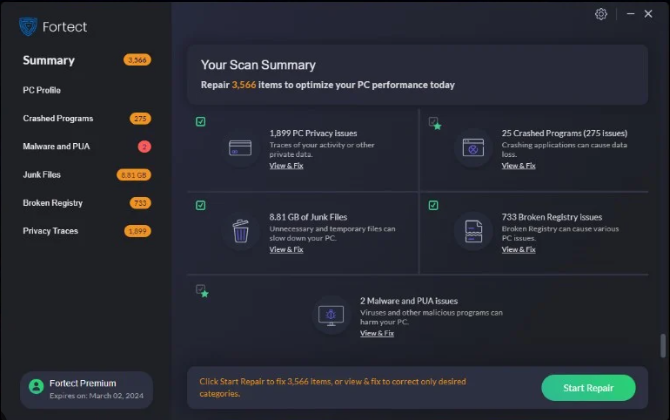
Этот инструмент восстановления может устранить такие распространенные проблемы компьютера, как синие экраны, сбои и замораживание, отсутствующие DLL-файлы, а также устранить повреждения от вредоносных программ/вирусов и многое другое путем замены поврежденных и отсутствующих системных файлов.
ШАГ 1:
Нажмите здесь, чтобы скачать и установите средство восстановления Windows.
ШАГ 2:
Нажмите на Start Scan и позвольте ему проанализировать ваше устройство.
ШАГ 3:
Нажмите на Repair All, чтобы устранить все обнаруженные проблемы.
СКАЧАТЬ СЕЙЧАС
Совместимость
Требования
1 Ghz CPU, 512 MB RAM, 40 GB HDD
Эта загрузка предлагает неограниченное бесплатное сканирование ПК с Windows. Полное восстановление системы начинается от $19,95.
ID статьи: ACX05403RU
Применяется к: Windows 10, Windows 8.1, Windows 7, Windows Vista, Windows XP, Windows 2000
Совет по увеличению скорости #47
Оптимизируйте Windows с помощью средства устранения неполадок производительности:
Оптимизируйте свой компьютер с Windows 7 и Windows 10 с помощью средства устранения неполадок производительности для повышения скорости работы. Этот инструмент может находить проблемы и предлагать действенные решения по их устранению. Просто введите «средство устранения неполадок» в поле поиска на панели управления.
Нажмите здесь, чтобы узнать о другом способе ускорения работы ПК под управлением Windows
You are faced the iMac error code 8058 problem and wondering how to fix error code iMac 8058. Then here you will find a comprehensive guide that will help you correct the error and to recover any data that you have lost.
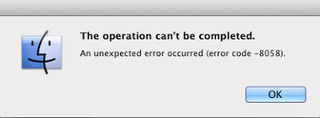
Did you work with the application finder, and then you tried to copy or move some files from one place to another, when the error code 8058 iMac revealed. The operation can not be completed, and if the error between the process, there is a possibility that the file can be a damaged. This error can occur if you do not have permission to move it, the application finder, which is responsible for the work is not working well or damaged. To fix iMac error code 8058 and get your lost data back to see the full post. If you have suffered from the loss of data, you can use the time backup utility machines. But sometimes, the time machine does not work, Mac data recovery software can be used to fix iMac error code 8058. The program has a powerful scanning algorithm, which scans the disk Mac and restore all files. You can download and use the software in any data loss situation.You have faced this irratical situation and want to fix iMac error code 8058, then there is a comprehensive guide that will help you correct the error and to recover any lost data you need.
An Introduction to Fix iMac Error Code 8058
Although Mac OS X is quite reliable, but still it is not free from glitches. Sometimes, users also have to face Fix iMac Error Code 8058 issues unexpectedly. It is one issue that continues to bother irrespective of the Mac versions you might use. Eventually, as a result of it, Mac system fails to process all your request and may crash severely. What more, due to Fix iMac Error Code 8058 issue, users also have to face some difficulties while accessing their hard drive files and other installed apps, which really presses a panic button at times. Wait that’s not the end, it has also been reported that system’s processing speed might get slow and even terminate abruptly, which may result in total loss of saved data on Mac. If you are also in the same situation and looking for Fix iMac Error Code 8058 solution then you need not worry because you will find complete guide to fix Fix iMac Error Code 8058 issue.
Fix iMac Error Code 8058: What are the Causes for Data Inaccessibility
There are various reasons behind the emergence of Fix iMac Error Code 8058 creating panic situation. Any inconsistencies pertaining to Mac OS X files system might result in corruption of data thus making it completely inaccessible. Let’s take a look at some of the probable reasons for the same.
Human mistakes: It might be due to unintentional mistakes such as accidental deletion, formatting mac files and volumes during normal course of operation
Emptying Trash: Many a time users might empty their trash files without cross checking them, which might result in complete wipe of even important Mac data.
Sudden termination of system files: Some time due to power surge, Mac system gets terminated abruptly, due to which some of the files fail to mount and become unresponsive.
Interrupted read/write operation: The chances of Mac file corruption or deletion also takes place when we interrupt the ongoing read/write process in midway resulting in Fix iMac Error Code 8058 situation.
Unintentional Formatting: Pressing wrong button will sometime lead to emergence of very critical Fix iMac Error Code 8058 problem.
Sharing of data/file on unsupported platforms: Due to presence of unsupported platform, sometimes shared files becomes unresponsive and get corrupted.
Virus attack: Although Mac is considered lot more safe as compared to Windows but still few nasty viruses are being written for it. Downloading apps & other related files will lead to security issue, which further influence the entire file system.
Modification in BIOS setting: Sometime when we go for some changes into the BIOS sector it will lead to emergence of several erroneous situation related to Fix iMac Error Code 8058 problem which you would never like to have.
Corruption in header file: Header file are one of the crucial file that contain entire information about the file that you are going to access. Hence, if there is a problem the requested file fails to respond and even generates Fix iMac Error Code 8058 corruption messages.
Catalog files node corruption: Catalog is the system generated file which keep record of file type and its recent accessing type.
Problem with boot sector: When there is a problem with boot sector, Mac system fails to load and as a result you are unable to access the stored data files and there arises Fix iMac Error Code 8058 issues.
Kernel Panic issues: Like BSOD in Windows, Mac users might come across kernel Panic issues.
Improper installation of program: installing of unwanted apps & programs without checking its source and agreement.
Hardware or software issue: It is also a common factor that is quite responsible for Mac file corruption and in a lieu emergence of erroneous situation.
All the above mentioned reasons are the probable causes for inaccessibility of Mac data. Now a question arises that, how a novice user know about Fix iMac Error Code 8058 ? Well, for your feasibility here are given some of the common symptoms.

Symptoms Related to Fix iMac Error Code 8058
- The system will get terminated automatically after few minutes of working.
- Slow & sluggish behavior of Mac system
- The stored Mac file gets corrupted or damaged without any warning
- Installed programs gets crashed or freezes frequently
- The emergence of annoying error messages like “unable to find .dmg file”
- “file not found”
- “access denied”
Precautions & Tips For Avoiding Fix iMac Error Code 8058
There is a well known proverb that precaution is better than cure, this too is applicable in case of Mac data. In order to avoid Fix iMac Error Code 8058 situation and keep all Mac files safe and secure, following tips might prove to be helpful. So, let’s have a look.
-
Stop using Mac at once if you do not want to aggravate Fix iMac Error Code 8058 issue and go for inbuilt disk recovery option.
-
Never overwrite the free space created after deletion of Mac files.
-
Don’t restart the Mac as the deleted or corrupted data might get overwritten with some other file.
-
Do not switch off system by ejecting the power plug.
-
Avoid upgrading system files.
-
Do not share any new data after the deletion or corruption issue.
-
Search the Mac Trash files.
-
Avoid downloading software from untrustworthy or suspicious websites.
-
Always shutdown your PC properly.
-
Always keep your Mac system update with patches & security fixes to protect against software loopholes
-
Always have a proper & updated backup of your saved Mac files to overcome data loss and Fix iMac Error Code 8058 issue.
At this juncture it has been commonly seen that the majority of users may lose their hope and get indulged in some expensive procedure for Fix iMac Error Code 8058 issue. But, why to do so! If here available an effective solution for it.
Fix iMac Error Code 8058: Manual Method to Get Rid of It
In case of Mac file corruption resulting in Fix iMac Error Code 8058 complications, follow this:
-
Search and launch “Disk Utility”
-
Click on “check file system”option
-
Wait till the scanning process gets over
-
Select the file that you want to mount it
2.If there is a problem with Mac file system due to Fix iMac Error Code 8058 then you may try this
-
Insert the Mac Bootable CD/Flash drive and restart the PC.
-
Click on “Install Mac OS X” option.
-
Continuously press “C” button from your keyboard.
-
Accept the license agreement & select the desired language.
-
Choose the destination drive which has the problem. In general, click on “Macintosh HD”.
-
After that click on “Options” icon to select the installation method. Further, if you want to save your personal file folders, networking accounts & user accounts click on “Archive to Install” & select “Preserve Users and Network Settings.
-
Restart your Mac system and reply to configuration prompt.
Note: Attempting to fix Fix iMac Error Code 8058 manually requires technical skills which newbie lacks. Even slight mistake might bring risk to data. So, it is recommended to take the help of Mac Data Recovery tool to rescue data in case of Fix iMac Error Code 8058 issue.
Mac Data Recovery Software: Automatic Way to Resolve Fix iMac Error Code 8058 Issue
No doubt, Mac data recovery software is an extremely simple and reliable tool that rescues data in case of its loss. It has also been noted that, the tool is quite effective in any case of data loss situation no irrespective of the reasons behind the corruption or deletion issues. Apart from that, its robust recovery algorithm performs thorough scanning of entire Mac hard drives either its internal or external and provide the users with optimum result.
Furthermore, Mac data recovery software has been well developed with layman prospective to provide simple working environment for the beginner users too. Another property of this very software is that, it can easily be installed and operate with minimal system resource utilization. In addition, due to all these effectiveness and meritorious work in the field of data recovery, the tool has gained 8 out of 10 rewards globally. Do not delay anymore, there is nothing as good as Mac data recovery software. Just download and install it to avoid Fix iMac Error Code 8058 scenario.
Striking Features of Mac Data Recovery Software
Undelete Mac data: Reliable and advance tool to perform smooth recovery of Mac data/files in any Fix iMac Error Code 8058 situation.
- Developed with robust scanning & recovery algorithm to provide complete Fix iMac Error Code 8058 solution.
- Highly applicable in case of Mac data corruption/ deletion issue
Deleted volume recovery: Also works effectively in case of Mac system file corruption or erroneous situation
-
Enabled with advance inbuilt file searching and recovery features in a single click
RAW file recovery: Supports recovery of more than 300 popular files including spreadsheets, ZIP archives, RAR files, PPT files ,PSD files, RAW files,music files, videos, etc.
Lost partition recovery: Safe data recovery from NTFS, FAT, ExFAT, HFS, HFSX based Boot Camp Partitions
-
Works as a system start up in case of boot failure issue
-
Maintains and preserves the integrity of data
-
Also, provide the preview of scanned & recovered files along with the option to see the ongoing scanning process during Fix iMac Error Code 8058
-
Enable with resume recovery to later recovery of data from .dmg file format
-
saves recovered files at the user’s desired location
-
it is Cost effective
System Requirements for Mac data Recovery Software
- Processor: Intel
- Memory: 1GB
- Free Space on Hard Disk: 50 MB
- OS: OS X Mavericks 10.9, Mountain lion 10.8, Lion 10.7, Snow Leopard 10.6, Leopard 10.5, Tiger 10.4
Pros and Cons of the Software
Pros:
- Very easy to use
- Highly reliable
- Scan and recover entire Mac hard drive data irrespective of circumstances
- best to overcome and fix Fix iMac Error Code 8058
Cons:
- Demo version can only be used to see the preview of recovered files.
- licensed version is required for saving the recovered data on desired location.
Conclusion: Now there is no need to worry at all! You can easily be able to rescue Mac data irrespective of the circumstances behind Fix iMac Error Code 8058 issue using an reliable and sophisticated Mac data recovery software.
Fix iMac Error Code 8058: Users Guide to Operate Mac Data Recovery Software
Step 1: Download and install Mac data recovery software to resolve Fix iMac Error Code 8058 issue.

Step:2 click on ‘Quick Recovery’ which is located below of the tab ‘Drive Recovery’.

Step 3: Select the Mac volume to be recovered by clicking on either “Volume recovery” or “formatted recovery” option for best Fix iMac Error Code 8058 solution.

Step 4: Now, click on start scan button.

Step 5: Wait till the scanning process gets over, after that a list of scanned files are displayed.

Step 6: Choose the file/folder or volume to be repaired and then select the desired location to save all recovered data and thus fix Fix iMac Error Code 8058 problem.
Step:7 Progress bar will confirm the saving of selected files to the desired destination.