I’ve just installed a nginx+php-fpm server. Everything seems fine except that PHP-FPM never writes error to its log.
fpm.conf
[default]
listen = /var/run/php-fpm/default.sock
listen.allowed_clients = 127.0.0.1
listen.owner = webusr
listen.group = webusr
listen.mode = 0666
user = webusr
group = webusr
pm = dynamic
pm.max_children = 50
pm.start_servers = 5
pm.min_spare_servers = 5
pm.max_spare_servers = 35
pm.status_path = /php/fpm/status
ping.path = /php/fpm/ping
request_terminate_timeout = 30s
request_slowlog_timeout = 10s
slowlog = /var/log/php-fpm/default/slow.log
chroot = /var/www/sites/webusr
catch_workers_output = yes
env[HOSTNAME] = mapsvr.mapking.com
php_flag[display_errors] = on
php_admin_value[error_log] = /var/log/php-fpm/default/error.log
php_admin_flag[log_errors] = on
nginx.conf
server
{
  listen        80 default_server;
  server_name   _;

  charset       utf-8;
  access_log    /var/log/nginx/access.log rest;

  include       conf.d/drops.conf.inc;

  location      /
  {
    root        /var/www/sites/webusr/htdocs;
    index       index.html index.htm index.php;
  }

  # pass the PHP scripts to FastCGI server listening on socket
  #
  location      ~ .php$
  {
    root           /var/www/sites/webusr/htdocs;
    include        /etc/nginx/fastcgi_params;
    fastcgi_index  index.php;
    fastcgi_param  SCRIPT_FILENAME /htdocs/$fastcgi_script_name;
    if (-f $request_filename)
    {
      fastcgi_pass   unix:/var/run/php-fpm/default.sock;
    }
  }

  location      = /php/fpm/status
  {
    include        /etc/nginx/fastcgi_params;
    fastcgi_param  SCRIPT_FILENAME $document_root$fastcgi_script_name;
    fastcgi_pass   unix:/var/run/php-fpm/default.sock;
  }

  location      = /php/fpm/ping
  {
    include        /etc/nginx/fastcgi_params;
    fastcgi_param  SCRIPT_FILENAME $document_root$fastcgi_script_name;
    fastcgi_pass   unix:/var/run/php-fpm/default.sock;
  }

  # redirect server error pages to the static page /50x.html
  #
  error_page    500 502 503 504  /50x.html;
  location      = /50x.html
  {
    root        /usr/share/nginx/html;
  }
}
I’ve made an erroneous php script and run, and see error output on the web browser. Also nginx error log states stderr output from fpm with the same message. I’ve check that the user have write (I’ve even tried 777) permission to the appointed log folder. Even the appointed error.log file has be created successfully by php-fpm. However, the log file is always empty, no matter what outrageous error has been made from php script.
What’s going on?
[Found the reason quite a while later]
It was permission. Changed the owner to the sites’s users solved the problem.
asked Dec 30, 2011 at 8:14

eidng8eidng8
1,9492 gold badges12 silver badges10 bronze badges
3
This worked for me:
; Redirect worker stdout and stderr into main error log. If not set, stdout and
; stderr will be redirected to /dev/null according to FastCGI specs.
; Default Value: no
catch_workers_output = yes
Edit:
The file to edit is the file that configure your desired pool.
By default its: /etc/php-fpm.d/www.conf
answered May 11, 2012 at 5:57

michaelbnmichaelbn
7,2232 gold badges32 silver badges46 bronze badges
14
I struggled with this for a long time before finding my php-fpm logs were being written to /var/log/upstart/php5-fpm.log. It appears to be a bug between how upstart and php-fpm interact. See more here: https://bugs.launchpad.net/ubuntu/+source/php5/+bug/1319595
answered Jan 22, 2015 at 17:31

Code CommanderCode Commander
16.3k7 gold badges61 silver badges64 bronze badges
2
I had a similar issue and had to do the following to the pool.d/www.conf file
php_admin_value[error_log] = /var/log/fpm-php.www.log
php_admin_flag[log_errors] = on
It still wasn’t writing the log file so I actually had to create it by touch /var/log/fpm-php.www.log then setting the correct owner sudo chown www-data:www-data /var/log/fpm-php.www.log.
Once this was done, and php5-fpm restarted, logging was resumed.

ᴍᴇʜᴏᴠ
4,5804 gold badges42 silver badges57 bronze badges
answered Apr 22, 2014 at 15:18

adnansadnans
2,2492 gold badges14 silver badges5 bronze badges
7
There are multiple php config files, but THIS is the one you need to edit:
/etc/php(version)?/fpm/pool.d/www.conf
uncomment the line that says:
catch_workers_output
That will allow PHPs stderr to go to php-fpm’s error log instead of /dev/null.
answered Aug 6, 2012 at 17:05

vectorvector
4774 silver badges6 bronze badges
4
I gathered insights from a bunch of answers here and I present a comprehensive solution:
So, if you setup nginx with php5-fpm and log a message using error_log() you can see it in /var/log/nginx/error.log by default.
A problem can arise if you want to log a lot of data (say an array) using error_log(print_r($myArr, true));. If an array is large enough, it seems that nginx will truncate your log entry.
To get around this you can configure fpm (php.net fpm config) to manage logs. Here are the steps to do so.
-
Open
/etc/php5/fpm/pool.d/www.conf:$ sudo nano /etc/php5/fpm/pool.d/www.conf -
Uncomment the following two lines by removing
;at the beginning of the line: (error_log is defined here: php.net);php_admin_value[error_log] = /var/log/fpm-php.www.log
;php_admin_flag[log_errors] = on -
Create
/var/log/fpm-php.www.log:$ sudo touch /var/log/fpm-php.www.log;
-
Change ownership of
/var/log/fpm-php.www.logso that php5-fpm can edit it:$ sudo chown vagrant /var/log/fpm-php.www.log
Note:
vagrantis the user that I need to give ownership to. You can see what user this should be for you by running$ ps aux | grep php.*wwwand looking at first column. -
Restart php5-fpm:
$ sudo service php5-fpm restart
Now your logs will be in /var/log/fpm-php.www.log.

answered Nov 1, 2015 at 18:34

GezimGezim
6,87410 gold badges60 silver badges93 bronze badges
7
There is a bug https://bugs.php.net/bug.php?id=61045 in php-fpm from v5.3.9 and till now (5.3.14 and 5.4.4). Developer promised fix will go live in next release. If you don’t want to wait — use patch on that page and re-build or rollback to 5.3.8.
answered Jun 28, 2012 at 18:03

DrewxDrewx
1511 silver badge2 bronze badges
In your fpm.conf file you haven’t set 2 variable which are only for error logging.
The variables are error_log (file path of your error log file) and log_level (error logging level).
; Error log file
; Note: the default prefix is /usr/local/php/var
; Default Value: log/php-fpm.log

error_log = log/php-fpm.log

; Log level
; Possible Values: alert, error, warning, notice, debug
; Default Value: notice

log_level = notice

answered Feb 19, 2012 at 20:18

khizar ansarikhizar ansari
1,4462 gold badges18 silver badges28 bronze badges
1
I’d like to add another tip to the existing answers because they did not solve my problem.
Watch out for the following nginx directive in your php location block:
fastcgi_intercept_errors on;
Removing this line has brought an end to many hours of struggling and pulling hair.
It could be hidden in some included conf directory like /etc/nginx/default.d/php.conf in my fedora.
answered Mar 4, 2020 at 12:17

ArsylumArsylum
5144 silver badges14 bronze badges
in my case I show that the error log was going to /var/log/php-fpm/www-error.log . so I commented this line in /etc/php-fpm.d/www.conf
php_flag[display_errors]   is commented
php_flag[display_errors] = on  log will be at /var/log/php-fpm/www-error.log
and as said above I also uncommented this line
catch_workers_output = yes
Now I can see logs in the file specified by nginx.
answered Dec 26, 2015 at 8:35

enRaiserenRaiser
2,5662 gold badges19 silver badges38 bronze badges
On alpine 3.15 with php8 i found on /var/log/php8/error.log
/var/log/php8 # cat error.log
 16:10:52] NOTICE: fpm is running, pid 14
 16:10:52] NOTICE: ready to handle connections
i also have this :
catch_workers_output = yes
answered Oct 4, 2022 at 14:28

uberuber
1063 bronze badges
In my case php-fpm outputs 500 error without any logging because of missing php-mysql module. I moved joomla installation to another server and forgot about it. So apt-get install php-mysql and service restart solved it.
I started with trying to fix broken logging without success. Finally with strace i found fail message after db-related system calls. Though my case is not directly related to op’s question, I hope it could be useful.
answered Apr 22, 2020 at 16:28

user3132194user3132194
2,19123 silver badges17 bronze badges
Check the Owner directory of «PHP-FPM»
You can do:
ls -lah /var/log/php-fpm/
chown -R webusr:webusr /var/log/php-fpm/
chmod -R 777 /var/log/php-fpm/
answered Jul 25, 2017 at 21:11

1

PHP FPM
First of all we need to enable option catch_workers_output for fpm.
catch_workers_output boolean
Redirect worker stdout and stderr into main error log. If not set, stdout and stderr will be redirected to /dev/null according to FastCGI specs. Default value: no.
/usr/local/etc/php-fpm.d/www.conf (in my configuration)
catch_workers_output = yes
sed -i '/^;catch_workers_output/ccatch_workers_output = yes' "/usr/local/etc/php-fpm.d/www.conf"Or simply edit and save the file manually to uncomment line starting with ;catch_workers_output.
Then we need to configure log file names and locations.
Access log
If you want or need to activate access log at php level:
access.log string
The access log file. Default value: not set
access.log = /var/log/php/fpm-access.log
sed -i '/^;access.log/caccess.log = /var/log/php/fpm-access.log' "/usr/local/etc/php-fpm.d/www.conf"Or simply edit and save the file manually to uncomment line starting with ;access.log.
You will have this kind of output:
$ tailf var/logs/php/fpm-access.log
172.18.0.5 -  20/Feb/2017:13:07:39 +0100 "GET /app_dev.php" 200
172.18.0.5 -  20/Feb/2017:13:07:47 +0100 "POST /app_dev.php" 302
172.18.0.5 -  20/Feb/2017:13:07:47 +0100 "POST /app_dev.php" 302
172.18.0.5 -  20/Feb/2017:13:07:47 +0100 "GET /app_dev.php" 200
172.18.0.5 -  20/Feb/2017:13:07:48 +0100 "GET /app_dev.php" 302
172.18.0.5 -  20/Feb/2017:13:07:48 +0100 "GET /app_dev.php" 200
Error log
Of course in production we do not want to display errors to users:
php_flag[display_errors] = off
sed -i '/^;php_flag[display_errors]/cphp_flag[display_errors] = off' "/usr/local/etc/php-fpm.d/www.conf"Or simply edit and save the file manually to uncomment line starting with ;php_flag[display_errors].
Then we must enable error log and define the error log file location :
php_admin_value[error_log] = /var/log/php/fpm-error.logphp_admin_flag[log_errors] = on
sed -i '/^;php_admin_value[error_log]/cphp_admin_value[error_log] = /var/log/php/fpm-error.log' "/usr/local/etc/php-fpm.d/www.conf"
sed -i '/^;php_admin_flag[log_errors]/cphp_admin_flag[log_errors] = on' "/usr/local/etc/php-fpm.d/www.conf"
Or simply edit and save the file manually to uncomment lines starting with ;php_admin_value[error_log] and ;php_admin_flag[log_errors].
You will have this kind of output:
$ tailf var/logs/php/fpm-error.log
[20-Feb-2017 13:33:46 Europe/Paris] PHP Parse error:  syntax error, unexpected '8' (T_LNUMBER), expecting variable (T_VARIABLE) or '{' or '$' in /var/www/html/web/app_dev.php on line 26
You also could change log level:
log_level string
Error log level. Possible values: alert, error, warning, notice, debug. Default value: notice.
sed -i '/^;log_level/clog_level = error' "/usr/local/etc/php-fpm.d/www.conf"Important
Log files must have correct access rights (owner) and must exist:
mkdir -p /var/log/php
touch /var/log/php/fpm-access.log
touch /var/log/php/fpm-error.log
chown -R www-data:www-data /var/log/php
PHP CLI
To enable php CLI errors, we need to add these lines into the (cli) php.ini file.
This configuration is for production not for debug or development.
error_reporting = E_ALL
display_startup_errors = Off
ignore_repeated_errors = Off
ignore_repeated_source = Off
html_errors = Off
track_errors = Off
display_errors = Off
log_errors = On
error_log = /var/log/php/cli-error.log
Conclusion
Using the given configuration you should have those logs:
$ ll var/logs/php
total 256K
-rw-r--r-- 1 82 82    0 févr. 17 09:35 cli-error.log
-rw-r--r-- 1 82 82  64K févr. 20 13:34 fpm-access.log
-rw-r--r-- 1 82 82  186 févr. 20 13:33 fpm-error.log
Do NOT forget to enable log rotation, you will have:
$ ll var/logs/php
total 256K
-rw-r--r-- 1 82 82    0 févr. 17 09:35 cli-error.log
-rw-r--r-- 1 82 82  390 févr. 17 09:35 cli-error.log-20170217
-rw-r--r-- 1 82 82  64K févr. 20 13:34 fpm-access.log
-rw-r--r-- 1 82 82  100 févr. 17 09:35 fpm-access.log-20170217.gz
-rw-r--r-- 1 82 82 172K févr. 18 02:00 fpm-access.log-20170218
-rw-r--r-- 1 82 82  186 févr. 20 13:33 fpm-error.log
-rw-r--r-- 1 82 82 374 févr. 17 09:35 fpm-error.log-20170217Настройка
FPM использует синтаксис php.ini для своего файла конфигурации php-fpm.conf и файлов конфигурации пулов.
Список глобальных директив php-fpm.conf
-
pid
string -
Путь к PID-файлу. По умолчанию: none.
-
error_log
string -
Путь к файлу журнала ошибок.
По умолчанию:#INSTALL_PREFIX#/log/php-fpm.log.
Если задано как «syslog», логирование будет производиться в syslogd, а не
в локальный файл. -
log_level
string -
Уровень журналирования ошибок. Возможные значения: alert, error, warning, notice,
debug.
По умолчанию: notice. -
log_limit
int -
Ограничить журналирование для журналируемых линиях,
что позволяет записывать сообщения длиной более 1024 символов без упаковки (wrapping).
Значение по умолчанию: 1024.
Доступно с PHP 7.3.0. -
log_buffering
bool -
Экспериментальное журналирование без дополнительной буферизации.
Значение по умолчанию: yes.
Доступно с PHP 7.3.0. -
syslog.facility
string -
Используется для указания, какой тип программ будет логировать сообщения.
По умолчанию: daemon. -
syslog.ident
string -
Предшествует любому сообщению.
Если у вас запущено несколько экземпляры FPM, вы можете изменить
значение по умолчанию на то, которое вам необходимо.
По умолчанию: php-fpm. -
emergency_restart_threshold
int -
При данном числе рабочих процессов, завершённых с SIGSEGV или SIGBUS
за промежуток времени, установленныйemergency_restart_interval
FPM будет перезагружен. Значение 0 означает ‘Off’ (отключено).
По умолчанию: 0 (Off). -
emergency_restart_interval
mixed -
Интервал времени, используемый
emergency_restart_interval,
чтобы определить, когда FPM будет мягко перезагружен. Это полезно для
избежания случайных повреждений общей памяти ускорителя (accelerator).
Доступные единицы измерения: s(секунды), m(минуты), h(часы), или d(дни).
Единица измерения по умолчанию: секунды. Значение по умолчанию: 0 (Off). -
process_control_timeout
mixed -
Время, в течение которого дочерние процессы ждут ответа на сигналы мастер-процессу.
Доступные единицы измерения: s(секунды), m(минуты), h(часы) или d(дни).
Единица измерения по умолчанию: секунды. Значение по умолчанию: 0. -
process.max
int -
Максимальное количество процессов, которое может породить FPM.
Это сделано для того, чтобы контролировать глобальное количество
процессов, когда используется большой пул динамического PM.
Используйте с осторожностью.
По умолчанию: 0. -
process.priority
int -
Указывает приоритет (Unix nice(2)) мастер-процесса (только если установлено).
Принимает значения от -19(максимальный приоритет) до 20(минимальный.)
По умолчанию: не установлено. -
daemonize
bool -
Запустить FPM в фоновом режиме. Установите значение ‘no’, чтобы запустить FPM
в диспетчере для отладки.
По умолчанию: yes. -
rlimit_files
int -
Устанавливает rlimit открытых файловых дескрипторов для мастер-процесса.
По умолчанию: Значение, определённое системой. -
rlimit_core
int -
Устанавливает rlimit максимального размера ядра для мастер-процесса.
По умолчанию 0. -
events.mechanism
string -
Указывает, какой событийный механизм будет использован FPM.
Возможны такие варианты: select, pool, epoll, kqueue (*BSD), port (Solaris).
По умолчанию: не установлено (автоопределение). -
systemd_interval
int -
Если FPM собран с интеграцией с systemd, указывает интервал,
в секундах, между оповещениями systemd о своём состоянии.
Для отключения задайте 0.
По умолчанию: 10.
Список директив для пулов.
С помощью FPM вы можете запускать несколько пулов процессов с различными настройками.
Эти параметры могут быть переданы пулу.
-
listen
string -
Адрес, который будет принимать FastCGI-запросы.
Синтаксис: ‘ip.add.re.ss:port’, ‘port’, ‘/path/to/unix/socket’.
Эта опция обязательна для каждого пула. -
listen.backlog
int -
Устанавливает listen(2) backlog. Значение
-1означает максимум на системах BSD.
Значение по умолчанию:-1(FreeBSD или OpenBSD) или511.
(Linux и другие платформы). -
listen.allowed_clients
string -
Список адресов IPv4 или IPv6 клиентов FastCGI, которым разрешено подключение.
Эквивалент переменной окружения FCGI_WEB_SERVER_ADDRS в оригинальном PHP FastCGI (5.2.2+).
Имеет смысл только с TCP-сокетом. Каждый адрес должен быть разделён запятой.
Если оставить это значение пустым, соединения будут приниматься с любого IP-адреса.
Значение по умолчанию: не задано (принимается любой ip-адрес). -
listen.owner
string -
Задаёт права для unix-сокета, если они используются. В Linux для разрешения соединений к веб-серверу,
должны быть установлены права на чтение/запись.
Во многих основанных на BSD-системах возможность соединения не зависит от прав доступа.
Значение по умолчанию: используется пользователь и группа, от имени которого запущен сервер, установлен режим 0660. -
listen.group
string -
Смотрите
listen.owner. -
listen.mode
string -
Смотрите
listen.owner. -
listen.acl_users
string -
Если поддерживается список управления доступом (ACL) POSIX, вы можете настроить
его с помощью этой опции.
Если задано, тоlisten.ownerиlisten.group
будут проигнорированы.
Значение задаётся списком имён, разделённых запятой. -
listen.acl_groups
string -
Смотрите
listen.acl_users.
Значение задаётся списком имён групп, разделённых запятой. -
user
string -
Unix-пользователь FPM-процессов. Этот параметр является обязательным.
-
group
string -
Unix-группа FPM-процессов. Если не установлен, группа по умолчанию равняется имени пользователя.
-
pm
string -
Выбор того, как менеджер процессов будет контролировать создание дочерних процессов.
Возможные значения:static,ondemand,
dynamic.
Этот параметр является обязательным.static— фиксированное число дочерних процессов (pm.max_children).ondemand— число процессов, порождающихся по требованию (когда появляются запросы,
в отличие от опции dynamic, когда стартует определённое количество процессов, равноеpm.start_servers,
вместе с запуском службы.dynamic— динамически изменяющееся число дочерних процессов, задаётся на основании
следующих директив:pm.max_children,pm.start_servers,
pm.min_spare_servers,pm.max_spare_servers. -
pm.max_children
int -
Число дочерних процессов, которые будут созданы, когда
pmустановлен в
static, или же максимальное число процессов, которые будут созданы,
когдаpmустановлен вdynamic.
Этот параметр является обязательным.Этот параметр устанавливает ограничение на число одновременных запросов,
которые будут обслуживаться. Эквивалент директивы ApacheMaxClients с
mpm_prefork и переменной окружения среды PHP_FCGI_CHILDREN в
в оригинальном PHP FastCGI. -
pm.start_servers
int -
Число дочерних процессов, создаваемых при запуске.
Используется, только когдаpmустановлен вdynamic.
Значение по умолчанию: min_spare_servers + (max_spare_servers —
min_spare_servers) / 2. -
pm.min_spare_servers
int -
Желаемое минимальное число неактивных процессов сервера. Используется, только когда
pmустановлено вdynamic. Кроме того,
это обязательный параметр в этом случае. -
pm.max_spare_servers
int -
Желаемое максимальное число неактивных процессов сервера. Используется, только когда
pmустановлен вdynamic. Кроме того,
это обязательный параметр в этом случае. -
pm.max_spawn_rate
int -
Количество одновременных порождений дочерних процессов.
Используется только тогда, когда у параметраpmустановлено значениеdynamic.
Значение по умолчанию: 32 -
pm.process_idle_timeout
mixed -
Число секунд, по истечению которых простаивающий процесс будет завершён.
Используется только еслиpmустановлено какondemand.
Допустимые единицы: s(econds)(по умолчанию), m(inutes), h(ours) или d(ays).
По умолчанию: 10s. -
pm.max_requests
int -
Число запросов дочернего процесса, после которого процесс будет перезапущен.
Это полезно для избежания утечек памяти при использовании сторонних
библиотек. Для бесконечной обработки запросов укажите ‘0’. Эквивалент
PHP_FCGI_MAX_REQUESTS. Значение по умолчанию: 0. -
pm.status_listen
string -
Адрес, по которому будет приниматься запрос состояния FastCGI. Создаёт новый невидимый пул,
который может независимо обрабатывать запросы. Полезно, если основной пул занят долго выполняющимися запросами,
так как всё ещё можно получить страницу состояния FPM
до завершения долго выполняющихся запросов.
Синтаксис такой же, как и для директивы listen.
Значение по умолчанию: none. -
pm.status_path
string -
Ссылка, по которой можно посмотреть страницу состояния FPM.
Значение должно начинаться со слеша (/). Если значение не установлено, то
страница статуса отображаться не будет. Значение по умолчанию: none. -
ping.path
string -
Ссылка на ping-страницу мониторинга FPM. Если значение не установлено,
ping-страница отображаться не будет. Может быть использовано для тестирования
извне, чтобы убедиться, что FPM жив и отвечает. Обратите внимание, что значение должно
начинаться с косой черты (/). -
ping.response
string -
Эта директива может быть использована на настройки ответа на ping-запрос.
Ответ формируется как text/plain со кодом ответа 200.
Значение по умолчанию: pong. -
process.priority
int -
Задаёт приоритет nice(2) для работающего процесса
(только если задан). Значение от -19 (высший
приоритет) до 20 (самый низкий).
Значение по умолчанию: не задано. -
process.dumpable
bool -
Установить флаг процесса dumpable (PR_SET_DUMPABLE prctl), даже если the пользователь процесса или группа отличается от пользователя мастер-процесса.
Это позволяет создавать дамп ядра процесса и выполнить ptrace процесса для пользователя пула.
Значение по умолчанию: no. Доступно с PHP 7.0.29, 7.1.17 и 7.2.5. -
prefix
string -
Задаёт префикс для вычисления пути
-
request_terminate_timeout
mixed -
Время ожидания обслуживания одного запроса, после чего рабочий процесс
будет завершён. Этот вариант следует использовать, когда опция
‘max_execution_time’ в php.ini не останавливает выполнение скрипта по каким-то причинам.
Значение ‘0’ означает ‘выключено’.
Доступные единицы измерения: s(econds), m(inutes), h(ours) или d(ays).
Значение по умолчанию: 0. -
request_terminate_timeout_track_finished
bool -
Время ожидания, установленное с помощью request_terminate_timeout,
не включается после fastcgi_finish_request
или когда приложение завершено и вызываются внутренние функции завершения работы.
Эта директива позволит безоговорочно применять ограничение времени ожидания даже в таких случаях.
Значение по умолчанию: нет, начиная с версии PHP 7.3.0. -
request_slowlog_timeout
mixed -
Время ожидания обслуживания одного запроса, после чего PHP backtrace
будет сохранён в файл ‘slowlog’. Значение ‘0’ означает ‘выключено’.
Доступные единицы измерения: s(econds), m(inutes), h(ours) или d(ays).
Значение по умолчанию: 0. -
request_slowlog_trace_depth
int -
Глубина трассировки стека журнала slowlog.
Значение по умолчанию: 20, начиная с PHP 7.2.0. -
slowlog
string -
Лог-файл для медленных запросов. Значение по умолчанию:
#INSTALL_PREFIX#/log/php-fpm.log.slow. -
rlimit_files
int -
Устанавливает лимит дескрипторов открытых файлов rlimit для дочерних
процессов в этом пуле.
Значение по умолчанию: определяется значением системы. -
rlimit_core
int -
Устанавливает максимальное количество используемых ядер rlimit для дочерних
процессов в этом пуле.
Возможные значения: ‘unlimited’ или целое число большее или равное 0.
Значение по умолчанию: определяется значением системы. -
chroot
string -
Директория chroot окружения при старте. Это значение должно быть определено
как абсолютный путь. Если значение не установлено, chroot не используется. -
chdir
string -
Chdir изменяет текущую директорию при старте. Это значение должно быть определено
как абсолютный путь. Значение по умолчанию: текущая директория или / при использовании chroot. -
catch_workers_output
bool -
Перенаправление STDOUT и STDERR рабочего процесса в главный лог ошибок.
Если не установлен, STDOUT и STDERR будут перенаправлены в /dev/null
в соответствии со спецификацией FastCGI.
Значение по умолчанию: no. -
decorate_workers_output
bool -
Включите оформление выхода (output decoration) для вывода worker-процесса когда
опция catch_workers_output включена.
Значение по умолчанию: yes.
Доступно с PHP 7.3.0. -
clear_env
bool -
Очищает окружение в worker-процессах FPM.
Предотвращает попадание произвольных переменных окружения в worker-процессы FPM,
очищая окружение у worker-процессах до того, как переменные окружения,
указанные в этой конфигурации пула будут добавлены.
По умолчанию: Yes. -
security.limit_extensions
string -
Ограничивает модули, которые FPM будет анализировать.
Это может предотвратить ошибки конфигурации на стороне веб-сервера.
Вы должны ограничить FPM только расширениями .php для предотвращения
выполнения PHP-кода злоумышленниками другими расширениями.
По умолчанию: .php .phar -
apparmor_hat
string -
Если AppArmor включён, позволяет изменить шапку.
Значение по умолчанию: не установлено -
access.log
string -
Лог-файл доступа.
Значение по умолчанию: не установлено -
access.format
string -
Формат лог-файла доступа.
Значение по умолчанию:"%R - %u %t "%m %r" %s":Допустимые значения
Заполнитель Описание %C%CPU %dдлительность µs %efastcgi env %fскрипт %lдлина содержимого %mметод %Mпамять %nназвание пула %oвывод заголовка %pPID %qстрока запроса %QGLUE между %q и %r %rURI запроса %Rудалённый IP-адрес %sстатус %Tвремя %tвремя %uудалённый пользователь
Можно передать дополнительные переменные окружения и обновить настройки
PHP для определённого пула.
Для этого вам необходимо добавить следующие параметры в файл настройки пула.
Пример #1 Передача переменных окружения и настроек PHP пулу
env[HOSTNAME] = $HOSTNAME
env[PATH] = /usr/local/bin:/usr/bin:/bin
env[TMP] = /tmp
env[TMPDIR] = /tmp
env[TEMP] = /tmp

php_admin_value[sendmail_path] = /usr/sbin/sendmail -t -i -f www@my.domain.com
php_flag[display_errors] = off
php_admin_value[error_log] = /var/log/fpm-php.www.log
php_admin_flag[log_errors] = on
php_admin_value[memory_limit] = 32M
Настройки PHP, переданные через php_value или
php_flag перезапишут их предыдущие значения.
Пожалуйста, обратите внимание, что определения
disable_functions или
disable_classes не
будут перезаписывать ранее определённые в php.ini значения,
а добавят новые значения.
Настройки, определённые через php_admin_value и php_admin_flag,
не могут быть перезаписаны через ini_set().
Настройки PHP можно устанавливать через веб-сервер.
Пример #2 Установка настроек PHP в nginx.conf
set $php_value "pcre.backtrack_limit=424242";
set $php_value "$php_value n pcre.recursion_limit=99999";
fastcgi_param  PHP_VALUE $php_value;

fastcgi_param  PHP_ADMIN_VALUE "open_basedir=/var/www/htdocs";
Предостережение
Так как эти настройки передаются в php-fpm как FastCGI-заголовки,
php-fpm не должен быть привязан к общедоступному адресу из мира.
В противном случае любой сможет изменить настройки PHP. Смотрите также
listen.allowed_clients.
Замечание:
Пулы не являются механизмом безопасности, потому что они не обеспечивают полного разделения;
например все пулы будут использовать один экземпляр OPcache.
rob at librobert dot net 
1 year ago
The 'index' directive that is used in php-fpm.conf is not documented here. However, this directive can also be used in the pool configurations. In the included file, the $pool variable is substituted correctly.
This means that, if you have multiple pools with similar configurations, you can create a file 'default-values.inc' like so:
-----
listen.allowed_clients = 127.0.0.1
pm = dynamic
pm.max_children = X
pm.min_spare_servers = X
pm.max_spare_servers = X
access.log = /var/log/php-fpm/$pool.access
access.format = "%R %u [%t] "%m %r" %s %d %l"
slowlog = /var/log/php-fpm/$pool.slow
php_flag[short_open_tag] = off
-----
And then include that file in each pool configuration like so:
-----
[vhost1.example.com]
user = www-vhost1
group = www-vhost1
listen = 127.0.0.1:9001
include = /usr/local/etc/php-fpm.d/default-values.inc
-----
This makes things a bit more transparent, and it could potentially save some time if you decide to change settings.
Make sure the name of the included file does not end in '.conf', because all files with that extension are loaded from php-fpm.conf.
ikrabbe 
4 years ago
It seems there is no way to get informed about the access log format codes that are used or can be used. All I found is the source code.
It would really help, not to have open questions when deploying php-fpm. I constantly struggle with file paths for example, but that is another topic.
case '%': /* '%' */
case 'C': /* %CPU */
case 'd': /* duration µs */
case 'e': /* fastcgi env */
case 'f': /* script */
case 'l': /* content length */
case 'm': /* method */
case 'M': /* memory */
case 'n': /* pool name */
case 'o': /* header output */
case 'p': /* PID */
case 'P': /* PID */
case 'q': /* query_string */
case 'Q': /* '?' */
case 'r': /* request URI */
case 'R': /* remote IP address */
case 's': /* status */
case 'T':
case 't': /* time */
case 'u': /* remote user */
gadnet at aqueos dot com 
8 years ago
the doc is lacking a lot of things it seems.
The php fpm exemple config file indicate different thing, more option etc... I wonder why the main documentation is less verbose that the configuration file that user can have .. or not have ?
Frank DENIS 
11 years ago
The default value for listen.backlog isn't exactly "unlimited".
It's 128 on some operating systems, and -1 (which doesn't mean "unlimited" as well, but is an alias to a hard limit) on other systems.
Check for a sysctl value like kern.somaxconn (OpenBSD) or net.core.somaxconn (Linux).
Crank it up if you need more PHP workers than the default value. Then adjust listen.backlog in your php-fpm configuration file to the same value.
-Frank.
frederic at juliana-multimedia dot com 
4 years ago
With Apache, mod_proxy_fcgi and php-fpm, if you want to have a generic pool and several vhost with different php configuration, you can use the ProxyFCGISetEnvIf directive and the PHP_ADMIN_VALUE environment variable. It does not work with PHP_ADMIN_FLAG even for boolean directives.
PHP directives must be separated by spaces and a n.
ProxyFCGISetEnvIf "true" PHP_ADMIN_VALUE "open_basedir=/var/www/toto/:/tmp/ n session.save_path=/var/www/toto/session n display_errors=On n error_reporting=-1"
rob at librobert dot net 
1 year ago
Correction for my previous note...
I wrote "The 'index' directive that is used in php-fpm.conf".
But obviously I meant "The 'include' directive"...
jon dot phpnetdonotspam at langevin dot me 
1 month ago
PHP-FPM configuration page apparently doesn't see the need to specify what options are available with each version of PHP.
It claims that pm.status_listen is a valid directive, but that directive only exists as of php 8.0.0, which is a bummer for those of us still using PHP 7.4.
Noting this for anyone else fighting with this.
antonfedonyuk at gmail dot com 
1 year ago
NOTE: "access.format" containing "%o" generate error in PHP 7.4 (don't tested in other versions)
Yousef Ismaeil Cliprz 
9 years ago
Check if fastCGI enabled
<?php
// You can use isset or is_null for $_SERVER['FCGI_SERVER_VERSION']
function isFastCGI () {
return !is_null($_SERVER['FCGI_SERVER_VERSION']);
}?>
antonfedonyuk at gmail dot com 
1 year ago
; The access log format.
; The following syntax is allowed
;  %%: the '%' character
;  %C: %CPU used by the request
;      it can accept the following format:
;      - %{user}C for user CPU only
;      - %{system}C for system CPU only
;      - %{total}C  for user + system CPU (default)
;  %d: time taken to serve the request
;      it can accept the following format:
;      - %{seconds}d (default)
;      - %{milliseconds}d
;      - %{milli}d
;      - %{microseconds}d
;      - %{micro}d
;  %e: an environment variable (same as $_ENV or $_SERVER)
;      it must be associated with embraces to specify the name of the env
;      variable. Some examples:
;      - server specifics like: %{REQUEST_METHOD}e or %{SERVER_PROTOCOL}e
;      - HTTP headers like: %{HTTP_HOST}e or %{HTTP_USER_AGENT}e
;  %f: script filename
;  %l: content-length of the request (for POST request only)
;  %m: request method
;  %M: peak of memory allocated by PHP
;      it can accept the following format:
;      - %{bytes}M (default)
;      - %{kilobytes}M
;      - %{kilo}M
;      - %{megabytes}M
;      - %{mega}M
;  %n: pool name
;  %o: output header
;      it must be associated with embraces to specify the name of the header:
;      - %{Content-Type}o
;      - %{X-Powered-By}o
;      - %{Transfert-Encoding}o
;      - ....
;  %p: PID of the child that serviced the request
;  %P: PID of the parent of the child that serviced the request
;  %q: the query string
;  %Q: the '?' character if query string exists
;  %r: the request URI (without the query string, see %q and %Q)
;  %R: remote IP address
;  %s: status (response code)
;  %t: server time the request was received
;      it can accept a strftime(3) format:
;      %d/%b/%Y:%H:%M:%S %z (default)
;      The strftime(3) format must be encapsulated in a %{<strftime_format>}t tag
;      e.g. for a ISO8601 formatted timestring, use: %{%Y-%m-%dT%H:%M:%S%z}t
;  %T: time the log has been written (the request has finished)
;      it can accept a strftime(3) format:
;      %d/%b/%Y:%H:%M:%S %z (default)
;      The strftime(3) format must be encapsulated in a %{<strftime_format>}t tag
;      e.g. for a ISO8601 formatted timestring, use: %{%Y-%m-%dT%H:%M:%S%z}t
;  %u: remote user
;
; Default: "%R - %u %t "%m %r" %s"
access.format = "%R - %u %t "%m %r%Q%q" %s %f %{milli}d %{kilo}M %C%%"
https://github.com/php/php-src/blob/master/sapi/fpm/www.conf.in#L257-L318
sroussey at gmail dot com 
9 years ago
Starting in 5.3.9 the security.limit_extensions configuration item has been added and it defaults to .php. If you need to execute other extensions, you have to change this setting.
mb 
7 years ago
If you need to disable security.limit_extensions variable, simply set the variable to FALSE like so:
security.limit_extensions = FALSE
I’m trying to figure out where the PHP errors are going in my setup. I’m running nginx as the reverse proxy to PHP-FPM, but I’m not seeing the various E_NOTICE or E_WARNING messages my app is producing. The only reason I know they’re happening is failed responses and NewRelic catching stack traces.
Here’s the logging config:
nginx.conf
proxy_intercept_errors on;
fastcgi_intercept_errors on;
php.ini
error_reporting  =  E_ALL
display_errors = Off
display_startup_errors = Off
log_errors = On
log_errors_max_len = 1024
ignore_repeated_errors = Off
ignore_repeated_source = Off
report_memleaks = On
track_errors = On
error_log = syslog
php-fpm.conf
[global]
error_log = /var/log/php-fpm/fpm-error.log

[www]
access.log = /var/log/php-fpm/access.log
access.format = "%t "%m %r%Q%q" %s %{mili}dms %{kilo}Mkb %C%%"
catch_workers_output = yes

php_flag[display_errors] = on
php_admin_flag[log_errors] = true
rsyslog.conf
:syslogtag, contains, "php" /var/log/php-fpm/error.log
I’ve configured PHP to log to syslog, however FPM has no syslog function so it’s logging to a file. I don’t really care where the errors end up, just that they end up somewhere.
Any clues on how I might get this to work?
asked Feb 12, 2014 at 0:32

2
Your php-fpm.conf file is not set up to send errors to syslog. See below for an example of how to do this.
; Error log file
; If it's set to "syslog", log is sent to syslogd instead of being written
; in a local file.
; Note: the default prefix is /var
; Default Value: log/php-fpm.log
error_log = syslog

; syslog_facility is used to specify what type of program is logging the
; message. This lets syslogd specify that messages from different facilities
; will be handled differently.
; See syslog(3) for possible values (ex daemon equiv LOG_DAEMON)
; Default Value: daemon
;syslog.facility = daemon

; syslog_ident is prepended to every message. If you have multiple FPM
; instances running on the same server, you can change the default value
; which must suit common needs.
; Default Value: php-fpm
;syslog.ident = php-fpm

; Log level
; Possible Values: alert, error, warning, notice, debug
; Default Value: notice
;log_level = notice

answered Jul 2, 2014 at 13:52

dmuirdmuir
3114 silver badges5 bronze badges
Are you sure about your assumption for the rsyslog.conf? That is, are you sure all such syslog messages are tagged with lower-case «php»?
Try setting syslog.facility to something like local2 (or local1, or local7) and replacing your rsyslog.conf config-line accordingly:
local2.* /var/log/php-fpm/error.log
answered Apr 13, 2015 at 12:52

OtheusOtheus
4313 silver badges12 bronze badges
When you’re using php-fpm, it appears to override the php.ini settings.
The logging most likely needs to be configured in .../www.conf.
I uncommented these lines in order to grab the PHP logs.
php_admin_value[error_log] = /var/log/php-errors.log
php_admin_flag[log_errors] = on
The webserver user and group can also be found in this file under lines similar to this (may differ between unix socket & proxy configuration).
listen.owner = www-data
listen.group = www-data
Then it’s just a matter of creating the file and configuring it properly.
touch /var/log/php-errors.log
chmod 644 /var/log/php-errors.log
chgrp www-data /var/log/php-errors.log
chown www-data /var/log/php-errors.log
I believe the log level is still used from php-fpm.conf so you may also need to check this.
log_level = error
answered Apr 3, 2018 at 3:33

1
PHP FPM handler can boost the website performance even on high traffic.
Sometimes, websites using PHP FPM show unexpected errors. And, the users may not have a clue on the underlying reason.
Fortunately, PHP fpm error reporting gives real-time details on the causes of the error. But, to make use of this we need to turn on error reporting for the website.
At Bobcares, we often get requests to fix PHP FPM errors as part of our Server Management Services.
Today, we’ll see how our Support Engineers set up PHP FPM error reporting and fix the related errors.
Importance of PHP FPM error reporting
PHP FPM error logging provides a simple but efficient solution for logging all errors into a log file. Also, the information they contain will give exact details of errors and the amount of time spent on tracking the root causes of errors.
For instance,
The entries in the PHP FPM error logs look like.
[22-Mar-2019 16:52:18] WARNING: [pool www] seems busy (you may need to increase pm.start_servers, or pm.min/max_spare_servers), spawning 32 children, there are 9 idle, and 89 total childrenLuckily, it is very easy to troubleshoot after analyzing the PHP-FPM error log and our Support Engineers found that this error occurs due to the values of pm.min/max_spare_servers and pm.start_servers. Then we increased these two values in /etc/php-fpm.d/www.conf.
Similarly, another example of entries in the PHP FPM error logs.
[25-Apr-2019 16:28:20] WARNING: [pool www] server reached max_children setting (80), consider raising itFrom the error log, we could identify that this error happens when pm.max_children setting reached its threshold value and our Support Engineers increased this value of pm.max_children in the PHP-FPM configuration file.
However, only a proper configuration of PHP FPM error reporting will provide useful entries to help fix the root cause of errors.
How we set up PHP FPM error reporting.
Now, let’s see how our Support Engineers set up PHP FPM error logging on servers.
To configure error logging for PHP-FPM,
1. Firstly, we need to configure log file names and location.
By default, we’re using www.conf pool config file or find php-fpm.conf or www.conf depending on what version of PHP-FPM you have installed. Here, we took /etc/php/7.0/fpm/pool.d/www.conf as an example.
2. So, we edit /etc/php/7.0/fpm/pool.d/www.conf file and uncomment “catch_workers_output=yes"
3. At last, we restart php-fpm service.
How we nailed the errors related to PHP FPM error reporting
From our experience in managing server, we’ve seen that many customers had issues related to PHP FPM error logging. Let’s take a look at the top problems and how we fix them.
Improper configuration settings
Recently, one of our customers had an issue PHP FPM error logging. He couldn’t find anything in the error log after enabled FPM error reporting.
Then, our Support Engineers found that he set up PHP-FPM error log in the wrong configuration file.
Therefore, we found the exact file location by using the following command.
ps aux | grep fpm

root 1508 0.0 1.5 367260 31380 ? Ss Nov05 0:11 php-fpm: master process (/etc/php/7.0/fpm/php-fpm.conf)
www-data 10231 0.0 2.7 453420 55540 ? S 15:10 0:03 php-fpm: pool www
www-data 13266 0.0 2.4 449892 50900 ? S 22:13 0:00 php-fpm: pool www
www-data 13572 0.0 1.8 372468 37740 ? S 23:14 0:00 php-fpm: pool www
user+ 13721 0.0 0.0 14512 980 pts/0 R+ 23:30 0:00 grep --color=auto fpm
Next, we edited /etc/php/7.0/fpm/php-fpm.conf and properly configured it.
That fixed the problem.
Incorrect permission/missing log file
Sometimes, PHP FPM error logging may not work as we expect even if we set up the right configuration. This can happen due to missing log files or lack of write permissions for a webserver on the log file.
For example, if the permission of error log fpm-php.www.log is incorrect, the error logging will not work properly. The same thing happens in the case of missing log files.
When a customer reported problems with error logging we executed the following command to verify the files. But, files were missing as per the logs below.
ls /usr/local/etc/php-fpm.d/fpm.logls: cannot access '/usr/local/etc/php-fpm.d/fpm.log': No such file or directory
ls: cannot access '/usr/local/etc/php-fpm.d': No such file or directoryThen our Support Engineers created the directory and log file fpm.log. And, then set up the right ownership.
This is how we fixed the error.
[Having trouble while setting up PHP FPM error reporting? We’ll fix it for you.]
Conclusion
In short, PHP FPM error logging provides a simple but efficient solution for logging all errors into a log file. Today, we saw how our Support Engineers set up PHP FPM error reporting and solved related issues.
PREVENT YOUR SERVER FROM CRASHING!
Never again lose customers to poor server speed! Let us help you.
Our server experts will monitor & maintain your server 24/7 so that it remains lightning fast and secure.
GET STARTED
var google_conversion_label = «owonCMyG5nEQ0aD71QM»;
- Важные логи сайта
- Расположение логов
- Чтение записей в логах
- Просмотр с помощью команды tail
- Просмотр с помощью ISPManager
- Программы для анализа логов
- Ведение логов медленных запросов сервера
- Ведение логов с помощью Logrotate
Логи сайта — это системные журналы, позволяющие получить информацию о посещении сайта ботами и пользователями, а также выявить скрытые проблемы на сервере — ошибки, битые ссылки, медленные запросы от сервера и многое другое.
Важные логи сайта
- Access.log — логи посещений пользователей и ботов. Позволяет составить более точную и подробную статистику, нежели сторонние ресурсы, выполняющие внешнее сканирование сайта и отправляющие ряд ненужных запросов серверу. Благодаря данному логу можно получить информацию об используемом браузере и IP-адрес посетителя, данные о местонахождении клиента (страна и город) и многое другое. Стоит обратить внимание, если сайт имеет высокую посещаемость, то анализ логов сервера потребует больше времени. Поэтому для составления статистики стоит использовать специализированные программы (анализаторы).
- Error.log — программные ошибки сервера. Стоит внимательно отнестись к анализу данного лога, ведь боты поисковиков, сканируя, получают все данные о работе сайта. При обнаружении большого количества ошибок, сайт может попасть под санкции поисковых систем. В свою очередь из записей данного журнала можно узнать точную дату и время ошибки, IP-адрес получателя, тип и описание ошибки.
- Slow.log (название зависит от используемой оболочки сервера) — в данный журнал записываются медленные запросы сервера. Так принято обозначать запросы с повышенным порогом задержки, выданные пользователю. Этот журнал позволяет выявить слабые места сервера и исправить проблему. Ниже будет рассмотрен способ включить ведение данного лога на разных типах серверов, а также настройка задержки, с которой записи будут заноситься в файл.
Расположение логов
Важно обратить внимание, что местоположение логов сайта по умолчанию зависит от используемого типа оболочки и может быть изменено администратором.
Стандартные пути до Error.log
Nginx
/var/log/nginx/error.log
Php-Fpm
/var/log/php-fpm/error.log
/var/log/php-fpm/error.log
/var/log/php-fpm/error.log
Apache (CentOS)
/var/log/httpd/error_log
Apache (Ubuntu, Debian)
/var/log/apache2/error_log
/var/log/apache2/error_log
/var/log/apache2/error_log
Стандартные пути до Access.log
Nginx
/var/log/nginx/access.log
/var/log/nginx/access.log
/var/log/nginx/access.log
Php-Fpm
/var/log/php-fpm/access.log
/var/log/php-fpm/access.log
/var/log/php-fpm/access.log
Apache (CentOS)
/var/log/httpd/access_log
/var/log/httpd/access_log
/var/log/httpd/access_log
Apache (Ubuntu, Debian)
/var/log/apache2/access_log
/var/log/apache2/access_log
/var/log/apache2/access_log
Чтение записей в логах
Записи в логах имеют структуру: одно событие – одна строка.
Записи в разных логах имеют общие черты, но количество подробностей отличается. Далее будут приведены примеры строк из разных системных журналов.
Примеры записей
Error.log
[Sat Sep 1 15:33:40.719615 2019] [:error] [pid 10706] [client 66.249.66.61:60699] PHP Notice: Undefined variable: moduleclass_sfx in /var/data/www/site.ru/modules/contacts/default.php on line 14
[Sat Sep 1 15:33:40.719615 2019] [:error] [pid 10706] [client 66.249.66.61:60699] PHP Notice: Undefined variable: moduleclass_sfx in /var/data/www/site.ru/modules/contacts/default.php on line 14
[Sat Sep 1 15:33:40.719615 2019] [:error] [pid 10706] [client 66.249.66.61:60699] PHP Notice: Undefined variable: moduleclass_sfx in /var/data/www/site.ru/modules/contacts/default.php on line 14
В приведенном примере:
- [Sat Sep 1 15:33:40.719615 2019] — дата и время события.
- [:error] [pid 10706] — ошибка и её тип.
- [client 66.249.66.61:60699] — IP-адрес подключившегося клиента.
- PHP Notice: Undefined variable: moduleclass_sfx in — событие PHP Notice. В данной ситуации — обнаружена неизвестная переменная.
- /var/data/www/site.ru/modules/contacts/default.php on line 14 — путь и номер строки в проблемном файле.
Access.log
194.61.0.6 – alex [10/Oct/2019:15:32:22 -0700] «GET /apache_pb.gif HTTP/1.0» 200 5396 «http://www.mysite/myserver.html» «Mozilla/4.08 [en] (Win98; I ;Nav)»
194.61.0.6 – alex [10/Oct/2019:15:32:22 -0700] «GET /apache_pb.gif HTTP/1.0» 200 5396 «http://www.mysite/myserver.html» «Mozilla/4.08 [en] (Win98; I ;Nav)»
194.61.0.6 – alex [10/Oct/2019:15:32:22 -0700] "GET /apache_pb.gif HTTP/1.0" 200 5396 "http://www.mysite/myserver.html" "Mozilla/4.08 [en] (Win98; I ;Nav)"
В приведенном примере:
- 194.61.0.6 — IP-адрес пользователя.
- alex — если пользователь зарегистрирован в системе, то в логах будет указан идентификатор.
- [10/Oct/2019:15:32:22 -0700]— дата и время записи.
- «GET /apache_pb.gif HTTP/1.0» — «GET» означает, что определённый документ со страницы сайта был отправлен пользователю. Существует команда «POST», наоборот отправляет конкретные данные (комментарий или любое другое сообщение) на сервер . Далее указан извлечённый документ «Apache_pb.gif», а также использованный протокол «HTTP/1.0».
- 200 5396 — код и количество байтов документа, которые были возвращены сервером.
- «http://www. www.mysite/myserver.html»— страница, с которой был произведён запрос на извлечение документа «Apache_pb.gif».
- «Mozilla/4.08 [en] (Win98; I ;Nav)» — данные о пользователе, которой произвёл запрос (используемый браузер и операционная система).
Просмотр логов сервера с помощью команды tail
Выполнить просмотр логов в Linux можно с помощью команды tail. Данный инструмент позволяет смотреть записи в логах, выводя последние строки из файла. По умолчанию tail выводит 10 строк.
Первый вариант использования Tail
tail -f /var/log/syslog
Аргумент «-f» позволяет команде делать просмотр событий в режиме реального времени, в ожидании новых записей в лог файлах. Для прерывания процесса следует нажать сочетание клавиш «Ctrl+C».
На место переменной «/var/log/syslog» в примере следует подставить актуальный адрес до нужных системных журналов.
Второй вариант использования Tail
tail -F /var/log/syslog
В Linux логи веб-сервера не ведутся до бесконечности, поскольку это усложняет их дальнейший анализ. При преодолении лимита записей, система переименует переполненный строками файл журнала и отправит в «архив». Вместо старого файла создастся новый, но с прежним названием.
Если будет использоваться аргумент «-f», команда продолжит отслеживание старого, переименованного журнала. Данный метод делает невозможным просмотр логов в реальном времени, поскольку файл более не актуален.
При использовании аргумента «-F», команда, после окончания записи старого журнала, перейдёт к чтению нового файла с логами. В таком случае просмотр логов в режиме реального времени продолжится.
Аналог команды Tail
tailf /var/log/syslog
Отличие команды tailf от предыдущей заключается в том, что она не обращается к файлу и файловой системе в период, когда запись логов не происходит. Это экономит ресурсы системы и заряд, если используется нестационарное устройство — ноутбук, смартфон или планшет.
Недостаток данного способа — проблема с чтением больших файлов. Если системный журнал достаточно большой, возникает вероятность отказа в работе программы.
Изменение стандартного количества строк для вывода
Как и отмечалось выше, по умолчанию выводится 10 строк. Если требуется увеличить или уменьшить их количество, в команду добавляется аргумент «-n» и необходимое число строк.
Пример:
tail -f -n 100 /var/log/syslog
tail -f -n 100 /var/log/syslog
tail -f -n 100 /var/log/syslog
При использовании данной команды будут показаны последние 100 строк журнала.
Просмотр логов с помощью ISPManager
Если на сервере установлен ISPManager, логи можно легко читать, используя приведенный ниже алгоритм.
- На главной странице, в панели инструментов «WWW» нужно нажать на вкладку «Журналы».
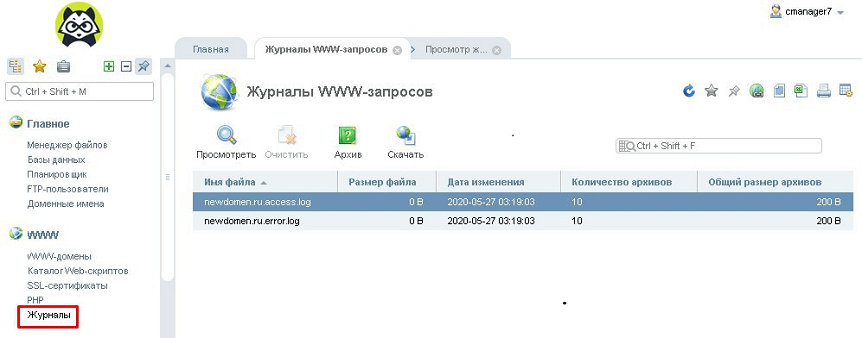
- ISPManager выдаст журналы посещений и серверных ошибок в виде:
- ru.access.log;
- ru.error.log.*
* Вместо «newdomen.ru» из примера в выдаче будет название актуального домена.
Открыть файл лога можно, нажав на «Посмотреть» в верхнем меню.
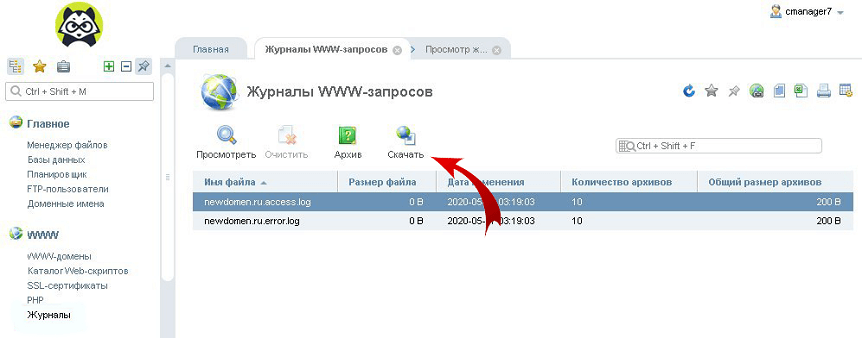
- Для просмотра всех записей журнала, необходимо нажать на «Скачать» и сохранить файл на локальный носитель.
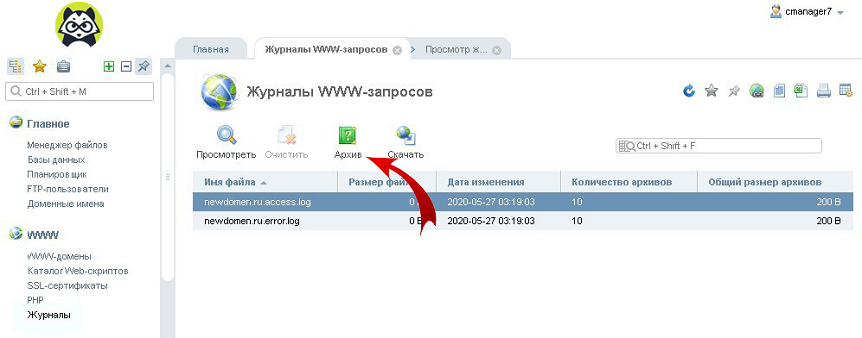
- Более старые версии логов можно найти во вкладке «Архив».
Программы для анализа логов
Анализировать журналы с большим количеством данных вручную не только сложно, но и чревато ошибками. Для упрощения работы с лог файлами было создано большое количество сервисов и утилит.
Инструменты для анализа логов делятся на два основных типа — статические и работающие в режиме реального времени.
Статические программы
Данный тип выполняет работу только с извлеченными логами, но обеспечивает быструю сортировку данных.
WebLog Expert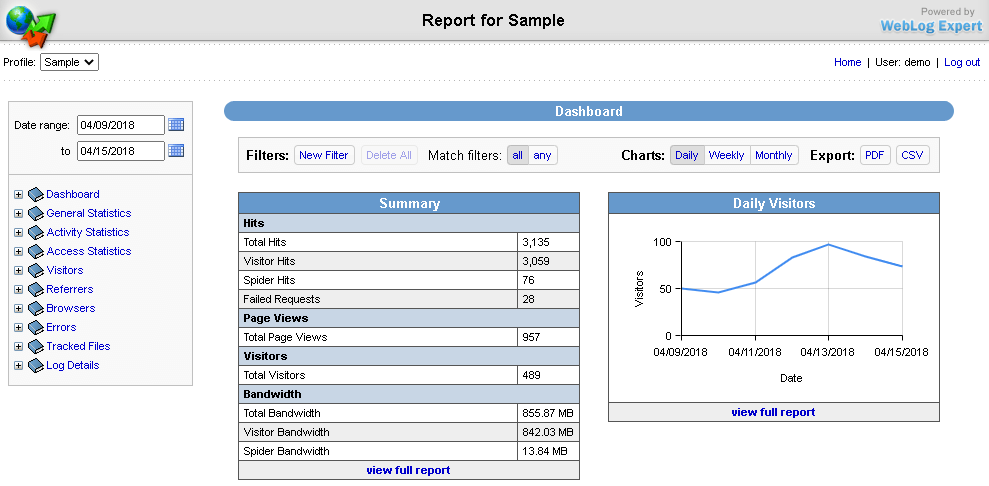
Возможности
- Предоставление информации об активность сайта, количестве посетителей, доступ к файлам, URL страницы, ссылающиеся страницы, информацию о пользователе (браузер и операционная система).
- Создание отчётов в формате HTML (.html), PDF (.pdf), CSV (.csv).
- Поддерживает анализ логов Nginx, Apache, ISS.
- Чтение файлов даже в архивах ZIP (.zip), GZ (.gz).
Web Log Explorer
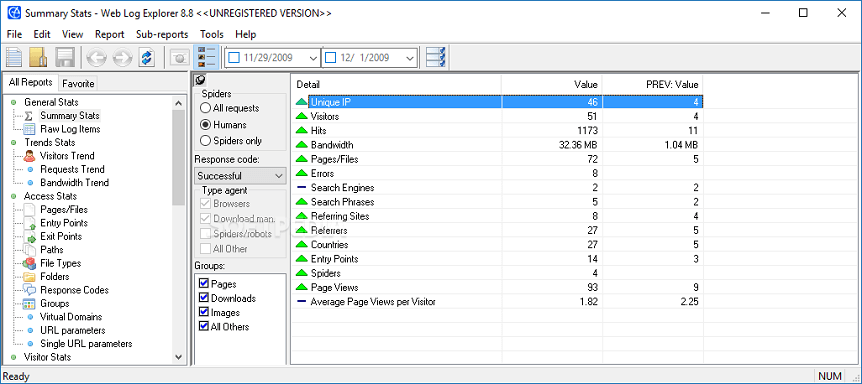
Возможности
- Создание многоуровневых отчётов, включающих количество посетителей, маршруты пользователей по сайту, местоположение хостов (страна и город), указанные в поисковике ключевые слова.
- Поддержка более 43 форматов логов.
- Возможность прямой загрузки логов с FTP, HTTP сервера.
- Чтение архивированных журналов.
Программы для анализа в режиме реального времени
Эти инструменты встраиваются в программную среду сервера, анализируют данные в реальном времени и записывают непрерывный отчёт.
GoAccess
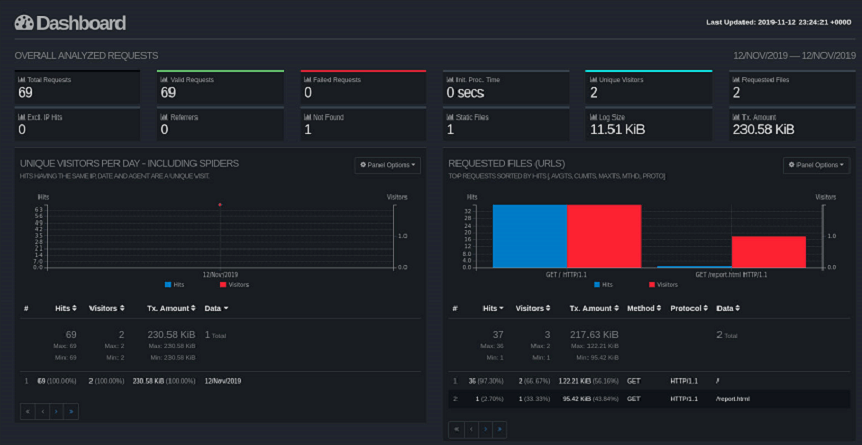
Возможности
- Автоматическая генерация отчёта в формате HTML (.html), JSON (.json), CSV (.csv).
- При подключении к серверу через SSH, возможен анализ в браузере и в терминале
- Поддержка почти всех форматов (Apache, Nginx, Amazon S3, Elastic Load Balancing, CloudFront и др.).
Logstash
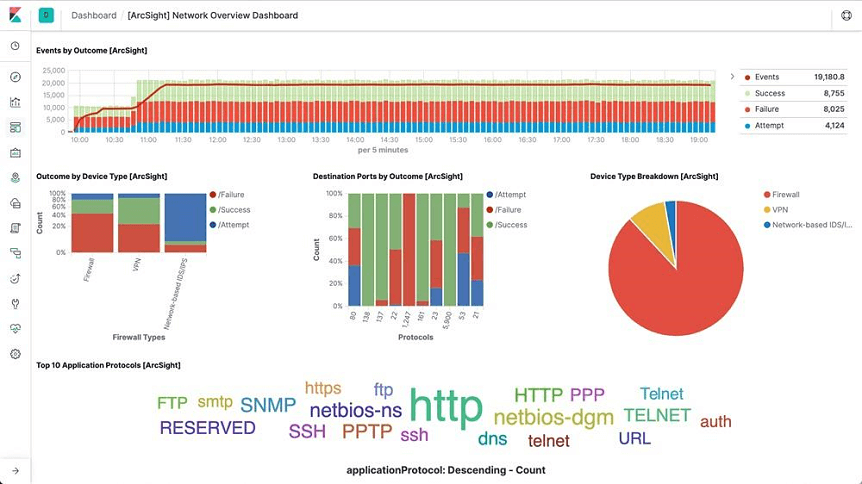
Возможности
- Постоянная генерация отчёта в файл JSON (.json).
- Получение и анализ информации из нескольких источников.
- Возможность пересылать журналы с помощью Filebeat.
- Поддержка анализа системных журналов.
- Поддерживается большое количество форматов: от Apache до Log4j (Java).
Ведения логов медленных запросов сервера
Анализ данного лога позволяет определить на какие типы запросов сервер отвечает долго. В идеале задержка должна составлять не более 1 секунды.
На некоторых типах оболочек (MySQL, PHP-FPM) ведение данного лога по умолчанию отключено. Процесс запуска и ведения зависит от сервера.
MySQL
Если сервер управляется с помощью MySQL, то необходимо создать каталог и сам файл для ведения журнала с помощью команд:
mkdir /var/log/mysql
touch /var/log/mysql/mysql-slow.log
touch /var/log/mysql/mysql-slow.log
touch /var/log/mysql/mysql-slow.log
Стоит изменить владельца файла, чтобы избежать дальнейших проблем с записью логов. Делается это командой:
chown mysql:mysql /var/log/mysql/mysql-slow.log
chown mysql:mysql /var/log/mysql/mysql-slow.log
chown mysql:mysql /var/log/mysql/mysql-slow.log
После выполнения предыдущих действий, нужно совершить вход в командную строку MySQL под учётной записью суперпользователя:
mysql -uroot -p
Для запуска и настройки ведения логов нужно последовательно ввести в терминале следующие команды:
> SET GLOBAL slow_query_log = ‘ON’;
> SET GLOBAL slow_launch_time = 2;
> SET GLOBAL slow_query_log_file = ‘/var/log/mysql/mysql-slow.log’;
> SET GLOBAL slow_query_log = ‘ON’;
> SET GLOBAL slow_launch_time = 2;
> SET GLOBAL slow_query_log_file = ‘/var/log/mysql/mysql-slow.log’;
> FLUSH LOGS;
> SET GLOBAL slow_query_log = 'ON';

> SET GLOBAL slow_launch_time = 2;

> SET GLOBAL slow_query_log_file = '/var/log/mysql/mysql-slow.log';

> FLUSH LOGS;
В примере:
- slow_query_log — запускает ведение журналов медленных запросов.
- slow_launch_time — указывает максимальную задержку отклика, после которой статистика запроса попадёт в журнал. В данном случае запись в логи происходит при преодолении откликом порога 2 секунды.
- slow_query_log_file — задаёт путь до используемого журнала.
Проверить статус и параметры ведения лога медленных запросов можно командой:
> SHOW VARIABLES LIKE ‘%slow%’;
> SHOW VARIABLES LIKE ‘%slow%’;
> SHOW VARIABLES LIKE '%slow%';
Выход из консоли MySQL выполняется командой:
> exit
После выполнения всех предыдущих действий, можно просмотреть логи сервера. Для этого в терминале вводится:
tail -f /var/log/mysql/mysql-slow.log
tail -f /var/log/mysql/mysql-slow.log
tail -f /var/log/mysql/mysql-slow.log
PHP-FPM
Для ведения журнала на данной оболочке, необходимо отредактировать параметры в конфигурационном файле. Для этого в терминале вводится команда:
vi /etc/php-fpm.d/www.conf
vi /etc/php-fpm.d/www.conf
vi /etc/php-fpm.d/www.conf
Далее нужно найти строки:
- request_slowlog_timeout = 10s — параметр, позволяющий указать задержку, с которой запись о длительном запросе попадёт в журнал.
- slowlog = /var/log/php-fpm/www-slow.log — параметр, указывающий путь до актуального файла логирования (.log).
После применения изменений, необходимо перезагрузить сервер PHP-FPM. Для этого в консоль вводится команда:
systemctl restart php-fpm
systemctl restart php-fpm
systemctl restart php-fpm
Просмотр логов запускается командой:
tail -f /var/log/php-fpm/www-slow.log
tail -f /var/log/php-fpm/www-slow.log
tail -f /var/log/php-fpm/www-slow.log
Анализ логов медленных запросов
Логи медленных запросов могут за незначительное время вырасти до огромных размеров. Для сортировки и отображения повторяющихся запросов рекомендуется использовать программу MySQLDumpSlow.
Для запуска просмотра логов с помощью этой утилиты, нужно составить команду по приведенному ниже алгоритму:
mysqldumpslow местонахождение/файла
mysqldumpslow местонахождение/файла
mysqldumpslow местонахождение/файла
Ведение логов в Logrotate
На больших ресурсах журналы могут достигать огромных размеров, поэтому нужно своевременно архивировать или очищать логи. С помощью утилиты Logrotate можно управлять ведением журналов: настроить период ротации (архивирование старого журнала и создание нового), период и количество хранения журналов и многое другое.
Изначально программа отсутствует в системе. Ниже приведены команды для инсталляции Logrotate из официальных репозиториев.
Ubuntu, Debian:
sudo apt install logrotate
sudo apt install logrotate
sudo apt install logrotate
CentOS:
sudo yum install logrotate
sudo yum install logrotate
sudo yum install logrotate
После установки необходимо проверить путь для будущих конфигурационных файлов. Для правильной работы они должны находится в папке «logrotate.d». Проверить данный параметр можно открыв конфигурационный файл командой:
nano /etc/logrotate.conf
В директории «RPM packages drop log rotation information into this directory» должна присутствовать строка:
include /etc/logrotate.d
Теперь создаётся конфигурационный файл «rsyslog.conf». В нём будет находиться конфигурацию по работе с логами. Для создания файла в терминале вводится команда:
sudo nano /etc/logrotate.d/rsyslog.conf
sudo nano /etc/logrotate.d/rsyslog.conf
sudo nano /etc/logrotate.d/rsyslog.conf
В окне терминала откроется текстовой редактор. Теперь нужно внести конфигурацию, как указано в образце. В качестве примера будет использоваться журнал посещений «Access.log» (Nginx).
/var/log/nginx/access.log {
/var/log/nginx/access.log {
daily
rotate 3
size 500M
compress
delaycompress
}
/var/log/nginx/access.log {
daily
rotate 3
size 500M
compress
delaycompress
}
Теперь остаётся только запустить Logrotate. Для этого вводится команда:
sudo logrotate -d /etc/logrotate.d/rsyslog.conf
sudo logrotate -d /etc/logrotate.d/rsyslog.conf
sudo logrotate -d /etc/logrotate.d/rsyslog.conf
Для проверки правильности работы программы в терминале можно ввести команду:
ls /var/cron.daily/
Azure App Service for Linux platform now supports customer using both PHP 7 and PHP 8 built-in docker image.
When switching from PHP 7 to PHP 8, you may recognize the platform changed the web container from using Apache to Nginx+php-fpm mode.
This blog shows how to use customized php-fpm configuration in PHP 8 Linux App Service to get more detailed logs to troubleshoot application issues.
How to Enable php-fpm access log
How to Enable php-fpm slow requests log
How to check php-fpm status
How to Enable php-fpm access log
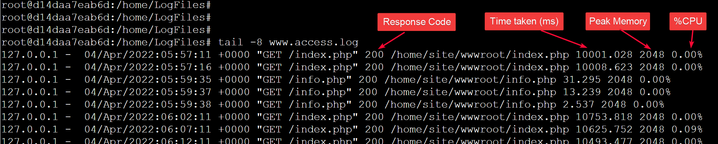
We can get a lot of detailed PHP requests information in php-fpm access log.
For example:
- Request URL
- Response status code
- Server time the request was received
- Time taken to serve the request
- %CPU used by the request
- peak of memory allocated by PHP
In PHP 8 Linux Azure App Service, the original php-fpm config file is stored in /usr/local/etc/php-fpm.d/www.conf.
By default, php-fpm access log is disabled in the config.
To enable php-fpm access log, we need to modify the php-fpm config file.
1. Make a copy of www.conf from /usr/local/etc/php-fpm.d/www.conf to /home/www.conf
Go to https://<appservice-name>.scm.azurewebsites.net/webssh/host
cp /usr/local/etc/php-fpm.d/www.conf /home/www.conf2. Enable access.log by uncomment the following two lines in the /home/www.conf file
vi /home/www.confDefine your access.log file path. (We suggest put it anywhere under /home/LogFiles/)
Define the access log format, to add the information you need for application issue investigation.

The meaning of the format arguments are provided in the www.conf file

3. Change the customer startup script to overwrite the originally www.config file with your customized one.
Put the following command in the startup script:
cp /home/www.conf /usr/local/etc/php-fpm.d/www.conf; service nginx restart

4. After Restart the App Service, you should be able to see the php-fpm access log in the path you defined in your www.config file.
How to Enable php-fpm slow requests log
We can also enable php-fpm slow log to get more detailed php call stacks to analysis requests slowness issues.
We can enable slow log with the following steps:
1. Make a copy of www.conf from /usr/local/etc/php-fpm.d/www.conf to /home/www.conf
cp /usr/local/etc/php-fpm.d/www.conf /home/www.conf
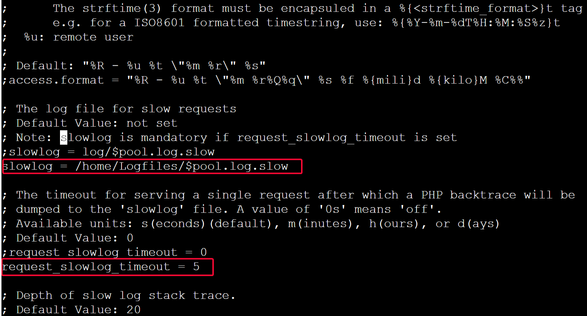
2. Enable slowlog by uncomment the following two lines in the /home/www.conf file
vi /home/www.conf
Define your slowlog file path. (We suggest put it anywhere under /home/Logfiles/ folder)
Define the request_slowlog_timeout
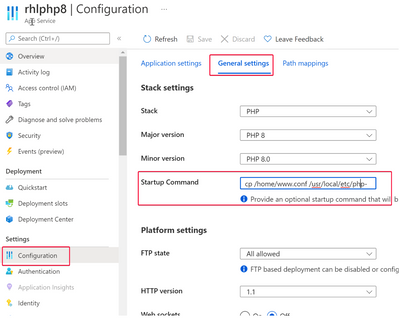
3. Change the customer startup script to overwrite the originally www.config file with your customized one.
Put the following command in the startup script:
cp /home/www.conf /usr/local/etc/php-fpm.d/www.conf; service nginx restart
4. After Restart the App Service, you should be able to see the php-fpm slow log in the path you defined in your www.config file.
For example, I create a very simple slow request sample.
- index.php calls test.php
- test.php sleeps 10 seconds when processing the request.

In my /home/Logfiles/www.log.slow record, I can see detailed call stack in the log for the slow requests.

How to check php-fpm status
Sometimes we need to check php-fpm status for performance tuning.
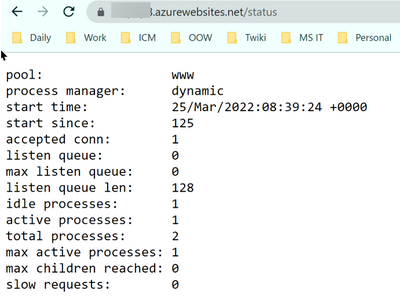
For example, we can check «max active process» and «max children reached» number to decide whether we need to increase the pm.max_children in the php-fpm configuration.
We can check php-fpm status with the following steps:
1. Make a copy of www.conf from /usr/local/etc/php-fpm.d/www.conf to /home/www.conf
cp /usr/local/etc/php-fpm.d/www.conf /home/www.conf2. Enable pm.status_path by uncomment the following line in the /home/www.conf file
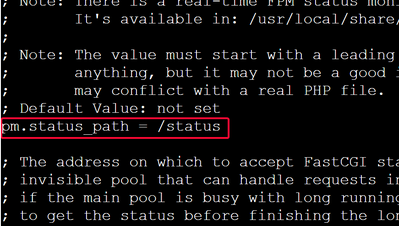
3. Make a copy of Nginx configure file from /etc/nginx/sites-enabled/default to /home/default
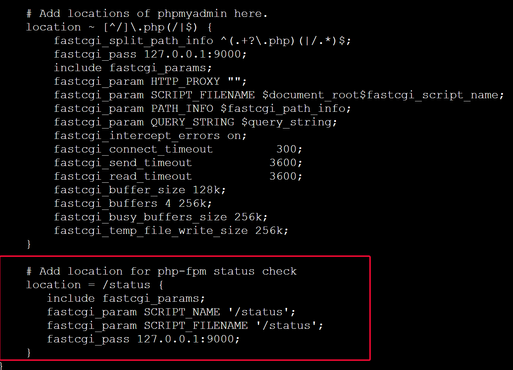
cp /etc/nginx/sites-enabled/default /home/default4. Add location for php-fpm status check
# Add location for php-fpm status check
    location = /status {
       include fastcgi_params;
       fastcgi_param SCRIPT_NAME '/status';
       fastcgi_param SCRIPT_FILENAME '/status';
       fastcgi_pass 127.0.0.1:9000;
    }
5. Modify customer startup command to overwrite Nginx and php-fpm config file with your customized settings
Put the following command in the startup script:
cp /home/www.conf /usr/local/etc/php-fpm.d/www.conf; cp /home/default /etc/nginx/sites-enabled/default; service nginx restart

6. By accessing the https://<webapp-name>.azurewebsites.net/status uri of your App Service, you should be able to monitor the php-fpm usage status in live time.