Дмитрий Байков21
С сайта Rockstar, не знаю, поможет тебе или нет:
Такое сообщение выводится, если при загрузке сохраненных данных вашего персонажа GTA Online по какой-либо причине произошел сбой. Эта ошибка должна устраниться сама собой. Если в течение 4 часов этого не произойдет, выполните следующие действия:
На Xbox 360: очистите кэш системы, затем нажмите и удерживайте кнопки LB + RB при запуске игры.
На Xbox One: очистите кэш системы, затем удерживайте кнопку запуска на вашей Xbox One, пока система не выключится. После этого вы можете сразу запустить ее и начать игру снова.
На PS3: удалите данные игры (но НЕ сохраненные данные) с помощью утилиты управления данными PS3, доступной в меню XMB (системном меню). Затем нажмите и удерживайте L1 + R1 при запуске игры.
На PC: удалите папку «Social Club» в папке документов пользователя. Файлы будут скачаны заного во время следующего запуска игры.
Примечание: при этом также сбросятся настройки яркости экрана и выбор языка в GTA V.
Если эти меры не помогут устранить ошибку, обратитесь в службу техподдержки.

Ward
Технический Администратор
-
#2
Если у вас запущена какая-либо игра Rockstar Games, выйдите из нее
Перейдите в установочную папку Rockstar Games Launcher
По умолчанию: C:Program FilesRockstar GamesLauncher
Дважды щелкните по файлу uninstall.exe и удалите Rockstar Games Launcher
Не ставьте отметку в поле «Удалить игровые данные» (Uninstall game data)
Удалите оставшиеся файлы Rockstar Games Launcher и Social Club
После того как процедура удаления будет завершена, удалите все нижеперечисленные папки:
ПРИМЕЧАНИЕ: не удаляйте другие папки или файлы, иначе вы можете потерять сохраненные игры или другие важные данные.
C:Users[имя пользователя]DocumentsRockstar GamesSocial Club
C:Users[имя пользователя]DocumentsRockstar GamesLauncher
C:Program FilesRockstar GamesLauncher
(установочная папка приложения)
C:Program FilesRockstar GamesSocial Club
C:Program Files (x86)Rockstar GamesSocial Club
Перезагрузите компьютер
Установите Rockstar Games Launcher заново
Обновлено: 28.01.2023
Игра зависает на заставке. Вылетает, и окно: Конфликт синхронизации облака.
Конфликт синхронизации облака
1) Зайдите в RDR2 и вызовите оверлей Rockstar Games нажав клавишу «Home», после чего нажмите по своему аватуру и кликните на символ шестерёнки. Перейдите к разделу «Насртройки игры» и деактивируйте сохранения в облаке.
2) Пройдите по пути «C:UsersИмя пользователяDocumentsRockstar GamesRed Dead Redemption 2ProfilesИмя профиля (папка в названии которой набор цифр и букв)» и удалите/скопируйте свои сохранения
3) Теперь снова запустите игру и ждите всплывающего окна «Активировать сохранение в облаке?»
4) НЕ ТОРОПИТЕСЬ НАЖИМАТЬ «Да»! Пока это окно открыто, вы должны перекинуть файлы из этого архива в пустую папку ваших сохранений. Как только вы это сделали, соглашайтесь активировать сохранение в облаке
5) Произойдёт нужный нам конфликт локальных файлов и файлов в облаке. Лаунчер предложит нам выбор между файлами сохранений в на компьютере и файлами сохранений в облаке, нам нужно выбрать локальные файлы и немного подождать пока данные перезапишуться.
6)ГОТОВО!
Из какого архива в какую папку? В папку Profiles? Эти же файлы которые я удалила?
Эдуард Осипов Искусственный Интеллект (139043) Валерия, «и удалите/скопируйте свои сохранения» — это на всякий случай, делаешь архив, и а потом удаляешь содержимое
Не скачивается RDR2 в Rockstar games launcher

Через некоторое время пишет «Ошибка при загрузке RDR2 нажмите «повтор»»
1) Пожалуйста удалите следующие папки вручную:
C:UsersUSERNAMEDocumentsRockstar GamesSocial Club
C:UsersUSERNAMEDocumentsRockstar GamesLauncher
C:Program FilesRockstar GamesLauncher (это папка, в которую устнавливается лаунчер по умолчанию) C:Program FilesRockstar GamesSocial Club
C:Program Files (x86)Rockstar GamesSocial Club
конфликт синхронизации облачного хранилища


- Отметить как новое
- Закладка
- Подписаться
- Электронная почта другу
Pioneer_from_ua
Благодаря функции «облачное хранилище» файл, в котором содержится запись вашего прогресса в игре, хранится в «облаке» — сети удаленных серверов, имеющей надежную защиту. Таким образом, вы сможете продолжить игру с того места, где оставили ее в прошлый раз — достаточно лишь воспользоваться компьютером того же типа (ПК или Mac) с установленным клиентом Origin. Кроме того, «облако» служит резервным хранилищем всех сохранений игр с вашего компьютера.
конфликт синхронизации облачного хранилища
- Отметить как новое
- Закладка
- Подписаться
- Электронная почта другу
Ancorig
Трассировка техподдержке Еа не нужна. Если трассировка показывает проблемы, вам с ней к провайдеру.
В вашем случае, трассировка нормальная, насколько я вижу. Кстати, вы невнимательно читаете то, что вам пишут. Вас просили сделать скриншот, а вы прислали тестовый отчет.
Для решения проблемы с соединением, пробуйте:
С русской ТП онлайн только в виде звонка.
Если вы хорошо знаете английский, можно связаться с американской ТП через чат.
Win 10 x64 HP / i5-3550 / asus P8Z77-V LE / DDR3 2x8Gb 1600 МГц Corsair / GTX970 EVGA SSC ACX 2.0+ / SSD 250 Гб Samsung 860 Evo +1.5 Тб Seagate Barracuda + 3Тб Hitachi Deskstar / AeroCool Vx-9 PRO / Corsair TX650W / 23.8″ Philips 242V8A
Читайте также:
- Fallout 4 брэндис как убедить
- Dead rising 2 где найти ключи от машины
- Как снять проклятие мумии в симс 3
- Как сломать игру скайрим на деньги
- Как рисовать лису в майнкрафте
Содержание
- Конфликт синхронизации облака rdr 2 как исправить
- Не скачивается RDR2 в Rockstar games launcher
- конфликт синхронизации облачного хранилища
- конфликт синхронизации облачного хранилища
- [Быстрое исправление] Ошибка нехватки виртуальной памяти для RDR2
- Попробуйте эти исправления
- Как увеличить размер файла подкачки
- Измените API с Vulkan на DirectX 12
- Обновите драйверы вашего устройства
Конфликт синхронизации облака rdr 2 как исправить
Игра зависает на заставке. Вылетает, и окно: Конфликт синхронизации облака.
Конфликт синхронизации облака
1) Зайдите в RDR2 и вызовите оверлей Rockstar Games нажав клавишу «Home», после чего нажмите по своему аватуру и кликните на символ шестерёнки. Перейдите к разделу «Насртройки игры» и деактивируйте сохранения в облаке.
2) Пройдите по пути «C:UsersИмя пользователяDocumentsRockstar GamesRed Dead Redemption 2ProfilesИмя профиля (папка в названии которой набор цифр и букв)» и удалите/скопируйте свои сохранения
3) Теперь снова запустите игру и ждите всплывающего окна «Активировать сохранение в облаке?»
4) НЕ ТОРОПИТЕСЬ НАЖИМАТЬ «Да»! Пока это окно открыто, вы должны перекинуть файлы из этого архива в пустую папку ваших сохранений. Как только вы это сделали, соглашайтесь активировать сохранение в облаке
5) Произойдёт нужный нам конфликт локальных файлов и файлов в облаке. Лаунчер предложит нам выбор между файлами сохранений в на компьютере и файлами сохранений в облаке, нам нужно выбрать локальные файлы и немного подождать пока данные перезапишуться.
6)ГОТОВО!
Из какого архива в какую папку? В папку Profiles? Эти же файлы которые я удалила?
Эдуард Осипов Искусственный Интеллект (139043) Валерия, «и удалите/скопируйте свои сохранения» — это на всякий случай, делаешь архив, и а потом удаляешь содержимое
Не скачивается RDR2 в Rockstar games launcher
Через некоторое время пишет «Ошибка при загрузке RDR2 нажмите «повтор»»
1) Пожалуйста удалите следующие папки вручную:
C:UsersUSERNAMEDocumentsRockstar GamesSocial Club
C:UsersUSERNAMEDocumentsRockstar GamesLauncher
C:Program FilesRockstar GamesLauncher (это папка, в которую устнавливается лаунчер по умолчанию) C:Program FilesRockstar GamesSocial Club
C:Program Files (x86)Rockstar GamesSocial Club
конфликт синхронизации облачного хранилища
- Отметить как новое
- Закладка
- Подписаться
- Электронная почта другу
Pioneer_from_ua
Благодаря функции «облачное хранилище» файл, в котором содержится запись вашего прогресса в игре, хранится в «облаке» — сети удаленных серверов, имеющей надежную защиту. Таким образом, вы сможете продолжить игру с того места, где оставили ее в прошлый раз — достаточно лишь воспользоваться компьютером того же типа (ПК или Mac) с установленным клиентом Origin. Кроме того, «облако» служит резервным хранилищем всех сохранений игр с вашего компьютера.
конфликт синхронизации облачного хранилища
- Отметить как новое
- Закладка
- Подписаться
- Электронная почта другу
Ancorig
Трассировка техподдержке Еа не нужна. Если трассировка показывает проблемы, вам с ней к провайдеру.
В вашем случае, трассировка нормальная, насколько я вижу. Кстати, вы невнимательно читаете то, что вам пишут. Вас просили сделать скриншот, а вы прислали тестовый отчет.
Для решения проблемы с соединением, пробуйте:
С русской ТП онлайн только в виде звонка.
Если вы хорошо знаете английский, можно связаться с американской ТП через чат.
Win 10 x64 HP / i5-3550 / asus P8Z77-V LE / DDR3 2x8Gb 1600 МГц Corsair / GTX970 EVGA SSC ACX 2.0+ / SSD 250 Гб Samsung 860 Evo +1.5 Тб Seagate Barracuda + 3Тб Hitachi Deskstar / AeroCool Vx-9 PRO / Corsair TX650W / 23.8″ Philips 242V8A
Источник
[Быстрое исправление] Ошибка нехватки виртуальной памяти для RDR2
Rdr2 Out Virtual Memory Error
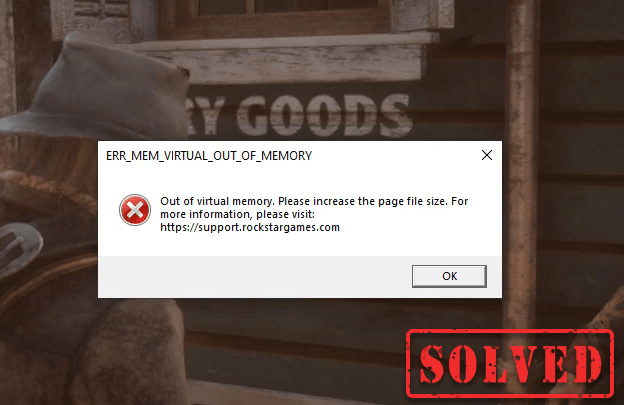
Не знаете, как исправить ошибку нехватки виртуальной памяти в Red Dead Redemption 2? Не беспокойтесь, мы вас прикрыли!
Получение каких-либо кодов ошибок или сообщений во время игры может быть довольно неприятным. Это случается с некоторыми игроками в Red Dead Redemption 2 . Они получают сообщение об ошибке ERR_MEM_VIRTUAL_OF_MEMORY , что мешает им продолжить путешествие. К счастью, это можно исправить, просто увеличив размер файла подкачки. Но некоторым, возможно, придется попробовать другие методы, чтобы избавиться от этой ошибки. Читайте дальше и узнайте, как это сделать.
Попробуйте эти исправления
Не все решения необходимы, поэтому просто просматривайте список, пока не найдете то, которое решает вашу проблему.
- Увеличить размер файла подкачки
- Измените API с Vulkan на DirectX 12
- Обновите драйверы вашего устройства
Как увеличить размер файла подкачки
Чтобы увеличить размер файла подкачки, выполните следующие действия:
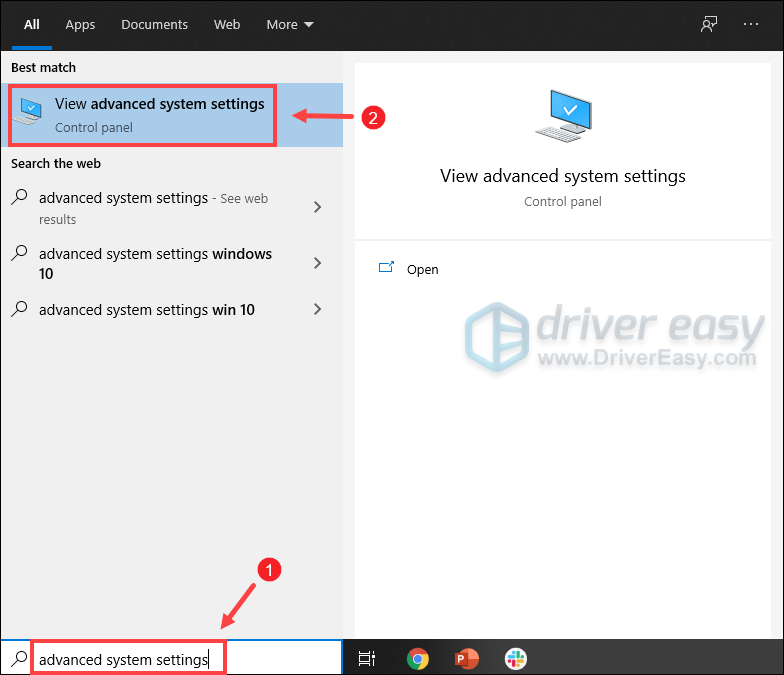
1) В поле поиска введите расширенные настройки системы . Затем нажмите Просмотр дополнительных настроек системы из списка результатов.
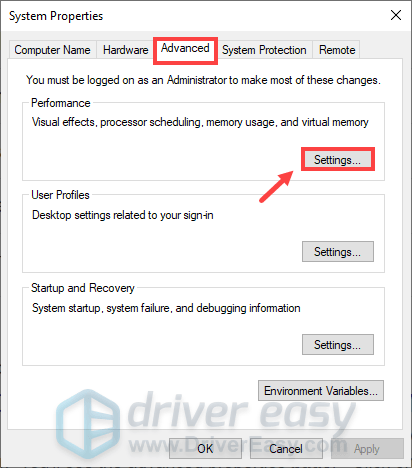
2) Под Передовой вкладку, щелкните Настройки .
3) Выберите Передовой вкладка, а затем щелкните Изменять… .

4) Снимите флажок Автоматически управлять размером файла подкачки для всех дисков .
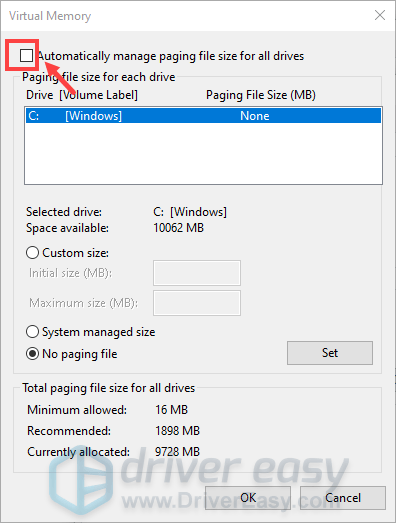
5) Выберите диск C и отметьте галочкой Обычный размер .
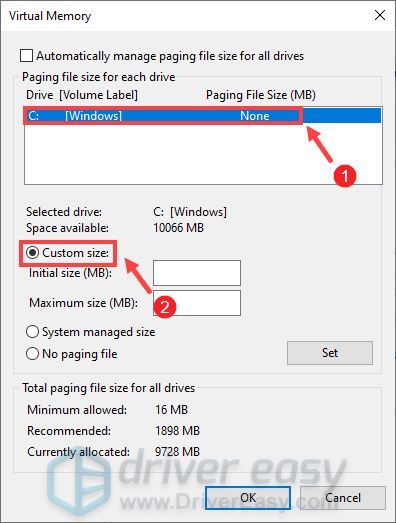
6) Введите значения для Начальный размер и Максимальный размер . Затем нажмите хорошо чтобы сохранить изменения.
(Советы: Microsoft рекомендует установить виртуальную память не менее 1,5 раз и не более 3 раз размер вашей оперативной памяти. Чтобы проверить оперативную память в Windows, следуйте приведенным ниже инструкциям. )
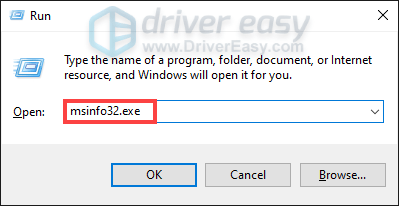
- На клавиатуре нажмите Клавиши Windows + R одновременно для вызова окна «Выполнить».
- Тип msinfo32.exe и нажмите Enter.
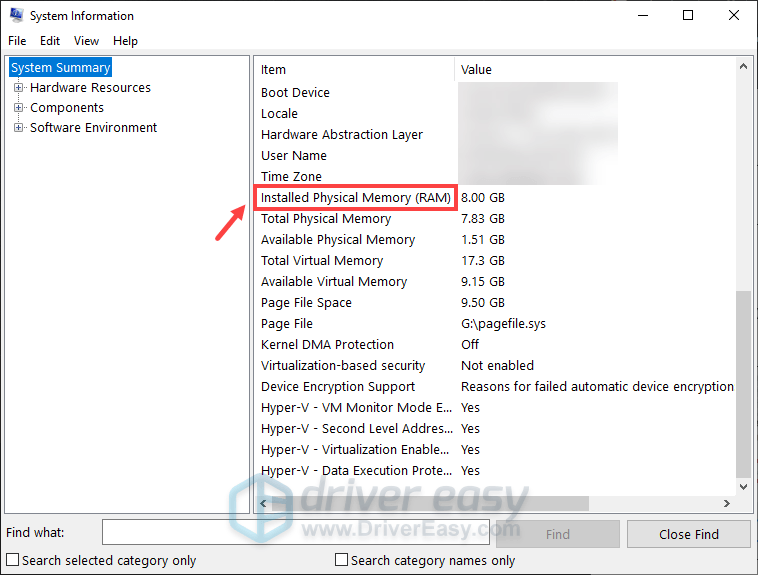
Прокрутите вниз и найдите Установленная физическая память (RAM) Вход.
1 ГБ (гигабайт) = 1000 МБ (мегабайт)
Итак, в моем случае рекомендуемый начальный размер: 8 ГБ * 1000 * 1,5 = 12000 МБ.
Для рекомендованного максимального размера это будет: 8 ГБ * 1000 * 3 = 24000 МБ.
После увеличения размера файла подкачки запустите Red Dead Redemption 2, и вы сможете наслаждаться игровым процессом, не получая сообщения об ошибке «Не хватает виртуальной памяти». Однако на случай, если проблема не исчезнет, мы подготовили для вас несколько способов ее решения.
Измените API с Vulkan на DirectX 12
По умолчанию для API в Red Dead Redemption установлено значение Vulkan. Однако игроки обнаружили, что большинство сбоев вместе с кодами ошибок или сообщениями связаны с графическим API. Чтобы исправить это, вы можете переключить его на DirectX 12 и проверить, решена ли ваша проблема:
1) Перейдите в НАСТРОЙКИ меню в игре.

2) Щелкните ГРАФИКА .

3) Прокрутите вниз до Расширенные настройки раздел и убедитесь, что Расширенные настройки опция установлена на Разблокирован .

4) В Графический API раздел, измените его на DirectX 12 нажав на кнопку со стрелкой.

5) Нажмите Войти чтобы применить изменения.
Если это не помогло, попробуйте обновить драйверы устройства, особенно драйвер видеокарты.
Обновите драйверы вашего устройства
Драйвер — это важная часть программного обеспечения, которое позволяет вашей системе взаимодействовать с вашим оборудованием. Если драйверы устройства устарели, это вызовет заметные проблемы с производительностью. Поэтому, если при игре в видеоигры постоянно возникают сбои, убедитесь, что у вас установлены последние версии драйверов. Скорее всего, вы не сможете исправить или предотвратить каждый сбой, но обновление драйверов может помочь вам их остановить. Более того, обновления драйверов могут повысить скорость, исправить проблемы, а иногда даже предоставить вам совершенно новые функции, причем совершенно бесплатно. Так что очевидных причин не обновлять драйверы нет.
Чтобы обновить драйверы устройства, вы можете сделать это вручную через диспетчер устройств или перейти на страницу загрузки драйверов производителя, чтобы загрузить и установить точные драйверы для вашей системы. Это требует определенного уровня компьютерных знаний и может стать головной болью, если вы не разбираетесь в технологиях. Поэтому мы хотели бы порекомендовать вам использовать автоматическое обновление драйверов, такое как Водитель Easy . С Driver Easy вам не нужно тратить время на поиски обновлений драйверов, поскольку он позаботится о загруженной работе за вас.
Вот как обновить драйверы с помощью Driver Easy:
1) Скачать и установите Driver Easy.
2) Запустите Driver Easy и нажмите Сканировать сейчас кнопка. Затем Driver Easy просканирует ваш компьютер и обнаружит все устройства с отсутствующими или устаревшими драйверами.
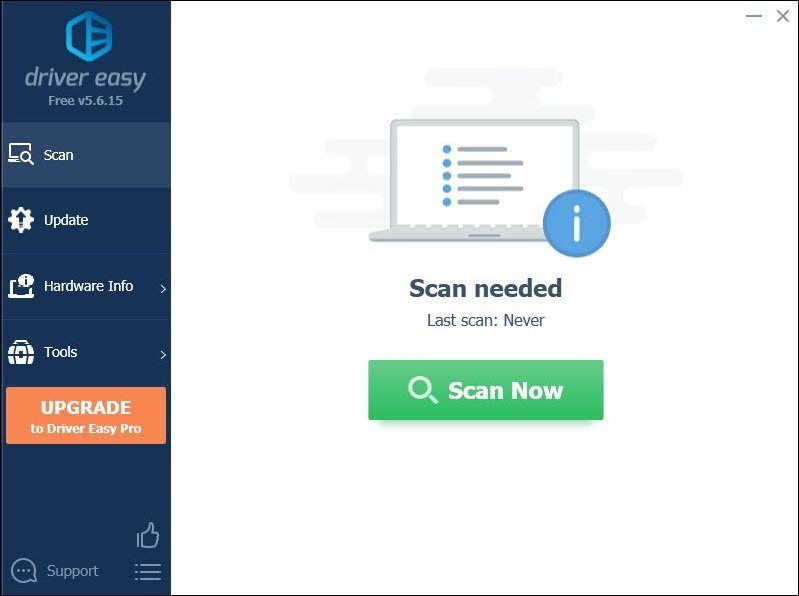
3) Нажмите Обновить все . Затем Driver Easy загрузит и обновит все устаревшие и отсутствующие драйверы устройств, предоставив вам последнюю версию каждого из них напрямую от производителя устройства.
(Для этого требуется Pro версия который идет с полная поддержка и 30-дневный возврат денег гарантия. Вам будет предложено выполнить обновление, когда вы нажмете «Обновить все». Если вы не хотите обновляться до версии Pro, вы также можете обновить драйверы с помощью БЕСПЛАТНОЙ версии. Все, что вам нужно сделать, это загрузить их по одному и установить вручную. )
 В Pro версия Driver Easy поставляется с полная техническая поддержка . Если вам нужна помощь, обратитесь в службу поддержки Driver Easy по адресу support@letmeknow.ch .
После обновления драйверов вам может потребоваться перезагрузить компьютер, чтобы изменения вступили в силу. После перезагрузки запустите игру, и ваша проблема должна быть решена.
Надеюсь, этот пост помог! Если у вас есть какие-либо идеи или вопросы, напишите нам в разделе комментариев ниже.
Источник
Get back to syncing your games on Steam with these simple fixes
by Kazim Ali Alvi
Kazim has always been fond of technology, be it scrolling through the settings on his iPhone, Android device, or Windows. And at times, unscrewing the device to take… read more
Published on September 9, 2022
Reviewed by
Vlad Turiceanu

Passionate about technology, Windows, and everything that has a power button, he spent most of his time developing new skills and learning more about the tech world. Coming… read more
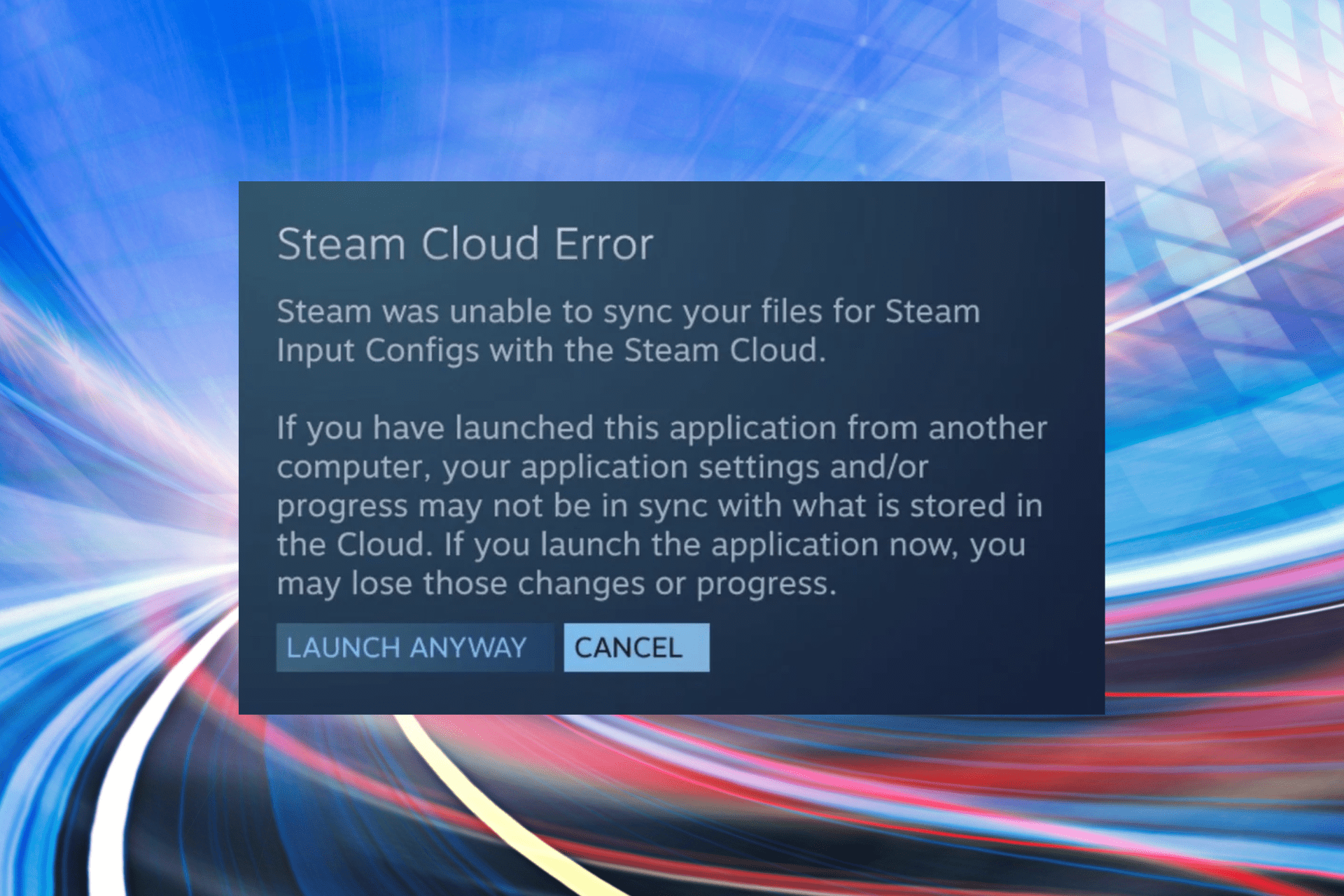
- When you encounter the Steam Cloud Error, it’s either a server-related issue or has to do with Cloud Synchronization being disabled.
- To fix it, restart the Steam app, or retry syncing for the game that’s throwing errors, amongst other methods here.
- Also, find out all about the Steam Cloud Sync Conflict issue.
To fix various gaming problems, we recommend Restoro Repair Tool:This software will repair common computer errors known to cause issues during gaming sessions: broken or corrupted DLLs, system files that need to run along with the game components but ceases to respond, and common registry values that may get damaged. Keep all these issues away now in 3 easy steps:
- Download Restoro PC Repair Tool that comes with Patented Technologies (patent available here).
- Click Start Scan to find broken files that are causing the problems.
- Click Repair All to fix issues affecting your computer’s security and performance
- Restoro has been downloaded by 0 readers this month.
Steam is an excellent platform for gamers. It offers more than a thousand titles, both paid and free. And with the ability to back up and restore Steam Cloud Saves, users can play games across devices without losing progress. But, several users reported encountering the Steam Cloud Error.
The problem here is intricate and has to do with many issues, but the worst part is that you risk losing your in-game progress if the error is not effectively handled.
To help save time and keep your progress from being lost, read the following sections to learn about the Steam Cloud Error and its effective fixes.
Moreover, here are some error variations that you may encounter:
- Steam Cloud error unable to sync
- Steam deck Cloud sync error
- Steam Cloud error Rocket League, CyberPunk 2077, Elden Ring, Fallout 4, Terraria, Dota 2, TF2, Valheim, Tekken 7
- Steam unable to sync saves with cloud
- Steam Cloud status out of sync
Why am I getting a Steam Cloud error?
The error primarily concerns a problem with Cloud Synchronization, which is generally due to a server-related issue. Hence, it’s recommended that you wait for a few hours and check if the Steam Cloud Error resolves by itself.
Another common reason Steam may throw the error is if you have disabled Cloud Synchronization for a particular game or across all titles on Steam. And, when you re-enable it, the error is encountered since the game files have not been synced all this while.
Besides, the issue is not limited to your computer, and users across the globe are facing the Steam Cloud error. So, you can expect Steam to release an update with a patch for the error in the coming days.
Now that you understand the underlying causes and the error let’s head to the solutions.
What is the cloud status on Steam?
The cloud status is a feature that was recently added to Steam. It is shown next to each game, showing the quality of the Cloud saves of the game.
However, it only shows on games that support the Steam Cloud feature.
How do I fix the Steam Cloud error?
- Why am I getting a Steam Cloud error?
- What is the cloud status on Steam?
- How do I fix the Steam Cloud error?
- 1. Restart Steam
- 2. Enable Cloud Synchronization for all games
- 3. Retry syncing for individual games
- 4. Verify integrity of game files
- 5. Add an exception for Steam in Windows Firewall
- How do I force Steam cloud sync?
- How do I fix it if Steam is unable to sync?
- 1. Check Steam’s server status
- 2. Repair the Steam Library Folder
1. Restart Steam
Your primary approach when dealing with the Steam Cloud Error should be to restart the app. Often, it’s a minor bug causing the error, and relaunching it should fix things.
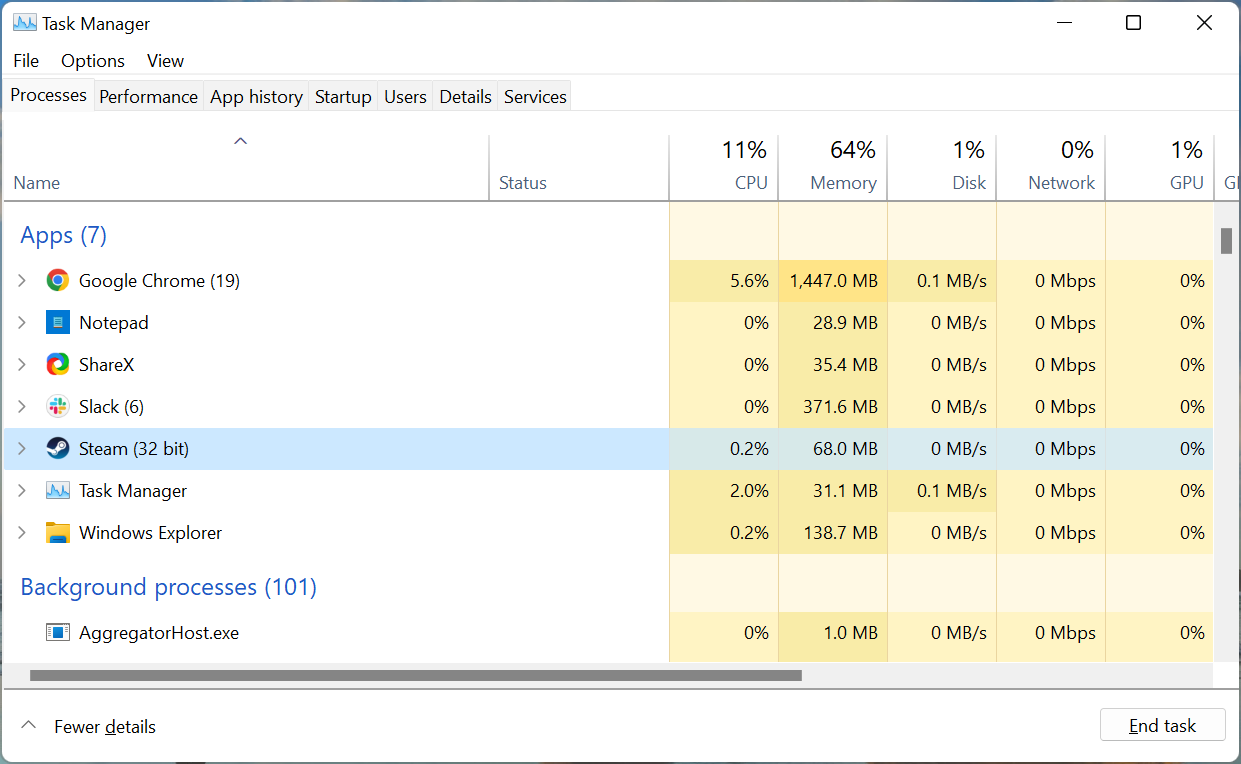
Head to the Task Manager, terminate Steam or any related processes, and then relaunch the program. Once done, check if the error is resolved. If not, head to the following method.
2. Enable Cloud Synchronization for all games
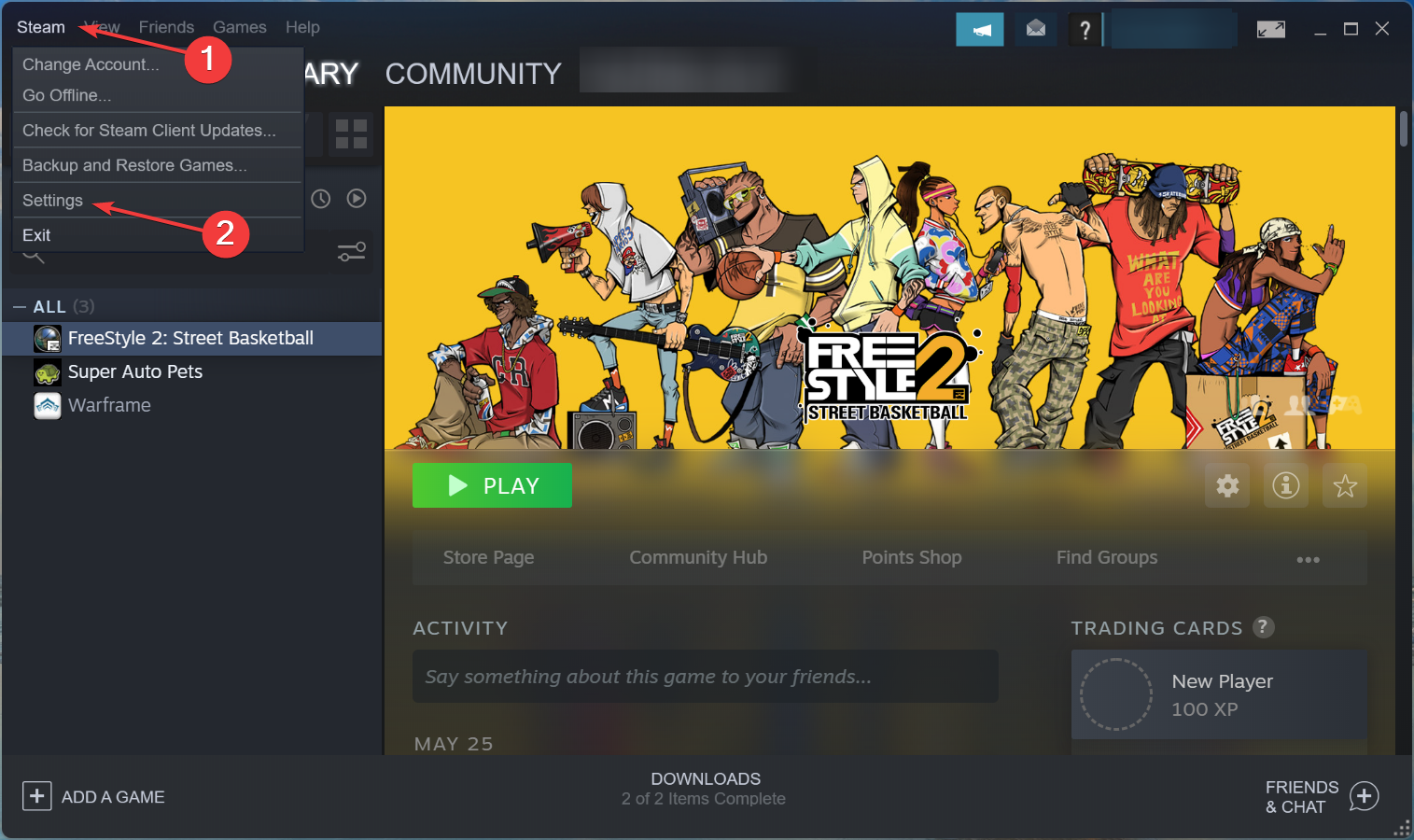
- Launch the program, click on the Steam menu at the top-left corner, and select Settings from the list of options.
- Navigate to the Cloud tab from the left.
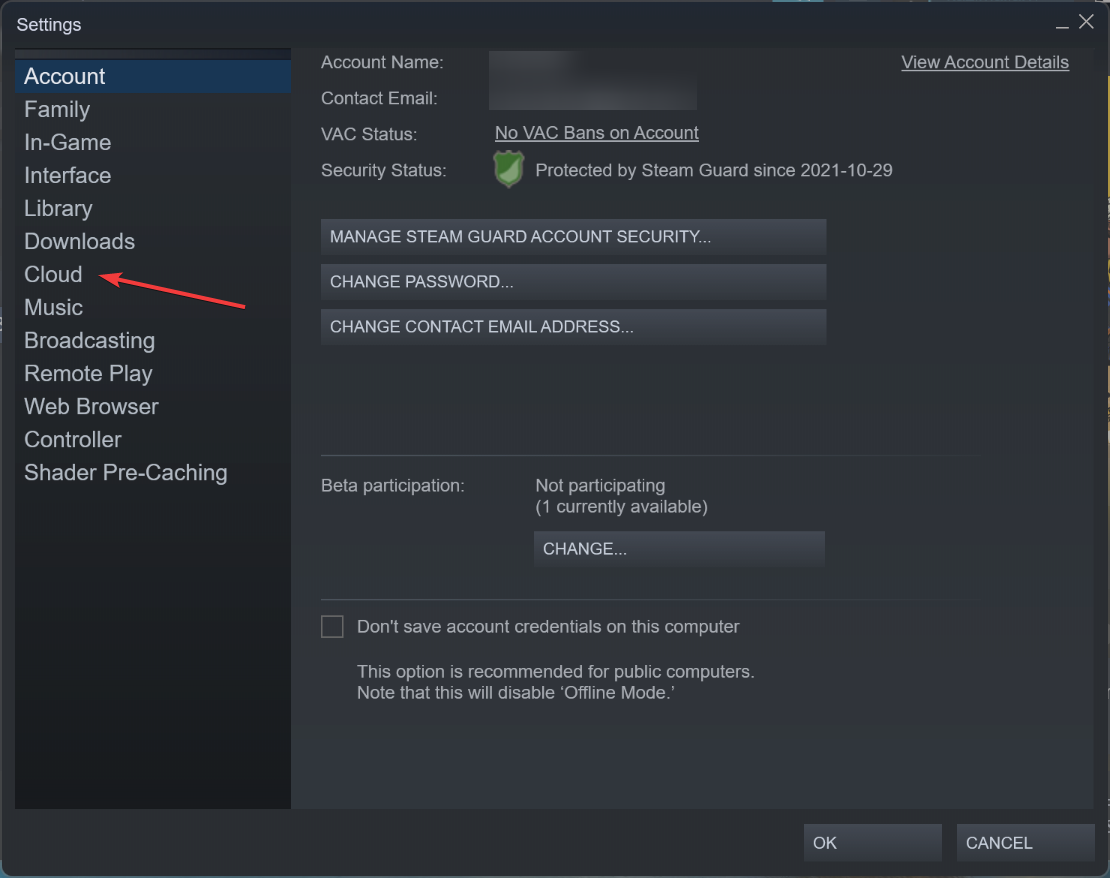
- Now, tick the Enable Steam Cloud synchronization check for applications that support it, and then click on OK at the bottom to save the changes.
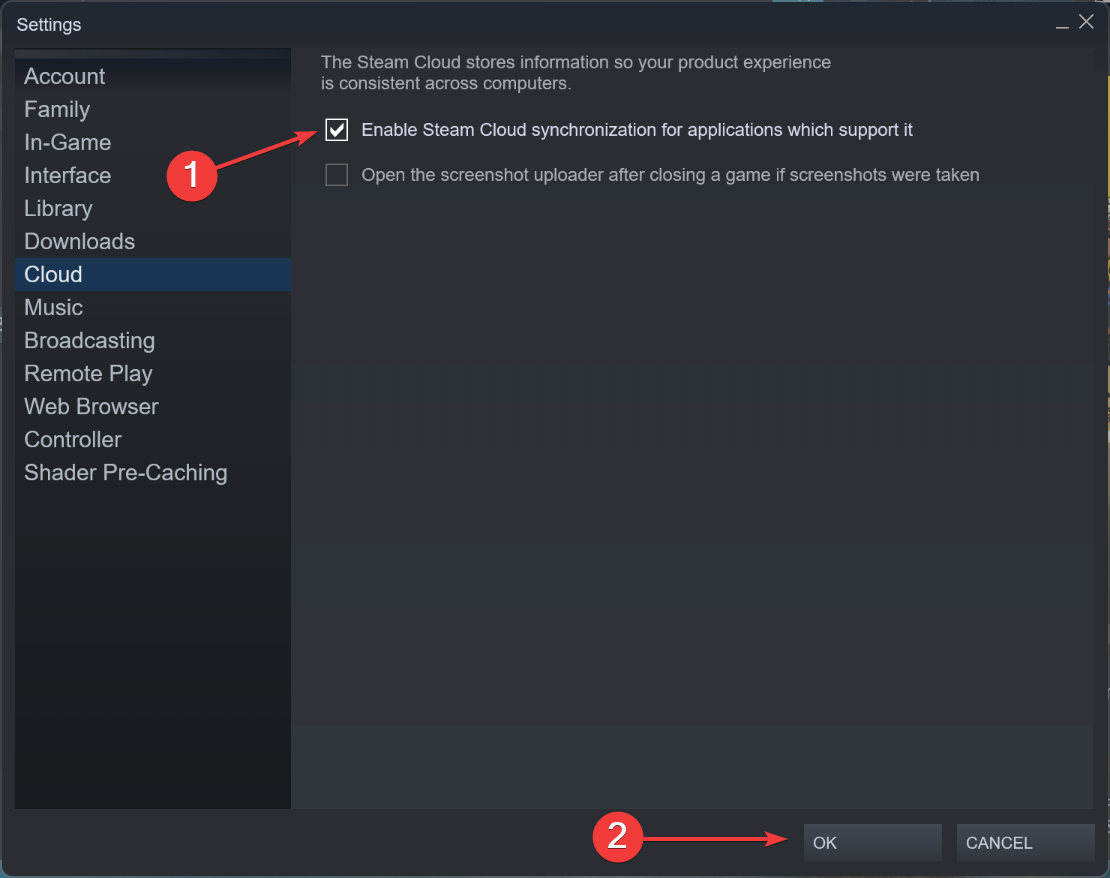
If you had previously disabled the Cloud Synchronization feature, enabling it right away resolves the Steam Cloud error on all games. However, if you are getting the error on some games like Lost Ark and Destiny 2, it should be noted that they do not support Steam Cloud.
Once done making the changes, restart the app and check if the issue persists.
3. Retry syncing for individual games
- Launch Steam, select the game you are facing trouble with, and click on Out of sync under the Cloud Status option.
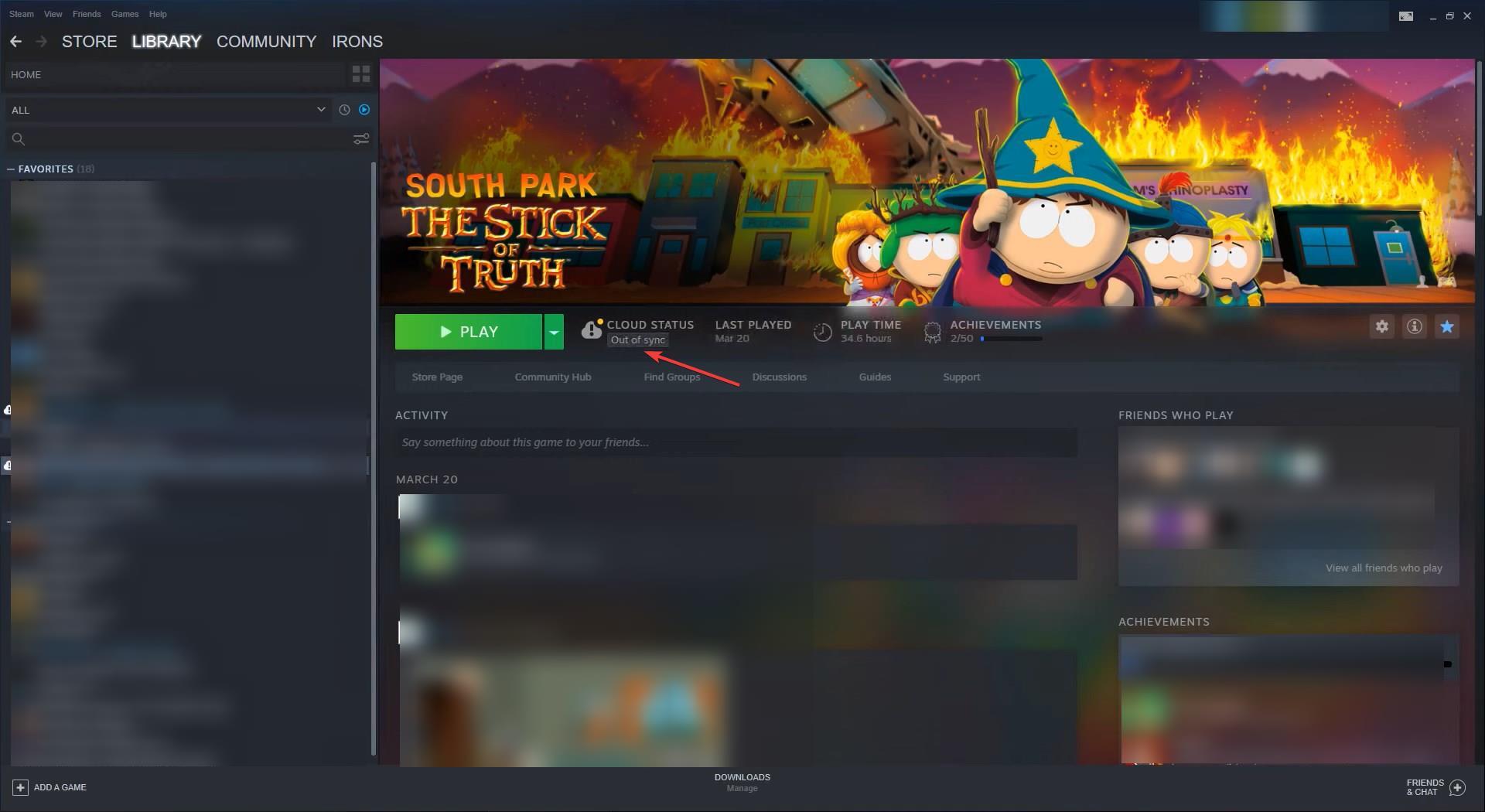
- Click on the Retry Sync button in the prompt that pops up.
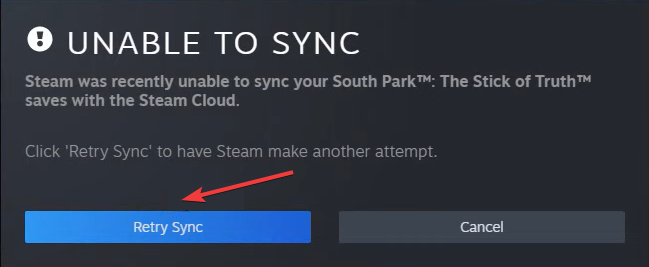
- Wait for the process to complete, and Cloud Status should now read Up to date.

Some PC issues are hard to tackle, especially when it comes to corrupted repositories or missing Windows files. If you are having troubles fixing an error, your system may be partially broken.
We recommend installing Restoro, a tool that will scan your machine and identify what the fault is.
Click here to download and start repairing.
If you are experiencing the Steam Cloud error on games like Valheim, Stardew Valley, Rocket League, and Elden Ring, you should try syncing for individual games.
Once the Cloud Status changes, the error will be fixed, and you should have no trouble running the game. Follow the same process for every title that throws this error.
4. Verify integrity of game files
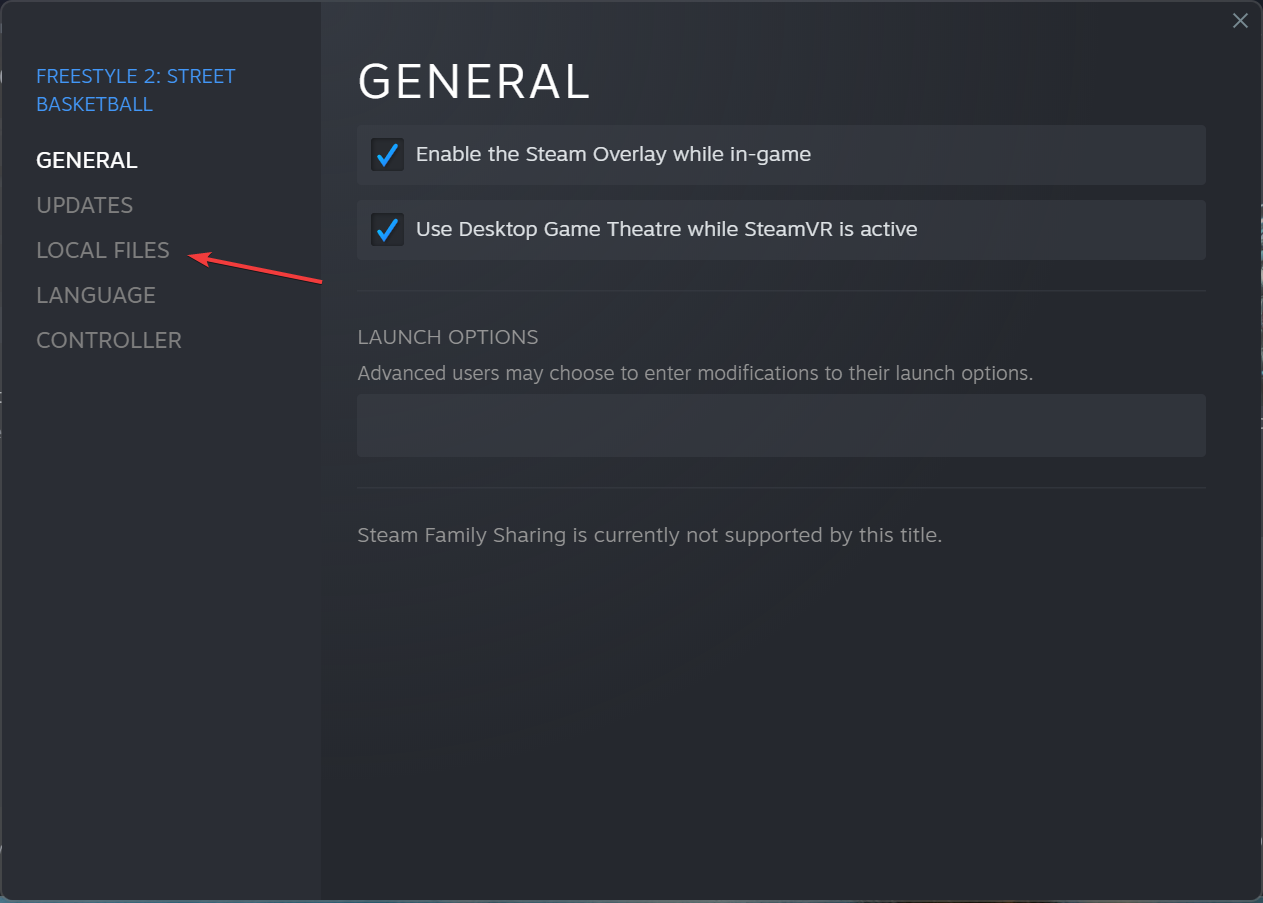
- Launch Steam, right-click on the game with the error, and select Properties from the context menu.
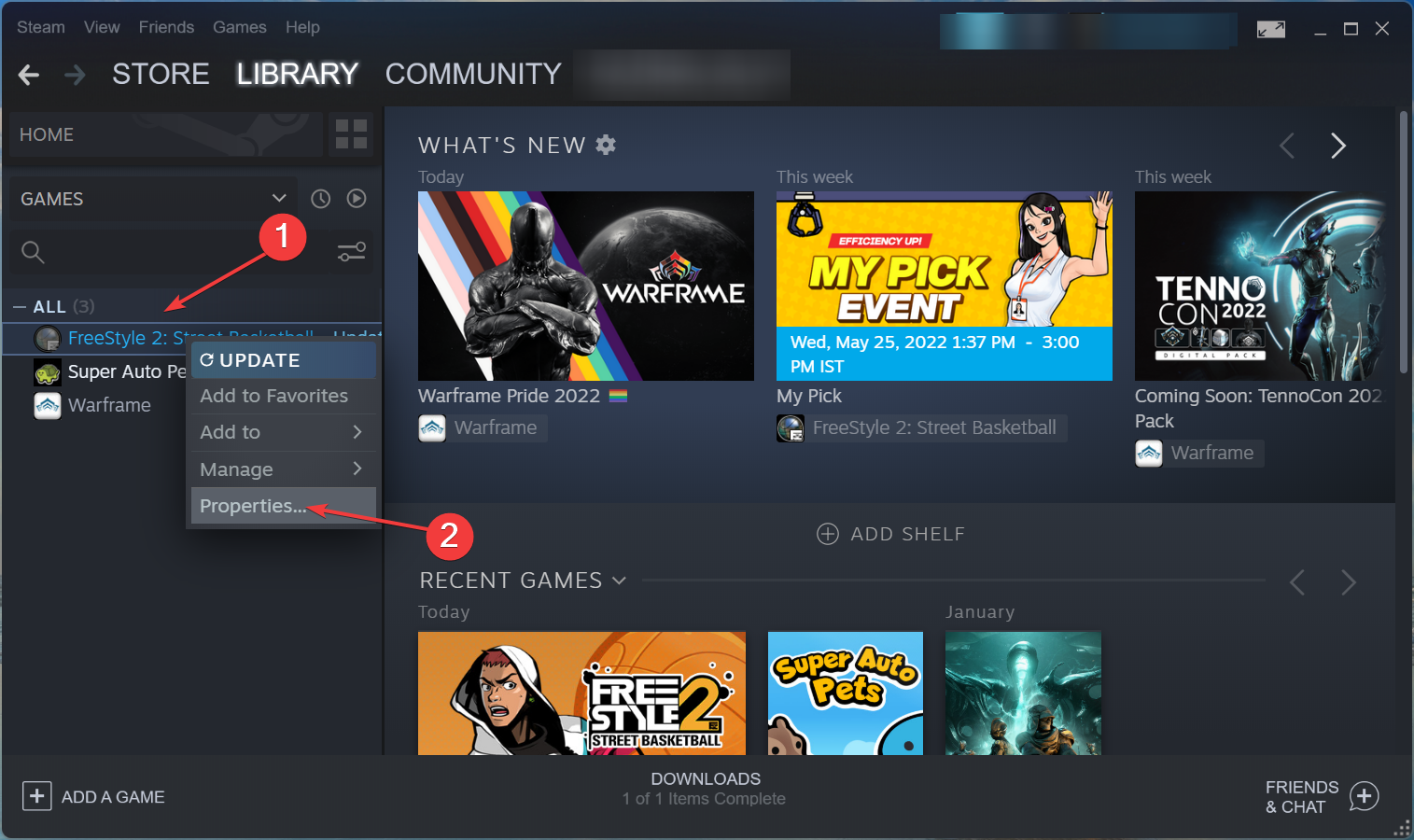
- Now, go to the Local Files tab from the navigation pane.
- Click on the Verify integrity of game files button and wait for the process to complete.
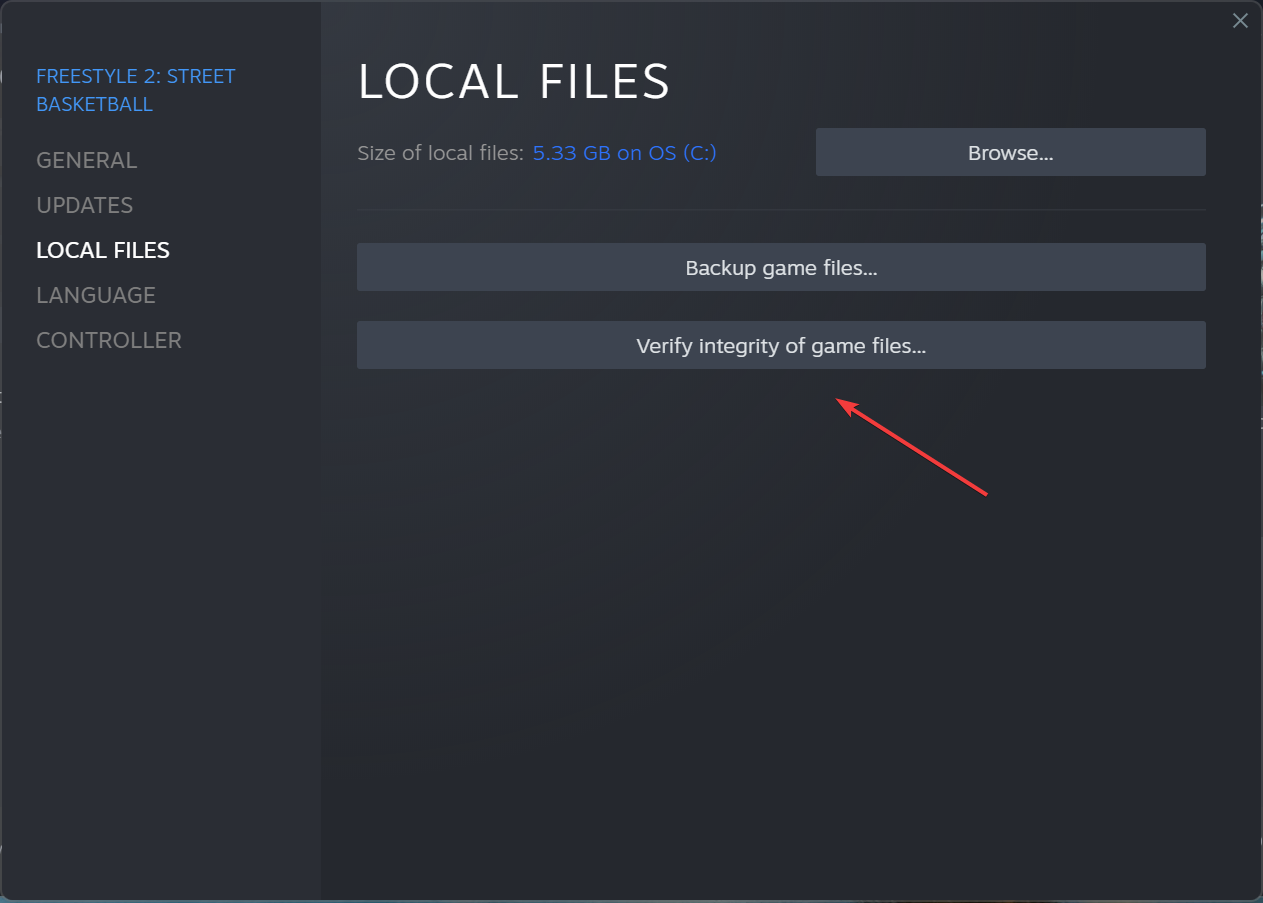
Steam offers a tremendously built-in troubleshooting method to identify and eliminate game problems effectively.
Verifying the integrity of game files will help fix many errors, including the Steam Cloud Error on games like Dota 2 and Monster Hunter. If this doesn’t work, head to the last one.
- Steam Not Responding On PC: 5 Quick Fixes
- [Fixed] Fatal Error: Failed to Connect With Local Steam Client
- 4 Easy Ways to Delete Steam Cloud Saves From Your PC
- Tabletop Simulator Crash on Startup: 5 Game-Changing Fixes
- Connect_Error_Social_Login_Failure: Easy Ways to Fix
5. Add an exception for Steam in Windows Firewall
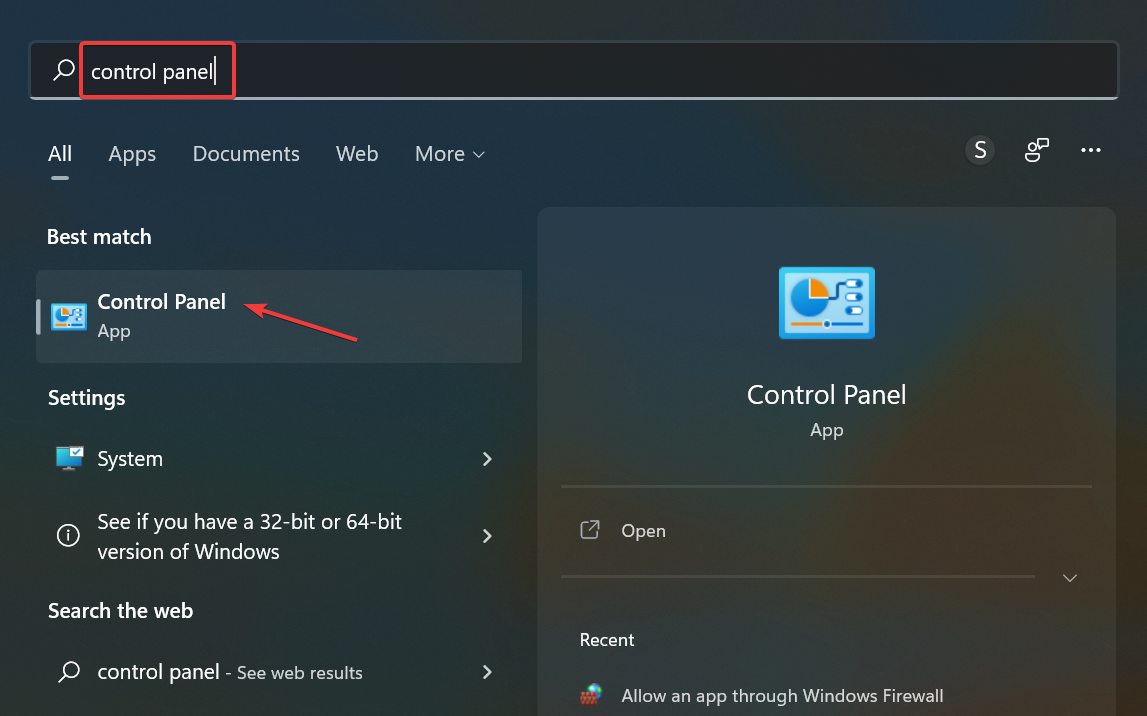
- Press Windows + S to launch the Search menu, enter Control Panel in the text field, and click on the relevant search result that appears.
- Click on System and Security.
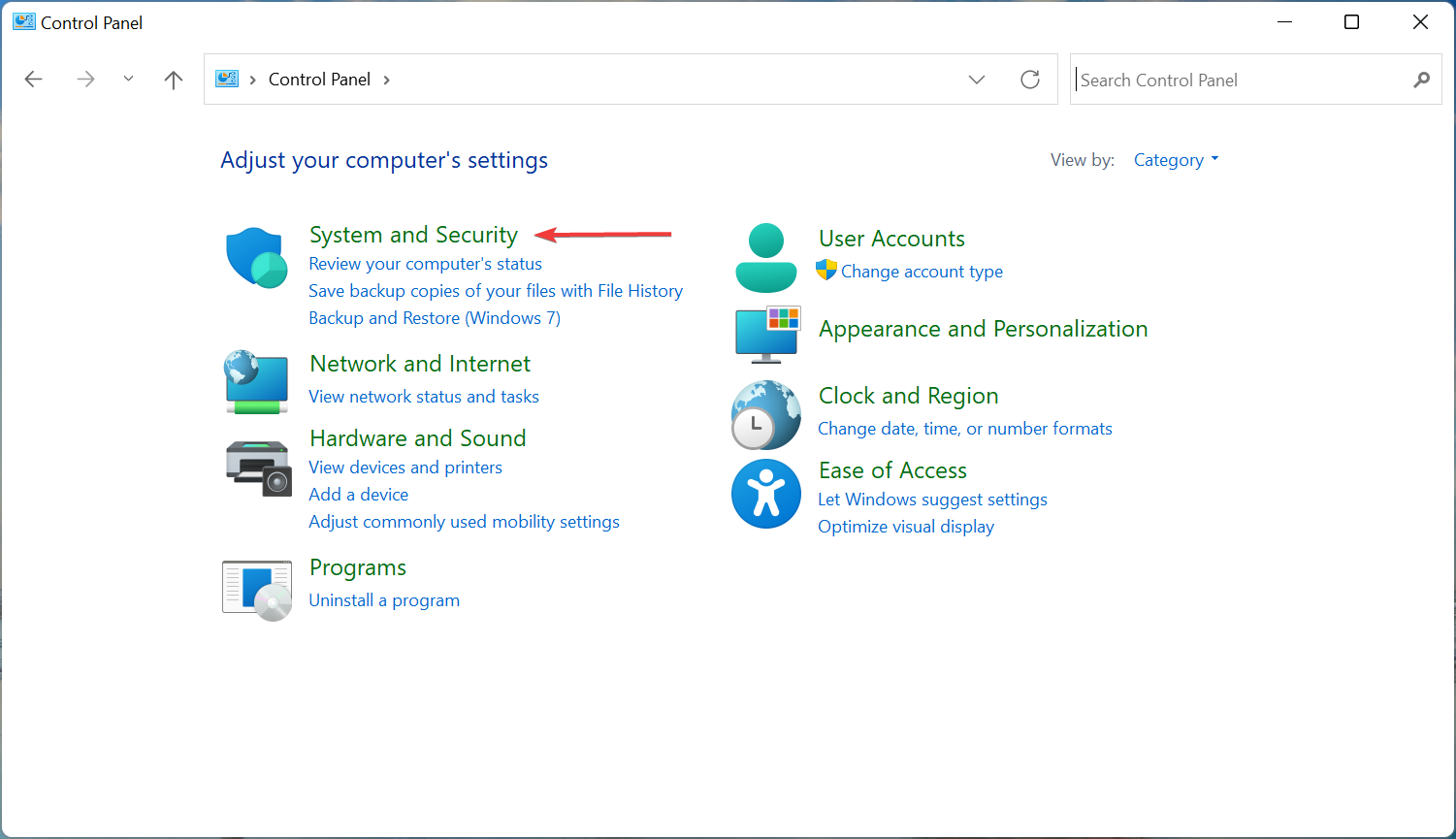
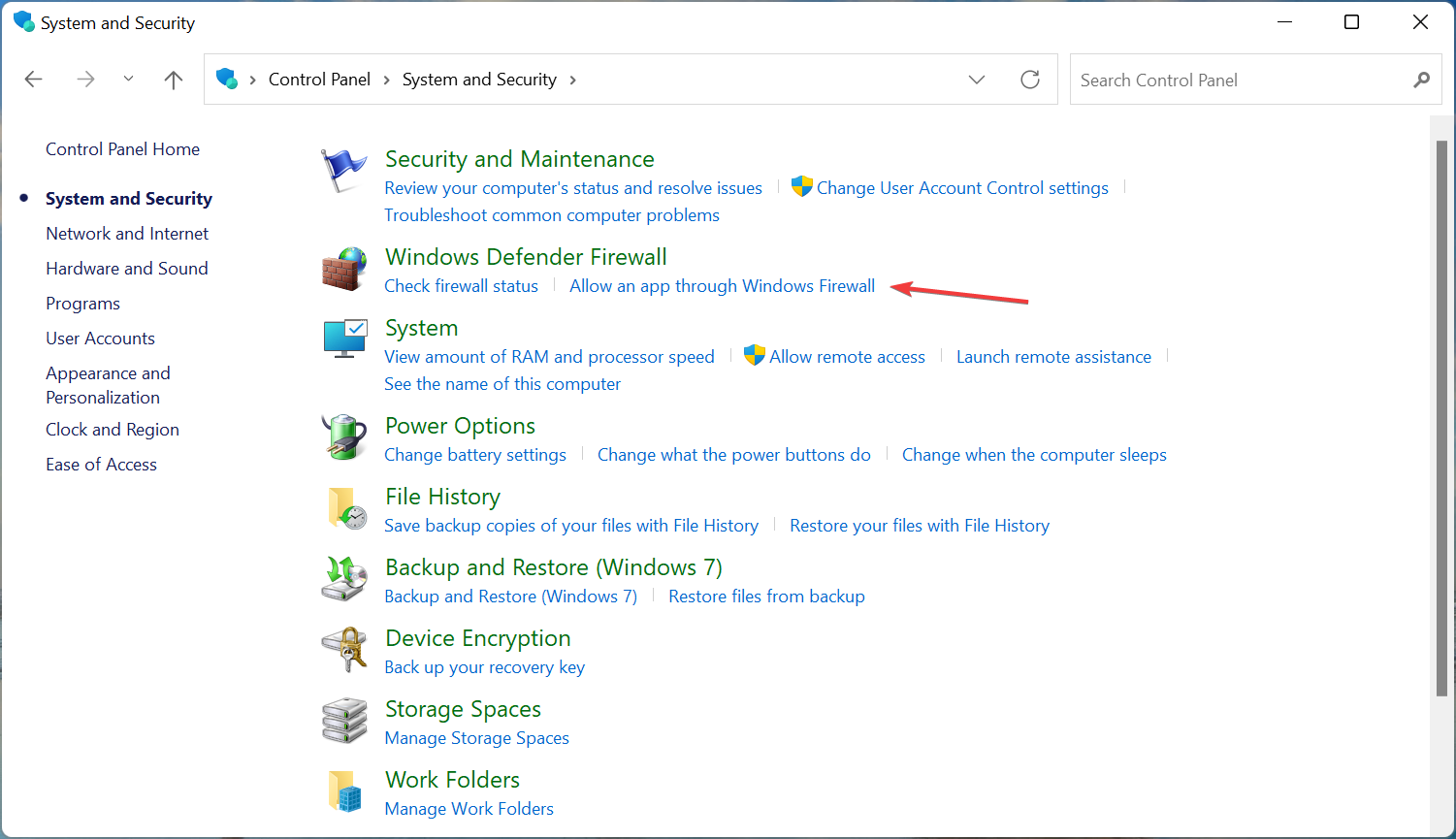
- Next, click Allow an app through Windows Firewall under Windows Defender Firewall.
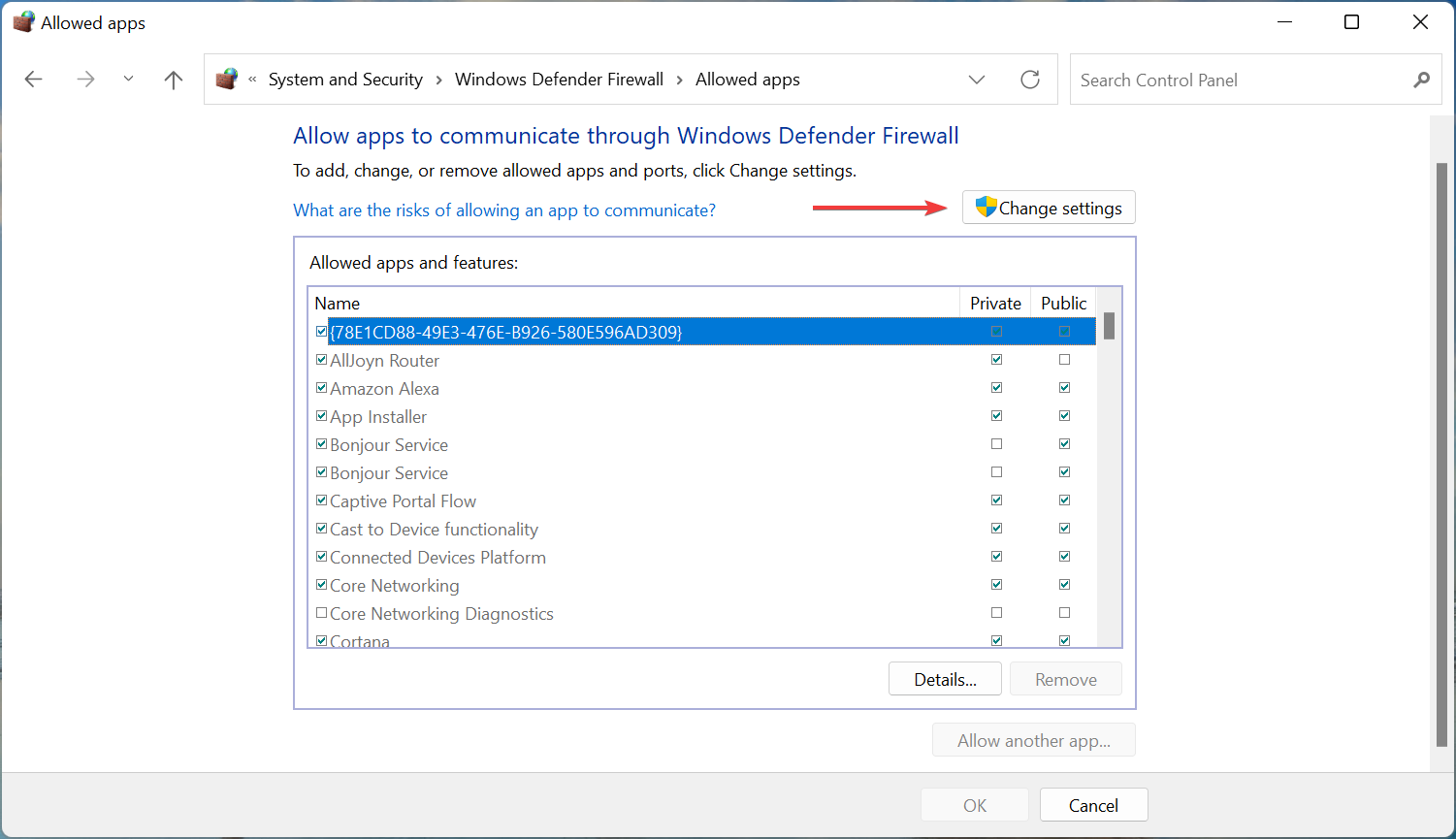
- Click on the Change settings button.
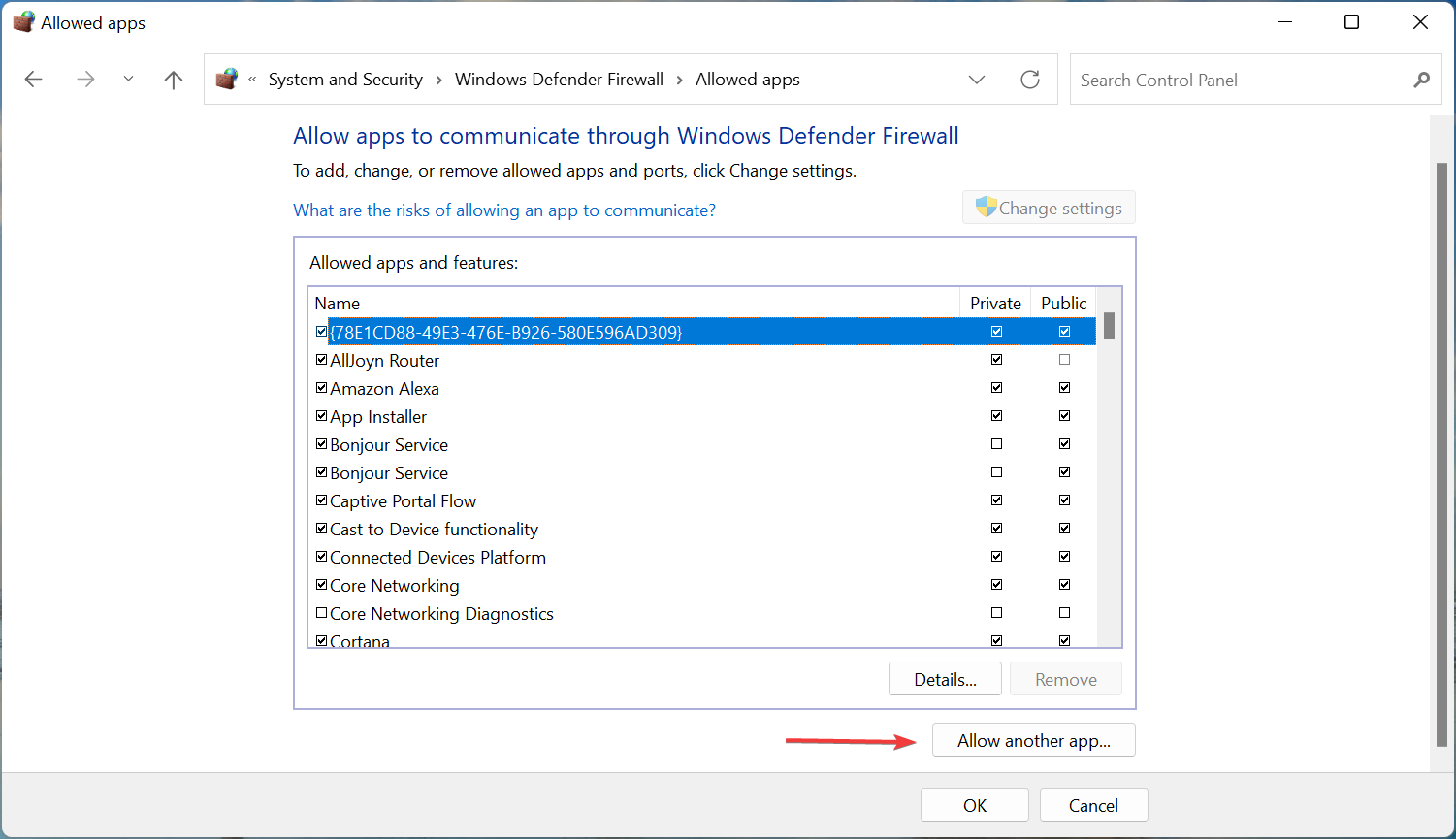
- Now, click on Allow another app at the bottom.
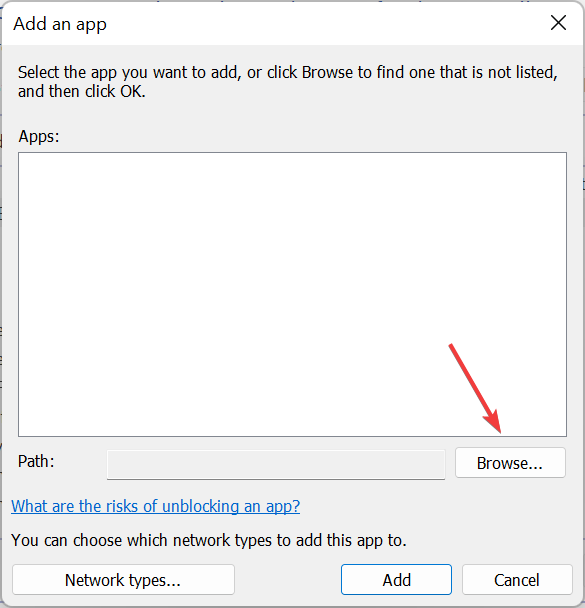
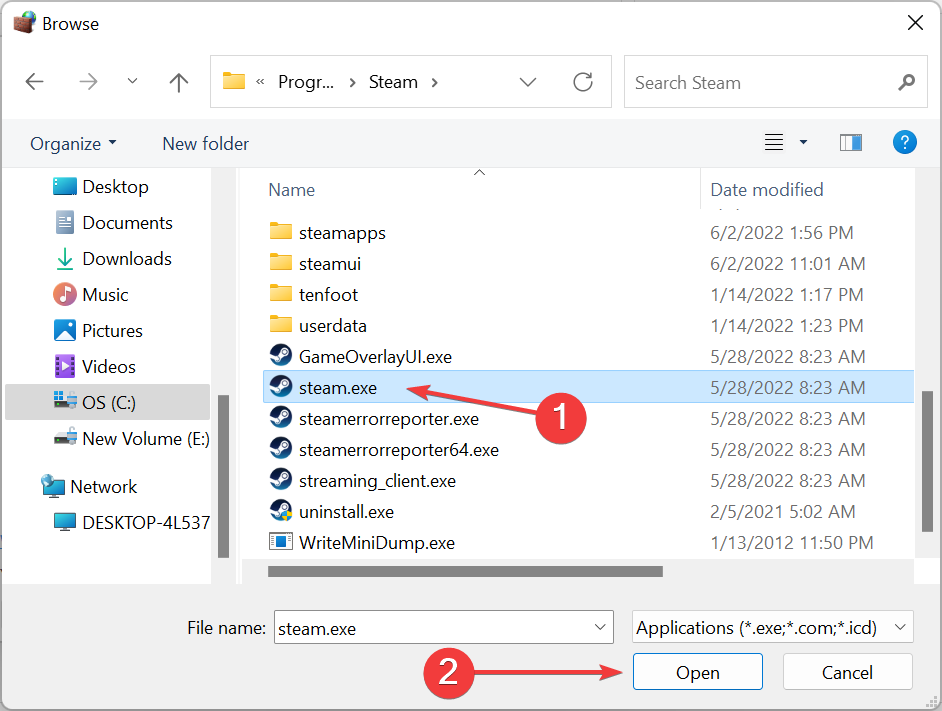
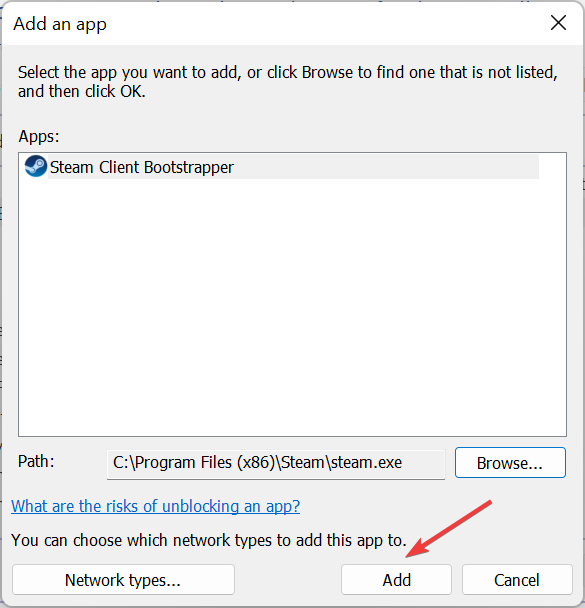
- Click on Browse to locate and add Steam, or you could paste the path to its launcher in the text field.
- Navigate to where the Steam launcher is stored, select it, and click on Open.
- Click the Add button.
- Finally, click OK at the bottom to save the changes.
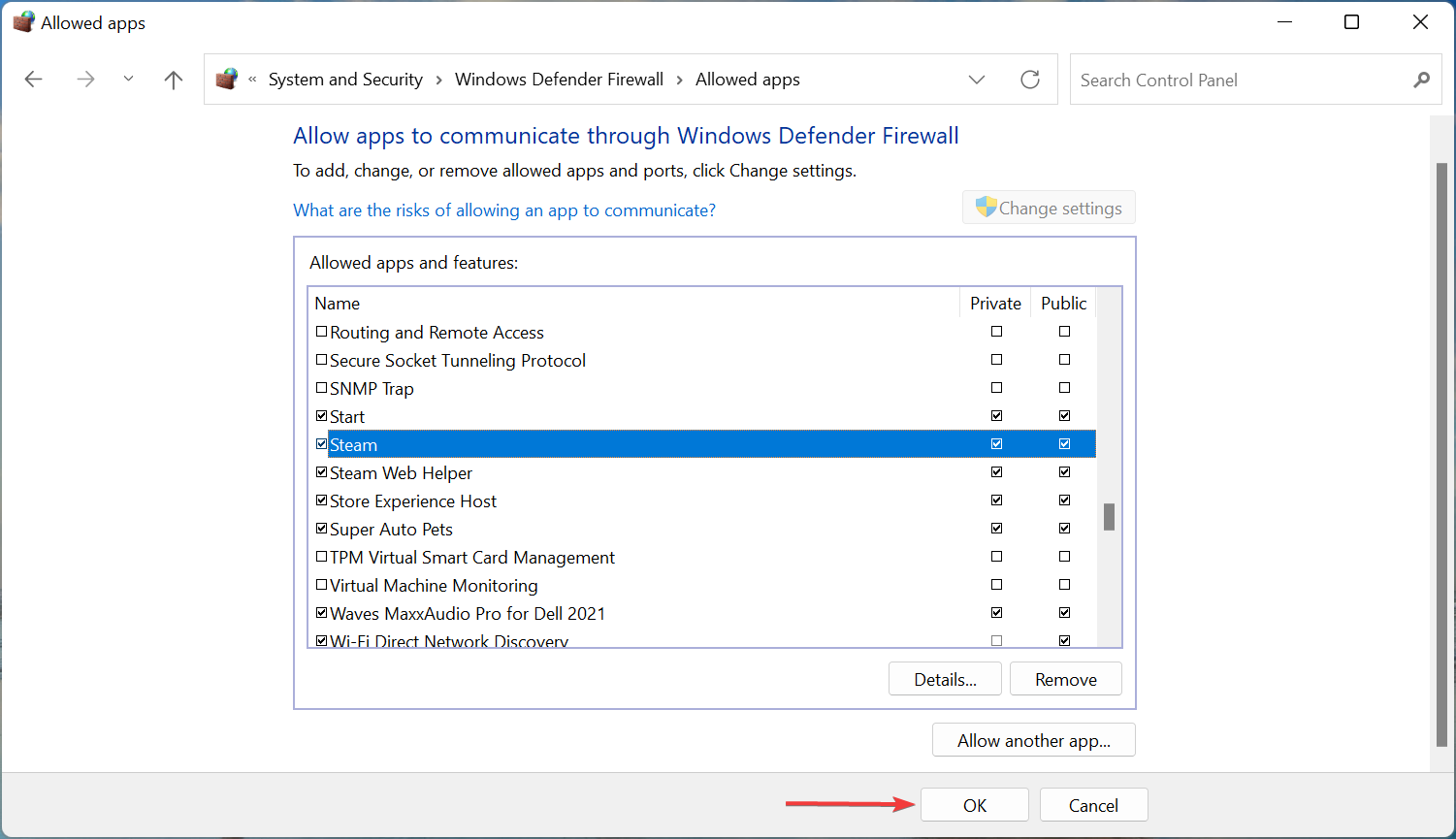
In many cases, the Windows Firewall blocked Steam’s attempt to connect to the cloud, thus leading to the Steam Cloud Error. Adding an exception for the app would do the trick here.
If you have third-party firewalls installed, try disabling them or uninstalling the program to resolve things.
How do I force Steam cloud sync?
While Steam offers no built-in options to force cloud sync, there are a few workarounds that would come to your aid. The simplest one would be to close the game while you are connected to the web, have a stable Internet connection, and then wait for the files to be synced.
Make sure not to close Steam or turn off the computer too quickly since the sync process is running in the background, though it shouldn’t be long. Once that’s done, run Steam on any other system, and things here should be the same as on the first device.
How do I fix it if Steam is unable to sync?

NOTE
If Steam cannot sync files, you can try the five methods listed earlier in addition to the two below.
1. Check Steam’s server status
In most cases, when Steam cannot sync files, the servers are likely down. This doesn’t happen often, but before troubleshooting the problem, verify if the servers are up and running.
A bunch of websites collect data and inform users if the Steam servers are working fine. For example, you could use either Steamstat.us or Downdetector. If both report that the servers are up, try the following method.
2. Repair the Steam Library Folder
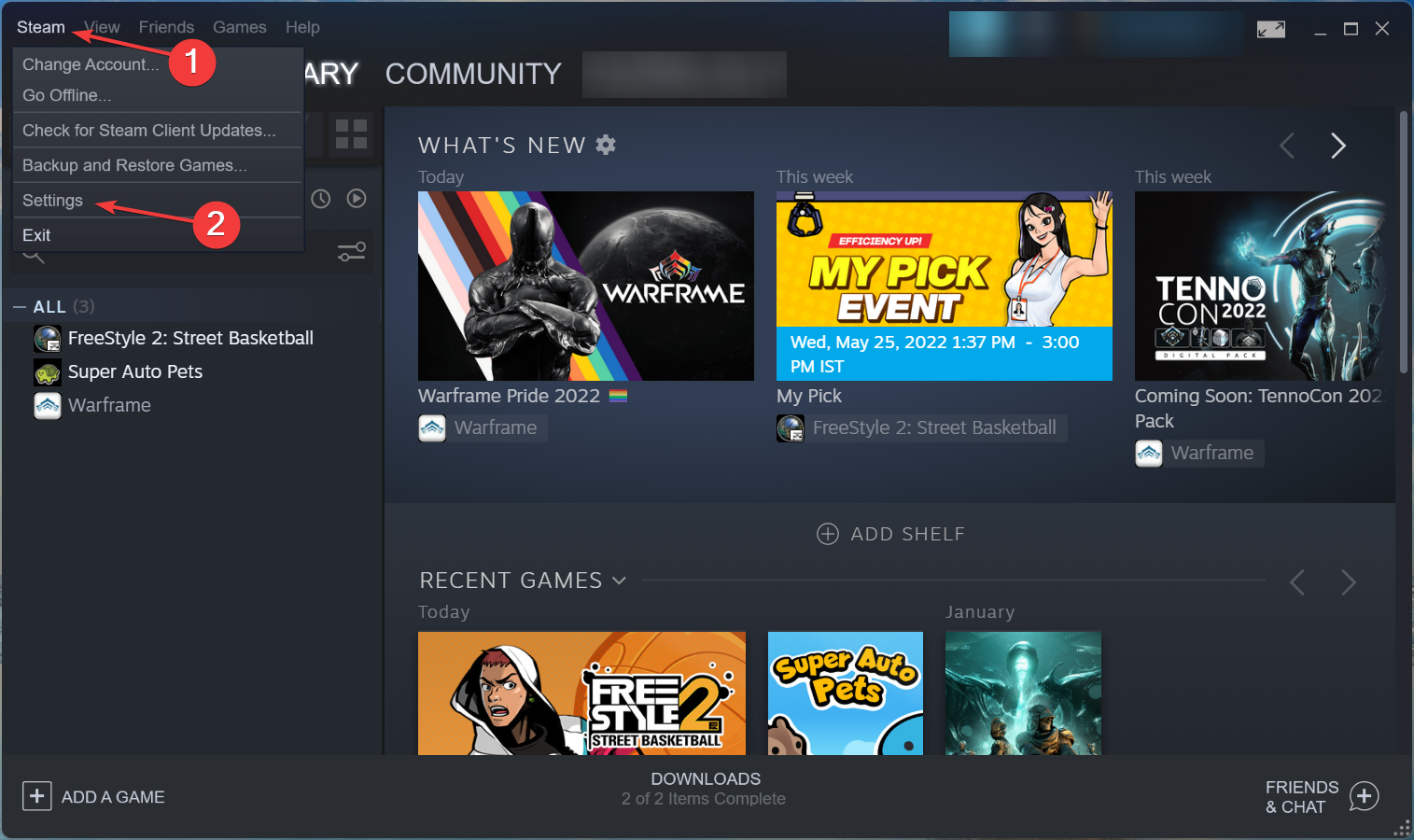
- Launch the program, click on the Steam menu at the top-left corner, and select Settings.
- Go to the Downloads tab from the navigation pane on the left.
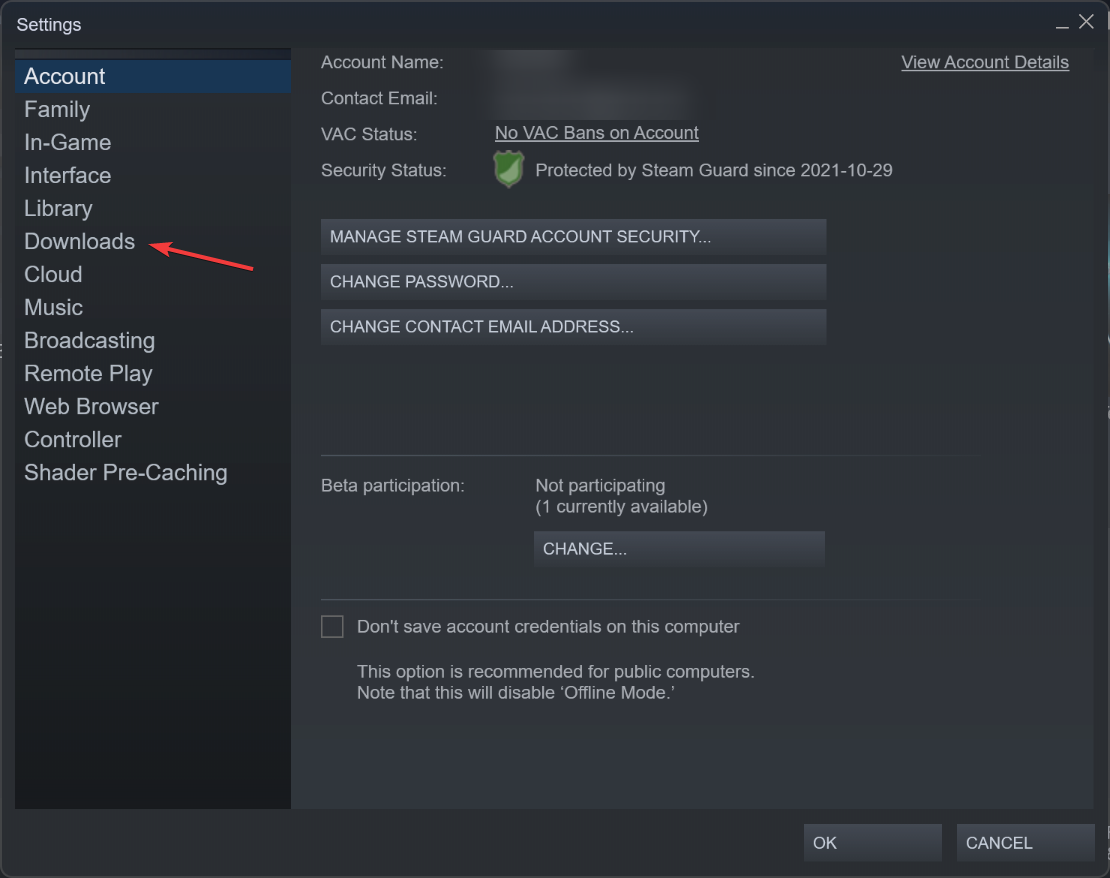
- Click on the Steam Library Folders button at the top.
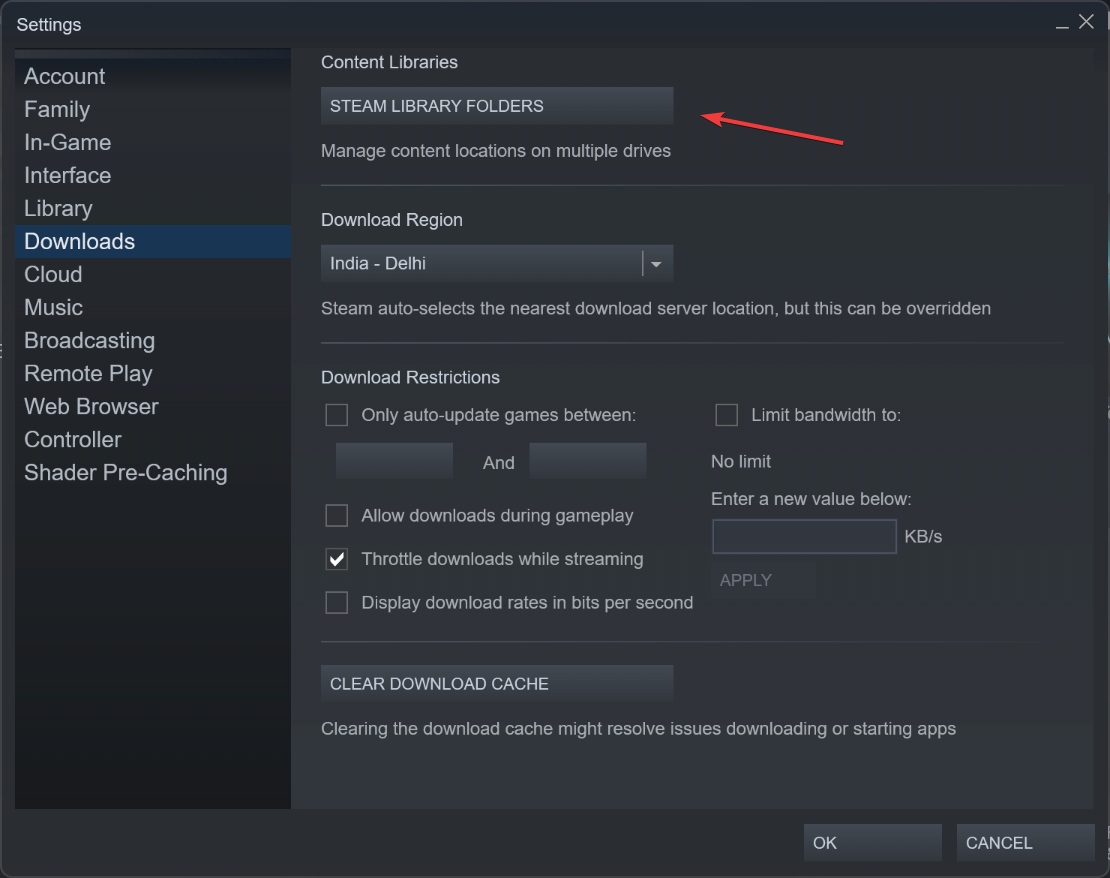
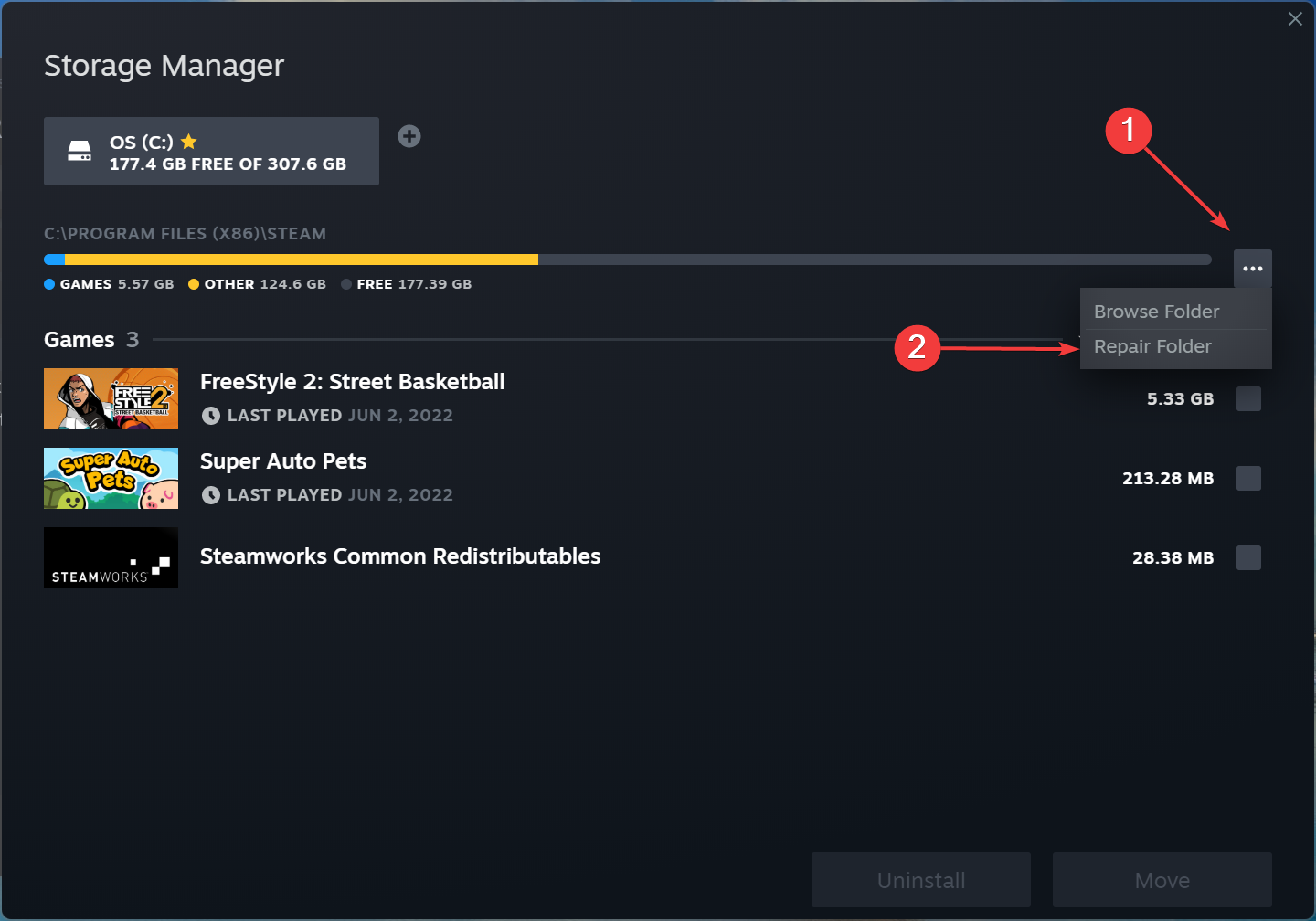
- Next, click on the ellipsis, and select Repair Folder from the options.
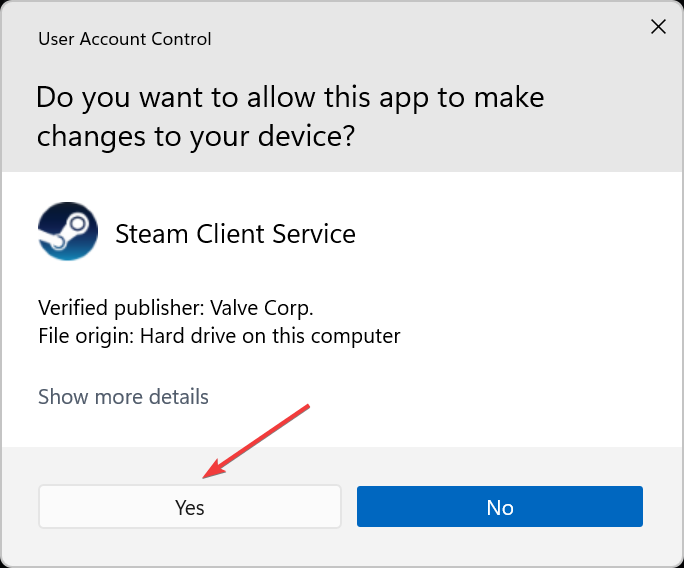
- Click Yes on the UAC (User Account Control) prompt in case it appears.
- Wait for the repair process to complete.
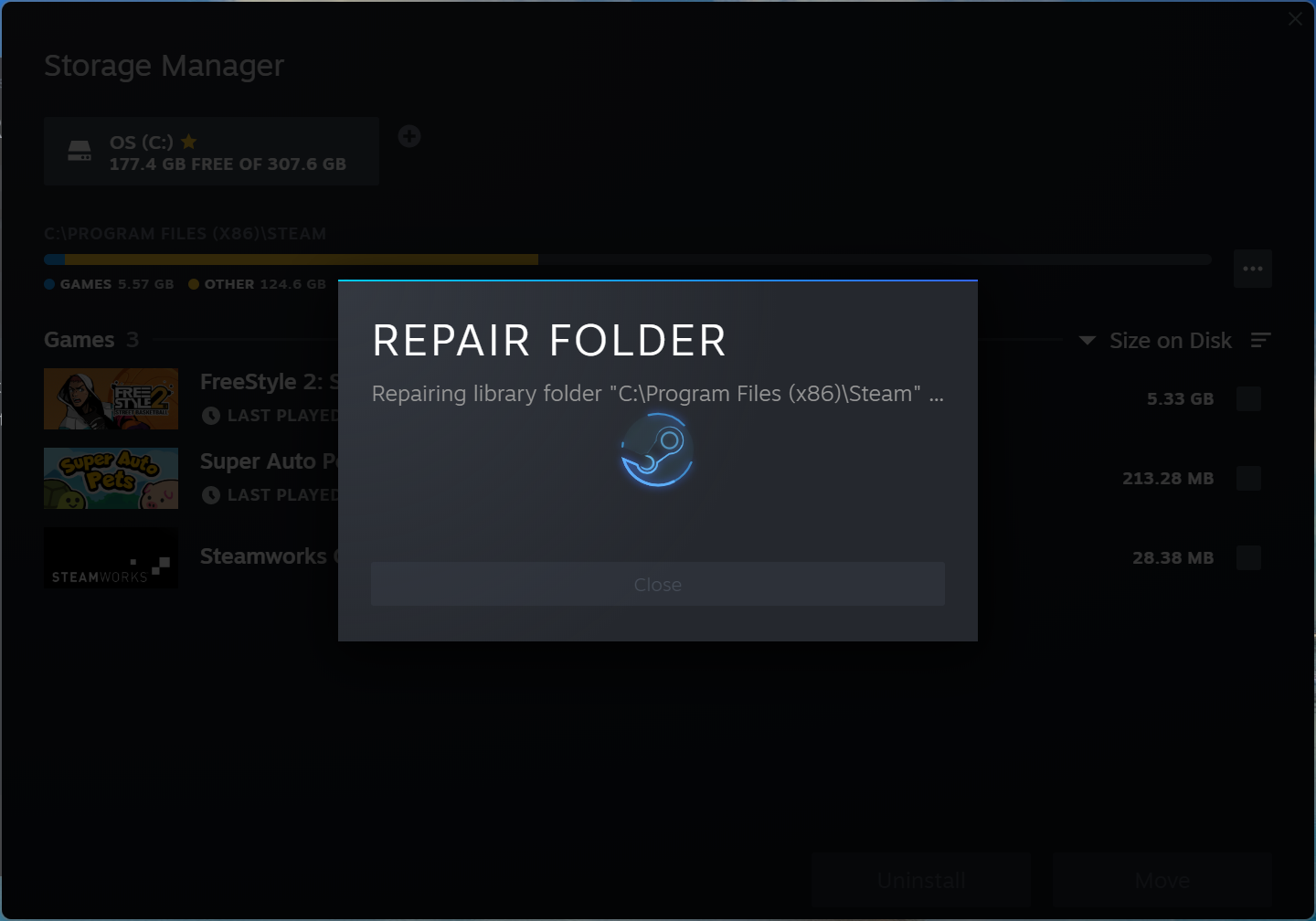
Once done, Steam would be able to sync files to the cloud, and you wouldn’t face any issues while playing the same game on multiple devices.
That’s all there’s to the Steam Cloud Error, the most effective fixes for it, and other similar problems related to Steam Cloud that you might encounter while playing games.
Also, find out what to do if Steam won’t go online and you are stuck in offline mode since this is an issue that leads to cloud-related errors.
Do not forget to tell us which fix worked and the game you were facing the issue in within the comments section below.
Still having issues? Fix them with this tool:
SPONSORED
If the advices above haven’t solved your issue, your PC may experience deeper Windows problems. We recommend downloading this PC Repair tool (rated Great on TrustPilot.com) to easily address them. After installation, simply click the Start Scan button and then press on Repair All.

Newsletter
Get back to syncing your games on Steam with these simple fixes
by Kazim Ali Alvi
Kazim has always been fond of technology, be it scrolling through the settings on his iPhone, Android device, or Windows. And at times, unscrewing the device to take… read more
Published on September 9, 2022
Reviewed by
Vlad Turiceanu
Passionate about technology, Windows, and everything that has a power button, he spent most of his time developing new skills and learning more about the tech world. Coming… read more
- When you encounter the Steam Cloud Error, it’s either a server-related issue or has to do with Cloud Synchronization being disabled.
- To fix it, restart the Steam app, or retry syncing for the game that’s throwing errors, amongst other methods here.
- Also, find out all about the Steam Cloud Sync Conflict issue.
To fix various gaming problems, we recommend Restoro Repair Tool:This software will repair common computer errors known to cause issues during gaming sessions: broken or corrupted DLLs, system files that need to run along with the game components but ceases to respond, and common registry values that may get damaged. Keep all these issues away now in 3 easy steps:
- Download Restoro PC Repair Tool that comes with Patented Technologies (patent available here).
- Click Start Scan to find broken files that are causing the problems.
- Click Repair All to fix issues affecting your computer’s security and performance
- Restoro has been downloaded by 0 readers this month.
Steam is an excellent platform for gamers. It offers more than a thousand titles, both paid and free. And with the ability to back up and restore Steam Cloud Saves, users can play games across devices without losing progress. But, several users reported encountering the Steam Cloud Error.
The problem here is intricate and has to do with many issues, but the worst part is that you risk losing your in-game progress if the error is not effectively handled.
To help save time and keep your progress from being lost, read the following sections to learn about the Steam Cloud Error and its effective fixes.
Moreover, here are some error variations that you may encounter:
- Steam Cloud error unable to sync
- Steam deck Cloud sync error
- Steam Cloud error Rocket League, CyberPunk 2077, Elden Ring, Fallout 4, Terraria, Dota 2, TF2, Valheim, Tekken 7
- Steam unable to sync saves with cloud
- Steam Cloud status out of sync
Why am I getting a Steam Cloud error?
The error primarily concerns a problem with Cloud Synchronization, which is generally due to a server-related issue. Hence, it’s recommended that you wait for a few hours and check if the Steam Cloud Error resolves by itself.
Another common reason Steam may throw the error is if you have disabled Cloud Synchronization for a particular game or across all titles on Steam. And, when you re-enable it, the error is encountered since the game files have not been synced all this while.
Besides, the issue is not limited to your computer, and users across the globe are facing the Steam Cloud error. So, you can expect Steam to release an update with a patch for the error in the coming days.
Now that you understand the underlying causes and the error let’s head to the solutions.
What is the cloud status on Steam?
The cloud status is a feature that was recently added to Steam. It is shown next to each game, showing the quality of the Cloud saves of the game.
However, it only shows on games that support the Steam Cloud feature.
How do I fix the Steam Cloud error?
- Why am I getting a Steam Cloud error?
- What is the cloud status on Steam?
- How do I fix the Steam Cloud error?
- 1. Restart Steam
- 2. Enable Cloud Synchronization for all games
- 3. Retry syncing for individual games
- 4. Verify integrity of game files
- 5. Add an exception for Steam in Windows Firewall
- How do I force Steam cloud sync?
- How do I fix it if Steam is unable to sync?
- 1. Check Steam’s server status
- 2. Repair the Steam Library Folder
1. Restart Steam
Your primary approach when dealing with the Steam Cloud Error should be to restart the app. Often, it’s a minor bug causing the error, and relaunching it should fix things.
Head to the Task Manager, terminate Steam or any related processes, and then relaunch the program. Once done, check if the error is resolved. If not, head to the following method.
2. Enable Cloud Synchronization for all games
- Launch the program, click on the Steam menu at the top-left corner, and select Settings from the list of options.
- Navigate to the Cloud tab from the left.
- Now, tick the Enable Steam Cloud synchronization check for applications that support it, and then click on OK at the bottom to save the changes.
If you had previously disabled the Cloud Synchronization feature, enabling it right away resolves the Steam Cloud error on all games. However, if you are getting the error on some games like Lost Ark and Destiny 2, it should be noted that they do not support Steam Cloud.
Once done making the changes, restart the app and check if the issue persists.
3. Retry syncing for individual games
- Launch Steam, select the game you are facing trouble with, and click on Out of sync under the Cloud Status option.
- Click on the Retry Sync button in the prompt that pops up.
- Wait for the process to complete, and Cloud Status should now read Up to date.
Some PC issues are hard to tackle, especially when it comes to corrupted repositories or missing Windows files. If you are having troubles fixing an error, your system may be partially broken.
We recommend installing Restoro, a tool that will scan your machine and identify what the fault is.
Click here to download and start repairing.
If you are experiencing the Steam Cloud error on games like Valheim, Stardew Valley, Rocket League, and Elden Ring, you should try syncing for individual games.
Once the Cloud Status changes, the error will be fixed, and you should have no trouble running the game. Follow the same process for every title that throws this error.
4. Verify integrity of game files
- Launch Steam, right-click on the game with the error, and select Properties from the context menu.
- Now, go to the Local Files tab from the navigation pane.
- Click on the Verify integrity of game files button and wait for the process to complete.
Steam offers a tremendously built-in troubleshooting method to identify and eliminate game problems effectively.
Verifying the integrity of game files will help fix many errors, including the Steam Cloud Error on games like Dota 2 and Monster Hunter. If this doesn’t work, head to the last one.
- Steam Not Responding On PC: 5 Quick Fixes
- [Fixed] Fatal Error: Failed to Connect With Local Steam Client
- 4 Easy Ways to Delete Steam Cloud Saves From Your PC
5. Add an exception for Steam in Windows Firewall
- Press Windows + S to launch the Search menu, enter Control Panel in the text field, and click on the relevant search result that appears.
- Click on System and Security.
- Next, click Allow an app through Windows Firewall under Windows Defender Firewall.
- Click on the Change settings button.
- Now, click on Allow another app at the bottom.
- Click on Browse to locate and add Steam, or you could paste the path to its launcher in the text field.
- Navigate to where the Steam launcher is stored, select it, and click on Open.
- Click the Add button.
- Finally, click OK at the bottom to save the changes.
In many cases, the Windows Firewall blocked Steam’s attempt to connect to the cloud, thus leading to the Steam Cloud Error. Adding an exception for the app would do the trick here.
If you have third-party firewalls installed, try disabling them or uninstalling the program to resolve things.
How do I force Steam cloud sync?
While Steam offers no built-in options to force cloud sync, there are a few workarounds that would come to your aid. The simplest one would be to close the game while you are connected to the web, have a stable Internet connection, and then wait for the files to be synced.
Make sure not to close Steam or turn off the computer too quickly since the sync process is running in the background, though it shouldn’t be long. Once that’s done, run Steam on any other system, and things here should be the same as on the first device.
How do I fix it if Steam is unable to sync?
NOTE
If Steam cannot sync files, you can try the five methods listed earlier in addition to the two below.
1. Check Steam’s server status
In most cases, when Steam cannot sync files, the servers are likely down. This doesn’t happen often, but before troubleshooting the problem, verify if the servers are up and running.
A bunch of websites collect data and inform users if the Steam servers are working fine. For example, you could use either Steamstat.us or Downdetector. If both report that the servers are up, try the following method.
2. Repair the Steam Library Folder
- Launch the program, click on the Steam menu at the top-left corner, and select Settings.
- Go to the Downloads tab from the navigation pane on the left.
- Click on the Steam Library Folders button at the top.
- Next, click on the ellipsis, and select Repair Folder from the options.
- Click Yes on the UAC (User Account Control) prompt in case it appears.
- Wait for the repair process to complete.
Once done, Steam would be able to sync files to the cloud, and you wouldn’t face any issues while playing the same game on multiple devices.
That’s all there’s to the Steam Cloud Error, the most effective fixes for it, and other similar problems related to Steam Cloud that you might encounter while playing games.
Also, find out what to do if Steam won’t go online and you are stuck in offline mode since this is an issue that leads to cloud-related errors.
Do not forget to tell us which fix worked and the game you were facing the issue in within the comments section below.
Still having issues? Fix them with this tool:
SPONSORED
If the advices above haven’t solved your issue, your PC may experience deeper Windows problems. We recommend downloading this PC Repair tool (rated Great on TrustPilot.com) to easily address them. After installation, simply click the Start Scan button and then press on Repair All.