Содержание
- В чем ошибка SSL_ERROR_HANDSHAKE_FAILURE_ALERT
- Как решить проблему
- Убедитесь, что в браузере установлена последняя версия.
- Очистить кеш и данные
- Удалить сертификаты
- Убедитесь, что Интернет работает хорошо
- Посмотрите, есть ли какие-либо ожидающие обновления Windows
- Вернуть браузер к настройкам по умолчанию
Это проблема, которую вы можете найти в обоих Firefox и Chrome . Это происходит из-за того, что клиент (наш компьютер) неправильно подключается к серверу (странице, к которой мы пытаемся получить доступ) через SSL, который является протоколом безопасного соединения, поэтому данные передаются в зашифрованном виде и не раскрываются.
Если появится эта проблема, мы не сможем нормально войти на страницу. Это может произойти в любой момент, как на конкретном сайте, так и на нескольких. Появится предупреждающее сообщение с кодом SSL_ERROR_HANDSHAKE_FAILURE_ALERT, указывающее, что мы действительно сталкиваемся с проблемой такого типа.
Почему это появляется? Единой причины нет, но обычно это связано с проблема с браузером . Например, из-за кеша, устаревшей программы или из-за сертификатов браузера. В этом случае нам придется сосредоточиться на Firefox и Chrome и исправить проблему.
Но это также может быть связано с некоторыми ошибка с нашим оборудованием . Например, если интернет-соединение работает плохо, если Windows устарело или обновление осталось незавершенным и теперь вызывает конфликты и т. д. Здесь нам пришлось бы провести еще несколько проверок на системном уровне.
Как решить проблему
К счастью, у нас есть разные варианты, чтобы иметь возможность исправить ошибку браузера SSL_ERROR_HANDSHAKE_FAILURE_ALERT и иметь возможность войти на веб-страницу, где у нас обычно возникают проблемы. Это то, что мы можем применить независимо от того, используем ли мы Chrome, Firefox или любое другое приложение, в котором появился этот код. Начнем с того, что вы уже попробовали первую меру, которую всегда следует делать: перезагрузите компьютер и браузер.
Убедитесь, что в браузере установлена последняя версия.
Что-то очень важное, чтобы проверить, если браузер обновлено правильно . Многие проблемы этого типа возникают из-за устаревшей версии. Это может создать конфликт с операционной системой или не сможет правильно получить доступ к страницам, которые мы пытаемся посетить. Вы должны проверить это как в Chrome, так и в Firefox, и процесс аналогичен.
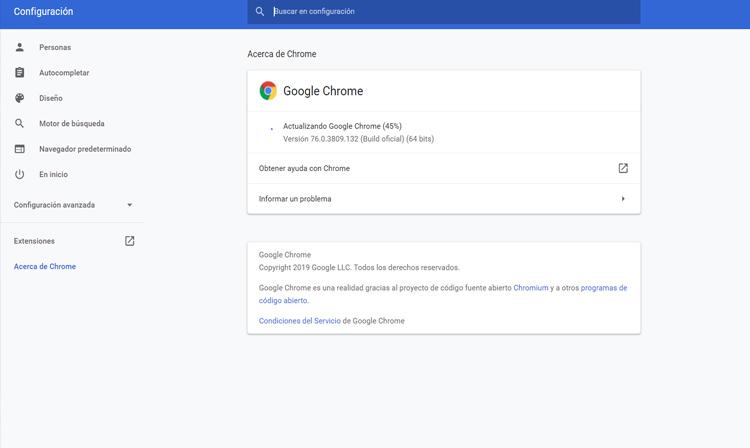
В случае Chrome вам нужно войти в меню в правом верхнем углу, нажать «Справка», а затем перейти к Информация Google Chrome . Вы автоматически увидите, какая версия у вас установлена, и, если есть более новая, вы можете добавить ее простым способом.
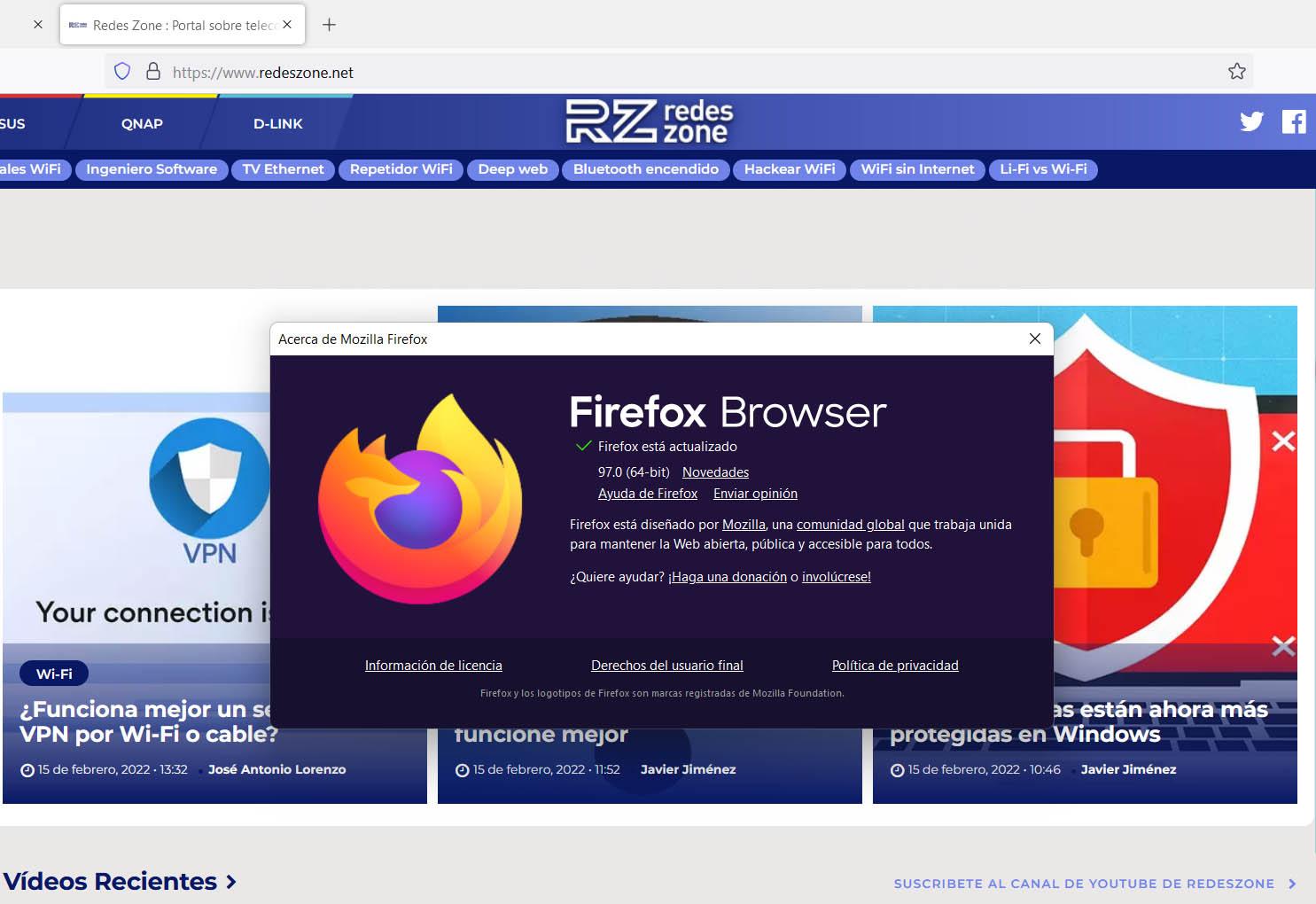
Если у вас установлен Mozilla Firefox, процедура в основном такая же. Вам нужно перейти в меню в правом верхнем углу, нажать «Справка» и О нас . Там автоматически появится маленькое окошко, где будет указано, обновлена она или нет и, если есть более свежая версия, добавит ее.
Очистить кеш и данные
Одна из основных причин ошибки SLL_ERROR_HANDSHAKE_FAILURE_ALERT связана с кеш браузера . Это также связано с данными, которые сохраняются каждый раз, когда мы посещаем веб-страницу или заходим в онлайн-сервис.
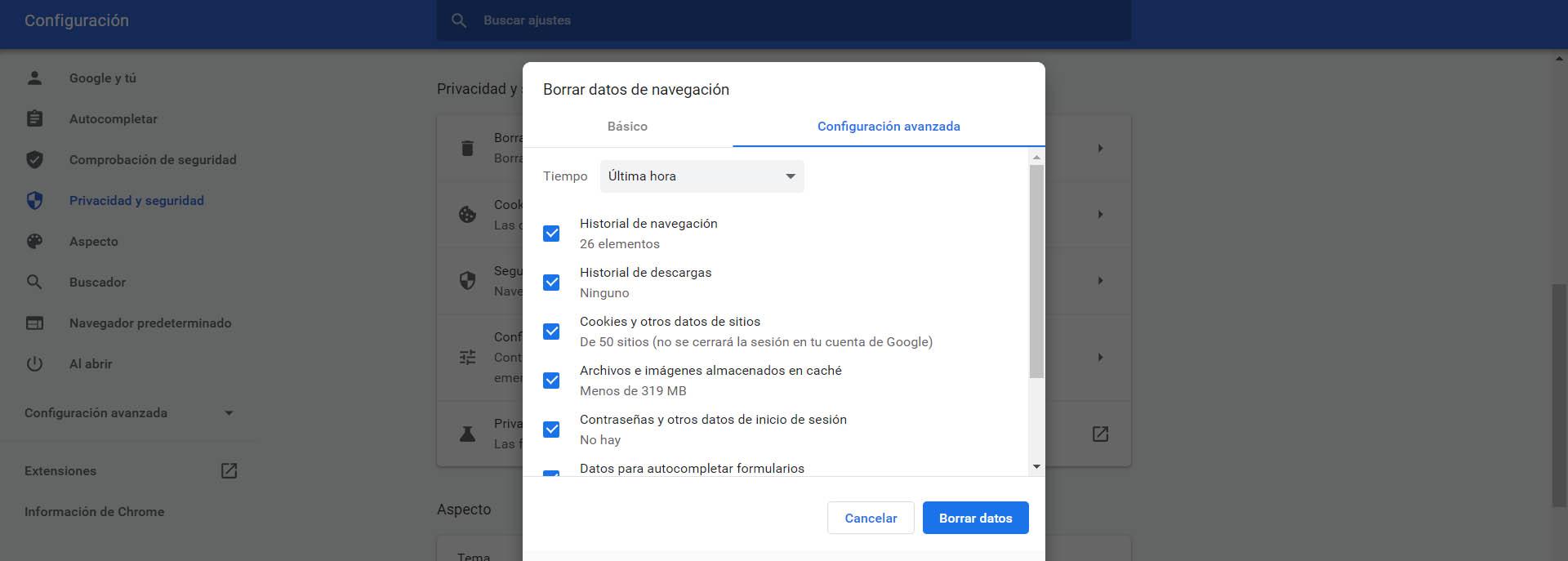
Поэтому в этом случае нужно очистить и кеш, и данные. В случае Chrome вам нужно войти в меню в правом верхнем углу, перейти в «Настройки», нажать « Охранник и конфиденциальность и Очистить данные просмотра. Обязательно установите флажки в разных полях и нажмите Удалить данные .
Удалить сертификаты
Другая конкретная причина этой ошибки заключается в том, что что-то ошибся с сертификатами . Мы можем устранить их и посмотреть, устранит ли это ошибку. Если вы установили сертификат, он может быть поврежден, поэтому при входе на веб-сайт появляется эта досадная ошибка.
В Chrome вам нужно снова зайти в меню, войти в «Настройки», «Безопасность и конфиденциальность» и там нажать «Безопасность». Откроется новое окно и нас интересует, где написано Управление сертификатами.
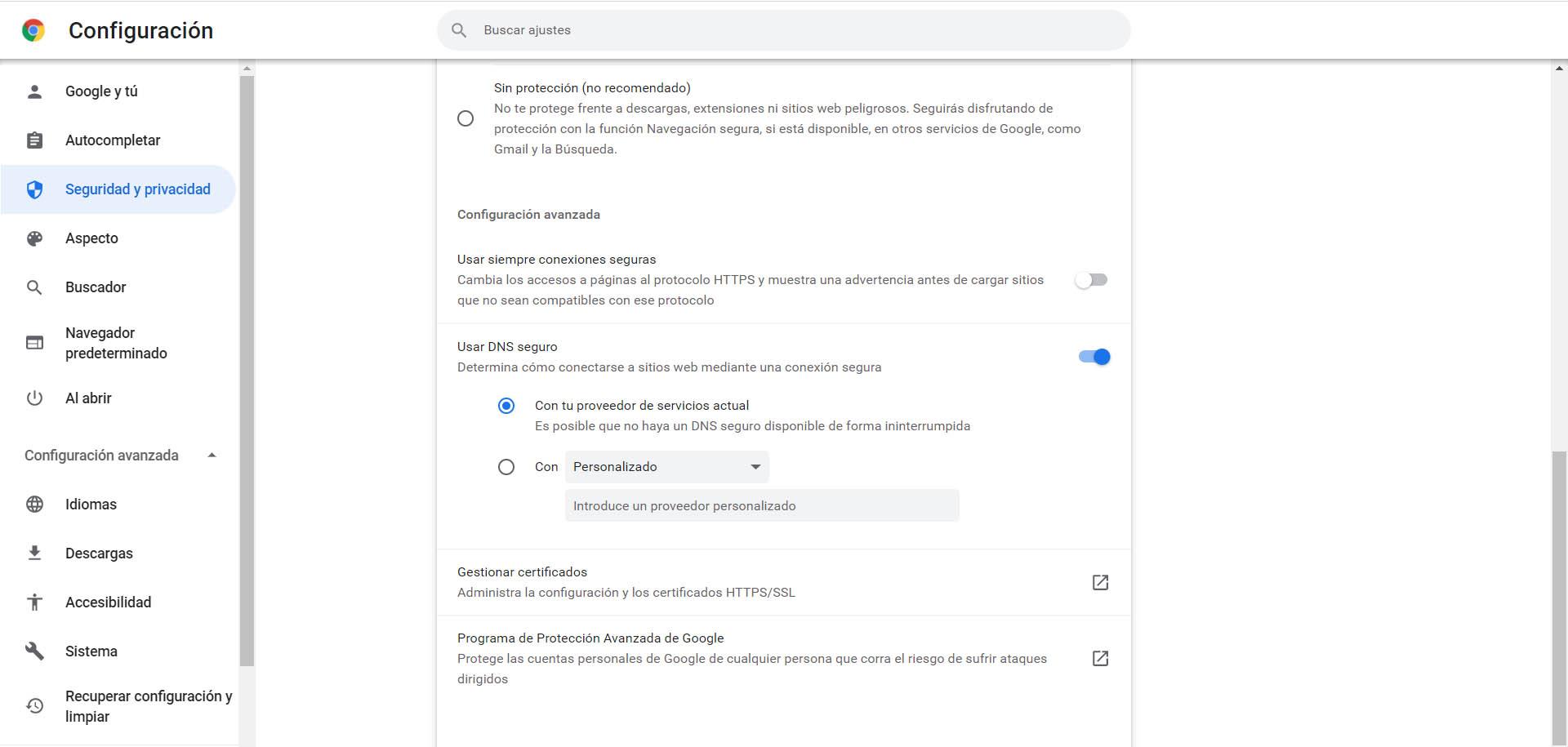
При нажатии на нее откроется новое окно, в котором появятся все имеющиеся у вас сертификаты. Если вы видите, что что-то может быть проблематичным, вы можете нажать «Удалить».
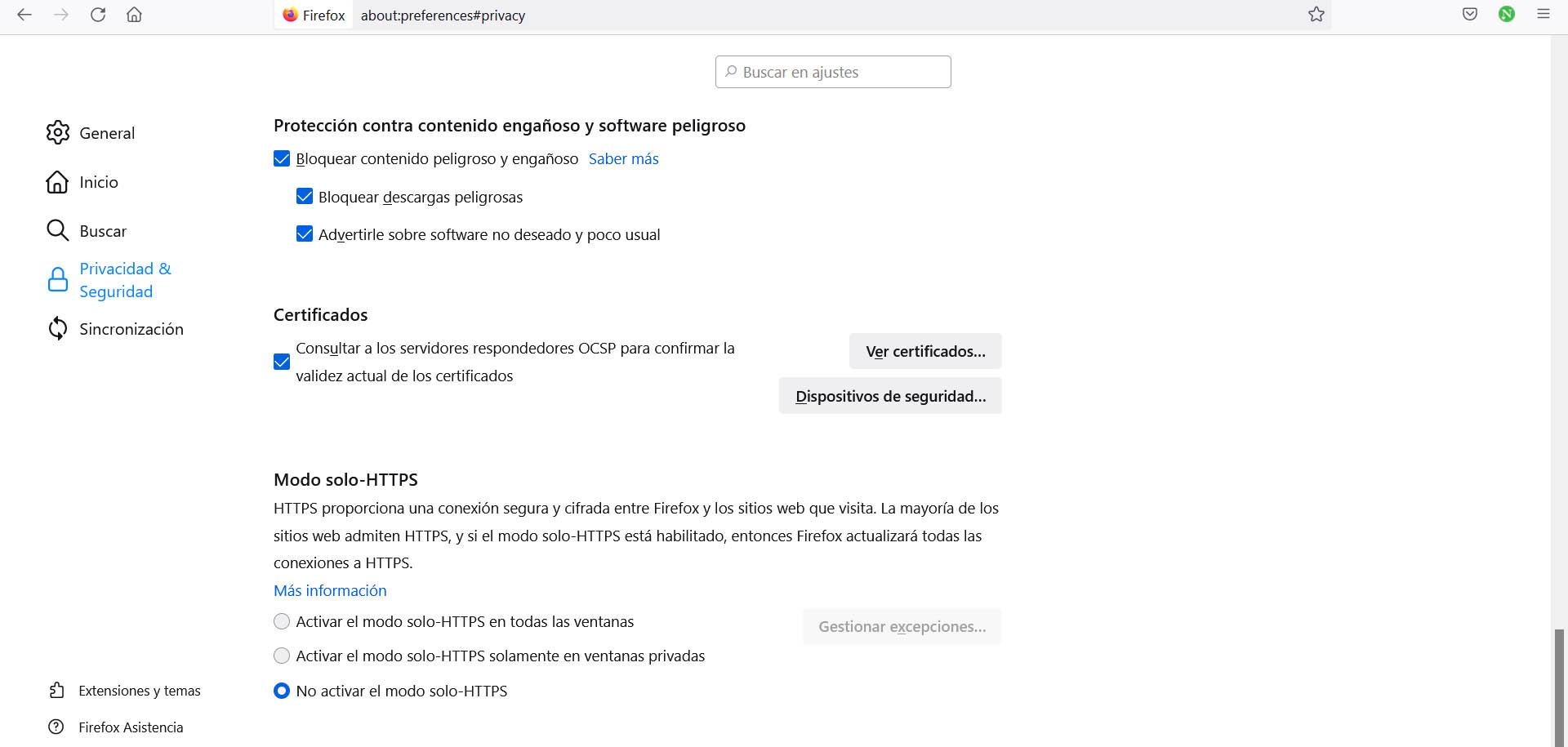
В Firefox вам нужно зайти в Настройки, ввести Конфиденциальность и безопасности и спуститесь к Сертификаты раздел. Нажмите «Просмотреть сертификаты», и появится небольшое новое окно со всеми сертификатами, в котором вы можете удалить тот, который, по вашему мнению, может вызывать проблемы при просмотре.
Убедитесь, что Интернет работает хорошо
Мы сосредоточились на некоторых шагах, которые необходимо выполнить в браузере, так как это обычно проблема с этой программой, но аспекты связи да и за самим устройством тоже надо следить. Поэтому мы должны убедиться, что интернет-соединение действительно работает хорошо и что нет проблем, вызывающих обрывы или потерю скорости.
Вы можете выполнить тест скорости или открыть любой другой инструмент, который подключается к сети, и посмотреть, нормально ли он работает. Таким образом вы увидите, удалось ли вам потерять сигнал Wi-Fi или по какой-то причине сетевой кабель не работает должным образом. По крайней мере, вы можете исключить, что Интернет работает нормально, и это не является причиной проблемы с SSL_ERROR_HANDSHAKE_FAIULURE_ALERT.
Посмотрите, есть ли какие-либо ожидающие обновления Windows
Очень важно всегда обновлять операционную систему с последние версии . Только тогда вы сможете наслаждаться последними улучшениями, а также исправлять любые проблемы, которые могут появиться. Это также может применяться при работе в Интернете или при подключении к приложению или веб-странице.
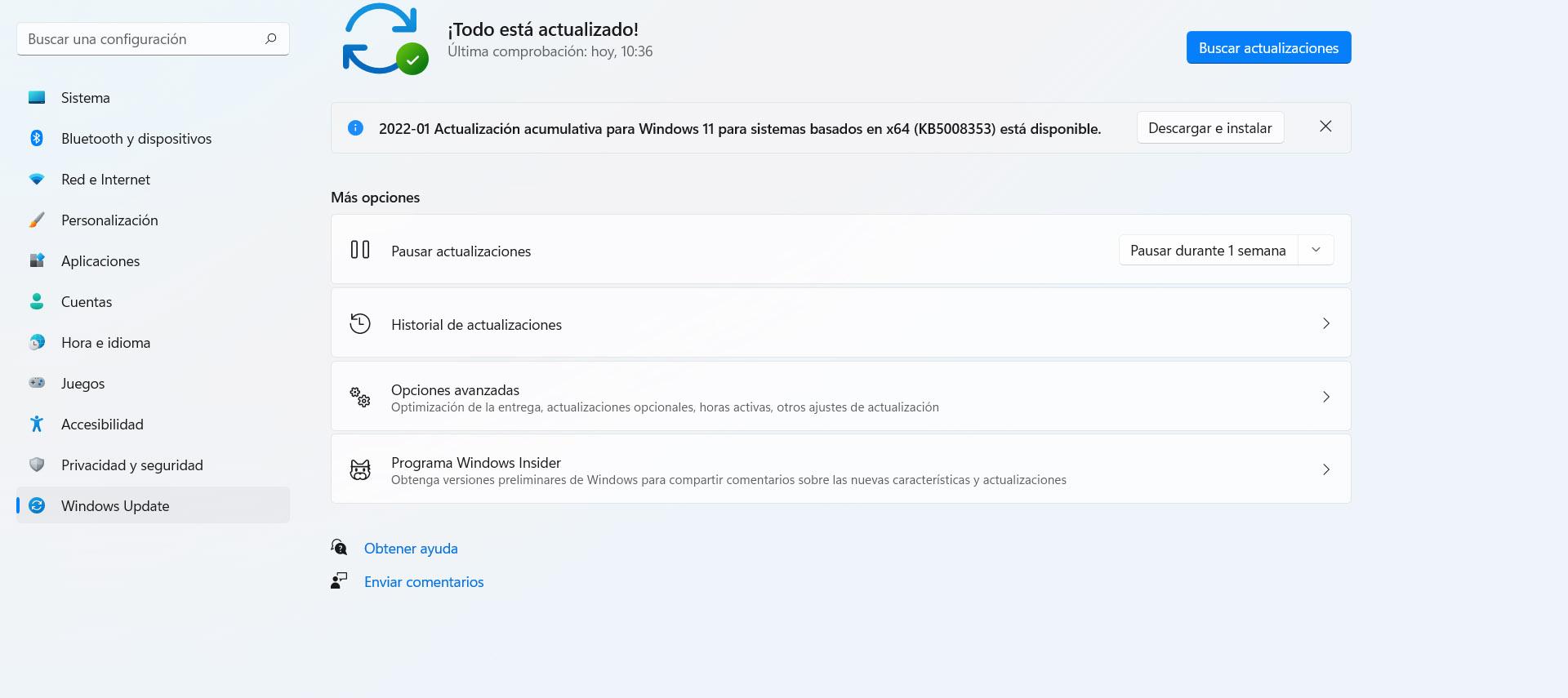
Вы должны посмотреть, все ли у вас обновлено, и обновить его, если это необходимо. Вы можете зайти в Пуск, зайти в Настройки и перейти к Центр обновления Windows . Он автоматически перенаправит вас на страницу, чтобы проверить, какая версия у вас установлена, и при необходимости начнет загрузку необходимых файлов, и вы сразу же сможете их установить.
Вернуть браузер к настройкам по умолчанию
Если все это не возымело никакого положительного эффекта и у вас по-прежнему возникают проблемы в Chrome или Firefox с входом на веб-страницы, лучше всего попробовать восстановить значения программы по умолчанию. Если, например, вы что-то коснулись в конфигурации или установили плагин, и он вызвал сбой, вы можете решить это таким образом.
В случае Chrome вам нужно перейти в верхнее правое меню, войти в «Настройки» и перейти в «Дополнительные настройки». Там вы увидите Восстановить конфигурацию и очистить раздел. Нажмите здесь и следуйте инструкциям, чтобы оставить браузер таким, каким он был при первой установке.
Итак, если вы столкнулись с SSL_ERROR_HANDSHAKE_FAILURE_ALERT проблему, вы можете предпринять шаги, которые мы упомянули, чтобы попытаться исправить ее. Обычно это связано с проблемой браузера, поэтому решение может быть там. Однако это также может быть ошибка подключения или системы, и вам нужно будет ее исправить.
Несколько пользователей видят код ошибки: SSL_ERROR_HANDSHAKE_FAILURE_ALERT при попытке доступа к некоторым сайтам, обычно это видно при доступе к веб-сайтам, которые должны проверять легитимность. В этой статье мы рассмотрим, что такое код ошибки и как его можно исправить.
Что такое SSL_ERROR_HANDSHAKE_FAILURE_ALERT?
Пользователи видят рассматриваемый код ошибки в большинстве браузеров, однако чаще всего Firefox является одним из распространенных браузеров, затронутых этой проблемой. Ошибка SSL Handshake возникает, когда сервер и клиент не могут связаться через SSL или протокол уровня защищенных сокетов.
Протокол SSL гарантирует, что данные, передаваемые между веб-браузером и сервером, защищены. Он в основном шифрует ссылку, которая, в свою очередь, защищает данные и гарантирует, что они не уязвимы для атак.
Есть много причин, которые могут вызвать ошибку в вопросах. Чаще всего это кеш вашего браузера, который повреждается и, как следствие, вызывает проблемы. Кроме того, проверьте сертификаты и убедитесь, что они не проблематичны, если они есть, вы увидите не только ошибки рукопожатия SSL, но и некоторые другие сообщения об ошибках и коды.
Мы также собираемся выяснить, что не так с компьютером, на котором вы просматриваете. Итак, не теряя времени, давайте прыгнем в него.
Вы можете решить Код ошибки: SSL_ERROR_HANDSHAKE_FAILURE_ALERT со следующими решениями.
- Перезагрузите браузер и компьютер
- Проверьте свой Интернет
- Обновите свой браузер
- Очистить кэш и данные просмотра
- Удалите проблемный сертификат вашего браузера
- Устранение неполадок в чистой загрузке
Поговорим о них подробно.
1]Перезагрузите браузер и компьютер.
Перед устранением неполадок вам следует перезапустить браузер и посмотреть, работает ли он. Если не получится, то попробуйте перезагрузить компьютер. Это закроет все процессы, которые могли помешать работе вашего компьютера, и, надеюсь, устранит проблему.
2]Проверьте свой Интернет
Вы также должны проверить Интернет в качестве предварительного решения. Достаньте тестер скорости интернета и проверьте пропускную способность. Если у вас медленный Интернет, проверьте, все ли устройства, подключенные к сети, имеют подобные проблемы или нет. В случае, если у всех устройств есть проблемы с Интернетом, попробуйте перезагрузить маршрутизатор и, если это не сработает, позвоните своему провайдеру.
Если у вас единственное устройство с проблемой Интернета. попробуй починить медленный интернет.
3]Обновите свой браузер
Вы должны начать устранение неполадок, обновив браузер. Это может быть неочевидным решением, но вы должны знать, что это может быть вызвано ошибкой. Чтобы устранить эту ошибку, разработчик, возможно, выпустил новое обновление, когда вы загрузите его, ваша проблема будет решена.
У каждого браузера свой способ обновления. У некоторых есть автоматические обновления, а некоторые нужно обновлять вручную. Если вы используете Edge или Chrome, просто перейдите в «Настройки» и нажмите «О Microsoft Edge» в первом и «О Chrome» во втором. В Firefox нажмите кнопку меню  и нажмите на Справка > О Firefox.
После обновления перезагрузите компьютер и проверьте, сохраняется ли проблема.
4]Очистить кеш и данные просмотра
Поврежденный кэш и данные просмотра могут вызвать рассматриваемую проблему. Таким образом, вы должны очистить их и решить проблему. Очистка данных никоим образом не повлияет на ваш браузер, на самом деле это решит некоторые другие проблемы, которые могли оказать негативное влияние на ваш браузер. Поэтому вам следует очистить кеш и данные просмотра Chrome, Firefox, Edge и Opera. Надеюсь, это решит проблему для вас.
5]Удалите проблемный сертификат в браузере.
Вы также должны проверить, есть ли какой-то проблемный сертификат, который вы установили. Под проблемным сертификатом мы подразумеваем поврежденные сертификаты. Мы рекомендуем удалять сертификаты один за другим и смотреть, поможет ли это. Но перед этим лучше Экспортировать эти сертификаты или иметь их копию.
Microsoft Edge
- Нажмите на три вертикальные точки и нажмите «Настройки».
- Перейти к Конфиденциальность, поиск и услуги.
- Прокрутите вниз и нажмите «Управление сертификатами» в разделе «Безопасность».
- Выберите свой сертификат и нажмите Удалить.
Fire Fox
- Откройте Firefox и откройте его настройки.
- Перейти к Конфиденциальность и безопасность.
- Найдите раздел «Сертификаты» и нажмите «Просмотреть сертификаты».
- Выберите свой сертификат и нажмите Удалить.
Гугл Хром
- Откройте настройки Chrome.
- Перейти к Безопасность и конфиденциальность > Безопасность.
- Щелкните Управление сертификатами.
- Выберите проблемный сертификат и нажмите Удалить.
Опера
- Откройте Opera и нажмите на значок настроек.
- Нажмите на раскрывающееся меню Дополнительно.
- Перейти к Конфиденциальность и безопасность > Безопасность.
- Выберите Управление сертификатами.
- Выберите проблемный сертификат и нажмите Удалить.
Надеюсь, это решит проблему.
6]Устранение неполадок в чистой загрузке
Иногда другая программа может мешать работе вашего браузера и вызывать проблему. Поэтому вам следует устранить неполадки в «Чистой загрузке» и выяснить, что это за программа.
Надеюсь, вы сможете решить проблему с помощью этих решений.
Как исправить ошибку безопасного подключения в Firefox?
Вы можете легко исправить ошибку безопасного подключения в Firefox, следуя решениям, упомянутым в этой статье. Все они обслуживают Chrome, Firefox, Edge, Opera и другие браузеры. Однако в Firefox есть две ошибки Secure Connection Failed, другая — SSL ERROR NO CYPHER OVERLAP.
Также проверьте:
Several users are seeing Error Code: SSL_ERROR_HANDSHAKE_FAILURE_ALERT when trying to access some sites, usually, this is seen while accessing websites that have to verify the legitimacy. In this article, we are going to see what the error code is and how you can fix it.
What is SSL_ERROR_HANDSHAKE_FAILURE_ALERT?
Users are seeing the error code in question in most of the browsers, however, more often than not, Firefox is one of the common browsers affected by the problem. The SSL Handshake error is caused when the server and the client fail to communicate via SSL or Secure Socket Layer Protocol.
SSL Protocol is there is make sure that the data transferred between the web browser and the server is protected. It basically encrypts the link that in return secures the data and ensures it’s not vulnerable to attacks.
There are many reasons that can cause the error in questions. More often than not, it’s your browser’s cache that gets corrupted and as a result, causes issues. Also, do check the certificates and make sure that they are not problematic, if they are, you will see not just SSL Handshake errors, but some other error messages and codes as well.
We are also going to see if there is something wrong with the computer you are browsing on. So, without wasting any time, let us hop into it.
You can resolve Error Code: SSL_ERROR_HANDSHAKE_FAILURE_ALERT with the following solutions.
- Restart your Browser and computer
- Check your Internet
- Update your Browser
- Clear Cache and Browsing Data
- Delete the Problematic Certificate in your Browser
- Troubleshoot in Clean Boot
Fix SSL TSL Handshake Failed error
1] Restart your Browser and computer
Before troubleshooting, you should restart your browser and see if that works. If it fails, then try restarting your computer. This will close all the processes that could have interfered with your computer and hopefully fix the problem.
2] Check your Internet
You should also check the Internet as a prerequisite solution. Pull out an Internet Speed tester and check your bandwidth. If your Internet is slow, check if all the devices connected to the network are having similar issues or not. In case, all the devices have Internet issues, try restarting your router and if that doesn’t work, call your ISP.
If yours is the only device with an Internet issue. try fixing the slow Internet.
3] Update your Browser
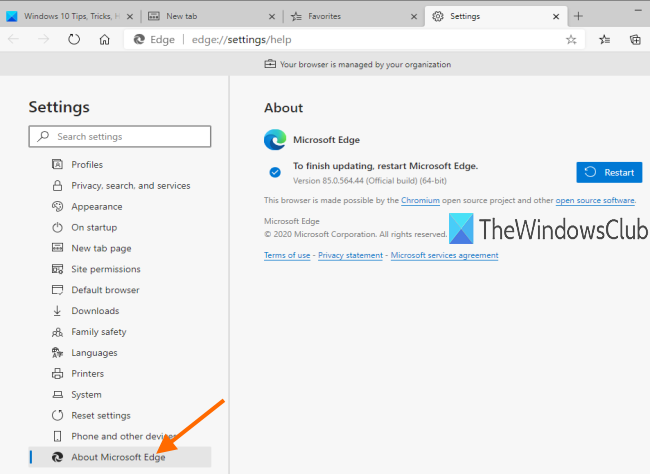
You should start the troubleshooting by updating your Browser. This may not be an obvious solution but you need to know that this can be caused by a bug. To eradicate that bug, the developer may have released a new update, when you download it, your issue will be resolved.
Every browser has a different way to update itself. Some have automatic updates, whereas, some needs to be updated manually. If you are on Edge or Chrome, just go to Settings and click About Microsoft Edge in the former and About Chrome in the latter. In Firefox, click on the menu button  and click on Help > About Firefox.
After updating, restart your computer and check if the issue persists.
4] Clear Cache and Browsing Data
Corrupted Cache and Browsing Data can cause the issue in question. So, you should clear them and resolve the issue. Clearing the data won’t affect your browser in any shape, in fact, it will resolve some other issues that could have had a negative effect on your browser. Therefore, you should clear the cache and browsing data of Chrome, Firefox, Edge, and Opera. Hopefully, that will resolve the issue for you.
5] Delete the Problematic Certificate in your Browser
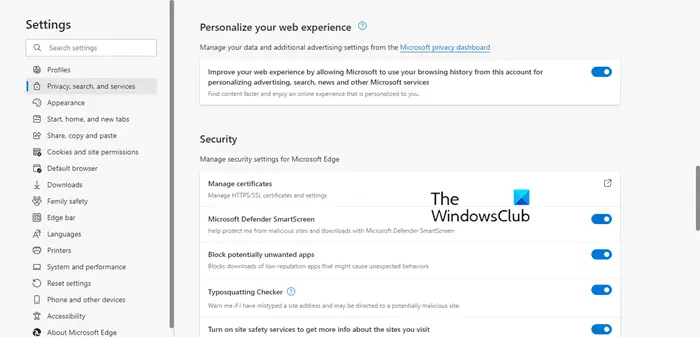
You should also check if there is some problematic certificate that you have installed. With the problematic certificate, we mean, corrupted certificates. We recommend you remove certificates one by one and see if that helps. But before that, it is better to Export those certificates or have a copy of them.
Microsoft Edge
- Click on the three vertical dots and click Settings.
- Go to Privacy, search and services.
- Scroll down and click Manage certificates from the Security section.
- Select your certificate and click Remove.
Firefox
- Open Firefox and open its Settings.
- Go to Privacy and Security.
- Look for the Certificates section and click View Certificates.
- Select your certificate and click Delete.
Google Chrome
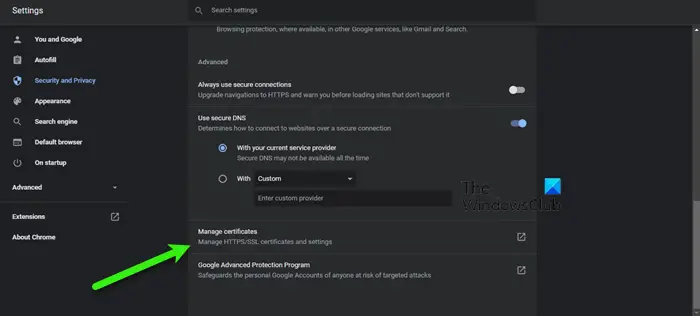
- Open Chrome Settings.
- Go to Security and Privacy > Security.
- Click on Manage certificates.
- Select the problematic certificate and click Remove.
Opera
- Open Opera and click on the Settings icon.
- Click on the drop-down menu of Advanced.
- Go to Privacy & Security > Security.
- Select Manage certificates.
- Select the problematic certificate and click Remove.
Hopefully, this will resolve the issue.
6] Troubleshoot in Clean Boot
Sometimes, another program can interfere with your browser and cause the issue. Therefore, you should troubleshoot in Clean Boot and find out what that program is.
Hopefully, you are able to resolve the issue with these solutions.
What does ssl_error_access_denied_alert mean?
The error message ssl_error_access_denied_alert means that the access to the website you are trying to visit is denied due to the SSL error. This error can also occur even if the SSL certificate of a website is valid. Hence, it does not conclude that the SSL certificate of that particular website is expired or not valid. You will see this error message usually when the authenticity of the data received for a website is not verified. To fix this error, type about:config in the address bar of Firefox and hit Enter. Now, click Accept the Risk and Continue. Search for security.tls.version.max and change its value from 4 to 3.
Also Check:
- How to create Self-signed SSL Certificates in Windows
- Fix SEC_ERROR_OCSP_INVALID_SIGNING_CERT Firefox error.
Several users are seeing Error Code: SSL_ERROR_HANDSHAKE_FAILURE_ALERT when trying to access some sites, usually, this is seen while accessing websites that have to verify the legitimacy. In this article, we are going to see what the error code is and how you can fix it.
What is SSL_ERROR_HANDSHAKE_FAILURE_ALERT?
Users are seeing the error code in question in most of the browsers, however, more often than not, Firefox is one of the common browsers affected by the problem. The SSL Handshake error is caused when the server and the client fail to communicate via SSL or Secure Socket Layer Protocol.
SSL Protocol is there is make sure that the data transferred between the web browser and the server is protected. It basically encrypts the link that in return secures the data and ensures it’s not vulnerable to attacks.
There are many reasons that can cause the error in questions. More often than not, it’s your browser’s cache that gets corrupted and as a result, causes issues. Also, do check the certificates and make sure that they are not problematic, if they are, you will see not just SSL Handshake errors, but some other error messages and codes as well.
We are also going to see if there is something wrong with the computer you are browsing on. So, without wasting any time, let us hop into it.
You can resolve Error Code: SSL_ERROR_HANDSHAKE_FAILURE_ALERT with the following solutions.
- Restart your Browser and computer
- Check your Internet
- Update your Browser
- Clear Cache and Browsing Data
- Delete the Problematic Certificate in your Browser
- Troubleshoot in Clean Boot
Fix SSL TSL Handshake Failed error
1] Restart your Browser and computer
Before troubleshooting, you should restart your browser and see if that works. If it fails, then try restarting your computer. This will close all the processes that could have interfered with your computer and hopefully fix the problem.
2] Check your Internet
You should also check the Internet as a prerequisite solution. Pull out an Internet Speed tester and check your bandwidth. If your Internet is slow, check if all the devices connected to the network are having similar issues or not. In case, all the devices have Internet issues, try restarting your router and if that doesn’t work, call your ISP.
If yours is the only device with an Internet issue. try fixing the slow Internet.
3] Update your Browser
You should start the troubleshooting by updating your Browser. This may not be an obvious solution but you need to know that this can be caused by a bug. To eradicate that bug, the developer may have released a new update, when you download it, your issue will be resolved.
Every browser has a different way to update itself. Some have automatic updates, whereas, some needs to be updated manually. If you are on Edge or Chrome, just go to Settings and click About Microsoft Edge in the former and About Chrome in the latter. In Firefox, click on the menu button and click on Help > About Firefox.
After updating, restart your computer and check if the issue persists.
4] Clear Cache and Browsing Data
Corrupted Cache and Browsing Data can cause the issue in question. So, you should clear them and resolve the issue. Clearing the data won’t affect your browser in any shape, in fact, it will resolve some other issues that could have had a negative effect on your browser. Therefore, you should clear the cache and browsing data of Chrome, Firefox, Edge, and Opera. Hopefully, that will resolve the issue for you.
5] Delete the Problematic Certificate in your Browser
You should also check if there is some problematic certificate that you have installed. With the problematic certificate, we mean, corrupted certificates. We recommend you remove certificates one by one and see if that helps. But before that, it is better to Export those certificates or have a copy of them.
Microsoft Edge
- Click on the three vertical dots and click Settings.
- Go to Privacy, search and services.
- Scroll down and click Manage certificates from the Security section.
- Select your certificate and click Remove.
Firefox
- Open Firefox and open its Settings.
- Go to Privacy and Security.
- Look for the Certificates section and click View Certificates.
- Select your certificate and click Delete.
Google Chrome
- Open Chrome Settings.
- Go to Security and Privacy > Security.
- Click on Manage certificates.
- Select the problematic certificate and click Remove.
Opera
- Open Opera and click on the Settings icon.
- Click on the drop-down menu of Advanced.
- Go to Privacy & Security > Security.
- Select Manage certificates.
- Select the problematic certificate and click Remove.
Hopefully, this will resolve the issue.
6] Troubleshoot in Clean Boot
Sometimes, another program can interfere with your browser and cause the issue. Therefore, you should troubleshoot in Clean Boot and find out what that program is.
Hopefully, you are able to resolve the issue with these solutions.
What does ssl_error_access_denied_alert mean?
The error message ssl_error_access_denied_alert means that the access to the website you are trying to visit is denied due to the SSL error. This error can also occur even if the SSL certificate of a website is valid. Hence, it does not conclude that the SSL certificate of that particular website is expired or not valid. You will see this error message usually when the authenticity of the data received for a website is not verified. To fix this error, type about:config in the address bar of Firefox and hit Enter. Now, click Accept the Risk and Continue. Search for security.tls.version.max and change its value from 4 to 3.
Also Check:
- How to create Self-signed SSL Certificates in Windows
- Fix SEC_ERROR_OCSP_INVALID_SIGNING_CERT Firefox error.
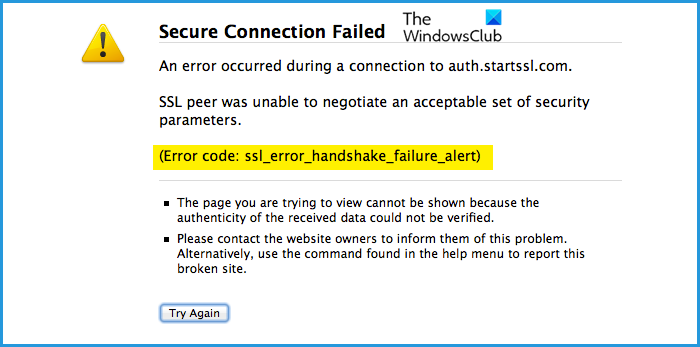
The SSL handshake error is quite common for a website that has to verify the legitimacy of the user accessing it (sometimes through a hardware cryptographic device or card). The error is shown by all the major browsers (Firefox, Chrome, Edge, etc.) on all the major desktop OS (Windows, Mac, Linux, etc.). Usually, the following type of message is shown:
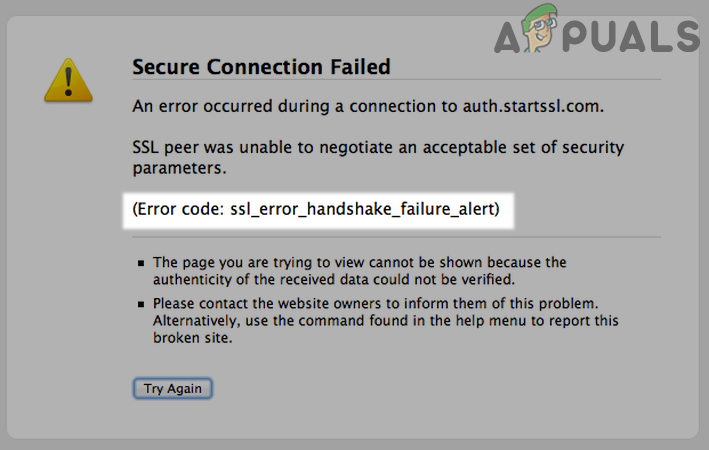
The SSL handshake error is the failure of communication between the server and client by using the SSL protocol. This can be caused by factors on the client-side as well as from the server-side. Following are mainly reported to cause the handshake error:
- Corrupt Browser Data: If the browser’s data (cookies, cache, etc.) are corrupt, then it may fail to properly load the certificate required by the website, leading to the SSL handshake issue.
- Misconfiguration of the Browser’s or Java Security: If the browser or Java security “thinks” a website as risky, then it may not open the website with an SSL handshake alert.
- Interference from the Security Application of the System: If the antivirus/firewall of the system is blocking a particular packet of the data (“thinking” it as risky), then the browser may fail to load the website with an SSL handshake alert.
- Improper Installation of the Certificate: Certain websites require their certificates to be installed in a particular location in the OS and if the certificate is not present there but is present in another place, then the website may not respond to the browser, causing the browser to show the SSL handshake failure alert.
Update the Browser to the Latest Build
The browser may show the SSL_error_handshake_failure_alert if it is outdated as it can lead to incompatibility with different websites. Here, updating the browser to the latest version may solve the problem. For elucidation, we will discuss the process for the Google Chrome browser. But before that, if the problematic website requires a cryptographic device or card to identify the user, make sure the proper driver of the device is installed and being used.
- Open the Chrome browser and in the top right corner, click on three vertical ellipses to open the Chrome menu.
- Now select Settings and in the left pane, head to the About Chrome tab.
- Then, in the right pane, make sure the Google Chrome is updated to the latest build, and afterward, check if the SSL handshake error is cleared.
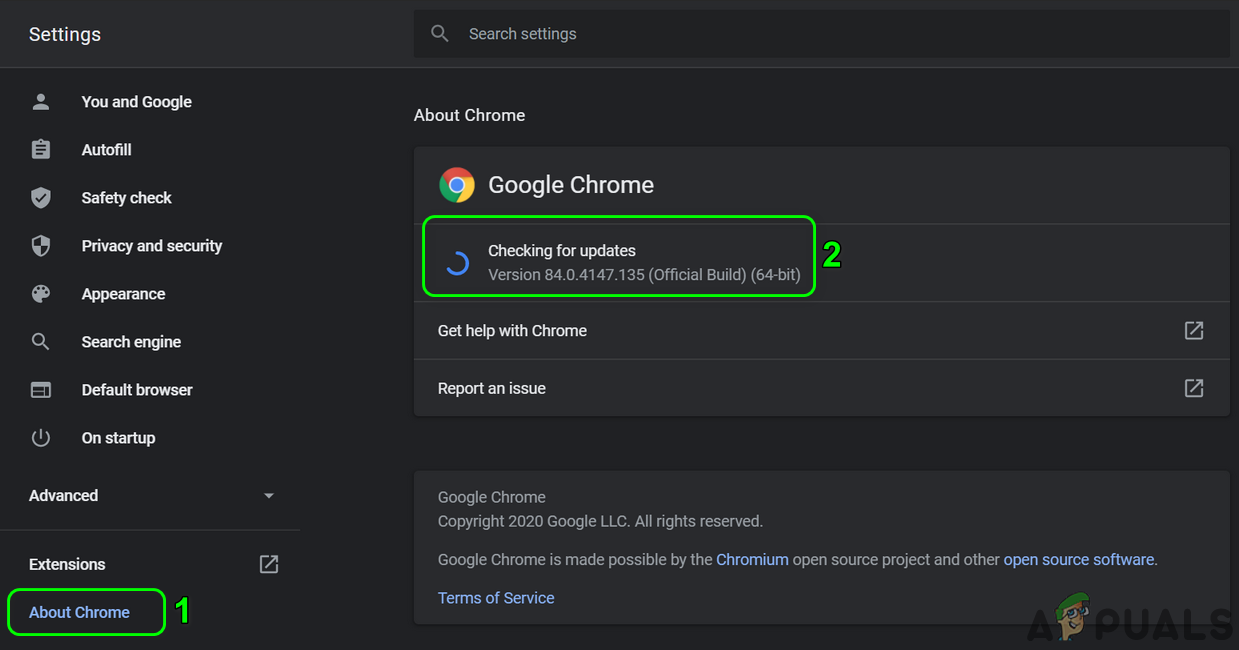
Update Chrome - If not and the issue started to occur after a browser update, then check if installing an older version of the browser solves the handshake failure issue.
Delete the Problematic Certificate in the Browser’s Certificate Manager
If the website’s certificate in the browser’s certificate manager is corrupt, then the browser may throw an SSL_error_handshake_failure_alert. In this scenario, a user can solve the problem by deleting the problematic website’s certificate in the browser’s settings. For elucidation, we will discuss the process for the Firefox browser.
- Launch Firefox and click on the hamburger icon (near the top right corner).
- Then, select Settings and in the left pane, head to the Privacy & Security tab.
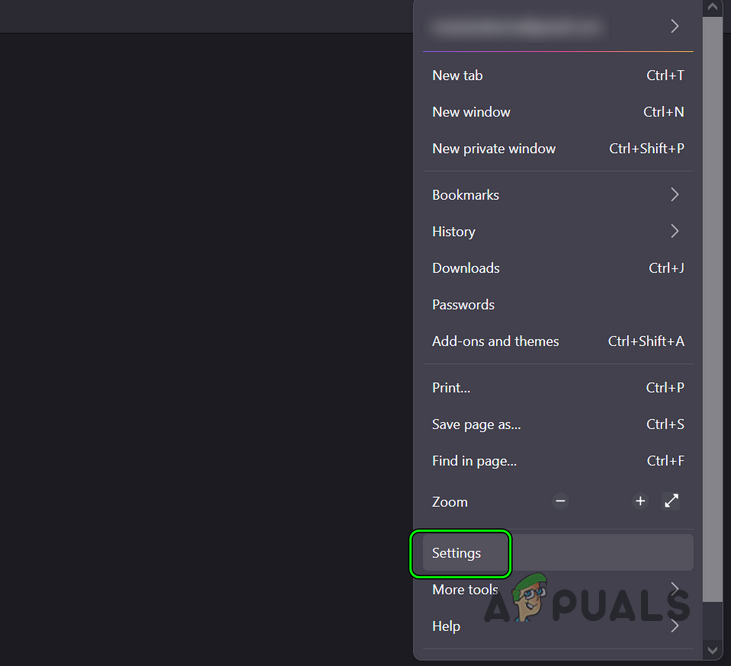
Open Firefox Settings - Now, scroll down till the Certificates section is shown, and then click on the View Certificates button.
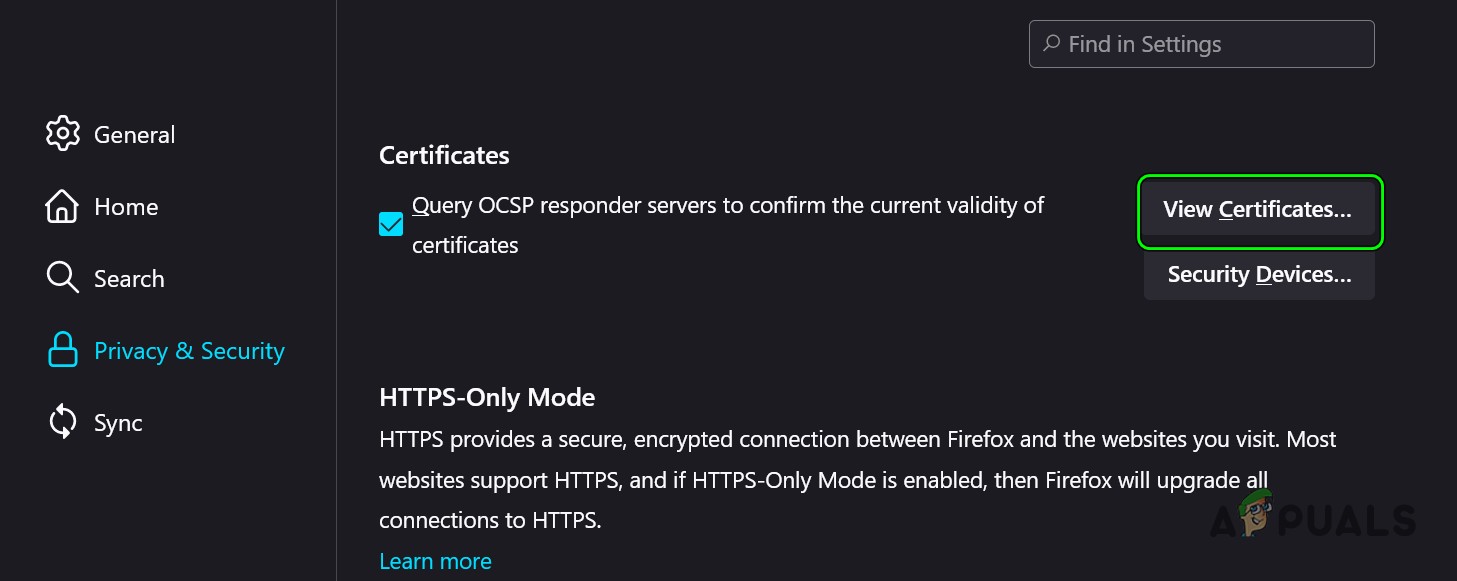
Click on the View Certificates Button in the Privacy & Security Tab of Firefox - Afterward, head to the Your Certificates tab and select the problematic website’s certificate.
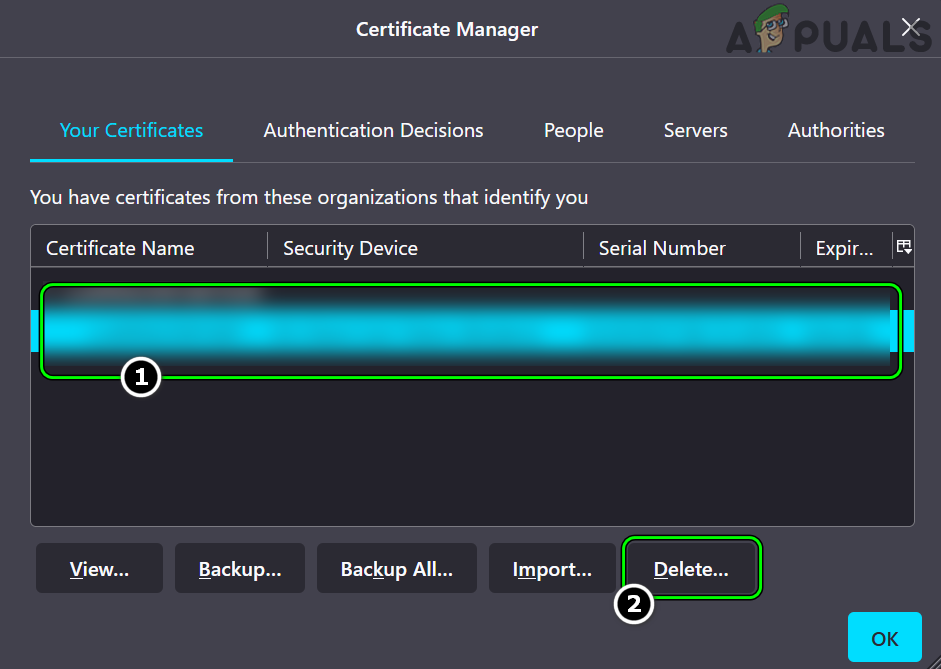
Delete the Problematic Certificate in Firefox - Now click on Delete and then confirm to delete the certificate. Afterward, make sure there is no certificate from the problematic website in the Server’s tab and any relevant CA in the Authorities tab.
- Then relaunch the Firefox browser and afterward, check if the SSL handshake error is cleared.
If that did not work, then check if using another network or network type (e.g., if encountering an issue on ethernet, then using Wi-Fi) solves the problem.
Clear the Browser’s Cookies, Cache, and Data
If any of the browser’s cookies, cache, and data are corrupt, then the browser may show an SSL handshake error. In this context, clearing the browser’s cookies, cache, and data may solve the SSL error at hand. For elucidation, we will discuss the process of clearing the cookies, cache, and data of the Chrome browser.
- Launch the Chrome browser and in the top right corner, click on the three vertical ellipses.
- Now hoover over More Tools and select Clear Browsing Data.
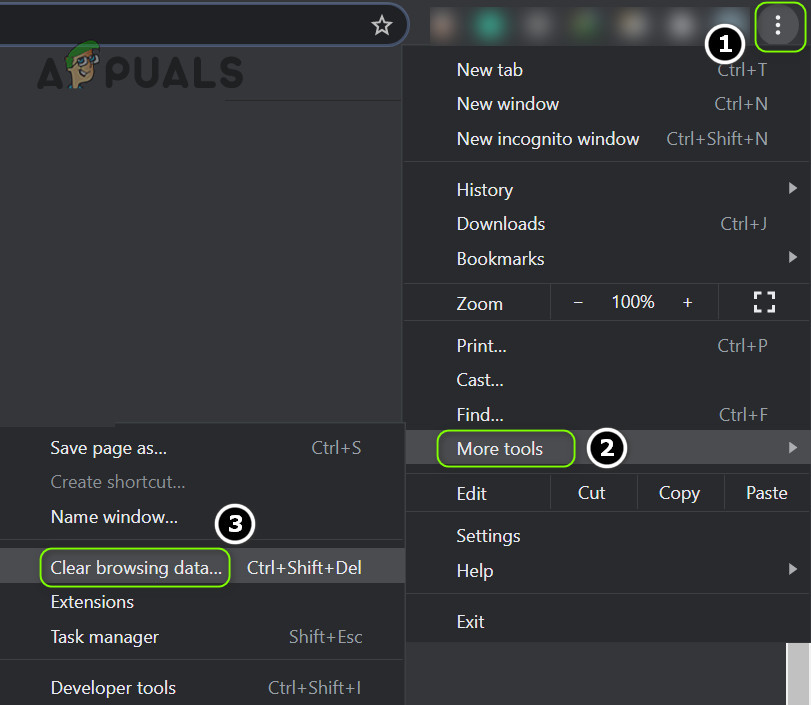
Open More Tools>> Clear Browsing Data in the Chrome Menu - Then, in the Advanced tab of the resulting window, click on Sign Out (near the bottom of the window) to keep the data in the Google account.
- Now select the Time Range of All-Time and checkmark all the categories.
- Then click on the Clear Data button and once done, restart the system.
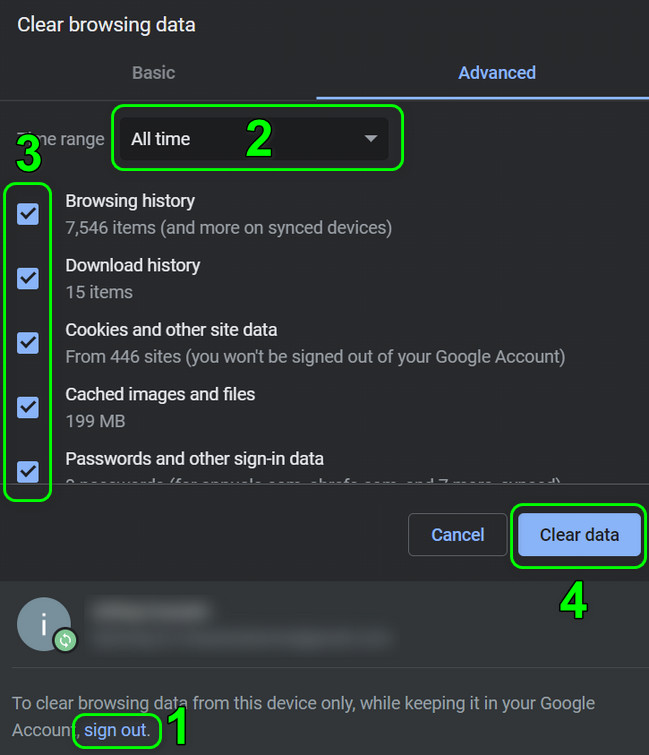
Clear the Browsing Data of Chrome - Upon restart, check if the SSL_error_handshake_failure_alert is cleared.
Try Another Browser
The SSL_error_handshake_failure_alert could be a result of a bug in the browser in use. Here, using another browser may let the user access the problematic website without issue.
- Download and install another browser on the system (if already not present). It will be better to use the OS preferred browser (like Edge for Windows, Safari for Mac, Firefox for Linux, Chrome for Chromebook).
- Now launch the second browser and check if the website can be accessed without triggering the SSL handshake error.
Reset the System’s Internet Options to the Defaults
On a Windows machine, the Internet Options cover many of the basic settings used by the OS and applications to access the Internet. A mere misconfiguration of the Internet Options or if its certificate manager is corrupt, then resetting the Internet Options to the defaults may solve the problem.
- Click Windows, search, and open Internet Options.
- Now, head to the Advanced tab and click on Restore Advanced Settings.
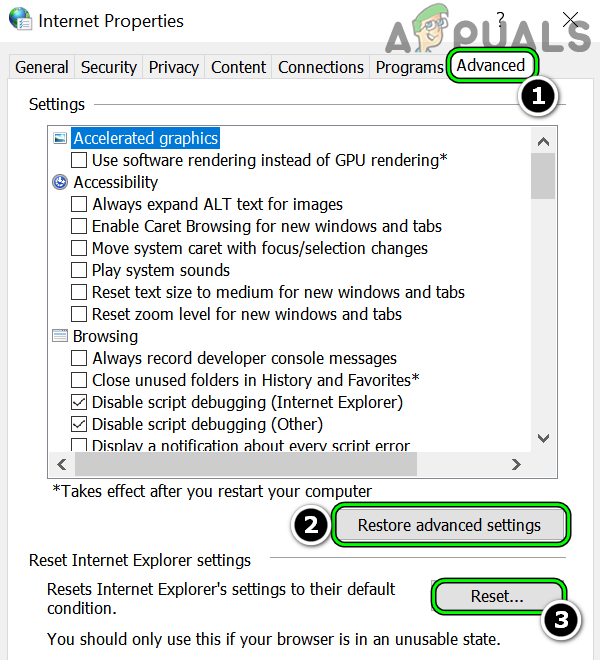
Restore Advanced Settings of Internet Options and Reset Internet Explorer Settings - Then, in the section of Reset Internet Explorer Settings, click on Reset and checkmark Delete Personal Settings.
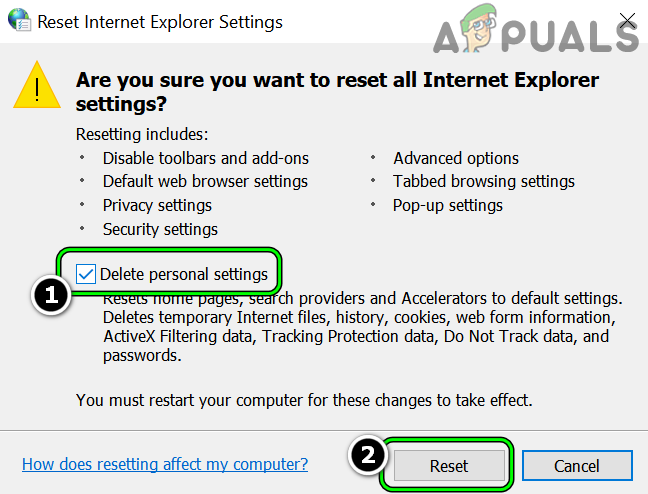
Restore Advanced Settings of Internet Options and Reset Internet Explorer Settings - Now click on Reset and afterward, restart your system.
- Upon restart, check if the browser’s SSL handshake error is cleared.
Add the Website as Trusted in the Browser
If the issue is still there, then adding the website as trusted in the browser may solve the problem. For illustration, we will guide you through the process on the Firefox browser.
Warning:
Advance at your own risk as adding a risky website as trusted in the browser’s settings may expose data, system, and network to the threats.
- Launch the Firefox browser and head to the problematic website.
- Now copy the complete URL of the website from the address bar and enter the following in the address bar:
about:config
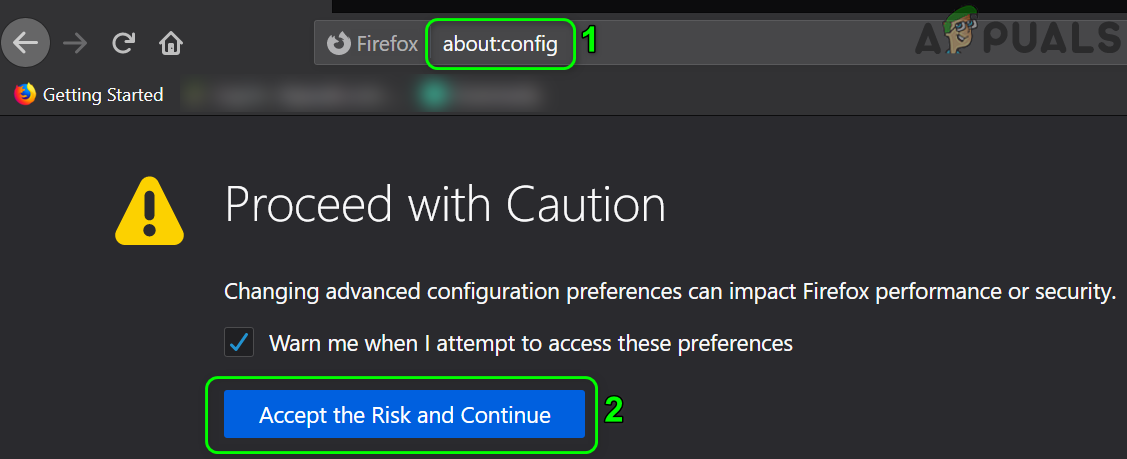
Click on Accept the Risk and Continue in Firefox - Then click on Accept Risk and Continue.
- Then enter the following in the Search Preference Name box:
tls.insecure_fallback_hosts
- Now click on the Edit icon and enter the URL of the problematic website.
- Then click on the Tick icon and relaunch Firefox.

Add the Problematic Website in the Trusted Website of Firefox - Upon relaunch, check if the problematic website can be opened without initiating an SSL error at hand. Keep in mind that you may see a yellow warning popup on the top of the website from Firefox not to enter confidential information on the website.
Edit the Browser’s Security Settings
The SSL handshake error could be a result of a poor configuration of the problematic website and editing the browser’s security may let a user access the website in question. For elucidation, we will discuss the process for the Firefox browser.
Warning:
Proceed at your own risk as editing the browser’s security settings may expose your system, data, and network to threats.
- Launch Firefox and enter the following in its address bar:
about:config
- Now click on Accept the Risk and Continue.
- Then, enter the following in the Search Preference Name:
tls.enable_0rtt_data
- Now click on the toggle button to set the above-mentioned setting to False and relaunch the Firefox browser to check if the SSL handshake failure issue is resolved.

Set tls.enable_0rtt_data to False
Reinstall the Burp Suite
If your organization is using the Burp Suite to safely test and analyze its web applications, then a misconfiguration of the Burp Suite may lead to the SSL handshake failure alert. In this case, reinstalling the Burp Suite may solve the problem.
- Back up the JAR file of the previous Burp file and Loader.
- Now, right-click Windows and select Apps & Features.
- Then, expand the Burp Suite and click on Uninstall.
- Now confirm to uninstall the Burp Suite and afterward, restart your system.
- Upon restart, download and install the latest version of the Burp Suite. During the process, make sure the Burp Suite is being installed on the OS drive (e.g., C).
- Now copy the backed-up Burp file and loader to the following location:
C:Burp_Suitejrebin
- Then, click Windows, search for Command Prompt, right-click on its result, and select Run as Administrator.
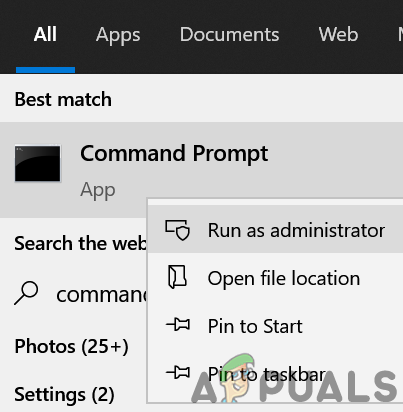
Open Command Prompt as Administrator - Now execute the following (make sure to replace the X with the original values):
C:Burp_Suitejrebinjava.exe -javaagent:BurpSuiteLoader_v.XXX.jar -noverify -jar burpsuite_pro_vXXX.jar
- Then launch a browser (like Firefox) and check if the SSL handshake problem is solved.
Use the Certificate in the Program Files Directory for Gemalto/Thales DIS CMS
If your organization is using a Gemalto (or now known as Thales DIS) application/CMS, then using its certificate from the Program Files, not from the Program Files (X86) may solve the problem as the 64-bit client browsers look for the certificate in the 64-bit directory of the Program Files. For illustration, we will discuss the process for the Firefox browser.
- Launch the Firefox browser and open its menu.
- Now select Settings and steer to the Privacy & Security tab.
- Then scroll down and click on the Security Devices button (in the Certificates section).
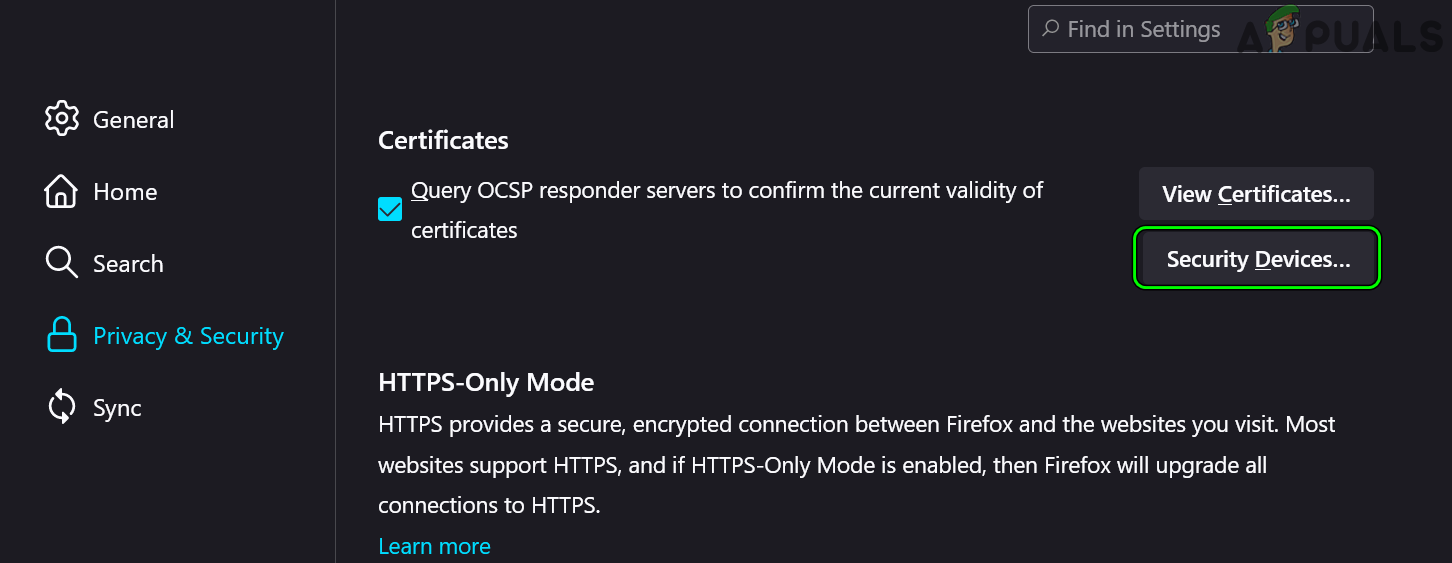
Open Security Devices in Firefox Certificates - Now click on Load and in the Module Name, type:
Gemalto PKCS#11 Module
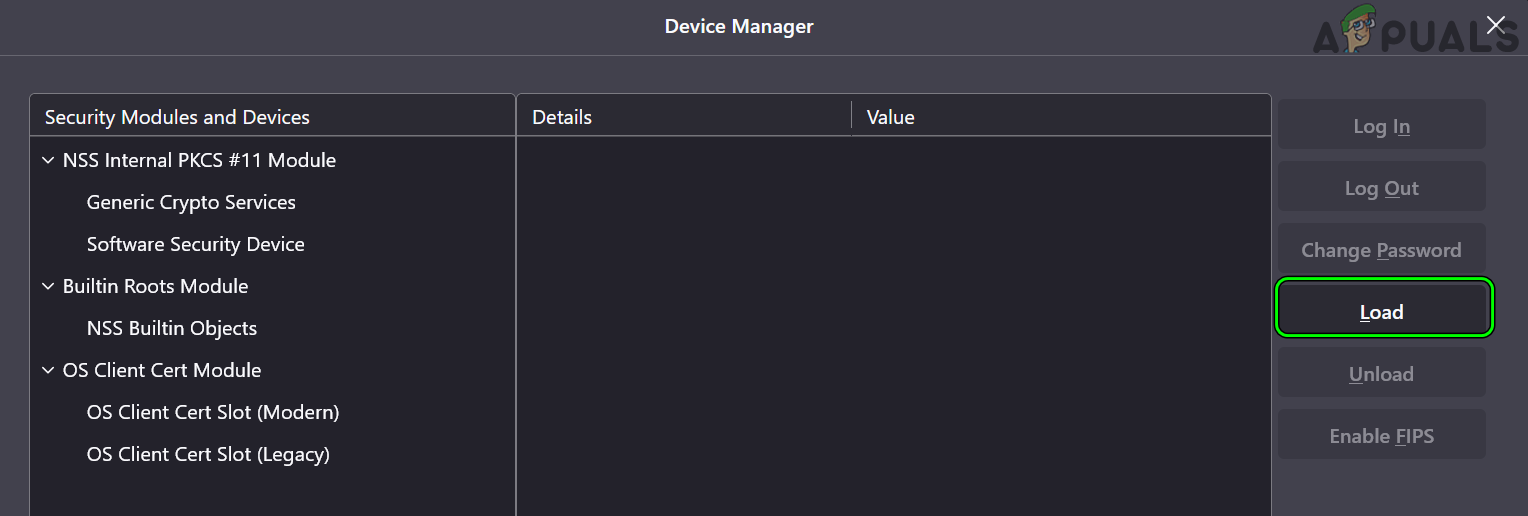
Click on Load in the Firefox Device Manager - Then click on Browse and navigate to the following path to select gclib.dll:
C:Program FilesGemaltoClassic ClientBINgclib.dll
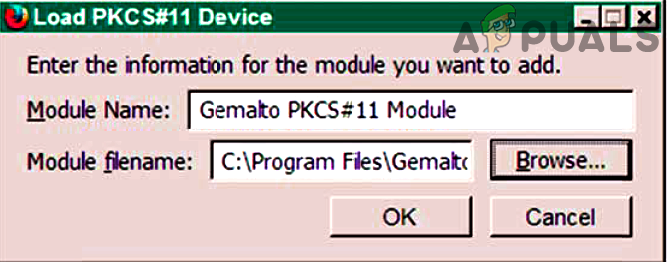
Add Gemalto Device in the Firefox - Now click on Open and afterward, click on OK.
- Then relaunch Firefox and check if the SSL handshake issue is resolved.
Add an Exception for the Website in the Java’s Security
If the website requires Java on a client machine but Java “thinks” the website unsafe, then it may lead to the browser’s SSL handshake error. Here, adding an exception for the website in Java’s security may solve the problem.
- Click Windows, type, and open Configure Java.
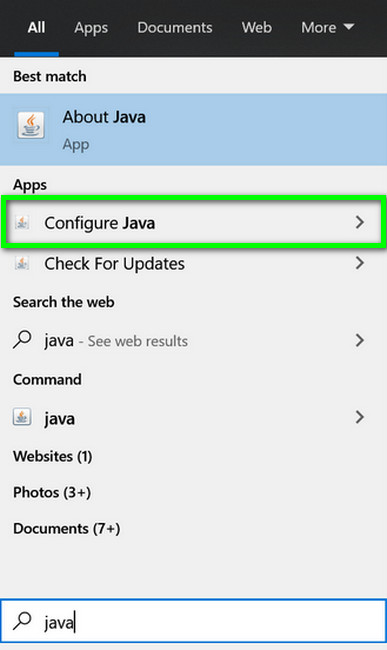
Open Configure Java - Now, head to the Security tab and click on Edit Site List.
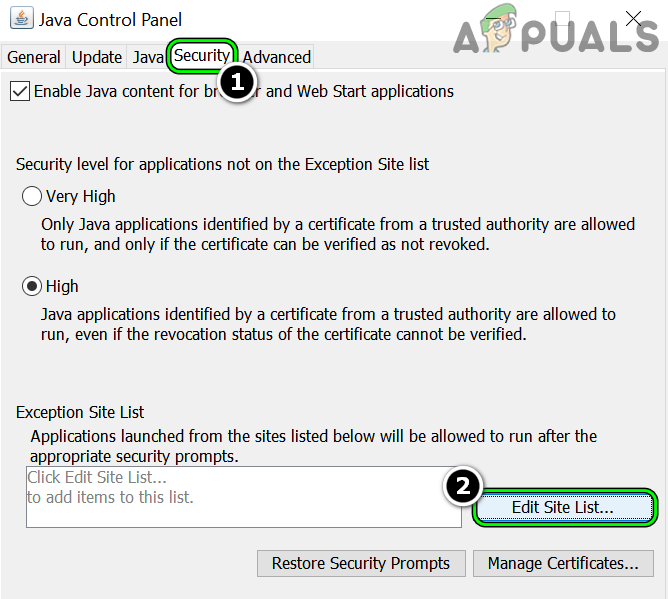
Open Edit List in the Java Security - Then click on Add and enter the URL of the problematic website.
- Now click on OK and afterward, restart your system.
- Upon restart, check if the SSL error is cleared.
Disable or Uninstall the Antivirus/Firewall of the System
A browser may show the SSL handshake failure alert if the antivirus of the system is changing the website data in a way that the browser does not “think” safe. In such a case, disabling the antivirus/firewall of your system may clear the SSL handshake error. Kaspersky is reported to cause the issue under discussion.
Warning:
Advance at your own risk as disabling or uninstalling the antivirus or firewall of a system, may expose your data, system, and network to threats.
Disable the Antivirus/Firewall of the System
- Right-click on the security product (e.g., ESET) in the system’s tray (you may have to show hidden icons) and select Pause Protection.
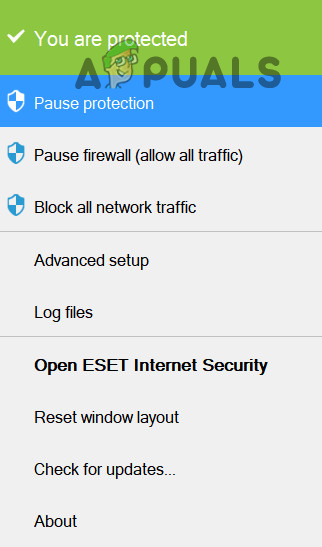
Pause Protection of ESET Internet Security - Now confirm to disable the security application and again, right-click on the security product in the system tray.
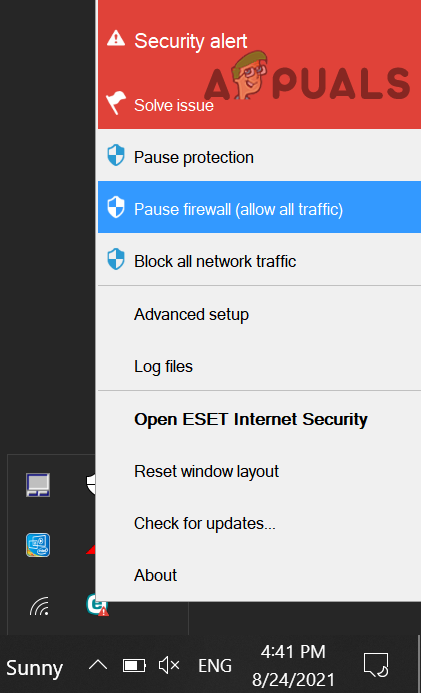
Pause Eset Firewall of Your System - Now select Pause Firewall and if asked to, confirm to disable the ESET Firewall.
- Then check if the browser can access the website in question without initiating the SSL handshake error.
Uninstall the 3rd Party Antivirus/Firewall
If disabling the antivirus/firewall did not work, then uninstalling the antivirus/firewall solve the problem.
- Right-click Windows and select Apps & Features.
- Now expand the security application (like ESET) and click on Uninstall.
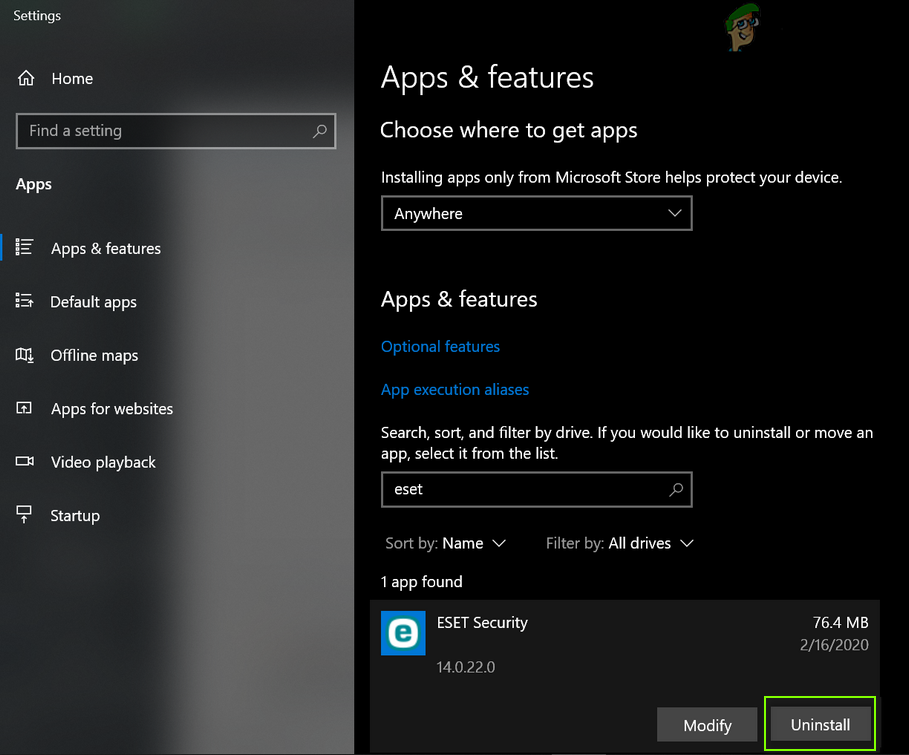
Uninstall Eset Security - Then confirm to uninstall the security application and afterward, reboot your system.
- Upon reboot, check if the SSL handshake error is cleared.
If your organization is using a hardware firewall console, then make sure the cable connecting the hardware firewall to the system is the one recommended by the firewall OEM as incompatible cable may trigger the SSL handshake failure alert in a browser.
Re-Add the Problematic Certificate
If the problematic website requires a certificate installed on the system (either provided through the email or downloaded from an online resource) and the certificate is not properly installed on the system, then reinstalling the certificate on the system may solve the problem. Firstly, make sure to download or export the problematic certificate.
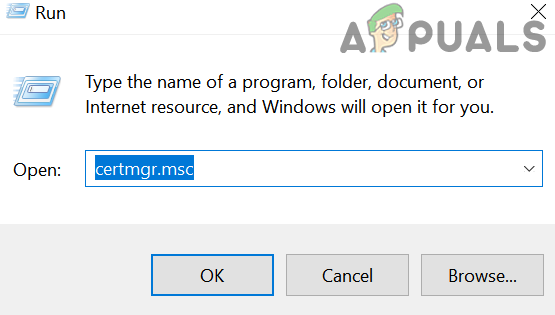
- Right-click Windows and select Run.

Open the Run Command Box from the Quick Access Menu - Now execute the following:
certmgr.msc
Open Windows Certificate Manager - Then head to the Personal>> Certificates tab and check if the problematic certificate is present there. If the certificate issuer requires a certificate in another tab, then make sure the certificate is present in the relevant tab.
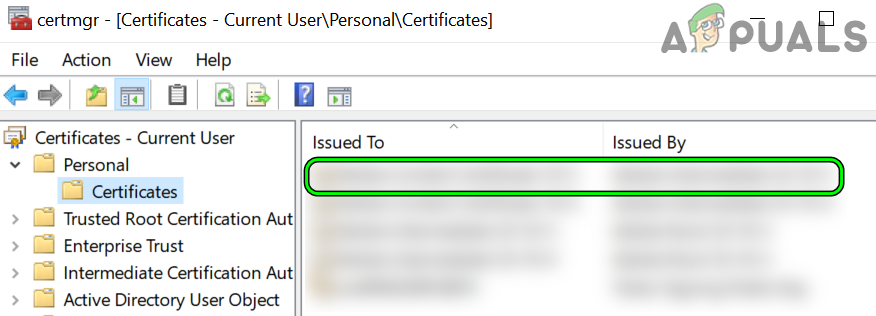
Check the Problematic Certificate in the Windows Certificate Manager - If the certificate is present in the relevant tab, double-click on it and check if its properties/validity.
- If everything is fine, then click on Windows, search, and open Internet Options.
- Now steer to the Content tab on the Internet Option and click on Certificates.
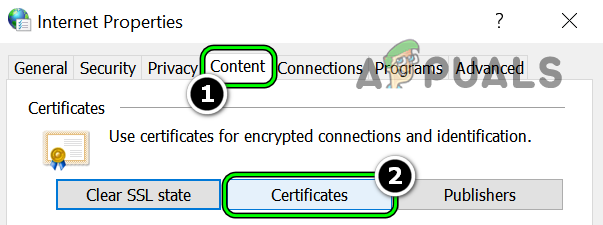
Open Certificates in the Content Tab of the Internet Options - Then check if the certificate from the problematic website is shown in the relevant tab (usually, Personal).
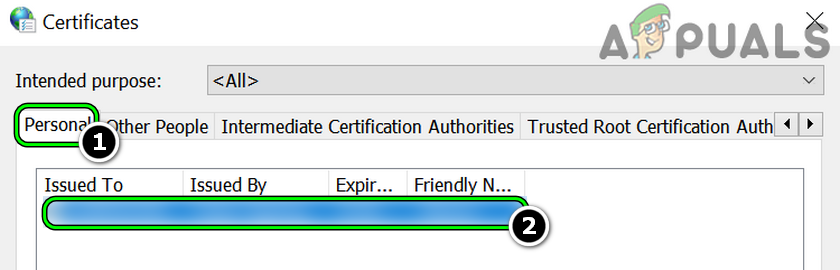
Check the Problematic Certificate in the Personal Tab of the Windows Certificate Manager - Now double-click on the certificate and check if its properties/validity.
- Then make sure the certificate has a valid public key associated with it. You may find it in the Details tab of the certificate properties.
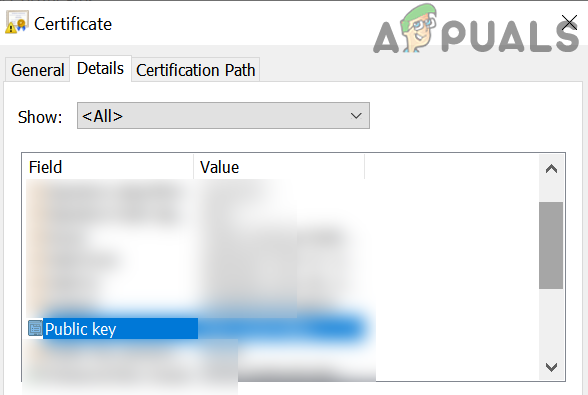
Check the Certificate’s Associated Public Key in the Details Tab of the Certificate - Now head to the Advanced tab on Internet Options and make sure to enable the TLS entries and uncheck the SSL boxes.
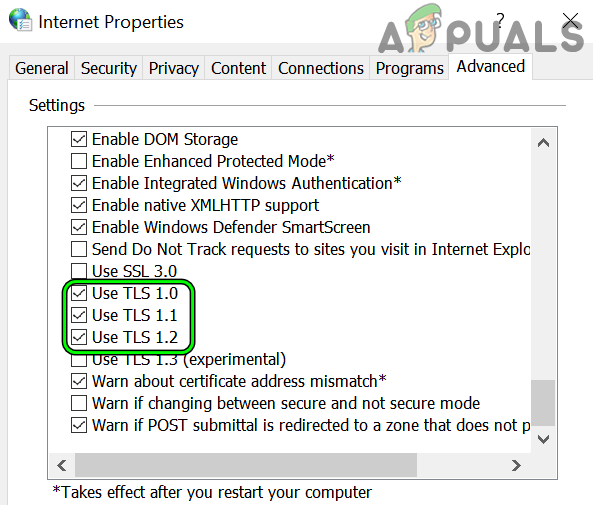
Uncheck SSL and Enable TSL in the Advanced Settings of the Internet Options - Then apply your changes and restart the browser to check if the handshake failure error is cleared.
If the certificate is not shown in the proper tab of the Certificate Manager or cannot be reinstalled, you may refer to the official Microsoft page that explains the process in detail.
Import the Certificate to Firefox
If you are encountering the issue with the Firefox browser, then keep in mind that Firefox does not use many of the certificates in the OS certificate manager and the user may have to import the certificate to the Firefox.
- Launch the Firefox browser and open its menu.
- Now select Settings and click on the Privacy & Security tab (in the left pane).
- Then scroll down and click on View Certificates.
- Now, in the Your Certificates tab (or the one recommended by the issuer), click on Import and Browse to the certificate.
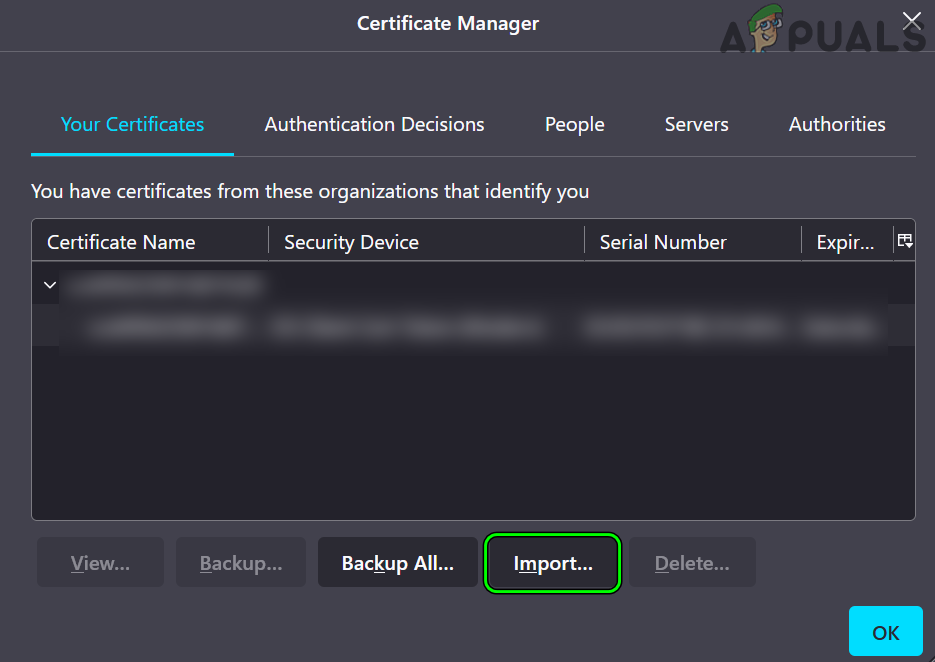
Import the Problematic Certificate in the Firefox - Then select the certificate and apply your changes.
- Now relaunch Firefox and check if the SSL handshake issue is resolved.
If the issue is still there, then you may contact the problematic website to check if their security settings are properly working. If your organization’s infrastructure is using older hardware, then you may use an older OS (like XP) in a VM to access the problematic devices.
Guidelines for Server-Related Issues
As it is practically impossible to cover the server-related causes (different machines, different devices, different applications, etc.) leading to the handshake error at hand, here are some guidelines reported by users to clear out the handshake error:
- Check if deleting the following in the server configuration solves the problem:
SSLVerifyClient require

SSLVerifyDepth 10
- If using Apache, then check if setting the SSLCACertificatePath to ~~~~~~/ca/certs/ca.cert.pem and changing SSLVerifyDepth 1 to SSLVerifyDepth 10. Then, change the client certificates to PEM (from PFX). Afterward, check if the SSL issue is resolved.
- Check if regenerating the certificate with UTF8Stringsfor (not with PrintableStringsfor) solves the handshake issue.
- If your organization is using SAP Cloud Connector, then exit the Cloud Connection, open the props.ini file, add the following line in the #jvm section and check if that resolves the SSL problem:
-Djdk.tls.server.protocols=TLSv1.2
- Check if configuring the server to use the two-way TLS clears out the handshake error.
Доступ к веб-сайтам должен быть защищен, чтобы предотвратить злонамеренные атаки и утечку информации. Однако, когда возникает проблема со связью или передачей данных между веб-браузером и сервером, это приводит к ошибке рукопожатия SSL.
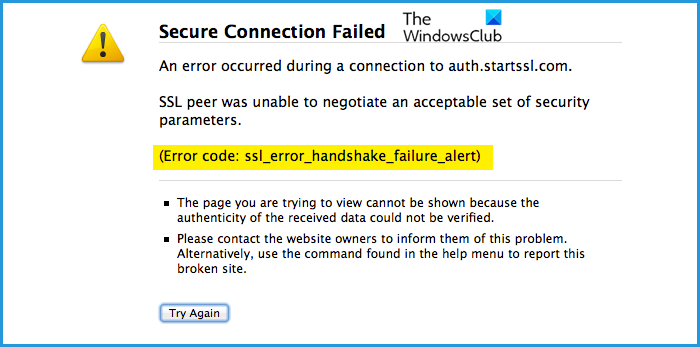
Пользователи, столкнувшиеся с проблемой безопасности рукопожатия SSL, увидят сообщение об ошибке, «Сбой безопасного соединения. Произошла ошибка при подключении к xxxxxxxx.com. Узел SSL не смог согласовать приемлемый набор параметров безопасности. (Код ошибки: ошибка SSL_error handshake_failure_alert.)
 Изображение предоставлено: Мозилла
Ошибка рукопожатия SSL возникает во всех веб-браузерах. Но большинство пользователей сталкиваются с проблемой в своем браузере Mozilla Firefox. Чтобы устранить проблему на мобильном устройстве или компьютере, вы можете воспользоваться различными решениями, приведенными ниже.
Метод № 1. Выполните цикл включения питания на ваших устройствах.
- Сначала выйдите из браузера Firefox и всех запущенных приложений в фоновом режиме.
- Выключите устройство.
- Отключите маршрутизатор и модем.
- Подождите не менее 3 минут.
- Снова подключите маршрутизатор и модем и подключитесь к Интернету.
- Включите устройство и перезапустите браузер Firefox.
- Попробуйте повторно зайти на тот же сайт.
Способ № 2 — очистить кеш браузера и данные в браузере Firefox.
- В браузере Firefox нажмите Firefox.
- Перейдите в «Настройки».
- С левой стороны выберите Конфиденциальность и безопасность.
- Перейдите к файлам cookie и данным сайта.
- Щелкните Очистить данные.
- Установите флажок рядом с Кэшированный веб-контент.
- Нажмите кнопку «Очистить».
Способ № 3 — удалить проблемный сертификат в браузере Firefox
- В правом верхнем углу нажмите значок с тремя линиями.
- Выберите Настройки.
- Перейдите к Конфиденциальность и безопасность.
- Перейти к сертификатам.
- Щелкните Просмотр сертификатов.
- Выберите вкладку «Ваши сертификаты».
- Выберите проблемные сертификаты.
- Нажмите кнопку Удалить.
Способ № 4 – Обновите версию вашего браузера Firefox.
- В браузере Firefox нажмите Firefox.
- Выберите О Firefox.
- Подождите, пока ваш браузер Firefox проверит и установит обновления, если они доступны.
- Перезапустите браузер Firefox.
Что еще вы сделали, чтобы устранить ошибку SSL в браузере Firefox? Вы можете поделиться своими решениями с нами ниже.
Hi at all,
if i go into https://idp.accessogiustizia.it/idp/Authn/X509/Login i’ve this problem.
Secure connection failed
There was an error connecting to idp.accessogiustizia.it. The SSL peer was not able to negotiate a set of acceptable security parameters. Error code: SSL_ERROR_HANDSHAKE_FAILURE_ALERT
    The page you are trying to view can not be shown because it is not possible to verify the authenticity of the received data.
    Contact the website manager to inform him of the problem.
Further information…
Report errors like this to help Mozilla identify and block malicious sites
How can i fix it?
Thank you
Hi at all,
if i go into https://idp.accessogiustizia.it/idp/Authn/X509/Login i’ve this problem.
Secure connection failed
There was an error connecting to idp.accessogiustizia.it. The SSL peer was not able to negotiate a set of acceptable security parameters. Error code: SSL_ERROR_HANDSHAKE_FAILURE_ALERT
The page you are trying to view can not be shown because it is not possible to verify the authenticity of the received data.
Contact the website manager to inform him of the problem.
Further information…
Report errors like this to help Mozilla identify and block malicious sites
How can i fix it?
Thank you
Chosen solution
There are a lot of SSL errors out there.
Way too much, right?
You as a sysadmin know that for sure – Certificate Errors, Configuration Errors, Server Errors, Protocol Errors, and others.
Here you’ll find a list of the most common xxxxx errors and proven quick fix solutions:
- SSL Error “ssl_error_no_cypher_overlap”
- SSL Error “ssl_error_rx_record_too_long”
- SSL Error “ssl_error_syscall”
- SSL Error “ssl_error_bad_cert_domain”
- SSL Error “ssl_error_internal_error_alert”
- SSL Error “ssl error 31”
- SSL Error “ssl error 61”
- SSL Error “ssl certificate problem: unable to get local issuer certificate”
- SSL Error “ssl error: unable to verify the first certificate”
- SSL Error “ssl_protocol_error”
- SSL Error “ssl handshake error” or “ssl handshake failure alert”
And you’ll find the solution to get rid of ALL SSL errors – forever: Test PRTG as your new monitoring tool and get stared within minutes!
1. SSL error
«ssl_error_no_cypher_overlap»
 Quick fix
Did you receive the error message “ssl error no cypher overlap” while using Firefox or another web browser? Then you are dealing with one of the most common SSL errors. The cypher overlap error occurs due to a misconfiguration of the TLS/SSL settings.
The SSL error can easily be solved by adjusting the settings in your browser. If you are using Mozilla Firefox, access the settings page and choose the add-on section. Check the add-on list for any extensions that you did not install yourself. Deactivate all unnecessary add-ons and plug-ins, then restart the browser.
You can also reset both the TLS and the SSL settings. In your brower, type about:config to open the settings. Type TLS in the search box and look through the TLS settings. If there are any modified settings, restore them back to default. Repeat these steps to reset the SSL settings as well.
Best solution: https://www.thewindowsclub.com/ssl_error_no_cypher_overlap-firefox
2. SSL error
«ssl_error_rx_record_too_long»
Quick fix
The common SSL error “ssl error rx record too long” may occur in your browser when visiting a website via HTTPS. The error is often accompanied by the error message “SSL received a record that exceeded the maximum permissible length” or a similar message. This means that the web server is sending HTTP data instead of HTTPS data.
This common SSL issue is usually caused by an error in the SSL implementation on the server itself. There are several things that you can do to solve the problem:
- Ensure that SSL is configured correctly on the server.
- Check if your browser is using the same port as the web server. To use port 443, some servers such as Apache require a configuration first.
- If you are using a proxy server, the error can show up as well. In this case, make sure that your local proxy is configured correctly.
Best Solution: https://www.ssl247.de/kb/ssl-certificates/troubleshooting/apache/ssl-error-rx-record-too-long-firefox-apache-tomcat or https://www.xolphin.com/support/Error_messages/Error_-_ssl_error_rx_record_too_long
3. SSL error
«ssl_error_syscall»
4. SSL error
«ssl_error_bad_cert_domain»
Quick fix
The error code “ssl error bad cert domain” and the error message “The certificate is only valid for the following names” is often experienced by users while trying to access their SSL encrypted website or network. The error code indicates that there is a configureation problem with the SSL certificate of the website. The SSL error is commonly reported by Firefox users, but may also occur in other browsers.
Depending on the individual cause of the error, try the following troubleshooting solutions:
- If caused by an SSL misconfiguration of the website itself, the configuration needs to be adjusted by the website’s admin. If it is your website, make sure that your SSL certificate is active and switch to HTTPS.
- In some cases, the browser’s cache and cookies may lead to an SSL error. If this is the case, you can simply solve the problem by clearing the cache in the settings.
Best Solution: https://appuals.com/fix-ssl_error_bad_cert_domain/
5. SSL error
«ssl_error_internal_error_alert»
Quick fix
SSL error code “internal error alert” is a common problem faced by users of Mozilla Firefox and other web browsers. The error message indicates that there is a problem with the secure SSL connection. It may be caused either by the SSL certificate or by the settings of your browser.
To fix the problem, try the following troubleshooting steps:
- Make sure you are using a valid SSL certificate.
- Update your browser to the latest version.
- Disable unknown or unnecessary add-ons in the Firefox settings.
- Ensure that HTTPS is set up correctly.
- If the error persists after these steps, restart your browser.
Best Solution: https://comparecheapssl.com/how-to-fix-ssl-error-on-firefox-a-complete-guide/
6. SSL error
“ssl error 31”
7. SSL error
«ssl error 61”»
Quick fix
SSL error 61 is an error code regularly experienced by Citrix users. There are several error messages that can be displayed for receiver users when accessing Citrix StoreFront or web interface applications, such as:
“Cannot connect to the Citrix XenApp Server. SSL Error 61: You have not chosen to trust ‘Certificate Authority’, the issuer to the server’s security certificate.”
“The server certificate received is not trusted (SSL Error 61)”
“You app is not available. Try again later.”
As a system administrator, you can try the following solutions to get rid of SSL error 61:
- Update to the latest receiver version, as older versions may not support SHA2 certificates.
- Ensure that you have the required root certificate or intermediate certificate. You can download the certificates from your SSL certificate provider. If you use an antivirus software, make sure that your antivirus software trusts the SSL certificate.
- Check if the server certificate is compliant with the instruction in RFC 3280 in terms of the Enhanced Key Usage field.
Best Solution: https://support.citrix.com/article/CTX101990
8. SSL error
“ssl certificate problem: unable to get local issuer certificate”
Quick fix
The error message “SSl certificate problem: unable to get local issuer certificate” sometimes occurs when making a request for a secure HTTPS destination. The SSL error is caused by a problem with the root certificate. When you use client SSL and make a request for a secure HTTPS source, you need to verify your identity by sharing your SSL/TLS certificate. If this step is not completed successfully, the error message pops up.
There are several solutions to fix the SSL certificate problem:
- Change php.ini while maintaining SSL.
- Maintain SSL and add the following code:
$ch = curl_init();
$certificate_location = ‘/usr/local/openssl-0.9.8/certs/cacert.pem’;
curl_setopt($ch, CURLOPT_SSL_VERIFYHOST, $certificate_location);
>curl_setopt($ch, CURLOPT_SSL_VERIFYPEER, $certificate_location);
- 3. Disable SSL (not recommended).
Best Solution: https://aboutssl.org/fix-ssl-certificate-problem-unable-to-get-local-issuer-certificate/
9. SSL error
Error “ssl error: unable to verify the first certificate”
10. SSL error
“ssl_protocol_error”
Quick fix
Error code “ssl protocol error” is a typical SSL error on Google Chrome. Your browser may also state the error message “This site can’t provide a secure connection” along with the error code. If you encounter this problem, there are many possible solutions:
- Set the correct date and time on your system, as the SSL certificate is sensitive to your system’s settings.
- Clear your browser’s SSL state in the Google Chrome settings.
- Disable QUIC protocol which is enabled by default in Google Chrome.
- Check your antivirus settings and make sure it scans SSL/TLS protocols correctly.
- If the website’s SSL/TLS protocols are not in line with your Chrome version, change the SSL/TLS protocol settings accordingly in the advanced settings.
Best Solution: https://www.thesslstore.com/blog/fix-err-ssl-protocol-error/
11. SSL error
“ssl handshake error” or “ssl handshake failure alert”
Quick fix
The SSL handshake error message can be received when the SSL handshake process fails. The SSL handshake is a process in which the browser sends a secure connection request to the web server. If this request fails, it results in the SSL handshake failure alert.
The SSL error can be caused by a number of reasons. Therefore, the solution depends on the cause. These are the most common ones:
- The SSL/TLS protocol is not supported by the server.
- The certificate does not match the hostname in the URL.
- The certificate is invalid or has expired.
- The client server is unable to communicate with the servers.
You can fix the problem by adjusting the settings and by making sure that the SSL/TLS certificates are configured correctly.
Best Solution: https://www.rapidsslonline.com/blog/ssl-handshake-failed-error/
Choose your solution: Bugfix or replacement

With PRTG you’ll never have to deal with
SSL errors again. Forever.
Trusted by 500,000 users and recognized
by industry analysts as a leader

“Fantastic network and infrastructure monitoring solution that is easy to deploy and easier still to use. Simply the best available.”
Read more reviews

“Software is absolutely perfect, Support is superior. Meets all needs and requirements, this is a must have solution if you are needing any form of monitoring.”
Read more reviews

“The tool excels at its primary focus of being a unified infrastructure management and network monitoring service.”
Read more reviews
Meta —
OS: windows 7 Enterprise x64
Selenium Version: 2.53.1
Browser: Firefox 47.0.1
Browser Version:
47.0.1
Expected Behavior —
Trying to reach one page https .. associated to a certificate.
I don’t get the popup
«User identication request
Choose a certificate to present as identification»
Can you advise..
Actual Behavior —
I directly get
Secure Connection Failed
An error occurred during a connection to ………………………….. SSL peer was unable to negotiate an acceptable set of security parameters. Error code: SSL_ERROR_HANDSHAKE_FAILURE_ALERT
Steps to reproduce —
Ive already tried different things like playing with
firefoxProfile.setAcceptUntrustedCertificates(true);
firefoxProfile.setAssumeUntrustedCertificateIssuer(true);
firefoxProfile.setPreference(«network.automatic-ntlm-auth.trusted-uris», «TheURL»);
or
//DesiredCapabilities dc = DesiredCapabilities.firefox();
//dc.setCapability(FirefoxDriver.PROFILE, firefoxProfile);
//dc.setCapability(«acceptSslCerts»,true);
//return new FirefoxDriver(dc);
Current Code :
public static FirefoxDriver getFireFoxDriver (Config config, String pathFirefoxBinary) {
try {
File pathToBinary = new File(pathFirefoxBinary);
FirefoxBinary ffBinary = new FirefoxBinary(pathToBinary);
FirefoxProfile firefoxProfile = new FirefoxProfile();
return new FirefoxDriver(ffBinary,firefoxProfile);
} catch (WebDriverException exc) {
throw new SanityCheckException(config, «Technical Error with Firefox Driver»,
«Could not retrieve the firefox driver»);
}
The return driver is used later in the code …
driver.get(config.getTheAppUrl());
=> Stays blocked on the following message
Secure Connection Failed
An error occurred during a connection to ………………………….. SSL peer was unable to negotiate an acceptable set of security parameters. Error code: SSL_ERROR_HANDSHAKE_FAILURE_ALERT
Thanks