«Database [database name] cannot be opened due to inaccessible files or insufficient memory or disk space. See the SQL Server error log for details. (Microsoft SQL Server, Error: 945)»
| Workable Solutions | Step-by-step Troubleshooting |
|---|---|
| Fix 1. Enlarge Hard Drive Space | As you can see in the error notification, the SQL database may not be opened due to…Full steps |
| Fix 2. Make Sure Autogrowth Is On | Open SQL Server Management Studio and connect to the problematic database…Full steps |
| Fix 3. Check the Account Permission | You need to check the account you are using and make sure you have…Full steps |
| Fix 4. Check the MDF/NDF File | Find and right-click the «.mdf «or «.ndf» file of your database. Choose «Properties»…Full steps |
| Fix 5. Use SQL Database Repair Tool | Stop MS SQL Server service. Press «Windows + R» and enter services.msc…Full steps |
| Fix 6. Try DBCC CHECKDB | If there is no backup available, you can also try the DBCC CHECKDB repair option…Full steps |
What Is SQL Error 945
SQL Server error 945 happens when a database is marked as «IsShutdown» or when the attaching and detaching of MDF file is not properly done and the recovery procedure fails to bring the database to a consistent state.

It may occur due to different reasons:
- Disproportionate storage consumed by memory-optimized tables
- SQL database repair failure due to some missing files
- Using corrupt backup
- Improper shutdown of the database
- Malware attacks
When you are bothered by the SQL Server error 945, there are six solutions to try.
How to Fix SQL Error 945 Database Cannot Be Opened Due to Inaccessible Files or Insufficient Memory or Disk Space in 6 Ways
According to user experience, there are effectiveness-based solutions to error 945 in SQL Server — Database cannot be opened due to inaccessible files. At the very beginning, you can restart your SQL database through ALTER DATABASE query. This query will help you to set the SQL Server database to online. If this doesn’t work, figure out with the following methods.
Fix 1. Enlarge Hard Drive Space
As you can see in the error notification, the SQL database may not be opened due to insufficient disk space, getting rid of the unnecessary files on the corresponding hard drive or add a larger hard drive is a potential solution to the SQL Server error 945. If you are worried about data loss, you can back up the hard drive with free backup software in advance before the removal.
Fix 2. Make Sure Autogrowth Is On
Since the database must be set to Autogrowth, you need to check and make sure the option is enabled. Here is the way to enable Autogrowth:
Step 1. Open SQL Server Management Studio and connect to the problematic database.
Step 2. Click «View» > «Object Explorer».
Step 3. Expand the «Database» folder.
Step 4. Right-click the database and choose «Properties».
Step 5. Under «Select a Page», choose «Files» and look for the Autogrowth settings and check the option «Enable Autogrowth».
Fix 3. Check the Account Permission
You need to check the account you are using and make sure you have the correct permission to perform operations.
Fix 4. Check the MDF/NDF File of the Database
If the MDF or NDF file of the database is marked as read-only, you may encounter the SQL error 945. Thus, be sure that the MDF and NDF files are not shown as read-only. To remove read-only on the MDF or NDF file:
Step 1. Find and right-click the «.mdf «or «.ndf» file of your database. Choose «Properties» > «Security», then you will see Group or Username.
Step 2. Select the user you want to give access to the file and check the permission.
Step 3. If the permission is not set to Full Control, you need to change it by clicking «Edit».
Step 4. Then you will see the Group or Username box. In that box, select the user and choose «Full Control».
Fix 5. Use SQL Database Repair Tool
Go to the error log and see why the database goes wrong. If it is due to a persistent I/O error related to Application Programming Interface, a torn page, or other hardware issues then resolved it by restoring the database from backup. If you don’t have any backup available, you can repair your SQL database with the professional MS SQL repair tool — EaseUS MS SQL Recovery.
- Repairs corrupted SQL database files (MDF/NDF files)
- Repairs corrupted SQL server database components — tables, triggers, indexes, keys, rules & stored procedures
- Recovers deleted/dropped records from SQL Database
Let’s see how to repair your database with it:
Step 1. Stop MS SQL Server service
Press «Windows + R» and enter services.msc.
Find and double-click «SQL Server (instant name)».
In the Properties windows, click «Stop» to end the SQL Server and click «Apply» to confirm.
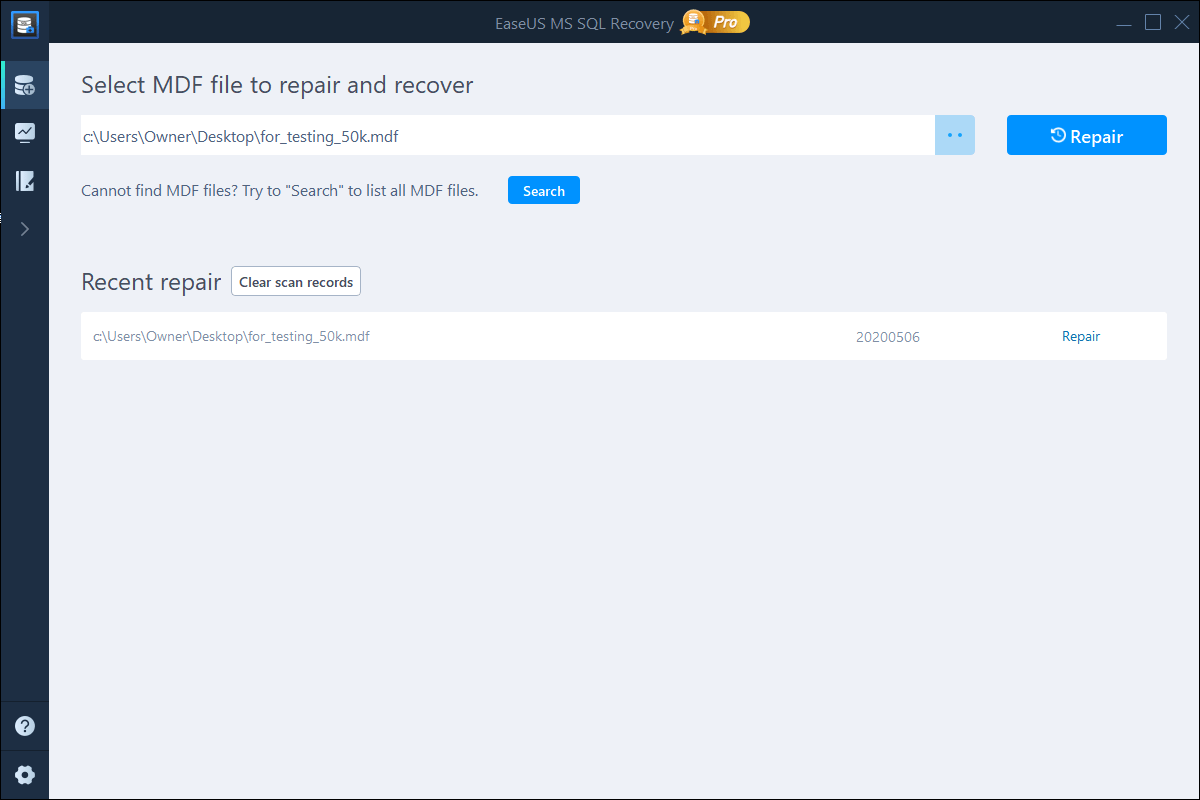
Step 2. Run EaseUS SQL repair tool. In the main interface, click «Browse» (the two dots) to choose the corrupted MDF/NDF file. Then click «Repair» to start analyzing your MDF/NDF file.
If you know the exact location of the file, click «Browse» to locate the database.
If you don’t know the file location, click «Search» to search for the .mdf or .ndf file in.
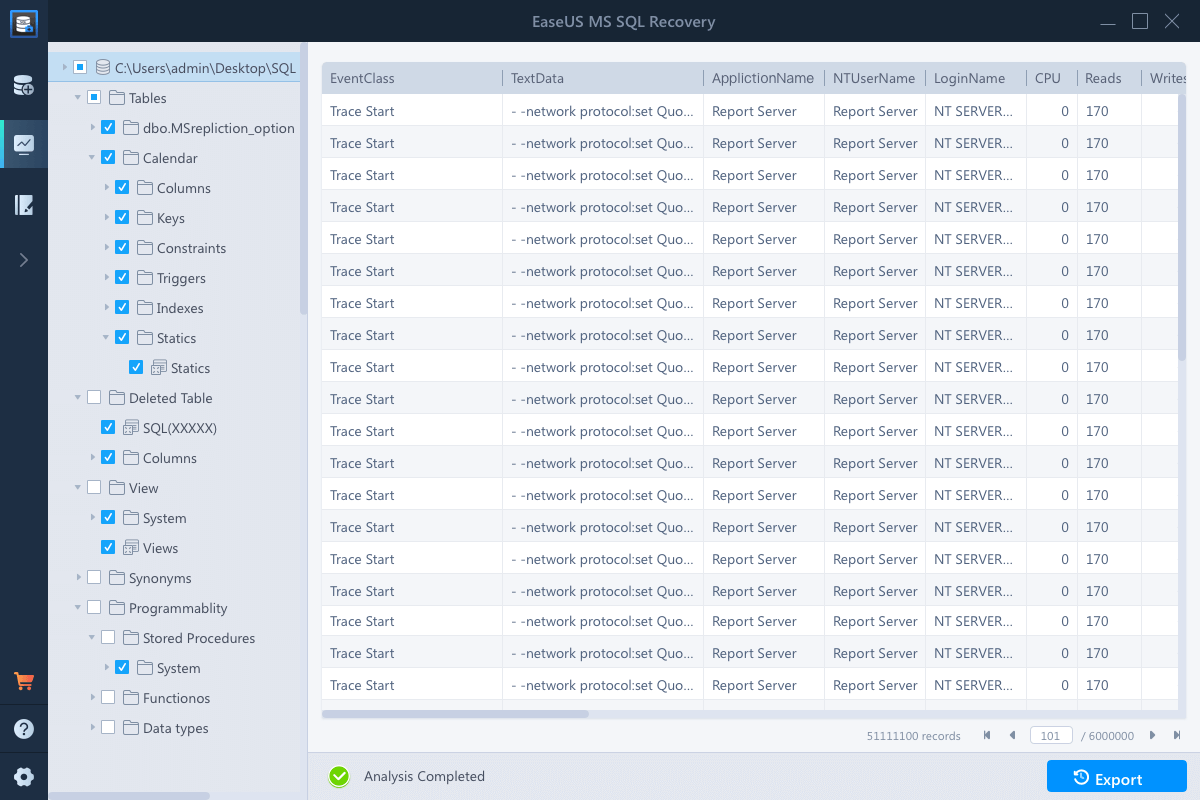
Step 3. When it has done, you will see all the database objects listed in the left pane of the window. Choose the database objects you’d like to repair and click «Export».
Step 4. Choose a preferred way to export the database data: «Export to database» or «Export as SQL scripts». If you select «Export to database», you need to further select the server information, log into your account, and select a destination database, either a new one or an existing one.
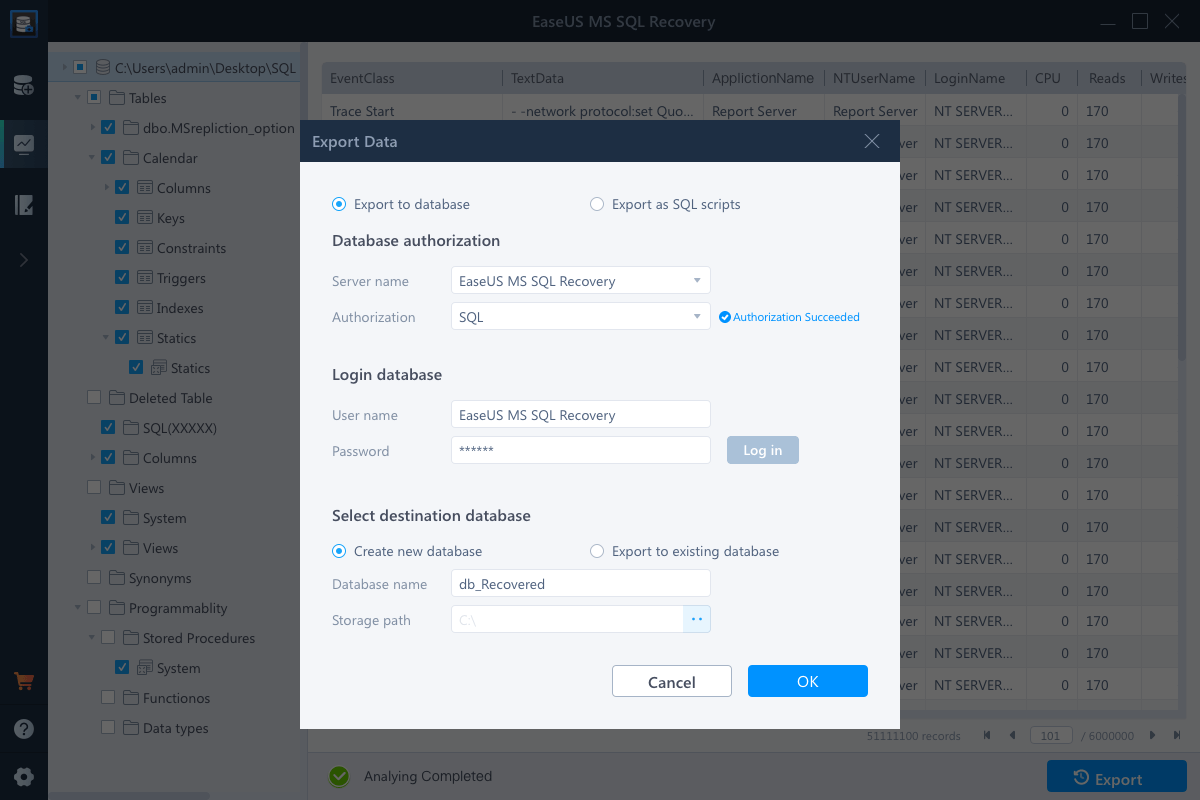
Step 5. Before you click «OK», now you need to restart the SQL Server.
Press «Windows + R» and enter services.msc.
Find and double-click «SQL Server (instant name)».
In the Properties windows, click «Start» to restart the SQL Server service and click «Apply» to confirm.
Step 6. Click «OK» to save the repaired files to your desired SQL database.
Fix 6. Try DBCC CHECKDB Repair Option
If there is no backup available, you can also try the DBCC CHECKDB repair option. However, it is not recommended since it may induce the Suspect Mode of your SQL database, which may further lead to another SQL Server database error 926. (Click to see more SQL database errors.)
Wrap Things Up
We focused on one of the most common SQL server issues, error 945. We have discussed the possible reasons and solutions to fixing database that cannot be opened due to inaccessible files or insufficient memory or disk space issue. You can try the manual methods to fix SQL server error 945 like enlarge hard drive space, checking account permission, checking database files, and trying DBCC CHECKDB.
For an easier approach, EaseUS SQL repair tool is worth trying. It offers the simplest way to repair corrupted (.mdf and.ndf) files, fix database log files, and recover damaged objects.
More Info: How to Fix SQL Server Error 926
Similar to SQL error 945, SQL error 926 can also occur due to improper connection to SQL Server or using the RESTORE database or RESTORE LOG procedures, showing the error message «Database cannot be opened. It has been marked SUSPECT by recovery». Take the following ways to solve this problem.
- Check DBCC CHECKDB: Check the error report and solve the issue with provided solutions
- Restore from database backup: Restore databases if you have any available backup
- Contact error logs: If you can’t restore the SQL database from backup, you can try to contact primary support or contact the error logs for SQL Server.
«Database [database name] cannot be opened due to inaccessible files or insufficient memory or disk space. See the SQL Server error log for details. (Microsoft SQL Server, Error: 945)»
| Workable Solutions | Step-by-step Troubleshooting |
|---|---|
| Fix 1. Enlarge Hard Drive Space | As you can see in the error notification, the SQL database may not be opened due to…Full steps |
| Fix 2. Make Sure Autogrowth Is On | Open SQL Server Management Studio and connect to the problematic database…Full steps |
| Fix 3. Check the Account Permission | You need to check the account you are using and make sure you have…Full steps |
| Fix 4. Check the MDF/NDF File | Find and right-click the «.mdf «or «.ndf» file of your database. Choose «Properties»…Full steps |
| Fix 5. Use SQL Database Repair Tool | Stop MS SQL Server service. Press «Windows + R» and enter services.msc…Full steps |
| Fix 6. Try DBCC CHECKDB | If there is no backup available, you can also try the DBCC CHECKDB repair option…Full steps |
What Is SQL Error 945
SQL Server error 945 happens when a database is marked as «IsShutdown» or when the attaching and detaching of MDF file is not properly done and the recovery procedure fails to bring the database to a consistent state.
It may occur due to different reasons:
- Disproportionate storage consumed by memory-optimized tables
- SQL database repair failure due to some missing files
- Using corrupt backup
- Improper shutdown of the database
- Malware attacks
When you are bothered by the SQL Server error 945, there are six solutions to try.
How to Fix SQL Error 945 Database Cannot Be Opened Due to Inaccessible Files or Insufficient Memory or Disk Space in 6 Ways
According to user experience, there are effectiveness-based solutions to error 945 in SQL Server — Database cannot be opened due to inaccessible files. At the very beginning, you can restart your SQL database through ALTER DATABASE query. This query will help you to set the SQL Server database to online. If this doesn’t work, figure out with the following methods.
Fix 1. Enlarge Hard Drive Space
As you can see in the error notification, the SQL database may not be opened due to insufficient disk space, getting rid of the unnecessary files on the corresponding hard drive or add a larger hard drive is a potential solution to the SQL Server error 945. If you are worried about data loss, you can back up the hard drive with free backup software in advance before the removal.
Fix 2. Make Sure Autogrowth Is On
Since the database must be set to Autogrowth, you need to check and make sure the option is enabled. Here is the way to enable Autogrowth:
Step 1. Open SQL Server Management Studio and connect to the problematic database.
Step 2. Click «View» > «Object Explorer».
Step 3. Expand the «Database» folder.
Step 4. Right-click the database and choose «Properties».
Step 5. Under «Select a Page», choose «Files» and look for the Autogrowth settings and check the option «Enable Autogrowth».
Fix 3. Check the Account Permission
You need to check the account you are using and make sure you have the correct permission to perform operations.
Fix 4. Check the MDF/NDF File of the Database
If the MDF or NDF file of the database is marked as read-only, you may encounter the SQL error 945. Thus, be sure that the MDF and NDF files are not shown as read-only. To remove read-only on the MDF or NDF file:
Step 1. Find and right-click the «.mdf «or «.ndf» file of your database. Choose «Properties» > «Security», then you will see Group or Username.
Step 2. Select the user you want to give access to the file and check the permission.
Step 3. If the permission is not set to Full Control, you need to change it by clicking «Edit».
Step 4. Then you will see the Group or Username box. In that box, select the user and choose «Full Control».
Fix 5. Use SQL Database Repair Tool
Go to the error log and see why the database goes wrong. If it is due to a persistent I/O error related to Application Programming Interface, a torn page, or other hardware issues then resolved it by restoring the database from backup. If you don’t have any backup available, you can repair your SQL database with the professional MS SQL repair tool — EaseUS MS SQL Recovery.
- Repairs corrupted SQL database files (MDF/NDF files)
- Repairs corrupted SQL server database components — tables, triggers, indexes, keys, rules & stored procedures
- Recovers deleted/dropped records from SQL Database
Let’s see how to repair your database with it:
Step 1. Stop MS SQL Server service
Press «Windows + R» and enter services.msc.
Find and double-click «SQL Server (instant name)».
In the Properties windows, click «Stop» to end the SQL Server and click «Apply» to confirm.
Step 2. Run EaseUS SQL repair tool. In the main interface, click «Browse» (the two dots) to choose the corrupted MDF/NDF file. Then click «Repair» to start analyzing your MDF/NDF file.
If you know the exact location of the file, click «Browse» to locate the database.
If you don’t know the file location, click «Search» to search for the .mdf or .ndf file in.
Step 3. When it has done, you will see all the database objects listed in the left pane of the window. Choose the database objects you’d like to repair and click «Export».
Step 4. Choose a preferred way to export the database data: «Export to database» or «Export as SQL scripts». If you select «Export to database», you need to further select the server information, log into your account, and select a destination database, either a new one or an existing one.
Step 5. Before you click «OK», now you need to restart the SQL Server.
Press «Windows + R» and enter services.msc.
Find and double-click «SQL Server (instant name)».
In the Properties windows, click «Start» to restart the SQL Server service and click «Apply» to confirm.
Step 6. Click «OK» to save the repaired files to your desired SQL database.
Fix 6. Try DBCC CHECKDB Repair Option
If there is no backup available, you can also try the DBCC CHECKDB repair option. However, it is not recommended since it may induce the Suspect Mode of your SQL database, which may further lead to another SQL Server database error 926. (Click to see more SQL database errors.)
Wrap Things Up
We focused on one of the most common SQL server issues, error 945. We have discussed the possible reasons and solutions to fixing database that cannot be opened due to inaccessible files or insufficient memory or disk space issue. You can try the manual methods to fix SQL server error 945 like enlarge hard drive space, checking account permission, checking database files, and trying DBCC CHECKDB.
For an easier approach, EaseUS SQL repair tool is worth trying. It offers the simplest way to repair corrupted (.mdf and.ndf) files, fix database log files, and recover damaged objects.
More Info: How to Fix SQL Server Error 926
Similar to SQL error 945, SQL error 926 can also occur due to improper connection to SQL Server or using the RESTORE database or RESTORE LOG procedures, showing the error message «Database cannot be opened. It has been marked SUSPECT by recovery». Take the following ways to solve this problem.
- Check DBCC CHECKDB: Check the error report and solve the issue with provided solutions
- Restore from database backup: Restore databases if you have any available backup
- Contact error logs: If you can’t restore the SQL database from backup, you can try to contact primary support or contact the error logs for SQL Server.
MS SQL Error 945 occurs due to lack of storage space, corrupt backup file, improper shutdown of the database, etc.
Here at Bobcares, we help webmasters and server owners resolve MS SQL errors such as this as part of our Server Management Services.
Today, we’ll go through the top causes for this error, and how we fix them.
What are the causes for MS SQL Error 945?

Some of the causes for MS SQL Error 945 are:
- Improper shutdown of the database
- Using corrupt backup file.
- Failed SQL database repair.
- Lack of storage space.
Now, let’s see how we fix it.
How to fix MS SQL Error 945
We have many ways for fixing MS SQL error 945. Let’s see some of them in detail.
Increase hard drive space
One of the reasons for SQL error 945 is disk space issue. Inorder to increase the space, either we remove unnecessary files from hard drive or add new hard drive with larger size.
Account Permission
Incorrect account permission is the another reason for 945 error.
So, we always make sure that the account to perform operations has the right the permission.
For example: As part of database recovery, the user might have to excecute CREATE and INSERT scripts. But if the user has only read access to the database, it may lead to 945 error.
We follow the steps as shown for adding permission for a user.
- Connect to SQL Server instance and from the Object Explorer expand the folders. Then, right click on the name of the user and choose Properties.
- Click the Securables option and click on search.
- Select All Objects belonging to the Schema and Select Schema name as “dbo”. Then, Click OK.
- Next, Identify the table to grant permission.
- Finally, In Explicit>>Permission>>choose the permission>>Grant and Click OK.

Set database to Autogrowth
Auto-growth is a process due to which SQL Server engine expands its database size when it is running out of space. MS SQL error 945 can occur in a scenario where Autogrowth is disabled.
So, for enabling it we follow the steps shown:
- Open SQL Server Management Studio and connect to the database haivng issue.
- Then, click “View” >> “Object Explorer”.
- Next, expand the “Database” folder.
- After that, right-click the database and choose “Properties”.
- Finally, under “Select a Page”, choose “Files” and look for the Autogrowth settings and check the option “Enable Autogrowth”.

Check the MDF and NDF files
MDF and NDF files are primary and secondary data files of an SQL server database.
We may encounter MS SQL error If the MDF or NDF file of the database is marked as read-only.
So, for removing read-only on the MDF or NDF file we follow thw steps shown:
- Search and right-click the “.mdf “or “.ndf” file of database.
- Then, choose “Properties” >>”Security”, there we can see Group or Username.
- Select the user we want to give access to the file and check the permission.
- If the permission to the user is not set to Full Control, we need to change it by clicking “Edit”.
- Then appears Group or Username box. From there select the user and choose “Full Control”.
This fixes the error
[Need assistance in fixing MS SQL errors? Click here to talk to our experts.]
Conclusion
In short, we saw that MS SQL Error 945 can occur due to different reasons like lack of storage, corrupt backup file,Improper shutdown of the database, etc. Also, today we discussed different possible ways by which we can fix this error easily.
PREVENT YOUR SERVER FROM CRASHING!
Never again lose customers to poor server speed! Let us help you.
Our server experts will monitor & maintain your server 24/7 so that it remains lightning fast and secure.
GET STARTED
var google_conversion_label = «owonCMyG5nEQ0aD71QM»;
Troubleshooting MS SQL Server Error 945 – Reasons & Solutions
Let’s take a scenario to understand the SQL Server error 945: Database cannot be opened due to inaccessible files or insufficient memory or disk space. See the SQL Server Error Log for details.
“I received a query saying the SQL database is not accessible and the database goes in suspect mode. Also, Database operation was ceased and the SQL Server database stopped the transactions. Does anyone know the solution, please help me out? Why is this happening and how to resolve it?”
According to an above-discussed scenario, it is found SQL error 945 occurs when the attaching and detaching of MDF file is not properly done and recovery procedure fails to bring the database in a consistent state. Improper shutdown of the database and malware attacks is also the responsible reasons for this error.
Here, we will discuss the suspect database and the possible reasons behind why database becomes suspect. Also, we will cover the method to resolve SQL Server error 945.
What is Suspect Database in SQL Server?
Microsoft SQL Server serves as a store for data that is required for different applications either on a single system or across a network. But, sometimes users may face difficulty when the SQL Server database is running under the state marked as suspect. Because this condition will lead to a failure in creating a connection with the database. Database marked as Suspect can be accessed by removing the causes for this SQL Server 945 error.
SQL Server Database is in Suspect Mode- Possible Reasons
There are several reasons that can make the SQL Server database suspected. Some of the common reasons are:
- If SQL database files are used by the operating system.
- If SQL Server Database is corrupted.
- Insufficient space available in SQL server.
- SQL files are used by any other backup software.
- Sudden SQL Server Shutdown.
- Hardware or Power Failure.
How to Fix Microsoft SQL Server Error 945?
Perform the following steps to resolve “Windows could not start the SQL server error 945” :
- At first, you should try to add more hard drive space either by removing of unnecessary files from the hard drive or add a new hard drive with the larger size.
- Check if the database is set to Auto growth.
- Check if the account which is trying to use the database has enough permission to perform any operation.
- Make sure that MDF and LDF files are not marked as read-only.
An Effortless Solution to Resolve Microsoft SQL Error 945
If your SQL Database file is found to be severely corrupted, it could be the possibility that the above method gets failed to fix SQL Server code 945. In order to fix Microsoft SQL Server error 945 quickly, you can go for an automated solution i.e SysTools SQL MDF Recovery Tool. The tool repair corrupt SQL MDF file and give two options to export your recovered SQL Server database. Moreover, by using this Professional software, you can easily make your database from suspect mode to normal mode.
Download Now Purchase Now
How to Use SysTools Database Recovery Software?
Step 1. Launch SQL Recovery Software on your local machine.

Step 2. Click Open and Load MDF file that you want to recover.

Step 3. After that, click on Advance Scan and click Auto Detect if you don’t know MDF file version. The user can check the option preview deleted records in red color.

Step 4. After scanning, the software will display the preview of data items.

Step 5. Click on Export to save the recovered database.

Wrapping Up
In this article, we have discussed the most common SQL user and DBA faces MS SQL error 945. The blog discusses the possible reason why SQL database becomes inaccessible. It also covers the manual approach to fix SQL Server error 945. For simple, easy and effortless solution, SQL recovery Tool is recommended above. It is the easiest approach to fix SQL error 945 from the MS SQL server.
Frequently Asked Questions
Can I recover MDF file which is not accessible?
You can use the SQL database repair tool to repair corrupt MDF file and access your data easily.
Can I restore deleted SQL database objects?
Yes, the automated tool mentioned above allows you to restore deleted database objects like tables, stored procedures, functions, views, rules, etc.