Некоторые пользователи Windows постоянно получают ошибку потоковой передачи F7121-1331 на Netflix всякий раз, когда они пытаются передать что-то из Netflix с помощью своего браузера. Сообщается, что в большинстве случаев эта проблема возникает в Mozilla Firefox.
Ошибка потоковой передачи F7121-1331 в Netflix
Как оказалось, существует несколько разных причин, которые могут вызвать этот конкретный код ошибки. Вот список потенциальных виновников, которые могут вызвать ошибку потоковой передачи F7121-1331 в Netflix:
- Устаревшая версия браузера. Если эта проблема вызвана конфликтом HTML5, возможно, это связано с тем, что вы используете устаревшую версию браузера, которая заставляет потоковую службу полагать, что воспроизведение HTML5 не поддерживается. В этом случае вы сможете решить проблему, обновив браузер до последней доступной версии.
- Поврежденные данные cookie или кеша. По мнению некоторых затронутых пользователей, эта проблема также может возникать из-за поврежденного или плохо сохраненного файла cookie или кеша. В этом случае вы можете решить проблему, очистив файлы cookie и кеш Netflix или очистив временные данные из своего браузера.
- Вмешательство в блокировку рекламы — если вы активно используете блокировщик рекламы, установленный на системном уровне, скорее всего, он конфликтует с Netflix. Если этот сценарий применим, вы сможете решить эту проблему, отключив защиту в реальном времени или полностью удалив проблемное расширение или надстройку.
- Аппаратное ускорение мешает воспроизведению HTML5. Если вы используете более старую конфигурацию ПК и в вашем браузере включено аппаратное ускорение, возможно, вы видите эту ошибку из-за сбоя, возникающего как в Google Chrome, так и в Mozilla Firefox. В этом случае вам нужно отключить аппаратное ускорение и посмотреть, решит ли оно проблему за вас.
Метод 1. Обновление браузера до последней версии
Поскольку эта конкретная проблема часто связана с проблемой HTML5, очевидное место для начала — убедиться, что ваш браузер полностью оборудован для обработки воспроизведения HTML5.
По словам некоторых затронутых пользователей, вы можете ожидать увидеть ошибку потоковой передачи F7121-1331 в ситуациях, когда ваш браузер Google Chrome или Mozilla Firefox сильно устарел или если ошибка или сбой заставляют Netflix полагать, что браузер, который пытается подключиться, на самом деле не поддерживается браузером.
В этом случае ваша первая попытка решить проблему — заставить ваш браузер обновиться до последней сборки. Если вы не знаете, как это сделать самостоятельно, следуйте одному из подчиненных руководств ниже, чтобы обновить Mozilla Firefox или Google Chrome до последней доступной сборки:
A. Обновите Mozilla Firefox
- Откройте браузер Mozilla Firefox, затем нажмите кнопку действия (в правом верхнем углу экрана).
- Когда вы увидите главное меню браузера, нажмите «Справка», чтобы открыть дополнительную вкладку, затем нажмите «О Firefox» в контекстном меню.
Доступ к меню справки Firefox
- Как только вы войдете в меню «О Mozilla Firefox», нажмите кнопку «Перезагрузить» и обновите кнопку Firefox (если доступна новая версия).
- Дождитесь завершения операции и нажмите «Да» в разделе «Контроль учетных записей пользователей» (UAC), когда будет предложено сделать это.
Обновление Firefox до последней версии
- В конце этого процесса ваш браузер Mozilla Firefox должен автоматически перезапуститься. Когда это произойдет, вернитесь в Netflix, войдите в свою учетную запись и посмотрите, решена ли проблема.
Б. Обновите Google Chrome
- Откройте Google Chrome и нажмите кнопку действия (значок с тремя точками) в правом верхнем углу экрана.
- После того, как вам удастся открыть контекстное меню настроек, войдите в подменю «Справка» и нажмите «О Google Chrome».
Нажмите О Google Chrome
- Как только вы перейдете на вкладку «О Google Chrome», ваш браузер автоматически начнет поиск новой сборки. Если будет найден новый, вам будет предложено загрузить и установить его.
Обновите Google Chrome
- После завершения установки ваш браузер должен автоматически перезапуститься. Если этого не произошло, выполните принудительный перезапуск самостоятельно.
- Вернитесь в Netflix, войдите в свою учетную запись и посмотрите, не возникает ли та же ошибка потоковой передачи F7121-1331.
Если обновление до последней сборки браузера не устранило проблему (или вы уже используете последнюю сборку), перейдите к следующему потенциальному исправлению ниже.
Метод 2: удаление кеша браузера и файлов cookie
По словам некоторых затронутых пользователей, этот код ошибки, который вы видите с Netflix, также может быть связан с поврежденным кешем или плохо сохраненным файлом cookie, который определяет сервер Netflix для разрыва соединения.
Другим пользователям, которые сталкивались с той же проблемой в прошлом, удалось решить эту проблему двумя способами:
- Вы можете выбрать файлы cookie и кеш Netflix.
- Вы можете выполнить полную очистку и стереть папку кеша и все файлы cookie, которые в настоящее время сохраняет ваш браузер.
Мы рекомендуем целенаправленный подход, если вы не хотите потерять сохраненные логины на других веб-сайтах, которые вы посещаете из своего браузера.
Но если вы подозреваете, что имеете дело с каким-либо вмешательством, вызванным файлом cookie, который не принадлежит Netflix, вам следует выполнить полную очистку файлов cookie и кешированных данных.
Чтобы упростить вам задачу, мы собрали по 2 отдельных руководства для каждого потенциального исправления.
A. Очистка файлов cookie и кеша Netflix
- Откройте браузер, вызывающий код ошибки F7121-1331, и посетите специальная страница очистки файлов cookie Netflix.
Примечание. Эта страница содержит автоматизированный сценарий, предоставленный Netflix, который автоматически очищает выделенные файлы cookie, которые Netflix будет хранить в вашем браузере (независимо от того, используете ли вы Mozilla Firefox или Google Chrome). - После посещения этой страницы из браузера вы автоматически выйдете из своей учетной записи Netflix, поэтому еще раз посетите страницу Netflix и снова войдите в свою учетную запись, снова введя свои учетные данные.
Вход в мобильное приложение Netflix
- Попытайтесь передать контент, который ранее не удался из-за ошибки потоковой передачи, и посмотрите, решена ли проблема.
Б. Очистка всех файлов cookie и кеша вашего браузера
Имейте в виду, что процесс изучения кеша вашего браузера и файла cookie будет отличаться в зависимости от браузера, который вы используете. Как правило, все браузеры на основе Chromium выполняют одни и те же шаги, которые необходимо выполнить, в то время как шаги в Mozilla Firefox немного отличаются.
По этой причине мы составили руководство, которое проведет вас через этот процесс для каждой популярной версии Windows, чтобы вы точно знали, как очистить кеш браузера и файлы cookie.
Следуйте под-руководству, связанному с браузером, который вы используете в данный момент.
Если очистка файлов cookie и кеша вашего браузера не устранила проблему в вашем случае, перейдите к следующему потенциальному исправлению ниже.
Метод 3: отключение программы для блокировки рекламы (если применимо)
После исследования ошибки потоковой передачи F7121-1331 с помощью Netflix выяснилось, что эта проблема также может возникать в тех случаях, когда пользователь активно использует решение для блокировки рекламы, наложенное на уровне браузера (через расширение или надстройку).
Если этот сценарий применим, вполне вероятно, что Netflix откажет в доступе к потоковой службе из-за конфликта. В этом случае единственный способ решить проблему — отключить или удалить расширение для блокировки рекламы, которое вызывает проблему.
Гугл Хром
В Google Chrome вы можете отключить проблемный блокировщик рекламы, набрав chrome: // extensions / на панели навигации и нажав Enter.
Затем в списке расширений найдите расширение для блокировки рекламы и отключите его с помощью переключателя Вкл / Выкл или полностью удалите его.
Удаление или отключение Adblock
Mozilla Firefox
В Mozilla Firefox вам нужно будет ввести «about: addons» внутри панели навигации и нажать Enter, чтобы перейти на экран надстройки.
Оказавшись внутри, прокрутите список установленных надстроек вниз и удалите или отключите блокировщик рекламы, который вы активно используете.
страница дополнений Firefox
Если этот сценарий неприменим, так как вы не используете блокировщик рекламы или отключили его, но по-прежнему сталкиваетесь с той же проблемой, перейдите к следующему потенциальному исправлению ниже.
Метод 4: отключить аппаратное ускорение
Аппаратное ускорение также может быть основной причиной, которая может вызвать эту ошибку потоковой передачи с Netflix. Эта функция доступна как в Google Chrome, так и в Mozilla Firefox и, как известно, вызывает проблемы с клиентами потоковой передачи (особенно на ПК с низкими характеристиками).
Некоторые пользователи, которые также боролись с ошибкой потоковой передачи F7121-1331, подтвердили, что проблема была устранена после того, как они отключили аппаратное ускорение в настройках своего браузера.
Важно: эти изменения могут вызвать определенные сбои в потоковой передаче (лаги и задержки), но это все же лучше, чем отсутствие возможности потоковой передачи вообще.
Чтобы упростить вам задачу, мы создали 2 отдельных подруководства, которые проведут вас через процесс отключения аппаратного ускорения в Mozilla Firefox и Google Chrome:
Отключение аппаратного ускорения в Google Chrome
- Откройте браузер Google Chrome и нажмите кнопку действия (в правом верхнем углу экрана).
- Затем в появившемся контекстном меню нажмите «Настройки».
Открытие настроек Google Chrome
- Как только вы окажетесь в меню «Настройки», воспользуйтесь функцией «Настройки поиска» в верхней части экрана для поиска «аппаратного ускорения».
- Затем в списке результатов отключите переключатель, связанный с «Использовать аппаратное ускорение, если доступно».
Отключить аппаратное ускорение в Google Chrome
- После внесения этого изменения перезапустите браузер и повторите попытку потоковой передачи в Netflix при следующем запуске браузера.
Отключение аппаратного ускорения в Mozilla Firefox
- Откройте браузер Mozilla Firefox и нажмите кнопку действия (в правом верхнем углу экрана).
- В появившемся контекстном меню щелкните «Настройки», затем выберите «Панель« Общие »в следующем меню.
- На вкладке «Общие» прокрутите вниз до категории «Производительность» и снимите флажок «Использовать рекомендуемые параметры производительности». Сделав это, вы откроете дополнительные возможности.
- Когда появятся дополнительные настройки, снимите флажок Использовать аппаратное ускорение, если оно доступно.
Снимите флажки «Использовать рекомендуемые параметры производительности» и «Использовать аппаратное ускорение, если доступно».
- Перезагрузите браузер и посмотрите, решена ли проблема.
Содержание
- 1 Что вызывает Код ошибки Netflix M7121-1331-P7 и M7111-1331-4027?
- 1.1 Решение 1. Использование поддерживаемого браузера и включение HTML 5
- 1.2 Решение 2. Отключение расширений Chrome
- 1.3 Решение 3. Проверка модуля Widevine и сброс настроек Chrome
- 1.4 Решение 4. Обновление / переустановка Chrome
- 1.5 Решение 5. Проверка состояния сервера
Коды ошибок Netflix ‘M7121-1331-P7‘ а также ‘M7111-1331-4027»Возникают, когда в вашем браузере есть проблема с доступом к Netflix. Netflix также официально задокументировал эти сообщения об ошибках, и в соответствии с ними эти ошибки возникают, если браузер либо не отвечает требованиям для воспроизведения шоу, либо в нем содержатся неверные данные (в кеше), которые запрещают его воспроизведение.
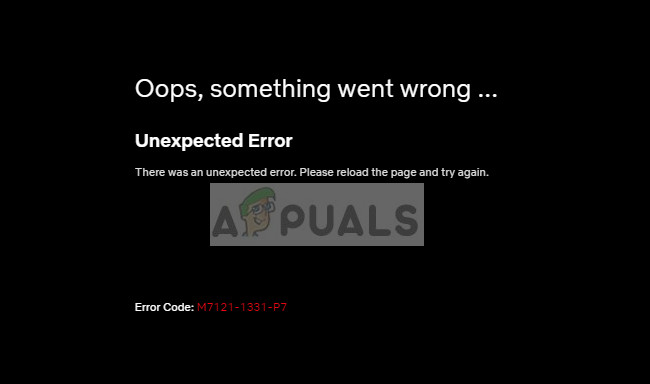
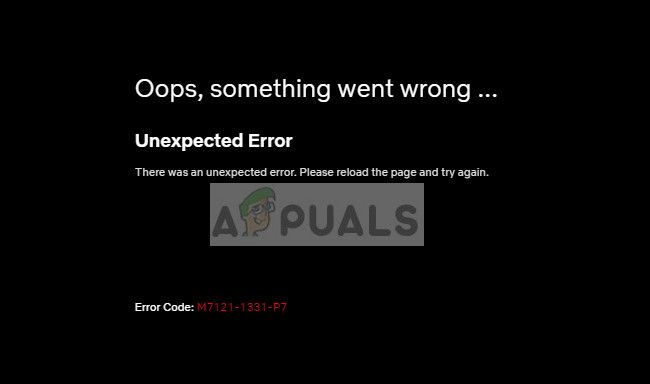 Код ошибки Netflix M7121-1331-P7
Эти сообщения об ошибках были на радаре в течение достаточно долгого времени, а в некоторых случаях они также появляются, если сервер Netflix для вашего географического местоположения не работает. Пользователи могут исправить это сообщение об ошибке с помощью минимального устранения неполадок, поскольку набор проблем довольно мал и не требует каких-либо знаний для понимания.
Что вызывает Код ошибки Netflix M7121-1331-P7 и M7111-1331-4027?
Как упоминалось ранее, эти сообщения об ошибках обычно указывают на проблемы с браузером. Некоторые из причин, по которым вы можете испытывать эту трудность:
- HTML 5 не включен в вашем браузере. HTML 5 — теперь последняя версия HTML, выпущенная и используемая почти всеми основными игроками в индустрии потокового видео.
- Расширения Chrome конфликтуют с процессом воспроизведения Netflix.
- Google Chrome не работает и не имеет полные установочные файлы.
- Есть плохие куки или кеш что может помешать при воспроизведении. Netflix очень строг в отношении файлов cookie / кэша из-за соображений авторского права, которые он должен учитывать.
- Netflix сервер вниз В этом случае вы ничего не можете сделать, кроме как ждать.
- Ваш браузер устаревший. Netflix присоединяется к последней версии, и если у вас ее нет, вы не сможете осуществлять потоковую передачу.
Прежде чем переходить к решениям, убедитесь, что у вас есть стабильное подключение к Интернету с доступом администратора на вашей учетной записи компьютера.
Решение 1. Использование поддерживаемого браузера и включение HTML 5
Общеизвестно, что Netflix поддерживает воспроизведение только в известных браузерах, таких как Chrome, Firefox, Edge и т. Д. Если вы используете «неподдерживаемый» браузер, такой как Speed Browser, вы не сможете передавать потоковое видео на платформе. ,
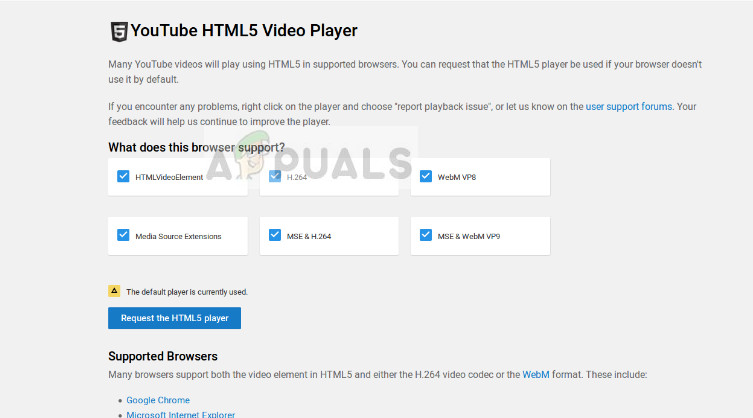
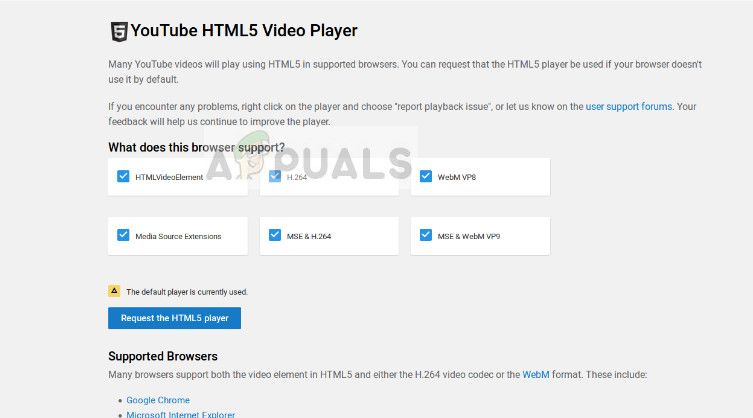 HTML5 Checker — Youtube
Кроме того, необходимо, чтобы у вас HTML 5 включено. HTML 5 является новейшим языком разметки, и почти все основные потоковые платформы используют его в своих операциях. Если у вас есть браузер, который не поддерживает его, или вы отключили его вручную, убедитесь, что вы снова включили его, прежде чем пытаться возобновить потоковую передачу.
Следует отметить, что по умолчанию, Во всех популярных браузерах уже включен HTML 5. Вы можете проверить свой браузер, работает ли HTML5, перейдя к детектору Youtube HTML5.
Решение 2. Отключение расширений Chrome
Расширения Chrome — это подключаемые фрагменты кода, которые позволяют пользователю расширять основные функции своего браузера. Эти расширения представляют собой что угодно — от корректуры программного обеспечения до загрузчиков видео. Если у вас включены расширения Chrome, у вас могут возникнуть проблемы с воспроизведением Netflix в браузере. Мы отключим их, а затем снова попробуем потоковую передачу.
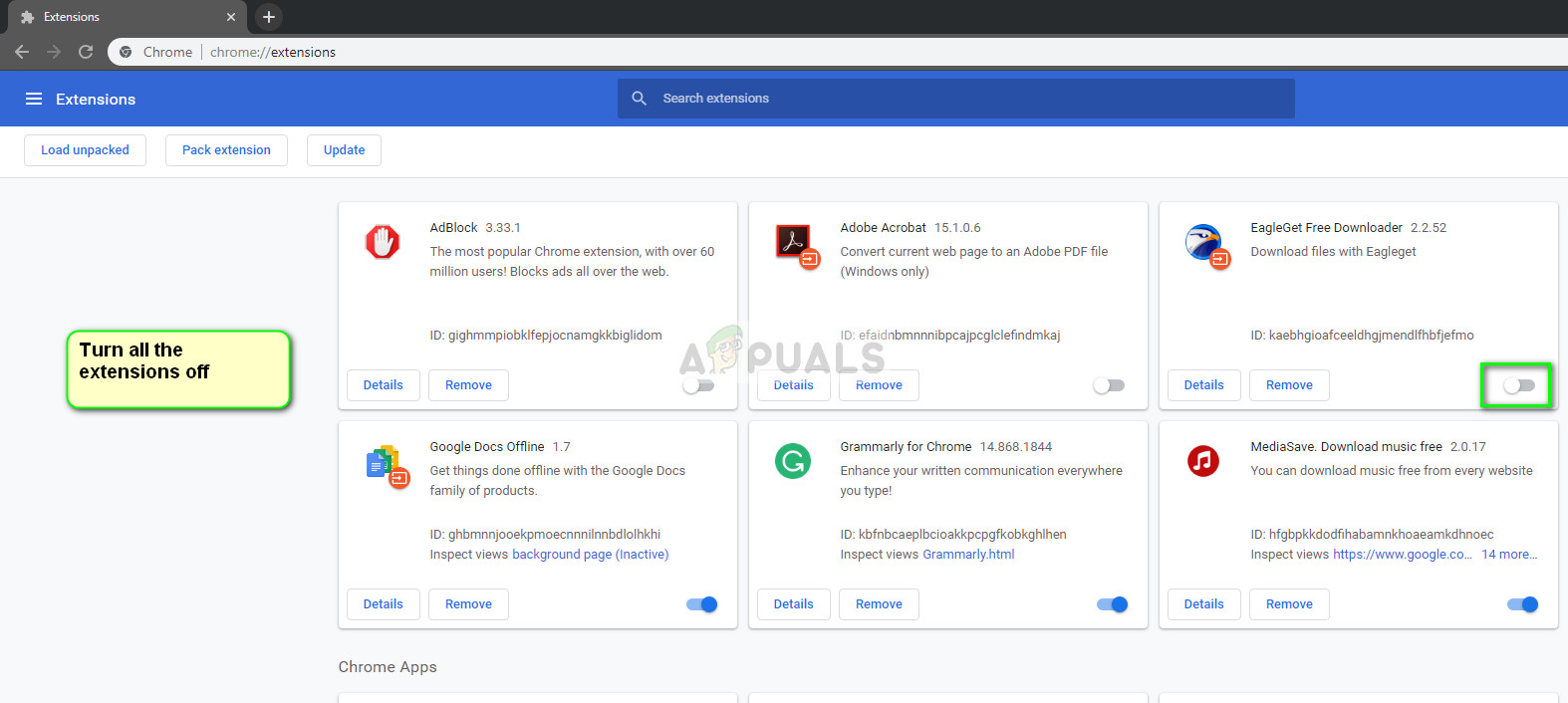
- Откройте Google Chrome и введите следующий адрес в диалоговом окне:
хром: // расширения
- Сейчас тумблер каждый из от.
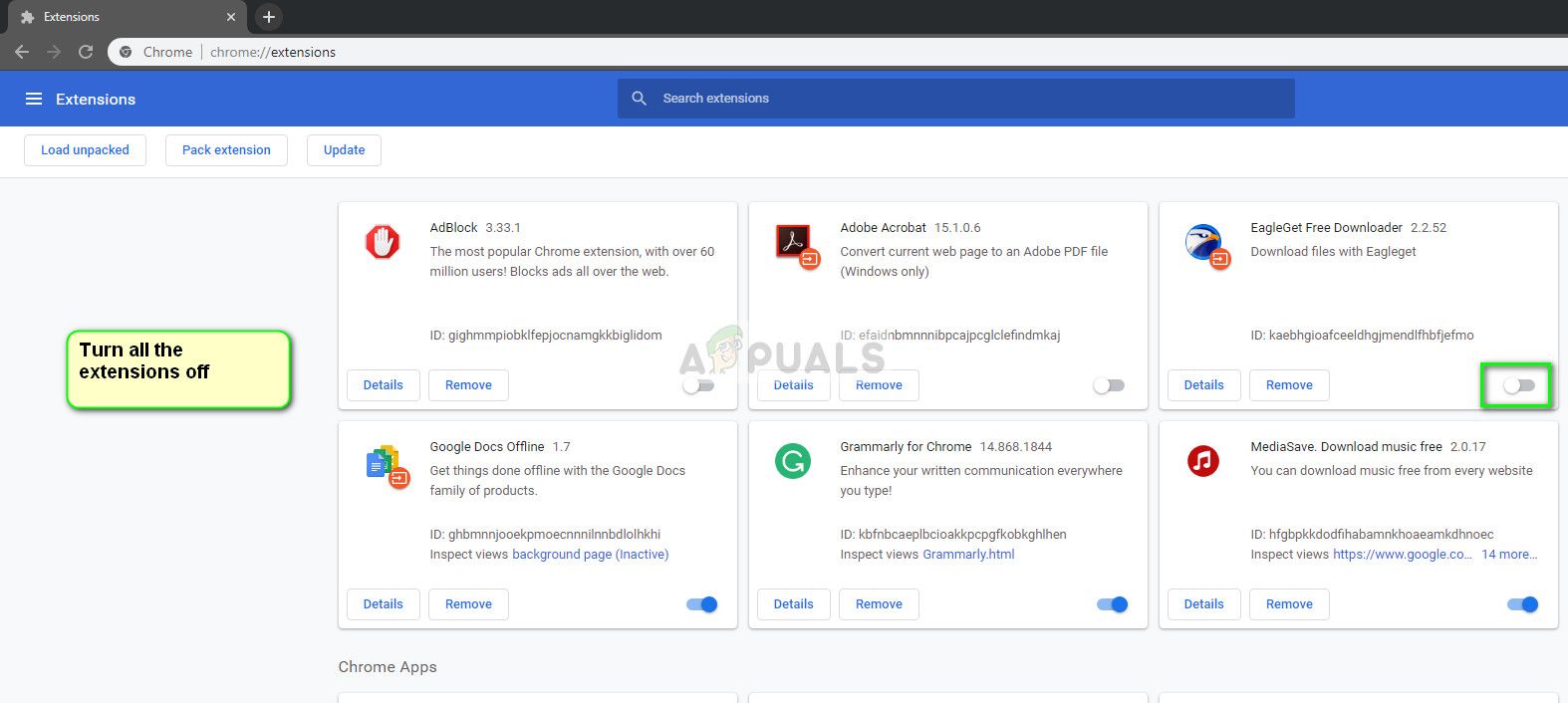 Веб-расширения — Google Chrome
- После отключения каждого из них перезапустите Chrome и попробуйте снова получить доступ к Netflix.
Решение 3. Проверка модуля Widevine и сброс настроек Chrome
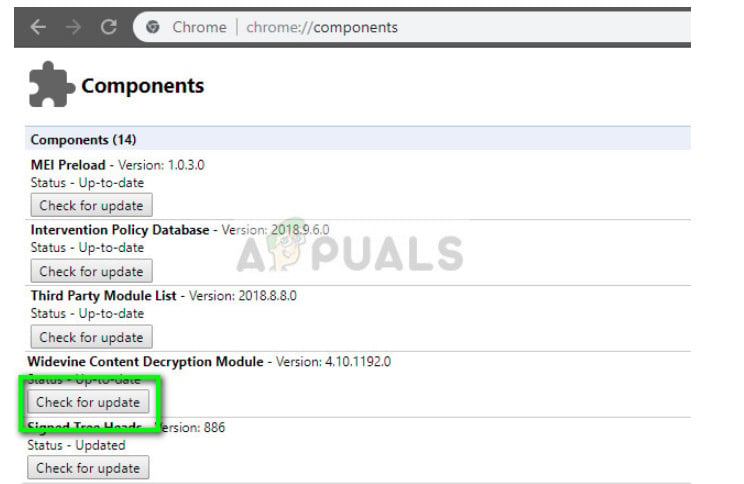
Еще одна вещь, которую нужно проверить перед полной переустановкой Chrome, — это проверка Модуль расшифровки контента Widevine. Этот модуль используется во всем мире для шифрования и безопасного распространения лицензий. Поскольку Netflix позволяет вам передавать материалы, защищенные авторским правом, он часто использует этот модуль в своей работе.
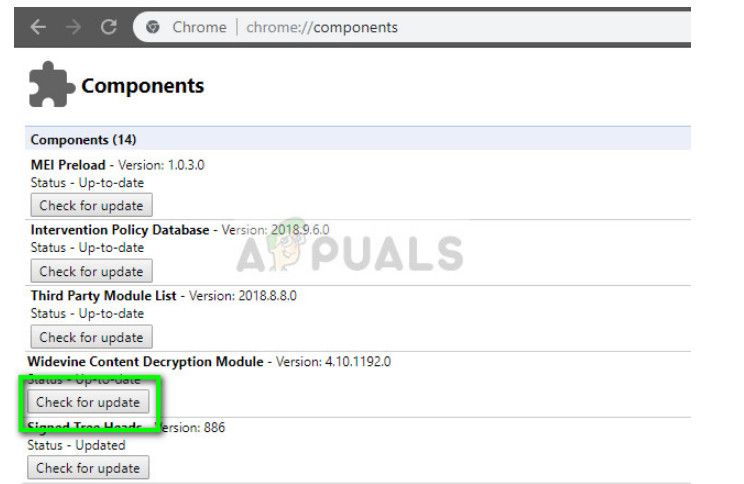 Модуль расшифровки контента Widevine — Google Chrome
Кроме того, вы должны попытаться сбросить историю Chrome, кэш, файлы cookie и т. Д. Во многих случаях в модулях хранятся неверные данные, которые ограничивают платформу для успешного воспроизведения видео. После очистки всего, перезапустите Chrome и проверьте, исчезло ли сообщение об ошибке.
Вы можете следовать инструкциям по выполнению обеих задач, обратившись к нашей статье Как исправить ошибку Netflix M7703-1003.
Решение 4. Обновление / переустановка Chrome
Если все вышеперечисленные методы не работают, вам следует проверить, доступно ли обновление для Chrome. Если есть, немедленно обновите браузер и после перезагрузки компьютера попробуйте снова получить доступ к Netflix.
Если у вас уже есть обновленная версия, вам следует полностью переустановить браузер. Вполне возможно, что ваша установка стала поврежденной, и это можно решить только путем переустановки всего продукта. При переустановке Chrome попробуйте получить доступ к Netflix без синхронизировать вашего пользователя. Таким образом, мы можем исключить, если есть проблема «пользователя».
- Нажмите Windows + R, введите «appwiz.компл”В диалоговом окне и нажмите Enter.
- Попав в диспетчер приложений, найдите запись «Google Chrome», щелкните правой кнопкой мыши и выберите
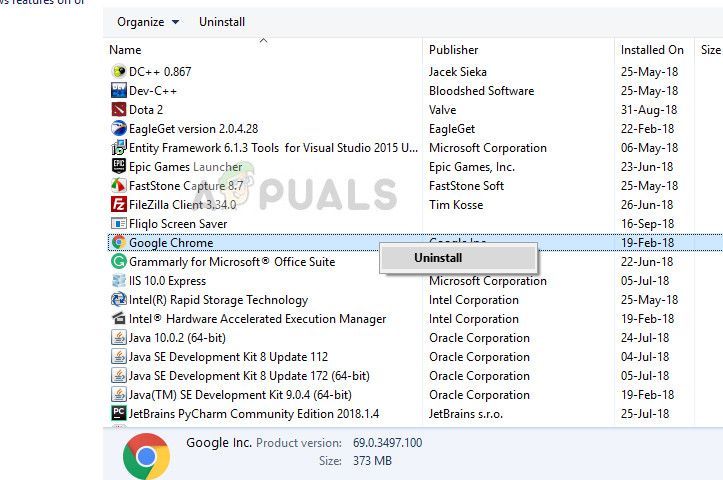 Удаление Google Chrome
- Перезагрузите компьютер и перейдите на официальный сайт Chrome. Загрузите последнюю версию в доступное место и установите. После установки проверьте, было ли удалено сообщение об ошибке.
Решение 5. Проверка состояния сервера
Если все вышеперечисленные методы не работают, вам следует проверить, работает ли сервер Netflix. В прошлом было несколько случаев, когда сообщение об ошибке появлялось, когда сервер был в автономном режиме и недоступен.
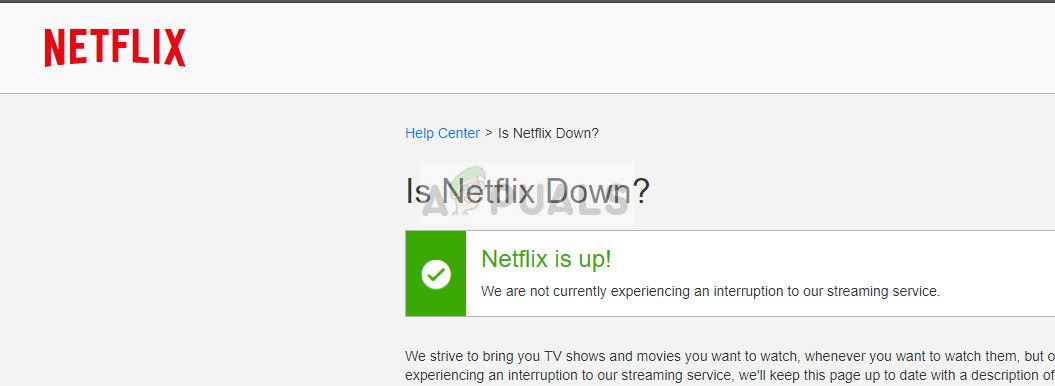 Состояние сервера Netflix
Чтобы проверить состояние сервера, вы можете посетить официальный веб-сайт Netflix или поискать информацию на разных форумах или в сообществах. Вы можете получить представление, посмотрев на различные сообщения от других пользователей.
Ошибки характерны даже для потоковых онлайн-сервисов, таких как Netflix. При просмотре любимых шоу вы можете столкнуться с такими кодами ошибок, как M7703-1003, M7353-1269, или M7121-1331 на Netflix.
Узнайте больше об этих ошибках и о том, как их легко исправить, используя приведенные ниже решения.
Ошибка M7703-1003 означает, что в вашем браузере Chrome есть компонент, который необходимо обновить. Некоторые компоненты также могут быть заблокированы настройками безопасности.
Что такое код ошибки Netflix M7353-1269?
Подобно ошибке M7703-1003, код ошибки M7353-1269 также означает, что в вашем Google Chrome есть компоненты, которые вам необходимо обновить.
Что такое код ошибки Netflix M7121-1331?
Проблема в вашем браузере не позволяет вам играть в Netflix.
Как узнать коды ошибок Netflix M7703-1003, M7353-1269 и M7121-1331
Решение №1 — проверьте наличие обновлений функции защиты содержимого Chrome.
- Откройте браузер Google Chrome.
- В адресной строке введите хром: // компоненты и нажмите Enter.
- Найдите модуль расшифровки контента Widevine.
- Щелкните Проверить наличие обновлений. Если он не обновлен, вам нужно будет переустановить браузер Chrome. Если он обновлен, перезапустите браузер и снова откройте Netflix.
Решение №2 — переустановите браузер Chrome.
- Начните с удаления браузера Chrome. Зайдите в настройки вашего компьютера.
- Выберите «Приложения» и найдите Google Chrome.
- Щелкните правой кнопкой мыши имя файла и выберите «Удалить».
- Чтобы переустановить Google Chrome, откройте другой браузер и перейдите на страницу https://www.google.com/chrome/.
- Нажмите «Загрузить Chrome» и следуйте инструкциям по установке.
- После установки Chrome попробуйте снова открыть Netflix.
Решение № 3 — отключить расширения Chrome.
- Откройте браузер Chrome.
- В адресной строке введите хром: // расширения и нажмите Enter.
- Переключите расширения, чтобы отключить.
- Попробуйте снова открыть Netflix. Если он работает, вы можете проверить, какое расширение вызывает проблему. Включите расширение по одному и проверьте, появляется ли ошибка снова на Netflix.
Решение №4 — Очистить данные просмотров
- В строке меню щелкните значок с тремя точками и выберите «Настройки».
- Нажмите «Дополнительно» и перейдите в раздел «Конфиденциальность и безопасность».
- Выберите Очистить данные просмотров.
- Перейдите на вкладку Advanced.
- Найдите диапазон времени и нажмите Все время.
- Убедитесь, что вы сняли флажки для всех опций, кроме файлов cookie и других данных сайта.
- Щелкните Очистить данные.
Какое из вышеперечисленных решений помогло вам исправить ошибки Netflix? Дайте нам знать в комментариях ниже.
Эта пандемия вынуждает людей оставаться дома, и в результате значительно увеличилось количество пользователей онлайн-сервисов потоковой передачи. Один из таких потоковых сервисов — наш любимый Netflix служба. Но, к сожалению, некоторые пользователи Netflix не всегда получают приятные впечатления от просмотра. Некоторые из этих пользователей сталкиваются с ошибками, но не знают, что их вызывает. Одна из таких ошибок — ошибка Netflix M7121-1331-P7. Это одна из многих проблем, о которых сообщают многие пользователи по всему миру.
Каждый раз, когда подписчик Netflix нажимает на контент, он ожидает увидеть его в потоковом режиме, но вместо этого они сталкиваются с этой проблемой. Вы тоже один из тех подписчиков, которые сталкиваются с ошибкой Netflix M7121-1331-P7? Если вы один из них, то вы попали в нужное место. Мы собрали все, что могли, об этой уникальной ошибке Netflix и подготовили несколько исправлений, которые любой проблемный пользователь может попытаться исправить. По сути, в этом руководстве мы рассмотрим, что это за ошибка, а также что мы можем сделать, чтобы ее исправить.

Оглавление
- 1 Что такое код ошибки Netflix M7121-1331-P7?
-
2 Как исправить ошибку Netflix M7121-1331-P7?
- 2.1 Подождите немного:
- 2.2 Измените свой браузер:
- 2.3 Обновите ваш браузер:
- 2.4 Отключите все расширения Google Chrome:
- 2.5 Переустановите браузер:
Что такое код ошибки Netflix M7121-1331-P7?
Согласно веб-сайту Netflix, ошибка M7121-1331-P7 в основном является результатом проблемы с неподдерживаемым браузером. Netflix имеет ограниченное количество браузеров, в которых они поддерживают потоковую передачу, и если вы используете какой-либо другой браузер, то есть вероятность, что вы увидите эту ошибку. Что касается поддерживаемых браузеров, то это Google Chrome, Internet Explorer, Edge, Mozilla Firefox, Opera и Safari. Это единственные браузеры, в которых вы можете транслировать контент Netflix. Все остальное приведет к ошибке M7121-1331-P7.
Однако иногда эта ошибка может появиться даже при потоковой передаче в поддерживаемых браузерах. В этом случае попробуйте исправления, указанные ниже.
Как исправить ошибку Netflix M7121-1331-P7?
Теперь мы представляем вам лучшие исправления, которые помогут вам решить эту ошибку.
Подождите немного:
Вы транслируете Netflix в течение нескольких дней или месяцев, и вдруг однажды вы можете увидеть эту ошибку. Сейчас это довольно необычно, но редко серверы Netflix могут быть переполнены. Особенно в этом сценарии пандемии с увеличением числа стримеров по всему миру у вас может возникнуть проблема с потоковой передачей Netflix, и эта ошибка может появиться. Так что мудро просто посмотреть, прояснится ли это само по себе.
Если этого не произошло, попробуйте следующие исправления.
Измените свой браузер:
Теперь, если вы используете поддерживаемый браузер, например Google Chrome, и внезапно видите эту ошибку, попробуйте другой поддерживаемый браузер. Вы можете загрузить и установить Firefox или любой другой поддерживаемый браузер и войти в Netflix в этом браузере. После входа в систему попробуйте открыть любой Netflix и посмотрите, появится ли эта ошибка снова. Скорее всего, это не так.
Если по какой-то причине это исправление не работает для вас, то следующее исправление должно помочь.
Обновите ваш браузер:
Иногда простое обновление браузера поможет вам.
Гугл Хром:
- Откройте Google Chrome и нажмите кнопку с тремя точками в правом верхнем углу экрана.
- Перейдите в раздел «Справка» и выберите «О Google Chrome».
- Откроется новое окно, в котором браузер автоматически начнет поиск последней версии. Если он найдет самую новую версию, он установит ее в фоновом режиме.
- После установки просто закройте все окна браузера Chrome и снова откройте браузер.
Fire Fox:
- Откройте браузер Firefox и щелкните значок с тремя черточками в правом верхнем углу экрана.
- Нажмите на опцию справки, и там вы увидите опцию О Firefox. Нажмите здесь.
- Теперь Firefox автоматически начнет сканирование новой версии и, когда обнаружит, установит ее автоматически.
- После установки просто перезапустите браузер.
Опера:
- Откройте браузер Opera и нажмите кнопку «Меню» в верхнем левом углу экрана.
- Затем нажмите «Обновление и восстановление».
- Затем браузер просканирует новую версию и, когда найдет ее, установит ее автоматически.
- После завершения установки нажмите кнопку «Перезапустить сейчас».
Обновление вашего браузера должно сделать всю работу за вас.
Отключите все расширения Google Chrome:
Иногда пользователи Google Chrome сталкиваются с этой проблемой даже после попытки всех этих исправлений. Это может быть связано с ошибками в расширениях вашего браузера. Чтобы исправить это, вы можете попробовать полностью отключить все расширения Google Chrome.
- Откройте Google Chrome и нажмите кнопку с тремя точками в правом верхнем углу экрана.
- Нажмите «Настройки» и в следующем окне нажмите «Дополнительно».
- Прокрутите и найдите параметр «Сбросить и очистить». Под ним вы найдете Восстановить настройки до исходных значений по умолчанию. Нажмите здесь.
- Еще раз нажмите «Сбросить настройки», чтобы подтвердить свое действие. Это отключит все ваши расширения.
Если даже это не сработает, попробуйте последнее исправление, указанное ниже.
Переустановите браузер:
Это последнее средство, которое вы можете попробовать, если ни одно из вышеперечисленных исправлений не работает.
- Щелкните строку поиска Windows и введите «Выполнить». Откройте «Выполнить», как только он появится в результатах.
- В диалоговом окне «Выполнить» введите «appwiz.cpl» и нажмите кнопку ввода.
- Здесь вы увидите список приложений. В списке выберите браузер, в котором возникла проблема, и выберите вариант «Удалить».
- После удаления этого браузера откройте другой браузер, установленный в вашей системе.
- Перейдите на главную страницу удаленного браузера и снова установите его с помощью онлайн-установщика.
- После успешной переустановки попробуйте снова запустить потоковую передачу Netflix, и это должно сработать для вас.
Мы надеемся, что одно из этих исправлений помогло вам с ошибкой Netflix M7121-1331-P7. Кроме того, если вам понравилось наше руководство, почему бы не пойти и не проверить наши лучшие Советы и хитрости iPhone, Советы и хитрости для ПК, Игры а также Советы и хитрости для Android. Вы также можете подписаться на наши собственные YouTube канал и примите участие в розыгрыше призов на 150 долларов. Аналогичным образом, если у вас есть какие-либо вопросы или отзывы, оставьте комментарий ниже, указав свое имя и идентификатор электронной почты.
Больше руководств Netflix
- Как исправить код ошибки Netflix M7353-5101
- Как исправить код ошибки Netflix m7111-5059?
- Что такое ошибки загрузки в Netflix? Как их исправить?
- Как исправить код ошибки Netflix M7363-1260-00000026
- Как исправить ошибку Netflix 100
The Netflix error code M7121-1331 can indicate issues with your web browser especially when it doesn’t support this platform. This error code can be usually found when you are using Speed Browser. Such browsers can create obstructions and affect the functioning of the player. Thus, you may be unable to watch your favorite shows or movies on Netflix. Additionally, you can find this Netflix streaming error when HTML5 hasn’t been enabled on internet browsers like Chrome. In other instances, cached data, outdated Chrome configurations, etc., can yield such an issue.
To troubleshoot a problem like this one, you can first fix the issues with your web browser. Should you like to know more ways to fix this Netflix error M7121-1331-4027, you can read further.
Below, you can find a blueprint of this post. It will help you in knowing about the sections covered here.
- What is the Error Code M7121-1331 on Netflix?
- Causes of Netflix Error M7121-1331
- How to Resolve Netflix Error M7121-1331 on Your Streaming Devices?
- Fix 1 – Ensure that Your Browser Supports Netflix and HTML 5 is Enabled
- Fix 2 – Disable Chrome Extensions
- Fix 3 – Uninstall and Reinstall Google Chrome
- Fix 4 – Update Chrome’s Content Protection Feature
- Fix 5 – Clean the Cached Data and Cookies from Web Browser
- Option 1: Cleaning Cache on Chrome
- Option 2: Removing Cache on Firefox
- Option 3: Clearing Cache on Mac Safari
- Fix 6: Check Server Status of Netflix
- Fix 7: Update Your Web Browser
- Option 1: Updating Google Chrome
- Option 2: Download Updates for Firefox
- Option 3: Getting Updates for Opera
- Frequently Asked Questions
- As a Final Observation
What is the Error Code M7121-1331 on Netflix?
The Netflix streaming error M7121-1331 can be understood as a playback problem. The error can be commonly seen when you are using this service on a web browser that is not supportive of Netflix. When an unsupported web browser is used for watching movies or shows on this platform, interferences with the player may get caused.
As a result of the same, you may even find the following error message on the display:
“Whoops, Something Went Wrong…
Unexpected Error
There was an Unexpected Error. Please Reload the Page and Try Again.
Error code: M7121-1331-P7″
Causes of Netflix Error M7121-1331
The causes of witnessing the M7121 1331 error while streaming Netflix have been cited as follows:
- A browser that is not supportive of Netflix is one of the reasons why the error M7121-1331 may be seen.
- The server of the platform may be down.
- There may be an internal outage in the server of Netflix.
- You may not have removed the cached data, cookies, and browsing history from your device. Thus, interference or obstructions may be emerging while running Netflix.
- You may be trying to stream Netflix via a public network. Due to restricted streaming on such a network, the error code M7121-331 on Netflix may be surfacing.
- HTML 5 may have been disabled on your internet browser.
- The extensions of Google Chrome may be causing conflicts.
- Chrome may be damaged or its installation files may be missing.
- You may not have updated your web browser prior to running Netflix on it.
How to Resolve Netflix Error M7121-1331 on Your Streaming Devices?
Since the Netflix error code M7121-1331 is a browser-related issue, you can check that the updates for Google Chrome, Firefox, Opera, etc., have been installed. Additionally, you can ensure that your internet browser allows you to use Netflix and that HTML 5 has been enabled on it. To troubleshoot the problem further, you can keep the components like the Widevine Content Decryption Module updated while using Google Chrome.
Let us scroll further to read more about these methods and the guidelines associated with the same.
Fix 1 – Ensure that Your Browser Supports Netflix and HTML 5 is Enabled
There are certain web browsers that are supportive of Netflix. Some of these have been stated here:
- Google Chrome 64-bit version on Windows 7 or above, Mac OS X 10.10 or later (Mavericks), Chrome OS, or Linux.
- Internet Explorer 11 on Windows 8.1 or above.
- Microsoft Edge on Windows 10
- Mozilla Firefox 59.0.3 or above on Windows 7 or later or Mac OS X 10.10 or later (Yosemite).
- Opera 47.0.2631.80 or above on Windows 7 and all the above versions or Mac OS X 10.10 or later.
- Safari web browser on Mac OS X 10.10 or later (Yosemite).
You may be coming across the Netflix error code M7121-1331 if you are using a web browser that doesn’t support this streaming service. Based on the list of the browsers we have stated in this section, you can use any of them for using Netflix. Along with that, also ensure that HTML 5 has not been disabled. This is the most recent version of HTML. Enabling the same will help in preventing errors while using Netflix. Thus, the error code may not bother you again.
Fix 2 – Disable Chrome Extensions
There are several extensions available on chrome that enhance the Netflix streaming experience. However, some of them can cause the Netflix error code m7121-1331 4027 as they violate the terms and conditions of this service. If you have any such extensions on Chrome, then you may need to disable them. They can be disabled by pressing the toggle button given near them.
To disable these extensions on Chrome, you can also use the following directions:
- In the “Address Bar” field in Chrome, type “chrome://extensions”.
- Scroll down to the list of extensions.
- Use a toggle to disable the extension that is currently enabled.
Note: The extensions that are enabled are highlighted with a blue toggle option.
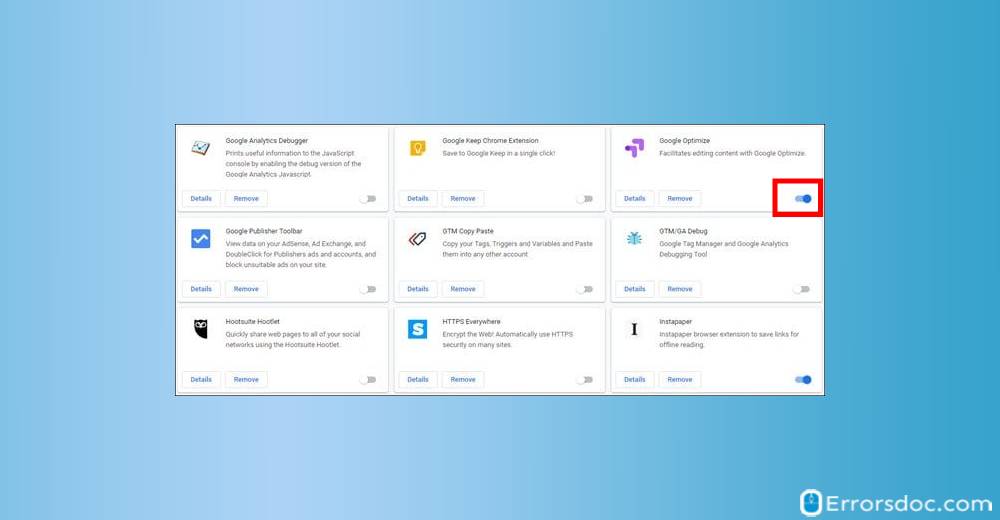
- Now, visit the Netflix website and try to stream any video.
If you are able to stream any video without seeing the error code, then this measure would have worked well for you.
Fix 3 – Uninstall and Reinstall Google Chrome
In certain instances, the Netflix M7121-1331-P7 error code was observed when Google Chrome was being used for streaming the platform. Due to not being updated, such an error was constantly being observed.
If you are finding yourself in a similar situation, then you can remove this browser. After that, you can reinstall Google Chrome on your device. For uninstalling the browser, you can first clear the data stored in it. Then you can uninstall Google Chrome. Once this has been done, you can install it again by downloading its installation file.
More steps for removing and reinstalling this browser have been presented here:
- On your computer, close all Chrome windows and tabs.
- Click on the Start menu and then, Settings.
- Click Apps. Under ‘’Apps & features’’, choose to click Google Chrome.
- To delete all the browsing history data, profile information, click on ‘Also delete your browsing data’.
- Click Uninstall. Confirm by clicking the Uninstall button again.
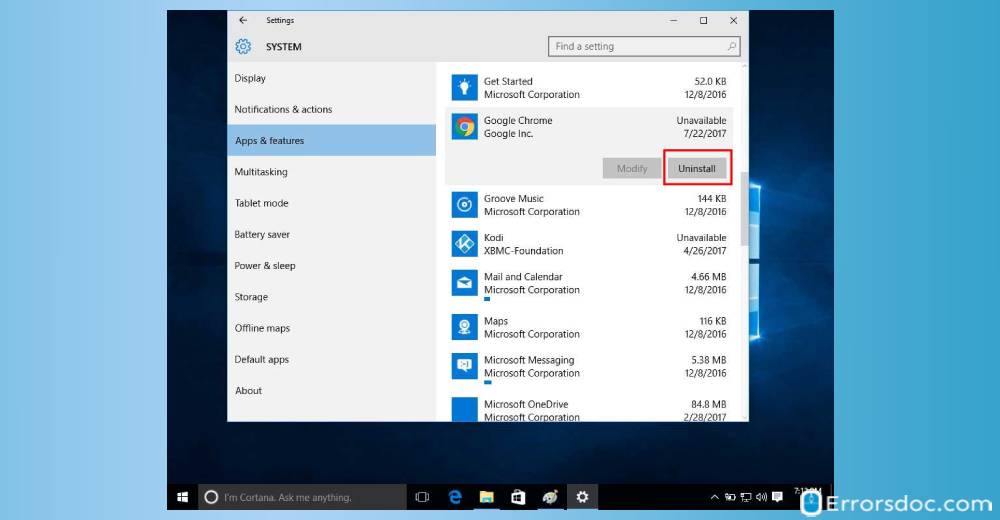
To reinstall Google Chrome browser, do the following:
- Download the installation file.
- Click Run or Save, if prompted by any Windows permission.
- Now, double click on the download to start the installation process.
- Once “Chrome” gets installed, try using “Netflix”. Hopefully, it should start working by now without displaying the error code M7121-1331-P7 on Netflix.
Fix 4 – Update Chrome’s Content Protection Feature
If you’re experiencing the error code M7121-1331-4027 on Netflix on your computer, it signifies that a particular component of your browser is not updated or is blocked by the security settings. Usually, Widevine Content Decryption Module is the component behind this Netflix issue. For updating the same, you can visit the location of the components via the Address Bar of Chrome. You can find this component and pick the option Check for Update. After updating it, you can reboot your device to ensure that the changes get saved. Later, you can open Netflix and check whether or not it is working now.
- Navigate to the address bar of your Chrome browser and type chrome://components and hit Enter.
- Scroll down to the bottom of the page and locate the Widevine Content Decryption Module component.
- Select Check for update.
- Once done, reboot the system to save changes. Try to connect Netflix again to see if it is working well.
Fix 5 – Clean the Cached Data and Cookies from Web Browser
The error code M7121-1331 on Netflix can result when the cookies and cached data of the web browser start to affect the RAM space. In addition, the software of your device and its hardware components can also get affected. Therefore, you should prefer cleaning the cache, cookies, and other such data from your web browser.
Here, we have explained the ways to remove the cache on Google Chrome, Mozilla Firefox, and Mac Safari.
Option 1: Cleaning Cache on Chrome
Chrome users need to visit the Settings via the Address Bar. In the Settings, they can find a tab named Advanced. Then using the Advanced menu, you can opt for Clear Browsing Data. After the data has been properly cleaned, the Netflix error code M7121-1331 on Chrome should not be seen.
- Navigate to the “Address Bar”.
- Type “chrome://settings” in it.
- Now, Press “Enter”.
- Scroll down to the bottom of the page and click on the “Advanced” tab.
- In the “Advanced” menu, scroll down to select the option of “Clear Browsing Data”.
- In the next pop-up window, check all the boxes that say “Cookies”, “Auto-fill Information”, and “Browsing History”.
- Set the time range to “All Time”.
- Click on the option of “Clear Data” for deleting all the temporary files containing web browsing history.
- Launch “Chrome” again and connect to “Netflix” to see if it is streaming without the playback error.
Option 2: Removing Cache on Firefox
While using Firefox, you may have come across the Library button. You can press it for finding the History. Then you can move to the option of Clear Recent History. Followed by this, you will have to enter a time range. Later, you can select the things that you would like to clear. These can range from the Browsing & Download History to Cookies and Cache.
Let us now see the complete steps to remove the cache and cookies on Mozilla Firefox:
- Press the “Library” button.
- Click on “History”.
- Then click on the “Clear Recent History” option.
- Select the drop-down menu next to “Time Range to Clear” to choose everything for clearing all the data stored since the last exercise.
- Use the check box to select what information you want to clear from your history. This will be inclusive of “Browsing & Download History”, “Cookies”, “Cache”, “Active Logins”, and “Form & Search History”. Check all the boxes to clear all of them.
- Click on the “Clear Now” button. The items which you have selected will be cleared from Mozilla’s history.
- Launch “Mozilla Firefox” again and connect to “Netflix” to check for the error. Hopefully, the issue of the error M7121-1331 on Netflix would not persist now.
Option 3: Clearing Cache on Mac Safari
On Mac Safari, clearing the cache to fix the Netflix error code M7121-1331-4027 is inclusive of a short procedure. You can simply open the browser and click on the Clear History option. After setting the time range, you can tap on Clear History. Then you can exit the web browser and relaunch it. After it has been relaunched, you can visit Netflix and stream any movie of your choice.
- From the “Safari” menu, select “Clear History”.
- Select the desired “Time Range”.
- Then click on “Clear History”.
- Quit Safari or press the “Command+Q” keys to completely exit the browser.
- Launch the “Safari” web browser and connect to “Netflix”.
- Ensure that the error code M7121-1331-4027 on Netflix is no longer seen.
Fix 6: Check Server Status of Netflix
It will be helpful to ensure that the server status of Netflix is not down. At times, while you may fail to identify the cause behind the Netflix M7121-1331 streaming error, checking the server may have skipped your mind. In case the server isn’t up, streaming videos on Netflix may not be possible. You can wait for some time. When the server issues get resolved on the other end, Netflix will allow you to stream videos.
Fix 7: Update Your Web Browser
We will suggest our readers to check that their web browser is running the most recent version. If not, then issues like the error M7121-1331 on Netflix can show up from time to time. To get the recent version of your browser, you will be required to update it. In case you are using Google Chrome, Mozilla Firefox or Opera, you can find the instructions to update it as follows:
Option 1: Updating Google Chrome
For getting the necessary updates for Google Chrome, you can open the browser. Then you can find the button to Customize Google Chrome. After this, you have to press Help and opt for About Google Chrome from the submenu. Your browser will get updated to the most recent version. Later, you can relaunch Google Chrome. As it gets updated, the M7121-1331 error code on Netflix will get resolved.
Now, let us go through the following steps to update Chrome:
- Go to “Google Chrome”.
- Tap the button for “Customize Google Chrome”.
- Now, click on “Help”. The submenu needs to be expanded.
- Select the option of “About Google Chrome” to look for the updates.
- Google Chrome can take some time to get updated. Once the updates have been installed, press the button named “Relaunch”.
Option 2: Download Updates for Firefox
Updating Mozilla Firefox is a time-saving procedure. It can be initiated by selecting the Open Menu option. Then you can choose Help and further select About Firefox. You will see a window launching on your screen. Via this window, the browser can be updated. To ensure that the M7121-1331 error in Netflix has been fixed, you can restart your browser and then use this streaming service.
- Visit “Mozilla Firefox” and choose the button for “Open Menu”.
- Select “Help” and view the menu.
- Now, click on “About Firefox”.
- The window of “About Mozilla Firefox” will get launched. You can look for the updates here and download them.
- After updating your browser, you have to restart it.
Option 3: Getting Updates for Opera
The users of Opera are likely to find the O Menu in the browser. In this menu, the option of Update and Recovery has to be chosen for getting the updates. Accompanied by this, you have to pick the Relaunch Now option. As your browser launches again, you will be able to use Netflix just as usual.
- In “Opera”, go to “O Menu”. You will find this menu on the left.
- Click on “Update and Recovery”.
- Then opt for “Relaunch Now” after updating the browser.
- Then launch “Netflix”. See to it that the M7121-1331 Netflix error code isn’t occurring while using the service.
Frequently Asked Questions
In the following parts of the blog, we will be answering the common questions raised by the users of Netflix when the error code M7121-1331 is encountered by them.
1. How do I fix the Netflix error code M7121-1331-2205?
If you’re getting the Netflix error code M7121-1331-5006 on your browser, then check that HTML 5 has been turned on. If it is on and you are still seeing the error code, then you can check your web browser is supportive of Netflix.
2. Why do I keep getting the Netflix error M7121-1331-P7?
Errors like the Netflix error code M7121-1331-P7 can be received when your browser is carrying cached data and cookies. Additionally, when the server of Netflix is down or Chrome isn’t updated, this error can get generated.
3. How do I fix the Netflix error code M7121-1331 on Chrome?
On Chrome, you can fix the M7121-1331 error by disabling the extensions as they may be creating interference. You can try removing and reinstalling Google Chrome before using Netflix. Lastly, you can ensure that the Widevine Content Decryption Module of Chrome is updated to prevent this Netflix error code.
As a Final Observation
The Netflix error code M7121 is a usual occurrence when your browser is facing issues or doesn’t support such a platform. There can be other causes too for seeing an error like this one. Like you studied here, some of these causes could range from conflicting Chrome extensions to Netflix server issues. Keeping your browser updated is the best way to keep using Netflix error free. To ensure that such an error doesn’t interfere with your movie-watching experience, you can clean the cached data of Chrome and Firefox from time to time. We believe that this post saved your time in fixing this Netflix error code.
To know about more such errors, you can go through our posts on the Netflix code UI 800 2 and Netflix code 2 5. Reading about such errors will help you in enjoying a memorable Netflix experience.
На чтение 4 мин. Просмотров 201 Опубликовано 03.09.2019
Netflix – один из самых популярных сервисов потокового видео. Однако служба также время от времени выбрасывает несколько кодов ошибок для небольшого меньшинства своих пользователей.
Одним из них является код ошибки M7111-1331-2206, который возникает у некоторых пользователей, использующих Flix в браузерах. Вместо потоковой передачи фильма открывается вкладка Netflix, содержащая код ошибки M7111-1331-2206. Вот несколько решений для кода ошибки M7111-1331-2206.
Содержание
- Как исправить ошибку потоковой передачи Netflix Этот заголовок недоступен для мгновенного просмотра?
- 1. Проверьте, не работает ли Netflix
- 2. Очистить данные просмотра
- 3. Сбросить браузер
- 4. Попробуйте использовать Netflix в альтернативном браузере
- 5. Откройте Netflix из панели URL вместо закладок
- 6. Отключите VPN
Как исправить ошибку потоковой передачи Netflix Этот заголовок недоступен для мгновенного просмотра?
- Проверьте, не работает ли Netflix
- Очистить данные о просмотре
- Сбросьте настройки браузера
- Попробуйте использовать Netflix в альтернативном браузере
- Откройте Netflix из панели URL вместо закладок
- Отключить VPN
1. Проверьте, не работает ли Netflix
Возможно, что-то не так с сервером Netflix, когда открывается вкладка ошибки M7111-1331-2206. Если это так, пользователи не могут многое сделать, чтобы решить проблему, кроме как ждать некоторое время.
Пользователи могут проверить, не работает ли Flix на DownDetector.com. Введите «Netflix» в поле поиска DownDetector, чтобы проверить, не работает ли Netflix.
2. Очистить данные просмотра
Ошибка M7111-1331-2206 часто может быть связана с повреждением или устареванием данных браузера. Поэтому наилучшим разрешением обычно является очистка данных браузера.
Кэш браузера, пожалуй, самая важная вещь, которую нужно очистить, но пользователи также могут стереть другие данные сайта. Именно так пользователи могут очистить данные браузера Google Chrome.
- Нажмите кнопку Настройка Google Chrome в правом верхнем углу окна браузера.
-
Выберите Дополнительные инструменты > Очистить данные просмотра , чтобы открыть окно в снимке экрана непосредственно ниже.

- Перейдите на вкладку Дополнительно .
-
Выберите параметр Все время в раскрывающемся меню Временной диапазон .

- Кэшированные изображения и файлы – это необходимый флажок. Тем не менее, пользователи могут выбрать все флажки данных там, если предпочитают.
- После этого нажмите кнопку Очистить данные .
3. Сбросить браузер
Сброс браузера – это еще одно решение, которое очистит данные браузера. Однако это также отключит расширения, которые могут повлиять на потоковую передачу Netflix.
Netflix 1080p – это одно расширение, которое потенциально может генерировать ошибку M7111-1331-2206. Следуйте приведенным ниже инструкциям для сброса Google Chrome.
- Нажмите Настроить Google Chrome и выберите Настройки .
- Нажмите Дополнительно в нижней части настроек, чтобы открыть вкладку.
-
Затем нажмите Восстановить настройки до их исходных настроек по умолчанию .

- Нажмите кнопку Сброс настроек .
4. Попробуйте использовать Netflix в альтернативном браузере

Поскольку ошибка M7111-1331-2206 часто связана с поврежденными данными и расширениями браузера, пользователи могут обнаружить, что Netflix отлично работает в альтернативных браузерах, которые они редко используют.
Итак, попробуйте потоковую передачу фильма Flix в другом (желательно только что установленном) браузере. Edge, вероятно, лучший браузер для Flix, поскольку он может передавать фильмы с разрешением 4K. Тем не менее, Firefox, Opera, Internet Explorer и Google Chrome также являются Netflix-совместимыми браузерами.
5. Откройте Netflix из панели URL вместо закладок
Некоторым пользователям Netflix может потребоваться обновить свои закладки, чтобы исправить ошибку M7111-1331-2206. Если вы открываете Netflix с закладкой, попробуйте открыть веб-сайт, введя вместо него www.netflix.com в строке URL.
Если это решит проблему, удалите текущую закладку Netflix и добавьте новую.
6. Отключите VPN
Netflix Inc подавляет программное обеспечение VPN. Следовательно, ошибки потоковой передачи могут возникать, когда Netflix обнаруживает VPN. Поэтому не используйте любое программное обеспечение VPN с Netflix.
Это несколько разрешений, которые могут исправить ошибку M7111-1331-2206 для потоковой передачи фильмов Netflix в браузерах. Помните, однако, что пользователи также могут смотреть фильмы с помощью приложения Netflix, которое может быть более надежным, чем использование службы потокового видео в браузерах.
The Netflix Error codes ‘M7121-1331-P7’ and ‘M7111-1331-4027’ occur when there is a problem with your browser from which you are accessing Netflix. Netflix has officially documented these error messages as well and according to them, these errors occur if the browser either doesn’t fulfill the requirements to play shows or there is bad data (in the cache) which is prohibiting it from playing.
These error messages have been on the radar for quite some time and in a few cases, also occur if the Netflix server for your geographical location is down. Users can fix these error message by minimal troubleshooting since the problem set is quite small and doesn’t require any expertise to understand.
What causes the Netflix Error code M7121-1331-P7and M7111-1331-4027?
As mentioned before, these error messages usually point towards issues with the browser. Some of the reasons why you might experience this difficulty are:
- HTML 5 is not enabled on your browser. HTML 5 is now the latest version of HTML released and is used by almost all the major players in the streaming industry.
- Chrome extensions are conflicting with the playback process of Netflix.
- Google Chrome is broken and doesn’t have complete installation files.
- There are bad cookies or cache which is may prevent with the playback. Netflix is very strict in terms of cookies/cache because of the copyright considerations it has to take into account.
- The Netflix server is down. In this case, you cannot do anything except wait it out.
- Your browser is outdated. Netflix aligns itself with the latest version and if you don’t have that, you will not be able to stream.
Before moving on with the solutions, make sure that you have a stable internet connection with administrator access on your computer account.
Solution 1: Using a Supported browser and enabling HTML 5
It is well-known fact that Netflix only supports playback in well-known browsers such as Chrome, Firefox, Edge etc. If you are using an ‘unsupported’ browser such as Speed Browser, you will not be able to stream videos on the platform.
Furthermore, it is necessary that you have HTML 5 enabled. HTML 5 is the latest markup language out there and almost all the major streaming platforms use it in their operations. If you either have a browser which doesn’t support it or have disabled it manually, make sure that you get it going again before attempting to stream again.
It should be noted that by default, all the popular browsers already have HTML 5 enabled. You can check your browser whether if HTML5 works by navigating to Youtube’sHTML5 detector.
Solution 2: Disabling Chrome Extensions
Chrome Extensions are pluggable pieces of code which allow the user to extend the basic functionality of their browser. These extensions are anything from proofreading software to video downloaders. If you have Chrome Extensions enabled, you might have issues playing Netflix on your browser. We will disable them and then try streaming again.
- Open Google Chrome and type the following address in the dialogue box:
chrome://extensions
- Now toggle each one of off.
- After disabling each one of them, restart Chrome and try accessing Netflix again.
Solution 3: Checking Widevine module and resetting Chrome configurations
Another thing to check before we completely reinstall Chrome is checking the Widevine Content Decryption Module. This module is used globally for encryption and secure license distribution. Since Netflix allows you to stream copyright material, it uses this module a lot in its operations.
Furthermore, you should try resetting your Chrome history, cache, cookies etc. There are numerous case where there is bad data stored in the modules which restrict the platform to play videos successfully. After clearing everything, restart Chrome and check if the error message went away.
You can follow the steps on how to achieve both the tasks by referring to our article How to Fix Netflix Error M7703-1003.
Solution 4: Updating/reinstalling Chrome
If all the above methods fail to work, you should check if there is an update available to Chrome. If there is, update the browser immediately and after restarting your computer, try accessing Netflix again.
If you already have an updated version, you should reinstall the browser altogether. It is possible that your installation has become corrupt and it can only be solved by reinstalling the whole thing. When you reinstall Chrome, try accessing Netflix without syncing your user. This way we can rule out if there is a ‘user’ problem.
- Press Windows + R, type “appwiz.cpl” in the dialogue box and press Enter.
- Once in the application manager, search for the entry ‘Google Chrome’, right-click and select
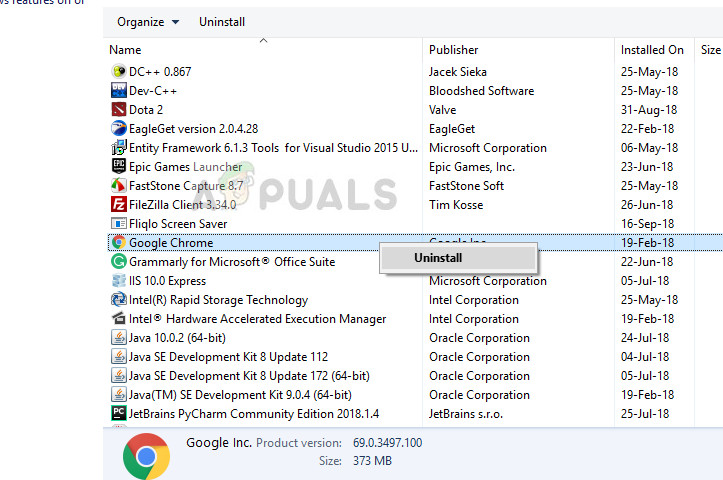
- Restart your computer and navigate to the official website of Chrome. Download the latest version to an accessible location and install. After installing, check if the error message has been removed.
Solution 5: Checking server status
If all the above methods don’t work, you should check if the Netflix server is up and running. There have been a ‘few’ cases in the past where the error message occurred when the server was offline and not accessible.
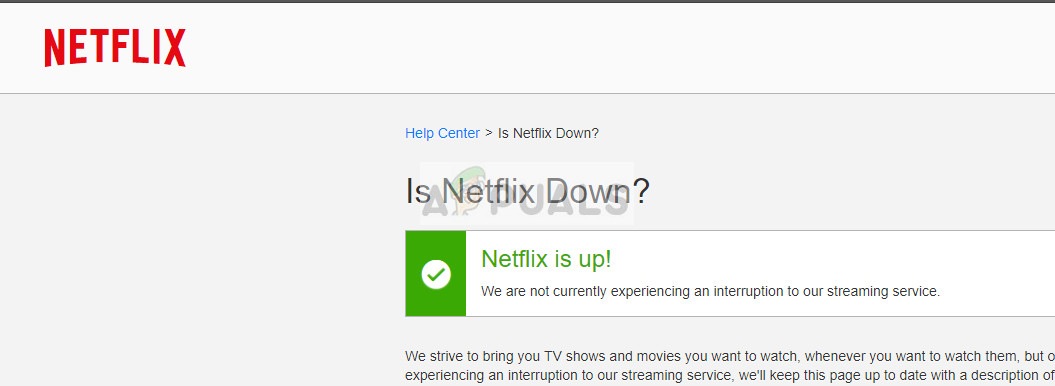
To check the server status, you can either visit the official Netflix website or look for information in different forums or communities. You could get an idea by looking at different posts from other users.

Kevin Arrows
Kevin is a dynamic and self-motivated information technology professional, with a Thorough knowledge of all facets pertaining to network infrastructure design, implementation and administration. Superior record of delivering simultaneous large-scale mission critical projects on time and under budget.
Are you getting the Netflix Error code M7121-1331-P7 while trying to access the Netflix platform? Netflix acknowledges this problem in its official documentation as a browser problem. This Netflix error code is prevalent on the Google Chrome browser.
When you encounter the M7121-1331-P7 error prompt, you will not be able to stream videos on the Netflix platform. According to Netflix, it occurs when you use a browser that is not compatible with the Netflix platform.
However, it may also occur when some of the cache files on the browser are corrupted or when the Netflix servers in your region are down. This guide will enlighten you on the possible causes of the error code as well as how to fix it on your own.

What Causes the Netflix Error Code M7121-1331-P7?
In addition to the mobile app for Android, and iOS devices, Netflix also allows you to stream their content through a browser. However, streaming content on Netflix through the browser is not always as smooth as it should. You may encounter the M7121-1331-P7 Netflix error code while at it.
Classified as a browser issue, this error is commonly encountered on the Chrome browser. However, you may also get it on the Netflix app from time to time. Discussed below are some of the common causes of the M7121-1331-P7 error code o Netflix:
Conflicting Extensions
Some of the extensions and add-ons you have on your browser may be conflicting with the playback functionality on Netflix. This is particularly the case with Google Chrome extensions.
HTML 5 is Disabled
HTML 5 Is the latest release of the HTML release. For enhanced security, most of the leading streaming platforms use HTML 5. Unless you have this functionality enabled on your browser, you are likely to encounter the Netflix error code M7121-1331-P7.
Server Problem
You may also encounter the error when you attempt to access the Netflix platform when the Netflix servers are down. If you get the error notification, check to see whether the Netflix servers in your region are offline, or undergoing maintenance.
If the servers are down, you just have to wait until they are back on for you to access the Netflix platform.
Outdated/Corrupted Browser Files
If you are getting the error message while accessing Netflix through a browser, it is probably because your browser is outdated, hence not supported by Netflix. The problem can also occur if the browser installation files are broken or incomplete.
The Netflix error code M7121-1331-P7 may also be triggered by corrupted cookies or cached files on your browser. Netflix is known to be very strict on cookies/cache due to copyright issues. This being the case, corrupted cookies or cache files may prevent playback on Netflix.
Netflix is a rather popular content streaming platform that offers its users access to a huge library of TV shows and movies. You are more likely to encounter the M7121-1331-P7 Netflix error code whole accessing the platform through a browser, especially the Chrome browser.
However, you do not require any expertise to fix the problem. Discussed below are some of the methods and procedures you may use to fix the Netflix M7121-1331-P7 problem:
Method 1: Check the Netflix Server Status
First thing first, check to see whether the Netflix servers in your geographical location are online before progressing to the more advanced solutions. To check the Netflix server status, you can use such services as Downdetector.
This will help you understand whether other users in your region are experiencing the same problem. If Netflix servers are down, you just have to wait until they are back on.
Method 2: Use a Supported Browser that Supports HTML 5
As you may be aware, Netflix only supports playback on just a few of the popular browsers, such as Edge, Firefox, and Chrome. If you happen to be using an unsupported browser like Speed Browser, Netflix playback will not work.
Additionally, the web browser version you are using must have HTML 5 (the latest markup language) enabled. If your browser does not support HTML 5 or you have disabled it manually, you may end up getting the M7121-1331-P7 Netflix error code.
By default, the leading browsers supported by Netflix have HTML 5 enabled. Just to be sure, navigate to the YouTube HTML5 detector to check whether yours is enabled.
Method 3: Check the Widevine Module
The Widevine Content Decryption Module is a digital rights management component in Google Chrome. It is widely used for encryption and secure license distribution. Netflix uses this module a lot as it allows users to stream copyright material.
If this module is outdated or missing on your browser, you may encounter the Netflix M7121-1331-P7 error code. To check whether this is the problem, launch the Chrome browser and type chrome://components/ into the address bar.
Now scroll towards the page end to locate the ‘Widevine Content Decryption Module’ entry. Click on the ‘Check for Update and install updates’, if you find it. Once done, restart the computer and check to see whether the error has cleared.
How to Fix the Widevine Module (Change Permissions on Widevine CDM)
If you do not have sufficient privileges on the computer, Windows UAC will not let you update the plug-in. In such a case, you need to change permissions for the folder on your computer. Here is the procedure you should follow to achieve this:
Step One: Open the Plug-in Folder
Press the Windows + R keys simultaneously to launch a Run dialog box. Now type %userprofile%/appdata/local into the dialog box and press Enter. This operation will automatically redirect you to the required folder.
Step Two: Navigate to Properties
Open the folder and navigate to the following file path: Google> Chrome> User Data. From the displayed list of folders, locate ‘WidevineCdm’, right-click on it, and select Properties. Next, you need to navigate to the Security tab and check to see whether your login User name has full access to this folder.
This should be shown by a tick on the checkbox in front of the ‘Full Control’ option under Properties. If you do not see this tick, apply the next step to enable full control:
Step Three: Edit the Profile
Select your profile, and select the ‘Edit’ option. Underneath the ‘Deny’ column, uncheck the tick you see. Now ensure that your account has full access, before pressing the ‘Apply’ button to save the changes and exit the window.
Finally, you need to restart the computer and try updating the plug-in once again.
Method 4: Disable Chrome Extensions
Extensions on the Google Chrome browser are the pluggable pieces of code that are designed to extend the functionality of the browser. They come in numerous forms, ranging from video downloaders to proofreading browser plugins.
Though beneficial, some of these extensions are known to interfere with the playback of content on Netflix. This may, in turn, result in the Netflix Error code M7121-1331-P7. If you suspect this to be the problem, you should just disable the extensions and check to see whether the issue has been fixed.
To do this, open the Google Chrome browser, type chrome://extensions into the address bar, and press Enter. On the list of extensions displayed, click on each of them to toggle them Off and after the other. Once you are done, restart the Chrome browser and try accessing Netflix once again.
Method 5: Update/Reinstall Chrome
If all the above-discussed methods fail to work, you may need to update or reinstall the Chrome browser altogether. To begin with, you should check to see whether the browser is up to date. If you have the latest version of the Chrome browser installed, then the installation files may be corrupted.
In such a thing, you need to download the installation files afresh and reinstall the browser entirely. After reinstalling the browser, you should try to access Netflix without syncing your user data. To reinstall the Chrome browser, use the following procedure:
Step One: Open the Application Manager
Press the Windows + R keys combination on your keyboard to open a Run dialog box. You should then type appwiz.cpl into the dialog box and press Enter. This will open the application manager on your computer with a list of all installed apps.
Step Two: Uninstall Chrome
Find Chrome on the list of installed applications, right-click on I, and select uninstall. Follow the on-screen prompts to remove the application. Once done, restart the computer before installing the browser once again.
Step Three: Reinstall the Chrome browser
After the computer has restarted, navigate to the official download site, and download the latest installation files for Chrome. Open the download folder and double-click on the executable Chrome installer file to run the installation wizard.
Follow the prompts as they are displayed by the installation wizard to complete the installation.
Final Verdict
Error code M7121-1331-P7 is essentially a browser problem that commonly affects the Google Chrome browser. It may be caused by corrupted installation files, cookies, or cached files on the browser. You may also encounter the problem while using an outdated browser to access the Netflix platform, or when HTML 5 is disabled on the browser.
The right solution for the issue will mainly depend on what is actually plaguing the browser. With this guide, you do not need to have any expertise in the field to fix the Netflix error code M7121-1331-P7.