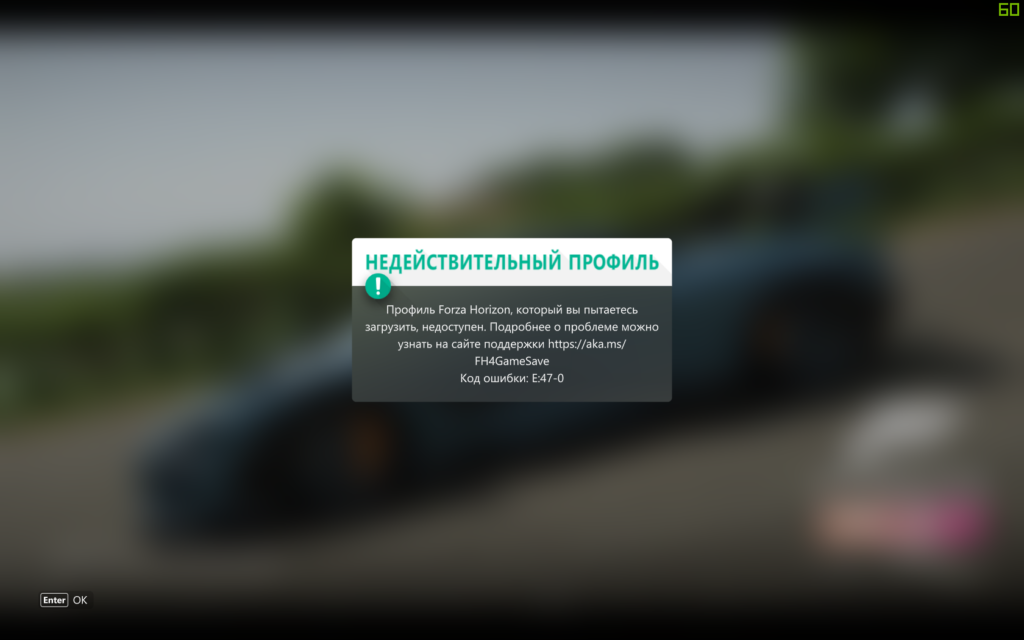
Ошибка с кодом E:47-0 может возникнуть в главном меню Forza Horizon 4, причем как на ПК, так и на консолях Xbox. В сообщении ошибки можно увидеть следующую информацию:
Недействительный профиль
Профиль Forza Horizon, который вы пытаетесь загрузить, недоступен. Код ошибки: E:47-0
Решение ошибки E:47-0 в Forza Horizon 4
Как правило, ошибка E:47-0 возникает в результате повреждения локальных файлов сохранений Forza Horizon 4. Учитывая причину, самым логичным решением в данной ситуации будет удаление «местных» сохранений, и их последующая замена файлами, которые хранятся на облачном хранилище Microsoft.
На ПК подобная процедура выполняется следующим образом:
- полностью закройте Forza Horizon 4, когда перед вами появится сообщение с ошибкой;
- откройте системный проводник и перейдите в C:/Пользователи/[ИМЯ ПОЛЬЗОВАТЕЛЯ]/AppData/Local/Packages/Microsoft.SunriseBaseGames_8wekyb3d8bbwe/SystemAppData/wgs/
- избавьтесь от содержимого данной папки;
- снова запустите Forza Horizon 4 и дождитесь окончания синхронизации.
Процесс синхронизации может занять достаточно большое количество времени — наберитесь терпения. Как только ваши файлы сохранения будут скачаны с облака Microsoft, ошибка E:47-0 исчезнет из Forza Horizon 4. К сожалению, вышеуказанный метод работает только в том случае, если у вас активированы облачные сохранения.
Вот полное руководство по исправлению ошибки с кодом E: 47-0 в Forza Horizon 4 на ПК с Windows и консоли Xbox. Forza Horizon 4 — гоночная видеоигра, популярная среди миллионов энтузиастов игр. Однако во время игры нередко возникают ошибки. Одна из таких ошибок — это код ошибки E: 47-0. При срабатывании вы увидите следующее сообщение об ошибке:
НЕДЕЙСТВИТЕЛЬНЫЙ ПРОФИЛЬ
Профиль Forza Horizon, который вы пытаетесь загрузить, больше не доступен. Для получения дополнительной информации посетите страницу поддержки https://aka.ms/FH4GameSave.
Код ошибки E: 47-0
Теперь ошибка может быть вызвана разными причинами. вот некоторые из возможных причин, которые потенциально могут вызвать ошибку:
- Эта ошибка может быть результатом временного повреждения игрового профиля. В этом случае перезагрузите игру, чтобы избавиться от порчи.
- Это может быть вызвано повреждением папки wgs. Итак, очистка папки wgs должна помочь вам исправить ошибку.
- Устаревшая версия игры может быть еще одной причиной, которая потенциально может вызвать ошибку E: 47-0 в Forza Horizon 4. Если сценарий применим, вы можете обновить игру, чтобы избавиться от ошибки.
- Это также может быть вызвано повреждением или повреждением компонента приложения Xbox на ПК с Windows. Итак, попробуйте переустановить приложение Xbox на свой компьютер, чтобы исправить ошибку.
- Несогласованность сети на консоли Xbox также может вызвать ошибку. Вы можете попробовать очистить MAC-адрес, чтобы устранить ошибку.
В любом случае вы можете исправить ошибку, используя следующие исправления.
Вот способы исправить код ошибки E: 47-0 в Forza Horizon 4 на ПК с Windows и Xbox:
- Сбросьте Forza Horizon 4 в Windows.
- Удалите временные файлы WGS на ПК.
- Обновите Forza Horizon 4 до последней версии на консоли ПК / Xbox.
- Очистить MAC-адрес на консоли Xbox.
- Переустановите Forza Horizon 4 на ПК / Xbox.
- Переустановите приложение Xbox.
- Обратитесь в службу поддержки.
1]Сбросить Forza Horizon 4 в Windows
Первое, что вы можете сделать, чтобы исправить ошибку, — это перезагрузить игру на вашем ПК с Windows. Поскольку ошибка может быть вызвана кешем игры или поврежденными настройками или файлами, связанными с игровым профилем, сброс игры поможет вам исправить ошибку. Сброс приведет к удалению всех настроек и восстановлению Forza Horizon 4 настроек по умолчанию.
Чтобы сбросить Forza Horizon 4 в Windows 11, вы можете выполнить следующие действия:
- Сначала откройте приложение «Настройки» с помощью горячей клавиши Win + I, а затем перейдите в раздел «Приложения»> «Приложения и функции».
- Теперь под списком установленных приложений прокрутите вниз и найдите игру Forza Horizon 4.
- После этого выберите Forza Horizon 4 и нажмите «Дополнительные параметры».
- На следующей странице прокрутите вниз до раздела «Сброс» и нажмите кнопку «Сброс».
- Затем подтвердите процесс сброса и подождите некоторое время, пока процесс не будет завершен.
- Наконец, перезагрузите компьютер, а затем запустите Forza Horizon 4, чтобы проверить, устранена ли ошибка.
Если этот метод не устраняет ошибку, перейдите к следующему потенциальному исправлению, чтобы устранить ошибку.
2]Очистить временные файлы WGS на ПК
Одна из причин этой ошибки — поврежденные файлы в папке wgs, связанной с игрой. Если сценарий применим, вы сможете исправить ошибку, удалив временные файлы wgs на ПК с Windows. Вот шаги для этого:
- Во-первых, запустите приложение Microsoft Store и войдите в настройки, щелкнув профиль сверху.
- Теперь включите переключатель, связанный с Автономные разрешения вариант, а затем отключите вашу систему от Интернета.
- После этого вызовите диалоговое окно «Выполнить» с помощью горячей клавиши Windows + R и введите в него данные приложения.
- Далее в открывшемся месте перейдите в папку Local> Packages и найдите папку Microsoft.SunriseBaseGame_.
- После этого откройте папку Microsoft.SunriseBaseGame_, а затем откройте файл SystemAppData.
- Теперь найдите папку wgs и выберите все файлы, используя горячую клавишу Ctrl + A.
- Затем нажмите кнопку «Удалить», чтобы удалить все файлы.
- Наконец, снова подключитесь к Интернету, запустите игру и проверьте, устранена ли проблема.
3]Обновите Forza Horizon 4 до последней версии на консоли ПК / Xbox.
Если есть ожидающие обновления, связанные с игрой, установите их все и обновите Forza Horizon 4. Некоторые затронутые пользователи смогли исправить ошибку после обновления игры.
Чтобы обновить Forza Horizon 4 на консоли Xbox:
- Нажмите кнопку Xbox на геймпаде, чтобы открыть меню руководства, а затем перейдите в раздел «Обновления».
- Установите все ожидающие обновления для Forza Horizon 4, нажав кнопку «Установить» рядом с игрой.
Вот процесс обновления игры на ПК с Windows:
- Откройте Microsoft Store и перейдите в раздел «Библиотека».
- Нажмите кнопку «Получить обновления», и начнется установка ожидающих обновлений для ваших приложений, включая игру Forza Horizon 4.
После обновления игры проверьте, остановилась ли ошибка E: 47-0 на Forza Horizon 4.
4]Очистить MAC-адрес на консоли Xbox
Ошибка может быть вызвана несогласованностью сети. Если вы столкнулись с этой ошибкой на консоли Xbox, вы можете попробовать очистить MAC-адрес, чтобы исправить ошибку. Он вступит в силу, если вы изменили альтернативный MAC-адрес. Итак, выберите этот метод, если вы это сделали.
Чтобы очистить MAC-адрес на консоли Xbox, выполните следующие действия:
- Во-первых, откройте меню гида, нажав кнопку Xbox на геймпаде.
- Теперь щелкните значок шестеренки (Настройки), а затем выберите параметр Все настройки.
- Затем перейдите на вкладку «Сеть» и выберите параметр «Параметры сети» на правой панели.
- После этого перейдите к дополнительным настройкам и нажмите на опцию Альтернативный MAC-адрес.
- Затем в меню «Альтернативный MAC-адрес» выберите опцию «Очистить», а затем нажмите кнопку «Перезагрузить» для подтверждения.
- После перезапуска консоли попробуйте запустить игру и посмотрите, исправлена ли ошибка.
См .: Исправление ошибки Xbox Game 0xa3e903ed в приложении EA Play в Windows 11/10.
5]Переустановите Forza Horizon 4 на ПК / Xbox.
Если описанный выше метод не помог вам, проблема может заключаться в установке игры. Если сценарий применим, вы можете попробовать переустановить игру на консоли Xbox или ПК и посмотреть, исправит ли он ошибку для вас.
Чтобы переустановить игру на консоли Xbox, выполните следующие действия:
- Во-первых, откройте меню руководства, нажав кнопку Xbox на геймпаде.
- Теперь войдите в раздел «Мои игры и приложения», перейдите в раздел «Игры» и найдите Forza Horizon 4.
- Затем нажмите кнопку «Пуск» на контроллере, нажмите кнопку «Удалить» и подтвердите удаление.
- После этого перезапустите консоль Xbox и установите игру.
- Наконец, запустите его и посмотрите, исправлена ли ошибка.
На ПК с Windows вы можете просто удалить игру, выбрав «Настройки»> «Приложения»> «Приложения и функции» и указав игру в списке установленных приложений. Затем выберите игру и нажмите на трехточечное меню рядом с ней. После этого нажмите кнопку «Удалить», чтобы удалить его. Когда удаление будет завершено, установите Forza Horizon 4 обратно, перейдя в Microsoft Store.
Надеюсь, это исправит ошибку.
6]Переустановите приложение Xbox.
Ошибка может быть вызвана проблемами с вашим приложением Xbox. В этом случае переустановка приложения Xbox должна помочь вам исправить ошибку в Windows 11/10. Для этого сначала удалите приложение Xbox, а затем снова установите его на свой компьютер. Вот как это сделать:
- Во-первых, откройте приложение Powershell с правами администратора из поиска на панели задач.
- Теперь введите следующую команду в Powershell: Get-AppxPackage -AllUsers | Foreach {Add-AppxPackage -DisableDevelopmentMode -Register
- Затем дождитесь завершения процесса удаления и закройте Powershell.
- После этого перезапустите Windows и откройте Microsoft Store.
- В магазине найдите приложение Xbox, а затем снова установите его на свой компьютер.
- Потом. попробуйте запустить игру Forza Horizon 4 и посмотрите, исправлена ли ошибка.
7]Обратитесь в службу поддержки
Если все другие исправления не помогли устранить ошибку, вы можете связаться с официальной службой поддержки Forza через Интернет. Просто отправьте запрос об ошибке, и они свяжутся с вами с предложением метода устранения неполадок.
По теме: Forza Horizon некорректно работает на ПК с Windows.
Как исправить сбой FH4?
Если Forza Horizon 4 продолжает давать сбой на вашем ПК, вы можете решить эту проблему, обновив Windows и графические драйверы. Если это не сработает, вы можете попробовать установить последние игровые патчи, пропустить игру через антивирус, избежать разгона, закрыть фоновые приложения или переустановить игру.
Почему моя Forza Horizon 4 не загружается?
Чтобы решить проблему, из-за которой Forza Horizon 4 не загружается или не запускается, убедитесь, что ваша система соответствует минимальным требованиям для запуска игры. Кроме того, вы можете попробовать обновить драйверы графического процессора, закрыть ненужные фоновые программы, установить все ожидающие обновления Windows или переустановить игру.
Вот и все!
Теперь прочтите: Исправить ошибку IPsec в Forza Horizon 4 — невозможно присоединиться к сеансу.
.
Подсобралась тут информашка относительно всяких разных ошибок, багов и прочих неприятностей в Forza Horizon 4. Мы её привели к такому вот компактному виду и вот публикуем.
Так что, если игра выдала ошибку с каким-то непонятным кодом, вообще не запускается и т.д., то, очень вероятно, что зашли вы по адресу.
Сейчас расскажем, что с нею не так, и что делать дальше.
Итак, по порядку:
Ошибка E:47-0 в Forza Horizon 4
На этапе запуска игра сообщает, что профиль больше не доступен. В настоящее время это, пожалуй, одна из самых муторных ошибок в FH4. Код E:47-0 означает, что игра либо повреждена, либо перезаписана. И что сейв придется удалять, чтобы проблему устранить.
В противном случае, баг с сохранениями никуда не денется и будет повторятся снова, но уже на регулярной основе. Плюс к этому, игра еще и начнет забивать данными диск. Поэтому, когда видим ошибку E:47-0, то просто удаляем данные отовсюду. А для этого:
на Xbox:
- выходим в главное меню (кнопка «Xbox»), жмем «Мои игры и приложения» > Forza Horizon 4 > кнопка «меню» > «Управление игрой и дополнениями»;
- в открывшемся меню выбираем «Сохраненные данные«;
- выделяем сохраненные данные с соответствующим геймтегом и жмем кнопку «А» контроллера;
- и теперь жмем «Удалить везде«.
После этого все данные игры будут удалены из памяти консоли, а также из облака и из памяти других Xbox, если в FH4 вы катались на других консолях со своего аккаунта (профиля).
на ПК:
- сначала включаем «Автономные разрешения» в Microsoft store (открываем «Магазин Windows» > логинимся > кликаем по аватарке > Настройки > Автономные разрешения > Вкл);
- далее запускаем Forza Horizon 4, и как только откроется экран запуска игры сразу отключаем комп от интернета;
- после этого открываем «Параметры» Windows 10 > «Приложения»> «Приложения и возможности»;
- в списке приложений выделяем «Forza Horizon 4«, кликаем ссылку «Дополнительные параметры«;
- и в следующем окне жмем кнопку «Сбросить«.
После этого запускаем FH4, играем в игру несколько минут до создания автоматического сохранения и после этого снова подключаем комп к интернету. Только потом, когда игра запросит выбрать сохранение, сначала выбираем «Локально«, а после этого только «Облако«.
Не пропустите: ОЧКИ ВЛИЯНИЯ В FORZA HORIZON 4: КАК НАБРАТЬ ПОБОЛЬШЕ И ПОБЫСТРЕЕ
Прочие «популярные» коды ошибок в Forza Horizon 4:
- FH001 — проблема с файлом TargetHardwareProfiler.dll — устраняется путем переустановки пакета Visual C++ (качаем с сайта Microsoft — ССЫЛКА — и устанавливаем).
- FH101 — FH4 требует проц минимум с четырьмя логическими ядрами, иначе игра работать не будет.
- FH201, FH203 и FH204 — видеокарта не поддерживает DX12, требуется более современная видеокарта.
- FH202 — видеокарта не обеспечивает 2GB видеопамяти, для FH4 требуется более современная видеокарта с минимум 2GB видеопамяти.
- FH301 — устаревшая версия драйвера видеокарты — обновляем драйвер.
- FH401 — не хватает оперативки — требуется минимум 8GB RAM (см. минимальные системные требования FH4).
- FH501 — видеокарта не поддерживает DX12, требуется более современная видеокарта.
- FH601 — игра не может загрузить пакет Microsoft Media Foundation — качаем с сайта Microsoft — ССЫЛКА — и устанавливаем.
Не получается запустить Forza Horizon 4 со Steam
Если такое имеет место быть, то есть, FH4 со Steam вообще никак не запускается, то сначала проверяем имя пользователя (в нем не должно быть нелатинских символов). Но если с этим все ОК, а проблема есть, то тогда:
- жмем «Пуск«, в строке поиска системы пишем «выполнить» и в результатах выше кликаем «Выполнить«;
- в открывшемся окошке в строке «Выполнить» пишем appwiz.cpl и жмем Enter;
- в следующем окне в списке программ находим Visual C++ или все проги с названием Microsoft Visual C++ Redistributable и все их по очереди удаляем (выделяем строку и жмем «Удалить» вверху таблицы);
- после этого переходим по этой ссылке https://www.techpowerup.com/download/visual-c-redistributable-runtime-package-all-in-one/ и качаем VCRedist Visual Studio C++
- после завершения загрузки распаковываем архив, находим файл install_all.bat и запускаем его от имени администратора;
- дожидаемся завершения процедуры установки всего пакета Visual C++ и перезагружаем комп.
Если всё сделано правильно, то после этого Forza Horizon 4 со Steam должна и запускаться, и работать нормально.
Вот полное руководство по исправлению кода ошибки E: 47-0 в Forza Horizon 4 на ПК с Windows и консоли Xbox. Forza Horizon 4-гоночная видеоигра, популярная среди миллионов энтузиастов игр. Однако во время игры нередко возникают ошибки. Одна из таких ошибок-это код ошибки E: 47-0. При запуске вы увидите следующее сообщение об ошибке:
НЕДЕЙСТВИТЕЛЬНЫЙ ПРОФИЛЬ
Профиль Forza Horizon, который вы пытаетесь загрузить, больше не доступен. Для получения дополнительной информации посетите страницу поддержки: https://aka.ms/FH4GameSave
Код ошибки E: 47-0
Теперь ошибка может быть вызвана разными причинами. вот некоторые из возможных причин, которые потенциально могут вызвать ошибку:
Эта ошибка может быть результатом временного повреждения, связанного с игровым профилем. В этом случае перезагрузите игру, чтобы избавиться от повреждения, оно может быть вызвано повреждением в папке wgs. Таким образом, очистка папки wgs должна помочь вам исправить ошибку. Устаревшая версия игры может быть еще одной причиной, которая потенциально может вызвать ошибку E: 47-0 в Forza Horizon 4. Если сценарий применим, вы можете обновить игру, чтобы избавиться от нее. Это также может быть вызвано повреждением или повреждением компонента приложения Xbox на ПК с Windows. Итак, попробуйте переустановить приложение Xbox на свой компьютер, чтобы исправить ошибку. Несогласованность сети на консоли Xbox также может вызвать ошибку. Вы можете попробовать очистить MAC-адрес, чтобы устранить ошибку.
В любом случае вы можете исправить ошибку, используя следующие исправления.
Исправить Forza Horizon 4 Error Code E: 47-0 на ПК и Xbox
Вот способы исправить код ошибки E: 47-0 в Forza Horizon 4 на ПК с Windows и Xbox:
Сбросить Forza Horizon 4 на Windows. Очистить временные файлы wgs на ПК.Обновите Forza Horizon 4 до последней версии на консоли ПК/Xbox. Очистите MAC-адрес на консоли Xbox. Переустановите Forza Horizon 4 на ПК/Xbox. Переустановите приложение Xbox. Обратитесь в службу поддержки.
1] Сбросить Forza Horizon 4 на Windows
Первое, что вы можете сделать, чтобы исправить ошибку,-это перезагрузить игру на вашем ПК с Windows. Поскольку ошибка может быть вызвана кешем игры или поврежденными настройками или файлами, связанными с игровым профилем, сброс игры поможет вам исправить ошибку. Сброс приведет к удалению всех настроек и восстановлению Forza Horizon 4 настроек по умолчанию.
Чтобы сбросить Forza Horizon 4 в Windows 11, вы можете выполнить следующие шаги:
Во-первых, откройте приложение «Настройки» с помощью Win + Я нажимаю горячую клавишу, а затем перехожу в раздел «Приложения»> «Приложения и функции». Теперь в списке установленных приложений прокрутите вниз и найдите игру Forza Horizon 4. После этого выберите Forza Horizon 4, а затем нажмите «Дополнительные параметры». страницу, прокрутите вниз до раздела Сброс и затем нажмите кнопку Сброс. Затем подтвердите процесс сброса и подождите некоторое время, пока процесс не будет завершен. Наконец, перезагрузите компьютер и затем запустите Forza Horizon 4, чтобы проверить, действительно ли ошибка устранена.
Если этот метод не устраняет ошибку, перейдите к следующему потенциальному исправлению, чтобы устранить ошибку.
2] Очистите временные файлы wgs на ПК
Одна из причин этой ошибки-поврежденные файлы в папке wgs, связанной с игрой. Если сценарий применим, вы сможете исправить ошибку, удалив временные файлы wgs на ПК с Windows. Вот шаги для этого:
Во-первых, запустите приложение Microsoft Store и войдите в настройки, щелкнув профиль сверху. Теперь включите переключатель, связанный с опцией Offline Permissions, а затем отключите свою систему от Интернета.. После этого вызовите диалоговое окно «Выполнить» с помощью горячей клавиши Windows + R и введите в него данные приложения . Затем в открывшемся месте перейдите в папку Локальные> Пакеты и найдите папку Microsoft.SunriseBaseGame_ . После этого откройте папку Microsoft.SunriseBaseGame_, а затем откройте SystemAppData. Теперь найдите папку wgs и выберите все файлы с помощью сочетания клавиш Ctrl + A. Затем нажмите Удалить Нажмите кнопку, чтобы очистить все файлы. Наконец, снова подключитесь к Интернету, запустите игру и проверьте, устранена ли проблема.
Прочтите: Не удается установить Forza Horizon 5 на ПК с Windows.
3] Обновите Forza Horizon 4 до последней версии на консоли ПК/Xbox
Если есть ожидающие обновления, связанные с игру, установите их все и обновите Forza Horizon 4. Некоторые затронутые пользователи смогли исправить ошибку после обновления игры.
Чтобы обновить Forza Horizon 4 на консоли Xbox:
Нажмите Xbox на вашем контроллере, чтобы открыть меню руководства, а затем перейти в раздел «Обновления». Установите все ожидающие обновления для Forza Horizon 4, нажав кнопку «Установить» рядом с игрой.
Вот процесс обновления игры на ПК с Windows:
откройте Microsoft Store и перейдите в раздел «Библиотека». Нажмите кнопку Получить обновления , и начнется установка ожидающих обновлений для ваших приложений, включая игру Forza Horizon 4.
После обновления игры проверьте, прекратилась ли ошибка E: 47-0 в Forza Horizon 4.
4] Очистить MAC-адрес на консоли Xbox
Ошибка могла быть вызвана из-за несогласованность сети. Если вы столкнулись с этой ошибкой на консоли Xbox, вы можете попробовать очистить MAC-адрес, чтобы исправить ошибку. Он будет эффективен, если вы изменили альтернативный MAC-адрес. Итак, выберите этот метод, если вы это сделали.
Чтобы очистить MAC-адрес на консоли Xbox, выполните следующие действия:
Во-первых, откройте меню руководства, нажав кнопку Xbox на контроллере..Теперь нажмите на значок шестеренки (Настройки), а затем нажмите на опцию Все настройки. Затем перейдите на вкладку «Сеть» и затем нажмите на опцию «Сетевые настройки» на правой панели. После этого перейдите в «Дополнительные настройки» и нажмите на опции Альтернативный MAC-адрес. Затем в меню Альтернативный MAC-адрес нажмите на опцию Очистить, а затем нажмите кнопку Перезагрузить для подтверждения. После перезапуска консоли попробуйте запустить игру и посмотрите, исправлена ли ошибка.
См. Исправление ошибки Xbox Game 0xa3e903ed в приложении EA Play в Windows 11/10.
5] Переустановите Forza Horizon 4 на ПК/Xbox
Если описанный выше метод не помог вам, проблема может заключаться в установке игры. Если сценарий применим, вы можете попробовать переустановить игру на консоли Xbox или ПК и посмотреть, исправит ли он ошибку для вас.
Чтобы переустановить игру на консоли Xbox, выполните следующие действия:
Сначала откройте меню руководства, нажав кнопку Xbox на контроллере. Теперь перейдите в раздел Мои игры и приложения , перейдите в раздел Игры и найдите Forza Horizon 4, а затем нажмите на значок Нажмите кнопку «Пуск» на геймпаде, нажмите кнопку Удалить и подтвердите удаление. После этого перезапустите консоль Xbox, а затем установите игру. Наконец, запустите ее и посмотрите, исправлена ли ошибка сейчас.
На ПК с Windows вы можете просто удалить игру, выбрав «Настройки»> «Приложения»> «Приложения и функции» и указав игру в списке установленных приложений. Затем выберите игру и нажмите на трехточечное меню рядом с ней. После этого нажмите кнопку «Удалить», чтобы удалить его. Когда удаление будет завершено, установите Forza Horizon 4 обратно, перейдя в Microsoft Store.
Надеюсь, это исправит ошибку для вас.
6] Переустановите приложение Xbox
Ошибка может быть вызвана проблемами с вашим приложением Xbox. В этом случае переустановка приложения Xbox должна помочь вам исправить ошибку в Windows 11/10. Для этого сначала удалите приложение Xbox, а затем снова установите его на свой компьютер. Вот как это можно сделать:
Во-первых, откройте приложение Powershell с правами администратора из поиска на панели задач. Теперь введите следующую команду в Powershell: Get-AppxPackage-AllUsers | Для каждого {Add-AppxPackage-DisableDevelopmentMode-RegisterNext дождитесь завершения процесса удаления и закройте Powershell. После этого перезапустите Windows и откройте Microsoft Store. В магазине найдите приложение Xbox, а затем снова установите его на свой компьютер. Потом. попробуйте запустить игру Forza Horizon 4 и посмотрите, исправлена ли ошибка.
Прочтите: Исправьте ошибку 0x8007023e Xbox Game Pass на ПК с Windows.
7] Обратитесь в службу поддержки
Если все другие исправления не помогли устранить ошибку, вы можете связаться с официальной службой поддержки Forza через Интернет. Просто отправьте сообщение об ошибке, и они свяжутся с вами с предложением метода устранения неполадок.
По теме : Forza Horizon не работает должным образом на ПК с Windows.
Как исправить сбой FH4?
Если Forza Horizon 4 продолжает сбой на вашем ПК, вы можете решить проблему, обновив Windows и графические драйверы. Если это не сработает, вы можете попробовать установить последние игровые патчи, пропустить игру через свой антивирус, избежать разгона, закрыть фоновые приложения или переустановить игру.
Почему моя Forza Horizon 4 не работает. загрузка?
Чтобы решить проблему, из-за которой Forza Horizon 4 не загружается или не запускается, убедитесь, что ваша система соответствует минимальным требованиям для запуска игры. Кроме того, вы можете попробовать обновить драйверы графического процессора, закрыть ненужные фоновые программы, установить все ожидающие обновления Windows или переустановить игру.
Вот и все!
Теперь прочтите : исправить ошибку IPsec в Forza Horizon 4-невозможно присоединиться к сеансу.
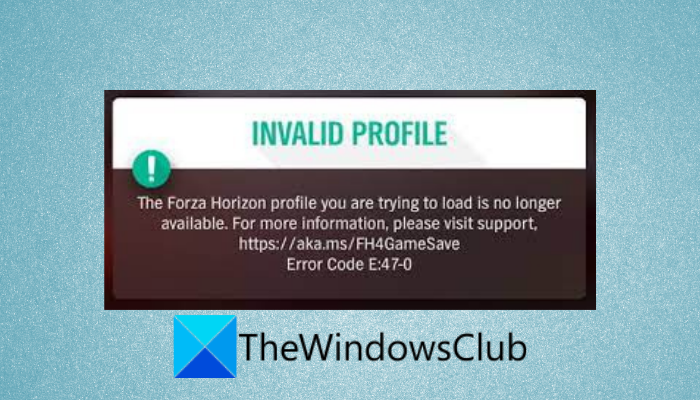
Here is a full guide on how you can fix the error code E:47-0 on Forza Horizon 4 on Windows PC and Xbox console. Forza Horizon 4 is a racing video game popular amongst millions of gaming enthusiasts. However, it is not uncommon to run into errors while playing the game. One such error is the error code E:47-0. When triggered, you will see the following error message:
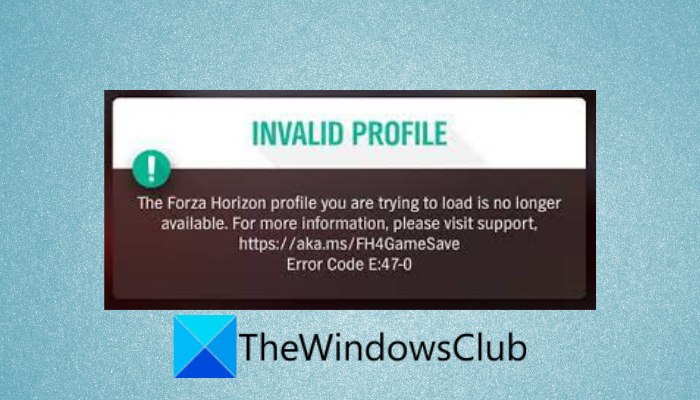
INVALID PROFILE
The Forza Horizon profile you are trying to load is no longer available. For more information, please visit support, https://aka.ms/FH4GameSave
Error Code E:47-0
Now, the error can be caused due to different reasons. here are some of the possible reasons that can potentially cause the error:
- This error can be a result of temporary corruption associated with the game profile. In that case, reset the game to get rid of the corruption.
- It can be caused due to corruption in the wgs folder. So, clearing the wgs folder should help you fix the error.
- Outdated game version can be another reason that can potentially trigger the error E:47-0 on Forza Horizon 4. If the scenario applies, you can update the game to get rid of the error.
- It can also be caused due to a corrupted or damaged Xbox app component on Windows PC. So, try reinstalling the Xbox app on your PC to fix the error.
- Network inconsistency on your Xbox console can also trigger the error. You can try clearing the MAC address to resolve the error.
In any scenario, you can fix the error by using the below fixes.
Here are the methods to fix the error code E:47-0 on Forza Horizon 4 on Windows PC and Xbox:
- Reset Forza Horizon 4 on Windows.
- Clear temporary wgs files on PC.
- Update Forza Horizon 4 to the latest version on PC/Xbox console.
- Clear MAC Address on Xbox console.
- Reinstall Forza Horizon 4 on PC/Xbox.
- Reinstall the Xbox app.
- Contact support team.
1] Reset Forza Horizon 4 on Windows
The first thing you can do to fix the error is reset the game on your Windows PC. As the error can be caused due to game cache or corrupted settings or files associated with the game profile, resetting the game will help you fix the error. Resetting will clear all the customizations and restore Forza Horizon 4 to default settings.
To reset Forza Horizon 4 on Windows 11, you can follow the below steps:
- Firstly, open the Settings app using Win+I hotkey and then go to Apps > Apps & features section.
- Now, under the list of installed apps, scroll down and locate the Forza Horizon 4 game.
- After that, select Forza Horizon 4 and then click on Advanced options.
- On the next page, scroll down to the Reset section and then tap on the Reset button.
- Next, confirm the resetting process and then wait for some time until the process is done.
- Finally, reboot your computer and then launch Forza Horizon 4 to check whether or not the error is resolved.
If this method doesn’t fix the error, move down to the next potential fix to resolve the error.
2] Clear temporary wgs files on PC
One of the causes for this error is the corrupted files in the wgs folder associated with the game. If the scenario applies, you should be able to fix the error by clearing temporary wgs files on Windows PC. Here are the steps to do that:
- Firstly, launch the Microsoft Store app and access Settings by clicking on the profile from the top.
- Now, enable the toggle associated with the Offline Permissions option and then disconnect your system from the internet.
- After that, evoke the Run dialog box using Windows+R hotkey and then enter appdata in it.
- Next, in the opened location, go to the Local > Packages folder and look for Microsoft.SunriseBaseGame_ folder.
- After that, open Microsoft.SunriseBaseGame_ folder and then open the SystemAppData.
- Now, locate the wgs folder and select all files using the Ctrl+A hotkey.
- Then, press the Delete button to clear all the files.
- Finally, reconnect to the internet and start the game and check if the issue is fixed.
Read: Can’t Install Forza Horizon 5 on Windows PC.
3] Update Forza Horizon 4 to the latest version on PC/Xbox console
If there are some pending updates related to the game, install all of them and update Forza Horizon 4. Some affected users were able to fix the error after updating the game.
To update Forza Horizon 4 on your Xbox console:
- Press the Xbox button on your controller to open up the guide menu and then go to the Updates section.
- Install all the pending updates for Forza Horizon 4 by clicking on the Install button present next to the game.
Here is a process to update the game on Windows PC:
- Open Microsoft Store and go to the Library section.
- Click on the Get Updates button and it will start installing pending updates for your apps including the Forza Horizon 4 game.
After updating the game, check whether the error E:47-0 stopped on Forza Horizon 4.
4] Clear MAC Address on Xbox console
The error might be triggered due to network inconsistency. In case you are facing this error on the Xbox console, you can try clearing the MAC address to fix the error. It will be effective in case you changed the Alternative MAC address. So, opt for this method if you did that.
To clear MAC address on Xbox console, follow the below steps:
- Firstly, open up the guide menu by pressing the Xbox button on your controller.
- Now, click on the gear icon (Settings) and then press the All settings option.
- Next, go to the Network tab and then click on the Network settings option from the right-side panel.
- After that, navigate to Advanced settings and tap on the Alternate MAC address option.
- Then, from the Alternate MAC address menu, click on the Clean option and then select the Restart button for confirmation.
- When the console is restarted, try launching the game and see if the error is now fixed.
See: Fix Xbox Game error 0xa3e903ed on EA Play app in Windows 11/10.
5] Reinstall Forza Horizon 4 on PC/Xbox
If the above method didn’t work for you, the problem might lie with the installation of the game. If the scenario is applicable, you can try reinstalling the game on your Xbox console or PC and see if it fixes the error for you.
To reinstall the game on the Xbox console, follow the below steps:
- Firstly, open the guide menu by clicking on the Xbox button on your controller.
- Now, access the My Games & Apps section and go to Games and locate Forza Horizon 4.
- Next, tap on the Start button on your controller and press the Uninstall button and confirm the uninstallation.
- After that, restart your Xbox console and then install the game.
- Finally, launch it and see if the error is fixed now.
On Windows PC, you can simply uninstall the game by going to Settings > Apps > Apps & features and locating the game under the list of installed apps. Then, select the game and press on the three-dot menu present next to it. After that, click on the Uninstall option to uninstall it. When the uninstallation is complete, install the Forza Horizon 4 back by going to the Microsoft Store.
Hopefully, this will fix the error for you.
6] Reinstall the Xbox app
The error might be caused due to issues with your Xbox app. In that case, reinstalling the Xbox app should help you fix the error on Windows 11/10. To do that, first, uninstall the Xbox app and then install it back on your PC. Here is how you can do that:
- Firstly, open the Powershell app with administrator privilege from the taskbar search.
- Now, enter the below command in Powershell:
Get-AppxPackage -AllUsers| Foreach {Add-AppxPackage -DisableDevelopmentMode -Register - Next, wait for the uninstallation process to finish and close Powershell.
- After that, restart Windows and then open Microsoft Store.
- In the store, search for the Xbox app and then install it back on your PC.
- Then. try launching the Forza Horizon 4 game and see if the error is fixed.
Read: Fix 0x8007023e Xbox Game Pass Error on Windows PC.
7] Contact support team
If all other fixes fail to resolve the error, you can contact the official Forza Support team online. Just submit a ticket about the error and they will get back to you with a troubleshooting method.
Related: Forza Horizon is not working properly on Windows PC.
How do I fix FH4 crashing?
If Forza Horizon 4 keeps on crashing on your PC, you can fix the issue by updating your WIndows and graphics drivers. If that doesn’t work, you can try installing the latest game patches, allowing the game through your antivirus, avoiding overclocking, closing the background apps, or reinstalling the game.
Why is my Forza Horizon 4 not loading?
To fix the issue of Forza Horizon 4 not loading or launching, make sure your system meets the minimum specifications to run the game. Apart from that, you can try updating GPU drivers, close unnecessary background programs, install all the pending Windows updates or reinstall the game.
That’s it!
Now read: Fix Forza Horizon 4 IPsec Error – Unable to join session.
Here is a full guide on how you can fix the error code E:47-0 on Forza Horizon 4 on Windows PC and Xbox console. Forza Horizon 4 is a racing video game popular amongst millions of gaming enthusiasts. However, it is not uncommon to run into errors while playing the game. One such error is the error code E:47-0. When triggered, you will see the following error message:
INVALID PROFILE
The Forza Horizon profile you are trying to load is no longer available. For more information, please visit support, https://aka.ms/FH4GameSave
Error Code E:47-0
Now, the error can be caused due to different reasons. here are some of the possible reasons that can potentially cause the error:
- This error can be a result of temporary corruption associated with the game profile. In that case, reset the game to get rid of the corruption.
- It can be caused due to corruption in the wgs folder. So, clearing the wgs folder should help you fix the error.
- Outdated game version can be another reason that can potentially trigger the error E:47-0 on Forza Horizon 4. If the scenario applies, you can update the game to get rid of the error.
- It can also be caused due to a corrupted or damaged Xbox app component on Windows PC. So, try reinstalling the Xbox app on your PC to fix the error.
- Network inconsistency on your Xbox console can also trigger the error. You can try clearing the MAC address to resolve the error.
In any scenario, you can fix the error by using the below fixes.
Here are the methods to fix the error code E:47-0 on Forza Horizon 4 on Windows PC and Xbox:
- Reset Forza Horizon 4 on Windows.
- Clear temporary wgs files on PC.
- Update Forza Horizon 4 to the latest version on PC/Xbox console.
- Clear MAC Address on Xbox console.
- Reinstall Forza Horizon 4 on PC/Xbox.
- Reinstall the Xbox app.
- Contact support team.
1] Reset Forza Horizon 4 on Windows
The first thing you can do to fix the error is reset the game on your Windows PC. As the error can be caused due to game cache or corrupted settings or files associated with the game profile, resetting the game will help you fix the error. Resetting will clear all the customizations and restore Forza Horizon 4 to default settings.
To reset Forza Horizon 4 on Windows 11, you can follow the below steps:
- Firstly, open the Settings app using Win+I hotkey and then go to Apps > Apps & features section.
- Now, under the list of installed apps, scroll down and locate the Forza Horizon 4 game.
- After that, select Forza Horizon 4 and then click on Advanced options.
- On the next page, scroll down to the Reset section and then tap on the Reset button.
- Next, confirm the resetting process and then wait for some time until the process is done.
- Finally, reboot your computer and then launch Forza Horizon 4 to check whether or not the error is resolved.
If this method doesn’t fix the error, move down to the next potential fix to resolve the error.
2] Clear temporary wgs files on PC
One of the causes for this error is the corrupted files in the wgs folder associated with the game. If the scenario applies, you should be able to fix the error by clearing temporary wgs files on Windows PC. Here are the steps to do that:
- Firstly, launch the Microsoft Store app and access Settings by clicking on the profile from the top.
- Now, enable the toggle associated with the Offline Permissions option and then disconnect your system from the internet.
- After that, evoke the Run dialog box using Windows+R hotkey and then enter appdata in it.
- Next, in the opened location, go to the Local > Packages folder and look for Microsoft.SunriseBaseGame_ folder.
- After that, open Microsoft.SunriseBaseGame_ folder and then open the SystemAppData.
- Now, locate the wgs folder and select all files using the Ctrl+A hotkey.
- Then, press the Delete button to clear all the files.
- Finally, reconnect to the internet and start the game and check if the issue is fixed.
Read: Can’t Install Forza Horizon 5 on Windows PC.
3] Update Forza Horizon 4 to the latest version on PC/Xbox console
If there are some pending updates related to the game, install all of them and update Forza Horizon 4. Some affected users were able to fix the error after updating the game.
To update Forza Horizon 4 on your Xbox console:
- Press the Xbox button on your controller to open up the guide menu and then go to the Updates section.
- Install all the pending updates for Forza Horizon 4 by clicking on the Install button present next to the game.
Here is a process to update the game on Windows PC:
- Open Microsoft Store and go to the Library section.
- Click on the Get Updates button and it will start installing pending updates for your apps including the Forza Horizon 4 game.
After updating the game, check whether the error E:47-0 stopped on Forza Horizon 4.
4] Clear MAC Address on Xbox console
The error might be triggered due to network inconsistency. In case you are facing this error on the Xbox console, you can try clearing the MAC address to fix the error. It will be effective in case you changed the Alternative MAC address. So, opt for this method if you did that.
To clear MAC address on Xbox console, follow the below steps:
- Firstly, open up the guide menu by pressing the Xbox button on your controller.
- Now, click on the gear icon (Settings) and then press the All settings option.
- Next, go to the Network tab and then click on the Network settings option from the right-side panel.
- After that, navigate to Advanced settings and tap on the Alternate MAC address option.
- Then, from the Alternate MAC address menu, click on the Clean option and then select the Restart button for confirmation.
- When the console is restarted, try launching the game and see if the error is now fixed.
See: Fix Xbox Game error 0xa3e903ed on EA Play app in Windows 11/10.
5] Reinstall Forza Horizon 4 on PC/Xbox
If the above method didn’t work for you, the problem might lie with the installation of the game. If the scenario is applicable, you can try reinstalling the game on your Xbox console or PC and see if it fixes the error for you.
To reinstall the game on the Xbox console, follow the below steps:
- Firstly, open the guide menu by clicking on the Xbox button on your controller.
- Now, access the My Games & Apps section and go to Games and locate Forza Horizon 4.
- Next, tap on the Start button on your controller and press the Uninstall button and confirm the uninstallation.
- After that, restart your Xbox console and then install the game.
- Finally, launch it and see if the error is fixed now.
On Windows PC, you can simply uninstall the game by going to Settings > Apps > Apps & features and locating the game under the list of installed apps. Then, select the game and press on the three-dot menu present next to it. After that, click on the Uninstall option to uninstall it. When the uninstallation is complete, install the Forza Horizon 4 back by going to the Microsoft Store.
Hopefully, this will fix the error for you.
6] Reinstall the Xbox app
The error might be caused due to issues with your Xbox app. In that case, reinstalling the Xbox app should help you fix the error on Windows 11/10. To do that, first, uninstall the Xbox app and then install it back on your PC. Here is how you can do that:
- Firstly, open the Powershell app with administrator privilege from the taskbar search.
- Now, enter the below command in Powershell:
Get-AppxPackage -AllUsers| Foreach {Add-AppxPackage -DisableDevelopmentMode -Register - Next, wait for the uninstallation process to finish and close Powershell.
- After that, restart Windows and then open Microsoft Store.
- In the store, search for the Xbox app and then install it back on your PC.
- Then. try launching the Forza Horizon 4 game and see if the error is fixed.
Read: Fix 0x8007023e Xbox Game Pass Error on Windows PC.
7] Contact support team
If all other fixes fail to resolve the error, you can contact the official Forza Support team online. Just submit a ticket about the error and they will get back to you with a troubleshooting method.
Related: Forza Horizon is not working properly on Windows PC.
How do I fix FH4 crashing?
If Forza Horizon 4 keeps on crashing on your PC, you can fix the issue by updating your WIndows and graphics drivers. If that doesn’t work, you can try installing the latest game patches, allowing the game through your antivirus, avoiding overclocking, closing the background apps, or reinstalling the game.
Why is my Forza Horizon 4 not loading?
To fix the issue of Forza Horizon 4 not loading or launching, make sure your system meets the minimum specifications to run the game. Apart from that, you can try updating GPU drivers, close unnecessary background programs, install all the pending Windows updates or reinstall the game.
That’s it!
Now read: Fix Forza Horizon 4 IPsec Error – Unable to join session.
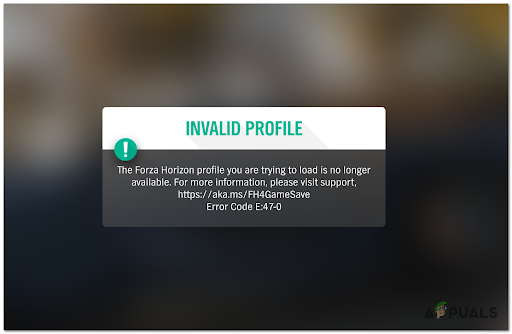
One of the most common errors that Forza Horizon 4 players are currently dealing with is error Code E:47-0 (Invalid Profile). This is an ongoing issue on both PC and Xbox consoles (Xbox One and Xbox Series). After launching the game, the error appears on their screen, leaving them stuck in the menu with the only option to close the game.
This being a common problem in the Forza Horizon community, we’ve inspected the problem closely by looking at various user reports and their resolutions and we’ve come up with a shortlist of possible culprits that might trigger this error:
- Temporary File Corruption corruption – Since this is among the most common issues that might produce the E:47 error code, you should start this troubleshooting guide by resetting the game from the Advanced Options menu (if you’re on Windows 10 or Windows 11).
- Corrupted files in wgs folder -This is the primary folder used by Forza Horizon 4 to store temporary files created by your current account profile. Depending on the issue at hand, clearing it might also clear the issue and allow you to launch the game normally.
- Outdated game version – Turn 10 Studios and Playground Games (developers of Forza Horizon 4) have released a series of patches aimed at putting a stop to this issue. If you’re only playing offline and haven’t updated your game version yet, you might be able to fix the issue by installing the latest version of the game.
- Conflicting MAC Address – If you’re dealing with this issue on an Xbox One or Xbox Series X console, another possible culprit is a confirming MAC Address conflict. If you previously established a custom MAC address, clearing the current setting and rebooting your console might fix the issue indefinitely.
- Corrupted Xbox App Component – On PC, this type of issue can also be attributed to a corrupted Xbox App component. Forza Horizon 4 is heavily dependent on the Xbox app since it’s a direct Xbox port. If this is the source of the error, reinstalling the Xbox App from an elevated Powershell window should allow you to fix the issue.
- Corrupted Game Files – The Error Code E:47-0 appears in some cases because of a few corrupted files that don’t let the game work properly. This might occur as a result of an AV scan that ended up quarantining some game files after a false positive. This can be easily fixed by uninstalling the main game along with every addon, then reinstalling the game to have a clean version without any potentially corrupted files.
- Widespread issue beyond your control – If you burn through all the potential fixes featured in this article and this problem is still not fixed, you should assume that you’re dealing with a server-based issue that is entirely beyond your control. In this case, you should open a support ticket and seek assistance from a support agent.
Now that you are aware of all the culprits that cause the Error Code E:47-0 to occur with Forza Motorsport 4, here’s a list of all the methods that will help you fix this issue:
1. Reset game from the Advanced Options menu (Windows Only)
If you’re experiencing this issue on PC, the first thing you should do is reset Forza Horizon 4 from the Advanced Options menu (inside the Settings app). This operation will end up clearing the local cache of the game and getting rid of any corrupted files associated with the current game profile or temporary files generated by the game.
Depending on if you’re using a traditional HDD or a newer SSD, expect this method to take up a few minutes as the system clears the local cache and creates a new data profile.
Note: Once this operation is complete, you should restart your PC before attempting to start the game once again. This will give your OS the chance to recreate the folder that stores the account-related information.
Follow the instructions below to reset Forza Horizon 4 via the Advanced Options menu on Windows:
- First of all, make sure that your computer is not connected to the internet.
- Use the taskbar search option and search for Settings, then open it.
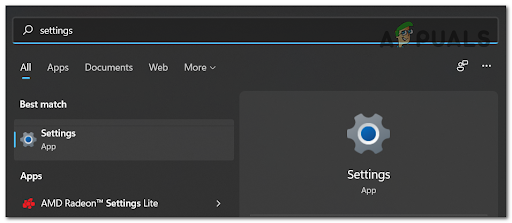
Open the Settings menu on Windows 10 and Windows 11 - Once you’re inside the Settings menu, click on Apps and search for Forza Horizon 4.
- Once you manage to find the correct entry, click on it (or click on the action icon on Windows 11) then click on Advanced Options.
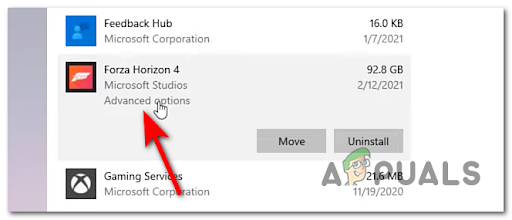
Accessing the Advanced Options menu - After that, click on Reset, click on Reset at the confirmation prompt once again then wait until it’s done.
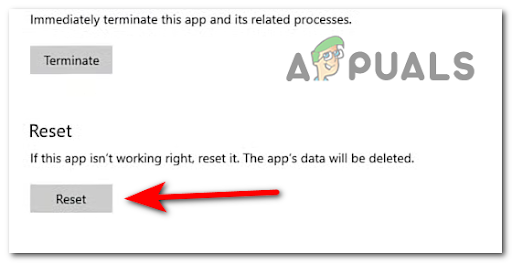
Resetting Forza Horizon 4 - Once the operation is complete, reboot your PC and wait until it boots back up before launching the game once again.
Note: Make sure you play online until you get to the point where you are asked to choose the license plate for your car (this is the moment where the new local save game will be created). - After the new save is created, close the game, connect to the internet once again and launch Forza Horizon 4 once again.
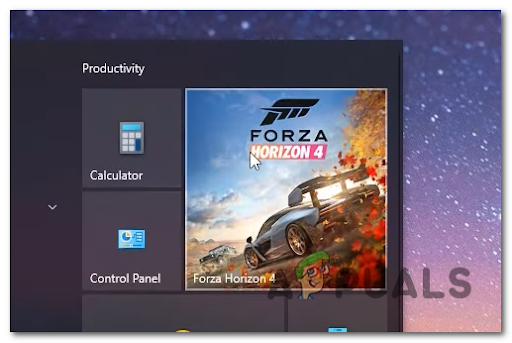
Launching Forza Horizon 4 - When you get asked to choose from your local saves or cloud saves, make sure to choose the cloud saves.
- If all went well, you should be able to play the game without the same issue.
In case you’re still dealing with the same E:47-0 error, move down to the next potential fix below.
2. Delete Temporary wgs files (Forza Horizon 4 on PC)
If the first method was not effective in your case, you should also try the manual approach. Since the most common cause of the E:47-0 error is corrupted files present inside the wgs folder, you might be able to fix the problem by clearing these files manually.
But before you’ll be able to do this, you’ll need to modify the default permissions of the Microsoft Store in order to allow the manual managing of your devices.
Follow the instructions below for a complete step-by-step guide of modifying the Offline Permissions before deleting the temporary wgs files that are most likely causing the error.
Here’s what you need to do:
- Firstly open Microsoft Store and click on the three dots located in the top right corner. Click on it and access Settings.
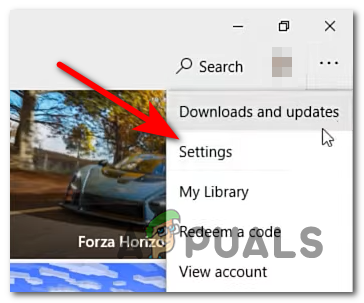
Accessing the Settings menu - Inside the Settings menu, scroll down until you find Offline Permissions, then activate it and wait until it’s done.
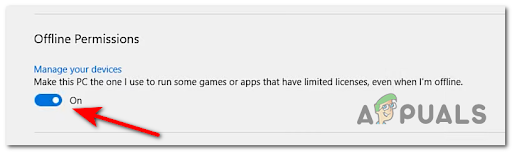
Managing your devices - Next, make sure that your PC is not connected to the internet.
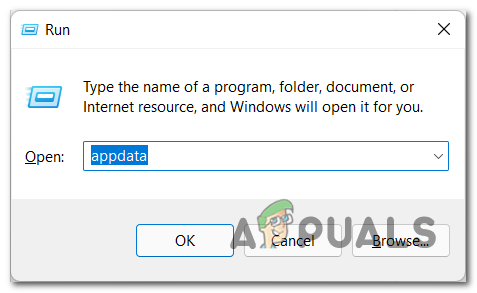
- Press Windows key + R to open a Run dialog box, then type ‘appdata’ and press Enter to open up the directory where Windows stores temporary data files for apps.
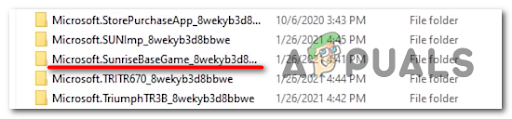
Open up the AppData folder - Once you’re inside the correct directory, click on Local, then click on Packages and search for Microsoft.SunriseBaseGame_ folder, then access it by double-clicking.
Accessing the SunriseBaseGame folder - Next, click on SystemAppData and you will find the wgs folder.
- Now delete all the files inside the folder, then connect your PC to the internet and launch the game to see if you still encounter the Error Code E:47-0.
If the same kind of issue is still ongoing and you’re still prevented from booting up the game via the Error Code E:47-0, move down to the next method below.
3. Update the game to the latest version (PC and Xbox Consoles)
Some players that we’re dealing with this problem have managed to fix the Error Code E:47-0 by installing the pending updates. This method is confirmed to be effective on both Windows and Xbox consoles.
Depending on your platform of choice and current settings, this process is either automatic or you’ll have to confirm the installation of the update manually.
Note: One reason why an update that is supposed to be automatic didn’t install is the lack of free storage device.
Install Forza Horizon 4 Updates on Xbox One and Xbox Series X
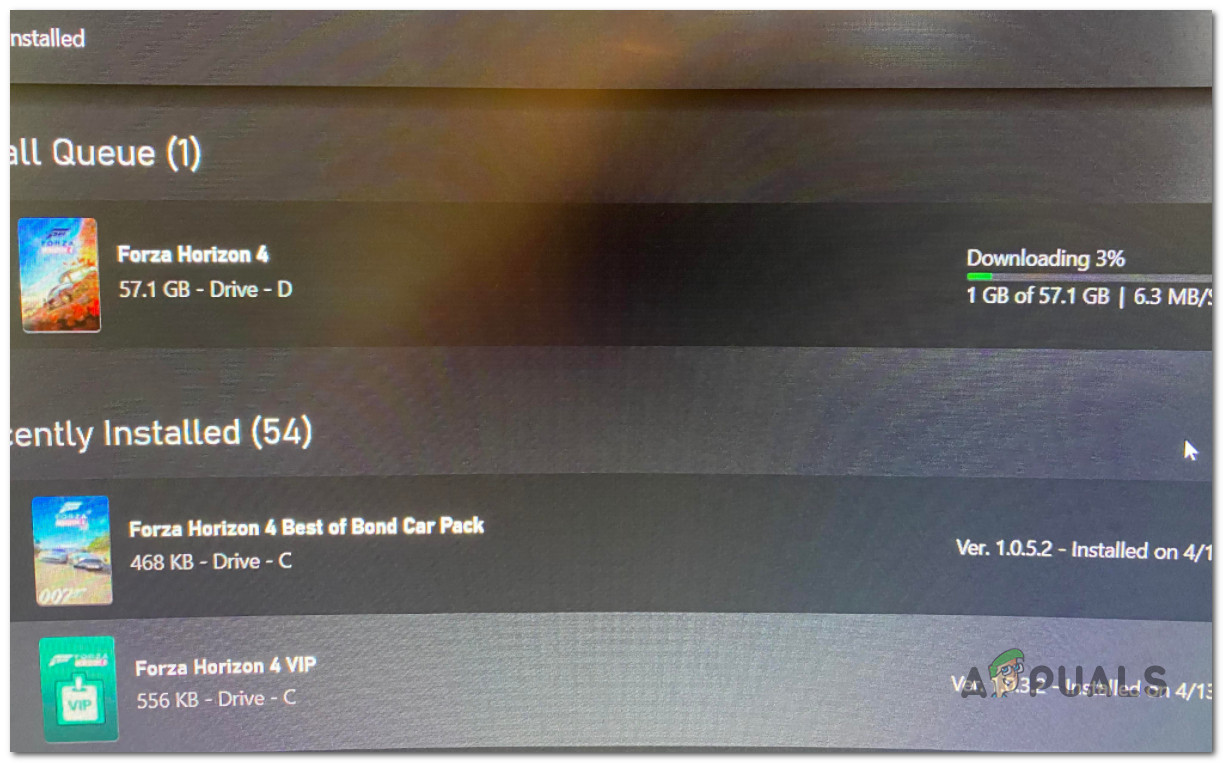
If you’re encountering this issue on an Xbox One or Xbox Series S or X console, you’ll receive a notification once a new update is available.
However, if you missed the notification, or the installation was aborted due to the lack of free space, you can just press the Xbox button (on your controller) to bring up the guide menu, then access the Updates section and install the pending update for Call of Duty Modern Warfare.
Install Forza Horizon 4 Updates on PC
If you’re facing this issue on PC, the updating of the game is typically handled by the Microsoft Store.
So in order to force the game to update, make sure that you have plenty of free space, then follow the instructions below:
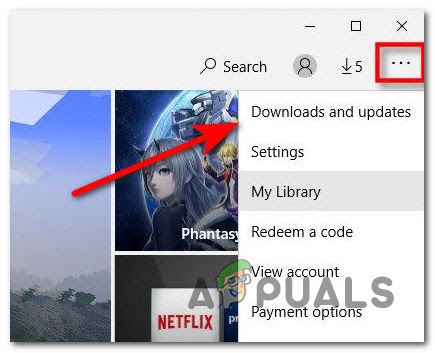
- Open the Microsoft Store and click on the three dots located on the top right side of the screen, next to your profile. Then access Downloads and updates.
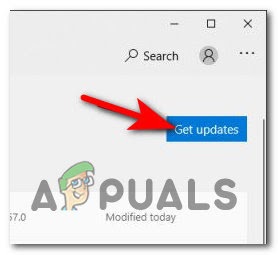
Accessing the Downloads and Updates menu - Inside the Downloads and updates menu, click on Get updates to update all your apps to the latest version, including Forza Horizon 4 if you find it there.
Install pending updates - Once the pending update is installed, reboot your PC and launch the game normally to see if the same kind of issue is still popping up when your profile gets verified.
If the same error code e47-0 is still occurring at the login page even after you have ensured that you installed every available update, move down to the next potential fix below.
4. Clear MAC Address (Xbox Consoles Only)
If the problem is happening due to a network inconsistency and you’re experiencing the error code e47-0 on an Xbox console, clearing the MAC address should help you fix the issue.
But This method will work only if you previously changed the Alternative MAC address. if you didn’t, this method will not produce any effect.
Follow the instructions below to clear the MAC address on Xbox One and Xbox Series consoles to fix the error code e47-0 error with Forza Horizon 4:
Note: These settings will work on both Xbox One and Xbox Series X.
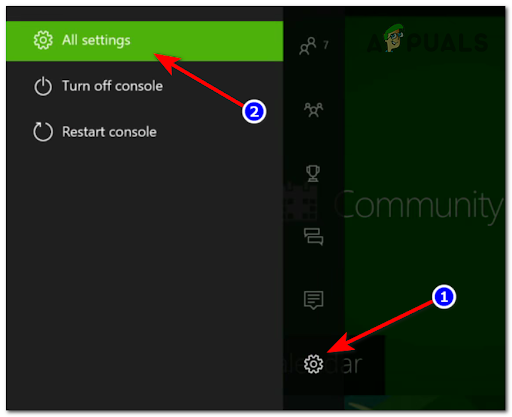
- Press the Xbox button to open the guide, then navigate to Settings which is a gear icon, and access All settings.
Accessing the All Settings menu - Once you’re inside the Settings menu, go to Network, then access the Network settings.
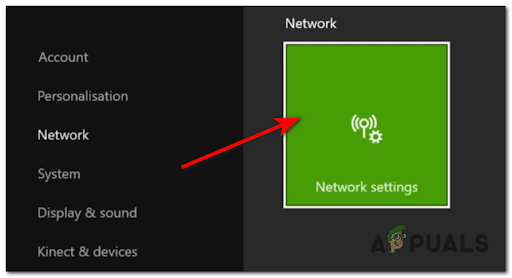
Accessing the Network Settings menu - From the Network Settings menu, access the Advanced settings, then enter Alternate MAC address.
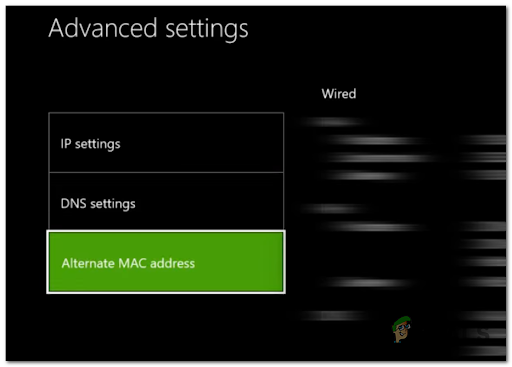
Accessing the Alternate MAC Address - From the specialized Alternate MAC address menu, choose Clean and press Restart to confirm the operation.
- Wait until your console restarts, then test Forza Horizon 4 to see if the problem is fixed.
If the same kind of issue is still occurring, move down to the next potential fix below.
5. Reinstall the Xbox App (PC Only)
This problem is also linked with some type of issue with the Xbox app (if the problem is occurring on Windows 10 and Windows 11).
The app’s problems might be caused by some corrupted files that are preventing the app from syncing profile data correctly.
Fortunately, you can get this issue fixed simply by reinstalling the Xbox app from the Settings menu of Windows 10 or Windows 11.
Here are the steps on how to reinstall the Xbox app in order to fix the Error Code E:47-0:
- Use the taskbar search bar to search for Windows PowerShell, then right-click it and select Run as administrator.
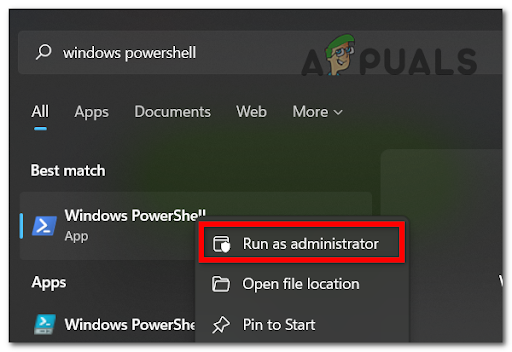
Accessing Windows PowerShell with admin access - Inside the Windows PowerShell, insert the following command to uninstall the Xbox App:
Get-AppxPackage -AllUsers| Foreach {Add-AppxPackage -DisableDevelopmentMode -Register - Press Enter and wait until it’s done, then close the Windows PowerShell.
- Open the Windows Store and search for the Xbox app, then install it.
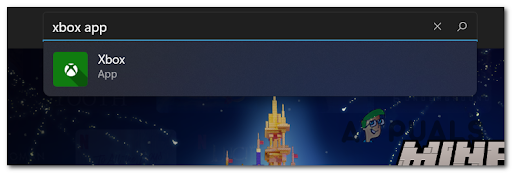
Opening the Xbox App - Launch Forza Horizon 4 normally and see if the same kind of issue is still occurring.
If the same kind of problem is still occurring, move down to the next potential fix below.
6. Reinstall game (PC and Xbox Consoles)
If none of the methods above have proven to be effective in your case, one last method that you can try to fix a local issue affecting Forza Horizon 4 is to uninstall the game before installing it back.
This operation will allow successfully replace every game file (that is potentially corrupted) and get rid of any temporary file that is currently in use. By reinstalling the game, you will have a clean version without any contaminated files that might be producing the error.
If you don’t know how to reinstall Forza Horizon 4 on your PC or your Xbox console, here are the guides that will help you do it on Xbox One, Xbox Series X, and PC:
How to reinstall Forza Horizon 4 on PC
If Resetting from the Advanced Options menu didn’t work in fixing the error-code-e47-0 on PC, the final step that you can try is to reinstall the game via the classic Control Panel menu.
Note: This method will work on every recent Windows Version.
Here’s what you need to do to reinstall Forza Horizon 4 on PC:
- Press Windows Key + R to open a Run dialog box, then type ‘control’ and press Enter.
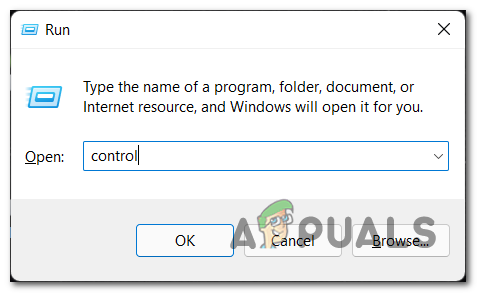
Open up the Classic Control Panel interface - Inside the Control Panel, click on Uninstall a program from the list of available options.
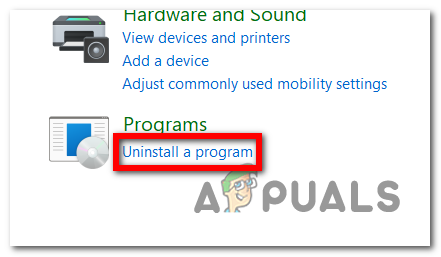
Uninstalling the Program via Control Panel - Now scroll through the list of apps, find Forza Horizon 4 and right-click it, then click on Uninstall.
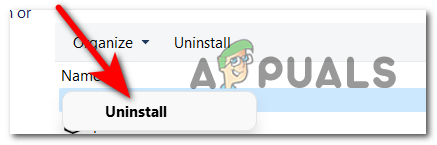
Uninstall Forza Horizon - After the game is uninstalled, open the Microsoft Store and type ‘Forza horizon 4’, then search it and access the game.
- Install the game normally following the on-screen instructions and see if the error code is now fixed.
If the same kind of issue is still persisting, move down to the final method below.
How to reinstall Forza Horizon 4 on Xbox Consoles
If you’re experiencing this issue on a console, you will need to uninstall the game via the My games & apps menu. The menus on Xbox One and Xbox Series X are almost identical, so the instructions below should guide you through the entire process.
Here’s what you need to do:
- Press the Xbox button on your controller and go to My Games & Apps, then access it.
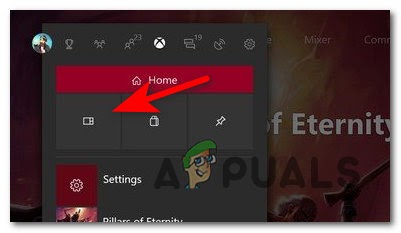
Accessing the My Games & Apps menu - From the list of available options, select Games, then go to Forza Horizon 4 and press the Start button on your controller.
- Next, click on Uninstall, then press the A button to confirm the process.
- Once the game is uninstalled, reboot your console, then open the Microsoft Store, navigate to the listing of the game, and hit Install from the context menu to reinstall the game.
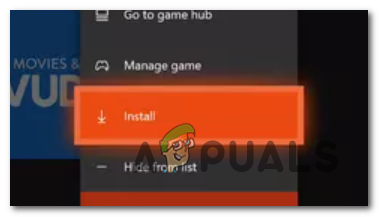
Install the game once again - Launch Forza Horizon 4 once again and see if the same error code is still occurring.
If the same problem is persisting, move down to the next potential fix below.
Open a support ticket
If neither of the methods before has worked, the last thing other people affected by this issue recommend doing is to open a support ticket on the official Forza Support page.
By doing this, you will send a message to the game’s support team, reporting the error and asking for a resolution. You should get a response in a few days, depending on the ticket volume they’re currently dealing with.
A few people have said that they have found it difficult to locate the section where they can submit a ticket. If you’re one of them and can’t find it, follow the steps below to see how to open a support ticket to report the Error Code E:47-0:
- Visit the official Forza Support site and click on the Sign-in button located in the top right corner, then sign in to your account or create one in order to open a support ticket.
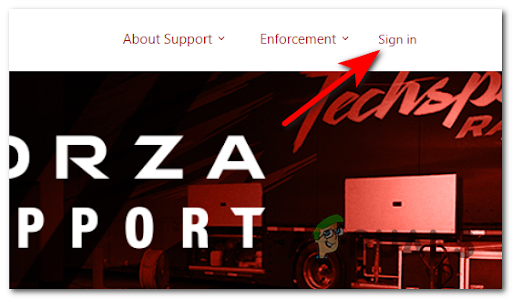
Official Forza Support Site - After you successfully sign in, click on the Forza Horizon 4 button in the middle of the screen.
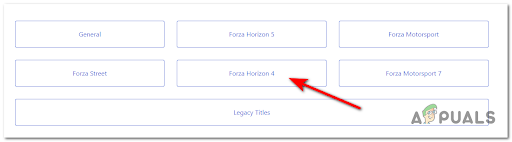
Forza Horizon 4 - Then click on any promoted article that appears on your screen, it doesn’t matter which.
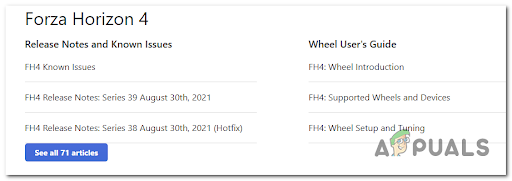
Accessing an issue from the list - Now scroll down until you reach the end of the article and see the Submit a Ticket button. Click on it.
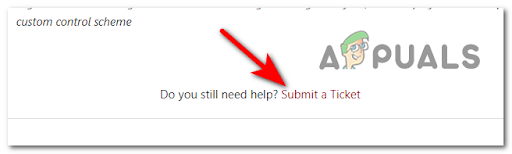
Submit a Ticket - Now click on the drop-down menu and choose the ticket form you think suites the error you’re encountering, then complete all the prompted blank spaces. After you’re done with that, click on Submit.
- Finally, wait for the support team’s response and see how can they help you fix the Error Code E:47-0.