При использовании Microsoft Teams вы иногда не можете не столкнуться с проблемами при входе в свою учетную запись. Многие пользователи жалуются, что у них возникают проблемы каждый раз, когда они пытаются войти в свою учетную запись Microsoft Teams на ПК с Windows 10/11 или других устройствах. Они могут увидеть код ошибки CAA5004B или 80070520 на экранах своих компьютеров при запуске приложения.
Оба кода ошибки Microsoft Teams CAA5004B или 80070520 указывают на проблемы при входе в систему. Могут быть разные причины, по которым вы видите проблему. Иногда это связано с сервером Microsoft Teams. В других случаях у вас повреждены файлы кеша. В других случаях это связано с вашим сетевым подключением.


К счастью, есть способы устранения неполадок и исправления ошибок входа в Microsoft Teams CAA5004B и 80070520 на вашем компьютере с Windows. Попробуйте выполнить каждое из приведенных ниже решений по одному и проверьте, устраняет ли оно ошибку или нет.
Способ № 1. Выполните цикл включения питания на вашем устройстве.
- Выйдите из Microsoft Teams и выключите устройство.
- Отключите маршрутизатор и модем.
- Подождите не менее 3 минут.
- Теперь подключите их снова и подключитесь к Интернету.
- Включите устройство и перезапустите Microsoft Teams.
Способ № 2. Временно отключите брандмауэр, VPN или Microsoft Defender.
- Чтобы отключить Microsoft Defender, нажмите кнопку «Пуск» на ПК с Windows.
- Перейдите в настройки.
- Выберите Конфиденциальность и безопасность.
- Щелкните Безопасность Windows.
- Выберите Защита от вирусов и угроз.
- Выберите Управление настройками.
- Перейти к Постоянная защита.
- Установите его на Выкл.
Если вы используете VPN или прокси-сервер, отключите его и повторите попытку входа в свою учетную запись Microsoft Teams. Вы также можете попробовать использовать любого из этих провайдеров премиум-класса, которые, как известно, без проблем работают с такими сервисами, как MS Teams.
Способ № 3. Очистите кеш приложения Microsoft Teams на вашем ПК.
- Если вы используете ПК с Windows 10/11, перейдите по этому пути: C:Usersимя_пользователяAppDataRoamingMicrosoftTeams.
- Выберите все файлы и папки и удалите их.
- Перезапустите Microsoft Teams.
- Если вы используете устройство Android, перейдите в меню «Настройки».
- Выберите Приложения.
- Выберите команды Майкрософт.
- Выберите Хранилище.
- Коснитесь Очистить кэш.
Способ № 4. Обновите приложение Microsoft Teams.
- На устройстве Android перейдите в Google Play Store.
- Найдите команды Microsoft.
- Проверьте, есть ли доступное обновление.
- Коснитесь «Обновить».
- На ПК с Windows запустите приложение Microsoft Teams.
- Выберите свой профиль.
- Перейти к О программе.
- Выберите версию.
- Щелкните Проверить наличие обновлений.
Способ № 5. Войдите в систему, используя другой продукт Microsoft Office.
- Откройте другую программу Microsoft Office, например Excel или Word.
- Щелкните Файл.
- Перейти к учетной записи.
- Выберите Выйти.
- Теперь попробуйте войти, используя свою учетную запись Microsoft.
- Используйте ту же учетную запись Microsoft для входа в Microsoft Teams.
Способ № 6 — переустановите Microsoft Teams
Наконец, вам нужно удалить и переустановить приложение Microsoft Teams. После удаления перейдите в Microsoft Store, Google Play Store или на официальный сайт Microsoft Teams. Переустановите приложение MS Teams и перезагрузите устройство.
Какое из приведенных выше решений работает для вас? Расскажите нам в разделе комментариев ниже.
Imagine the Microsoft Teams app kicks you out during a session and tells you to sign in again. After signing in, it asks to reset your password, and now it’s not letting you sign in, showing the error code caa5004b after a password reset. Sounds familiar?
Since the pandemic forced us to stay at home, I often faced the error code caa5004b while using Microsoft Teams for my home office.
After wasting hours of my time and energy, finally, I found the reasons behind this error and successfully fixed them.

So, What is Microsoft Team’s error code caa5004b?
Microsoft Teams error caa5004b means the MS Teams is facing trouble with built-in contemporary authentication. This error occurs due to suspicious activities with MS account, your domain issues, VPN usage, redundant cache files, syncing complications of MS Teams’ or MS 360 account with Windows.
Read the whole post without skipping any part to identify and fix the Microsoft Team’s error code caa5004b.
Also, check out our separate post on how to Use a Green Screen with Microsoft Teams.
What causes Microsoft Team Error CAA5004b?
Suspicious activities cause the Microsoft Teams error code caa5004b according to its built-in contemporary authentication. Also, VPN usage, account syncing issues inside Windows, multiple active sessions of the Teams app, and piled-up cache files trigger the app to show the error code ca5004b.
Various reasons lead to Microsoft Teams’ error code caa5004b. They are mainly related to your device settings and MS account activity.
I’ve pointed out all the possible reasons behind the error code of MS Teams and listed them below for your better understandings.
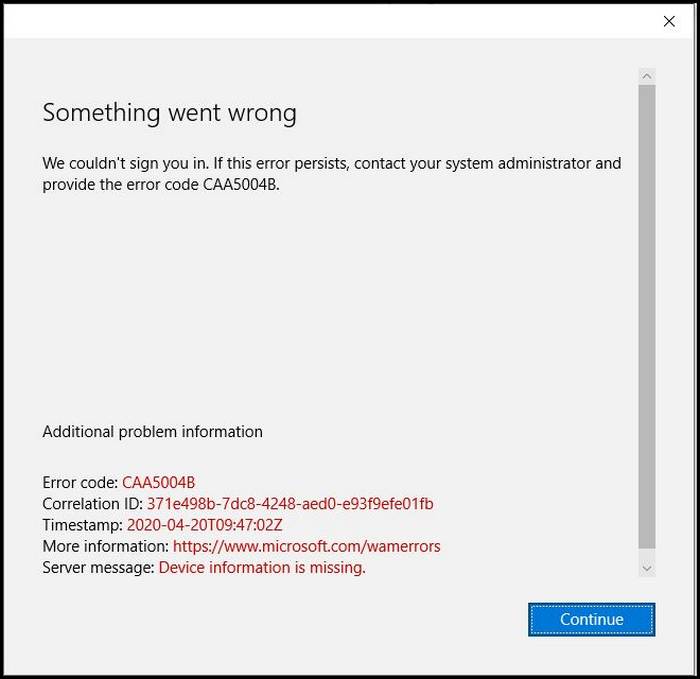
So, the reasons behind Microsoft Teams’ error code caa5004b are:
Suspicious Activities
Microsoft Teams has built-in contemporary authentication. So, if there’s any suspicious activity with your Microsoft account, like signing up on an unsafe website with it, then it’ll prompt you to change the password to protect your info from being exposed.
But, sometimes, this sudden password change alerts Microsoft Teams’ failsafe protocol to protect you and your company’s data from leakage and blocks your account from signing in again.
Follow our guide to How to Export Chat History in Microsoft Teams
VPN Usage
If you take the help of a VPN to connect with Microsoft Teams, you’re most likely to face the error code caa5004b at startup.
Microsoft Teams relies on real-time connectivity with it’s the remote server. A VPN connection delays this communication and interrupts MS the app’s real-time data exchange with it’s the remote server. That’s why using a VPN causes the MS Teams to show the error code caa5004b and blocks you from signing in to your account.
Confliction Between Windows and Microsoft Teams
If your Microsoft Teams account is not listed inside the Windows account manager of your device, you might face trouble logging in to the MS Teams app because of the error code caa5004b.
MS Teams app syncs your account details from the Windows accounts manager on your pc. If the account is not listed there, MS Teams sometimes recognizes the account as an unauthorized login attempt; that’s why it blocks the log-in process showing the error code caa5004b.
Check out the easiest way to Share My Screen on Microsoft Teams
Multiple Device Login
If you’ve multiple sessions of the Microsoft Teams app running on various devices, the app might recognize it as suspicious account activity and show you the error code caa5004b.
No matter how many times you try to log in, you’ll get the error code caa5004b.
That’s why logging to MS Teams from more than one device will end in receiving the error code caa5004b on Microsoft Teams app.
Follow our guide to How to Record Microsoft Teams Meeting
Microsoft Teams’ Policy
If your accounts go against your company’s Team account policy, like frequently changing login locations, you might receive the error code caa5004b. But, if you haven’t changed the login location like the app infers, check if your VPN is active with the auto location setting.
This might create a misunderstanding between the MS Teams policy and your internet connection, causing you the trouble of MS Teams’ error code caa5004b.
Useless Cache Files
In windows, running an app requires generating cache files to operate it’s processes smoothly. Running the Microsoft Teams app repeatedly without shutting down your device piles up a massive amount of cache files. These cache files conflict with each other and interrupt the background processes of the app.
This conflict might be the reason behind the error code caa5004b on MS Teams and causes the difficulties of signing in to the Teams app for error code caa20002.
So, I won’t be wasting your time anymore with technical jibber-jabber and directing you right away to the solution of Microsoft Teams error code CAA5004B.
But, I suggest you not rush while applying the solutions I’ve listed below to solve the MS Teams error code caa5004b.
Read the solutions carefully to avoid any errors before applying them.
So, the methods for solving the Microsoft Teams error code caa5004b are:
1. Turn Off VPN
MS Teams is a real-time business communication platform. The MS Teams app faces interruption while connecting with the remote server through a VPN connection. Because using a VPN delay the connection with it’s a remote server.
So, to avoid inconveniences like MS Team error code caa5004b, stop using a VPN. It’ll also save you from the multiple login location issues which cause the same error code. Use a direct connection without a proxy server or a VPN to avoid issues like it.
Also, check our exclusive tutorial on how to fix Airpods Not Working with Microsoft Teams.
2. Change MS Teams’ Password
In some cases, changing the password of the MS Teams account solves your problem of receiving the error code caa5004b. It reinstates your account status as an authorized one in the MS Teams database.
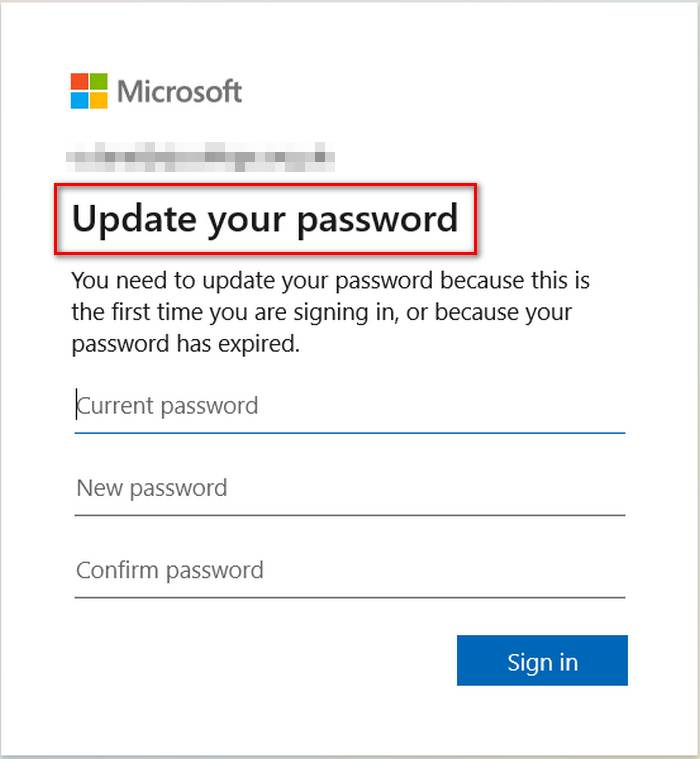
To change the Microsoft Teams account password, follow these steps:
- Open a browser on your device.
- Go to Microsoft’s website and log in.
- Sign in using your credential, same as MS Teams.
- Go to Security from the navigation bar and submit your password again.
- Head over to Password and select Change my password.
- Enter your Current Password, then the new one.
- Click Save.
Now open the MS Teams app on your device, log in using the new password, and see if the error code appears again.
Check out our latest fix for Microsoft Teams Error 80090030
3. Re-connect Microsoft Teams Account in Windows
So, reconnecting your MS Teams account in your Windows account manager solves the Microsoft Teams error code caa5004b. It authorizes the Microsoft Teams account under the account manager.
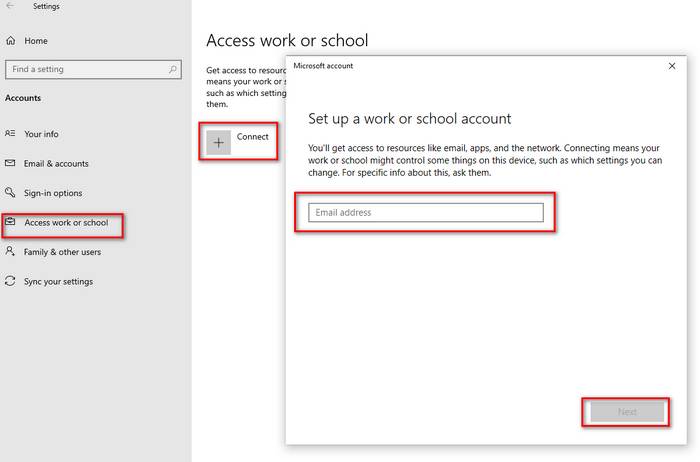
- To reconnect your MS Teams user accounts in Windows 10 Settings, follow these steps:
- Click on the Windows Start icon on the taskbar.
- Click on Settings.
- Go to Accounts and select Access work or school.
- Look for the account you are using to log in to Microsoft Teams.
- Disconnect the MS Teams account and confirm by clicking Yes.
- Click on the add button again to add the account.
Now, clear the cache of the Microsoft Teams app and re-open it to check if the issue is solved.
4. Ask Teams’ Admin to Re-invite Your Account
If re-adding the Microsoft Teams account on Windows doesn’t resolve your issue, ask your Teams’ admin to remove and reinvite your account to the group. If all goes well following this method, you will no longer receive the error code on your account.
Contact the Team admins and ask their help to overcome the error code issue.
Follow our guide to how Take a Poll in Microsoft Teams.
5. Clear MS Teams’ Cache Files
Clearing the cache files of the MS teams app can solve the Microsoft Teams error code 5004b. It’ll clear all the previous temporary info about your log-in sessions and will reinitiate the app’s processes.
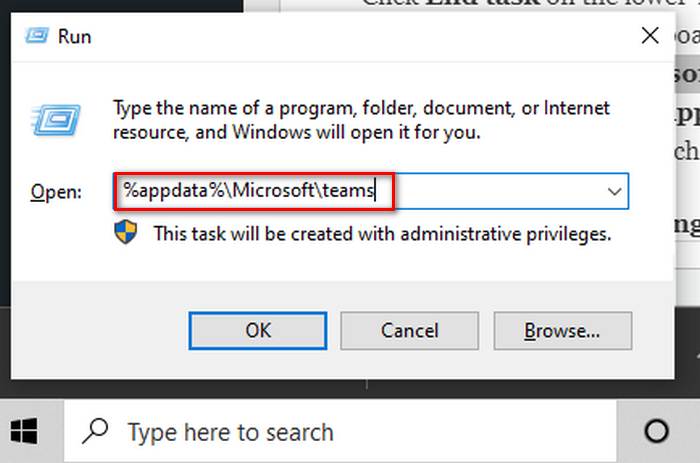
To clear the cache files of the MS app on your pc, follow the steps below:
- Right-click on the taskbar.
- Click on Task Manager.
- Search the process of Microsoft Teams and click on it.
- Click End task on the lower-right corner of the window.
- Press Win+R on your keyboard to open the Run program.
- Type %appdata%Microsoftteams inside the box and hit Enter key.
- Delete the folders named: application cache, blob_storage, Cache, databases, GPUcache, IndexedDB, Local Storage, and tmp.
Now, open MS Teams again and check if the error code still appears.
But before that, go through our epic guide on Microsoft Teams Can’t Change Status from Offline
6. Uninstall & Reinstall MS Teams
Uninstalling and reinstalling the app can also solve the error code caa5004b on Microsoft Teams.
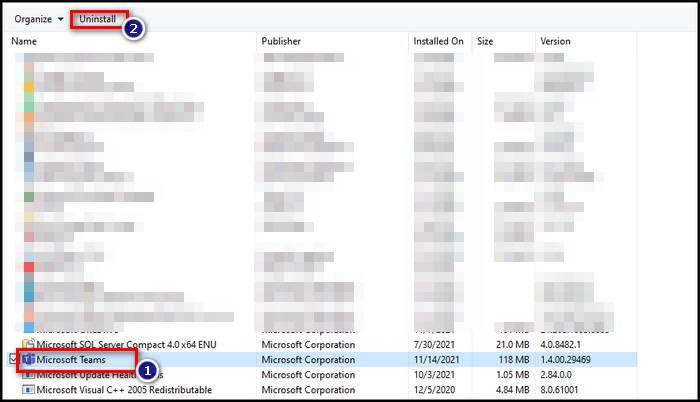
Follow these steps to uninstall the Microsoft Teams app from your device:
- Press Win+R keys on your keyboard to open the Run dialog box.
- Type control to open the control panel.
- Click on Programs and features.
- Locate Microsoft Teams and right-click on it.
- Click Uninstall.
- Confirm by clicking Yes.
- Follow the on-screen instructions to uninstall Microsoft Teams from your device and restart your pc.
- Open this link on your browser.
- Click on Download Now.
- Open the file and follow the instructions to reinstall it.
Now, open Microsoft Teams again and see if the error still appears.
Check out our expert-recommended error fixing, Microsoft Teams Error Code 42B.
FAQ
How do I fix the Microsoft Team error code?
To fix the error code in Microsoft Teams, turn off VPNs or proxy servers on your pc, change your password, clear MS Teams’ cache files, and add your work account to the Windows account manager. Also, if it’s not updated in a while, updating it to the latest version will help run it smoothly.
Why do Microsoft teams keep saying sign-in error?
If your account is being used in suspicious activities, it may violate your team’s policy, which results in logging-in difficulties. Also, multiple active sessions can violate your team’s policy too. Using a VPN causes this issue and gives you a hard time logging in.
Conclusion
For my final thoughts, I hope now you understand all the complications and issues behind the Microsoft Teams error code caa5004b. Follow my guide to figure out the reasons first, then apply their solutions accordingly.
Comment below if you’re facing any troubles applying the solutions or queries regarding Microsoft Teams error code caa5004b. Our experts will try to answer any of your queries right away.
When using Microsoft Teams, you cannot help sometimes but experience problems when signing in to your account. Many users complain that they encounter issues each time they try to log in to their Microsoft Teams account on a Windows 10/11 PC or other devices. They may see the error code CAA5004B or 80070520 on their computer screens when launching the app.
Both the Microsoft Teams error code CAA5004B or 80070520 points to problems when logging in. There can be varying reasons why you see the issue. Sometimes, it is due to the Microsoft Teams server. In other cases, you have corrupted cache files. Other times, it is due to your network connection.

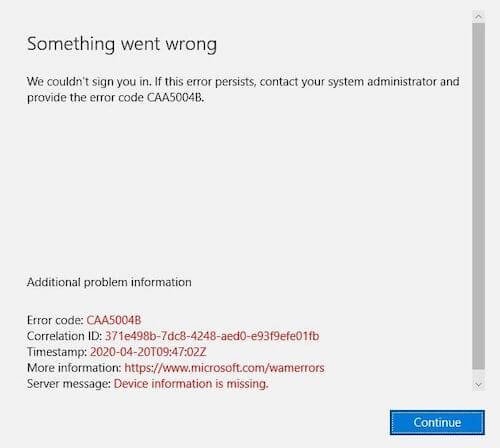
How to Fix Microsoft Teams Error Code CAA5004B or 80070520 when Signing In to an Account
Fortunately, there are ways for you to troubleshoot and fix the Microsoft Teams login errors CAA5004B and 80070520 on your Windows computer. Try to follow each of the solutions below one at a time and check if it fixes the error or not.
Method #1 – Perform a Power Cycle on your Device
- Exit Microsoft Teams and power off your device.
- Unplug your router and modem.
- Wait for at least 3 minutes.
- Now, plug them both back in and connect to the Internet.
- Power on your device and relaunch Microsoft Teams.
Method #2 – Temporarily Disable your Firewall, VPN, or Microsoft Defender
- To turn off Microsoft Defender, click the Start button on your Windows PC.
- Go to Settings.
- Select Privacy & Security.
- Click Windows Security.
- Choose Virus & threat protection.
- Select Manage settings.
- Go to Real-time protection.
- Set it to Off.
If you are using a VPN or proxy server, turn it off and retry signing in to your Microsoft Teams account. You can also try to use any of these premium providers popularly known to work seamlessly with services like MS Teams.
- CyberGhost
- ExpressVPN
- Hotspot Shield
- IPVanish
- NordVPN
- Private Internet Access
- ProtonVPN
- Surfshark
Method #3 – Clear the Microsoft Teams App Cache on your PC
- If you are using a Windows 10/11 PC, navigate to this path: C:UsersUserNameAppDataRoamingMicrosoftTeams.
- Select all the files and folders and delete them.
- Relaunch Microsoft Teams.
- If you are using an Android device, go to the Settings menu.
- Select Apps.
- Choose Microsoft Teams.
- Select Storage.
- Tap Clear Cache.
Method #4 – Update your Microsoft Teams App
- On your Android device, head over to Google Play Store.
- Look for Microsoft Teams.
- Check if there is an available update.
- Tap Update.
- On your Windows PC, launch the Microsoft Teams app.
- Select your Profile.
- Go to About.
- Choose a Version.
- Click Check for updates.
Method #5 – Sign In using a Different Microsoft Office Product
- Open another Microsoft Office program like Excel or Word.
- Click File.
- Go to Account.
- Select Sign Out.
- Now, try signing in using your Microsoft account.
- Use the same Microsoft account to log in to Microsoft Teams.
Method #6 – Reinstall Microsoft Teams
Lastly, you need to uninstall and reinstall the Microsoft Teams app. Once uninstalled, go to the Microsoft Store, Google Play Store, or the official website of Microsoft Teams. Reinstall the MS Teams app and reboot your device.
Which of the solutions above work for you? Tell us in the comment section below.
Microsoft Teams is a great resource if you want to have meetings with colleagues and or guests live. It is another way to share information with others and creates a great collaborative platform to both institute people and discuss general motives and or company goals and objectives. However, like most Microsoft programs it is also prone to issues and errors which can be caused either by the program or human error. The error we will be discussing is error code caa5004b. Error code caa5004b is when you are unable to access the organization, according to the error notice. Given this circumstance, you should contact the administrators of these groups and request that they remove you from their organizations and re-invite you to see what happens. Users will have this issue every time they try to open Teams, they won’t be able to log in and will receive this error message. You can’t log in to Teams due to Error Code CAA5004B. You can however still access all other Office suite software such as Outlook, they will not be affected by this error only login issues for this are related to Teams. Follow the step-by-step guide to see how you can fix Teams error code caa5004b.
Step by step process – How to fix Teams error code caa5004b
- Type settings in the Windows Search box and press Enter.
- Go to the Settings menu.
- Select Accounts from the drop-down menu.
- Select Work or School from the drop-down menu.
- Disconnect your company’s email account.
- To reconnect your work account, click Connect and enter your Organization email address.
- Restart the Team’s client.
- Get Microsoft Teams from just $4.00 per month with Microsoft Teams Essentials.
We’ve also created a video that walks you through the steps given above. Follow along with our YouTube video here:
This will edit the settings and start the process with your confirmed signature. Even if it’s the current account you’ve confirmed on teams, the content folder may fail to register any subsequent login attempts since it retains your credentials from prior logins.
The error is caused by sign-in issues. As with most Teams’ errors, a lack of secure sign-in causes these errors and makes it difficult for Teams to allow you to access the program. You can resolve this issue by resetting the panel using the method above, however, to ensure the error does not get restored, we highly advise users that they use Modern Authentication to verify sign-in.
What is Modern Authentication
Modern authentication is a new technique of signing that Microsoft Teams has adopted. (If you’ve ever heard the term “single sign-on” or “SSO,” you’re on the right track.) Modern authentication has the advantage of allowing you to sign in to Microsoft Teams without having to re-enter your email and password every time you want to start a new session. It’s a more secure and dependable method of accessing Microsoft Teams.
Modern authentication is a technique for securely logging into an app. Because contemporary authentication incorporates SSO, it’s also a component of the process that informs Microsoft Teams that you’ve previously provided your credentials (such as your work email and password) elsewhere and shouldn’t have to do so again to start the app.
Signing in using contemporary authentication will differ based on a few factors, such as whether you’re using Windows or a Mac. It will also differ based on whether your organization uses single-factor or multi-factor authentication (multi-factor authentication usually involves verifying your credentials via your phone, by providing a unique code or entering a PIN number, or presenting your thumbprint). In any case, after you finish the modern authentication sign-in procedure, you won’t have to enter your credentials again—Microsoft Teams will automatically sign in to your account whenever you start the app from the same workstation.

Why can’t users sign into Teams
Modern authentication is fantastic, but it’s possible that a company will run into difficulty now and again.
Every enterprise that utilizes Microsoft Teams already has contemporary authentication built in—the app was built with it, and it should be able to identify your credentials as being tied to your Office 365 account. If you’re having trouble signing in, it’s possible that something is wrong with your domain or your company’s Office 365 account. Your IT administrator or sysadmin will be your point of contact for addressing the problem, so contact them for further information and next actions.
As well as the domain you may find that the login credentials could also be faltered and may not be recognized by teams. You can check this by resetting the password and trying to see if this resolves the issue and if not, your device needs some form of verification to prove it’s part of the organization. You can ask your administrative staff members to verify your IP address and grant your device access to a network or if you use a personal account, you can also achieve this by accessing your personal SharePoint account and managing your IP from there.



In depth – Step by step process – How to fix Teams error code caa5004b
Step by step breakdown:
- Type settings in the Windows Search box and press Enter.
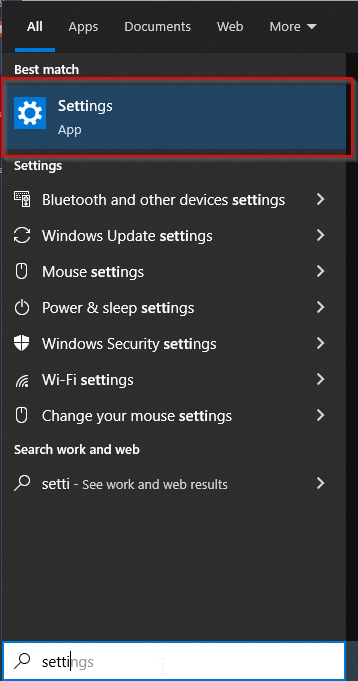
You can also locate the settings panel in the Windows app drawer.
- Select Accounts from the drop-down menu.
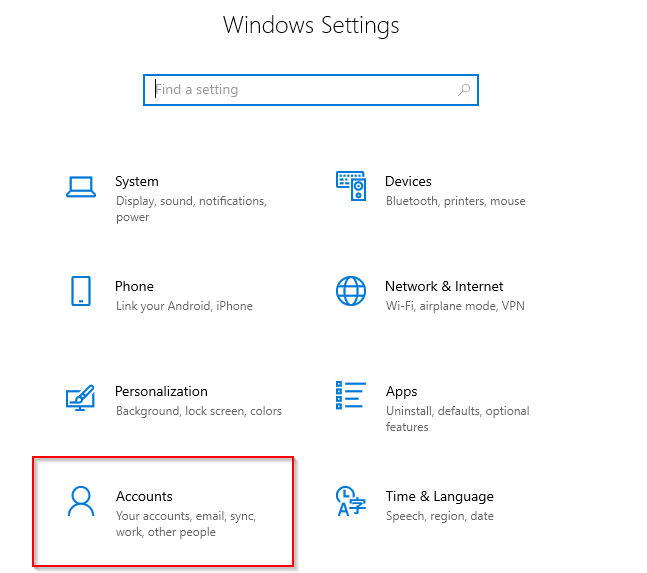
As mentioned before you can manage accounts here and a selection for this is available, just click on it.
- Select Work or School from the drop-down menu.
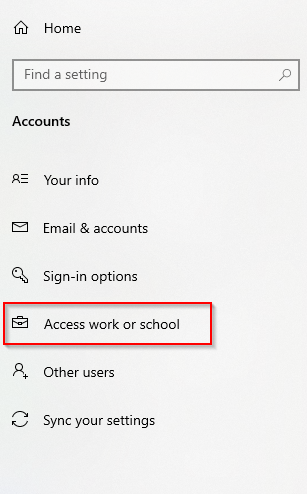
Your school or work account are the ones to get the error as they are mandated by a network you are a member of.
- Disconnect your company’s email account.
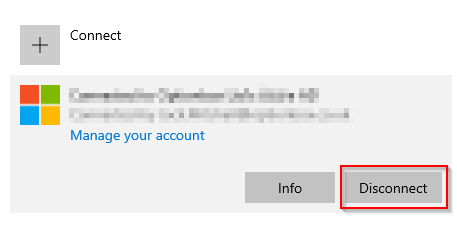
- To reconnect your work account, click Connect and enter your Organization email address.
- Restart the Team’s Client.
That’s it for this Blog thank you for taking time out to read our content, please feel free to email our team about how it went if you followed the steps or if you need more help with the questions we answered in this Blog.



Microsoft Teams is a great resource if you have meetings with colleagues and works as an alternative to Zoom. However, Microsoft teams doesn’t come without errors. With error codes such as caa5004b appearing regularly. Although there are a few known errors for the Microsoft team, we will be looking into the error code caa5004b. If you’re unsure what this means and how to fix it, you’ve come to the right place.

What does error code caa5004b mean?
This error code is used when you are experiencing sign-in issues. A common issue that can occur when you are trying to sign in is accessing the organisation. Sometimes this happens if the domain is wrong or you can’t sign in. However, this also can happen if you do not have access to a particular organisation, e.g. your account has not been set up correctly. We firstly recommend trying to contact the administrator for the group. They can check access has been set up correctly for you.
If this has been set up correctly or if you were able to gain access previously, ask the admin to remove you from the team, then reinvite you and see if this fixes the error. But if you are still getting the same error, here is a step by step guide on how to fix this error code.
Method 1 to fix caa5004b
- Into the search bar of Windows, type settings
- Go to accounts > access work or school
- Disconnect your organisation email, e.g. work email
- Click yes on the pop-up, then allow 2-3 minutes for the account to be disconnected
- Next click connect (like the first time you logged in), then type in your email address
- Once you’ve done this, you should be able to restart teams, and it should work
However, if method one did not solve your issue, please take a look at method 2.

Method 2 to fix Microsoft teams error code caa5004b
If the above method did not work for you, here is an alternative method that is a little bit more tricky, but it works. In this method, we will clear the cache for Teams.
- Close down Teams and make sure it is fully closed
- Search for File Explorer in the search bar > open
- Type in %appdata%Microsoftteams.
- Once you are in the directory, you will see a range of different folders. Start with ‘Application Cache’, go to Cache and delete any of the files in the Cache location
- The other folders you should be looking for and deleting any files are:
“%appdata%Microsoftteamsapplication cachecache”.
“%appdata%Microsoftteamsblob_storage”.
“%appdata%MicrosoftteamsCache”.
“%appdata%Microsoftteamsdatabases”.
“%appdata%MicrosoftteamsGPUcache”.
“%appdata%MicrosoftteamsIndexedDB”.
“%appdata%MicrosoftteamsLocal Storage”.
“%appdata%Microsoftteamstmp
- Restart the team
- Next, you will need to clear Windows credentials. You do this by controlling pannel > credential manager > windows credentials > generic credentials and removing any items related to Microsoft Office and Microsoft Teams.
- Sign in, and your teams should now work again.
If you’re still unable to fix this error by either of these methods, it may be a more complex issue that requires specialist technical help. To get this, please reach out to the Microsoft Team for help.
Are you having issues with Microsoft Teams freezing during meetings? Here is how to fix this error.
Teams issue login
The most common login issue is to do with credentials. Due to Teams and Microsoft 365 both being Microsoft, the login process can be confusing as they are totally different logins. If you cannot gain access after trying the correct login, please contact your IT admin for assistance.

What operating system does Microsoft teams use?
If you are trying to find out if your device is compatible with Microsoft Teams, we have a list of operating systems you can use:
- 32 bit and 64-bit versions of Windows 8.1 or later
- ARM64 for Windows 10 on Arm
- Windows Server (2012 R2 or later)
- macOS and Linux
It is worth noting that you can also go on Microsoft teams on web browsers, with most allowing video calls straight from a web browser. Although some browsers are unable to run Teams, and others are expired. With internet explorer, Firebox and early versions of Safari not working.
Does Microsoft Teams work on Apple devices?
Microsoft Teams can be used on virtually any device, and this includes iPads, Macbook and iPhones. Similarly to Zoom and Skype, the interface may vary as it is optimised for the device you are using. However, the processes within Teams still work the same.
If you’re unsure how to install Microsoft Teams on an Apple Device, here are the steps to take to download Teams with ease.
- From the Teams download page, under Mac, click Download.
- Double click the PKG file.
- Follow the download to complete the installation.
- Teams will be installed to /Applications folder. It is a machine-wide installation.
However, if you are currently using a DMG version of Teams and want to use PKG, you need to uninstall the existing app before downloading and installing the PKG file.
If you’re having another issue with Microsoft Teams we have a variety of other help, which you can access here.
Microsoft Teams is a must-have in today’s workplace. Nothing is more inconvenient than receiving an error message such as ‘caa5004b’ just when you need Microsoft Teams the most.
Tech Support 24/7
Ask a Tech Specialist Online
Connect with the Expert via email, text or phone. Include photos, documents, and more. Get step-by-step instructions from verified Tech Support Specialists.

On this page, you will find more information about the most common causes and most relevant solutions for the Microsoft Teams error ‘caa5004b’. Do you need help straight away? Visit our support page.
Error information
How to solve Microsoft Teams error caa5004b
We’ve created a list of solutions which you can follow if you want to solve this Microsoft Teams problem yourself. Do you need more help? Visit our support page if you need professional support with Microsoft Teams right away.
Tech Support 24/7
Ask a Tech Specialist Online
Connect with the Expert via email, text or phone. Include photos, documents, and more. Get step-by-step instructions from verified Tech Support Specialists.
Have you found a solution yourself, but it is not in the list? Share your solution in the comments below.
Need more help?
Do you need more help?
Tech experts are ready to answer your questions.
Ask a question
In my upgrade testing I have been experiencing some issues with machines connected to Azure AD and its been quite a ride to figure out how to correct it!

I have mapped out what exactly has happened and now the sun is now rising again as I have a tested and working solution!
I just need to get Microsoft to confirm that the upgrade is causing the issue and help work out the issue as to why this is happening.
Here is my synopsis of the issue, I know I am not the only one that has seen this issue, on the MS Answers Forums you can reference here and here. This is what is actually what is happening — Prior to the issue, the machine is connected to AzureAD and logged on and authenticated with an AzureAD account. A new upgrade in Settings —> Update & Security will download a new #WindowsInsider build.
In all cases that I have seen this issue, the machine had been previously renamed after it was joined to AzureAD, but I can neither confirm nor deny if this is part of the issue.
After the upgrade an attempt to login with the AzureAD user account gives a bad password prompt, even though the password is correct. After some investigation I figured out the real problem, the #WindowsInsider Build upgrade has disconnected it from Azure AD! How to confirm this? I had setup an LocalAdmin account on my test devices knowing that I may need a way to get into the computer in the event that my azure AD account was unavailable.
Logging in as the LocalAdmin I verified a couple of settings, first things I did was login to the FeedBack Hub and attempt to sign in as my Azure AD account

Here is the CAA5004B error that I have been seeing, the error comes back as Device Information is missing — I went back and checked inside the settings application to validate that I was connected to my Azure AD
in the Settings —> Accounts —> Access Work or School was enabled. Something looked a little strange, it shows that I am connected to an Azure AD but it doesn’t look like it normally does, I try a disconnect and I am not allowed. My original solution was to completely reset the computer — This does work, is extremely drastic, and isn’t the best solution.
Here is the fix!
I figured out the right way to address the issue without reseting the computer!
Even though the settings application sees that I am connected to Azure AD I had a sneaking suspicion that I really was not connected at all — I just needed a way to confirm this, thankfully Microsoft has a command that lets us know in detail what exactly is the status of our domain join
DSREGCMD /status
This command

Tells the real picture — After the upgrade my machine has been unjoined from Azure AD! This is a huge problem! I checked my Azure AD and the last machine update (Get-AzureADDevice) showed that my machine was updating and was on build 18323 — This upgrade was to 18329.1 — something removed the domain join on the machine and didnt touch Azure AD. Ok now I know why the user couldn’t login, no domain to authenticate, no way to login!
Now how to get it to Rejoin Azure AD!
For me, I could not disconnect and reconnect it to Azure AD in Settings —> Accounts —> Access Work or School as It would not let me Disconnect as it was already disconnected — To disconnect the domain I needed to run DSREGCMD as system!
PSEXEC -i -s cmd

A handy Windows Sysinternals utility to the rescue! PSEXEC (A tool every ITPro uses!) lets you run a command prompt in the NTAuthoritySystem context interactively! After I spawned a cmd prompt running the Command
DSREGCMD /Debug
Verified that I was not connected and that the only way I could get out was via the

DSREGCMD /Leave
This command run in the NTAuthoritySystem context removed the hidden Azure AD connection.
In Settings —> Accounts —> Access Work or School I went through the process to rejoin Azure AD (Hit the Connect and then ensure you choose Join Computer to Azure AD with your Azure AD account)

Now this looks Better! It now shows that the machine is connected to my corporate Azure AD — To confirm that the machine was actually connected to my Azure AD a DSREGCMD /status showed the complete picture that I was truly authenticated correctly!

I signed out of the device as my LocalAdmin Account and re logged in as my Azure AD account, the login worked and my old profile showed exactly as it was! It was like I had never left(I was worried that it may create a new login profile and not reuse the old! My issue has been righted and my machine is back in working order within my Azure AD!
The problem of the upgrade unjoining the machine from Azure AD still exists but at least there is now a solution to undo the problem!
Thanks for reading and I hope you get your machine reconnected. Reach out to me @Murmanz on twitter if you need a hand!
Murray
Иногда Microsoft Teams может аварийно завершать работу с кодом ошибки CAA5004B. Эта ошибка указывает на то, что приложение столкнулось с непредвиденной проблемой и не может завершить процесс входа в систему. Если это только временная проблема на стороне сервера, вы сможете войти в систему через несколько минут. Если проблема не устранена, выполните приведенные ниже действия по устранению неполадок.
Исправить ошибку входа в Microsoft Teams CAA5004B
⇒ Быстрый совет: Ошибка CAA5004B не влияет на веб-версию Teams. Вы должны иметь доступ к своей учетной записи через веб-сайт или мобильное приложение.
Удалить команды из папки AppData
- Перейдите к AppDataLocalMicrosoft.
- Удалите папку Teams.
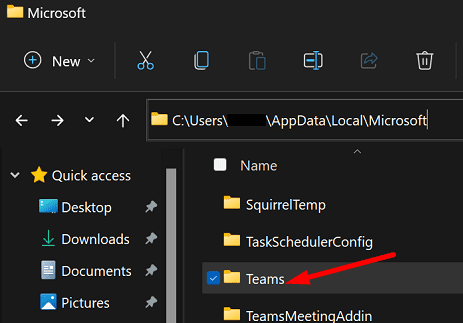
- Затем перейдите к AppDataРоумингМайкрософт.
- Удалите папку Teams.
- Перезапустите приложение и проверьте, можете ли вы войти в свою учетную запись.
Вы сможете войти в свою учетную запись Teams после удаления папки Teams из папок Local и Roaming. К сожалению, при следующей попытке входа ошибка CAA5004B может появиться снова. Удалите папки Teams, как показано выше, и повторите попытку.
Повторно подключите свою учетную запись Teams в Windows
Если ваша учетная запись Teams управляется организацией, повторно подключите ее к компьютеру.
- Перейдите к Настройки.
- Нажмите на Счета.
- Затем прокрутите вниз до Доступ к работе или учебе.
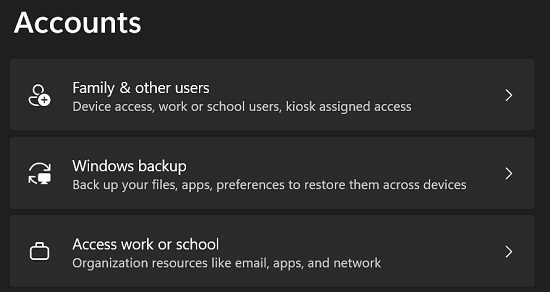
- Найдите свой Учетная запись команд и отсоедините его.
- Подождите 30 секунд, а затем снова подключите свою учетную запись.
Если ваша учетная запись Teams не указана в разделе «Доступ к работе или учебному заведению», добавьте ее вручную.
Отключите VPN, антивирус и брандмауэр
Сторонние антивирусные программы могут иногда мешать серверам Microsoft аутентифицировать вашу учетную запись Teams. В результате вы не можете получить доступ к своей учетной записи. Временно отключите VPN, антивирус, антишпионскую программу, брандмауэр и все другие сторонние инструменты безопасности, установленные на вашем компьютере.
Перезапустите Teams и проверьте, по-прежнему ли вы получаете код ошибки CAA5004B при попытке войти в свою учетную запись. Не забудьте снова включить инструменты безопасности после входа в свою учетную запись Teams.
Переустановите команды
Если вы по-прежнему не можете получить доступ к своей учетной записи, переустановите Teams. Перейти к Панель управления, Выбрать Удалить программу, нажмите на Команды Майкрософт, а затем нажмите Удалить кнопка.
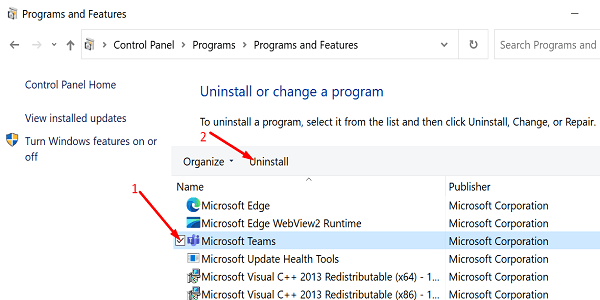
Перезагрузите компьютер и загрузите настольное приложение Teams. с официального сайта Microsoft.
Если переустановка приложения не решает проблему, обратитесь за помощью к своему ИТ-администратору. Сообщите им, какие методы устранения неполадок вы уже пробовали.
Вывод
Чтобы исправить код ошибки Microsoft Teams CAA5004B, удалите папку Teams из папок Local и Roaming AppData. Затем перейдите в «Параметры Windows» и снова подключите свою учетную запись Teams. Кроме того, отключите VPN, антивирус и брандмауэр, чтобы убедиться, что они не блокируют процесс входа в систему. Если ошибка повторится, переустановите Teams и обратитесь к своему ИТ-администратору.
Удалось ли вам избавиться от ошибки CAA5004B и получить доступ к своей учетной записи Teams? Дайте нам знать в комментариях ниже.