Office 2016 Office для бизнеса Администратор Microsoft 365 нажми и работай Office.com Еще…Меньше
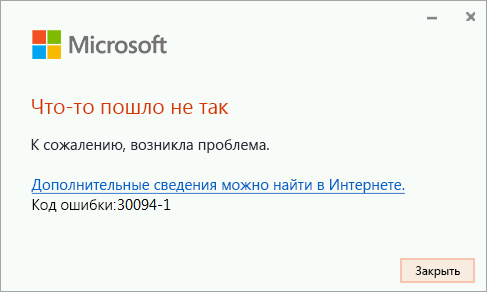
Если при попытке установить Microsoft 365 возникает ошибка с кодом 30094, попробуйте выполнить перечисленные ниже действия, чтобы устранить проблему. Первыми указаны наиболее распространенные решения. Попробуйте применить их по порядку.
1. Убедитесь, что устройство поддерживает сертификаты SHA-2 (только для Windows 7).
При использовании Office на устройстве с Windows 7 убедитесь, что это устройство поддерживает сертификаты SHA-2. Обновление для поддержки подписывания кода SHA-2 автоматически загружается и устанавливается на ПК, если автоматическое обновление Windows не отключено.
Если появляется сообщение об ошибке, убедитесь, что установлены последние обновления Windows 7 и попробуйте повторно установить Office.
-
Выберите Пуск > Панель управления > Система и безопасность > Центр обновления Windows.
-
В окне Центра обновления Windows установите флажок Доступны важные обновления или Доступны дополнительные обновления.
-
Нажмите кнопку Установить обновления.
-
Перезагрузите устройство. Повторяйте эти действия, пока не останется доступных обновлений для установки.
Примечание: Поддержка Windows 7 будет прекращена 14 января 2020 г. Узнайте больше о том, как это может повлиять на вашу версию Office, из статьи Office и прекращение поддержки Windows 7.
2. Удаление временных файлов
-
Удалите временные файлы с помощью средства очистки диска:
-
Windows 10
-
Windows 8
-
Windows 7
-
-
Очистив диск, снова запустите установку Office. См. статью Установка Office на компьютере Windows или Mac и следуйте инструкциям для своего тарифного плана.
3. Восстановление Office из панели управления
Последовательность действий для запуска средства восстановления зависит от вашей операционной системы. Выберите свою систему из перечисленных ниже вариантов.
-
Щелкните правой кнопкой мыши кнопку Пуск
 и выберите Приложения и возможности во всплывающем меню.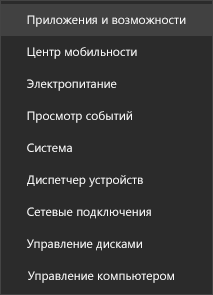
-
Выберите продукт Microsoft Office, который нужно восстановить, и нажмите Изменить. Если параметры не отображаются, щелкните три точки справа.
Примечание: Таким образом будет восстановлен весь набор Office, даже если вы хотите восстановить лишь отдельное приложение, например Word или Excel. Если у вас автономное приложение, вы можете найти его по имени.
-
В зависимости от того, установлена ли ваша копия Office на основе технологии «нажми и работай» или на основе MSI, вы увидите следующие параметры для продолжения восстановления. Следуйте инструкциям для вашего типа установки.
Технология «нажми и работай»
В окне Как вы хотели бы восстановить программы Office? выберите вариант Восстановление по сети, чтобы исправить все неполадки, а затем выберите Восстановить. (Доступен также вариант Быстрое восстановление, при котором восстановление происходит быстрее, но предполагается только обнаружение поврежденных файлов и их замена.)
Установка на основе MSI
В окне Измените текущую установку выберите Восстановить и нажмите кнопку Продолжить.
-
Следуйте инструкциям на экране, чтобы завершить восстановление.
-
Щелкните правой кнопкой мыши кнопку Пуск
(в левом нижнем углу) и выберите во всплывающем меню пункт Панель управления.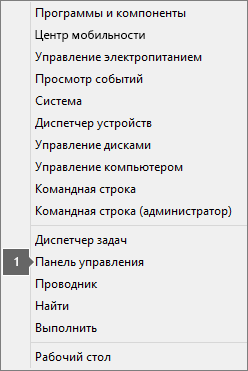
-
В представлении Категория в разделе Программы выберите Удаление программы.
-
Щелкните правой кнопкой мыши продукт Microsoft Office, который вы хотите исправить, и выберите пункт Изменить.
Примечание: Если у вас есть набор, например Microsoft 365 для семьи, Office для дома и учебы 2016 или Office для дома и учебы 2013, выполните поиск по имени набора, даже если это просто конкретное приложение, которое вы хотите восстановить, например Word или Excel. Если у вас есть отдельное приложение, например Word или Excel, найдите его имя.
-
Выполните указанные ниже действия в зависимости от технологии установки вашей версии Office («нажми и работай» или MSI):
Установка по технологии «нажми и работай»:
На экране Как вы хотели бы восстановить программы Office? выберите вариант Восстановление по сети, чтобы исправить все неполадки, а затем выберите Восстановить. (Доступен также вариант Быстрое восстановление, при котором восстановление происходит быстрее, но предполагается только обнаружение поврежденных файлов и их замена.)
Установка с помощью MSI:
В окне Измените текущую установку выберите Восстановить и нажмите кнопку Продолжить.
-
Следуйте остальным инструкциям на экране, чтобы завершить восстановление.
-
Нажмите кнопку Пуск
 и выберите Панель управления.
 -
В представлении Категория в разделе Программы выберите Удаление программы.
-
Выберите продукт Office, который вы хотите восстановить, и нажмите кнопку Изменить.
Примечание: Если у вас есть набор, например Microsoft 365 для семьи, Office для дома и учебы 2016 или Office для дома и учебы 2013, выполните поиск по имени набора, даже если это просто конкретное приложение, которое вы хотите восстановить, например Word или Excel. Если у вас есть отдельное приложение, например Word или Excel, найдите его имя.
-
Выполните указанные ниже действия в зависимости от технологии установки вашей версии Office («нажми и работай» или MSI):
Установка по технологии «нажми и работай»:
На экране Как вы хотели бы восстановить программы Office? выберите вариант Восстановление по сети, чтобы исправить все неполадки, а затем выберите Восстановить. (Доступен также вариант Быстрое восстановление, при котором восстановление происходит быстрее, но предполагается только обнаружение поврежденных файлов и их замена.)
Установка с помощью MSI:
В окне Измените текущую установку выберите Восстановить и нажмите кнопку Продолжить.
-
Следуйте остальным инструкциям на экране, чтобы завершить восстановление.
4. Удаление и повторная установка Office
-
Выберите расположенную ниже кнопку для скачивания и установки средства поддержки удаления.
Скачать
-
Следуйте указанным ниже инструкциям, чтобы скачать средство поддержки удаления для соответствующего браузера.
Совет: Скачивание и установка средства может занять несколько минут. После завершения установки откроется окно удаления продуктов Office.
Edge или Chrome
-
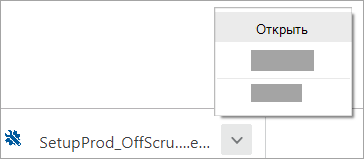
В левом нижнем углу щелкните правой кнопкой мыши SetupProd_OffScrub.exe и выберите пункт Открыть.
Microsoft Edge (старый) или Internet Explorer
-
В нижней части окна браузера нажмите кнопку Выполнить, чтобы запустить файл SetupProd_OffScrub.exe.

Firefox
-
Во всплывающем окне выберите Сохранить файл, а затем в правом верхнем окне браузера выберите стрелку загрузки> SetupProd_OffScrub.exe.
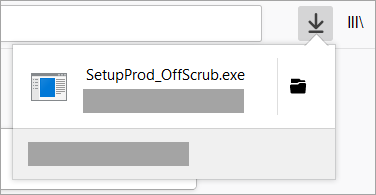
-
-
Выберите версию, которую нужно удалить, и нажмите кнопку «Далее».
-
Следуйте остальным указаниям и при появлении запроса перезагрузите компьютер.
После перезагрузки компьютера средство удаления автоматически откроется для завершения последнего этапа процесса удаления. Следуйте остальным указаниям.
-
Выберите действия для версии Office, которую нужно установить или переустановить. Закройте средство удаления.
Microsoft 365 | Office 2021 | Office 2019 | Office 2016 | Office 2013 | Office 2010 | Office 2007
Нужна дополнительная помощь?
- 26.05.2020
Если у Вас при установке Microsoft Office выходит ошибка 30094, попробуйте сделать следующие действия.
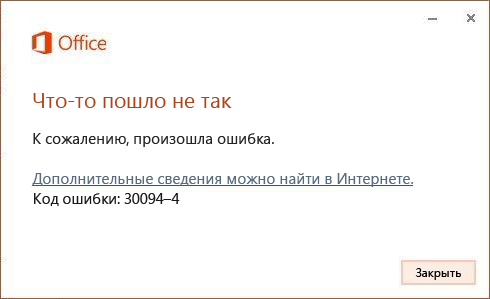
1) Удалить временные файлы из папки TEMP:
— Win + R
— Ввести в поле: %TEMP%
— После в самой папке: CTRL + A
— Нажать кнопку Delte, или правой кнопкой мышки => Удалить
После попробуйте выполнить установку заново.
2) Восстановить Microsoft Office из панели управления.
— Правой кнопкой мыши на кнопку «Пуск» (левый нижний угол на панели задач) => Приложения и возможности.
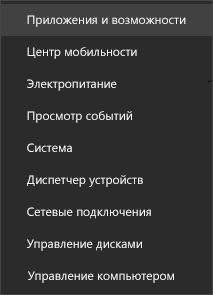
— Далее выбираете из списка Microsoft Office => щелчок курсором мышки на данную позицию => Изменить => Восстановление по сети => Восстановить (Или быстрое восстановление) => Следуйте инструкции на Вашем экране, что бы завершить восстановление.
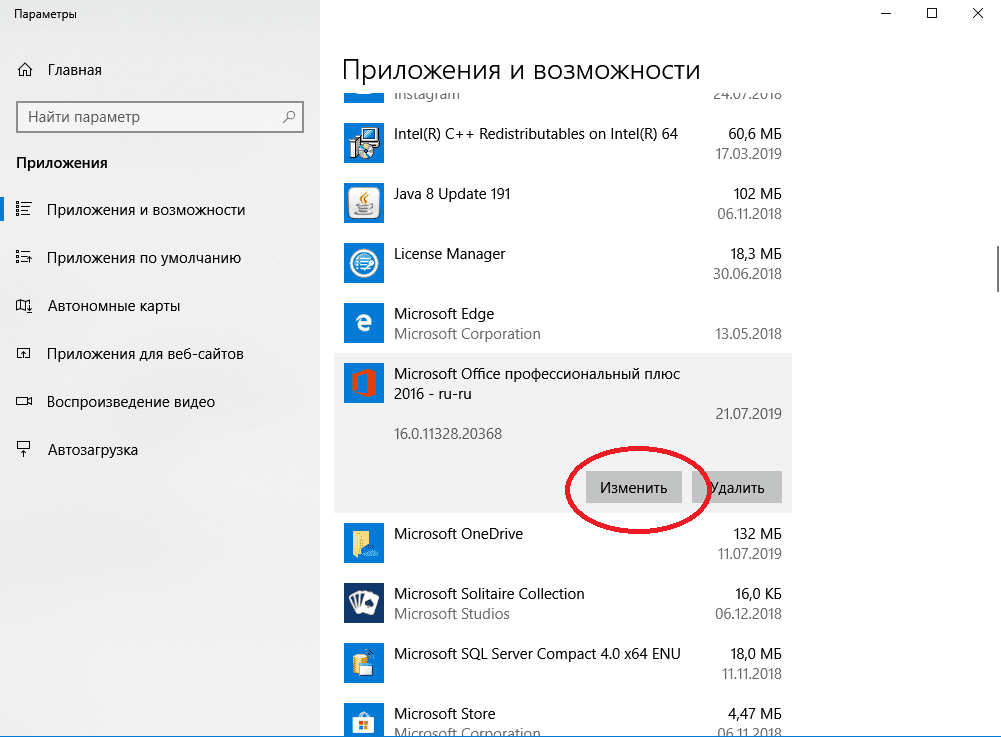
При данном действии будет восстановлен весь набор Office.
3) Удаление Microsoft Office через официальную утилиту от Microsoft для удаления Office. Скачать приложение.
Программа сама найдет и предложит удалить найденное приложение Microsoft Office.
А так же, что бы у Вас все в дальнейшем все работало корректно, мы настоятельно рекомендуем использовать только официальные дистрибутивы Microsoft Office и оригинальные лицензии для данных приложений. Скачать и приобрести лицензионные ключи активации Вы можете в нашем интернет-магазине SoftComouters по самым низким ценам. Моментальная доставка ключей активаций сразу после оплаты в автоматическом режиме на Ваш Email. Гарантия и бесплатная техническая поддержка 24/7.
Подробнее о продуктах Microsoft Office в нашем каталоге по следующей ссылке.
Обновлено 2023 января: остановите эти сообщения об ошибках и устраните распространенные проблемы с помощью этого инструмента. Получить сейчас в эту ссылку
- Скачайте и установите программного обеспечения.
- Он просканирует ваш компьютер на наличие проблем.
- Затем инструмент исправить проблемы которые были найдены.
Microsoft Office — это набор приложений для повышения производительности, упрощающих работу дома и в офисе. Каждое приложение предоставляет своим пользователям различные услуги, такие как создание документов, электронных таблиц и даже получение электронной почты.
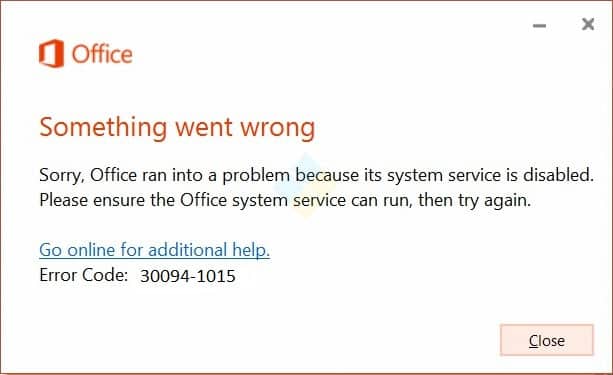
К сожалению, как и любое другое приложение, Microsoft Office подвержен ошибкам. Одной из таких распространенных ошибок является ошибка 30094-1015, которая возникает, когда пользователи пытаются установить программы Office.
Если вы столкнулись с ошибкой 30094-1015 на своем устройстве, вы попали по адресу.

- Поврежденные файлы Office
- Проблема с DNS
- Антивирусное программное обеспечение или брандмауэр могут блокировать установку Office.
- Параметры подключения к Интернету или прокси-сервера препятствуют установке Office.
- Существующая версия Office блокирует установку.
Чтобы устранить ошибку Microsoft Office 30094-1015
Обновлено: январь 2023 г.
Этот инструмент настоятельно рекомендуется, чтобы помочь вам исправить вашу ошибку. Кроме того, этот инструмент обеспечивает защиту от потери файлов, вредоносных программ и аппаратных сбоев, а также оптимизирует работу вашего устройства для достижения максимальной производительности. Если у вас уже есть проблема с компьютером, это программное обеспечение может помочь вам решить ее и предотвратить повторение других проблем:
- Шаг 1: Установите инструмент восстановления и оптимизации ПК. (Виндовс 10, 8, 7, ХР, Виста).
- Шаг 2: Нажмите Начать сканирование чтобы определить, какие проблемы вы испытываете с вашим компьютером.
- Шаг 3: Нажмите Починить всечтобы решить все проблемы.

Восстановите офисное приложение
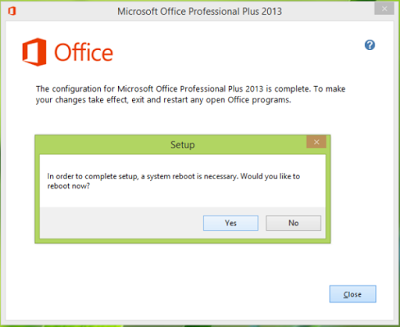
Код ошибки 30094-1015 исправлен, когда средство восстановления Office заменяет все поврежденные системные файлы. Выполните следующие действия, чтобы запустить средство восстановления и исправить ошибку..
- Откройте Панель управления, нажав Пуск.
- Нажмите «Программы», затем выберите «Программы и компоненты».
- Нажмите на продукт Office, который вы хотите восстановить.
- Нажмите на Изменить.
- Выберите «Быстрое исправление», а затем нажмите «Восстановить». Если Quick Fix не устранил код ошибки 30094-1015, выберите «Восстановить онлайн» и нажмите «Восстановить».
Удаление офисного приложения
- Откройте панель управления с самого начала
- Нажмите Программы и выберите Программы и компоненты.
- Выберите Office Suite и нажмите «Удалить».
Удалить установочные пакеты Windows
- Найдите папку установки Office 16, которая обычно находится в папке C:Programs.
- Щелкните правой кнопкой мыши папку Microsoft Office 16 и выберите «Удалить».
Удалить запланированные офисные задачи
- От имени администратора откройте окно командной строки.
- В командной строке введите следующие команды и нажмите клавишу ВВОД после каждой команды:
- schtasks.exe /delete/tn «Автоматические обновления MicrosoftOfficeOffice».
- schtasks.exe /delete/tn «Поддержка подписки MicrosoftOfficeOffice».
- schtasks.exe /delete/tn «Мониторинг службы MicrosoftOfficeOffice ClickToRun».
Используйте диспетчер задач, чтобы остановить выполнение задачи, нажав
- Откройте диспетчер задач.
- Нажмите на таблицу процессов.
- Если запущены следующие процессы, щелкните правой кнопкой мыши каждый из них, а затем нажмите «Завершить задачу» после выбора каждого процесса.
- .exe
- установить *.exe
Удалить офисные файлы
- Нажмите кнопку с логотипом Windows + R, чтобы открыть круглое диалоговое окно.
- В открывшемся окне введите %ProgramFiles% и нажмите OK.
- Удалите папку Microsoft Office 16.
- Удалите папку Microsoft Office.
- Откройте диалоговое окно Round, введите %ProgramFiles(x86)% и нажмите OK.
- Удалите папку Microsoft Office.
Удалите подпапки реестра Office.
- Откройте редактор реестра.
- Удалите следующие подразделы реестра:
- HKEY_LOCAL_MACHINESOFTWAREMicrosoftOfficeClickToRun
- HKEY_LOCAL_MACHINESOFTWAREMicrosoftAppVISV
- HKEY_CURRENT_USERSпрограммное обеспечениеMicrosoftOffice
- Затем удалите ключ Office.
Удалить ярлыки меню «Пуск»
- Откройте окно командной строки от имени администратора.
- Введите %ALLUSERSPROFILE%MicrosoftWindowsStartmenuPrograms и нажмите Enter.
- Удалите папку «Инструменты Microsoft Office 2016».
Скачайте и установите Офис
- Войдите на страницу Моя учетная запись.
- Выберите Установить.
- Нажмите «Выполнить» или аналогичную, в зависимости от используемого браузера.
- Когда вы увидите «Вы готовы», нажмите «Готово».
ОДОБРЕННЫЙ: Чтобы исправить ошибки Windows, нажмите здесь.
Часто задаваемые вопросы
- Удалите установочные пакеты Windows.
- Удалить запланированные офисные задачи.
- Используйте диспетчер задач, чтобы остановить клики по задачам.
- Удалить файлы Office.
- Удалите подкатегории реестра Office.
Если у вас возникли проблемы с установкой Office на компьютер, попробуйте перезагрузить компьютер, а затем повторите попытку установки Office. Если это не сработает, используйте этот простой инструмент восстановления, чтобы полностью удалить Office. После завершения удаления попробуйте переустановить Office.
- Выберите «Пуск» -> «Панель управления» -> «Система и безопасность» -> «Центр обновления Windows».
- В окне Центра обновления Windows выберите «Доступны важные обновления» или «Доступны дополнительные обновления».
- Выберите Установить обновления.
- Перезагрузите устройство. Повторяйте эти действия до завершения установки обновлений.
Если Microsoft Office 365, 2016 или 2013 больше не работает или не открывается на вашем ПК, вы можете попробовать восстановить Office напрямую, чтобы решить проблему в Windows 10/8/7: щелкните правой кнопкой мыши Office 365, Office 2016 или Office 2013 — > выберите «Изменить»; нажмите «Восстановить через Интернет» -> нажмите «Восстановить».
Сообщение Просмотров: 56
4 Replies
-

Ori.BA

This person is a verified professional.
Verify your account
to enable IT peers to see that you are a professional.jalapeno
Get Microsoft SaRA
Nice tool that can help you
https://www.microsoft.com/en-us/download/100607 Opens a new window
This will show up a wizrad that can assist you with it
If you are not sure where to start — look for the complete uninstall of all office apps
Rgds
Was this post helpful?
thumb_up
thumb_down
-

The first step in their document talks about supporting SHA-2. Is it Windows 7? is it patched?
We need more info on the machine in order to help.
Was this post helpful?
thumb_up
thumb_down
-
Hi,
Please follow the steps if not done already and let us know :
Delete your temporary files
Install any pending updates
Repair Office from Control panel
Thanks
Was this post helpful?
thumb_up
thumb_down
-
Thanks to all for your help. I’ve discovered that K9 child protection software was active on the system and was blocking the install. K9 was removed and the Office software was installed
Was this post helpful?
thumb_up
thumb_down
Вы можете столкнуться с любым из этих коды ошибок 30029-4, 30029-1011, 30094-1011, 30183-39, 30088-4 на вашем устройстве с Windows 10 при установке, обновлении или удалении Microsoft Office. Вы также можете столкнуться с одним из кодов ошибок при установке языкового пакета Office. В этом посте мы предоставим решения, которые вы можете попытаться успешно устранить с этими кодами ошибок серии 300XX. Имейте в виду, что решения, представленные в этом посте, могут относиться или не применяться ко всем возможным кодам ошибок в этой серии.
Эти ошибки могут быть вызваны сочетанием различных причин, в том числе:
- Медленное подключение к Интернету или его отсутствие.
- Поврежденные установочные файлы.
- Предустановленные правила прокси или брандмауэра.
- Офисное лицензирование.
- Обновления Windows.
- Недостаточно системных ресурсов, таких как дисковое пространство.
- Конфликты внутреннего реестра.
Код ошибки Microsoft Office 30029-4
Когда вы столкнетесь с этой проблемой. вы получите следующее полное сообщение об ошибке;
Офис
Что-то пошло не так
Извините, мы столкнулись с проблемой.
За дополнительной помощью обратитесь в Интернет. Код ошибки: 30029-4
Код ошибки Microsoft Office 30029-1011
Когда вы столкнетесь с этой проблемой. вы получите следующее полное сообщение об ошибке;
Офис
Не удалось установить
К сожалению, у нас возникла проблема с установкой ваших программ Office.
Ваше интернет-соединение работает? Достаточно ли у вас свободного места на основном жестком диске?
Пожалуйста, попробуйте установить снова после того, как вы проверили выше.
За дополнительной помощью обратитесь в Интернет
Код ошибки 30029-1011 (0)
Вы можете столкнуться с этим кодом ошибки при попытке установить языковой пакет в Office 2016 или Office 2019. Ошибка установки языкового пакета 30029-1011 (0) обычно появляется, если вы пытаетесь установить несовместимый языковой пакет для установленной версии и архитектуры Office. , или если у вас нет достаточно свободного места или активное подключение к Интернету, необходимое для установки языкового пакета.
Код ошибки Microsoft Office 30094-1011
Когда вы столкнетесь с этой проблемой. вы получите следующее полное сообщение об ошибке;
Офис
Не удалось установить
К сожалению, мы не можем проверить подпись файлов, необходимых для установки продукта Office.
Нам необходимо проверить эти подписи, чтобы обеспечить безопасность вашего компьютера.
Повторите установку продукта или, если установка не исчезнет, попробуйте повторно загрузить установщик, если он был у вас в сети. Убедитесь, что вы загружаете продукты Office только из надежного источника.
За дополнительной помощью обратитесь в Интернет.
Код ошибки: 30094-1011 (0)
Пакет продуктов Office доступен в различных формах, таких как диск или запуск по щелчку. В случае сбоя диска вы можете увидеть это сообщение об ошибке, в котором указаны подписи файлов, необходимых для установки офисного продукта.
Код ошибки Microsoft Office 30183-39
Когда вы столкнетесь с этой проблемой. вы получите следующее полное сообщение об ошибке;
Офис
Не удалось транслировать Office
К сожалению, мы не можем найти нужный файл. Убедитесь, что источник установки доступен, затем повторите попытку.
Закрывать
За дополнительной помощью обратитесь в Интернет.
Код ошибки: 30183-39 (-2147012889)
Код ошибки Microsoft Office 30088-4
Когда вы столкнетесь с этой проблемой. вы получите следующее полное сообщение об ошибке;
Офис
Что-то пошло не так
Проверьте подключение к Интернету и свободное место на диске.
Чтобы получить дополнительную помощь, обратитесь в Интернет.
Код ошибки: 30088-4
Решения
Итак, если вы столкнулись с любым из этих кодов ошибок, перечисленных выше или не перечисленных здесь, но в серии 300xx, вы можете попробовать наши рекомендуемые ниже решения в произвольном порядке и посмотреть, поможет ли это решить проблему.
- Ремонт офисной установки
- Удалите и переустановите Office
- Используйте более новую версию средства развертывания Office (относится только к коду ошибки 30029-1011)
- Проверить режим подключения к Интернету
- Запустить сканирование SFC
- Загрузите и установите Office на желаемом языке (относится только к коду ошибки 30029-1011)
- Проверить место на диске
- Загрузите правильный языковой пакет (только для кода ошибки 30029-1011)
- Временно отключите стороннее программное обеспечение безопасности
- Очистить папку Temp
- Отключить прокси
- Используйте автономный установщик Microsoft Office
Давайте посмотрим на описание процесса, связанного с каждым из перечисленных решений.
1]Восстановить установку Office
Это решение требует от вас восстановления установленного пакета Office. Если вы используете Microsoft 365 и не можете восстановить Office обычным способом, вы можете попробовать восстановить его с помощью командной строки.
2]Удалите и повторно установите Office.
Это решение предполагает удаление и повторную установку пакета Office.
3]Используйте более новую версию средства развертывания Office (относится только к коду ошибки 30029-1011)
Это решение предназначено только для установок Microsoft 365 Apps for Enterprise.
Вы можете увидеть эту ошибку, если используете устаревшую версию средства развертывания Office для загрузки и установки приложений Microsoft 365 для предприятия. Загрузка работает нормально, но при запуске /configure команду для установки программ Office, вы получите сообщение об ошибке.
Чтобы исправить эту ошибку, скачать более новую версию средства развертывания Office.
4]Проверьте режим подключения к Интернету
Это простое решение, требующее от вас стабильного подключения к Интернету; что ваше интернет-соединение не прерывистое. Кроме того, если вы столкнулись с ошибкой при подключении через WiFI, вы можете переключиться на Ethernet и наоборот и посмотреть, есть ли какие-либо улучшения.
5]Запустить сканирование SFC
Вы можете запустить сканирование SFC и посмотреть, будет ли устранена ошибка.
6]Загрузите и установите Office на желаемом языке (относится только к коду ошибки 30029-1011)
Сделайте следующее:
- Удалите Office.
- Скачать то Инструмент загрузки Windows ISO с сайта heidoc.net.
- Дважды щелкните загруженный установщик, чтобы запустить инструмент.
- В пользовательском интерфейсе инструмента Windows ISO Downloader выберите Офис вкладка на правой панели.
- Выберите Версия офиса который вы хотите скачать.
- Затем слева выберите Версия офиса и желаемого язык ниже.
- Нажмите Скачать.
- Когда загрузка будет завершена, дважды щелкните загруженный файл образа (ProPlusRetail.img), чтобы смонтировать его в проводнике.
- Изучите содержимое подключенного образа (диска) и откройте папку Office.
- В зависимости от архитектуры вашей системы дважды щелкните значок setup32.exe для установки 32-разрядной версии Office или setup64.exe для установки 64-битной версии Office. Если у вас 64-битная версия Windows, рекомендуется установить 64-битную версию Office.
7]Проверьте место на диске
Как можно заметить, как и код ошибки 30088-4, вам необходимо убедиться, что на вашем устройстве с Windows 10 достаточно свободного места, а затем повторить задачу, которую вы изначально выполняли при обнаружении кода ошибки.
Вы также можете использовать стороннее программное обеспечение, чтобы проверить, что занимает место на вашем диске, и при необходимости освободить его.
8]Загрузите правильный языковой пакет (относится только к коду ошибки 30029-1011)
Если вы не можете установить языковой пакет в Office, убедитесь, что вы пытаетесь установить правильный файл языкового пакета в соответствии с установленной версией и архитектурой Office (32- или 64-разрядная).
Сделайте следующее:
- Откройте любое приложение Office (например, Word).
- От Файл щелкните меню Счет (или же Помощь).
- Щелкните значок О Word кнопку на правой панели.
- Перейдите к языковому пакету Office страница загрузки, и выберите желаемый язык.
- В зависимости от архитектуры вашей системы щелкните Скачать 32-битную версию или же Скачать 64-битную версию.
- Запустите загруженный файл .exe, чтобы установить языковой пакет.
9]Временно отключите стороннее программное обеспечение безопасности.
Это во многом зависит от установленного вами программного обеспечения безопасности. См. Руководство по эксплуатации.
Чтобы отключить антивирусное программное обеспечение, найдите его значок в области уведомлений или на панели задач на панели задач (обычно в правом нижнем углу рабочего стола). Щелкните значок правой кнопкой мыши и выберите вариант отключения или выхода из программы.
После отключения программного обеспечения безопасности вы можете повторить задачу, которую выполняли ранее до возникновения ошибки. Если задача завершится успешно, вы можете включить антивирусную программу.
10]Очистить папку Temp
Чтобы очистить папку Temp в Windows 10, сделайте следующее:
- Нажмите Клавиша Windows + R для вызова диалогового окна «Выполнить».
- В диалоговом окне «Выполнить» введите или скопируйте и вставьте указанную ниже переменную среды и нажмите Enter.
%windir%temp
- На месте нажмите Ctrl + A чтобы выбрать все файлы и папки.
- Нажмите Удалить на клавиатуре.
Посмотрите, решена ли проблема. Если нет, попробуйте следующее решение.
11]Отключить прокси
Вы можете удалить любые настройки прокси-сервера, которые вы настроили на своем компьютере с Windows 10, и посмотреть, решит ли это проблему.
12]Используйте автономный установщик Microsoft Office
Автономный установщик Office может помочь в обходе потенциальных проблем прокси-сервера, обхода брандмауэра, а также проблем с антивирусом или подключением к Интернету, которые могут проявляться. коды ошибок 30029-4, 30029-1011, 30094-1011, 30183-39, 30088-4 при установке Microsoft Office на устройство с Windows 10. В этом случае вы можете попробовать установить Office с помощью автономного установщика.
Надеюсь, этот пост окажется для вас полезным! Сообщите нам в разделе комментариев ниже, с какими другими кодами ошибок Microsoft Office в этой серии вы столкнулись, что ни одно из решений здесь не сработало.
Связанный пост: Исправить коды ошибок 12002-4, 12007-4, 12152-4 при установке Office.
Мы уже неоднократно говорили в последних публикациях, что Microsoft Office является лучшим из Office пакета, который вы можете получить. Ну, иногда, используя этот пакет производительности, вы можете столкнуться с техническими проблемами. Мы понимаем, что не все обладают техническим умом, поэтому мы продолжаем рассказывать о более распространенных проблемах через наши посты по устранению неполадок, чтобы новички могли легко решить проблему, с которой они только что столкнулись. Ну, этот пост поможет вам решить следующую ошибку при использовании Microsoft Office:
Что-то пошло не так. Извините, мы столкнулись с проблемой. Зайдите в интернет за дополнительной помощью. Код ошибки 30094-4

Когда мы впервые услышали об этой проблеме, мы почувствовали, что перезапуск Windows может помочь, но даже после перезапуска машины не было никаких различий в ситуации. Прежде чем вы решите переустановить Office, мы рекомендуем вам восстановить установку Office , выполнив следующие действия:
Что-то пошло не так. Код ошибки 30094-4
1. Нажмите клавишу Windows + E , когда находитесь на рабочем столе . Вы попадете в окно на этом компьютере , нажмите Удалить или изменить программу.

2. В списке установленных программ найдите запись Microsoft Office 2013 , как показано ниже, и выделите ее. Нажмите Изменить .

3. В появившемся следующем окне выберите Восстановить и нажмите Продолжить .

4. В результате предыдущего шага вы увидите, что в вашей системе восстанавливается Office 2013 . Пожалуйста, наберитесь терпения и дождитесь завершения процесса; это займет всего несколько минут.

5. Когда система завершит восстановление, вам будет предложено перезагрузиться. Так что делай нужное.

После перезагрузки вы больше не увидите ошибку.
Если проблема не устранена, попробуйте переустановить Office 2013/16 или 365 , выполнив следующие требования:
- Удалите Office 2013 существующую установку, не оставляя никаких следов с помощью этой программы исправления, чтобы полностью удалить Microsoft Office 2016/13 или Office 365 .
- Убедитесь, что вы подключены к рабочему интернет-соединению, оно не должно быть ограничено.
- Если вы используете 64-битную редакцию, попробуйте установить 32-битную редакцию (рекомендуется).
- Выполните команду % windir% temp в командной строке администратора и удалите все файлы в папке Temp , чтобы открыть ее, выполнив команду.
- Временно отключите антивирус и/или брандмауэр.
Мы уверены, что после переустановки проблема должна исчезнуть.
You may encounter any of these error codes 30029-4, 30029-1011, 30094-1011, 30183-39, 30088-4 on your Windows 11/10 device when installing, updating, or uninstalling Microsoft Office. You may also encounter one of the error codes when installing the Office language pack. In this post, we will provide the solutions you can try to successfully resolve these 300XX series error codes. Bear in mind, that the solutions presented in this post may or may not apply to all possible error codes in that series.
These errors can be caused by a combination of varying reasons, including:
- Slow or no internet connectivity.
- Corrupt installation files.
- Preset proxy or firewall rules.
- Office licensing.
- Windows updates.
- Insufficient system resources like disk space.
- Internal registry conflicts.
Microsoft Office error code 30029-4
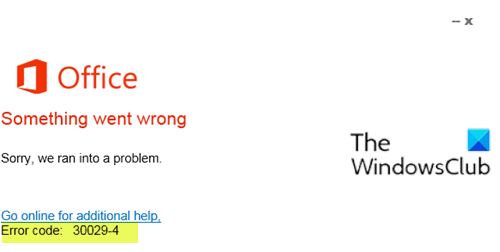
When you encounter this issue. you’ll receive the following full error message;
Office
Something went wrong
Sorry, we ran into a problem.
Go online for additional help. Error code: 30029-4
Microsoft Office error code 30029-1011
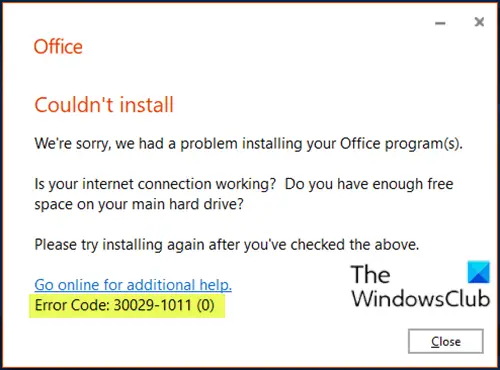
When you encounter this issue. you’ll receive the following full error message;
Office
Couldn’t install
We’re sorry, we had a problem installing your Office program(s).
Is your internet connection working? Do you have enough free space on your main hard drive?
Please try installing again after you’ve checked above.
Go online for additional help
Error Code 30029-1011(0)
You may encounter this error code when trying to install a language pack in Office 2016 or Office 2019. The language pack installation error 30029-1011(0), commonly appears if you try to install an incompatible language pack for the installed Office version and architecture, or if you don’t have enough free space or an active Internet connection which is needed to install the language pack.
Fix: Error Code 30038-28 when updating Office.
Microsoft Office error code 30094-1011
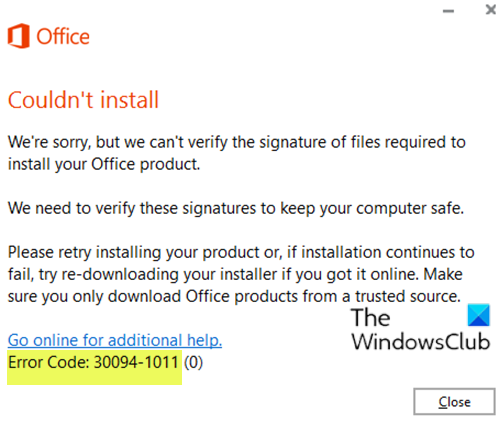
When you encounter this issue. you’ll receive the following full error message;
Office
Couldn’t install
We’re sorry, but we can’t verify the signature of files required to install your Office product.
We need to verify these signatures to keep your computer safe.
Please retry installing your product or, if installation continues to fail, try re-downloading your installer if you got it online. Make sure you only download Office products from a trusted source.
Go online for additional help.
Error Code: 30094-1011 (0)
An Office product package is available in different forms like a disc or a click to run. In the case of a disc failure, you might see this error message which says signatures of files required to install the office product.
FIX: We had a problem installing your Office programs
Microsoft Office error code 30183-39
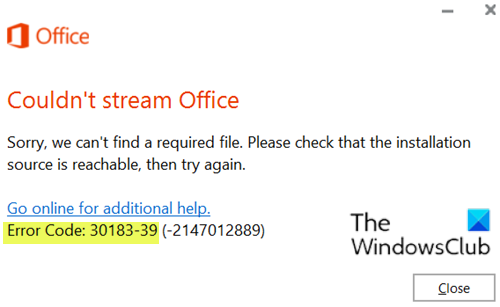
When you encounter this issue. you’ll receive the following full error message;
Office
Couldn’t stream Office
Sorry, we can’t find a required file. Please check that the installation source is reachable, then try again.
Close
Go online for additional help.
Error Code: 30183-39 (-2147012889)
Microsoft Office error code 30088-4
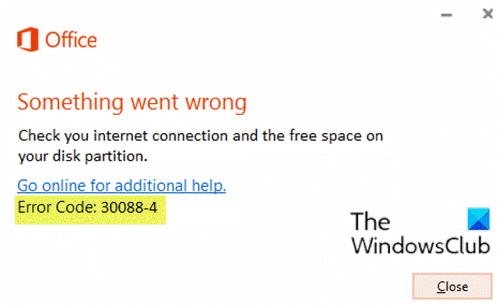
When you encounter this issue. you’ll receive the following full error message;
Office
Something went wrong
Check you internet connection and the free space on your disk partition.
Go online for additional help.
Error Code: 30088-4
Solutions
So, if you’re faced with any of these error codes listed above or if not listed here, but in the 300xx series, you can try our recommended solutions below in no particular order and see if that helps to resolve the issue.
- Repair Office installation
- Uninstall and reinstall Office
- Use a newer version of the Office Deployment Tool (applies to only error code 30029-1011)
- Check internet connection mode
- Run SFC scan
- Download and install Office in the desired language (applies to only error code 30029-1011)
- Check disk space
- Download the correct Language Pack (applies to only error code 30029-1011)
- Temporarily disable any third-party security software
- Clear Temp folder
- Disable Proxy
- Use Microsoft Office offline installer
Let’s take a look at the description of the process involved concerning each of the listed solutions.
1] Repair Office installation
This solution requires you to repair the currently installed Office suite. If you’re running Microsoft 365 and you’re unable to repair Office the conventional way, you can try the repair using the Command Prompt.
2] Uninstall and reinstall Office
This solution entails that you uninstall and reinstall the Office suite.
3] Use a newer version of the Office Deployment Tool (applies to only error code 30029-1011)
This solution is only for Microsoft 365 Apps for Enterprise installations.
You may see this error if you’re using an outdated version of the Office Deployment Tool to download and install Microsoft 365 Apps for Enterprise. The download works OK, but when you run the /configure the command to install Office programs, you receive the error message.
To fix this error, download a newer version of the Office Deployment Tool.
4] Check internet connection mode
This is a simple solution that requires you to make sure you have a stable internet connection; that your internet connection isn’t intermittent. Also, if you’re experiencing the error while connected via WiFI, you can switch to ethernet and vice-versa and see if there’s any improvement.
5] Run SFC scan
You can run an SFC scan and see if the error will be resolved.
6] Download and install Office in the desired language (applies to only error code 30029-1011)
Do the following:
- Uninstall Office.
- Download the Windows ISO Downloader Tool from heidoc.net.
- Double-click the downloaded installer to run the tool.
- On the Windows ISO Downloader tool UI, choose the Office tab at the right pane.
- Select the Office version that you want to download.
- Then at the left choose the Edition of Office and the desired language below.
- Click Download.
- When the download is completed, double-click on the downloaded image file (ProPlusRetail.img), to mount it in File Explorer.
- Explore the contents of the mounted image (drive) and open the Office folder.
- Depending on your system architecture, double-click the setup32.exe to install the 32-bit Office version, or the setup64.exe to install the 64-bit Office version. It’s recommended, if you have a 64bit version of Windows, to install the 64bit version of Office.
7] Check disk space
As it may be indicated, like the error code 30088-4, you’ll need to make sure you have enough free drive space on your Windows 10 device and then retry the task you were initially performing when you encountered the error code.
You may also, use third-party software to check what’s hogging your drive space and reclaim the space if necessary.
8] Download the correct Language Pack (applies to only error code 30029-1011)
If you can’t install the language pack in Office, ensure that you try to install the correct Language Pack file, according to the installed Office version and architecture (32 or 64bit).
Do the following:
- Open any Office application(eg; Word).
- From the File menu click Account (or Help).
- Click the About Word button at the right pane.
- Navigate to the Office Language Pack download page, and choose the desired language.
- Depending on your system architecture, click Download 32-bit or Download 64-bit.
- Run the downloaded .exe file to install the language pack.
9] Temporarily disable any third-party security software
This largely depends on the security software you have installed. Refer to the instruction manual.
To disable your antivirus software, locate its icon in the notification area or system tray on the taskbar (usually in the lower right corner of the desktop). Right-click the icon and choose the option to disable or exit the program.
After you disable the security software, you can repeat the task you were performing earlier prior to the error. If the task completes successfully, you can enable your antivirus program.
10] Clear Temp folder
To clear the Temp folder on Windows, do the following:
- Press Windows key + R to invoke the Run dialog.
- In the Run dialog box, type or copy and paste in the environment variable below and hit Enter.
%windir%temp
- At the location, press Ctrl + A to select all the files and folders.
- Press Delete on your keyboard.
See if the issue at hand is resolved. If not, try the next solution.
11] Disable Proxy
You can remove any proxy server settings you have configured on your Windows 10 computer and see if that resolves the issue.
12] Use Microsoft Office offline installer
The Office offline installer may help in bypassing potential proxy, bypass firewall, and anti-virus or internet connection issues that might show error codes 30029-4, 30029-1011, 30094-1011, 30183-39, 30088-4 while installing Microsoft Office on your Windows 10 device. In this case, you can try the installation of Office using an offline installer.
Hope you find this post helpful! Let us know in the comments section below, which other Microsoft Office error codes in this series you have encountered that none of the solutions here worked.
Related post: Fix Error codes 12002-4, 12007-4, 12152-4, when installing Office.
You may encounter any of these error codes 30029-4, 30029-1011, 30094-1011, 30183-39, 30088-4 on your Windows 11/10 device when installing, updating, or uninstalling Microsoft Office. You may also encounter one of the error codes when installing the Office language pack. In this post, we will provide the solutions you can try to successfully resolve these 300XX series error codes. Bear in mind, that the solutions presented in this post may or may not apply to all possible error codes in that series.
These errors can be caused by a combination of varying reasons, including:
- Slow or no internet connectivity.
- Corrupt installation files.
- Preset proxy or firewall rules.
- Office licensing.
- Windows updates.
- Insufficient system resources like disk space.
- Internal registry conflicts.
Microsoft Office error code 30029-4
When you encounter this issue. you’ll receive the following full error message;
Office
Something went wrong
Sorry, we ran into a problem.
Go online for additional help. Error code: 30029-4
Microsoft Office error code 30029-1011
When you encounter this issue. you’ll receive the following full error message;
Office
Couldn’t install
We’re sorry, we had a problem installing your Office program(s).
Is your internet connection working? Do you have enough free space on your main hard drive?
Please try installing again after you’ve checked above.
Go online for additional help
Error Code 30029-1011(0)
You may encounter this error code when trying to install a language pack in Office 2016 or Office 2019. The language pack installation error 30029-1011(0), commonly appears if you try to install an incompatible language pack for the installed Office version and architecture, or if you don’t have enough free space or an active Internet connection which is needed to install the language pack.
Fix: Error Code 30038-28 when updating Office.
Microsoft Office error code 30094-1011
When you encounter this issue. you’ll receive the following full error message;
Office
Couldn’t install
We’re sorry, but we can’t verify the signature of files required to install your Office product.
We need to verify these signatures to keep your computer safe.
Please retry installing your product or, if installation continues to fail, try re-downloading your installer if you got it online. Make sure you only download Office products from a trusted source.
Go online for additional help.
Error Code: 30094-1011 (0)
An Office product package is available in different forms like a disc or a click to run. In the case of a disc failure, you might see this error message which says signatures of files required to install the office product.
FIX: We had a problem installing your Office programs
Microsoft Office error code 30183-39
When you encounter this issue. you’ll receive the following full error message;
Office
Couldn’t stream Office
Sorry, we can’t find a required file. Please check that the installation source is reachable, then try again.
Close
Go online for additional help.
Error Code: 30183-39 (-2147012889)
Microsoft Office error code 30088-4
When you encounter this issue. you’ll receive the following full error message;
Office
Something went wrong
Check you internet connection and the free space on your disk partition.
Go online for additional help.
Error Code: 30088-4
Solutions
So, if you’re faced with any of these error codes listed above or if not listed here, but in the 300xx series, you can try our recommended solutions below in no particular order and see if that helps to resolve the issue.
- Repair Office installation
- Uninstall and reinstall Office
- Use a newer version of the Office Deployment Tool (applies to only error code 30029-1011)
- Check internet connection mode
- Run SFC scan
- Download and install Office in the desired language (applies to only error code 30029-1011)
- Check disk space
- Download the correct Language Pack (applies to only error code 30029-1011)
- Temporarily disable any third-party security software
- Clear Temp folder
- Disable Proxy
- Use Microsoft Office offline installer
Let’s take a look at the description of the process involved concerning each of the listed solutions.
1] Repair Office installation
This solution requires you to repair the currently installed Office suite. If you’re running Microsoft 365 and you’re unable to repair Office the conventional way, you can try the repair using the Command Prompt.
2] Uninstall and reinstall Office
This solution entails that you uninstall and reinstall the Office suite.
3] Use a newer version of the Office Deployment Tool (applies to only error code 30029-1011)
This solution is only for Microsoft 365 Apps for Enterprise installations.
You may see this error if you’re using an outdated version of the Office Deployment Tool to download and install Microsoft 365 Apps for Enterprise. The download works OK, but when you run the /configure the command to install Office programs, you receive the error message.
To fix this error, download a newer version of the Office Deployment Tool.
4] Check internet connection mode
This is a simple solution that requires you to make sure you have a stable internet connection; that your internet connection isn’t intermittent. Also, if you’re experiencing the error while connected via WiFI, you can switch to ethernet and vice-versa and see if there’s any improvement.
5] Run SFC scan
You can run an SFC scan and see if the error will be resolved.
6] Download and install Office in the desired language (applies to only error code 30029-1011)
Do the following:
- Uninstall Office.
- Download the Windows ISO Downloader Tool from heidoc.net.
- Double-click the downloaded installer to run the tool.
- On the Windows ISO Downloader tool UI, choose the Office tab at the right pane.
- Select the Office version that you want to download.
- Then at the left choose the Edition of Office and the desired language below.
- Click Download.
- When the download is completed, double-click on the downloaded image file (ProPlusRetail.img), to mount it in File Explorer.
- Explore the contents of the mounted image (drive) and open the Office folder.
- Depending on your system architecture, double-click the setup32.exe to install the 32-bit Office version, or the setup64.exe to install the 64-bit Office version. It’s recommended, if you have a 64bit version of Windows, to install the 64bit version of Office.
7] Check disk space
As it may be indicated, like the error code 30088-4, you’ll need to make sure you have enough free drive space on your Windows 10 device and then retry the task you were initially performing when you encountered the error code.
You may also, use third-party software to check what’s hogging your drive space and reclaim the space if necessary.
8] Download the correct Language Pack (applies to only error code 30029-1011)
If you can’t install the language pack in Office, ensure that you try to install the correct Language Pack file, according to the installed Office version and architecture (32 or 64bit).
Do the following:
- Open any Office application(eg; Word).
- From the File menu click Account (or Help).
- Click the About Word button at the right pane.
- Navigate to the Office Language Pack download page, and choose the desired language.
- Depending on your system architecture, click Download 32-bit or Download 64-bit.
- Run the downloaded .exe file to install the language pack.
9] Temporarily disable any third-party security software
This largely depends on the security software you have installed. Refer to the instruction manual.
To disable your antivirus software, locate its icon in the notification area or system tray on the taskbar (usually in the lower right corner of the desktop). Right-click the icon and choose the option to disable or exit the program.
After you disable the security software, you can repeat the task you were performing earlier prior to the error. If the task completes successfully, you can enable your antivirus program.
10] Clear Temp folder
To clear the Temp folder on Windows, do the following:
- Press Windows key + R to invoke the Run dialog.
- In the Run dialog box, type or copy and paste in the environment variable below and hit Enter.
%windir%temp
- At the location, press Ctrl + A to select all the files and folders.
- Press Delete on your keyboard.
See if the issue at hand is resolved. If not, try the next solution.
11] Disable Proxy
You can remove any proxy server settings you have configured on your Windows 10 computer and see if that resolves the issue.
12] Use Microsoft Office offline installer
The Office offline installer may help in bypassing potential proxy, bypass firewall, and anti-virus or internet connection issues that might show error codes 30029-4, 30029-1011, 30094-1011, 30183-39, 30088-4 while installing Microsoft Office on your Windows 10 device. In this case, you can try the installation of Office using an offline installer.
Hope you find this post helpful! Let us know in the comments section below, which other Microsoft Office error codes in this series you have encountered that none of the solutions here worked.
Related post: Fix Error codes 12002-4, 12007-4, 12152-4, when installing Office.
This describes the Microsoft Office error code 30094-4 solutions in this article. It was found that many users having trouble to repair or install office programs on their Windows and Mac computers. The majority of issues are due to the Office licensing, Windows updates, insufficient system resources like disk space, internet connectivity, etc. So this article provides the solution for different kind of office issues related to error code 30094-4 .
Office error code 30094-4 Returns following error messages:-
- Something went wrong Error code 30094-4 Go online for additional help.
- Office is Busy, There is a problem starting the Office Installation.
- We are sorry, but we are unable to start your program.
- Sorry installation can’t continue because no compatible office products are detected.
- We are sorry, but we can’t verify the signature of files required to install your office product.
- Internet connection needed. Office error code 30094-4 .
- Background installation ran into a problem.
Something went wrong Error code 30094-4 Go online for additional help.
When operating system unable to add and/or remove the products that you are requesting, It requests you to verify file’s signature that required to install the office product. Usually, returns error code series 300XX, 1xxx series depends on the cause of the issue.
Office is Busy, There is a problem starting the Office Installation
It appears when you try to open any office program like word ,excel etc, and the office already in progress .it gives a message “we are either updating or helping you add/ or remove some programs.
We are sorry, but we are unable to start your program.
Unable to start a program is a common error in a windows operating system that causes due to failed services of a program. If there are Windows Installer services found to be not working, then you cannot install an Office product.
Sorry, we ran into a problem Error code 30094-4 -Sorry installation can’t continue because no compatible office products are detected.
A Microsoft Windows Operating system is released in two different bit versions depending on the hardware architecture such like 32 and 64. It is required to install relevant versions of office suitable for the Windows Operating systems. In case of any mismatch in the versions selected, you can see this error message that says no compatible office products are detected.
We are sorry, but we can’t verify the signature of files required to install your office product.
An Office product package is available in different forms like a disc or a click to run. In the case of a disc failure, you might see this error message which says signatures of files required to install the office product.
Internet connection needed. Office error code 30094-4.
While you performing the online repair for your office product this error message may occur due to internet problems. You can do a quick offline repair.
Also, Installation of Microsoft Office requires an internet connection depending on the version. The latest Office 365 suite comes with a click to run version which is a small setup file when you click on it, that would start the installation by downloading all the required files for the program. In the case of an intermittent connection or some connectivity failures, you might end up seeing this error 30094-4 .
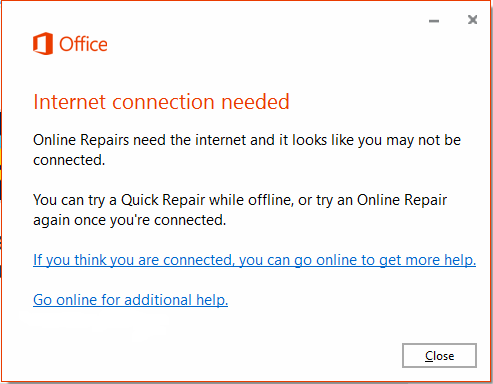
Internet connection needed error message
Background Installation ran into a problem
This causes when your Office program related files are corrupted. It is required to repair your Office program. In addition, we need to check for malware or virus related issues on your computer.
Unable to start the Office program
This message explains that the program has been stopped by your Windows. The computer must be scanned using the Windows system file scan process. This also shows that Office related files are missing from Program folders. If this happened recently with any of your cleanup programs, a system restore could help you to fix the same.
Diagnose your computer to fix error code 30094-4 :-
There are few ironically shown Office error codes which require an immediate action. There will be a log for every action on your computer which records all the events. It is termed as an Event viewer. This is a Windows Inbuilt program under system tools, it provides all the information for the problem causing keys.
This could cause due to the failure with your Windows related services and the executable file is unable to read the required files when you try installing Office. There may be issues with the start up programs which can be checked under System Configuration.
Perform system file scan:-
System file scan in short SFC scan is windows inbuilt program to fix altered/modified and damaged files of the operating system. It can fix several updates failures, other violations done by several mismatched files.
To Run system file scan in your windows operating system, first Open command prompt (CMD) in admin mode and Run the command SFC/SCANNOW
Office error codes also can be fixed with this scan if they are not damaged much. If you see any file violations still exists after the scan then move to Event viewer to check what has caused the office error code 30094-4 . Watch video to know how to perform SFC SCAN to fix office error code 30094-4 .
How to use Event viewer to check office error logs:-
- Click on a start button.
- Type “RUN” and open the Run command prompt.
- Type “EVENTVWR” and press enter key to open Eventvwr logs.
- Double click on “windows logs” from the left-side panel and select “application “.
- Now you can see many logs in the center panel.
- Filter the logs to find office related issues and warnings by selecting Filter current log option from the Right side panel.
- 7. Find any critical, error logs the caused error code 30094-4 .
If you can’t find any reasons for the issues then just take a chance to do a clean installation to save your time.
Steps to Fix the error code 30094-4:-
Sometimes the office won’t install due to several reasons like internet connectivity, dependencies for the product or any virus that affected your computer files etc. Then all you have to do a clean installation by removing traces of office program files existed from previous versions or by multiple office installation trails by you due to several errors.
Remove Temporary Files:-
In the process of installing office or any product on your windows machines, there are so many files gets created which are meant for temporary purpose for memory management,within application purposes like MDI etc.
Under normal conditions, these files are closed and deleted by Windows when you quit a Windows session. However, if you quit Windows in an irregular way (for example, restarting the computer or turning it off during an active Windows session) the files are not closed or deleted.
To remove temporary files, Follow these steps,
- Click on windows start button + “R” to open the run command window.
- Type “%temp%” and click on the enter button, this leads to a window with temp files and folders.
- Select all (CTRL+A) “Shift + Delete” to remove permanently,
There may be some files that require admin permission to remove, Just click on ok. Only a few files can’t be deleted because there are some application might be using them internally. Skip those files.
Error code 30094-4 Fix- by removing Office traces from Program files:-
In some cases, Office installation may stop because of several reasons like slow internet, server issues, etc. Then your machine creates some of the files required to office 365/2010/2016 product.
When you try to re-install this time, You may see issues like these types of error code 30094-4 and different series based on the reason for failure.
You have to delete these Office traces from the computer before trying the re-installation process.
Repair/Uninstall office program: –
Applies To: Office 2016, Office for business, Office 365 Admin, Office 365 Small Business Admin, Office 2013
For Windows 8 / Windows 8.1/10:-
- Go to control panel from start button,
- Select Programs and features there to reach a list of installed programs on your computer. (In windows 10 you can just type “programs and features in the Cortana search bar beside windows start logo)
- From the list, search for Microsoft Office product and click on Change
- A window will open like here showing Add, Repair, Remove options
- Then proceed to with repair and wait for sometimes.Once the repair is successful you are ready to use Microsoft office product again.
To uninstall follow the first 4 steps from repair process, and choose to Remove instead of repair.
IMPORTANT:. It’s impossible to uninstall office applications (word, excel, publisher etc) individually from total office product.The only way to uninstall an individual app is if you purchased it as a stand-alone version.
Installing Office Product:-
Once you have done the uninstallation part, now do a clean installation.
- Login to your Microsoft office account www.office.com/signin
- Go to your dashboard to see the product you purchased.
- Select “Install Office “ option and then let it download, (you may see click Save, Run, Setup, or Save File depends on browser type, select “save” for future purpose)
- Go to downloads in your computer and Double click on office setup file to install.
If the error code 30094-4 still persists then try an advanced registry fix if you are familiar with it.
Windows Registry Fix:-
The registry in Windows is a console that shows the structure of your Windows Operating system and it’s internal programs. The Hexa codes inside the registry may change due to some unwanted conflicting programs which use the same resources.
To fix the error code 30094-4 in office 365/2010/2016 you need to delete the altered Office Registry keys or remove and re-create the keys with previous values. (HEXA CODE or H-KEYS).
Note: Don’t do Registry changes if you are not aware of the structure, as it damages applications with one single change. Sometimes damages your computer operating system too.
Take a support from Online experts regarding any unresolved issues on your computer.
Chat with our technician to fix your computer issues Now!
Related issues to error code 30094-4 in Office 365, 2010/2013:
Error code 30089-4,Error code 3-4,Error code 30033-4,Error code 30088-15,Error code 30145-27,Error code 30094-1,Error code 30145-13,Error code 30175-12,Error code 30126-1011,Error code 30102-13,Error code 30013-39,Error code 30043-11,Error code 30102-11,Error code 30045-13,Error code 30050-13,Error code 30058-26,Error code 30045-14,Error code 30088-8,Error code 30145-16,Error code 3033-27,Error code 30033-27,Error code 30125-9 (500),Error code 30182-1015(4),Error code 30015-1025(1392),Error code 30033-27,Error code 30088-13 , Error code 30068-4 (3),Error code 30183-4,Office error code 30103-13, Error code 30126-4,Error code 30183-4,Error code 30183-1011(1),Error code 30180-4,Error code 30175-4,Error code 30175-13,Error code 30174-4,Error code 30169-22,Error code 30145-4,Error code 30145-16,Error code 30145-13,Error code 30143-37,Error code 30125-4,Error code 30125-1011,Error code 30103-11,Error code 30102-13,Error code 30102-11 ,Error code 30094-4,Error code 30015-11 (-2147023834),Error code 30094-1011,Error code 30088-4,Error code 30088-28,Error code 30088-27,Error code 30088-26,Error code 30088-22,Error code 30068-4,Error code 30053-4,Error code 30045-4,Error code 30045-11,Error code 30038-4,Error code 30038-26,Error code 30034-4,Error code 30029-4,Error code 30027-4 ,Error code 30016-4,Error code 30016-2,Error code 30015-6,Error code 30015-4 (3),Error code 30015-11 (-1073741790),Error code 30013-39,Error code 30183-4 ,Error code 1704,Error code 1605,Error code 1058-4,Error code 30029-24,Error code 12152-4,Error code 12007-4,Error code 12002-4,Error code 30088-1015
Post Views: 1,141
Contents
- 1 Office error code 30094-4 Returns following error messages:-
- 1.1 Something went wrong Error code 30094-4 Go online for additional help.
- 1.2 Office is Busy, There is a problem starting the Office Installation
- 1.3 We are sorry, but we are unable to start your program.
- 1.4 Sorry, we ran into a problem Error code 30094-4 -Sorry installation can’t continue because no compatible office products are detected.
- 1.5 We are sorry, but we can’t verify the signature of files required to install your office product.
- 1.6 Internet connection needed. Office error code 30094-4.
- 1.7 Background Installation ran into a problem
- 1.8 Unable to start the Office program
- 2 Diagnose your computer to fix error code 30094-4 :-
- 3 Perform system file scan:-
- 4 How to use Event viewer to check office error logs:-
- 4.1 Steps to Fix the error code 30094-4:-
- 4.2 Remove Temporary Files:-
- 4.3 Error code 30094-4 Fix- by removing Office traces from Program files:-
- 4.3.1 Repair/Uninstall office program: –
- 4.4 For Windows 8 / Windows 8.1/10:-
- 5 Installing Office Product:-
- 6 Windows Registry Fix:-