Игровая консоль Nintendo Switch в продаже уже больше 5 лет (с 2017-го) и, очевидно, пользуется стабильной популярностью.
Девайс как минимум очень удобный — играть на Switch-е можно и дома (на большом экране), и в мобильном режиме вообще где угодно.
Но всякие сбои, баги, ошибки и прочие неприятности у Switch-а, как известно, тоже случаются. О чем мы повествуем регулярно и, есть такое подозрение, повествовать будем еще не раз.
И в продолжение темы — вот наш большой справочник по кодам ошибок Nintendo Switch, в котором мы постарались собрать все самые распространенные из них. С кратким описанием по каждой из проблем и, разумеется, с предложениями относительно того, что и как в каждом отдельном случае надо делать.
Пост этот мы наверняка будем дополнять (по мере сил и возможностей), но пока получается примерно следующее. Итак, по порядку:
#1 — Проблемы с аппаратной частью консоли
| Код | Описание проблемы | Что делать |
| 2153-0321 | Сбой системы воспроизведения аудио | • пробуем просто включить/выключить опцию «Отключать звук при отсоединенных наушниках«; • если это не помогает, то везем Switch в сервис-центр (СЦ). |
| 2168-0002 | Повреждение консоли или пиратский контент | • проверяем и удаляем любой нелегальный контент, и перезагружаем Switch; • проверяем и устанавливаем последнюю версию прошивки; • если ничего не помогает, везем Switch в СЦ. |
| 2115-0096 | Switch не принимает фигурку Amiibo | • проверяем и устанавливаем последнюю версию прошивки; • проверяем правый джойкон; • выполняем сброс данных Amiibo — [ИНСТРУКЦИЯ] |
| 2153-1540 | Switch не работает | • перезагружаем Switch; • проверяем и устанавливаем последнюю версию прошивки; • если ничего не помогает, везем Switch в СЦ. |
| 2139-0006 | Switch сбоит или не работает | Звоним в СЦ. |
Не пропустите: ОШИБКА 2002-3537 У SWITCH: ЧТО НАДО СДЕЛАТЬ
#2 — Общие проблемы Switch
| Код | Описание проблемы | Что делать |
| 2162-0002 | Switch вылетает | • перезагружаем Switch; • заряжаем джойконы; • проверяем и устанавливаем последнюю версию прошивки; • если ничего не помогает, везем Switch в СЦ. |
| 2813-6838 / 2813-6561 | Код карты eShop не срабатывает | • проверяем и вводим код еще раз (код также должен соответствовать региону); • пишем запрос в службу поддержки. |
| 2801-7199 | Не получается выгрузить контент в Facebook | • проверяем подключение консоли и перезаходим в аккаунт Facebook; • проверяем разрешения на загрузку файлов в настройках аккаунта Facebook; • пробуем выложить контент через некоторое время. |
| 2124-4009 | Не получается зайти на сайт (проблема с подключением к сервису) | • перезагружаем Switch; • проверяем подключение консоли и статус серверов сервиса; • пробуем зайти на сайт через некоторое время. |
| 2124-4517 /2181-4017 | Не получается зайти на сайт (проблема с подключением к сервису) | Пробуем зайти на сайт через некоторое время. |
| 2124-3080 | Не получается зайти в сетевую игру (не работает мультиплеер) | • вероятнее всего сетевая версия игры не доступна в вашем регионе. |
| 2124-4007 | Доступ к онлайн-сервисам заблокирован Nintendo (БАН!) | • пишем запрос в службу поддержки Nintendo [ПОДРОБНЕЕ] |
| 2813-0055 | Switch не принимаем код, поскольку ПО еще не вышло официально | Ждем релиз |
| 2813-1470 | Кредитная карта отклонена | Удаляем карты и затем регистрируем её в eShop заново |
| 2813-0040 | Этот код уже погашен (был введен ранее) | Проверяем код |
| 2005-0005 / 2005-0004 | Проблема сервиса Nintendo | • выключаем Switch полностью (ничего удалять пока не нужно); • включаем Switch, проверяем и обновляем прошивку (если доступна свежая версия); • удаляем любые свежеустановленные дополнения и весь пиратский контент; • пробуем другую (новую) карту MicroSD или форматируем имеющуюся. |
| 2124-0291 | Не получается перенести учетную запись на другой Switch | • проверяем, чтобы учетная запись не была привязана к другой (еще одной консоли); • отвязываем учетку и выполняем перенос еще раз. |
Не пропустите: ОШИБКА 2123-1502 У SWITCH-А ПОСЛЕ ОБНОВЫ: ЧТО МОЖНО СДЕЛАТЬ САМОМУ
#3 — Проблемы с ПО Switch
| Код | Описание проблемы | Что делать |
| 2164-0020 / 2122-0082 | Игра не запускается или вылетает | • меню HOME > выбираем проблемную игру > открываем настройки игры (кнопкой +/-) > Управление данными > Удалить программу; • перезагружаем Switch; • устанавливаем игру заново. |
| 2162-0101 | Игра не запускается | Проверяем версию и обновляем игру |
| 2306-0819 | Онлайн-игры не запускаются | • перезагружаем Switch;• проверяем подключение; • проверяем и обновляем прошивку консоли. |
| 2021-0003 / 2000-0000 / 2101-0002 /2107-0427 | Устаревшее ПО | Проверяем и обновляем |
| 2124-3000 / 2137-1508 | Switch не подключается к онлайн-сервисам из-за устаревшей версии прошивки | Обновляем прошивку консоли |
| 2813-0071 | Switch не подключается к eShop. | Проверяем подключение, перезагружаем консоль и подключаемся по-новой. |
| 2142-1099 / 2155-0400 | Приложение «Родительский контроль» не может подключиться к Интернету | Обновляем прошивку консоли |
Не пропустите: ЕСЛИ MORTAL KOMBAT 11 НА SWITCH ВЫЛЕТАЕТ: ЧТО ДЕЛАТЬ? [АРХИВЪ]
#4 — Проблемы с подключением Switch
| Код | Описание проблемы | Что делать |
| 2110-1100 | Switch не определяет сеть Wi-Fi | • проверяем подключение, перезагружаем консоль и маршрутизатор; • проверяем корректность пароля; • переносим Switch в другое место (где нет помех для подключения и/или поближе к роутеру) и подключаем к Wi-Fi заново; • звоним в СЦ. |
| 2811-7001 | Ошибка онлайн-сервиса (eShop) | • проверяем подключение, перезагружаем консоль и маршрутизатор; • проверяем статус серверов Nintendo. |
| 2110-2004 | Switch не определяет сеть Wi-Fi | • проверяем подключение, перезагружаем консоль и маршрутизатор; • проверяем корректность пароля; • переносим Switch в другое место (где нет помех для подключения и/или поближе к роутеру) и подключаем к Wi-Fi заново; • проверяем и обновляем прошивку маршрутизатора; • звоним в СЦ. |
| 2110-2091 | Сетевой адаптер обнаружен, но Switch не подключается к роутеру | • проверяем качество подключения кабеля Ethernet; • перезагружаем маршрутизатор; • подключаем кабель к другому порту маршрутизатора; • пробуем другой кабель. |
| 2110-2201 / 2110-2214 | Неправильный пароль | • проверяем корректность пароля; • проверяем подключение, перезагружаем консоль и маршрутизатор. |
| 2110-1100 | Switch не видит сеть Wi-Fi (или не настроен USB LAN) | • проверяем подключение, перезагружаем консоль и маршрутизатор; • настраиваем новое беспроводное подключение — [ИНСТРУКЦИЯ]; • переносим Switch в другое место (где нет помех для подключения и/или поближе к роутеру) и подключаем к Wi-Fi заново; |
| 2110-2091 | Switch не подключается к Сети через кабель | • проверяем связь (подключение к Интернету); • перезагружаем маршрутизатор; • проверяем настройки DNS. |
| 2110-2003 | Switch не видит сетевой адаптер | • проверяем связь (подключение к Интернету); • проверяем качество подключения кабеля Ethernet; • перезагружаем маршрутизатор; • подключаем кабель к другому порту маршрутизатора; • пробуем другой кабель. |
| 2110-2004 / 2110-2220 / 2110-2201 / 2110-2214 | Не получается подключиться к определенной сети Wi-Fi | • проверяем подключение, перезагружаем консоль и маршрутизатор; • проверяем корректность пароля; • переносим Switch в другое место (где нет помех для подключения и/или поближе к роутеру) и подключаем к Wi-Fi заново; • проверяем настройки сети. |
| 2110-3127 | Не получается подключиться к определенной сети (Wi-Fi или проводной) | Проверяем настройки DNS |
| 2110-3400 | Не получается подключиться к определенной сети (Wi-Fi или проводной) | Требуется проверка подлинности через браузер (например, согласие с условиями обслуживания или ввод имени пользователя и пароля) |
| 2122-2403 / 2211-0524 | Switch не подключается к интернету | • проверяем подключение, перезагружаем консоль и маршрутизатор; • обновляем прошивку консоли; • перезагружаем Switch. |
| 2811-1006 | Switch не подключается к учетной записи Nintendo | • проверяем подключение, перезагружаем консоль и маршрутизатор; • проверяем корректность пароля; • переносим Switch в другое место (где нет помех для подключения и/или поближе к роутеру) и подключаем к Wi-Fi заново. |
| 2811-5001 / 2811-1028 | Switch не подключается к eShop или другим сервисам | см. выше |
| 2155-8006 | Switch не подключается к учетной записи Nintendo (из-за некорректных настроек DNS) | см. выше |
| 2618-0513 | Сбой подбора игроков в игре | • пробуем еще раз; • проверяем связь; • перезагружаем консоль и маршрутизатор; • проверяем статус серверов игры и Nintendo; • пишем запрос в службу поддержки. |
| 2160-0103 / 2306-0520 / 2618-0006 / 2618-0201 / 2618-0516 | Сбой подключения в игре | • проверяем связь; • перезагружаем консоль и маршрутизатор; • проверяем статус серверов игры и Nintendo; • проверяем настройки DNS; • перезаходим в игру через некоторое время. |
| 2160-0202 | Сбой подключения | • проверяем подключение, перезагружаем консоль и маршрутизатор; • проверяем корректность пароля; • переносим Switch в другое место (где нет помех для подключения и/или поближе к роутеру) и подключаем к Wi-Fi заново; • подключаемся к другой сети Wi-Fi |
| 2155-8006 | Switch не подключается к учетной записи Nintendo (из-за некорректных настроек DNS) | см. выше |
| 2124-8006 / 2137-8006 | Не удается завершить загрузку | см. выше |
| 2810-1224 | Не получается залогиниться | см. выше |
| 2137-0240 | Не удается завершить загрузку | см. выше |
| 2124-8028 | Не получается залогиниться | см. выше |
| 2124-8006-2124-8007 | Сбой подключения | см. выше |
| 2160-8006-2160-8007 | Не удается завершить тес сети | см. выше |
| 2618-0203 | Switch не подключается к учетной записи Nintendo | см. выше |
| 2142-0507 | Приложение «Родительский контроль» не может подключиться к Интернету | см. выше |
Не пропустите: ОШИБКА 2137-8056 В SWITCH: ЧТО ОЗНАЧАЕТ И КАК УСТРАНИТЬ [АРХИВЪ]
#5 — Проблемы на стороне сервера
| Код | Описание | Что делать |
| 2813-0002 | Не получается зайти в eShop — сбой сервиса | Заходим через время |
| 2618-0542 | Не получается зайти в сетевую игру — слишком много игроков | Заходим через время |
| 2613-1400 | Оплата картой не проходит — сбой сервиса | Ждем и потом пробуем еще раз |
| 2306-0811 | Switch не подключается к онлайн-сервису — сбой на стороне сервера | Заходим через время |
| 2801-7002 | Не получается загрузить контент в Twitter — сбой на стороне сервера | Заходим через время |
| 2124-5119 / 2124-5249 | Сбой на стороне серверов Nintendo | Заходим через время |
| 902-5998 | Сервер Nintendo eShop остановлен на ТО | Заходим через время |
| 2810-1500 | Не получается зайти в Facebook | • перезагружаем консоль • перезаходим позже |
| 2124-5002 / 2124-5200 | Не получается зайти в учетную запись Nintendo | Заходим позже |
| 2813-0009 / 2813-1400 / 2813-6835 / 2813-9804 /2813-9712 | Сбой на стороне сервера Nintendo eShop | перезагружаем магазин и/или заходим позже |
| 2811-7503, 2811-7504 | Сбой на стороне сервера Nintendo eShop | Заходим позже |
| 2816-0700 / 2817-0700 | Сбой на стороне сервера | Заходим позже |
Не пропустите: КОГДА ДОК-СТАНЦИЯ SWITCH МИГАЕТ ЗЕЛЕНЫМ И НЕ РАБОТАЕТ: ЧТО ДЕЛАТЬ?
#6 — Проблемы с картой памяти MicroSD
| Код | Описание | Что делать |
| 2002-2049-2002-2064 2002-4690 / 2002-6201 / 2016-0247 / 2016-0602 / 2016-0641 | Ошибка карты памяти на этапе загрузки или обновления игры | • вынимаем карту из слота и затем вставляем снова ставим её на место; • перезагружаем Switch, проверяем версию прошивки и обновляем (если доступна свежая); • выполняем проверку файлов игры — [ИНСТРУКЦИЯ] • форматируем карту (НО учитываем, что при этом все данные с карты будут стёрты без возможности восстановления!); • берем другую/новую MicroSD или ставим игру в память Switch. |
| 2002-2001 /2016-0390 / 2205-0123 | Нет доступа к карте памяти microSD | см. выше |
| 2002-4517 / 2002-4641-2002-4660 /2002-4741-2002-4760 / 2002-0007-2002-0008 /2002-4683 | Не получается скачать игру или прогу из eShop — сбой карты памяти | см. выше |
| 2002-4301-2002-4463 / 2002-3005 /2002-3500-2002-3999 / 2002-0001 /2016-0601 / 2101-0001 / 2107-0445 | Ошибка карты памяти в игре и/или после включения Switch | см. выше |
| 2002-1002 / 2002-2629-2002-2669 | Игра не загружается или не запускается — сбой карты памяти | см. выше |
| 2002-2085 | Switch не распознает карту памяти microSD | см. выше |
| 2005-0003 | Игра не загружается или не запускается — сбой карты памяти | см. выше |
Не пропустите: ЕСЛИ ЛАГАЕТ ЗВУК У SWITCH ПОСЛЕ ПОДКЛЮЧЕНИЯ К ТЕЛЕКУ: ЧТО МОЖНО СДЕЛАТЬ?
#7 — Проблемы Switch в некоторых играх
| Код | Описание | Что делать |
| 2306-0820 | Не запускается Splatoon 2 Global Testfire | Эта «демка» уже недоступна |
| 2-ARVHA-0000 |
Не работает YouTube | ПОДРОБНЕЕ >>> |
| 2-AABQA-1021 | Не получается зайти в сетевую игру в Arms | Проверяем подключение, перезагружаем Switch и перезаходим в игру |
| 2-BABBE-1000 | Не получается зайти в сетевую игру в Ultra Street Fighter 2 | Обновляем игру, проверяем подключение, перезагружаем Switch и перезаходим в игру |
| 2306-0112 | Сбой подключения к серверу в Pokemon Sword and Shield | ПОДРОБНЕЕ >>> |
| 1618-0521 |
Консоль не отвечает в Animal Crossing: New Horizons | ПОДРОБНЕЕ >>> |
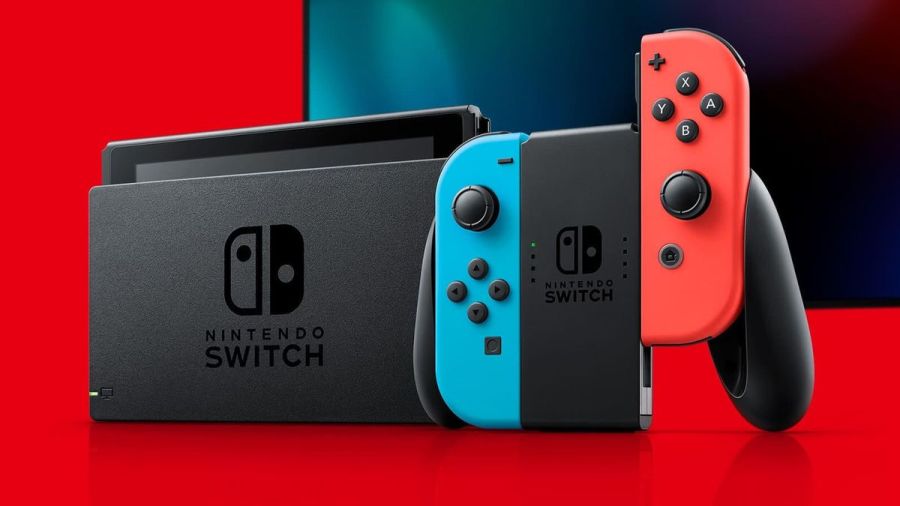
Image via Nintendo
The Nintendo Switch is an innovative console that has taken the world by storm. It has amazing capabilities that continue to wow users. Functionality is top-rate and usually pretty reliable. But what happens when that console isn’t working and is throwing up error codes?
It’s time to diagnose issues on the Nintendo Switch and fix it!
Note: To find the specific error code needed, hit ctrl+f on the keyboard.
Hardware
2153-0321
- This code means there is a serious audio-hardware issue
- The console will need to be physically repaired. Call Nintendo support for more info.
- A temporary workaround that works for some, but not all: turn off the «mute volume when headphones are unplugged» setting.
2168-0002
- This is a console crash error. It could be caused by either corrupted hardware or pirated content.
- If there is any pirated content on the Switch, delete the files immediately.
- Try rebooting the console.
- If rebooting doesn’t work, try making sure the system is up to date.
- If the above fails, the Switch may need to be physically repaired.
2115-0096
- Amiibo figure is not being accepted on the Switch.
- Check for system updates.
- Check the right Joy-Con to make sure it is working properly.
- Reset Amiibo data.
2153-1540
- This error code indicates the Switch is not functional.
- Restart the Switch.
- Check for updates.
- If this doesn’t work, call Nintendo Support. The Switch may need repairing.
2139-0006
- There is something wrong with the hardware.
- Call Nintendo Support. The console will need to be prepared.
General
2162-0002
- This is a crash error with multiple causes.
- Try restarting the console.
- Making sure Joy-Cons are charged.
- Once rebooted, make sure all parts of the Switch are up to date.
- If the crash error persists, contact Nintendo Support.
2813-6838 / 2813-6561
- The Nintendo eShop Card code attempting to be used is unable to be processed.
- Try the code again, checking the numbers carefully.
- Make sure the code isn’t intended for a different region.
- If the above doesn’t work, contact Nintendo Support.
2801-7199
- Facebook upload is not working.
- Try unlinking, then relinking the Facebook account.
- If this fails, check Facebook permissions on the Facebook site/app.
- If the error code persists, wait and try again later.
2124-4009
- This is a general functionality error code.
- Restart the Switch.
- If problems persist, there may be maintenance or an outage. Try again later.
2124-4517 /2181-4017
- Usually, there flagged unusual behavior on the Switch, preventing online service access.
- Wait and try again later.
- If the problem persists, contact Nintendo Support.
2124-3080
- The Switch cannot connect to online match-making.
- Online multiplayer is likely not available in your region.
2124-4007
- The Switch console being used has been permanently banned from connecting online, likely due to a breach of Terms of Service.
- Contact Nintendo Support.
2813-0055
- The Switch cannot redeem a download code because the software is not released to the public yet.
- Wait until the release date.
2813-1470
- The credit card being used in the eShop has been rejected.
- Delete and set up the card again.
2813-0040
- The download code attempting to be used has already been redeemed.
- Double-check the download code.
2005-0005 / 2005-0004
- This error means something in the Nintendo is likely corrupted.
- Turn off the Switch. Do not delete any data yet.
- Turn it back on and make sure the system is up to date.
- If this does not work, delete any offending DLC or pirated content.
- If the above doesn’t work, try a new MicroSD or format the current one.
2124-0291
- Transfer of user account to another Switch cannot be finished.
- Check that the user account isn’t already linked in some way to the second console.
- If so, delete that data and try the transfer again.
Software
2164-0020 / 2122-0082
- There is software on the Switch causing an error.
- Go to manage software.
- Delete the software causing this issue (likely the game that caused the crash).
- Restart the Switch. Put the game card back in, if it is not digital.
- Reinstall the software.
2162-0101
- A game cannot start because an update is required.
- Check for software updates.
2306-0819
- The Switch is unable to connect to online games.
- Make sure the Switch software is up to date.
2021-0003 / 2000-0000 / 2101-0002 /2107-0427
- The latest software is not being used.
- Check for software updates.
- Check for corrupted data.
2124-3000 / 2137-1508
- The Switch is unable to connect to an online service because it is not up to date.
- Update the console.
2813-0071
- The software is having a general issue with downloading on the eShop.
- Restart the console and try again.
2142-1099 / 2155-0400
- The Parental Controls app cannot connect to the internet. The console needs to be up to date.
- Update the console.
Internet Connection
2110-1100
- The Switch is unable to determine a network.
- Run through all internet troubleshooting settings:
- Make sure no objects are blocking the Switch.
- Check the network password again and retry.
- If failure, try either power cycling the home network or moving closer to the router.
- If the connection fails again, try turning off password requirements for the network.
- If all steps fail, check network settings for the home network.
- If this still fails, call Nintendo Support as there may be additional solutions. In some cases, the Switch may need repair.
- Run through all internet troubleshooting settings:
2811-7001
- An error in using an online service like eShop has occurred.
- Restart the console.
- Check internet connection.
- Restart network devices.
2110-2004
- The Switch is unable to determine a network.
- Run through all internet troubleshooting settings:
- Make sure no objects are blocking the Switch.
- Check the network password again and retry.
- If failure, try either power cycling the home network or moving closer to the router.
- If the connection fails again, try turning off password requirements for the network.
- If all steps fail, check network settings for the home network.
- Update the Router’s firmware.
- If the above doesn’t work, factory reset the router.
- If this still fails, call Nintendo Support as there may be additional solutions. In some cases, the Switch may need repair.
- Run through all internet troubleshooting settings:
2110-2091
- LAN Adapter is detected, but the Switch could not make a connection with the router or modem.
- Check to make sure the ethernet cable is secure.
- Try power cycling your home network.
- Use a different port on the router.
- Try a different ethernet cable.
2110-2201 / 2110-2214
- The router or access point alerted the Switch that an incorrect password was used.
- Confirm the connection password.
- Troubleshoot internet connection:
- Move the Switch closer to the router.
- Create a wireless internet connection file.
- Power cycle your network.
2110-1100
- A wireless network connection cannot be made. This is due to the Switch not detecting a network. (This can also sometimes mean, for those that have USB LAN, that the USB LAN is not properly set up)
- Create a new internet connection file.
- Move the Switch closer to the router.
- Power cycle the home network.
- Move anything blocking the Switch or router.
2110-2091
- The Switch cannot connect to a wired network.
- Check internet connection.
- Restart the Switch.
- Check DNS settings.
2110-2003
- There are connection issues related to failure to detect the LAN Adapter.
- Make sure the ethernet is attached.
- Power cycle the home network.
- Try a different router port.
- Try a different ethernet cable.
2110-2004 / 2110-2220 / 2110-2201 / 2110-2214
- Cannot connect to a specific wireless network. Usually, this is due to incorrect password use.
- Make sure no objects are blocking the Switch.
- Check the network password again and retry.
- If this does not work, try either power cycling the home network or moving closer to the router.
- If the connection fails again, try turning off password requirements for the network.
- If all steps fail, check network settings for the home network.
2110-3127
- Cannot connect to a specific wireless or wired network.
- Check DNS settings and make sure they are correct.
2110-3400
- Cannot connect to a specific wireless or wired network.
- Check web authentication permissions.
2122-2403 / 2211-0524
- This is a general error, usually caused by a needed software update or connection issues.
- Make sure your Switch is up to date.
- Check internet connection.
- Restart the console.
2811-1006
- The Switch is unable to connect to the Nintendo Account
- Make sure no objects are blocking the Switch.
- Check the network password again and retry.
- If failure, try either power cycling the home network or moving closer to the router.
- If the connection fails again, try turning off password requirements for the network.
- If all steps fail, check network settings for the home network.
2811-5001 / 2811-1028
- The Switch is unable to connect to the eShop or other online features.
- Make sure no objects are blocking the Switch.
- Check the network password again and retry.
- If failure, try either power cycling the home network or moving closer to the router.
- If the connection fails again, try turning off password requirements for the network.
- If all steps fail, check network settings for the home network.
2155-8006
- The Switch is unable to link a new Nintendo account to the console. This is usually due to a DNS error or general connection timeout.
- Make sure no objects are blocking the Switch.
- Check the network password again and retry.
- If failure, try either power cycling the home network or moving closer to the router.
- If the connection fails again, try turning off password requirements for the network.
- If all steps fail, check network settings for the home network.
2618-0513
- The Switch is unable to complete a match-making process.
- Try again.
- Test your internet connection.
- Power cycle your gateway.
- If this does not work, try updating your gateway’s firmware.
- If the above fails, contact Nintendo Support.
2160-0103 / 2306-0520 / 2618-0006 / 2618-0201 / 2618-0516
- Joining an online match, starting/completing the match-making process, or completing a match has failed. This is very likely a connection issue.
- Restart the console.
- Check the connection.
- Try a manual DNS alternate.
- Try power cycling your home network.
2160-0202
- Connecting to an online service has failed. This is likely a connection timeout issue.
- Make sure no objects are blocking the Switch.
- Check the network password again and retry.
- Try either power cycling the home network or moving closer to the router.
- If the connection fails again, try turning off password requirements for the network.
- If all steps fail, check network settings for the home network.
2155-8006
- The Switch is unable to link a new Nintendo account to the console. This is usually due to a DNS error or general connection timeout.
- Make sure no objects are blocking the Switch.
- Check the network password again and retry.
- If failure, try either power cycling the home network or moving closer to the router.
- If the connection fails again, try turning off password requirements for the network.
- If all steps fail, check network settings for the home network.
2124-8006 / 2137-8006
- A download cannot be completed. Usually, this is caused by connection timeout.
- Check DNS settings.
- Restart the console.
- Run through internet troubleshooting:
- If this does not work, manually enter an alternate DNS.
- If the above does not work, try either power cycling the home network or moving closer to the router.
- If the connection fails again, try turning off password requirements for the network.
- Try connecting to an alternate wireless band as the last step.
- Contact Nintendo Support if problems persist.
2810-1224
- Sign-in to either the Account or eShop has failed. The connection may also be an issue.
- Restart the console.
- Check connection signal. Then attempt regular activity again.
- If the above fails, contact Nintendo Support.
2137-0240
- Downloads cannot be completed. This is because of an internet issue, likely a timeout.
- Check internet connection.
- Troubleshoot internet issues:
- Power cycle the home network.
- Move any objects blocking the Switch or router.
- If able, connect to another wireless band.
- For wired connection troubleshooting:
- Restart network devices.
- If all the above fails, try updating the router’s firmware.
2124-8028
- Nintendo sign-in has failed. This is due to poor internet speeds or wireless issues.
- Check internet speed.
- Troubleshoot internet issues:
- Power cycle the home network.
- Move any objects blocking the Switch or router.
- If able, connect to another wireless band.
2124-8006-2124-8007
- This is an error code associated with a connection timeout or DNS error. It could also be a weak signal or slow internet.
- Check internet connection.
- Restart the Switch.
- Enter a different DNS.
- Run through internet troubleshooting:
- Move any objects blocking the Switch (if wireless).
- If the above does not work, try either power cycling the home network or moving closer to the wireless router.
- If the connection fails again, try turning off password requirements for the network.
- Try connecting to an alternate wireless band as the last step.
2160-8006-2160-8007
- A connection test cannot be completed.
- Check internet connection.
- Make sure you are connecting to the right network.
2618-0203
- Nintendo Switch cannot connect to an online service. This is possible due to issues with the DNS.
- Restart the console.
- Check the DNS settings.
- Try power cycling your home network.
- Manually enter an alternate DNS.
- Test the internet connection.
2142-0507
- The Parental Controls app cannot connect to the internet. The internet is not detected, likely due to a timeout.
- Restart the Switch.
- Check internet connection.
- Power cycle home network.
- Use a different network.
Related: 8 Best JRPGs on Nintendo Switch 2020
Maintenance and Server Issues
2813-0002
- There is a service outage preventing connection to the Nintendo eShop.
- Wait and try again later.
2618-0542
- The Switch is unable to join an online match. This is due to too many players.
- Wait and try and join a match later.
2613-1400
- The Switch will not create a credit card purchase. This is likely due to maintenance or server issues.
- Wait and try again later.
2306-0811
- The Switch will not connect to an online service. This is likely due to maintenance or server issues.
- Wait and try again later.
2801-7002
- Twitter uploads cannot be completed. This is likely due to maintenance or server issues.
- Wait and try again later.
2124-5119 / 2124-5249
- Nintendo Account Services is experiencing server issues or undergoing maintenance.
- Wait and try again later.
902-5998
- The Nintendo eShop is experiencing maintenance.
- Wait and try again later.
2810-1500
- Facebook sign-in cannot be completed.
- Restart the console.
- If the problem persists, it may be may server issues. Try again later.
2124-5002 / 2124-5200
- Sign-in to a pre-existing Nintendo Account has failed. This specific code determines this is an outage on Nintendo’s side.
- Wait and try again later.
2813-0009 / 2813-1400 / 2813-6835 / 2813-9804 /2813-9712
- There is a temporary service issue with the Nintendo eShop. It may have also timed out due to inactivity.
- If inactivity, relaunch the store.
- Wait and try again later.
2811-7503, 2811-7504
- There is a network outage to the Nintendo eShop.
- Wait and try again later.
2816-0700 / 2817-0700
- A maintenance error is popping up on general application use.
- Wait again and try later.
MicroSD
2002-2049-2002-2064 /2002-4690 / 2002-6201 / 2016-0247 / 2016-0602 / 2016-0641
- An error code while downloading software or updating a game has occurred. The MicroSD is likely at fault.
- Reset and check the MicroSD.
- Make sure data isn’t corrupted.
- Remove and reinsert MicroSD
- If the above doesn’t work, format the MicroSD.
- If all of the tips above do not work, try getting a new MicroSD or downloading directly to the Switch.
2002-2001 /2016-0390 / 2205-0123
- The MicroSD card cannot be accessed.
- Reset and check the MicroSD.
- Remove and reinsert MicroSD
- If the above doesn’t work, format the MicroSD.
- If all of the tips above do not work, try getting a new MicroSD or downloading directly to the Switch.
2002-4517 / 2002-4641-2002-4660 /2002-4741-2002-4760 / 2002-0007-2002-0008 /2002-4683
- Software for or from the eShop cannot be downloaded. This is a MicroSD issue.
- If a MicroSD is not being used, restart the console.
- Check for software updates.
- Remove and reinsert MicroSD
- If the above doesn’t work, format the MicroSD.
- If all of the tips above do not work, try getting a new MicroSD or downloading directly to the Switch.
2002-4301-2002-4463 / 2002-3005 /2002-3500-2002-3999 / 2002-0001 /2016-0601 / 2101-0001 / 2107-0445
- A MicroSD error has occurred while playing a game powering the Switch on (or waking from sleep mode).
- Restart the Switch.
- Check for software updates.
- Remove and reinsert MicroSD
- If the above doesn’t work, format the MicroSD.
- If all of the tips above do not work, try getting a new MicroSD or downloading directly to the Switch.
2002-1002 / 2002-2629-2002-2669
- A game cannot download or start. This will happen with a MicroSD.
- Check for software updates.
- Remove and reinsert MicroSD
- If the above doesn’t work, format the MicroSD.
- If all of the tips above do not work, try getting a new MicroSD or downloading directly to the Switch.
2002-2085
- The MicroSD cannot be recognized.
- Check for software updates.
- Remove and reinsert MicroSD
- If the above doesn’t work, format the MicroSD.
- If all do not work, try getting a new MicroSD or downloading directly to the Switch.
2005-0003
- There is an issue with the MicroSD and it is preventing downloads.
- Make sure the system is up to date.
- Find a new MicroSD or Repair the current MicroSD.
- If repairs fail and there is no other MicroSD for use, try downloading the software on the Switch system for later use.
Ranges
These sets of ranges tend to have the same meaning within their group. Make sure to search the specific code if these general tips do not help.
2110-1000 — 2110-1999
- An error code within this range means the Switch cannot connect to the wireless or wired network. Usually, the error occurred before, not as a timeout.
- Try power cycling your gateway.
- Place the Switch in a DMZ in gateway settings. Within those settings, forward ports to the Switch.
- Restart the console.
2110-2000 — 2110-2899 / 2110-2900 — 2110-2999 / 2110-3000 — 2110-3999
- An error code in this range means a connection was not made to a wireless or wired network. This error usually occurs during the action, such as a connection loss. The connection loss also could have occurred while obtaining the IP address.
- Make sure no objects are blocking the Switch.
- Check the network password again and retry.
- If failure, try either power cycling the home network or moving closer to the router.
- If the connection fails again, try turning off password requirements for the network.
- If all steps fail, check network settings for the home network.
2618-0501, 2618-0502 / 2306-0501, 2306-0502
- This error occurs when the Switch fails to join an online match.
- Make sure no objects are blocking the Switch.
- Check the network password again and retry.
- If the above doesn’t work, try either power cycling the home network or moving closer to the router.
- If the connection fails again, try turning off password requirements for the network.
- If all steps fail, check network settings for the home network.
2124-0200 — 2124-0269
- The user is attempting to use an online game feature while not logged in.
- Log in to the intended Nintendo account.
Games
These error codes are for specific video game titles.
2306-0820
- The Splatoon 2 Global Testfire demo will not launch.
- The demo sessions for this game are no longer available.
2-AABQA-1021
- An online match in Arms will not connect.
- Check your internet connection and try again.
2-BABBE-1000
- Ultra Street Fighter 2 Online will not connect.
- Check for a software update on the game.
- If this doesn’t work, check the internet connection.
Want to read more about Nintendo? Read Best Switch Multiplayer Games on Pro Game Guides.
Follow us on Twitter and Facebook to get updates on your favorite games!
Image via Nintendo
The Nintendo Switch is an innovative console that has taken the world by storm. It has amazing capabilities that continue to wow users. Functionality is top-rate and usually pretty reliable. But what happens when that console isn’t working and is throwing up error codes?
It’s time to diagnose issues on the Nintendo Switch and fix it!
Note: To find the specific error code needed, hit ctrl+f on the keyboard.
Hardware
2153-0321
- This code means there is a serious audio-hardware issue
- The console will need to be physically repaired. Call Nintendo support for more info.
- A temporary workaround that works for some, but not all: turn off the «mute volume when headphones are unplugged» setting.
2168-0002
- This is a console crash error. It could be caused by either corrupted hardware or pirated content.
- If there is any pirated content on the Switch, delete the files immediately.
- Try rebooting the console.
- If rebooting doesn’t work, try making sure the system is up to date.
- If the above fails, the Switch may need to be physically repaired.
2115-0096
- Amiibo figure is not being accepted on the Switch.
- Check for system updates.
- Check the right Joy-Con to make sure it is working properly.
- Reset Amiibo data.
2153-1540
- This error code indicates the Switch is not functional.
- Restart the Switch.
- Check for updates.
- If this doesn’t work, call Nintendo Support. The Switch may need repairing.
2139-0006
- There is something wrong with the hardware.
- Call Nintendo Support. The console will need to be prepared.
General
2162-0002
- This is a crash error with multiple causes.
- Try restarting the console.
- Making sure Joy-Cons are charged.
- Once rebooted, make sure all parts of the Switch are up to date.
- If the crash error persists, contact Nintendo Support.
2813-6838 / 2813-6561
- The Nintendo eShop Card code attempting to be used is unable to be processed.
- Try the code again, checking the numbers carefully.
- Make sure the code isn’t intended for a different region.
- If the above doesn’t work, contact Nintendo Support.
2801-7199
- Facebook upload is not working.
- Try unlinking, then relinking the Facebook account.
- If this fails, check Facebook permissions on the Facebook site/app.
- If the error code persists, wait and try again later.
2124-4009
- This is a general functionality error code.
- Restart the Switch.
- If problems persist, there may be maintenance or an outage. Try again later.
2124-4517 /2181-4017
- Usually, there flagged unusual behavior on the Switch, preventing online service access.
- Wait and try again later.
- If the problem persists, contact Nintendo Support.
2124-3080
- The Switch cannot connect to online match-making.
- Online multiplayer is likely not available in your region.
2124-4007
- The Switch console being used has been permanently banned from connecting online, likely due to a breach of Terms of Service.
- Contact Nintendo Support.
2813-0055
- The Switch cannot redeem a download code because the software is not released to the public yet.
- Wait until the release date.
2813-1470
- The credit card being used in the eShop has been rejected.
- Delete and set up the card again.
2813-0040
- The download code attempting to be used has already been redeemed.
- Double-check the download code.
2005-0005 / 2005-0004
- This error means something in the Nintendo is likely corrupted.
- Turn off the Switch. Do not delete any data yet.
- Turn it back on and make sure the system is up to date.
- If this does not work, delete any offending DLC or pirated content.
- If the above doesn’t work, try a new MicroSD or format the current one.
2124-0291
- Transfer of user account to another Switch cannot be finished.
- Check that the user account isn’t already linked in some way to the second console.
- If so, delete that data and try the transfer again.
Software
2164-0020 / 2122-0082
- There is software on the Switch causing an error.
- Go to manage software.
- Delete the software causing this issue (likely the game that caused the crash).
- Restart the Switch. Put the game card back in, if it is not digital.
- Reinstall the software.
2162-0101
- A game cannot start because an update is required.
- Check for software updates.
2306-0819
- The Switch is unable to connect to online games.
- Make sure the Switch software is up to date.
2021-0003 / 2000-0000 / 2101-0002 /2107-0427
- The latest software is not being used.
- Check for software updates.
- Check for corrupted data.
2124-3000 / 2137-1508
- The Switch is unable to connect to an online service because it is not up to date.
- Update the console.
2813-0071
- The software is having a general issue with downloading on the eShop.
- Restart the console and try again.
2142-1099 / 2155-0400
- The Parental Controls app cannot connect to the internet. The console needs to be up to date.
- Update the console.
Internet Connection
2110-1100
- The Switch is unable to determine a network.
- Run through all internet troubleshooting settings:
- Make sure no objects are blocking the Switch.
- Check the network password again and retry.
- If failure, try either power cycling the home network or moving closer to the router.
- If the connection fails again, try turning off password requirements for the network.
- If all steps fail, check network settings for the home network.
- If this still fails, call Nintendo Support as there may be additional solutions. In some cases, the Switch may need repair.
- Run through all internet troubleshooting settings:
2811-7001
- An error in using an online service like eShop has occurred.
- Restart the console.
- Check internet connection.
- Restart network devices.
2110-2004
- The Switch is unable to determine a network.
- Run through all internet troubleshooting settings:
- Make sure no objects are blocking the Switch.
- Check the network password again and retry.
- If failure, try either power cycling the home network or moving closer to the router.
- If the connection fails again, try turning off password requirements for the network.
- If all steps fail, check network settings for the home network.
- Update the Router’s firmware.
- If the above doesn’t work, factory reset the router.
- If this still fails, call Nintendo Support as there may be additional solutions. In some cases, the Switch may need repair.
- Run through all internet troubleshooting settings:
2110-2091
- LAN Adapter is detected, but the Switch could not make a connection with the router or modem.
- Check to make sure the ethernet cable is secure.
- Try power cycling your home network.
- Use a different port on the router.
- Try a different ethernet cable.
2110-2201 / 2110-2214
- The router or access point alerted the Switch that an incorrect password was used.
- Confirm the connection password.
- Troubleshoot internet connection:
- Move the Switch closer to the router.
- Create a wireless internet connection file.
- Power cycle your network.
2110-1100
- A wireless network connection cannot be made. This is due to the Switch not detecting a network. (This can also sometimes mean, for those that have USB LAN, that the USB LAN is not properly set up)
- Create a new internet connection file.
- Move the Switch closer to the router.
- Power cycle the home network.
- Move anything blocking the Switch or router.
2110-2091
- The Switch cannot connect to a wired network.
- Check internet connection.
- Restart the Switch.
- Check DNS settings.
2110-2003
- There are connection issues related to failure to detect the LAN Adapter.
- Make sure the ethernet is attached.
- Power cycle the home network.
- Try a different router port.
- Try a different ethernet cable.
2110-2004 / 2110-2220 / 2110-2201 / 2110-2214
- Cannot connect to a specific wireless network. Usually, this is due to incorrect password use.
- Make sure no objects are blocking the Switch.
- Check the network password again and retry.
- If this does not work, try either power cycling the home network or moving closer to the router.
- If the connection fails again, try turning off password requirements for the network.
- If all steps fail, check network settings for the home network.
2110-3127
- Cannot connect to a specific wireless or wired network.
- Check DNS settings and make sure they are correct.
2110-3400
- Cannot connect to a specific wireless or wired network.
- Check web authentication permissions.
2122-2403 / 2211-0524
- This is a general error, usually caused by a needed software update or connection issues.
- Make sure your Switch is up to date.
- Check internet connection.
- Restart the console.
2811-1006
- The Switch is unable to connect to the Nintendo Account
- Make sure no objects are blocking the Switch.
- Check the network password again and retry.
- If failure, try either power cycling the home network or moving closer to the router.
- If the connection fails again, try turning off password requirements for the network.
- If all steps fail, check network settings for the home network.
2811-5001 / 2811-1028
- The Switch is unable to connect to the eShop or other online features.
- Make sure no objects are blocking the Switch.
- Check the network password again and retry.
- If failure, try either power cycling the home network or moving closer to the router.
- If the connection fails again, try turning off password requirements for the network.
- If all steps fail, check network settings for the home network.
2155-8006
- The Switch is unable to link a new Nintendo account to the console. This is usually due to a DNS error or general connection timeout.
- Make sure no objects are blocking the Switch.
- Check the network password again and retry.
- If failure, try either power cycling the home network or moving closer to the router.
- If the connection fails again, try turning off password requirements for the network.
- If all steps fail, check network settings for the home network.
2618-0513
- The Switch is unable to complete a match-making process.
- Try again.
- Test your internet connection.
- Power cycle your gateway.
- If this does not work, try updating your gateway’s firmware.
- If the above fails, contact Nintendo Support.
2160-0103 / 2306-0520 / 2618-0006 / 2618-0201 / 2618-0516
- Joining an online match, starting/completing the match-making process, or completing a match has failed. This is very likely a connection issue.
- Restart the console.
- Check the connection.
- Try a manual DNS alternate.
- Try power cycling your home network.
2160-0202
- Connecting to an online service has failed. This is likely a connection timeout issue.
- Make sure no objects are blocking the Switch.
- Check the network password again and retry.
- Try either power cycling the home network or moving closer to the router.
- If the connection fails again, try turning off password requirements for the network.
- If all steps fail, check network settings for the home network.
2155-8006
- The Switch is unable to link a new Nintendo account to the console. This is usually due to a DNS error or general connection timeout.
- Make sure no objects are blocking the Switch.
- Check the network password again and retry.
- If failure, try either power cycling the home network or moving closer to the router.
- If the connection fails again, try turning off password requirements for the network.
- If all steps fail, check network settings for the home network.
2124-8006 / 2137-8006
- A download cannot be completed. Usually, this is caused by connection timeout.
- Check DNS settings.
- Restart the console.
- Run through internet troubleshooting:
- If this does not work, manually enter an alternate DNS.
- If the above does not work, try either power cycling the home network or moving closer to the router.
- If the connection fails again, try turning off password requirements for the network.
- Try connecting to an alternate wireless band as the last step.
- Contact Nintendo Support if problems persist.
2810-1224
- Sign-in to either the Account or eShop has failed. The connection may also be an issue.
- Restart the console.
- Check connection signal. Then attempt regular activity again.
- If the above fails, contact Nintendo Support.
2137-0240
- Downloads cannot be completed. This is because of an internet issue, likely a timeout.
- Check internet connection.
- Troubleshoot internet issues:
- Power cycle the home network.
- Move any objects blocking the Switch or router.
- If able, connect to another wireless band.
- For wired connection troubleshooting:
- Restart network devices.
- If all the above fails, try updating the router’s firmware.
2124-8028
- Nintendo sign-in has failed. This is due to poor internet speeds or wireless issues.
- Check internet speed.
- Troubleshoot internet issues:
- Power cycle the home network.
- Move any objects blocking the Switch or router.
- If able, connect to another wireless band.
2124-8006-2124-8007
- This is an error code associated with a connection timeout or DNS error. It could also be a weak signal or slow internet.
- Check internet connection.
- Restart the Switch.
- Enter a different DNS.
- Run through internet troubleshooting:
- Move any objects blocking the Switch (if wireless).
- If the above does not work, try either power cycling the home network or moving closer to the wireless router.
- If the connection fails again, try turning off password requirements for the network.
- Try connecting to an alternate wireless band as the last step.
2160-8006-2160-8007
- A connection test cannot be completed.
- Check internet connection.
- Make sure you are connecting to the right network.
2618-0203
- Nintendo Switch cannot connect to an online service. This is possible due to issues with the DNS.
- Restart the console.
- Check the DNS settings.
- Try power cycling your home network.
- Manually enter an alternate DNS.
- Test the internet connection.
2142-0507
- The Parental Controls app cannot connect to the internet. The internet is not detected, likely due to a timeout.
- Restart the Switch.
- Check internet connection.
- Power cycle home network.
- Use a different network.
Related: 8 Best JRPGs on Nintendo Switch 2020
Maintenance and Server Issues
2813-0002
- There is a service outage preventing connection to the Nintendo eShop.
- Wait and try again later.
2618-0542
- The Switch is unable to join an online match. This is due to too many players.
- Wait and try and join a match later.
2613-1400
- The Switch will not create a credit card purchase. This is likely due to maintenance or server issues.
- Wait and try again later.
2306-0811
- The Switch will not connect to an online service. This is likely due to maintenance or server issues.
- Wait and try again later.
2801-7002
- Twitter uploads cannot be completed. This is likely due to maintenance or server issues.
- Wait and try again later.
2124-5119 / 2124-5249
- Nintendo Account Services is experiencing server issues or undergoing maintenance.
- Wait and try again later.
902-5998
- The Nintendo eShop is experiencing maintenance.
- Wait and try again later.
2810-1500
- Facebook sign-in cannot be completed.
- Restart the console.
- If the problem persists, it may be may server issues. Try again later.
2124-5002 / 2124-5200
- Sign-in to a pre-existing Nintendo Account has failed. This specific code determines this is an outage on Nintendo’s side.
- Wait and try again later.
2813-0009 / 2813-1400 / 2813-6835 / 2813-9804 /2813-9712
- There is a temporary service issue with the Nintendo eShop. It may have also timed out due to inactivity.
- If inactivity, relaunch the store.
- Wait and try again later.
2811-7503, 2811-7504
- There is a network outage to the Nintendo eShop.
- Wait and try again later.
2816-0700 / 2817-0700
- A maintenance error is popping up on general application use.
- Wait again and try later.
MicroSD
2002-2049-2002-2064 /2002-4690 / 2002-6201 / 2016-0247 / 2016-0602 / 2016-0641
- An error code while downloading software or updating a game has occurred. The MicroSD is likely at fault.
- Reset and check the MicroSD.
- Make sure data isn’t corrupted.
- Remove and reinsert MicroSD
- If the above doesn’t work, format the MicroSD.
- If all of the tips above do not work, try getting a new MicroSD or downloading directly to the Switch.
2002-2001 /2016-0390 / 2205-0123
- The MicroSD card cannot be accessed.
- Reset and check the MicroSD.
- Remove and reinsert MicroSD
- If the above doesn’t work, format the MicroSD.
- If all of the tips above do not work, try getting a new MicroSD or downloading directly to the Switch.
2002-4517 / 2002-4641-2002-4660 /2002-4741-2002-4760 / 2002-0007-2002-0008 /2002-4683
- Software for or from the eShop cannot be downloaded. This is a MicroSD issue.
- If a MicroSD is not being used, restart the console.
- Check for software updates.
- Remove and reinsert MicroSD
- If the above doesn’t work, format the MicroSD.
- If all of the tips above do not work, try getting a new MicroSD or downloading directly to the Switch.
2002-4301-2002-4463 / 2002-3005 /2002-3500-2002-3999 / 2002-0001 /2016-0601 / 2101-0001 / 2107-0445
- A MicroSD error has occurred while playing a game powering the Switch on (or waking from sleep mode).
- Restart the Switch.
- Check for software updates.
- Remove and reinsert MicroSD
- If the above doesn’t work, format the MicroSD.
- If all of the tips above do not work, try getting a new MicroSD or downloading directly to the Switch.
2002-1002 / 2002-2629-2002-2669
- A game cannot download or start. This will happen with a MicroSD.
- Check for software updates.
- Remove and reinsert MicroSD
- If the above doesn’t work, format the MicroSD.
- If all of the tips above do not work, try getting a new MicroSD or downloading directly to the Switch.
2002-2085
- The MicroSD cannot be recognized.
- Check for software updates.
- Remove and reinsert MicroSD
- If the above doesn’t work, format the MicroSD.
- If all do not work, try getting a new MicroSD or downloading directly to the Switch.
2005-0003
- There is an issue with the MicroSD and it is preventing downloads.
- Make sure the system is up to date.
- Find a new MicroSD or Repair the current MicroSD.
- If repairs fail and there is no other MicroSD for use, try downloading the software on the Switch system for later use.
Ranges
These sets of ranges tend to have the same meaning within their group. Make sure to search the specific code if these general tips do not help.
2110-1000 — 2110-1999
- An error code within this range means the Switch cannot connect to the wireless or wired network. Usually, the error occurred before, not as a timeout.
- Try power cycling your gateway.
- Place the Switch in a DMZ in gateway settings. Within those settings, forward ports to the Switch.
- Restart the console.
2110-2000 — 2110-2899 / 2110-2900 — 2110-2999 / 2110-3000 — 2110-3999
- An error code in this range means a connection was not made to a wireless or wired network. This error usually occurs during the action, such as a connection loss. The connection loss also could have occurred while obtaining the IP address.
- Make sure no objects are blocking the Switch.
- Check the network password again and retry.
- If failure, try either power cycling the home network or moving closer to the router.
- If the connection fails again, try turning off password requirements for the network.
- If all steps fail, check network settings for the home network.
2618-0501, 2618-0502 / 2306-0501, 2306-0502
- This error occurs when the Switch fails to join an online match.
- Make sure no objects are blocking the Switch.
- Check the network password again and retry.
- If the above doesn’t work, try either power cycling the home network or moving closer to the router.
- If the connection fails again, try turning off password requirements for the network.
- If all steps fail, check network settings for the home network.
2124-0200 — 2124-0269
- The user is attempting to use an online game feature while not logged in.
- Log in to the intended Nintendo account.
Games
These error codes are for specific video game titles.
2306-0820
- The Splatoon 2 Global Testfire demo will not launch.
- The demo sessions for this game are no longer available.
2-AABQA-1021
- An online match in Arms will not connect.
- Check your internet connection and try again.
2-BABBE-1000
- Ultra Street Fighter 2 Online will not connect.
- Check for a software update on the game.
- If this doesn’t work, check the internet connection.
Want to read more about Nintendo? Read Best Switch Multiplayer Games on Pro Game Guides.
Follow us on Twitter and Facebook to get updates on your favorite games!
В этой статье представлена ошибка с номером Ошибка 2821, известная как Ошибка Microsoft Access 2821, описанная как Файл уже используется.
О программе Runtime Ошибка 2821
Время выполнения Ошибка 2821 происходит, когда Microsoft Access дает сбой или падает во время запуска, отсюда и название. Это не обязательно означает, что код был каким-то образом поврежден, просто он не сработал во время выполнения. Такая ошибка появляется на экране в виде раздражающего уведомления, если ее не устранить. Вот симптомы, причины и способы устранения проблемы.
Определения (Бета)
Здесь мы приводим некоторые определения слов, содержащихся в вашей ошибке, в попытке помочь вам понять вашу проблему. Эта работа продолжается, поэтому иногда мы можем неправильно определить слово, так что не стесняйтесь пропустить этот раздел!
- Access — НЕ ИСПОЛЬЗУЙТЕ этот тег для Microsoft Access, используйте вместо него [ms-access]
- File — блок произвольная информация или ресурс для хранения информации, доступный по строковому имени или пути.
- Access — Microsoft Access, также известный как Microsoft Office Access, представляет собой систему управления базами данных от Microsoft, которая обычно сочетает в себе реляционное ядро СУБД Microsoft JetACE с графическим пользовательским интерфейсом и инструментами разработки программного обеспечения.
- Доступ к Microsoft — Microsoft Access, также известный как Microsoft Office Access, представляет собой базу данных система управления от Microsoft, которая обычно сочетает в себе реляционное ядро СУБД Microsoft JetACE с графическим пользовательским интерфейсом и инструментами разработки программного обеспечения.
Симптомы Ошибка 2821 — Ошибка Microsoft Access 2821
Ошибки времени выполнения происходят без предупреждения. Сообщение об ошибке может появиться на экране при любом запуске %программы%. Фактически, сообщение об ошибке или другое диалоговое окно может появляться снова и снова, если не принять меры на ранней стадии.
Возможны случаи удаления файлов или появления новых файлов. Хотя этот симптом в основном связан с заражением вирусом, его можно отнести к симптомам ошибки времени выполнения, поскольку заражение вирусом является одной из причин ошибки времени выполнения. Пользователь также может столкнуться с внезапным падением скорости интернет-соединения, но, опять же, это не всегда так.
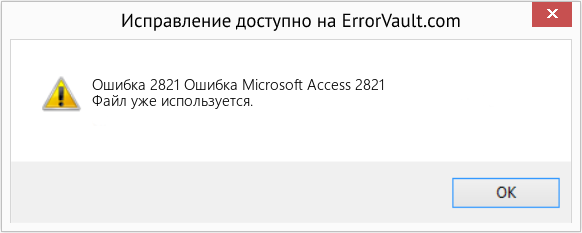
(Только для примера)
Причины Ошибка Microsoft Access 2821 — Ошибка 2821
При разработке программного обеспечения программисты составляют код, предвидя возникновение ошибок. Однако идеальных проектов не бывает, поскольку ошибки можно ожидать даже при самом лучшем дизайне программы. Глюки могут произойти во время выполнения программы, если определенная ошибка не была обнаружена и устранена во время проектирования и тестирования.
Ошибки во время выполнения обычно вызваны несовместимостью программ, запущенных в одно и то же время. Они также могут возникать из-за проблем с памятью, плохого графического драйвера или заражения вирусом. Каким бы ни был случай, проблему необходимо решить немедленно, чтобы избежать дальнейших проблем. Ниже приведены способы устранения ошибки.
Методы исправления
Ошибки времени выполнения могут быть раздражающими и постоянными, но это не совсем безнадежно, существует возможность ремонта. Вот способы сделать это.
Если метод ремонта вам подошел, пожалуйста, нажмите кнопку upvote слева от ответа, это позволит другим пользователям узнать, какой метод ремонта на данный момент работает лучше всего.
Обратите внимание: ни ErrorVault.com, ни его авторы не несут ответственности за результаты действий, предпринятых при использовании любого из методов ремонта, перечисленных на этой странице — вы выполняете эти шаги на свой страх и риск.
Метод 1 — Закройте конфликтующие программы
Когда вы получаете ошибку во время выполнения, имейте в виду, что это происходит из-за программ, которые конфликтуют друг с другом. Первое, что вы можете сделать, чтобы решить проблему, — это остановить эти конфликтующие программы.
- Откройте диспетчер задач, одновременно нажав Ctrl-Alt-Del. Это позволит вам увидеть список запущенных в данный момент программ.
- Перейдите на вкладку «Процессы» и остановите программы одну за другой, выделив каждую программу и нажав кнопку «Завершить процесс».
- Вам нужно будет следить за тем, будет ли сообщение об ошибке появляться каждый раз при остановке процесса.
- Как только вы определите, какая программа вызывает ошибку, вы можете перейти к следующему этапу устранения неполадок, переустановив приложение.
Метод 2 — Обновите / переустановите конфликтующие программы
Использование панели управления
- В Windows 7 нажмите кнопку «Пуск», затем нажмите «Панель управления», затем «Удалить программу».
- В Windows 8 нажмите кнопку «Пуск», затем прокрутите вниз и нажмите «Дополнительные настройки», затем нажмите «Панель управления»> «Удалить программу».
- Для Windows 10 просто введите «Панель управления» в поле поиска и щелкните результат, затем нажмите «Удалить программу».
- В разделе «Программы и компоненты» щелкните проблемную программу и нажмите «Обновить» или «Удалить».
- Если вы выбрали обновление, вам просто нужно будет следовать подсказке, чтобы завершить процесс, однако, если вы выбрали «Удалить», вы будете следовать подсказке, чтобы удалить, а затем повторно загрузить или использовать установочный диск приложения для переустановки. программа.
Использование других методов
- В Windows 7 список всех установленных программ можно найти, нажав кнопку «Пуск» и наведя указатель мыши на список, отображаемый на вкладке. Вы можете увидеть в этом списке утилиту для удаления программы. Вы можете продолжить и удалить с помощью утилит, доступных на этой вкладке.
- В Windows 10 вы можете нажать «Пуск», затем «Настройка», а затем — «Приложения».
- Прокрутите вниз, чтобы увидеть список приложений и функций, установленных на вашем компьютере.
- Щелкните программу, которая вызывает ошибку времени выполнения, затем вы можете удалить ее или щелкнуть Дополнительные параметры, чтобы сбросить приложение.
Метод 3 — Обновите программу защиты от вирусов или загрузите и установите последнюю версию Центра обновления Windows.
Заражение вирусом, вызывающее ошибку выполнения на вашем компьютере, необходимо немедленно предотвратить, поместить в карантин или удалить. Убедитесь, что вы обновили свою антивирусную программу и выполнили тщательное сканирование компьютера или запустите Центр обновления Windows, чтобы получить последние определения вирусов и исправить их.
Метод 4 — Переустановите библиотеки времени выполнения
Вы можете получить сообщение об ошибке из-за обновления, такого как пакет MS Visual C ++, который может быть установлен неправильно или полностью. Что вы можете сделать, так это удалить текущий пакет и установить новую копию.
- Удалите пакет, выбрав «Программы и компоненты», найдите и выделите распространяемый пакет Microsoft Visual C ++.
- Нажмите «Удалить» в верхней части списка и, когда это будет сделано, перезагрузите компьютер.
- Загрузите последний распространяемый пакет от Microsoft и установите его.
Метод 5 — Запустить очистку диска
Вы также можете столкнуться с ошибкой выполнения из-за очень нехватки свободного места на вашем компьютере.
- Вам следует подумать о резервном копировании файлов и освобождении места на жестком диске.
- Вы также можете очистить кеш и перезагрузить компьютер.
- Вы также можете запустить очистку диска, открыть окно проводника и щелкнуть правой кнопкой мыши по основному каталогу (обычно это C 🙂
- Щелкните «Свойства», а затем — «Очистка диска».
Метод 6 — Переустановите графический драйвер
Если ошибка связана с плохим графическим драйвером, вы можете сделать следующее:
- Откройте диспетчер устройств и найдите драйвер видеокарты.
- Щелкните правой кнопкой мыши драйвер видеокарты, затем нажмите «Удалить», затем перезагрузите компьютер.
Метод 7 — Ошибка выполнения, связанная с IE
Если полученная ошибка связана с Internet Explorer, вы можете сделать следующее:
- Сбросьте настройки браузера.
- В Windows 7 вы можете нажать «Пуск», перейти в «Панель управления» и нажать «Свойства обозревателя» слева. Затем вы можете перейти на вкладку «Дополнительно» и нажать кнопку «Сброс».
- Для Windows 8 и 10 вы можете нажать «Поиск» и ввести «Свойства обозревателя», затем перейти на вкладку «Дополнительно» и нажать «Сброс».
- Отключить отладку скриптов и уведомления об ошибках.
- В том же окне «Свойства обозревателя» можно перейти на вкладку «Дополнительно» и найти пункт «Отключить отладку сценария».
- Установите флажок в переключателе.
- Одновременно снимите флажок «Отображать уведомление о каждой ошибке сценария», затем нажмите «Применить» и «ОК», затем перезагрузите компьютер.
Если эти быстрые исправления не работают, вы всегда можете сделать резервную копию файлов и запустить восстановление на вашем компьютере. Однако вы можете сделать это позже, когда перечисленные здесь решения не сработают.
Другие языки:
How to fix Error 2821 (Microsoft Access Error 2821) — File in use.
Wie beheben Fehler 2821 (Microsoft Access-Fehler 2821) — Datei in Benutzung.
Come fissare Errore 2821 (Errore di Microsoft Access 2821) — File in uso.
Hoe maak je Fout 2821 (Microsoft Access-fout 2821) — Bestand in gebruik.
Comment réparer Erreur 2821 (Erreur d’accès Microsoft 2821) — Fichier en cours d’utilisation.
어떻게 고치는 지 오류 2821 (마이크로소프트 액세스 오류 2821) — 사용 중인 파일입니다.
Como corrigir o Erro 2821 (Erro 2821 do Microsoft Access) — Arquivo em uso.
Hur man åtgärdar Fel 2821 (Microsoft Access-fel 2821) — Fil som används.
Jak naprawić Błąd 2821 (Błąd dostępu Microsoft 2821) — Plik w użyciu.
Cómo arreglar Error 2821 (Error 2821 de Microsoft Access) — Archivo en uso.
 Об авторе: Фил Харт является участником сообщества Microsoft с 2010 года. С текущим количеством баллов более 100 000 он внес более 3000 ответов на форумах Microsoft Support и создал почти 200 новых справочных статей в Technet Wiki.
Следуйте за нами: 


Этот инструмент восстановления может устранить такие распространенные проблемы компьютера, как синие экраны, сбои и замораживание, отсутствующие DLL-файлы, а также устранить повреждения от вредоносных программ/вирусов и многое другое путем замены поврежденных и отсутствующих системных файлов.
ШАГ 1:
Нажмите здесь, чтобы скачать и установите средство восстановления Windows.
ШАГ 2:
Нажмите на Start Scan и позвольте ему проанализировать ваше устройство.
ШАГ 3:
Нажмите на Repair All, чтобы устранить все обнаруженные проблемы.
СКАЧАТЬ СЕЙЧАС
Совместимость
Требования
1 Ghz CPU, 512 MB RAM, 40 GB HDD
Эта загрузка предлагает неограниченное бесплатное сканирование ПК с Windows. Полное восстановление системы начинается от $19,95.
ID статьи: ACX06319RU
Применяется к: Windows 10, Windows 8.1, Windows 7, Windows Vista, Windows XP, Windows 2000
Быстрый апдейт об ошибке по системе DIS, при комплекте ошибок 2820 и 2821 гарант, что нужно лезть в моторчик или менять его.
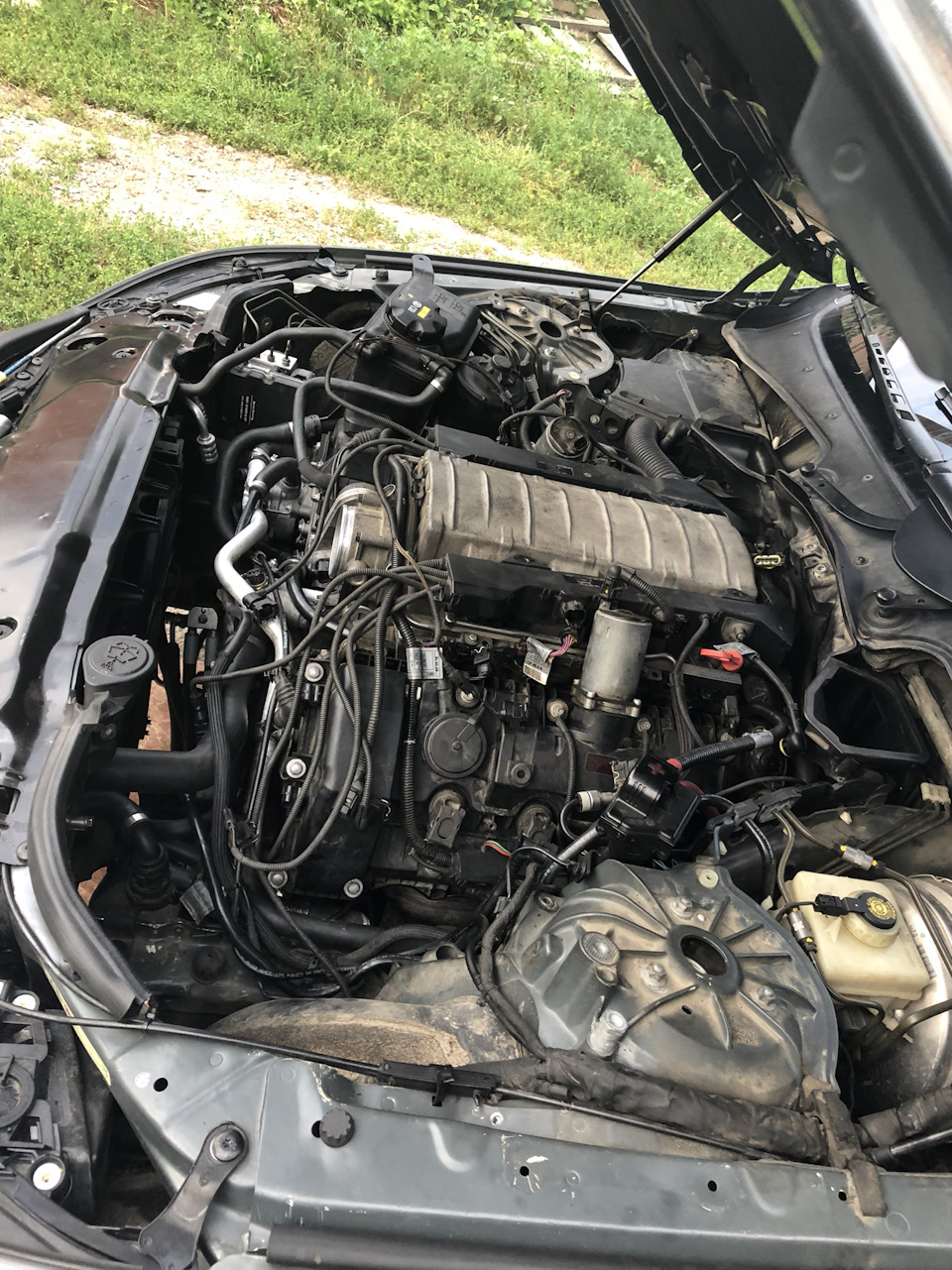
Я ясное дело решил увидеть все своими глазами. Скажу одно, об снятие коллекторам на 545 е60, больше я не буду его снимать)))))
Полный размер
Это было только начало )
а особенно радует рекомендации TIS, у них обычно все просто, отсоедините фишки и поднимите косу к лобовому😂😂😂, это заняло у меня часа 4-5, так как есть фишка на генераторе, что потянуло за собой снятие передней планки, Електро вентиля, ремня, ролика и извлечение генератора. Ну и со стороны компрессора кондера, тоже не все пошло гладко. Скинув коллектор и сняв моторчик
я разобрал сам привод диса, и внимательно осмотрел основную их болячку, ну и вот вам проблема
На первом контакте -2 провода, на втором и третем -1 провод, завтра запаяю и буду собирать.
Вот только думаю помыть или нет впуск внутри, он не фонтан, параллельно заказал две мембраны cvv и нашёл облом трубки вентиляции Картера — стандартна проблема, но там был подсос скорее всего, так как обмотка уже было сухой
Надеюсь дис заработает😇😇😇
@@@@@@@Обновление@@@@@@@
Собрал не быстро, но сделал много полезного, поменял 3 метра гофры на проводке, оживил рогатку картерных газов, промыл пару фишек, заменил прокладку впуска и колечки форсунок и промыл бензином коллектор, а и заменил две мембраны кг.
Ошибки по дису нету, система работает)
Рассмотрим подробнее
- Техническое описание и расшифровка ошибки P2821
- Симптомы неисправности
- Причины возникновения ошибки
- Как устранить или сбросить код неисправности P2821
- Диагностика и решение проблем
- На каких автомобилях чаще встречается данная проблема
- Видео
Код ошибки P2821 звучит как «электромагнитный клапан «J» управления давлением АКПП заклинил во включенном состоянии». Часто, в программах, работающих со сканером OBD-2, название может иметь английское написание «Pressure Control Solenoid «J» Stuck On».
Техническое описание и расшифровка ошибки P2821
Этот диагностический код неисправности (DTC) является общим кодом трансмиссии. Ошибка P2821 считается общим кодом, поскольку применяется ко всем маркам и моделям транспортных средств. Хотя конкретные этапы ремонта могут несколько отличаться в зависимости от модели.

Код неисправности P2821 OBD-II устанавливается, когда модуль управления (PCM) обнаружил проблему с электромагнитным клапаном управления давлением трансмиссии «J». Большинство автоматических трансмиссий имеют по крайней мере три клапана, которые обозначаются A, B и C.
Набор кодов основан на конкретной неисправности, которая предупреждает PCM и включает контрольную лампу двигателя.
Электромагнитные клапаны регулировки давления в трансмиссии служат для управления давлением жидкости и правильной работы АКПП. PCM получает электронный сигнал, основанный на давлении внутри электромагнитного клапана. Автоматическая трансмиссия управляется лентами и муфтами, которые переключают передачи, оказывая давление жидкости в нужном месте в нужное время.
На основе сигналов от связанных устройств, контролирующих скорость транспортного средства, PCM управляет электромагнитными клапанами давления. Чтобы направлять жидкость с соответствующим давлением в различные гидравлические контуры. Которые изменяют передаточное число трансмиссии в нужное время.
Код P2821 устанавливается PCM, когда электромагнитный клапан управления давлением «J» не работает должным образом или заклинил в положении «Включено».
Симптомы неисправности
Основным симптомом появления ошибки P2821 для водителя является подсветка MIL (индикатор неисправности). Также его называют Check engine или просто «горит чек».
Также они могут проявляться как:
- Загорится контрольная лампа «Check engine» на панели управления (код будет записан в память ECM как неисправность).
- Автомобиль переходит в аварийный режим.
- Коробка передач пробуксовывает при переключении передач.
- Трансмиссия заедает на передаче.
- Жесткое переключение передач.
- Перегрев трансмиссии.
- Повышенный расход топлива.
- Возможны симптомы, похожие на пропуски зажигания.
Серьезность кода неисправности P2821 обычно умеренная, но может быстро перейти на более серьезный уровень, если не исправить своевременно.
Причины возникновения ошибки
Код P2821 может означать, что произошла одна или несколько следующих проблем:
- Неисправен электромагнитный клапан управления давлением.
- Загрязненная жидкость или забитый фильтр коробки передач.
- Низкий уровень трансмиссионной жидкости.
- Каналы для прохождения трансмиссионной жидкости забиты.
- Неисправный трансмиссионный насос или корпус трансмиссионного клапана.
- Другие механические неисправности внутри трансмиссии.
- Проблема с проводкой или повреждение разъема.
- В редких случаях, неисправность PCM.
Как устранить или сбросить код неисправности P2821
Некоторые предлагаемые шаги для устранения неполадок и исправления кода ошибки P2821:
- Замена жидкости ATF и фильтра.
- Заливка трансмиссионной жидкости до необходимого уровня.
- Промывка для очистки внутренних каналов трансмиссии.
- Тестирование, при необходимости замена неисправного электромагнитного клапана управления давлением.
- Отремонтировать или заменить неисправный трансмиссионный насос, а также корпус клапана трансмиссии.
- Проверка разъемов, а также проводки.
- Прошивка или замена PCM.
Диагностика и решение проблем
Перед тем, как начать процесс поиска и устранения неисправности P2821, вам следует изучить бюллетени технического обслуживания (TSB) для конкретного автомобиля. В некоторых случаях это может сэкономить много времени, указав вам правильное направление.
Далее, необходимо проверить уровень жидкости и проверить ее состояние на предмет загрязнения. Перед заменой жидкости вам следует проверить записи транспортного средства, чтобы узнать, когда в последний раз меняли фильтр и жидкость.
После этого следует произвести подробный визуальный осмотр для проверки состояния проводки на предмет явных дефектов. Проверьте разъемы и проводку к электромагнитному клапану управления давлением трансмиссии, насосу трансмиссии и PCM. В зависимости от конфигурации, трансмиссионный насос может иметь электрический или механический привод.
Нормальные показания для проводки и соединений должны составлять 0 Ом сопротивления. Проверка целостности проводки всегда должна выполняться при отключенном питании от цепи. Чтобы избежать короткого замыкания и создания дополнительных повреждений.
Сопротивление или отсутствие целостности указывают на неисправную проводку, которая разомкнута или закорочена. В этом случае потребуется ремонт или замена.
На каких автомобилях чаще встречается данная проблема
Проблема с кодом P2821 может встречаться на различных машинах, но всегда есть статистика, на каких марках эта ошибка присутствует чаще. Вот список некоторых из них:
- BMW
- Chevrolet
- GMC
- Honda (Хонда Цивик)
- Lexus
- Mercedes
- Mitsubishi
- Nissan
- Toyota
С кодом неисправности Р2821 иногда можно встретить и другие ошибки. Наиболее часто встречаются следующие: P281F, P2820, P2822, P2823, P2824, P2825, P2826, P2827.
Видео
К сожалению, в играх бывают изъяны: тормоза, низкий FPS, вылеты, зависания, баги и другие мелкие и не очень ошибки. Нередко проблемы начинаются еще до начала игры, когда она не устанавливается, не загружается или даже не скачивается. Да и сам компьютер иногда чудит, и тогда в Football Manager 2020 вместо картинки черный экран, не работает управление, не слышно звук или что-нибудь еще.
Что сделать в первую очередь
Второе, что стоит сделать при возникновении каких-либо проблем с Football Manager 2020, это свериться с системными требованиями. По-хорошему делать это нужно еще до покупки, чтобы не пожалеть о потраченных деньгах.
Минимальные системные требования Football Manager 2020:
Windows 7, Процессор: Intel Pentium 4, 2 GB ОЗУ, 7 GB HDD, Intel GMA X4500, NVIDIA GeForce 9600M GT Видеопамять: 256MB, DirectX 11, Клавиатура, мышь
Каждому геймеру следует хотя бы немного разбираться в комплектующих, знать, зачем нужна видеокарта, процессор и другие штуки в системном блоке.

Файлы, драйверы и библиотеки
Практически каждое устройство в компьютере требует набор специального программного обеспечения. Это драйверы, библиотеки и прочие файлы, которые обеспечивают правильную работу компьютера.
Начать стоит с драйверов для видеокарты. Современные графические карты производятся только двумя крупными компаниями — Nvidia и AMD. Выяснив, продукт какой из них крутит кулерами в системном блоке, отправляемся на официальный сайт и загружаем пакет свежих драйверов:

Обязательным условием для успешного функционирования Football Manager 2020 является наличие самых свежих драйверов для всех устройств в системе. Скачайте утилиту Driver Updater, чтобы легко и быстро загрузить последние версии драйверов и установить их одним щелчком мыши:

Фоновые процессы всегда влияют на производительность. Вы можете существенно увеличить FPS, очистив ваш ПК от мусорных файлов и включив специальный игровой режим с помощью программы Advanced System Optimizer

Скорость лично вашего интернет-канала не является единственно определяющей скорость загрузки. Если раздающий сервер работает на скорости, скажем, 5 Мб в секунду, то ваши 100 Мб делу не помогут.
Если Football Manager 2020 совсем не скачивается, то это может происходить сразу по куче причин: неправильно настроен роутер, проблемы на стороне провайдера, кот погрыз кабель или, в конце-концов, упавший сервер на стороне сервиса, откуда скачивается игра.

Перед тем, как начать установку Football Manager 2020, нужно еще раз обязательно проверить, какой объем она занимает на диске. Если же проблема с наличием свободного места на диске исключена, то следует провести диагностику диска. Возможно, в нем уже накопилось много «битых» секторов, и он банально неисправен?
В Windows есть стандартные средства проверки состояния HDD — и SSD-накопителей, но лучше всего воспользоваться специализированными программами.
Но нельзя также исключать и вероятность того, что из-за обрыва соединения загрузка прошла неудачно, такое тоже бывает. А если устанавливаете Football Manager 2020 с диска, то стоит поглядеть, нет ли на носителе царапин и чужеродных веществ!

Football Manager 2020 установилась, но попросту отказывается работать. Как быть?
Выдает ли Football Manager 2020 какую-нибудь ошибку после вылета? Если да, то какой у нее текст? Возможно, она не поддерживает вашу видеокарту или какое-то другое оборудование? Или ей не хватает оперативной памяти?
Помните, что разработчики сами заинтересованы в том, чтобы встроить в игры систему описания ошибки при сбое. Им это нужно, чтобы понять, почему их проект не запускается при тестировании.
Обязательно запишите текст ошибки. Если вы не владеете иностранным языком, то обратитесь на официальный форум разработчиков Football Manager 2020. Также будет полезно заглянуть в крупные игровые сообщества и, конечно, в наш FAQ.
Если Football Manager 2020 не запускается, мы рекомендуем вам попробовать отключить ваш антивирус или поставить игру в исключения антивируса, а также еще раз проверить соответствие системным требованиям и если что-то из вашей сборки не соответствует, то по возможности улучшить свой ПК, докупив более мощные комплектующие.

Проблемы с экранами разных цветов можно условно разделить на 2 категории.
Во-первых, они часто связаны с использованием сразу двух видеокарт. Например, если ваша материнская плата имеет встроенную видеокарту, но играете вы на дискретной, то Football Manager 2020 может в первый раз запускаться на встроенной, при этом самой игры вы не увидите, ведь монитор подключен к дискретной видеокарте.
Во-вторых, цветные экраны бывают при проблемах с выводом изображения на экран. Это может происходить по разным причинам. Например, Football Manager 2020 не может наладить работу через устаревший драйвер или не поддерживает видеокарту. Также черный/белый экран может выводиться при работе на разрешениях, которые не поддерживаются игрой.

Играете вы себе, играете и тут — бац! — все гаснет, и вот уже перед вами рабочий стол без какого-либо намека на игру. Почему так происходит? Для решения проблемы стоит попробовать разобраться, какой характер имеет проблема.
Если вылет происходит в случайный момент времени без какой-то закономерности, то с вероятностью в 99% можно сказать, что это ошибка самой игры. В таком случае исправить что-то очень трудно, и лучше всего просто отложить Football Manager 2020 в сторону и дождаться патча.
Однако если вы точно знаете, в какие моменты происходит вылет, то можно и продолжить игру, избегая ситуаций, которые провоцируют сбой.
Однако если вы точно знаете, в какие моменты происходит вылет, то можно и продолжить игру, избегая ситуаций, которые провоцируют сбой. Кроме того, можно скачать сохранение Football Manager 2020 в нашем файловом архиве и обойти место вылета.

Ситуация примерно такая же, как и с вылетами: многие зависания напрямую связаны с самой игрой, а вернее с ошибкой разработчика при ее создании. Впрочем, нередко застывшая картинка может стать отправной точкой для расследования плачевного состояния видеокарты или процессора. Так что если картинка в Football Manager 2020 застывает, то воспользуйтесь программами для вывода статистики по загрузке комплектующих. Быть может, ваша видеокарта уже давно исчерпала свой рабочий ресурс или процессор греется до опасных температур? Проверить загрузку и температуры для видеокарты и процессоров проще всего в программе MSI Afterburner. При желании можно даже выводить эти и многие другие параметры поверх картинки Football Manager 2020.Какие температуры опасны? Процессоры и видеокарты имеют разные рабочие температуры. У видеокарт они обычно составляют 60-80 градусов по Цельсию. У процессоров немного ниже — 40-70 градусов. Если температура процессора выше, то следует проверить состояние термопасты. Возможно, она уже высохла и требует замены. Если греется видеокарта, то стоит воспользоваться драйвером или официальной утилитой от производителя. Нужно увеличить количество оборотов кулеров и проверить, снизится ли рабочая температура.

Один из них — специальная программа под названием Advanced System Optimizer. Она сделана специально для тех, кто не хочет вручную вычищать компьютер от разных временных файлов, удалять ненужные записи реестра и редактировать список автозагрузки. Advanced System Optimizer сама сделает это, а также проанализирует компьютер, чтобы выявить, как можно улучшить производительность в приложениях и играх.
Скачать Advanced System Optimizer

Многие путают «тормоза» с «лагами», но эти проблемы имеют совершенно разные причины. Football Manager 2020 тормозит, когда снижается частота кадров, с которой картинка выводится на монитор, и лагает, когда задержка при обращении к серверу или любому другому хосту слишком высокая.
Именно поэтому «лаги» могут быть только в сетевых играх. Причины разные: плохой сетевой код, физическая удаленность от серверов, загруженность сети, неправильно настроенный роутер, низкая скорость интернет-соединения.
Впрочем, последнее бывает реже всего. В онлайн-играх общение клиента и сервера происходит путем обмена относительно короткими сообщениями, поэтому даже 10 Мб в секунду должно хватить за глаза.

Football Manager 2020 работает, но почему-то не звучит — это еще одна проблема, с которой сталкиваются геймеры. Конечно, можно играть и так, но все-таки лучше разобраться, в чем дело.
Сначала нужно определить масштаб проблемы. Где именно нет звука — только в игре или вообще на компьютере? Если только в игре, то, возможно, это обусловлено тем, что звуковая карта очень старая и не поддерживает DirectX.
Если же звука нет вообще, то дело однозначно в настройке компьютера. Возможно, неправильно установлены драйвера звуковой карты, а может быть звука нет из-за какой-то специфической ошибки нашей любимой ОС Windows.

Как играть, если невозможно управлять процессом? Проблемы поддержки специфических устройств тут неуместны, ведь речь идет о привычных девайсах — клавиатуре, мыши и контроллере. Таким образом, ошибки в самой игре практически исключены, почти всегда проблема на стороне пользователя. Решить ее можно по-разному, но, так или иначе, придется обращаться к драйверу. Обычно при подключении нового устройства операционная система сразу же пытается задействовать один из стандартных драйверов, но некоторые модели клавиатур, мышей и геймпадов несовместимы с ними. Таким образом, нужно узнать точную модель устройства и постараться найти именно ее драйвер. Часто с устройствами от известных геймерских брендов идут собственные комплекты ПО, так как стандартный драйвер Windows банально не может обеспечить правильную работу всех функций того или иного устройства. Если искать драйверы для всех устройств по отдельности не хочется, то можно воспользоваться программой Driver Updater. Она предназначена для автоматического поиска драйверов, так что нужно будет только дождаться результатов сканирования и загрузить нужные драйвера в интерфейсе программы. Нередко тормоза в Football Manager 2020 могут быть вызваны вирусами. В таком случае нет разницы, насколько мощная видеокарта стоит в системном блоке. Проверить компьютер и отчистить его от вирусов и другого нежелательного ПО можно с помощью специальных программ. Например NOD32. Антивирус зарекомендовал себя с наилучшей стороны и получили одобрение миллионов пользователей по всему миру. ZoneAlarm подходит как для личного использования, так и для малого бизнеса, способен защитить компьютер с операционной системой Windows 10, Windows 8, Windows 7, Windows Vista и Windows XP от любых атак: фишинговых, вирусов, вредоносных программ, шпионских программ и других кибер угроз. Новым пользователям предоставляется 30-дневный бесплатный период. Nod32 — анитивирус от компании ESET, которая была удостоена многих наград за вклад в развитие безопасности. На сайте разработчика доступны версии анивирусных программ как для ПК, так и для мобильных устройств, предоставляется 30-дневная пробная версия. Есть специальные условия для бизнеса.

Если дистрибутив игры был загружен через торрент, то никаких гарантий работы быть в принципе не может. Торренты и репаки практически никогда не обновляются через официальные приложения и не работают по сети, потому что по ходу взлома хакеры вырезают из игр все сетевые функции, которые часто используются для проверки лицензии.
Такие версии игр использовать не просто неудобно, а даже опасно, ведь очень часто в них изменены многие файлы. Например, для обхода защиты пираты модифицируют EXE-файл. При этом никто не знает, что они еще с ним делают. Быть может, они встраивают само-исполняющееся программное обеспечение. Например, майнер, который при первом запуске игры встроится в систему и будет использовать ее ресурсы для обеспечения благосостояния хакеров. Или вирус, дающий доступ к компьютеру третьим лицам. Тут никаких гарантий нет и быть не может. К тому же использование пиратских версий — это, по мнению нашего издания, воровство. Разработчики потратили много времени на создание игры, вкладывали свои собственные средства в надежде на то, что их детище окупится. А каждый труд должен быть оплачен. Поэтому при возникновении каких-либо проблем с играми, скачанными с торрентов или же взломанных с помощью тех или иных средств, следует сразу же удалить «пиратку», почистить компьютер при помощи антивируса и приобрести лицензионную копию игры. Это не только убережет от сомнительного ПО, но и позволит скачивать обновления для игры и получать официальную поддержку от ее создателей.

Как правило, проблемы, связанные с отсутствием DLL-библиотек, возникают при запуске Football Manager 2020, однако иногда игра может обращаться к определенным DLL в процессе и, не найдя их, вылетать самым наглым образом.
Чтобы исправить эту ошибку, нужно найти необходимую библиотеку DLL и установить ее в систему. Проще всего сделать это с помощью программы DLL-fixer, которая сканирует систему и помогает быстро найти недостающие библиотеки.
Если ваша проблема оказалась более специфической или же способ, изложенный в данной статье, не помог, то вы можете спросить у других пользователей в нашей рубрике «Вопросы и ответы». Они оперативно помогут вам!
Ошибка 5000 на Твиче: что значит, причины, что делать?
Error 5000 Twitch может возникнуть у пользователей социальной сети при просмотре трансляции. Сбои возможны по причине одновременного обслуживания большого количества юзеров. Не исключен и индивидуальный фактор — когда пользователь не придерживается инструкции или материалы не доступны к просмотру в определенном регионе. Но разработчики создали сайт таким образом, чтобы большинство неполадок возможно было устранить самостоятельно, в том числе и ошибку 5000.

Что означает ошибка 5000 на Твиче
Отображение ошибки не позволяет юзерам увидеть результаты матча, ознакомиться с итогами чемпионата. Чтобы облегчить жизнь пользователей, производители каждой ошибке назначили специальный код. Самая распространенная неисправность ошибка «5000: Authorization Error» — означает проблему с авторизацией Твича.
Причины

Разработчики сообщают, что основная причина неисправности — юзеры. По статистике большое количество поломок, возникает из-за следующих факторов:
Еще одна причина неисправности Twitch — это видео недоступно «Error 5000». Сообщает, что материалы недоступны для показа в конкретном регионе. Запрет устанавливается в соответствии с лицензией. Но иногда эта проблема решается с помощью смены настроек и расширения.

Как устранить ошибку 5000 на Твиче
Для решения неисправности необходимо сделать следующие действия:
Сбои в работе с Твичем могут происходить периодически, но в большинстве случаев юзер самостоятельно исправляет поломку, даже не имея особых технических навыков. Нужно просто следовать установленной инструкции.
Источники:
https://vgtimes. ru/games/football-manager-2020/tormozit-ne-zapuskaetsya-vyiletaet-oshibki-pomoshh-v-reshenii-problem/
https://help-twitch. com/error-5000.html
The Nintendo Switch is an amazing device, but like all electronics, it’s not failure-proof. We’ve collected a list of common bugs and errors and the troubleshooting steps to fix them, so you can keep gaming on the go. If you’re having connectivity problems, data management, or stability issues with your Switch, you’ll find your answer below.
One common fix for major connectivity issues associated with wifi, is simply updating the Firmware of the Router or resetting Router back to factory Settings.
Error Code: 2110-3127, 2618-0203: Wireless Issues
This error shows up when you can’t connect to a wired or wireless network. Usually this is a DNS error with the device or your ISP, but it can be an easy fix.
How to fix Error Code 2110-3127, 2618-0203
Test your Internet connection on another device. If your phone or computer is able to connect to the Internet but your Switch can’t, follow the steps below.
- Restart your Switch by pressing the power button for 3 seconds.
- Restart your router and modem.
- Check the DNS settings and change the settings from Manual to Automatic if not required.
- If your network requires a specific DNS address, check with your network’s administrator.
How to solve wireless range issues:
- Keep the Nintendo Switch closer to the router. Staying within 10-15 feet of the router gives you the best connectivity.
- Disconnect the Switch from the dock.
- Move other metallic or electronic devices away from your router and console.
- Reset your router to its factory settings.
Error Code: 2618-0201, 2618-0501, 2618-0502, 2306-0501, 2306-0502, 2618-0006: Unable To Join Matches, Slow Internet.
This error happens when your Internet connection is unstable or you cannot join a match.
How to fix error codes 2618-0201, 2618-0501, 2618-0502, 2306-0501, 2306-0502, 2618-0006
- Move the Nintendo Switch closer to the router. Staying within 10-15 feet of the router gives you the best connectivity.
- Move other metallic or electronic devices away from your router and console.
- If your router supports dual bandwidths, try switching. For example, if you are unable to connect on 2.4 GHz, try switching to 5Ghz.
Error Code: 2110-2003
This error happens when the Switch can’t connect to your wireless connection or the Internet because of improper settings.
How to fix error 2110-2003
- Restart your Switch by pressing the power button for 3 seconds.
- Restart your router and modem.
- Check your network password.
- Try using your Switch on another wireless connection.
- Move other metallic or electronic devices away from your router and console.
Error Code: 2811-5001, 2137-8006
This error appears when you cannot access online features, like the eShop. This happens because of incorrect DNS settings or weak signal.
How to fix error 2811-5001, 2137-8006
- Restart your Switch by pressing the power button for 3 seconds.
- Restart your router and modem.
- Move other metallic or electronic devices away from your router and console.
- If your router supports dual bandwidths, try switching. For example, if you are unable to connect on 2.4 GHz, try switching to 5Ghz.
Error Code: 2124-5200, 2811-7503, 2811-7504, 2124-5002, 2124-5249
These errors happen when you can’t sign in to your Nintendo account. Typically, this means the service is down or under maintenance.
How to fix error 2124-5200, 2811-7503, 2811-7504, 2124-5002, 2124-5249
- Verify the online service status on the official Nintendo Site.
- Wait and try again later.
Error Code: 2110-1100
This error occurs when you can’t connect to a wired or wireless network. This either means a saved network has not been detected, or the USB LAN adapter is installed incorrectly.
How to fix error 2110-1100
Wired:
- Make sure that the LAN cable has been inserted properly into your Switch.
- Connect the USB LAN port to a different slot in the Nintendo Switch dock.
- Try using another LAN adapter.
Wireless:
- Make sure the Switch is not in Airplane Mode. Press and hold the Home button for 1 second, go into Settings, and turn off Airplane Mode.
- Restart your Switch by pressing the Power button for 3 seconds.
- Check the strength of your Internet connection.
- Keep the Nintendo Switch closer to the router. Staying within 10-15 feet of the router gives you the best connectivity.
- Restart your router and modem.
Error Code: 2124-3080
This error occurs when you are trying to connect to a match and your connection fails. This happens when your Nintendo account is specific to a country or region.
Error Code: 2813-1400, 2813-0009
This error occurs when the eShop is undergoing maintenance.
How to fix error code 2813-1400, 2813-0009
- Verify the online service status on the official Nintendo Site.
- Wait and try again later.
Error Code: 2110-2000 through 2110-2899, 2110-1000 through 2110-1999
This error occurs when the Switch cannot connect to the Internet because Internet settings are incorrect.
How to fix error 2110-2000 through 2110-2899, 2110-1000 through 2110-1999
Wired:
- Make sure that both ends of your Ethernet cable are securely connected.
- Try a different Ethernet cable.
- Restart your Switch by pressing the power button for 3 seconds.
Restart your router and modem. - Connect using a different port on your router.
Wireless:
- Restart your Switch by pressing the power button for 3 seconds.
- Restart your router and modem.
- Make sure your Wi-Fi password is correct.
Error Code: 2005-0005
This is an issue where the Nintendo Switch freezes on one screen.
How to fix error 2005-0005
If the Switch freezes while turning on:
- Restart your Switch by pressing the power button for 3 seconds.
- If possible, update the Switch’s device software.
If the Switch freezes while starting a game:
- Delete the data, DLC and updates for the game you’re having trouble with.
- Re-download the game.
- If the error still exists, try installing the game on a different SD card, or on the device’s memory.
Error Code: 2162-0002, 2168-0002
This error occurs while using the console.
How to fix error code 2162-0002, 2168-0002
- Restart your Switch by pressing the power button for 3 seconds.
- If possible, update the Switch’s device software.
Error Code: 2618-0513
This error happens when you’re trying to play online. This happens due to Internet connection speed, NAT type, or other network settings.
How to fix error code 2618-0513
- Try to connect again.
- If you are always unable to connect, or cannot join a specific player, check your NAT settings.
- Restart your router and modem.
Error Code: 2110-2900 through 2110-2999
This error occurs when your Switch cannot connect to your Internet service.
How to fix error 2110-2900 through 2110-2999
- Restart your Switch by pressing the power button for 3 seconds.
- Restart your router and modem.
- Enter the IP manually into the Switch’s settings.
- Reset your router to it’s default settings.
Error Code: 2124-8028
This error happens when you can’t sign in to your Nintendo account or eShop. Usually this is caused by a weak or slow Internet connection.
How to fix error 2124-8028
- Verify the online service status on the official Nintendo Site.
- Restart your Switch by pressing the power button for 3 seconds.
- Restart your router and modem.
- Check your network password.
- Try using your Switch on another wireless connection.
- Move other metallic or electronic devices away from your router and console.
- If your router supports dual bandwidths, try switching. For example, if you are unable to connect on 2.4 GHz, try switching to 5Ghz.
Error Code: 2306-0520, 2160-0103
This error occurs when you are unable to join an online match.
How to fix error 2306-0520, 2160-0103
- Try Restarting the console by pressing down the Power button for 3 Seconds.
- Try entering the DNS manually.
- Try Restarting your Network Devices, as sometimes this may solve your problem.
Error Code: 2005-0003
The error appears when you can’t save files to the memory card.
How to fix error 2005-0003
- Try downloading to another memory card.
- Format the memory card and try downloading again.
- Download the file to the system’s memory.
Error Code: 2813-6838
This error happens when your eShop card number cannot be verified.
How to fix error code 2813-6838
- Verify that you are typing the numbers correctly.
Error Code: 2110-2004, 2110-2200, 2110-2214, 2110-2201
This error occurs when trying to connect to a Wi-Fi network. It usually means the password is incorrect.
How to fix error code 2110-2004, 2110-2200, 2110-2214, 2110-2201
- Check your Wi-Fi password password is correct.
- Restart your Switch by pressing the power button for 3 seconds.
- Restart your router and modem.
- Make sure that you are connecting to the right network which has a strong signal.
- If MAC filtering is enabled on the network, enter the Nintendo Switch MAC address into the router’s settings or consider disabling this setting.
- Disable the Wifi password and then connect the Switch. If it connects with no issue, try changing the wireless network type from WPA-AES to WPA2-AES.
Error Code: 2618-0542
This error appears when trying to join an online match that is already full.
How to fix error 2618-0542
- Try to join the match later, or join a different match.
Error Code: 2813-0002, 2306-0811
This error mostly happens when Nintendo eShop is not working correctly.
How to fix error 2813-0002, 2306-0811
- Verify the online service status on the official Nintendo Site.
- Wait and try again later.
Error Code: 2160-0202, 2137-0240
This error happens when you can’t connect to the internet because of a slow or weak connection.
How to fix error 2160-0202, 2137-0240
- Verify that your Internet connection is working on other devices.
- Restart your Switch by pressing the power button for 3 seconds.
- Restart your router and modem.
- Move other metallic or electronic devices away from your router and console.
- If your router supports dual bandwidths, try switching. For example, if you are unable to connect on 2.4 GHz, try switching to 5Ghz.
Error Code: 2153-0321
This error pops up when there is a failure with the Nintendo Switch.
How to fix error code 2153-0321
- This error typically means the device needs to be repaired. Contact Nintendo for further details.
Error Code: 2110-3400
This error happens when the Switch cannot connect to a network due to authentication problems.
How to fix error code 2110-3400
- Update your Switch’s device software.
- Try to connect again.
Error Code: 2810-1224
This error occurs when you can’t log in to your Nintendo account or eShop.
How to fix error code 2810-1224
- Restart your Switch by pressing the power button for 3 seconds.
- Restart your router and modem.
- Wait 10 seconds before attempting to log in again.
Error Code: 2110-3000 through 2110-3999
These errors usually occur when the Switch cannot connect to the Internet.
How to fix error code 2110-3000 through 2110-3999
- Restart your Switch by pressing the power button for 3 seconds.
- Restart your router and modem.
- Verify the online service status on the official Nintendo Site.
- Verify that your Internet connection is working on another device.
- Check the DNS settings and change from Manual to Automatic if possible.
- Contact your network’s administrator to see if certain DNS settings are required.
- Try using your Switch on another wireless connection
Error Code: 2016-0601
This error usually happens because of corrupted memory data.
How to fix error code 2016-0601
If you are not using an SD card:
- Update your Switch’s device software.
- Delete the problematic software and re-download it.
If you are using an SD card.
- Verify that your SD card is compatible with the Switch.
- Update your Switch’s device software.
- Download the software to the Switch’s built-in memory.
- Format your SD card and try again.
Error Codes: 2002-4301 to 2002-4463, 2002-0001, 2002-3005
This error happens when trying to turn your Switch on, or wake it up from sleep mode.
How to fix error 2002-4301 to 2002-4463, 2002-0001, 2002-3005
- Restart your Switch by pressing the power button for 3 seconds. If this does not work, press the Power key for 12 seconds.
- Remove the SD card and see if that resolves the issue.
- Update the device software, if possible.
- Contact Nintendo for repair options.
Error Codes: 2002-4501 to 2002-4535, 2002-4690, 2002-4683, 2002-6201, 2002-4741 to 2002-4760, 2002-4641 to 2002-4660
This error occurs when you are unable to download software from the Nintendo eShop.
How to fix error codes 2002-4501 to 2002-4535, 2002-4690, 2002-4683, 2002-6201, 2002-4741 to 2002-4760, 2002-4641 to 2002-4660
- Make sure that your Switch has the latest system software.
- Check for any corrupted data.
- Reinstall any software that will not open correctly.
- Remove the SD card and try downloading again.
Error Code: 2810-1500
This error pops up when one tries to login into Facebook account from Nintendo Switch.
How to fix error 2810-1500
- Try restarting the Nintendo Switch Console by Holding down the Power button for 3 Seconds and select Restart in options.
- After you turn it ON, connect to the Wireless connection, make sure to see for the Wireless icon on to top right of the screen with at least one bar of strength signal.
- If you still face the issue try again after a while.
Error Code: 2-BABBE-1000, 2306-0819
This error happens when you cannot connect to Ultra Street Fighter II.
How to fix error 2-BABBE-1000, 2406-0819
- Update your Switch’s software and restart the game.
Error Code: 2110-2091
This error occurs when the Switch can’t detect your LAN adapter.
How to fix error code 2110-2091
- Make sure that both the ends of the Ethernet cable are connected securely.
- Try using a different Ethernet cable.
- Restart your Switch by pressing the power button for 3 seconds.
- Restart your router and modem.
- Try a different port on your router.
Error Code: 2801-7199
This error appears when uploading photos to Facebook is unsuccessful.
How to fix error code 2801-7199:
- Unlink your Facebook account from your Nintendo account.
- Re-link your Facebook account.
- Upload the picture again.
Error Code: 2122-0082
This error occurs when your device cannot fetch data in a game.
How to fix error code 2122-0082
- Install the latest system update on your Switch.
Error Code: 2813-0055
This error shows up when you try to redeem a code for a game before it is officially released.
How to fix error 2813-0055
- Wait until the game has been released to redeem the code.
Error Code: 2124-3000, 2000-0000
This error happens when you try to connect to an online game with a Switch that’s using an older software version.
Error code 2124-3000, 2000-0000
- Install the latest software update for your Switch.
Error Code: 2801-7002
This error appears when you can’t upload a picture to Twitter. This is usually caused by a service issue.
How to fix error 2701-7002
- Try again later when the service issue has been resolved.
Error Code: 2817-0700, 2816-0700:
This error indicates a service error while using the Switch online services.
How to fix error code 2817-0700, 2816-0700
- Try again later when the service issue has been resolved.
Error Code: 2162-0101
This error occurs when software needs to be updated.
How to fix error code 2162-0101
- From the Home menu, open the software.
- Press + or – to open the software options.
- Update the software.
- Restart the game.
Error Code: 2164-0020
This error can happen when you try to start software.
How to fix error code 2164-0020
- Use the Home Menu to select the software that’s causing a problem.
- Press “+” or “-” to open the software options.
- Select Manage Software and then Delete Software.
- Select Delete to confirm.
- Remove the game card and then re-insert it.
- Start the software again. When prompted, update the software.
Error Codes: 2002-0007 to 2002-0008
This error happens when trying to download software.
How to fix error code 2002-0007 or 2002-0008
- Make sure that your console has the latest system software update.
- Check for corrupted data.
- Try deleting software that could be causing the issue.
Error Code: 2618-0516
This error occurs when trying to use matchmaking. This usually means that the network’s NAT type is not set correctly.
How to fix error 2618-0516
Learn more about fixing NAT issues on the Nintendo Switch.