This is for Mac OS X with the native installation of Apache HTTP and custom installation of MySQL.
The answer is based on @alec-gorge’s excellent response, but since I had to google some specific changes to have it configured in my configuration, mostly Mac OS X-specific, I thought I’d add it here for the sake of completeness.
Enable PHP5 support for Apache HTTP
Make sure the PHP5 support is enabled in /etc/apache2/httpd.conf.
Edit the file with sudo vi /etc/apache2/httpd.conf (enter the password when asked) and uncomment (remove ; from the beginning of) the line to load the php5_module module.
LoadModule php5_module libexec/apache2/libphp5.so
Start Apache HTTP with sudo apachectl start (or restart if it’s already started and needs to be restarted to re-read the configuration file).
Make sure that /var/log/apache2/error_log contains a line that tells you the php5_module is enabled — you should see PHP/5.3.15 (or similar).
[notice] Apache/2.2.22 (Unix) DAV/2 PHP/5.3.15 with Suhosin-Patch configured -- resuming normal operations
Looking up Socket file’s name
When MySQL is up and running (with ./bin/mysqld_safe) there should be debug lines printed out to the console that tell you where you can find the log files. Note the hostname in the file name — localhost in my case — that may be different for your configuration.
The file that comes after Logging to is important. That’s where MySQL logs its work.
130309 12:17:59 mysqld_safe Logging to '/Users/jacek/apps/mysql/data/localhost.err'.
130309 12:17:59 mysqld_safe Starting mysqld daemon with databases from /Users/jacek/apps/mysql/data
Open the localhost.err file (again, yours might be named differently), i.e. tail -1 /Users/jacek/apps/mysql/data/localhost.err to find out the socket file’s name — it should be the last line.
$ tail -1 /Users/jacek/apps/mysql/data/localhost.err
Version: '5.5.27'  socket: '/tmp/mysql.sock'  port: 3306  MySQL Community Server (GPL)
Note the socket: part — that’s the socket file you should use in php.ini.
There’s another way (some say an easier way) to determine the location of the socket’s file name by logging in to MySQL and running:
show variables like '%socket%';
Configuring PHP5 with MySQL support — /etc/php.ini
Speaking of php.ini…
In /etc directory there’s /etc/php.ini.default file. Copy it to /etc/php.ini.
sudo cp /etc/php.ini.default /etc/php.ini
Open /etc/php.ini and look for mysql.default_socket.
sudo vi /etc/php.ini
The default of mysql.default_socket is /var/mysql/mysql.sock. You should change it to the value you have noted earlier — it was /tmp/mysql.sock in my case.
Replace the /etc/php.ini file to reflect the socket file’s name:
mysql.default_socket = /tmp/mysql.sock
mysqli.default_socket = /tmp/mysql.sock
Final verification
Restart Apache HTTP.
sudo apachectl restart
Check the logs if there are no error related to PHP5. No errors means you’re done and PHP5 with MySQL should work fine. Congrats!
MySQL — система управления базами данных (СУБД) с открытым исходным кодом от компании Oracle. Она была разработана и оптимизирована специально для работы веб-приложений. MySQL является неотъемлемой частью таких веб-сервисов, как Facebook, Twitter, Wikipedia, YouTube и многих других.
Эта статья расскажет, как определять, с чем связаны частые ошибки на сервере MySQL, и устранять их.
Не удаётся подключиться к локальному серверу
Одной из распространённых ошибок подключения клиента к серверу является «ERROR 2002 (HY000): Can’t connect to local MySQL server through socket ‘/var/run/mysqld/mysqld.sock’ (2)».

Эта ошибка означает, что на хосте не запущен сервер MySQL (mysqld) или вы указали неправильное имя файла сокета Unix или порт TCP/IP при попытке подключения.
Убедитесь, что сервер работает. Проверьте процесс с именем mysqld на хосте сервера, используя команды ps или grep, как показано ниже.
$ ps xa | grep mysqld | grep -v mysqldЕсли эти команды не показывают выходных данных, то сервер БД не работает. Поэтому клиент не может подключиться к нему. Чтобы запустить сервер, выполните команду systemctl.
$ sudo systemctl start mysql        #Debian/Ubuntu
$ sudo systemctl start mysqld       #RHEL/CentOS/Fedora
Чтобы проверить состояние службы MySQL, используйте следующую команду:
$ sudo systemctl status mysql       #Debian/Ubuntu
$ sudo systemctl status mysqld      #RHEL/CentOS/Fedora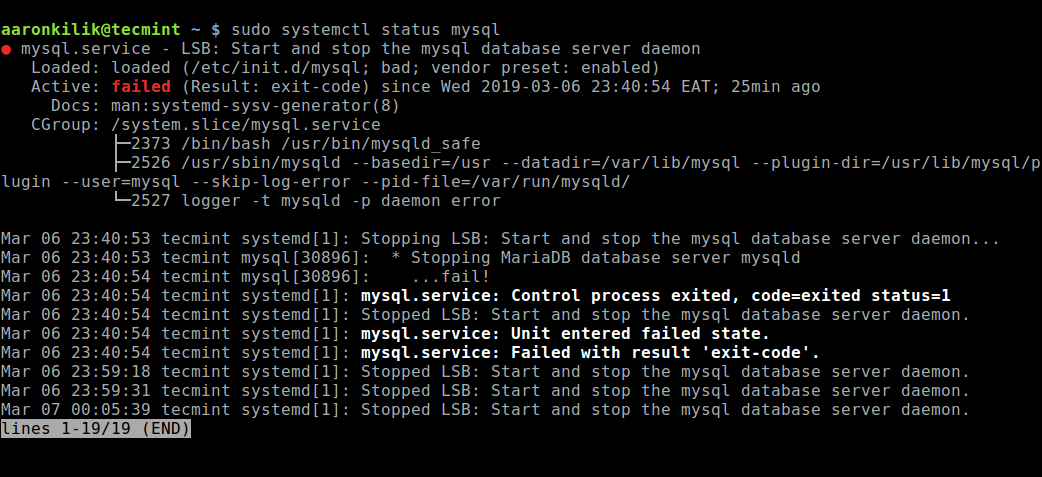
Если в результате выполнения команды произошла ошибка службы MySQL, вы можете попробовать перезапустить службу и ещё раз проверить её состояние.
$ sudo systemctl restart mysql
$ sudo systemctl status mysql
Если сервер работает (как показано) и вы по-прежнему видите эту ошибку, вам следует проверить, не заблокирован ли порт TCP/IP брандмауэром или любой другой службой блокировки портов.
Для поиска порта, который прослушивается сервером, используйте команду netstat.
$ sudo netstat -tlpn | grep "mysql"Ещё одна похожая и часто встречающаяся ошибка подключения — «(2003) Can’t connect to MySQL server on ‘server’ (10061)». Это означает, что в сетевом соединении было отказано.
Следует проверить, работает ли в системе сервер MySQL (смотрите выше) и на тот ли порт вы подключаетесь (как найти порт, можно посмотреть выше).
Похожие частые ошибки, с которыми вы можете столкнуться при попытке подключиться к серверу MySQL:
ERROR 2003: Cannot connect to MySQL server on 'host_name' (111)
ERROR 2002: Cannot connect to local MySQL server through socket '/tmp/mysql.sock' (111)
Ошибки запрета доступа в MySQL
В MySQL учётная запись (УЗ) определяется именем пользователя и клиентским хостом, с которого пользователь может подключиться. УЗ может также иметь данные для аутентификации (например, пароль).
Причин для запрета доступа может быть много. Одна из них связана с учётными записями MySQL, которые сервер разрешает использовать клиентским программам при подключении. Это означает, что имя пользователя, указанное в соединении, может не иметь прав доступа к базе данных.
В MySQL есть возможность создавать учётные записи, позволяющие пользователям клиентских программ подключаться к серверу и получать доступ к данным. Поэтому при ошибке доступа проверьте разрешение УЗ на подключение к серверу через клиентскую программу.
Увидеть разрешённые привилегии учётной записи можно, выполнив в консоли команду SHOW GRANTS
Входим в консоль (пример для Unix, для Windows консоль можно найти в стартовом меню):
В консоли вводим команду:
> SHOW GRANTS FOR 'tecmint'@'localhost';Дать привилегии конкретному пользователю в БД по IP-адресу можно, используя следующие команды:
> grant all privileges on *.test_db to 'tecmint'@'192.168.0.100';
> flush privileges;
Ошибки запрещённого доступа могут также возникнуть из-за проблем с подключением к MySQL (см. выше).
Потеря соединения с сервером MySQL
С этой ошибкой можно столкнуться по одной из следующих причин:
- плохое сетевое соединение;
- истекло время ожидания соединения;
- размер BLOB больше, чем
max_allowed_packet.
В первом случае убедитесь, что у вас стабильное сетевое подключение (особенно, если подключаетесь удалённо).
Если проблема с тайм-аутом соединения (особенно при первоначальном соединении MySQL с сервером), увеличьте значение параметра connect_timeout.
В случае с размером BLOB нужно установить более высокое значение для max_allowed_packet в файле конфигурации /etc/my.cnf в разделах [mysqld] или [client] как показано ниже.
[mysqld]
connect_timeout=100
max_allowed_packet=500M
Если файл конфигурации недоступен, это значение можно установить с помощью следующей команды.
> SET GLOBAL connect_timeout=100;
> SET GLOBAL max_allowed_packet=524288000;
Слишком много подключений
Эта ошибка означает, что все доступные соединения используются клиентскими программами. Количество соединений (по умолчанию 151) контролируется системной переменной max_connections. Устранить проблему можно, увеличив значение переменной в файле конфигурации /etc/my.cnf.
[mysqld]
max_connections=1000
Недостаточно памяти
Если такая ошибка возникла, это может означать, что в MySQL недостаточно памяти для хранения всего результата запроса.
Сначала нужно убедиться, что запрос правильный. Если это так, то нужно выполнить одно из следующих действий:
- если клиент MySQL используется напрямую, запустите его с ключом
--quick switch, чтобы отключить кешированные результаты; - если вы используете драйвер MyODBC, пользовательский интерфейс (UI) имеет расширенную вкладку с опциями. Отметьте галочкой «Do not cache result» (не кешировать результат).
Также может помочь MySQL Tuner. Это полезный скрипт, который подключается к работающему серверу MySQL и даёт рекомендации по настройке для более высокой производительности.
$ sudo apt-get install mysqltuner     #Debian/Ubuntu
$ sudo yum install mysqltuner         #RHEL/CentOS/Fedora
$ mysqltuner
MySQL продолжает «падать»
Если такая проблема возникает, необходимо выяснить, заключается она в сервере или в клиенте. Обратите внимание, что многие сбои сервера вызваны повреждёнными файлами данных или индексными файлами.
Вы можете проверить состояние сервера, чтобы определить, как долго он работал.
$ sudo systemctl status mysql       #Debian/Ubuntu
$ sudo systemctl status mysqld      #RHEL/CentOS/Fedora
Чтобы узнать время безотказной работы сервера, запустите команду mysqladmin.
$ sudo mysqladmin version -p 
Кроме того, можно остановить сервер, сделать отладку MySQL и снова запустить службу. Для отображения статистики процессов MySQL во время выполнения других процессов откройте окно командной строки и введите следующее:
$ sudo mysqladmin -i 5 statusИли
$ sudo mysqladmin -i 5 -r statusЗаключение
Самое важное при диагностике — понять, что именно вызвало ошибку. Следующие шаги помогут вам в этом:
- Первый и самый важный шаг — просмотреть журналы MySQL, которые хранятся в каталоге
/var/log/mysql/. Вы можете использовать утилиты командной строки вродеtailдля чтения файлов журнала. - Если служба MySQL не запускается, проверьте её состояние с помощью
systemctl. Или используйте командуjournalctl(с флагом-xe) в systemd. - Вы также можете проверить файл системного журнала (например,
/var/log/messages) на предмет обнаружения ошибок. - Попробуйте использовать такие инструменты, как Mytop, glances, top, ps или htop, чтобы проверить, какая программа использует весь ресурс процессора или блокирует машину. Они также помогут определить нехватку памяти, дискового пространства, файловых дескрипторов или какого-либо другого важного ресурса.
- Если проблема в каком-либо процессе, можно попытаться его принудительно остановить, а затем запустить (при необходимости).
- Если вы уверены, что проблемы именно на стороне сервера, можете выполнить команды:
mysqladmin -u root pingилиmysqladmin -u root processlist, чтобы получить от него ответ. - Если при подключении проблема не связана с сервером, проверьте, нормально ли работает клиент. Попробуйте получить какие-либо его выходные данные для устранения неполадок.
Перевод статьи «Useful Tips to Troubleshoot Common Errors in MySQL»
When you try to connect to your MySQL server through the command line, you might encounter a MySQL ERROR 2002 as follows:
mysql -uroot -proot
ERROR 2002 (HY000): Can't connect to local MySQL server
through socket '/tmp/mysql.sock' (2)
The ERROR 2002 above happens when the mysql.sock socket file can’t be found in your filesystem.
This file is created when MySQL server is started and removed when you stop the server.
To fix this error, you need to see if MySQL server is already installed and running on your computer.
If you’re using Linux, you may need to install mysql-server in addition to the mysql package:
apt-get install mysql-server mysql
Once you have the server installed, run the server with the following command:
sudo service mysql start
# or
sudo /etc/init.d/mysql start
That should start the server and generate the mysql.sock file. You can try to connect to your MySQL server again now.
For macOS
If you’re using macOS and installed MySQL using Homebrew, then you need to make sure that the server is started using the following command:
brew services start mysql
Once MySQL is running, you can try to connect using the mysql command again.
For Windows
For Windows OS, you need to make sure that MySQL service is running in the Services panel.
Open the Windows Start menu and search for the Services panel to see the result below:
Then, scroll through the services list until you reach the services that start with "M" to look for MySQL services.
Usually, you have the MySQL version number attached to the service name.
The MySQL version installed on my computer is MySQL 8.0.26 so I have MySQL80 service listed as shown below:
If you have MySQL version 7, then you may have MySQL70 listed on the Services panel.
As you can see from the picture above, the status of MySQL80 service is empty, meaning that it’s not currently running.
If you see the same status, you can run the service by clicking the Start the service link on the left pane.
Now you can try to connect again to your MySQL server from the Command Line.
To conclude, the ERROR 2002 happens when your computer can’t connect to MySQL server because the socket file is missing.
The socket file is generated when MySQL server is started, so you probably need to start the server to make it work.
Depending on your operating system, there are different ways to start your MySQL server.
Good luck fixing the error! 👍
Contents
- Server Not Running in Specified Location
- Unable to Connect from a Remote Location
- Authentication Problems
- Problems Exporting Query Results
- Access to the Server, but not to a Database
- Option Files and Environment Variables
- Unable to Connect to a Running Server / Lost root Password
- localhost and %
- See Also
If you are completely new to MariaDB and relational databases, you may want to start with the MariaDB Primer. Also, make sure you understand the connection parameters discussed in the Connecting to MariaDB article.
There are a number of common problems that can occur when connecting to MariaDB.
Server Not Running in Specified Location
If the error you get is something like:
mysql -uname -p
ERROR 2002 (HY000): Can't connect to local MySQL server through
  socket '/var/run/mysqld/mysqld.sock' (2 "No such file or directory")
or
mysql -uname -p --port=3307 --protocol=tcp
ERROR 2003 (HY000): Can't connect to MySQL server on  'localhost'
  (111 "Connection refused")
the server is either not running, or not running on the specified port, socket or pipe. Make sure you are using the correct host, port, pipe, socket and protocol options, or alternatively, see Getting, Installing and Upgrading MariaDB, Starting and Stopping MariaDB or Troubleshooting Installation Issues.
The socket file can be in a non-standard path. In this case, the socket option is probably written in the my.cnf file. Check that its value is identical in the [mysqld] and [client] sections; if not, the client will look for a socket in a wrong place.
If unsure where the Unix socket file is running, it’s possible to find this out, for example:
netstat -ln | grep mysqld
unix  2      [ ACC ]     STREAM     LISTENING     33209505 /var/run/mysqld/mysqld.sock
Unable to Connect from a Remote Location
Usually, the MariaDB server does not by default accept connections from a remote client or connecting with tcp and a hostname and has to be configured to permit these.
(/my/maria-10.4) ./client/mysql --host=myhost --protocol=tcp --port=3306 test
ERROR 2002 (HY000): Can't connect to MySQL server on 'myhost' (115)
(/my/maria-10.4) telnet myhost 3306
Trying 192.168.0.11...
telnet: connect to address 192.168.0.11: Connection refused
(/my/maria-10.4) perror 115
OS error code 115:  Operation now in progress
To solve this, see Configuring MariaDB for Remote Client Access
Authentication Problems
Note that from MariaDB 10.4.3, the unix_socket authentication plugin is enabled by default on Unix-like systems. This uses operating system credentials when connecting to MariaDB via the local Unix socket file. See unix_socket authentication plugin for instructions on connecting and on switching to password-based authentication as well as Authentication from MariaDB 10.4 for an overview of the MariaDB 10.4 changes..
Authentication is granted to a particular username/host combination. user1'@'localhost', for example, is not the same as user1'@'166.78.144.191'. See the GRANT article for details on granting permissions.
Passwords are hashed with PASSWORD function. If you have set a password with the SET PASSWORD statement, or used INSERT or UPDATE to update the permissions table directly, the PASSWORD function must be used at the same time. For example, SET PASSWORD FOR 'bob'@'%.loc.gov' = PASSWORD('newpass') rather than just SET PASSWORD FOR 'bob'@'%.loc.gov' = 'newpass';
If grant tables have been changed directly, the new passwords or authentication data will not immediately be active. A FLUSH PRIVILEGES statement, or the flush-privileges mysqladmin option must be run in order for the changes to take effect.
Problems Exporting Query Results
If you can run regular queries, but get an authentication error when running the SELECT … INTO OUTFILE, SELECT … INTO DUMPFILE or LOAD DATA INFILE statements, you do not have permission to write files to the server. This requires the FILE privilege. See the GRANT article.
Access to the Server, but not to a Database
If you can connect to the server, but not to a database, for example:
USE test;
ERROR 1044 (42000): Access denied for user 'ian'@'localhost' to database 'test'
or can connect to a particular database, but not another, for example
mysql -u name db1 works but not mysql -u name db2, you have not been granted permission for the particular database. See the GRANT article.
Option Files and Environment Variables
It’s possible that option files or environment variables may be providing incorrect connection parameters. Check the values provided in any option files read by the client you are using (see mysqld Configuration Files and Groups and the documentation for the particular client you’re using — see Clients and Utilities).
Option files can usually be suppressed with no-defaults option, for example:
mysqlimport --no-defaults ...
Unable to Connect to a Running Server / Lost root Password
If you are unable to connect to a server, for example because you have lost the root password, you can start the server without using the privilege tables by running the --skip-grant-tables option, which gives users full access to all tables. You can then run FLUSH PRIVILEGES to resume using the grant tables, followed by SET PASSWORD to change the password for an account.
localhost and %
You may have created a user with something like:
CREATE USER melisa identified by 'password';
This creates a user with the ‘%’ wildcard host.
select user,host from mysql.user where user='melisa';
+--------+------+
| user   | host |
+--------+------+
| melisa | %    |
+--------+------+
However, you may still be failing to login from localhost. Some setups create anonymous users, including localhost. So the following records exist in the user table:
select user,host from mysql.user where user='melisa' or user='';
+--------+-----------+
| user   | host      |
+--------+-----------+
| melisa | %         |
|        | localhost |
+--------+-----------+
Since you are connecting from localhost, the anonymous credentials, rather than those for the ‘melisa’ user, are used. The solution is either to add a new user specific to localhost, or to remove the anonymous localhost user.
See Also
- CREATE USER
- GRANT
- Authentication from MariaDB 10.4
- Authentication from MariaDB 10 4 video tutorial
Databases play a critical role in the proper working of any web applications. They store, organize and manage a large amount of user data.
Any problem with database connectivity can cause website errors. And the error show up as “sqlstate hy000 error 2002.”
At Bobcares, we specialize in fixing database errors for our customers as part of our Server Management Services.
Today, we’ll see various reasons for sqlstate hy000 error 2002 and how our Database Engineers fix it.
Examining sqlstate 2002 error
Before we dive into the solution, let’s first check the sqlstate 2002 error in detail.
In general, when we configure any PHP application, we specify the details of the database in the configuration file. The same is applicable in case of popular content management systems like WordPress, Joomla, Magento, etc. And, when we update or change any setting in the website, it gets saved on the database. For this to work, there should not be any problem with database connection with MySQL host server.
The database connection can fail due to reasons like wrong database details in the configuration file, port restrictions on the server, missing files, lack of resources on the server and so on.
In simple terms, MySQL error 2002 denotes a problem of connection between the website code and the database.
There are many variants of the sqlstate hy000 2002 error. The details are readily available in the second part of the error message.
From our experience in managing servers, our Dedicated Engineers see variants of sqlstate hy000 error 2002 as
Connection failed: SQLSTATE[HY000] [2002] Connection refusedConnection failed: SQLSTATE[HY000] [2002] No such file or directorySQLSTATE[HY000] [2002] Resource temporarily unavailable
exit status 3Again, a similar error on a Magento website appear as :

What causes sqlstate hy000 error 2002?
Now, let’s have a look on the possible causes for sqlstate hy000 error 2002.
1.MySQL server not running
In many of the cases where websites report sqlstate 2002 error, the underlying reason would be stopped MySQL server. And, this can happen due to broken MySQL libraries, resource crunch on the server, etc. When MySQL is not running on the server, the website will not be able to connect to the database and its reports “Connection refused error.
2. Incorrect database settings
Similarly, a major reason for sqlstate hy000 2002 error is the incorrect database settings in the configuration file. For the proper working of the program, the file should contain correct database server name, database user details and password.
If the MySQL service is listening on 127.0.0.1, the same settings should be given in the database connection string. Moreover, the MySQL server should accept connections on this IP address too.
3. Insufficient server resources
Last and not the least, insufficient server resources also can be a reason for MySQL errors. When the server has too many MySQL queries, it requires too much server memory. Additionally, when websites use resource intensive queries, it add to the server load and lack of memory on the server. It ends up in errors like “SQLSTATE[HY000] [2002] Resource temporarily unavailable.”
How we fix sqlstate hy000 error 2002
Let’s take a look on how our Dedicated Engineers helped one of our customers to fix the sqlstate hy000 error 2002.
The customer was using a PHP tracking script on his website. There was a high volume of MySQL activity (about 4 inserts a second), from this tracking script, and this was causing the MySQL Connection time out error. And, on the website it resulted in error:
Exception 'PDOException' with message 'SQLSTATE[HY000] [2002] Connection timed outIt was a sign of PHP script timing out while connecting to MySQL host.
1. Ensure MySQL running status
Here, we first checked the status of MySQL server. It was running fine on the server as per the snippet below.
● mysql.service - MySQL Community Server
   Loaded: loaded (/lib/systemd/system/mysql.service; enabled; vendor preset: enabled)
   Active: active (running) since Thu 2019-03-09 15:25:43 xx; 2 weeks 5 days ago
Therefore, we isolated the problem with MySQL server status.
2. Correcting Configuration file
As the second step, we checked and confirmed that the script was using correct Database details including Hostname, User and Password. Moreover, the website was showing data from the database too. Thus, the connection was happening. The error was happening only at certain intervals.
Additionally, we checked that MySQL database user was able to connect from the command line.
3. Fixing server resources
Since we already ruled out configuration errors, the next thing to check was the server resources. Here, our Dedicated Engineers checked the memory usage on the server. We found that MySQL memory usage was high in the server (around 89% of available memory).
PID  USER      PR  NI    VIRT    RES    SHR S  %CPU %MEM     TIME+ COMMAND
30571 mysql     20   0 58.947g 0.055t   9832 S 135.1 89.2  16872:22 /usr/sbin/mysqld
The memory usage statistics on the server looked as below.

We could see that there was a scope for MySQL tweaks in the server. Therefore, we analyzed the MySQL server performance by watching the MySQL queries and its impact on the server. Then our expert Database Engineers tweaked certain MySQL parameters such as join_buffer_size, table_open_cache and innodb_buffer_pool_instances.
After the tweaking, we restarted MySQL services at off-peak hours to minimize the impact on live websites. The performance on the MySQL server improved drastically and it fixed sqlstate hy000 error 2002 as well.
[Looking for tweaking MySQL server for improved performance? Our MySQL experts are available 24×7.]
Conclusion
In short, sqlstate hy000 error 2002 can happen due to stopped MySQL server, insufficient server resources, etc. Today we saw how our Dedicated Engineers troubleshooted and fixed MySQL errors for one of our customers.
PREVENT YOUR SERVER FROM CRASHING!
Never again lose customers to poor server speed! Let us help you.
Our server experts will monitor & maintain your server 24/7 so that it remains lightning fast and secure.
GET STARTED
var google_conversion_label = «owonCMyG5nEQ0aD71QM»;
I kept getting this following error every time I tried to restart MySql. It was working fine before I changed the default data directory.
ERROR 2002 (HY000): Can’t connect to local MySQL server through socket ‘/var/lib /mysql/mysql.sock’ (111)
I know there are other solutions posted by others but none of them worked for me.

asked Apr 21, 2015 at 19:59

2
Check the folowing
-
First check if another instance is runnig in the same machine
ps ax | grep mysql -
Then, check if your file my.cnf (probably in /etc/mysql/ folder) is correctly configured with
[mysqld]
datadir = /var/lib/mysql/
socket = /var/lib/mysql/mysql.sock
- Next, you have changed the default data directory, did you gave the right permissions to the new directory now
 chown mysql:mysql -R /var/lib/mysql/*
 chmod 755 -R /var/lib/mysql/*
-
After changing the permission restart the service and check
service mysql restart
answered Apr 22, 2015 at 12:52

koustuvkoustuv
7294 silver badges17 bronze badges
0
My issue was that multiple mysql processes were running concurrently.
First kill the processes with:
sudo pkill mysql
and
sudo pkill mysqld
restart mysql
sudo service mysql restart
now you should be able to log in
mysql -u root -p
answered Apr 29, 2017 at 7:22

OmarOmar
711 silver badge2 bronze badges
0
It would appear that the socket file is missing. service mysql stop and service mysql restart depend on the socket file’s existence to shutdown.
You will have to connect to mysql using mysqladmin and TCP/IP to shutdown
MYSQL_USER=root
MYSQL_PASS=rootpassword
MYSQL_CONN="-h127.0.0.1 -u${MYSQL_USER} -p${MYSQL_PASS} --protocol=tcp -P3306"
mysqladmin ${MYSQL_CONN} shutdown
service mysql start
I have posts about shutdowns like this

answered Apr 21, 2015 at 20:13

RolandoMySQLDBARolandoMySQLDBA
177k32 gold badges307 silver badges505 bronze badges
Hi i’have just installed zabbix 3.0 and same problem appeared after few hours ago. When i check the zabbix permission in the phpmyadmin I realised there is no permission for user «zabbix» . I gave Grand permission to zabbix and problem solved. This might be helpfull for someone.
answered Mar 9, 2016 at 14:30

tuncmtuncm
211 bronze badge
I got the same error, but simple reason: system had run out all disk space.
answered Jun 12, 2018 at 14:51

HannuHannu
291 bronze badge
0
I was getting the same error as well «ERROR 2002 (HY000): Can’t connect to local MySQL server through socket ‘/var/lib /mysql/mysql.sock’ (111)». I have uninstalled and re-installed MySQl several times and have spent multiple hours troubleshooting the issue. The issue that I notice is when I added the credentials in the my.cnf option file located in /etc/my.cnf as this will cause MySQL issues with starting the services and would throw the error.
To resolve this, I removed the credentials out of the my.cnf option file in /etc/my.cnf and I create a .my.cnf option file in the home directory. For example /home/username/.my.cnf in Linux (replace username with your username in Linux) and add the credentials in there. No issues after that.
answered Jan 22, 2018 at 15:55

Check your mysql service or if you are accessing through ssh try running:
sudo /etc/init.d/mysql start

RLF
13.9k2 gold badges32 silver badges46 bronze badges
answered Jul 13, 2016 at 20:00

1
If you work with MySQL then you’re probably familiar with the can’t connect to local mysql server through socket error message. And you’ll see error message like:
Error:
ERROR 2002 (HY000): Can’t connect to local MySQL server through socket ‘/var/run/mysqld/mysqld.sock’ (2 “No such file or directory”)
In this short article, we’ll show you how to troubleshoot and fix this issue in a jiffy.
And, don’t worry it’s a pretty straight up fix and you have nothing to worry about.
So let’s go.
- What Is Can’t Connect to Local MySQL Server Through Socket Error?
- How to Fix Can’t Connect to Local MySQL Server Through Socket Error
- Solution #1: Check If MySQL Service is Runnning
- Solution #2: Connect with 127.0.0.1
- Solution #3: Modify the my.cnf file
- Solution #4: Verify mysql.sock Location
- Solution #5: Change MySQL Folder Permission
- Solution #6: Multiple MySQL Instances
- Conclusion on Can’t Connect to Local MySQL Server Through Socket
What Is Can’t Connect to Local MySQL Server Through Socket Error?
So what’s causing the can’t connect to local mysql server through socket error message?
This error message is basically telling you that the application is not able to locate the socket file needed to establish a MySQL connection.
And as you well know the socket file is used by the operating system to enable interface services such as MySQL or PHP to interact and communicate among each other.
For some people this appear message may occur when trying to restart MySQL and run the:
/usr/local/mysql/bin/mysql startcommand resulting in the error message:
Can't connect to local MySQL server through socket '/var/mysql/mysql.sock' (38)On the other hand, for others, this error message arises when they try to log into the MySQL database using any user credentials.
Then you have those we experience this same problem with their website application especially those built with PHP.
For example, all of a sudden the website refuses to work, and when you pry into the log file you see the error message logged there similar to this one:
SQLSTATE[HY000] [2002] Can't connect to local MySQL server through socket '/var/run/mysqld/mysqld.sock'[SPECIAL OFFER]: Fast MySQL & PHP Web Hosting
[BENEFITS]:
- FREE 1-Click Install of Open Source Apps, Blog, CMS, and much more!
- Support for PHP, MySQL, WordPress, Drupal, Joomla and much more!
- Multi-Domain Hosting & 99.9% Uptime Guarantee!
- Super Fast Servers with 24/7/365 Technical Support!
Click here to access this [SPECIAL OFFER]
How to Fix Can’t Connect to Local MySQL Server Through Socket Error
So how do you fix this can’t connect to local mysql server through socket error message?
Well, here are some steps you need to take to resolving this issue:
Solution #1: Check If MySQL Service is Runnning
First of all, check to make sure the mysqld service is running or not. To check if MySQL is running, run the following command:
mysqladmin -u root -p statusAnd if the service is not running, then, by all means, start it up by running the following command:
service mysqld startOnce you restart the service, try again to connect to MySQL.
Solution #2: Connect with 127.0.0.1
Another possible solution to the >can’t connect to local mysql server through socket> error message is to try and connect to the MySQL using the 127.0.0.1 ip address instead of localhost.
When you use localhost to connect to MySQL, the operating system uses the socket connector.
However, if you use 127.0.0.1 ip address, the operating system will use the TCP/IP connector.
So as a possible solution when you’re having issues with the socket connector, you can try to establish the connection using TCP/IP by specifying the 127.0.0.1 ip address instead of localhost.
Solution #3: Modify the my.cnf file
The my.cnf file is a configuration file used by MySQL. And it’s processed by either the mysqld or mysqladmin service depending on the options specified.
So locate this my.cnf file which is normally in the /etc/ directory and modify it accordingly as follows:
[mysqld] socket=/var/lib/mysql/mysql.sock [client] socket=/var/lib/mysql/mysql.sockAfter modifying the file restart your MySQL service and try connecting again.
Solution #4: Verify mysql.sock Location
Another possible cause of this problem is that the mysql.sock file in another directory.
So you need to locate where the mysql.sock file and create a symlink to it.
Most times the file is located in either the /data/mysql_datadir/mysql.sock or /tmp/mysql.sock
So for instance, if you locate the file in /data/mysql_datadir/mysql.sock, all you need to do is create a symlink for it using the following command:
ln -s /var/lib/mysql/mysql.sock /tmp/mysql.sockOnce you do this, go ahead and restart the MySQL service and try initiating the connection again.
[SPECIAL OFFER]: Fast MySQL & PHP Web Hosting
[BENEFITS]:
- FREE 1-Click Install of Open Source Apps, Blog, CMS, and much more!
- Support for PHP, MySQL, WordPress, Drupal, Joomla and much more!
- Multi-Domain Hosting & 99.9% Uptime Guarantee!
- Super Fast Servers with 24/7/365 Technical Support!
Click here to access this [SPECIAL OFFER]
Solution #5: Change MySQL Folder Permission
There one other possible solution fixing this issue and that is to change the MySQL folder’s permission.
And this can be done easily by running the following command if you’re working on a local environment:
sudo chmod -R 755 /var/lib/mysql/After which you can restart mysql service:
service mysqld startThen try to establish the connection again.
Solution #6: Multiple MySQL Instances
In some cases, the installation of multiple MySQL on the server environment causes this problem.
So you have a case whereby multiple instances of MySQL are running at the same time.
As such the issue running the following commands can fix the issue:
ps -A|grep mysqlNext, kill the mysql process by running this command:
sudo pkill mysqlThen do the same thing for mysqld:
ps -A|grep mysqldAgain, kill this process as well:
sudo pkill mysqldFinally, go ahead run the following commands to restart and connect to the MySQL server:
sudo service mysql restart mysql -u root -pConclusion on Can’t Connect to Local MySQL Server Through Socket
We hope one of the above possible solutions to the can’t connect to local mysql server through socket error resolves your situation.
[SPECIAL OFFER]: Fast MySQL & PHP Web Hosting
[BENEFITS]:
- FREE 1-Click Install of Open Source Apps, Blog, CMS, and much more!
- Support for PHP, MySQL, WordPress, Drupal, Joomla and much more!
- Multi-Domain Hosting & 99.9% Uptime Guarantee!
- Super Fast Servers with 24/7/365 Technical Support!
Click here to access this [SPECIAL OFFER]