Earlier, we have seen how to enable .NET Framework in Windows 10, in following article:
How to enable .NET Framework 3.5 on Windows 10
However the PowerShell method discussed in above mentioned article requires you to specify the source files using Windows 10 ISO file. But if you’ve upgraded your earlier version of Windows to Windows 10, you may not have the source files with you. In that case, you can try enabling .NET Framework via Turn Windows Features On or Off page in Control Panel. However, when we tried to enable .NET 3.5 from there, we got this message:
Windows couldn’t complete the requested changes.
Windows couldn’t find required files to complete the requested changes. Make sure you’re connected to the Internet and try again.
Error: 0x800F0907
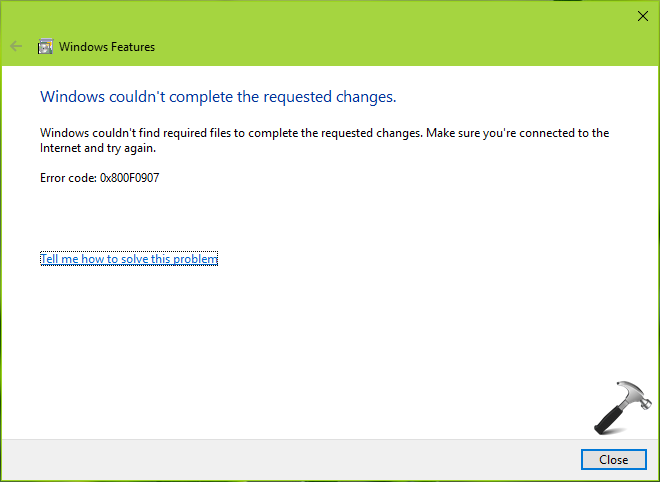
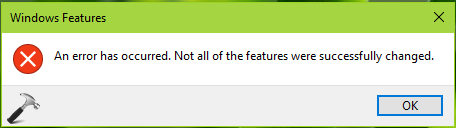
Closing the message ends operation with this message:
An error has occurred. Not all of the features were successfully changed.
When you try to enable the .NET 3.5 from Control Panel, Windows 10 try to activate the feature by installing some required Windows Updates. This issue can be easily solved by configuring the alternative source path which can help Windows to enable the feature without much relying on Windows Update. If you’ve source path located on some network share, you can use it here. This issue can also occur if your system is configured to get upgrades via Windows Server Update Services (WSUS) instead Windows Updates. Whatever is the case, the steps mentioned below will help you to fix this error.
FIX : Error 0x800F0907 While Installing .NET Framework 3.5 In Windows 10
FYI: Local Group Policy Editor is not available in Windows 10 Home editions. If you’re on Windows 10 Home and want to use Group Policy, go here and upgrade to Pro edition.
1. Press  + R and put gpedit.msc in Run dialog box to open Local Group Policy Editor. Click OK.
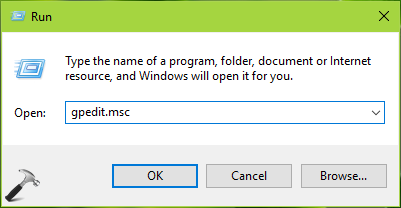
2. Next, in the Local Group Policy Editor window, navigate here:
Computer Configuration > Administrative Templates > System
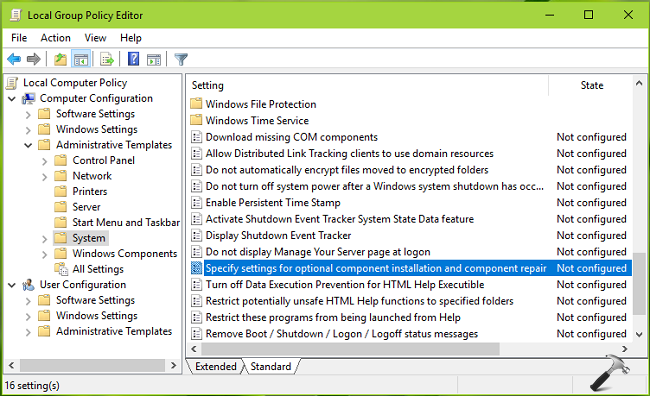
3. In the right pane of System, look for Setting named Specify settings for optional component installation and component repair. Double click on this setting to modify it:
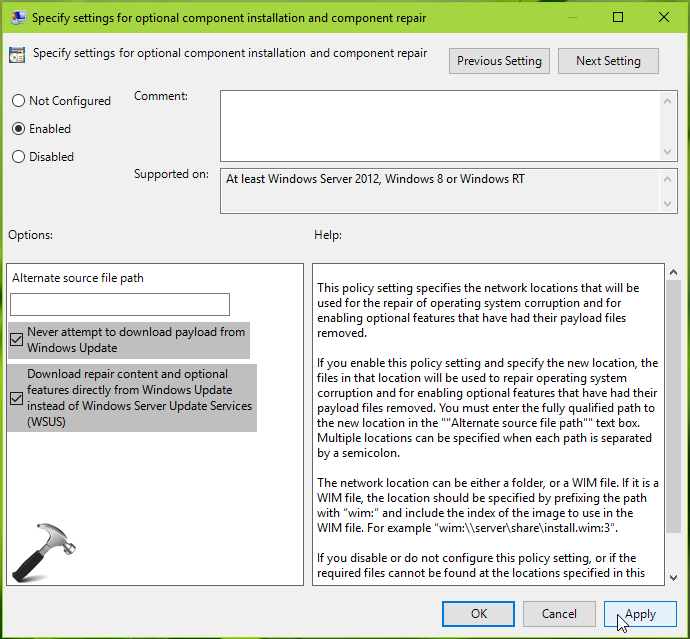
4. In the policy configuration window shown above, click on Enabled to activate the policy. Then in Options, you can specify valid alternate source file path which could have .NET Framework feature files which we’re required to enable it. You can refer policy explanation for detailed info about adding alternative source here. Also make sure Never attempt to download payload from Windows Update and Download repair content optional features directly from Windows Update instead of Windows Server Update Services (WSUS) options are checked here. Click Apply followed by OK. Close Local Group Policy Editor.
5. Press + R and put gpupdate /force in Run dialog box to update Group Policy engine. Click OK.
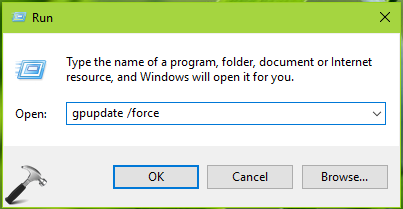
After updating policies, re-try to enable .NET Framework and this time it should get activated without pushing any error code.
Hope this helps!
READ THESE ARTICLES NEXT
- Install .NET Framework 4.8 offline in Windows 10
- Fix: The .NET Framework 4.7 is not supported on this operating system
- [FIX] .NET Framework 3.5/DISM Error 0x800F0954 In Windows 10
- [FIX] The Referenced Assembly Is Not Installed On Your System
- Download Microsoft .NET Framework Repair Tool For Windows 10
- Enable .NET Framework 3.5 On Windows 10
| title | description | ms.date | author | ms.author | manager | audience | ms.topic | ms.prod | localization_priority | ms.reviewer | ms.custom | ms.technology | adobe-target |
|---|---|---|---|---|---|---|---|---|---|---|---|---|---|
|
.NET Framework 3.5 installation errors |
This article describes a problem where you receive an 0x800F0906, 0x800F081F, or 0x800F0907 error code when you try to install the .NET Framework 3.5 in Windows. |
12/16/2021 |
Deland-Han |
delhan |
dcscontentpm |
itpro |
troubleshooting |
windows-client |
medium |
kaushika |
sap:.net-framework-installation, csstroubleshoot |
windows-client-application-compatibility |
true |
.NET Framework 3.5 installation errors: 0x800F0906, 0x800F081F, 0x800F0907, 0x800F0922
This article helps fix Microsoft .NET Framework 3.5 installation errors.
Applies to: Windows 10 — all editions, Windows Server 2019, Windows Server 2012 R2
Original KB number: 2734782
[!NOTE]
Installation of the .NET Framework may throw errors that are not listed in this article, but you might be able to try the following steps to fix those errors as well.
Microsoft is releasing Out-of-band (OOB) updates for .NET Framework. .NET Framework Out-of-band update to address issues after installing the January 11, 2022 Windows update
Resolutions for Windows Server
You may receive the following errors when you install the .NET Framework 3.5 in Windows Server:
- Error code 0x800F0906
- Error code 0x800F081F
- Error code 0x800F0907
Error code 0x800F0906
This error code occurs because the computer cannot download the required files from Windows Update.
To resolve this issue, use one of the following methods:
Method 1: Check your internet connection
This behavior can be caused by network, proxy, or firewall configurations or by network, proxy, or firewall failures. To fix this problem, try to connect to the Microsoft Update website.
If you cannot access this website, check your Internet connection, or contact the network administrator to determine whether there is a configuration that blocks access to the website.
Method 2: Configure the Group Policy setting
This behavior can also be caused by a system administrator who configures the computer to use Windows Server Update Services (WSUS) instead of the Windows Update server for servicing. In this case, contact your system administrator and request that they enable the Specify settings for optional component installation and component repair Group Policy setting and configure the Alternate source file path value or select the Contact Windows Update directly to download repair content instead of Windows Server Update Services (WSUS) option.
To configure the Group Policy setting, follow these steps:
-
Start the Local Group Policy Editor or Group Policy Management Console.
Point to the upper-right corner of the screen, click Search, type group policy, and then click Edit group policy.
-
Expand Computer Configuration, expand Administrative Templates, and then select System. The screenshot for this step is listed below.
:::image type=»content» source=»media/dotnet-framework-35-installation-error/system-option.svg» alt-text=»Screenshot of the System group policy setting window.» border=»false»:::
-
Open the Specify settings for optional component installation and component repair Group Policy setting, and then select Enabled. The screenshot for this step is listed below.
:::image type=»content» source=»media/dotnet-framework-35-installation-error/enabled-option.svg» alt-text=»Screenshot of the Enabled option of the Specify settings for optional component installation and component repair item.» border=»false»:::
-
If you want to specify an alternative source file, in the Alternate source file path box, specify a fully qualified path of a shared folder that contains the contents of the
sourcessxsfolder from the installation media.Example of a shared folder path:
\server_nameshareWin8sxsOr, specify a WIM file. To specify a WIM file as an alternative source file location, add the prefix WIM: to the path, and then add the index of the image that you want to use in the WIM file as a suffix.
Example of a WIM file path:
WIM:\server_nameshareinstall.wim:3[!NOTE]
In this example,3represents the index of the image in which the feature files are found. -
If it is applicable to do this, select the Contact Windows Update directly to download repair content instead of Windows Server Update Services (WSUS) check box.
-
Tap or click OK.
-
At an elevated command prompt, type
gpupdate /force, and then press Enter to apply the policy immediately.
Method 3: Use Windows installation media
You can use the Windows installation media as the file source when you enable the .NET Framework 3.5 feature. To do this, follow these steps:
-
Insert the Windows installation media.
-
At an elevated command prompt, run the following command:
Dism /online /enable-feature /featurename:NetFx3 /All /Source:<drive>:sourcessxs /LimitAccessIn this command, <drive> is a placeholder for the drive letter for the DVD drive. For example, you run the following command:
Dism /online /enable-feature /featurename:NetFx3 /All /Source:D:sourcessxs /LimitAccess
Method 4: Alternative steps for Windows Server
In Windows Server 2012 R2, you can also specify an alternative source by using Windows PowerShell cmdlets or by using the Add Roles and Features Wizard.
To use Windows PowerShell, follow these steps:
-
Insert the Windows installation media.
-
In an elevated Windows PowerShell command window, run the following command:
Install-WindowsFeature name NET-Framework-Core source <drive>:sourcessxs
In this command, <drive> is a placeholder for the drive letter for the DVD drive or for the Windows installation media. For example, you run the following command:
Install-WindowsFeature name NET-Framework-Core source D:sourcessxs
To use the Add Roles and Features Wizard, follow these steps:
-
Insert the Windows installation media.
-
Start the Add Roles and Features Wizard.
-
On the Select features page, select the .NET Framework 3.5 Features check box, and then click Next.
-
On the Confirm installation selections page, click the Specify an alternate source path link. The screenshot for this step is listed below.
:::image type=»content» source=»media/dotnet-framework-35-installation-error/specify-alternate-source-path.svg» alt-text=»Screenshot of the Specify an alternate source path link on the Conform installation selections page.» border=»false»:::
-
On the Specify Alternate Source Path page, type the path of the SxS folder as a local path or as a network share path. The screenshot for this step is listed below.
:::image type=»content» source=»media/dotnet-framework-35-installation-error/path-of-sxs-folder.svg» alt-text=»Screenshot of the Specify Alternate Source Path page.» border=»false»:::
-
Click OK.
-
Click Install to finish the wizard.
Error code 0x800F081F
This error code can occur when an alternative installation source is specified and one of the following conditions is true:
- The location that is specified by the path does not contain the files that are required to install the feature.
- The user who tries to install the feature does not have at least READ access to the location and to the files.
- The set of installation files is corrupted, incomplete, or invalid for the version of Windows that you are running.
To fix this problem, make sure that the full path of the source is correct (x:sourcessxs) and that you have at least Read access to the location. To do this, try to access the source directly from the affected computer. Verify that the installation source contains a valid and complete set of files. If the problem persists, try to use a different installation source.
Error code 0x800F0907
This error code occurs if an alternative installation source is not specified or is invalid and if the Specify settings for optional component installation and component repair Group Policy setting is configured to Never attempt to download payload from Windows Update.
To fix this problem, review the policy setting to determine whether it is appropriate for your environment. If you do not want to download feature payloads from Windows Update, consider configuring the Alternate source file path value in the Group policy setting.
[!NOTE]
You must be a member of the Administrators group to change Group Policy settings on the local computer. If the Group Policy settings for the computer that you want to manage are controlled at the domain level, contact your system administrator.
To do this, follow these steps:
-
Start Local Group Policy Editor or Group Policy Management Console as applicable in your environment.
-
Expand Computer Configuration, expand Administrative Templates, and then select System.
-
Open the Specify settings for optional component installation and component repair Group Policy setting, and then select Enabled.
-
Determine whether the Never attempt to download payload from Windows Update Group Policy setting is enabled, and then determine the desired setting for your environment.
-
If you want to specify an alternate source file, in the Alternate source file path box, specify a fully qualified path of a shared folder that contains the contents of the
sourcessxsfolder from the installation media. Or, specify a WIM file. To specify a WIM file as an alternative source file location, add the prefix WIM: to the path, and then add the index of the image that you want to use in the WIM file as a suffix. The following are examples of values that you can specify:- Path of a shared folder:
\server_nameshareWin8sxs - Path of a WIM file, in which
3represents the index of the image in which the feature files are found:
WIM:\server_nameshareinstall.wim:3
- Path of a shared folder:
-
If you want, select the Contact Windows Update directly to download repair content instead of Windows Server Update Services (WSUS) check box.
-
Tap or click OK.
-
At an elevated command prompt, type the
gpupdate /force, and then press Enter to apply the policy immediately.
Resolution for Windows 10
-
Error code 0x800F0906, 0x800F081F, or 0x800F0907
To fix the error codes for Windows 10, follow these steps:
-
Download the Windows Media Creation tool, and create an ISO image locally, or create an image for the version of Windows that you have installed.
-
Configure the Group Policy as in Method 2, but also follow these steps:
- Mount the ISO image that’s created in step 1.
- Point the Alternate source file path to the ISO
sourcessxsfolder from the ISO. - Run the
gpupdate /forcecommand. - Add the .NET Framework feature.
-
-
Error code 0x800F0922
The following error message occurs when you do Windows 10 upgrade:
0x800F0922 CBS_E_INSTALLERS_FAILED: Processing advanced installers and generic commands failed.
[!NOTE]
This error code is not specific to .NET Framework.To fix this issue, follow these steps:
-
Open the .NET Framework installation files folder.
-
Open Sources folder.
-
Right-click the SXS folder, and then click Properties.
-
Click Security and make sure that there is a check mark next to Read & Execute. If the check mark isn’t there, click the Edit button and turn it on.
-
Press Windows Key + X keyboard shortcut.
-
Click Command Prompt (Admin).
-
In the Command Prompt window, type the following command and press Enter:
dism /online /enable-feature /featurename:netfx3 /all /source:c:sxs /limitaccess -
In the Command Prompt window, type the following command and press Enter:
dism /online /Cleanup-Image /RestoreHealth
-
More information
These errors may occur when you use an installation wizard, the Deployment Image Servicing and Management (DISM) tool, or Windows PowerShell commands to enable the .NET Framework 3.5.
In Windows 10 and Windows Server 2012 R2, the .NET Framework 3.5 is a Feature on Demand. The metadata for Features on Demand is included. However, the binaries and other files associated with the feature are not included. When you enable a feature, Windows tries to contact Windows Update to download the missing information to install the feature. The network configuration and how computers are configured to install updates in the environment can affect this process. Therefore, you may encounter errors when you first install these features.
Error messages that are associated with these error codes
| Error code | Error messages |
|---|---|
| 0x800F0906 | The source files could not be downloaded. Use the source option to specify the location of the files that are required to restore the feature. For more information on specifying a source location, see http://go.microsoft.com/fwlink/?LinkId=243077. The DISM log file can be found at C:WindowsLogsDISMdism.log. Windows couldn’t complete the requested changes. Installation of one or more roles, role services, or features failed. 0x800F0906 — CBS_E_DOWNLOAD_FAILURE Error code: 0x800F0906 Error: 0x800f0906 |
| 0x800F081F | The source files could not be found. Use the Source option to specify the location of the files that are required to restore the feature. For more information on specifying a source location, see http://go.microsoft.com/fwlink/?LinkId=243077. The DISM log file can be found at C:WindowsLogsDISMdism.log 0x800F081F — CBS_E_SOURCE_MISSING Error code: 0x800F081F Error: 0x800F081F |
| 0x800F0907 | DISM failed. No operation was performed. For more information, review the log file. The DISM log file can be found at C:WindowsLogsDISMdism.log Because of network policy settings, Windows couldn’t connect to the Internet to download files that are required to complete the requested changes. Contact your network administrator for more information. 0x800F0907 — CBS_E_GROUPPOLICY_DISALLOWED Error code: 0x800F0907 Error: 0x800F0907 |
Download the .NET Framework 3.5 outside of the Windows Update requirement
The .NET Framework 3.5 is available for customers with Volume Licensing or MSDN Subscription, as Feature on-Demand Media is available.
Error codes are not listed when you install .NET Framework 3.5
When you install .NET Framework 3.5, you may encounter other error codes that are not listed in this article, for more information, go to the following articles:
-
Windows help
-
Net Framework 3.5 and 4.5 error 0x80070002
-
Install the .NET Framework 3.5 in Windows 10
-
Microsoft .NET Framework 3.5 Deployment Considerations
| title | description | ms.date | author | ms.author | manager | audience | ms.topic | ms.prod | localization_priority | ms.reviewer | ms.custom | ms.technology | adobe-target |
|---|---|---|---|---|---|---|---|---|---|---|---|---|---|
|
.NET Framework 3.5 installation errors |
This article describes a problem where you receive an 0x800F0906, 0x800F081F, or 0x800F0907 error code when you try to install the .NET Framework 3.5 in Windows. |
12/16/2021 |
Deland-Han |
delhan |
dcscontentpm |
itpro |
troubleshooting |
windows-client |
medium |
kaushika |
sap:.net-framework-installation, csstroubleshoot |
windows-client-application-compatibility |
true |
.NET Framework 3.5 installation errors: 0x800F0906, 0x800F081F, 0x800F0907, 0x800F0922
This article helps fix Microsoft .NET Framework 3.5 installation errors.
Applies to: Windows 10 — all editions, Windows Server 2019, Windows Server 2012 R2
Original KB number: 2734782
[!NOTE]
Installation of the .NET Framework may throw errors that are not listed in this article, but you might be able to try the following steps to fix those errors as well.
Microsoft is releasing Out-of-band (OOB) updates for .NET Framework. .NET Framework Out-of-band update to address issues after installing the January 11, 2022 Windows update
Resolutions for Windows Server
You may receive the following errors when you install the .NET Framework 3.5 in Windows Server:
- Error code 0x800F0906
- Error code 0x800F081F
- Error code 0x800F0907
Error code 0x800F0906
This error code occurs because the computer cannot download the required files from Windows Update.
To resolve this issue, use one of the following methods:
Method 1: Check your internet connection
This behavior can be caused by network, proxy, or firewall configurations or by network, proxy, or firewall failures. To fix this problem, try to connect to the Microsoft Update website.
If you cannot access this website, check your Internet connection, or contact the network administrator to determine whether there is a configuration that blocks access to the website.
Method 2: Configure the Group Policy setting
This behavior can also be caused by a system administrator who configures the computer to use Windows Server Update Services (WSUS) instead of the Windows Update server for servicing. In this case, contact your system administrator and request that they enable the Specify settings for optional component installation and component repair Group Policy setting and configure the Alternate source file path value or select the Contact Windows Update directly to download repair content instead of Windows Server Update Services (WSUS) option.
To configure the Group Policy setting, follow these steps:
-
Start the Local Group Policy Editor or Group Policy Management Console.
Point to the upper-right corner of the screen, click Search, type group policy, and then click Edit group policy.
-
Expand Computer Configuration, expand Administrative Templates, and then select System. The screenshot for this step is listed below.
:::image type=»content» source=»media/dotnet-framework-35-installation-error/system-option.svg» alt-text=»Screenshot of the System group policy setting window.» border=»false»:::
-
Open the Specify settings for optional component installation and component repair Group Policy setting, and then select Enabled. The screenshot for this step is listed below.
:::image type=»content» source=»media/dotnet-framework-35-installation-error/enabled-option.svg» alt-text=»Screenshot of the Enabled option of the Specify settings for optional component installation and component repair item.» border=»false»:::
-
If you want to specify an alternative source file, in the Alternate source file path box, specify a fully qualified path of a shared folder that contains the contents of the
sourcessxsfolder from the installation media.Example of a shared folder path:
\server_nameshareWin8sxsOr, specify a WIM file. To specify a WIM file as an alternative source file location, add the prefix WIM: to the path, and then add the index of the image that you want to use in the WIM file as a suffix.
Example of a WIM file path:
WIM:\server_nameshareinstall.wim:3[!NOTE]
In this example,3represents the index of the image in which the feature files are found. -
If it is applicable to do this, select the Contact Windows Update directly to download repair content instead of Windows Server Update Services (WSUS) check box.
-
Tap or click OK.
-
At an elevated command prompt, type
gpupdate /force, and then press Enter to apply the policy immediately.
Method 3: Use Windows installation media
You can use the Windows installation media as the file source when you enable the .NET Framework 3.5 feature. To do this, follow these steps:
-
Insert the Windows installation media.
-
At an elevated command prompt, run the following command:
Dism /online /enable-feature /featurename:NetFx3 /All /Source:<drive>:sourcessxs /LimitAccessIn this command, <drive> is a placeholder for the drive letter for the DVD drive. For example, you run the following command:
Dism /online /enable-feature /featurename:NetFx3 /All /Source:D:sourcessxs /LimitAccess
Method 4: Alternative steps for Windows Server
In Windows Server 2012 R2, you can also specify an alternative source by using Windows PowerShell cmdlets or by using the Add Roles and Features Wizard.
To use Windows PowerShell, follow these steps:
-
Insert the Windows installation media.
-
In an elevated Windows PowerShell command window, run the following command:
Install-WindowsFeature name NET-Framework-Core source <drive>:sourcessxs
In this command, <drive> is a placeholder for the drive letter for the DVD drive or for the Windows installation media. For example, you run the following command:
Install-WindowsFeature name NET-Framework-Core source D:sourcessxs
To use the Add Roles and Features Wizard, follow these steps:
-
Insert the Windows installation media.
-
Start the Add Roles and Features Wizard.
-
On the Select features page, select the .NET Framework 3.5 Features check box, and then click Next.
-
On the Confirm installation selections page, click the Specify an alternate source path link. The screenshot for this step is listed below.
:::image type=»content» source=»media/dotnet-framework-35-installation-error/specify-alternate-source-path.svg» alt-text=»Screenshot of the Specify an alternate source path link on the Conform installation selections page.» border=»false»:::
-
On the Specify Alternate Source Path page, type the path of the SxS folder as a local path or as a network share path. The screenshot for this step is listed below.
:::image type=»content» source=»media/dotnet-framework-35-installation-error/path-of-sxs-folder.svg» alt-text=»Screenshot of the Specify Alternate Source Path page.» border=»false»:::
-
Click OK.
-
Click Install to finish the wizard.
Error code 0x800F081F
This error code can occur when an alternative installation source is specified and one of the following conditions is true:
- The location that is specified by the path does not contain the files that are required to install the feature.
- The user who tries to install the feature does not have at least READ access to the location and to the files.
- The set of installation files is corrupted, incomplete, or invalid for the version of Windows that you are running.
To fix this problem, make sure that the full path of the source is correct (x:sourcessxs) and that you have at least Read access to the location. To do this, try to access the source directly from the affected computer. Verify that the installation source contains a valid and complete set of files. If the problem persists, try to use a different installation source.
Error code 0x800F0907
This error code occurs if an alternative installation source is not specified or is invalid and if the Specify settings for optional component installation and component repair Group Policy setting is configured to Never attempt to download payload from Windows Update.
To fix this problem, review the policy setting to determine whether it is appropriate for your environment. If you do not want to download feature payloads from Windows Update, consider configuring the Alternate source file path value in the Group policy setting.
[!NOTE]
You must be a member of the Administrators group to change Group Policy settings on the local computer. If the Group Policy settings for the computer that you want to manage are controlled at the domain level, contact your system administrator.
To do this, follow these steps:
-
Start Local Group Policy Editor or Group Policy Management Console as applicable in your environment.
-
Expand Computer Configuration, expand Administrative Templates, and then select System.
-
Open the Specify settings for optional component installation and component repair Group Policy setting, and then select Enabled.
-
Determine whether the Never attempt to download payload from Windows Update Group Policy setting is enabled, and then determine the desired setting for your environment.
-
If you want to specify an alternate source file, in the Alternate source file path box, specify a fully qualified path of a shared folder that contains the contents of the
sourcessxsfolder from the installation media. Or, specify a WIM file. To specify a WIM file as an alternative source file location, add the prefix WIM: to the path, and then add the index of the image that you want to use in the WIM file as a suffix. The following are examples of values that you can specify:- Path of a shared folder:
\server_nameshareWin8sxs - Path of a WIM file, in which
3represents the index of the image in which the feature files are found:
WIM:\server_nameshareinstall.wim:3
- Path of a shared folder:
-
If you want, select the Contact Windows Update directly to download repair content instead of Windows Server Update Services (WSUS) check box.
-
Tap or click OK.
-
At an elevated command prompt, type the
gpupdate /force, and then press Enter to apply the policy immediately.
Resolution for Windows 10
-
Error code 0x800F0906, 0x800F081F, or 0x800F0907
To fix the error codes for Windows 10, follow these steps:
-
Download the Windows Media Creation tool, and create an ISO image locally, or create an image for the version of Windows that you have installed.
-
Configure the Group Policy as in Method 2, but also follow these steps:
- Mount the ISO image that’s created in step 1.
- Point the Alternate source file path to the ISO
sourcessxsfolder from the ISO. - Run the
gpupdate /forcecommand. - Add the .NET Framework feature.
-
-
Error code 0x800F0922
The following error message occurs when you do Windows 10 upgrade:
0x800F0922 CBS_E_INSTALLERS_FAILED: Processing advanced installers and generic commands failed.
[!NOTE]
This error code is not specific to .NET Framework.To fix this issue, follow these steps:
-
Open the .NET Framework installation files folder.
-
Open Sources folder.
-
Right-click the SXS folder, and then click Properties.
-
Click Security and make sure that there is a check mark next to Read & Execute. If the check mark isn’t there, click the Edit button and turn it on.
-
Press Windows Key + X keyboard shortcut.
-
Click Command Prompt (Admin).
-
In the Command Prompt window, type the following command and press Enter:
dism /online /enable-feature /featurename:netfx3 /all /source:c:sxs /limitaccess -
In the Command Prompt window, type the following command and press Enter:
dism /online /Cleanup-Image /RestoreHealth
-
More information
These errors may occur when you use an installation wizard, the Deployment Image Servicing and Management (DISM) tool, or Windows PowerShell commands to enable the .NET Framework 3.5.
In Windows 10 and Windows Server 2012 R2, the .NET Framework 3.5 is a Feature on Demand. The metadata for Features on Demand is included. However, the binaries and other files associated with the feature are not included. When you enable a feature, Windows tries to contact Windows Update to download the missing information to install the feature. The network configuration and how computers are configured to install updates in the environment can affect this process. Therefore, you may encounter errors when you first install these features.
Error messages that are associated with these error codes
| Error code | Error messages |
|---|---|
| 0x800F0906 | The source files could not be downloaded. Use the source option to specify the location of the files that are required to restore the feature. For more information on specifying a source location, see http://go.microsoft.com/fwlink/?LinkId=243077. The DISM log file can be found at C:WindowsLogsDISMdism.log. Windows couldn’t complete the requested changes. Installation of one or more roles, role services, or features failed. 0x800F0906 — CBS_E_DOWNLOAD_FAILURE Error code: 0x800F0906 Error: 0x800f0906 |
| 0x800F081F | The source files could not be found. Use the Source option to specify the location of the files that are required to restore the feature. For more information on specifying a source location, see http://go.microsoft.com/fwlink/?LinkId=243077. The DISM log file can be found at C:WindowsLogsDISMdism.log 0x800F081F — CBS_E_SOURCE_MISSING Error code: 0x800F081F Error: 0x800F081F |
| 0x800F0907 | DISM failed. No operation was performed. For more information, review the log file. The DISM log file can be found at C:WindowsLogsDISMdism.log Because of network policy settings, Windows couldn’t connect to the Internet to download files that are required to complete the requested changes. Contact your network administrator for more information. 0x800F0907 — CBS_E_GROUPPOLICY_DISALLOWED Error code: 0x800F0907 Error: 0x800F0907 |
Download the .NET Framework 3.5 outside of the Windows Update requirement
The .NET Framework 3.5 is available for customers with Volume Licensing or MSDN Subscription, as Feature on-Demand Media is available.
Error codes are not listed when you install .NET Framework 3.5
When you install .NET Framework 3.5, you may encounter other error codes that are not listed in this article, for more information, go to the following articles:
-
Windows help
-
Net Framework 3.5 and 4.5 error 0x80070002
-
Install the .NET Framework 3.5 in Windows 10
-
Microsoft .NET Framework 3.5 Deployment Considerations
Ошибка 0x800F081F появляется при установке NET Framework 3.5 в Windows 10, когда не удалось применить требуемые изменения или не удалось установить компонент. Разберем, что делать и как исправить ошибку 0x800F081F NET Framework 3.5 в Windows 10.
Примечание: Если вы получаете ошибку 0x800F081F в центре обновления Windows 10, то обратитесь к данному руководству.
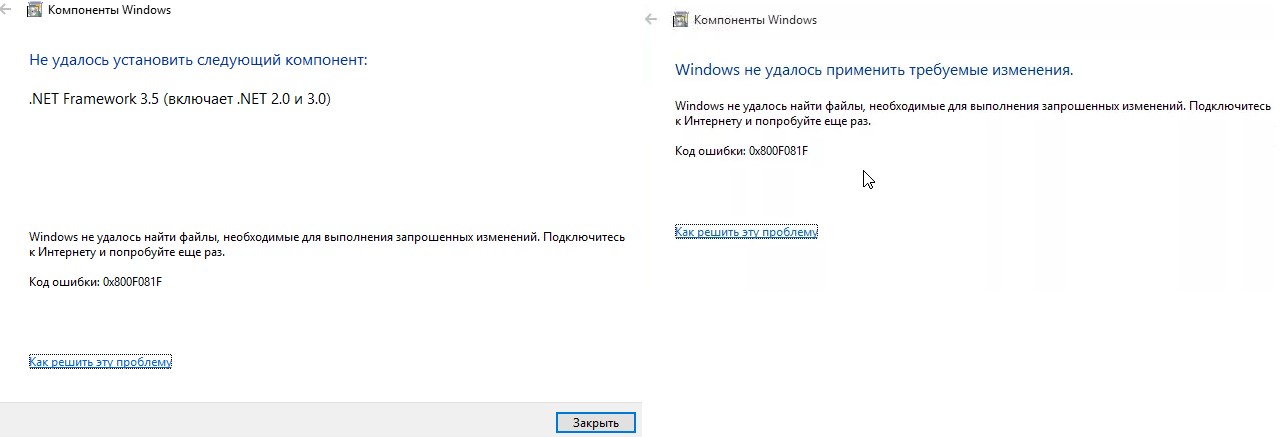
Что вызывает код ошибки 0x800F081F?
Код ошибки 0x800F081F является одним из четырех возможных кодов ошибок, которые указывают на одну и ту же проблему. Остальные три — это код ошибки 0x800F0906, код ошибки 0x800F0907 и код ошибки 0x800F0922. Несовместимость Microsoft .NET Framework 3.5 вызывает все эти коды ошибок. Как правило, они будут возникать при включении .NET Framework, используя либо мастер установки, DISM, либо команды Windows PowerShell.
Вы будете видеть эти коды только на Windows 10, Windows Server 2016, Windows Server версии 1709, Windows 8.1, Windows Server 2012 R2, Windows 8 и Windows Server 2012. В этих операционных системах Microsoft .NET Framework 3.5 не включен по умолчанию. Когда вы включаете эту функцию, Windows Update пытается захватить .NET-файлы вместе с другими необходимыми файлами. Если ваш компьютер настроен неправильно, то вы можете увидеть коды:
- 0x800F081F: Windows не смогла найти исходные файлы .NET для продолжения установки.
- 0x800F0906: Windows не смогла загрузить исходные файлы .NET и подключиться к Интернету, или установить роль службы или функцию.
- 0x800F0907: Сбой программы DISM, либо параметры сетевой политики не позволяют Windows подключаться к сети.
- 0x800F0922: Обработка .NET-инсталляторов или общих команд завершилась неудачно.
Как исправить коды ошибок 0x800F081F, 0x800F0906, 0x800F0907 или 0x800F0922 на Windows 10
К счастью, способы для исправления первых трех кодов ошибок одинаковы. Для кода ошибки 0x800F0922 вам нужно перейти прямо к способу 2.

1. Настройка групповой политики
Примечание: Редактор групповой политики доступен только в Windows 10 Pro, Enterprise и Education. К счастью, есть обходной путь. Вы можете ознакомиться с руководством по доступу к редактору групповой политики в Windows 10 Home.
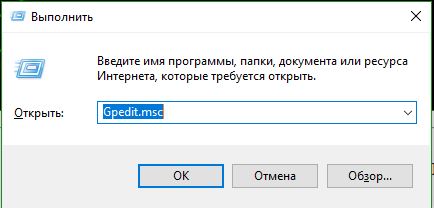
Нажмите Windows+R, затем введите gpedit.msc и нажмите Enter. Команда откроет окно редактора групповой политики.
Далее перейдите «Конфигурация компьютера» > «Административные шаблоны» > «Система». С правой стороны прокрутите немного вниз и найдите «Укажите параметры для установки необязательных компонентов и восстановления компонентов.»
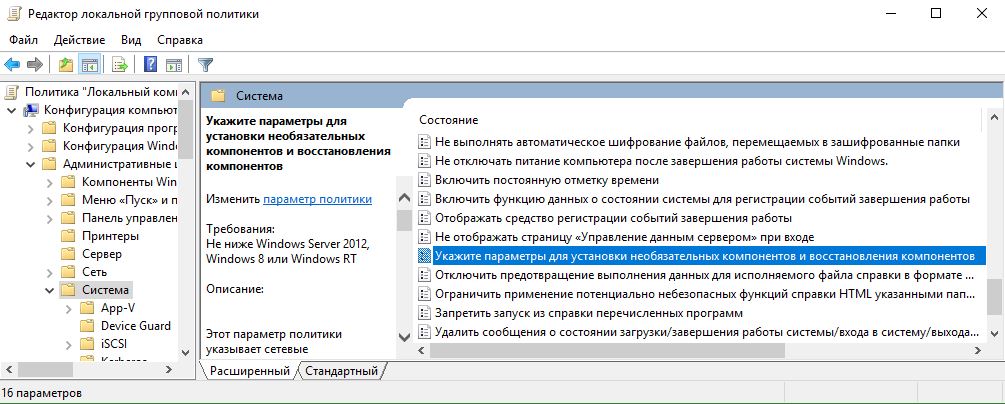
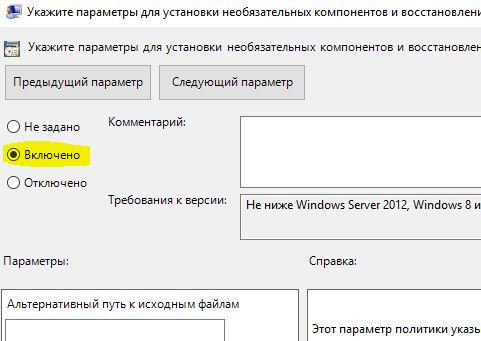
Теперь нажмите по этому слову два раза мышкой, чтобы открыть «настройки». Далее в новом окне Вам нужно поставить точку на «Включено«. Далее перейдите в центр обновления Windows 10 и обновите систему. Это установит необязательные обновления с недостающими компонентами.
2. Включение .NET Framework с помощью команды DISM
Примечание: Это единственный метод, который исправит код ошибки 0x800F0922, и требует для этого использование команды DISM для включения .NET Framework.
Прежде чем начать основной процесс, вам сначала нужно убедиться, что у вас есть образ ISO Windows 10. Версия ISO должна точно соответствовать вашей текущей операционной системе. Вы можете скачать Windows официально специальным средством. Скачали ISO образ? Тогда приступим.
Для начала вам нужно смонтировать недавно загруженный образ ISO. Откройте проводник (этот компьютер), найдите свой скачанный ISO образ и нажмите на нем правой кнопкой мыши, и выберите в меню «Подключить«. Таким образом мы создадим виртуальный диск с Windows 10.
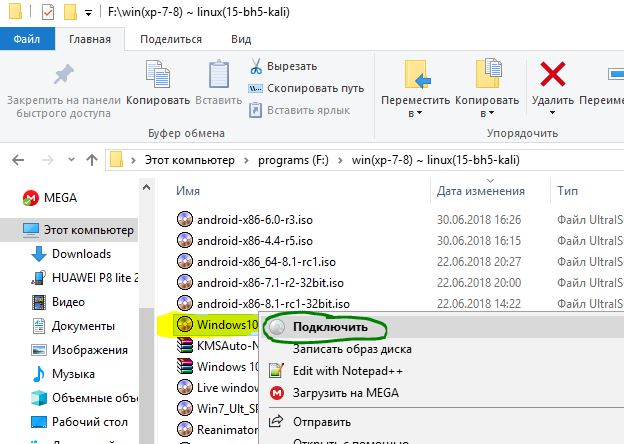
Если процесс был успешным, вы увидите ISO Windopws 10 на виртуальном диске, открыв «Этот компьютер». Запомните имя диска, в моем случае это G.

Теперь откройте «меню пуск» и введите в поиск cmd. Когда вы увидите список результатов, щелкните правой кнопкой мыши Командная строка и выберите Запуск от имени администратора.
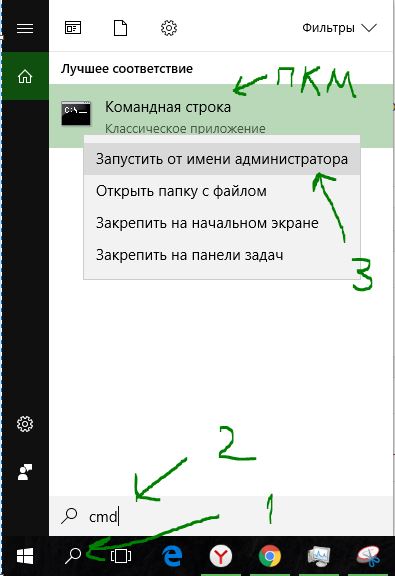
В окне командной строке задайте следующую команду и перезагрузите ПК:
dism /online /enable-feature /featurename:NetFx3 /All /Source:G:sourcessxs /LimitAccess
Если выше команда не помогла, то вводим следующeю команду и перезагружаем ПК:
DISM /Online /Enable-Feature /FeatureName:NetFx3 /All /LimitAccess

После окончания процесса с командной строкой, откройте «Этот компьютер» и нажмите правой кнопкой мыши на виртуальном созданном диске, и в меню выберите «Извлечь«. Таким образом мы удалим созданный ранее наш виртуальный диск с Windows 10, чтобы не мешал. Он нам больше не нужен.

Переустановить Microsoft .NET Framework 3.5
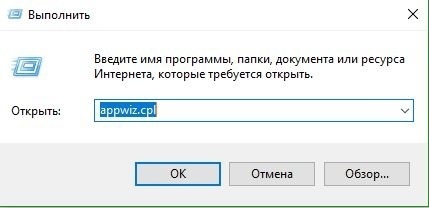
После того, как вы успешно выполнили инструкции, пришло время установить .NET Framework 3.5, чтобы исправить ошибки 0x800F081F и связанных с ним кодов. Нажмите Win+R и введите appwiz.cpl.
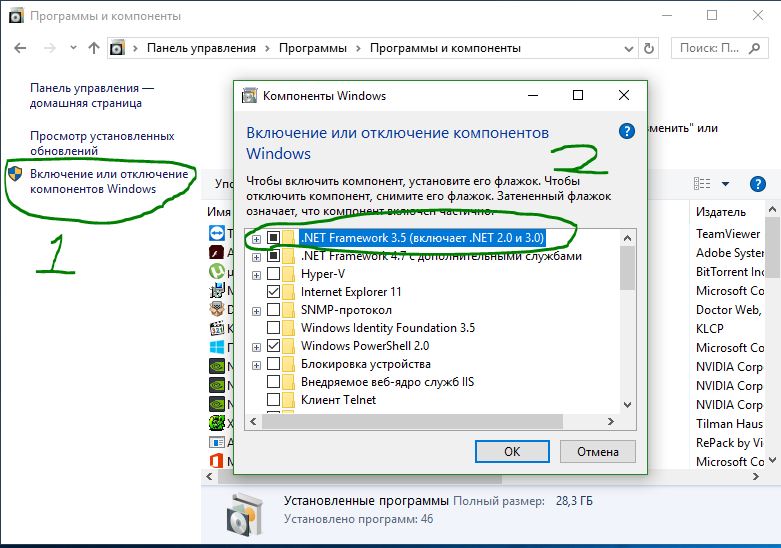
Нажмите слева «Включение и отключение компонентов«. В новом окне найдите в списке NET Framework 3.5 (включая .NET 2.0 и 3.0) и установите рядом с ним флажок, после чего нажмите OK. Процесс установки займет несколько минут, в зависимости от скорости вашего соединения. Проверьте устранена ли ошибка 0x800F081F.
Смотрите еще:
- Как исправить ошибку 0x80070017 в Windows 10
- Windows Media Creation Tool: Код ошибки 0x80072F76-0x20017
- Как исправить ошибку 0xc000014c в Windows 10
- 0x80070422 Проблемы с установкой обновлений Windows 10
- Ошибка 0x80070643: Не удалось установить обновления Windows 10
[ Telegram | Поддержать ]
На чтение 4 мин. Просмотров 1.1k. Опубликовано 03.09.2019
В этой статье мы сосредоточимся на многих распространенных ошибках .NET Framework 3.5 и на том, как их исправить. .NET Framework – это программная среда от Microsoft. Версия 3.5 .NET, выпущенная в 2007 году, является основным выпуском этой платформы и до сих пор широко используется во многих приложениях.
Содержание
- Распространенные ошибки .NET Framework 3.5
- Исправить .NET Framework ошибки 0x800F0906, 0x800F081F и 0x800F0907
- Исправить .NET Framework код ошибки 0x800F0922
- Исправить .NET код ошибки 0x80071A91
Распространенные ошибки .NET Framework 3.5
Исправить .NET Framework ошибки 0x800F0906, 0x800F081F и 0x800F0907
.NET Framework 3.5 не встроен в Windows 10; Вы должны установить его вручную. Существует вероятность того, что вы встретите этот набор кодов ошибок при попытке установить среду.
Чтобы исправить эти коды ошибок, необходимо выполнить следующие шаги:
-
Загрузите инструмент для создания Windows Media, который поможет вам загрузить Windows 10 ISO.
- Используйте Средство создания Windows Media , чтобы создать ISO-образ Windows 10 локально.
-
После завершения загрузки смонтируйте ISO-файл, дважды щелкнув по нему.
-
Запустите Редактор локальной групповой политики или Консоль управления групповой политикой : самый простой способ сделать это – открыть Командную строку (CMD) как администратор и введите gpedit .

-
Когда откроется, разверните папку Административный шаблон справа и нажмите Система .

-
Прокрутите вниз, пока не найдете параметр Задать параметры для дополнительной установки компонента и восстановления компонента , и дважды щелкните его.

-
Откроется окно. Справа вы увидите три варианта, по умолчанию выбран Отключен . Измените его на Включено . Кроме того, в разделе Альтернативный путь к исходному файлу вставьте адрес ‘sources/sxs’ ISO-образа, который вы смонтировали на шаге 3. После этого нажмите кнопку «ОК».

-
Запустите команду gpupdate/force в CMD с правами администратора,
- Проблема должна быть исправлена, и вы сможете снова установить .NET Framework 3.5 без проблем.
Читайте также: Как установить .NET Framework в Windows 10.
Исправить .NET Framework код ошибки 0x800F0922
Еще одна из распространенных ошибок .NET Framework 3.5. Эта ошибка возникает при обновлении Windows 10, и .NET начинает работать неожиданно. Вы можете исправить это, выполнив следующие действия:
- Загрузите и смонтируйте Windows 10 ISO перед продолжением (это можно сделать, выполнив шаги 1, 2 и 3 из предыдущего исправления).
- Откройте смонтированный ISO и перейдите в папку Источники .
- Там должна быть папка с именем sxs . Скопируйте папку в другое место на вашем компьютере. Например, в этом руководстве мы скопируем его в папку Documents .
-
Нажмите правой кнопкой мыши на скопированную папку и выберите Свойства в раскрывающемся меню.

-
Когда откроется окно Свойства , перейдите на вкладку Безопасность . Выберите свое имя пользователя в поле Группа или имена пользователей ; проверьте, есть ли галочка рядом с надписями Читать и Запись в разделе Разрешения для [. > Ваше имя пользователя ] .

-
Если вы не нашли галочки, нажмите кнопку Изменить , выберите свое имя пользователя и проверьте Чтение и Запись коробка.
- Откройте командную строку и введите в этой команде «dism/online/enable-feature/featurename: netfx3/all/source: [путь]/limitaccess» . Вам следует заменить [путь] на путь к папке sxs на вашем компьютере.
- Последний шаг – запустить эту команду, «dism/online/Cleanup-Image/RestoreHealth» .
Исправить .NET код ошибки 0x80071A91
Это загадочная ошибка, причины которой неясны. Вы можете попробовать один из следующих двух способов исправить это.
Первый метод заключается в удалении .NET Framework 3.5 и установке . Вы можете сделать это, выполнив следующие действия:
- Нажмите правой кнопкой мыши на кнопку Пуск и выберите Программы и компоненты из списка.
-
Нажмите Включить или выключить функции Windows, вы найдете его справа, и откроется новое окно. Вы должны найти элемент с именем .NET Framework 3.5 (включая .NET 2.0 и 3.0), отменить его выбор и дождаться завершения операции. После этого перезагрузите компьютер.

- После перезапуска выполните те же шаги, чтобы установить его снова, и у вас не должно возникнуть никаких проблем.
Второй способ – ввод трех команд в командную строку с правами администратора:
- Dism/Online/Cleanup-Image/CheckHealth
- Dism/Online/Cleanup-Image/ScanHealth
- Dism/Online/Cleanup-Image/RestoreHealth
Эти команды должны решить проблему, если нет, попробуйте объединить оба метода, применяя их последовательно.
Это был список наиболее распространенных ошибок .NET Framework 3.5 , с которыми вы столкнетесь при использовании Windows 10. Мы надеемся, что возникла ошибка, которую вы искали. Сообщите нам в разделе комментариев, сработало ли это для вас, или если есть другая ошибка, о которой вы хотите сообщить.
Совсем никак не хочет ставиться.
что я пробовал:
1) Стандартный подход, через добавление ролей. указывал альтернативный путь к файлам дистрибутивов. Файлы на установочном диске windows server 2012 r2 standart.
2) Через PowerShell командой Install-WindowsFeature Net-Framework-Core -source D:sourcessxs (D это диск с дистрибутивом)
Получил ошибку
Install-WindowsFeature : The request to add or remove features on the specified server failed.
Installation of one or more roles, role services, or features failed. Error: 0x800f0907
At line:1 char:1
+ Install-WindowsFeature Net-Framework-Core -source D:sourcessxs
+ ~~~~~~~~~~~~~~~~~~~~~~~~~~~~~~~~~~~~~~~~~~~~~~~~~~~~~~~~~~~~~~~~
    + CategoryInfo          : InvalidOperation: (@{Vhd=; Credent...Name=localhost}:PSObject) [Install-WindowsFeature],
    Exception
    + FullyQualifiedErrorId : DISMAPI_Error__Failed_To_Enable_Updates,Microsoft.Windows.ServerManager.Commands.AddWind
   owsFeatureCommand
3) Через PowerShell командой Add-WindowsFeature NET-Framework-Core -Source d:sourcessxs
Получил ошибку но несколько иную:
Add-WindowsFeature : The request to add or remove features on the specified server failed.
Installation of one or more roles, role services, or features failed.
The source files could not be downloaded.
Use the "source" option to specify the location of the files that are required to restore the feature. For more
information on specifying a source location, see http://go.microsoft.com/fwlink/?LinkId=243077. Error: 0x800f0906
At line:1 char:1
+ Add-WindowsFeature NET-Framework-Core -Source d:sourcessxs
+ ~~~~~~~~~~~~~~~~~~~~~~~~~~~~~~~~~~~~~~~~~~~~~~~~~~~~~~~~~~~~
    + CategoryInfo          : InvalidOperation: (@{Vhd=; Credent...Name=localhost}:PSObject) [Install-WindowsFeature],
    Exception
    + FullyQualifiedErrorId : DISMAPI_Error__Cbs_Download_Failure,Microsoft.Windows.ServerManager.Commands.AddWindowsF
   eatureCommand
4) через командную строку командой
C:Windowssystem32>dism /online /enable-feature /featurename:NetFX3 /all /Source:D:sourcessxs /LimitAccess
тоже закончилось ничем
Deployment Image Servicing and Management tool
Version: 6.3.9600.17031

Image Version: 6.3.9600.17031

Enabling feature(s)
[===========================66.2%======                    ]

Error: 0x800f081f

The source files could not be found.
Use the "Source" option to specify the location of the files that are required t
o restore the feature. For more information on specifying a source location, see
 http://go.microsoft.com/fwlink/?LinkId=243077.

The DISM log file can be found at C:WindowsLogsDISMdism.log
5) так же прописывал в локальной групповой политике значение параметра «Specify settings for optional component installation and component repair» с указанием пути к файлам дистрибутивов и запретом качать что либо из интернета.
пробовал два разных дистрибутива windows, английскую и русскую версии.
в общем на текущий момент я в тупике…
-
Changed type
Thursday, February 8, 2018 11:09 AM
Пользователи операционной системы Windows вынуждены периодически вступать в борьбу с всевозможными ошибками и системными сбоями, возникающими по различным причинам. С выходом 10 версии, несмотря на её регулярные кумулятивные обновления, призванные устранить имеющиеся ошибки и баги, в том числе залатать дыры в системе безопасности, проблем меньше не стало. Среди множества неприятностей, с которыми пришлось столкнуться пользователям, нередким явлением стала ошибка 0x800f081f, возникающая в процессе установки патчей для Десятки. Сбой, сопровождающийся соответствующим сообщением с указанием кода и некоторых деталей, прерывает процедуру, при этом повторное обновление ситуацию не исправляет. Присутствие ошибки с тем же кодом характерно и при установке .NET Framework 3.5, хотя природа сбоев, соответственно и способ устранения будут отличаться.

Методы устранения ошибки 0x800f081f при обновлении Windows.
Код ошибки 0x800F081F является одним из четырех возможных кодов ошибок, которые указывают на одну и ту же проблему. Остальные три — это код ошибки 0x800F0906, код ошибки 0x800F0907 и код ошибки 0x800F0922. Несовместимость Microsoft .NET Framework 3.5 вызывает все эти коды ошибок. Как правило, они будут возникать при включении .NET Framework, используя либо мастер установки, инструмент обслуживания изображений и управления развертыванием (DISM), либо команды Windows PowerShell.
Вы будете видеть эти коды только на Windows 10, Windows Server 2016, Windows Server версии 1709, Windows 8.1, Windows Server 2012 R2, Windows 8 и Windows Server 2012. В этих операционных системах Microsoft .NET Framework 3.5 не включен по умолчанию. Когда вы включаете эту функцию, Windows Update пытается захватить .NET-файлы вместе с другими необходимыми файлами. Если ваш компьютер настроен неправильно, то вы можете увидеть коды:
- 0x800F081F: Windows не смогла найти исходные файлы .NET для продолжения установки.
- 0x800F0906: Windows не смогла загрузить исходные файлы .NET и подключиться к Интернету, или установить роль службы или функцию.
- 0x800F0907: Сбой программы DISM, либо параметры сетевой политики не позволяют Windows подключаться к сети.
- 0x800F0922: Обработка .NET-инсталляторов или общих команд завершилась неудачно.
Решение проблем с установкой
Мы постарались собрать все самые верные решения, отмеченные пользователями популярных форумов и ресурсов. Итак, приступим.
Как показали многие отзывы – повторное скачивание нового пакета фреймворка с официального сайта не помогает. Также, решение которое описывается на официальном форуме мало кому помогает и является достаточно запутанным.
Проверка подключенных компонентов
Для начала проверьте, присутствует ли по умолчанию в системе фреймворк версии 3.5. Возможно его потребуется просто активировать.
- Кливаем по значку “Меню Пуск” правой кнопкой и сверху жмем на “Программы и компоненты”.
- В данной директории просматриваем боковое меню, там кликаем на “Включение или отключение компонентов”. Опция должна запускаться из-под админа.
- В приведенном окошке ставим галочку напротив .NET Framefork 3.5 и двух его подпунктов.

Проверка компонентов Windows 10
Далее запустится процесс активации. После активируем повторную установку и смотрим – исчезла ли проблема.
Проверяем службы обновления Windows 10
Частенько код ошибки появляется при попытке запустить игру, либо другое приложение. В таком случае причиной могут быть неактивные службы апдейтов. Проверьте следующее:
- Через пуск заходим в “Выполнить”, прописываем команду services.msc. Тем самым вы попадете в список всех служб.
- Внизу будет Центр обновлений Windows, через правую кнопку проходим в свойства. Во вкладке “Тип запуска” клацаем Автоматически. Чуть ниже в Состоянии кликаем “Запустить”.

Активируем службу обновления
Офлайн инсталлер
Как вариант можно опробовать применение оффлайн инсталлера .NET Framefork 3.5. Он в принудительном порядке загрузит компоненты в системе. Вот ссылка на скачивание его файлов – загрузить инсталлер. Далее делаем по-пунктам:
- Распаковываем на Рабочем столе загруженный архив.
- Там будут три файла – папку Sources просто перенесите на диск C. Возможно выйдет уведомление о замене – подтверждаем.
- Далее активируйте инсталятор: выберите диск системы C: и кликайте Install.

Применение оффлайн инсталлера
Сторонние образы
Если проблема выглядит как DISM ошибка 0x800F081F (или 0x800F0906) “Не удалось найти исходные файлы”, то действенным вариантом будет применение внешнего носителя с образом системы Windows 10 (диск, флешка).
- Монтируем образ. Запоминаем букву присвоенного раздела.
- Выполняем Командную строку и записываем туда следующую активацию: и клацаем Enter.

Выполняем DISM команду со встроенного образа
Как исправить коды ошибок 0x800F081F, 0x800F0906, 0x800F0907 или 0x800F0922 на Windows 10
К счастью, способы для исправления первых трех кодов ошибок одинаковы. Для кода ошибки 0x800F0922 вам нужно перейти прямо к способу 2.
Способ 1. Настройка групповой политики
Примечание. Редактор групповой политики доступен только в Windows 10 Pro, Enterprise и Education. К счастью, есть обходной путь. Вы можете ознакомиться с руководством по доступу к редактору групповой политики в Windows 10 Home.
1. Нажмите Windows + R, затем введите gpedit.msc и нажмите Enter. Команда откроет окно редактора групповой политики.

2. Далее перейдите Конфигурация компьютера > Административные шаблоны > Система. С правой стороны прокрутите немного вниз и найдите «Укажите параметры для установки необязательных компонентов и восстановления компонентов.»

3. Теперь нажмите по этому слову два раза мышкой, чтобы открыть «настройки». Далее в новом окне Вам нужно поставить точку на «Включено«. Если ошибка не устранена

Способ 2. Включение .NET Framework с помощью команды DISM
Примечание. Это единственный метод, который исправит код ошибки 0x800F0922, и требует для этого использование команды DISM для включения .NET Framework.
1. Прежде чем начать основной процесс, вам сначала нужно убедиться, что у вас есть образ ISO Windows 10. Версия ISO должна точно соответствовать вашей текущей операционной системе. Вы можете официально специальным средством. Скачали ISO образ? Тогда приступим.
2. Для начала вам нужно смонтировать недавно загруженный образ ISO. Откройте проводник (этот компьютер), найдите свой скачанный ISO образ и нажмите на нем правой кнопкой мыши, и выберите в меню «Подключить«. Таким образом мы создадим виртуальный диск с Windows 10.

3. Если процесс был успешным, вы увидите ISO Windopws 10 на виртуальном диске, открыв «Этот компьютер». Запомните имя диска, в моем случае это G.

4. Теперь откройте «меню пуск» и введите в поиск cmd. Когда вы увидите список результатов, щелкните правой кнопкой мыши Командная строка и выберите Запуск от имени администратора.
5. В окне командной строки задайте следующую команду dism /online /enable-feature /featurename:NetFx3 /All /Source:G:sourcessxs /LimitAccess и нажмите Enter.

6. После окончания процесса с командной строкой, откройте «Этот компьютер» и нажмите правой кнопкой мыши на виртуальном созданном диске, и в меню выберите «Извлечь«. Таким образом мы удалим созданный ранее наш виртуальный диск с Windows 10, чтобы не мешал. Он нам больше не нужен. Перезагрузите ПК и проверьте, устранена ли ошибка.

Воспользуйтесь средством DISM
DISM – это инструмент Windows, который подготавливает пакеты к установке и предоставляет им поддержку во время установки. Он является чем-то вроде менеджера обновлений в операционной системе.
Далее выполните следующие указания:
- Откройте меню « Пуск » ПКМ и выберите командную строку.
- В ней запишите без ошибок строку « DISM /Online/Cleanup-Image /RestoreHealth /source:WIM:G:SourcesInstall.wim:1 /LimitAccess ».
- После чего необходимо ввести следующую команду здесь же « DISM /Online /cleanup-image /restorehealth ».
- Далее закройте открытые окна и программы и перезагрузите ваш ПК .
- Повторите попытку запуска необходимой вам программы.
Если проблема не исчезла, и ошибка 0x800f081f продолжает появляться, в этом случае мы воспользуемся еще одним способом восстановить работоспособность вашей операционной системы.
Для этого метода вам понадобиться флешка с Windows или установочный диск.
Выполните пошаговую инструкцию.
| Перезапустите ваш компьютер и выполните загрузку со съемного диска | Для этого зайдите в BIOS и во вкладке BOOT , в приоритетах загрузки укажите ваш съемный носитель |
| После того, как ОС загрузится, перейдите в командную строку | Для этого кликните ПКМ по меню « Пуск » и выберите нужный пункт |
| Далее введите следующую команду в пустой строке « dism.exe /online /enable-feature /reaturename:NetFX3 /Source:C:sourcessxs /LimitAccess » | Как можно догадаться, диск необходимо указывать тот, на котором установлена ваша операционная система |
| После этой команды проверьте ваши файлы на поврежденные , запустив специальную утилиту « sfc /scannow » | Она проверит все ваши файлы, хранящиеся на жестком диске на ошибки и целостность |
| Далее выйдите из системы, установив загрузку с вашего жесткого диска | Переустановите проблемную программу и повторите запуск. В этот раз проблем быть не должно |
Если ошибка с системным кодом 0x800f081f, связанная с Net Framework 3.5 снова появляется в вашей новенькой Windows 10 – попробуйте применить кардинальный метод – вернуть компьютер в исходное состояние. Если вы не знаете, как это сделать – можно прочитать инструкцию на официальном сайте Microsoft.
Переустановить Microsoft .NET Framework 3.5
После того, как вы успешно выполнили инструкции, пришло время установить .NET Framework 3.5, чтобы исправить ошибки 0x800F081F и связанных с ним кодов.
1. Нажмите Win + R и введите appwiz.cpl.

2. Нажмите слева «Включение и отключение компонентов«. В новом окне найдите в списке NET Framework 3.5 (включая .NET 2.0 и 3.0) и установите рядом с ним флажок, после чего нажмите OK. Процесс установки займет несколько минут, в зависимости от скорости вашего соединения. Проверьте устранена ли ошибка 0x800F081F.

Смотрите еще:
- Как исправить ошибку 0x80070017 в Windows 10
- Windows Media Creation Tool: Код ошибки 0x80072F76-0x20017
- Как исправить ошибку 0xc000014c в Windows 10
- 0x80070422 Проблемы с установкой обновлений Windows 10
- Ошибка 0x80070643: Не удалось установить обновления Windows 10
comments powered by HyperComments
( 1 оценка, среднее 5 из 5 )
| title | description | ms.date | helpviewer_keywords | ms.assetid | ||
|---|---|---|---|---|---|---|
|
Troubleshoot blocked .NET Framework installations and uninstallations |
Troubleshoot issues you encounter that prevent installation of the .NET Framework. Consult status messages for information to resolve issues. |
04/18/2019 |
|
c3fdfbc1-ed99-4202-a2b0-8c4f1646385d |
Troubleshoot blocked .NET Framework installations and uninstallations
When you run the web or offline installer for the .NET Framework 4.5 or later versions, you might encounter an issue that prevents or blocks the installation of the .NET Framework. The following table lists possible blocking issues and provides links to troubleshooting information.
In Windows 8 and above, the .NET Framework is an operating system component and cannot be independently uninstalled. Updates to the .NET Framework appear in the Installed Updates tab of the Control Panel Programs and Features app. For operating systems on which the .NET Framework is not preinstalled, the .NET Framework appears in the Uninstall or change a program tab (or the Add/Remove programs tab) of the Program and Features app in Control Panel. For information on the Windows versions on which the .NET Framework is preinstalled, see System Requirements.
[!IMPORTANT]
Because the 4.x versions of the .NET Framework are in-place updates, you cannot install an earlier version of the .NET Framework 4.x on a system that already has a later version installed. For example, on a system with Windows 10 Fall Creators Update, you cannot install the .NET Framework 4.6.2, since the .NET Framework 4.7.1 is preinstalled with the operating system.
You can determine which versions of the .NET Framework are installed on a system. See How to: Determine Which .NET Framework Versions Are Installed for more information.
In this table, 4.5.x refers to the .NET Framework 4.5 and its point releases, 4.5.1, and 4.5.2, 4.6.x refers to the .NET Framework 4.6 and its point releases, 4.6.1 and 4.6.2, 4.7.x refers to the .NET Framework 4.7 and its point releases, 4.7.1 and 4.7.2, and 4.8.x refers to .NET Framework 4.8 and 4.8.1.
| Blocking message | For more information or to resolve the issue |
|---|---|
| Uninstalling the Microsoft .NET Framework may cause some applications to cease to function. | In general, you should not uninstall any versions of the .NET Framework that are installed on your computer, because an application you use may depend on a specific version of the .NET Framework. For more information, see The .NET Framework for users in the Getting Started guide. |
| .NET Framework 4.5.x/4.6.x/4.7.x (ENU) or a later version is already installed on this computer. | No action necessary.
To determine which versions of the .NET Framework are installed on a system, see How to: Determine Which .NET Framework Versions Are Installed. |
| The .NET Framework 4.5.x/4.6.x/4.7.x/4.8.x (language) requires the .NET Framework 4.5.x/4.6.x/4.7.x/4.8.x. Please install the .NET Framework 4.5.x/4.6.x/4.7.x/4.8.x from the Download Center and rerun Setup. | You must install the English version of the specified .NET Framework release before installing a language pack. For more information, see the section on To install language packs in the installation guide. |
| Cannot install the .NET Framework 4.5.x/4.6.x/4.7.x/4.8.x. Other applications on your computer are not compatible with this program.
-or- Other applications on your computer are not compatible with this program. |
The most likely cause of this message is that a preview or RC version of the .NET Framework was installed. Uninstall the preview or RC version and rerun Setup. |
| .NET Framework 4.5.x/4.6.x/4.7.x/4.8.x cannot be uninstalled using this package. To uninstall .NET Framework 4.5.x/4.6.x/4.7.x/4.8.x from your computer, go to Control Panel, choose Programs and Features, choose View installed updates, select Update for Microsoft Windows (KB2828152) and then choose Uninstall. | The package you are installing doesn’t uninstall preview or RC releases of the .NET Framework.
Uninstall the preview or RC release from Control Panel. |
| Cannot uninstall the .NET Framework 4.5.x/4.6.x/4.7.x/4.8.x. Other applications on your computer are dependent on this program. | In general, you shouldn’t uninstall any versions of the .NET Framework from your computer, because an application you use may depend on a specific version of the .NET Framework. For more information, see The .NET Framework for users in the Getting Started guide. |
| The .NET Framework 4.5.x/4.6.x/4.7.x/4.8.x redistributable does not apply to this operating system. Please download the .NET Framework 4.5.x/4.6.x/4.7.x/4.8.x for your operating system from the .NET Framework download page. | You may be trying to install .NET Framework 4.5.1, 4.5.2, 4.6, 4.6.1, 4.6.2, 4.7, 4.7.1, 4.7.2, or 4.8.x on a platform that isn’t supported, or you have chosen the installation package that does not include the components for all supported operating systems. Run the installation again by using the offline installer (for 4.5.1, for 4.5.2, for 4.6, for 4.6.1, for 4.6.2, for 4.7), for 4.7.1, for 4.7.2, for 4.8, or for 4.8.1. For more information, see the installation guide and system requirements for supported operating systems. |
| The update corresponding to KB<number> needs to be installed before you can install this product. | Installation of the .NET Framework requires that a KB update be installed before installing the .NET Framework. Install the update, and then begin the .NET Framework installation again.
For example, installation of updated versions of the .NET Framework on Windows 8.1, Windows RT 8.1, and Windows Server 2012 R2 requires that the update corresponding to KB 2919355 be installed. |
| Your computer is currently running a Server Core installation of the Windows Server 2008 operating system. The .NET Framework 4.5.x requires a later release of the operating system. Please install Windows Server 2008 R2 SP1 or higher and rerun .NET Framework 4.5.x setup. | The .NET Framework 4.5.1 and 4.5.2 are supported in the Server Core role with Windows Server 2008 R2 SP1 or later. See System Requirements. |
| You do not have sufficient privileges to complete this operation for all users of this computer. Log on as an administrator and rerun Setup. | You must be an administrator on the computer to install the .NET Framework. |
| Setup cannot continue because a previous installation requires your computer to be restarted. Please restart your computer and rerun Setup. | A restart is sometimes required to fully complete an installation. Follow the instructions to restart your computer and rerun Setup.
In rare cases, you may be asked to restart your system more than once if Windows has detected a number of missing updates and is restarting to install the next update in the queue. |
| .NET Framework Setup cannot be run in Program Compatibility Mode. | See the Program Compatibility Issues section later in this article. |
| .NET Framework 4.5.x/4.6.x/4.7.x/4.8.x has not been installed because the component store has been corrupted. | See Fix Windows Update errors by using the DISM or System Update Readiness tool for more information. |
| Setup cannot run because the Windows Installer Service is not available on this computer. | See «The Windows Installer Service Could Not Be Accessed» error when you try to install a program in Windows 7 or Windows Vista on the Microsoft Support website. |
| Setup may not run properly because the Windows Update Service is not available on this computer. | The computer may be configured to use Windows Server Update Services (WSUS) instead of Microsoft Windows Update. For more information, see the section for error code 0x800F0906 in .NET Framework 3.5 installation error: 0x800F0906, 0x800F081F, 0x800F0907.
Also see How to update the Windows Update Agent to the latest version on the Microsoft Support website. |
| Setup may not run properly because the Background Intelligent Transfer Service (BITS) is not available on this computer. | See An update is available to fix a Background Intelligent Transfer Service (BITS) crash on a Windows Vista-based computer on the Microsoft Support website. |
| Setup may not run properly because Windows update encountered an error and displayed error code 0x80070643 or 0x643. | See .NET Framework update installation error: «0x80070643» or «0x643» on the Microsoft Support website. |
| The .NET Framework 4.5.x/4.6.x/4.7.x/4.8.x is already a part of this operating system. You do not need to install the .NET Framework 4.5.x/4.6.x/4.7.x/4.8.x redistributable. | No action.
To determine which versions of the .NET Framework are installed on a system, see How to: Determine Which .NET Framework Versions Are Installed. See System Requirements for supported operating systems. |
| The .NET Framework 4.5.x/4.6.x/4.7.x/4.8.x is not supported on this operating system. | See System Requirements for supported operating systems.
For failed installations of the .NET Framework on Windows 7, this message typically indicates that Windows 7 SP1 is not installed. On Windows 7 systems, the .NET Framework requires Windows 7 SP1. If you are on Windows 7 and have not yet installed Service Pack 1, you will need to do so before installing the .NET Framework. For information on installing Windows 7 SP1, see Learn how to install Windows 7 Service Pack 1 (SP1). |
| Your computer is currently running a Server Core installation of Windows Server 2008 operating system. The .NET Framework 4.5.x requires a full release of the operating system or Server Core 2008 R2 SP1. Please install the full version of Windows Server 2008 SP2 or Windows Server 2008 R2 SP1 or Server Core 2008 R2 SP1 and rerun .NET Framework 4.5.x Setup. | The .NET Framework is supported in the Server Core role with Windows Server 2008 R2 SP1 or later. See System Requirements. |
| The .NET Framework 4.5.x is already a part of this operating system but is currently turned off (Windows Server 2012 only). | Use Turn Windows features on or off in the Control Panel to turn on .NET Framework 4.5.x. |
| This setup program requires an x86 computer. It cannot be installed on x64 or IA64 computers. | See System Requirements. |
| This setup program requires x64 or x86 computer. It cannot be installed on IA64 computers. | See System Requirements. |
Program compatibility issues
The installation of the .NET Framework 4.5 or its point releases fails with a 1603 error code or blocks when it’s running in Windows Program Compatibility mode. The Program Compatibility Assistant indicates that the .NET Framework might not have been installed correctly and prompts you to reinstall it by using the recommended setting (Program Compatibility mode). Program Compatibility mode could also have been set by the Program Compatibility Assistant on earlier failed or canceled attempts to run the .NET Framework Setup.
The .NET Framework installer cannot run in Program Compatibility mode. To resolve this blocking issue, you must use Registry Editor to ensure that the compatibility mode setting is not enabled system-wide:
-
Choose the Start button, and then choose Run.
-
In the Run dialog box, type «regedit», and then choose OK.
-
In Registry Editor, browse to the following subkeys:
-
HKEY_CURRENT_USERSOFTWAREMicrosoftWindows NTCurrentVersionAppCompatFlagsCompatibility AssistantPersisted
-
HKEY_CURRENT_USERSOFTWAREMicrosoftWindows NTCurrentVersionAppCompatFlagsLayers
-
-
In the Name column, look for .NET Framework 4.5, 4.5.1, 4.5.2, 4.6, 4.6.1, 4.6.2, 4.7, 4.7.1, or 4.7.2 download names, depending on which version you are installing, and delete these entries. For download names, see Install the .NET Framework for developers article.
-
Rerun the .NET Framework installer for version 4.5, 4.5.1, 4.5.2, or 4.6, 4.6.1, 4.6.2, 4.7, 4.7.1, or 4.7.2.
See also
- Install the .NET Framework for developers
- How to: Determine Which .NET Framework Versions Are Installed
- Versions and Dependencies