Предупреждение «Код ошибки 004», которое игроки League of Legends видят на экране обновления, приносит много проблем. Если вы столкнулись с такой ошибкой, эта статья будет для вас руководством.
«Код ошибки 004», обнаруженный при обновлении на экране запуска League of Legends, приносит с собой множество ошибок, из-за которых игроки теряют терпение. Если вы столкнулись с такой ошибкой, вы можете найти решение, выполнив следующие действия.
Почему я получаю код ошибки League of Legends 004?
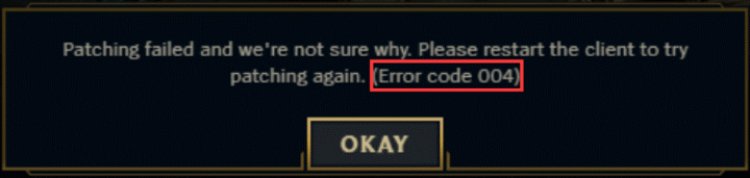
Основная причина, по которой вы можете столкнуться с какой-либо ошибкой при обновлении, может быть связана с нехваткой свободного места на установленном LoL диске. Для этого проверьте, есть ли у вас свободное место, зайдя на установленный диск LoL. Минимальный размер дискового пространства, который мы рекомендуем, составляет 30 ГБ. Другая проблема может быть связана с вашим интернетом. Внезапные отключения сети могут вызвать различные ошибки или сервер может быть недоступен. Это происходит так. Мы можем достичь решения проблемы, исследуя для вас и реализуя предложения, которые пользователи пробовали и нашли решение.
Как исправить код ошибки League of Legends 004?
Чтобы полностью избавиться от этого кода ошибки или различных кодов ошибок, мы можем выполнить следующие предложения.
1-) Запуск от имени администратора
Запуск от имени администратора, который является одним из методов решения, который мы используем по умолчанию, может предотвратить различные ошибки. Для этого запустим игру League of Legends от имени администратора и проверим, произошел ли процесс обновления.
2-) Проверьте дисковое пространство
Проверьте, есть ли у вас свободное место, зайдя на установленный диск League of Legends, как мы объяснили выше. Если у вас осталось менее 30 ГБ дискового пространства, вы можете освободить место, удалив ненужные программы.
3-) Выключите антивирусную систему
Любая антивирусная программа может заблокировать скачанный патч без причины. Вы можете продолжить процесс, отключив любую антивирусную программу, которую вы для этого используете. Вот что нам нужно сделать, чтобы остановить программу Защитника Windows;
- Откройте экран «Начать поиск», набрав «Защита от вирусов и угроз».
- Нажмите «Управление настройками» ниже.
- Отключаем постоянную защиту.
После этого процесса защита безопасности Защитника Windows будет отключена. Снова запустите игру League of Legends от имени администратора и попробуйте выполнить процесс обновления.
4-) Очистить кеш DNS
Если ни одно из приведенных выше предложений не помогло, мы можем решить проблему, очистив кеш DNS. Для этого;
- Введите cmd на начальном экране поиска и запустите от имени администратора.
- Введите команду ipconfig /flushdns в командной строке и нажмите клавишу ВВОД.
- После этого процесса он покажет, что ваш кеш DNS был успешно очищен.
- Затем введите команду сброса netsh winsock reset еще раз на экране командной строки и нажмите клавишу ВВОД.
После этого перезагрузите компьютер и запустите League of Legends от имени администратора.
5-) Используйте инструмент для ремонта Hextech Repair Tool
Мы можем избавиться от таких различных ошибок, используя инструмент восстановления Hextexh, разработанный Riot Games. Но мы не знаем, дает ли этот процесс окончательное решение. В конце концов, если они разработали такое приложение, почему оно не должно работать у нас?
- Загрузите инструмент для ремонта Hextech. Нажмите, чтобы скачать.
- Щелкните правой кнопкой мыши загруженное приложение Hextech и запустите его от имени администратора.
- После этого дождитесь завершения процесса установки.
- После того, как приложение Hextech будет установлено и открыто, выберите настройки, как на картинке ниже, и нажмите кнопку «Пуск».
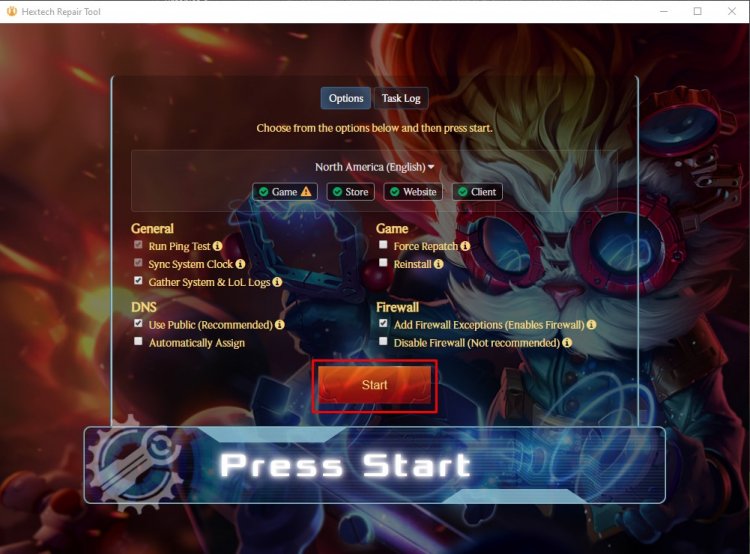
После этого перезагрузите компьютер и попробуйте войти в игру League of Legends.
На чтение 7 мин. Просмотров 191 Опубликовано 28.04.2021
League of Legends часто выдает пользователям код ошибки 004, когда клиент заявляет, что установка исправления не удалась. В сообщении об ошибке также говорится, что перезапуск игры может решить проблему. Исправление – это добавление в игру фрагментов кода для улучшения игрового процесса, исправления ошибок и введения новых функций. 
Код ошибки 004 может возникнуть у любого игрока при обновлении его League of Legends (LoL), и исправления довольно просты. В большинстве случаев проблема решается простым перезапуском игрового клиента и повторной попыткой исправления. Если простой перезапуск не работает, вы можете перейти к решениям, перечисленным ниже.
Содержание
- Что вызывает код ошибки 004 в League of Legends?
- Решение 1. Запуск игры от имени администратора
- Решение 2. Проверка места на жестком диске
- Решение 3: Проверка антивирусного программного обеспечения
- Решение 4. Удаление файлов конфигурации игры
- Решение 5. Использование Hextech Repair Tool
- Решение 6. Настройка DNS Google
Что вызывает код ошибки 004 в League of Legends?
Код ошибки 004 в League of Legends может возникать по ряду различных причин, поскольку он связан с обновлением/исправлением игры . Вот некоторые из них:
- В игре отсутствуют права администратора , и компьютер не позволяет устанавливать исправления.
- На вашем жестком диске недостаточно места . Для установки исправлений всегда требуется дополнительное пространство, чтобы можно было загрузить код и затем реализовать его.
- Установка игры повреждена , и ее необходимо исправить.
- игровой клиент неисправен и требует замены.
- Может быть антивирусное программное обеспечение который блокирует несколько действий, выполняемых игрой при загрузке патча и его установке. Сообщается, что Защитник/Брандмауэр Windows также вызывает проблемы.
- файлы конфигурации LoL повреждены и требуют замены. Файлы конфигурации уникальны для каждого пользователя, и если какой-либо из файлов не работает должным образом, вы можете столкнуться с проблемой.
- Отсутствует хорошее интернет-соединение или есть проблемы с DNS
Перед тем, как приступить к поиску решений, убедитесь, что у вас есть учетная запись администратора на вашем компьютере и подключение к Интернету, не принадлежащее какой-либо организации. Если вы используете подключение к Интернету за каким-либо брандмауэром или используете локальную сеть учреждения, вы можете столкнуться с этой проблемой, поскольку в этих случаях некоторые сетевые действия ограничены. Только после того, как вы убедитесь, что у вас открытое интернет-соединение, продолжайте.
Решение 1. Запуск игры от имени администратора
Прежде чем мы попробуем что-нибудь техническое, вам следует попытаться запустить игру от имени администратора. Сделайте это, даже если вы вошли в систему как администратор. Windows ужесточила ограничения на то, что сторонние приложения могут делать с ограниченными разрешениями. Следовательно, в некоторых случаях исправление не удается просто потому, что у него нет прав администратора.
- Щелкните правой кнопкой мыши средство запуска игры и выберите Свойства .
- В свойствах щелкните вкладку Совместимость и отметьте параметр Запустить эту программу как администратор .

- Нажмите Применить , чтобы сохранить изменения и выйти. Теперь попробуйте снова запустить игру и посмотрите, решена ли проблема. Вы даже можете попробовать запустить игру в режиме совместимости и посмотреть, не изменится ли это.
Решение 2. Проверка места на жестком диске
Еще одна важная причина, по которой установка исправлений может завершиться неудачно, потому что на вашем жестком диске, где установлено приложение, мало места. Это обычное явление, потому что большинство пользователей устанавливают игру на свой локальный диск C, и поскольку он уже завис, может быть нехватка места.

Нажмите Windows + E , чтобы запустить проводник, и нажмите This-PC на левой панели навигации. Теперь проверьте информацию под каждым диском, достаточно ли места. Если это не так, вы можете очистить ненужные файлы и удалить лишние программы, а затем снова попробовать установить исправление после перезагрузки вашего компьютера.
Решение 3: Проверка антивирусного программного обеспечения
Как указано в причинах, антивирусное программное обеспечение, как известно, вызывает проблемы при установке исправлений в игру. Поскольку установка исправлений включает загрузку дополнительного программного обеспечения, и после изменения существующей установки выполняется слияние кода. Если ваш антивирус считает это угрозой или ложным срабатыванием , вы не сможете выполнить ни одно из этих действий.

Вы можете проверить нашу статью Как выключить антивирус и временно выключить антивирусное программное обеспечение. Если отключение антивируса работает, вы можете добавить исключение и снова включить его. Обратите внимание, что помимо стороннего антивирусного программного обеспечения, Защитник/брандмауэр Windows также может вызывать проблемы. Некоторые известные антивирусы включают AVG Free .
Решение 4. Удаление файлов конфигурации игры
Если все три решения не работают, вы можете попробовать удалить файлы конфигурации игры. Эти файлы конфигурации содержат настройки, с которыми игра проверяет перед загрузкой. Это тип временного хранилища настроек, которые требуются игре при загрузке.
Известно, что файлы конфигурации время от времени портятся или выходят из строя. Мы попытаемся удалить файлы конфигурации и посмотреть, решит ли это проблему.
- Откройте Riot Games из каталога, в котором он установлен, и после открытия League of Legends откройте папку Config .

- Теперь удалите запись ‘ game.cfg ‘. Вы даже можете вырезать и вставить его в другое место, чтобы заменить его, если что-то пойдет не так.

- Теперь вернитесь в главный каталог League of Legends и перейдите к RADS> projects> league_client> Release . Удалите папку с последней версией.

- Теперь закройте окно и запустить игру с помощью лаунчера. Желательно в качестве администратора.
Решение 5. Использование Hextech Repair Tool
Hextech является издателем League of Legends и, как и многие другие издатели, он также содержит инструмент восстановления, который можно использовать для исправления неточностей в игре или в клиенте. Механизм восстановления выполнит поиск по всем уже установленным модулям и сравнит их свойства с главным манифестом. Если что-то не на своем месте, они будут исправлены.
- Загрузите Hextech Repair Tool с официального сайта. После загрузки щелкните его правой кнопкой мыши и выберите Запуск от имени администратора .

- Теперь отметьте параметр Force Repatch и нажмите Start . Дождитесь завершения процесса.

- После завершения завершите, перезагрузите компьютер и проверьте, решена ли проблема. Вы также можете изменить настройки брандмауэра и даже временно отключить их, чтобы проверить, не в них ли проблема.
Решение 6. Настройка DNS Google
Если все вышеперечисленные методы не работают, вы можете попробовать установить Google DNS (сервер доменных имен) в настройках Интернета, а затем попытаться исправить League of Legends. Установка исправлений также может завершиться неудачно, если ваш компьютер не может автоматически найти подходящие DNS-серверы. Этот параметр гарантирует, что этого не произойдет.
Кроме того, вы можете попробовать сбросить настройки конфигурации Интернета и обновить свой IP-адрес. Также попробуйте изменить сетевое соединение и повторите попытку.
- Нажмите Windows + R, введите « панель управления » в диалоговом окне и нажмите Enter.
- В панели управления щелкните подзаголовок « Сеть и Интернет ».

- В следующем окне выберите «Центр управления сетями и общим доступом ». перешел к.

- Здесь вы найдете сеть, к которой вы подключены к. Щелкните сеть в виде « Connections », как показано на снимке экрана ниже.

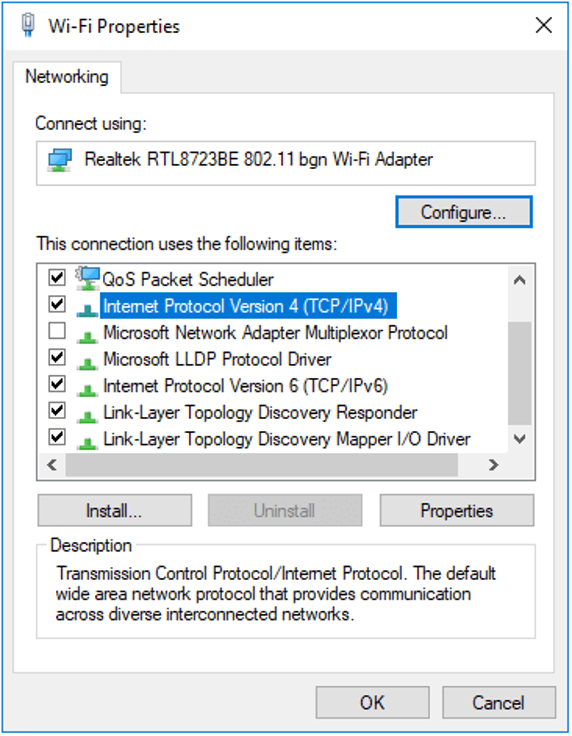
- Теперь нажмите« Свойства »в нижней части всплывающего небольшого окна..

- Дважды щелкните « Интернет. Протокол версии 4 (TCP/IPv4) », чтобы мы могли изменить DNS-сервер.

- Щелкните « Использовать следующие адреса DNS-серверов: », чтобы диалоговые окна, расположенные ниже, стали доступными для редактирования. Теперь установите следующие значения:
Предпочитаемый DNS-сервер: 8.8.8.8 Альтернативный DNS-сервер: 8.8.4.4

- Нажмите OK , чтобы сохранить изменения и выйти. Теперь перезагрузите компьютер и посмотрите, решило ли это вашу проблему.
Если все эти решения не работают, вы можете запустить Hextech Repair Tool, как в решении 5, и переустановить игру. Вы также можете попытаться загрузить новую копию и после удаления существующей со своего компьютера установить ее.
Are you bothered by League of Legends error code 004? This error might occur when you are updating your League of Legends (LoL). To help you fix this problem, MiniTool provides 7 methods in this post, together with detailed steps and screenshots.
League of Legends is a popular multiplayer online battle video game developed and published by Riot Game. It is sought after by most game lovers for its free downloading and excellent gaming experience.
However, some problems with League of Legends have been reported. Recently, some LoL players complain that they have received League of Legends error code 004 while updating it, and League of Legends update failed due to this error.
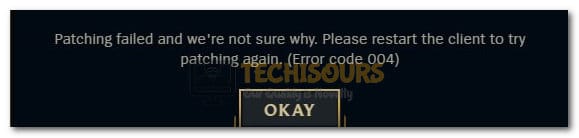
When you get League error code 004, the client will give an error message: Patching failed and we’re not sure why. Please restart the client to try patching again. Some users get rid of error code 004 and League of Legends update failed issue luckily by restarting the game as the message prompts. But others are still stopped by error code 004 League after a restart.
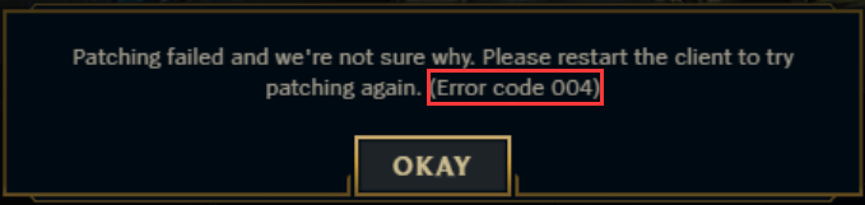
Why does League error code 004 occur? Actually, this error is related to updating or patching the game and it might occur due to various reasons. Some common reasons are listed below:
- The game doesn’t have administrative privileges.
- There’s not enough space on your hard drive.
- The game installation is corrupted.
- The configuration files of the game are corrupted.
- The game is blocked by your antivirus software.
- There are some problems with your Internet connection.
It might be difficult for you to figure out the specific reason when you get error code 004. But fortunately, most of proven solutions are listed below and you can try them one by one until you fix it.
How to Fix League of Legends Error Code 004
Focusing on the League of Legends error code 004, we put together 7 effective methods in this post. Hope these methods could be helpful for you to fix the error.
- Run Your Game as Administrator
- Free Up Space on Your Hard Drive
- Temporarily Disable Your Antivirus Software
- Delete the Config Files
- Set Google’s DNS
- Use Hextech Repair Tool
- Reinstall League of Legends
Fix 1: Run Your Game as Administrator
At first, you should try launching your League of Legends as administrator. Even if you have logged your administrator account, your game might not be given administrative privilege. So, don’t hesitate to try this fix before you employ any technical troubleshooting.
Step 1: Exit your LoL and end all the related processes in Task Manager.
Step 2: Right-click the game icon or executable file and select Properties.
Step 3: Switch to Compatibility tab and check Run this program as an administrator option.
Step 4: Click Apply and OK to save the changes.
Now, relaunch the game and try updating it again to see if error code 004 League is resolved.
Fix 2: Free Up Space on Your Hard Drive
If your League of Legends update failed and gives error code 004, you might need to consider whether there are enough free spaces on your hard drive or not.
If the hard drive where your game is installed is running out of space, the updates or patches cannot be saved or installed properly and thus lead to League error code 004. Particularly, most users would like to install the game on their system drive, which makes the condition worse.
See also: To quickly figure out what is taking up space on your hard drive, you can check this guide: What’s Taking Up Space on Your Hard Drive & How to Free up Space.
To free up your drive, you can use Windows built-in Disk Cleanup utility.
Step 1: Right-click the drive you want to clean up and select Properties.
Step 2: Go to General tab and click Disk Cleanup button.
Step 3: In another window, check the files you want to delete and click OK.
Note: You can also click Clean up system files to delete certain system files as your needs.
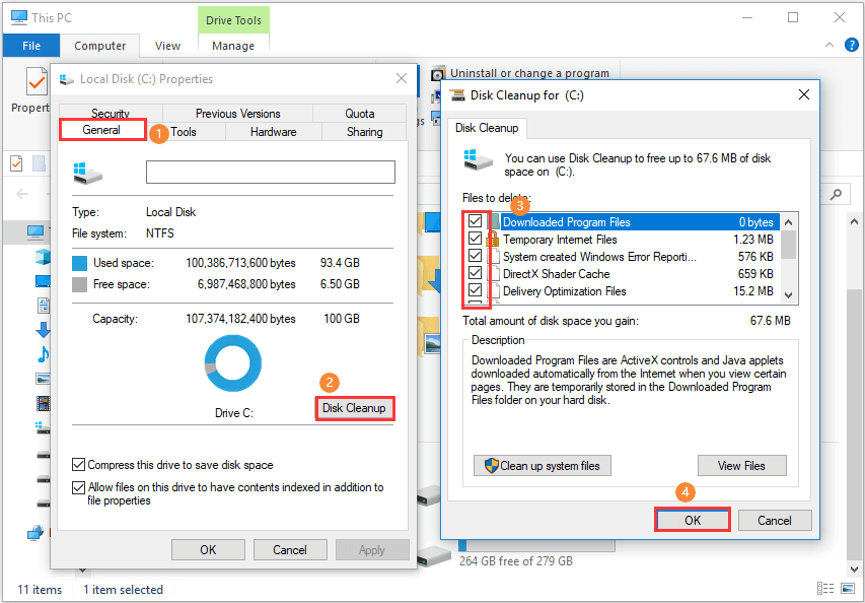
If you cannot spare enough space for your hard drive by performing Disk Cleanup, you can try uninstalling certain unnecessary programs installed on this drive. What if you don’t want to make any changes for the existing data on the drive? Don’t worry. You can choose to enlarge this drive.
To achieve this, you are recommended to use MiniTool Partition Wizard, a professional and reliable hard drive manager. It provides a feature of Extend Partition to help you enlarge a partition without data loss by taking free space from other partitions or unallocated space on the same disk.
Step 1: Click the button below to download and install MiniTool Partition Wizard on your computer.
Free Download
Step 2: Launch the application to get the main interface.
Step 3: Right-click the drive you want to enlarge and choose Extend from the context menu. Also, you can choose Extend Partition feature from the left pane after highlighting the drive.
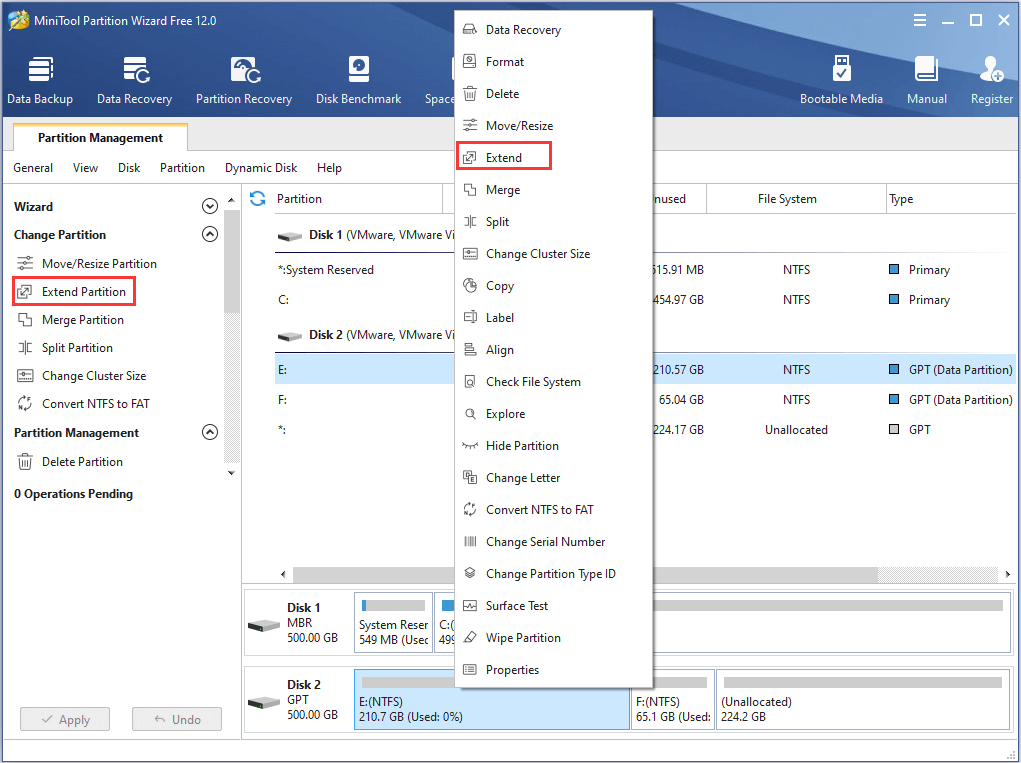
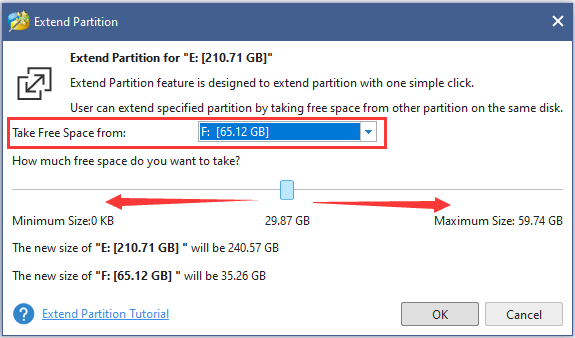
Step 4: Open the list of Take Free Space from and choose a partition or unallocated space. Drag the slider to decide how much space to be taken and then click OK button.
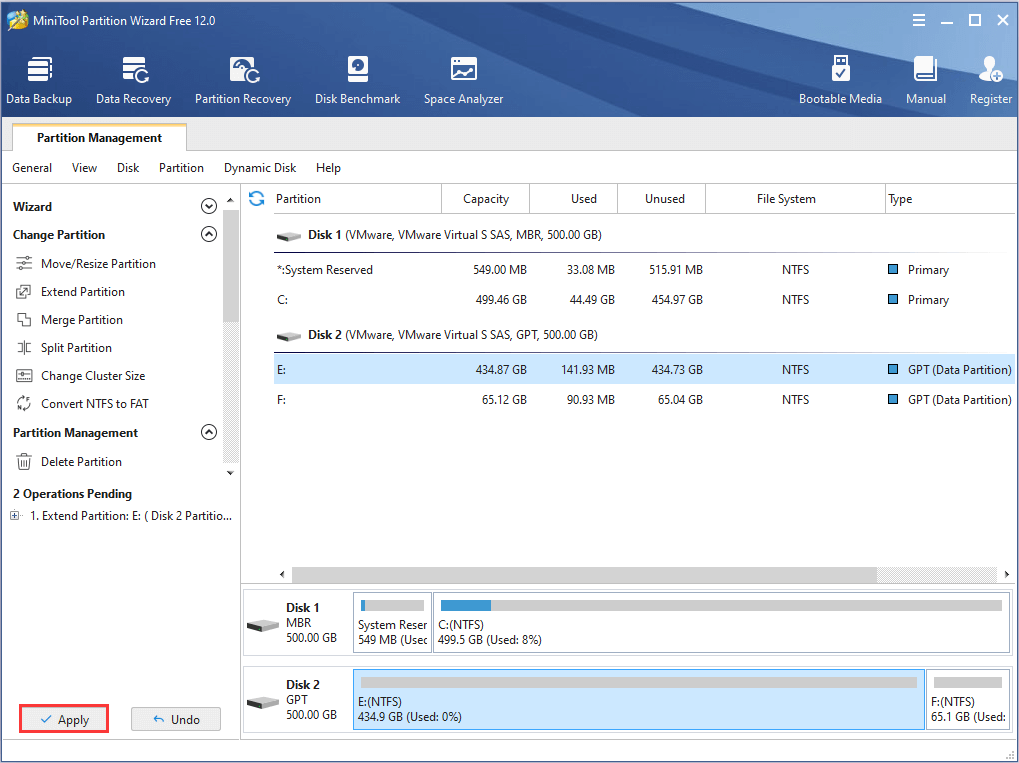
Step 5: After turning back to the main interface, click Apply button to execute the pending operation.
Note: If you are extending your system partition, you will be required to restart your computer to complete the operation.
Do you want to get more methods to free up disk space in your Windows 10? Come and read this post: 10 Ways to Free up Disk Space in Windows 10 [2020 Update].
How to free up space on hard drive without deleting files? It can be achieved with the Extend Partition feature of MiniTool Partition Wizard. Awesome!Click to Tweet
Fix 3: Temporarily Disable Your Antivirus Software
When your League of Legends starts patching, it will download additional software and manipulate the existing installation. During this process, it will merge certain code which might be regarded as a threat or a false positive by your antivirus. As a result, the patching might fail and the error code 004 might show up.
Therefore, you can try disabling your antivirus software temporarily to fix the issue. The built-in tool Windows Defender should also be disabled, and you can follow the steps below.
Step 1: Right-click Start button and choose Settings.
Step 2: Navigate to Update & Security > Windows Security > Virus & threat protection.
Step 3: In the new window, click Virus & threat protection settings.
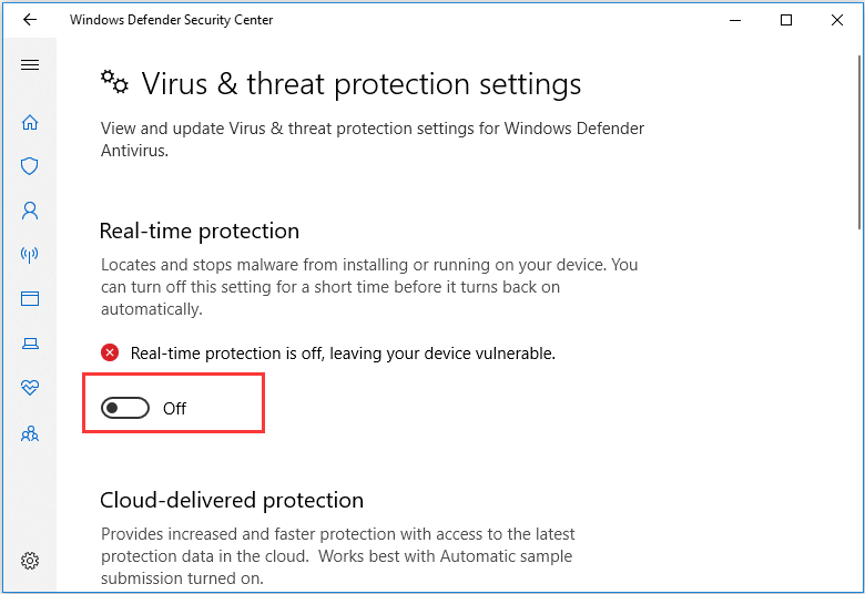
Step 4: When you get the following page, toggle off the button under Real-time protection to disable Windows Defender temporarily.
Fix 4: Delete the Config Files
Configuration file is a type of temporary storage of settings needed by your game while loading up. If these configuration files get corrupted, you might receive League error code 004 as well. In this case, you can try deleting these config files to fix the issue.
Step 1: Locate and open League of Legends game folder in File Explorer.
Step 2: Open Config folder and delete the file named game.cfg.
Step 3: Back to the directory of League of Legends folder and go to RADS > projects > league_client > releases.
Step 4: In releases folder, delete the folder with the latest version number of your game.
After that, launch your game as administrator to check if the error code 004 is resolved.
Fix 5: Set Google’s DNS
You might also receive LoL error code 004 when there are some problems with your Internet connection. Some players have removed this issue simply by using Google’s DNS. To do that, you need to change your DNS settings and here’s how to do it.
Step 1: Press Windows + I to access Settings.
Step 2: Go ahead to Network & Internet > Status > Change adapter options.
Step 3: Right-click the network connection you are using currently and choose Properties from the context menu.
Step 4: In Networking tab, choose Internet Protocol Version 4 (TCP/IPv4) and click Properties.
Step 5: Check Use the following DNS server addresses and enter Google Public server address:
- Preferred DNS server: 8.8.8.8
- Alternate DNS server: 8.8.4.4
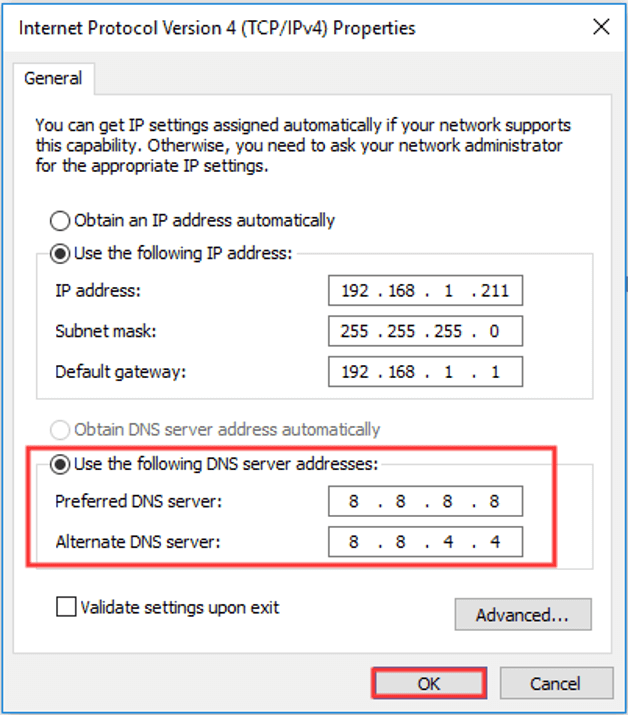
Step 6: Click OK to save the changes and exit the settings.
Now, you can restart your computer to see if League of Legends can patch properly now.
Hextech Repair Tool is a handy tool for League of Legend players who encounter various bugs or certain technical errors with the game, including re-installation or re-patches and firewall management.
You can download this tool from the official website to have a try.
To employ this tool, you need to run it as administrator. Then, choose Force Repatch option in Game section and click Start button.
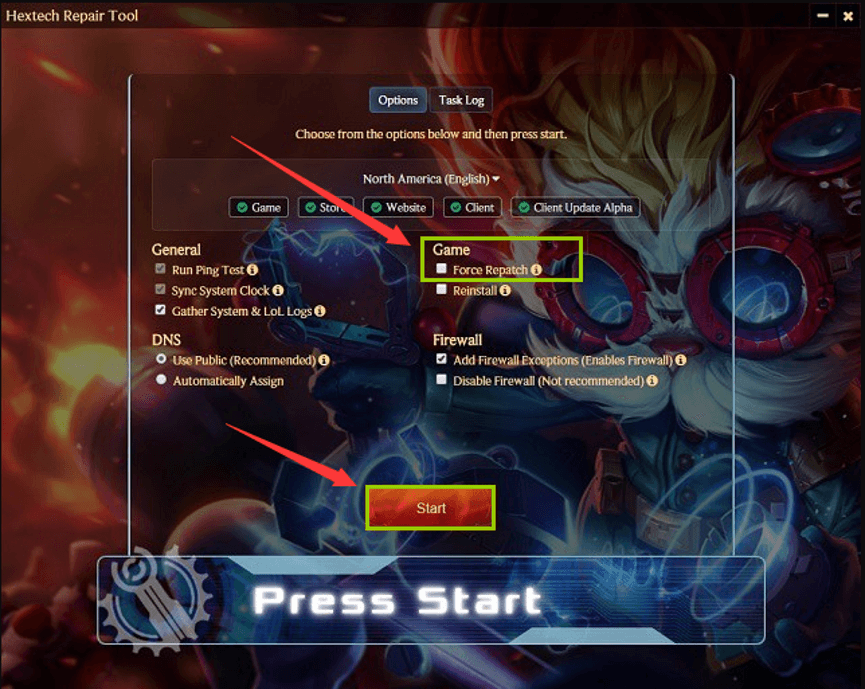
Once the progress is complete, restart your computer and check if League of Legends error code 004 has been resolved.
If all the methods above fail to fix League error code 004, you might need to consider reinstalling your game. To do that, you should uninstall it completely at first.
Step 1: Open Control Panel.
Step 2: Go ahead to Programs > Programs and Features.
Step 3: Choose League of Legends application from the list and select Uninstall/Remove. Then, follow the onscreen instructions to uninstall it.
Step 4: Now, go to the directory where your League of Legends is installed and delete all the setup files you used to install the game.
Step 5: Restart your computer and download the latest version of the game from the official website.
After installing the new executable file of League of Legends, the error code 004 should be removed and your game should be able to patch again.
Here are 7 methods to remove League of Legends error code 004. All of them are worth trying and the second fix is an excellent one.Click to Tweet
Bottom Line
That’s all about the 7 solutions to League of Legends error code 004 issue. Hope you have gotten rid of this error with one of these solutions.
Don’t hesitate to contact us if you have any problems or suggestions about this post. You can leave a message below, or send an email to [email protected].
How do I reinstall League of Legends?
To reinstall League of Legends, you have to uninstall it at first. Just go to Control Panel > Programs > Programs and Features to uninstall it, and go to File Explorer to remove all the related data. Then, you can download League of Legends from the official website and reinstall it on your computer.
How do I uninstall League of Legends?
There are three methods to uninstall League of Legends or other programs.
- Uninstall via Settings app. Go to Settings > Apps > Apps & features, right-click your League of Legends and choose Uninstall.
- Uninstall via Control Panel. Go to Control Panel > Programs > Programs and Features, choose League of Legends and click Uninstall/Remove.
- Uninstall via third-party software.
How do you repair League of Legends?
There are some ways to repair League of Legends if it crashes often.
- Update your device graphics drivers.
- Keep your windows updated.
- Install the .NET Framework.
- Lower your in-game settings.
- Employ League of Legends Hextech Repair Tool.
- Reinstall your League of Legends.
Can I move League of Legends to another drive?
You can move League of Legends to another drive, of course. You can directly copy/cut and paste your game files to another drive. Or, you can download and install a professional third-party program to transfer your App and related data to another drive conveniently.
Are you bothered by League of Legends error code 004? This error might occur when you are updating your League of Legends (LoL). To help you fix this problem, MiniTool provides 7 methods in this post, together with detailed steps and screenshots.
League of Legends is a popular multiplayer online battle video game developed and published by Riot Game. It is sought after by most game lovers for its free downloading and excellent gaming experience.
However, some problems with League of Legends have been reported. Recently, some LoL players complain that they have received League of Legends error code 004 while updating it, and League of Legends update failed due to this error.
When you get League error code 004, the client will give an error message: Patching failed and we’re not sure why. Please restart the client to try patching again. Some users get rid of error code 004 and League of Legends update failed issue luckily by restarting the game as the message prompts. But others are still stopped by error code 004 League after a restart.
Why does League error code 004 occur? Actually, this error is related to updating or patching the game and it might occur due to various reasons. Some common reasons are listed below:
- The game doesn’t have administrative privileges.
- There’s not enough space on your hard drive.
- The game installation is corrupted.
- The configuration files of the game are corrupted.
- The game is blocked by your antivirus software.
- There are some problems with your Internet connection.
It might be difficult for you to figure out the specific reason when you get error code 004. But fortunately, most of proven solutions are listed below and you can try them one by one until you fix it.
How to Fix League of Legends Error Code 004
Focusing on the League of Legends error code 004, we put together 7 effective methods in this post. Hope these methods could be helpful for you to fix the error.
- Run Your Game as Administrator
- Free Up Space on Your Hard Drive
- Temporarily Disable Your Antivirus Software
- Delete the Config Files
- Set Google’s DNS
- Use Hextech Repair Tool
- Reinstall League of Legends
Fix 1: Run Your Game as Administrator
At first, you should try launching your League of Legends as administrator. Even if you have logged your administrator account, your game might not be given administrative privilege. So, don’t hesitate to try this fix before you employ any technical troubleshooting.
Step 1: Exit your LoL and end all the related processes in Task Manager.
Step 2: Right-click the game icon or executable file and select Properties.
Step 3: Switch to Compatibility tab and check Run this program as an administrator option.
Step 4: Click Apply and OK to save the changes.
Now, relaunch the game and try updating it again to see if error code 004 League is resolved.
Fix 2: Free Up Space on Your Hard Drive
If your League of Legends update failed and gives error code 004, you might need to consider whether there are enough free spaces on your hard drive or not.
If the hard drive where your game is installed is running out of space, the updates or patches cannot be saved or installed properly and thus lead to League error code 004. Particularly, most users would like to install the game on their system drive, which makes the condition worse.
See also: To quickly figure out what is taking up space on your hard drive, you can check this guide: What’s Taking Up Space on Your Hard Drive & How to Free up Space.
To free up your drive, you can use Windows built-in Disk Cleanup utility.
Step 1: Right-click the drive you want to clean up and select Properties.
Step 2: Go to General tab and click Disk Cleanup button.
Step 3: In another window, check the files you want to delete and click OK.
Note: You can also click Clean up system files to delete certain system files as your needs.
If you cannot spare enough space for your hard drive by performing Disk Cleanup, you can try uninstalling certain unnecessary programs installed on this drive. What if you don’t want to make any changes for the existing data on the drive? Don’t worry. You can choose to enlarge this drive.
To achieve this, you are recommended to use MiniTool Partition Wizard, a professional and reliable hard drive manager. It provides a feature of Extend Partition to help you enlarge a partition without data loss by taking free space from other partitions or unallocated space on the same disk.
Step 1: Click the button below to download and install MiniTool Partition Wizard on your computer.
Free Download
Step 2: Launch the application to get the main interface.
Step 3: Right-click the drive you want to enlarge and choose Extend from the context menu. Also, you can choose Extend Partition feature from the left pane after highlighting the drive.
Step 4: Open the list of Take Free Space from and choose a partition or unallocated space. Drag the slider to decide how much space to be taken and then click OK button.
Step 5: After turning back to the main interface, click Apply button to execute the pending operation.
Note: If you are extending your system partition, you will be required to restart your computer to complete the operation.
Do you want to get more methods to free up disk space in your Windows 10? Come and read this post: 10 Ways to Free up Disk Space in Windows 10 [2020 Update].
How to free up space on hard drive without deleting files? It can be achieved with the Extend Partition feature of MiniTool Partition Wizard. Awesome!Click to Tweet
Fix 3: Temporarily Disable Your Antivirus Software
When your League of Legends starts patching, it will download additional software and manipulate the existing installation. During this process, it will merge certain code which might be regarded as a threat or a false positive by your antivirus. As a result, the patching might fail and the error code 004 might show up.
Therefore, you can try disabling your antivirus software temporarily to fix the issue. The built-in tool Windows Defender should also be disabled, and you can follow the steps below.
Step 1: Right-click Start button and choose Settings.
Step 2: Navigate to Update & Security > Windows Security > Virus & threat protection.
Step 3: In the new window, click Virus & threat protection settings.
Step 4: When you get the following page, toggle off the button under Real-time protection to disable Windows Defender temporarily.
Fix 4: Delete the Config Files
Configuration file is a type of temporary storage of settings needed by your game while loading up. If these configuration files get corrupted, you might receive League error code 004 as well. In this case, you can try deleting these config files to fix the issue.
Step 1: Locate and open League of Legends game folder in File Explorer.
Step 2: Open Config folder and delete the file named game.cfg.
Step 3: Back to the directory of League of Legends folder and go to RADS > projects > league_client > releases.
Step 4: In releases folder, delete the folder with the latest version number of your game.
After that, launch your game as administrator to check if the error code 004 is resolved.
Fix 5: Set Google’s DNS
You might also receive LoL error code 004 when there are some problems with your Internet connection. Some players have removed this issue simply by using Google’s DNS. To do that, you need to change your DNS settings and here’s how to do it.
Step 1: Press Windows + I to access Settings.
Step 2: Go ahead to Network & Internet > Status > Change adapter options.
Step 3: Right-click the network connection you are using currently and choose Properties from the context menu.
Step 4: In Networking tab, choose Internet Protocol Version 4 (TCP/IPv4) and click Properties.
Step 5: Check Use the following DNS server addresses and enter Google Public server address:
- Preferred DNS server: 8.8.8.8
- Alternate DNS server: 8.8.4.4
Step 6: Click OK to save the changes and exit the settings.
Now, you can restart your computer to see if League of Legends can patch properly now.
Hextech Repair Tool is a handy tool for League of Legend players who encounter various bugs or certain technical errors with the game, including re-installation or re-patches and firewall management.
You can download this tool from the official website to have a try.
To employ this tool, you need to run it as administrator. Then, choose Force Repatch option in Game section and click Start button.
Once the progress is complete, restart your computer and check if League of Legends error code 004 has been resolved.
If all the methods above fail to fix League error code 004, you might need to consider reinstalling your game. To do that, you should uninstall it completely at first.
Step 1: Open Control Panel.
Step 2: Go ahead to Programs > Programs and Features.
Step 3: Choose League of Legends application from the list and select Uninstall/Remove. Then, follow the onscreen instructions to uninstall it.
Step 4: Now, go to the directory where your League of Legends is installed and delete all the setup files you used to install the game.
Step 5: Restart your computer and download the latest version of the game from the official website.
After installing the new executable file of League of Legends, the error code 004 should be removed and your game should be able to patch again.
Here are 7 methods to remove League of Legends error code 004. All of them are worth trying and the second fix is an excellent one.Click to Tweet
Bottom Line
That’s all about the 7 solutions to League of Legends error code 004 issue. Hope you have gotten rid of this error with one of these solutions.
Don’t hesitate to contact us if you have any problems or suggestions about this post. You can leave a message below, or send an email to [email protected].
How do I reinstall League of Legends?
To reinstall League of Legends, you have to uninstall it at first. Just go to Control Panel > Programs > Programs and Features to uninstall it, and go to File Explorer to remove all the related data. Then, you can download League of Legends from the official website and reinstall it on your computer.
How do I uninstall League of Legends?
There are three methods to uninstall League of Legends or other programs.
- Uninstall via Settings app. Go to Settings > Apps > Apps & features, right-click your League of Legends and choose Uninstall.
- Uninstall via Control Panel. Go to Control Panel > Programs > Programs and Features, choose League of Legends and click Uninstall/Remove.
- Uninstall via third-party software.
How do you repair League of Legends?
There are some ways to repair League of Legends if it crashes often.
- Update your device graphics drivers.
- Keep your windows updated.
- Install the .NET Framework.
- Lower your in-game settings.
- Employ League of Legends Hextech Repair Tool.
- Reinstall your League of Legends.
Can I move League of Legends to another drive?
You can move League of Legends to another drive, of course. You can directly copy/cut and paste your game files to another drive. Or, you can download and install a professional third-party program to transfer your App and related data to another drive conveniently.
Почти каждый недавний патч для League of Legends вызывал странные проблемы у некоторых пользователей, которые его установили. Некоторые принесли код ошибки «004», и у нас есть решение для вас.
Время от времени Riot выпускает новый патч для League of Legends, чтобы исправить ошибки и улучшить опыт игрока. Несмотря на то, что цель патчей — сделать игру лучше, установка одного из этих обновлений может стать кошмаром для некоторых. А именно, как только игра заканчивает установку патча, он перестает отвечать на запросы при запуске, и игроки не могут пройти через экран загрузки. Хуже того, на старте появляется только темный экран. Эта проблема известна как « ошибка 004 ».
И игроки, и команда разработчиков пытались разобраться с этими проблемами в течение достаточно долгого времени, но почему-то они появляются вновь почти с каждым новым патчем. К сожалению, не существует подтвержденного решения этой проблемы, но некоторые пользователи нашли, по крайней мере, кое-что, что могло бы помочь.
Как исправить ошибку League of Legends 004 с помощью инструмента Hextech Repair
Один игрок сообщил на форумах, что переустановка игры с помощью инструмента восстановления Hextech смогла устранить ошибку 004. Если вы не знакомы, этот инструмент используется в различных целях устранения неполадок в League of Legends, включая переустановку, управление брандмауэром, повторную загрузку, и более.
Если вы заметили, что ваша игра перестает отвечать на запросы после установки определенного патча и появляется ошибка 004, попробуйте использовать этот инструмент для ее восстановления. Это официальный инструмент, предоставленный Riot Games, и предназначенный для решения любых проблем.
Вы можете скачать инструмент Hextech Repair по этой ссылке — это совершенно бесплатно. Когда вы установите и откроете его, вы заметите возможность переустановить игру. Переустановите League of Legends с помощью этого инструмента и посмотрите, сохраняется ли ошибка после.
Мы также должны сказать вам, что это не подтвержденное решение, и оно работает только для некоторых игроков, которые сообщили об этом. Таким образом, мы не можем гарантировать вам, что он решит вашу проблему.
Если вы знаете больше об ошибке 004 в League of Legends и других способах ее устранения, сообщите нам об этом в комментариях ниже. Мы уверены, что многие из ваших товарищей будут благодарны.
Примечание редактора: этот пост был первоначально опубликован в октябре 2017 года и с тех пор был полностью переработан и обновлен для обеспечения свежести, точности и полноты.

Быстрая навигация:
Однако о некоторых проблемах с League of Legends не сообщалось. В последнее время некоторые игроки LoL жалуются, что получили Код ошибки League of Legends 004 при его обновлении, и обновление League of Legends не удалось из-за этой ошибки.

Почему возникает код ошибки лиги 004? На самом деле эта ошибка связана с обновлением или патчем игры и может возникать по разным причинам. Ниже перечислены некоторые распространенные причины:
Вам может быть трудно выяснить конкретную причину появления кода ошибки 004. Но, к счастью, большинство проверенных решений перечислены ниже, и вы можете пробовать их одно за другим, пока не исправите.
Сосредоточившись на коде ошибки League of Legends 004, мы собрали в этом посте 7 эффективных методов. Надеюсь, эти методы помогут вам исправить ошибку.
Исправление 1. Запустите игру от имени администратора.
Шаг 3 : Переключиться на Совместимость вкладка и отметьте Запустите эту программу от имени администратора вариант.
Шаг 4 : Щелкните Подать заявление и Ok чтобы сохранить изменения.
Теперь перезапустите игру и попробуйте обновить ее еще раз, чтобы увидеть, устранена ли ошибка с кодом 004 League.
Исправление 2: освободите место на жестком диске
Если обновление League of Legends завершилось неудачно и выдает код ошибки 004, возможно, вам придется подумать, достаточно ли свободного места на вашем жестком диске или нет.
Если на жестком диске, на котором установлена игра, не хватает места, обновления или исправления не могут быть сохранены или установлены должным образом, что приводит к коду ошибки Лиги 004. В частности, большинство пользователей хотели бы установить игру на свой системный диск, который ухудшает состояние.
Смотрите также: Чтобы быстро выяснить, что занимает место на вашем жестком диске, вы можете проверить это руководство: Что занимает место на жестком диске и как освободить место.
Чтобы освободить диск, вы можете использовать встроенный в Windows Очистка диска полезность.
Шаг 2 : Идти к Общее вкладку и щелкните Очистка диска кнопка.
Примечание: Вы также можете нажать Очистить системные файлы для удаления определенных системных файлов по мере необходимости.

Если вы не можете выделить достаточно места для жесткого диска, выполнив очистку диска, вы можете попробовать удаление некоторых ненужных программ установлен на этом диске. Что делать, если вы не хотите вносить какие-либо изменения в существующие данные на диске? Не волнуйся. Вы можете увеличить этот диск.
Шаг 1 : Нажмите кнопку ниже, чтобы загрузить и установить Мастер создания разделов MiniTool на твоем компьютере.
Шаг 2 : Запустите приложение, чтобы получить основной интерфейс.
Шаг 3 : Щелкните правой кнопкой мыши диск, который хотите увеличить, и выберите Продлевать из контекстного меню. Также вы можете выбрать Расширить раздел на левой панели после выделения диска.

Шаг 4 : Открыть список Возьмите свободное пространство из и выберите раздел или незанятое пространство. Перетащите ползунок, чтобы решить, сколько места нужно занять, а затем нажмите Ok кнопка.

Шаг 5 : Вернувшись к основному интерфейсу, нажмите Подать заявление кнопку, чтобы выполнить отложенную операцию.
Примечание: Если вы расширяете системный раздел, вам потребуется перезагрузить компьютер, чтобы завершить операцию.

Исправление 3: временно отключите антивирусное программное обеспечение
Когда ваша League of Legends начнет обновляться, она загрузит дополнительное программное обеспечение и изменит существующую установку. Во время этого процесса он объединит определенный код, который может быть расценен вашим антивирусом как угроза или ложное срабатывание. В результате установка исправлений может завершиться неудачно, и может появиться код ошибки 004.
Поэтому вы можете попробовать временно отключить антивирусное программное обеспечение, чтобы решить проблему. Встроенный инструмент Защитник Windows также должен быть отключен, и вы можете выполнить следующие действия.
Шаг 4 : Когда откроется следующая страница, выключите кнопку под Защита в режиме реального времени для временного отключения Защитника Windows.

Исправление 4: удалите файлы конфигурации
Шаг 4 : В релизы папку удалите папку с номером последней версии вашей игры.
После этого запустите игру от имени администратора, чтобы проверить, устранена ли ошибка с кодом 004.
Исправление 5. Настройте DNS Google
Вы также можете получить код ошибки LoL 004 при возникновении проблем с подключением к Интернету. Некоторые игроки устранили эту проблему, просто используя DNS Google. Для этого вам нужно изменить настройки DNS, и вот как это сделать.
Шаг 3 : Щелкните правой кнопкой мыши по сетевому подключению, которое вы используете в настоящее время, и выберите Характеристики из контекстного меню.

Шаг 5 : Проверять Используйте следующие адреса DNS-серверов и введите адрес публичного сервера Google:

ШАГ 6 : Щелкните Ok для сохранения изменений и выхода из настроек.
Теперь вы можете перезагрузить компьютер, чтобы проверить, исправна ли League of Legends.
Исправление 6: используйте инструмент восстановления Hextech Repair Tool
Вы можете скачать этот инструмент с Официальный веб-сайт чтобы попробовать.
Чтобы использовать этот инструмент, вам необходимо запустить его от имени администратора. Тогда выбирай Force Repatch вариант в Игра раздел и щелкните Начинать кнопка.

По завершении процесса перезагрузите компьютер и проверьте, исправлен ли код ошибки League of Legends 004.
Если все вышеперечисленные методы не помогли исправить код ошибки Лиги 004, возможно, вам придется подумать о переустановке игры. Для этого вы должны сначала полностью удалить его.
Шаг 4 : Теперь перейдите в каталог, в котором установлена ваша League of Legends, и удалите все установочные файлы, которые вы использовали для установки игры.
После установки нового исполняемого файла League of Legends код ошибки 004 должен быть удален, и ваша игра должна снова получить исправление.
Нижняя линия
Это все о 7 решениях проблемы с кодом ошибки 004 в League of Legends. Надеюсь, вы избавились от этой ошибки с помощью одного из этих решений.
Есть три способа удалить League of Legends или другие программы.
Есть несколько способов восстановить League of Legends, если она часто вылетает.
Лучшее
Почему мой компьютерный вентилятор такой громкий и как это исправить? [Клонировать диск]
Руководство по исправлению кода ошибки Origin 14-1 и кода ошибки 14-7 [Диспетчер разделов]
ARK продолжит рушиться в 2021 году? Вот 7 решений [изменение размера раздела]
WD Elements и Easystore: прямое сравнение [Менеджер разделов]
Код результата быстрого исправления VirtualBox: E_Invalidarg (0x80070057) [Изменить размер раздела]

Are you bothered by League of Legends error code 004? This error might occur when you are updating your League of Legends (LoL). To help you fix this problem, MiniTool provides 7 methods in this post, together with detailed steps and screenshots.
Quick Navigation :
League of Legends is a popular multiplayer online battle video game developed and published by Riot Game. It is sought after by most game lovers for its free downloading and excellent gaming experience.
However, some problems with League of Legends have been reported. Recently, some LoL players complain that they have received League of Legends error code 004 while updating it, and League of Legends update failed due to this error.
When you get League error code 004, the client will give an error message: Patching failed and we’re not sure why. Please restart the client to try patching again. Some users get rid of error code 004 and League of Legends update failed issue luckily by restarting the game as the message prompts. But others are still stopped by error code 004 League after a restart.

Why does League error code 004 occur? Actually, this error is related to updating or patching the game and it might occur due to various reasons. Some common reasons are listed below:
It might be difficult for you to figure out the specific reason when you get error code 004. But fortunately, most of proven solutions are listed below and you can try them one by one until you fix it.
Focusing on the League of Legends error code 004, we put together 7 effective methods in this post. Hope these methods could be helpful for you to fix the error.
Fix 1: Run Your Game as Administrator
At first, you should try launching your League of Legends as administrator. Even if you have logged your administrator account, your game might not be given administrative privilege. So, don’t hesitate to try this fix before you employ any technical troubleshooting.
Step 1: Exit your LoL and end all the related processes in Task Manager.
Step 2: Right-click the game icon or executable file and select Properties.
Step 3: Switch to Compatibility tab and check Run this program as an administrator option.
Step 4: Click Apply and OK to save the changes.
Now, relaunch the game and try updating it again to see if error code 004 League is resolved.
Fix 2: Free Up Space on Your Hard Drive
If your League of Legends update failed and gives error code 004, you might need to consider whether there are enough free spaces on your hard drive or not.
If the hard drive where your game is installed is running out of space, the updates or patches cannot be saved or installed properly and thus lead to League error code 004. Particularly, most users would like to install the game on their system drive, which makes the condition worse.
See also: To quickly figure out what is taking up space on your hard drive, you can check this guide: What’s Taking Up Space on Your Hard Drive & How to Free up Space.
To free up your drive, you can use Windows built-in Disk Cleanup utility.
Step 1: Right-click the drive you want to clean up and select Properties.
Step 2: Go to General tab and click Disk Cleanup button.
Step 3: In another window, check the files you want to delete and click OK.

If you cannot spare enough space for your hard drive by performing Disk Cleanup, you can try uninstalling certain unnecessary programs installed on this drive. What if you don’t want to make any changes for the existing data on the drive? Don’t worry. You can choose to enlarge this drive.
To achieve this, you are recommended to use MiniTool Partition Wizard, a professional and reliable hard drive manager. It provides a feature of Extend Partition to help you enlarge a partition without data loss by taking free space from other partitions or unallocated space on the same disk.
Step 1: Click the button below to download and install MiniTool Partition Wizard on your computer.
Step 2: Launch the application to get the main interface.
Step 3: Right-click the drive you want to enlarge and choose Extend from the context menu. Also, you can choose Extend Partition feature from the left pane after highlighting the drive.

Step 4: Open the list of Take Free Space from and choose a partition or unallocated space. Drag the slider to decide how much space to be taken and then click OK button.

Step 5: After turning back to the main interface, click Apply button to execute the pending operation.

Do you want to get more methods to free up disk space in your Windows 10? Come and read this post: 10 Ways to Free up Disk Space in Windows 10 [2020 Update].
Fix 3: Temporarily Disable Your Antivirus Software
When your League of Legends starts patching, it will download additional software and manipulate the existing installation. During this process, it will merge certain code which might be regarded as a threat or a false positive by your antivirus. As a result, the patching might fail and the error code 004 might show up.
Therefore, you can try disabling your antivirus software temporarily to fix the issue. The built-in tool Windows Defender should also be disabled, and you can follow the steps below.
Step 1: Right-click Start button and choose Settings.
Step 2: Navigate to Update & Security > Windows Security > Virus & threat protection.
Step 3: In the new window, click Virus & threat protection settings.
Step 4: When you get the following page, toggle off the button under Real-time protection to disable Windows Defender temporarily.

Fix 4: Delete the Config Files
Configuration file is a type of temporary storage of settings needed by your game while loading up. If these configuration files get corrupted, you might receive League error code 004 as well. In this case, you can try deleting these config files to fix the issue.
Step 1: Locate and open League of Legends game folder in File Explorer.
Step 2: Open Config folder and delete the file named game. cfg.
Step 3: Back to the directory of League of Legends folder and go to RADS > projects > league_client > releases.
Step 4: In releases folder, delete the folder with the latest version number of your game.
After that, launch your game as administrator to check if the error code 004 is resolved.
Fix 5: Set Google’s DNS
You might also receive LoL error code 004 when there are some problems with your Internet connection. Some players have removed this issue simply by using Google’s DNS. To do that, you need to change your DNS settings and here’s how to do it.
Step 1: Press Windows + I to access Settings.
Step 2: Go ahead to Network & Internet > Status > Change adapter options.
Step 3: Right-click the network connection you are using currently and choose Properties from the context menu.
Step 4: In Networking tab, choose Internet Protocol Version 4 (TCP/IPv4) and click Properties.

Step 5: Check Use the following DNS server addresses and enter Google Public server address:

Step 6: Click OK to save the changes and exit the settings.
Now, you can restart your computer to see if League of Legends can patch properly now.
Hextech Repair Tool is a handy tool for League of Legend players who encounter various bugs or certain technical errors with the game, including re-installation or re-patches and firewall management.
You can download this tool from the official website to have a try.
To employ this tool, you need to run it as administrator. Then, choose Force Repatch option in Game section and click Start button.

Once the progress is complete, restart your computer and check if League of Legends error code 004 has been resolved.
If all the methods above fail to fix League error code 004, you might need to consider reinstalling your game. To do that, you should uninstall it completely at first.
Step 1: Open Control Panel.
Step 2: Go ahead to Programs > Programs and Features.
Step 3: Choose League of Legends application from the list and select Uninstall/Remove. Then, follow the onscreen instructions to uninstall it.
Step 4: Now, go to the directory where your League of Legends is installed and delete all the setup files you used to install the game.
Step 5: Restart your computer and download the latest version of the game from the official website.
After installing the new executable file of League of Legends, the error code 004 should be removed and your game should be able to patch again.
Bottom Line
That’s all about the 7 solutions to League of Legends error code 004 issue. Hope you have gotten rid of this error with one of these solutions.
There are three methods to uninstall League of Legends or other programs.
There are some ways to repair League of Legends if it crashes often.
Position: Columnist
Amanda has been working as English editor for the MiniTool team since she was graduated from university. She enjoys sharing effective solutions and her own experience to help readers fix various issues with computers, dedicated to make their tech life easier and more enjoyable.
She has published many articles, covering fields of data recovery, partition management, disk backup, and etc. In order to provide more useful tips and information, she is still committed to expand her technical knowledge.
Источники:
https://ru. zixmailencryption. com/complete-guide-how-fix-league-legends-error-code-004
https://www. partitionwizard. com/resizepartition/league-of-legends-error-code-004.html
Ошибки и их решения в League of Legends
В Лиге Легенд, как и в других играх, есть ошибки. Мы познакомим вас с основными кодами этих ошибок, чтобы вы знали, что нужно делать в случае их появления.
Не работает лига легенд
Эту проблему можно понимать по-разному.
- Лига Легенд не запускается. Чтобы узнать, что произошло, в первую очередь нужно открыть диспетчер задач и проверить, не открыто ли у вас несколько League of Legends. Проекты от Riot Games часто открываются по несколько раз, из-за чего клиент попросту не запускается.
- Если у вас запускается сам клиент, но не открывается игра, то стоит снова обратиться к диспетчеру задач. В крайнем случае, перезагрузите компьютер.

League of Legends
Коды ошибок в лоле
Всего в Лиге Легенд есть 11 ошибок с одноименным названием, которые решаются определенным способом. Сейчас мы расскажем обо всех.
League of Legends — код ошибки 004
Причина возникновения: клиент не может по каким-то причинам установить обновление. Часто это возникает из-за недостатка свободного места на диске.
Решение: первое, что нужно сделать — убедиться в том, что у вас достаточно свободного места на диске. Если места хватает, то необходимо проверить качество соединения. Если с ним всё нормально, то перезагрузите компьютер, запустите клиент и дождитесь установки обновления.
Ошибка 7
Причина возникновения: сами Riot Games заявляют, что ошибка связана с тем, что сервера компании перегружены.
Решение: поскольку от игрока в плане серверного обслуживания мало что зависит, то вам придется либо постоянно заходить в игру, либо оперативно зайти в League of Legends в тот момент, когда статус сервера покажет вам, что место освободилось. Проверить статус сервера можно здесь.
League of Legends — Ошибка 1B
Причина возникновения: основная причина — некачественное или плохое соединение, которое не позволяет игрокам зайти в Лигу Легенд.
Решение: чаще всего придется подождать. Можно позвонить в техническую поддержку и сообщить о проблеме (плохого соединения). В противном случае попробуйте запустить Лигу Легенд от имени администратора.
Ошибка технического обслуживания
Причина возникновения: если пользователь Linux, наверняка уже сталкивались с этой ошибкой. Если вы пользователь Windows, то ошибка свидетельствует о том, что игра не может обновиться.
Решение: попробуйте исправить клиент через внутреннюю функцию. Если не получилось, то зайдите в корневую папку с игрой и удалите два файла:
- RiotClientServices.old
- ucrtbase.dll
После чего снова попробуйте исправить клиент.
Непредвиденная ошибка авторизации
Причина возникновения: возникает из-за того, что у вас до сих пор открыта другая League of Legends в фоновом режиме.
Решение: откройте диспетчер задач, найдите все League of Legends и завершите процессы. Подождите 1-2 минуты, а после этого запустите Лигу заново. В противном случае придется запустить исправление клиента.
Ошибка 0xc00000005
Причина возникновения: часто ошибка возникает из-за конфликта установленных Visual C++ библиотек с файлами игры.
Решение: лучше всего переустановить Лигу Легенд, но перед этим удалить все упоминания об игре на компьютере. В том числе вспомогательные программы, по типу Porofessor.gg.
Критическая ошибка во время входа
Причина возникновения: до конца неизвестно, какие именно программы провоцируют эту ошибку, но наверняка известно, что это происходит из-за софта, параллельно работающего с League of Legends.
Решение: во время запуска клиента и игры, отключите Steam, Origin, Discord и прочие игровые центры. Если это не помогло, то нужно запустить исправление клиента.
Непредвиденная ошибка входа
Причина возникновения: часто ошибка появляется из-за того, что у вас нестабильное интернет-соединение. То есть, оно не позволяет зайти в игру или скачать/установить обновление.
Решение: можно посмотреть в настройках роутера, что было изменено и почему. В противном случае изменить DNS-сервера на 8.8.4.4 и 8.8.8.4 соответственно. В крайнем случае нужно позвонить своему провайдеру и уточнить, нет ли проблем на линии передач.
Неизвестная ошибка DirectX
Причина возникновения: чаще всего ошибка говорит о том, что на компьютере графическая составляющая работает нестабильно.
Решение: в первую очередь нужно обновить драйвера видеокарты до последней версии. Если это уже сделано, то зайдите в корневую папку с игрой и удалите файл «game.cfg».
League of Legends — код ошибки 002
Причина возникновения: невозможность установить обновления.
Решение: проверьте, хватает ли места на диске для установки обновления. Если места достаточно, то нужно отключить антивирус и брандмауэр Windows.
Программа не запускается, потому что отсутствует файл d3dx9_43.dll
Причина возникновения: чаще всего с такой проблемой сталкиваются те, кто забыли установить DirectX на новый ПК.
Решение: установите DirectX вручную.
League of Legends or LOL in simple terms is a very popular game that harbors a huge fanbase of gamers that are in love with the game. However, recently a lot of users have been unable to play the game because they are encountering the League of Legends Error Code 004 while trying to launch the game. Worry not because we have addressed this exact issue in this article and we will be fixing it with the solutions mentioned below.
What Causes the League of Legends Error Code 004?
After carefully going through the repair strategies being adopted for fixing this issue, we concluded that the following are some of the most common reasons behind its occurrence.
- Missing Admin Permissions: It is possible that the game requires administrative or root permissions in order to access some system files. Therefore, if these permissions aren’t granted, you might be getting the League of Legends Error Code 004 on your screen.
- Antivirus Software: It is also possible that your antivirus installed on the computer might be blocking some files from being accessed due to which the error code 004 is being shown on the screen. It is best that you temporarily disable the antivirus or add an exception for the game.
- DNS Issues: If you are using the DNS servers that are provided by your ISP, you might get the error code 004 on League of Legends due to some misconfigurations. It is best to switch out to the default Google’s DNS address for optimal performance.
- Corrupted/Missing Game Files: It is possible that some game files have gone corrupt or are missing due to storage failure. Therefore, we will be replacing these files and checking for corruption on our hard drive in order to fix the league of legends error code 004.
- Outdated GPU Drivers: In some scenarios, the GPU driver being used by the computer might be outdated due to which it might not be able to run the game efficiently. Therefore, it is recommended that you update the driver to eradicate the error code 004 on League of Legends.
Now that you have gone through the reasons that might be triggering this issue, we will be moving on towards implementing the fixes.
Before you start:
- Press “Win + E” on your keyboard to open the File Explorer and see if you have enough space in any of your disk partitions.

Checking free space - If you don’t have enough space, delete some unwanted data to free up some space in your hard disk in order to eliminate error code 004.
Solution 1: Run the game in administrator mode
- Press “Ctrl + Shift + Esc” keys simultaneously, on the keyboard to open the “Task Manager”.
- Under the “Processes” tab, select any process related to LOL, and click on the “End Task” button.

End league of legends game - Right-click on the LOL client’s shortcut located on the desktop and select “Properties”.
- In the properties windows, navigate to the “Compatibility” tab and check the box parallel to “Run this program as an administrator”.

Running as an administrator - Now launch the LOL client and check if you encounter error code 004 league of legends again.
Solution 2: Disable antivirus software
- Click on the “^” button located at the bottom right of the taskbar and then right-click on the Avast icon.
- Hover over the “Avast Shield Control” and select the “Disable Permanently” option to disable your antivirus software.

Disable antivirus
Solution 3: Delete game’s config files
- Press “Win + E” on your keyboard to open the File Explorer and navigate to the “Config” folder in your game directory.
C:Riot GamesLeague of LegendsConfig
- Now select the “game.cfg” file and hit the “Delete” key from the keyboard to permanently delete the file.
- Now navigate to the following path and delete the folder that is named similar to the latest version of the game.
C:Riot GamesLeague of LegendsRADSprojectsleague_clientreleases
- Now close the file explorer and launch your game to check if you still encounter the same error.
Solution 4: Switch to Google’s DNS
- Press the “Win + R” keys on the keyboard to open the Run box and search for “Control Panel”.

Open Control panel - From the top-right corner of the screen, set the “View by:” option to “Category” and click on “Network and Internet”.

Choose Network and Internet - Now navigate to “Network and Sharing Center” and click on “Change Adapter Settings” from the left pane.
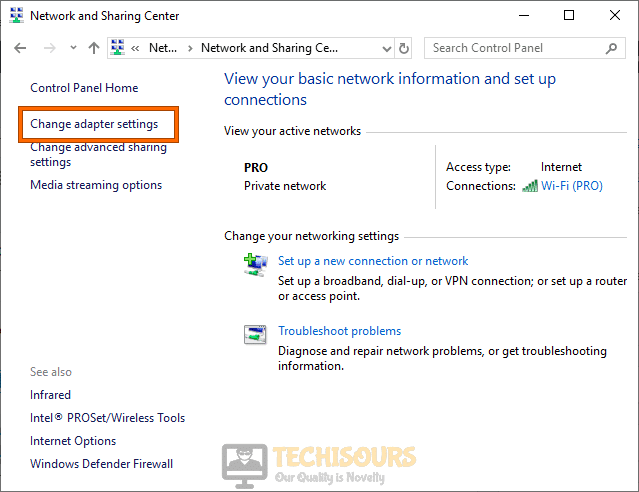
Change Adapter Settings - Right-click on the Internet you are connected to and select “Properties”.
- Now check the box parallel to “Internet Protocol Version 4 (TCP/IPv4)” and click on “Properties”.

Clicking Internet Protocol Version 4 (TCP/IPv4) - Now check the box parallel to “Use the following DNS server addresses” and set the “Preferred DNS” and “Alternate DNS” as “8.8.8.8″ and “8.8.4.4″ respectively.
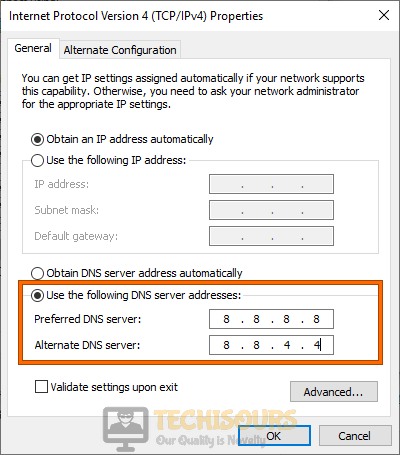
Use the following DNS server addresses - When the DNS has been changed, procced to launch the LOL client and check whether the league of legends error code 004 has been rectified.
Solution 5: Repair the game files
- Launch the RIOT game launcher on your PC and navigate to its “Settings”.
- From the left pane, navigate to the “General” tab and click on the “Initiate Full Repair” option located on the right side of the screen.

Initiate Full Repair - After the completion of the repair process, check if the error persists. If you still encounter the error message, kindly move to the next potential fix explained below.
Solution 6: Update graphics card driver
- Press “Windows + X” keys on the keyboard and select “Device Manager”.

Open Device Manager - Now locate and click on “Display Adapters” to expand the list of graphics drivers installed on your computer and double-click on your graphics driver to open its properties.
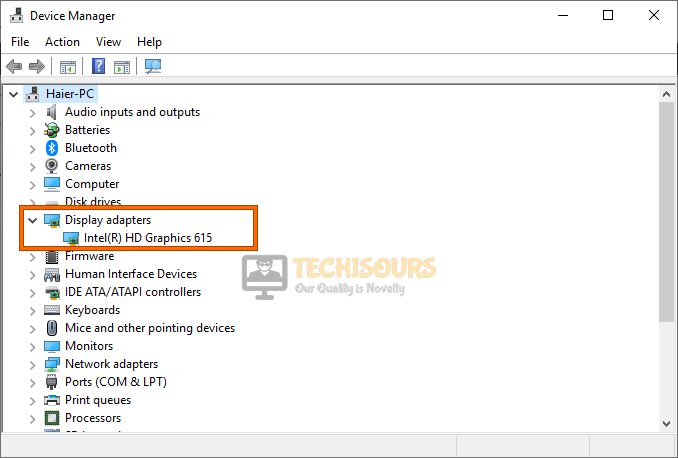
Selecting Display Adapters - Now navigate to the “Driver” tab and click on “Update Driver” to install the latest version of the graphics driver.

Update driver - Now restart your computer and see whether the error code 004 league of legends has been rectified.
Solution 7: Clean corrupted game files
- Launch your favorite browser and download MalwareBytes.
- Double-click on the setup file you just downloaded and follow the onscreen instructions to install the tool.
- Now launch the tool and click on the “Scan” button to start scanning for corrupted system files and fix them automatically.

Scan for corrupted files - When the scanning procedure is completed, hopefully, error code 004 league of legends would be resolved on your computer.
Solution 8: Use the Hextech Repair Tool
- Launch your favorite browser and download the Hextech Repair Tool.
- Now double-click on the downloaded executable file and follow the on-screen instructions to install it.
- Once installed, open the tool and check the box parallel to the “Force Repatch” option.
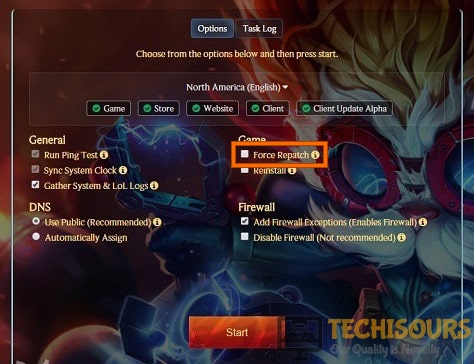
Choose Force Repatch option - Now click on the “Start” button to start the repair Process and patiently wait for this process to get complete.
- After the completion of the repair process, launch your game and see if the error has been terminated.
Solution 9: Reinstall the game
- Press “Win + R” keys from the keyboard to open the run box and search for “appwiz.cpl”.

Typing “appwiz.cpl” - Now right-click on the “League of Legends” app and select “Uninstall”.
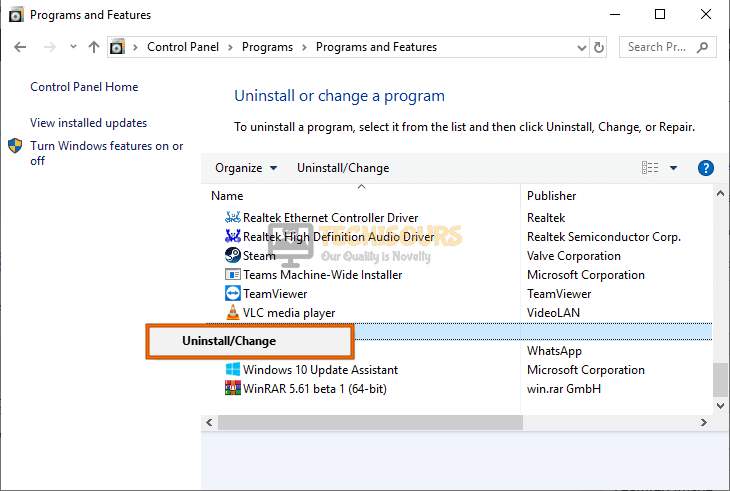
Uninstall League of Legends - Again, press “Win key + R” keys from the keyboard to open the run box and search for “%localappdata%”.

Tying in “%localappdata%” - From this folder, select the “RIOT” folder and press the “Delete” key on the keyboard to delete it from your PC.
- After performing all the steps explained above, download League of Legends again and install it on your computer.
- After the game has been successfully installed, most probably the error would be gone.
If you are still unable to fix this issue, you can contact us for any further assistance.
Back to top button