Обновлено 30.04.2021
Добрый день! Уважаемые читатели и гости одного из крупнейших It блогов в Рунете Pyatilistnik.org. В прошлый раз мы с вами успешно устранили ошибку 0x80300024 в Windows 10. Двигаемся дальше и сегодняшней темой будет ситуация, когда вы через утилиту WinSCP не можете подключиться к vCenter Server 7 или другую Linux платформу, у вас выскакивает ошибка «Cannot initialize SFTP protocol. Is the host running an SFTP server«.
Описание проблемы
Потребовалось мне почистить логи на vCenter 7 из-за ошибки Log Disk Exhaustion. Я для удобства всегда использую утилиту WinSCP. но при попытке произвести стандартное подключение я получал ошибку:
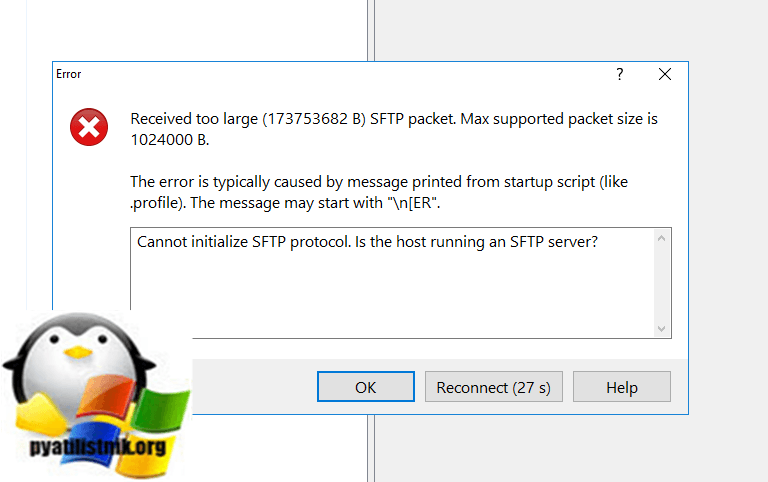
Received too large (173753682 B) SFTP packet. Max supported packet size is 1024000 B. The error is typically caused by message printed from startup script (like .profile). The message may start with «n[ER». Cannot initialize SFTP protocol. Is the host running an SFTP server?
Или русский вариант:
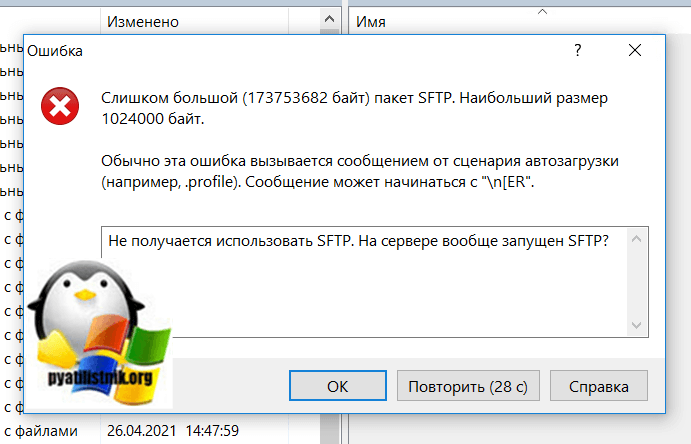
Слишком большой (173753682 байт) пакет SFTP. Наибольший размер 1024000 байт. Обычно эта ошибка вызывается сообщением от сценария автозагрузки (например, .profile). Сообщение может начинаться с «n[ER». Не получается использовать SFTP. На сервере вообще запущен SFTP?
Как устранить ошибку
Поскольку по умолчанию среда оболочки корневой учетной записи vcsa — это/bin/devicesh, то вам нужно войт на сервер vcsa в качестве учетной записи root и вручную измените среду оболочки корневой оболочки на bash. Делается это просто, подключитесь через Putty по ssh к vCenter Server 7 и введите команду:
Если в shell не получается войти. то выполните команду:
shell.set —enabled true (https://docs.vmware.com/en/VMware-vSphere/7.0/com.vmware.vsphere.vcenter.configuration.doc/GUID-8F0E13E2-8227-4EC4-A863-758D48EBC72D.html)
Она переведет вас в режим шела. Облочка (shell) обеспечивает взаимодействие между пользователем и средой операционной системы. Например, интерпретатор команд command.com операционной системы MS DOS, или оболочка bash операционных систем Unix, в МакОС — zsh. они бывают разные и кроме вызова прикладных команд (типа ipconfig и других) имеют специфичные фишки. Например команда echo $0 обычно определяет — текущий shell. Выполните:
она меняет shell на bash для пользователя root.
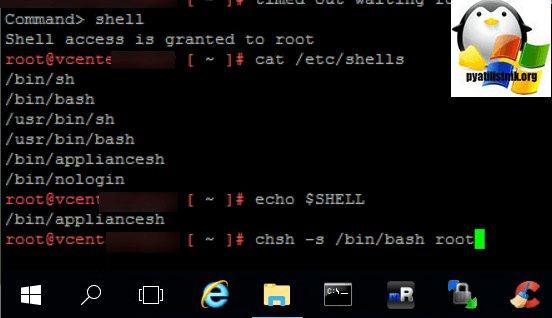
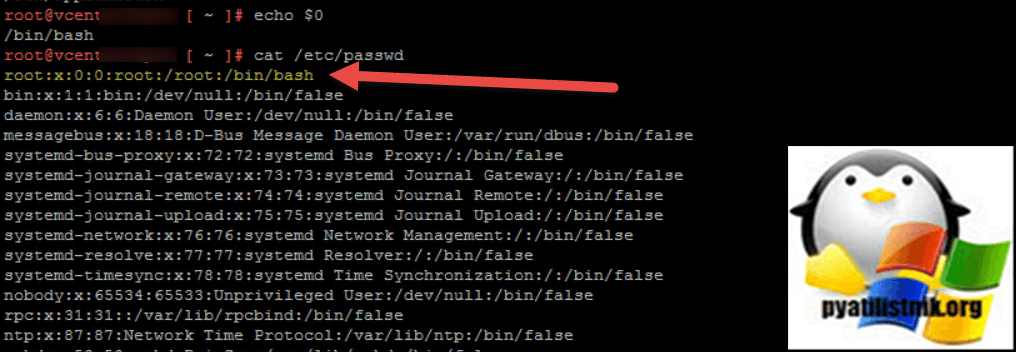
далее проверим, что он включился
так же вы можете посмотреть, что все применилось в файле /etc/password (основным источником информации о правах пользователя операционной системы).
После всех этих манипуляций у меня утилита WinSCP свободно подключилась к vCenter Server 7 по протоколу sftp. На этом у меня все, с вами был Иван Семин, автор и создатель IT портала Pyatilistnik.org.
Апр 30, 2021 21:47

We use winscp to transfer files between windows and linux operating systems. It is simple straight forward procedure. We also need to use winscp connection to VCSA to transfer log files, certificates or back scripts and other configuration files, etc. You may think that why i am talking about simple winscp connection procedure. This post not to explain the procedure to establish winscp connection to VCSA. This post is to share the issue which i have faced during the winscp connection to VCSA. When you copy files to vCenter server appliance using WinSCP , you may receive the error “Received too large SFTP packet. Max supported packet size is 1024000 B”. During winscp connection to VCSA appliance, part of the operation happens on the target Linux system. The default Appliance Shell cannot be the remote partner of WinSCP. You must enable the Bash shell on the appliance. We will talk about the detailed procedure to enable bash shell on the vCenter server appliance.
When you try to establish the WinSCP Connection to VCSA appliance, Connection may failed with the error similar to “Received too large SFTP packet. Max supported packet size is 1024000 B” and connection will not get established.
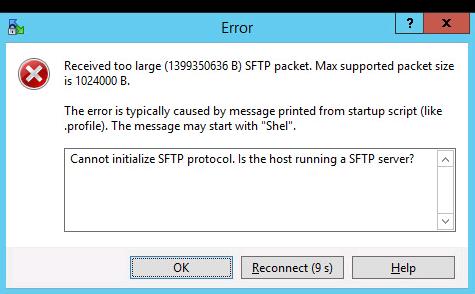
During winscp connection to VCSA appliance, part of the operation happens on the target Linux system. The default Appliance Shell cannot be the remote partner of WinSCP. You must enable the Bash shell on the appliance. Run the below command to enable the bash shell on vCenter Server appliance 6.5
chsh -s /bin/bash root

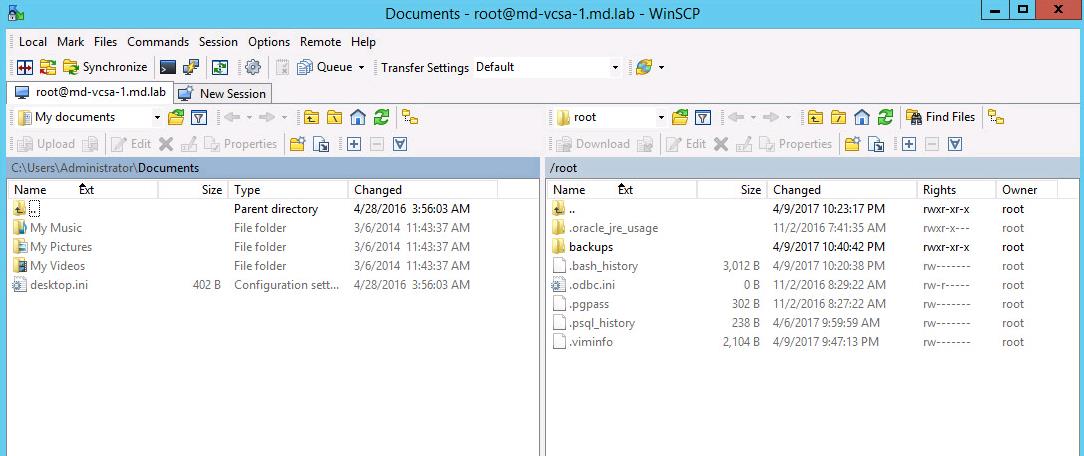
Once the bash shell is enabled on the vCenter server appliance 6.5, You will be able to establish WinSCP to VCSA successfully.
Once all the necessary files are copied into vCenter Server appliance, return to the Appliance Shell using the below command
chsh -s /bin/appliancesh root

That’s it. I hope this article will help you to understand the procedure to connect to VCSA appliance using WinSCP to transfer files to vCenter server appliance. Thanks for reading!! Be social and share it in social media, if you feel wort sharing it.
Задача
При начальной конфигурации vCenter Appliance может возникнуть потребность загрузки файлов на систему с Windows машины, например, для установки VMware vCenter Plug-in for Dell EMC PowerVault ME4 Series Storage Arrays (Web Client)
Проблема
Проблема в том, что по умолчанию shell при логине не запускается и использование scp становится невозможно.
Решение
Решение достаточно просто, необходимо передать в аргументы путь к shell
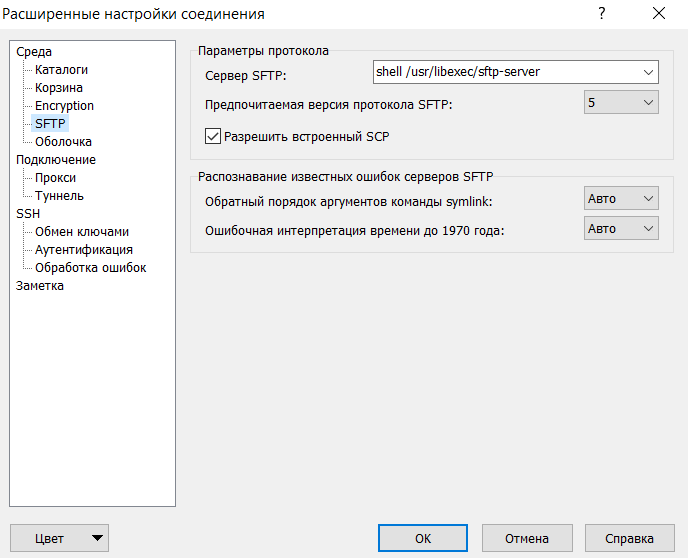
shell /usr/libexec/sftp-server
В WinSCP это делается так:
- Advanced — Ещё…
- Environment — Среда
- SFTP
- Protocol options (Параметры протокола) — > SFTP Server (Сервер SFTP) указать путь к shell shell /usr/libexec/sftp-server
P.S.
проверено на uname -a
Linux 4.4.191-1.ph1 #1-photon SMP Sat Sep 21 04:13:44 UTC 2019 x86_64 GNU/Linux
vCenter appliance Version 6.7.0
Build 14792544
Путь к shell на более ранних vCenter appliance может отличаться
From time to time, you will find it necessary to transfer files to or from your VMware vCenter Server Appliance (VCSA) or ESXi Servers. If you are working from a Windows desktop or server, there’s no more convenient utility than WinSCP for copying files securely between Windows and Linux Systems.
There are a few issues, however, when it comes to connecting to the VCSA with WinSCP that I will show you how to work around without reconfiguring the default shell of your VCSA!
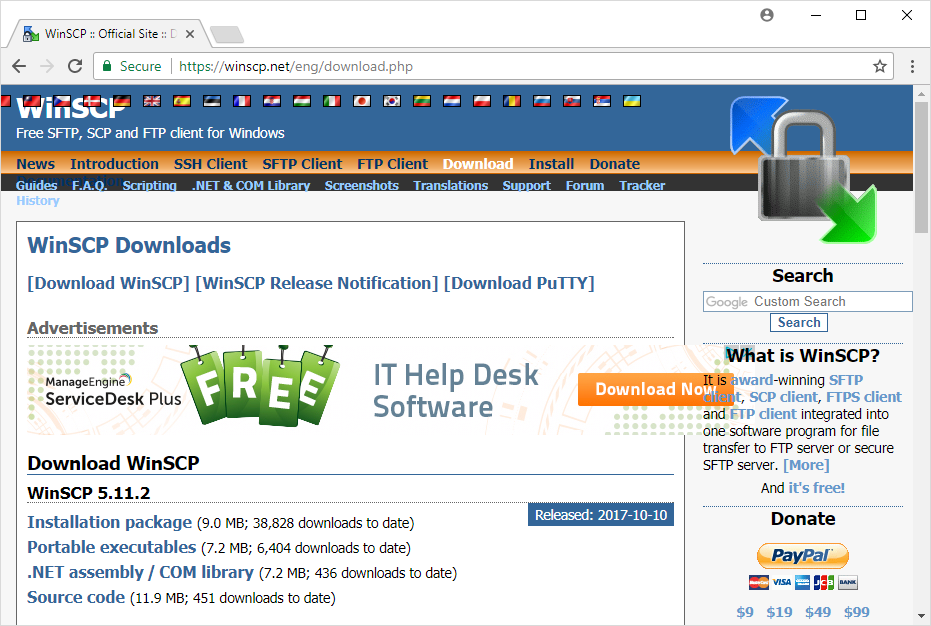
Getting WinSCP
Browse to: https://winscp.net to download the WinSCP Installation Package
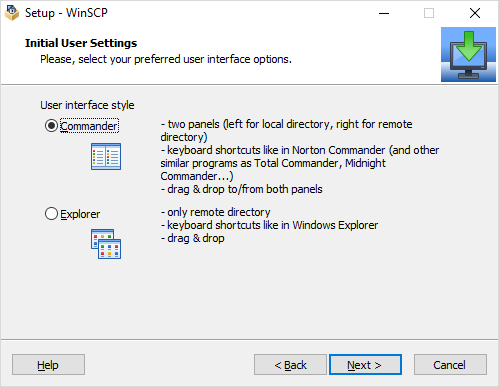
Install WInSCP with a Commander Interface
Connecting to VCSA with WinSCP
If you try to connect to the VCSA with WinSCP in a default configuration, you will get the following message:
Received too large …. SFTP Packet ….. Cannot initialize SFTP protocol. Is the host running an SFTP server?
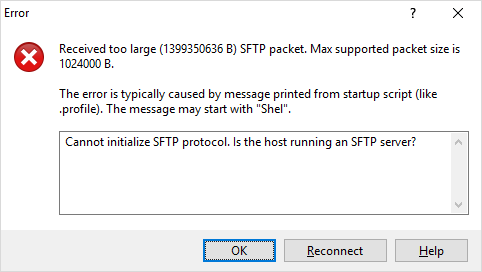
This occurs because the default shell for the VCSA 6.5 is not bash.
VMware KB 2107727 recommends changing the shell that the entire VCSA uses from /bin/appliancesh to /bin/bash prior to using WInSCP, then changing it back when you are done! This is a ridiculous waste of time and unnecessary re-configuration of the VCSA.
It is much more expedient just to reconfigure WinSCP and leave the VCSA the way it is! In order to use WinSCP, you will need to change where WinSCP looks for the sftp-server binaries.
In the new connection dialog, specify the Host name, User name and then click the Advanced button
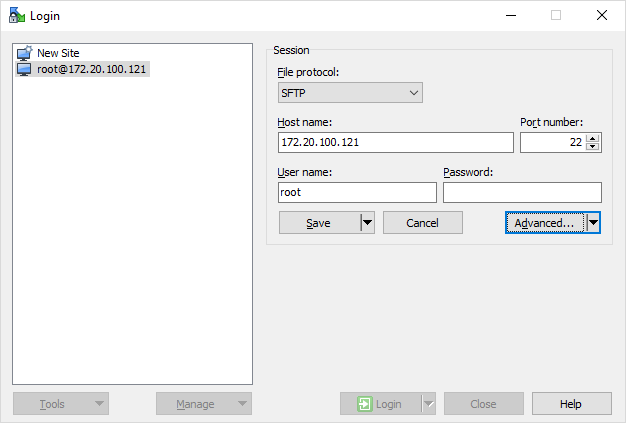
The settings for VCSA 6.5 and VCSA 6.0 differ slightly so
for VCSA 6.5:
Choose the Environment/SFTP option
Specify for SFTP server: shell /usr/libexec/sftp-server
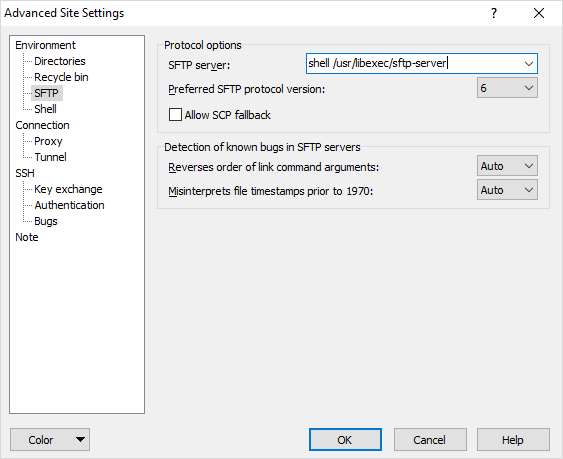
for VCSA 6.0:
Choose the Environment/SFTP option
Specify for SFTP server: shell /usr/lib64/ssh/sftp-server
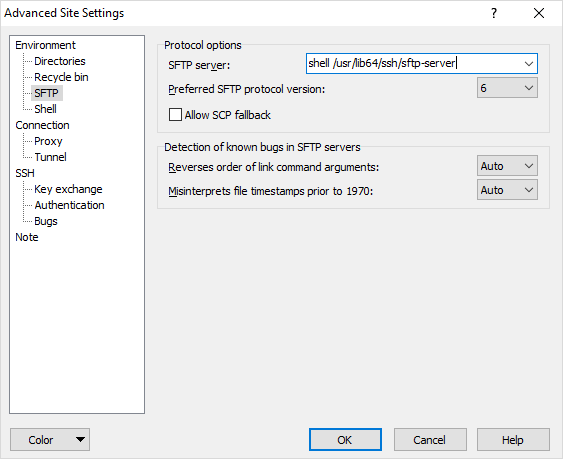
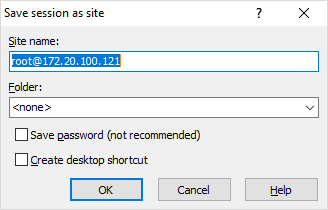
And then save the settings (which include the SFTP server)
Now you should be able to login:
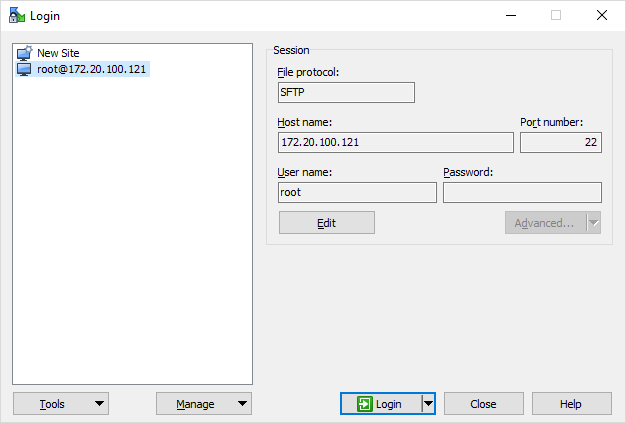
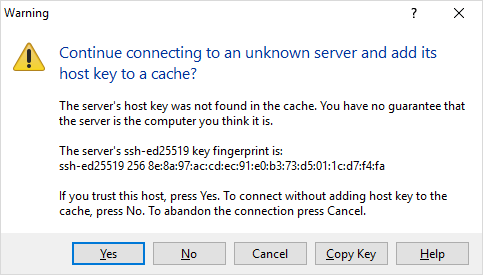
Accept the host key
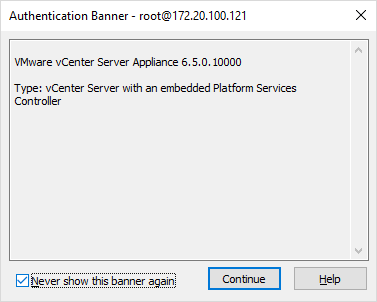
Click: Never show this banner again
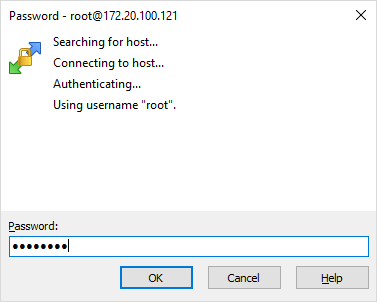
Enter the password for root
As soon as you connect, you will be in the root user folder which should be empty.
Navigate up one level in the right-hand pane of the interface

When you are at the root of the filesystem, you will see this:
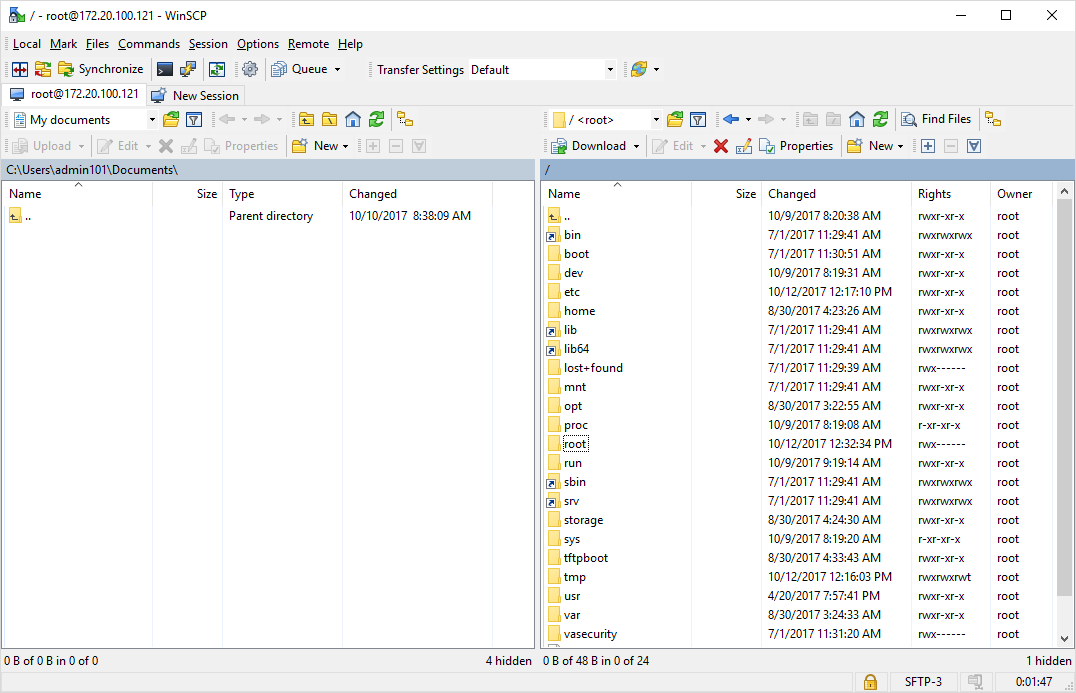
And you can access any other folders from there, for example: /var/log
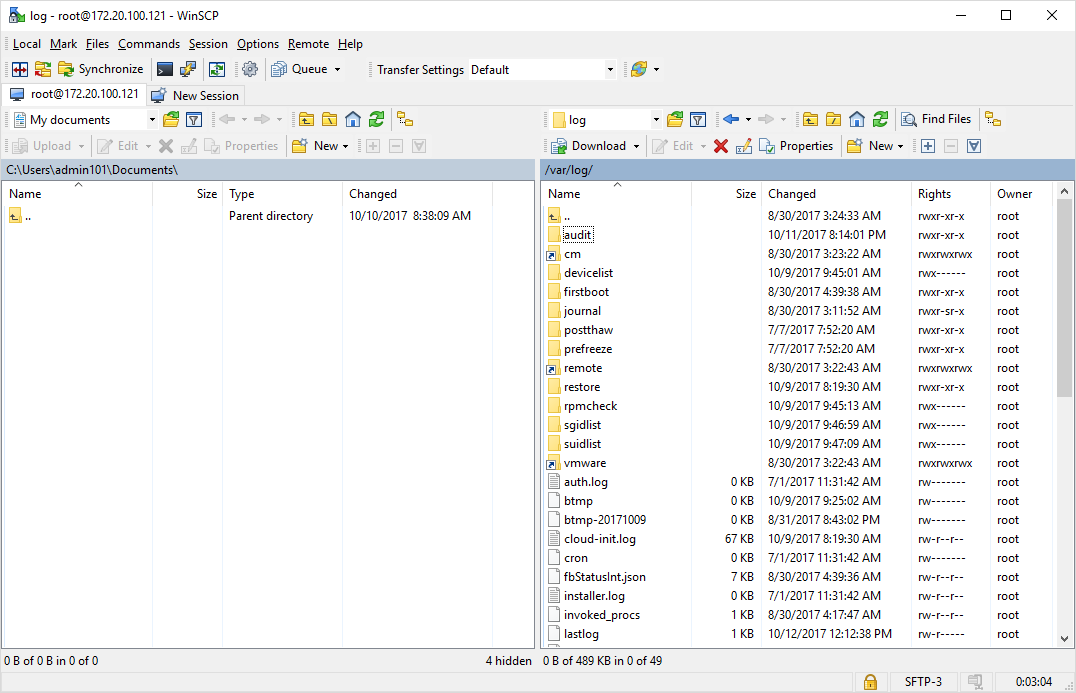
Connection to ESXi
Connecting to ESXi with ESXi 6.0 and ESXi 6.5 is pretty much default.
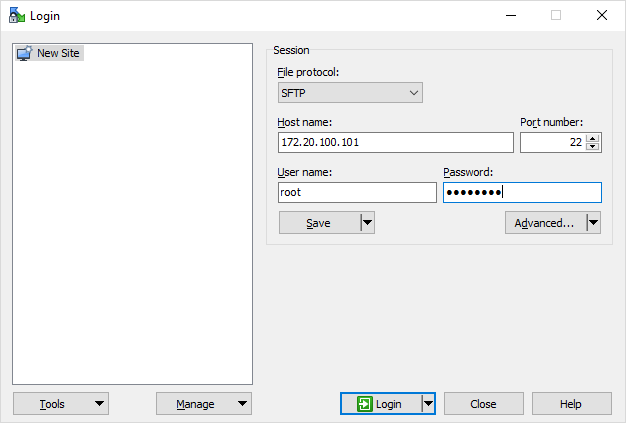
You don’t need to change any of the default variables, it should connect right away
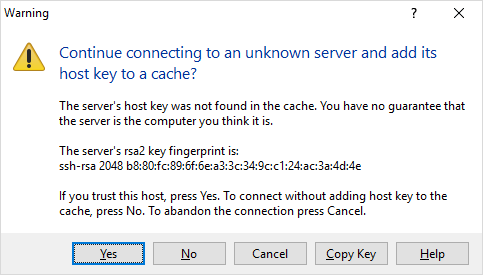
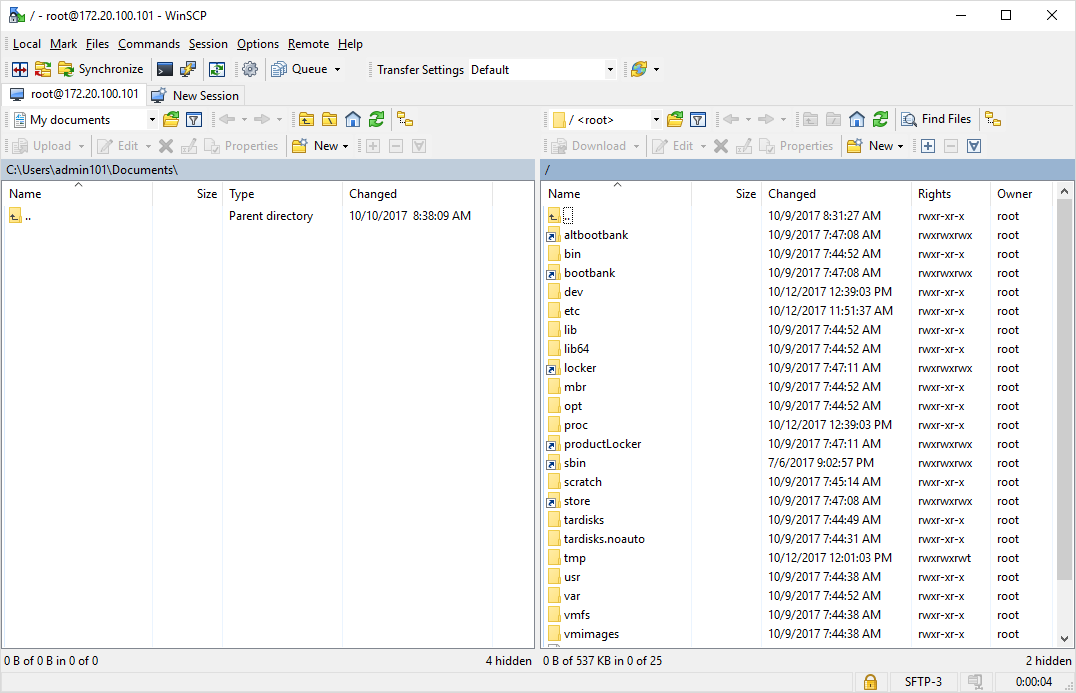
Connecting to ESXi 5.X and prior will require you specify SCP in place of SFTP in the connection dialog.
When I use WinSCP in Windows to connect to VMware with Ubuntu, it prompted this:
The server rejected SFTP connection, but it listens for FTP connections.
Did you want to use FTP protocol instead of SFTP? Prefer using encryption.
What’s the matter?
I can succeed to ping Ubuntu in Windows.

asked Jan 7, 2014 at 6:39

0
The fact that you can ping the server has nothing to do with what protocols it supports.
The message says that the server does not listen on port 22 (SSH, SFTP), but listens on port 21 (FTP). The point of the message is that WinSCP defaults to SFTP protocol, what is not common. So it tries to help users who expect FTP to be a default. But that’s not relevant to you apparently.
As @ps2goat suggested, make sure you setup SSH/SFTP server.
For more details, see the documentation for the error message The server rejected SFTP connection, but it listens for FTP connections.
answered Jan 7, 2014 at 9:23
Martin PrikrylMartin Prikryl
180k52 gold badges458 silver badges931 bronze badges
If you see this error all of a sudden (when SFTP has always worked for you for this particular server), and if you are using CSF (ConfigServer Security & Firewall), then it might be that your IP was blocked for SSH access. Try flushing all blocks. Also, try restarting the SSH server.
answered Sep 6, 2017 at 9:27

itoctopusitoctopus
4,1134 gold badges31 silver badges44 bronze badges
Old question but still responding so others might get benefited.
I stumbled upon this error and the first thing I checked was if my ubuntu machine had ssh installed. It was there and the latest version and I still would get this error.
As long as you have ssh access to the target, check the ssh service status and most certainly it’d be found inactive. Turn it on using
sudo service ssh restart
and you should be back in the game.
Do check the status of the SFTP by using
sudo service ssh status
and take any corrective action.
answered Dec 11, 2018 at 18:46

1
When I use WinSCP in Windows to connect to VMware with Ubuntu, it prompted this:
The server rejected SFTP connection, but it listens for FTP connections.
Did you want to use FTP protocol instead of SFTP? Prefer using encryption.
What’s the matter?
I can succeed to ping Ubuntu in Windows.
asked Jan 7, 2014 at 6:39
0
The fact that you can ping the server has nothing to do with what protocols it supports.
The message says that the server does not listen on port 22 (SSH, SFTP), but listens on port 21 (FTP). The point of the message is that WinSCP defaults to SFTP protocol, what is not common. So it tries to help users who expect FTP to be a default. But that’s not relevant to you apparently.
As @ps2goat suggested, make sure you setup SSH/SFTP server.
For more details, see the documentation for the error message The server rejected SFTP connection, but it listens for FTP connections.
answered Jan 7, 2014 at 9:23
Martin PrikrylMartin Prikryl
180k52 gold badges458 silver badges931 bronze badges
If you see this error all of a sudden (when SFTP has always worked for you for this particular server), and if you are using CSF (ConfigServer Security & Firewall), then it might be that your IP was blocked for SSH access. Try flushing all blocks. Also, try restarting the SSH server.
answered Sep 6, 2017 at 9:27
itoctopusitoctopus
4,1134 gold badges31 silver badges44 bronze badges
Old question but still responding so others might get benefited.
I stumbled upon this error and the first thing I checked was if my ubuntu machine had ssh installed. It was there and the latest version and I still would get this error.
As long as you have ssh access to the target, check the ssh service status and most certainly it’d be found inactive. Turn it on using
sudo service ssh restart
and you should be back in the game.
Do check the status of the SFTP by using
sudo service ssh status
and take any corrective action.
answered Dec 11, 2018 at 18:46
1