При просмотре видео в сети мы можем внезапно столкнуться с ошибкой воспроизведения, сопровождающейся сообщением «html5 Video file not found». Ошибка встречается на различных видеохостах типа Vimeo, YouTube и других, и обычно связана с некорректной настройкой сайта его веб-мастером или отсутствием поддержки технологии HTML5 у пользовательского браузера. Ниже разберём, в чём суть данной проблемы, и как избавиться от неё на вашем ПК.
Содержание
- Модерный HTML5
- Ошибка «html5 Video file not found» — причины появления
- Перегрузите веб-страницу
- Очистите кэш и куки веб-навигатора
- Отключите аппаратное ускорение
- Запустите навигатор в безопасном режиме
- Обновите ваш веб-браузер
- Обратитесь к веб-мастеру сайта
- Заключение
Модерный HTML5
Как известно, технология «HTML5» является усовершенствованной версией технологии «HTML» (язык гипертекстовой разметки). Как следующий уровень развития HTML, HTML5 включает видео и аудио спецификации, позволяющие пользователям смотреть видео онлайн без каких-либо плагинов.
Для работы указанной технологии веб-мастерам нужно задействовать специальную кодировку HTML5, и использовать форматы WebM, MP4 и OGG на страницах своих ресурсов.
Вы можете просматривать видео HTML5 на всех популярных браузерах, включая Гугл Хром, Мозилла, IE, Сафари и других.

Ошибка «html5 Video file not found» — причины появления
Рассматриваемая ошибка обычно возникает при попытке просмотра видео, размещённого на какой-либо веб-странице. Часто она связана с некорректной настройкой сайта, и может быть исправлена лишь веб-мастером данного ресурса.
В некоторых случаях проблема может быть вызвана некорректной работой браузера, не поддерживающего кодеки HTML5. Вы можете проверить эту гипотезу попытавшись запустить проблемное видео на другом браузере.
Также фактором проблемы могут выступать кэш и куки браузера, не позволяющие корректно воспроизводить видео с данной веб-страницы.
Перегрузите веб-страницу
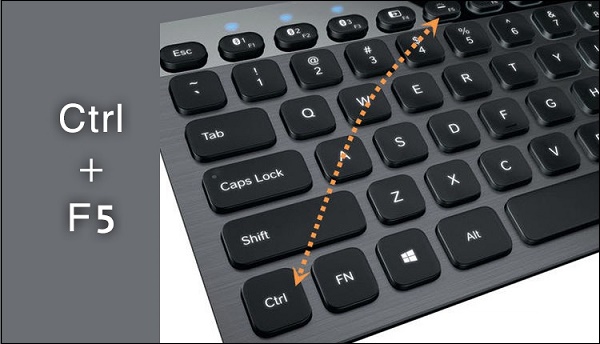
Наиболее простым способом решить проблему является обновление проблемной веб-страницы. Нажмите на F5 (Ctrl+F5) в браузере, и после обновления страницы попытайтесь воспроизвести необходимый вам видеоролик.
Очистите кэш и куки веб-навигатора
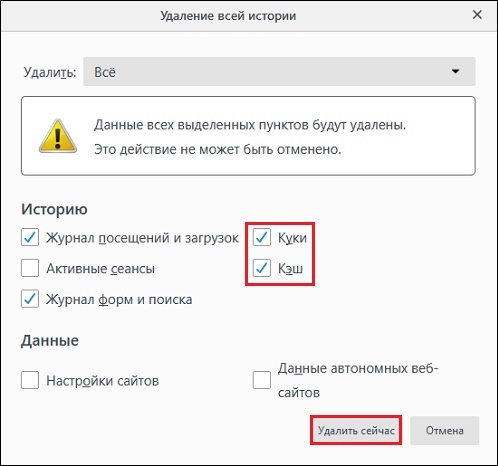
Также рекомендуем очистить кэш и куки вашего браузера. К примеру, в Мозилле это делается переходом в настройки, выбором слева раздела «Приватность и защита», и нажатием на кнопку «Удалить историю» чуть ниже.
Отключите аппаратное ускорение
Как известно, аппаратное ускорение помогает при работе с графически-насыщенными медиа типа игр, видео и др. в вашем браузере. Когда вы отключаете аппаратное ускорение в браузере, только графический процессор вашего ПК может быть использован для работы с графическими медиа. Это снижает нагрузку на браузер, и может устранить html5 Video file not found на вашем ПК.
Аппаратное ускорение может быть отключено в настройках вашего браузера. К примеру, в Гугл Хром это делается переходом в настройки навигатора, выбором опции «Дополнительные» в самом низу, и отключением опции «Использовать аппаратное ускорение» с помощью соответствующего ползунка.
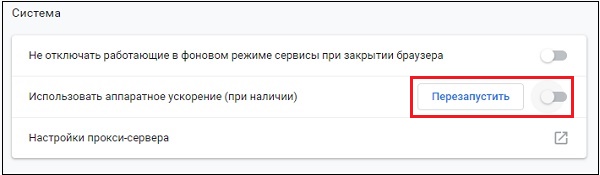
После отключения данной опции перезапустите браузер, и попытайтесь воспроизвести нужное видео.
Запустите навигатор в безопасном режиме
Старт браузера в безопасном режиме может помочь избавиться от рассматриваемого нами сообщения. В данном режиме отключается работа расширений и дополнений браузера, деактивируется аппаратное ускорение, сбрасываются ряд настроек.
Если видео запустится в безопасном режиме, значит какая-либо из указанных настроек вызывает рассматриваемую нами ошибку. Вы можете изменить такие настройки, отключить плагины и устранить релевантные причины, вызывающие ошибку HTML5.
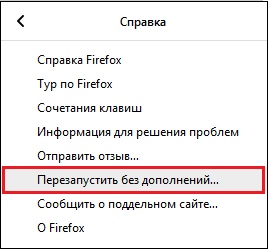
К примеру, для запуска Мозилла в безопасном режиме необходимо нажать на кнопку с тремя горизонтальными линиями справа сверху (Открыть меню) в браузере. Далее выбираем «Справка» — «Перезапустить без дополнений».
Обновите ваш веб-браузер
Поскольку не все браузеры поддерживают работу с HTML5, вам необходимо убедиться, что вы пользуетесь самой свежей версией вашего навигатора. Технологию HTML5 поддерживает браузер Хром с 26 версии, Мозилла с 21 версии, Сафари с версии 6.1, Опера с 15 версии и далее. Проверьте, установлена ли у вас самая свежая версия веб-навигатора, и при необходимости установите таковую на ваш ПК.
Обратитесь к веб-мастеру сайта
Во многих случаях рассматриваемая проблема может возникать из-за того, что проблемная страница не имеет должный кодек для воспроизводства видеоролика. В этом случае можно попробовать связаться с разработчиком сайта, дабы тот установил HTML5 кодеки для форматов WebM, MP4 и OGG.
Читайте также: тормозит видео при просмотре онлайн – что делать.
Заключение
В нашей статье мы разобрали, что за проблема html5 Video file not found, и как её устранить. Если стандартная перезагрузка страницы ничего не даёт, попробуйте очистить кэш и куки браузера, отключить аппаратное ускорение или запустить браузер в безопасном режиме. Если же это не помогло, попробуйте установить самую свежую версию браузера, или использовать альтернативный веб-навигатор от другого разработчика. Также будет не лишним обратиться к веб-мастеру проблемного ресурса – возможно дисфункция с работой видео HTML5 вызвана некорректной настройкой функционала самого сайта.
Многие пользователи столкнулись с проблемой при просмотре видео в интернете ошибкой HTML5 в видеоплеере «Video file not found». Мы расскажем о проигрывателе HTML5 Video Player и его основных преимуществах по сравнению подобными технологиями. Также мы расскажем как исправить данный сбой.
О проигрывателе HTML5 Video Player
Новый формат проигрывания видео с помощью HTML5 был разработан для того, чтобы облегчить просмотр видеороликов на различных веб-сайтах. Как правило, большинство видеоплееров содержат настройки, которые требуют наличия определенных плагинов и расширений в браузере. Такие плагины отвечают за тип видео и поддержку его формата в плеере. Сейчас, наиболее популярными считаются технологии Flash, Quicktime, Microsoft Silverlight. Например, отсутствие Flash Player на компьютере не позволит вам открывать большинство видео-роликов, аудиозаписей и анимации.
В отличии от других, технология HTML5 позволяет просматривать онлайн-видео без необходимости установки дополнительных элементов в браузере и поддерживает форматы OGG, WebM, MP4 и другие. Главное, что бы веб-мастер использовал на сайте код генерирования видеозаписей в HTML5.
HTML5 Video Player — это относительно новая технология для просмотра видео в интернете, отличительной чертой данного видеоплеера является отсутствие требования установки дополнительных модулей в браузерах либо определенных кодеков на ПК.
Исправляем «HTML5: Video file not found» в плеере
С недавнего времени пользователи все чаще получают уведомления что видео не поддерживается при загрузке плеера на сайтах. Это связано с тем, что технология активно внедряется на веб-ресурсах, а HTML5 Video Player поддерживаются на всех современных браузерах — Internet Explorer, Google Chrome, Safari, Firefox и Opera.

Ошибка «HTML5: Video file not found» при загрузке видео
Что бы исправить проблему Video file not found, нужно всего лишь навсего иметь актуальную версию своего браузера. Если у вас браузер был установлен давно, тогда примените обновления. Практически во всех случаях проблема решается таким образом. Но если вдруг видеоплеер не запустится, тогда:
- Часто сбой возникает при долгом простое запущенного видеоплеера, поэтому просто следует перезапустить страницу через CTRL+F5.
- Пробуйте открыть веб-сайт на другом браузере;
- Подергайте настройки видео, а точнее качество — иногда подобные сбои могут быть вызваны задержкой ответа сервера;
- Ошибка вызвана проблемами со стороны самого сайта.
Еще раз повторюсь — применение новых обновлений практически всегда решает проблему совместимости с видеоплеером на сайте.
Не часто, но все же, данная проблема может возникнуть в Youtube. В таком случае, требуется проверить, подключен проигрыватель в YouTube или нет. Сделать это можно так: нажмите правой кнопкой мыши по ролику и выберите «О проигрывателе HTML5».
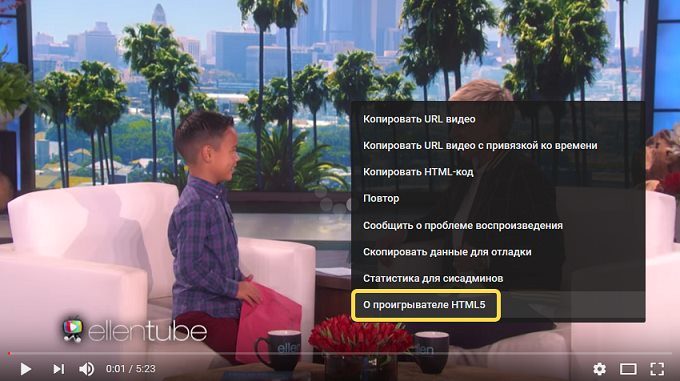
«О проигрывателе HTML5» в Youtube
В настройках вы увидите, какие форматы вам доступны в данной версии браузера, также обратите внимание на последний пункт, на нем должна стоять галочка.
Некоторые пользователи по своим причинам хотят, но не знают как отключить html5 плеер в Youtube, поэтому для них есть специальный плагин в Google Chrome. Вот инструкция по его использованию.
( 2 оценки, среднее 1 из 5 )
Summary: Are you unable to watch videos on Vimeo, YouTube, or other websites due to the ‘HTML5 Video File Not Found‘ error? It could be a web page backend issue or your browser does not support HTML5 videos. This post shares how best you can tackle the HTML5 video error problem and make your videos playable again in any browser.


Contents
- What is a HTML5 video file?
- What is HTML5 Video “File not Found” Error?
- Why do you get an ‘HTML5 Video File Not Found’ error?
- How to fix ‘HTML5 Video: File Not Found’ error
- Is Video not Playing in Firefox or Chrome ?
What is a HTML5 video file?

HTML5 is an enhanced version of HTML (HyperText Markup Language). As the next level to HTML, HTML5 has incorporated video and audio specifications, which now allows users to watch videos online without any plugins. The webmasters need to use special HTML5 coding and include WebM, MP4 and OGG formats on their web pages. Before HTML5 videos were only played using the Flash Player.
You can view HTML5 videos on all popular browsers such as Google Chrome, Internet Explorer, Mozilla Firefox, and Safari.
What is HTML5 Video “File not Found” Error?
If you encountered “HTML5 video not found” error while playing a video on any website then it implies your browser doesn’t support the HTML5 format codecs or your browser doesn’t have the proper video codec installed.
Why do you get an ‘HTML5 Video File Not Found’ error?
There are could be multiple reasons that could be held responsible to get an ‘HTML5 Video File Not Found’ error –
- Website’ Issue –
HTML5 video error occurs when you try to watch a video embedded on a web page. It is mostly a website backend issue and is fixed by the webmaster or the developer of the site. - Browser’s Issue –
However, sometimes the problem could also be the browser. Below mentioned are there scenarios related to the browser –
- The browser in which you are trying to view the video may not support HTML5 format codecs. You can check this, by playing videos on multiple browsers.
- If you are able to watch the web page video in other browsers, it is the HTML5 compatibility problem with a particular browser. For example, a web page video may not open in Firefox and throw HTML5 video error. However, in Chrome it may play perfectly.
- The possibility is also that the browser’s cache and cookies do not let the web page videos play. You can confirm this, if the video plays fine in the new Incognito window.
Thus, there are various reasons due to which the ‘HTML5 video not found’ error occurs.
Also read Error Solved: 5 Common Video Errors
How to fix ‘HTML5 Video: File Not Found’ error
There are various ways to fix HTML5 video error. We suggest you to follow the order given here while troubleshooting – from simpler to complex solutions.
5 Ways to solve ‘HTML5 Video File Not Found’ error
- Update your browser
- Remove cookies and cache
- Toggle hardware acceleration
- Start the browser in Safe Mode
- Download supporting codecs
Method 1 – Update your browser
Not all web browsers support HTML5 videos. Ensure you are using an updated version of the browser.
Below are the popular browser versions that support HTML5
| Element |  |
 |
 |
 |
 |
|---|---|---|---|---|---|
| <HTML5 video> | Google Chrome | Internet Explorer | Mozilla Firefox | Safari | Opera |
| Version 25 partially supports | Version 9 and 11 | Version 2 to 20 partially supports | Version 3.1 to 6 partially supports | Version 10.1 to 12.1 partially supports | |
| Version 26 to 70 completely supports | Version 21 to 63 completely supports | Version 6.1 to 12 completely supports | Version 15 to 53 completely supports |
To check if you’re using an updated version of Chrome do the following:
- Open Google Chrome and click on the three vertical dots on the top-right corner
- Click Help > About Google Chrome
- If you see an option Update Google Chrome, click on it. If not, your Google Chrome is updated
Similarly, you may check and update other browsers too.
Method 2 – Remove cookies and cache
Clearing the cache and cookies in the browser helps most of the time. Although, cache and cookies stored in a browser’s directory serve to provide a better user experience, but sometimes it leads to errors while playing multimedia files. Try to view the video again after deleting the cache, cookies and browser history.
In Google Chrome, you can do the following to delete cache and cookies:
- Open Chrome and click on the three vertical dots on the top right
- Click to follow Settings > Advanced > Privacy and security > Clear browsing data

Figure: Under Google Chrome Settings click on ‘Clear browsing data’
- Choose and tick the checkboxes: Browsing history, Download history, Cookies and other site data, and Cached image and files

Figure: Tick the checkboxes to clear all cache data
- To clear the entire cache, select All time in the time range dropdown
- Click Clear data
Now restart your computer and try to play video in your browser.
For steps to remove cache and cookies in other web browsers, visit: Read More
Method 3 – Toggle hardware acceleration
Hardware acceleration helps in opening graphics-intensive media like games and videos etc., in the browser.
When you turn-off the hardware acceleration in a browser, only your computer’s GPU (Graphics Processing Unit) will be used to process all the graphics-intensive media. This lowers the load on the browser and may fix HTML5 video error.
In Google Chrome, you can disable hardware acceleration by following the below steps:
- Click on the three dots on the right corner in Google Chrome
- Click to follow Settings > Advanced > System

Figure: Click on ‘System’ under ‘Settings’ in Chrome
- Toggle-off the Use hardware acceleration when available option

Figure: Toggle-off the ‘Use hardware acceleration when available ‘
- Restart Chrome
Now try to your videos in browser. It should not give ‘HTML5: Video file not found’ error.
You can disable hardware acceleration for other browsers too in their setting.
Method 4 – Start browser in Safe Mode
Starting the browser in Safe Mode usually resolves many problems. Safe Mode may not fix the HTML5 issue, but you may know the cause of the problem and find a solution.
So what happens to the browser in Safe Mode?
- In Safe Mode hardware acceleration is automatically turned-off
- Few settings are reset
- All add-ons, plugins etc., are disabled
If the video plays without any error or interruption in Safe Mode, it means any of these settings in your browser could be creating the problem. You can change those settings or disable the plugins or extensions that are creating the HTML5 video error.
Method 5 – Download HTML5 supporting codecs
An ‘HTML5: Video file not found’ error indicates either the browser you are using doesn’t support HTML5 or the webpage doesn’t have the proper video codec.
You may contact the website’s developer to install HTML5 supporting codecs for all the three WebM, MP4, and OGG formats.
In case you are an Internet user who witnesses this error, then ensure using the updated browser that supports HTML5. Further, if the error persists, try the other ways given in this post to fix the issue.
Is Video not Playing in Firefox or Chrome ?
What worked for some, might work for you too!
Here are couple of solutions, which various users found helpful when their HTML5 videos didn’t play in any browser.

‘I had HTML5 videos that would not play in Firefox. I was using an updated browser and removed cache and cookies too, but no help.
What I did: What worked for me was updating my video drivers. I have the NVIDIA GTS 240 driver on my computer. Downloaded and installed the latest one. Next, restart the computer and now Chrome 38.0.2125.77 started playing HTML5 videos again on YouTube, Vimeo, and others.
Is your video corrupt? Repair it with Ultimate Video Repair Tool
When the local video files saved in the hard drive, SD card, USB flash drive etc., are broken, not playing, or showing any error while opening, it indicates a corrupt file. To fix such not playing or error generating videos use Stellar Repair for Video — an efficient tool to fix any sort of video corruption including blurry, grainy, stuttering, black screen, no sound or out-of-sync videos.
About The Author
Sumona Chatterjee
Sumona is a tech blogger, avid photographer, & technogeek with vast experience in writing about media file recovery tips and tutorials. She has over 10 years of experience in media file recovery/media file repair technology. She is passionate about Photography, Creative Designing, Music, and Exploring lesser-known destinations.
Best Selling Products

Stellar Data Recovery Professional for Windows
Stellar Data Recovery has the right Windows Recovery tool for all your data recovery
Read More

Stellar Data Recovery Professional for Mac
Stellar Data Recovery for Mac program performs safe..
Read More

Stellar Photo Recovery
A comprehensive photo recovery software to restore photos, music & video files
Read More

Stellar Repair for Video
Powerful video repair tool for repairing corrupt or damaged MOV and other video files
Read More