Sergey is correct, but if you need to get a response from your home-spun dialog(s) for evaluation in the same block of code that invoked it, you should use .showAndWait(), not .show(). Here’s my rendition of a couple of the dialog types that are provided in Swing’s OptionPane:
public class FXOptionPane {

public enum Response { NO, YES, CANCEL };

private static Response buttonSelected = Response.CANCEL;

private static ImageView icon = new ImageView();

static class Dialog extends Stage {
    public Dialog( String title, Stage owner, Scene scene, String iconFile ) {
        setTitle( title );
        initStyle( StageStyle.UTILITY );
        initModality( Modality.APPLICATION_MODAL );
        initOwner( owner );
        setResizable( false );
        setScene( scene );
        icon.setImage( new Image( getClass().getResourceAsStream( iconFile ) ) );
    }
    public void showDialog() {
        sizeToScene();
        centerOnScreen();
        showAndWait();
    }
}

static class Message extends Text {
    public Message( String msg ) {
        super( msg );
        setWrappingWidth( 250 );
    }
}

public static Response showConfirmDialog( Stage owner, String message, String title ) {
    VBox vb = new VBox();
    Scene scene = new Scene( vb );
    final Dialog dial = new Dialog( title, owner, scene, "res/Confirm.png" );
    vb.setPadding( new Inset(10,10,10,10) );
    vb.setSpacing( 10 );
    Button yesButton = new Button( "Yes" );
    yesButton.setOnAction( new EventHandler<ActionEvent>() {
        @Override public void handle( ActionEvent e ) {
            dial.close();
            buttonSelected = Response.YES;
        }
    } );
    Button noButton = new Button( "No" );
    noButton.setOnAction( new EventHandler<ActionEvent>() {
        @Override public void handle( ActionEvent e ) {
            dial.close();
            buttonSelected = Response.NO;
        }
    } );
    BorderPane bp = new BorderPane();
    HBox buttons = new HBox();
    buttons.setAlignment( Pos.CENTER );
    buttons.setSpacing( 10 );
    buttons.getChildren().addAll( yesButton, noButton );
    bp.setCenter( buttons );
    HBox msg = new HBox();
    msg.setSpacing( 5 );
    msg.getChildren().addAll( icon, new Message( message ) );
    vb.getChildren().addAll( msg, bp );
    dial.showDialog();
    return buttonSelected;
}

public static void showMessageDialog( Stage owner, String message, String title ) {
    showMessageDialog( owner, new Message( message ), title );
}
public static void showMessageDialog( Stage owner, Node message, String title ) {
    VBox vb = new VBox();
    Scene scene = new Scene( vb );
    final Dialog dial = new Dialog( title, owner, scene, "res/Info.png" );
    vb.setPadding( new Inset(10,10,10,10) );
    vb.setSpacing( 10 );
    Button okButton = new Button( "OK" );
    okButton.setAlignment( Pos.CENTER );
    okButton.setOnAction( new EventHandler<ActionEvent>() {
        @Override public void handle( ActionEvent e ) {
            dial.close();
        }
    } );
    BorderPane bp = new BorderPane();
    bp.setCenter( okButton );
    HBox msg = new HBox();
    msg.setSpacing( 5 );
    msg.getChildren().addAll( icon, message );
    vb.getChildren().addAll( msg, bp );
    dial.showDialog();
}
}

Today’s tutorial demonstrates creating a JavaFX message box in our Java application. The message box can be a confirmation, warning, information, or error alert.
Create JavaFX Message Box
To accomplish the following example code, we use Java version 18, JavaFX version 13 and Netbeans IDE version 13.
Example Code:
//write your package name
package com.mycompany.javafx_messagebox;

//import required libraries
import javafx.application.Application;
import javafx.event.ActionEvent;
import javafx.geometry.Insets;
import javafx.scene.Scene;
import javafx.scene.control.Alert;
import javafx.scene.control.Alert.AlertType;
import javafx.scene.control.Button;
import javafx.scene.layout.TilePane;
import javafx.stage.Stage;

/**
 * JavaFX App
 */
public class App extends Application {

    @Override
    public void start(Stage stage) {

        // create a tile pane
        TilePane r = new TilePane();
        //add padding
        r.setPadding(new Insets(10, 10, 10, 10));

        // an array of button names
        String[] buttonNames = {"Confirmation MessageBox",
                                "Error MessageBox",
                                "Information MessageBox",
                                "Warning MessageBox"};

        //Show no alert at the startup of the program
        Alert alert = new Alert(AlertType.NONE);


        /*
        a loop to create buttons, define actions when
        they are pressed and add them to the tile pane
        */
        for (String s : buttonNames) {
            Button button = new Button(s);

            button.setOnAction((ActionEvent event) -> {
                if (null != button.getText()) {
                    switch (button.getText()) {
                        case "Confirmation MessageBox":
                            // set alert type, title, content text and then show it
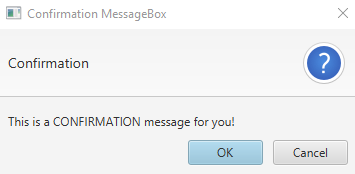
                            alert.setAlertType(AlertType.CONFIRMATION);
                            alert.setTitle("Confirmation MessageBox");
                            alert.setContentText("This is a CONFIRMATION "+
                                                 "message for you!");
                            alert.show();
                            break;
                        case "Error MessageBox":
                            // set alert type, title, content text and then show it
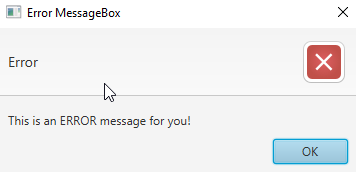
                            alert.setAlertType(AlertType.ERROR);
                            alert.setTitle("Error MessageBox");
                            alert.setContentText("This is an ERROR message for you!");
                            alert.show();
                            break;
                        case "Information MessageBox":
                            // set alert type, title, content text and then show it
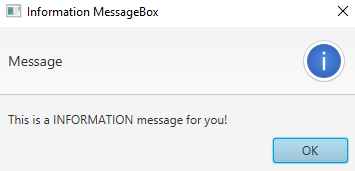
                            alert.setAlertType(AlertType.INFORMATION);
                            alert.setTitle("Information MessageBox");
                            alert.setContentText("This is a INFORMATION "+
                                                 "message for you!");
                            alert.show();
                            break;
                        case "Warning MessageBox":
                            // set alert type, title, content text and then show it
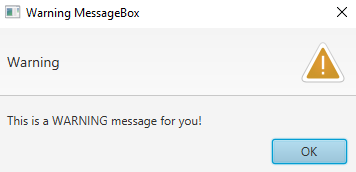
                            alert.setAlertType(AlertType.WARNING);
                            alert.setTitle("Warning MessageBox");
                            alert.setContentText("This is a WARNING message for you!");
                            alert.show();
                            break;
                        default:
                            break;
                    }
                }
            });

            //add button
            r.getChildren().add(button);

        }

        // create a scene
        Scene sc = new Scene(r, 640, 50);

        // set the scene
        stage.setScene(sc);

        //show the stage
        stage.show();

    }//end start method

    //main method
    public static void main(String[] args) {
        launch(args);
    }//end main

}//end App class
Output (main window):

Output (confirmation message box, displayed when we click on Confirmation MessageBox button):
Output (error message box, displayed when we click on Error MessageBox button):
Output (information message box, displayed when we click on Information MessageBox button):
OUTPUT (warning message box, displayed when we click on the Warning MessageBox button):
For this tutorial, we don’t need to make any changes to the module-info.java and pom.xml files. Create a JavaFX project and practice the code given above.
We have a main class named App that extends the Application class (which is standard in Java). You can name the primary launch class (App).
Next, we override the start() method because the App is the child class of the Application class. Remember that the child class needs to implement all abstract functions/methods of the parent class.
After that, we have a start() method that takes one parameter of the Stage type. We are using the Stage type parameter because this is where all visual components JavaFX application will be displayed.
We do not need to create the Stage type object because the JavaFX runtime creates it. The following is the step-by-step explanation of what’s inside the start() method.
-
Create an object of JavaFX
TilePane, which is a layout component and lays out all its child components in the grid of same-sized cells. -
Add margins around the whole grid (
top/right/bottom/left). -
Create an array with the names of all buttons we need for this application.
-
Create an alert message box of type
NONEbecause we do not want to display any message box at the program’s startup. -
Next, we have a
forloop, which iterates over all the button names.- Inside the loop, we create a button of the current name.
- Set an action for that specific button based on the condition. We get the button text and display a message box based on the button name using the
switchstatement.
-
Add the button to the
TilePane. -
Create a scene using the
Sceneclass. -
Set the scene.
-
Finally, show the stage.
Now, it is the main method’s turn. We can launch the JavaFX application without having the main method, but it is useful when we are required to use parameters that are passed to the application using the command line.
Introduction to JavaFX Alert
In JavaFX, an Alert box is used to alert the user about further process. JavaFX Alert class is a subclass of Dialog class. Alert box in javafx alert the user about information, error messages, confirmation messages and warning messages to let know them the user about what exact dialog popup is about.
There are different ways to alert the user about what happening next. In that, there are 5 Alert types to alert the user.
Types of Alert Box in JavaFX
Below are the points which explain the types of alert box in javaFX:
- None Alert: The None alert types do not set to any default properties.
- Information Alert: The Information alert type informs the user about content information or suggests the user about what is going on in the next process.
- Error Alert: The Error alert type is showing the user about where things went wrong or what is the error with the functionality.
- Confirmation Alert: The Confirmation alert type is asking the user about permission to move further. We have two options available, Yes or If we click Yes means we have granted them permission to move next step of If we click No, then do not move to the next step.
- Warning Alert: The Warning alert type warns the user about some fact or action. The warning does not disturb the further process as like Error.
Methods and Constructors in Alert Box
Below we can see the methods and constructor of alert box:
Methods
- getAlertType(): Gives alert type.
- setAlertType(Alert.AlertType): Setting the alert type.
- getButtonTypes(): Get button type from the Observable list.
- setContentText(String s): Setting the content or text to alert the user about what is the dialog box.
- getContentText(): Gives the content text which we have set.
Constructors
- Alert(Alert.AlertType alertType): Create a new Alert object with an alert type parameter.
- Alert(Alert.AlertType alertType, String string, ButtonType… buttonType): Create new Alert object with alert type, String and Button type parameters.
How does Alert Box work in JavaFX?
Alert box in JavaFX mainly works on the value of alert type which is provided by Alert(AlertType.VALUE) constructor. Accessing JavaFX features user-defined class must extend Application
1.NONE Alert
Alert alertType=new Alert(AlertType.NONE);2. INFORMATION Alert
Alert alertType=new Alert(AlertType.INFORMATION);3. ERROR Alert
Alert alertType=new Alert(AlertType.ERROR);4. CONFIRMATION Alert
Alert alertType=new Alert(AlertType.INFORMATION);5. WARNING Alert
Alert alertType=new Alert(AlertType.WARNING);How to Create Alert Box in Java FX?
Steps to Create Alert Boxes:
Step 1: Create an Alert type
Alert alertType=new Alert(AlertType.TYPE);Step 2: Create a Pane or any other component.
TilePane tilePane=new TilePane ();Step 3: Creating a scene means screen to display output.
Scene screen = new Scene(tilePane, length, width);Step 4: Adding Scene reference screen to the Stage:
stage.setScene(screen);Step 5: showing stage reference with the show () method.
stage.show();Note: 2,3,4 and 5 steps are optional if we want any action classes with alert boxes then use 2,3,4 and 5 steps.
Examples of JavaFX Alert
Below are the examples of JavaFX Alert:
1. Information Alert
Code:
import javafx.application.Application;
import javafx.scene.control.Alert;
import javafx.scene.control.Alert.AlertType;
import javafx.stage.Stage;
public class InformtionAlertType extends Application {
@Override
public void start(Stage outputStage) throws Exception {
Alert alert = new Alert(AlertType.INFORMATION);// line 1
alert.setTitle("Information Dialog Box");// line 2
alert.setHeaderText("This is header section to write heading");// line 3
alert.setContentText("This is body section to write some info!");// line 4
alert.showAndWait(); // line 5
}
public static void main(String args[]) {
launch(args); // line 0
}
}
Output:
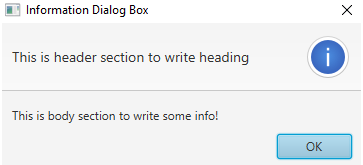
Explanation to the above program: In the above code line 0 calls start method from internal JVM. Line 1 creates an information alert type. Line 2 sets the title to a dialog box. Line 3 sets the header text. Line 4 sets the body text of the dialog box. Line 5 shows the dialog box output. As you can see in the output information dialog box has a predefined image on the right end.
2. Error Alert
Code:
import javafx.application.Application;
import javafx.scene.control.Alert;
import javafx.scene.control.Alert.AlertType;
import javafx.stage.Stage;
public class ErrorAlertType extends Application {
@Override
public void start(Stage outputStage) throws Exception {
Alert alert = new Alert(AlertType.ERROR);// line 1
alert.setTitle("Error Dialog Box");// line 2
alert.setHeaderText("ERROR HEADING");// line 3
alert.setContentText("I am proving what is the error exactly!");// line 4
alert.showAndWait(); // line 5
}
public static void main(String args[]) {
launch(args); // line 0
}
}
Output:
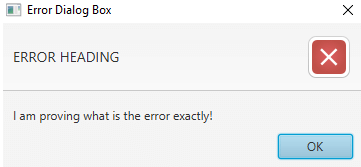
Explanation to the above program: In the above code line 0 calls start method from internal JVM. Line 1 creates an error alert type. Line 2 sets the title to the dialog box. Line 3 sets the header text. Line 4 sets the body text of the dialog box. Line 5 shows the dialog box output. As you can see in the output information dialog box has a predefined image on the right end.
3. Confirmation Alert
Code:
import javafx.application.Application;
import javafx.scene.control.Alert;
import javafx.scene.control.Alert.AlertType;
import javafx.stage.Stage;
public class ConfirmationAlertType extends Application {
@Override
public void start(Stage outputStage) throws Exception {
Alert alert = new Alert(AlertType.CONFIRMATION);// line 1
alert.setTitle("Confirmation Dialog Box");// line 2
alert.setHeaderText("Please Confirm!");// line 3
alert.setContentText("Are you sure want to move further?!");// line 4
alert.showAndWait(); // line 5
}
public static void main(String args[]) {
launch(args); // line 0
}
}
Output:
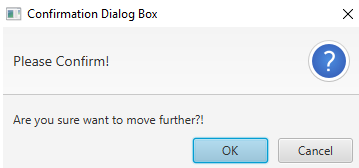
Explanation to the above program: In the above code line 0 calls start method from internal JVM. Line 1 creates a confirmation alert type. Line 2 sets the title to the dialog box. Line 3 sets the header text. Line 4 sets the body text of the dialog box. Line 5 shows the dialog box output. As you can see in the output information dialog box has a predefined image on the right end.
4. Warning Alert
Code:
import javafx.application.Application;
import javafx.scene.control.Alert;
import javafx.scene.control.Alert.AlertType;
import javafx.stage.Stage;
public class WarningAlertType extends Application {
@Override
public void start(Stage outputStage) throws Exception {
Alert alert = new Alert(AlertType.WARNING);// line 1
alert.setTitle("Warning Dialog Box");// line 2
alert.setHeaderText("Warning!");// line 3
alert.setContentText("Some packages may be installed additionally!");// line 4
alert.showAndWait(); // line 5
}
public static void main(String args[]) {
launch(args); // line 0
}
}
Output:
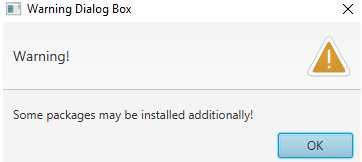
Explanation to the above program: In the above code line 0 calls start method from internal JVM. Line 1 creates a warning alert type. Line 2 sets the title to the dialog box. Line 3 sets the header text. Line 4 sets the body text of the dialog box. Line 5 shows the dialog box output. As you can see in the output information dialog box has a predefined image on the right end.
Recommended Articles
This is a guide to JavaFX Alert. Here we discuss Syntax, methods, and constructors, with how to create and different examples of JavaFX Alert. You can also go through our other related articles to learn more –
- JavaFX Libraries
- JavaFX VBox
- JavaFX FileChooser
- JavaFX TextField
import javafx.application.Application;
import javafx.scene.Scene;
import javafx.scene.control.Button;
import javafx.scene.layout.*;
import javafx.event.ActionEvent;
import javafx.event.EventHandler;
import javafx.scene.control.*;
import javafx.stage.Stage;
import javafx.scene.control.Alert.AlertType;
public class Alert_2 extends Application {
public void start(Stage s)
{
s.setTitle("creating alerts");
Button b = new Button("Confirmation alert");
Button b1 = new Button("error alert");
Button b2 = new Button("Information alert");
Button b3 = new Button("Warning alert");
Button b4 = new Button("none alert");
TilePane r = new TilePane();
Alert a = new Alert(AlertType.NONE);
EventHandler<ActionEvent> event = new
EventHandler<ActionEvent>() {
public void handle(ActionEvent e)
{
a.setAlertType(AlertType.CONFIRMATION);
a.setContentText("ConfirmationDialog");
a.show();
}
};
EventHandler<ActionEvent> event1 = new
EventHandler<ActionEvent>() {
public void handle(ActionEvent e)
{
a.setAlertType(AlertType.ERROR);
a.setContentText("error Dialog");
a.show();
}
};
EventHandler<ActionEvent> event2 = new
EventHandler<ActionEvent>() {
public void handle(ActionEvent e)
{
a.setAlertType(AlertType.INFORMATION);
a.setContentText("Information Dialog");
a.show();
}
};
EventHandler<ActionEvent> event3 = new
EventHandler<ActionEvent>() {
public void handle(ActionEvent e)
{
a.setAlertType(AlertType.WARNING);
a.setContentText("Warning Dialog");
a.show();
}
};
EventHandler<ActionEvent> event4 = new
EventHandler<ActionEvent>() {
public void handle(ActionEvent e)
{
Alert a1 = new Alert(AlertType.NONE,
"default Dialog",ButtonType.APPLY);
a1.show();
}
};
b.setOnAction(event);
b1.setOnAction(event1);
b2.setOnAction(event2);
b3.setOnAction(event3);
b4.setOnAction(event4);
r.getChildren().add(b);
r.getChildren().add(b1);
r.getChildren().add(b2);
r.getChildren().add(b3);
r.getChildren().add(b4);
Scene sc = new Scene(r, 200, 200);
s.setScene(sc);
s.show();
}
public static void main(String args[])
{
launch(args);
}
}
import javafx.application.Application;
import javafx.scene.Scene;
import javafx.scene.control.Button;
import javafx.scene.layout.*;
import javafx.event.ActionEvent;
import javafx.event.EventHandler;
import javafx.scene.control.*;
import javafx.stage.Stage;
import javafx.scene.control.Alert.AlertType;
public class Alert_2 extends Application {
public void start(Stage s)
{
s.setTitle("creating alerts");
Button b = new Button("Confirmation alert");
Button b1 = new Button("error alert");
Button b2 = new Button("Information alert");
Button b3 = new Button("Warning alert");
Button b4 = new Button("none alert");
TilePane r = new TilePane();
Alert a = new Alert(AlertType.NONE);
EventHandler<ActionEvent> event = new
EventHandler<ActionEvent>() {
public void handle(ActionEvent e)
{
a.setAlertType(AlertType.CONFIRMATION);
a.setContentText("ConfirmationDialog");
a.show();
}
};
EventHandler<ActionEvent> event1 = new
EventHandler<ActionEvent>() {
public void handle(ActionEvent e)
{
a.setAlertType(AlertType.ERROR);
a.setContentText("error Dialog");
a.show();
}
};
EventHandler<ActionEvent> event2 = new
EventHandler<ActionEvent>() {
public void handle(ActionEvent e)
{
a.setAlertType(AlertType.INFORMATION);
a.setContentText("Information Dialog");
a.show();
}
};
EventHandler<ActionEvent> event3 = new
EventHandler<ActionEvent>() {
public void handle(ActionEvent e)
{
a.setAlertType(AlertType.WARNING);
a.setContentText("Warning Dialog");
a.show();
}
};
EventHandler<ActionEvent> event4 = new
EventHandler<ActionEvent>() {
public void handle(ActionEvent e)
{
Alert a1 = new Alert(AlertType.NONE,
"default Dialog",ButtonType.APPLY);
a1.show();
}
};
b.setOnAction(event);
b1.setOnAction(event1);
b2.setOnAction(event2);
b3.setOnAction(event3);
b4.setOnAction(event4);
r.getChildren().add(b);
r.getChildren().add(b1);
r.getChildren().add(b2);
r.getChildren().add(b3);
r.getChildren().add(b4);
Scene sc = new Scene(r, 200, 200);
s.setScene(sc);
s.show();
}
public static void main(String args[])
{
launch(args);
}
}
import javafx.application.Application;
import javafx.scene.Scene;
import javafx.scene.control.Button;
import javafx.scene.layout.*;
import javafx.event.ActionEvent;
import javafx.event.EventHandler;
import javafx.scene.control.*;
import javafx.stage.Stage;
import javafx.scene.control.Alert.AlertType;
public class Alert_2 extends Application {
public void start(Stage s)
{
s.setTitle("creating alerts");
Button b = new Button("Confirmation alert");
Button b1 = new Button("error alert");
Button b2 = new Button("Information alert");
Button b3 = new Button("Warning alert");
Button b4 = new Button("none alert");
TilePane r = new TilePane();
Alert a = new Alert(AlertType.NONE);
EventHandler<ActionEvent> event = new
EventHandler<ActionEvent>() {
public void handle(ActionEvent e)
{
a.setAlertType(AlertType.CONFIRMATION);
a.setContentText("ConfirmationDialog");
a.show();
}
};
EventHandler<ActionEvent> event1 = new
EventHandler<ActionEvent>() {
public void handle(ActionEvent e)
{
a.setAlertType(AlertType.ERROR);
a.setContentText("error Dialog");
a.show();
}
};
EventHandler<ActionEvent> event2 = new
EventHandler<ActionEvent>() {
public void handle(ActionEvent e)
{
a.setAlertType(AlertType.INFORMATION);
a.setContentText("Information Dialog");
a.show();
}
};
EventHandler<ActionEvent> event3 = new
EventHandler<ActionEvent>() {
public void handle(ActionEvent e)
{
a.setAlertType(AlertType.WARNING);
a.setContentText("Warning Dialog");
a.show();
}
};
EventHandler<ActionEvent> event4 = new
EventHandler<ActionEvent>() {
public void handle(ActionEvent e)
{
Alert a1 = new Alert(AlertType.NONE,
"default Dialog",ButtonType.APPLY);
a1.show();
}
};
b.setOnAction(event);
b1.setOnAction(event1);
b2.setOnAction(event2);
b3.setOnAction(event3);
b4.setOnAction(event4);
r.getChildren().add(b);
r.getChildren().add(b1);
r.getChildren().add(b2);
r.getChildren().add(b3);
r.getChildren().add(b4);
Scene sc = new Scene(r, 200, 200);
s.setScene(sc);
s.show();
}
public static void main(String args[])
{
launch(args);
}
}
import javafx.application.Application;
import javafx.scene.Scene;
import javafx.scene.control.Button;
import javafx.scene.layout.*;
import javafx.event.ActionEvent;
import javafx.event.EventHandler;
import javafx.scene.control.*;
import javafx.stage.Stage;
import javafx.scene.control.Alert.AlertType;
public class Alert_2 extends Application {
public void start(Stage s)
{
s.setTitle("creating alerts");
Button b = new Button("Confirmation alert");
Button b1 = new Button("error alert");
Button b2 = new Button("Information alert");
Button b3 = new Button("Warning alert");
Button b4 = new Button("none alert");
TilePane r = new TilePane();
Alert a = new Alert(AlertType.NONE);
EventHandler<ActionEvent> event = new
EventHandler<ActionEvent>() {
public void handle(ActionEvent e)
{
a.setAlertType(AlertType.CONFIRMATION);
a.setContentText("ConfirmationDialog");
a.show();
}
};
EventHandler<ActionEvent> event1 = new
EventHandler<ActionEvent>() {
public void handle(ActionEvent e)
{
a.setAlertType(AlertType.ERROR);
a.setContentText("error Dialog");
a.show();
}
};
EventHandler<ActionEvent> event2 = new
EventHandler<ActionEvent>() {
public void handle(ActionEvent e)
{
a.setAlertType(AlertType.INFORMATION);
a.setContentText("Information Dialog");
a.show();
}
};
EventHandler<ActionEvent> event3 = new
EventHandler<ActionEvent>() {
public void handle(ActionEvent e)
{
a.setAlertType(AlertType.WARNING);
a.setContentText("Warning Dialog");
a.show();
}
};
EventHandler<ActionEvent> event4 = new
EventHandler<ActionEvent>() {
public void handle(ActionEvent e)
{
Alert a1 = new Alert(AlertType.NONE,
"default Dialog",ButtonType.APPLY);
a1.show();
}
};
b.setOnAction(event);
b1.setOnAction(event1);
b2.setOnAction(event2);
b3.setOnAction(event3);
b4.setOnAction(event4);
r.getChildren().add(b);
r.getChildren().add(b1);
r.getChildren().add(b2);
r.getChildren().add(b3);
r.getChildren().add(b4);
Scene sc = new Scene(r, 200, 200);
s.setScene(sc);
s.show();
}
public static void main(String args[])
{
launch(args);
}
}