Если вы создали нового пользователя в Ubuntu, и пытаетесь от его имени использовать систему, то при попытке выполнения команды sudo можете столкнуться с ошибкой: «user is not in the sudoers file this insident will be reported».
В этой небольшой инструкции мы рассмотрим почему возникает такая ошибка, а также как ее обойти и разрешить этому пользователю выполнять действия от суперпользователя.
Команда sudo позволяет обычным пользователям выполнять программы от имени суперпользователя со всеми его правами. Использовать команду sudo могут далеко не все пользователи, а только те, которые указаны в файле /etc/sudoers. Это сообщение об ошибке говорит буквально следующее — вашего пользователя нет в файле sudoers, а значит доступ ему к утилите будет запрещен, а об этом инциденте будет сообщено администратору.
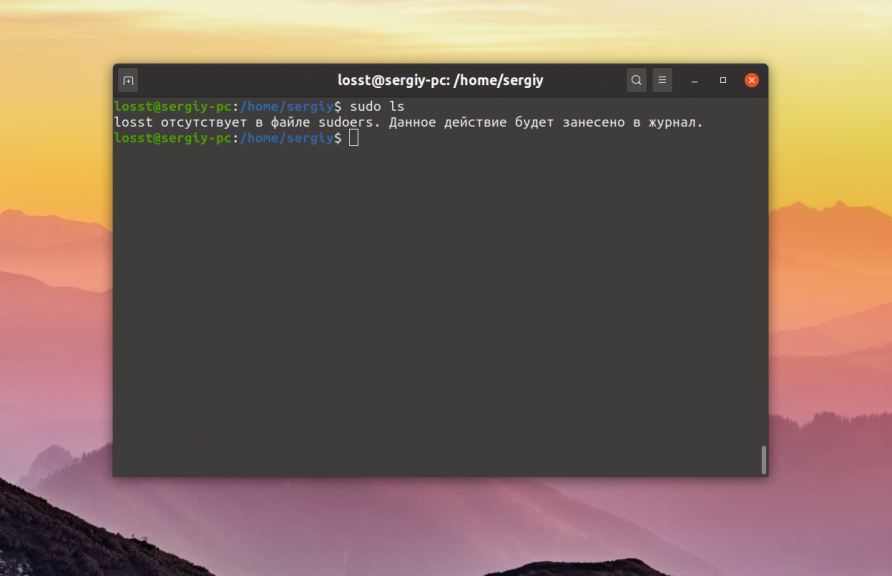
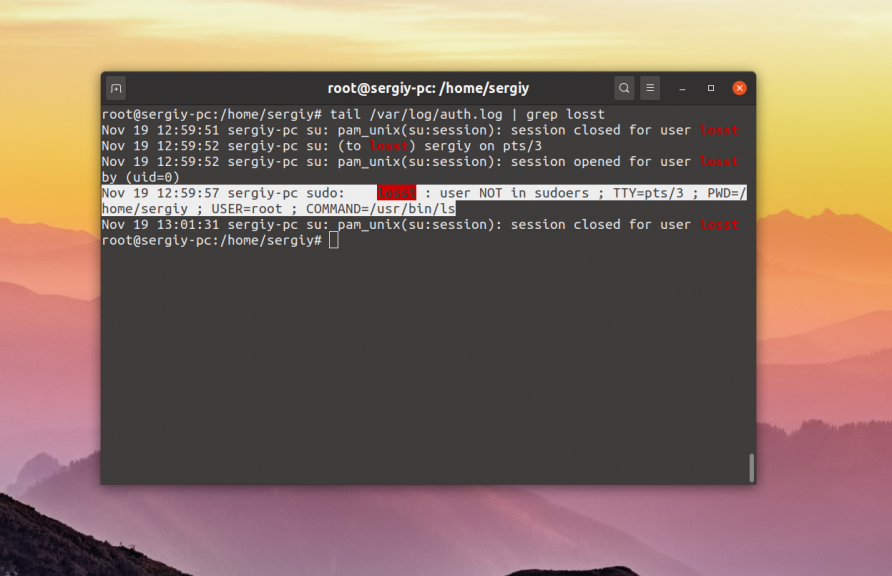
Все неудачные попытки использовать sudo, независимо от того, был ли введен неверный пароль или у пользователя нет прав, действительно записываются в каталоге /var/log, так что вы можете посмотреть кто и когда и что пытался выполнить:
tail /var/log/auth.log
Исправление ошибки с помощью root
Для исправления ситуации достаточно добавить пользователя sudoers. Но для этого нужно иметь другого пользователя, который может использовать sudo. Если такой пользователь есть, задача становиться довольно простой. Но если кроме текущего пользователя в системе нет больше никого, проблема тоже вполне решаема.
Начнем с более простого варианта, на тот случай, если у вас все-таки есть доступ к системе от имени пользователя root. Войдите от имени пользователя, у которого есть права, например, можно нажать Ctrl+Alt+T запустить утилиту su и ввести пароль:
su
В большинстве случаев в файле sudoers настроено так, что утилиту могут использовать все пользователи из группы wheel или sudo. Поэтому достаточно добавить нашего пользователя в эту группу. Для этого используйте команду usermod.
usermod -a -G wheel имя_пользователя
Или:
usermod -a -G sudo имя_пользователя
Вы также можете добавить нужную настройку для самого пользователя в файл sudoers, для этого добавьте в конец файла такую строку:
имя_пользователя ALL = (ALL) ALL
Дальше осталось сохранить изменения в файле и заново зайти под именем нужного пользователя. Если в файле /etc/sudoers не разрешено использование утилиты пользователями из группы wheel или sudo, то можно добавить такую строчку:
vi /etc/sudoers
%wheel ALL = (ALL) ALL
Или для группы sudo:
%sudo ALL = (ALL) ALL
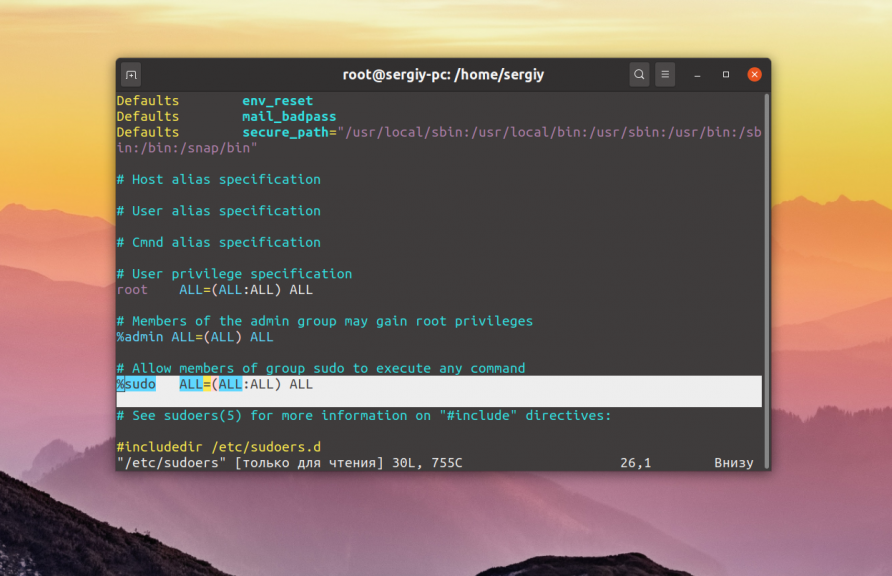
Возможно, её будет достаточно расскоментировать, убрать решетку, которая расположена перед ней. После этого ошибка user is not in the sudoers file исчезнет и вы сможете использовать sudo. Более подробно про это все вы можете прочитать в статье настройка sudo.
Исправление ошибки с помощью режима восстановления
Если на вашем компьютере нет другого пользователя, от имени которого вы могли бы получить доступ к sudo, осталась возможность использовать режим восстановления. Для этого перезагрузите компьютер и в меню Grub нажмите E.
Откроется редактор меню загрузки. В нем найдите строку:
linux vmlinuz...
И в конец добавьте init=/bin/bash. Должно получиться вот так:
linux vmlinuz... init=/bin/bash
Дальше вы загрузитесь в оболочку /bin/bash с правами суперпользователя и от туда уже сможете выполнить все выше приведенные команды, например, добавить пользователя sudoers, добавлением его в группу wheel:
usermod -a -G wheel имя_пользователя
После выполнения команды можно перезагрузить компьютер с помощью команды reboot. Следующая загрузка пройдет в нормальном режиме и вы сможете использовать sudo.
Выводы
В этой статье мы рассмотрели что делать, если вы получаете ошибку user is not in the sudoers file, а также как добавить пользователя в sudoers ubuntu чтобы ее избежать. Если у вас остались вопросы, спрашивайте в комментариях!
На завершение видео про добавление пользователя в sudores:
https://youtu.be/-fUwk2TNfQ8

Статья распространяется под лицензией Creative Commons ShareAlike 4.0 при копировании материала ссылка на источник обязательна .
Об авторе

Основатель и администратор сайта losst.ru, увлекаюсь открытым программным обеспечением и операционной системой Linux. В качестве основной ОС сейчас использую Ubuntu. Кроме Linux, интересуюсь всем, что связано с информационными технологиями и современной наукой.
I am running Ubuntu 12.04 on my laptop using VMware Player. I am not sure why but I have an account called «User Account» in addition to my account that I usually login to use Ubuntu. Well that was just a side comment but basically all I am trying to do is install the ncurses library on Ubuntu. I have tried installing ncurses using the following command lines:
sudo apt-get install libncurses5-dev
sudo apt-get install ncurses-dev
When I tried installing ncurses twice using the above commands I received the following prompt in the terminal:
[sudo] password for username
When I type in my password I receive the following message:
username is not in the sudoers file. This incident will be reported.
So far I have tried enabling the root user («Super User») account by following these instructions.
Here are some of the things the link suggested to do:
Allow an other user to run sudo. Type the following in the command line:
sudo adduser username sudo
Or
sudo adduser username sudo
logging in as another user. Type the following in the command line:
sudo -i -u username
Enabling the root account. Type the following in the command line:
sudo -i
Or
sudo passwd root
I have tried all of the above command lines and after typing in each command I was prompted for my password. After I entered my password I received the same message as when I tried to install ncurses:
fsolano is not in the sudoers file. This incident will be reported.
After logging into ssh, I got this message:
‘Username’ is not in the sudoers file. This incident will be reported.
How can I resolve this? I’m connecting ssh to my virtual private server.

asked Dec 14, 2017 at 5:43
7
Open file
su root
nano /etc/sudoers
Then add the user below admin user like below syntax.
user_name ALL=(ALL) ALL
answered Dec 14, 2017 at 6:20

sanath metisanath meti
4,3351 gold badge20 silver badges30 bronze badges
14
Both the above answers are correct as far as they go but it is easier to add your user to the sudo group in debian based systems (Ubuntu, kbuntu, debian, etc) and the wheel group under RedHat based systems (RedHat, Fedora, CentOS, etc)
usermod -a -G sudo user
or
usermod -a -G wheel user
answered Dec 14, 2017 at 10:13

5
This is a very common error for the beginners.
The error occurs because we are trying to access/update something with super privileges from the user instead of root -user.
Hence, to solve this,we need to make changes in the sudoers file where the root user has been given the privileges. So, switch to root user,run the following command
sudo su
# vi /etc/sudoers
The editor would open the file, now scroll down to the bottom where you will see a line
#User privilege specification

root     ALL=(ALL:ALL) ALL

username ALL=(ALL:ALL) ALL
As you can see, I have just added my username with all permissions.
Save the file, and exit. Switch back to the user and start using sudo commands with ease.
answered Jul 20, 2019 at 12:12

Sonal Sonal
4995 silver badges6 bronze badges
2
At the top of the aforementioned /etc/sudoers file there’s an info:
"## This file MUST be edited with the 'visudo' command as root."
In order of doing as we’re told, use:
$ su
> Enter root password: *******
$ visudo -f /etc/sudoers
Find the following section of /etc/sudoers file and add your users privileges:
# User privilege specification
root    ALL=(ALL:ALL) ALL
user_name ALL=(ALL) ALL
Save the file (press esc and type :x if vim is your default text editor, for nano press ctrl+o, enter and then ctrl+x).
Type exit to turn off the root shell, and enjoy the power of sudo with your username
answered Dec 9, 2019 at 20:06

wscourgewscourge
10k12 gold badges56 silver badges75 bronze badges
Got a slightly different syntax to Rodney’s from my host
usermod -aG wheel username
Their explanation was
The user will need to be added to the wheel group.
Use the usermod command to add the user to the wheel group.
You may need to log off and log back in after doing this
answered Jul 5, 2018 at 15:41

Robert SinclairRobert Sinclair
4,2222 gold badges40 silver badges42 bronze badges
3
You should use visudo to edit /etc/sudoers file.
Just run
sudo visudo -f /etc/sudoers
and add your username with correct syntax and access rights.
You can find more in man sudoers

answered Dec 14, 2017 at 9:39

If you’re unable to find visudo on your system
whereis visudo
Launch this tool
./PATH/visudo
add this line under
User privilege specification
user_name ALL=(ALL) ALL
Save the changes and here you go !
answered May 11, 2020 at 12:19

Olivier D’AnconaOlivier D’Ancona
6712 gold badges14 silver badges28 bronze badges
-
Entered Root using command
$ su root. Input Root Password -
Install sudo:
$ apt-get install sudo -y -
Add your < username>
$ adduser <username> sudo -
$ exit -
Then sign up and sign in the < username> session
-
Finally, check with:
< username>@< hostname>:~$ sudo apt-get update
answered Jun 13, 2019 at 19:20

Braian CoronelBraian Coronel
21.6k4 gold badges53 silver badges58 bronze badges
1
try this video, it works for me.
- ssh root@localhost
- sudo vi /etc/sudoers
- insert username in file ‘sudoers’
- save and exit ssh

Dharman♦
29.2k21 gold badges79 silver badges131 bronze badges
answered Dec 30, 2020 at 3:35

First, switch/ log into the root user account or an account that has sudo privileges.
Next add the user to the group for sudo users:
-
If you’re on Ubuntu members of the sudo group are granted with sudo privileges, so you can use this:
sudo adduser username sudo -
If you’re on CentOS members of the wheel group are granted with sudo privileges, so you can use this::
usermod -aG wheel username
Note: Replace username with your desired username.
To test the sudo access, log into the account that you just added to the sudo users grouP, and then run the command below using sudo:
sudo whoami
You will be prompted to enter the password. If the user have sudo access, the output will be:
root
If you get an error saying user is not in the sudoers file, it means that the user doesn’t have sudo privileges yet.
That’s all.
I hope this helps
answered Sep 18, 2020 at 14:34
Promise PrestonPromise Preston
20.8k11 gold badges125 silver badges128 bronze badges
Add your user to the list of sudoers. This will make it easier to execute
commands as the user that you have created will require admin privileges.
sudo adduser username sudo
(Note:- Username is the user you want to give the privileges)
answered Apr 15, 2020 at 4:35

1

This article explains how to «fix» sudo not working on Linux, resulting in this message when trying to use it: «your-username is not in the sudoers file. This incident will be reported.» on Debian (and Debian-based Linux distributions like Ubuntu). sudo allows system admins to execute commands as root (administrator) or another user.
Example from a fresh Debian 10 (10.1) Buster installation on which sudo doesn’t work:
$ sudo apt update
[sudo] password for logix:
logix is not in the sudoers file.  This incident will be reported.
sudo doesn’t work by default on a Fresh Debian installation because your username is not automatically added to the sudo group (it does work on Ubuntu by default). But you may also see this if you created a new user but you forgot to add it to the sudo group, or if another user from your system removed the username from the sudo group.
You can check if the currently logged in user belongs to the sudo group by using the groups command. If the groups command does not return sudo on Debian-based Linux distributions, then that username can’t run commands with sudo. Example with output of a Debian user that’s not in the sudo group:
$ groups
logix cdrom floppy audio dip video pugdev netdev scanner lpadmin
You might like: How To Install The Latest Firefox (Non-ESR) On Debian 10 Buster (Stable) Or Bullseye (Testing)
The solution to this is to add that user to the sudo group. But how do you get root in that case, since you can’t modify or add users as a regular user? Use su - (or sudo su -), then add the user to the sudo group.
So to get root, then add your user to the sudo group, use:
su -
usermod -aG sudo YOUR_USERNAME
exit
Where:
suswitches to the root user, while-runs a login shell so things like/etc/profile,.bashrc, and so on are executed (this way commands likeusermodwill be in your$PATH, so you don’t have to type the full path to the executable). You may also usesudo su -instead ofsu -- You need to replace
YOUR_USERNAMEwith the username that you want to add to the sudo group. - I have used
usermodeto add a group to an existing user because it should work on any Linux distribution.adduseroruseraddcan also be used for this (adduser USERNAME -G sudo) but they may not work across all Linux distributions. Even though this article is for Debian, I wanted to make it possible to use this on other Linux distributions as well (I noticed thatadduserdoesn’t work on Solus OS for example). exitexists the root shell, so you can run commands as a regular user again.
After this, sudo still won’t work! You will need to logout from that user, then relogin, and sudo will work.
This fixes the «Username is not in the sudoers file. This incident will be reported» issue on your Debian machine, but you may run into another problem in some cases — sudo might not be installed at all by default. This is the case for example on a minimal Debian installation. In that case you’ll see an error like this when trying to run a command with sudo:
$ sudo apt update
bash: sudo: command not found
In that case, install sudo on Debian like this:
su - #or 'sudo su -'
apt install sudo
exit
A few more Debian-related articles you might like:
- How To Downgrade Packages To A Specific Version With Apt In Debian, Ubuntu Or Linux Mint
- How To Show A History Of Installed, Upgraded Or Removed Packages In Debian, Ubuntu or Linux Mint [dpkg]
- How To List All Packages In A Repository On Ubuntu, Debian Or Linux Mint [APT]
- How To Find The Package That Provides A File (Installed Or Not) On Ubuntu, Debian Or Linux Mint
 Зачастую при использовании команды sudo можно столкнуться с ошибкой «[имя_пользователя] is not in the sudoers file. This insident will be reported». Выполнить команду при этом не получается. В этой статье поговорим о причине ошибки и о методах её устранения.
Из текста ошибки можно понять, что пользователь не входит в файл sudoers. Именно включенные в этот файл пользователи могут использовать команду sudo. Как правило, создаваемые при установке операционной системы пользователи в этот файл включены. А вот создаваемые потом пользователи не попадают в файл sudoers автоматически.
Решение проблемы видится простым — добавить пользователя в файл sudoers. Можно добавить туда и группу пользователей.
Обратите внимание на пример файла sudoers на скриншоте ниже. Красным выделены учетная запись и группа, которые могут использовать sudo. Как видите, в данном случае её могут использовать пользователь root и пользователи, входящие в группу sudo.

Полный путь к файлу это /etc/sudoers. В принципе, достаточно просто открыть файл от пользователя с правами администратора и откорректировать (если Вы не знаете пароль суперпользователя root, его можно сбросить по рекомендациям из следующей статьи). Но я рекомендую команду visudo, так как она дополнительно проверяет синтаксис файла /etc/sudoers при сохранении. Вариантов несколько:
1. Добавить пользователя
Просто добавьте строку вида
[имя_пользователя] ALL=(ALL:ALL) ALL
2. Добавить группу, в которую входит пользователь
%[имя_группы] ALL=(ALL:ALL) ALL
Однако, возможно, Вы не хотите давать доступ к sudo всем членам этой группы. Тогда этот способ Вам не подойдёт.
3. Добавить пользователя в группу, которой разрешен доступ к sudo
Для этого достаточно отредактировать файл /etc/group. Делать это тоже нужно из-под учетки с правами администратора. Найдите нужную группу в файле /etc/group и впишите в неё имя пользователя.
На скриншоте ниже мы видим, что группа sudo пуста.

Впишите имя пользователя после двоеточия и сохраните файл. Если в группе уже есть пользователь или пользователи, новых нужно добавлять через запятую без пробелов.
Другой способ добавления пользователя в группу — команда usermod. Подробнее о группах пользователей в Linux можно прочитать в статье по этой ссылке.
Если выбрать последний из трёх способов, то потребуется перезагрузка.
После вышеописанных действий ошибка user is not in the sudoers file появляться не будет.
In Unix/Linux systems, the root user account is the super user account, and it can therefore be used to do anything and everything achievable on the system.
However, this can be very dangerous in so many ways – one could be that the root user might enter a wrong command and breaks the whole system or an attacker gets access to root user account and takes control of the whole system and who knows what he/she can possibly do.
Based upon this background, in Ubuntu and its derivatives, the root user account is locked by default, regular users (system administrators or not) can only gain super user privileges by using the sudo command.
And one of the worst things that can happen to a Ubuntu System admin is losing privileges to use the sudo command, a situation commonly referred to as “broken sudo”. This can be absolutely devastating.
A broken sudo may be caused by any of the following:
- A user should not have been removed from the sudo or admin group.
- The /etc/sudoers file was altered to prevent users in sudo or admin group from elevating their privileges to that of root using sudo command.
- The permission on /etc/sudoers file is not set to 0440.
In order to perform crucial tasks on your system such as viewing or altering important system files, or updating the system, you need the sudo command to gain super user privileges. What if you are denied usage of sudo due one or more of the reasons we mentioned above.
Below is an image showing a case in which the default system user is being prevented from running sudo command:
[email protected] ~ $ sudo visudo
[ sudo ] password for aaronkilik:
aaronkilik is not in the sudoers file.   This incident will be reported.

[email protected] ~ $ sudo apt install vim
[ sudo ] password for aaronkilik:
aaronkilik is not in the sudoers file.   This incident will be reported.
How To Fix Broken sudo Command in Ubuntu
If you happen to be running only Ubuntu on your machine, after powering it, press the Shift key for a few seconds to get the Grub boot menu. On the other hand, if you are running a dual-boot (Ubuntu alongside Windows or Mac OS X), then you should see the Grub boot menu by default.
Using the Down Arrow, select “Advanced options for Ubuntu” and press Enter.
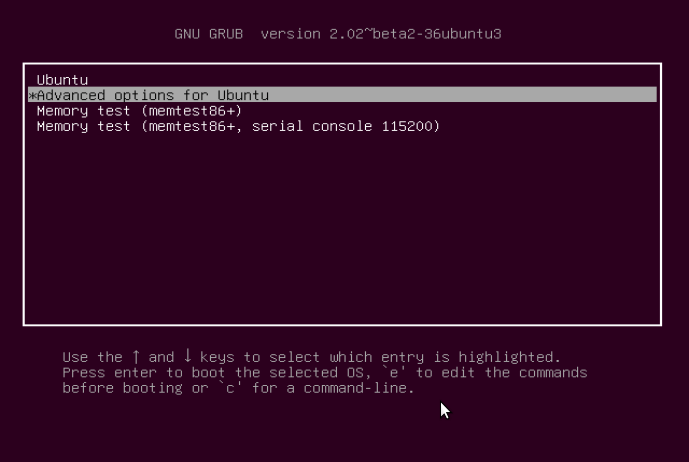
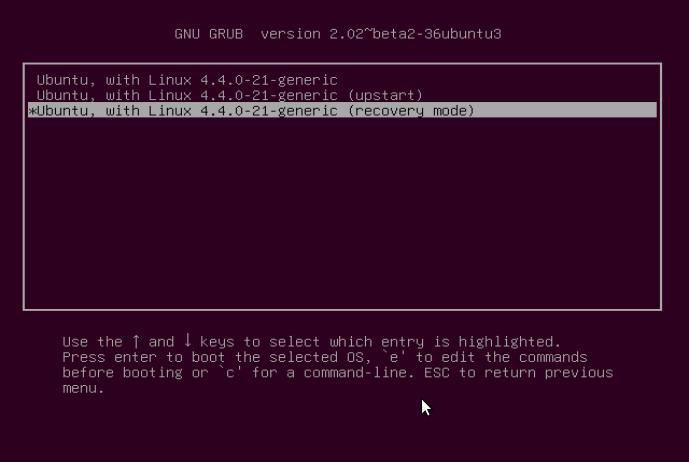
You will be at the interface below, select the kernel with “recovery mode” option as below and press Enter to advance to the “Recovery menu”.
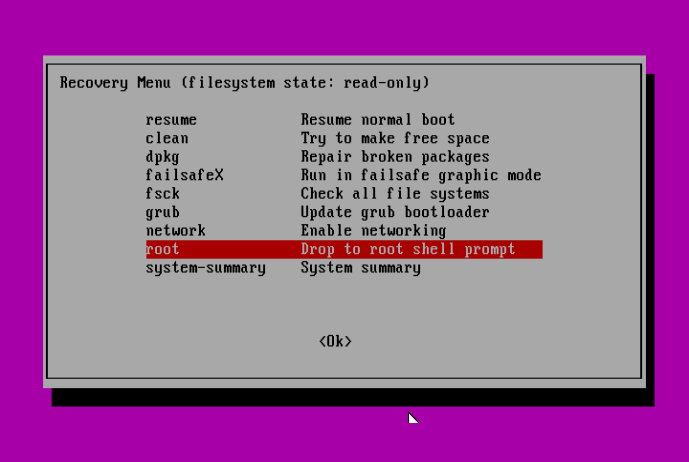
Below is the “Recovery menu”, indicating that the root filesystem is mounted as read-only. Move over to the line “root Drop to root shell prompt”, then hit Enter.
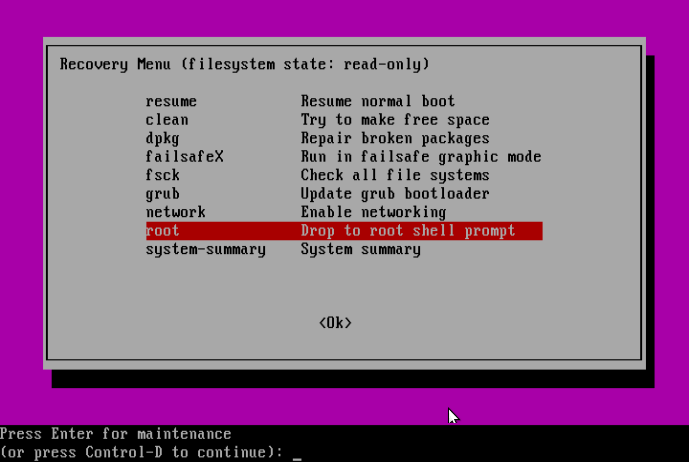
Next, press Enter for maintenance:
At this point, you should be at the root shell prompt. As we had seen before, the filesystem is mounted as read-only, therefore, to make changes to the system we need to remount is as read/write by running the command below:
# mount -o rw,remount /
Solving Case #1 – Add User to sudo or admin Group
Assuming that a user has been removed from the sudo group, to add user back to sudo group issue the command below:
# adduser username sudo
Note: Remember to use the actual username on the system, for my case, it is aaronkilik.
Or else, under the condition that a user has been removed from the admin group, run the following command:
# adduser username admin
Solving Case #2 – Granting sudo Privileges to Users
On the assumption that the /etc/sudoers file was altered to prevent users in sudo or admin group from elevating their privileges to that of a super user, then make a backup of the sudoers files as follows:
# cp /etc/sudoers /etc/sudoers.orginal
Subsequently, open the sudoers file.
# visudo
and add the content below:
#
# This file MUST be edited with the 'visudo' command as root.
#
# Please consider adding local content in /etc/sudoers.d/ instead of
# directly modifying this file.
#
# See the man page for details on how to write a sudoers file.
#
Defaults        env_reset
Defaults        mail_badpass
Defaults        secure_path="/usr/local/sbin:/usr/local/bin:/usr/sbi$

# Host alias specification

# User alias specification

# Cmnd alias specification

# User privilege specification
root    ALL=(ALL:ALL) ALL

# Members of the admin group may gain root privileges
%admin ALL=(ALL) ALL

# Allow members of group sudo to execute any command
%sudo   ALL=(ALL:ALL) ALL

# See sudoers(5) for more information on "#include" directives:

#includedir /etc/sudoers.d
Solving Case #3 – Setting Correct Permission on sudoers File
Supposing that the permission on /etc/sudoers file is not set to 0440, then run following command to make it right:
# chmod 0440 /etc/sudoers
Last but not least, after running all the necessary commands, type the exit command to go back to the “Recovery menu”:
# exit
Use the Right Arrow to select <Ok> and hit Enter:
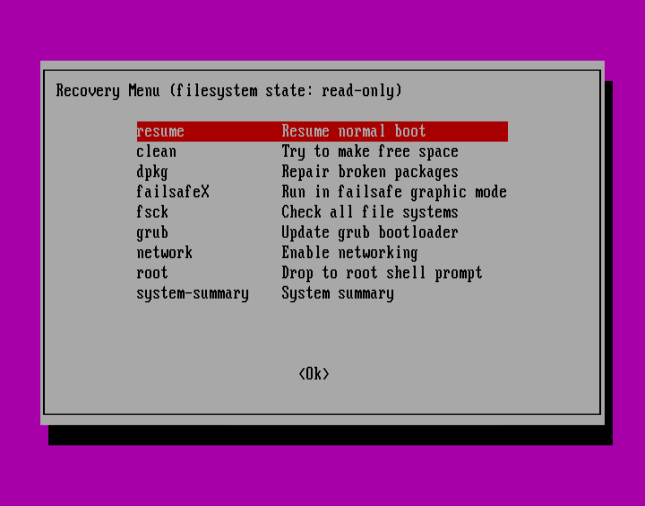
Press <Ok> to continue with normal boot sequence:
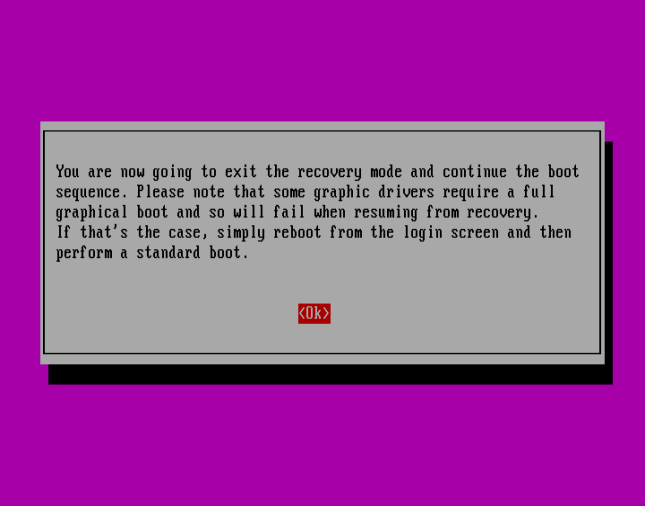
Summary
This method should work just fine especially when it is an administrative user account involved, where there is no other option but to use the recovery mode.
However, if it fails to work for you, try to get back to us by expressing your experience via the feedback section below. You can as well offer any suggestions or other possible ways to solve the issue at hand or improve this guide altogether.
If You Appreciate What We Do Here On TecMint, You Should Consider:
TecMint is the fastest growing and most trusted community site for any kind of Linux Articles, Guides and Books on the web. Millions of people visit TecMint! to search or browse the thousands of published articles available FREELY to all.
If you like what you are reading, please consider buying us a coffee ( or 2 ) as a token of appreciation.

We are thankful for your never ending support.
Just recently installed Ubuntu 20.04.1 LTS replacing entirely Windows 10.
I set up everything the way I wanted and I also installed Timeshift and made a backup successfully.
I tried to go into Timeshift today and it requested my password to login, so I put the one and only password I have, which is the same password I log into Ubuntu with. The password is not accepted.
I assumed it was because I wasn’t a root user so I tried to become one using sudo -i and sudo -s (I read that here) and I got a Password prompt and here, again, I inputted the one and only password I have which is the same one I use to log into Ubuntu.
That’s when I got the message «user is not in the sudoers file. this incident will be reported«.
So I investigated the problem and tried this link https://www.tecmint.com/fix-user-is-not-in-the-sudoers-file-the-incident-will-be-reported-ubuntu/.
All seemed to have gone well with no problems or errors and I’ve also found the same information in multiple websites but the problem still persists.
Does anybody have any ideas as to what else I can try? I don’t care about being root in general, I just want to be able to open my apps like Timeshift and my Firewall app.
Any help much appreciated.
Note: I am entirely new to Ubuntu so forgive me if I haven’t performed some basic actions. Also, the website brings this question as suggested but does not help my situation. Most questions I came across containing the specific error message are solved by running some simple commands such as sudo -i and sudo -s but in my case that approach is not sufficient.
I need to install a package. For that I need root access. However the system says that I am not in sudoers file. When trying to edit one, it complains alike! How am I supposed to add myself to the sudoers file if I don’t have the right to edit one?
I have installed this system and only administrator. What can I do?
Edit: I have tried visudo already. It requires me to be in sudoers in the first place.
amarzaya@linux-debian-gnu:/$ sudo /usr/sbin/visudo

We trust you have received the usual lecture from the local System
Administrator. It usually boils down to these three things:

    #1) Respect the privacy of others.
    #2) Think before you type.
    #3) With great power comes great responsibility.

[sudo] password for amarzaya:
amarzaya is not in the sudoers file.  This incident will be reported.
amarzaya@linux-debian-gnu:/$
asked Mar 15, 2010 at 22:55

Sergiy BelozorovSergiy Belozorov
1,8528 gold badges29 silver badges42 bronze badges
2
It would be something of a security hole if you could add yourself to /etc/sudoers without having sudo or root access. Basically then anyone could make themselves root.
Basically you need to ask the administrators of that machine to add you, or to install the package for you, as per the policies of the site.
You should also be sure to use visudo to edit the sudoers file — it checks that the syntax is correct before writing the file. And you can use editors other than vi with visudo. It will by default use whatever you have set as $EDITOR and if you don’t have it set you could do
# EDITOR=nano visudo
to use the nano editor instead.
answered Mar 15, 2010 at 23:01

3
Login as root and use /usr/sbin/visudo to edit the file and add your username. Normal vi/vim will not be able to edit the file.
The easiest way is to just go down until you see the line «root ALL=(ALL) ALL» and add yourself under that with the same syntax (yourusername ALL=(ALL) ALL). Or, you can read the sudoers manpage if you want to give yourself more specific privileges.
answered Mar 15, 2010 at 23:00

RicketRicket
1,5564 gold badges18 silver badges27 bronze badges
3
Just typed the command:
$ su
And asked for the password «root». Typed and boom… It worked!
This problem was my mistake. Due to be back at the facility at the time I created the username and password.

Kazark
3,3893 gold badges26 silver badges35 bronze badges
answered Nov 12, 2012 at 11:27

1
Perhaps the easiest way, once you’re root, is:
echo 'amarzaya ALL=(ALL) ALL' >> /etc/sudoers
answered Mar 16, 2010 at 20:15
1
If your sudoers file already contains this kind of line
# Members of the admin group may gain root privileges
%admin ALL=(ALL) ALL
Then, the cleanest way of doing things is probably to grant the admin group to your user. For instance, to add user oracle to the admin group:
usermod -aG admin oracle
answered Jul 6, 2011 at 10:12

Alain PannetierAlain Pannetier
7792 gold badges10 silver badges21 bronze badges
5
In case you can still get root access using su, you can use this one-liner to add yourself to /etc/sudoers/:
su -c 'echo $USER ALL=(ALL)ALL >> /etc/sudoers'
To activate the change, log out and in again. For example end your the X Session or log out via shell enter exit.
answered Jul 8, 2012 at 14:48

BengtBengt
992 bronze badges
1
If you cannot use the sudo command, then you can use the following method:
- Press Ctrl+Alt+F1
- Log the user out if the user is not root
- Log in as root
- Use root privileges
- Log out (
exit) – Ctrl+Alt+F7 to get to the GUI

Synetech
67.6k35 gold badges221 silver badges352 bronze badges
answered Dec 18, 2013 at 2:52

1
All you need is add your <username> to whell group.
# usermod -aG whell username
Then login with your username and enjoy 🙂
answered Jan 20, 2017 at 15:35

EFernandesEFernandes
1871 silver badge3 bronze badges
Sign in using the following first:
$ su
Then go ahead with:
$ sudo apt-get update
or whatever as normal
answered Dec 2, 2011 at 19:35

4