DBI by duckbill
ENGLISH GUIDE
Инструкция базируется на работе Брикачу
Ультимативное решение для установки NSP, NSZ, XCI и XCZ и работы с Nintendo Switch. Поддержка установки по MTP, USB, http (с вашего личного сервера), внешнего USB и многое другое. Поддержка просмотра картинок в формате jpg, png и psd. Поддержка работы с архивами zip и rar, а так же с контейнерами cbr/cbz. Поддержка текстовых файлов, просмотр в режиме обычного текста и в режиме hex-просмотра. Может быть использован в качестве файлового менеджера (копирование, перемещение, удаление файлов и папок, создание папок). Работа с сохранениями (в том числе резервное копирование и восстановление) и многое другое.
Содержание:
- Установка
- Использование
- Интерфейс
- Управление
- Browse SD Card/Browse USB0 Drive
- Install title from USB
- Home server
- Browse installed applications
- Контекстное меню тайтла
- Детальное меню игры
- Контекстное меню записи
- Cleanup orphaned files
- Browse tickets
- Контекстное меню тикетов
- Browse saves
- Контекстное меню сохранений
- Run MTP responder
- Exit
- Уведомления и коды ошибок
- Уведомления
- Ошибки
- dbi.config
- Другие возможности
- Благодарности
Установка
Поместите dbi.nro и dbi.config в папку sdmc:/switch/DBI/ на вашей каре памяти. Запускайте из режима апплета с помощью Homebrew Launcher (через альбомы)
В режиме апплета программа запускается с синим фоном. В режиме тайла — с чёрным
Использование
Интерфейс
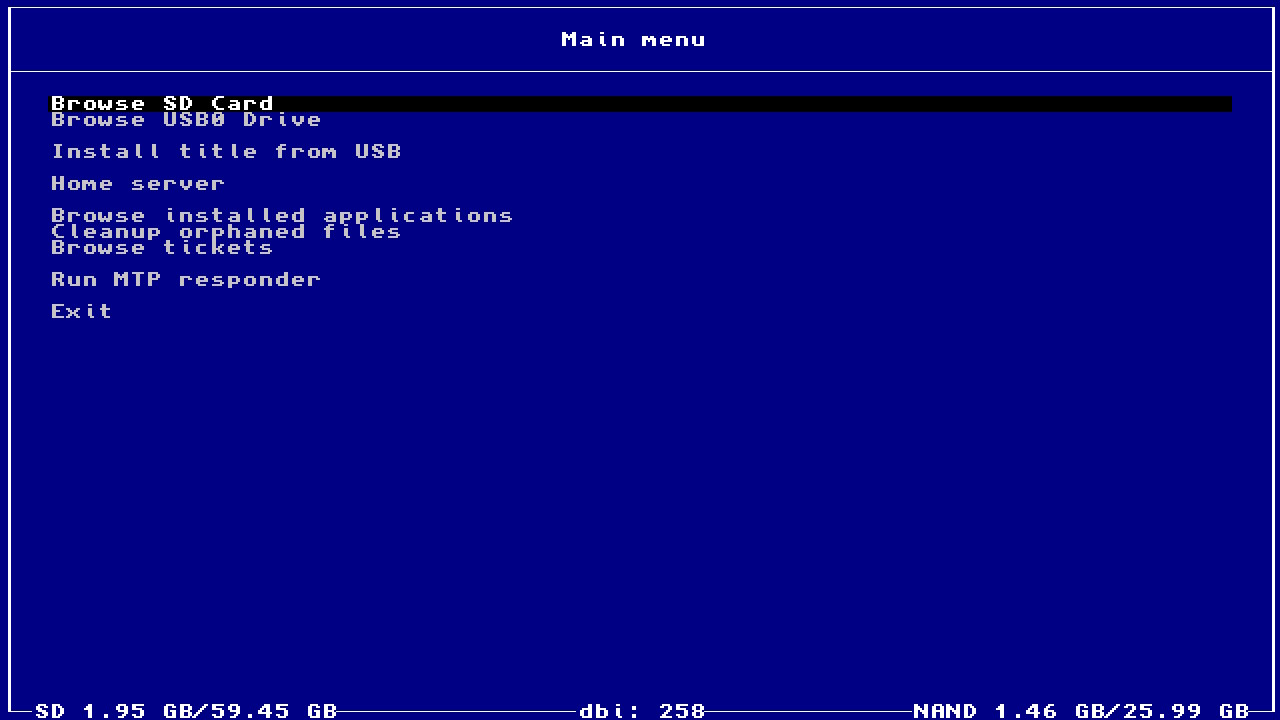
- Browse SD Card — установка
NSP/NSZ/XCI/XCZ-файлов из карты памяти. - Browse USB0 Drive — установка
NSP/NSZ/XCI/XCZ-файлов с внешнего USB-накопителя в exFAT/FAT32: флешки, жёсткого диска, проч. - Install title from USB — установка
NSP/NSZ/XCI/XCZиз ПК по USB 2.0 и 3.0-проводу, через прилагаемую программу dbibackend. Горячая клавиша для этой опции: кнопка (Y). - Install title from Gamecard — этот пункт появляется при вставленном в Switch игровом картридже, — для установки игры из имеющегося игрового картриджа в microSD-карту или внутреннюю NAND-память консоли.
- Home server — начиная с версии v150, есть возможность устанавливать игры по сети (HTTP), через WiFi без провода или LAN-USB-адаптер. Подробнее об этом ниже
- Browse installed applications — просмотр установленных игр, их общее установленное количество, посмотреть потраченное время на игру и количество её запусков, проверить (верифицировать) на ошибки, перенести игровые данные между встроенной памятью, картой памяти и обратно, возможность их выборочного или потокового удаления вместе с прилагаемыми LayeredFS-модами, просмотр наличия у них обновлений и DLC, ручное удаление DLC/обновлений/LaryeredFS (LFS) мода, функция Reset Required version для сброса системной проверки обновления у выбранной игры. Горячая клавиша для этой опции: кнопка (L).
- Cleanup orphaned files — автоматическая чистка ненужных удалённых файлов игр, если они есть
- Browse tickets — просмотр и ручное удаление системных тикетов игр.
- Browse saves — просмотр и удаление сохранений
- Run MTP responder — включение внутреннего MTP-сервера для присоединения Switch к ПК или к Android-устройству (телефон/планшет/пр., протестированы Pixel 3, Xiaomi Mi A1, Lenovo Tab 4 7″ TB-7304X), можно: просматривать и работать с картой памяти (1: External SD Card) и внутренней память консоли, просматривать установленные игры (4: Installed games), сделать бекап игровых сохранений на ПК (7: Saves), при вставленном игровом картридже дампить его (full/trimmed/сертификат) на ПК/Android (9: Gamecard). Горячая клавиша для этой опции: кнопка X (ей же выходить из MTP).
- Run FTP server — включает FTP-сервер DBI для доступа к файлам microSD через порт 5000 или установку файлов через порт 6000
- Exit — выход из программы. Горячая клавиша для этой опции: кнопка (+)
В самом левом нижнем углу (SD) написано про занятый размер данных на карте/общий размер карты. В правом нижнем углу (NAND) написан занятый размер данных во встроенной памяти Switch/общий встроенной памяти Switch.
Внизу по центру (dbi: XXX) написан номер версии dbi — старайтесь всегда использовать самую последнюю версию программы
Управление
- (А) — выбор, подтверждение
- (B) — отмена. На главном экране — выход из программы
- (X) — выделение файла. На главном экране — горячая клавиша для монтирования MTP (пункт меню «Run MTP responder«)
- (Y) — инвертировать выделение, выделить всё, если ничего не выделено. На главном экране — установка по USB с помощью dbibackend (пункт меню «Install title from USB«)
- (ZL), (ZR) — быстрое перемещение по меню
- (L) на главном экране — перейти в меню «Browse installed applications«
- (R) — изменить порядок отображения файлов/тайтлов
- (L3) — запустить игру из списка установленных игр
- (+) на правом джойконе — контекстное меню, которое позволяет производить контекстные операции, как-то удаление, сброс требуемой версии прошивки, монтирование по MTP и др.
- (-) на левом джойконе при установке приложений отключает/включает экран
Browse SD Card/Browse USB0 Drive
Выберите этот пункт, если хотите установить игры/обновления/DLC из уже имеющихся файлов на карте памяти/внешнем USB.
Кнопка (A) открывает папку, кнопка (B) возвращает назад, после открытия папки с файлами для установки, кнопкой (X) можно выделить только необходимые файлы, кнопокй (Y) инвертировать выбор. При этом цвет названия выделенных файлов изменится с белого на светло-синий.
После этого нажмите кнопку (А) для подтверждения. Возникнет окно с опциями установки:
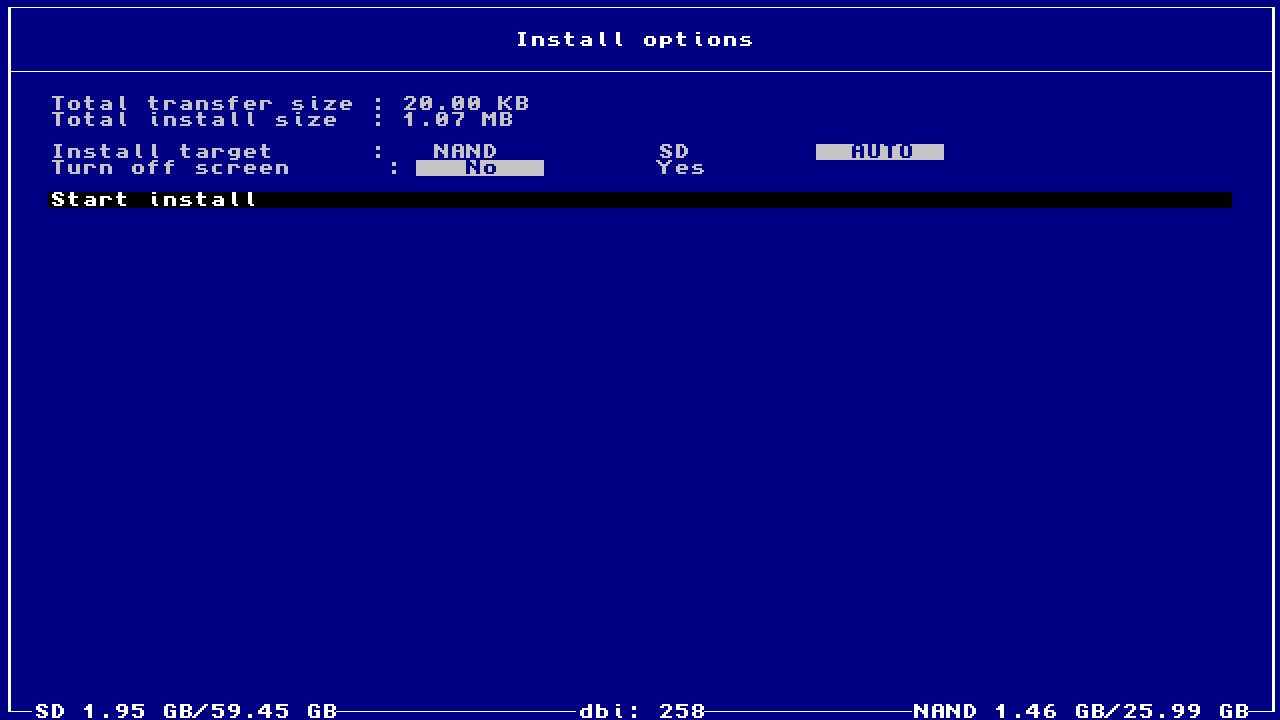
Total transfer size — объём установочных дистрибутивов (файлов NSP/NSZ/XCI/XCZ), выбранных и готовых к установке.
Total install size — объём свободного пространства, которое необходимо для установки выбранных файлов.
Install target — локация установки данных: NAND — внутренняя память консоли Nintendo Switch, SD — карта памяти microSD, AUTO — опция по-умолчанию для установки всегда на карту памяти microSD, но если на ней будет недостаточно места, данные установятся во внутреннюю память.
Delete after install — это опция удаления установочных дистрибутивов (файлов NSP/NSZ/XCI/XCZ) с карты после их успешной установки; чтобы она работала, с файлов должен быть снят атрибут «Только чтение». По-умолчанию файлы не удаляются. Опция видна только при установке с карты памяти/внешнего USB
Turn off screen — возможность выключить экран на время установки для экономия электроэнергии аккумулятора, сразу после успешной установки экран автоматически включится. Эта опция работает только в портативном режиме.
Нажмите Start install, чтобы начать установку. После успешной установки, внизу появится надпись Installation Complete. Press B to return.
В программе имеется встроенная автоматическая функция удаления старых апдейтов при установке нового обновления к игре, поэтому за лишнее занимаемое место ими можно не беспокоиться.
Вы можете запускать .NRO-файлы кнопкой (A)
Install title from USB
Через Install title from USB очень удобно устанавливать игры, обновления и DLC к ним сразу напрямую по USB-проводу с ПК на Switch, минуя необходимость вынимать карту и тратить двойное время, закачивая дистрибутивы (NSP/NSZ/XCI/XCZ-файлы) на карту памяти и устанавливая их оттуда. Горячая клавиша для вызова этой опции из главного меню: кнопка (Y).
Для работы сперва нужно скачать на ПК dbibackend (dbibackend.exe для Windows или dbibackend для всех ОС), запустить его, выбрать игры для установки, нажать Start server, затем подключить USB-C кабель к ПК и Switch, выбрать пункт Install title from USB в dbi и установить все необходимые игры.
Выделение файлов, а так же их установка происходит способом идентичным способу из пункта Browse SD Card/Browse USB0 Drive
Для быстрой отправки файлов или папок с играми на установку, нажмите на них правой клавишей мыши, выберите Отправить > dbibackend, установочные файлы сразу помещаются в очередь dbibackend. Для того, чтобы это настроить в Windows, нажмите Win+R, введите shell:sendto, положите в папку ярлык для dbibackend.exe
Зависимости, которые могут потребоваться для работы в MacOS или Linux
brew install python-tk
pip3 install pyusb
Home server
Пункт «Home server» появляется при наличии настроенного раздела Network install sources в dbi.config (подробнее про этот файл ниже). Причём название этого пункта будет меняться в зависимости от названия указанного в конфигурационном файле
Для установки игр по сети, отредактируйте файл dbi.config, находящийся в папке sdmc:/switch/DBI/, согласно примеру
; Network install sources
[Network sources]
; <display name>=<type>|<URL>
Home server=ApacheHTTP|http://192.168.1.47/Nintendo/Switch/
Установите на ПК любой другой HTTP-сервер c включённым DirectoryListing: Apache, Mongoose, Python SimpleHTTP, sheret, rclone и т. д.,
Пример для nginx на Windows:
отредактируйте файл /nginx/conf/nginx.conf, прописав в location адрес вашего Switch, вместо указанного в примере 127.0.0.1 (или всю свою подсеть вида 192.168.1.1/24 или 192.168.0.0/16); его можно узнать на Switch в Системных настройках > Интернет:
location/{
root html;
index index.html index.htm;
}
location /Nintendo/Switch/ {
allow 127.0.0.1;
deny all;
autoindex on;
}
Сохраните конфиг, запустите nginx.exe, разрешив программе доступ в сеть, затем скопируйте нужную игру в локальную папку /nginx/html/Nintendo/Switch/ на ПК, а на Switch выберите строку «Home server».
Получаем обычный интерфейс инсталляции файлов, и можно начать устанавливать все игры по сети, после чего, при желании веб-сервер можно остановить через nginx -s stop.
В качестве адреса сервера, можно использовать и доменное имя в интернете, например, своего удалённого VPS — лучше с HTTP Basic-аутентификацией вида http://user:password@host:port/Nintendo/Switch/
Например:
ApacheHTTP|Network repo|http://127.0.0.1/Nintendo/Switch/
ApacheHTTP|WWW VPS repo|http://www.myveryownswitchvpsdomain.su/Nintendo/Switch/
Сгенерировать файл htpasswd, положить в /nginx/conf/, затем в nginx.conf изменить в блоке (пример):
  location /Nintendo/Switch/ {
			   satisfy all;
			   allow 127.0.0.1;
			   deny all;
			   auth_basic "Password Protected Area";
			   auth_basic_user_file htpasswd;
   autoindex on;
  }
Логин «switch», пароль «pwd»:
Файл htpasswd:
switch:{SHA}N/omUzCtg+qoee+x4ttjgIls9jk=
Browse installed applications
В Browse installed applications можно посмотреть список установленных программ, обновлений, DLC к ним, по отдельности их занимаемый объём и версию, порядковую и в HEX-формате, их titleID, посмотреть общее время игры и количество запусков, наличие установленного LayeredFS-мода к игре (для Atmosphére).
Горячая клавиша для вызова этой опции из главного меню: кнопка (L):
Сверху в центре написано общее количество установленных игр и тип сортировки
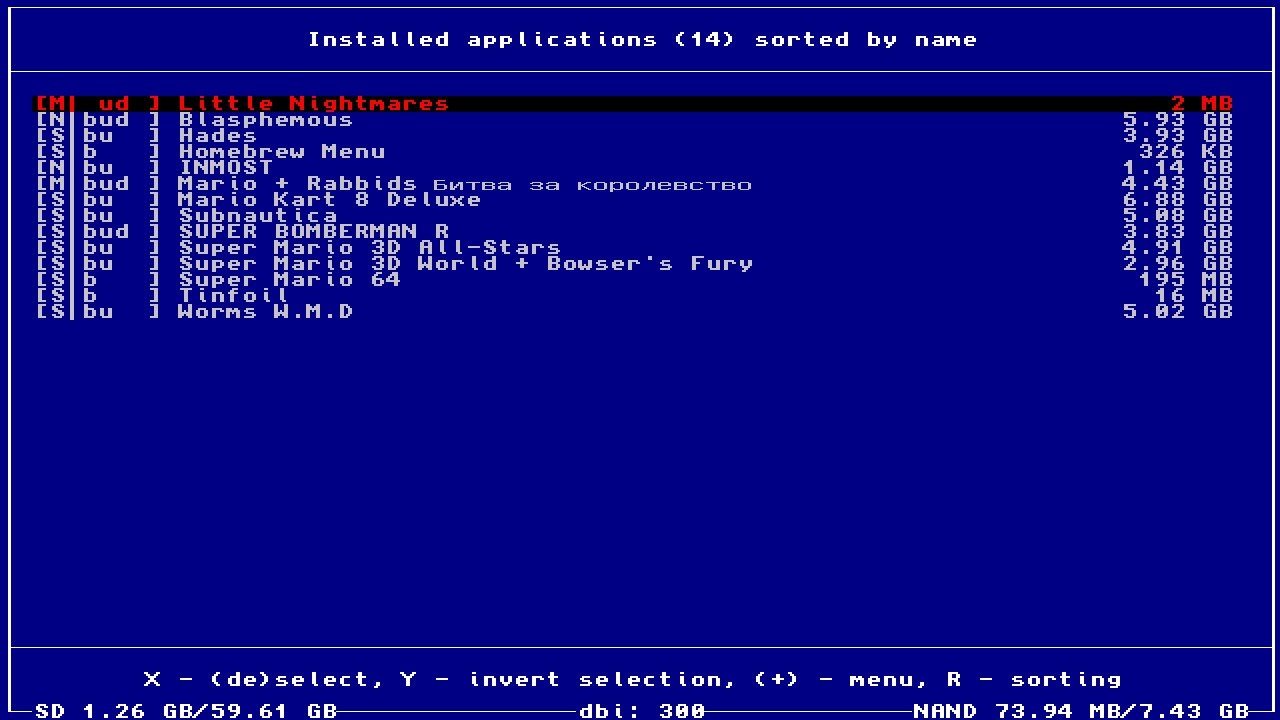
В квадратных скобках перед названием игры написана базовая информация о месте установки, составе и наличии мода игры. Отображается только то, что установлено. То есть, если буквы b в квадратных скобках нет, значит у игры не установлена сама базовая часть (в таком случае строка будет окрашена красным)
- N/S/M — NAND/SD/Mixed — означает место, где установлена игра. В случае, если части игры находятся на разных носителях, отображается Mixed
- b — BASE — сама игра
- u — Update — обновление игры
- d — DLC — DLC игры
- l — LayeredFS mod — наличие модификаций, читов или перевода
Обратите внимание! Если игра выделена красным, значит не установлена её базовая часть, а установлено только обновление или DLC
Контекстное меню тайтла
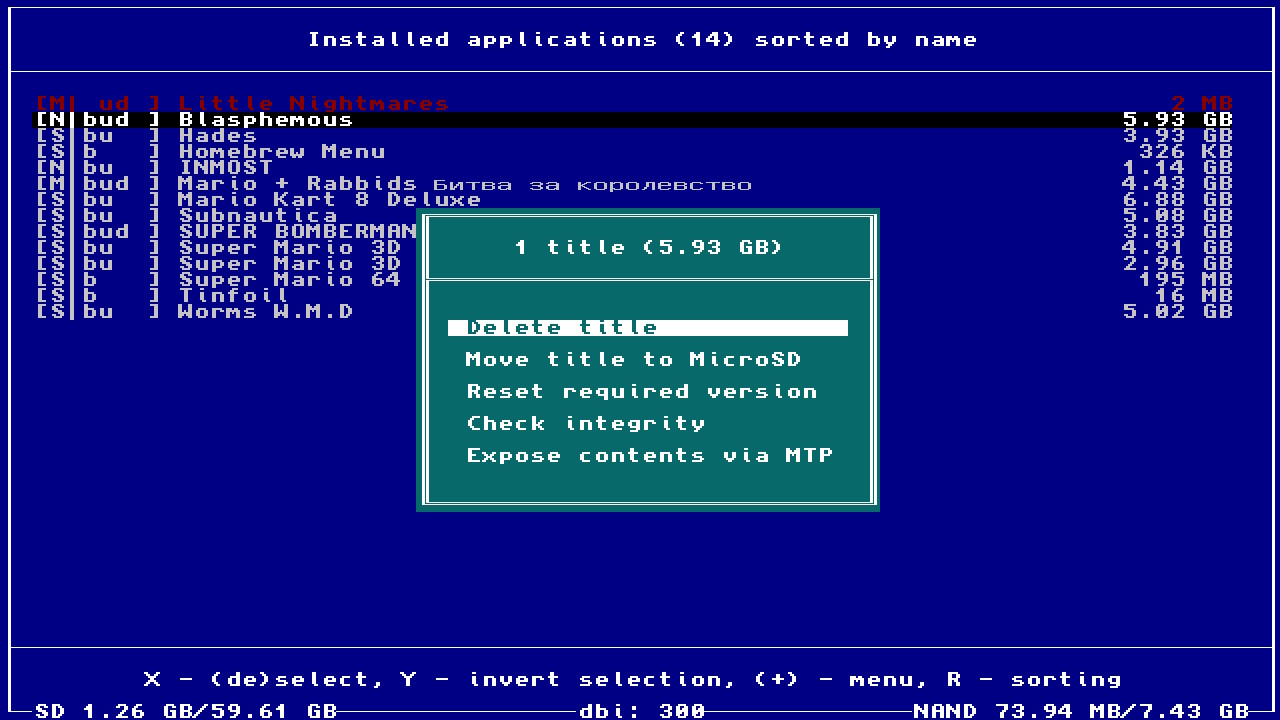
Отображается при нажатии на (+) на выбранных тайтлах (или тайтле)
В верху контекстного окна отображается количество выбранных тайтлов и их размер
- Delete title — удалить выбранные тайтлы
- Move title to MicroSD/NAND — переместить выбранные тайтлы в NAND или на карту памяти, в зависимости от того, где тайтл сейчас находится. Если части тайтла находятся и там и там, будут отображены оба варианта
- Reset required version — сбросить проверку требуемой для запуска тайтла версии системы (должен быть включён дебаг в Atmosphere)
- Check integrity — проверка целостности данных выбранных тайтлов
- Expose contents via MTP — смонтировать содержимое выбранных тайтлов по MTP
Если нажать на тайтле кнопку (A), то откроется детальное меню игры
Детальное меню игры
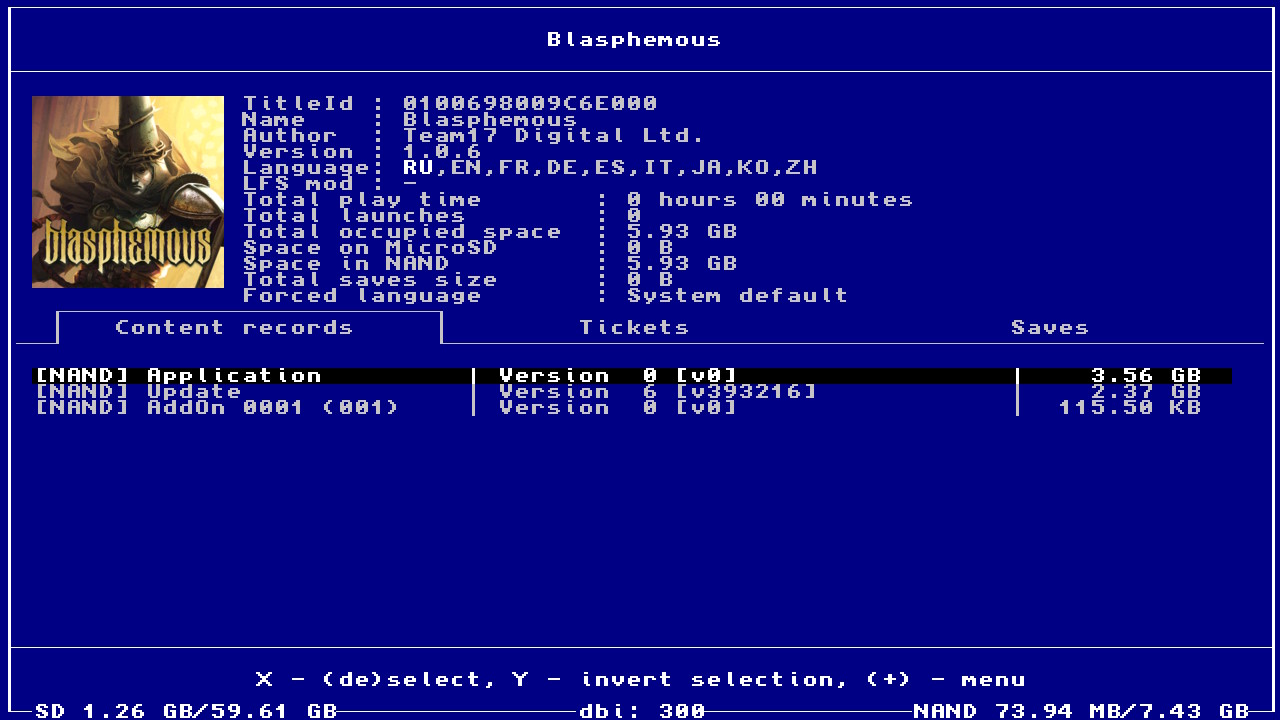
Отображается иконка игры, TitleID, название (name), автор (Author), версия (Version), поддерживаемые языки (Language) и наличие LFS-мода (LFS-mod)
Так же здесь можно узнать количество времени, проведённого в игре (Total play time), сколько раз игра была запущена (Total launches), сколько она весит (в целом (Total occupied space), а так же сколько места занимает в NAND (Space in NAND) и на SD (Space on MicroSD)), размер сохранений (Total saves size) и какой язык у игры активен (Forced Language)
Контекстное меню записи
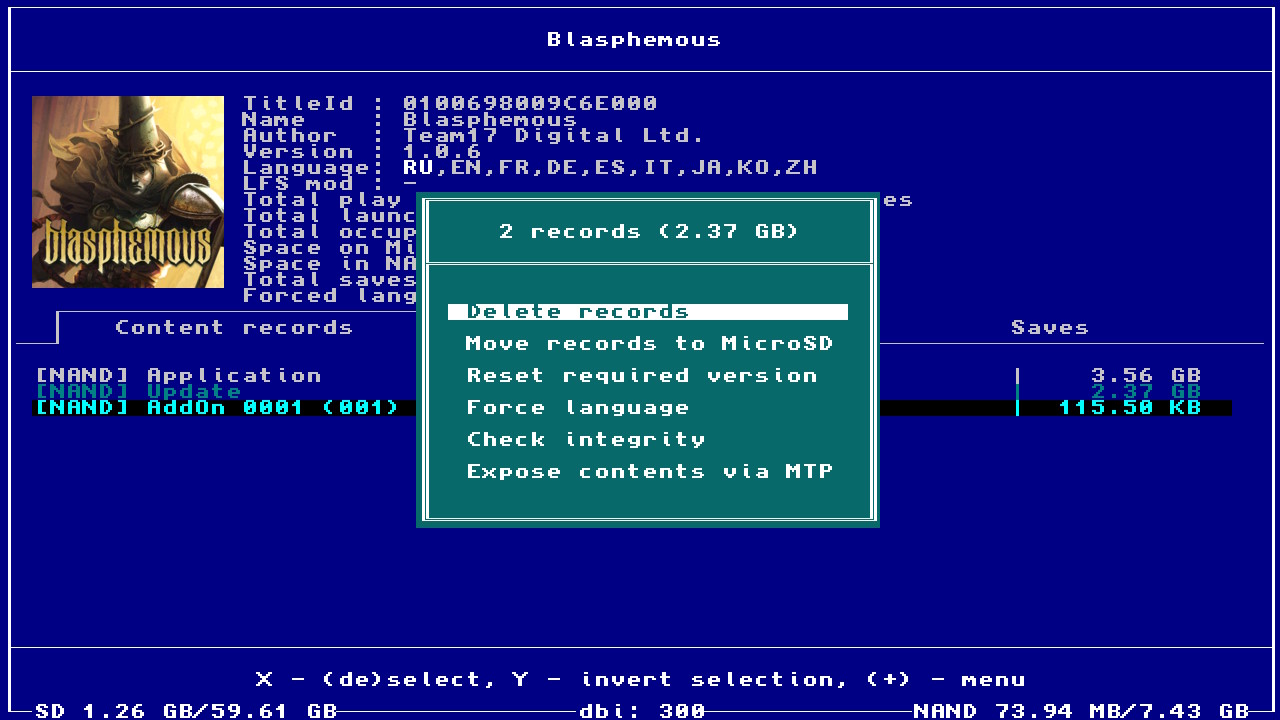
Отображается при нажатии на (+) на выбранных записях
В верху контекстного окна отображается количество выбранных записей и их размер
- Delete record — удалить выбранную запись
- Move records to MicroSD/NAND — переместить выбранную запись в NAND или на карту памяти, в зависимости от того, где она сейчас находится. Если части тайтла находятся и там и там, будут отображены оба варианта
- Reset required version — сбросить проверку требуемой для запуска тайтла версии системы (должен быть включен дебаг в Atmosphere)
- Force language — позволяет принудительно запускать игру с выбранным языком. По-умолчанию игра запускается с тем же языком, что выбран в системе, ежели такового в игре нет, то в зависимости от региона консоли. Выбранный язык будет отображаться рядом с иконкой игры в поле Forced Language
- Check integrity — проверка целостности данных выбранных тайтлов
- Expose contents via MTP — смонтировать содержимое выбранных тайтлов по MTP
Cleanup orphaned files
Cleanup orphaned files автоматически чистит ненужные файлы игр, файлы от прерванных установок игр, скачанное (официально) обновление OFW прошивки и все неиспользуемые тикеты игр, если они были найдены.
Browse tickets
Просмотр и удаление ненужных тикетов игр. Ticket (или encrypted title key) — это специальная зашифрованная уникальная информация о правах запуска на контент игры, которая устанавливается в систему при инсталляции каждой игры (000 в конце titleID)/обновления (800 в конце titleID)/каждого DLC.
- (+) означает наличие установленной игры
- [c] — common-тикет (установленного дампа игры либо обновления)
- [p] — personalized-тикет (купленной в eShop игры)
Иногда, если возникают специфическая ошибка, и вы точно знаете и уверены, что вы делаете, его можно удалить у конкретной игры и её обновления/DLC.
Во всех остальных случаях лучше тут ничего не трогать, во избежание ошибок запуска игр.
Контекстное меню тикетов
Отображается при нажатии на (+) на выбранных тикетах
В верху контекстного окна отображается количество выбранных тикетов
- Delete tickets — удалить выбранные тикеты
- Select same game — выделить все тикеты, относящиеся к выделенной игре
Browse saves
Просмотр и удаление сохранений.
Жёлтым цветом выделены сохранения для удалённых игр.
Контекстное меню сохранений
Отображается при нажатии на (+) на выбранных сохранениях
В верху контекстного окна отображается количество выбранных сохранений
- Delete saves — удалить выбранные тикеты
- Select same game — выделить все тикеты, относящиеся к выделенной игре
- Select all uninstalled — выделить все сохранения для удалённых игр
Run MTP responder
Run MTP responder включает встроенный в dbi MTP-сервер для обмена данными с ПК либо к Android-устройству по USB-C OTG (телефон/планшет/прочие устройства). Горячая клавиша для вызова этой опции из главного меню: кнопка (X) (ей же выходить из MTP). После подключения USB-провода к ПК и запуска MTP-сервера в dbi, на ПК появится следующее окно:
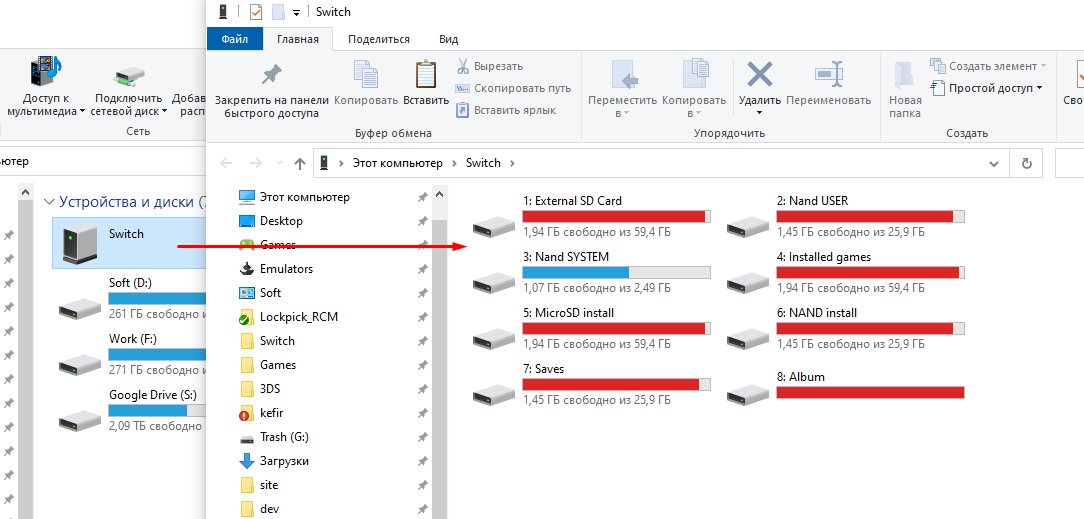
Где:
1: External SD Card, для просмотра, копирования и удаления файлов и папок c/на ПК и с/на карту памяти microSD. В случае, если размер файла превышает 4Гб, DBI автоматически разобьёт его на фрагменты специальным образом, чтобы свитч видел такой файл как цельный
2: NAND User, просмотр, копирование файлов и папок на ПК с внутренней память Switch, в его системный раздел USER (раздел доступен только для чтения).
3: NAND System, просмотр, копирование файлов и папок на ПК с внутренней памяти Switch, в его системный раздел SYSTEM (раздел доступен только для чтения).
4: Installed games, для просмотра установленных игр.
В Installed games отображаются все игры как в NAND, внутренней памяти Switch, так и установленные на карту памяти, все вместе. Чтобы сделать дамп (дистрибутив) установленный игры себе на ПК в формате .NSP, просто скопируйте папку с названием игры из Installed games на свой ПК, при этом на базе вашего personalized-тикета генерируется общий common-тикет с полностью очищенной личной информацией. Вы получите дамп этой игры в виде раздельных файлов — отдельно саму игру, отдельно обновление и DLC. Если для игры были установлены читы или моды, они будут находится в папке Mods & Cheats. Так же можно получить скомбинированный дамп, в котором в один файл будет склеяны сама игры, все её DLC и обновление. Такой файл лежит прямо в корне раздела Installed games.
Здесь так же хранится сгенерированный dbi InstalledApplications.csv, с таблицей списка установленных игр, их TitleID и текущей версии.
5: MicroSD install
Скопируйте в эту папку ваши NSP/NSZ/XCI или XCZ. По окончанию копирования игра будет установлена на карту памяти вашей приставки. При установке NSZ-файлов учитывайте, что их фактический размер может сильно отличаться от размера после установки, так что если при наличии свободных 2Гб на карте памяти у вас, например, не хватает места для установки NSZ размером, скажем, в 1Гб, не удивляйтесь, поскольку контейнер NSZ — сжатый.
6: NAND install: Скопируйте в эту папку ваши NSP/NSZ/XCI или XCZ. По окончанию копирования игра будет установлена во внутреннюю память вашей приставки. При установке NSZ-файлов учитывайте, что их фактический размер может сильно отличаться от размера после установки, так что если при наличии свободных 2Гб на карте памяти у вас, например, не хватает места для установки NSZ размером, скажем, в 1Гб, не удивляйтесь, поскольку контейнер NSZ — сжатый.
7: Saves: Доступ ко всем сохранениям игр — в аккаунтах (Account), системных программ (System), в Background Content Asymmetric synchronized delivery and Transmission (BCAT, пример: ивенты в ACNH), временных (Temporary), кэш (Cache, пример: аддоны в DOOM), системных BCAT (SystemBCAT), — хранящимся во внутренней памяти Switch
В папке Installed games — сохранения для имеющихся установленных сейчас игр
Uninstalled games — сохранения от удалённых игр, которые раньше запускались. Отсюда можно сделать их бекап, скопировав их на ПК, а также удалить ненужные — для этого откройте папку с именем нужной игры, затем удалите папку с ником вашего аккаунта/Device-сохранения.
Для того, чтобы восстановить сохранения, скопируйте их в соответствующую папку с ПК. DBI не требует предварительного запуска игры для восстановления сохранения, однако это касается только обычных сохранений. BCAT или Cache сохранения требуют предварительного запуска игры перед восстановлением.
8: Album: доступ к скриншотам и видеороликам (Альбому), точно так же, как это сделано в OFW 11.0.0 Nintendo.
9: Gamecard: при вставленном в Switch игровом картридже появляется возможность скопировать его дамп в .XCI либо trimmed .XCI на ПК, вместе со встроенным в него обновлением, если оно есть, с уже убранным его персональным RSA-сертификатом; кроме того, возможно отдельно экспортировать его сертификат
Также, на дисплее Switch после включения MTP-сервера появится окно с вашим ником учётной записи и его UID, а также количеством игровых сохранений:
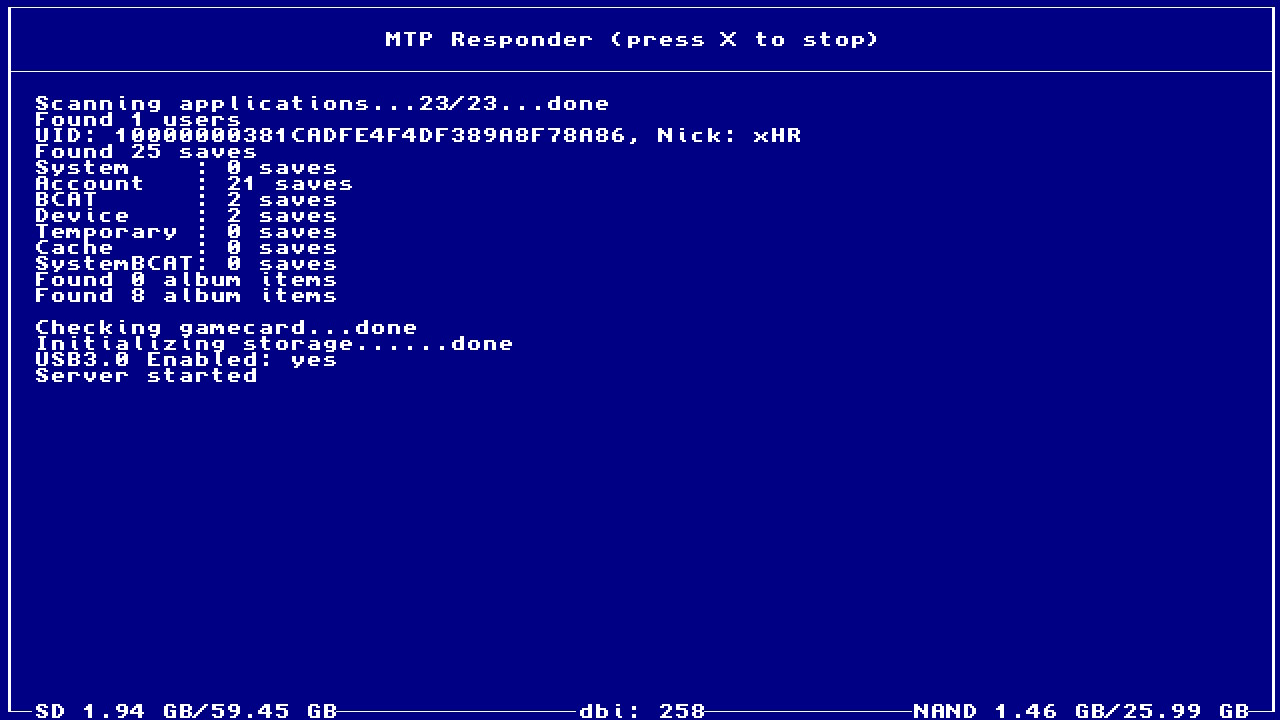
Чтобы выключить MTP-сервер и выйти в главное меню, нажмите кнопку (X) или (B).
Exit
Exit — выход из программы в HOS, минуя hbmenu, либо в hbmenu (это настраивается в dbi.config); если dbi был запущен из тайтла/форвардера, программа перезагрузится либо останется на чёрном экране.
Уведомления и коды ошибок
УВЕДОМЛЕНИЯ:
- «SIGNATURE: Invalid»/«SIGNATURE: GC->eShop» / HASH NOT MATCHED TO META — это НЕ ОШИБКИ, а уведомления о несовпадении подписи в заголовках, например, при использовании конвертации или редактирования, кастомного NSP, форвардера.
- «HASH MISMATCH» — чаще всего, это НЕ ОШИБКА, игра была сконвертирована из картриджа (тогда всё в порядке), иногда — имеются проблемы с целостностью файла, перекачайте-перехешируйте его, передачей данных по USB-кабелю/порту/в процессе установки между ПК и Switch.
Если игра не запускается или запускается с ошибкой, попробуйте переустановить её снова, проверить либо заменить USB-кабель/microSD/сменить USB-порт. - DELTA SKIPPED — это НЕ ОШИБКА, а уведомление, что ненужные фрагменты в файле обновления были пропущены, если они в нём были, как и было должно.
- «No tickets found. Possibly this NSP was converted from XCI.» — это НЕ ОШИБКА, на работоспособность игры не влият, но информирование, что игра без тикетов. Она может быть дампом из .XCI-картриджа или переконвертирована в Standard Crypto.
- «WARNING» title marked as Application but has AddonContent — это НЕ ОШИБКА, обычно это указывает на homebrew-игру в .NSP, созданную не по стандартам, к примеру, когда в Application-тайтл (основную игру, v0) добавили и AddonContent-флаг (DLC).
Если такая игра запускается и работает, тогда всё в порядке. - «This application base is not stand alone. Make sure you installed update» при установке новых Sparse Storage игр — это НЕ ОШИБКА, не забудьте, кроме базового файла игры, установить ещё и апдейт к ней перед запуском.
ОШИБКИ:
- «read: USB communication failed» — проверьте/замените USB-кабель и USB-порт на ПК.
- «Cannot parse content meta. Corrupted file or old firmware» — Либо файл поврежден, либо ваша прошивка слишком устарела для анализа метафайла. Проверьте файл и обновите его до последней версии cfw и последней поддерживаемой версии прошивки.
- «Can not find file for ncaid» — установочный файл игры повреждён (в нём отсутствует нужный .nca из списка .cnmt).
- «Invalid PFS0 magic!» — перекачайте установочный файл игры и проверьте его целостность, этот файл повреждён.
- «Invalid NCA magic!» — обновитесь на последнюю версию OFW и CFW, если ошибка сохраняется после этого, перепроверьте целостность установочного файла игры.
- «Received less data than expected» и Installation aborted — ошибка в передаче данных, перепроверьте и при необходимости замените USB-кабель/USB-порт между Switch и ПК. Также обязательно убедитесь, что у вас установлена самая последняя версия программы, как вот в этом посте.
- «std::bad_alloc» — переименуйте файл без спецсимволов и кириллицы в имени и пути к нему, плюс убедитесь, что у используете самую последняя версия программы, как в посте, на консоль установлена последняя версия OFW и CFW.
- «Nothing to install» в окне выборе файлов — переименуйте файл без спецсимволов, иероглифов или кириллицы в имени и пути к нему.
- «INVALID LENGTH» — проверить соединение USB-C кабеля и USB-порта, проверить с другими USB-C-кабелями, целостность файла игры и карту памяти на ошибки, при установке через MTP — запустить dbi через любую игру (тайтл) с удерживанием кнопки R, а не в режиме апплета через альбомы.
- «INVALID DECOMPRESSED LENGTH», вместе с «TRANSFER ERROR», при установке с карты памяти/носителя/dbibackend — освободите побольше места на карте памяти, удалите ненужные файлы с карты, если их больше 20000 шт.
- «Error occurred: Invalid argument» — обновите ваш dbi на последнюю версию.
- «[FAILED] Unknown error» при установке .tik (тикета) — установите последние сигпатчи для Atmosphére.
- «605: Content or placeholder path not exists» и «SOME CONTENTS ARE MISSING» — битая файловая система карты памяти, или нерабочая/некачественная флешка. Проверьте её в chkdsk и h2testw, если нет ошибок, переформатируйте в FAT32.
- «Can not create placeholder» — не хватает места на карте памяти/NAND, освободите его побольше.
- WARNING! Extra buffers exceeded, при установке через MTP — запустите dbi через тайтл = через любую игру, удерживая кнопку R при её запуске; альтернативно — через NSP-форвардер, и использовать более быструю microSD-карту с другим USB-кабелем/портом.
- No tickets found but they are required — некорректный (неполный, без тикета но с titlerights) дамп игры, найдите другой.
- SOME CONTENTS ARE MISSING. APPLICATION WILL BE UNUSABLE — контейнер неполный, проверьте целостность установочного файла игры.
- «Invalid personalized ticket», в конце установки игры при инсталлировании .tik-тикета — некорректный дамп игры, где вместо common-тикета остался персонализированный с той консоли, на которой была куплена игра; скачайте другой, корректный дамп.
- «No ES или других sigpatches» — не все/устаревшие/некорректно/не установлены сигпатчи на консоли, установите их самую новейшую версию.
dbi.config
Файл dbi.config был добавлен, начиная с версии 253. Он находится рядом с DBI.nro, и заменяет прежние файлы-флаги dbi.default.ascii и dbi.network.config, а также добавляет несколько новых опций для удобной кастомизации настроек под пользователя.
Рассмотрим его содержимое:
; General settings
[General]
; Use libnx's default font for ASCII symbols
DefaultASCII=true
; Use libusbhsfs for access to USB mass storage drives connected to switch or dock
UseLibUsbHsFS=true
; Direct exit to homescreen
ExitToHomeScreen=false
; Folder where saves backups are stored
SavesFolder=sdmc:/switch/DBI/saves/
; Log "Install", "Check integrity" and "Cleanup" processes
LogEvents=false
; Folder where logs are stored
LogsFolder=sdmc:/switch/DBI/logs/
; Folder where game dumps are stored
DumpsFolder=sdmc:/switch/DBI/dumps/
; Sorting options for application list
AppSorting=LastPlayed,InstallLocation,Size,Name
; Sorting options for save list
SaveSorting=AppLastPlayed,AppName,UserUid,Size,SaveId
; Highlight files with updates to curently instaled titles in file browsers
HighlightUpdates=true
; Rotate screen upside down
RotateScreen=false
; Rotate joycons
RotateJoycon=false
; Underclock CPU in menues to reduce battery usage
OptimizeClockSpeed=false
; URL with title versions in format <id>|<rightsId>|[version]
VersionsURL=https://raw.githubusercontent.com/blawar/titledb/master/versions.txt
;VersionsURL=sdmc:/versions.txt
;Browse saves FS in Read-only mode
ROSaveFS=true
; Show "Update all items from here..." in context menu of file browsers
ShowUpdateFromHere=false
; Show cache warming spinner
ShowCacheWarmingIndicator=true
; Screen idle timeout in seconds
ScreenIdleTimeout=0

; Visibility of main menu items
[MainMenu]
; Browse and install files from MicroSD card
BrowseSD=true
; Browse and copy files from SYSTEM partition
BrowseSystem=false
; Browse and copy files from USER partition
BrowseUser=false
; Browse and install files from USB flash drives and HDD
USBHost=true
; Browse and install files from PC via dbibackend
BackendInstall=true
; Install game from inserted game cartridge
GameCard=true
; Browse and install files from configured network sources
Network=true
; Browse and install files from configured sd card folders
Local=true
; Browse installed applications
BrowseApps=true
; Clean up files left from bad installs/old updates/unused tickets and so on
Cleanup=true
; Check for app updates
UpdateCheck=true
; View where you can view or delete installed tickets
Tickets=false
; View where you can view or delete game saves
Saves=true
; MTP responder
MTP=true
; FTP Server
FTP=true

[Applications]
; Whether check or not LFS mod size
CalculateLFSSize=false

; Install options
[Install]
; Check NCA hash during install
CheckHash=true
; Use chunked HTTP transfer (good in bad environments)
ChunkedTransfer=false

; MTP options
[MTP]
; Log all files, if disabled transfer shows only for files >= 2M
LogAllFiles=false
; Show or not NSP that includes base game, latest update and all DLC in single multi-title file
ShowCombinedNSP=true
; Show or not virtual "Mods & cheats" folder that redirects to sdmc:/atmosphere/contents/TITLEID
ShowMAC=true
; Show user defined shortcuts to MircoSD folders as separate storages
CustomStorages=true
; Turn screen off on start MTP mode
TurnOffScreen=false

; FTP options
[FTP]
; Turn screen off on start FTP mode
TurnOffScreen=false

;Enable or disable various MTP storages
[MTP Storages]
1: External SD Card=true
2: Nand USER=false
3: Nand SYSTEM=false
4: Installed games=true
5: MicroSD install=true
6: NAND install=true
7: Saves=true
8: Album=true
9: Gamecard=true

; Network install sources
[Network sources]
; <display name>=<type>|<URL>
; NSP Indexer=URLList|http://192.168.1.47/nspindexer/index.php?DBI
; Home server=ApacheHTTP|http://192.168.1.47/Nintendo/Switch/
; Test FTP=FTP|ftp://anonymous:password@192.168.1.24:2121/

; Main menu shortcuts to SD card locations
[Local sources]
; <display name>=<path>
Homebrew=sdmc:/switch
; Contents=sdmc:/atmosphere/contents
; DBILogs=sdmc:/switch/DBI/logs

[MTP custom storages]
; <display name>=<path>
Homebrew=sdmc:/switch/
Screenshots=sdmc:/Nintendo/Album/

; Override for display name
; <UPPERCASED TID>=<Desired name>
[Title name override]
; 010023901191C000=Naheulbeuk
General settings
- DefaultASCII — true используется стандартный шрифт, false используется альтернативный шрифт
- UseLibUsbHsFS — true включает библиотеку libusbhsfs для работы с внешними USB-накопителями через USB-OTG на Switch, false отключает её.
- ExitToHomeScreen — при false выход из dbi происходит в hbmenu, при true на рабочий стол Switch.
- SavesFolder — папка для хранения дампов сохранений
- LogEvents — сохранять или нет логи для событий «Install«, «Check integrity» and «Cleanup«
- LogsFolder — папка для хранения логов
- DumpsFolder — папка на карте памяти в которую будут дампиться игры
- AppSorting — опции для сортировки списка приложений
- SaveSorting — опции для сортировки сохранений
- Visibility of main menu items — настроить, какие пункты меню будут отображаться в главном меню DBI, вы можете запретить отображение параметра в главном меню, изменив значение на false
- HighlightUpdates — подсвечивать или нет в файловом менеджере обновления для установленных игр
- RotateScreen — переворачивает экран на 180 градусов
- RotateJoycon — переворачивает управление, чтобы соответствовать перевёрнутому экрану
- OptimizeClockSpeed — отключает оптимизацию частоты SoC в простое. Отключено по-умолчанию, поскольку может привести к лагам на стартовом экране при некорректном выходе из DBI! Корректный выход — через пункт меню Exit.
- VersionsURL — может принимать прямую ссылку на файл на уудалённом сервере, либо на файл на карте памяти. Примеры:
https://raw.githubusercontent.com/blawar/titledb/master/versions.txtилиsdmc:/versions.txt - ROSaveFS — просматривать сохранения в режиме только для чтения
- ShowUpdateFromHere — показывать кнопку «Update all titles» в контекстном меню для автообновления установленных игр из всех (microSD/USB/HTTP/FTP) доступных источников
- ShowCacheWarmingIndicator — показывать уведомление о кешировании информации об установленных программах
- ScreenIdleTimeout — таймаут гашения дисплея
MainMenu
Показ соответствующих элементов меню.
true — отображать false — нет
- BrowseSD — пункт «Browse SD card, для установки игр с Sd карты
- BrowseSystem — возможнеость просматривать и копировать файлы из раздела SYSTEM
- BrowseUser — возможнеость просматривать и копировать файлы из раздела USER
- USBHost — пункт «Browse USB0 Drive, для установки игр с внешнего USB
- BackendInstall — пункт «Install title from USB, для устаноки игр с ПК через backend
- GameCard — пункт «Install title from Gamecard, для установки содержимого картриджа в память консоли
- Network — пункт «Home server, для установки игр с домашнего веб-сервера
- Local — показывать или нет ссылки на папки из раздела Local sources
- BrowseApps — пункт «Browse installed applications, для управления установленными приложениями
- Cleanup — пункт «Cleanup orphaned files, для очистки «осиротевших» файлов с карты памяти
- UpdateCheck — пункт «Check for title updates«, для проверки обновлений и DLC для установленных игр
- Tickets — пункт «Browse tickets, для управления тикетами
- MTP — пункт «Run MTP responder, для запуска MTP
- FTP — пункт «Run FTP server, для запуска FTP
Install
- CheckHash — при true проверяются хеши .nca-файлов при установке игр на Switch, при false нет
- ChunkedTransfer — использование чанковую передачу данных по HTTP
Applications
- CalculateLFSSize — включает или отключает подсчёт размера установленных LFS-модов. Если включено, может повлиять на скорость открытия меню «Browse installed applications«
MTP
- LogAllFiles — false выключает логирование файлов меньше 4Мб при работе с MTP, при true логируются все файлы.
- ShowCombinedNSPInInstalledGames — false выключает показ комбинированных (multi-title .NSP-file) тайтлов.
- ShowMACInInstalledGames — false выключает показ виртуальной директории «Mods & cheats» в пункте Installed games в MTP, перенаправляющей по пути
sdmc:/atmosphere/contents/TITLEID/на карту памяти. - CustomStorages — отображать или спрятать кастомные пункты меню, прописанные в секции MTP custom storages
- TurnOffScreen — отключать или нет экран консоли при подключении её в режиме MTP
MTP Storages
Показ соответствующих элементов при работе MTP Responder с ПК/Android, по умолчанию все пункты включены для отображения.
true — отображать в главном меню, false — нет
Названия пунктов соответствуют названиям разделов
FTP
- TurnOffScreen — выключать экран при входе в режим FTP
Network sources
Задаются имена и адреса для установки игр по сети (через WiFi/LAN-адаптер)
NSP Indexer — адрес для индексации NSP (подробнее)
Local sources
Создание пунктов меню с быстрым доступом к выбранным в конфиге папкам на карте памяти («ярлыки»), например:
Homebrew Shortcut=sdmc:/switch создаст в главном меню пункт «Homebrew Shortcut«, который откроет папку sdmc:/switch
MTP custom storages
Кастомные пункты для MTP-режима для быстрого доступа к папкам на вашей карте памяти. Формат: <отображаемое_имя папки>=<путь>, например: Homebrew=sdmc:/switch.
В режиме MTP появится папка Homebrew, ссылающаяся на папку switch на вашей карте памяти
Title name override
Позволяет изменить имя отображаемого тайтла. Например, если указать 10023901191C000=Naheulbeuk, то в приложении вместо The Dungeon of Naheulbeuk: The Amulet of Chaos будет отображаться просто Naheulbeuk
Другие возможности
Монтирование содержимого установленных игр по MTP
Перейдите в «Browse installed applications» -> Выберите необходимые игры кнопкой X -> Нажмите (+) -> «Expose contend via MTP«
Бекап и восстановление сохранений
- Подключите приставку в режиме MTP по DBI
- Перейдите в папку Saves на вашем ПК
- Вы можете как скопировать сейвы на ПК, так и восстановить их, просто перетянув в эту папку
Использование DBI для установки модификаций:
- Подключите приставку в режиме MTP по DBI
- Перейдите в Installed Games, в папку с названием вашей игры
- Перейдите в папку Mods & Cheats
- Поместите в папку Mods & Cheats ваш мод
- Будьте внимательны, вам нужно класть не саму папку с titleID игры, а её содержимое! Например, вы скачали перевод для игры Cadence of Hyrule, в виде архиве
Cadence of Hyrule.rar. Внутри этого архива вы видите папку с TitleID игры —01000B900D8B0000. Вам нужно распаковать архив, перейти в папку01000B900D8B0000и скопировать всё содержимое папки в Mods & Cheats! Не саму папку01000B900D8B0000, а всё то, что в ней находится! В данном примере, папкуromfs
USB 3.0
DBI поддерживает работу по USB 3.0. Если вы используете kefir, то USB 3.0 активно по-умолчанию. В ином случае, нужно активировать эту функцию через конфигурационные файлы Atmosphere, прописав в atmosphereconfigsystem_settings.ini:
[usb]
usb30_force_enabled = u8!0x1
Благодарности
Спасибо SciresM за hactool (лицензия ISC) — DBI использует некоторые структуры данных, взятые оттуда
You should upgrade or use an alternative browser.
-
#1
-
#2
Did yu try with another file/game
shin mega V has really disapointed people…not well done this one…
-
#3
Você fez algumas alterações antes desse problema?
vc tentou com outro arquivo/jogo
no changes were made…the installation failed with 3 games
no changes were made…the installation failed with 3 games
-
#4
- «INVALID LENGTH» — check the USB-C cable connection to your USB port, try with another USB-C cable, check the integrity of the game file and the SD card for errors, when installing via MTP — try to run DBI in application mode (title override) holding the R button while launching a title.
From official github
Cyan
GBATemp’s lurking knight
-
#6
github FAQ provides different solutions:
— use another USB cable (it seems it worked for me)
— check your game integrity (it installs fine with other apps, so not the problem), or scan the SD for error (I didn’t try)
— use a different launch mode (Applet <-> Application). (I had this issue with Application mode, so that solution wasn’t helpful to me)
I had this issue too since I bought a new USB 3.0 cable, (and/or since I enabled USB3.0 in AMS settings).
I never had the issue before, when I was using the Controller Pro cable (which is not USB3.0).
Last time I used DBI, I disabled USB3.0 in AMS, used Pro controller cable, and used applet mode to launch DBI’s MTP. The game installed without issues, BUT it was only the update, and it was a very small file (not 4GB+), so it maybe didn’t trigger that error.
But github says it’s cable related, probably true.
When using the new cable AND USB3.0 in AMS, I never had any issue when using «copy to SD» instead of «install to SD». Then, you can install the game from SD, but it takes twice the needed space on SD.
Seeing you are already using Applet mode (blue background), and not using USB3.0 support, all I can suggest is copy to SD first, and install later from the SD.
or try an old DBI version (it should work fine with Shinmegaten) and see if there’s a version which break install of big files.
or try another, another cable, the shortest the better?
I don’t know if it’s related too, sometime I had freezes on windows after a transfer/install. I have to wait 1minute until the Explorer’s transfer windows closes, and it freezes switch side if I try to install another file. I have to exit MTP and try again. There’s an open issue#91 on github, but nobody is helping. (asking which version started having this issue, I didn’t try to test all version to report and help either, so I can’t complain…)
Last time I used DBI, I didn’t have that freeze issue… either the cable, usb3 disabled, applet mode, or small files, I don’t know. too many variables.
Aug 5, 2022
Similar threads

You may also like…
- No one is chatting at the moment.
Игровая консоль Nintendo Switch в продаже уже больше 5 лет (с 2017-го) и, очевидно, пользуется стабильной популярностью.
Девайс как минимум очень удобный — играть на Switch-е можно и дома (на большом экране), и в мобильном режиме вообще где угодно.
Но всякие сбои, баги, ошибки и прочие неприятности у Switch-а, как известно, тоже случаются. О чем мы повествуем регулярно и, есть такое подозрение, повествовать будем еще не раз.
И в продолжение темы — вот наш большой справочник по кодам ошибок Nintendo Switch, в котором мы постарались собрать все самые распространенные из них. С кратким описанием по каждой из проблем и, разумеется, с предложениями относительно того, что и как в каждом отдельном случае надо делать.
Пост этот мы наверняка будем дополнять (по мере сил и возможностей), но пока получается примерно следующее. Итак, по порядку:
#1 — Проблемы с аппаратной частью консоли
| Код | Описание проблемы | Что делать |
| 2153-0321 | Сбой системы воспроизведения аудио | • пробуем просто включить/выключить опцию «Отключать звук при отсоединенных наушниках«; • если это не помогает, то везем Switch в сервис-центр (СЦ). |
| 2168-0002 | Повреждение консоли или пиратский контент | • проверяем и удаляем любой нелегальный контент, и перезагружаем Switch; • проверяем и устанавливаем последнюю версию прошивки; • если ничего не помогает, везем Switch в СЦ. |
| 2115-0096 | Switch не принимает фигурку Amiibo | • проверяем и устанавливаем последнюю версию прошивки; • проверяем правый джойкон; • выполняем сброс данных Amiibo — [ИНСТРУКЦИЯ] |
| 2153-1540 | Switch не работает | • перезагружаем Switch; • проверяем и устанавливаем последнюю версию прошивки; • если ничего не помогает, везем Switch в СЦ. |
| 2139-0006 | Switch сбоит или не работает | Звоним в СЦ. |
Не пропустите: ОШИБКА 2002-3537 У SWITCH: ЧТО НАДО СДЕЛАТЬ
#2 — Общие проблемы Switch
| Код | Описание проблемы | Что делать |
| 2162-0002 | Switch вылетает | • перезагружаем Switch; • заряжаем джойконы; • проверяем и устанавливаем последнюю версию прошивки; • если ничего не помогает, везем Switch в СЦ. |
| 2813-6838 / 2813-6561 | Код карты eShop не срабатывает | • проверяем и вводим код еще раз (код также должен соответствовать региону); • пишем запрос в службу поддержки. |
| 2801-7199 | Не получается выгрузить контент в Facebook | • проверяем подключение консоли и перезаходим в аккаунт Facebook; • проверяем разрешения на загрузку файлов в настройках аккаунта Facebook; • пробуем выложить контент через некоторое время. |
| 2124-4009 | Не получается зайти на сайт (проблема с подключением к сервису) | • перезагружаем Switch; • проверяем подключение консоли и статус серверов сервиса; • пробуем зайти на сайт через некоторое время. |
| 2124-4517 /2181-4017 | Не получается зайти на сайт (проблема с подключением к сервису) | Пробуем зайти на сайт через некоторое время. |
| 2124-3080 | Не получается зайти в сетевую игру (не работает мультиплеер) | • вероятнее всего сетевая версия игры не доступна в вашем регионе. |
| 2124-4007 | Доступ к онлайн-сервисам заблокирован Nintendo (БАН!) | • пишем запрос в службу поддержки Nintendo [ПОДРОБНЕЕ] |
| 2813-0055 | Switch не принимаем код, поскольку ПО еще не вышло официально | Ждем релиз |
| 2813-1470 | Кредитная карта отклонена | Удаляем карты и затем регистрируем её в eShop заново |
| 2813-0040 | Этот код уже погашен (был введен ранее) | Проверяем код |
| 2005-0005 / 2005-0004 | Проблема сервиса Nintendo | • выключаем Switch полностью (ничего удалять пока не нужно); • включаем Switch, проверяем и обновляем прошивку (если доступна свежая версия); • удаляем любые свежеустановленные дополнения и весь пиратский контент; • пробуем другую (новую) карту MicroSD или форматируем имеющуюся. |
| 2124-0291 | Не получается перенести учетную запись на другой Switch | • проверяем, чтобы учетная запись не была привязана к другой (еще одной консоли); • отвязываем учетку и выполняем перенос еще раз. |
Не пропустите: ОШИБКА 2123-1502 У SWITCH-А ПОСЛЕ ОБНОВЫ: ЧТО МОЖНО СДЕЛАТЬ САМОМУ
#3 — Проблемы с ПО Switch
| Код | Описание проблемы | Что делать |
| 2164-0020 / 2122-0082 | Игра не запускается или вылетает | • меню HOME > выбираем проблемную игру > открываем настройки игры (кнопкой +/-) > Управление данными > Удалить программу; • перезагружаем Switch; • устанавливаем игру заново. |
| 2162-0101 | Игра не запускается | Проверяем версию и обновляем игру |
| 2306-0819 | Онлайн-игры не запускаются | • перезагружаем Switch;• проверяем подключение; • проверяем и обновляем прошивку консоли. |
| 2021-0003 / 2000-0000 / 2101-0002 /2107-0427 | Устаревшее ПО | Проверяем и обновляем |
| 2124-3000 / 2137-1508 | Switch не подключается к онлайн-сервисам из-за устаревшей версии прошивки | Обновляем прошивку консоли |
| 2813-0071 | Switch не подключается к eShop. | Проверяем подключение, перезагружаем консоль и подключаемся по-новой. |
| 2142-1099 / 2155-0400 | Приложение «Родительский контроль» не может подключиться к Интернету | Обновляем прошивку консоли |
Не пропустите: ЕСЛИ MORTAL KOMBAT 11 НА SWITCH ВЫЛЕТАЕТ: ЧТО ДЕЛАТЬ? [АРХИВЪ]
#4 — Проблемы с подключением Switch
| Код | Описание проблемы | Что делать |
| 2110-1100 | Switch не определяет сеть Wi-Fi | • проверяем подключение, перезагружаем консоль и маршрутизатор; • проверяем корректность пароля; • переносим Switch в другое место (где нет помех для подключения и/или поближе к роутеру) и подключаем к Wi-Fi заново; • звоним в СЦ. |
| 2811-7001 | Ошибка онлайн-сервиса (eShop) | • проверяем подключение, перезагружаем консоль и маршрутизатор; • проверяем статус серверов Nintendo. |
| 2110-2004 | Switch не определяет сеть Wi-Fi | • проверяем подключение, перезагружаем консоль и маршрутизатор; • проверяем корректность пароля; • переносим Switch в другое место (где нет помех для подключения и/или поближе к роутеру) и подключаем к Wi-Fi заново; • проверяем и обновляем прошивку маршрутизатора; • звоним в СЦ. |
| 2110-2091 | Сетевой адаптер обнаружен, но Switch не подключается к роутеру | • проверяем качество подключения кабеля Ethernet; • перезагружаем маршрутизатор; • подключаем кабель к другому порту маршрутизатора; • пробуем другой кабель. |
| 2110-2201 / 2110-2214 | Неправильный пароль | • проверяем корректность пароля; • проверяем подключение, перезагружаем консоль и маршрутизатор. |
| 2110-1100 | Switch не видит сеть Wi-Fi (или не настроен USB LAN) | • проверяем подключение, перезагружаем консоль и маршрутизатор; • настраиваем новое беспроводное подключение — [ИНСТРУКЦИЯ]; • переносим Switch в другое место (где нет помех для подключения и/или поближе к роутеру) и подключаем к Wi-Fi заново; |
| 2110-2091 | Switch не подключается к Сети через кабель | • проверяем связь (подключение к Интернету); • перезагружаем маршрутизатор; • проверяем настройки DNS. |
| 2110-2003 | Switch не видит сетевой адаптер | • проверяем связь (подключение к Интернету); • проверяем качество подключения кабеля Ethernet; • перезагружаем маршрутизатор; • подключаем кабель к другому порту маршрутизатора; • пробуем другой кабель. |
| 2110-2004 / 2110-2220 / 2110-2201 / 2110-2214 | Не получается подключиться к определенной сети Wi-Fi | • проверяем подключение, перезагружаем консоль и маршрутизатор; • проверяем корректность пароля; • переносим Switch в другое место (где нет помех для подключения и/или поближе к роутеру) и подключаем к Wi-Fi заново; • проверяем настройки сети. |
| 2110-3127 | Не получается подключиться к определенной сети (Wi-Fi или проводной) | Проверяем настройки DNS |
| 2110-3400 | Не получается подключиться к определенной сети (Wi-Fi или проводной) | Требуется проверка подлинности через браузер (например, согласие с условиями обслуживания или ввод имени пользователя и пароля) |
| 2122-2403 / 2211-0524 | Switch не подключается к интернету | • проверяем подключение, перезагружаем консоль и маршрутизатор; • обновляем прошивку консоли; • перезагружаем Switch. |
| 2811-1006 | Switch не подключается к учетной записи Nintendo | • проверяем подключение, перезагружаем консоль и маршрутизатор; • проверяем корректность пароля; • переносим Switch в другое место (где нет помех для подключения и/или поближе к роутеру) и подключаем к Wi-Fi заново. |
| 2811-5001 / 2811-1028 | Switch не подключается к eShop или другим сервисам | см. выше |
| 2155-8006 | Switch не подключается к учетной записи Nintendo (из-за некорректных настроек DNS) | см. выше |
| 2618-0513 | Сбой подбора игроков в игре | • пробуем еще раз; • проверяем связь; • перезагружаем консоль и маршрутизатор; • проверяем статус серверов игры и Nintendo; • пишем запрос в службу поддержки. |
| 2160-0103 / 2306-0520 / 2618-0006 / 2618-0201 / 2618-0516 | Сбой подключения в игре | • проверяем связь; • перезагружаем консоль и маршрутизатор; • проверяем статус серверов игры и Nintendo; • проверяем настройки DNS; • перезаходим в игру через некоторое время. |
| 2160-0202 | Сбой подключения | • проверяем подключение, перезагружаем консоль и маршрутизатор; • проверяем корректность пароля; • переносим Switch в другое место (где нет помех для подключения и/или поближе к роутеру) и подключаем к Wi-Fi заново; • подключаемся к другой сети Wi-Fi |
| 2155-8006 | Switch не подключается к учетной записи Nintendo (из-за некорректных настроек DNS) | см. выше |
| 2124-8006 / 2137-8006 | Не удается завершить загрузку | см. выше |
| 2810-1224 | Не получается залогиниться | см. выше |
| 2137-0240 | Не удается завершить загрузку | см. выше |
| 2124-8028 | Не получается залогиниться | см. выше |
| 2124-8006-2124-8007 | Сбой подключения | см. выше |
| 2160-8006-2160-8007 | Не удается завершить тес сети | см. выше |
| 2618-0203 | Switch не подключается к учетной записи Nintendo | см. выше |
| 2142-0507 | Приложение «Родительский контроль» не может подключиться к Интернету | см. выше |
Не пропустите: ОШИБКА 2137-8056 В SWITCH: ЧТО ОЗНАЧАЕТ И КАК УСТРАНИТЬ [АРХИВЪ]
#5 — Проблемы на стороне сервера
| Код | Описание | Что делать |
| 2813-0002 | Не получается зайти в eShop — сбой сервиса | Заходим через время |
| 2618-0542 | Не получается зайти в сетевую игру — слишком много игроков | Заходим через время |
| 2613-1400 | Оплата картой не проходит — сбой сервиса | Ждем и потом пробуем еще раз |
| 2306-0811 | Switch не подключается к онлайн-сервису — сбой на стороне сервера | Заходим через время |
| 2801-7002 | Не получается загрузить контент в Twitter — сбой на стороне сервера | Заходим через время |
| 2124-5119 / 2124-5249 | Сбой на стороне серверов Nintendo | Заходим через время |
| 902-5998 | Сервер Nintendo eShop остановлен на ТО | Заходим через время |
| 2810-1500 | Не получается зайти в Facebook | • перезагружаем консоль • перезаходим позже |
| 2124-5002 / 2124-5200 | Не получается зайти в учетную запись Nintendo | Заходим позже |
| 2813-0009 / 2813-1400 / 2813-6835 / 2813-9804 /2813-9712 | Сбой на стороне сервера Nintendo eShop | перезагружаем магазин и/или заходим позже |
| 2811-7503, 2811-7504 | Сбой на стороне сервера Nintendo eShop | Заходим позже |
| 2816-0700 / 2817-0700 | Сбой на стороне сервера | Заходим позже |
Не пропустите: КОГДА ДОК-СТАНЦИЯ SWITCH МИГАЕТ ЗЕЛЕНЫМ И НЕ РАБОТАЕТ: ЧТО ДЕЛАТЬ?
#6 — Проблемы с картой памяти MicroSD
| Код | Описание | Что делать |
| 2002-2049-2002-2064 2002-4690 / 2002-6201 / 2016-0247 / 2016-0602 / 2016-0641 | Ошибка карты памяти на этапе загрузки или обновления игры | • вынимаем карту из слота и затем вставляем снова ставим её на место; • перезагружаем Switch, проверяем версию прошивки и обновляем (если доступна свежая); • выполняем проверку файлов игры — [ИНСТРУКЦИЯ] • форматируем карту (НО учитываем, что при этом все данные с карты будут стёрты без возможности восстановления!); • берем другую/новую MicroSD или ставим игру в память Switch. |
| 2002-2001 /2016-0390 / 2205-0123 | Нет доступа к карте памяти microSD | см. выше |
| 2002-4517 / 2002-4641-2002-4660 /2002-4741-2002-4760 / 2002-0007-2002-0008 /2002-4683 | Не получается скачать игру или прогу из eShop — сбой карты памяти | см. выше |
| 2002-4301-2002-4463 / 2002-3005 /2002-3500-2002-3999 / 2002-0001 /2016-0601 / 2101-0001 / 2107-0445 | Ошибка карты памяти в игре и/или после включения Switch | см. выше |
| 2002-1002 / 2002-2629-2002-2669 | Игра не загружается или не запускается — сбой карты памяти | см. выше |
| 2002-2085 | Switch не распознает карту памяти microSD | см. выше |
| 2005-0003 | Игра не загружается или не запускается — сбой карты памяти | см. выше |
Не пропустите: ЕСЛИ ЛАГАЕТ ЗВУК У SWITCH ПОСЛЕ ПОДКЛЮЧЕНИЯ К ТЕЛЕКУ: ЧТО МОЖНО СДЕЛАТЬ?
#7 — Проблемы Switch в некоторых играх
| Код | Описание | Что делать |
| 2306-0820 | Не запускается Splatoon 2 Global Testfire | Эта «демка» уже недоступна |
| 2-ARVHA-0000 |
Не работает YouTube | ПОДРОБНЕЕ >>> |
| 2-AABQA-1021 | Не получается зайти в сетевую игру в Arms | Проверяем подключение, перезагружаем Switch и перезаходим в игру |
| 2-BABBE-1000 | Не получается зайти в сетевую игру в Ultra Street Fighter 2 | Обновляем игру, проверяем подключение, перезагружаем Switch и перезаходим в игру |
| 2306-0112 | Сбой подключения к серверу в Pokemon Sword and Shield | ПОДРОБНЕЕ >>> |
| 1618-0521 |
Консоль не отвечает в Animal Crossing: New Horizons | ПОДРОБНЕЕ >>> |
UPD: Оно живое! Спасибо всем за помощь. Помог запуск пейлоадера. Инструкция для тех, кто так же, как я, столкнётся с проблемой.
Взломанный Свитч, куплен неделю назад. Не успел разобраться, вошёл в меню Homebrew Launcher. Ничего там не нажимал. Затем нажал на Power, и после этого консоль не включается.
На консоли установлена сборка Kefir (последняя). В момент нажатия кнопки Power был включен wi-fi, если это важно. Свитч полностью заряжен, зарядка используется оригинальная.
Помогите, люди добрые, кто чем сможет ((
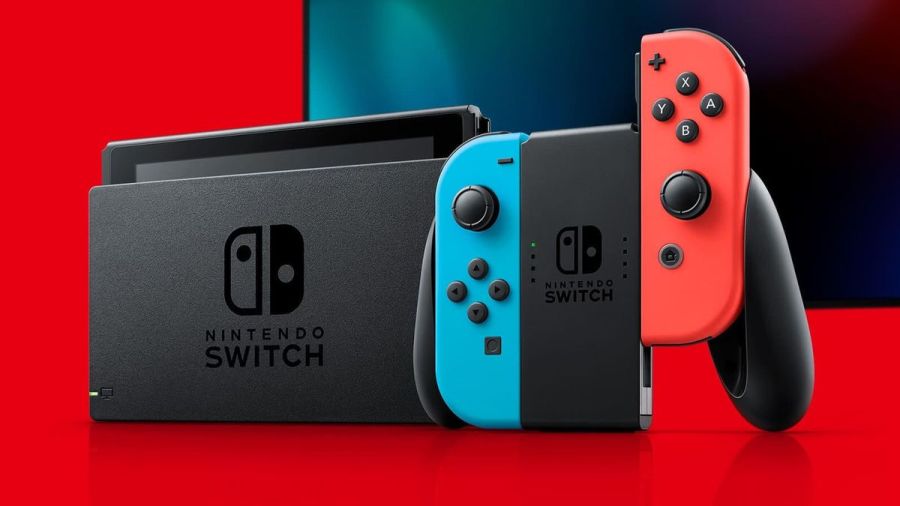
Image via Nintendo
The Nintendo Switch is an innovative console that has taken the world by storm. It has amazing capabilities that continue to wow users. Functionality is top-rate and usually pretty reliable. But what happens when that console isn’t working and is throwing up error codes?
It’s time to diagnose issues on the Nintendo Switch and fix it!
Note: To find the specific error code needed, hit ctrl+f on the keyboard.
Hardware
2153-0321
- This code means there is a serious audio-hardware issue
- The console will need to be physically repaired. Call Nintendo support for more info.
- A temporary workaround that works for some, but not all: turn off the «mute volume when headphones are unplugged» setting.
2168-0002
- This is a console crash error. It could be caused by either corrupted hardware or pirated content.
- If there is any pirated content on the Switch, delete the files immediately.
- Try rebooting the console.
- If rebooting doesn’t work, try making sure the system is up to date.
- If the above fails, the Switch may need to be physically repaired.
2115-0096
- Amiibo figure is not being accepted on the Switch.
- Check for system updates.
- Check the right Joy-Con to make sure it is working properly.
- Reset Amiibo data.
2153-1540
- This error code indicates the Switch is not functional.
- Restart the Switch.
- Check for updates.
- If this doesn’t work, call Nintendo Support. The Switch may need repairing.
2139-0006
- There is something wrong with the hardware.
- Call Nintendo Support. The console will need to be prepared.
General
2162-0002
- This is a crash error with multiple causes.
- Try restarting the console.
- Making sure Joy-Cons are charged.
- Once rebooted, make sure all parts of the Switch are up to date.
- If the crash error persists, contact Nintendo Support.
2813-6838 / 2813-6561
- The Nintendo eShop Card code attempting to be used is unable to be processed.
- Try the code again, checking the numbers carefully.
- Make sure the code isn’t intended for a different region.
- If the above doesn’t work, contact Nintendo Support.
2801-7199
- Facebook upload is not working.
- Try unlinking, then relinking the Facebook account.
- If this fails, check Facebook permissions on the Facebook site/app.
- If the error code persists, wait and try again later.
2124-4009
- This is a general functionality error code.
- Restart the Switch.
- If problems persist, there may be maintenance or an outage. Try again later.
2124-4517 /2181-4017
- Usually, there flagged unusual behavior on the Switch, preventing online service access.
- Wait and try again later.
- If the problem persists, contact Nintendo Support.
2124-3080
- The Switch cannot connect to online match-making.
- Online multiplayer is likely not available in your region.
2124-4007
- The Switch console being used has been permanently banned from connecting online, likely due to a breach of Terms of Service.
- Contact Nintendo Support.
2813-0055
- The Switch cannot redeem a download code because the software is not released to the public yet.
- Wait until the release date.
2813-1470
- The credit card being used in the eShop has been rejected.
- Delete and set up the card again.
2813-0040
- The download code attempting to be used has already been redeemed.
- Double-check the download code.
2005-0005 / 2005-0004
- This error means something in the Nintendo is likely corrupted.
- Turn off the Switch. Do not delete any data yet.
- Turn it back on and make sure the system is up to date.
- If this does not work, delete any offending DLC or pirated content.
- If the above doesn’t work, try a new MicroSD or format the current one.
2124-0291
- Transfer of user account to another Switch cannot be finished.
- Check that the user account isn’t already linked in some way to the second console.
- If so, delete that data and try the transfer again.
Software
2164-0020 / 2122-0082
- There is software on the Switch causing an error.
- Go to manage software.
- Delete the software causing this issue (likely the game that caused the crash).
- Restart the Switch. Put the game card back in, if it is not digital.
- Reinstall the software.
2162-0101
- A game cannot start because an update is required.
- Check for software updates.
2306-0819
- The Switch is unable to connect to online games.
- Make sure the Switch software is up to date.
2021-0003 / 2000-0000 / 2101-0002 /2107-0427
- The latest software is not being used.
- Check for software updates.
- Check for corrupted data.
2124-3000 / 2137-1508
- The Switch is unable to connect to an online service because it is not up to date.
- Update the console.
2813-0071
- The software is having a general issue with downloading on the eShop.
- Restart the console and try again.
2142-1099 / 2155-0400
- The Parental Controls app cannot connect to the internet. The console needs to be up to date.
- Update the console.
Internet Connection
2110-1100
- The Switch is unable to determine a network.
- Run through all internet troubleshooting settings:
- Make sure no objects are blocking the Switch.
- Check the network password again and retry.
- If failure, try either power cycling the home network or moving closer to the router.
- If the connection fails again, try turning off password requirements for the network.
- If all steps fail, check network settings for the home network.
- If this still fails, call Nintendo Support as there may be additional solutions. In some cases, the Switch may need repair.
- Run through all internet troubleshooting settings:
2811-7001
- An error in using an online service like eShop has occurred.
- Restart the console.
- Check internet connection.
- Restart network devices.
2110-2004
- The Switch is unable to determine a network.
- Run through all internet troubleshooting settings:
- Make sure no objects are blocking the Switch.
- Check the network password again and retry.
- If failure, try either power cycling the home network or moving closer to the router.
- If the connection fails again, try turning off password requirements for the network.
- If all steps fail, check network settings for the home network.
- Update the Router’s firmware.
- If the above doesn’t work, factory reset the router.
- If this still fails, call Nintendo Support as there may be additional solutions. In some cases, the Switch may need repair.
- Run through all internet troubleshooting settings:
2110-2091
- LAN Adapter is detected, but the Switch could not make a connection with the router or modem.
- Check to make sure the ethernet cable is secure.
- Try power cycling your home network.
- Use a different port on the router.
- Try a different ethernet cable.
2110-2201 / 2110-2214
- The router or access point alerted the Switch that an incorrect password was used.
- Confirm the connection password.
- Troubleshoot internet connection:
- Move the Switch closer to the router.
- Create a wireless internet connection file.
- Power cycle your network.
2110-1100
- A wireless network connection cannot be made. This is due to the Switch not detecting a network. (This can also sometimes mean, for those that have USB LAN, that the USB LAN is not properly set up)
- Create a new internet connection file.
- Move the Switch closer to the router.
- Power cycle the home network.
- Move anything blocking the Switch or router.
2110-2091
- The Switch cannot connect to a wired network.
- Check internet connection.
- Restart the Switch.
- Check DNS settings.
2110-2003
- There are connection issues related to failure to detect the LAN Adapter.
- Make sure the ethernet is attached.
- Power cycle the home network.
- Try a different router port.
- Try a different ethernet cable.
2110-2004 / 2110-2220 / 2110-2201 / 2110-2214
- Cannot connect to a specific wireless network. Usually, this is due to incorrect password use.
- Make sure no objects are blocking the Switch.
- Check the network password again and retry.
- If this does not work, try either power cycling the home network or moving closer to the router.
- If the connection fails again, try turning off password requirements for the network.
- If all steps fail, check network settings for the home network.
2110-3127
- Cannot connect to a specific wireless or wired network.
- Check DNS settings and make sure they are correct.
2110-3400
- Cannot connect to a specific wireless or wired network.
- Check web authentication permissions.
2122-2403 / 2211-0524
- This is a general error, usually caused by a needed software update or connection issues.
- Make sure your Switch is up to date.
- Check internet connection.
- Restart the console.
2811-1006
- The Switch is unable to connect to the Nintendo Account
- Make sure no objects are blocking the Switch.
- Check the network password again and retry.
- If failure, try either power cycling the home network or moving closer to the router.
- If the connection fails again, try turning off password requirements for the network.
- If all steps fail, check network settings for the home network.
2811-5001 / 2811-1028
- The Switch is unable to connect to the eShop or other online features.
- Make sure no objects are blocking the Switch.
- Check the network password again and retry.
- If failure, try either power cycling the home network or moving closer to the router.
- If the connection fails again, try turning off password requirements for the network.
- If all steps fail, check network settings for the home network.
2155-8006
- The Switch is unable to link a new Nintendo account to the console. This is usually due to a DNS error or general connection timeout.
- Make sure no objects are blocking the Switch.
- Check the network password again and retry.
- If failure, try either power cycling the home network or moving closer to the router.
- If the connection fails again, try turning off password requirements for the network.
- If all steps fail, check network settings for the home network.
2618-0513
- The Switch is unable to complete a match-making process.
- Try again.
- Test your internet connection.
- Power cycle your gateway.
- If this does not work, try updating your gateway’s firmware.
- If the above fails, contact Nintendo Support.
2160-0103 / 2306-0520 / 2618-0006 / 2618-0201 / 2618-0516
- Joining an online match, starting/completing the match-making process, or completing a match has failed. This is very likely a connection issue.
- Restart the console.
- Check the connection.
- Try a manual DNS alternate.
- Try power cycling your home network.
2160-0202
- Connecting to an online service has failed. This is likely a connection timeout issue.
- Make sure no objects are blocking the Switch.
- Check the network password again and retry.
- Try either power cycling the home network or moving closer to the router.
- If the connection fails again, try turning off password requirements for the network.
- If all steps fail, check network settings for the home network.
2155-8006
- The Switch is unable to link a new Nintendo account to the console. This is usually due to a DNS error or general connection timeout.
- Make sure no objects are blocking the Switch.
- Check the network password again and retry.
- If failure, try either power cycling the home network or moving closer to the router.
- If the connection fails again, try turning off password requirements for the network.
- If all steps fail, check network settings for the home network.
2124-8006 / 2137-8006
- A download cannot be completed. Usually, this is caused by connection timeout.
- Check DNS settings.
- Restart the console.
- Run through internet troubleshooting:
- If this does not work, manually enter an alternate DNS.
- If the above does not work, try either power cycling the home network or moving closer to the router.
- If the connection fails again, try turning off password requirements for the network.
- Try connecting to an alternate wireless band as the last step.
- Contact Nintendo Support if problems persist.
2810-1224
- Sign-in to either the Account or eShop has failed. The connection may also be an issue.
- Restart the console.
- Check connection signal. Then attempt regular activity again.
- If the above fails, contact Nintendo Support.
2137-0240
- Downloads cannot be completed. This is because of an internet issue, likely a timeout.
- Check internet connection.
- Troubleshoot internet issues:
- Power cycle the home network.
- Move any objects blocking the Switch or router.
- If able, connect to another wireless band.
- For wired connection troubleshooting:
- Restart network devices.
- If all the above fails, try updating the router’s firmware.
2124-8028
- Nintendo sign-in has failed. This is due to poor internet speeds or wireless issues.
- Check internet speed.
- Troubleshoot internet issues:
- Power cycle the home network.
- Move any objects blocking the Switch or router.
- If able, connect to another wireless band.
2124-8006-2124-8007
- This is an error code associated with a connection timeout or DNS error. It could also be a weak signal or slow internet.
- Check internet connection.
- Restart the Switch.
- Enter a different DNS.
- Run through internet troubleshooting:
- Move any objects blocking the Switch (if wireless).
- If the above does not work, try either power cycling the home network or moving closer to the wireless router.
- If the connection fails again, try turning off password requirements for the network.
- Try connecting to an alternate wireless band as the last step.
2160-8006-2160-8007
- A connection test cannot be completed.
- Check internet connection.
- Make sure you are connecting to the right network.
2618-0203
- Nintendo Switch cannot connect to an online service. This is possible due to issues with the DNS.
- Restart the console.
- Check the DNS settings.
- Try power cycling your home network.
- Manually enter an alternate DNS.
- Test the internet connection.
2142-0507
- The Parental Controls app cannot connect to the internet. The internet is not detected, likely due to a timeout.
- Restart the Switch.
- Check internet connection.
- Power cycle home network.
- Use a different network.
Related: 8 Best JRPGs on Nintendo Switch 2020
Maintenance and Server Issues
2813-0002
- There is a service outage preventing connection to the Nintendo eShop.
- Wait and try again later.
2618-0542
- The Switch is unable to join an online match. This is due to too many players.
- Wait and try and join a match later.
2613-1400
- The Switch will not create a credit card purchase. This is likely due to maintenance or server issues.
- Wait and try again later.
2306-0811
- The Switch will not connect to an online service. This is likely due to maintenance or server issues.
- Wait and try again later.
2801-7002
- Twitter uploads cannot be completed. This is likely due to maintenance or server issues.
- Wait and try again later.
2124-5119 / 2124-5249
- Nintendo Account Services is experiencing server issues or undergoing maintenance.
- Wait and try again later.
902-5998
- The Nintendo eShop is experiencing maintenance.
- Wait and try again later.
2810-1500
- Facebook sign-in cannot be completed.
- Restart the console.
- If the problem persists, it may be may server issues. Try again later.
2124-5002 / 2124-5200
- Sign-in to a pre-existing Nintendo Account has failed. This specific code determines this is an outage on Nintendo’s side.
- Wait and try again later.
2813-0009 / 2813-1400 / 2813-6835 / 2813-9804 /2813-9712
- There is a temporary service issue with the Nintendo eShop. It may have also timed out due to inactivity.
- If inactivity, relaunch the store.
- Wait and try again later.
2811-7503, 2811-7504
- There is a network outage to the Nintendo eShop.
- Wait and try again later.
2816-0700 / 2817-0700
- A maintenance error is popping up on general application use.
- Wait again and try later.
MicroSD
2002-2049-2002-2064 /2002-4690 / 2002-6201 / 2016-0247 / 2016-0602 / 2016-0641
- An error code while downloading software or updating a game has occurred. The MicroSD is likely at fault.
- Reset and check the MicroSD.
- Make sure data isn’t corrupted.
- Remove and reinsert MicroSD
- If the above doesn’t work, format the MicroSD.
- If all of the tips above do not work, try getting a new MicroSD or downloading directly to the Switch.
2002-2001 /2016-0390 / 2205-0123
- The MicroSD card cannot be accessed.
- Reset and check the MicroSD.
- Remove and reinsert MicroSD
- If the above doesn’t work, format the MicroSD.
- If all of the tips above do not work, try getting a new MicroSD or downloading directly to the Switch.
2002-4517 / 2002-4641-2002-4660 /2002-4741-2002-4760 / 2002-0007-2002-0008 /2002-4683
- Software for or from the eShop cannot be downloaded. This is a MicroSD issue.
- If a MicroSD is not being used, restart the console.
- Check for software updates.
- Remove and reinsert MicroSD
- If the above doesn’t work, format the MicroSD.
- If all of the tips above do not work, try getting a new MicroSD or downloading directly to the Switch.
2002-4301-2002-4463 / 2002-3005 /2002-3500-2002-3999 / 2002-0001 /2016-0601 / 2101-0001 / 2107-0445
- A MicroSD error has occurred while playing a game powering the Switch on (or waking from sleep mode).
- Restart the Switch.
- Check for software updates.
- Remove and reinsert MicroSD
- If the above doesn’t work, format the MicroSD.
- If all of the tips above do not work, try getting a new MicroSD or downloading directly to the Switch.
2002-1002 / 2002-2629-2002-2669
- A game cannot download or start. This will happen with a MicroSD.
- Check for software updates.
- Remove and reinsert MicroSD
- If the above doesn’t work, format the MicroSD.
- If all of the tips above do not work, try getting a new MicroSD or downloading directly to the Switch.
2002-2085
- The MicroSD cannot be recognized.
- Check for software updates.
- Remove and reinsert MicroSD
- If the above doesn’t work, format the MicroSD.
- If all do not work, try getting a new MicroSD or downloading directly to the Switch.
2005-0003
- There is an issue with the MicroSD and it is preventing downloads.
- Make sure the system is up to date.
- Find a new MicroSD or Repair the current MicroSD.
- If repairs fail and there is no other MicroSD for use, try downloading the software on the Switch system for later use.
Ranges
These sets of ranges tend to have the same meaning within their group. Make sure to search the specific code if these general tips do not help.
2110-1000 — 2110-1999
- An error code within this range means the Switch cannot connect to the wireless or wired network. Usually, the error occurred before, not as a timeout.
- Try power cycling your gateway.
- Place the Switch in a DMZ in gateway settings. Within those settings, forward ports to the Switch.
- Restart the console.
2110-2000 — 2110-2899 / 2110-2900 — 2110-2999 / 2110-3000 — 2110-3999
- An error code in this range means a connection was not made to a wireless or wired network. This error usually occurs during the action, such as a connection loss. The connection loss also could have occurred while obtaining the IP address.
- Make sure no objects are blocking the Switch.
- Check the network password again and retry.
- If failure, try either power cycling the home network or moving closer to the router.
- If the connection fails again, try turning off password requirements for the network.
- If all steps fail, check network settings for the home network.
2618-0501, 2618-0502 / 2306-0501, 2306-0502
- This error occurs when the Switch fails to join an online match.
- Make sure no objects are blocking the Switch.
- Check the network password again and retry.
- If the above doesn’t work, try either power cycling the home network or moving closer to the router.
- If the connection fails again, try turning off password requirements for the network.
- If all steps fail, check network settings for the home network.
2124-0200 — 2124-0269
- The user is attempting to use an online game feature while not logged in.
- Log in to the intended Nintendo account.
Games
These error codes are for specific video game titles.
2306-0820
- The Splatoon 2 Global Testfire demo will not launch.
- The demo sessions for this game are no longer available.
2-AABQA-1021
- An online match in Arms will not connect.
- Check your internet connection and try again.
2-BABBE-1000
- Ultra Street Fighter 2 Online will not connect.
- Check for a software update on the game.
- If this doesn’t work, check the internet connection.
Want to read more about Nintendo? Read Best Switch Multiplayer Games on Pro Game Guides.
Follow us on Twitter and Facebook to get updates on your favorite games!
Image via Nintendo
The Nintendo Switch is an innovative console that has taken the world by storm. It has amazing capabilities that continue to wow users. Functionality is top-rate and usually pretty reliable. But what happens when that console isn’t working and is throwing up error codes?
It’s time to diagnose issues on the Nintendo Switch and fix it!
Note: To find the specific error code needed, hit ctrl+f on the keyboard.
Hardware
2153-0321
- This code means there is a serious audio-hardware issue
- The console will need to be physically repaired. Call Nintendo support for more info.
- A temporary workaround that works for some, but not all: turn off the «mute volume when headphones are unplugged» setting.
2168-0002
- This is a console crash error. It could be caused by either corrupted hardware or pirated content.
- If there is any pirated content on the Switch, delete the files immediately.
- Try rebooting the console.
- If rebooting doesn’t work, try making sure the system is up to date.
- If the above fails, the Switch may need to be physically repaired.
2115-0096
- Amiibo figure is not being accepted on the Switch.
- Check for system updates.
- Check the right Joy-Con to make sure it is working properly.
- Reset Amiibo data.
2153-1540
- This error code indicates the Switch is not functional.
- Restart the Switch.
- Check for updates.
- If this doesn’t work, call Nintendo Support. The Switch may need repairing.
2139-0006
- There is something wrong with the hardware.
- Call Nintendo Support. The console will need to be prepared.
General
2162-0002
- This is a crash error with multiple causes.
- Try restarting the console.
- Making sure Joy-Cons are charged.
- Once rebooted, make sure all parts of the Switch are up to date.
- If the crash error persists, contact Nintendo Support.
2813-6838 / 2813-6561
- The Nintendo eShop Card code attempting to be used is unable to be processed.
- Try the code again, checking the numbers carefully.
- Make sure the code isn’t intended for a different region.
- If the above doesn’t work, contact Nintendo Support.
2801-7199
- Facebook upload is not working.
- Try unlinking, then relinking the Facebook account.
- If this fails, check Facebook permissions on the Facebook site/app.
- If the error code persists, wait and try again later.
2124-4009
- This is a general functionality error code.
- Restart the Switch.
- If problems persist, there may be maintenance or an outage. Try again later.
2124-4517 /2181-4017
- Usually, there flagged unusual behavior on the Switch, preventing online service access.
- Wait and try again later.
- If the problem persists, contact Nintendo Support.
2124-3080
- The Switch cannot connect to online match-making.
- Online multiplayer is likely not available in your region.
2124-4007
- The Switch console being used has been permanently banned from connecting online, likely due to a breach of Terms of Service.
- Contact Nintendo Support.
2813-0055
- The Switch cannot redeem a download code because the software is not released to the public yet.
- Wait until the release date.
2813-1470
- The credit card being used in the eShop has been rejected.
- Delete and set up the card again.
2813-0040
- The download code attempting to be used has already been redeemed.
- Double-check the download code.
2005-0005 / 2005-0004
- This error means something in the Nintendo is likely corrupted.
- Turn off the Switch. Do not delete any data yet.
- Turn it back on and make sure the system is up to date.
- If this does not work, delete any offending DLC or pirated content.
- If the above doesn’t work, try a new MicroSD or format the current one.
2124-0291
- Transfer of user account to another Switch cannot be finished.
- Check that the user account isn’t already linked in some way to the second console.
- If so, delete that data and try the transfer again.
Software
2164-0020 / 2122-0082
- There is software on the Switch causing an error.
- Go to manage software.
- Delete the software causing this issue (likely the game that caused the crash).
- Restart the Switch. Put the game card back in, if it is not digital.
- Reinstall the software.
2162-0101
- A game cannot start because an update is required.
- Check for software updates.
2306-0819
- The Switch is unable to connect to online games.
- Make sure the Switch software is up to date.
2021-0003 / 2000-0000 / 2101-0002 /2107-0427
- The latest software is not being used.
- Check for software updates.
- Check for corrupted data.
2124-3000 / 2137-1508
- The Switch is unable to connect to an online service because it is not up to date.
- Update the console.
2813-0071
- The software is having a general issue with downloading on the eShop.
- Restart the console and try again.
2142-1099 / 2155-0400
- The Parental Controls app cannot connect to the internet. The console needs to be up to date.
- Update the console.
Internet Connection
2110-1100
- The Switch is unable to determine a network.
- Run through all internet troubleshooting settings:
- Make sure no objects are blocking the Switch.
- Check the network password again and retry.
- If failure, try either power cycling the home network or moving closer to the router.
- If the connection fails again, try turning off password requirements for the network.
- If all steps fail, check network settings for the home network.
- If this still fails, call Nintendo Support as there may be additional solutions. In some cases, the Switch may need repair.
- Run through all internet troubleshooting settings:
2811-7001
- An error in using an online service like eShop has occurred.
- Restart the console.
- Check internet connection.
- Restart network devices.
2110-2004
- The Switch is unable to determine a network.
- Run through all internet troubleshooting settings:
- Make sure no objects are blocking the Switch.
- Check the network password again and retry.
- If failure, try either power cycling the home network or moving closer to the router.
- If the connection fails again, try turning off password requirements for the network.
- If all steps fail, check network settings for the home network.
- Update the Router’s firmware.
- If the above doesn’t work, factory reset the router.
- If this still fails, call Nintendo Support as there may be additional solutions. In some cases, the Switch may need repair.
- Run through all internet troubleshooting settings:
2110-2091
- LAN Adapter is detected, but the Switch could not make a connection with the router or modem.
- Check to make sure the ethernet cable is secure.
- Try power cycling your home network.
- Use a different port on the router.
- Try a different ethernet cable.
2110-2201 / 2110-2214
- The router or access point alerted the Switch that an incorrect password was used.
- Confirm the connection password.
- Troubleshoot internet connection:
- Move the Switch closer to the router.
- Create a wireless internet connection file.
- Power cycle your network.
2110-1100
- A wireless network connection cannot be made. This is due to the Switch not detecting a network. (This can also sometimes mean, for those that have USB LAN, that the USB LAN is not properly set up)
- Create a new internet connection file.
- Move the Switch closer to the router.
- Power cycle the home network.
- Move anything blocking the Switch or router.
2110-2091
- The Switch cannot connect to a wired network.
- Check internet connection.
- Restart the Switch.
- Check DNS settings.
2110-2003
- There are connection issues related to failure to detect the LAN Adapter.
- Make sure the ethernet is attached.
- Power cycle the home network.
- Try a different router port.
- Try a different ethernet cable.
2110-2004 / 2110-2220 / 2110-2201 / 2110-2214
- Cannot connect to a specific wireless network. Usually, this is due to incorrect password use.
- Make sure no objects are blocking the Switch.
- Check the network password again and retry.
- If this does not work, try either power cycling the home network or moving closer to the router.
- If the connection fails again, try turning off password requirements for the network.
- If all steps fail, check network settings for the home network.
2110-3127
- Cannot connect to a specific wireless or wired network.
- Check DNS settings and make sure they are correct.
2110-3400
- Cannot connect to a specific wireless or wired network.
- Check web authentication permissions.
2122-2403 / 2211-0524
- This is a general error, usually caused by a needed software update or connection issues.
- Make sure your Switch is up to date.
- Check internet connection.
- Restart the console.
2811-1006
- The Switch is unable to connect to the Nintendo Account
- Make sure no objects are blocking the Switch.
- Check the network password again and retry.
- If failure, try either power cycling the home network or moving closer to the router.
- If the connection fails again, try turning off password requirements for the network.
- If all steps fail, check network settings for the home network.
2811-5001 / 2811-1028
- The Switch is unable to connect to the eShop or other online features.
- Make sure no objects are blocking the Switch.
- Check the network password again and retry.
- If failure, try either power cycling the home network or moving closer to the router.
- If the connection fails again, try turning off password requirements for the network.
- If all steps fail, check network settings for the home network.
2155-8006
- The Switch is unable to link a new Nintendo account to the console. This is usually due to a DNS error or general connection timeout.
- Make sure no objects are blocking the Switch.
- Check the network password again and retry.
- If failure, try either power cycling the home network or moving closer to the router.
- If the connection fails again, try turning off password requirements for the network.
- If all steps fail, check network settings for the home network.
2618-0513
- The Switch is unable to complete a match-making process.
- Try again.
- Test your internet connection.
- Power cycle your gateway.
- If this does not work, try updating your gateway’s firmware.
- If the above fails, contact Nintendo Support.
2160-0103 / 2306-0520 / 2618-0006 / 2618-0201 / 2618-0516
- Joining an online match, starting/completing the match-making process, or completing a match has failed. This is very likely a connection issue.
- Restart the console.
- Check the connection.
- Try a manual DNS alternate.
- Try power cycling your home network.
2160-0202
- Connecting to an online service has failed. This is likely a connection timeout issue.
- Make sure no objects are blocking the Switch.
- Check the network password again and retry.
- Try either power cycling the home network or moving closer to the router.
- If the connection fails again, try turning off password requirements for the network.
- If all steps fail, check network settings for the home network.
2155-8006
- The Switch is unable to link a new Nintendo account to the console. This is usually due to a DNS error or general connection timeout.
- Make sure no objects are blocking the Switch.
- Check the network password again and retry.
- If failure, try either power cycling the home network or moving closer to the router.
- If the connection fails again, try turning off password requirements for the network.
- If all steps fail, check network settings for the home network.
2124-8006 / 2137-8006
- A download cannot be completed. Usually, this is caused by connection timeout.
- Check DNS settings.
- Restart the console.
- Run through internet troubleshooting:
- If this does not work, manually enter an alternate DNS.
- If the above does not work, try either power cycling the home network or moving closer to the router.
- If the connection fails again, try turning off password requirements for the network.
- Try connecting to an alternate wireless band as the last step.
- Contact Nintendo Support if problems persist.
2810-1224
- Sign-in to either the Account or eShop has failed. The connection may also be an issue.
- Restart the console.
- Check connection signal. Then attempt regular activity again.
- If the above fails, contact Nintendo Support.
2137-0240
- Downloads cannot be completed. This is because of an internet issue, likely a timeout.
- Check internet connection.
- Troubleshoot internet issues:
- Power cycle the home network.
- Move any objects blocking the Switch or router.
- If able, connect to another wireless band.
- For wired connection troubleshooting:
- Restart network devices.
- If all the above fails, try updating the router’s firmware.
2124-8028
- Nintendo sign-in has failed. This is due to poor internet speeds or wireless issues.
- Check internet speed.
- Troubleshoot internet issues:
- Power cycle the home network.
- Move any objects blocking the Switch or router.
- If able, connect to another wireless band.
2124-8006-2124-8007
- This is an error code associated with a connection timeout or DNS error. It could also be a weak signal or slow internet.
- Check internet connection.
- Restart the Switch.
- Enter a different DNS.
- Run through internet troubleshooting:
- Move any objects blocking the Switch (if wireless).
- If the above does not work, try either power cycling the home network or moving closer to the wireless router.
- If the connection fails again, try turning off password requirements for the network.
- Try connecting to an alternate wireless band as the last step.
2160-8006-2160-8007
- A connection test cannot be completed.
- Check internet connection.
- Make sure you are connecting to the right network.
2618-0203
- Nintendo Switch cannot connect to an online service. This is possible due to issues with the DNS.
- Restart the console.
- Check the DNS settings.
- Try power cycling your home network.
- Manually enter an alternate DNS.
- Test the internet connection.
2142-0507
- The Parental Controls app cannot connect to the internet. The internet is not detected, likely due to a timeout.
- Restart the Switch.
- Check internet connection.
- Power cycle home network.
- Use a different network.
Related: 8 Best JRPGs on Nintendo Switch 2020
Maintenance and Server Issues
2813-0002
- There is a service outage preventing connection to the Nintendo eShop.
- Wait and try again later.
2618-0542
- The Switch is unable to join an online match. This is due to too many players.
- Wait and try and join a match later.
2613-1400
- The Switch will not create a credit card purchase. This is likely due to maintenance or server issues.
- Wait and try again later.
2306-0811
- The Switch will not connect to an online service. This is likely due to maintenance or server issues.
- Wait and try again later.
2801-7002
- Twitter uploads cannot be completed. This is likely due to maintenance or server issues.
- Wait and try again later.
2124-5119 / 2124-5249
- Nintendo Account Services is experiencing server issues or undergoing maintenance.
- Wait and try again later.
902-5998
- The Nintendo eShop is experiencing maintenance.
- Wait and try again later.
2810-1500
- Facebook sign-in cannot be completed.
- Restart the console.
- If the problem persists, it may be may server issues. Try again later.
2124-5002 / 2124-5200
- Sign-in to a pre-existing Nintendo Account has failed. This specific code determines this is an outage on Nintendo’s side.
- Wait and try again later.
2813-0009 / 2813-1400 / 2813-6835 / 2813-9804 /2813-9712
- There is a temporary service issue with the Nintendo eShop. It may have also timed out due to inactivity.
- If inactivity, relaunch the store.
- Wait and try again later.
2811-7503, 2811-7504
- There is a network outage to the Nintendo eShop.
- Wait and try again later.
2816-0700 / 2817-0700
- A maintenance error is popping up on general application use.
- Wait again and try later.
MicroSD
2002-2049-2002-2064 /2002-4690 / 2002-6201 / 2016-0247 / 2016-0602 / 2016-0641
- An error code while downloading software or updating a game has occurred. The MicroSD is likely at fault.
- Reset and check the MicroSD.
- Make sure data isn’t corrupted.
- Remove and reinsert MicroSD
- If the above doesn’t work, format the MicroSD.
- If all of the tips above do not work, try getting a new MicroSD or downloading directly to the Switch.
2002-2001 /2016-0390 / 2205-0123
- The MicroSD card cannot be accessed.
- Reset and check the MicroSD.
- Remove and reinsert MicroSD
- If the above doesn’t work, format the MicroSD.
- If all of the tips above do not work, try getting a new MicroSD or downloading directly to the Switch.
2002-4517 / 2002-4641-2002-4660 /2002-4741-2002-4760 / 2002-0007-2002-0008 /2002-4683
- Software for or from the eShop cannot be downloaded. This is a MicroSD issue.
- If a MicroSD is not being used, restart the console.
- Check for software updates.
- Remove and reinsert MicroSD
- If the above doesn’t work, format the MicroSD.
- If all of the tips above do not work, try getting a new MicroSD or downloading directly to the Switch.
2002-4301-2002-4463 / 2002-3005 /2002-3500-2002-3999 / 2002-0001 /2016-0601 / 2101-0001 / 2107-0445
- A MicroSD error has occurred while playing a game powering the Switch on (or waking from sleep mode).
- Restart the Switch.
- Check for software updates.
- Remove and reinsert MicroSD
- If the above doesn’t work, format the MicroSD.
- If all of the tips above do not work, try getting a new MicroSD or downloading directly to the Switch.
2002-1002 / 2002-2629-2002-2669
- A game cannot download or start. This will happen with a MicroSD.
- Check for software updates.
- Remove and reinsert MicroSD
- If the above doesn’t work, format the MicroSD.
- If all of the tips above do not work, try getting a new MicroSD or downloading directly to the Switch.
2002-2085
- The MicroSD cannot be recognized.
- Check for software updates.
- Remove and reinsert MicroSD
- If the above doesn’t work, format the MicroSD.
- If all do not work, try getting a new MicroSD or downloading directly to the Switch.
2005-0003
- There is an issue with the MicroSD and it is preventing downloads.
- Make sure the system is up to date.
- Find a new MicroSD or Repair the current MicroSD.
- If repairs fail and there is no other MicroSD for use, try downloading the software on the Switch system for later use.
Ranges
These sets of ranges tend to have the same meaning within their group. Make sure to search the specific code if these general tips do not help.
2110-1000 — 2110-1999
- An error code within this range means the Switch cannot connect to the wireless or wired network. Usually, the error occurred before, not as a timeout.
- Try power cycling your gateway.
- Place the Switch in a DMZ in gateway settings. Within those settings, forward ports to the Switch.
- Restart the console.
2110-2000 — 2110-2899 / 2110-2900 — 2110-2999 / 2110-3000 — 2110-3999
- An error code in this range means a connection was not made to a wireless or wired network. This error usually occurs during the action, such as a connection loss. The connection loss also could have occurred while obtaining the IP address.
- Make sure no objects are blocking the Switch.
- Check the network password again and retry.
- If failure, try either power cycling the home network or moving closer to the router.
- If the connection fails again, try turning off password requirements for the network.
- If all steps fail, check network settings for the home network.
2618-0501, 2618-0502 / 2306-0501, 2306-0502
- This error occurs when the Switch fails to join an online match.
- Make sure no objects are blocking the Switch.
- Check the network password again and retry.
- If the above doesn’t work, try either power cycling the home network or moving closer to the router.
- If the connection fails again, try turning off password requirements for the network.
- If all steps fail, check network settings for the home network.
2124-0200 — 2124-0269
- The user is attempting to use an online game feature while not logged in.
- Log in to the intended Nintendo account.
Games
These error codes are for specific video game titles.
2306-0820
- The Splatoon 2 Global Testfire demo will not launch.
- The demo sessions for this game are no longer available.
2-AABQA-1021
- An online match in Arms will not connect.
- Check your internet connection and try again.
2-BABBE-1000
- Ultra Street Fighter 2 Online will not connect.
- Check for a software update on the game.
- If this doesn’t work, check the internet connection.
Want to read more about Nintendo? Read Best Switch Multiplayer Games on Pro Game Guides.
Follow us on Twitter and Facebook to get updates on your favorite games!
Dbi nintendo switch драйвер
DBI by duckbill

This guide is based on Brikachu’s work.
The ultimate solution for NSP, NSZ, XCI and XCZ installation along with many more advanced features to enhance your Nintendo Switch experience! DBI supports installation from SD card, via USB MTP, USB cable (using the dbibackend script or dbi-nsw tool), network (using your own http server) and external USB drives.
Copy dbi.nro and dbi.config to your SD card at sdmc:/switch/DBI/ DBI can be then be launched in either applet mode (from Album) or application mode (title override), however it is primarily designed to be used in applet mode.
If you have successfully launched DBI in applet mode you will see a blue background, launching in application mode will display a black background.
- Browse SD Card — installation of NSP/NSZ/XCI/XCZ files from your SD card
- Browse USB0 Drive — installation of NSP/NSZ/XCI/XCZ files from an external FAT32 or exFAT formatted USB drive (will only appear if a USB drive is connected)
- Install title from USB — installation of NSP/NSZ/XCI/XCZ from a PC via USB 2.0 or 3.0 cable using the included dbibackend script. Main menu hotkey for this option: (Y) button
- Install title from Gamecard — install a game from gamecard to the console’s internal NAND or SD card (will only appear if a gamecard is inserted)
- Home server — install games over your local network (HTTP) using a LAN USB adapter or WiFi network. For full details see Home server
- Browse installed applications — view installed titles including base, update, DLC and whether or not a LayeredFS mod is present. Launch titles directly. Displays your total play time and how many times you’ve launched the title. Check file integrity for errors, transfer game data between internal NAND and SD card, delete individual or multiple titles and their LayeredFS mods with one click, individually remove updates and DLC and use the Reset Required version function to restore the system update check for the selected game back to base. Main menu hotkey for this option: (L) button
- Cleanup orphaned files — removes all orphaned installed content, tickets and pending firmware updates from the system with one click
- Browse tickets — view and manually delete system tickets for games
- Browse saves — view, backup and delete game save data for all games
- Run MTP responder — enables DBI’s internal MTP server to connect the Switch to a PC or to an Android device (Some tested phone/tablet devices: Pixel 3, Xiaomi Mi A1, Lenovo Tab 4 7 «TB-7304X). On your device you will be presented with several virtual MTP drives for installation and many advanced features for file management on your SD card and NAND. Please see Run MTP Responder for a full overview
- Run FTP server — enables DBI’s FTP server for microSD file access on port 5000 or file installation on port 6000
- Exit — exit from the program. Main menu hotkey for this option: (+) button
The bottom left corner of DBI displays the total amount of data currently on your SD card along with the full capacity. The bottom right corner gives you the same information for your NAND’s usable space in HOS.
Bottom center (dbi: XXX) is the DBI version number — you should always use the most recent version.
- (А) — select or confirm
- (B) — cancel, exits the program from the main menu
- (X) — file selection, hotkey for mounting MTP on the main menu (menu option «Run MTP responder«)
- (Y) — invert selection (selects everything if nothing is selected), hotkey for launching USB installation via dbibackend on the main menu (menu option «Install title from USB«)
- (ZL) and (ZR) — scroll pages in menus, scroll through individual games when in detailed game menu
- (L) — on the main menu the hotkey for the menu option «Browse installed applications«
- (R) — change the displayed sort order of files/titles
- (L3) — click left stick to launch games from the application list or detailed game menu
- (+) on the right joycon — display context menus to allow you to perform operations such as deleting, resetting the required firmware version, mounting via MTP and more
- (-) on the left joycon — turn the screen on/off when MTP mode is activated/when installing titles
Browse SD Card / Browse USB0 Drive
Select these options if you want to install games, updates and DLC from files present on your SD card or from an external USB drive. Press (A) to open the folder and (B) to return. After opening the folder containing your installation files use the (X) button to select single or multiple files for installation. The (Y) button inverts your selections and the color of the name of the selected files will change from white to light blue.
Press the (A) button to confirm. A window with installation options will appear:
- Total transfer size — the total amount of data (NSP/NSZ/XCI/XCZ files) selected for installation
- Total install size — the amount of free space required to install the selected files
- Install target — select installation location: NAND — internal memory of the Nintendo Switch console, SD — SD card, AUTO — by default this will install to your SD card but if you don’t have enough space the installation will fall back to NAND (internal memory)
- Delete after install — deletes installation files (NSP/NSZ/XCI/XCZ files) from the source after they have been successfully installed; for this to work, the «Read-only» attribute must be removed from files if present. By default files are not deleted. The option is visible only when installing from an SD card/external USB drive
- Turn off screen — turns off the screen during installation to conserve battery, after installation successfully completes the screen will automatically turn back on. This option only works in handheld mode
- Select Start install to begin the installation. After a successful installation «Installation Complete. Press B to return» will appear
DBI will automatically and immediately remove old updates when installing a new update for a game, so you don’t have to worry about the extra space they occupy.
You can also navigate to your homebrew files and launch .nro files directly by highlighting them and pressing (A).
Install title from USB
If you cannot use DBI’s MTP responder this is another convenient method for installing titles over USB. Installing over USB allows you to transfer files directly from your PC for example, which avoids the inconvenience and of having to first move the file to your SD card and then install it.
Main menu hotkey for this option: (Y) button
In order to use this option you will first require dbibackend ( dbibackend.exe for Windows, or the dbibackend script for all operating systems). Launch dbibackend, select the files to install, select Start server, connect a USB-C cable from your PC to your Switch and select Install title from USB in DBI.
From here you can select and install your files on the Switch in the same fashion as using Browse SD Card/Browse USB0 Drive.
To quickly send files or folders with games for installation, right-click on them, select Send from dbibackend and the installation files will be immediately placed in dbibackend’s queue. To configure this in Windows, press Win + R , enter shell: sendto and create a shortcut for dbibackend.exe in the folder.
The «Home server» option will appear if the Network install sources section has been configured in dbi.config. You can specify the name of the option as required in the configuration file.
To install games over your network, edit the dbi.config file located in the sdmc:/switch/DBI/ folder as required. For example:
Install any HTTP server with DirectoryListing enabled on your PC: Apache, Mongoose, Python SimpleHTTP, sheret, rclone, etc.
Example for nginx on Windows: Edit the file /nginx/conf/nginx.conf , registering the address of your Switch in location , instead of the 127.0.0.1 specified in the example (or your entire subnet like 192.168.1.1/24 or 192.168.0.0/16); it can be found on Switch in System Preferences > Internet:
Save the config, run nginx.exe , allow the program to access the network, then copy the desired game to the local /nginx/html/Nintendo/Switch/ folder on your PC, and on the Switch select “Home server”. You will now be presented with the usual interface for installing files and you can start installing files over the network. You can stop the web server via nginx -s stop.
For the server address in dbi.config , you can also use a domain name, for example, your remote VPS — suggested to use with HTTP Basic authentication e.g.: http://user:password@host:port/Nintendo/Switch/
Generate the htpasswd file, put it in /nginx/conf/, then adjust the nginx.conf file as follows:
Login «switch», password «pwd»:
Browse installed applications
In Browse installed applications you can see a list of installed programs, updates and DLC with their occupied space, version (display version and hex version), their titleID, the total game time and the number of launches and the presence of installed LayeredFS mods for the game (for Atmosphére).
Main menu hotkey for this option: (L) button
At the top center, the total number of installed games and the sorting type is displayed.
On the left hand side in square brackets, information on the game installation location, installed file type and the presence of LayeredFS mods or cheats is denoted:
- N/S/M — NAND/SD/Mixed — Location of installed files, Mixed denotes that installed files were detected on both NAND and SD card
- b — BASE — the base game
- u — Update — update installed
- d — DLC — DLC installed
- l — LayeredFS mod — LayeredFS mods or cheats for the game were detected at sdmc:/atmosphere/contents/titleID/
You can quick launch a game directly from the list by highlighting it and pressing (L3).
Please note! If the game is highlighted in red only an update and/or DLC is installed, the game itself is NOT installed.
Title context menu
Displayed by clicking on (+) on the selected title(s).
- Delete title — delete selected titles
- Move title to MicroSD/NAND — move the selected titles to SD card or NAND, depending on where the title is currently located. If content is installed to both locations then both options will be displayed
- Reset required version — resets the system version check required to run the title (debug must be enabled in Atmosphere)
- Check integrity — checks the data integrity of the selected titles
- Expose contents via MTP — mount the content of the selected titles via MTP
If you press the (A) button on the title, the detailed game menu will open.
Detailed game menu
Here you will be presented with the Game icon, TitleID, display title (name), developer/publisher (Author), display version (Version), supported languages (Language) and presence of a LayeredFS mod or cheat (LFS mod).
Here you can also see the amount of time you’ve spent playing the title (Total play time), how many times the game was launched (Total launches), total installation size (Total occupied space) as well as how much space it occupies on NAND (Space in NAND) and/or on SD card (Space on MicroSD), the size of the saves (Total saves size) and what language is active for the game ( Forced Language).
You can quick launch a game directly from here by pressing (L3).
You can quickly scroll through games individually without returning to the installed applications list by using (ZL) and (ZR).
Records context menu
Displayed by clicking on (+) on selected records.
The top of the context window displays the number of selected records and their size.
- Delete record — delete selected entry
- Move records to MicroSD/NAND — move the selected titles to SD card or NAND, depending on where the title is currently located. If content is installed to both locations then both options will be displayed
- Reset required version — reset the system version check required to run the title (debug must be enabled in Atmosphere)
- Force language — allows you to force the game to start in the selected language. By default the game will run based on the system language, if that language is not present in the game then it will run as per the region of the console. The selected language will be displayed next to the game icon in the Forced Language field
- Check integrity — checks data integrity of selected titles
- Expose contents via MTP — mount the content of the selected titles by MTP
Cleanup orphaned files
Cleanup orphaned files automatically cleans up unnecessary game files, files from interrupted/failed game installations, officially downloaded firmware updates and all unused game tickets if found.
View and delete unnecessary game tickets. Ticket (or encrypted title key) is a special encrypted unique information about the rights to launch the content of the game, which is installed in the system during the installation of each game (000 at the end of the titleID) / update (800 at the end of titleID) / of each DLC.
- + means there is an installed game
- [c] — common-ticket (installed game dump or update)
- [p] — personalized ticket (purchased from the game eShop)
Sometimes if a specific error occurs and you know exactly what you are doing, it can be removed from a specific game and its update/DLC.
In most cases it is better not to touch anything here, in order to avoid errors when starting games.
Tickets context menu
Displayed by clicking on (+) on selected tickets
The number of selected tickets is displayed at the top of the context window.
Delete tickets — delete selected tickets
Select same game — highlight all tickets related to the selected game
View, backup and delete saves.
Saves for deleted games are highlighted in yellow.
Saves context menu
Displayed by clicking on (+) on selected saves
The number of selected saves is displayed at the top of the context window
- Backup saves — backup selected saves
- Delete saves — delete selected tickets
- Select same game — highlight all saves related to the selected game
- Select all uninstalled — select all saves for uninstalled games
Run MTP responder
Run MTP responder run the built-in DBI MTP server to connect to your PC or Android device via USB-C OTG (phone/tablet/other devices). Main menu hotkey for this option: (X) button (same button to exit MTP mode). After successfully connecting the USB cable to the PC and starting the MTP server in DBI, you’ll see the following on your computer:
1: External SD Card — for viewing, copying and deleting files and folders from/to a PC and from/to your SD card. Drop a file larger than 4GB onto the SD card and DBI will automatically split the file into an archived folder which allows the Switch to see it as a single file, with this you can for example very easily add a >4GB .XCI for use in SX OS or add a >4GB movie for watching in NXMP or pPlay.
2: NAND User — view and copy files and folders to a PC from the Switch’s internal memory USER partition (this partition is read-only).
3: NAND System — view and copy files and folders to a PC from the Switch’s internal memory SYSTEM partition (the partition is read-only).
4: Installed games — all installed games are displayed from both NAND (internal memory of the Switch) and SD card. To dump installed games to your PC in NSP format, just copy the folder with the name of the game from Installed games to your PC. A common ticket with completely cleared personal information is generated based on your personalized ticket. Your dump will be in separate files — the game itself, the update and any DLC files. If cheats or mods have been installed for the game, they will be located in the Mods & Cheats folder. You can also dump a single combined multicontent file containing the game itself, the update and all DLC, these files are located at the root of the Installed games directory.
5: MicroSD install — Drop or copy your NSP/NSZ/XCI or XCZ files in this folder. When the transfer is complete the game will be installed on the SD card of your console. When installing NSZ or XCZ files, keep in mind that their actual size may differ greatly from their original size after installation: so if for example you start with 2GB free on your SD card and you do not have enough space to install an NSZ of 1GB in size, that is because NSZ and XCZ files are compressed and must be decompressed for installation.
6: NAND install — Drop or copy your NSP/NSZ/XCI or XCZ files in this folder. When the transfer is complete the game will be installed on the internal memory of your console.
7: Saves — Access to all save types stored in the internal memory of the Switch: accounts (Account), system programs (System), Background Content Asymmetric synchronized delivery and Transmission (BCAT, for example: events in ACNH), temporary (Temporary), cache (Cache, for example: addons in DOOM), system BCAT (SystemBCAT) and Device Saves (Device)
Backup, restore and manage save data for both installed and uninstalled games. You can make a backup of them by copying them to a PC and also delete saves that you no longer want or need — to do this open the folder with the name of the game you need, then delete the required save folder. In order to restore saves, copy them to the appropriate folder from your PC. DBI does not require pre-launching the game before restoring a save.
8: Album — direct access to official Album screenshots and videos per game/title, similar to the official feature added in OFW 11.0.0.
9: Gamecard — with a gamecard inserted into the Switch you can dump to .XCI or trimmed .XCI on the PC, along with the update built into it if present. The personal RSA certificate automatically removed and is dumped separately.
After activating the MTP server on the Switch a window will appear with your account nickname and its UID, as well as the number of game saves:
#: Custom Storage — If you have defined a custom virtual MTP drive in the dbi.config file it will appear here.
To turn off the MTP server and exit to the main menu, press either the (X) or (B) button.
Exit — closes DBI and returns to either to hbmenu or bypasses hbmenu to go directly to your homescreen (this is configured in dbi.config). If DBI was launched from a title/forwarder, the program will restart or remain on a black screen
Warnings and errors
- «SIGNATURE: Invalid» / «SIGNATURE: GC-> eShop» / «HASH NOT MATCHED TO META» are NOT ERRORS but notifications about a signature mismatch in headers, for example: conversions, custom NSPs, forwarders
- «HASH MISMATCH» — usually this is NOT an ERROR and the game was simply converted from an .XCI and everything is in order. If there are problems with a file redownload it and verify it with verification tools such as NSCB before installing. If the game still does not start or starts with an error try reinstalling it, or check or replace the USB cable/SD card, or use a different USB port
- «DELTA SKIPPED» — this is NOT an ERROR but a notification that unnecessary and unused delta fragments in the update file were skipped during installation
- «No tickets found. Possibly this NSP was converted from XCI.» — this is NOT an ERROR and the performance of the game will not be affected. This informs you that the files do not include tickets, they may have been dumped from an .XCI file or converted to Standard Crypto
- «WARNING title marked as Application but has AddonContent» — this is NOT an ERROR and usually it indicates a non-standard .NSP homebrew game, for example if an AddonContent flag (DLC) was added to the Application title (main game, v0). If the application starts and works then everything is in order
- «This application base is not stand alone. Make sure you installed update» when installing Sparse Storage games is NOT an ERROR but a reminder that an update is required to launch these types of games. Install the latest update immediately after installing the base game
- “Read: USB communication failed” — check/replace USB cable or try a different USB port on PC
- «Cannot parse content meta. Corrupted file or old firmware» — Either the file is corrupt or your firmware is too outdated to parse the meta file. Verify the file and update to the latest cfw and latest supported firmware version
- «Can not find file for ncaid» — The installation file of the game is corrupt (it does not contain the required .nca from the .cnmt list)
- «Invalid PFS0 magic!» — the file is corrupt, redownload the installation file and check its integrity
- «Invalid NCA magic!» — verify the file and update to the latest cfw and latest supported firmware version
- «Received less data than expected» or «Installation aborted» — data transfer error, check and if necessary replace the USB cable or use a different USB port between the Switch and the PC. Also make sure you have the most recent version of DBI installed
- «std::bad_alloc» — rename the file without special characters and Cyrillic in the filename and path to the file, plus make sure that you are using the latest version of DBI and update to the latest cfw and latest supported firmware version
- «Nothing to install» in the file selection window — rename the file without special characters, hieroglyphs or Cyrillic in the filename and path to the file
- «INVALID LENGTH» — check the USB-C cable connection to your USB port, try with another USB-C cable, verify the integrity of the game file and check the SD card for errors, when installing via MTP — try to run DBI in application mode (title override) holding the R button while launching a title
- «INVALID DECOMPRESSED LENGTH» together with «TRANSFER ERROR» when installing from SD card/external drives/dbibackend — free up more space on the SD card and delete unnecessary files from the card (you may experience this with more than 20,000 files on the SD card)
- «[FAILED] Unknown error» when installing .tik (ticket) — add the latest sigpatches for Atmosphére
- «605: Content or placeholder path not exists» or «SOME CONTENTS ARE MISSING» — broken file system on your SD card, or a non-working/low-quality flash drive. Check it in chkdsk and h2testw, if there are no errors reformat to FAT32
- «Can not create placeholder» — there is not enough space on the SD card/NAND, free up space and try again
- «WARNING! Extra buffers exceeded» — when installing via MTP — try to run DBI in application mode (title override) holding the R button while launching a title or alternatively via NSP forwarder and use a faster microSD card with a different USB cable/port
- «No tickets found but they are required» — incorrect (incomplete, no ticket but with titlerights) dump of the game, use another one
- «SOME CONTENTS ARE MISSING. APPLICATION WILL BE UNUSABLE» — container is incomplete, check the integrity of the game installation file
- «Invalid personalized ticket» — a dump of the game where instead of a common-ticket a personalized ticket from the console on which the game was purchased was included, obtain a proper dump
- «No ES or other sigpatches» — missing, outdated or bad sigpatches, obtain and install the latest versions to the correct locations
The dbi.config file was added starting with version 253. It is located next to DBI.nro and replaces the old flags files dbi.default.ascii and dbi.network.config and also adds several new options for easy customization of settings for the user.
Let’s take a look at its contents:
Homebrew=sdmc:/switch ; Contents=sdmc:/atmosphere/contents ; DBILogs=sdmc:/switch/DBI/logs [MTP custom storages] ; =
Homebrew=sdmc:/switch/ Screenshots=sdmc:/Nintendo/Album/ ; Override for display name ; = [Title name override] ; 010023901191C000=Naheulbeuk»>
- DefaultASCII — true uses the standard font, false activates an alternative font
- UseLibUsbHsFS — true enables libusbhsfs library to activate support for any connected external USB drives, false disables it
- ExitToHomeScreen — when false DBI will exit to hbmenu, when true DBI will exit directly to the Switch’s homescreen
- SavesFolder — folder for storing save dumps
- LogEvents — enable logging for «Install«, «Check integrity» and «Cleanup» events
- LogsFolder — folder for storing logs
- DumpsFolder — folder where game dumps are stored
- AppSorting — options for sorting the list of applications
- SaveSorting — options for sorting saves
- HighlightUpdates — highlights available updates for currently installed titles in DBI’s file browser
- RotateScreen — rotate the screen 180 degrees
- RotateJoycon — rotate controls for rotated screen
- OptimizeClockSpeed — enable or disable SoC frequency optimization when idle, disabled by default. DO NOT exit DBI improperly if enabled (e.g. by pressing the home button from applet mode) as default clock speeds will not be properly restored and your Switch will be laggy due to being in a low performance mode
- VersionsURL — accept a direct link to a file on a remote server, or to a file on a memory card. Examples: https://raw.githubusercontent.com/blawar/titledb/master/versions.txt или sdmc:/versions.txt
- ROSaveFS — browse saves FS in Read-only mode
- ShowUpdateFromHere — show «Update all items from here. » in context menu of file browsers
Visibility of main menu options — customize which options will appear in DBI’s main menu: true — display in main menu, false — hide from main menu.
- BrowseSD — display Browse SD card, to install games from SD card
- BrowseSystem — browse and copy files from SYSTEM partition
- BrowseUser — browse and copy files from USER partition
- USBHost — display Browse USB0 Drive, to install games from a external USB drive if connected
- BackendInstall — display Install title from USB, for installing games from PC via dbibackend
- GameCard — display Install title from Gamecard, to install a game from an inserted gamecard to your console
- Network — display Home server, to install games from a configured home web server
- Local — show or not links to folders from the section Local sources
- BrowseApps — display Browse installed applications, to browse and manage installed applications
- Cleanup — display Cleanup orphaned files, to clean up ‘orphaned’ files from the SD card
- UpdateCheck — display «Check for title updates«, to check for updates and DLC for installed games
- Tickets — display Browse tickets, to manage tickets
- Saves — display Browse saves, to manage save games
- MTP — display Run MTP responder, to start MTP mode
- FTP — display Run FTP server, to start FTP mode
- CalculateLFSSize — enables or disables the size check for LayeredFS mods, if enabled depending on the size of the mod a delay may occur when opening a game’s information screen in Installed applications
- CheckHash — when true, hashes of .nca files are checked when installing games
- ChunkedHTTP — Use chunked HTTP transfer (good in bad environments)
- LogAllFiles — false disables logging of all files in MTP mode, if true all files are logged, even those that are less than 2MB
- ShowCombinedNSPInInstalledGames — false disables display of combined (multi-title .NSP-file) titles
- ShowMACInInstalledGames — false turns off the display of the «Mods & cheats» directory under Installed games in MTP mode, which redirects to the path sdmc:/atmosphere/contents/TITLEID/
- CustomStorages — display custom virtual MTP drives defined by the user under [MTP custom storages]
- EnableNANDInstallOnEmunand — enable or disable the installation of games to emuMMC’s ‘NAND’ (not relevant after the release of Atmosphere 0.19.3)
- TurnOffScreen — automatically turns off the screen when MTP mode is activated
Define which virtual MTP drives will be displayed when MTP Responder is running on PC/Android.
true — display the virtual drive in MTP mode, false — disable the display of the virtual drive in MTP mode
- TurnOffScreen — turn screen off on start FTP mode
Enter your network installation sources for installing games over the network (via WiFi/LAN adapter).
NSP Indexer — address for NSP index page (more info here)
Create menu items with quick access to the folders selected in the config on the memory card, for example:
Homebrew Shortcut=sdmc:/switch will create an item «Homebrew Shortcut» which will open the folder sdmc:/switch
MTP custom storages
Define your own custom virtual MTP drives for quick access to folders on your SD card.
For example: Homebrew=sdmc:/switch In MTP mode, a Homebrew virtual MTP drive will now be available, which will directly open the sdmc:/switch folder on your SD card.
Title name override
Allows you to change the name of the displayed title in DBI itself and in MTP mode (this can be particularly useful for e.g. Japanese games).
For example, if you specify 10023901191C000 = Naheulbeuk , then the application will display just Naheulbeuk instead of The Dungeon of Naheulbeuk: The Amulet of Chaos
Mounting the content of installed titles via MTP
Go to «Browse installed applications» -> Choose apps you need to mount with X -> Press + -> «Expose contents via MTP«
Using DBI to Install Mods
- Connect to your computer via MTP mode in DBI
- Go to Installed Games, in the folder with the name of your game
- Go to Mods & Cheats folder
- Place your mod in the Mods & Cheats folder
- Be careful, you need to ensure that you copy the contents of the titleID folder and not the titleID folder itself! For example, you downloaded a translation for the game Cadence of Hyrule, in the form of the archive Cadence of Hyrule.rar . Inside this archive you see a folder with the titleID of the game — 01000B900D8B0000 . You need to extract the archive, go to the folder 01000B900D8B0000 and copy the entire contents of the folder to Mods & Cheats! Not the folder 01000B900D8B0000 itself, but everything inside it! In this example (and in most cases), that would be the romfs folder
DBI supports USB 3.0. If you are using kefir, then USB 3.0 is active by default. Otherwise, you need to activate this function by uncommenting and editing the Atmosphere system settings configuration file at sdmc:/atmosphere/config/system_settings.ini as follows:
Important — activating USB 3.0 can interfere with bluetooth and 2.4GHz wifi connections. If you experience any connection issues with your wireless controllers or 2.4GHz wifi networks then you should not activate USB 3.0. 5GHz wifi connections should be generally unaffacted.
Thanks to SciresM for hactool (licensed under ISC) — DBI uses some data struct definitions from there
Источник
rashevskyv / dbi
Goto Github
PK
View Code? Open in Web Editor
NEW
35.0
54.0
518 KB
Author is duckbill
dbi’s Introduction
DBI by duckbill
ENGLISH GUIDE
Инструкция базируется на работе Брикачу
Ультимативное решение для установки NSP, NSZ, XCI и XCZ и работы с Nintendo Switch. Поддержка установки по MTP, USB, http (с вашего личного сервера), внешнего USB и многое другое. Поддержка просмотра картинок в формате jpg, png и psd. Поддержка работы с архивами zip и rar, а так же с контейнерами cbr/cbz. Поддержка текстовых файлов, просмотр в режиме обычного текста и в режиме hex-просмотра. Может быть использован в качестве файлового менеджера (копирование, перемещение, удаление файлов и папок, создание папок). Работа с сохранениями (в том числе резервное копирование и восстановление) и многое другое.
Содержание:
- Установка
- Использование
- Интерфейс
- Управление
- Browse SD Card/Browse USB0 Drive
- Install title from USB
- Home server
- Browse installed applications
- Контекстное меню тайтла
- Детальное меню игры
- Контекстное меню записи
- Cleanup orphaned files
- Browse tickets
- Контекстное меню тикетов
- Browse saves
- Контекстное меню сохранений
- Run MTP responder
- Exit
- Уведомления и коды ошибок
- Уведомления
- Ошибки
- dbi.config
- Другие возможности
- Благодарности
Установка
Поместите dbi.nro и dbi.config в папку sdmc:/switch/DBI/ на вашей каре памяти. Запускайте из режима апплета с помощью Homebrew Launcher (через альбомы)
В режиме апплета программа запускается с синим фоном. В режиме тайла — с чёрным
Использование
Интерфейс
- Browse SD Card — установка
NSP/NSZ/XCI/XCZ-файлов из карты памяти. - Browse USB0 Drive — установка
NSP/NSZ/XCI/XCZ-файлов с внешнего USB-накопителя в exFAT/FAT32: флешки, жёсткого диска, проч. - Install title from USB — установка
NSP/NSZ/XCI/XCZиз ПК по USB 2.0 и 3.0-проводу, через прилагаемую программу dbibackend. Горячая клавиша для этой опции: кнопка (Y). - Install title from Gamecard — этот пункт появляется при вставленном в Switch игровом картридже, — для установки игры из имеющегося игрового картриджа в microSD-карту или внутреннюю NAND-память консоли.
- Home server — начиная с версии v150, есть возможность устанавливать игры по сети (HTTP), через WiFi без провода или LAN-USB-адаптер. Подробнее об этом ниже
- Browse installed applications — просмотр установленных игр, их общее установленное количество, посмотреть потраченное время на игру и количество её запусков, проверить (верифицировать) на ошибки, перенести игровые данные между встроенной памятью, картой памяти и обратно, возможность их выборочного или потокового удаления вместе с прилагаемыми LayeredFS-модами, просмотр наличия у них обновлений и DLC, ручное удаление DLC/обновлений/LaryeredFS (LFS) мода, функция Reset Required version для сброса системной проверки обновления у выбранной игры. Горячая клавиша для этой опции: кнопка (L).
- Cleanup orphaned files — автоматическая чистка ненужных удалённых файлов игр, если они есть
- Browse tickets — просмотр и ручное удаление системных тикетов игр.
- Browse saves — просмотр и удаление сохранений
- Run MTP responder — включение внутреннего MTP-сервера для присоединения Switch к ПК или к Android-устройству (телефон/планшет/пр., протестированы Pixel 3, Xiaomi Mi A1, Lenovo Tab 4 7″ TB-7304X), можно: просматривать и работать с картой памяти (1: External SD Card) и внутренней память консоли, просматривать установленные игры (4: Installed games), сделать бекап игровых сохранений на ПК (7: Saves), при вставленном игровом картридже дампить его (full/trimmed/сертификат) на ПК/Android (9: Gamecard). Горячая клавиша для этой опции: кнопка X (ей же выходить из MTP).
- Run FTP server — включает FTP-сервер DBI для доступа к файлам microSD через порт 5000 или установку файлов через порт 6000
- Exit — выход из программы. Горячая клавиша для этой опции: кнопка (+)
В самом левом нижнем углу (SD) написано про занятый размер данных на карте/общий размер карты. В правом нижнем углу (NAND) написан занятый размер данных во встроенной памяти Switch/общий встроенной памяти Switch.
Внизу по центру (dbi: XXX) написан номер версии dbi — старайтесь всегда использовать самую последнюю версию программы
Управление
- (А) — выбор, подтверждение
- (B) — отмена. На главном экране — выход из программы
- (X) — выделение файла. На главном экране — горячая клавиша для монтирования MTP (пункт меню «Run MTP responder«)
- (Y) — инвертировать выделение, выделить всё, если ничего не выделено. На главном экране — установка по USB с помощью dbibackend (пункт меню «Install title from USB«)
- (ZL), (ZR) — быстрое перемещение по меню
- (L) на главном экране — перейти в меню «Browse installed applications«
- (R) — изменить порядок отображения файлов/тайтлов
- (L3) — запустить игру из списка установленных игр
- (+) на правом джойконе — контекстное меню, которое позволяет производить контекстные операции, как-то удаление, сброс требуемой версии прошивки, монтирование по MTP и др.
- (-) на левом джойконе при установке приложений отключает/включает экран
Browse SD Card/Browse USB0 Drive
Выберите этот пункт, если хотите установить игры/обновления/DLC из уже имеющихся файлов на карте памяти/внешнем USB.
Кнопка (A) открывает папку, кнопка (B) возвращает назад, после открытия папки с файлами для установки, кнопкой (X) можно выделить только необходимые файлы, кнопокй (Y) инвертировать выбор. При этом цвет названия выделенных файлов изменится с белого на светло-синий.
После этого нажмите кнопку (А) для подтверждения. Возникнет окно с опциями установки:
Total transfer size — объём установочных дистрибутивов (файлов NSP/NSZ/XCI/XCZ), выбранных и готовых к установке.
Total install size — объём свободного пространства, которое необходимо для установки выбранных файлов.
Install target — локация установки данных: NAND — внутренняя память консоли Nintendo Switch, SD — карта памяти microSD, AUTO — опция по-умолчанию для установки всегда на карту памяти microSD, но если на ней будет недостаточно места, данные установятся во внутреннюю память.
Delete after install — это опция удаления установочных дистрибутивов (файлов NSP/NSZ/XCI/XCZ) с карты после их успешной установки; чтобы она работала, с файлов должен быть снят атрибут «Только чтение». По-умолчанию файлы не удаляются. Опция видна только при установке с карты памяти/внешнего USB
Turn off screen — возможность выключить экран на время установки для экономия электроэнергии аккумулятора, сразу после успешной установки экран автоматически включится. Эта опция работает только в портативном режиме.
Нажмите Start install, чтобы начать установку. После успешной установки, внизу появится надпись Installation Complete. Press B to return.
В программе имеется встроенная автоматическая функция удаления старых апдейтов при установке нового обновления к игре, поэтому за лишнее занимаемое место ими можно не беспокоиться.
Вы можете запускать .NRO-файлы кнопкой (A)
Install title from USB
Через Install title from USB очень удобно устанавливать игры, обновления и DLC к ним сразу напрямую по USB-проводу с ПК на Switch, минуя необходимость вынимать карту и тратить двойное время, закачивая дистрибутивы (NSP/NSZ/XCI/XCZ-файлы) на карту памяти и устанавливая их оттуда. Горячая клавиша для вызова этой опции из главного меню: кнопка (Y).
Для работы сперва нужно скачать на ПК dbibackend (dbibackend.exe для Windows или dbibackend для всех ОС), запустить его, выбрать игры для установки, нажать Start server, затем подключить USB-C кабель к ПК и Switch, выбрать пункт Install title from USB в dbi и установить все необходимые игры.
Выделение файлов, а так же их установка происходит способом идентичным способу из пункта Browse SD Card/Browse USB0 Drive
Для быстрой отправки файлов или папок с играми на установку, нажмите на них правой клавишей мыши, выберите Отправить > dbibackend, установочные файлы сразу помещаются в очередь dbibackend. Для того, чтобы это настроить в Windows, нажмите Win+R, введите shell:sendto, положите в папку ярлык для dbibackend.exe
Зависимости, которые могут потребоваться для работы в MacOS или Linux
brew install python-tk
pip3 install pyusb
Home server
Пункт «Home server» появляется при наличии настроенного раздела Network install sources в dbi.config (подробнее про этот файл ниже). Причём название этого пункта будет меняться в зависимости от названия указанного в конфигурационном файле
Для установки игр по сети, отредактируйте файл dbi.config, находящийся в папке sdmc:/switch/DBI/, согласно примеру
; Network install sources
[Network sources]
; <display name>=<type>|<URL>
Home server=ApacheHTTP|http://192.168.1.47/Nintendo/Switch/
Установите на ПК любой другой HTTP-сервер c включённым DirectoryListing: Apache, Mongoose, Python SimpleHTTP, sheret, rclone и т. д.,
Пример для nginx на Windows:
отредактируйте файл /nginx/conf/nginx.conf, прописав в location адрес вашего Switch, вместо указанного в примере 127.0.0.1 (или всю свою подсеть вида 192.168.1.1/24 или 192.168.0.0/16); его можно узнать на Switch в Системных настройках > Интернет:
location/{
root html;
index index.html index.htm;
}
location /Nintendo/Switch/ {
allow 127.0.0.1;
deny all;
autoindex on;
}
Сохраните конфиг, запустите nginx.exe, разрешив программе доступ в сеть, затем скопируйте нужную игру в локальную папку /nginx/html/Nintendo/Switch/ на ПК, а на Switch выберите строку «Home server».
Получаем обычный интерфейс инсталляции файлов, и можно начать устанавливать все игры по сети, после чего, при желании веб-сервер можно остановить через nginx -s stop.
В качестве адреса сервера, можно использовать и доменное имя в интернете, например, своего удалённого VPS — лучше с HTTP Basic-аутентификацией вида http://user:[email protected]:port/Nintendo/Switch/
Например:
ApacheHTTP|Network repo|http://127.0.0.1/Nintendo/Switch/
ApacheHTTP|WWW VPS repo|http://www.myveryownswitchvpsdomain.su/Nintendo/Switch/
Сгенерировать файл htpasswd, положить в /nginx/conf/, затем в nginx.conf изменить в блоке (пример):
  location /Nintendo/Switch/ {
			   satisfy all;
			   allow 127.0.0.1;
			   deny all;
			   auth_basic "Password Protected Area";
			   auth_basic_user_file htpasswd;
   autoindex on;
  }
Логин «switch», пароль «pwd»:
Файл htpasswd:
switch:{SHA}N/omUzCtg+qoee+x4ttjgIls9jk=
Browse installed applications
В Browse installed applications можно посмотреть список установленных программ, обновлений, DLC к ним, по отдельности их занимаемый объём и версию, порядковую и в HEX-формате, их titleID, посмотреть общее время игры и количество запусков, наличие установленного LayeredFS-мода к игре (для Atmosphére).
Горячая клавиша для вызова этой опции из главного меню: кнопка (L):
Сверху в центре написано общее количество установленных игр и тип сортировки
В квадратных скобках перед названием игры написана базовая информация о месте установки, составе и наличии мода игры. Отображается только то, что установлено. То есть, если буквы b в квадратных скобках нет, значит у игры не установлена сама базовая часть (в таком случае строка будет окрашена красным)
- N/S/M — NAND/SD/Mixed — означает место, где установлена игра. В случае, если части игры находятся на разных носителях, отображается Mixed
- b — BASE — сама игра
- u — Update — обновление игры
- d — DLC — DLC игры
- l — LayeredFS mod — наличие модификаций, читов или перевода
Обратите внимание! Если игра выделена красным, значит не установлена её базовая часть, а установлено только обновление или DLC
Контекстное меню тайтла
Отображается при нажатии на (+) на выбранных тайтлах (или тайтле)
В верху контекстного окна отображается количество выбранных тайтлов и их размер
- Delete title — удалить выбранные тайтлы
- Move title to MicroSD/NAND — переместить выбранные тайтлы в NAND или на карту памяти, в зависимости от того, где тайтл сейчас находится. Если части тайтла находятся и там и там, будут отображены оба варианта
- Reset required version — сбросить проверку требуемой для запуска тайтла версии системы (должен быть включён дебаг в Atmosphere)
- Check integrity — проверка целостности данных выбранных тайтлов
- Expose contents via MTP — смонтировать содержимое выбранных тайтлов по MTP
Если нажать на тайтле кнопку (A), то откроется детальное меню игры
Детальное меню игры
Отображается иконка игры, TitleID, название (name), автор (Author), версия (Version), поддерживаемые языки (Language) и наличие LFS-мода (LFS-mod)
Так же здесь можно узнать количество времени, проведённого в игре (Total play time), сколько раз игра была запущена (Total launches), сколько она весит (в целом (Total occupied space), а так же сколько места занимает в NAND (Space in NAND) и на SD (Space on MicroSD)), размер сохранений (Total saves size) и какой язык у игры активен (Forced Language)
Контекстное меню записи
Отображается при нажатии на (+) на выбранных записях
В верху контекстного окна отображается количество выбранных записей и их размер
- Delete record — удалить выбранную запись
- Move records to MicroSD/NAND — переместить выбранную запись в NAND или на карту памяти, в зависимости от того, где она сейчас находится. Если части тайтла находятся и там и там, будут отображены оба варианта
- Reset required version — сбросить проверку требуемой для запуска тайтла версии системы (должен быть включен дебаг в Atmosphere)
- Force language — позволяет принудительно запускать игру с выбранным языком. По-умолчанию игра запускается с тем же языком, что выбран в системе, ежели такового в игре нет, то в зависимости от региона консоли. Выбранный язык будет отображаться рядом с иконкой игры в поле Forced Language
- Check integrity — проверка целостности данных выбранных тайтлов
- Expose contents via MTP — смонтировать содержимое выбранных тайтлов по MTP
Cleanup orphaned files
Cleanup orphaned files автоматически чистит ненужные файлы игр, файлы от прерванных установок игр, скачанное (официально) обновление OFW прошивки и все неиспользуемые тикеты игр, если они были найдены.
Browse tickets
Просмотр и удаление ненужных тикетов игр. Ticket (или encrypted title key) — это специальная зашифрованная уникальная информация о правах запуска на контент игры, которая устанавливается в систему при инсталляции каждой игры (000 в конце titleID)/обновления (800 в конце titleID)/каждого DLC.
- (+) означает наличие установленной игры
- [c] — common-тикет (установленного дампа игры либо обновления)
- [p] — personalized-тикет (купленной в eShop игры)
Иногда, если возникают специфическая ошибка, и вы точно знаете и уверены, что вы делаете, его можно удалить у конкретной игры и её обновления/DLC.
Во всех остальных случаях лучше тут ничего не трогать, во избежание ошибок запуска игр.
Контекстное меню тикетов
Отображается при нажатии на (+) на выбранных тикетах
В верху контекстного окна отображается количество выбранных тикетов
- Delete tickets — удалить выбранные тикеты
- Select same game — выделить все тикеты, относящиеся к выделенной игре
Browse saves
Просмотр и удаление сохранений.
Жёлтым цветом выделены сохранения для удалённых игр.
Контекстное меню сохранений
Отображается при нажатии на (+) на выбранных сохранениях
В верху контекстного окна отображается количество выбранных сохранений
- Delete saves — удалить выбранные тикеты
- Select same game — выделить все тикеты, относящиеся к выделенной игре
- Select all uninstalled — выделить все сохранения для удалённых игр
Run MTP responder
Run MTP responder включает встроенный в dbi MTP-сервер для обмена данными с ПК либо к Android-устройству по USB-C OTG (телефон/планшет/прочие устройства). Горячая клавиша для вызова этой опции из главного меню: кнопка (X) (ей же выходить из MTP). После подключения USB-провода к ПК и запуска MTP-сервера в dbi, на ПК появится следующее окно:
Где:
1: External SD Card, для просмотра, копирования и удаления файлов и папок c/на ПК и с/на карту памяти microSD. В случае, если размер файла превышает 4Гб, DBI автоматически разобьёт его на фрагменты специальным образом, чтобы свитч видел такой файл как цельный
2: NAND User, просмотр, копирование файлов и папок на ПК с внутренней память Switch, в его системный раздел USER (раздел доступен только для чтения).
3: NAND System, просмотр, копирование файлов и папок на ПК с внутренней памяти Switch, в его системный раздел SYSTEM (раздел доступен только для чтения).
4: Installed games, для просмотра установленных игр.
В Installed games отображаются все игры как в NAND, внутренней памяти Switch, так и установленные на карту памяти, все вместе. Чтобы сделать дамп (дистрибутив) установленный игры себе на ПК в формате .NSP, просто скопируйте папку с названием игры из Installed games на свой ПК, при этом на базе вашего personalized-тикета генерируется общий common-тикет с полностью очищенной личной информацией. Вы получите дамп этой игры в виде раздельных файлов — отдельно саму игру, отдельно обновление и DLC. Если для игры были установлены читы или моды, они будут находится в папке Mods & Cheats. Так же можно получить скомбинированный дамп, в котором в один файл будет склеяны сама игры, все её DLC и обновление. Такой файл лежит прямо в корне раздела Installed games.
Здесь так же хранится сгенерированный dbi InstalledApplications.csv, с таблицей списка установленных игр, их TitleID и текущей версии.
5: MicroSD install
Скопируйте в эту папку ваши NSP/NSZ/XCI или XCZ. По окончанию копирования игра будет установлена на карту памяти вашей приставки. При установке NSZ-файлов учитывайте, что их фактический размер может сильно отличаться от размера после установки, так что если при наличии свободных 2Гб на карте памяти у вас, например, не хватает места для установки NSZ размером, скажем, в 1Гб, не удивляйтесь, поскольку контейнер NSZ — сжатый.
6: NAND install: Скопируйте в эту папку ваши NSP/NSZ/XCI или XCZ. По окончанию копирования игра будет установлена во внутреннюю память вашей приставки. При установке NSZ-файлов учитывайте, что их фактический размер может сильно отличаться от размера после установки, так что если при наличии свободных 2Гб на карте памяти у вас, например, не хватает места для установки NSZ размером, скажем, в 1Гб, не удивляйтесь, поскольку контейнер NSZ — сжатый.
7: Saves: Доступ ко всем сохранениям игр — в аккаунтах (Account), системных программ (System), в Background Content Asymmetric synchronized delivery and Transmission (BCAT, пример: ивенты в ACNH), временных (Temporary), кэш (Cache, пример: аддоны в DOOM), системных BCAT (SystemBCAT), — хранящимся во внутренней памяти Switch
В папке Installed games — сохранения для имеющихся установленных сейчас игр
Uninstalled games — сохранения от удалённых игр, которые раньше запускались. Отсюда можно сделать их бекап, скопировав их на ПК, а также удалить ненужные — для этого откройте папку с именем нужной игры, затем удалите папку с ником вашего аккаунта/Device-сохранения.
Для того, чтобы восстановить сохранения, скопируйте их в соответствующую папку с ПК. DBI не требует предварительного запуска игры для восстановления сохранения, однако это касается только обычных сохранений. BCAT или Cache сохранения требуют предварительного запуска игры перед восстановлением.
8: Album: доступ к скриншотам и видеороликам (Альбому), точно так же, как это сделано в OFW 11.0.0 Nintendo.
9: Gamecard: при вставленном в Switch игровом картридже появляется возможность скопировать его дамп в .XCI либо trimmed .XCI на ПК, вместе со встроенным в него обновлением, если оно есть, с уже убранным его персональным RSA-сертификатом; кроме того, возможно отдельно экспортировать его сертификат
Также, на дисплее Switch после включения MTP-сервера появится окно с вашим ником учётной записи и его UID, а также количеством игровых сохранений:
Чтобы выключить MTP-сервер и выйти в главное меню, нажмите кнопку (X) или (B).
Exit
Exit — выход из программы в HOS, минуя hbmenu, либо в hbmenu (это настраивается в dbi.config); если dbi был запущен из тайтла/форвардера, программа перезагрузится либо останется на чёрном экране.
Уведомления и коды ошибок
УВЕДОМЛЕНИЯ:
- «SIGNATURE: Invalid»/«SIGNATURE: GC->eShop» / HASH NOT MATCHED TO META — это НЕ ОШИБКИ, а уведомления о несовпадении подписи в заголовках, например, при использовании конвертации или редактирования, кастомного NSP, форвардера.
- «HASH MISMATCH» — чаще всего, это НЕ ОШИБКА, игра была сконвертирована из картриджа (тогда всё в порядке), иногда — имеются проблемы с целостностью файла, перекачайте-перехешируйте его, передачей данных по USB-кабелю/порту/в процессе установки между ПК и Switch.
Если игра не запускается или запускается с ошибкой, попробуйте переустановить её снова, проверить либо заменить USB-кабель/microSD/сменить USB-порт. - DELTA SKIPPED — это НЕ ОШИБКА, а уведомление, что ненужные фрагменты в файле обновления были пропущены, если они в нём были, как и было должно.
- «No tickets found. Possibly this NSP was converted from XCI.» — это НЕ ОШИБКА, на работоспособность игры не влият, но информирование, что игра без тикетов. Она может быть дампом из .XCI-картриджа или переконвертирована в Standard Crypto.
- «WARNING» title marked as Application but has AddonContent — это НЕ ОШИБКА, обычно это указывает на homebrew-игру в .NSP, созданную не по стандартам, к примеру, когда в Application-тайтл (основную игру, v0) добавили и AddonContent-флаг (DLC).
Если такая игра запускается и работает, тогда всё в порядке. - «This application base is not stand alone. Make sure you installed update» при установке новых Sparse Storage игр — это НЕ ОШИБКА, не забудьте, кроме базового файла игры, установить ещё и апдейт к ней перед запуском.
ОШИБКИ:
- «read: USB communication failed» — проверьте/замените USB-кабель и USB-порт на ПК.
- «Cannot parse content meta. Corrupted file or old firmware» — Либо файл поврежден, либо ваша прошивка слишком устарела для анализа метафайла. Проверьте файл и обновите его до последней версии cfw и последней поддерживаемой версии прошивки.
- «Can not find file for ncaid» — установочный файл игры повреждён (в нём отсутствует нужный .nca из списка .cnmt).
- «Invalid PFS0 magic!» — перекачайте установочный файл игры и проверьте его целостность, этот файл повреждён.
- «Invalid NCA magic!» — обновитесь на последнюю версию OFW и CFW, если ошибка сохраняется после этого, перепроверьте целостность установочного файла игры.
- «Received less data than expected» и Installation aborted — ошибка в передаче данных, перепроверьте и при необходимости замените USB-кабель/USB-порт между Switch и ПК. Также обязательно убедитесь, что у вас установлена самая последняя версия программы, как вот в этом посте.
- «std::bad_alloc» — переименуйте файл без спецсимволов и кириллицы в имени и пути к нему, плюс убедитесь, что у используете самую последняя версия программы, как в посте, на консоль установлена последняя версия OFW и CFW.
- «Nothing to install» в окне выборе файлов — переименуйте файл без спецсимволов, иероглифов или кириллицы в имени и пути к нему.
- «INVALID LENGTH» — проверить соединение USB-C кабеля и USB-порта, проверить с другими USB-C-кабелями, целостность файла игры и карту памяти на ошибки, при установке через MTP — запустить dbi через любую игру (тайтл) с удерживанием кнопки R, а не в режиме апплета через альбомы.
- «INVALID DECOMPRESSED LENGTH», вместе с «TRANSFER ERROR», при установке с карты памяти/носителя/dbibackend — освободите побольше места на карте памяти, удалите ненужные файлы с карты, если их больше 20000 шт.
- «Error occurred: Invalid argument» — обновите ваш dbi на последнюю версию.
- «[FAILED] Unknown error» при установке .tik (тикета) — установите последние сигпатчи для Atmosphére.
- «605: Content or placeholder path not exists» и «SOME CONTENTS ARE MISSING» — битая файловая система карты памяти, или нерабочая/некачественная флешка. Проверьте её в chkdsk и h2testw, если нет ошибок, переформатируйте в FAT32.
- «Can not create placeholder» — не хватает места на карте памяти/NAND, освободите его побольше.
- WARNING! Extra buffers exceeded, при установке через MTP — запустите dbi через тайтл = через любую игру, удерживая кнопку R при её запуске; альтернативно — через NSP-форвардер, и использовать более быструю microSD-карту с другим USB-кабелем/портом.
- No tickets found but they are required — некорректный (неполный, без тикета но с titlerights) дамп игры, найдите другой.
- SOME CONTENTS ARE MISSING. APPLICATION WILL BE UNUSABLE — контейнер неполный, проверьте целостность установочного файла игры.
- «Invalid personalized ticket», в конце установки игры при инсталлировании .tik-тикета — некорректный дамп игры, где вместо common-тикета остался персонализированный с той консоли, на которой была куплена игра; скачайте другой, корректный дамп.
- «No ES или других sigpatches» — не все/устаревшие/некорректно/не установлены сигпатчи на консоли, установите их самую новейшую версию.
dbi.config
Файл dbi.config был добавлен, начиная с версии 253. Он находится рядом с DBI.nro, и заменяет прежние файлы-флаги dbi.default.ascii и dbi.network.config, а также добавляет несколько новых опций для удобной кастомизации настроек под пользователя.
Рассмотрим его содержимое:
; General settings
[General]
; Use libnx's default font for ASCII symbols
DefaultASCII=true
; Use libusbhsfs for access to USB mass storage drives connected to switch or dock
UseLibUsbHsFS=true
; Direct exit to homescreen
ExitToHomeScreen=false
; Folder where saves backups are stored
SavesFolder=sdmc:/switch/DBI/saves/
; Log "Install", "Check integrity" and "Cleanup" processes
LogEvents=false
; Folder where logs are stored
LogsFolder=sdmc:/switch/DBI/logs/
; Folder where game dumps are stored
DumpsFolder=sdmc:/switch/DBI/dumps/
; Sorting options for application list
AppSorting=LastPlayed,InstallLocation,Size,Name
; Sorting options for save list
SaveSorting=AppLastPlayed,AppName,UserUid,Size,SaveId
; Highlight files with updates to curently instaled titles in file browsers
HighlightUpdates=true
; Rotate screen upside down
RotateScreen=false
; Rotate joycons
RotateJoycon=false
; Underclock CPU in menues to reduce battery usage
OptimizeClockSpeed=false
; URL with title versions in format <id>|<rightsId>|[version]
VersionsURL=https://raw.githubusercontent.com/blawar/titledb/master/versions.txt
;VersionsURL=sdmc:/versions.txt
;Browse saves FS in Read-only mode
ROSaveFS=true
; Show "Update all items from here..." in context menu of file browsers
ShowUpdateFromHere=false
; Show cache warming spinner
ShowCacheWarmingIndicator=true
; Screen idle timeout in seconds
ScreenIdleTimeout=0

; Visibility of main menu items
[MainMenu]
; Browse and install files from MicroSD card
BrowseSD=true
; Browse and copy files from SYSTEM partition
BrowseSystem=false
; Browse and copy files from USER partition
BrowseUser=false
; Browse and install files from USB flash drives and HDD
USBHost=true
; Browse and install files from PC via dbibackend
BackendInstall=true
; Install game from inserted game cartridge
GameCard=true
; Browse and install files from configured network sources
Network=true
; Browse and install files from configured sd card folders
Local=true
; Browse installed applications
BrowseApps=true
; Clean up files left from bad installs/old updates/unused tickets and so on
Cleanup=true
; Check for app updates
UpdateCheck=true
; View where you can view or delete installed tickets
Tickets=false
; View where you can view or delete game saves
Saves=true
; MTP responder
MTP=true
; FTP Server
FTP=true

[Applications]
; Whether check or not LFS mod size
CalculateLFSSize=false

; Install options
[Install]
; Check NCA hash during install
CheckHash=true
; Use chunked HTTP transfer (good in bad environments)
ChunkedTransfer=false

; MTP options
[MTP]
; Log all files, if disabled transfer shows only for files >= 2M
LogAllFiles=false
; Show or not NSP that includes base game, latest update and all DLC in single multi-title file
ShowCombinedNSP=true
; Show or not virtual "Mods & cheats" folder that redirects to sdmc:/atmosphere/contents/TITLEID
ShowMAC=true
; Show user defined shortcuts to MircoSD folders as separate storages
CustomStorages=true
; Turn screen off on start MTP mode
TurnOffScreen=false

; FTP options
[FTP]
; Turn screen off on start FTP mode
TurnOffScreen=false

;Enable or disable various MTP storages
[MTP Storages]
1: External SD Card=true
2: Nand USER=false
3: Nand SYSTEM=false
4: Installed games=true
5: MicroSD install=true
6: NAND install=true
7: Saves=true
8: Album=true
9: Gamecard=true

; Network install sources
[Network sources]
; <display name>=<type>|<URL>
; NSP Indexer=URLList|http://192.168.1.47/nspindexer/index.php?DBI
; Home server=ApacheHTTP|http://192.168.1.47/Nintendo/Switch/
; Test FTP=FTP|ftp://anonymous:[email protected]:2121/

; Main menu shortcuts to SD card locations
[Local sources]
; <display name>=<path>
Homebrew=sdmc:/switch
; Contents=sdmc:/atmosphere/contents
; DBILogs=sdmc:/switch/DBI/logs

[MTP custom storages]
; <display name>=<path>
Homebrew=sdmc:/switch/
Screenshots=sdmc:/Nintendo/Album/

; Override for display name
; <UPPERCASED TID>=<Desired name>
[Title name override]
; 010023901191C000=Naheulbeuk
General settings
- DefaultASCII — true используется стандартный шрифт, false используется альтернативный шрифт
- UseLibUsbHsFS — true включает библиотеку libusbhsfs для работы с внешними USB-накопителями через USB-OTG на Switch, false отключает её.
- ExitToHomeScreen — при false выход из dbi происходит в hbmenu, при true на рабочий стол Switch.
- SavesFolder — папка для хранения дампов сохранений
- LogEvents — сохранять или нет логи для событий «Install«, «Check integrity» and «Cleanup«
- LogsFolder — папка для хранения логов
- DumpsFolder — папка на карте памяти в которую будут дампиться игры
- AppSorting — опции для сортировки списка приложений
- SaveSorting — опции для сортировки сохранений
- Visibility of main menu items — настроить, какие пункты меню будут отображаться в главном меню DBI, вы можете запретить отображение параметра в главном меню, изменив значение на false
- HighlightUpdates — подсвечивать или нет в файловом менеджере обновления для установленных игр
- RotateScreen — переворачивает экран на 180 градусов
- RotateJoycon — переворачивает управление, чтобы соответствовать перевёрнутому экрану
- OptimizeClockSpeed — отключает оптимизацию частоты SoC в простое. Отключено по-умолчанию, поскольку может привести к лагам на стартовом экране при некорректном выходе из DBI! Корректный выход — через пункт меню Exit.
- VersionsURL — может принимать прямую ссылку на файл на уудалённом сервере, либо на файл на карте памяти. Примеры:
https://raw.githubusercontent.com/blawar/titledb/master/versions.txtилиsdmc:/versions.txt - ROSaveFS — просматривать сохранения в режиме только для чтения
- ShowUpdateFromHere — показывать кнопку «Update all titles» в контекстном меню для автообновления установленных игр из всех (microSD/USB/HTTP/FTP) доступных источников
- ShowCacheWarmingIndicator — показывать уведомление о кешировании информации об установленных программах
- ScreenIdleTimeout — таймаут гашения дисплея
MainMenu
Показ соответствующих элементов меню.
true — отображать false — нет
- BrowseSD — пункт «Browse SD card, для установки игр с Sd карты
- BrowseSystem — возможнеость просматривать и копировать файлы из раздела SYSTEM
- BrowseUser — возможнеость просматривать и копировать файлы из раздела USER
- USBHost — пункт «Browse USB0 Drive, для установки игр с внешнего USB
- BackendInstall — пункт «Install title from USB, для устаноки игр с ПК через backend
- GameCard — пункт «Install title from Gamecard, для установки содержимого картриджа в память консоли
- Network — пункт «Home server, для установки игр с домашнего веб-сервера
- Local — показывать или нет ссылки на папки из раздела Local sources
- BrowseApps — пункт «Browse installed applications, для управления установленными приложениями
- Cleanup — пункт «Cleanup orphaned files, для очистки «осиротевших» файлов с карты памяти
- UpdateCheck — пункт «Check for title updates«, для проверки обновлений и DLC для установленных игр
- Tickets — пункт «Browse tickets, для управления тикетами
- MTP — пункт «Run MTP responder, для запуска MTP
- FTP — пункт «Run FTP server, для запуска FTP
Install
- CheckHash — при true проверяются хеши .nca-файлов при установке игр на Switch, при false нет
- ChunkedTransfer — использование чанковую передачу данных по HTTP
Applications
- CalculateLFSSize — включает или отключает подсчёт размера установленных LFS-модов. Если включено, может повлиять на скорость открытия меню «Browse installed applications«
MTP
- LogAllFiles — false выключает логирование файлов меньше 4Мб при работе с MTP, при true логируются все файлы.
- ShowCombinedNSPInInstalledGames — false выключает показ комбинированных (multi-title .NSP-file) тайтлов.
- ShowMACInInstalledGames — false выключает показ виртуальной директории «Mods & cheats» в пункте Installed games в MTP, перенаправляющей по пути
sdmc:/atmosphere/contents/TITLEID/на карту памяти. - CustomStorages — отображать или спрятать кастомные пункты меню, прописанные в секции MTP custom storages
- TurnOffScreen — отключать или нет экран консоли при подключении её в режиме MTP
MTP Storages
Показ соответствующих элементов при работе MTP Responder с ПК/Android, по умолчанию все пункты включены для отображения.
true — отображать в главном меню, false — нет
Названия пунктов соответствуют названиям разделов
FTP
- TurnOffScreen — выключать экран при входе в режим FTP
Network sources
Задаются имена и адреса для установки игр по сети (через WiFi/LAN-адаптер)
NSP Indexer — адрес для индексации NSP (подробнее)
Local sources
Создание пунктов меню с быстрым доступом к выбранным в конфиге папкам на карте памяти («ярлыки»), например:
Homebrew Shortcut=sdmc:/switch создаст в главном меню пункт «Homebrew Shortcut«, который откроет папку sdmc:/switch
MTP custom storages
Кастомные пункты для MTP-режима для быстрого доступа к папкам на вашей карте памяти. Формат: <отображаемое_имя папки>=<путь>, например: Homebrew=sdmc:/switch.
В режиме MTP появится папка Homebrew, ссылающаяся на папку switch на вашей карте памяти
Title name override
Позволяет изменить имя отображаемого тайтла. Например, если указать 10023901191C000=Naheulbeuk, то в приложении вместо The Dungeon of Naheulbeuk: The Amulet of Chaos будет отображаться просто Naheulbeuk
Другие возможности
Монтирование содержимого установленных игр по MTP
Перейдите в «Browse installed applications» -> Выберите необходимые игры кнопкой X -> Нажмите (+) -> «Expose contend via MTP«
Бекап и восстановление сохранений
- Подключите приставку в режиме MTP по DBI
- Перейдите в папку Saves на вашем ПК
- Вы можете как скопировать сейвы на ПК, так и восстановить их, просто перетянув в эту папку
Использование DBI для установки модификаций:
- Подключите приставку в режиме MTP по DBI
- Перейдите в Installed Games, в папку с названием вашей игры
- Перейдите в папку Mods & Cheats
- Поместите в папку Mods & Cheats ваш мод
- Будьте внимательны, вам нужно класть не саму папку с titleID игры, а её содержимое! Например, вы скачали перевод для игры Cadence of Hyrule, в виде архиве
Cadence of Hyrule.rar. Внутри этого архива вы видите папку с TitleID игры —01000B900D8B0000. Вам нужно распаковать архив, перейти в папку01000B900D8B0000и скопировать всё содержимое папки в Mods & Cheats! Не саму папку01000B900D8B0000, а всё то, что в ней находится! В данном примере, папкуromfs
USB 3.0
DBI поддерживает работу по USB 3.0. Если вы используете kefir, то USB 3.0 активно по-умолчанию. В ином случае, нужно активировать эту функцию через конфигурационные файлы Atmosphere, прописав в atmosphereconfigsystem_settings.ini:
[usb]
usb30_force_enabled = u8!0x1
Благодарности
Спасибо SciresM за hactool (лицензия ISC) — DBI использует некоторые структуры данных, взятые оттуда
dbi’s People
dbi’s Issues
Settings picked during title install do not stay
when changing title install settings they revert back to default after install is completed. is this intended behavior or did i miss a config change?
e.g. Install target: reverts back to auto
also will there be a «install all» option available?
Thank you
Suitable USB drive not found
In trying to dump to my external FAT32 HDD I get this error message. “Suitable USB drive not found.”
I find it odd because I can easily browse the drive with DBI, and also install from the drive.
I was wondering if it was a splitting file issue, due to the size limits of FAT32, but it happens with everything.
USB service sometimes is not closed properly.
Sometimes in Applet Mode when connected to PC using MTP Mode if I will exit from homebrew by pressing home button without closing connection first, PC cannot detect Switch anymore until I will restart Switch (this touches whole HOS).
This happens randomly, but already have this issue more than 5x in last 2 weeks.
Don’t know if this happens in title replacement mode.
Had this issue on dbi 260 and 253, Atmosphere 0.18.1 and 0.19.1
DBI MTP SD card operations
I have noticed an issue with file management on the same drive via DBI’s MTP, perhaps it’s possible to change this?
nx-mtp does a simple file move:
- Connect MTP and open External SD card, move file from folder 1 to folder 2 on SD card and file is moved instantly.
DBI does a copymove and delete:
- Connect MTP and open External SD card, move file from folder 1 to folder 2, DBI first copies and then sends the file, then finally deletes the original. This process is very slow if it’s a large file.
dbibackend.exe is flagged as Ransomware Trojan Wacapew.C!ml by Windows Security
Is this just a false positive? Chrome also used to go ballistic a month ago…

EDIT: And now it’s listed as a severe Trojan «Zpevdo.B»

Allow installations dock usb connected to pc
Can you allow It to install directly through the dock connected to pc?, I tried with an usb hdd, It works, but you have to transfer the files to It first and you lose time. Can you do It?
DBi 286 is faster than version 300 and 306 in reading external hardrive
I have an external hardrive with more than 200+ nsp inside. The version 286 reads it faster than 306. Maybe something in the update starting from 300 made the reading the hardrives slower.
Error occur when uploading >4GB xci
It is fine, as older version I used (1.51)
after I upgrade to the latest one, this kind of error appear:
When my switch connect to PC with a usb cable, and upload a 6GB xci (any files over 4GB) with the MTP function, it success without warning. However when I exit and go to the album (in order to load the game), it must crash!
Then, I take out the micro-sd card from my switch and insert to PC with card reader
the micro-sd did not contain the XCI file, but it contain a folder name xxxxxxxx.xci, the folder inside it has files of 4GB and remainding 2GB.
So, I think the program has missed a process of joining the files (or some issue that without report errors)
I use SXOS. and dbi.nro
and this problem appear every time I upload file over 4GB
Thanks
DBI and exiting
@rashevskyv and duckbill — sorry to open an issue again, I was going to comment in this issue #20 but you closed it and I wasn’t sure if you would see my message since it’s closed!
I wanted to make a suggestion that instead of having DBI skip hbmenu and return to the homescreen you restore the standard exit behaviour to DBI and instead patch the hbmenu itself with an easy exit option like the following, you could then include this hbmenu nro in the kefir custom firmware pack: HookedBehemoth/[email protected]6183fed
I understand why you added the hbmenu skip- you install a game with DBI and then it’s annoying and slow to get back to the home menu by pressing the home button but you will find that patching hbmenu like this makes it really fast to get back to the home menu by hitting B a few times, not just for DBI but any homebrew.
One of the main uses of DBI is the MTP mode to transfer and adjust files, especially transferring new homebrew nros or files and then immediately going back to hbmenu to use them rather than being returned to the homescreen, which is why I believe it’s better to patch hbmenu instead and solve the problem globally. Hopefully you’ll consider this solution as I think it’s much more elegant personally. Thanks.
can home server use ftp or SMB?
Menu navigation speed
Thanks for the great homebrew, I use this a lot!
I just had a small thing I wanted to ask: could you look at increasing the menu navigation speed?
Currently you have support for left analogue stick, you can hold it down and it will move slowly through the list. You can also hold down on the d-pad but it will only move one item at a time.
I know you have ZR and ZL for jumping through the list but I’m talking about adding some acceleration after holding up or down so it will move quickly when holding down, it would improve navigating through large lists of games a lot. I hope that made sense, thanks.
An error occurred when using ‘Cleanup orphaned files` feature
firmware 12.0.0
atmosphere 0.19.0
dbi 258

Latest release 286 doesn’t have a dbibackend.exe file for Windows
Unless I’m missing something?
[REQUEST] Access to the folder Firmware
Hi
If you can add the Access to the folder Firmware to remove the update systeme message (usefull on emunand)
Thanks
Suggestion for contents folder drive in DBI’s MTP mode
Similar to Saves/Album/Installed games would it be possible to add another virtual drive with game identification for the contents folder over DBI’s MTP responder? This would be really useful to quickly find games for adding/removing LayeredFS mods and/or cheats.
For example:
atmosphere/contents/0100000000010000
In DBI’s MTP responder becomes:
9: Contents/Super Mario Odyssey
or maybe:
9: Mods and cheats/Super Mario Odyssey
How can I install games with http?
I cannot find any option related from the main menu.
How can I use http? I only find you mentioned «http» in readme but no more details …
MTP does not work in versions after 175
I found that the version after 175 added «Checks the cable connection before starting the MTP».
But MTP does not work in versions after 175 in my computer.
It always stays at the countdown and then ends, and the computer does not respond.
DBI 286 — Installed application’s page slow to load when large mod is present
Bug introduced with DBI 286 — opening an installed application’s page with a large LayeredFS mod in place causes it to take 10+ seconds to open the page, on DBI 272 it was instant.
The mod is 12GB with many files. If I move or rename the titleid folder the page can be opened instantly again.
Edit — Realized that this was due to the new size check for LFS mods. Maybe allowing the size check for LFS mods to be turned off in dbi.config would be the solution.
Please build with latest libusb for ntfs support
Unable to force language
Hi,
My system language is Dutch but I would like to use English (e.g. for The Legend of Zelda).
When I go into the list of Installed Apps, I can select the game and then the option to ‘Force Language’ in the sub-menu for each item (base, updates & DLC).
The system shows ‘System default’ and a list of other languages (e.g. American English, Britisch English). However, when I select one of them nothing happens. I still see ‘Forced language’ set to ‘System default’ in the overview screen of the game, and also it shows all the supported language (e.g. RU, EN, FR, DE, ES IT, NL, JA, KO, ZH).
This is also happens with ‘Super Mario Maker 2’ (which only has a base application).
I tried many keys but it looks to me I should select it using the ‘A-button’ which is confirm in all of the menu, but it doesn’t work (the list of languages just disappears)
I am using DBI version 312 with system version 12.0.3 and Atmosphere 0.19.5 and sigpatches.
Feature request: FTP server + Network installing via FTP
The ability to launch an FTP server and also have the ability to perform installations by dropping a file/files into a folder and perform network installations (similar to how MTP installations work but via FTP).
Can’t launch it.
Both files nro, config in sd:switch/dbi.
When launched, black screen:
‘Fatal error when running atmosphere’
program id: 0100(lot of zeros)0000004
error desc: std: abort() called (0xffe)
press power to reboot.
dbi 260;
Firmware: 11.0.1;
atmosphere: 0.18.0
DBI 197 feedback
- USB (MTP or dbibackend) does not work on firmware 11.0.0 and atmosphere 0.16.0 (second prerelease) and causes crash, it works on firmware 10.2.0 and atmosphere 0.16.0
- DBI menu has laggy input response (fine in DBI 195)
network install problem
Hi I try network install with dbi but I face issue. I start python http server, then I use ApacheHTTP|Network repo|http://ip:port/ file on dbi. dbi connect to my folder right away and I see all my files and I can choose any file but when I reach final «Install options» screen dbi says file is 0B and says «Nothing to install» at bottom of screen. I checked on other device this server and I can download the file, dbi has problem with python 3 http server?
Install title from USB — Driver issue fix
For those on Windows 10 with all the latest updates/patches/etc…
If your having issues with the «Install title from USB» where Windows doesn’t detect your Switch, it could be that the drivers required to connect to your Switch is messed up.
I just recently started using dbi and the ability to install over USB from the PC was a great feature, saving time to having to copy the files to the sd card and then install.
I couldn’t get this feature to work since my device manager on Windows, shows a «!» telling me no drivers installed.
However the «Run MTP responder» works fine, and my Windows can see the Switch, I tried to install using this method but from what I can see, it first copies the files to the Switch, then installs, whereas the «Install title from USB» feature installs on the fly, so it doesn’t copy the files first, then install.
Long story short, user by the name of arabtm over on GBATemp found the solution HERE.
You basically need to install the tinfoil drivers and reg file then reboot, this fixed my issue, download links to the drivers and reg file are provided in the GBATemp post above.
Hope this helps others in similar situation.
ApacheHTTP url
I am developing a php script for NSP indexing.
My script will print a directory listing page if a $_GET parameter is in the url
example: index.php?DBI=true
i tried but DBI refuse to show the server probably because isn’t a path of the server like /switch/
Is possible to implement an url like this in DBI so it can be used like this
Tanks
Backend crashes on macos Big Sur
Hi!
Can’t get the backend working.
It crashes with this result
[email protected] ~ % python3 /Volumes/osX_DaTa/-=Benutzer=-/andi/Downloads/dbibackend (1)
macOS 11 or later required !
zsh: abort python3 /Volumes/osX_DaTa/-=Benutzer=-/andi/Downloads/dbibackend (1)
The plugin for the crash is
_tkinter.cpython-38-darwin.so
as it looks like
Crash report:
https://pastebin.com/YvGKP3V1
Thanks
URBANsUNITED
The ‘Cleanup orphaned files` feature make some XCI to fail to work.
DBI:Version 197
SXOS:3.05
When I use the Cleanup orphaned files feature. It removes some files about Zelda and Xenoblade 1, and then their XCI doesn’t work. Later, I fixed Xenoblade 1 by plugging in my Xenoblade 1 game card (this seems to have installed some tickets). I found this feature updated in version 200, but I don’t know if you fixed it. (Sorry, I’m afraid to try this feature. I sold my Zelda game card, so I couldn’t fix Zelda. I’m recreating the EmuNAND now…)
DBI 229 non-standard exit behaviour
In DBI 229 exiting the application skips hbmenu and immediately returns the user to the homescreen. Is this a bug or intentional?
If intentional would you consider making this behaviour optional?
Some improvement suggestions and ideas
As someone who uses DBI a lot here are my ideas and suggestions for improving the application as it exists at version 314.
Suggestion 1. Allow highlighting the user’s language with a config entry for example LanguageHighlight=JA, right now only Russian is highlighted:

EDIT — IMPLEMENTED Suggestion 2. Add a method for changing the game name that DBI displays throughout the application and even MTP folders if possible. This would be very useful if you have several Japanese games installed for example as it can be difficult to find what you’re looking for.
EDIT — FIXED Suggestion 3. Issue #46 — atmosphere no longer includes the contents folder by default so create the contents folder if it doesn’t exist so that DBI can write the config.ini file
Suggestion 4. Issue #34 — this issue was closed but I agree with this, scrolling through the game list is painfully slow even with the shoulder button shortcuts and scrolling doesn’t work with the d-pad.
Suggestion 5. Add the game name to the zip file created by the save game back up feature, this would make it much easier to find a specific save on your computer quickly at a glance and without needing to check the titleid or open the zip and check .dbi_save_info.ini edit: since the filename would probably be too long generating the zip file in a folder with the game name might be better
[REQUEST] Background
Hi,
is it possible to add the possibility of placing a wallpaper or a choice of color
Thanks 🙂
Feedback and bug for USB HDD installation (libusbhsfs)
Some feedback for the new USB HDD installation feature (Atmosphere 0.15.0 without fsp-usb running, Firmware 10.2.0):
- Games install correctly but after exiting DBI you can get an error
- After installing any game from USB HDD if you exit and open DBI again you will get a black screen and you are unable to open DBI again until you reboot the Switch
- The installation speed seems slower, around 33% — 50% of what it was with fsp-usb (I used the same exFAT USB HDD to test)
Hardrive not recognized
I am using the latest build 195.
Running atmosphere 15 on 10.2 firmware
I am also running DBI on NSP forwarder.
I have three hardrives all formated to exfat
Two of my hardrives are using an enclosure (1 tera western digital, 2 tera toshiba). These are working well with DBI.
The third hardrive is a western digital passport external hardrive. DBI simply hangs after I tried accessing the files inside. I already tried reformating it but still, it won’t read. The light indicator for the hardrive stays still.
Note:
I have tried all three hardrives with tinfoil and they all work. I do not know what causes the error for DBI.
Thank you for your hard work updating DBI. I hope I am able to give good feedback that can help the program’s improvement.
Xcz with multiple files (base / dlc / updates) crash during installation
Hi again! im using the latest build dbi 201
Atmos 15
Also tested on sx os 3.1
Firmware 10.2
Tested on direct otg installation from external hardrive.
Dbi crashes during the initial installation of xcz files. I hope this feature will be added in future updates.
Certain homebrew titles do not install correctly with DBI
With the F2P issue fixed this is the final problem remaining with DBI installation, some homebrew titles do not install correctly.
For example you can try: https://gbatemp.net/threads/homebrew-menu-loader-legal-nsp.518433/
There are no hash errors when installing but the installation is corrupt and a black spinning icon appears in the main menu. Other installers can handle this file (awoo, tinfoil)
Transfer issue with openmtp
I’ve got a problem with transfer files from Mac to Switch.
When I try to send files through MTP, I’ve got an error at my DBI

Vice versa transfering is ok (from Switch to Mac)
Perhaps, it can be problem on openmtp, so I’ll make an issue there and attach the link here.
I’m watching for this issue and ready to test any things.
cant read hdd/flashdrive
is can read over my mobilephone with mtp responder, but feature before with ams-kips is cant read hdd/flashdrive, for sure the menu also is gone, i run dbi over applet mode also try full ram access, isnt appear. i use latest atmosphere on 10.2.0 with latest sigpatches
F2P games are corrupted when installing with DBI
F2P games are corrupted when installing with DBI. For example Warframe, or Rocket League’s latest update (v2555904)
- DBI will show 0% installation progress until it’s finished but for example with dbibackend you can see the data is being sent
- When installation is complete you will see a hash mismatch error for one of the ncas even if the original file is not corrupt
- The game will not boot after installing
How to reproduce:
- Install any F2P (free to play) game or update, I suggest Rocket League update v2555904 as Rocket League was recently changed into a free to play game
Since version 300 it is impossible to remove installed applications
since version 300, it is impossible to remove installed applications,
one by one or several selected.
The only menu that appears is Reset required version
May I ask which version support usb 3.0
My device is sxos 3.1+ switch 11.0 version, i was told I need use previous version which support 11.0 . May I get your suggestion?
Thanks
Micro sd usb installation max speed
How much speed dbi has with usb 3.0 enabled in atmosphere using dbibackend with usb 3.0 cable installing to sd?
Installing XCI files through MTP broken?
Running Atmosphere 0.18.1 and DBI 253 on firmware 11.0.1, Windows 8.1
Is it no longer possible to install XCI files through MTP? NSP installs continue to work without a problem. XCI files are rejected upon dragging them to the appropriate spot.
If I’m not mistaken it used to be possible. It’s still possible through the dbi backend but that’s somewhat less convenient than MTP.
Virus Detected on dbi backend
Hi all, i can’t download the backend program, it says Failed — Virus detected. I can’t work around this to allow me to keep the file anyway as even when i click that, the file still doesn’t download
HOME SERVER [RESOLVED]
Hi,
I have setup a webserver , and can access and see the files from my switch with «Browser» (http://192.168.1.163:8080/GAMES/) but nothing appears on DBI
Something special to setup ?
Thanks
EDIT : After somes few minutes, all appears
Incompatible with Atmosphere 0.19.5
I tried to use DBI with Atmosphere 19.5 and it simply crashes OS. The NRO shows an exclamation mark in hbmenu. I really need this app to fix data storage issues on my console. Is there anyway to make DBI work with current CFW ? Or is there a pending release to fix compatibility with current AMS?
Suggestion for USB HDD installation
I hope you don’t mind me posting this to issues, suggesting this for DBI as it is replacing fsp-usb:
https://github.com/DarkMatterCore/libusbhsfs
With this an atmosphere fork/kip will no longer be needed for USB HDD support.
no nand install
hello great homebrew very usefull !
I have a little issue : the «nand install» does not appear in windows 10 explorer though the ini configuration file has this option
6: NAND install=true
Thanks for this homebrew !
In-app update?
Thanks for the brilliant app. It would be really convenient if DBI could update itself when a new version is available.
dbi slow menu movement
Hi. I use dbi since very old version but with new version the menu cursor move very slowly after button press, can be fixed?
Closed source?
Is the source code closed source?
Nintendo Switch Lite может быть не таким универсальным, как оригинальный Nintendo Switch, но он остается одним из лучших способов получить доступ к вашим любимым играм на ходу. Однако, как и любая игровая система, Switch Lite не свободен от технических проблем. Хотя многие проблемы легко исправить, другие могут иметь катастрофические последствия, для некоторых из которых может потребоваться покупка новой машины. Здесь мы изложили некоторые из наиболее распространенных проблем Switch Lite и предоставили несколько полезных шагов по их устранению. Если повезет, вы снова будете играть в кратчайшие сроки.
дальнейшее чтение
Проблема: я не могу играть в некоторые игры
Nintendo Switch Lite изначально разработан для игры в портативном режиме. Это делает некоторые игры несовместимыми с консолью по умолчанию. К ним относятся такие игры, как Супер Марио Вечеринка и 1-2 переключатель, а также комплект Nintendo Labo VR.
Система также не имеет встроенной подставки на задней панели, что означает, что вы не можете использовать ее в настольном режиме прямо из коробки. У этой проблемы и невозможности играть в определенные игры есть общее решение, поэтому пока не беспокойтесь об ограничениях Switch Lite.
Решение
Большинство перечисленных выше проблем можно решить, купив несколько аксессуаров. Чтобы играть в такие игры, как Супер Марио Вечеринка, вам нужны Joy-Cons, потому что в играх много движения. Отдельные пакеты можно приобрести в Интернете примерно за 80 долларов, и они делают Switch Lite совместимым с этими играми.
Однако вы по-прежнему будете играть с Switch, установленным заподлицо на столе, без одного другого аксессуара: подставки стороннего производителя. На данный момент существует несколько различных производителей стоек Nintendo Switch, но мы рекомендуем Игровая подставка Dual USB от HORI. Он доступен всего за 30 долларов на Amazon и включает в себя зарядный узел и порты для подключения внешних устройств.
Одним из недостатков Nintendo Switch Lite является невозможность стыковки и подключения к телевизору. К сожалению, для этого нет обходных путей, поскольку технология должна выводить видео через USB-C, а HDMI просто не входит в Switch Lite. Стандартная док-станция Nintendo Switch также не может вместить Switch Lite, так как его аналоговые джойстики мешают.
Решение
Невозможно волшебным образом подключить Switch Lite к телевизору, даже если вы покупаете адаптер от стороннего производителя. Однако вы все равно можете использовать внутренние компоненты док-станции для зарядки Switch Lite и даже для подключения к нему определенных контроллеров. Для этого потребуется создать новую оболочку для док-станции, но после этого она все равно будет хорошо работать со стандартным коммутатором.
Проблема: аналоговые джойстики дрейфуют

Одна из наиболее распространенных проблем, с которыми сталкивается Switch Lite, также влияет на стандартный Switch: дрейфующие аналоговые джойстики. Не двигая сами палки, вы можете испытать дрейф, когда ваш персонаж в игре движется в сторону. Это может быть вызвано отказом оборудования или попаданием пыли или грязи на внутренние компоненты. К сожалению, на Switch Lite это больше раздражает, так как вы не можете просто заменить контроллер Joy-Con, когда это произойдет. Сообщается, что Nintendo даже создает новую модель для решения этой проблемы.
Решение
У вас есть несколько вариантов решения проблемы дрейфа аналогового стика на Switch Lite. Прежде чем делать что-либо еще, очистите под резиновым куполом у основания аналогового джойстика с помощью ватной палочки и изопропиловый спирт.
Если это не поможет, вам, вероятно, придется отправить Switch Lite в Nintendo для ремонта. Использовать официальный сайт поддержки и заполните необходимые поля, чтобы начать процесс.
Проблема: не удается передать данные сохранения с другого коммутатора
Если вы переходите со стандартной системы Nintendo Switch на Switch Lite, возможно, вы захотите взять с собой сохраненные игровые данные. Однако, если вы войдете в свою учетную запись и обнаружите, что не можете загрузить какие-либо данные сохранения игры, это, скорее всего, означает, что ваша учетная запись не подписана на сервис Nintendo Switch Online.
Решение
Самое простое решение этой проблемы — подписаться на Nintendo Switch Online. Это стоит всего 20 долларов в год и позволяет автоматически создавать резервные копии ваших сохраненных данных почти для каждой игры в системе, за исключением некоторых игр, таких как Покемон: Поехали и Темные души ремастеринг.
Кроме того, вы можете использовать инструмент управления данными в настройках системы из предыдущей системы Nintendo Switch. Выберите отдельные игры, для которых вы хотите передать данные, а затем выберите Получить данные сохранения на Switch Lite для каждой игры. Однако обратите внимание, что этот параметр удаляет те же данные сохранения в первой системе.
Проблема: не удается выполнить голосовой чат при подключенной гарнитуре

Одним из самых непонятных решений Nintendo по поводу Switch было ограничение внутриигрового чата отдельным приложением. Приложение требует от игроков иметь под рукой мобильный телефон и подключаться к системе, как причудливый монстр Франкенштейна. Switch Lite не поддерживает голосовой чат, когда вы просто подключаете гарнитуру для чата к аудиопорту 3,5 мм, и вместо этого воспроизводит только игровой звук.
Решение
Есть несколько разных решений этой проблемы, и они идентичны тому, что вы сделали бы на стандартном коммутаторе Nintendo. Вы можете загрузить приложение Nintendo Switch Online, подключить свой телефон к Switch Lite и пригласить друга в чат, пока вы находитесь в игре. Однако мы рекомендуем использовать такие службы, как Skype или Discord, и общаться с ними прямо на вашем телефоне. Для этого требуется на один кабель меньше, и вы можете разговаривать, если переключите игру или выйдете из системы.
Проблема: беспроводные наушники не работают
Если вы хотите использовать беспроводные наушники с Nintendo Switch Lite, они не будут работать по умолчанию. Для этого вам необходим адаптер Bluetooth, и вы должны убедиться, что выбрали тот, который совместим с уникальным дизайном Switch Lite, иначе вы можете зря тратить свои деньги.
Решение
Мы обнаружили недорогой Адаптер Bluetooth от GuliKit который совместим с Switch Lite и занимает очень мало места. Адаптер должен позволять любым имеющимся у вас наушникам Bluetooth работать с Switch Lite, а его разъем USB-C означает, что для его использования не требуются дополнительные преобразователи.
Проблема: экран Switch Lite царапается

По причинам, в которых мы не совсем уверены, Nintendo использует на своих системах Nintendo Switch экраны, которые очень подвержены царапинам. Поскольку вы, скорее всего, возьмете Switch Lite с собой в дорогу, вы должны быть осторожны, чтобы экран системы не поцарапался или не потрескался. Вам не придется беспокоиться о том, что док-станция поцарапает экран, как в случае со стандартным коммутатором, но это остается важной проблемой.
Решение
Решение здесь простое и недорогое: защитная пленка для экрана. Прежде чем вообще играть на своей системе Nintendo Switch Lite, купите защитную пленку для экрана и примените ее, как указано. Вы можете найти комплекты, в которые также входит чехол для переноски, и вы можете выбирать между пластиком и закаленным стеклом. Любой из них будет работать, хотя закаленное стекло также поможет защитить от ударов.
Проблема: Switch Lite не включается и не заряжается
В редких случаях вы можете обнаружить, что ваш Nintendo Switch не включается или что вы видите черный экран при попытке его использовать. Это может означать несколько вещей — ваша батарея может быть полностью разряжена или ваша система может быть неисправна. Однако не стоит сразу паниковать, если это произойдет.
Решение
У вас есть несколько потенциальных решений этой проблемы, хотя некоторые из них более сложны, чем другие. Если ваша батарея просто разрядилась, отключите официальное зарядное устройство Switch с обеих сторон, снова подключите его и дайте системе несколько часов для зарядки, прежде чем отключать ее, чтобы проверить, держит ли она заряд. В противном случае вам может потребоваться новый кабель для зарядки.
Если это не решит проблему, удерживайте кнопку питания в течение 12 секунд, чтобы выполнить полный сброс. Это может решить проблему, поскольку вернет консоль в исходное состояние.
Если ни одно из решений не работает, вам нужно будет отправить в ремонт.
Проблема: игровой картридж не работает

Nintendo Switch Lite поддерживает физические игровые картриджи, но вы можете столкнуться с проблемой их распознавания при установке в систему. Это может быть проблема с самим картриджем или может быть признаком более серьезной проблемы с собственным оборудованием консоли.
Решение
Убедившись, что на Switch Lite установлена последняя версия прошивки консоли, выньте картридж с игрой и замените его другой игрой. Если вторая игра распознается, проблема, скорее всего, связана с самой игрой, и вам придется заменить ее при покупке. Если второй игровой картридж не распознается, вам необходимо отправить Switch Lite в ремонт.
Проблема: не могу играть в игры офлайн
Как и в случае с Xbox One и PlayStation 4, вы можете столкнуться с проблемой на Nintendo Switch Lite, из-за которой в вашу игровую библиотеку нельзя играть в автономном режиме. Эта проблема возникает с цифровыми играми, привязанными к вашей учетной записи Nintendo, и вы можете предпринять простой шаг, чтобы заставить их работать должным образом, но это повлияет на любые другие системы Switch, привязанные к этой учетной записи.
Решение
Чтобы цифровые игры Nintendo Switch на Switch Lite работали в автономном режиме, вам необходимо зарегистрировать систему в качестве основного Nintendo Switch. Во-первых, вам нужно будет отменить регистрацию исходной системы Switch через настройки консоли. Как только это будет сделано, выключите систему и войдите в интернет-магазин на Switch Lite. Она автоматически станет новой основной консолью, позволяющей цифровым играм работать в автономном режиме.
Проблема: закончилась системная память

Одним из недостатков Switch Lite является то, что у него всего 32 ГБ памяти, чего действительно достаточно, чтобы загрузить несколько игр, прежде чем у вас закончится место. В некоторых случаях игры уже слишком велики, чтобы их вообще можно было хранить в системе, и для этого требуется внешнее запоминающее устройство быть добавленным в систему. Как и в случае с обычным коммутатором, существует множество способов обойти проблему хранения, но они могут стоить вам.
Решение
Вам нужно будет приобрести карту microSDHC или microSDXC для установки в Nintendo Switch Lite с поддержкой до 2 ТБ. Нам повезло с линейкой карт SanDisk, и вы можете приобрести Карта 256 ГБ прямо сейчас всего за 53 доллара. У вас не должно скоро закончиться место с этой картой, особенно если в этих играх нет сложной установки данных. В крышка карты microSD находится на задней панели системы в левом нижнем углу.
Рекомендации редакции