После обновления Windows 10 пользователь может столкнуться с ошибкой «Intel Optane(tm) Memory Pinning Unable to load DLL «iaStorAfsServiceApi.dll»: The specified module could not be found. (Exception from HRESULT: 0x8…«. Ошибка появляется при запуске различных приложений или сразу после загрузке системы.
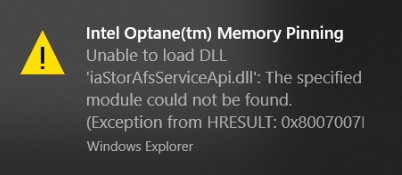
Intel Optane Memory — интеллектуальная технология, которая отслеживает часто используемые приложения, документы, видео, аудио и запоминает их, когда компьютер выключается или уходи в режим сна. Сделано это для быстрого отклика. Когда вы заново включите компьютер или пробудете его из сна, все часто используемые программы будут запускаться быстрее чем обычно. Это своего рода как кэш памяти для часто используемых программ.
В большинстве случаев, ошибка связана с драйверами, которые идут после обновления Windows 10. Быть точнее, обновление Windows 10 установило последние драйверы Intel в системы, в которых было установлено служебное расширение Intel Optane Pinning Service Extension. Подведя все выше сказанное, можно сделать вывод, что ошибка в самом приложении.
Как исправить Intel Optane Memory Pinning Windows 10
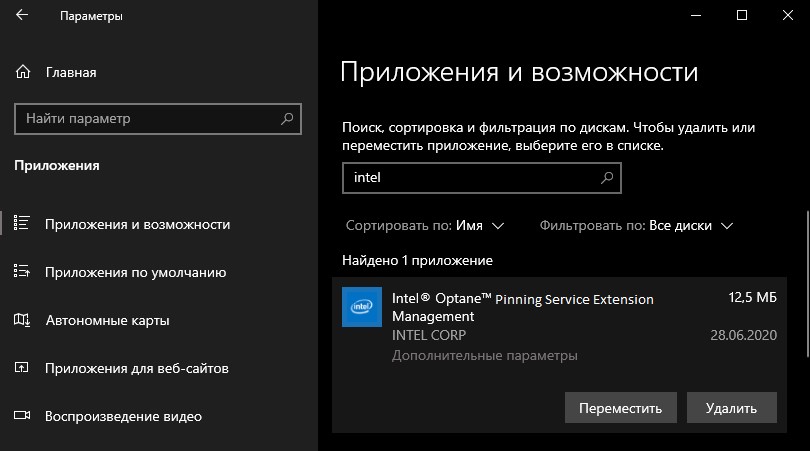
Шаг 1. Откройте «Параметры» > «Приложения» > «Приложения и возможности» > справа найдите и удалите Intel Optane Pinning Service Extension.
Нажмите Win+R и введите appwiz.cpl для быстрого входа или зайдите через панель управления в удаление программ и удалите все, что связано с Intel Optane. Перезагрузите компьютер.
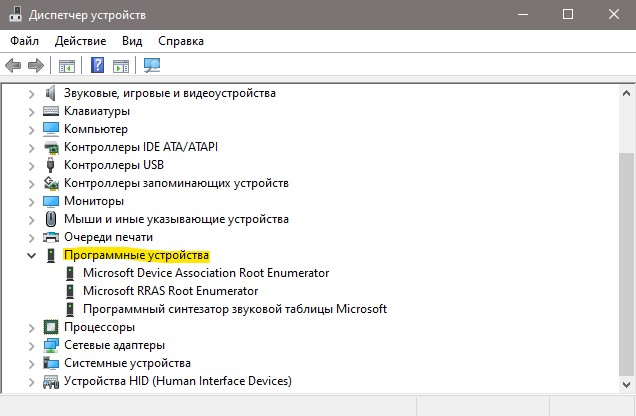
Шаг 2. Теперь проверим есть ли расширение от Intel Optane. Нажмите сочетание кнопок Win+X и выберите «Диспетчер устройств«. В диспетчере устройств разверните список «Программные устройства» и удалите Intel Pinning Shell Extensions, если оно имеется. Перезагрузите компьютер и ошибка больше не будет появляться.
Примечание: Если вам нужно использовать Intel Optane, или ошибка появляется, то попробуйте установить последнюю версию Intel Rapid Storage Technology с официально сайта Intel (SetupRST.exe).
Смотрите еще:
- Как узнать какого поколения процессор Intel
- Как проверить, правильно ли работает ваш процессор Intel
- Как полностью удалить драйвера видеокарты Nvidia, AMD, Intel
- Сервер RPC недоступен в Windows 10 — Как исправить?
- Исправить ошибку BCM20702A0 Bluetooth драйвера в Windows
[ Telegram | Поддержать ]
Ошибка Intel Optane Memory Pinning появляется, когда вы пытаетесь открыть какое-то конкретное приложение в вашей системе. Последние драйверы для технологии Intel Rapid Storage включают в себя расширение, которое называется Intel Optane Pinning Service Extension. Указанная ошибка затронула большинство пользователей после обновления Windows, когда Microsoft установила последние версии драйверов для систем Intel.
Ошибка закрепления памяти Intel Optane
Кажется, проблема возникает из-за того, что приложение Intel Optane Memory было установлено в системах, что вызывает проблему, когда производитель не устанавливает необходимые драйверы кэширования в вашей системе. Таким образом, когда всплывает Intel Optane Memory Pinning, существует только несколько решений, которые вы можете реализовать. Но прежде чем мы углубимся в это, давайте сначала обсудим причину указанного сообщения об ошибке.
Что такое Intel Optane Memory?
Intel Optane Memory была впервые представлена Intel в 2017 году вместе с седьмым поколением для их различных процессоров серии Core. По словам Intel, Optane Memory — это новый шаг в области памяти, поскольку это интеллектуальная технология, которая изучает наиболее часто используемые приложения. Intel Optane Memory запоминает эти приложения и сохраняет их, даже когда система выключена. Это, в конечном счете, помогает в быстром доступе к данным.
Что вызывает сообщение об ошибке «Intel Optane Memory Pinning»?
Как мы уже упоминали выше, ошибка начала появляться после обновления функции Windows, т.е. v1903. Это обновление установило последние драйверы Intel в системы, в которых было установлено служебное расширение Intel Optane Pinning Service Extension. Приложение Intel Optane Memory, установленное в вашей системе, является причиной указанного сообщения об ошибке, поскольку различные системы не имеют требуемых драйверов кэширования на своих компьютерах, которые поддерживаются Intel Optane Memory.
Таким образом, чтобы решить эту проблему, вам придется опробовать следующие решения, в которых вы будете руководствоваться при удалении приложения Intel Optane Memory или устанавливать обновление для драйверов Intel Rapid Storage Technology.
Решение 1. Удаление приложения памяти Intel Optane
Первым шагом к устранению ошибки будет удаление проблемного приложения, которое было установлено в вашей системе во время обновления Windows. Это можно сделать довольно легко. Вот как это сделать:
- Чтобы удалить приложение, нажмите клавишу Windows + I, чтобы открыть окно настроек.
- Когда откроется окно «Настройки», введите «Приложения» в строке поиска и нажмите «Ввод».
- Это приведет вас к списку установленных приложений в вашей системе. Там найдите «Intel Optane Pinning Explorer Extension» и выделите кнопки «Изменить» и «Удалить».
Удалить расширение Intel Optane Pinning Explorer
- Нажмите на кнопку Удалить, а затем следуйте инструкциям, чтобы удалить расширение.
- После этого перезагрузите систему, чтобы полностью удалить расширение из вашей системы.
Кроме того, вы можете выполнить поиск приложения на вкладке «Программы и компоненты» панели управления. Там найдите «Intel Optane Memory and Storage Management» или любое программное обеспечение Intel Optane и удалите его, дважды щелкнув по нему.
Решение 2. Установите новейшие драйверы Intel Rapid Storage Technology.
Наконец, еще одна вещь, которую вы можете сделать, это загрузить и установить последние версии драйверов Intel Rapid Storage Technology в вашей системе и посмотреть, решит ли это вашу проблему. Для этого отправляйтесь в эта ссылка и загрузите файл SetupRST.exe с левой стороны. Как только вы загрузили файл, запустите его и следуйте инструкциям, чтобы завершить установку. После этого перезапустите вашу систему и посмотрите, была ли ваша проблема решена.
Ошибка Intel Optane Memory Pinning может возникнуть в случае, когда при запуске приложения системе не удается загрузить dll файл. Последние драйверы для Rapid Storage Technology включают дополнение, которое называется Optane Pinning Service Extension. Большинство пользователей столкнулись с ошибкой после установки обновления Windows, когда последние драйверы Intel были развернуты в операционной системе.

Скорее всего, проблема возникает из-за того, что в некоторых конфигурациях ПК поддержка кэширования не предусмотрена производителем. Поэтому когда сталкиваетесь с ошибкой, есть несколько решений, которые можете реализовать.
Что это за технология?
Intel Optane – это технология энергонезависимой памяти, которая была представлена в 2017 году наряду с седьмым поколением процессоров серии Core. Согласно заявлению производителя, это новый шаг в области запоминающих технологий, поскольку эта инновация запоминает приложения, которые чаще используем. В памяти данные сохраняются даже при выключенном компьютере, а при следующем обращении обеспечивает к ним мгновенный доступ.
Чем вызвана ошибка?
Пользователи начали сталкиваться с ошибкой после обновления Windows до версии 1903. С этой сборкой были установлен новый пакет драйверов Intel, который также включал Optane Pinning Service Extension. Она является причиной указанного сообщения об ошибке, поскольку в некоторых системах не установлена требуемая поддержка кэширования этой функции.
Для решения нужно удалить Pinning Service Extension или установить обновление для RST.
Удаление приложения
Для решения проблемы нужно удалить приложение, которое было установлено во время обновления Windows. Выполните следующие шаги:
Откройте параметры сочетанием клавиш Win + I и перейдите в раздел «Приложения».
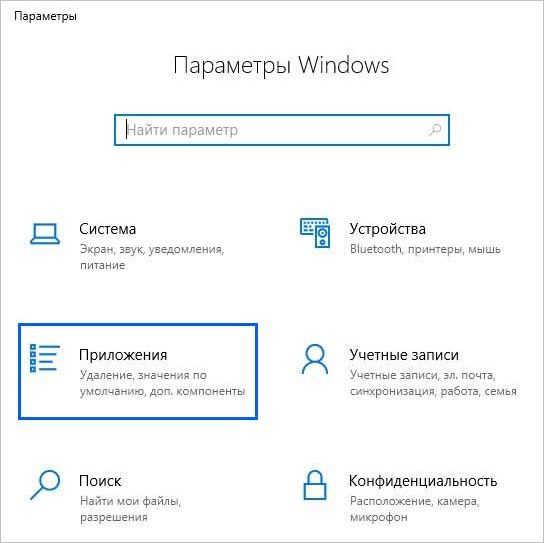
Отобразится список всех установленных программ в системе. Найдите Intel Optane Pinning Explorer Extension и выберите «Удалить». Следуйте инструкциям на экране до завершения удаления и перезагрузите компьютер.
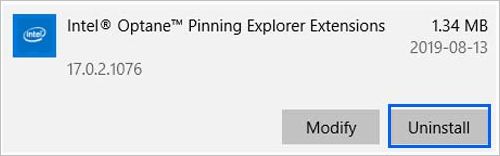
Также можно выполнить поиск на вкладке программы и компоненты (appwiz.cpl из окна Win + R) панели управления. Найдите программу и удалите двойным щелчком мыши.
Обновление Intel RST
Попробуйте загрузить и установить последние драйверы Rapid Storage Technology.
Сделайте запрос в интернете и перейдите на указанный сайт.
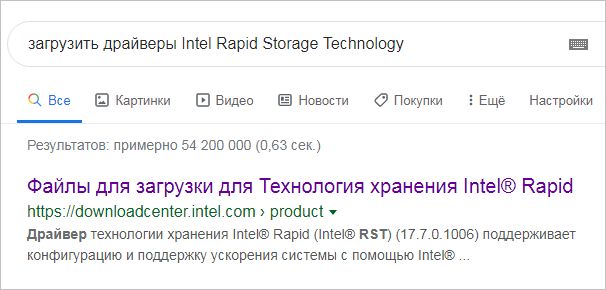
Загрузите файл SetupRST.exe и запустите его установку.
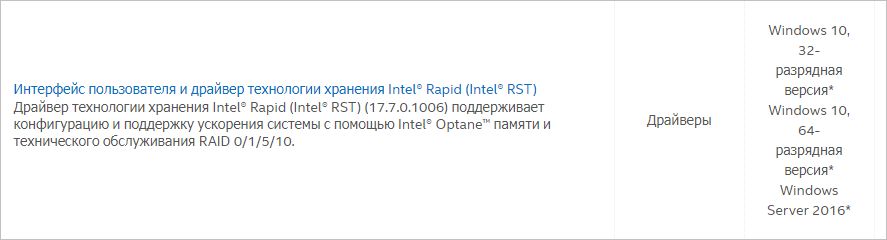
После перезагрузите компьютер и посмотрите, решена ли неполадка.
The browser version you are using is not recommended for this site.
Please consider upgrading to the latest version of your browser by clicking one of the following links.
- Safari
- Chrome
- Edge
- Firefox
Article ID: 000056299
Content Type: Error Messages
Last Reviewed: 10/22/2021
How to Resolve Intel® Optane™ Memory Pinning Error: ‘Unable to load DLL ‘iaStorAfsServiceApi.dll» Encountered
Environment
Intel® Rapid Storage Technology (Intel® RST) driver version between 17.5.x and 17.8.x
Operating System
Windows® 10, 64-bit*
Explains how to resolve the Intel® Optane™ Memory Pinning Error: Unable to load DLL ‘iaStorAfsServiceApi.dll’
After a Windows® 10 update, the following error message appears randomly during use of the system. On some systems this may also be presented as error code 0x8007007E.
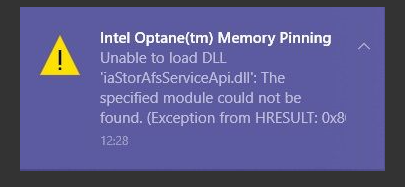
Starting with the 17.5.0.1017 Intel RST driver, the way the Intel® Optane™ memory pinning components are installed was modified. If at some point the driver was upgraded from an older driver (for example 16.8.x) to a version between 17.5.x and 17.8.x, the OS update may try to reapply the removed installation files from the earlier versions. Due to a compatibility issue, an error message may appear. A system with factory installed (fresh OS installation) of Intel RST drivers between 17.5.x and 17.8.x are not affected by this issue.
To resolve the issue and prevent it from occurring after a future OS update, download and install the Intel® Rapid Storage Technology (Intel® RST) driver version 17.9.1.1009 or greater.
If unable to update to the latest 17.9.1.1009 or greater driver, see steps below for an alternative solution:
First, refresh the current driver package installed by repairing the Intel® Optane™ memory pinning extensions:
- Open Programs and Features (Press Windows key
 + r), type appwiz.cpl and click OK.
 - Locate and highlight Intel Optane Pinning Explorer Extensions.
- Click Repair.
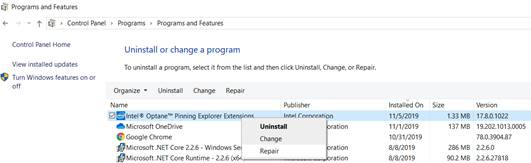
Second, remove the old pinning package so that the error does not reappear after the next OS update:
- Open Device Manager (Press Windows key + x).
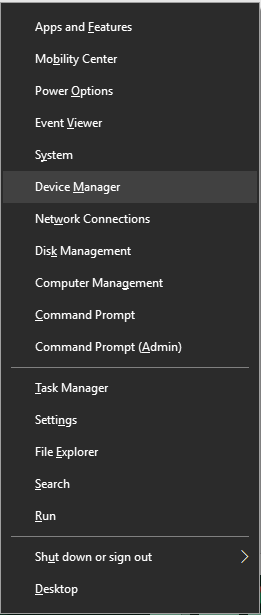
- Expand the Software components field.
- Right-click the Intel® Pinning Shell Extensions field and select Uninstall Device.
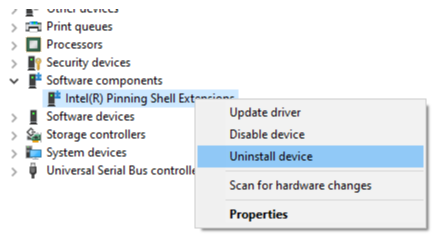
- Check the box that states Delete the driver software for this device and click Uninstall.
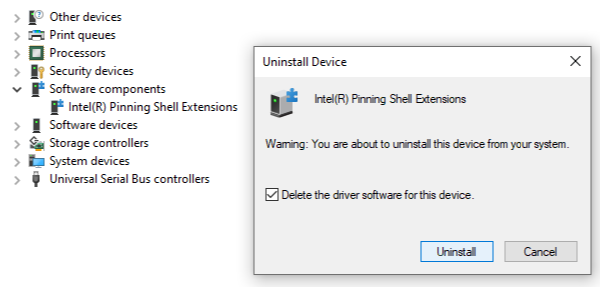
Contact Intel Customer Support for additional assistance.
If the product was bought through the OEM, contact the system manufacturer for further assistance.
- Summary
- Description
- Resolution
- Additional information
Need more help?

Give Feedback
Disclaimer
by Vlad Turiceanu
Passionate about technology, Windows, and everything that has a power button, he spent most of his time developing new skills and learning more about the tech world. Coming… read more
Updated on February 25, 2021
- Intel Optane memory is a smart technology that keeps track of your frequently used apps, documents, pictures, and videos and remembers them after shutdown.
- This error is connected to Intel Rapid Storage Technology and the error can be triggered even if you don’t have any Optane memory installed.
- If you meet with any other system errors, make sure you take a look at our System Errors section for solutions.
- We have plenty of solutions for such problems in our Windows 10 Errors Hub.

XINSTALL BY CLICKING THE DOWNLOAD FILE
This software will repair common computer errors, protect you from file loss, malware, hardware failure and optimize your PC for maximum performance. Fix PC issues and remove viruses now in 3 easy steps:
- Download Restoro PC Repair Tool that comes with Patented Technologies (patent available here).
- Click Start Scan to find Windows issues that could be causing PC problems.
- Click Repair All to fix issues affecting your computer’s security and performance
- Restoro has been downloaded by 0 readers this month.
Intel Optane memory is a smart technology that keeps track of your frequently used apps, documents, pictures, and videos and remembers them after shutdown.
This way, it increases the PC responsiveness and significantly cuts down your waiting time in Windows 10. But sometimes, this technology can trigger certain errors that can be quite annoying.
What is Intel Optane memory pinning error?
That’s the case with the Intel Optane memory pinning error, as one user describes it:
Hi, I recently began getting this error at seemingly random times (at least I haven’t been able to figure out a definite trigger yet).
And here’s the OP’s screenshot:
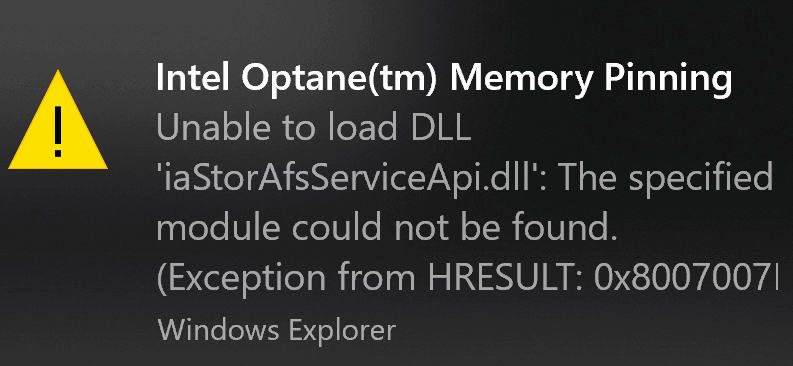
It seems that this is connected to Intel Rapid Storage Technology and the error can be triggered even if you don’t have any Optane memory installed.
Another user stated that the error surfaced up with the latest Windows 10 updates:
My Dell started throwing this error notification after the recent Windows 10 update. When I checked Dell updates I saw there are 2 related Intel drivers available for download. Hoping that will fix it.
What causes Intel Optane memory pinning error?
Intel Optane maximizes your computer’s speed by caching and indexing all your most used applications, pictures, music, and other files. This is particularly useful when you’re using an old slow mechanical drive.
Intel Optane gives off the illusion that your hard-drive is reading faster.
- Quick tip: If you want to quickly fix this issue, you can get a new hard drive.
The Intel Optane Pinning Service Extension not having access to the iaStorAfsServiceApi.dll is what causes the memory pinning error.
DLL stands for Dynamic Link Library. It contains important information, functions, and code to help processes or programs run smoothly.
After a major Windows update, Windows tries to reinstall all your system devices with drivers that match them the best. As we all know, sometimes this process can get a little wonky.
Some PC issues are hard to tackle, especially when it comes to corrupted repositories or missing Windows files. If you are having troubles fixing an error, your system may be partially broken.
We recommend installing Restoro, a tool that will scan your machine and identify what the fault is.
Click here to download and start repairing.
There may be a version mismatch or a compatibility issue.
As a result, Windows throws an error and leaves your device half installed.
This means that files and libraries such as the iaStorAfsServiceApi.dll were not copied across correctly when Windows was trying to reinstall the device drivers for the Intel Optane.
How do I fix Intel Optane memory pinning errors
Now that we understand what it is, we can take steps to fix it. The most efficient way to do this is to find the missing DLL and make sure that Optane Pinning Service has access to it.
Unfortunately, while this may be the most efficient way, it is not the easiest. So here, we’ve included three different solutions you can use to solve this error.
1. Repair the Intel Optane Explorer Extension
- Run Programs and Features
The easiest way to do this is to open the run dialog (win + R), type Appwiz.cpl into the open text field, then click on the OK button.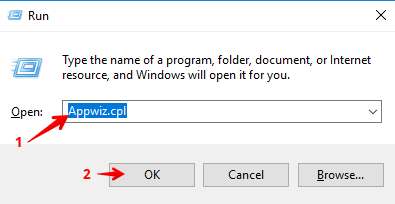
- From the list of programs, look for one labeled Intel Optane Pinning Explorer Extensions.
- Once you’ve found it, right-click on it, then select Repair from the short context menu.
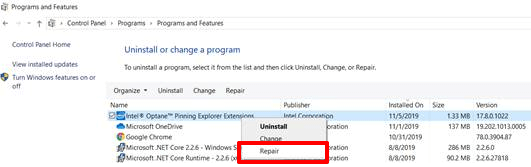
- Once the repair process is complete, restart your computer.
2. Uninstall the Driver
The first solution should have fixed your problem but if it did not, then try this:
- Run the Device Management console (Device Manager).
Once again, the easiest way to do this is by opening a run dialog, typing devmgmt.msc into the text field and then clicking on the OK button.
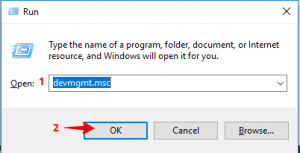
- Scroll through the list of devices, until you find the field labeled Software components and expand it.
- Right-click on the Intel Pinning Shell Extensions field and then select Uninstall Device from the context menu.
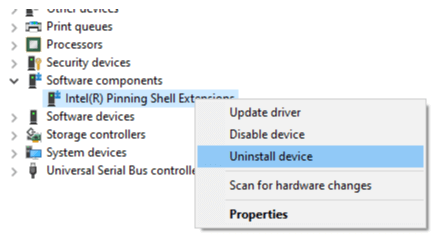
- A dialog should appear. On this dialog, ensure that the Delete the driver software for this device checkbox is ticked and then click on the Uninstall button.
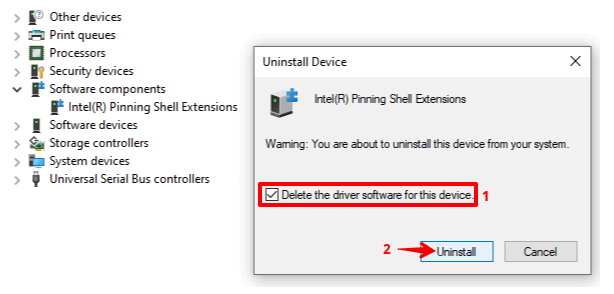
- Once the process is complete, restart your computer.
- Editor’s Note: If you’re interested in learning how to keep your drivers updated, check out our wide collection of guides.
3. Uninstall the Intel Optane Explorer Extension
If all else fails, uninstall the Intel Optane Explorer Extension. Follow solution 1, until you reach step three. Instead of clicking on the ‘Repair’ option, select the Uninstall option. You may be prompted to restart your computer – don’t.
Instead, close the dialog and go back to the list of programs. Look through the list to see if you can find any other software associated with Intel Optane. Uninstall anything you can find and then restart your computer.
It’s important to note that this might disable your computer’s Intel Optane system acceleration. If you want to re-enable it, you can download the drivers and software from Dell or Intel (depending on your PC’s manufacturer).
With the help of the above guide, you should be able to solve the Intel Optane Memory Pinning Error on Windows 10.
If you want to prevent this error from occurring in the future, you can disable the Intel Optane module from your computer’s BIOS settings before updating Windows next time.
Either way, we hope you’ve found this article to be helpful. Please do not hesitate to share your experience or point out a blind spot on our side in the comment section below. As always, thank you for reading.
- Does my computer have Intel Optane memory?
Type Device Manager in Windows search, then click on it in the results. Now locate and expand Disk drives. If it shows Intel Optane…, the computer has Intel Optane memory.
- Does Optane speed up SSD?
Optane speeds up systems by keeping their frequently accessed files. However, you will only see a notable difference for HDDs as SSDs are already very fast. Are you looking for an SSD? Here’s a list with the best 1TB and 2TB SSD.

Newsletter
by Vlad Turiceanu
Passionate about technology, Windows, and everything that has a power button, he spent most of his time developing new skills and learning more about the tech world. Coming… read more
Updated on February 25, 2021
- Intel Optane memory is a smart technology that keeps track of your frequently used apps, documents, pictures, and videos and remembers them after shutdown.
- This error is connected to Intel Rapid Storage Technology and the error can be triggered even if you don’t have any Optane memory installed.
- If you meet with any other system errors, make sure you take a look at our System Errors section for solutions.
- We have plenty of solutions for such problems in our Windows 10 Errors Hub.
XINSTALL BY CLICKING THE DOWNLOAD FILE
This software will repair common computer errors, protect you from file loss, malware, hardware failure and optimize your PC for maximum performance. Fix PC issues and remove viruses now in 3 easy steps:
- Download Restoro PC Repair Tool that comes with Patented Technologies (patent available here).
- Click Start Scan to find Windows issues that could be causing PC problems.
- Click Repair All to fix issues affecting your computer’s security and performance
- Restoro has been downloaded by 0 readers this month.
Intel Optane memory is a smart technology that keeps track of your frequently used apps, documents, pictures, and videos and remembers them after shutdown.
This way, it increases the PC responsiveness and significantly cuts down your waiting time in Windows 10. But sometimes, this technology can trigger certain errors that can be quite annoying.
What is Intel Optane memory pinning error?
That’s the case with the Intel Optane memory pinning error, as one user describes it:
Hi, I recently began getting this error at seemingly random times (at least I haven’t been able to figure out a definite trigger yet).
And here’s the OP’s screenshot:
It seems that this is connected to Intel Rapid Storage Technology and the error can be triggered even if you don’t have any Optane memory installed.
Another user stated that the error surfaced up with the latest Windows 10 updates:
My Dell started throwing this error notification after the recent Windows 10 update. When I checked Dell updates I saw there are 2 related Intel drivers available for download. Hoping that will fix it.
What causes Intel Optane memory pinning error?
Intel Optane maximizes your computer’s speed by caching and indexing all your most used applications, pictures, music, and other files. This is particularly useful when you’re using an old slow mechanical drive.
Intel Optane gives off the illusion that your hard-drive is reading faster.
- Quick tip: If you want to quickly fix this issue, you can get a new hard drive.
The Intel Optane Pinning Service Extension not having access to the iaStorAfsServiceApi.dll is what causes the memory pinning error.
DLL stands for Dynamic Link Library. It contains important information, functions, and code to help processes or programs run smoothly.
After a major Windows update, Windows tries to reinstall all your system devices with drivers that match them the best. As we all know, sometimes this process can get a little wonky.
Some PC issues are hard to tackle, especially when it comes to corrupted repositories or missing Windows files. If you are having troubles fixing an error, your system may be partially broken.
We recommend installing Restoro, a tool that will scan your machine and identify what the fault is.
Click here to download and start repairing.
There may be a version mismatch or a compatibility issue.
As a result, Windows throws an error and leaves your device half installed.
This means that files and libraries such as the iaStorAfsServiceApi.dll were not copied across correctly when Windows was trying to reinstall the device drivers for the Intel Optane.
How do I fix Intel Optane memory pinning errors
Now that we understand what it is, we can take steps to fix it. The most efficient way to do this is to find the missing DLL and make sure that Optane Pinning Service has access to it.
Unfortunately, while this may be the most efficient way, it is not the easiest. So here, we’ve included three different solutions you can use to solve this error.
1. Repair the Intel Optane Explorer Extension
- Run Programs and Features
The easiest way to do this is to open the run dialog (win + R), type Appwiz.cpl into the open text field, then click on the OK button. - From the list of programs, look for one labeled Intel Optane Pinning Explorer Extensions.
- Once you’ve found it, right-click on it, then select Repair from the short context menu.
- Once the repair process is complete, restart your computer.
2. Uninstall the Driver
The first solution should have fixed your problem but if it did not, then try this:
- Run the Device Management console (Device Manager).
Once again, the easiest way to do this is by opening a run dialog, typing devmgmt.msc into the text field and then clicking on the OK button.
- Scroll through the list of devices, until you find the field labeled Software components and expand it.
- Right-click on the Intel Pinning Shell Extensions field and then select Uninstall Device from the context menu.
- A dialog should appear. On this dialog, ensure that the Delete the driver software for this device checkbox is ticked and then click on the Uninstall button.
- Once the process is complete, restart your computer.
- Editor’s Note: If you’re interested in learning how to keep your drivers updated, check out our wide collection of guides.
3. Uninstall the Intel Optane Explorer Extension
If all else fails, uninstall the Intel Optane Explorer Extension. Follow solution 1, until you reach step three. Instead of clicking on the ‘Repair’ option, select the Uninstall option. You may be prompted to restart your computer – don’t.
Instead, close the dialog and go back to the list of programs. Look through the list to see if you can find any other software associated with Intel Optane. Uninstall anything you can find and then restart your computer.
It’s important to note that this might disable your computer’s Intel Optane system acceleration. If you want to re-enable it, you can download the drivers and software from Dell or Intel (depending on your PC’s manufacturer).
With the help of the above guide, you should be able to solve the Intel Optane Memory Pinning Error on Windows 10.
If you want to prevent this error from occurring in the future, you can disable the Intel Optane module from your computer’s BIOS settings before updating Windows next time.
Either way, we hope you’ve found this article to be helpful. Please do not hesitate to share your experience or point out a blind spot on our side in the comment section below. As always, thank you for reading.
- Does my computer have Intel Optane memory?
Type Device Manager in Windows search, then click on it in the results. Now locate and expand Disk drives. If it shows Intel Optane…, the computer has Intel Optane memory.
- Does Optane speed up SSD?
Optane speeds up systems by keeping their frequently accessed files. However, you will only see a notable difference for HDDs as SSDs are already very fast. Are you looking for an SSD? Here’s a list with the best 1TB and 2TB SSD.
Newsletter
Обновлено 2023 января: перестаньте получать сообщения об ошибках и замедлите работу вашей системы с помощью нашего инструмента оптимизации. Получить сейчас в эту ссылку
- Скачайте и установите инструмент для ремонта здесь.
- Пусть он просканирует ваш компьютер.
- Затем инструмент почини свой компьютер.
Многие пользователи Windows 10 жалуются на ошибку закрепления памяти Intel Optane после последнего обновления Windows 1903. Хотя память Intel Optane использовалась для повышения скорости отклика системы Windows 10, отслеживая использование вами файлов, документов и приложений, но в некотором роде. это приводит к появлению таких сообщений об ошибках, как «Intel Optane ™ Memory Pinning: не удается загрузить файл DLL’iaStorAfsServiceApi.dll»: не удается найти указанный модуль. (Исключение HRESULT: 0x8007007E). ». Если вы также являетесь одной из жертв этой ошибки, вот исправления для этой ошибки.

Проблема заключается в том, что приложение Intel Optane Memory было установлено как часть обновления Windows 10 версии 1903, и возникает проблема высокого уровня, когда диски, поддерживающие кэширование памяти Intel Optane на устройствах Dell, не установлены. Вполне вероятно, что Dell должна выпустить исправление Force Patch для автоматического удаления устройств, которые получили обновление Windows 10 Version 1903 и не имеют устройств, которые поддерживают кэширование памяти Optane.
Что такое Intel Optane Memory?

Память Intel Optane — это интеллектуальная технология, которая позволяет отслеживать часто используемые приложения, документы, изображения и видео и сохранять их после их остановки.
Intel Optane Memory была впервые представлена Intel в 2017 с седьмым поколением процессоров Core Series. По словам Intel, память Optane — это новый шаг в памяти, потому что это интеллектуальная технология, которая знакомит с наиболее распространенными приложениями, которые вы используете. Intel Optane Memory запоминает эти приложения и сохраняет их, даже когда система выключена. В конечном итоге это обеспечивает быстрый доступ к данным.
Обновление за январь 2023 года:
Теперь вы можете предотвратить проблемы с ПК с помощью этого инструмента, например, защитить вас от потери файлов и вредоносных программ. Кроме того, это отличный способ оптимизировать ваш компьютер для достижения максимальной производительности. Программа с легкостью исправляет типичные ошибки, которые могут возникнуть в системах Windows — нет необходимости часами искать и устранять неполадки, если у вас под рукой есть идеальное решение:
- Шаг 1: Скачать PC Repair & Optimizer Tool (Windows 10, 8, 7, XP, Vista — Microsoft Gold Certified).
- Шаг 2: Нажмите «Начать сканирование”, Чтобы найти проблемы реестра Windows, которые могут вызывать проблемы с ПК.
- Шаг 3: Нажмите «Починить все», Чтобы исправить все проблемы.

Это повышает быстродействие ПК и значительно сокращает время ожидания в Windows 10. Но иногда эта технология может вызвать некоторые ошибки, которые могут быть очень раздражающими.
Исправьте расширение Intel Optane Explorer
- Выполнять программы и функции
- Самый простой способ — открыть диалоговое окно выполнения (win + R), введите «Appwiz.cpl »в открытое текстовое поле и нажмите кнопку« ОК ».
- В списке программ найдите программу под названием «Intel Optane Pinning Explorer Extensions».
- Найдя его, щелкните его правой кнопкой мыши и выберите «Исправить» в контекстном меню.
- Перезагрузите компьютер, как только процесс восстановления будет завершен.

Удаление расширений Intel Optane Pinning Explorer
Если ошибка не исчезнет, выполните следующие действия, чтобы удалить программное обеспечение. Это не окажет значительного влияния на производительность вашей системы. Но вы избавитесь от надоедливого сообщения Intel Optane Memory Pinning.
- Нажмите Пуск, введите Приложения и компоненты в строке поиска и выберите Приложения и компоненты.
- Если вы найдете «Расширения Intel Optane Pinning Explorer», щелкните по нему.
- Выберите Удалить
- Перезагрузите компьютер
Установите последние драйверы для технологии Intel Rapid Storage.

Наконец, вы можете загрузить и установить последние версии драйверов Intel Rapid Storage Technology в вашей системе и посмотреть, решит ли это вашу проблему. Нажмите на эту ссылку и загрузите файл SetupRST.exe слева. После загрузки файла запустите его и следуйте инструкциям для завершения установки. Затем перезагрузите систему и убедитесь, что ваша проблема решена.
https://www.dell.com/community/XPS/Intel-Optane-memory-Pinning-error/td-p/7341264
Совет экспертов: Этот инструмент восстановления сканирует репозитории и заменяет поврежденные или отсутствующие файлы, если ни один из этих методов не сработал. Это хорошо работает в большинстве случаев, когда проблема связана с повреждением системы. Этот инструмент также оптимизирует вашу систему, чтобы максимизировать производительность. Его можно скачать по Щелчок Здесь

CCNA, веб-разработчик, ПК для устранения неполадок
Я компьютерный энтузиаст и практикующий ИТ-специалист. У меня за плечами многолетний опыт работы в области компьютерного программирования, устранения неисправностей и ремонта оборудования. Я специализируюсь на веб-разработке и дизайне баз данных. У меня также есть сертификат CCNA для проектирования сетей и устранения неполадок.
Сообщение Просмотров: 80
Intel Optane Memory is a smart memory technology that accelerates a computer’s responsiveness. It is designed to increase computers’ hard drive speed. Intel Optane Memory remembers your frequently used document and apps, enabling you to access these documents with lesser load time.
Sometimes, when running on a computer using an Intel Optane Memory, you may get the error message, Intel Optane™ Memory Pinning Unable to load DLL’ iaStorAfsServiceApi.dll” (Exception from HRESULT: 0x8007007E). Although this error does not stop you from performing any tasks, we always get the error notification each time we open the File Explorer.
The error means that the Intel Optane Pinning Service Extension could not access the DLL (Dynamic Link Library) file named iaStorAfsServiceApi.dll. Sometimes, when the Intel Rapid Storage Technology (Intel RST) driver is updated to a version between 17.5.x and 17.8.x, the OS may search for files from previous versions that it cannot find.
When the OS cannot find this file, we get the Intel Optane Memory Pinning error.
Now that we know the main reason behind the Intel Optane Memory error. Let us see what may stop the OS from locating the File
- Intel optane driver cannot access
iaStorAfsServiceApi.dll - Operating System may use the removed installation files from the older version
- Due to a Windows Update
How to Fix Intel Optane Memory Pinning Error?
Here are a few fixes we can try to solve the Intel Optane Memory Pinning Error. Before we start, please try the first three fixes one after the other. These may not work for you if done individually.
Repair/modify Intel Optane Pinning Explorer Extensions
The Intel Optane Pinning Explorer Extensions is an application that manages the Intel Optane Memory. If the OS has a hard time locating the iaStorAfsServiceApi.dll file, we can repair this application from Program and features to solve the issue with the Optane Memory.
Repairing this application will fix any issues with its files and folders, which in turn will fix the problem you are having with the Intel Optane Memory.
Follow these steps to modify the Intel Optane Pinning Explorer Extension from Control Panel.
- Click on the Start Menu and Go to Control Panel.
- Select View By as Large icons
- Click on Programs and Features.

- Here, you will see the list of all applications installed on the computer.
- Right-click the application named Intel Optane Pinning Explorer Extension.
- Select Repair.
Suppose you cannot find the Intel Optane Pinning Explorer Extension application in Control Panel. Follow these steps.
- Click on the Start menu and go to Settings
- On the left side, click on Apps.
- Select Apps & features. Scroll down to see all applications installed on your computer.

- Here, Click on Intel Optane Pinning Explorer Extension and select Modify.
It may take some time to repair. Once it is complete, restart your computer.
If repairing the application does not fix the issue, we can also uninstall it to see if it fixes the problem.
Install latest Intel Rapid Storage Technology
The Intel Rapid Storage Technology (Intel RST) Driver configures and enables the system acceleration with Intel’s Optane Memory. If your computer has the Intel Optane Memory, the Intel RST driver must be above 17.9.1.1009 to prevent any future Intel Optane Memory issues.
Follow these steps to install the latest Intel RST.
Note: If you do not have Intel RST installed, skip the Disable Intel RST and Uninstall Intel RST Driver Process.
Disable Intel RST.
- Click on the Start menu and search for Intel Rapid Storage Technology.

- Select the item that matches the search.
- Under the Status tab, click on Disable to disable the Intel Optane memory feature.

- Click Yes, if the application asks you for confirmation.
- It may take a few minutes to disable all the Optane memory features.
- Restart your computer once all the process is complete.
Uninstall Intel RST driver.
- Click on the Start menu.
- Go to Settings > Apps > Apps and feature.

- Here, scroll and search for Intel Rapid Store Technology. Uninstall this driver.
- Restart your computer once the driver is uninstalled.
Install Intel RST Driver
We first need to download the latest Intel RST driver from the internet to install this driver. Once you download the newest driver, follow these steps.
- Run the SetupRST.exe file that you downloaded.
- Follow the installation process.
- Once the installation process is complete, click on the Start menu
- Search Intel Rapid Storage Technology and click on the item that matches the search.
- Under Status, Enable the Intel Optane Memory feature.

- Select the drive that has Intel Optane Memory.

- Click on Yes.
- It may take a few minutes to enable the setting.
- Once it is complete, restart your computer to save the changes.
Uninstall Intel’s Pinning Shell Extension driver
We also need to remove Intel’s Pinning Shell Extension driver so that the error does not re-appear after the next Windows Update. Follow these steps to uninstall Intel’s Pinning Shell Extension Driver.
- Press the Windows + X key and select Device Manager.
- Expand Software component.
- Here, Right-click Intel Pinning Shell Extension and choose Uninstall Device.
- Check Attempt to remove the driver for this device. Click on Uninstall.
Roll Back Windows Update
As we figured out that the Intel Optane Memory error starts because of a Windows Update, W can try using the previous version of windows to fix this issue. However, we should know that this may or may not resolve the problem; if not, try some other fixes mentioned in this article.
Follow these steps to roll back your Windows update.
- Click on the Start menu.
- Go to Settings > Windows Update (Security & Update > Windows Update for Windows 10) > Update History.
- Scroll down and click on Uninstall Updates.

- Installed Updates dialog box will open. Here, you will see all your Windows Update.
- Under Microsoft Windows, right-click on the latest Windows update and click Uninstall.

- Click Yes.
- Once the uninstall is complete, restart the computer to save changes.
Replace the Missing DLL file
A DLL (Dynamic Link Library) file consists of lines of code that any program can use simultaneously. As these DLL files are universal, we can download them from the internet and replace the missing file.
If the Intel Optane Memory Pinning error says the iaStorAfsServiceApi.dll file is missing, we can try replacing this file from the system file. However, we also need to re-register the DLL file if we replace them in the system file.
Note: All files and folders inside C:WindowsSystem32 are system files.
Follow these steps to replace and re-register the DLL file.
- Download the iaStorAfsServiceApi.dll file from the internet.
- Extract this DLL file and copy
iaStorAfsServiceApi.dll. - Go to
C:WindowsSystem32and paste the DLL file. Replace the existingiaStorAfsServiceApi.dll - If Windows asks you for any permission, click on continue.
- Restart your computer.
Now, we need to register this DLL file for the system to recognize this file. Follow these steps to register the DLL file.
- Press the Windows + R key to open Run
- Type “cmd” without the quotation mark and press Ctrl + Shift + Enter to run Command Prompt as administrator.
- Type the following command and press Enter.
regsvr32 IASTORAFSSERVICEAPI.DLL
- Re-registering the file may take a few minutes.
- Restart the computer and open the File Explorer to see if this solution fixed the Intel Optane Memory Pinning error.