When I’m trying to pull from our git server I get this error:
fatal: unable to access ‘xxx’: OpenSSL SSL_connect: SSL_ERROR_SYSCALL
in connection to xxx
When this happened before I was able to solve it by simply restoring the system but this time my system restore points got deleted for some reason, and I can’t do that either.
So this happens because something in my system settings related to SSL changes and I don’t know why.
I have tried installing git to use windows cert. store instead of OpenSSL and I got this error:
fatal: unable to access ‘xxx’: schannel: failed to receive handshake,
SSL/TLS connection failed
Same problem, different error message. The server is not sending back a hello message after the client hello. I thought this might happen because none of the cipher suites that I’m sending the server in the client hello message are supported by the server. So I’ve tried configuring a group policy and put the cipher suite the server is using first in order. But it didn’t make any difference.
I am able to connect the git server’s site through the browser. So my question is, what can I do to solve this problem?
asked Sep 28, 2017 at 15:15

Selman GençSelman Genç
99k13 gold badges118 silver badges183 bronze badges
1
In my case, I changed the .gitconfig from
[http] sslbackend = schannel
to
[http] sslbackend = openssl

Suraj Rao
29.3k11 gold badges96 silver badges103 bronze badges
answered Jan 15, 2019 at 15:04

1
For me it seems to be related to some questionable software that came preinstalled on my device. Whether using OpenSSL or schannel, I was getting these intermittent issues with my Killer wireless network adapter when the prioritization engine was turned on. When I disabled it, all the problems disappeared, and other network operations seemed faster in general as well.
Killer Prioritization Engine
If you have this software on Windows, you can disable it by typing «Killer» in the start menu and launching «Killer Intelligence Center». On version 3.1222.726.1, you should see an option in Quick Settings on the right of the dashboard called «Prioritization Engine». Switch it off and test your git operations again. I’m not yet sure what happens if I simply uninstall this software.
answered Dec 6, 2022 at 5:45
3
I encountered the unable to access 'https://hostname.local/reponame.git/': schannel: failed to receive handshake, SSL/TLS connection failed error when I tried to use a http proxy for a git repo on the local network (which is not accessible through that particular proxy). I resetted the http.proxy setting to an empty string:
git config --global http.proxy ""
(Note that in my case, this was a global level setting, YMMV.)
answered May 5, 2020 at 12:42

Attila CsipakAttila Csipak
8572 gold badges14 silver badges34 bronze badges
You should try again, for testing, with the Git for Windows release 2.14.2 (June 21th, 2018), which adds code to force-ignore http.sslCAinfo when the ssl backend is set to schannel (so that the Windows Certificate Store is not ignored).
This is really only relevant when running with cURL v7.60.0 (or later).
See commit c5ad43e:
http: when using Secure Channel, ignoresslCAInfoby defaultAs of cURL v7.60.0, the Secure Channel backend can use the certificate bundle provided via
http.sslCAInfo, but that would override the Windows Certificate Store. Since this is not desirable by default, let’s tell Git to not ask cURL to use that bundle by default when theschannelbackend was configured viahttp.sslBackend, unlessuseSSLCAInfo
overrides this behavior.

torek
425k52 gold badges589 silver badges731 bronze badges
answered Jun 21, 2018 at 19:54

VonCVonC
1.2m506 gold badges4243 silver badges5061 bronze badges
1
I had the same issue (windows 10) and a reboot fixed the issue.
answered Nov 11, 2019 at 11:24

TheLogicManTheLogicMan
3614 silver badges12 bronze badges
I my case I had this issue when using a local proxy (in my case px) to access the www (like github.com) but also using the same setup for our company github-site (git.example.org). I thought that this site would be also in the www, but it turned out that actually it was going trough a NAT-IP (internal). Therefore I had to exclude the internal IP address from my local proxy. Then it worked.
answered May 18, 2020 at 4:17

LeonLeon
3324 silver badges9 bronze badges
I was facing the same issue and then i tried setting url of repository where i needed to push,,, you just need to set the origin to gitHub repo use the following code
git remote set-url origin <URL of Your Repo>
answered Sep 29, 2022 at 15:57

If you’re facing this issue in Visual Studio:
Open git settings and set the «Cryptographic network provider» to «OpenSSL«
Here’s an example

answered Dec 21, 2022 at 14:20

One «weak» solution is to set GIT_SSL_NO_VERIFY:
export GIT_SSL_NO_VERIFY=true
Or on Windows, set the environment variable, either in the system or on the command line if using a command-line version of Git:
set GIT_SSL_NO_VERIFY=true
It will simply do what it says…
answered Oct 2, 2017 at 21:32

1
In my case the NO_PROXY variable was not properly configured.
answered Jan 29, 2018 at 13:22

Mr_TMr_T
1931 silver badge6 bronze badges
In my case — same issue in jenkins job — I had the wrong user credentials provided.
answered Mar 5, 2018 at 8:57

papanitopapanito
2,1482 gold badges29 silver badges53 bronze badges
I have solution in my errors case.You can use command :
git push orgin destination_branch

answered Apr 27, 2019 at 17:36

1
Здравствуйте!
Не думаю, что проблема на стороне TruckersMP, и не связана с лаунчером.
Сетевая проблема на Вашей стороне. Смотрите сетевые параметры Вашей операционной системы, параметры от Вашего провайдера, роутер или другое сетевое оборудование.
Попробуйте выполнить некоторые рекомендации, возможно они помогут Вам в решении проблемы:
1 вариант:
Сброс настроек TCP/IP и DNS в Windows 10 (вы можете попробовать самостоятельно найти соответствующий мануал, либо воспользуйтесь командами, предоставленными ниже)
Запустите CMD (командная строка) от имени администратора и введите следующие команды по порядку. Перезагрузите компьютер после ввода команд ниже.
ipconfig /flushdns
nbtstat -r
netsh int ip reset
netsh winsock reset
2 вариант:
Откройте Центр управления сетями и общим доступом.
Панель управленияВсе элементы панели управленияЦентр управления сетями и общим доступом или Панель управленияСеть и ИнтернетСетевые подключения
Нажмите «Свойства» сетевого адаптера
Дважды нажмите IP версии 4 (TCP / IPv4).
Выберите параметр «Использовать следующие адреса DNS-серверов» и введите значения 8.8.8.8 и 8.8.4.4 соответственно.
Перезагрузите все сетевое оборудовани и запустите TruckersMP от имени Администратора.
Убедитесь, что брандмауэр Windows (а так же антивирусные программы) не блокирует соединение. Вы можете на короткое время отключить брандмауэр Windows ( а так же антивирусные программы) и повторить попытку либо сбросить настройки брандмауэра Windows.
Symptoms
On a Windows 7 machine, Acronis Cyber Files Cloud fails to establish connection, with the following error:
RequestError: (35, ‘schannel: failed to receive handshake, SSL/TLS connection failed’)
Cause
This issue is related to disabling TLS 1.0 protocol due to security concerns during deployment of Acronis Cyber Cloud 7.9. Since TLS 1.0 was disabled but TLS 1.2 was not enabled by default on Windows 7, the machine cannot connect to datacenter.
Solution
Enable TLS 1.2 protocol on Windows 7 machine:
1) Open Windows Registry (Start -> Run -> regedit)
2) Create the following registry keys:
[HKEY_LOCAL_MACHINESYSTEMCurrentControlSetControlSecurityProvidersSCHANNELProtocolsTLS 1.2Client]
«DisabledByDefault»=dword:00000000
[HKEY_LOCAL_MACHINESYSTEMCurrentControlSetControlSecurityProvidersSCHANNELProtocolsTLS 1.2Server]
«DisabledByDefault»=dword:00000000
More information
Starting with January 2020, Microsoft, Apple, Google and Mozilla are planning to disable TLS1.1 by default. While Acronis Cyber Files Cloud supports connections over TLS1.1, we recommend to enable TLS1.2 right away, as described in the Solution section.
If you still need to enable TLS1.1, create the following registry keys.
[HKEY_LOCAL_MACHINESYSTEMCurrentControlSetControlSecurityProvidersSCHANNELProtocolsTLS 1.1Client]
«DisabledByDefault»=dword:00000000
[HKEY_LOCAL_MACHINESYSTEMCurrentControlSetControlSecurityProvidersSCHANNELProtocolsTLS 1.1Server]
«DisabledByDefault»=dword:00000000
See also How to restrict the use of certain cryptographic algorithms and protocols in Schannel.dll on MS Support site
There have been many questions asked on this subject but none of them have a definitive answer.
I am developing in Visual Studio 2017 (v15.8.5) on a company network, behind proxy with my Git repositories on Azure DevOps (formally VSTS).
When I try and do anything with the repo (Push/Pull/Sync etc) I am constantly getting errors SSL certificate problem: unable to get local issuer certificate. The error occurs both when using the Team Explorer inside V/Studio or Git commands in a CMD (Administrator) window.
To resolve that problem, most answers where to use Git Credential Manager For Windows, within Got For Windows, so I have now v2.19.1
Now I am getting Failed to receive handshake, SSL/TLS connection failed
If I disconnect from the company LAN and connect to an open WiFi (home, 4G) then everything works absolutely fine, so it is obviously something to do with how Git and my company proxy are communicating with each other.
This is the my global .gitconfig
[user]
    name = xxxxxxxxx
    email = xxxxxx@xxxxx.xxxx
[http]
    sslcapath = C:/Program Files/Git/usr/ssl/certs
    sslCAInfo = C:/Program Files/Git/usr/ssl/certs/ca-bundle.crt
    sslBackend = schannel
If I had hair, I’d pull it out … Please someone help..
This article is contributed. See the original author and article here.
In last blog, I introduced how SSL/TLS connections are established and how to verify the whole handshake process in network packet file. However capturing network packet is not always supported or possible for certain scenarios. Here in this blog, I will introduce 5 handy tools that can test different phases of SSL/TLS connection so that you can narrow down the cause of SSL/TLS connection issue and locate root cause.
curl
Suitable scenarios: TLS version mismatch, no supported CipherSuite, network connection between client and server.
curl is an open source tool available on Windows 10, Linux and Unix OS. It is a tool designed to transfer data and supports many protocols. HTTPS is one of them. It can also used to test TLS connection.
Examples:
1. Test connection with a given TLS version.
curl -v https://pingrds.redis.cache.windows.net:6380 –tlsv1.0
2. Test with a given CipherSuite and TLS version
curl -v https://pingrds.redis.cache.windows.net:6380 –ciphers ECDHE-RSA-NULL-SHA –tlsv1.2
Success connection example:
curl -v https://pingrds.redis.cache.windows.net:6380 --tlsv1.2
* Rebuilt URL to: https://pingrds.redis.cache.windows.net:6380/
*   Trying 13.75.94.86...
* TCP_NODELAY set
* Connected to pingrds.redis.cache.windows.net (13.75.94.86) port 6380 (#0)
* schannel: SSL/TLS connection with pingrds.redis.cache.windows.net port 6380 (step 1/3)
* schannel: checking server certificate revocation
* schannel: sending initial handshake data: sending 202 bytes...
* schannel: sent initial handshake data: sent 202 bytes
* schannel: SSL/TLS connection with pingrds.redis.cache.windows.net port 6380 (step 2/3)
* schannel: failed to receive handshake, need more data
* schannel: SSL/TLS connection with pingrds.redis.cache.windows.net port 6380 (step 2/3)
* schannel: encrypted data got 4096
* schannel: encrypted data buffer: offset 4096 length 4096
* schannel: received incomplete message, need more data
* schannel: SSL/TLS connection with pingrds.redis.cache.windows.net port 6380 (step 2/3)
* schannel: encrypted data got 1024
* schannel: encrypted data buffer: offset 5120 length 5120
* schannel: received incomplete message, need more data
* schannel: SSL/TLS connection with pingrds.redis.cache.windows.net port 6380 (step 2/3)
* schannel: encrypted data got 496
* schannel: encrypted data buffer: offset 5616 length 6144
* schannel: sending next handshake data: sending 3791 bytes...
* schannel: SSL/TLS connection with pingrds.redis.cache.windows.net port 6380 (step 2/3)
* schannel: encrypted data got 51
* schannel: encrypted data buffer: offset 51 length 6144
* schannel: SSL/TLS handshake complete
* schannel: SSL/TLS connection with pingrds.redis.cache.windows.net port 6380 (step 3/3)
* schannel: stored credential handle in session cache
Fail connection example due to either TLS version mismatch. Not supported ciphersuite returns similar error.
curl -v https://pingrds.redis.cache.windows.net:6380 --tlsv1.0
* Rebuilt URL to: https://pingrds.redis.cache.windows.net:6380/
*   Trying 13.75.94.86...
* TCP_NODELAY set
* Connected to pingrds.redis.cache.windows.net (13.75.94.86) port 6380 (#0)
* schannel: SSL/TLS connection with pingrds.redis.cache.windows.net port 6380 (step 1/3)
* schannel: checking server certificate revocation
* schannel: sending initial handshake data: sending 144 bytes...
* schannel: sent initial handshake data: sent 144 bytes
* schannel: SSL/TLS connection with pingrds.redis.cache.windows.net port 6380 (step 2/3)
* schannel: failed to receive handshake, need more data
* schannel: SSL/TLS connection with pingrds.redis.cache.windows.net port 6380 (step 2/3)
* schannel: failed to receive handshake, SSL/TLS connection failed
* Closing connection 0
* schannel: shutting down SSL/TLS connection with pingrds.redis.cache.windows.net port 6380
* Send failure: Connection was reset
* schannel: failed to send close msg: Failed sending data to the peer (bytes written: -1)
* schannel: clear security context handle
curl: (35) schannel: failed to receive handshake, SSL/TLS connection failed
Failed due to network connectivity issue.
curl -v https://pingrds.redis.cache.windows.net:6380 --tlsv1.2
* Rebuilt URL to: https://pingrds.redis.cache.windows.net:6380/
*   Trying 13.75.94.86...
* TCP_NODELAY set
* connect to 13.75.94.86 port 6380 failed: Timed out
* Failed to connect to pingrds.redis.cache.windows.net port 6380: Timed out
* Closing connection 0
curl: (7) Failed to connect to pingrds.redis.cache.windows.net port 6380: Timed out
openssl
Suitable scenarios: TLS version mismatch, no supported CipherSuite, network connection between client and server.
openSSL is an open source tool and its s_client acts as SSL client to test SSL connection with a remote server. This is helpful to isolate the cause of client.
- On majority Linux machines, OpenSSL is there already. On Windows, you can download it from this link: https://chocolatey.org/packages/openssl
- Run Open SSL
- Windows: open the installation directory, click /bin/, and then double-click openssl.exe.
- Mac and Linux: run openssl from a terminal.
- Issue s_client -help to find all options.
Command examples:
1. Test a particular TLS version:
s_client -host sdcstest.blob.core.windows.net -port 443 -tls1_1
2. Disable one TLS version
s_client -host sdcstest.blob.core.windows.net -port 443 -no_tls1_2
3. Test with a given ciphersuite:
s_client -host sdcstest.blob.core.windows.net -port 443 -cipher ECDHE-RSA-AES256-GCM-SHA384
4. Verify if remote server’s certificates are trusted.
Success connection example:
CONNECTED(000001A0)
depth=1 C = US, O = Microsoft Corporation, CN = Microsoft RSA TLS CA 02
verify error:num=20:unable to get local issuer certificate
verify return:1
depth=0 CN = *.blob.core.windows.net
verify return:1
---
Certificate chain
 0 s:CN = *.blob.core.windows.net
   i:C = US, O = Microsoft Corporation, CN = Microsoft RSA TLS CA 02
 1 s:C = US, O = Microsoft Corporation, CN = Microsoft RSA TLS CA 02
   i:C = IE, O = Baltimore, OU = CyberTrust, CN = Baltimore CyberTrust Root
---
Server certificate
-----BEGIN CERTIFICATE-----
MIINtDCCC5ygAwIBAgITfwAI6NfesKGuQGWPYQAAAAjo1zANBgkqhkiG9w0BAQsF
ADBPMQswCQYDVQQGEwJVUzEeMBwGA1UEChMVTWljcm9zb2Z0IENvcnBvcmF0aW9u
pK8hqxL0zc4NQLRTq9RNpdPwnNmGn5SZ4Nu5ktUgWokR97THzgs6a/ErHH2tigLF
jwkgB8UuV/hhu3vEa0jxstSBgbjQPgSNexAl7XwgawaucIF+wkRpPW2w0VTcDWtT
1bGtFCpewAo=
-----END CERTIFICATE-----
subject=CN = *.blob.core.windows.net

issuer=C = US, O = Microsoft Corporation, CN = Microsoft RSA TLS CA 02

---
No client certificate CA names sent
Peer signing digest: MD5-SHA1
Peer signature type: RSA
Server Temp Key: ECDH, P-256, 256 bits
---
SSL handshake has read 5399 bytes and written 293 bytes
Verification error: unable to get local issuer certificate
---
New, TLSv1.0, Cipher is ECDHE-RSA-AES256-SHA
Server public key is 2048 bit
Secure Renegotiation IS supported
Compression: NONE
Expansion: NONE
No ALPN negotiated
SSL-Session:
    Protocol  : TLSv1.1
    Cipher    : ECDHE-RSA-AES256-SHA
    Session-ID: B60B0000F51FFB7C9DDB4E58CD20DC20987C13CFD31386BE435D612CF5EFDBF9
    Session-ID-ctx:
    Master-Key: DA402F6E301B4E4981B7820CAF6E0AF3C633290E85E2998BFAB081788488D3807ABD3FF41FF48DA55DB56281C024C4F4
    PSK identity: None
    PSK identity hint: None
    SRP username: None
    Start Time: 1615557502
    Timeout   : 7200 (sec)
    Verify return code: 20 (unable to get local issuer certificate)
    Extended master secret: yes
Fail connection example due to TLS mismatch:
OpenSSL> s_client -host sdcstest.blob.core.windows.net -port 443 -tls1_3
CONNECTED(0000017C)
write:errno=10054
---
no peer certificate available
---
No client certificate CA names sent
---
SSL handshake has read 0 bytes and written 254 bytes
Verification: OK
---
New, (NONE), Cipher is (NONE)
Secure Renegotiation IS NOT supported
Compression: NONE
Expansion: NONE
No ALPN negotiated
Early data was not sent
Verify return code: 0 (ok)
---
error in s_client
Fail connection example due to network connectivity:
OpenSSL> s_client -host sdcstest.blob.core.windows.net -port 7780
30688:error:0200274C:system library:connect:reason(1868):crypto/bio/b_sock2.c:110:
30688:error:2008A067:BIO routines:BIO_connect:connect error:crypto/bio/b_sock2.c:111:
connect:errno=0
error in s_client
Online tool
https://www.ssllabs.com/ssltest/
Suitable scenarios: TLS version mismatch, no supported CipherSuite.
This is a free online service performs a deep analysis of the configuration of any SSL web server on the public Internet. It can list all supported TLS versions and ciphers of a server. And auto detect if server works fine in different types of client, such as web browsers, mobile devices, etc.
Please note, this only works with public access website. For internal access website will need to run above curl or openssl from an internal environment. And it only supports domain name and does not work with IP address.
Web Browser:
Suitable scenarios: Verify if server certificate chain is trusted on client.
Web Browser can be used to verify if remote server’s certificate is trusted or not locally:
- Access the url from web browser.
- It does not matter if the page can be load or not. Before loading anything from the remote sever, web browser tried to establish SSL connection.
- If you see below error returned, it means certificate is not trusted on current machine.
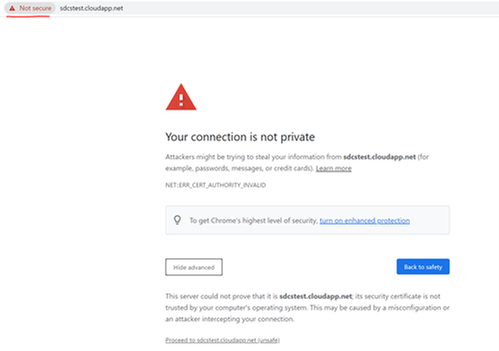
Certutil
Suitable scenarios: Verify if server certificate on client, verify client certificate on server.
Certutil is a tool available on windows. It is useful to verify a given certificate. For example verify server certificate from client end. If mutual authentication is implemented, this tool can also be used to verify client certificate on server.
The command auto verifies trusted certificate chain and certificate revocation list (CRL).
Command:
certutil -verify -urlfetch <client cert file path>
https://docs.microsoft.com/en-us/windows-server/administration/windows-commands/certutil#-verify
Next blog, I will introduce solutions for common causes of SSL/TLS connection issues.
Brought to you by Dr. Ware, Microsoft Office 365 Silver Partner, Charleston SC.
Hi
I’m getting a very frustrating issue with connecting to a secure api — it’s at https://api.betdaq.com/v2.0/secure/secureservice.asmx
From my windows 10 machine I can access it fine, and (using Firefox) I can see that it has a security certificate supplied by COMODO CA Limited, and connects over TLS 1.2 with the following cipher suite: TLS_DHE_RSA_WITH_AES_256_CBC_SHA.
All fine.
I’ve got an app running on a Server 2016 Datacenter VPS though, which refuses to connect. The VPS providers have assured me that there are no firewall or proxy restrictions, I can telnet fine to the server, but I can’t make any headway with understanding
what the connection issues are.
Using IE on the 2016 server to hit the api, I get the following response:
This page can’t be displayed
Turn on TLS 1.0, TLS 1.1, and TLS 1.2 in Advanced settings and try connecting to https://api.betdaq.com again. If this error persists, it is possible that this site uses an unsupported protocol or cipher suite such as RC4 (link for the details), which
is not considered secure. Please contact your site administrator.
(And just to confirm, I don’t experience these issues with other secure sites / services).
I’ve installed Microsoft Message Analyzer and Wireshark to see what’s happening, but neither flag up any errors (at least not to my untrained eye). The client hello is sent, but then there are a host of RST ACK messages, and that’s it. (Apologies,
this is way out of my comfort zone — I’m just following advice from articles I’ve googled, I’m not at all sure what all the outputs are telling me.)
I’ve also installed OpenSSL to do some digging, and whilst on my windows 10 machine I get a host of info about the certificate chain, certificate, keys, etc, on the Server 2016 VPS I just get the following:
OpenSSL> s_client -connect api.betdaq.com:443
CONNECTED(00000170)
write:errno=10054
—
no peer certificate available
—
No client certificate CA names sent
—
SSL handshake has read 0 bytes and written 176 bytes
Verification: OK
—
New, (NONE), Cipher is (NONE)
Secure Renegotiation IS NOT supported
Compression: NONE
Expansion: NONE
No ALPN negotiated
SSL-Session:
Protocol : TLSv1.2
Cipher : 0000
Session-ID:
Session-ID-ctx:
Master-Key:
PSK identity: None
PSK identity hint: None
SRP username: None
Start Time: 1540574555
Timeout : 7200 (sec)
Verify return code: 0 (ok)
Extended master secret: no
—
error in s_client
Does anybody have any idea what may be causing my issue?
Cheers, J.
There have been many questions asked on this subject but none of them have a definitive answer.
I am developing in Visual Studio 2017 (v15.8.5) on a company network, behind proxy with my Git repositories on Azure DevOps (formally VSTS).
When I try and do anything with the repo (Push/Pull/Sync etc) I am constantly getting errors SSL certificate problem: unable to get local issuer certificate. The error occurs both when using the Team Explorer inside V/Studio or Git commands in a CMD (Administrator) window.
To resolve that problem, most answers where to use Git Credential Manager For Windows, within Got For Windows, so I have now v2.19.1
Now I am getting Failed to receive handshake, SSL/TLS connection failed
If I disconnect from the company LAN and connect to an open WiFi (home, 4G) then everything works absolutely fine, so it is obviously something to do with how Git and my company proxy are communicating with each other.
This is the my global .gitconfig
[user]
    name = xxxxxxxxx
    email = xxxxxx@xxxxx.xxxx
[http]
    sslcapath = C:/Program Files/Git/usr/ssl/certs
    sslCAInfo = C:/Program Files/Git/usr/ssl/certs/ca-bundle.crt
    sslBackend = schannel
If I had hair, I’d pull it out … Please someone help..