-
alterak
- Репутация: 0
- Благодарил (а): 1 раз
- Сообщения: 8
- Зарегистрирован: 15 сен 2011, 09:38
Сообщение
BB3Spoiler ошибка открытия изображения
Подскажите, после установки BB3Spoiler при открытии любого изображения через PrettyPhoto появляется ошибка типа image cannot be loaded. make sure the path is correct and image exist. Где я мог накосячить?
Добавлено спустя 4 часа 34 минуты 18 секунд:
забыл сказать что в мозиле открывается нормально, а в IE ошибка(.
-
alterak
- Репутация: 0
- Благодарил (а): 1 раз
- Сообщения: 8
- Зарегистрирован: 15 сен 2011, 09:38
Сообщение
BB3Spoiler ошибка открытия изображения
24 сен 2012, 12:26
версия IE-9, ссылку дать к сожалению не могу поскольку форум в корпоративной локальной сети работает без доступа к интернету.
Добавлено спустя 1 минуту 23 секунды:
если необходимо то могу сейчас выложить код страницы с вложением.
Добавлено спустя 2 часа 44 минуты 45 секунд:
сейчас поставил дома чтобы проверить, все работает без проблем, хотя дома 8-я версия IE. Есть мысли что проблема в PHPBB Galery которую я снес (удалял тупо в обратном порядке инструкции, так же очистил таблицы базы), знать бы еще что мешает открытию картинок-(.
-
alterak
- Репутация: 0
- Благодарил (а): 1 раз
- Сообщения: 8
- Зарегистрирован: 15 сен 2011, 09:38
Сообщение
BB3Spoiler ошибка открытия изображения
24 сен 2012, 19:55
PPK писал(а):это форум/трекер?
форум, версия движка последняя 3.0.11
PPK писал(а):какой стиль используется?
стили родные, использую subsilver2
изначально было вот что, поскольку стоял ваш мод BB2Spoiler Simple Edition — ошибка была.
пришлось удалить BB2Spoiler Simple Edition, удалить галерею phpbbGallery — ошибка осталась.
Добавлено спустя 3 минуты 58 секунд:
так же стоял мод Advanced BBCode Box 3 в котором был highslide, его тоже пришлось снести.
Добавлено спустя 15 часов 52 минуты:
сегодня специально на работе поставил новую копию форума с ноля, установил BB3 Spoiler все равно не работает(( фантастика прям(
-
alterak
- Репутация: 0
- Благодарил (а): 1 раз
- Сообщения: 8
- Зарегистрирован: 15 сен 2011, 09:38
Сообщение
BB3Spoiler ошибка открытия изображения
25 сен 2012, 13:06
при наведении на изображение ссылка такого формата http://имя сервера/download/file.php?id=1147&mode=view
попробовал на 7,8,9 версиях IE. а в Мозилле все отлично.
Добавлено спустя 13 минут 24 секунды:
опс, а вот если открыть тему в которой имеются изображения то ссылка на тему в мозиле выглядит так server://viewtopic.php?f=24&t=245#!prettyPhoto
а вот в IE выглядит так server://viewtopic.php?f=24&t=245
I’ve searched a series of forums and I’ve noticed that a lot of people had this same issue. I tried all the resolutions: using the longer Youtube URL like
http://www.youtube.com/watch?v=GkqS5DiF2_A
defining the width and height of the image, and I’ve tried using older versions of JQuery. I’m still receiving the error. I’ve linked all the images in the CSS file [incorrectly, but they are linked :)]. I’ve been trying to solve this for days and I’m not sure what I’m doing wrong.
Any help would be greatly appreciated. Thank you!
asked Dec 2, 2011 at 2:11

DandyDandy
8412 gold badges11 silver badges22 bronze badges
1
I had the issue with WordPress,
I simply removed the alert.
file: /wp-content/plugins/prettyphoto-media/js/jquery.prettyPhoto.min.js
I use http://jsbeautifier.org/ to unfold the code
and comment line 350:
//alert("Image cannot be loaded. Make sure the path is correct and image exist.");
answered Oct 3, 2013 at 8:18

Elia WeissElia Weiss
7,62913 gold badges67 silver badges103 bronze badges
The links to the youtube video are not direct, you are using some kind of redirects. i suggest you use direct links to the youtube video
here is a demo of your site http://www.mediafire.com/?vj3l062uza7ov61 , see the left video
answered Dec 21, 2011 at 8:44

1
Viewing 7 replies — 1 through 7 (of 7 total)
Hi, can you share the shortcode you are currently using to display the videos?
Thank you
-
This reply was modified 3 years ago by
mbrsolution.
Im using this:
[video_lightbox_youtube video_id=’z75aK3JHx4M’ width=’700′ height=’420′ anchor=’https://www.gamezfull.com/wp-content/uploads/2019/12/playervideo.png’%5D
Hi, please try the following edited shortcode.
[video_lightbox_youtube video_id="z75aK3JHx4M" width="700" height="420" anchor="https://www.gamezfull.com/wp-content/uploads/2019/12/playervideo.png"]Let me know if it works.
Thank you
Hi, I just carried out a test using the same shorcode in my dev site and it is working for me. I also tested the video image in your site above and it is also working in your site. Can you clear your browser cache, then carry out another test.
Let me know how you go.
Thank you
I repair and update my database and I see that everything has been solved 🙂 Thanks so much! love this plugin.
I am glad to know that you managed to fix your issue.
If you can give us a nice review that would make us very happy 🙂
Enjoy the plugin.
Viewing 7 replies — 1 through 7 (of 7 total)
Viewing 7 replies — 1 through 7 (of 7 total)
Hi, can you share the shortcode you are currently using to display the videos?
Thank you
-
This reply was modified 3 years ago by
Im using this:
[video_lightbox_youtube video_id=’z75aK3JHx4M’ width=’700′ height=’420′ anchor=’https://www.gamezfull.com/wp-content/uploads/2019/12/playervideo.png’%5D
Hi, please try the following edited shortcode.
[video_lightbox_youtube video_id="z75aK3JHx4M" width="700" height="420" anchor="https://www.gamezfull.com/wp-content/uploads/2019/12/playervideo.png"]Let me know if it works.
Thank you
Hi, I just carried out a test using the same shorcode in my dev site and it is working for me. I also tested the video image in your site above and it is also working in your site. Can you clear your browser cache, then carry out another test.
Let me know how you go.
Thank you
I repair and update my database and I see that everything has been solved 🙂 Thanks so much! love this plugin.
I am glad to know that you managed to fix your issue.
If you can give us a nice review that would make us very happy 🙂
Enjoy the plugin.
Viewing 7 replies — 1 through 7 (of 7 total)

- Топики (6)
- Комментарии (14)
Добрый день, видела есть плагин защиты от копирования для ls 1x.
Есть ли в закромах у кого-то плагин для защиты от копирования для версии 0.5?
Если нет ни у кого, то подскажите подойдет ли скрипт, что для обычных статичных сайтов, отключения правой или левой кнопки мыши?
Добрый день всем. Подскажите пожалуйста в чем может быть проблема:
Создала фотосет, на одном компьютере все фото открываются хорошо, без проблем, и во всех браузерах.
На другом компе открываю в mozzile показывает ошибку при нажатии на фото
image cannot be loaded make sure the path is correct and image exist
(Мол убедитесь что правильный путь и изображения существуют)
Файл конфига проверила, все правильно ничего не меняла, стоят настройки согласно github.com/livestreet/livestreet/blob/0.5.1/config/config.php#L243
Ls 0.5.
При добавлении топика стала периодически выскакивать такая ошибка:
SQL Error: MySQL server has gone away at ……/mysite.ru/classes/modules/stream/mapper/Stream.mapper.class.php line 32
Array ( [code] => 2006 [message] => MySQL server has gone away [query] => SELECT * FROM prefix_stream_event WHERE target_id = 169 AND event_type = ‘add_topic’ [context] => ……/mysite.ru/classes/modules/stream/mapper/Stream.mapper.class.php line 32 )
При этом топик все равно публикуется.
Знающие люди подскажите как решить проблему.
Всем привет, подскажите пожалуйста как включить наложение текстового водяного знака?
Надо поставить значение true в строке
$config['module']['image']['default']['watermark_use']        = false;
$config['module']['image']['default']['watermark_type']       = 'text';
?
Подскажите пожалуйста, не могу понять как решить проблему:
Создала фотосет с 10 фото, но при нажатии на миниатюру не может открыться большее фото, пишет image cannot be loaded exist…
В переводе типо не правильный путь я так поняла. Превью загрузилось по адресу /uploads/images/topic/2012/06/18/55da0ef925_50crop.jpg, а большое не хочет открываться.
Смотрела файл конфигурации, но не увидела где что можно поменять.
Подскажите пожалуйста.
Не кидайте пожалуйста тапочками. С Лс столкнулась впервые. Читала много по ускорению работы сайта на Лс, но многое еще не понятно. Знаю что можно объединить css и js файлы в один и сжать их, для ускорения. Сделала так же css спрайты, указанных файлов по рекомендации Google.
Подскажите можно ли слить все css стили в grid.css например, и как если слить все js в один файл например -grid.js- как его правильно подключить?
Шаблон стоит simple.
Вот показатели:
MySql
query: 4
time: 0,001
Cache
query: 48
— set: 1
— get: 47
time: 0,81881
PHP
time load modules: 0,047
full time: 0,999
Заранее спасибо
На моей странице у меня есть эскиз видео YouTube в виде изображения, и я хочу воспроизвести видео с помощью prettyPhoto после того, как пользователь нажимает на изображение. Как я могу этого добиться?
Вот мой код изображения:
<div class="video" id="videoPlaceHolder" style="position:relative;">
  <a rel="prettyPhotos" href="https://www.youtube.com/embed/<?php getFirstFeatureVideoURL(); ?>">
    <img style="background:url(<?php getFirstFeatureVideoThumbnail() ?>); background-repeat:no-repeat; background-size:cover;  -moz-background-size: cover;" src="/images/ytIndex_overlay.png" onClick="addPlayer();" />
  </a>
</div>
Функция php getFirstFeatureVideoURL захватывает и возвращает «правильный» URL-адрес первого видео (я проверил его отдельно, и видео воспроизводится без каких-либо проблем). Другая функция, называемая getFirstFeatureVideoThumbnail, возвращает миниатюру видео. У меня есть все плагины для prettyPhoto, и пока он отлично работает для всех изображений. Однако, когда я пытаюсь воспроизвести это видео, щелкнув изображение, появляется сообщение об ошибке:
Image cannot be loaded. Make sure the path is correct and the image exists
Почему я получаю эту ошибку?
На моей странице у меня есть миниатюра видео YouTube в виде изображения, и я хочу воспроизвести видео, используя prettyPhoto после того, как пользователь нажмет на изображение. Как я могу это сделать?
Вот мой код для изображения:
<div class="video" id="videoPlaceHolder" style="position:relative;">
  <a rel="prettyPhotos" href="https://www.youtube.com/embed/<?php getFirstFeatureVideoURL(); ?>">
    <img style="background:url(<?php getFirstFeatureVideoThumbnail() ?>); background-repeat:no-repeat; background-size:cover;  -moz-background-size: cover;" src="/images/ytIndex_overlay.png" onClick="addPlayer();" />
  </a>
</div>
Функция php getFirstFeatureVideoURL захватывает и возвращает «правильный» URL-адрес первого видео (я проверил его отдельно, и видео воспроизводится без каких-либо проблем). Другая функция называется getFirstFeatureVideoThumbnail возвращает миниатюру видео. У меня есть все плагины, готовые для prettyPhoto, и до сих пор он отлично работает для всех изображений. Однако, когда я пытаюсь воспроизвести это видео, нажав на изображение, оно выдает ошибку:
Image cannot be loaded. Make sure the path is correct and the image exists
Почему я получаю эту ошибку?
Struggling with common WordPress image errors and issues? Keep reading.
Who doesn’t like interactive content? Images help to make your content more interactive and engaging. WordPress by default comes with the necessary image uploading and editing facility
In WordPress, you might be having some image issues like gallery images not showing, themes not showing images, featured images not working, images not loading in WordPress theme – and more.
We are going to cover most WordPress image issues and how to fix them in this article.
Common WordPress Image Errors
Here are the most common WordPress image errors and their solutions.
1. How To Upload Images In WordPress?
Uploading new images to WordPress is easy. There are a couple of ways to do that.
1.1 Drag and Drop Images to Upload
The easiest way to upload images is to drag and drop the image you want to upload in the WordPress editor.
WordPress will automatically upload and add the new image to your WordPress post.
1.2 Upload images via Add Media
If you look above your WordPress editor, you will find there is an option naming “Add Media” on top.

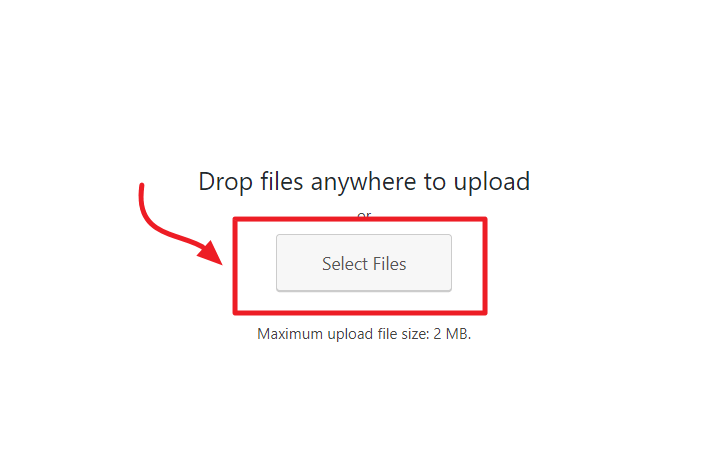
This will give you the option to select images to upload. You can select your images and then click Insert into post to insert the new image to your WordPress post.
2. How to Add Caption below Images in WordPress?
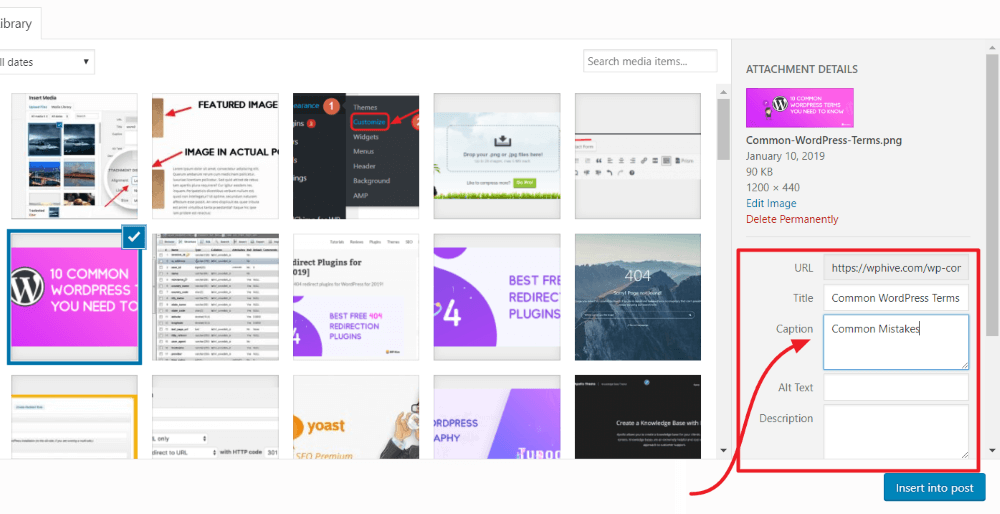
WordPress has built-in support for adding a caption for images. After uploading an image, WordPress media uploader gives you the option to add image title, description, and caption.
3. How to Align Image to the Left or Right in WordPress?
Many popular websites use images with text wrapped around them. Text wrapping image is done by using the align feature of WordPress. Using images with text wrapped is an excellent way to make your website more engaging.
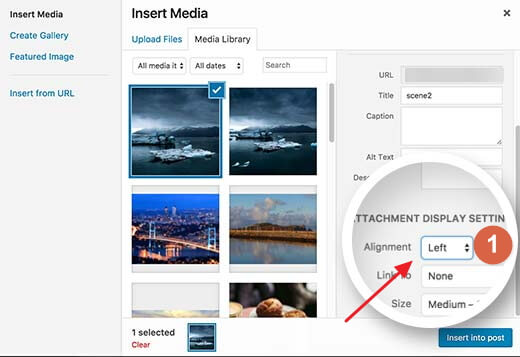
You can select your preferred image alignment when uploading an image and before inserting it into your post.
4. How to Fix Featured Images Not Showing in WordPress?
WordPress featured images not working is a common WordPress image issue. It usually happens when you switch your theme. Solving featured images is pretty easy all you need to do is to install a featured image plugin.
Check our tutorial on How to regenerate thumbnail and featured images where we have discussed in-length how to restore your images when you switch to a new theme. As WordPress featured image size differs from theme to theme, it is a good idea to regenerate your featured images and thumbnails after switching your theme.
You can use any of the plugins mentioned in the blog post to fix your featured images in WordPress.
5. How to Fix WordPress Featured Image Not Showing on Homepage?’
Are your WordPress homepage images not showing? If you want to show your feature images on your homepage, then there should be a specific theme setting on your theme. Whether featured images will be displayed on homepage or not is decided by the theme. Usually, most WordPress themes have the featured image settings tucked under in the theme settings menu.
Navigate to Appearance >> Customize to explore your theme settings.
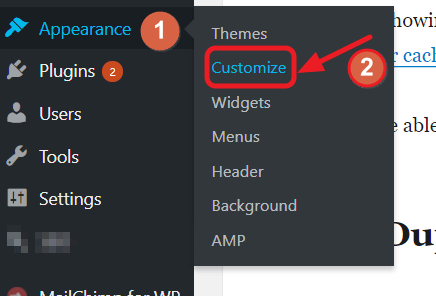
If your theme supports featured images, you should be able to access it from Appearance>>Customize.
If featured images are already turned on for the homepage from theme settings, and it is still not showing up, then you can disable and enable the settings. Make sure you clear your cache. Then try reloading the website.
You should be able to see featured images appearing correctly on your homepage.
6. How to Fix Duplicate Featured Images in WordPress
Duplicate images usually appear to your editor when you upload the same pictures twice in your WordPress post. The same mistake occurs when you upload the featured image again in your post.
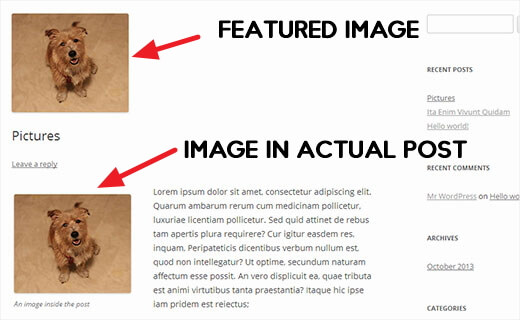
You do not want to use the featured image again in your WordPress post. WordPress will automatically show the featured image on your homepage. If you use it inside your article, the image will appear twice.
7. Fix Image Too Large on WordPress
It might have happened to you when you are uploading an image and WordPress is giving you a notice that the image cannot be uploaded because it is too large. Well, that’s because WordPress sets a limit about how big your image sizes can be. The limit is set for your convenience.

The convention should be followed because Google likes pages that load fast, as we have discussed in our Top 10 Ways to Improve PageSpeed on WordPress Websites article.
Fix Image Too Large in WordPress
- You can use an image resizer to resize your images before uploading on your WordPress website.
- You could also use an image optimizing service like tinypng.org to optimize your images before uploading.

- You can also use the default WordPress image editor to crop and resize images. Read below to know how to crop and resize images using WordPress.
8. WordPress Media Library Not Showing Images/Fix Blank Thumbnails in WordPress
WordPress media library not showing any images is an issue that webmasters face from time to time. You could also be facing no thumbnail previews in your WordPress media library. Some people find no images at all in media library although it shows the count of total photos.
Solving these type of issues can be tricky.
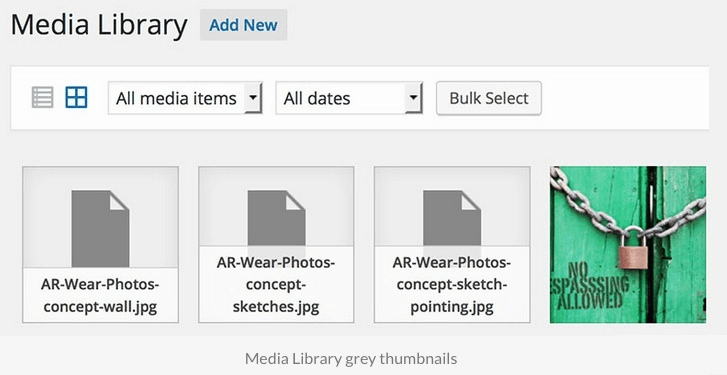
It could happen for many reasons. You need to go through a series of basic troubleshooting steps to fix this issue.
Step 1
First, navigate to your WordPress Dashboard then Settings >> Media. Make sure the Organize my uploads into month- and year-based folders field is checked.
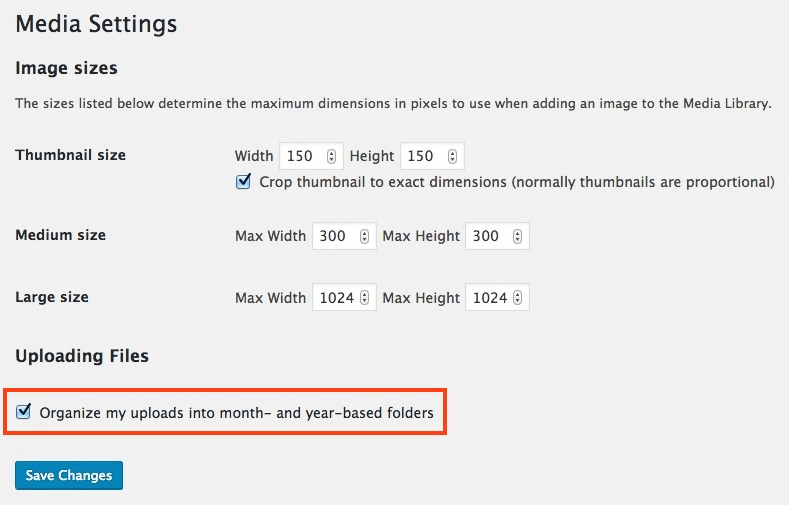
This option organizes your uploaded images by month and year wise folders. If this doesn’t fix your media library issue, move to step 2.
Step 2
If still your images and thumbnails don’t show up, you have to change your WordPress upload folder’s permission.
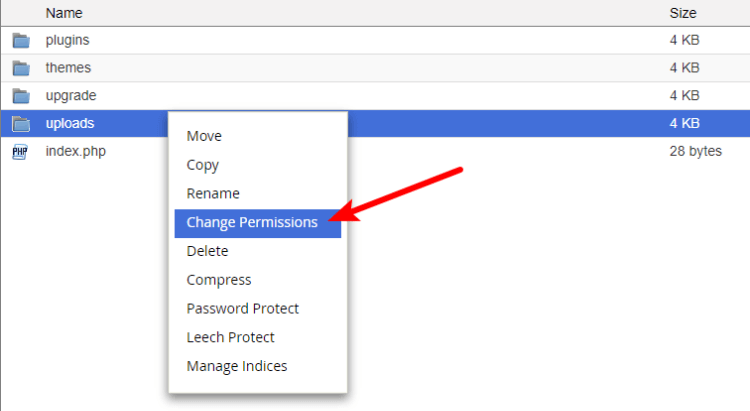
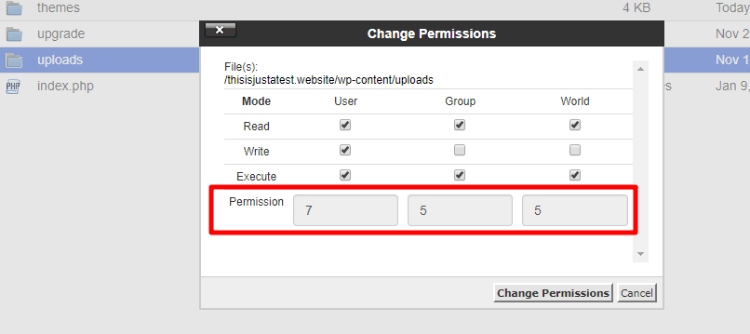
Login to your cPanel and go to.wp-content/uploads Check the file permission of uploads folder. If the permission is anything besides 755, change the permission to 755.
Reload your media library to see if it’s fixed.
You can also do this from most of the FTP programs like FileZilla.
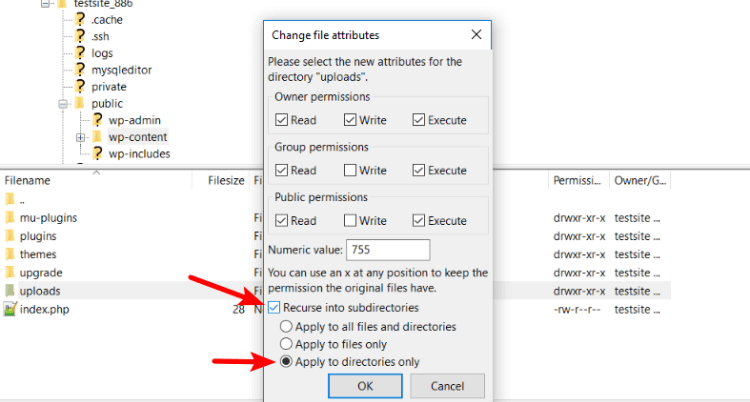
Here’s what the process looks like in Filezilla.
Step 3
If your images are still not showing up, try changing your permalink settings to the default and then revert to the original. Check our coverage on Best Permalink Structure for SEO in WordPress to know how to reset permalink settings.
Step 4
If none of the steps worked for you, try to regenerate thumbnails/featured images. Read our tutorial on how to regenerate thumbnails or featured images.
Any of the four steps should fix your issue. Make sure your file permission is appropriate as discussed in step 2.
9. Fix Unable To Create Directory Error
Follow step 1 and step 2 of the previous section. You want to check Organize my uploads into month- and year-based folders field.
If this does not fix your issue, you need to fix your file permission for wp-content/uploads folder to 755
10. How to Organize Photos Into Columns And Rows?
You can organize your photos into columns and rows like a gallery to give your users a better experience.
You can create an image gallery by choosing the media uploader. Then select ‘Create gallery.’
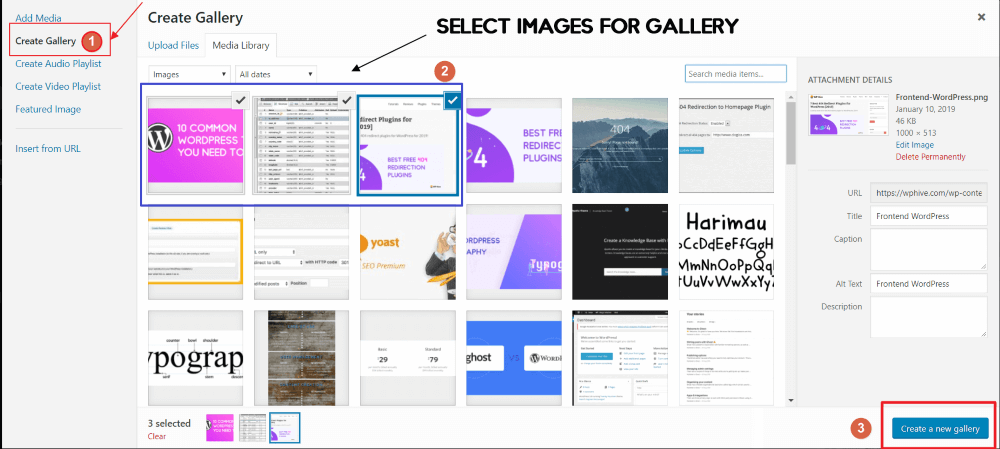
Now you will need to choose the images that will be displayed in the rows and columns. After choosing your images, then click ‘Insert gallery.’
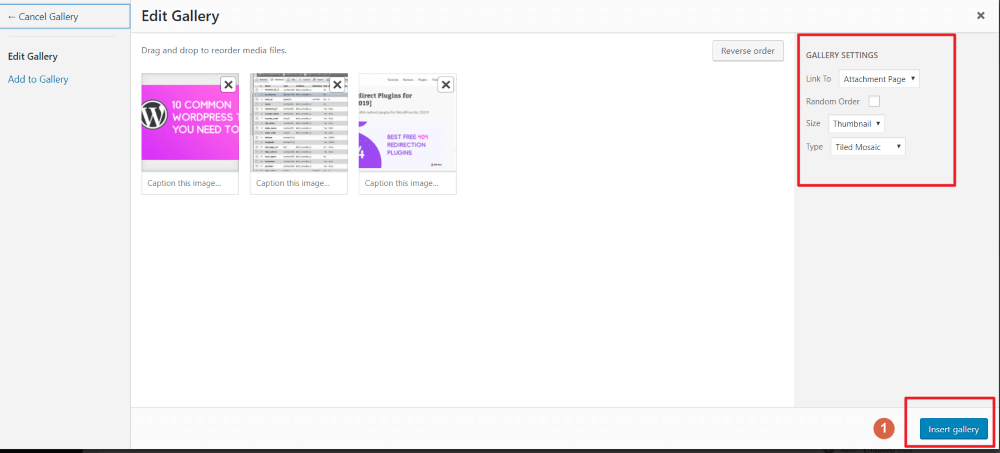
You can also check out the gallery setting and choose how you want your gallery to be displayed before clicking Insert gallery. As soon as you click Insert gallery, the new an organized gallery with row and column will be added to your article
11. How to Add/Remove featured images in WordPress
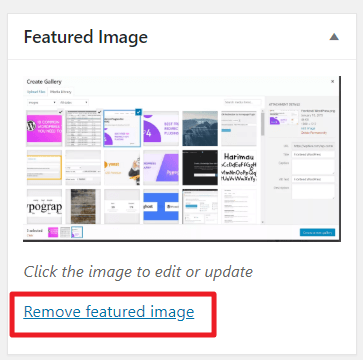
On your WordPress article’s right-hand side, there should be a section named Featured Image. You can add featured image by clicking “Set featured image.” It will ask for the image location. Locate your featured image on your hard disk to set a featured image.

Removing Featured Image: You can remove featured images by using the same section. After adding a featured image, the option will offer to remove the existing featured.
12. How to Fix Mixed Content Error after Switching to HTTPS
In 2023, if you are not using https, you are missing out. Even after switching to https website you might not still be seeing the green padlock icon on your browser.
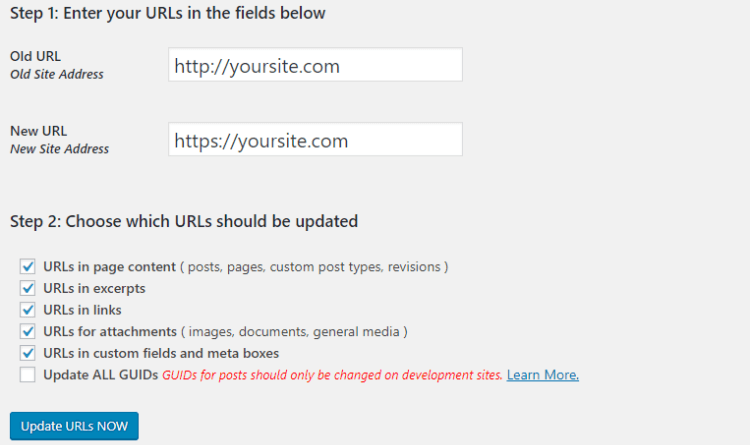
This happens because the green icon only shows up when all your content is in HTTPS. However, even after switching your domain to HTTPS, the images usually use the old image path with HTTP. That is why you need to rewrite the images.
- Use the Really Simple SSL plugin to automatically rewrite the URLs for old images
- Use the Velvet Blues Update URLs plugin to manually execute a find and replace query to change “http://olddomain.com” to “https://newdomain.com”
13. How To Set Default WordPress Featured Image
If you want to set a default featured image for all of your WordPress posts, then you can use the default featured image plugin. The plugin lets you create a fallback image for all of your featured image. Hence, if you don’t use the featured image in any of your posts, the default image will be used.
One of the great benefits of using the plugin is the possible increase of engagement in social media. Images work better to get attention than just texts.
If you forgot to add featured image to any of your previous posts, the plugin would automatically show the fallback image in all of your latest social media sharing.
14. HTTP Error When Uploading Image To WordPress Media Library
Another most common WordPress image errors that you’ll encounter is the HTTP error when trying to upload new images to your Media Library:
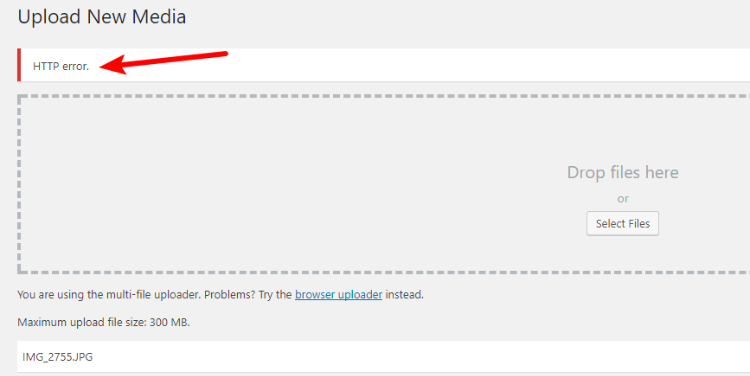
This error is frustrating because it often seems random – that is, you can upload 10 different images and only one of them will return an HTTP error.
So what are the causes of HTTP error when uploading images to the WordPress Media Library?
Since there’s not a single cause, that means we can’t give you one single solution – but we can provide some common fixes.
1. Decrease Image Size
Though the WordPress HTTP error can appear when uploading any images, it’s most common with large images.
To minimize the chances of error, one of the easiest ways to fix this, resize your images before you upload them.
If you’re not sure how to resize your images, here are some free tools that can help you:
- Resize Image – good for single images.
- Batch Image Resizing Made Easy – good for resizing multiple images at once.
You can also compress your images to reduce file size by using one of these tools:
- Compressor.io – good for single images.
- Tinypng.com – good for single images.
- Kraken.io – good for compressing multiple images at once.
2. Increase WordPress Memory Limit
One potential trigger for this error is that your site is hitting its memory limit.
This limit is usually set by your host. To avoid the limitation, you’ll need to contact your host and ask them to increase your PHP memory limit.
If your host allows it, you can also do this manually by following these instructions:
- Go to the root folder and edit your wp-config.php file
- Add the following code snippet above the
/* That’s all, stop editing! Happy blogging. */ line
_/** Increases memory limit */


define( 'WP_MEMORY_LIMIT', '256M' );_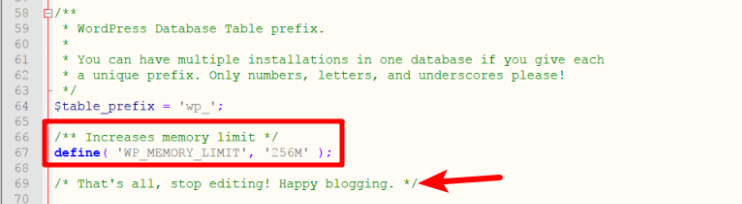
3. Temporary Workaround If You Need To Upload Images Right Now
This method isn’t a permanent solution, but if you absolutely need to upload images instantly and don’t have time to try and diagnose the issue, here’s a quick workaround:
- Connect to your server via cPanel File Manager or FTP server
- Upload image files to /wp-content/uploads/… folder
- Install and activate the free Add From Server plugin
- Go to Media > Add From Server in your WordPress dashboard
- Follow the plugin’s interface to import the files that you uploaded

15. File Exceeds The upload_max_filesize Error
This error usually occurs when you try to upload a file that exceeds the maximum upload limit defined by WordPress and/or your server.
One of the easy solution is to simply decrease the size of your image by resizing or compressing it.
But if that does not work, you can try one of these three methods to increase your site’s upload limit:
1. .htaccess Method
- Go to the root folder and edit your .htaccess file
- Add the following code snippet
_### Increases the max filesize for uploads
php_value upload_max_filesize 64M
php_value post_max_size 64M
php_value max_execution_time 300
php_value max_input_time 300_
2. Php.ini Method
- Edit the php.ini file in your root folder or create a new file called php.ini if it doesn’t already exist.
- Add the following code snippet
_upload_max_filesize = 64M
post_max_size = 64M
max_execution_time = 300_
3. Functions.php Method
- Edit the theme’s functions.php file by going to /wp-content/themes/**ACTIVE_THEME**/functions.php
- Add the following code snippet
[email protected]_set( 'upload_max_size' , '64M' );
@ini_set( 'post_max_size', '64M');
@ini_set( 'max_execution_time', '300' );_
16. Upside Down Or Flipped Images Error
Sometimes you may upload an image to WordPress that looks normal on your desktop computer. But as soon as you upload it, it’s flipped upside down or rotated wrong.
This is especially common when you try to upload photos that taken with an iOS device because iOS doesn’t properly transfer the EXIF data that’s needed to determine the image’s orientation.
To fix the error, you can use WordPress’ built-in image rotation feature by following these steps:
- First, click on your desired image
- Select Edit Image
- Use the rotation buttons to change the image’s orientation
- Now, click Save when finished
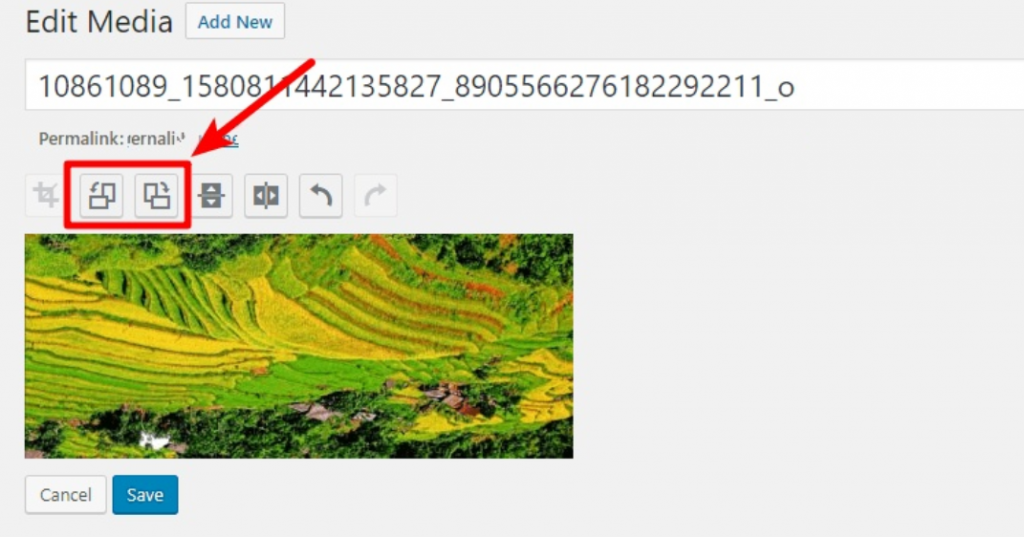
You can also install the free Fix Image Rotation plugin. This will automatically apply the proper orientation to any images that you upload.
17. Upload: Failed to Write File to Disk Error
If you’re facing the Upload: Failed to Write File to Disk Error, the most common cause is incorrect file permissions.
To fix this issue, you can follow the same instructions as the Unable To Create Directory Error.
18. Temporary Folder Missing Error While Uploading
In order to properly upload any media files, WordPress needs to be able to access the temporary folder that’s defined by the site’s PHP settings. If your PHP settings aren’t properly providing this information, WordPress will not be able to locate the folder and will throw this error as a result.
Here’s the solution. Just manually define the temporary folder:
- Edit wp-config.php file
- Add the following code snippet somewhere above the /* That’s all, stop editing! Happy blogging. */ line in your wp-config.php file
define('WP_TEMP_DIR', dirname(__FILE__) . '/wp-content/temp/');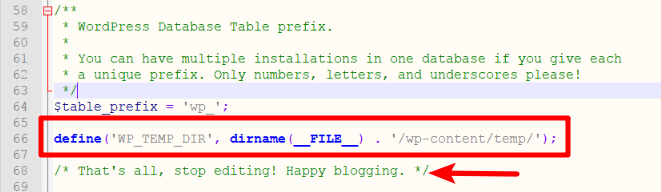
If it doesn’t work, you have to contact your hosting provider.
19. Image Cannot Be Found. Make Sure The Path Is Correct And Image Exists Error
The “Image cannot be found. Make sure the path is correct and image exist” error commonly occurs when dealing with WordPress galleries.
The issue seems that images are linked to their attachment page, instead of the actual image URL.
To fix this issue, try to add an attribute to the gallery shortcode to make each image link to its actual file URL.
For example, if your original shortcode is:
Then add a parameter like so:
[ my_gallery link="file" ]20. How To Change Default Image Sizes
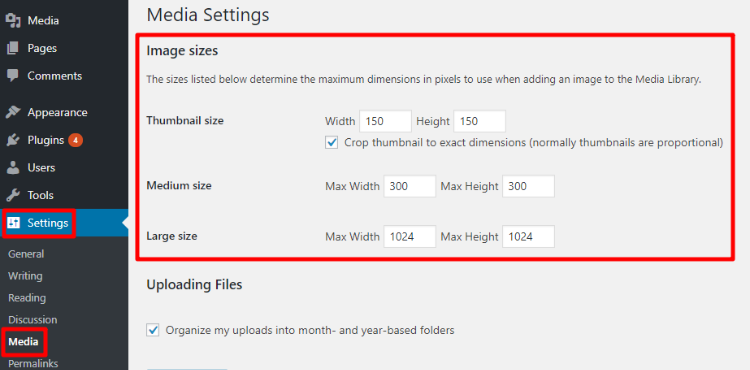
Whenever you upload an image to WordPress, WordPress will automatically resize that image to certain preset dimensions.
If needed, you can manually go in and change these default image sizes.
In your WordPress dashboard, just go to Settings > Media and adjust the options as desired:
21. WordPress Featured Image Appearing Twice Error
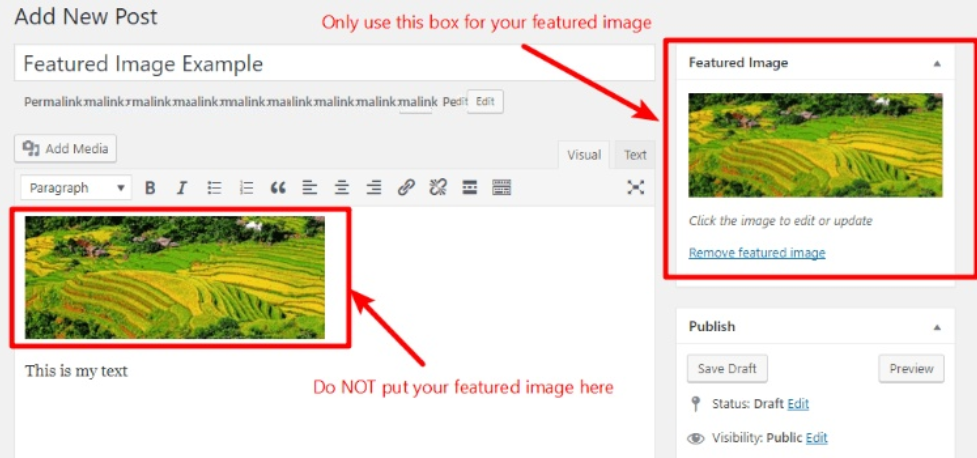
Most WordPress themes automatically display featured images at the top of the post, so if you also add the same image to the top of the WordPress Editor, the featured image will appear twice.
To fix the issue, don’t use the featured image in the body of your post – only use the featured image option in the sidebar.
Here’s an example to illustrate the concept:
22. Regenerate WordPress Thumbnails To Fix Distorted Images
If you recently changed WordPress themes or manually changed your thumbnail dimensions, you might have face that all of your existing images look distorted.
Usually, WordPress automatically creates different sizes for each image that you upload. These sizes are defined by your theme, so if you change themes your old image sizes might not look right anymore.
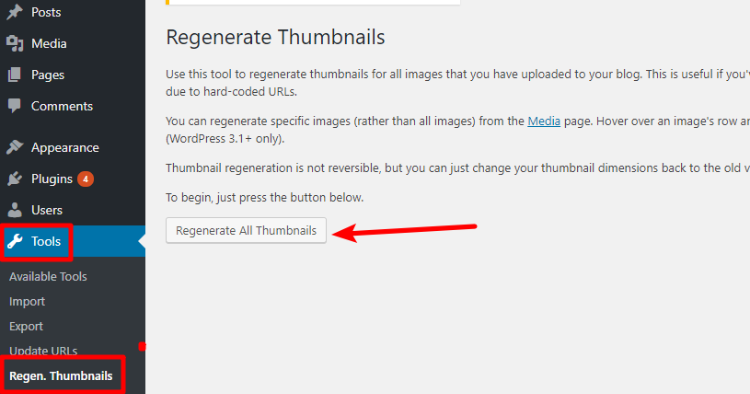
To fix this issue, you have to force WordPress to regenerate thumbnails. And to do so, you can use the popular and free Regenerate Thumbnails plugin.
Once you install and activate the plugin, just go to Tools > Regen. Thumbnails to start the process:
23. Change Image That Appears On Facebook For WordPress Site
Whenever you or your visitors share your website on Facebook, Facebook will try to automatically import a relevant picture to go along with the link.
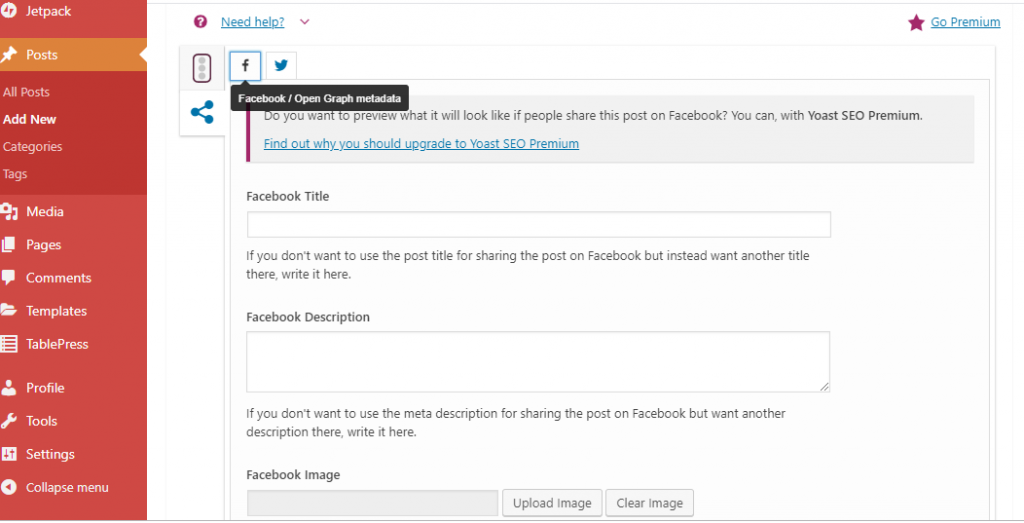
If you want to control this image, you have to use a metadata called Facebook Open Graph Meta Tags. These tags are easily accessible through WordPress plugins.
If you’re using the Yoast SEO plugin, you can use the Social tab of the meta box to choose the image that appears on Facebook:
24. Require Featured Image For WordPress Posts
If your theme requires featured images to display posts correctly, you might want to require featured images for your posts to ensure that you don’t accidentally publish a post without a featured image.
To require a featured image for all WordPress posts, you can use the free Require Featured Image plugin. Once you install and activate the plugin, it starts working right away.
25. Resize WordPress Images
WordPress has a built-in tool to resize images that you’ve already uploaded directly from your dashboard. To access it:
- Click on your desired image in your Media Library
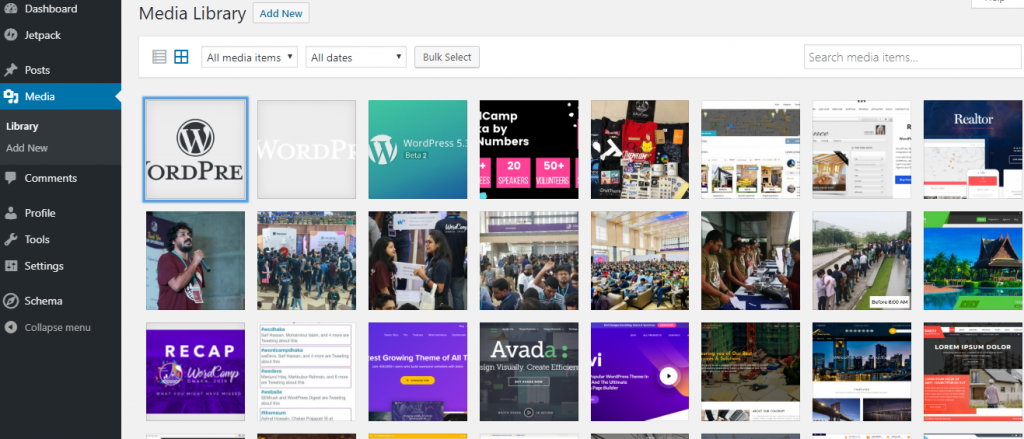
- Choose Edit Image
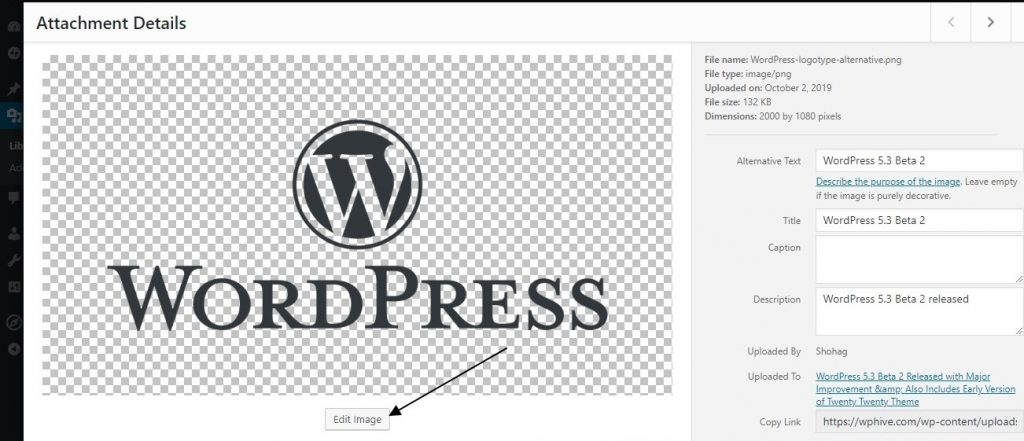
- Use the SCALE IMAGE box to enter new dimensions
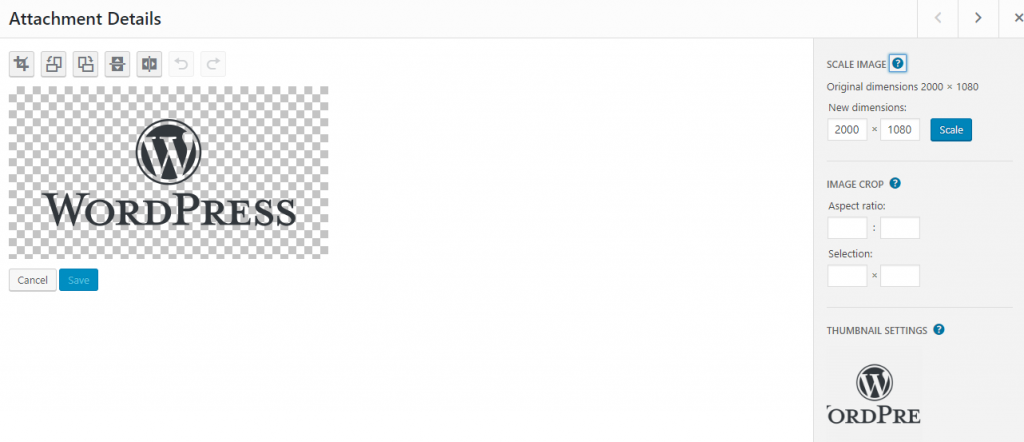
- Now, click Scale to complete the process
26. Crop WordPress Images
If you want to crop an image, WordPress also includes a crop feature. To access it:
- Click on your desired image in the Media Library
- Choose Edit Image
- Click on the image preview and drag your mouse to select the area you want to crop
- Click the crop button to generate a new preview
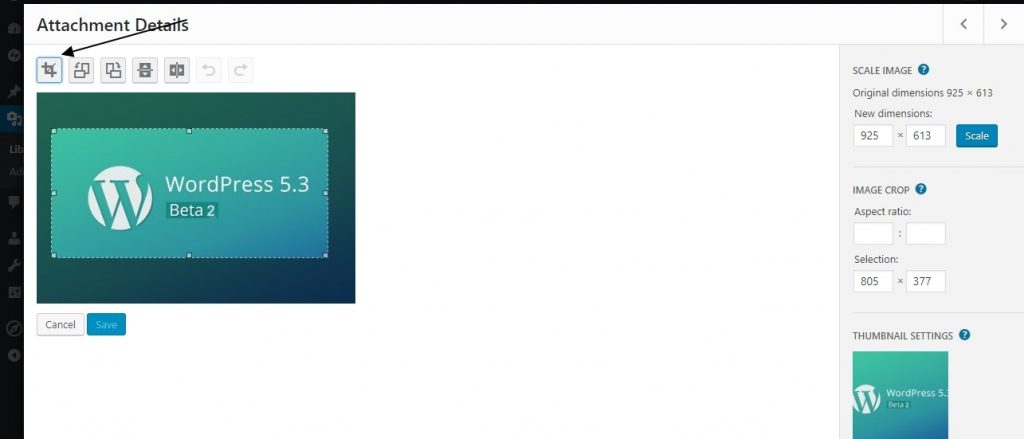
- Click Save to finalize your crop.
27. Organize WordPress Images Into Folders
If you want to organize your WordPress Media Library using actual folders, you can use a plugin called WordPress Media Library Folders to solve the issue.
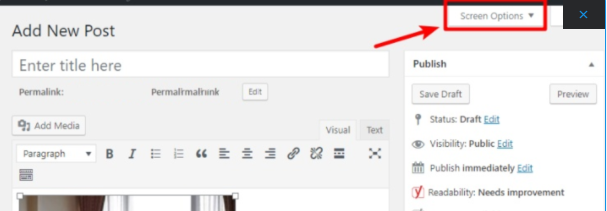
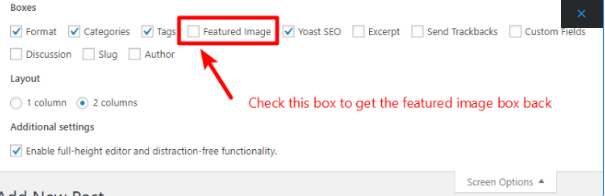
28. WordPress Featured Image Box Disappeared Error
Sometimes, you might have faced that your WordPress featured image box disappeared. This occurs when you accidentally disable its display.
To get the featured image box back, just click on Screen Options in the top-right of your screen:
Just make sure the box for Featured Image is checked:
29. WordPress Changed Image But Changes Aren’t Showing Error
If you changed an image in the WordPress dashboard but aren’t displaying on the live version of your site, the most likely reason is the caching issue.
You can either:
- Manually reset the cache or,
- Wait a few hours for the cache to refresh by itself
30. Change Location Of WordPress Uploads Folder
By default, WordPress uploads all of your media files to the …/wp-content/uploads/… folder and then organizes them into subfolders by date.
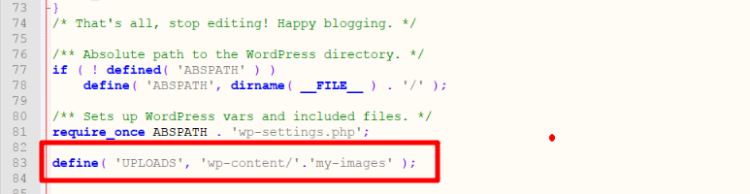
You can change the location of this folder by editing your wp-config.php file. Here’s how:
- Edit your wp-config.php file
- Find the line that says require_once(ABSPATH.’wp-settings.php’);
- Add the following code snippet immediately below that line
define( 'UPLOADS', 'wp-content/'.'my-images' );Where my-images is the name of your desired folder.
If you want to store uploads outside of the wp-content folder, you can also use something like this:
define( 'UPLOADS', ''.'my-images' );In the above snippet, your uploaded files would be stored at yoursite.com/my-images/filename.jpg.
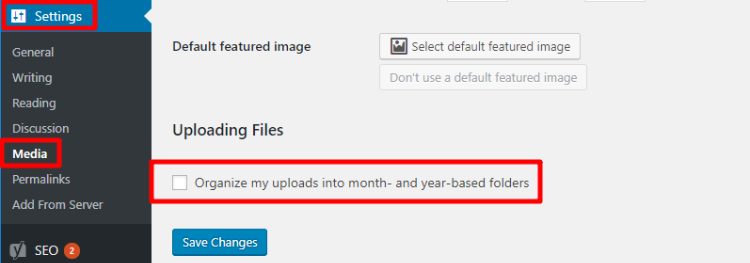
WordPress will still organize the images into folders by year/month in the new folder. If you want to change that, you can disable this functionality by going to Settings > Media and unchecking the box for Organize my uploads into month- and year-based folders:
31. Create Image Galleries On WordPress
WordPress includes a built-in WordPress Gallery function that allows you to create galleries from the images that you upload.
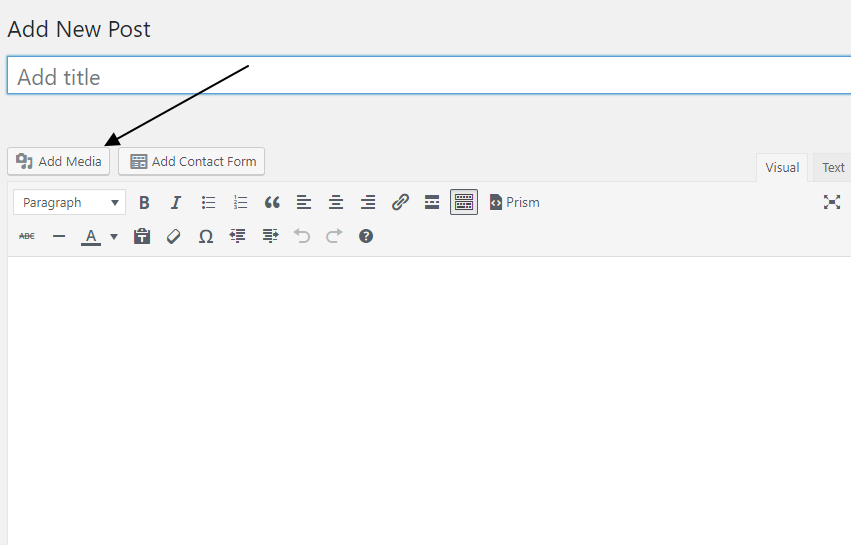
- To get started, click on Add New Post and then Add Media:
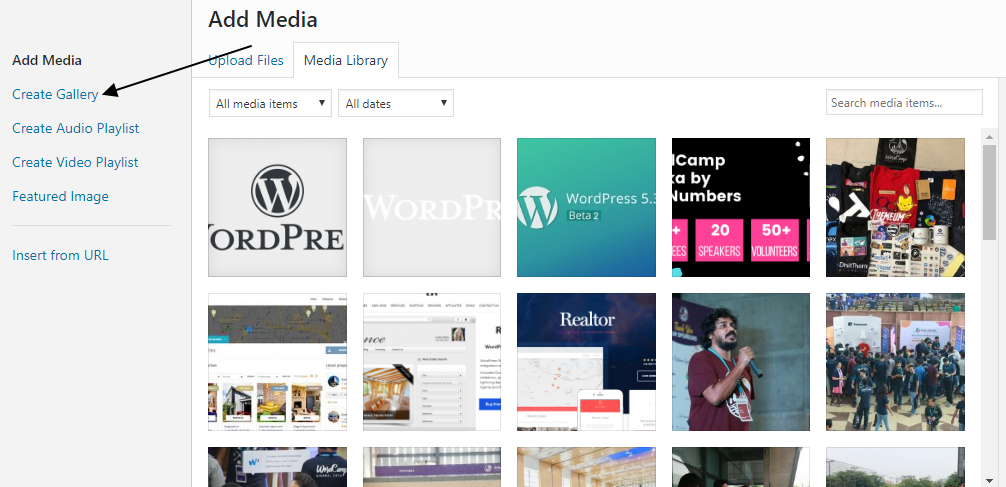
- Then, go to the Create Gallery tab. Here, you can either upload new files or select multiple existing images to use in your gallery.
- Once you’ve selected the images that you want, click Create a new gallery to continue.
On the next screen, you can:
- Choose what each image links to or remove links
- Select how many columns to use in your gallery
- Rearrange the image order via drag and drop or choose to randomize the order
- Choose the default size for your gallery items
- Add captions to each image in the gallery
32. Add A Favicon Image To WordPress
A favicon is a small image that appears in a web browser tab, as well as some other areas:

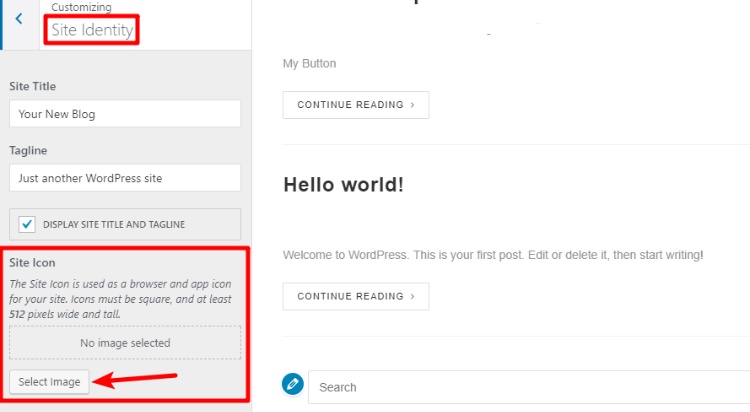
To add a favicon to your WordPress site:
- Go to Appearance > Customize in your WordPress dashboard sidebar
- Choose the Site Identity option in the WordPress Customizer sidebar
- Use the Site Icon functionality to upload your favicon
33. Upload WordPress Images Via FTP
If you want to upload files to the WordPress Media Library via FTP server, you’ll have to complete two steps:
- Actually upload the files.
- Register the files to the WordPress Media Library.
To do that:
- Connect to your server via cPanel File Manager or FTP server
- Upload image files to …/wp-content/uploads/… folder
- Install and activate the free Add From Server plugin
- Go to Media > Add From Server in your WordPress dashboard
- Follow the plugin’s interface to import the files that you uploaded
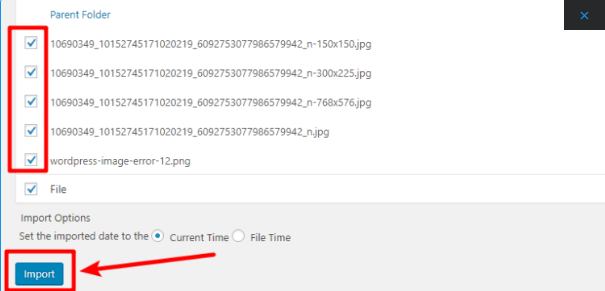
Once you’ve imported the images with Add From Server, you can use them like any other images.
34. Add a Header Image in WordPress
A header image in WordPress is a theme feature. Many WordPress free and paid themes come with support for the header image.
You can upload your own custom header image from the Appearance > Customize. WordPress will let you know the size requirements for your header image.
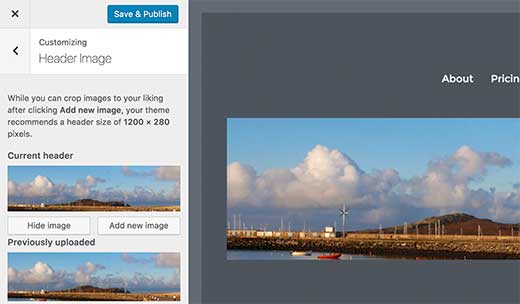
If you upload an image of the exact size, then it will be used as it is.
35. Add a Background Image in WordPress
Like the custom header image, custom background image is also a WordPress theme feature. Many WordPress free and premium themes come with support for custom background images.
Go to Appearance > Customize to launch the theme customizer. If you can see the Background Image option, then it is sure that your theme has support for custom backgrounds.
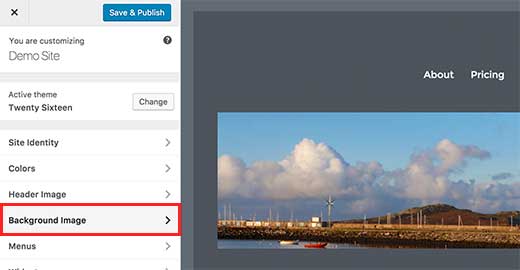
Simply upload an image from your computer or choose any image from the media library. Once you have chosen the image you will be able to see the image preview and other background image options.
36. Find Free Images for Your WordPress Blog Posts
Images can make your articles extraordinary. However, you must respect copyright policy and try to find images that you are legally allowed to use.
There are many websites where you can find free images.
37. Tag Images in WordPress
If you run a photography website, then you will notice that WordPress does not allow you to sort photos and images.
If you would tag images then your friends and followers can easily find the images.
Fortunately, there are some great plugins that allow you to do that easily.
For a photography related blog, you can use Envira Gallery’s Tags addon.
Envira Gallery plugin allows you to create beautiful, mobile-ready, photo galleries in WordPress. Using tags, your site visitors can easily filter and sort photos without even reloading a page.
38. Import External Images in WordPress
This question may often come up when you are migrating your site to WordPress. Some images on your website may still be located at older location.
Users importing blogs from Blogger, Squarespace, or WordPress.com may face this sort of problem.
To solve this issue, all you have to install and activate the Import External Images plugin.
It will check your posts for external images and show all of them to correct places. You can then easily import all those images with the click of a button.
39. Remove the Default Image Link in WordPress
By default, WordPress adds a link to the original image file.
You can also set default link to ‘none’ to remove the link, but doing it manually each time you upload an image is annoying.
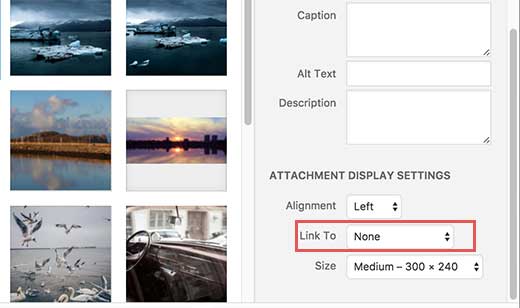
You can also stop WordPress from adding a link by adding this code in your theme’s functions.php file.
functionwpb_imagelink_setup() {$image_set= get_option( 'image_default_link_type'); if($image_set!== 'none') {update_option('image_default_link_type', 'none');}}add_action('admin_init', 'wpb_imagelink_setup', 10);Wrapping up on WordPress Images
If you are still here with us, thanks for reading. we hope you have solved your WordPress image issue from the article. If you haven’t been able to solve your issue regarding images in WordPress, feel free to leave a comment in the comment box below.
You can also try to spice up your featured images by using great free stock images. We often get asked at our Twitter and Facebook channels about how to find the best royalty-free images to use in their posts.
You can go through the following websites for free stock images. You can use these free stock images in your WordPress posts to make your content more engaging.
- Unsplash – https://unsplash.com
- Pexels – Pexels.com
- Barnimages – https://barnimages.com/
- Stocksnap – https://stocksnap.io/