500 internal server error clearly indicates that something went wrong during the display of PHP page.
By default, web servers like IIS return only generic error messages in websites. Often, this causes the masking of real reason for IIS PHP errors such as 500 internal server error.
That’s why, we frequently get request from Windows server owners to find out the reason for PHP website errors and fix them as part of our Server Management Services.
Today, we’ll take a look on how Bobcares’ Engineers track the real reason and fix php 500 internal server error in IIS.
What causes PHP 500 internal server error in IIS
Basically, 500 Internal Server Error is IIS web server’s way of saying, “Something has gone wrong when I tried to display the page. Not sure what.”
Now, its time to see the exact reasons for the 500 errors.
1. Permissions Error
From our experience in managing servers, our Windows Experts often see PHP 500 internal server errors due to wrong permissions and ownership on website files. In Windows servers, every file and every folder has its own set of permissions. Again, some permissions are inherited from the parent folders too. And, when the PHP binary do not have enough permissions to execute the scripts, it can result in 500 internal server error.
Similarly, ownership of the files also create problems. In Windows, specific users like IIS User, IIS WP User, etc. should have access on the website folders and files. For example, the IUSR account should have modify permissions on php scripts. And, when there are permission problems, website shows PHP errors.
2. Bad PHP Settings
Yet another reason for PHP internal server error is bad PHP settings. The PHP settings are specified in the configuration file at C:PHPPHP.ini. PHP binary take the values from this file while executing scripts.
A classic example will be PHP timeout settings. When the website PHP scripts has to fetch results from external resources, PHP timeout values often cause trouble. Most system administrators set timeout values in PHP to avoid abuse of the server resources. And, if the PHP script executes for a time longer than the threshold limits, it eventually results in 500 error.
3. PHP module errors
A very few 500 errors happen when the PHP module on the server as such becomes corrupt too. As a result, it results in processing failure of PHP scripts.
Luckily, when the website reports the 500 error due to module failures, IIS often show a more specific error messages like:
500.0 Module or ISAPI error occurred.
500.21 Module not recognized.
How we fixed PHP 500 internal server error in IIS
Fixing PHP 500 internal server error in IIS need a series of steps. Let’s now see how our Dedicated Engineers fixed it for one of our customers and made PHP scripts running.
The customer reported 500 internal server error on WordPress website running in IIS.
1. Turning On Display errors
While the error correctly suggested that PHP had caused 500 error code, it did not provide application-specific information about what caused the error. Therefore, the the first step of investigation was to turn ON display errors option. For this, our Dedicated Engineers followed the steps below.
- Using Windows® Explorer, browse to C:PHP and open the Php.ini file in the PHP installation directory.
- Edit and set the display_errors = On directive.
- Save the file.
- Reset IIS using the command iisreset.exe
After turning on the errors, we reloaded the PHP and it showed a PHP parse error:
Parse error: parse error in C:inetpubusersxxxhttpdocsmysiteerror.php on line 3 >>Often browser settings only show friendly error messages. In such cases, we recommend customer to turn it Off. For example, in Internet Explorer Go to Tools, Internet Options, Advanced tab, and then clear the Show friendly HTTP error messages check box.
Thus, it was a coding error on the PHP script. We suggested script modifications to customer and that fixed the error.
2. Running PHP script locally
Yet another way to find the exact error is to run the problem php script within the server. For this, our Support Engineers connect to the server via rdesktop and execute php script using the php.exe binary. It would show the DLL’s that are having conflicts and causing the 500 error. We fix these conflicts and make the script working again.
3. Correcting PHP settings
In some cases, we need to correct the PHP settings to get the problem solved. Recently, when a customer reported problems with his website, we had to set the php directive open_basedir correctly to solve 500 Internal Server Error.
Similarly, when PHP cgi scripts show up some warning, IIS7 still displays an HTTP 500 error message. Although the best method is to fix the PHP scripts, often changing the default error handling for FastCGI in IIS7 to “IgnoreAndReturn200” also work as a temporary fix. The exact settings will look as shown.

4. Fixing PHP binary
In some rare cases, the fix may involve complete rebuilding of PHP binary on the server. This happens mainly when the PHP program on the server becomes corrupt. However, in such cases our Dedicated Engineers always check the dependency of the package and do the reinstall. For control panel specific servers, we set the appropriate binary on the server.
[Broken PHP scripts causing big problems? Our IIS experts have the fix for you.]
Conclusion
In a nutshell, PHP 500 internal server error in IIS happens mainly due to reasons like buggy PHP scripts, wrong server settings and many more. Today, we saw the top reasons for the error and how our Support Engineers fix it for customers.
PREVENT YOUR SERVER FROM CRASHING!
Never again lose customers to poor server speed! Let us help you.
Our server experts will monitor & maintain your server 24/7 so that it remains lightning fast and secure.
GET STARTED
var google_conversion_label = «owonCMyG5nEQ0aD71QM»;
Recently my ISP switched our website to an IIS7.0 high availibility cluster. The website is running on PHP5.2.1 and I can only upload files (so no registry tweaks). I had tested the website before and everything seemed to be working, but now the checkout page fails with:
500 — Internal server error.
There is a problem with the resource you are looking for, and it cannot be displayed.
As error messages go, this isn’t very informative. I’ve tried:
ini_set('display_errors', 1);
ini_set('error_log', $file_php_can_write_to );
but both don’t seem to do anything.
Anyone know how to get better debugging output?

Charles
50.6k13 gold badges103 silver badges141 bronze badges
asked Nov 8, 2009 at 15:29

Edit : Looks like we have a similar question in serverfault. Check it out
Turning off IIS7 custom errors will allow error responses from your application to be sent to remote clients without being censored by the IIS7’s custom errors module.
You can do this from the IIS7 Admin tool by running “Start>Run>inetmgr.exe”, selecting your website/application/virtual directory in the left-hand tree view, clicking on the “Error Pages” icon, clicking “Edit Feature Settings” action, and then selecting “Detailed Errors”
Source

answered Nov 8, 2009 at 15:34

ShobanShoban
22.9k8 gold badges63 silver badges107 bronze badges
5
It’s very common when you change server you cannot load your apps. I have solved this problem running php.exe instead of loading your apps on the browser:
1) Run it using the Command line > C:phpphp.exe OR
2) Run Windows Explorer, look for it, and double click on c:phpphp.exe.
3) You are gonna see what DLL’s are having conflicts and causing the 500 error.
4) Solve the conflicts finding the right DLL’s for your windows version and you should be able to see your apps through the browser.
The best of the lucks.
answered Jan 16, 2016 at 23:11

RGARGA
1371 silver badge6 bronze badges
IIS does this, it’s really annoying and I could not find a fix, which is what caused me to switch to an Apache server for my local machine. Unfortunately, if you don’t have control over your server, the best you can do is either test it locally on an apache set up or ask your host to allow the error messages.
I did some googling, thisthis looks like what you need. Wish that was around when I was trying to get IIS running.
answered Nov 8, 2009 at 17:00

Chris SobolewskiChris Sobolewski
12.7k12 gold badges62 silver badges96 bronze badges
2
-
+1 888 500 1070 (Toll Free)
-
+1 888 500 1070 (Toll Free)

- Product
Unique Public & Private Cloud Management Portal for Data centers, Enterprise & Webhosting Companies.
Easy-to-use self-service portal allows your customers the freedom to manage their cloud with minimal handholding.
Self-service portal allows businesses to manage their resources, monitoring & vulnerability scan, by themselves.
Centralized governance and secure and holistic management of resources across multiple clouds through RBAC.
- Cloud services & AIOps
PUBLIC CLOUD
Transform Your Enterprise on AWS Cloud Platform with Cost-Effective, AIOps-Driven Managed Offerings.
GCP
Assistanz helps Enterpise, drive innovation, manage costs, governance and risks associated with their workloads on Google Cloud Platform.
CONTAINER ORCHESTRATION
Orchestrate containerized applications across multiple environments with end-to-end support from certified Kubernetes administrators.
Helps organizations increase efficiency, reduce cost and speed up time to market through pipeline automation across different cloud platforms.
PRIVATE CLOUD
Assistanz are the largest supporter of CloudStack since 2015, specializing in design & implementation of laaS for private & public clouds.
- Support Services
Our IMS Plans cover IT infrastructure planning, design, implementation, maintenance and evloution
If you are looking for staffs who could augment your webhosting business, then Assistanz is just the partner you’re looking for.
Offload your cPanel Server management & support overheads and focus only on your business.
A fully comprehensive plan to manage your Linux & Windows Plesk Servers.
Our DirectAdmin server management plan provides you with unlimited hours of server.
Enable easy migration of applications to cloud with our robust cloud server migration services.
Connect with US
Looking for more cutomized support solutions ?
Our team is ready to help you
Explore our free Configuration package, Scripts, Automations & More..
Quality Management System


- Company
Established in 2004, Assistanz has become one of the most preferred IT Service providers across diverse industry segments and a complete one-stop shop for all your IT Needs & Solutions.
Questions about our service?
Our team can answer them for your within a day..
If you care for a career…
- Blog

- Product
Unique Public & Private Cloud Management Portal for Data centers, Enterprise & Webhosting Companies.
Easy-to-use self-service portal allows your customers the freedom to manage their cloud with minimal handholding.
Self-service portal allows businesses to manage their resources, monitoring & vulnerability scan, by themselves.
Centralized governance and secure and holistic management of resources across multiple clouds through RBAC.
- Cloud services & AIOps
PUBLIC CLOUD
Transform Your Enterprise on AWS Cloud Platform with Cost-Effective, AIOps-Driven Managed Offerings.
GCP
Assistanz helps Enterpise, drive innovation, manage costs, governance and risks associated with their workloads on Google Cloud Platform.
CONTAINER ORCHESTRATION
Orchestrate containerized applications across multiple environments with end-to-end support from certified Kubernetes administrators.
Helps organizations increase efficiency, reduce cost and speed up time to market through pipeline automation across different cloud platforms.
PRIVATE CLOUD
Assistanz are the largest supporter of CloudStack since 2015, specializing in design & implementation of laaS for private & public clouds.
- Support Services
Our IMS Plans cover IT infrastructure planning, design, implementation, maintenance and evloution
If you are looking for staffs who could augment your webhosting business, then Assistanz is just the partner you’re looking for.
Offload your cPanel Server management & support overheads and focus only on your business.
A fully comprehensive plan to manage your Linux & Windows Plesk Servers.
Our DirectAdmin server management plan provides you with unlimited hours of server.
Enable easy migration of applications to cloud with our robust cloud server migration services.
Connect with US
Looking for more cutomized support solutions ?
Our team is ready to help you
Explore our free Configuration package, Scripts, Automations & More..
Quality Management System
- Company
Established in 2004, Assistanz has become one of the most preferred IT Service providers across diverse industry segments and a complete one-stop shop for all your IT Needs & Solutions.
Questions about our service?
Our team can answer them for your within a day.. If you care for a career…
- Blog

-
Blog, Technologies
-
Loges -
September 30, 2017

Steps to Resolve 500 Internal Server Error for PHP in IIS on Windows 2016
In this blog, we will show you the steps to resolve 500 Internal Server Error for PHP in IIS on Windows 2016.
ACCESSING PHP INFO PAGE
- To troubleshoot this issue, place a phpinfo page under your website home folder.
<?php
phpinfo();
?>


- Open the web browser and access the URL http://localhost/phpinfo.php and if you see the 500 Internal Server Error. Follow the below steps.

VERIFY THE IIS HANDLER MAPPING
- Make sure that PHP was configured correctly in IIS.
- Open IIS snap-in and click on the server name.

- Double click on Handler Mappings icon.

- You can see the list of handlers configured in that server. Double click on the PHP handler.

- Make sure that php-cgi.exe was added as executable in IIS.

VERIFYING PHP MODULES
- Open the command prompt and go-to PHP binary folder. In this demo, it is C:program filesphp 7.1 folder.

- Type the below command to view the available modules in the PHP.
php –m
- If PHP dependencies are installed correctly it will show the list of available modules in PHP or it will show the error like below.

- It looks like Visual C++ is missing on the server. Google the VC++ and install it.

- Browse the below URL and download the Microsoft Visual C++ 2015 Redistributable Update 3 RC package.
https://www.microsoft.com/en-us/download/details.aspx?id=52685

- Click on Download and select vc_redist.x86.exe and click Next.

- Once the download is complete, double-click on the vc_redist.x86.exe file. Accept the License Agreement and click on Install button.

- Once the installation is successful click on close button.
- Verify the PHP modules from the command prompt again. Now you will able to see the list of modules available in PHP.

- Browse the info page again and you will able to see the PHP configuration information.

- So, PHP requires MSVC++ as a compiler to execute the coding.
VIDEO
Thanks for reading this blog. We hope it was useful for you to learn to resolve the PHP 500 internal server error in IIS

Loges


Most Popular:

User1415686117 posted
Web Farm
Windows 2012 R2 Servers
IIS 8.5
Kemp Load Balancer for External Access and NLB Balancer Setup for internal access
All working great with my HTTP and ASP sites.
I am trying to build a few PHP pages
I was getting a «PHP Error 405 verb used to access this page not allowed»
Then I was told to upgrade my PHP from 5.6 to 7.2
So I removed PHP from my IIS
Then installed PHP 7.2
After several days of frustrating attempts I am now getting this
Server Error
500 — Internal server error.
There is a problem with the resource you are looking for, and it cannot be displayed.
created a small test.php
<?php
phpinfo();
?>
I installed PHP Manager for IIS v 1.5.0 it works but when I try for PHPinfo from the PHP Manager I get this error
There was an error while performing this operation
Details
PHP is not registered via FASTCGI hence there is no FastCGI handler defined
I can run php -info it shows all info about php
I can run php — m it shows all modules
just can not browse the page
What else to check?
Thanks
If your Internet Information Services (IIS) produces a 500 – Internal server error, your website is in serious trouble. Debugging an IIS 500 – Internal server error can take some time, so you’d better be prepared for the worst-case scenario. You don’t want to research how to deal with this error under time pressure.
Contents
- Cause of 500 – Internal server error
- Debugging an IIS 500 – Internal server error
- Resolving an IIS 500 – Internal server error
- Common 500.x substatus codes
- Author
- Recent Posts

Surender Kumar has more than twelve years of experience in server and network administration. His fields of interest are Windows Servers, Active Directory, PowerShell, web servers, networking, Linux, virtualization, and penetration testing. He loves writing for his blog.
Latest posts by Surender Kumar (see all)
- Backup in Proxmox VE — Thu, Jan 26 2023
- Snapshots in Proxmox VE — Wed, Jan 25 2023
- Create a Windows VM in Proxmox VE — Fri, Jan 13 2023
In my previous posts, you learned about detailed errors and failed request tracing in IIS (Internet Information Server). I recommend reading those articles first before you proceed with this one.
Cause of 500 – Internal server error
This is the most common error you will encounter with any website hosted with IIS. In most cases, a developer messed up. Thus, the fastest way is often to simply reverse the last action taken, such as restoring an earlier version of your web application. Once your system is running again, you can investigate the cause of the error on your test side in peace.

500 Internal server error
The HTTP 500 error is a server-side error. While we understand that the problem is on the server end, the error is usually ambiguous. It doesn’t exactly tell the administrator what is wrong with the server. Thus, debugging a 500 – Internal server error often takes some time.
Debugging an IIS 500 – Internal server error
Since the above error doesn’t really tell what’s actually wrong with the server, we need to enable detailed errors, as discussed in my previous post. Once detailed errors are enabled, you will see more detailed error information, including an HTTP substatus code. Sometimes even the detailed errors don’t show any useful information right away. For example, see the following screenshot:

The page cannot be displayed because an internal server error has occurred
Here I am getting: The page cannot be displayed because an internal server error has occurred. There is no HTTP status code or substatus code listed on the error page. If you get such an error even when detailed errors are enabled, right-click anywhere in the browser window and select Inspect (or press F12).
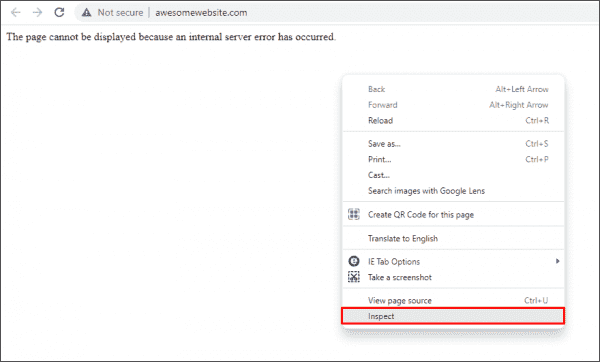
Opening developer tools in web browser to reveal server errors
This opens the developer tools in your browser window. Now, click the Console tab. The actual error thrown by the web server is displayed.
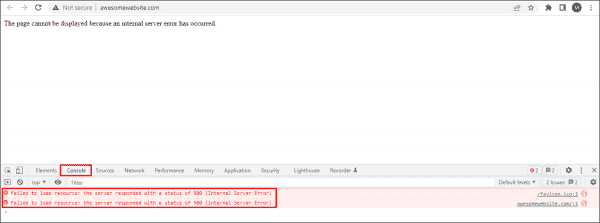
Viewing server errors using the Console tab of the web browser’s developer tools
To further understand the exact cause of 500 errors, enable Failed Request Tracing, as discussed in my previous post. Now, try to replicate the problem. If you can replicate it, open the newly generated XML log file in a web browser. The following screenshot shows the actual cause of a 500 – internal server error with a substatus code of 19 (HTTP 500.19 error):
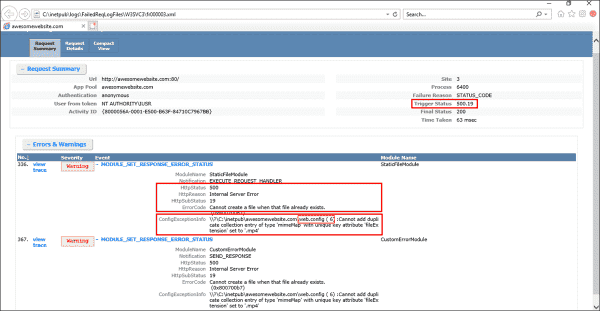
Determining the cause of a 500 error using the Failed Request Tracing log file
Usually, substatus code 19 indicates that the configuration data is invalid. This could be due to some malformed or unidentified element in a server-level config file (ApplicationHost.config) or website-level config file (web.config). If you take a closer look at the ConfigExceptionInfo field of the log file, you will find the exact line number (6 in our case) in the web.config file that caused the exception. Now let’s take a look at the web.config file itself.
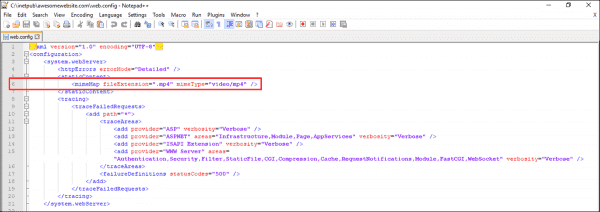
Viewing the problematic element in the web.config file
Here, you can see that the developer tried to add a mime type in the config file, but it was already defined in the server-level configuration file (i.e., ApplicationHost.config). Therefore, the Cannot add duplicate collection entry of type ‘mimeMap’ with unique key attribute ‘fileExtension’ set to ‘.mp4’ exception was returned. Furthermore, if there is some unidentified element, a syntax error, or even a typo in the web.config file, you will most likely get a similar error.
Resolving an IIS 500 – Internal server error
To resolve an IIS 500 – Internal server error, you could simply remove the line that is causing the exception. Alternatively, if you don’t want to remove this line for some reason, add the following code right above line 6 in web.config:
<remove fileExtension=".mp4" />
By doing this, you are essentially overriding the server-level element. In the end, your web.config file should look as shown below:
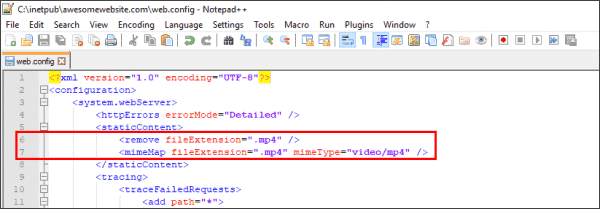
Overriding the server level mime element with web.config file
Now refresh the page, and the error should go away. This was just one example of resolving a 500.19 error. If you get a 500 error with a different substatus code, use the same approach to troubleshoot the problem.
Common 500.x substatus codes
The following table covers some of the most common HTTP 500 substatus codes, along with their probable causes and troubleshooting advice:
Subscribe to 4sysops newsletter!
| Status Code | Probable Cause | Troubleshooting Advice |
| 500.11 | The application is shutting down on the web server | The application pool is shutting down. You can wait for the worker process to finish the shutdown and then try again. |
| 500.12 | The application is busy restarting on the web server | This is a temporary error and should go away automatically when you refresh the page. If the error persists, something is wrong with the web application itself. |
| 500.13 | The web server is too busy | This error indicates that the number of incoming concurrent requests exceeded the number that your IIS application can process. This could be caused when the performance settings are not right. To troubleshoot such issues, a memory dump needs to be captured and analyzed using tools such as Debug Diagnostic. |
| 500.15 | Direct requests for Global.asax file are not allowed | A direct request was made for the Global.asa or Global.asax file, which is not allowed by the web server |
| 500.19 | The configuration data is invalid | We already covered how to fix this error above |
| 500.21 | The module not recognized | This status code is caused by a partial installation of the IIS server, such as missing ISAPI modules. To fix this error, identify the missing IIS components and install them. |
Once you troubleshoot the problem, don’t forget to disable Failed Request Tracing and revert the detailed errors to custom errors on your web server.
- Remove From My Forums
-
Question
-
User1602581346 posted
Each time I have an a PHP error it is giving me a 500 error with IIS 7.5 (Win 2008 R2). When I set the error to Detailed I get a blank page on remote and «the website cannot display the page» page on local. If error page is set to DetailsOnlyLocal I
get the «500 — Internal server error.
There is a problem with the resource you are looking for, and it cannot be displayed.» message.In my php.ini under error_log I have a file set. log_errors is On, error_reporting is E_ALL. The file that is logged can be accessible, written and readed by Users, Administrators and Network Service. The application pool allows 32 bits applications
and is run under NetworkService.When I look for the trace i have this information :
No.175. Warning -MODULE_SET_RESPONSE_ERROR_STATUS
ModuleName
FastCgiModule
Notification
128
HttpStatus
500
HttpReason
Internal Server Error
HttpSubStatus
0
ErrorCode
0
ConfigExceptionInfo
Notification
EXECUTE_REQUEST_HANDLER
ErrorCode
The operation completed successfully. (0x0)
The php error log remains empty. It is impossible to write under syslog.
Basically I am not able to see any PHP error here, making debuging quite impossible.
Any hints available to make the errors appears ? To help with the debugging, I am currently having an error with wordpress 3.0 and arras theme.
Answers
-
User-1405480850 posted
Hi,
First of all ensure that a simple PHP page is working fine. An example of simple PHP file is given below, copy paste the code, name it test.php and copy it your web root folder (typically C:inetpubwwwroot) which is where your Default Web Site point to
on port 80.<?php
phpinfo();
?>Now from the browser, type http://localhost/test.php and see if it displays everything. If not, this means your PHP is not configured well. I am giving few links which will help you configuring PHP:
-
Please make sure that proper php.ini is getting loaded. You can test PHP cli by using the command ‘php.exe -c <path to proper php.ini file> C:inetpubwwwroottest.php and ensure that PHP CLI is running fine. Now run without -c switch and see if
it runs or not. -
While running php.exe CLI if you get an error with regards to some DLL not found, try commenting the extension which is responsible for it. Since you are not getting anything in PHP error log I believe this is not the case. but here I am assuming that
you have set PHP writing to error log properly.
Let me know if still there is a problem. On IIS7.5 (Windows 7), PHP installation from WPI should work pretty well.
Thanks,
Don.
-
Marked as answer by
Tuesday, September 28, 2021 12:00 AM
- Remove From My Forums
-
Question
-
User1602581346 posted
Each time I have an a PHP error it is giving me a 500 error with IIS 7.5 (Win 2008 R2). When I set the error to Detailed I get a blank page on remote and «the website cannot display the page» page on local. If error page is set to DetailsOnlyLocal I
get the «500 — Internal server error.
There is a problem with the resource you are looking for, and it cannot be displayed.» message.In my php.ini under error_log I have a file set. log_errors is On, error_reporting is E_ALL. The file that is logged can be accessible, written and readed by Users, Administrators and Network Service. The application pool allows 32 bits applications
and is run under NetworkService.When I look for the trace i have this information :
No.175. Warning -MODULE_SET_RESPONSE_ERROR_STATUS
ModuleName
FastCgiModule
Notification
128
HttpStatus
500
HttpReason
Internal Server Error
HttpSubStatus
0
ErrorCode
0
ConfigExceptionInfo
Notification
EXECUTE_REQUEST_HANDLER
ErrorCode
The operation completed successfully. (0x0)
The php error log remains empty. It is impossible to write under syslog.
Basically I am not able to see any PHP error here, making debuging quite impossible.
Any hints available to make the errors appears ? To help with the debugging, I am currently having an error with wordpress 3.0 and arras theme.
Answers
-
User-1405480850 posted
Hi,
First of all ensure that a simple PHP page is working fine. An example of simple PHP file is given below, copy paste the code, name it test.php and copy it your web root folder (typically C:inetpubwwwroot) which is where your Default Web Site point to
on port 80.<?php
phpinfo();
?>Now from the browser, type http://localhost/test.php and see if it displays everything. If not, this means your PHP is not configured well. I am giving few links which will help you configuring PHP:
-
Please make sure that proper php.ini is getting loaded. You can test PHP cli by using the command ‘php.exe -c <path to proper php.ini file> C:inetpubwwwroottest.php and ensure that PHP CLI is running fine. Now run without -c switch and see if
it runs or not. -
While running php.exe CLI if you get an error with regards to some DLL not found, try commenting the extension which is responsible for it. Since you are not getting anything in PHP error log I believe this is not the case. but here I am assuming that
you have set PHP writing to error log properly.
Let me know if still there is a problem. On IIS7.5 (Windows 7), PHP installation from WPI should work pretty well.
Thanks,
Don.
-
Marked as answer by
Tuesday, September 28, 2021 12:00 AM
Resolve the 500 Internal Server Error for PHP 7.4 with IIS on Windows Server for WordPress
Many of my readers will know I run a tight ship when it comes to keeping my blog infrastructure up to date and as secure as I can. This means, among other things, I keep my operating system recent and patched. The same goes for my MySQL database, PHP versions, and WordPress + plugins.
Recently I wanted to upgrade to PHP 7.4 that was just released and should be compatible with WordPress 5.3.1.
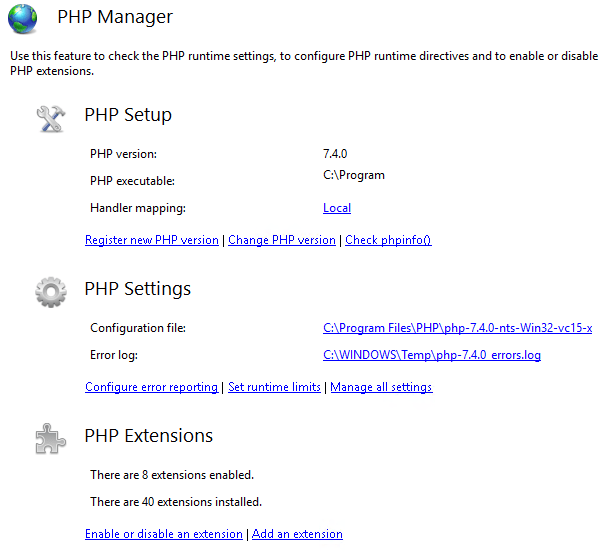
But once I switched to PHP 7.4 my site responded with the dreaded 500 Internal Server Error. Instead of going trial and error I decided to zoom in fast to the root cause to resolve the 500 Internal Server Error for PHP 7.4 with IIS on Windows Server.
Troubleshooting steps
The fasted way to figure out what issues PHP has is to open an elevated command prompt and navigate to the install path of your PHP version. For me, that would be C:Program FilesPHPphp-7.4.0-nts-Win32-vc15-x64. Note that IIS with requires the non thread safe version of PHP.
Once there run php -m
I got greeted by this warning.
PHP Warning: ‘vcruntime140.dll’ 14.0 is not compatible with this PHP build linked with 14.16 in Unknown on line 0

That ‘s clear enough. I need to upgrade my Visual C++ runtime. I have but I need a more recent version. Basically the one for Visual ++ 2105-2019. You can grab those here for both x64 and x86.
https://aka.ms/vs/16/release/VC_redist.x64.exe
https://aka.ms/vs/16/release/VC_redist.x86.exe
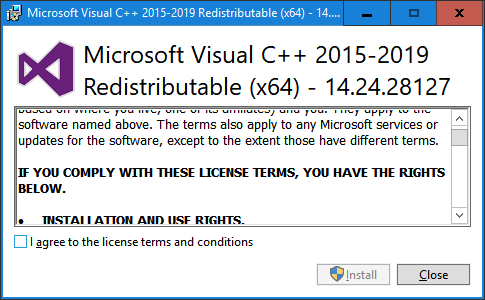
I tend to install both. Just in case I have an issue with x64 PHP I can try the x86 version to try and resolve it, Normally I default to x64 bit and for the past years that has worked very well.
Once I had installed those my blog sprung back to life and that was it. If you run php -m again you won’t see the warning anymore. No need to switch themes (I have a simple one that has longevity). I also do not have to empirically disable/enable plugins. I select quality, free and modern plugins that I keep up to date or replace when needed. So, for me, that was the fix. Since most troubleshooting guided don’t start here, give it a shot. The HTTP Error 500.0 – Internal Server Error is an annoying one to troubleshoot. The PHP error log might not tell you anything as it goes wrong before it can log anything and enabling more detailed error handling does not always pinpoint something precisely. It might even send you on a wild goose chase.
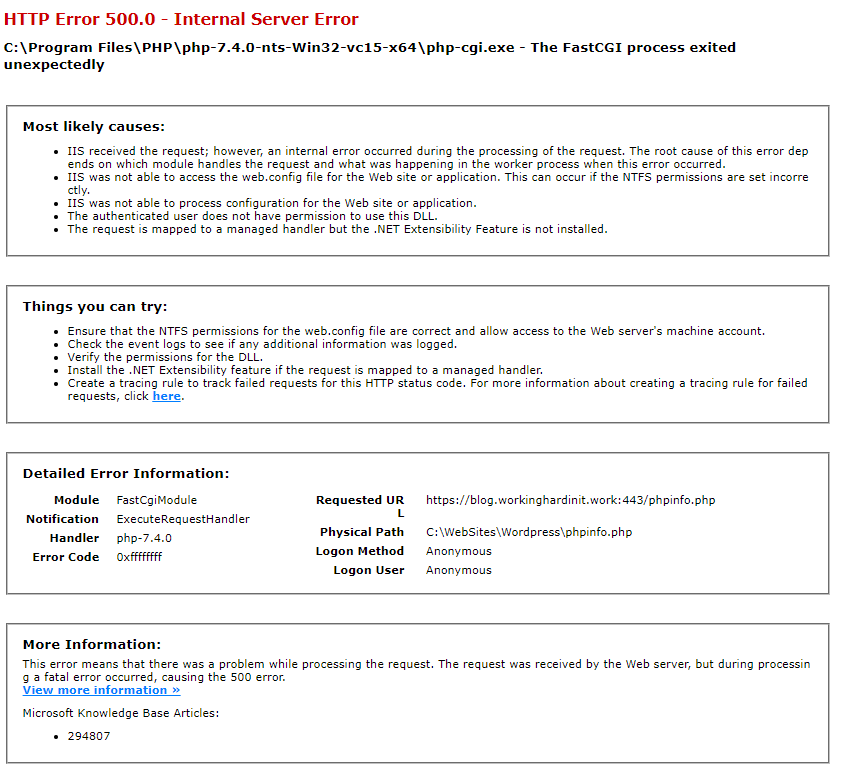
If you did change the feature settings for the error pages for your site to get more detailed information to “Detailed errors” don’t forget to set it back. Configure it back to the default of “Detailed error for local requests and custom error pages for remote requests” or your custom pages. You don’t want the details shown publically.
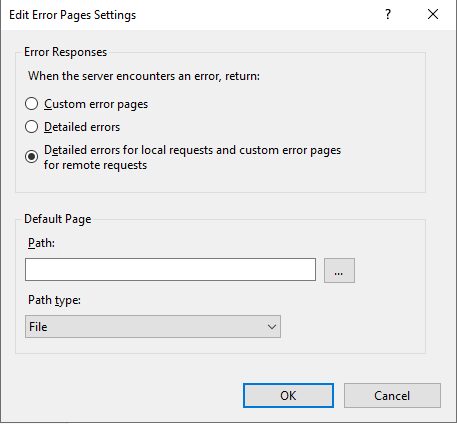
That’s it. I hope it helps someone who tries to resolve the 500 Internal Server Error for PHP 7.4 with IIS on Windows Server
Recently we had to work on a Windows server 2008 (web edition) machine with IIS 7.0 and we ran into the strangest of errors. The server stops running the script with this message :
Server Error
500 – Internal server error.
There is a problem with the resource you are looking for, and it cannot be displayed.
Cause:
This error happens on the default configuration of windows server 2008. The server logs do not say a lot except for the fact that the php file is causing an error. This happens for the following reasons on the server:
- PHP Fatal error (Something that you did or didn’t do caused the server to run into a fatal error)
- PHP error_reporting is on and there are some errors (Anything from a NOTICE or WARNING can cause this)
How to rectify:
Obviously the best way to resolve the error is find out what is wrong with the PHP code. But how do you do this if the server won’t show you what the error is? One of the best ways to find what is wrong with your PHP script is to try to login to the machine via RDP. This works only if you have remote desktop access. Once in RDP try to go to the same URL but using the server’s Internet explorer. Accessing the server locally will avoid the 500 Internal Server Error and show you what is wrong with the PHP file as on a development environment. The server just shows you the PHP error messages and the rest of your script output is not shown.
Change IIS 7.0 Setting
Alternatively to the above, you can always change the configuration using the Configuration Editor of IIS 7.0. You will find this under the Section > system.webServer/httpErrors. You have to change errorMode to Detailed from the usual DetailedLocalOnly and then click on Apply.
This is a good security measure as it will not accidentally show your PHP errors to the users of your system.