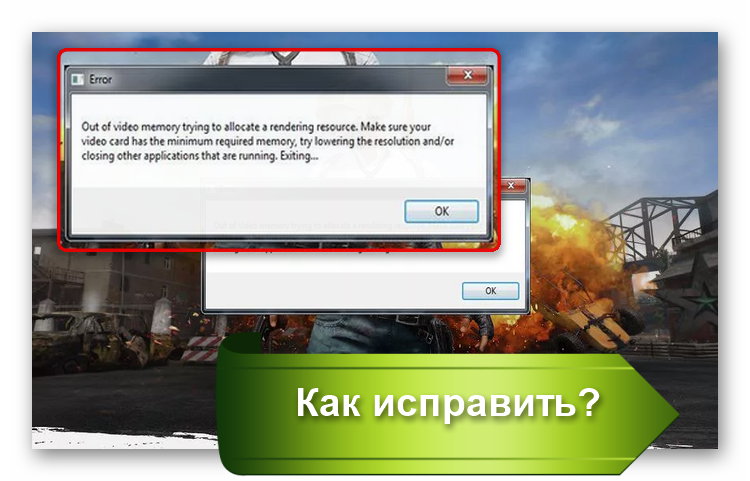
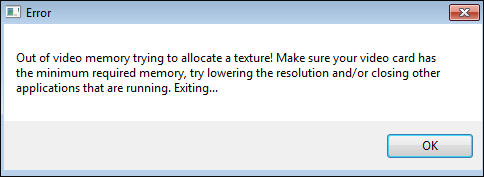
Современные игры становятся все более продвинутыми, особенно в плане графики. Не удивительно, что при попытке насладиться очередной адвенчурой, задав самые высокие характеристики, можно столкнуться с ошибками. Но иногда они происходят и по другим причинам. Например, на экране может появиться сообщение с текстом «Out of video memory trying to allocate a texture». Что делать в этой ситуации? Прежде всего перевести ошибку. Она означает, что при попытке выделить текстуру система столкнулась с нехваткой видеопамяти. Рассмотрим основные причины такой ошибки.
Содержание
- ПК не соответствует требованиям игры, поэтому появляется сообщение «Out of video memory»
- Как посмотреть характеристики своего ПК
- Чтобы уточнить, какая видеокарта у вас установлена, то проще всего:
- Как проверить, что для загрузки текстур не хватает оперативной памяти
- Увеличиваем виртуальную память, чтобы системе хватало ресурсов для выделения текстур
- Обновление драйверов для видеокарты для качественного отображения текстур
- Изменение настроек видеокарты для повышения производительности в играх
- Настройка видеоадаптеров от Intel
- Как настроить видеокарту AMD
- Изменение параметров видеокарты NVIDIA
ПК не соответствует требованиям игры, поэтому появляется сообщение «Out of video memory»
Перед тем, как приобрести или установить очередную игру, нужно всегда проверять ее минимальные системные требования и максимальные, если вы планируете играть «на вышке». Если определенные аппаратные компоненты, в частности видеокарта или оперативная память, не вытягивают игрушку, то она будет постоянно вылетать или будет появляться всплывающее окно с соответствующей ошибкой.
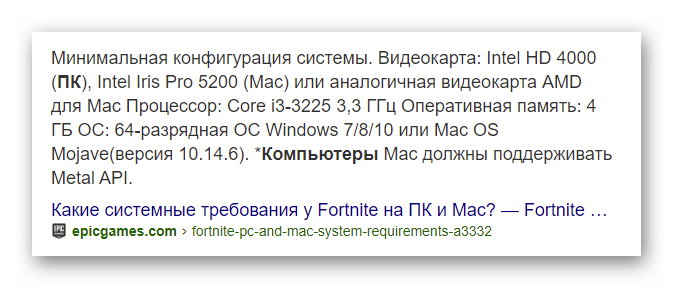
Например, популярная игра Fortnite пойдет только при условии, что на ПК стоит процессор i3, оперативки не менее 4 Гб, а видеокарта не ниже Intel HD 4000. Однако это минимальные требования. Нужно понимать, что тот же процессор бывает разных поколений. То есть i3, выпущенный 10-15 лет назад, будет заметно уступать современной версии. Поэтому лучше отталкиваться от рекомендуемых системных требований. Опять же, для Fortnite это означает, что нужен процессор i5, 8 Гб оперативки и видеокарта не ниже GTX 660 или Radeon HD 7870. Даже если чипы уже устаревшие, игра в этом случае все равно должна работать без сбоев и ошибок типа «Out of video memory trying to allocate a texture».
Читайте также: Не удалось запустить: Ошибка инициализации при запуске игры [135dec40:3fbbecd0:00000064:00000000].
Как посмотреть характеристики своего ПК
Сделать это очень просто:
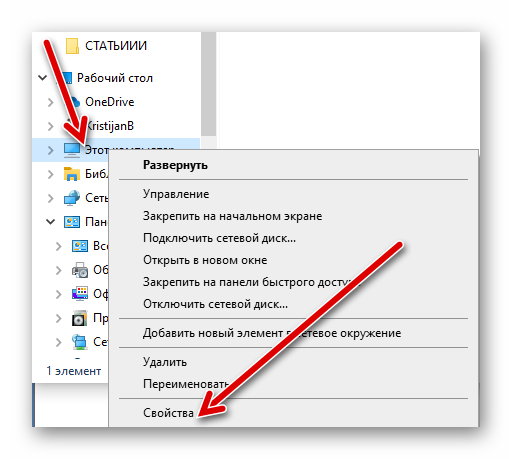
- Переходим в проводник.
- Нажимаем на «Этот компьютер» правой клавишей мыши.
- Выбираем свойства.
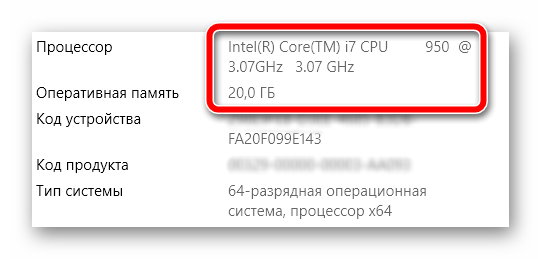
Тут представлена основная информация о процессоре, оперативке.
Чтобы уточнить, какая видеокарта у вас установлена, то проще всего:
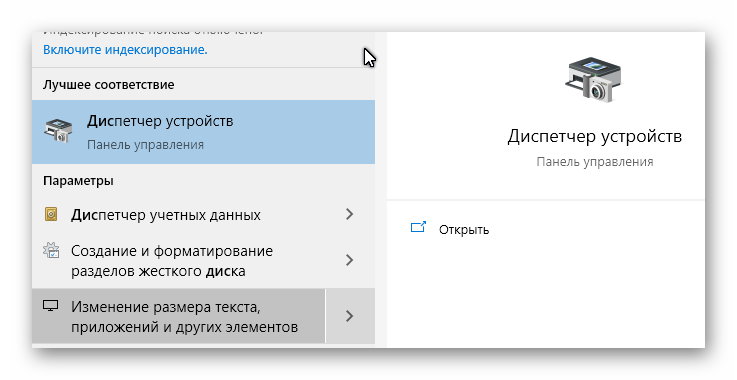
- Перейти в диспетчер устройств.
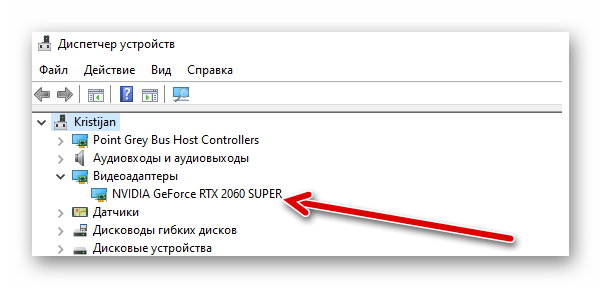
- Посмотреть, какая карта указана в списке в категории «Видеоадаптеры».
- Посмотреть в интернете более точные характеристики видеокарты.
Как проверить, что для загрузки текстур не хватает оперативной памяти
Обычно ошибка «Out of video memory trying to allocate a texture» возникает при переходе в игре в новую или иную локацию. В этот момент система должна использовать намного больше ресурсов. Тоже самое происходит при сетевых играх. Это объясняется тем, что при перемещении в локацию происходит подгрузка с игрового сервера. Это говорит о том, что ПК не достает внутренней памяти, чтобы прогрузить все необходимые объекты.
Полезно! Подобные проблемы обычно не возникают на 64-разрядных системах с ОЗУ не менее 8 Гб.
Соответственно, чтобы понять, в чем проблема, нужно вычислить необходимый объем файла подкачки. Сделать это очень просто:
- Одновременно зажимаем клавиши Ctrl, и Alt Delete.
- Выбираем «Диспетчер задач».
- Изучаем вкладку «Производительность», где отображается объем задействованной памяти.
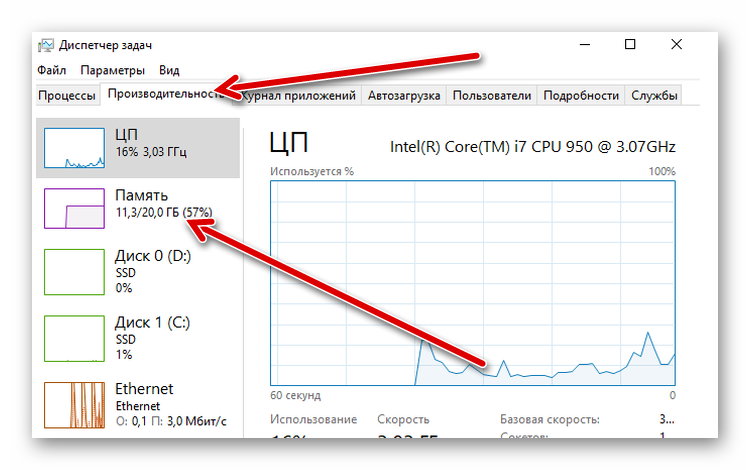
- Умножаем занятую память на 2. Допустим, если занято 2 Гб, значит получаем 4 Гб.
- Вычитаем из полученного значения общий объем памяти. Например, 4 Гб – 20 Гб = -16 Гб. Отрицательное значение говорит о том, что памяти достаточно и есть запас. Если вышел ноль, то объем памяти на грани. А если выходит положительное значение, например, 2 или 4 Гб, то это говорит о недостающем объеме.
Без необходимости увеличивать файл подкачки не стоит. Если же это необходимо, то нужно помнить, что его нельзя повышать более чем в 3 раза от общего объема памяти ПК. То есть, если у вас 4 Гб оперативки, то подкачку можно повысить не более, чем до 12 Гб.
Увеличиваем виртуальную память, чтобы системе хватало ресурсов для выделения текстур
Это старинный трюк, который позволяет разогнать ПК и решить часть проблем, связанных с недостающим объемом подкачки. Для такой манипуляции:
- Щелкаем по значку «Этот компьютер» и выбираем «Свойства».
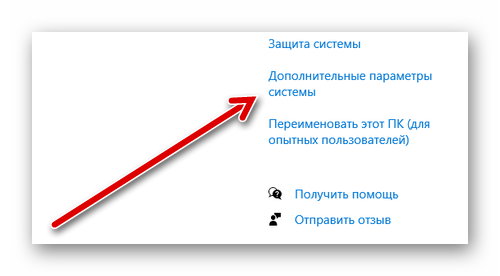
- Переходим в «Дополнительные параметры системы» (справа).
- Во вкладке «Дополнительно» находим «Быстродействие» и жмем на «Параметры».
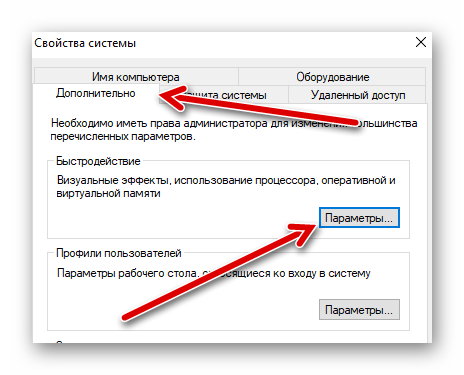
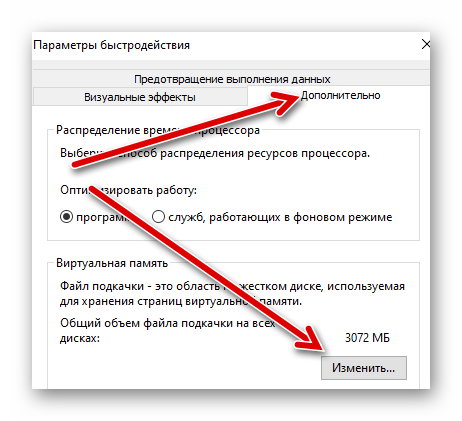
- Снова выбираем «Дополнительно» и в пункте «Виртуальная память» нажимаем «Изменить».
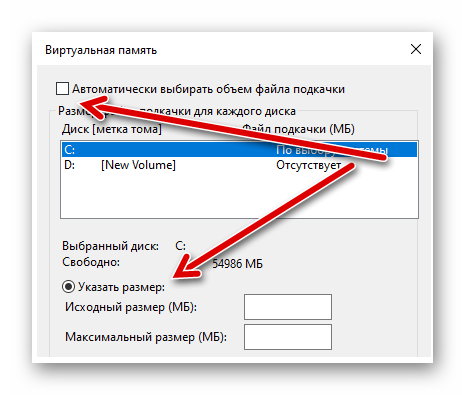
- Активируем строку «Указать размер» и в мегабайтах вписываем требуемое значение (но помним, что оно не должно превышать общего параметра более чем в три раза).
- Жмем «Задать», потом Ok.
Это позволит задать размер файла подкачки на Windows 10. Если у вас другая версия системы, то нужно зайти в свойства «Мой компьютер» и там выбрать «Свойства системы». После этого нужно также найти дополнительные параметры и выбрать в них «Быстродействие».
После этого нужно выполнить перезагрузку ПК и снова попробовать загрузить игру. Если ошибка с загрузкой текстур не исчезла, то пробуем другие решения.
Обновление драйверов для видеокарты для качественного отображения текстур
Видеокарта отвечает за все выводимые на монитор изображения, поэтому если глючит она, то будут постоянно происходить сбои. Чаще всего проблемы возникают, когда пользователь не хочет обновлять драйверы, не видит оповещения или установленные файлы содержат ошибку.
Чтобы обновить файлы видеокарты, необходимо:
- Перейти в диспетчер устройств.
- Найти в списке «Видеоадаптеры».
- Щелкнуть по названию видеокарты правой клавишей и выбрать «Обновить драйвер».
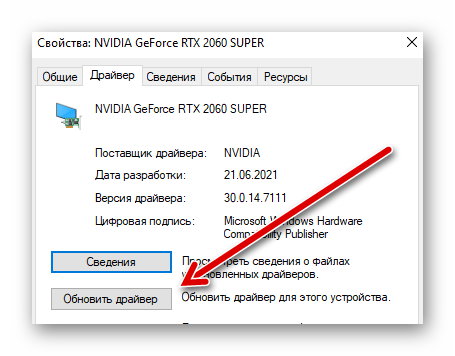
После этого система должна автоматически найти обновления. Если этого не произошло (с Windows 10 происходит крайне редко), то можно перейти на сайт разработчика видеоадаптера, выбрать модель чипа и загрузить драйверы вручную.
Также вам будет интересно: Ошибка Net::ERR_UNKNOWN_URL_SCHEME — как исправить?
Изменение настроек видеокарты для повышения производительности в играх
Подобное решение позволяет оптимизировать видеокарту и использовать все её ресурсы. Все зависит от конкретного производителя адаптера.
Настройка видеоадаптеров от Intel
Если в ваше ПК установлена такая карта, то:
- Переходим в «Панель управления».
- Находим Intel HD Graphics.
- Выбираем настройки 3D.
- Жмем «Сканировать», чтобы отобразился список игр и добавляем необходимую для адаптации.
- Нажимаем «Применить».
Как настроить видеокарту AMD
Для изменений настроек такого видеоадаптера достаточно перейти в панель управления и найти пункт с указанием AMD Radeon. Далее достаточно перейти в «Игры» и выбрать «Глобальные настройки».
Изменение параметров видеокарты NVIDIA
Для оптимизации такого видеоадаптера, необходимо:
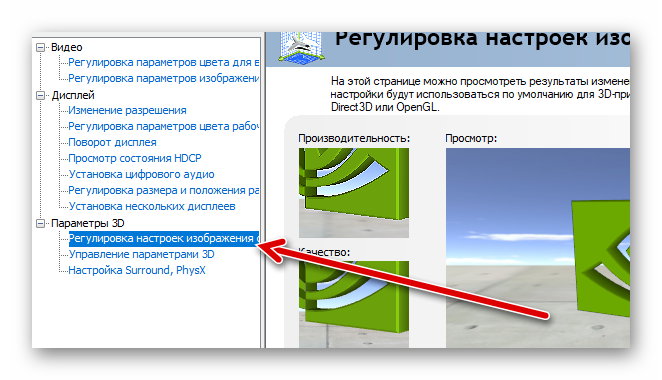
- Найти «Панель управления NVIDIA». Обычно она скрывается в скрытых значках. Для этого нужно нажать на иконку NVIDIA и выбрать нужный пункт.
- Нажать на «Регулировка настроек изображения».
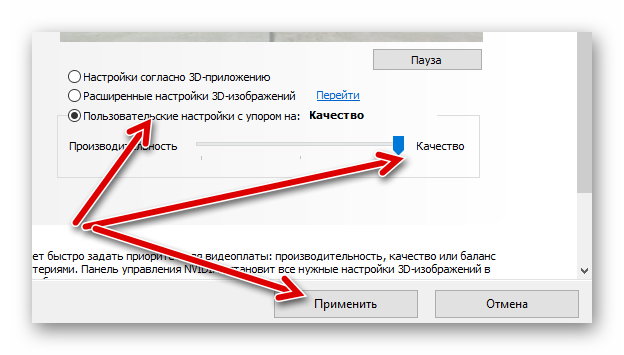
- Передвинуть ползунок до максимального качества (предварительно нужно отметить пункт «пользовательские настройки»).
- Нажать «Применить».
Если ни один из способов не помог, то нужно задуматься о приобретении дополнительной оперативной памяти (если её совсем мало), видеокарты (недешевое удовольствие) или опустить графические настройки игры на более низкие. Также стоит попробовать проверить, не вышел ли обновленный патч на игру.
Lots of game players have encountered “out of video memory trying to allocate a texture”. How to fix it? This post displays several quick fixes to this error. By the way, MiniTool Partition Wizard is a great tool for the hard drive upgrade.
A great number of game players have run into “out of video memory trying to allocate a texture”. How to get rid of this error? Scroll down to learn about the solutions.
Fix: Check If Your Computer Meet the Game’s System Requirements
When running into “out of video memory trying to allocate a texture”, you should check if your computer meets the game’s system requirements first.
To be used efficiently, all computer software needs certain hardware components or other software resources to be present on a computer. Most software defines two sets of system requirements: minimum and recommended.en.wikipedia.org
Since most players ran into “Fortnite out of memory”, here I take this game for example.
Fortnite’s minimum system requirements:
- OS: Windows 7/8/10 64-bit or Mac OS X Sierra.
- CPU: i3 2.4Ghz.
- RAM: 4 GB.
- Graphics Card: Intel HD 4000.
Fortnite’s recommended system requirements:
- OS: Windows 7/8/10 64-bit.
- CPU: i5 2.8Ghz.
- RAM: 8 GB.
- Graphics Card: Nvidia GTX 660 or AMD Radeon HD 7870 equivalent DX11 GPU.
- Video Memory: 2 GB VRAM.
Compare the above system requirements with your computer specifications. If you are not clear about your computer specs, refer to How to Check PC Full Specs Windows 10 in 5 Ways.
If your computer specs meet the game’s system requirements, please keep reading to figure out the culprit behind the error. If not, you should upgrade your computer by following the instructions in the article below.
Fix 2: Customize the Virtual Memory Size
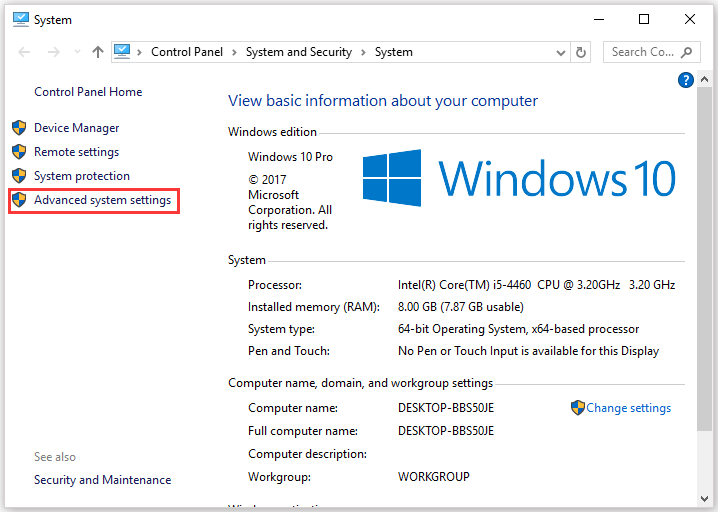
Step 1: Right-click This PC or something like on the desktop and then choose the Properties option.
Step 2: Click the Advanced system settings option on the System window.
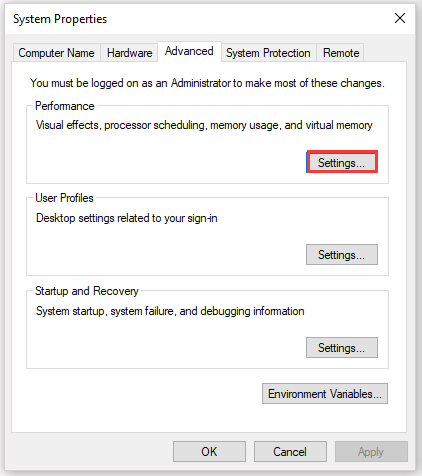
Step 3: On the System Properties window, click the Settings button in the Performance section.
Step 4: Switch to the Advanced tab and click the Change button in the Virtual memory section.
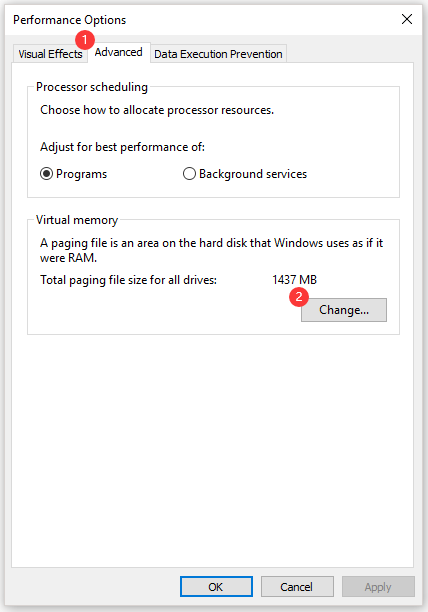
Change»/>
Step 5: Untick the Automatically manage paging file size for all drivers option and then select Custom size.
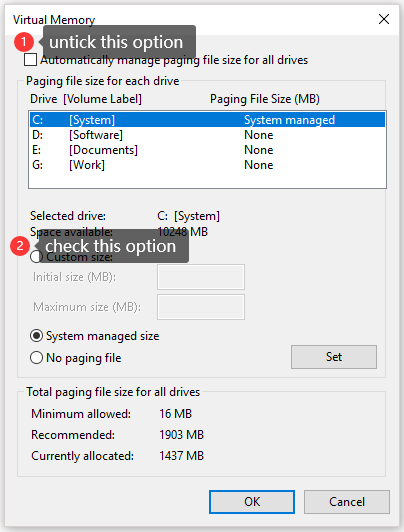
Step 6: Set the Initial size (MB) as 12000 and the Maximum size (MB) as 30000. After setting, click Set. Then, follow the on-screen instructions to restart your computer.
When your computer powers up again, launch the game and see if “out of video memory” persists.
Fix 3: Update the Graphics Driver
If the second way failed to work, please try updating the graphics driver.
Step 1: Right-click the Windows icon on the taskbar and then select Device Manager from the menu.
Step 2: Expand Display adapters and then right-click the listed graphics card to choose Properties.
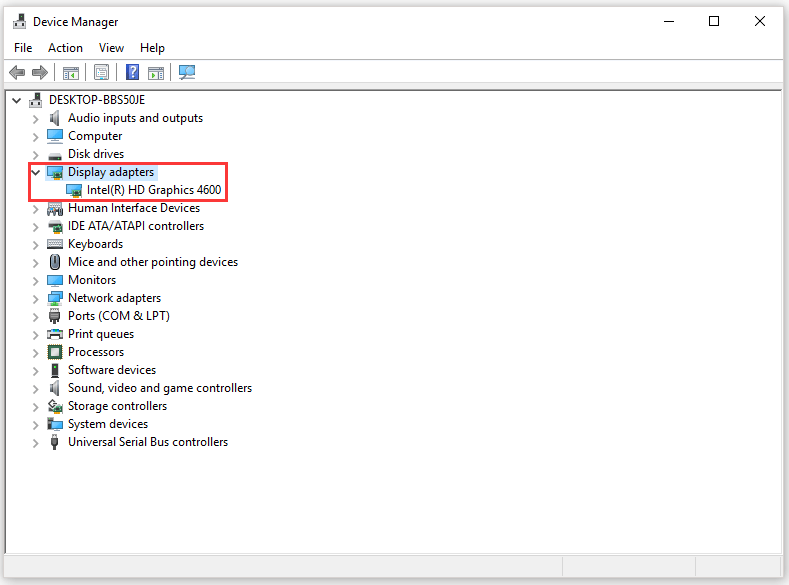
Step 3: Switch to the Driver tab and then click Update Driver.
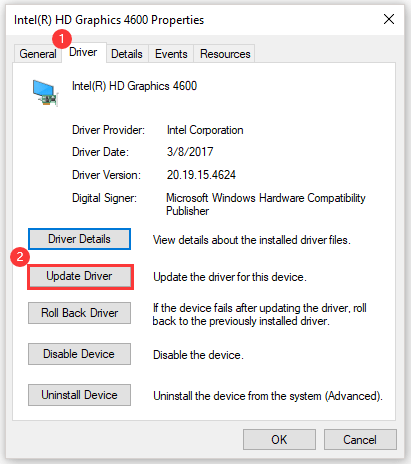
Step 4: Click Search automatically for updated driver software. Then, follow the on-screen instructions to complete updating the driver.
Of course, you can also use third-party software like Driver Easy Pro to detect problematical drivers, and then search, download, and install the latest driver version with just one click. Here is the guide:
Step 1: Install Driver Easy and launch it. Click the Scan Now button.

Step 2: After the scanning process is completed, click the Update All button to download and install the latest drivers for all devices with outdated drivers.
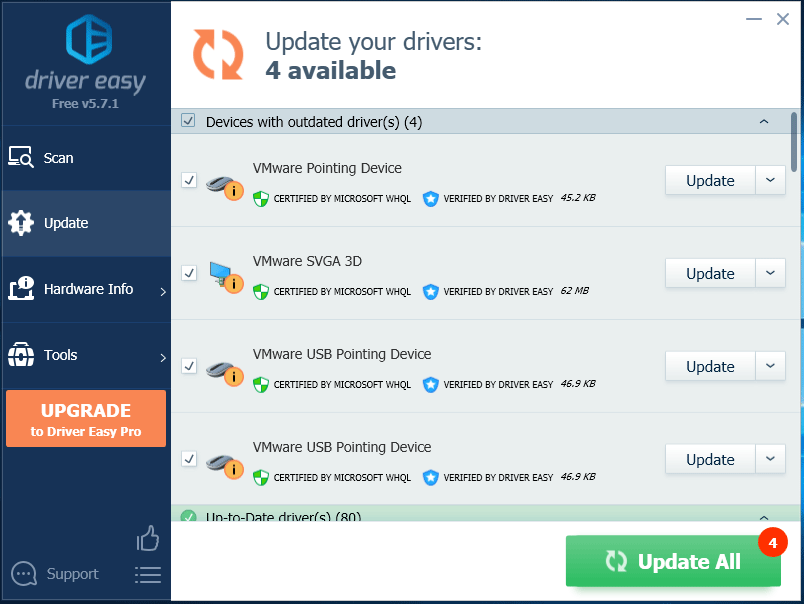
How to Update Device Drivers Windows 10 (2 Ways)
Fix 4: Modify the Graphics Card Settings
This part offers tutorials on how to modify Intel graphics card settings, AMD graphics card settings, and NVIDIA graphics card settings.
Modify Intel Graphics Card Settings
Step 1: Open Control Panel. On the Control Panel window, set the View by option as Large icons, and find Intel HD Graphics.
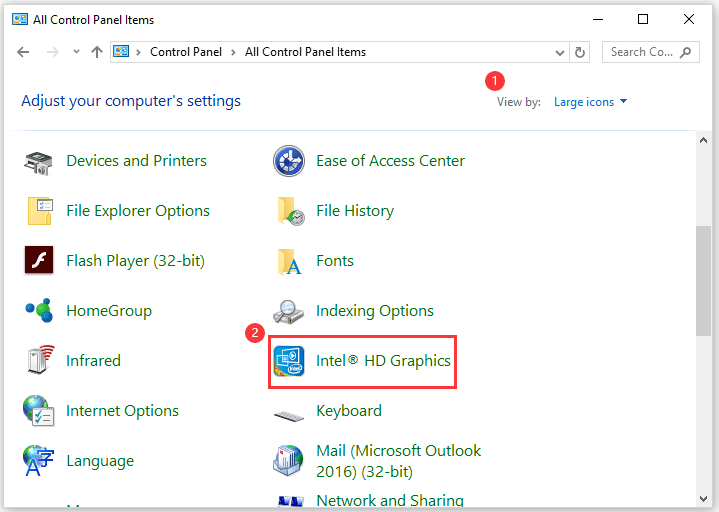
Step 2: Click the 3D option to open the 3D settings.
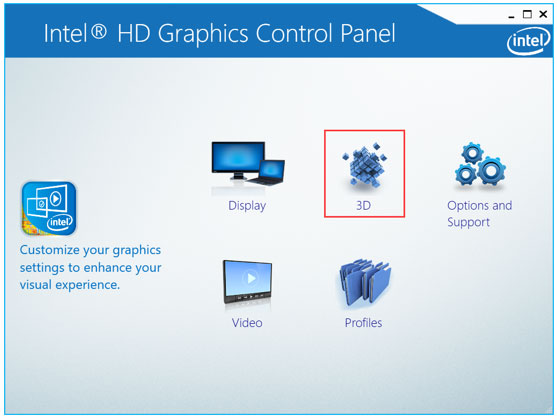
Step 3: Click Scan to add the game to the application list and then modify the settings the same way you see on the following image.
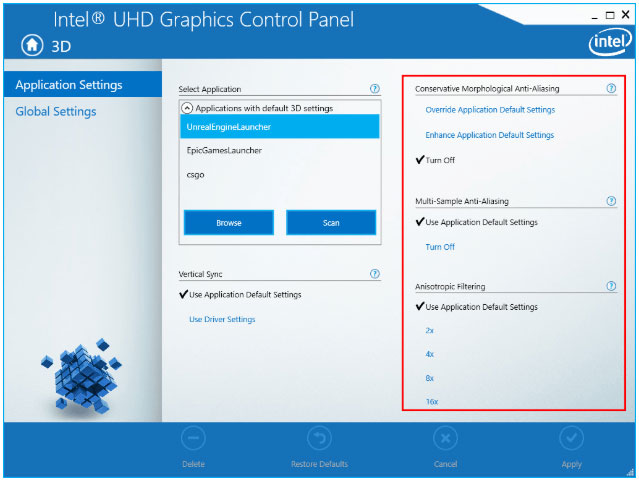
Step 4: Click the Apply button to save the changes.
Modify AMD Graphics Card Settings
Step 1: Find AMD Radeon Settings in the Control Panel window.
Step 2: Go to Gaming > Global Settings. Refer to the following screenshot to modify the settings.
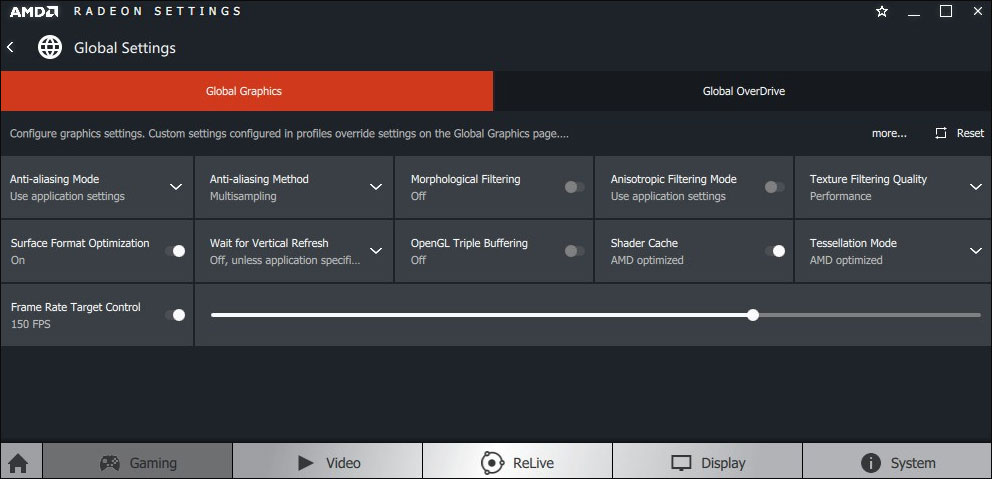
Modify NVIDIA Graphics Card Settings
Step 1: Find NVIDIA Control Panel on the Control Panel window.
Step 2: Click 3D Settings and select Adjust image settings with preview. After that, select Use my preference emphasizing and drag the slider to the left.
Fix 5: Check If There Is a Latest Game Patch
If all ways did not work, the last resort you can take is installing the latest game patch if there is one. Take Fortnite for example. The game developers release regular game patches to fix bugs. Therefore, it is possible that the latest patch may have fixed this error.
Step 1: Run the Epic Games Launcher.
Step 2: Click Library. Then, click the settings icon on the lower-right corner of Fortnite.
Step 3: Turn on the toggle next to Auto update. Then, restart the Epic Games Launcher.
If there is a patch, it will be detected by the Epic Games Launcher and the latest patch will be automatically downloaded and installed when you launch Fortnite.
The out of video memory error is a common one on computers. This text describes how to fix it and what causes the problem in detail.
The “out of video memory trying to allocate a texture valorant” is an issue that can occur on a computer with low system resources. This article will give you the steps to fix this issue.

To function correctly, modern games require a large amount of computer resources. By far, while playing a resource-intensive game, your computer’s CPU, GPU, and RAM are put to the ultimate test.
If the game you’re playing has sophisticated or state-of-the-art graphics, your computer may run out of video memory while attempting to run it and display all of the graphical components. All of the graphic components or skins that the game developers applied to 3D models and surroundings are referred to as textures.
That is precisely the subject of this tutorial. We discovered a few potential solutions for dealing with out of memory issues when gaming.
Fix #1: Boost Virtual Memory
- Select the Search box.
- Advanced system settings are entered here.
- Select View Advanced System Settings from the drop-down menu.
- Click the Settings button under Performance in the System Properties box.

- Select Advanced from the Performance Options box.
- Select the option to adjust program performance for the best results.
- Change may be seen under Virtual Memory.

- Uncheck the box. Manage the paging size for all drives automatically.
- Go to Custom Size and type 12000 in the Initial Size box.
- Enter 30000 as the maximum size and press the Set button.

- You will be prompted to restart your computer via a pop-up window.
- To make the modifications take effect, restart your computer.
- Start your game once you’ve rebooted your PC.
Fix 2: Update your GPU drivers.
- Nvidia GeForce Experience is now open.
- Select the Drivers tab.
- Select the Custom installation option.
- Allow the program to alter your computer.
- To obtain the most recent drivers, click the Install option.
- If you are unable to locate any drivers, you may manually get them from Nvidia’s website.
If your machine is powered by AMD hardware, you can get the newest drivers from AMD’s support website.
Fix 3: Reduce the texture quality.
If your computer is old and running the newest games puts a lot of pressure on it, you may reduce the texture quality in the game settings. This consumes the vast bulk of your computer’s video RAM.
Keep in mind that your game will look terrible if you do this. However, if your video card can’t keep up with the game’s high graphics settings, this is a useful workaround. Lowering your graphics settings and shadows should make the game playable again, but the visual quality will suffer as a result.
Fix 4 – Exit any other applications that are running in the background.
If you have any other applications open that are consuming a lot of RAM, be sure to shut them all before relaunching your game. In fact, we recommend that you close any applications, programs, and processes that aren’t connected to your game and aren’t required by your operating system. You may accomplish this using Task Manager or by restarting your computer completely.
Using all of the tips in this article should help you avoid making out-of-memory mistakes when playing video games.
When a game is running out of video memory, the game might crash or freeze. One way to fix this issue is by turning off the “Use High Resolution Texture Pack” option in the Graphics Settings. Reference: how to fix out of video memory.
Frequently Asked Questions
What happens if you run out of video memory?
A: If your PS4 runs out of memory, the following happens. All audio and video files stored in the consoles hard drive will be deleted by default to free up space for newer information. This can cause serious data loss if you have a lot of custom songs or videos saved on it as well as unplayable game crashes.
How do I free up video memory?
A: To free up video memory on your PS4, you would need to delete games that are in the process of downloading or have already downloaded.
How do I fix fortnite out of video memory?
A: Fortnite is just one of the many games that can lead to a game out of video memory. In order for this bug not to happen, there are some things you need do in order to get rid of it. Some fixes include enabling Full Screen Mode, turning off V-Sync or if your PC has an iGPU, try turning on Gsync instead which will help with frame rates and prevent these issues from happening.
- unreal engine out of video memory trying to allocate a texture
- out of video memory trying to allocate a texture make sure your video card
- out of video memory trying to allocate a texture icarus
- out of video memory trying to allocate a rendering resource xbox
- out of video memory error

Hi, I’m Steven. I run this Blog myself and I’ve been in the electronics industry for a while so I know my stuff. The guides on this website are well researched and I also have experience with most of them. Do comment if you think some information is not correct on a particular page.
Modern games require a lot of computer resources to run properly. By far, when running a resource-demanding game, your computer’s CPU, GPU and memory are the elements that are really put to the test.
If the game you’re running uses advanced or state-of-the-art graphics, your machine may run out of video memory trying to run it and render all the graphics elements packed into it. The textures are all the visual elements or skins that the game developers added on 3D models and environments.
And that’s exactly the topic of this guide. We found a few possible fixes for solving out of memory errors while gaming.
Fix 1 – Increase Virtual Memory
- Click on the Search box
- Type advanced system settings
- Click on View Advanced System Settings
- In the System Properties window, under Performance, click on the Settings button
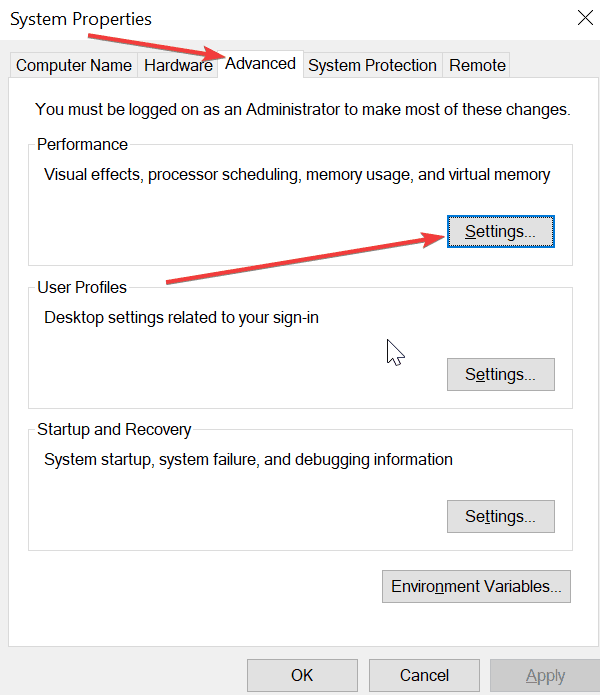
- In the Performance Options window, click on Advanced
- Check the Adjust for best performance of programs option
- Under Virtual Memory, click on Change
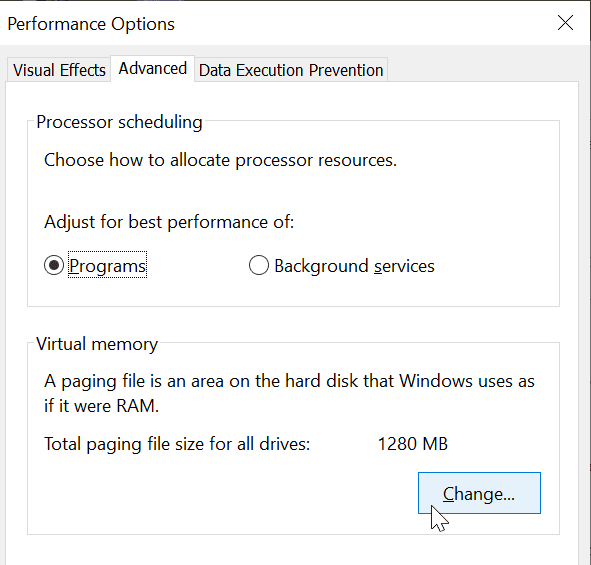
- Uncheck the option Automatically Manage paging size for all drives
- Go to Custom size and in Initial Size, enter 12000
- For the maximum size, enter 30000 and hit the Set button
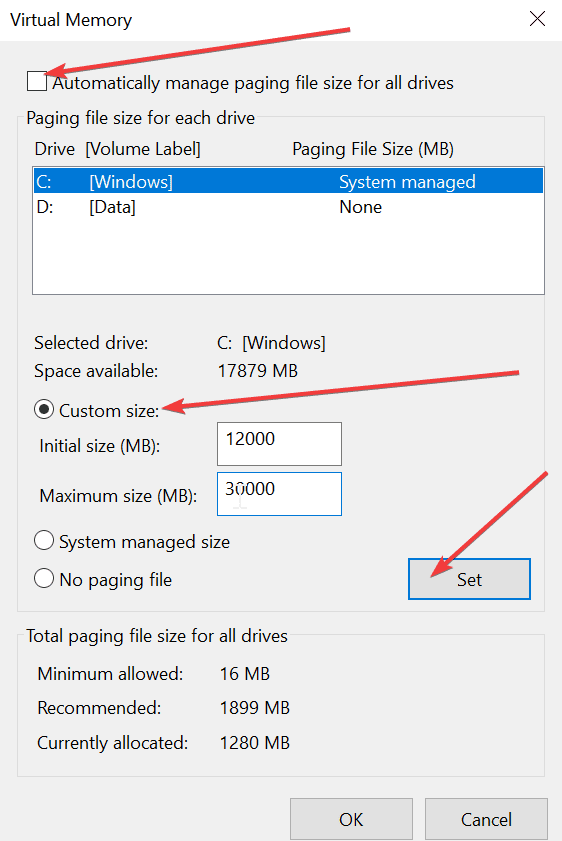
- A pop-up window will prompt you to restart your computer
- Go ahead and reboot your computer for the changes to take effect
- Once you restarted your computer, launch your game.
Fix 2 – Get the latest GPU drivers
- Open Nvidia GeForce Experience
- Click on the Drivers tab
- Select Custom installation
- Let the app make changes to your computer
- Hit the Install button to get the latest drivers
- If you could not find any drivers, you can manually download them directly from Nvidia’s website.
If your computer is powered by AMD hardware, go to AMD’s support page to download the latest drivers.
Fix 3 – Lower texture quality
If your computer is a bit old and running the latest games puts a heavy strain on it, you could try lowering your texture quality from the game settings. This take up the majority of your machines video memory.
Keep in mind that by doing this, you game will look awful. But that’s a handy workaround if your video card can’t keep up with the game running on high graphics settings. Lowering your graphics settings and shadows should make the game playable but, one again, this will affect the visual quality.
Fix 4 – Close all the other programs running in the background
If there are other programs running that are using lots of RAM power, make sure to close all of them and launch your game again. As a matter of fact, we suggest closing all the apps, programs and processes that are not related to your game and are not essential to your OS. You can do that using Task Manager or by clean booting your computer.
Using all the suggestions in this guide should help you get rid of out of memory errors while playing games.
Как устранить эту ошибку Out of video memory trying to allocate a rendering resource. Make sure your video card has minimum required memory, try lowering the resolution and or closing other applications that are running. Exiting…
Вообщем появляется такая ошибка, говорю что она значит если перевести на русский:
Отображение ресурса пытается выделится из видео памяти. Вы должны убедится что ваша видеокарта имеет нужный объем памяти для этого, попытайтесь понизить разрешение, или закройте другие программы которые могут нагружать систему. Выход…
39452 просмотра
больше 5 лет назад
 Error
Error
6 ответов
 0
0


Пасаны, была такая проблема, решил включением службы sysmain. Кто не знает, откройте диспетчер задач, там найдите службы и включите sysmain. Я его как то отключил и забыл, вот хорошо что вспомнил. Мне помогло, надеюсь вам тоже
Ответ дан
7 мес. назад
0
В диспечере задач нужно убрать все задачи , которые употребляют «память» (пкм по панели задач — диспечер задач) . Потом заходишь в игру и , если есть ошибка , то смотри другие комменты или меняй видеокарту, а если ей нет , то быстро ставишь минимсальные настройки и играешь с ними. мне помогло
Ответ дан
год назад
0

Мне кажется в вашем случае можно просто сделать откат Windows на то время как все было нормально. Самого меня эта функция очень часто спасала и предотвращала большие проблемы, когда дело доходило чуть ли не до переустановки операционной системы.
Если что не волнуйтесь, вашиперсональные файлы и данные не будут никак затронуты, а процесс отката повлияет лишь на систему и её документы. И да, когда вы будете делать откат, автоматически создастся образ ОС и вы всегда сможете вернутся на сегодняшний день. Пробуйте.
Ответ дан
больше 5 лет назад
0

Тогда здесь понятно в чём дело. У вас не полностью удалилась та программа из-за которой появилась эта ошибка, такое бывает особенно с софтом который предназначен для нетипичных целей. Вообщем смотрите, скачиваете программу CCleaner с интернета, она бесплатна. Запускаете её, и производите чистку компьютера. И обязательно выберите Реестр системы когда будете начинать очистку.
После этого всего следы той программы должны будут стереться, и игры возможно запустятся. Если это не поможет, не волнуйтесь я предложу ещё несколько способов, думаю за сегодня мы вместе справимся.
Ответ дан
больше 5 лет назад
0

Я играю в игры через Steam, и такая штука у меня на каждой игре появляется, а также сбрасывает на рабочий стол. А на пиратских игр у меня просто дико тормозит и плавает игра. Дело в том я скачал программу Action! для видеосъемки игрушек, и после нее у меня начался весь этот хаос. Программу я удалил, но от этого легче не стало.
Ответ дан
больше 5 лет назад
0

Добрый день дорогой участник нашего портала. Я бы хотел бы узнать в какой именно игре происходит эта ошибка, потому что как вы сами понимаете она может возникать при запуске определенных задач или приложений, по этому для того чтобы выяснить из-за чего она происходит нужно знать это.
Назовите игру или прикрепите скриншот чтобы я смог сделать подробный разбор, и прислать вам нужные инструкции которые помогут справится с этой бедой. Буду ожидать вашего ответа, не волнуйтесь я думаю за сегодня мы это исправим!
Ответ дан
больше 5 лет назад
0
#privet ya top Gamer in the World
Введите ваш ответ


Символов нужно 2
Out of video memory error — is it really a GPU issue?
-
Thread starterNietz
-
Start dateApr 24, 2017
-
#1
Long time reader but first time poster here. I’ve been having some issues lately when I am gaming (usually with more demanding games such as gtav, pub, bf1 etc) in which a couple errors pops up and the game closes. The two errors that shows up are: «Close programs to prevent information loss. Your computer is low on memory. Save your files and close these programs» and «out of video memory trying to allocate a texture! Make sure your video card has the minimum required memory, try lowering the resolution and/or closing other applications that are running. Exiting…».
Here’s a pic with both errors at the same time (sorry about first being in a different language):

Pic also shows memory usage at that moment and the gpu-z sensors. Here’s an example of gpu-z log during a crash (just the relevant part): https://pastebin.com/Lj2znQtL
As you can see, RAM usage doesn’t reach 100% and VRAM usage stays around 3~3.5mb (less than half of the 8GB of the 1070).
My system specs are: Windows 10 pro 64 bits, I7 3770K, DZ77GA-70K, 12GB RAM, GEFORCE GTX 1070 (the G1 Gigabyte one). GPU driver is updated.
I’ve been searching about this issue for a few days now and couldn’t find anything conclusive. If I open the game in low graphics without second monitor or other stuff the game runs just fine. In theory my specs should manage to play the game (mostly in low~medium graphics) and have some other stuff going on (like teamspeak, chrome, maybe a twitch channel in second monitor).
Some people said it could be a RAM or even an HDD even when the error said video memory, hence why I am completely lost and can’t figure the cause. Is this a GPU malfunction?
Sorry about such a generic question. Any sort of help is appreciated.
Last edited: Apr 25, 2017

-
#2
-
#3
If I understood correctly, it can be simply a RAM issue and not necessarily the GPU?
Also, the driver is updated (381.65) and the problem happens in more than one game (not just in a specific one). It has also happened while rendering a video.
Edit. Windows memory diagnostic hasn’t found any error.
Edit2. memtest86 also shows no errors:
2017-04-25 17:45:29 — MtSupportRunAllTests — Test execution time: 451.526 (Test 13 cumulative error count: 0)
2017-04-25 17:45:29 — Finished pass #4 (of 4) (Cumulative error count: 0)
Last edited: Apr 25, 2017
-
#4
One other thing you can do is right click on the taskbar and start the task manager. Look at the processes when you get that error. Find the process that is taking a big chunk of your memory, terminate it, restart your game(s) and see if that fixes the problem. Your original post mentioned you use Chrome. In my opinion it is kinda of a memory hog for a browser. It’s what uses the most memory on my computer, but I don’t render or game right now.
Last edited: Apr 25, 2017
-
#5
Could this still be RAM related even when memtest86 didn’t show any error? Could this, by any chance, be CPU related?
Last edited: Apr 26, 2017

-
- May 11, 2008
-
- 18,358
-
- 842
-
- 126
-
#6
So… I decided to swap GPUs and see how the PC performed. I took out my 1070 and put a much weaker 660ti. The 660ti also gave the same error.Could this still be RAM related even when memtest86 didn’t show any error? Could this, by any chance, be CPU related?
Try while the game is running but before it crashes with a out of memory error, a ctr+ alt + del. Then see in the task manager how much memory is used. Maybe you will notice something odd with a program using large amounts of ram. A program with a memory leak is not uncommon. A program with a memory leak means that the program is requesting memory from the os, but when the program is done using the memory, it does not free it, meaning giving it back to the os for other use. If the program does this constantly, the os is constantly appointing memory to the program until the hardware limit (which is 12GB) is reached. Also, do not forget several programs are using memory so, you are not looking for a program using 12GB. But it will be the largerst amount of memory in use.
You could also use process explorer.
https://technet.microsoft.com/en-us/sysinternals/processexplorer.aspx
Also, check the services for memory use.
-
#7
- Advertising
- Cookies Policies
- Privacy
- Term & Conditions
- About us
-
This site uses cookies to help personalise content, tailor your experience and to keep you logged in if you register.
By continuing to use this site, you are consenting to our use of cookies.

Кто смог решить вылет игры с ошибкой «ran out of video memory»
такая ошибка появляется где, то минут через 20-30, причем на забугорных форумах тоже пишут про данную ошибку.
комп не тормоз i7, Ram 8 gb, Гигабайт Geforce GTX 560 1 gb, win 7
Nairon
Та же проблема — спрашивал в стимкомьюнити, но и там не нашел решения. Может попробовать переустановить?
та же проблема. первый день играл норм без вылетов, на второй день уже вылетала эта ошибка
Путем экспериментов, нашел 1 способ, заходим в Control-Panel Nvidia (что в трее торчит), заходим в Параметры 3D, выбираем пункт Установка конфигурации PhysX и меняем обработку графики с автоматического выбора на графический чип видеокарты. У меня перестало вылетать, может кому поможет 🙂
Nairon
спасибо, я попробую сегодня вечерком сыграть, потом отпишусь)

Спасибо, всё пробовал винду просто так и на 32 битную ничего не помогало, вылетает хоть ты тресни на на 64 битной просто лагало жутко, комп мощный всё номально летает. Отпишусь как протестю.
Спасибо большое, помогло ни лагов ни вылетов, очень благодарен)
где найти эту понель Н-видиа?
Данная панель будет только у видеокарт Geforce Nvidia, щелкай правой кнопкой по экрану и она будет в менюшке 🙂
Интересно… Я пользователь Ati Radeon 3800HD (1gb)…
Предлагаете открыть Cataclism Controler?
Про карты Ати хрен знает … не пользовался 🙂
Nairon
Вот хреново… ошибка та же, а подсказать никто не может =(

Нужно попробовать способ. У меня кстати в другом прикол, всё норм идёт на 306. драйверах Нвидия. но если поставить 310 игра виснет минут через 5-10 🙂
Shimuto
В чем прикол ? В установке бета драйверов?
AMRubin
бета драйвера норм всегда были. Тут дело даже в том что на драйверах Сертифицированных (не бета) 306.23 игра идёт норм, но на следующих 306.97 физикс начинает лагать и вылетать игра.

такая же проблема, и предложенный способ не прокатит — у меня и так уже давно стоит эта опция! ща попробуем дрова обновить…
UPD: обновил, проблема не исчезла, но перестала быть такой острой + фпс вроде как несколько повысился.

Была проблема с GTX660от palit оказывается,те 2 гига ,что на карте берется из системной памяти,интегрированная dx.diag пишет.Поменял от MSI GTX660-ti проблема исчезла.физикс требует не менее 2 гигов памяти,у меня 4 гига -свободно 2.99-1 под резерв системы,остаеться1.6-1.7гига,при всех отключенных процессах .Вот и думайте …пора переходить на 64-разрядную систему.