На чтение 9 мин. Просмотров 23.4k. Опубликовано 03.09.2019
Если вы пытаетесь подключить принтер HP к ПК с Windows в первый раз или после чистой установки, вам необходимо сначала установить драйвер принтера HP, чтобы начать процесс печати.
Как и большинство периферийных устройств, принтеру HP также необходимо сначала установить соответствующие драйверы.
Иногда драйверы могут автоматически устанавливаться автоматически после подключения принтера через USB-кабель, в противном случае вам может понадобиться загрузить этот конкретный драйвер принтера и установить его вручную.
В обеих ситуациях процесс установки принтера HP прост и не займет более нескольких минут.
Однако для некоторых пользователей все может быть сложно. Некоторые пользователи сообщают, что при установке драйверов принтера HP на ПК с Windows появляется неустранимая ошибка.
Обычно это происходит, если компьютер не может обнаружить драйвер принтера. Есть несколько способов исправить эту ошибку и заставить ваш принтер снова работать.
В этой статье я перечислил все возможные проблемы с неустранимыми ошибками принтера HP и несколько быстрых способов их устранения.
- Также читайте: Microsoft тайно добавляет виртуальный принтер в OneNote
Некоторые из распространенных ошибок драйвера принтера HP:
- Фата ошибка. Хорошо
- Ошибка Произошла неустранимая ошибка, препятствующая использованию продукта
- Драйверы для этого устройства не установлены (код 28). Чтобы переустановить драйверы, нажмите Переустановить драйвер
- Фатальная ошибка 2753 – MSI.dot4wrp
Содержание
- Как я могу исправить фатальные ошибки драйвера принтера HP в Windows 10?
- Решение 1. Отключите HP Smart Install
- Решение 2. Запустите средство устранения неполадок Windows
- Решение 3. Отключите и снова подключите принтер
- Решение 4. Извлеките принтер из панели управления.
- Решение 5. Остановите службу диспетчера очереди печати
- Решение 6. Установите драйвер принтера вручную из диспетчера устройств
- Решение 7. Установите принтер с помощью драйвера принтера Windows
- Решение 8. Загрузите 32-разрядный установщик для 32-разрядной и 64-разрядной версий Windows
- Решение 9. Обратитесь в службу поддержки HP
- Решение 10. Восстановите систему до более ранней точки
- Заключение
Как я могу исправить фатальные ошибки драйвера принтера HP в Windows 10?
Решение 1. Отключите HP Smart Install
HP Smart Install – это программное приложение, которое поставляется в комплекте с принтерами HP. Хотя HP больше не поддерживает это программное обеспечение, если оно установлено на любом компьютере, оно может создавать проблемы с установкой драйвера.
Таким образом, если вы столкнулись с фатальной ошибкой при установке драйвера принтера HP, отключение опции HP Smart Install решит проблему. Выполните следующие действия, чтобы отключить HP Smart Install.
- На экране принтера перейдите в Настройка> Сервис.
- Откройте HP Smart Install и убедитесь, что эта функция отключена.
- Теперь попробуйте установить драйвер и посмотреть, если отключение функции решило ошибку.
Решение 2. Запустите средство устранения неполадок Windows
Windows 10 имеет встроенное средство устранения неполадок, которое помогает пользователям в случае, если что-то перестает работать. Средство устранения неполадок может найти и исправить многие распространенные проблемы с вашим ПК.
Чтобы устранить неполадки вашего принтера, выполните следующие действия.
- Откройте Настройки . Нажмите Обновление и безопасность.
-
Откройте вкладку Устранение неполадок . В разделе Начать работу выберите « Принтер ». Нажмите кнопку Запустить средство устранения неполадок , чтобы продолжить.

- Средство устранения неполадок запускает диагностическую проверку всех распространенных проблем, которые могут повлиять на работу принтера, таких как функция принтера Spooler и т. Д.
- Если он найден, он попросит вас применить рекомендуемые настройки для решения проблемы.
Если проблема не устранена, закройте средство устранения неполадок и перейдите к следующим шагам.
- Также читайте: 6 лучших программ для управления принтером для оптимизации производительности
Решение 3. Отключите и снова подключите принтер
Иногда простые решения, такие как отключение и повторное подключение принтера, могут решить эту проблему.
Итак, выключите принтер и отсоедините от компьютера. Подождите несколько секунд и снова подключите принтер, но на этот раз используйте другой порт USB. Иногда USB-порт также может вызывать досадные ошибки.
Решение 4. Извлеките принтер из панели управления.
Следующее решение – удалить любой из перечисленных принтеров из панели управления. Вам также необходимо удалить все драйверы для принтеров, которые могли быть установлены на вашем компьютере. Вот как это сделать.
- Откройте Панель управления . Если вы не знаете, как это сделать, просто введите «Панель управления» на панели «Кортана/поиск» и выберите ее из результатов.
-
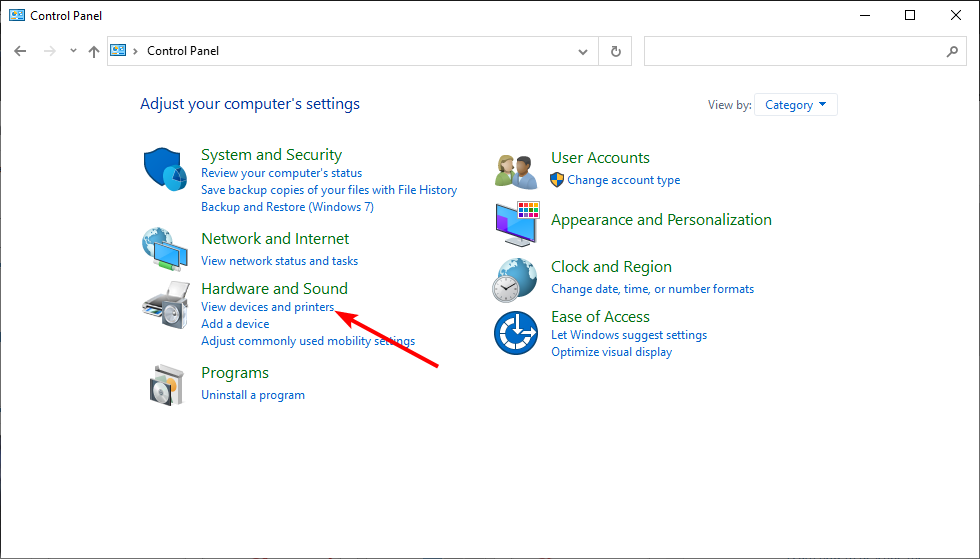
В разделе Оборудование и звук нажмите Просмотр устройств и принтеров.

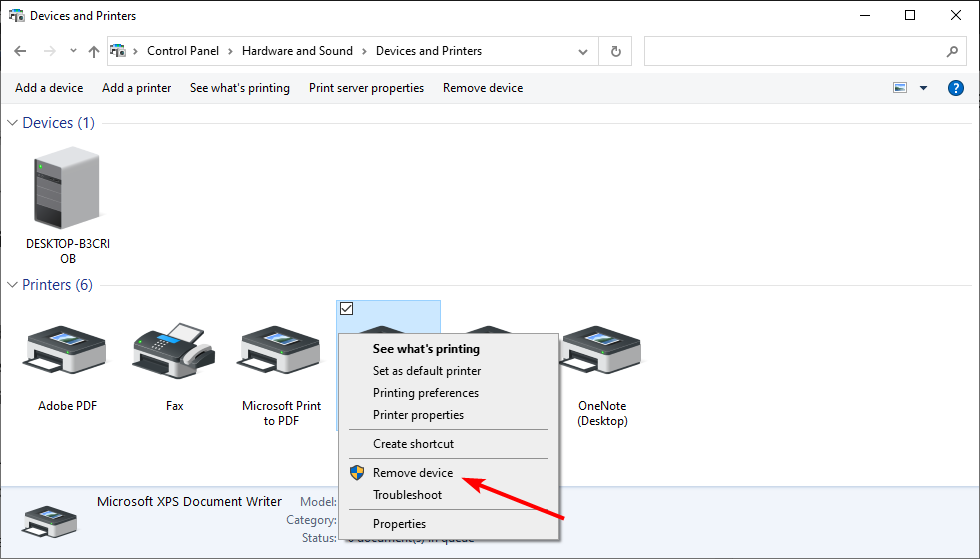
- Выберите любой из перечисленных принтер HP и нажмите Удалить устройство.
-
Перезагрузите компьютер, как только он будет удален.

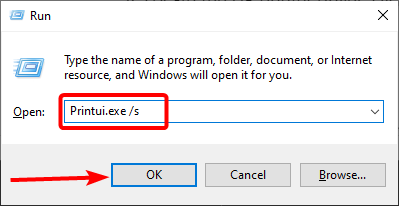
- Нажмите Windows Key + R , введите следующую команду и нажмите ОК. Printui.exe/s
-
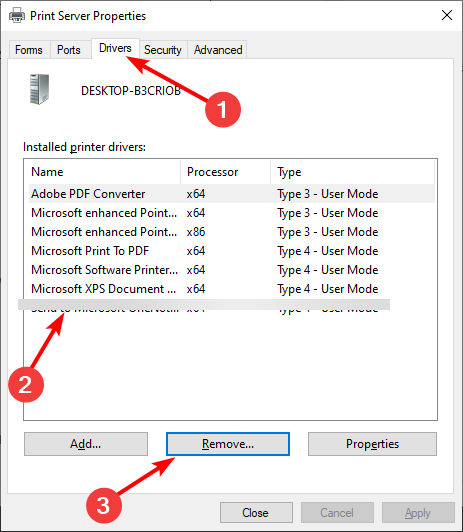
Откроется окно Свойства сервера печати .Нажмите на вкладку Драйверы, выберите любой из перечисленных принтеров HP и нажмите кнопку Удалить .

- Выберите вариант Удалить драйвер и пакет драйверов и нажмите ОК .
Попробуйте установить драйвер еще раз, чтобы увидеть, если проблема решена. Если нет, перезагрузите компьютер и попробуйте снова.
- Также прочитайте: что делать, если драйвер принтера для Windows 10 недоступен
Решение 5. Остановите службу диспетчера очереди печати
Другое решение для исправления неустранимой ошибки при установке принтера HP – остановка службы диспетчера очереди печати из окна «Службы». После этого вам необходимо удалить все файлы в папке Spool. Вот как это сделать.
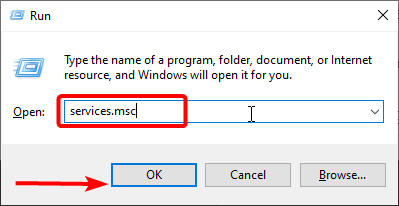
- Откройте диалоговое окно «Выполнить», нажав клавишу Windows + R . Введите «services.msc » и нажмите ввод.
-
Откроется окно Службы . Найдите Диспетчер очереди печати в списке.

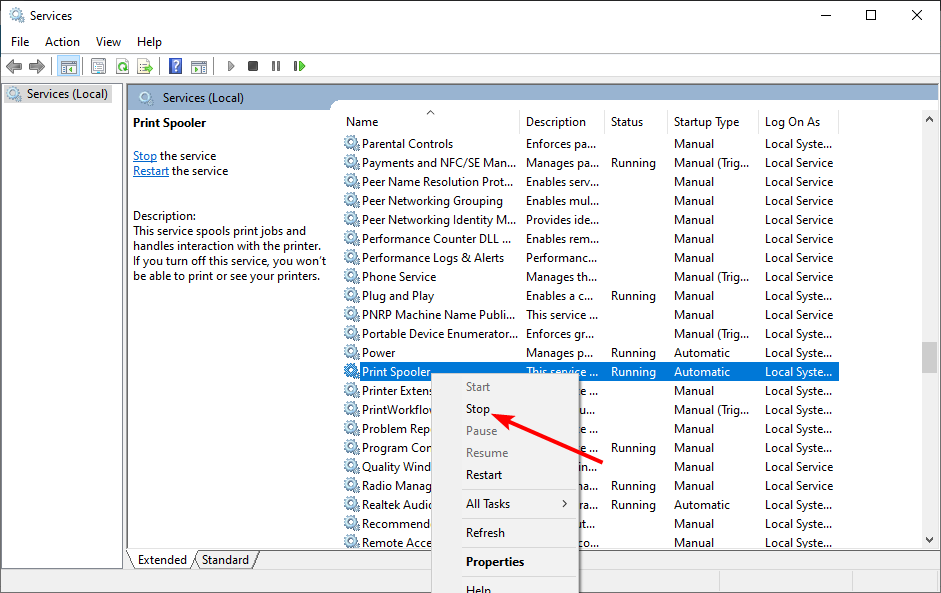
- Нажмите правой кнопкой мыши на Диспетчер очереди печати и выберите Стоп . Закрыть окно служб.
- Снова откройте диалоговое окно «Выполнить», введите Буфер и нажмите Enter.
- Удалить все в этой папке. Если будет запрошено разрешение администратора, нажмите ОК .
- Снова откройте окно «Службы» с помощью диалогового окна «Запуск» и запустите службу Диспетчер очереди печати . Нажмите правой кнопкой мыши и выберите Пуск.
Перезапустите установочный пакет драйвера и проверьте наличие улучшений.
- Также прочитайте: что делать, если на вашем компьютере не работает служба очереди печати
Решение 6. Установите драйвер принтера вручную из диспетчера устройств
Диспетчер устройств позволяет отключить/включить и установить/удалить драйверы для любого оборудования, подключенного к вашему компьютеру.
Таким образом, если у вас возникают проблемы при установке драйверов принтера HP, вы можете попробовать установить их вручную.
Когда компьютер попросит вас подключить USB-кабель во время установки, выполните следующие действия.
- На панели Cortana/search введите Диспетчер устройств и откройте его.
- Нажмите Просмотр и выберите Показать скрытые устройства сверху.
-
Найдите параметр Очереди печати и разверните его, нажав значок >/+ .

- Нажмите “ HP Universal Printing ” правой кнопкой мыши и выберите “ Обновить драйвер. ”
-
В новом диалоговом окне у вас есть два варианта. Выберите « Обозреватель моего компьютера для программного обеспечения драйвера. »

-
Выберите « Позвольте мне выбрать из списка доступных драйверов на моем компьютере. ». Откроется окно мастера установки принтера.

- Затем выберите драйвер принтера из списка и нажмите Далее. Дождитесь завершения установки драйвера.
- После установки закройте диспетчер устройств.
Перезагрузите компьютер и убедитесь, что установка драйвера принтера вручную устранила фатальную ошибку, и вы можете использовать принтер.
- Также читайте: Как заблокировать Anatova Ransomware на ПК с Windows 10
Решение 7. Установите принтер с помощью драйвера принтера Windows
Windows 10 поставляется с общими драйверами для большого количества оборудования, включая дисплей и принтеры. Если вам не удается установить официальные драйверы принтера HP, попробуйте установить принтер с использованием драйверов по умолчанию.
Вот как это сделать. Начните с подключения вашего принтера к компьютеру. Существует несколько способов подключения любого принтера, включая USB-соединение, беспроводное соединение через Wi-Fi и проводное соединение с вашей сетью.
- На панели Cortana/Search введите Добавить принтер и откройте Добавить принтер или сканер .
- Снова нажмите кнопку Добавить принтер или сканер в разделе Настройки и следуйте инструкциям на экране для установки драйвера принтера.
Теперь напечатайте как образец документа, чтобы проверить, успешно ли установлен драйвер принтера.
- Также читайте: 5 лучших беспроводных принтеров, совместимых с Windows 10
Решение 8. Загрузите 32-разрядный установщик для 32-разрядной и 64-разрядной версий Windows
Если вы используете 64-разрядную версию Windows и сталкиваетесь с фатальной ошибкой, попробуйте вместо этого использовать 32-разрядную версию.
Некоторые пользователи сообщают, что 32-разрядный драйвер принтера HP работает без сбоев даже в 64-разрядной версии Windows без фатальной ошибки.
Вы можете скачать соответствующую 32-разрядную версию драйвера для вашего принтера с официального сайта HP.
Решение 9. Обратитесь в службу поддержки HP
Если ни одно из решений не работает и вы все еще получаете неустранимую ошибку, поддержка HP может помочь вам решить проблему. Агенты службы поддержки клиентов подключаются к вашему компьютеру удаленно и устраняют ошибку, если она доступна.
- Для этого перейдите на сайт www.hp.com/contacthp/.
- Если вам известен номер продукта (каждый принтер имеет уникальный номер продукта), введите его. Если нет, выберите параметр Автоопределение .
- Прокрутите вниз до « Все еще нужна помощь? Заполните форму, чтобы сохранить параметры контакта ».
- Нажмите на параметры контактов HP и выберите Получить номер телефона.
Вы можете перейти отсюда и разрешить службе поддержки устранить ошибку, подключившись к компьютеру удаленно.
Решение 10. Восстановите систему до более ранней точки
Если вам повезло и вы создали точку восстановления системы, вы можете восстановить свой компьютер до более ранней точки, когда компьютер и принтер работали безупречно.
Это долгий путь, но Windows создает обычную точку восстановления системы, которая помогает восстановить ПК до более раннего момента времени, чтобы устранить серьезные проблемы с компьютером.
Компьютеры с Windows 10 обычно создают точку восстановления системы автоматически всякий раз, когда пользователь устанавливает новую программу или когда ПК получает обновление ОС.
Примечание. . Точка восстановления удаляет все программы, установленные на вашем компьютере после создания Точки восстановления. Но это не влияет ни на один из файлов на вашем компьютере.
Вот как выполнить восстановление системы:
-
Введите Восстановление системы на панели Cortana/Search и выберите Создать точку восстановления системы.

-
Нажмите кнопку Восстановление системы и нажмите Далее.

- В окне Восстановление системы установите флажок Показать дополнительные точки восстановления . Это отобразит все точки восстановления, доступные на вашем локальном диске.
- Выберите самый последний или предыдущий и нажмите ОК.
Следуйте инструкциям на экране, и через несколько минут система будет восстановлена до выбранной вами точки. Попробуйте снова использовать принтер, чтобы проверить, работает ли он.
Заключение
Принтеры являются важным офисным оборудованием, и их отсутствие может раздражать. Если ваш принтер HP выдает фатальную ошибку при установке драйвера, вы сможете исправить проблему, следуя решениям, приведенным в этой статье.
Сообщите нам исправление, которое сработало для вас, или если у вас есть новое исправление, которое не указано в этой статье в комментариях ниже.
Everything you need to get your printer working normally again
by Tashreef Shareef
Tashreef Shareef is a software developer turned tech writer. He discovered his interest in technology after reading a tech magazine accidentally. Now he writes about everything tech from… read more
Updated on December 7, 2022
Reviewed by
Alex Serban

After moving away from the corporate work-style, Alex has found rewards in a lifestyle of constant analysis, team coordination and pestering his colleagues. Holding an MCSA Windows Server… read more
- If you get a message that says a fatal error occurred preventing product use from your printer, a specific HP app may be the cause.
- Another solution is to change the Hardware section from the Control Panel menu.
- When the HP printer displays a fatal error during installation, you can modify the Spooler service settings.
XINSTALL BY CLICKING THE DOWNLOAD FILE
This software will repair common computer errors, protect you from file loss, malware, hardware failure and optimize your PC for maximum performance. Fix PC issues and remove viruses now in 3 easy steps:
- Download Restoro PC Repair Tool that comes with Patented Technologies (patent available here).
- Click Start Scan to find Windows issues that could be causing PC problems.
- Click Repair All to fix issues affecting your computer’s security and performance
- Restoro has been downloaded by 0 readers this month.
Like most hardware peripheral devices, the HP printer needs you to install appropriate drivers first.
However, some users have reported that the Windows PC displays a message that says a fatal error occurred preventing product use while trying to install the needed drivers.
While different factors can cause this issue, it is not the most challenging problem. In this guide, we have listed the solutions needed to do precisely that and get back to using your printer.
Why am I getting A fatal error occurred preventing product use?
Below are some of the reasons you might be getting a fatal error has occurred preventing product use click cancel to cancel the install prompt while trying to connect or use your HP printer:
- Issues with the Spooler service: If you are getting a fatal error occurred preventing product use on HP printer 1536 or error 7 on HP LaserJet, it might be because of the Print Spooler service. Disabling it should fix the issue quickly and effectively.
- Interference from third-party antivirus: Some users have found the HP printer installation error to be down to interference from their third-party antivirus software. You need to disable any security software you are using and probably switch to one of the best antiviruses for Windows.
- Issues with the printer installation files: In some cases, the problem might be incorrect installation. In this case, you need to uninstall the printer from Control Panel or use an uninstaller software and reinstall it.
How can I fix A fatal error that occurred preventing product use?
Before proceeding with the fixes in this section, below are some troubleshooting steps you should attempt:
- Restart your PC
- Disconnect and reconnect the printer
- Disable third-party antivirus
If these steps fail to fix the issue, you can explore the following fixes:
1. Add the printer from the Devices and Printers menu
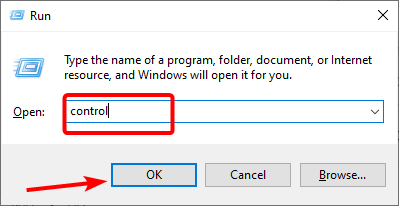
- Press the Windows key + R, type control, and click OK.
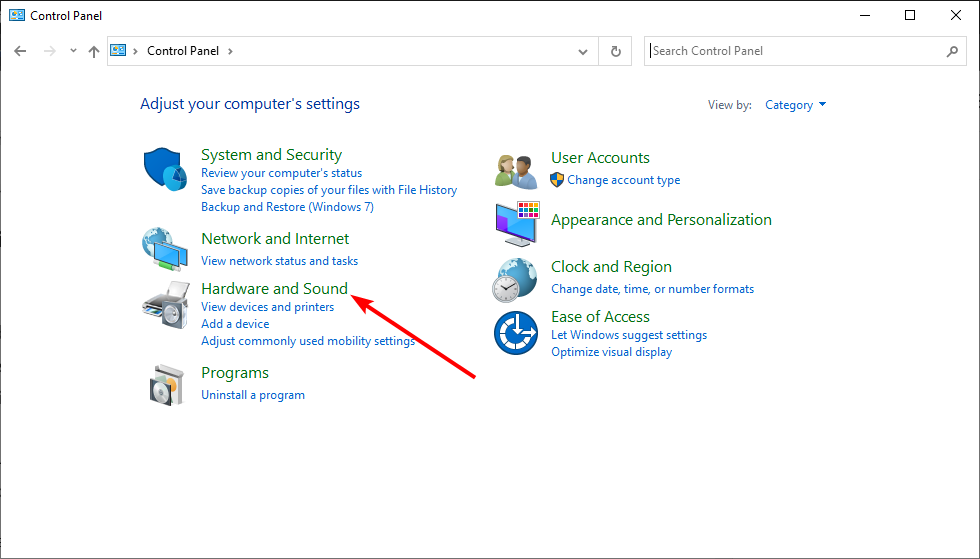
- Select the Hardware and Sound option.
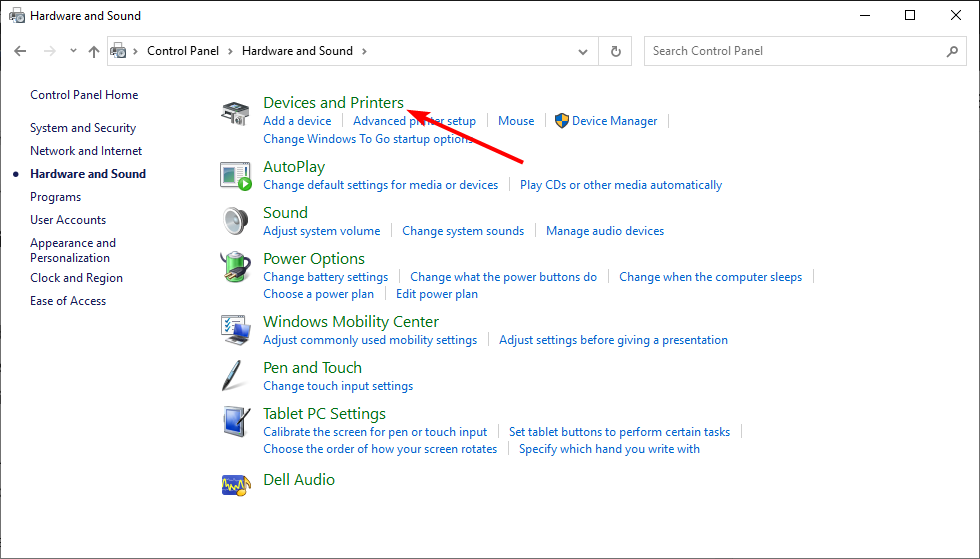
- Now, choose the Devices and Printers option.
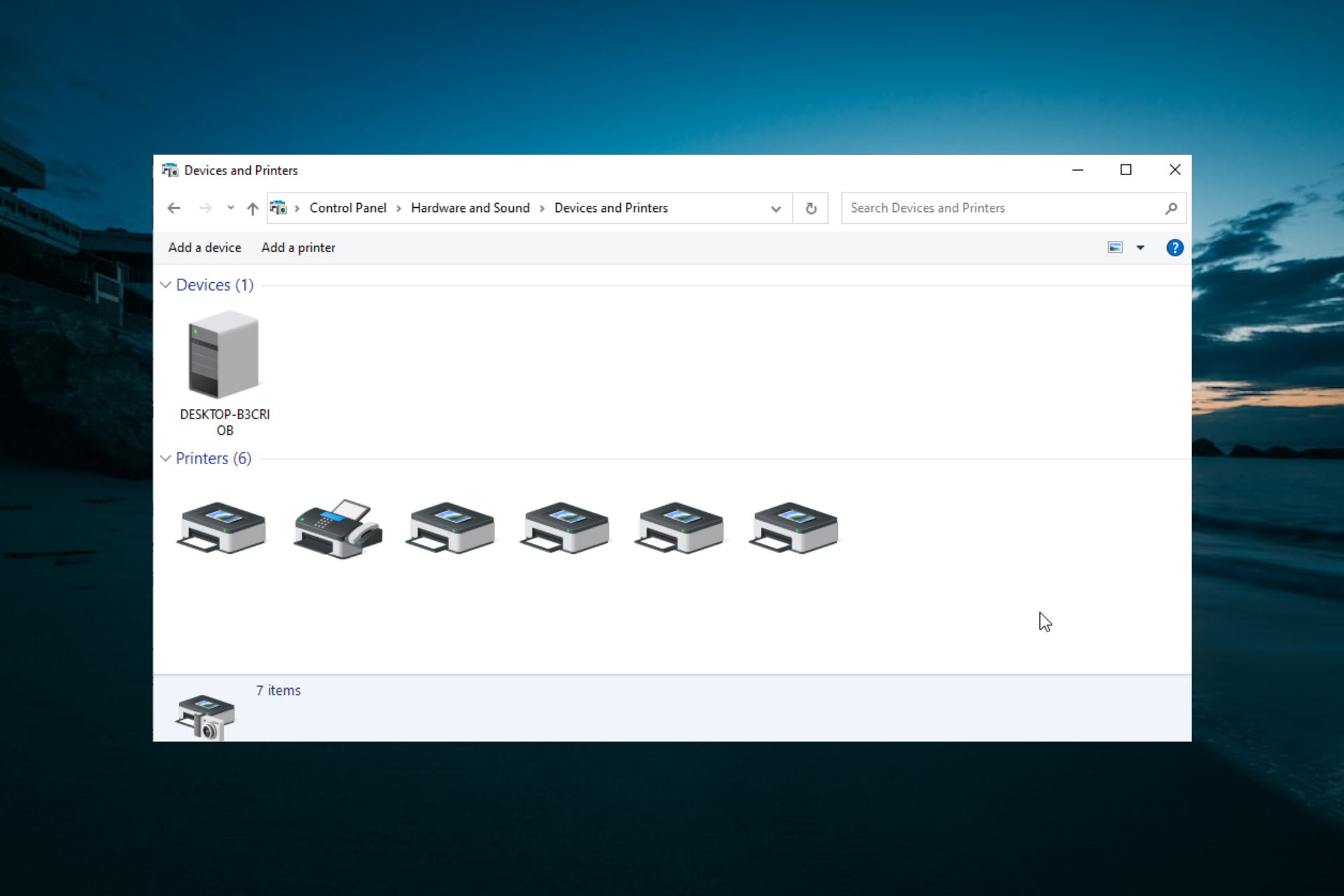
- Finally, select Add a device and follow the onscreen instruction to add your printer.
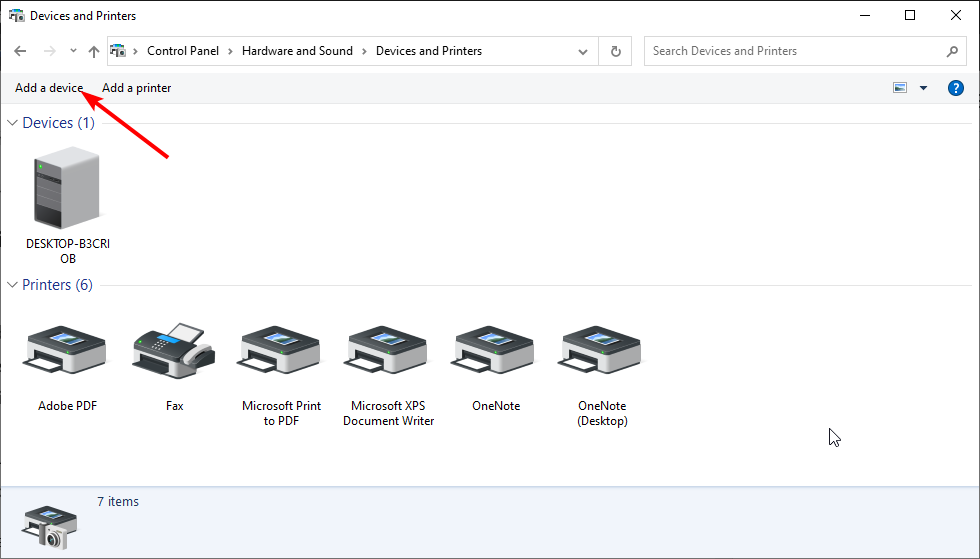
In some cases, the method you are using to add your printer to your PC might cause a fatal error preventing product use.
Some PC issues are hard to tackle, especially when it comes to corrupted repositories or missing Windows files. If you are having troubles fixing an error, your system may be partially broken.
We recommend installing Restoro, a tool that will scan your machine and identify what the fault is.
Click here to download and start repairing.
Some users have found the installation process to be smooth and effortless using the Devices and Printers menu in the Control Panel. So, you can try it too.
2. Uninstall and reinstall the printer
- Press the Windows key, type control, and select the Control Panel option.
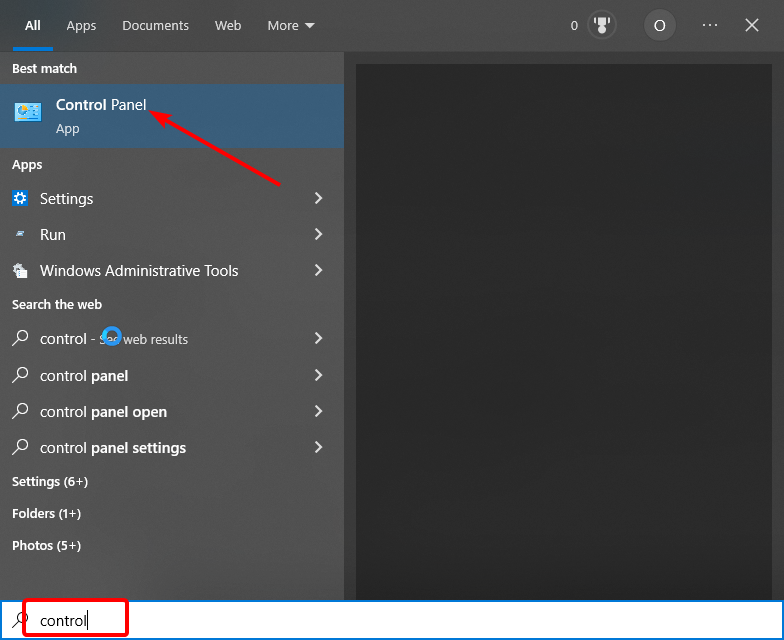
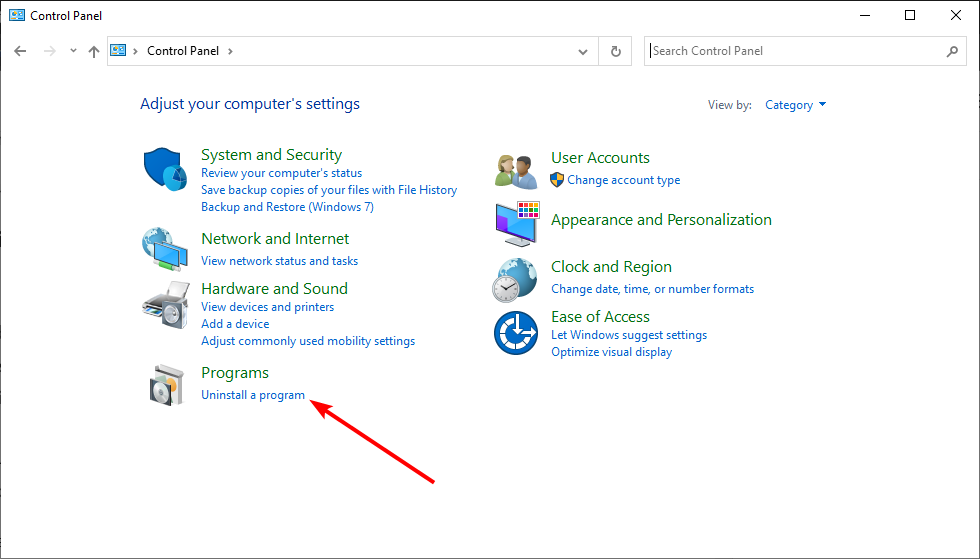
- Select Uninstall a program under the Programs section.
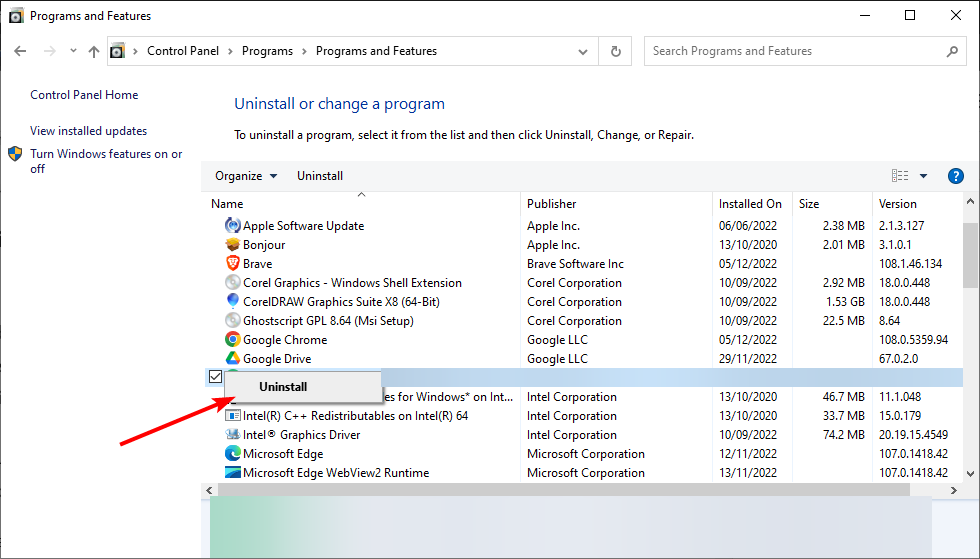
- Now, right-click your printer, select Uninstall, and follow the onscreen instruction to complete the process.
- Go back to the Control Panel window and click on View devices and printers under Hardware and Sound.
- Now, right-click your HP Printer and choose Remove device.
- Press the Windows key + R, type Printui.exe /s, and hit OK.
- Click the Driver tab at the top.
- Locate the HP printer driver, click on it, and select the Remove button.
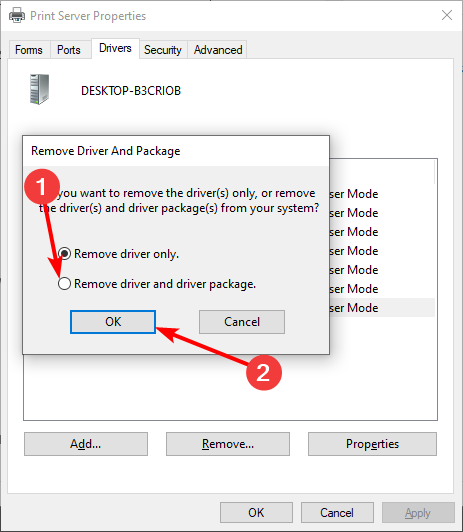
- Now, tick the Remove driver and driver package radio button and click OK.
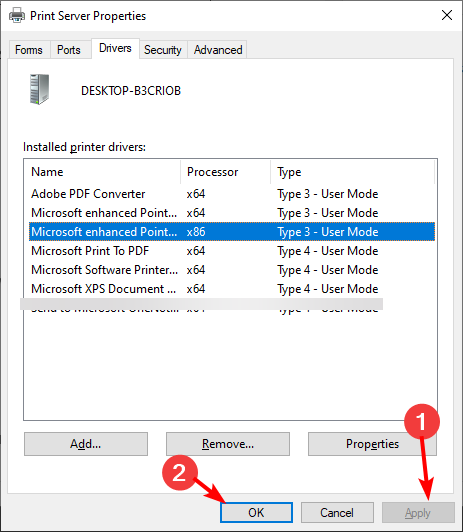
- Click the Apply button followed by OK on the Printer Server Properties window and restart your PC.
- Finally, install the printer software from the HP website.
Sometimes, you might get a fatal error occurred preventing product use because of faulty installation. The solution here is to uninstall all instances of the printer from your PC and reinstall it from the official website.
- My Print Machines Run Out Of Paper: 8 Fixes For The Error
- 4 Ways to Fix Mouse Cursor Jumping Around in Windows 10
- My Printer Wants to Fax Instead of Printing: Here’s a Fix
- Fix: Printer Keeps Printing 2 Pages Instead of 1
- How to Print a JPEG / JPG File if Your Printer Won’t Let You
3. Stop Print Spooler service
- Repeat Steps 1 to 3 in Solution 2 to remove the HP printer software from your PC.
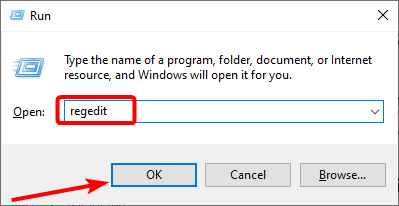
- Press the Windows key + R, type regedit, and click the OK button.
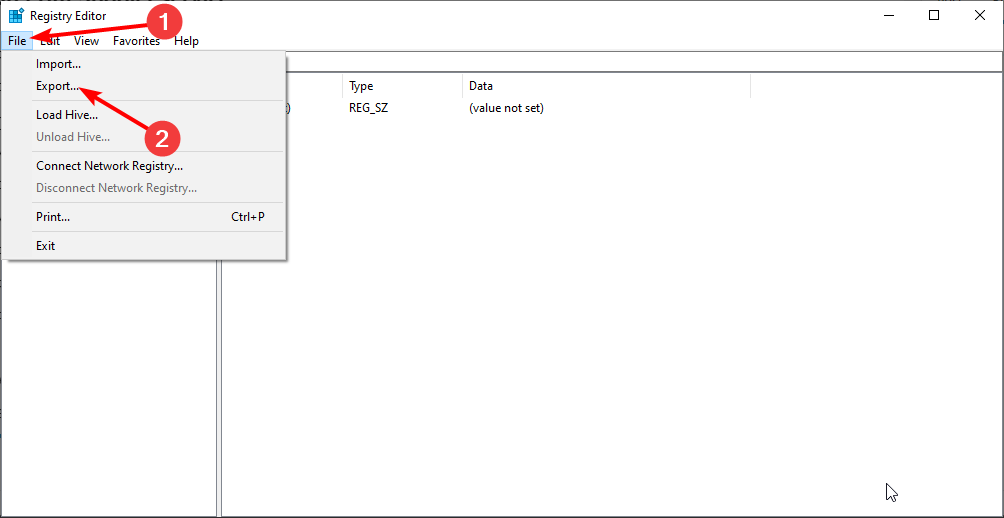
- Click the File tab at the top, followed by Export.. to back up your registry.
- Now, download and run this registry file to change printer-related policies on your PC.
- Press the Windows key + R, type services.msc, and click OK.
- Now, right-click the Print Spooler service and select Stop.
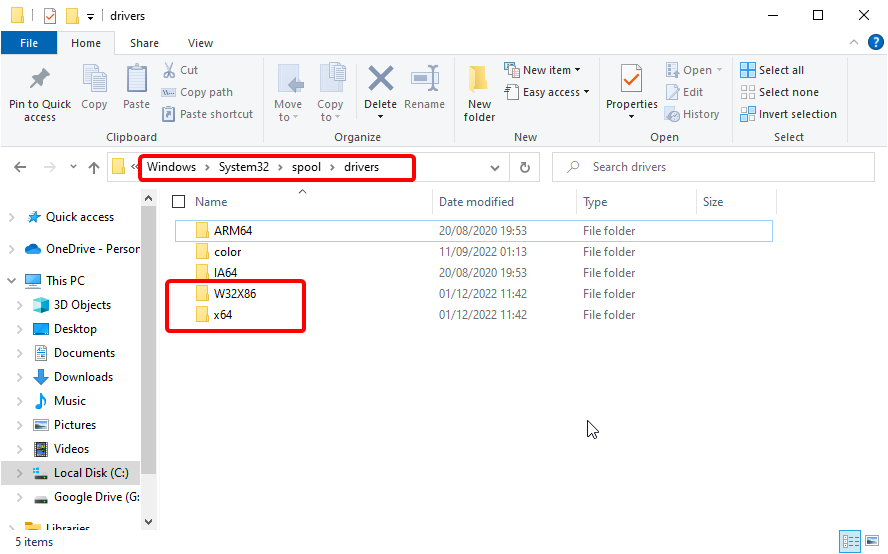
- From here, open File Explorer and follow the path below:
C:/Windows/System32/Spool/drivers - Rename the W32X86 folder to W32x86.old and the x64 folder to x64.old.
- Finally, restart your PC and reinstall the HP printer software.
Another solution to eliminate a fatal error preventing product use is to stop the Print Spooler service from the Services window. After that, you must delete all the Spool folder files.
Rerun the driver installation package and check for any improvements.
Printers are essential office equipment; not using them can be pretty annoying.
Suppose your HP Printer displays the message a fatal error occurred preventing product use while installing the latest drivers. In that case, you should be able to fix the problem following the solutions given in this article.
If your HP printer won’t scan on Windows 10, follow our detailed guide to get it usually working again.
Do let us know the fix that worked for you in the comments below.

Newsletter
Everything you need to get your printer working normally again
by Tashreef Shareef
Tashreef Shareef is a software developer turned tech writer. He discovered his interest in technology after reading a tech magazine accidentally. Now he writes about everything tech from… read more
Updated on December 7, 2022
Reviewed by
Alex Serban
After moving away from the corporate work-style, Alex has found rewards in a lifestyle of constant analysis, team coordination and pestering his colleagues. Holding an MCSA Windows Server… read more
- If you get a message that says a fatal error occurred preventing product use from your printer, a specific HP app may be the cause.
- Another solution is to change the Hardware section from the Control Panel menu.
- When the HP printer displays a fatal error during installation, you can modify the Spooler service settings.
XINSTALL BY CLICKING THE DOWNLOAD FILE
This software will repair common computer errors, protect you from file loss, malware, hardware failure and optimize your PC for maximum performance. Fix PC issues and remove viruses now in 3 easy steps:
- Download Restoro PC Repair Tool that comes with Patented Technologies (patent available here).
- Click Start Scan to find Windows issues that could be causing PC problems.
- Click Repair All to fix issues affecting your computer’s security and performance
- Restoro has been downloaded by 0 readers this month.
Like most hardware peripheral devices, the HP printer needs you to install appropriate drivers first.
However, some users have reported that the Windows PC displays a message that says a fatal error occurred preventing product use while trying to install the needed drivers.
While different factors can cause this issue, it is not the most challenging problem. In this guide, we have listed the solutions needed to do precisely that and get back to using your printer.
Why am I getting A fatal error occurred preventing product use?
Below are some of the reasons you might be getting a fatal error has occurred preventing product use click cancel to cancel the install prompt while trying to connect or use your HP printer:
- Issues with the Spooler service: If you are getting a fatal error occurred preventing product use on HP printer 1536 or error 7 on HP LaserJet, it might be because of the Print Spooler service. Disabling it should fix the issue quickly and effectively.
- Interference from third-party antivirus: Some users have found the HP printer installation error to be down to interference from their third-party antivirus software. You need to disable any security software you are using and probably switch to one of the best antiviruses for Windows.
- Issues with the printer installation files: In some cases, the problem might be incorrect installation. In this case, you need to uninstall the printer from Control Panel or use an uninstaller software and reinstall it.
How can I fix A fatal error that occurred preventing product use?
Before proceeding with the fixes in this section, below are some troubleshooting steps you should attempt:
- Restart your PC
- Disconnect and reconnect the printer
- Disable third-party antivirus
If these steps fail to fix the issue, you can explore the following fixes:
1. Add the printer from the Devices and Printers menu
- Press the Windows key + R, type control, and click OK.
- Select the Hardware and Sound option.
- Now, choose the Devices and Printers option.
- Finally, select Add a device and follow the onscreen instruction to add your printer.
In some cases, the method you are using to add your printer to your PC might cause a fatal error preventing product use.
Some PC issues are hard to tackle, especially when it comes to corrupted repositories or missing Windows files. If you are having troubles fixing an error, your system may be partially broken.
We recommend installing Restoro, a tool that will scan your machine and identify what the fault is.
Click here to download and start repairing.
Some users have found the installation process to be smooth and effortless using the Devices and Printers menu in the Control Panel. So, you can try it too.
2. Uninstall and reinstall the printer
- Press the Windows key, type control, and select the Control Panel option.
- Select Uninstall a program under the Programs section.
- Now, right-click your printer, select Uninstall, and follow the onscreen instruction to complete the process.
- Go back to the Control Panel window and click on View devices and printers under Hardware and Sound.
- Now, right-click your HP Printer and choose Remove device.
- Press the Windows key + R, type Printui.exe /s, and hit OK.
- Click the Driver tab at the top.
- Locate the HP printer driver, click on it, and select the Remove button.
- Now, tick the Remove driver and driver package radio button and click OK.
- Click the Apply button followed by OK on the Printer Server Properties window and restart your PC.
- Finally, install the printer software from the HP website.
Sometimes, you might get a fatal error occurred preventing product use because of faulty installation. The solution here is to uninstall all instances of the printer from your PC and reinstall it from the official website.
- My Print Machines Run Out Of Paper: 8 Fixes For The Error
- 4 Ways to Fix Mouse Cursor Jumping Around in Windows 10
- My Printer Wants to Fax Instead of Printing: Here’s a Fix
- Fix: Printer Keeps Printing 2 Pages Instead of 1
- How to Print a JPEG / JPG File if Your Printer Won’t Let You
3. Stop Print Spooler service
- Repeat Steps 1 to 3 in Solution 2 to remove the HP printer software from your PC.
- Press the Windows key + R, type regedit, and click the OK button.
- Click the File tab at the top, followed by Export.. to back up your registry.
- Now, download and run this registry file to change printer-related policies on your PC.
- Press the Windows key + R, type services.msc, and click OK.
- Now, right-click the Print Spooler service and select Stop.
- From here, open File Explorer and follow the path below:
C:/Windows/System32/Spool/drivers - Rename the W32X86 folder to W32x86.old and the x64 folder to x64.old.
- Finally, restart your PC and reinstall the HP printer software.
Another solution to eliminate a fatal error preventing product use is to stop the Print Spooler service from the Services window. After that, you must delete all the Spool folder files.
Rerun the driver installation package and check for any improvements.
Printers are essential office equipment; not using them can be pretty annoying.
Suppose your HP Printer displays the message a fatal error occurred preventing product use while installing the latest drivers. In that case, you should be able to fix the problem following the solutions given in this article.
If your HP printer won’t scan on Windows 10, follow our detailed guide to get it usually working again.
Do let us know the fix that worked for you in the comments below.
Newsletter

Если вы пытаетесь подключить принтер HP к вашему Windows ПК в первый раз или после чистой установки, вы должны сначала установить драйвер принтера HP, чтобы начать процесс печати.
Как и большинство аппаратных периферийных устройств, принтеру HP также необходимо сначала установить соответствующие драйверы.
Иногда драйверы могут быть установлены автоматически после подключения принтера через USB-кабель, в других случаях вам может понадобиться загрузить этот конкретный драйвер принтера и установить его вручную.
В обеих ситуациях процесс установки принтера HP прост и займет не более нескольких минут.
Однако для некоторых пользователей все может быть сложно. Некоторые пользователи сообщили, что Windows ПК отображает фатальную ошибку при установке драйверов принтера HP.
Обычно это происходит, если компьютер не может обнаружить драйвер принтера. Есть несколько способов исправить эту ошибку и снова запустить принтер.
В этой статье мы перечислили все возможные фатальные коды ошибок драйвера принтера HP и некоторые быстрые решения для их устранения.
Некоторые из распространенных ошибок драйвера принтера HP включают в себя:
- Фата ошибка. хорошо
- Ошибка Произошла неустранимая ошибка, которая помешала использованию продукта.
- Драйверы для этого устройства не установлены (код 28). Чтобы переустановить драйверы, нажмите Переустановить драйвер
- Фатальная ошибка 2753 – MSI.dot4wrp
Решение 1. Отключите HP Smart Install
HP Smart Install – это программное приложение, которое поставляется в комплекте с принтерами HP. Хотя HP больше не поддерживает это программное обеспечение, если оно установлено на любом компьютере, это может создать проблемы с установкой драйвера.
Поэтому, если вы столкнулись с фатальной ошибкой при установке драйверов принтера HP, отключение опции HP Smart Install решит проблему. Выполните следующие действия, чтобы отключить HP Smart Install.
- На экране вашего принтера перейдите к Конфигурация> Сервис.
- открытый HP Smart Install и убедитесь, что функция инвалиды.
- Теперь попробуйте установить драйвер и посмотреть, если отключение функции решило ошибку.
Решение 2: запустить Windows пожарник
Windows 10 имеет встроенное средство устранения неполадок, которое помогает пользователям в случае, если что-то перестает работать. Средство устранения неполадок может найти и исправить многие распространенные проблемы с вашим ПК.
Чтобы устранить неполадки с вашим принтером, выполните следующие действия.
- открытый конфигурации, Нажмите на Обновление и безопасность.
- Откройте устранение неисправностей Вкладка. ниже Начнивыбрать принтер, Нажмите на Запустите средство устранения неполадок кнопку, чтобы продолжить.

- Средство устранения неполадок теперь запускает диагностическую проверку для всех распространенных проблем, которые могут повлиять на работу принтера, таких как функция принтера Spooler и т. Д.
- Если он найден, он попросит вас применить рекомендуемые настройки для решения проблемы.
Если проблема не устранена, закройте средство устранения неполадок и перейдите к следующим шагам.
Решение третье: отсоедините и снова подключите принтер
Иногда простые решения, такие как отключение и повторное подключение принтера, могут решить проблему.
Поэтому выключите принтер и отсоедините его от компьютера. Подождите несколько секунд и снова подключите принтер, но на этот раз используйте другой порт USB. Иногда порт USB также может вызывать досадные ошибки.
Решение четвертое: выньте принтер из панели управления
Следующее решение – удалить любой из перечисленных принтеров из панели управления. Вы также должны удалить все драйверы принтера, которые были установлены на вашем компьютере. Вот как это сделать.
- открытый Панель управления, Если вы не знаете, как это сделать, просто введите Панель управления на панели Cortana / Search и выберите ее из результатов.
- ниже Оборудование и звукщелчок Просмотр устройств и принтеров.
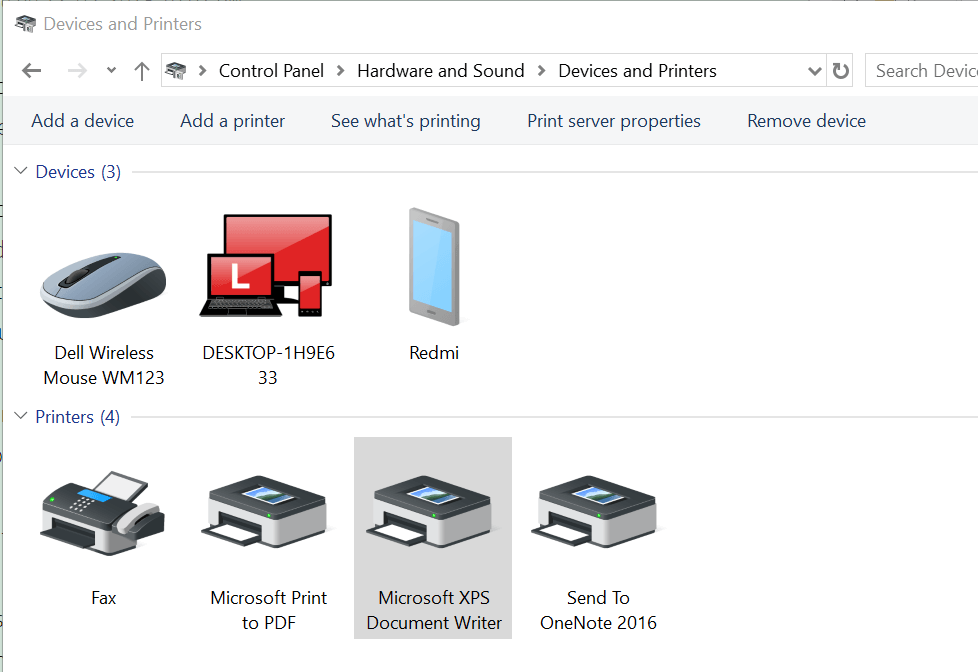
- Выберите любой из списков Принтер HP и нажмите Удалить устройство.
- Перезагрузите компьютер после его удаления.
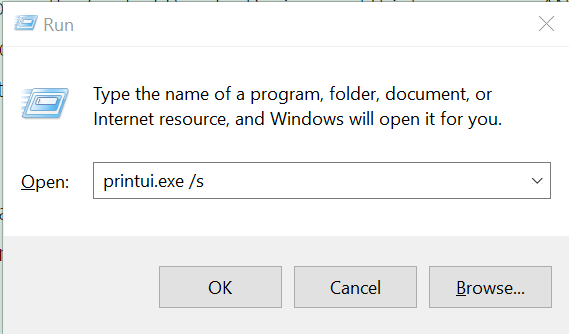
- пресс Windows Ключ + Rи введите следующую команду и нажмите ОК.Printui.exe / s
- Это откроет Свойства сервера печати окно. Нажмите на Вкладка Драйверы, выберите любой принтер HP из списка и нажмите удалить кнопка.

- выбрать Удалить драйвер и пакет драйверов вариант и нажмите хорошо,
Попробуйте установить драйвер еще раз, чтобы увидеть, если проблема решена. Если нет, перезагрузите компьютер и попробуйте снова.
Решение 5. Остановите службу спулера
Другое решение для исправления фатальной ошибки – остановка службы диспетчера очереди в окне «Службы». После этого вы должны удалить все файлы в папке Spool. Вот как это сделать.
- Откройте диалоговое окно «Выполнить», нажав Windows клавиша + R, тип «Services.mscИ нажмите Enter.
- Это откроет Окно услуг, поиск Очередь печати в списке.
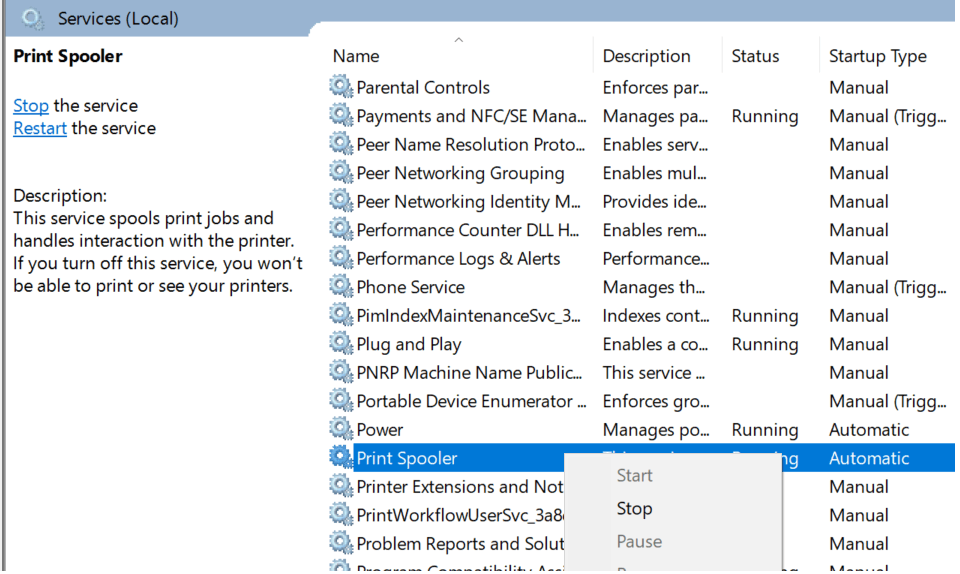
- Щелкните правой кнопкой мыши на Очередь печати и выберите остановка, Закрыть окно служб.
- Снова откройте диалоговое окно «Выполнить» и введите бобина и нажмите ввод.
- Удалить все в этой папке. Если вас попросят разрешения администратора, нажмите хорошо,
- Снова откройте окно «Службы» в диалоговом окне «Выполнить» и запустите Очередь печати Сервис. Щелкните правой кнопкой мыши и выберите Я начинаю.
Пожалуйста, перезапустите установочный пакет драйвера и проверьте наличие улучшений.
От редактора Note: Эта статья продолжается на следующей странице. Если вы хотите узнать больше о принтерах и как оптимизировать настройки принтера на Windows 10, взгляните на нашу коллекцию гидов.
Фатальная ошибка при установке принтера hp m125r
(1) Включите принтер, если он еще не включен.
(2) Прежде чем продолжить, подождите, пока принтер не будет работать в режиме ожидания.
(3) При включенном принтере отсоедините шнур питания от задней панели принтера.
(4) Отключите шнур питания от сетевой розетки.
(5) Подождите как минимум 60 секунд.
(6) Вставьте шнур питания обратно в розетку.
ПРИМЕЧАНИЕ. HP рекомендует подключать шнур питания принтера непосредственно к сетевой розетке.
(7) Подсоедините шнур питания к задней части принтера.
(8) Включите принтер, если он не включается автоматически.
Принтер может пройти период прогрева. Индикаторы принтера могут мигать, а каретка может двигаться.
Прежде чем продолжить, подождите, пока закончится период прогрева и ваш принтер не будет работать в режиме ожидания.
Затем удалите драйвер принтера с корневого уровня
1.) В Windows найдите и откройте Программы и компоненты
2.) Выберите свой принтер HP
3.) Выберите Удалить
4.) В Windows найдите и откройте Устройства и принтеры.
5.) В окнах «Устройства и принтеры» найдите свой принтер HP. Если вы видите его в списке, щелкните его правой кнопкой мыши и выберите «Удалить» или «Удалить устройство».
6.) Откройте команду запуска с помощью клавиши «Windows key R».
7.) Введите printui.exe /s и нажмите «ОК». (Примечание: между «printui.exe» и «/s» есть пробел)
8.) Нажмите на вкладку «Драйверы»
9.) Найдите драйвер принтера HP. Если вы видите его Нажмите на него и нажмите Удалить внизу
10.) Выберите Ok
11.) Выберите Apply и Ok в окнах свойств сервера печати.
12.) Закрыть устройства и принтеры
13.) Перезагрузите компьютер и загрузите полнофункциональное программное обеспечение отсюда и следуйте инструкциям на экране
ошибка установки драйвера на принтер HP LaserJet Pro MFP M125ra
- Mark as New
- Bookmark
- Subscribe
- Subscribe to RSS Feed
- Permalink
- Email to a Friend
- Flag Post
устанавливал драйвера на принтер HP LaserJet Pro MFP M125ra, когда установка достигла 99% появилась ошибка:
операция установки выполнялась слишком долго. Это фатальная ошибка не позволяет использовать продукт, перезагрузите компьютер и повторно запустите программу установки. Если неполадка не будет устранена попробуйте найти способ её устранения на вэб сайте поддержки устройства.
перезагрузка не помогла, в конце установки опять появилась эта ошибка
- Mark as New
- Bookmark
- Subscribe
- Subscribe to RSS Feed
- Permalink
- Email to a Friend
- Flag Post
Thank you for visiting our English HP Support Forum. We are only able to reply to posts written in English. To ensure a quick response it would be advisable to post your question in English. The following links are here to assist you if you prefer to post in the following Language Forum.
Thank you for your understanding.
- Mark as New
- Bookmark
- Subscribe
- Subscribe to RSS Feed
- Permalink
- Email to a Friend
- Flag Post
installed the driver on printer HP LaserJet professional MFP M125ra when installing docile 99% of the error occurred:
the installation operation took too long. This Fatal error prevents you from using the product, restart the computer, and then run Power setup. If nepad does not strain try to find a way to fix it on the device support website.
reboot not floor, at the end of the installation appeared again this error
- Mark as New
- Bookmark
- Subscribe
- Subscribe to RSS Feed
- Permalink
- Email to a Friend
- Flag Post
Welcome to HP Forums. This is a great place to get support, find answers and tips.
I understand that you are unable to install the drivers for your HP LaserJet professional MFP M125ra
Let’s start with a Printer Reset.
(1) Turn the printer on, if it is not already on.
(2) Wait until the printer is idle and silent before you continue.
(3) With the printer turned on, disconnect the power cord from the rear of the printer.
(4) Unplug the power cord from the wall outlet.
(5) Wait at least 60 seconds.
(6) Plug the power cord back into the wall outlet.
NOTE: HP recommends connecting the printer power cord directly to the wall outlet.
(7) Reconnect the power cord to the rear of the printer.
(8) Turn on the printer, if it does not automatically turn on.
The printer might go through a warm-up period. The printer lights might flash, and the carriage might move.
Wait until the warm-up period finishes and your printer is idle and silent before you proceed.
Then uninstall the Printer Driver from Root level
1.) In Windows, search for and open Programs and features
2.) Select your HP Printer
3.) Select Uninstall
4.) In Windows, search for and open Devices and printers
5.) In the Devices and Printers windows look for your HP printer. If you see it listed right-click on it and choose ‘Delete’ or ‘Remove Device’
6.) Open up the run command with the “Windows key + R” key combo.
7.) Type printui.exe /s and click Ok. (Note: there is a space in between “printui.exe” and “/s”)
8.) Click on the “Drivers” tab
9.) Look for HP Printer driver. If you see it Click on it and click Remove at the bottom
10.) Select Ok
11.) Select Apply and Ok on the Print Server Properties windows
12.) Close Devices and Printers
13.) Restart the computer and download the Full Feature Software from Here and follow the onscreen Instructions
If the information I’ve provided was helpful, give us some reinforcement by clicking the «Solution Accepted» and «Kudos» Buttons.
Когда происходит установка соединения с устройством и доходит до 99 % то все
HP LaserJet Pro M1536dnf MFP
Когда происходит Установка соединения с устройством и доходит до 99 %, то все приостанавливается и показывается табличка:
Операция установки выполнялась слишком долго. Эта фатальная ошибка не позволяет использовать продукт.
Перезагрузите компьютер и повторно запустите программу установки.
Если неполадка не будет устранена, попробуйте найти способ ее устранения на веб-сайте поддержки устройства.
После перезагрузки компьютера происходит тоже самое.
Что делать?
В уважением
Владимир
Ответы 12
HP Smart Install отключил на LaserJet pro 400 — ПОМОГЛО!
не устанавливается драйвер
- Mark as New
- Bookmark
- Subscribe
- Subscribe to RSS Feed
- Permalink
- Email to a Friend
- Flag Post
устанавливал драйвера на принтер HP LaserJet Pro MFP M125ra, когда установка достигла 99% появилась ошибка:
операция установки выполнялась слишком долго. Это фатальная ошибка не позволяет использовать продукт, перезагрузите компьютер и повторно запустите программу установки. Если неполадка не будет устранена попробуйте найти способ её устранения на вэб сайте поддержки устройства.
перезагрузка не помогла, в конце установки опять появилась эта ошибка

- Mark as New
- Bookmark
- Subscribe
- Subscribe to RSS Feed
- Permalink
- Email to a Friend
- Flag Post
Thank you for visiting our English HP Support Forum. We are only able to reply to posts written in English. To insure a quick response it would be advisable to post your question in English. The following links are here to assist you if you prefer to post in the following Language Forum.
Thank you for your understanding
07-19-2017 04:51 PM — edited 07-19-2017 04:59 PM
- Mark as New
- Bookmark
- Subscribe
- Subscribe to RSS Feed
- Permalink
- Email to a Friend
- Flag Post
Good afternoon dear Mr. Duane_D Moderator. Untortunatelly, my russian-speaking friend couldn’t explain his problem for you to get your help, but you can believe me — this GREAT HP PROBLEM with instalation error is well-known all around in Russia. I join to thousands of angry persons in Russia who can not istall official HP soft on their computers and MFP. Hours after hours, days after days, and we begin to hate HP corp. During insatallation of brand new MFP prinrers, it is impossible to connect computer and MFP printer. There are a huge discussion in russian internet forums about this problem and NO even one proper solution suggested. We are ordinar «users», we are not «hackers», but there is a lot of tips how to fix this problem by «deep IT specialist manipulations». We can not hack our «drivers», «clean reboot», «antivirus conflict» and other IT bla-bla-bla. Can you create a GOOD software to install it in siple way? And I’m sure, you know this problem very well. Please look the pictures attached. Step by step. It is in russian, but you can get it.
Фатальная ошибка при установке принтера hp m125r
Вхожу в «Устройства и принтеры» — «Свойства принтера» — «Порты». Там список всех имеющихся портов, среди которых нет USB, и снизу три кнопки; «Настроить порт», «Удалить порт» и «Добавить порт». Настроить не дает, пишет «Настройка не требуется». Пробую «Добавить порт», выходит список из пяти имеющихся типов портов:
1)HP Standard TCP/IP Port;
2)HP Universal Print Monitor;
3)Local Port;
4)Nitro PDF Port Monitor;
5)Standard TCP/IP Port
Внизу три кнопки; «Новый тип портов»; «Новый порт»; «Отмена». Пробую «Новый тип портов», выходит меню «Установка монитора порта. Укажите INF-файл принтера, который содержит установочные данные монитора порта . Выберите путь к файлу. »
У меня установщик лежит на С. Указываю C:HP_LaserJet_Pro_MFP_M125-M126 жму ОК, выходит все тот-же список из пяти типов портов. USB порта нет.
Сегодня установил на ноут с Windows XP, Там он подключился к порту USB002 (Описание: Virtual printer port for USB). Как мне создать этот «Virtual printer port for USB» на Windows 10 (х64)? 
Re: Как подключить «HP LaserJet Pro MFP M125r» к ноутбуку?
CrazyPOVT » 15:26 — 02.08.16
Re: Как подключить «HP LaserJet Pro MFP M125r» к ноутбуку?
underground » 16:14 — 02.08.16
Re: Как подключить «HP LaserJet Pro MFP M125r» к ноутбуку?
CrazyPOVT » 17:42 — 02.08.16
Re: Как подключить «HP LaserJet Pro MFP M125r» к ноутбуку?
underground » 18:31 — 02.08.16
Re: Как подключить «HP LaserJet Pro MFP M125r» к ноутбуку?
underground » 18:38 — 16.08.16
- Похожие темы Ответы Просмотры Последнее сообщение
- Лазерный принтер Лазерный принтер HP LaserJet 2300 — Замятие в лотке «2»
sc@ut в форуме HEWLETT PACKARD (HP) 3 4637 Sergey_74
06:26 — 26.07.12 - Лазерный принтер HP LaserJet 1020 — Проблема с печатью из 1С на принтер HP LJ 1020
в форуме HEWLETT PACKARD (HP) 10 9889 Voothi
21:46 — 06.11.07 - Лазерный принтер Лазерный принтер HP LaserJet 1012 — не могу разобрать
gdk в форуме HEWLETT PACKARD (HP) 5 5534 Владимир А.
08:36 — 07.06.11 - Лазерный принтер «HP LaserJet 4000» — «Не берет из 2-го лотка»
Konstantin74 в форуме HEWLETT PACKARD (HP) 13 5942 Mishel01
13:10 — 15.01.15 - Лазерный принтер Лазерный принтер HP LaserJet 1150 — Сколько, и чего заправлять
Pomi в форуме HEWLETT PACKARD (HP) 1 5101 Сервис-центр СКАН
14:46 — 14.07.05
Кто сейчас на конференции
Сейчас этот форум просматривают: нет зарегистрированных пользователей и гости: 5
Источник
laserjet pro mfp m125r не устанавливается драйвер

HP LaserJet Pro M125r
Windows 2003/2008/2012/XP/Vista/7/8/8.1/10 — драйвера + сканер + программы HP
Windows 2003/2008/2012/XP/Vista/7/8/8.1 — только драйвера + сканирование
Размер: 88.2 MB — x32 и 15.1 — x64
Установка драйвера в Windows 10
Для любого печатающего устройства производителя НР, перед началом работы потребуется установить специальное программное обеспечение (драйвер), которое поможет системе правильно передавать информацию для печати. Начать выполнение инструкции нужно с того, что нужно скачать драйвер HP LaserJet Pro M125r по ссылкам выше. Запустите загруженный файл нажатием правой кнопкой мышки и выбором меню «Открыть».

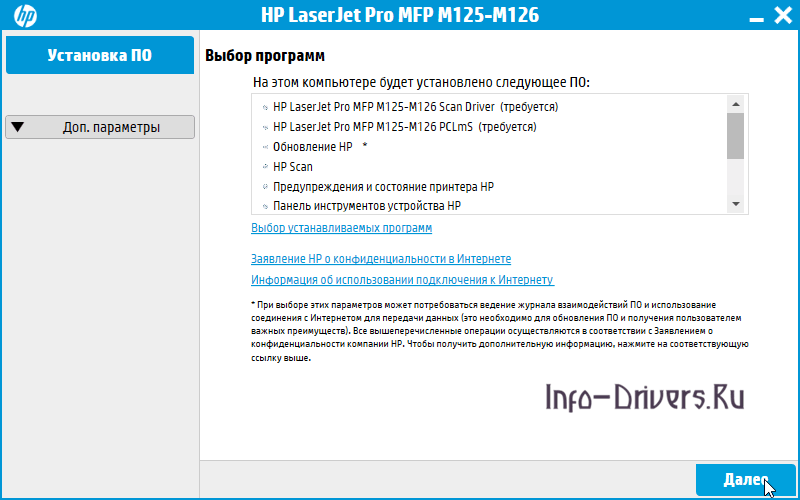
В первом окне установщика будет доступна возможность выбора компонентов драйвера для установки. Если не уверены, какие из них точно нужны, то сразу нажмите «Далее». Если хотите поменять перечень, то нажмите на ссылку «Выбор устанавливаемых программ».
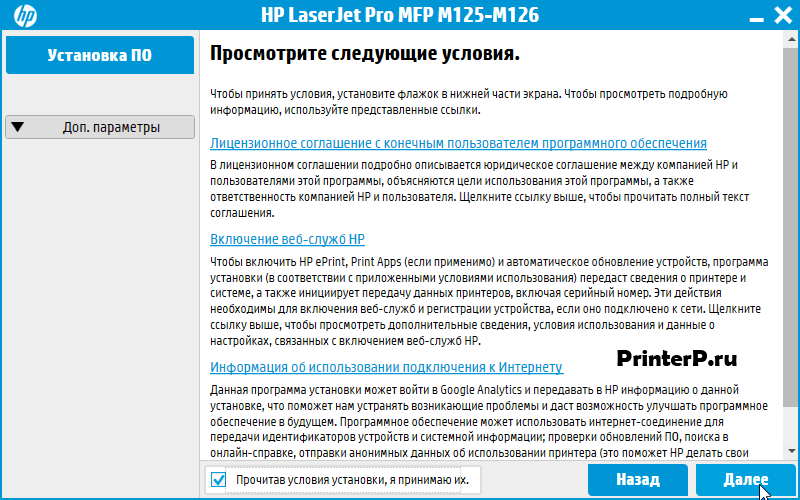
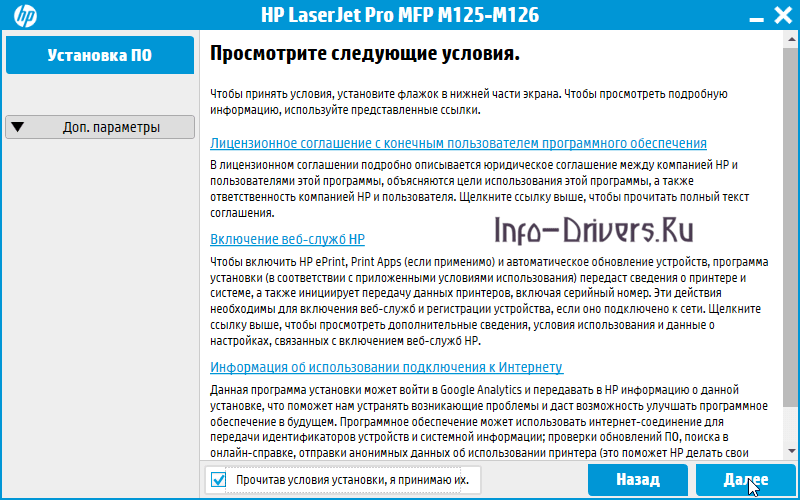
На следующем шаге внимательно изучите лицензионное соглашение, нажав по первой ссылке в окне. Если все пункты не вызывают возражений, то поставьте галочку напротив пункта «Прочитав условия установки, я принимаю их» и нажмите кнопку «Далее».
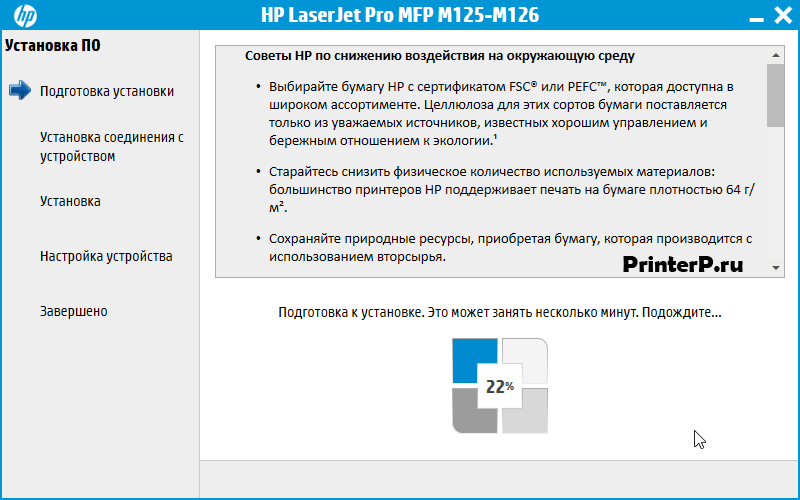
Программа установки начнет автоматически распаковывать временные файлы. Никаких действие не требуется.

После завершения извлечения файлов, нажмите на кнопку «Далее», для перехода к следующему шагу.

Выберете каким образом принтер будет получать информацию от системы – через кабель (первая опция) или «по воздуху» (через WiFi сеть, вторая опция). Обычно используют традиционное подключение через USB, поэтому выбираем первую опцию и нажимаем «Далее».
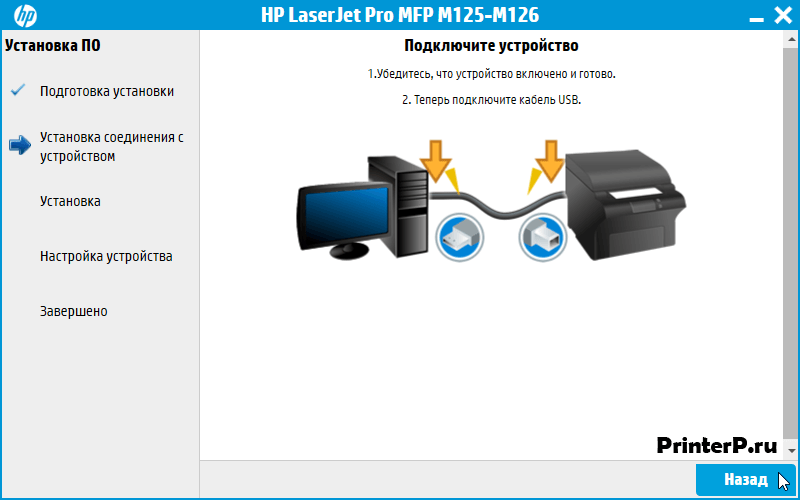
Соединяем принтер с системным блоком компьютера (квадратный штекер в печатающее устройство, а прямоугольный в системный блок). Включаем питание принтера и ждем, пока мастер установки завершит настройку принтера. Устройство готово к работе.
Windows XP / Vista / 7 / 8 / 8.1 / 10 — полный пакет драйверов
Варианты разрядности: x32/x64
Размер драйвера: 109 MB
Windows — базовый пакет драйверов с установщиком
Варианты разрядности: x32/x64
Размер драйвера: 88 MB
Windows — базовый пакет драйверов без установщика
Варианты разрядности: x32/x64
Размер драйвера: 15 MB
Как установить драйвер в Windows 10
Перед подключением многофункционального устройства HP LaserJet Pro MFP M125r необходимо скачать программное обеспечение. Драйвер доступен по ссылке, расположенной в начале статьи. Его следует загрузить в свой браузер, а затем найти его в соответствующей папке (как правило, это «Загрузки») и двойным щелчком мыши активировать процесс.
В первом окне менеджер предложит список программ, которые будут установлены на компьютер. Также полезная информация будет доступна по ссылкам. Здесь жмем «Далее».
Знакомимся с документами, доступными по ссылкам во вкладке. Ставим флажок возле «Прочитав условия установки…». Переходим на следующий этап кнопкой «Далее».
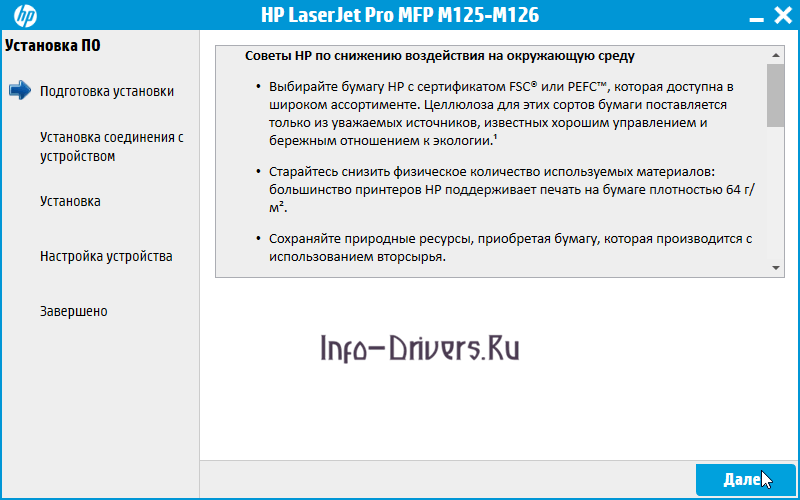
Изучаем рекомендации производителя по снижению воздействия на окружающую среду и нажимаем «Далее».
В предложенном списке выбираем тип соединения «Напрямую с помощью кабеля USB…» — первый вариант. Переходим «Далее».

Подключаем принтер к сети и подсоединяем его к компьютеру с помощью USB-кабеля. Проверяем соединение с устройством, система должна распознать оборудование. Нажимаем «Назад».
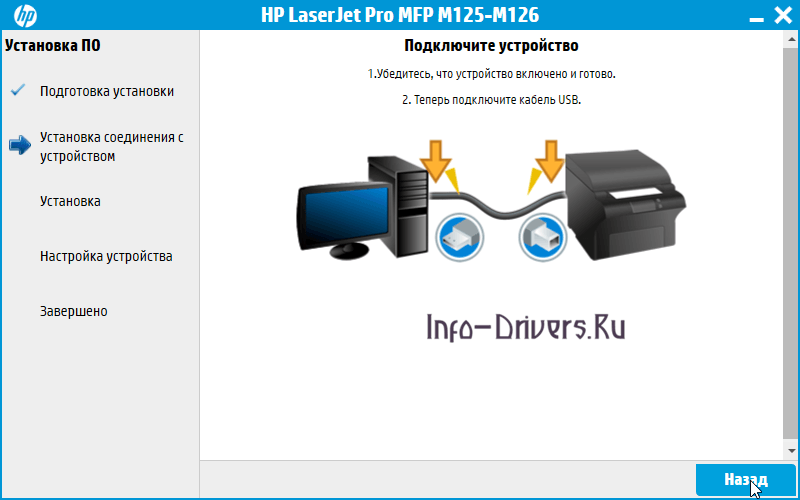
Установка драйвера прошла успешно, если отсутствуют сообщения об ошибках. Пользоваться МФУ можно сразу после завершения рассматриваемого процесса.
устанавливал драйвера на принтер HP LaserJet Pro MFP M125ra, когда установка достигла 99% появилась ошибка:
операция установки выполнялась слишком долго. Это фатальная ошибка не позволяет использовать продукт, перезагрузите компьютер и повторно запустите программу установки. Если неполадка не будет устранена попробуйте найти способ её устранения на вэб сайте поддержки устройства.
перезагрузка не помогла, в конце установки опять появилась эта ошибка
- Mark as New
- Bookmark
- Subscribe
- Subscribe to RSS Feed
- Permalink
- Email to a Friend
- Flag Post
ошибка установки драйвера на принтер HP LaserJet Pro MFP M125ra
Thank you for visiting our English HP Support Forum. We are only able to reply to posts written in English. To ensure a quick response it would be advisable to post your question in English. The following links are here to assist you if you prefer to post in the following Language Forum.
Thank you for your understanding.
- Mark as New
- Bookmark
- Subscribe
- Subscribe to RSS Feed
- Permalink
- Email to a Friend
- Flag Post
ошибка установки драйвера на принтер HP LaserJet Pro MFP M125ra
installed the driver on printer HP LaserJet professional MFP M125ra when installing docile 99% of the error occurred:
the installation operation took too long. This Fatal error prevents you from using the product, restart the computer, and then run Power setup. If nepad does not strain try to find a way to fix it on the device support website.
reboot not floor, at the end of the installation appeared again this error
- Mark as New
- Bookmark
- Subscribe
- Subscribe to RSS Feed
- Permalink
- Email to a Friend
- Flag Post
ошибка установки драйвера на принтер HP LaserJet Pro MFP M125ra
Welcome to HP Forums. This is a great place to get support, find answers and tips.
I understand that you are unable to install the drivers for your HP LaserJet professional MFP M125ra
Let’s start with a Printer Reset.
(1) Turn the printer on, if it is not already on.
(2) Wait until the printer is idle and silent before you continue.
(3) With the printer turned on, disconnect the power cord from the rear of the printer.
(4) Unplug the power cord from the wall outlet.
(5) Wait at least 60 seconds.
(6) Plug the power cord back into the wall outlet.
NOTE: HP recommends connecting the printer power cord directly to the wall outlet.
(7) Reconnect the power cord to the rear of the printer.
(8) Turn on the printer, if it does not automatically turn on.
The printer might go through a warm-up period. The printer lights might flash, and the carriage might move.
Wait until the warm-up period finishes and your printer is idle and silent before you proceed.
Then uninstall the Printer Driver from Root level
1.) In Windows, search for and open Programs and features
2.) Select your HP Printer
3.) Select Uninstall
4.) In Windows, search for and open Devices and printers
5.) In the Devices and Printers windows look for your HP printer. If you see it listed right-click on it and choose ‘Delete’ or ‘Remove Device’
6.) Open up the run command with the “Windows key + R” key combo.
7.) Type printui.exe /s and click Ok. (Note: there is a space in between “printui.exe” and “/s”)
8.) Click on the “Drivers” tab
9.) Look for HP Printer driver. If you see it Click on it and click Remove at the bottom
10.) Select Ok
11.) Select Apply and Ok on the Print Server Properties windows
12.) Close Devices and Printers
13.) Restart the computer and download the Full Feature Software from Here and follow the onscreen Instructions
Let me know how it goes.
If the information I’ve provided was helpful, give us some reinforcement by clicking the “Solution Accepted” and “Kudos” Buttons.
Источник
I’ve invested two weeks of my life to get past this error and finally solved it. Maybe someone would find this helpful…
The problem was the following: I was trying to install the full driver package for my All in One HP Photosmart C5283 for Windows 7, and no matter what the installation stopped at the third ‘stage’, showing «1603 Fatal install error». After some days I’ve found the following (the log file names and contents are from trying to install only the basic driver, with both update options unticked):
File c:ProgramDataHPInstallersmthhpzset000.log contained these strings:
20120314214144:000288EBA:0001(0215-0000)(hpzsetup.exe)[00002154|a|000003|t|+00000000000011583488|d|+00000000000011583488|s|Now Launching=C:HPSetuphpzprl01.exe -inf -m preload_drivers "-wStub" "394238" -l RUS -f "C:Windowshpoins21.dat" -Validate No -w 459624]
20120314214145:0003FE9A8:0008(0216-0001)(hpzsetup.exe)## Exit code=1603
File c:ProgramDataHPInstallersmthhpzprl001.log contained these:
20120314214145:0003F4818:0001(0001-0001)(hpzprl01.exe)DriverPackagePreinstall did not succeded for the file: C:HPSetup..hposcu12.inf with error = 0x5
20120314214145:0003F95DC:0008(0001-0000)(hpzprl01.exe)## SetupINFsListedInDatFile failed with Fatal error during installation.
File c:WindowsINFsetupapi.dev.log contained these:
     sto:      {Index Driver Package: C:WindowsSystem32DriverStoreFileRepositoryhprdv_u.inf_x86_neutral_f2327da0664d824fhprdv_u.inf} 23:54:43.306
     idb:           Registered driver store entry 'hprdv_u.inf_x86_neutral_f2327da0664d824f'.
!!!  idb:           Failed to update active driver store entry, Error = 0x00000005
!!!  idb:           Failed to publish 'hprdv_u.inf', Error = 0x00000005
!!!  idb:           Error 5: Access is denied.
!!!  sto:           Failed to publish 'C:WindowsSystem32DriverStoreFileRepositoryhprdv_u.inf_x86_neutral_f2327da0664d824fhprdv_u.inf'. Error = 0x00000005
     sto:      {Index Driver Package: exit(0x00000005)} 23:54:43.343
     sto:      {DRIVERSTORE_IMPORT_NOTIFY_END} 23:54:43.343
     ndv:           No system restore point was set earlier.
     sto:      {DRIVERSTORE_IMPORT_NOTIFY_END: exit(0x00000005)} 23:54:43.343
!    sto:      Failed to rollback driver package registration. Error = 0x00000032
     sto:      Rolled back driver package import.
!!!  sto:      Failed to import driver package into Driver Store. Error = 0x00000005
     sto: {Stage Driver Package: exit(0x00000005)} 23:54:43.346
!!!  sto: Failed to stage driver package to Driver Store. Error = 0x00000005, Time = 218 ms
<<<  Section end 2012/03/14 23:54:43.358
<<<  [Exit status: FAILURE(0x00000005)]
After the last log I understood the error to be of «access denied» type. However no fiddling with permissions, taking ownership of any driverstore related directories, running anything as administrator wouldn’t help. The REAL problem was that some oem##.inf files in c:Windowsinf were READ-ONLY.
So if you see something alike in your logs, try the following:
- Start an elevated command prompt: Start -> All Programs -> Accessories, Right click on Command Prompt and select «Run as administrator»
- run ‘pnputil -e’ there
- look what NEXT several oem##.inf files are going to be installed: If the command from #2 enumerated oem0.inf, oem1.inf, oem3.inf, oem4.inf, the next THREE oem##.inf files are going to be: oem2.inf, oem5.inf, oem6.inf. I mean, at first fill the ‘holes’ and then add 1 as many times as needed.
- Navigate to c:Windowsinf
- Check that each file from #3 is NOT read-only.
Now some explanation.
hpzprl01.exe preloads something. In my case it was run with keys » -inf -m preload_drivers», so it preloaded drivers. In case of the full driver package for C5283, it would preload THREE drivers: hposcu12.inf, hpRDV_u.inf, hpRDV_vp.inf. Unpack your driver package somewhere and look at all inf-files but Autorun.inf in the root directory — these are probably going to be preloaded.
To preload a driver the driver installation package actually does something like this: «pnputil -a C:HP hposcu12.inf» . After such commands the drivers are copied to c:WindowsSystem32DriverStoreFileRepositoryhposcu12.inf_x86_neutral_… AND A NEW oem##.inf file is created (OR OVERWRITTEN) in c:Windowsinf. The next in queue in my case were oem9.inf, oem10.inf, oem11.inf. They all existed in my case, and all three were read only. Actually there are all from 0 to 24, while ‘pnputil -e’ lists only the first nine (0-8). BTW, oem10.inf and oem11.inf appeared after some VMWare installation (bridge and net adapter, and the network at my only virtual machine is still working after I’ve overwritten the oem##.inf files. Yet I haven’t tried uninstalling anything yet — this might remove wrong drivers).
PS: after I’ve made three files not read only, I could install the package, but any addition of any devices fails, but that’s gonna be another post.
PS2: seems like this might solve a lot of problems:
http://h30434.www3.hp.com/t5/Printer-All-in-One-Install-Setup/Photosmart-C4385-printer-installation-…
http://h30434.www3.hp.com/t5/Printer-All-in-One-Install-Setup/error-during-C309a-installation/m-p/12…
http://h30434.www3.hp.com/t5/Printer-All-in-One-Install-Setup/HP-photosmart-C4580-fatal-install-erro…
http://h30434.www3.hp.com/t5/Printer-All-in-One-Software/Fatal-Installation-Error/m-p/1204171
http://h30434.www3.hp.com/t5/Printer-All-in-One-Install-Setup/install-error-1603-for-c4480/m-p/12673…
http://h30434.www3.hp.com/t5/Printer-All-in-One-Install-Setup/Access-Denied-installation-errors-for-…
http://h30434.www3.hp.com/t5/Printer-All-in-One-Install-Setup/Officejet-6500-software-installation-p…
I’ve invested two weeks of my life to get past this error and finally solved it. Maybe someone would find this helpful…
The problem was the following: I was trying to install the full driver package for my All in One HP Photosmart C5283 for Windows 7, and no matter what the installation stopped at the third ‘stage’, showing «1603 Fatal install error». After some days I’ve found the following (the log file names and contents are from trying to install only the basic driver, with both update options unticked):
File c:ProgramDataHPInstallersmthhpzset000.log contained these strings:
20120314214144:000288EBA:0001(0215-0000)(hpzsetup.exe)[00002154|a|000003|t|+00000000000011583488|d|+00000000000011583488|s|Now Launching=C:HPSetuphpzprl01.exe -inf -m preload_drivers "-wStub" "394238" -l RUS -f "C:Windowshpoins21.dat" -Validate No -w 459624]
20120314214145:0003FE9A8:0008(0216-0001)(hpzsetup.exe)## Exit code=1603
File c:ProgramDataHPInstallersmthhpzprl001.log contained these:
20120314214145:0003F4818:0001(0001-0001)(hpzprl01.exe)DriverPackagePreinstall did not succeded for the file: C:HPSetup..hposcu12.inf with error = 0x5
20120314214145:0003F95DC:0008(0001-0000)(hpzprl01.exe)## SetupINFsListedInDatFile failed with Fatal error during installation.
File c:WindowsINFsetupapi.dev.log contained these:
     sto:      {Index Driver Package: C:WindowsSystem32DriverStoreFileRepositoryhprdv_u.inf_x86_neutral_f2327da0664d824fhprdv_u.inf} 23:54:43.306
     idb:           Registered driver store entry 'hprdv_u.inf_x86_neutral_f2327da0664d824f'.
!!!  idb:           Failed to update active driver store entry, Error = 0x00000005
!!!  idb:           Failed to publish 'hprdv_u.inf', Error = 0x00000005
!!!  idb:           Error 5: Access is denied.
!!!  sto:           Failed to publish 'C:WindowsSystem32DriverStoreFileRepositoryhprdv_u.inf_x86_neutral_f2327da0664d824fhprdv_u.inf'. Error = 0x00000005
     sto:      {Index Driver Package: exit(0x00000005)} 23:54:43.343
     sto:      {DRIVERSTORE_IMPORT_NOTIFY_END} 23:54:43.343
     ndv:           No system restore point was set earlier.
     sto:      {DRIVERSTORE_IMPORT_NOTIFY_END: exit(0x00000005)} 23:54:43.343
!    sto:      Failed to rollback driver package registration. Error = 0x00000032
     sto:      Rolled back driver package import.
!!!  sto:      Failed to import driver package into Driver Store. Error = 0x00000005
     sto: {Stage Driver Package: exit(0x00000005)} 23:54:43.346
!!!  sto: Failed to stage driver package to Driver Store. Error = 0x00000005, Time = 218 ms
<<<  Section end 2012/03/14 23:54:43.358
<<<  [Exit status: FAILURE(0x00000005)]
After the last log I understood the error to be of «access denied» type. However no fiddling with permissions, taking ownership of any driverstore related directories, running anything as administrator wouldn’t help. The REAL problem was that some oem##.inf files in c:Windowsinf were READ-ONLY.
So if you see something alike in your logs, try the following:
- Start an elevated command prompt: Start -> All Programs -> Accessories, Right click on Command Prompt and select «Run as administrator»
- run ‘pnputil -e’ there
- look what NEXT several oem##.inf files are going to be installed: If the command from #2 enumerated oem0.inf, oem1.inf, oem3.inf, oem4.inf, the next THREE oem##.inf files are going to be: oem2.inf, oem5.inf, oem6.inf. I mean, at first fill the ‘holes’ and then add 1 as many times as needed.
- Navigate to c:Windowsinf
- Check that each file from #3 is NOT read-only.
Now some explanation.
hpzprl01.exe preloads something. In my case it was run with keys » -inf -m preload_drivers», so it preloaded drivers. In case of the full driver package for C5283, it would preload THREE drivers: hposcu12.inf, hpRDV_u.inf, hpRDV_vp.inf. Unpack your driver package somewhere and look at all inf-files but Autorun.inf in the root directory — these are probably going to be preloaded.
To preload a driver the driver installation package actually does something like this: «pnputil -a C:HP hposcu12.inf» . After such commands the drivers are copied to c:WindowsSystem32DriverStoreFileRepositoryhposcu12.inf_x86_neutral_… AND A NEW oem##.inf file is created (OR OVERWRITTEN) in c:Windowsinf. The next in queue in my case were oem9.inf, oem10.inf, oem11.inf. They all existed in my case, and all three were read only. Actually there are all from 0 to 24, while ‘pnputil -e’ lists only the first nine (0-8). BTW, oem10.inf and oem11.inf appeared after some VMWare installation (bridge and net adapter, and the network at my only virtual machine is still working after I’ve overwritten the oem##.inf files. Yet I haven’t tried uninstalling anything yet — this might remove wrong drivers).
PS: after I’ve made three files not read only, I could install the package, but any addition of any devices fails, but that’s gonna be another post.
PS2: seems like this might solve a lot of problems:
http://h30434.www3.hp.com/t5/Printer-All-in-One-Install-Setup/Photosmart-C4385-printer-installation-…
http://h30434.www3.hp.com/t5/Printer-All-in-One-Install-Setup/error-during-C309a-installation/m-p/12…
http://h30434.www3.hp.com/t5/Printer-All-in-One-Install-Setup/HP-photosmart-C4580-fatal-install-erro…
http://h30434.www3.hp.com/t5/Printer-All-in-One-Software/Fatal-Installation-Error/m-p/1204171
http://h30434.www3.hp.com/t5/Printer-All-in-One-Install-Setup/install-error-1603-for-c4480/m-p/12673…
http://h30434.www3.hp.com/t5/Printer-All-in-One-Install-Setup/Access-Denied-installation-errors-for-…
http://h30434.www3.hp.com/t5/Printer-All-in-One-Install-Setup/Officejet-6500-software-installation-p…