UnityPlayer.dll — это файл библиотеки динамической компоновки, разработанный компанией Payload Studios для такого движка воспроизведения как Unity Technologies ApS.
Файл UnityPlayer.dll предназначен для создания 3D игр или анимированных персонажей, и также для правильной работы игр созданных на движке Unity. Если данный файл отсутствует или не найден в Windows 10 или Windows 7, то выскочит ошибка следующего вида:
- Система не обнаружила unityplayer.dll
- Файл unityplayer.dll не найден
- Файл unityplayer.dll отсутствует
- Не удается найти [ПУТЬ] unityplayer.dll
- Не удается запустить [ПРИЛОЖЕНИЕ]. Отсутствует необходимый компонент: unityplayer.dll. Пожалуйста, установите [ПРИЛОЖЕНИЕ] еще раз.
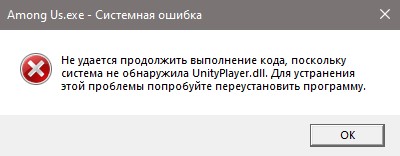
Вы должны понимать, что файл UnityPlayer.dll имеется во всех движках как Unity и лаунчерах как Steam или Epic. Многие сайты заставляют вас скачивать со сторонних источников отдельно dll файл и закинуть его к себе на компьютер по неправильному даже пути (в системные папки), но где гарантия, что там не вредоносный файл? Если вам нужен отдельно файл, то не легче его взять с официальной какой-либо игры? У меня имеется данный файл в игре AmongUs игрового лаунчера Epic Game.

Исправить ошибку отсутствующего файла UnityPlayer.dll
Разберем, где можно взять файл UnityPlayer.dll и как исправить ошибку его отсутствия в Windopws 10 или 7.
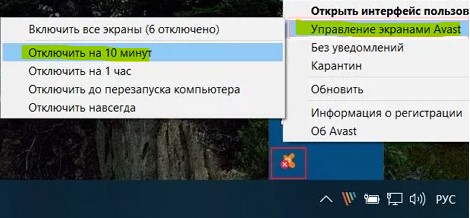
1. Блокировка файла антивирусом
Отключите на время антивирусный продукт и установите заново игру или программу.
2. Ошибка в играх
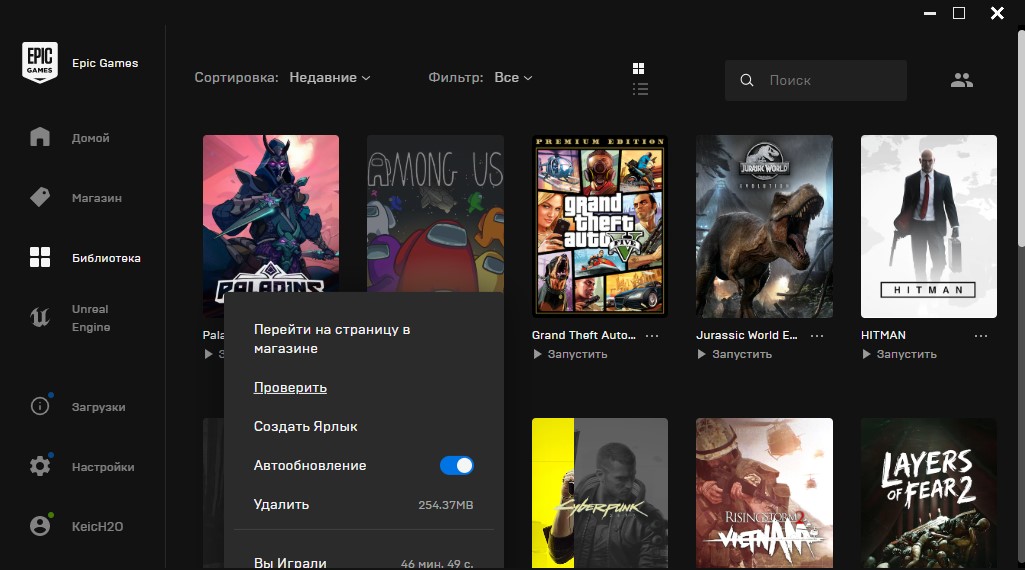
Если вы используете такие игровые лаунчеры как Steam, Epic или Uplay, то вам стоит переустановить игру или сделать целостную проверку файлов через сам лаунчер.
Если у вас есть подобные игры или программы, а ошибка к примеру в другой игре, то вы можете скопировать файл.
3. Регистрация UnityPlayer.dll в системе
Для Windows 10 и Windows 7 DLL библиотеки нужно регистрировать, если файл отсутствует в программе, которая устанавливается части своих библиотек в системные папки как system32 и syswow64. По этому, запустите командную строку от имени администратора и введите следующие ниже команды.
regsvr32 /u unityplayer.dllregsvr32 /i unityplayer.dll

4. Удаление Citrix Workspace
Многие пользователи на форуме Microsoft решили проблему удалением программы Citrix Workspace.
Смотрите еще:
- Отсутствует d3dx9_42.dll в Windows 10/7 — Решение
- Ошибка api-ms-win-downlevel-kernel32-l2-l-0.dll Epic Games в Windows 7
- Исправить ошибку nvwgf2umx.dll в Windows 10
- Скачать msvbvm50.dll для Windows 10/7 и исправить ошибку
- Как исправить ошибку KernelBase.dll в Windows 10
[ Telegram | Поддержать ]
Содержание
- unityplayer.dll
- Список типичных проблем с файлом unityplayer.dll:
- Вот как исправить проблему с этой библиотекой:
- Видео: Как исправить ошибку: отсутствует файл unityplayer.dll
- UnityPlayer.dll Not Found Or Missing [Fixed]
- What is UnityPlayer.dll?
- What Causes UnityPlayer.dll Missing Error?
- How to Fix UnityPlayer.dll Not Found Error?
- Restore DLL Files
- Re-register the DLL
- Create an Exception Windows Defender
- Run System File Checker
- Run DISM
- How to Install UnityPlayer.dll?
- All Types of UnityPlayer.dll Errors
- UnityPlayer.dll caused an Access Violation (0xc0000005)
- Disable the XMP (Extreme Memory Profiles)
- Reset the BIOS (Basic Input Output System)
- Uninstall Citrix
- UnityPlayer.dll Not Found/Missing
- UnityPlayer.dll Caused a Privileged Instruction (0xc0000096)
- UnityPlayer.dll crash
- Как исправить ошибку UnityPlayer.dll для Windows 10/7
- Исправить ошибку отсутствующего файла UnityPlayer.dll
- 1. Блокировка файла антивирусом
- 2. Ошибка в играх
- 3. Регистрация UnityPlayer.dll в системе
- 4. Удаление Citrix Workspace
unityplayer.dll
Как правило, скачать unityplayer.dll стоит при наличии проблем с работоспособностью любимой игры. Данный DLL-файл используется во многих из них, например, в Need For Speed. Проблемы с библиотекой могут возникнуть на различных этапах – как при установке, так и в дальнейшем, когда, кажется, все давно налажено.
Это связано с тем, что работа программы вносит изменения в системный реестр, а некорректные данные приводят к нарушению функциональности. Избавится от нарушений можно путем очистки системного реестра и восстановления работоспособности библиотеки DLL с помощью специальных приложений, но это в состоянии взять на себя лишь часть проблемы.
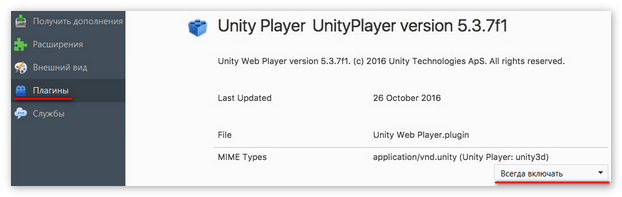
Масса неприятных случаев связаны с повреждениями самого файла, а потому наиболее сбалансированный и надежный путь – скачать новую библиотеку.
Список типичных проблем с файлом unityplayer.dll:
- ошибка работы приложения;
- отсутствует unityplayer.dll, файл не обнаружен;
- файл не является приложением для Windows;
- программа не отвечает;
- unityplayer.dll перестал работать;
- unityplayer.dll столкнулся с проблемой и должен быть закрыт.
Вот как исправить проблему с этой библиотекой:
- Скачать unityplayer.dll для Windows отдельным файлом.
- Установить Uplay
Ситуация, при которой файл не найден, может возникнуть в любой момент времени по многим причинам. В этом случае, единственным решением остается скачивание нового файла. Другой выход – переустановка игры – обычно неудобный вариант. Он требует массу времени и зачастую ведет к потере игрового прогресса, что мало кому, на самом деле, подойдет.
Скачивая библиотеку отдельно, вы получаете решение проблемы в минимальные сроки по времени, с полным сохранением настроек интерфейса и сохраненных игр. Это гораздо проще, чем сначала удалять, а потом ставить все заново.
Файл весит менее 10 МБ, его загрузка осуществляется напрямую, без регистрации, при отсутствии рекламных вставок и дополнительных платежей, без SMS.
Рекомендуем в первую очередь, скачать и установить полностью пакет Uplay. Ошибка должна сразу исчезнуть.
Как установить DLL файл вы можете прочитать на страницы, в которой максимально подробно описан данный процесс.
Видео: Как исправить ошибку: отсутствует файл unityplayer.dll
Источник
UnityPlayer.dll Not Found Or Missing [Fixed]
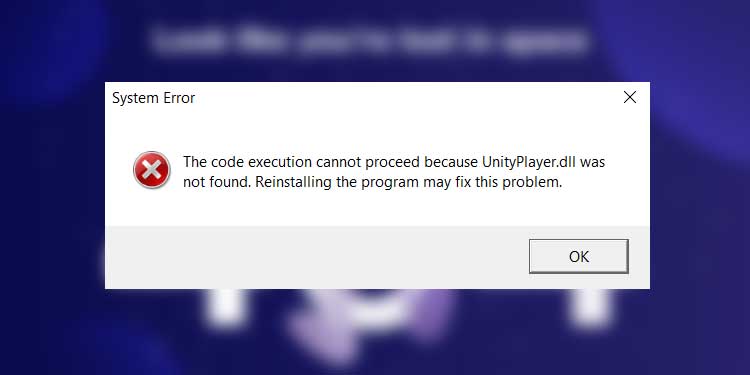
The DLL (Dynamic Link Library) file contains hundreds of lines of codes that multiple applications can use simultaneously. The missing DLL files are the errors that pop up when the application cannot find a certain DLL file to run the application.
Therefore, you will get a dialog box that says “.dll file missing” crashing the game/application.
What is UnityPlayer.dll?
UnityPlayer.dll is a Dynamic Link Library file that allows you to generate 3D material for games and animated characters. This file can be used to create games and add effects to them.
What Causes UnityPlayer.dll Missing Error?
How to Fix UnityPlayer.dll Not Found Error?
You can try the following fixes for any DLL file missing error.
Restore DLL Files
Sometimes, the DLL files can get corrupted while installing or downloading an application. If the application is getting a DLL file missing error, it might be because of these damaged files.
To restore any DLL files, you can follow these steps.
- Download and extract the specific DLL files from the internet. You can also go to the dll-files website to download any DLL files.
- Locate the DLL files that are causing the issue. If it is a UnityPlayer.dll file, it is located inside the application folder location.
- Delete the DLL file causing the problem and replace it with the extracted DLL file.
Run the application to check if the crash message pops up. If it does, you can re-register the DLL file.
Re-register the DLL
If the DLL files are corrupted, you can also re-register these files. Doing so will remove any corrupted section and replace it with a new file.
To re-register all DLL files, you can follow these steps.
- Press the Windows + R key and type “cmd.”
- Press Ctrl+Shift+Enter to run the Command as an administrator.
- Type the following command. Then press Enter.
for %i in (%windir%system32*.dll) do regsvr32.exe /s %i
Note: This command will re-register all the DLL files in system32.
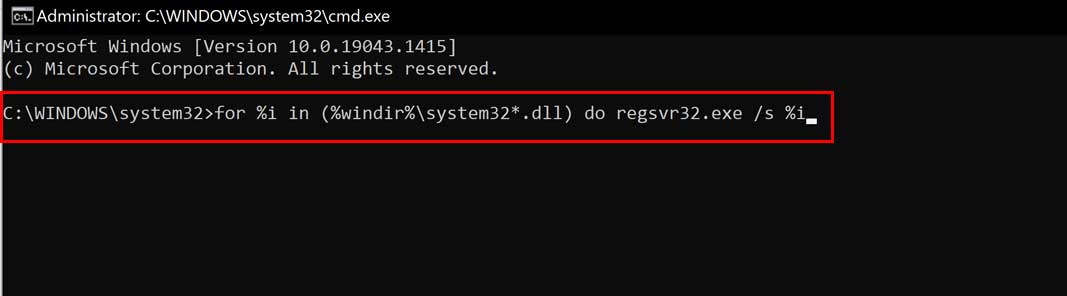
To re-register a specific DLL file, run the command as administrator. Then, type the following command.
Create an Exception Windows Defender
Sometimes, the Windows Defender can stop an application from accessing some files. If the Defender detects a threat from any DLL file, it will attempt to safeguard the computer by not letting the application use the DLL file, and hence the missing error is displayed.
You can give the application full access by creating an exception in the Windows Defender. Here’s how you can do it.
- Go to Settings from the Start menu.
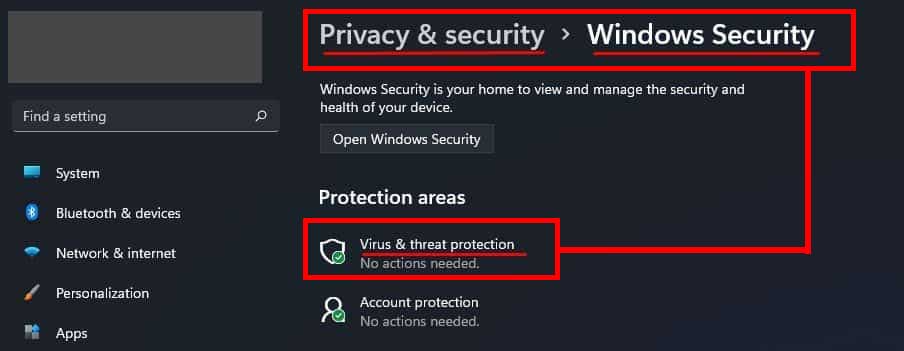
- Go to Privacy and Security >Windows Security >Virus and threat protection.
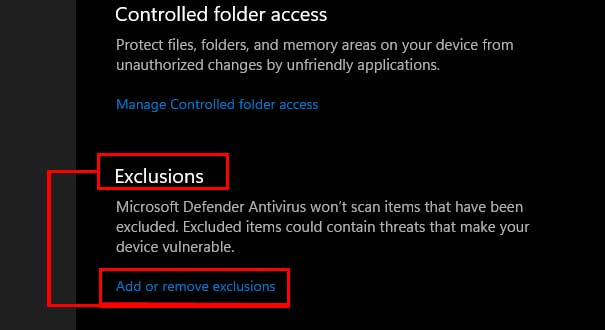
Click on Add an exclusion and then File.
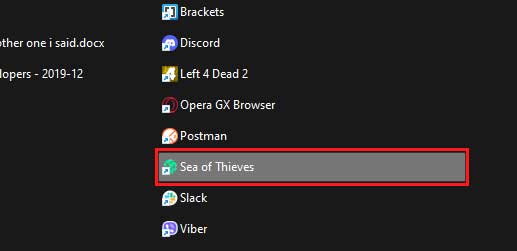
If you are on Windows 10, search for Windows Security on the search box. Then click on Virus and threat protection and continue from step 3.
Run System File Checker
The System File Checker will repair any corrupted system files in your Operating System. If some corrupted files stop the system from locating the DLL files, running the system file checker can solve the problem.
To run the System File Checker, you can follow these steps.
- Press the Windows+R key and type “cmd.”
- Press Ctrl + Shift + Enter to run the command as an admin.
- Now, type “SFC /scannow” and press Enter.
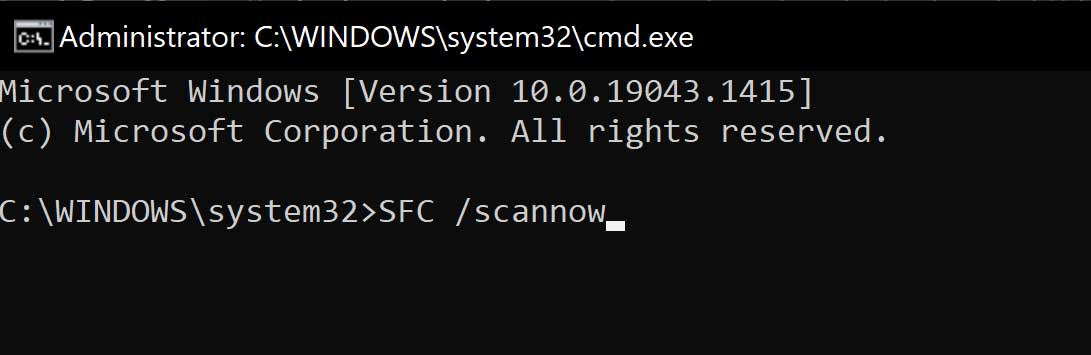
The System File Checker will start now. After the process is complete, restart your computer.
Run DISM
The DISM (Deployment Image Servicing and Management) tool is used to check, scan, and repair any problem with the computer’s health. If you face a System32 DLL file missing error, running the DISM command can help you repair/replace those files.
There are three DISM commands: CheckHealth, ScanHealth, RestoreHealth.
Run the Command Prompt as an administrator to run the commands below.
- CheckHealth: This command checks to see if any local Windows files are corrupted.
DISM /Online /Cleanup-Image /CheckHealth - ScanHealth: The ScanHealth command runs a thorough check to discover if the OS has any issues.
DISM /Online /Cleanup-Image /ScanHealth - RestoreHealth: You can use DISM and the RestoreHealth option to scan and repair errors automatically.
DISM /Online /Cleanup-Image /RestoreHealth
How to Install UnityPlayer.dll?
The installation process will automatically install all the required files that the application requires. However, if you want to replace UnityPlayer.dll, you can download the DLL files from dll-files to add the missing ones or replace the existing ones.
Extract the downloaded file and paste it into the folder that contains the executable file. If you are replacing a DLL file in System32, you should register the file. Type the following command in Command Prompt (run as admin).
for %i in (%windir%system32*.dll) do regsvr32.exe /s %i
The above code will register all the DLL files inside System32.
All Types of UnityPlayer.dll Errors
Few UnityPlayer.dll errors that we see most frequently are explained below. However, you can get these errors from any DLL file.
UnityPlayer.dll caused an Access Violation (0xc0000005)
If a DLL file tries to access the restricted files, the computer displays the error “.dll caused an Access Violation,” crashing the application/game. Sometimes, the error will read (0xc0000005) at the end of the error. 0x represents the address of the RAM. Lower addresses, such as 0xc0000005, are reserved for the BIOS or the Operating System.
Therefore, if some DLL file tries to access these reserved memory addresses, we’ll get the access violation error. Now, let’s check what causes this error and fix it.
You can try the following fixes to fix a DLL access violation error.
Disable the XMP (Extreme Memory Profiles)
Extreme Memory Profiles, or XMP, is an Intel technology that allows you to boost memory speed without overclocking your RAM. XMP profiles effectively will enable you to configure high-performance RAM that exceeds its specifications.
Sometimes, enabling the RAM XMP profile also causes the access violation error. The RAM will run at a slower speed if XMP is turned off, which may prevent the app from crashing.
To disable the XMP, you need to enter the BIOS setting in your motherboard. Depending on the motherboard, a section will read X.M.P. that is either enabled or disabled (on or off). Make sure the setting is disabled or off.
Reset the BIOS (Basic Input Output System)
If you have done any overclocking to your RAM, you might want to revert it to fix the issue. Resetting the BIOS to factory default will remove any overclocking.
Note: Resetting the BIOS will not reset the OS
Here are a few methods you can try to reset the BIOS.
- You can use the BIOS settings to reset the BIOS itself.
- Reseating the CMOS will reset all the BIOS settings.
- If you cannot reseat the CMOS, you can reset the CMOS jumper.
Uninstall Citrix
Sometimes, if you have Citrix Receiver or Citrix Workspace installed on your computer, it can cause some access violation issues when running some games. Try uninstalling Citrix by following these steps to see if it fixes the problem.
- Go to Control Panel from Start Menu.
- Select the View by option to Large icons on the top-right section of the Control Panel dialog box.
- Click on Program and Features.
- Select Critix and click on Uninstall.
UnityPlayer.dll Not Found/Missing
We get this error if the application cannot find the desired DLL file to complete its process. The solutions that are mentioned above will fix the DLL missing issue.
UnityPlayer.dll Caused a Privileged Instruction (0xc0000096)
The privileged instruction is also a type of access violation error. A Privileged Instruction is a processor operating code (assembler instruction) that can only run in Ring-0 mode. Ring-0 has the most privileges and interacts with physical hardware such as the CPU, memory, and protected data directly.
Regular applications run in Ring-3 mode, which prevents them from directly accessing the CPU, memory, or protected data.
Therefore, if a DLL file tries to access physical hardware like CPU and memory, we get the privileged instruction error.
UnityPlayer.dll crash
Unstable internet while downloading can cause a DLL file to be corrupted. Therefore, when a program tries to run a corrupted or incomplete DLL file, the application will crash, displaying the DLL crash error.

Deep Shrestha is an experienced content writer, front-end web developer, and hardware specialist. Using all this knowledge about computer hardware, he’s on a quest to make content that’s easy to read and understand for individuals who aren’t tech-smart. Besides being a content writer, he’s also a competitive/casual gamer.
Источник
Как исправить ошибку UnityPlayer.dll для Windows 10/7
UnityPlayer.dll — это файл библиотеки динамической компоновки, разработанный компанией Payload Studios для такого движка воспроизведения как Unity Technologies ApS.
Файл UnityPlayer.dll предназначен для создания 3D игр или анимированных персонажей, и также для правильной работы игр созданных на движке Unity. Если данный файл отсутствует или не найден в Windows 10 или Windows 7, то выскочит ошибка следующего вида:
- Система не обнаружила unityplayer.dll
- Файл unityplayer.dll не найден
- Файл unityplayer.dll отсутствует
- Не удается найти [ПУТЬ] unityplayer.dll
- Не удается запустить [ПРИЛОЖЕНИЕ]. Отсутствует необходимый компонент: unityplayer.dll. Пожалуйста, установите [ПРИЛОЖЕНИЕ] еще раз.
Вы должны понимать, что файл UnityPlayer.dll имеется во всех движках как Unity и лаунчерах как Steam или Epic. Многие сайты заставляют вас скачивать со сторонних источников отдельно dll файл и закинуть его к себе на компьютер по неправильному даже пути (в системные папки), но где гарантия, что там не вредоносный файл? Если вам нужен отдельно файл, то не легче его взять с официальной какой-либо игры? У меня имеется данный файл в игре AmongUs игрового лаунчера Epic Game.
Исправить ошибку отсутствующего файла UnityPlayer.dll
Разберем, где можно взять файл UnityPlayer.dll и как исправить ошибку его отсутствия в Windopws 10 или 7.
1. Блокировка файла антивирусом
Отключите на время антивирусный продукт и установите заново игру или программу.
2. Ошибка в играх
Если вы используете такие игровые лаунчеры как Steam, Epic или Uplay, то вам стоит переустановить игру или сделать целостную проверку файлов через сам лаунчер.
Если у вас есть подобные игры или программы, а ошибка к примеру в другой игре, то вы можете скопировать файл.
3. Регистрация UnityPlayer.dll в системе
Для Windows 10 и Windows 7 DLL библиотеки нужно регистрировать, если файл отсутствует в программе, которая устанавливается части своих библиотек в системные папки как system32 и syswow64. По этому, запустите командную строку от имени администратора и введите следующие ниже команды.
- regsvr32 /u unityplayer.dll
- regsvr32 /i unityplayer.dll
4. Удаление Citrix Workspace
Многие пользователи на форуме Microsoft решили проблему удалением программы Citrix Workspace.
Источник
Как правило, скачать unityplayer.dll стоит при наличии проблем с работоспособностью любимой игры. Данный DLL-файл используется во многих из них, например, в Need For Speed. Проблемы с библиотекой могут возникнуть на различных этапах – как при установке, так и в дальнейшем, когда, кажется, все давно налажено.
Это связано с тем, что работа программы вносит изменения в системный реестр, а некорректные данные приводят к нарушению функциональности. Избавится от нарушений можно путем очистки системного реестра и восстановления работоспособности библиотеки DLL с помощью специальных приложений, но это в состоянии взять на себя лишь часть проблемы.
Масса неприятных случаев связаны с повреждениями самого файла, а потому наиболее сбалансированный и надежный путь – скачать новую библиотеку.
Список типичных проблем с файлом unityplayer.dll:
- ошибка работы приложения;
- отсутствует unityplayer.dll, файл не обнаружен;
- файл не является приложением для Windows;
- программа не отвечает;
- unityplayer.dll перестал работать;
- unityplayer.dll столкнулся с проблемой и должен быть закрыт.
Вот как исправить проблему с этой библиотекой:
- Скачать unityplayer.dll для Windows отдельным файлом.
- Установить Uplay
Ситуация, при которой файл не найден, может возникнуть в любой момент времени по многим причинам. В этом случае, единственным решением остается скачивание нового файла. Другой выход – переустановка игры – обычно неудобный вариант. Он требует массу времени и зачастую ведет к потере игрового прогресса, что мало кому, на самом деле, подойдет.
Скачивая библиотеку отдельно, вы получаете решение проблемы в минимальные сроки по времени, с полным сохранением настроек интерфейса и сохраненных игр. Это гораздо проще, чем сначала удалять, а потом ставить все заново.
Файл весит менее 10 МБ, его загрузка осуществляется напрямую, без регистрации, при отсутствии рекламных вставок и дополнительных платежей, без SMS.
Рекомендуем в первую очередь, скачать и установить полностью пакет Uplay. Ошибка должна сразу исчезнуть.
Как установить DLL файл вы можете прочитать на страницы, в которой максимально подробно описан данный процесс.
Видео: Как исправить ошибку: отсутствует файл unityplayer.dll
Скачать файл unityplayer.dll
Разработчик
Uplay
ОС
Windows XP, Vista, 7, 8, 10
Разрядность
32/64bit
Кол-во скачиваний
80503- Рейтинг
Поделиться файлом
Смотрите другие DLL-файлы