«Бородой», а точнее кодом «-beard» в Sea of Thieves отмечаются самые разнообразные баги, сбои и ошибки. На момент публикации этого поста разноцветных и разно…плановых бород в игре мы насчитали почти 40 штук.
Так что, с багами в Sea of Thieves, что называется, полный порядок — в буквальном смысле на любой вкус и цвет, если считать вот так по бородам.
Но так как значительная часть этих самых beard-кодов по факту означают одно и то же, то и сгущать краски особого смысла нет (по крайней мере пока).
И самое главное, по коду бороды в любом случае гораздо проще определить причину проблемы и её быстренько пофиксить. О чем сейчас и будем рассказывать.
В общем, по мере актуальности (юзаем поиск по странице — так будет проще):
код Marblebeard в Sea of Thieves
…выкидывает из игры — происходит это либо из-за перегруза на сервере, либо из-за сбоя подключения (в т.ч. по причине некорректного типа NAT), следовательно, сначала пробуем просто перезайти и если не получилось, то проверяем статус сервера, проверяем подключение (перезагружаем консоль и роутер), проверяем тип NAT
- в меню гида переходим в раздел «Профиль и система«,
- открываем «Настройки» > «Общие» > «Настройки сети»,
- в разделе «Текущее состояние сети«, находим поле «Тип NAT».
Тип NAT должен быть «Открытый» (Open) — подробнее ЗДЕСЬ.
код Kiwibeard
…чаще всего возникает по причине того, что с консоли игра регистрирует сразу несколько тегов, а заходить можно только одному пользователю. Потому проверяем и выходим со всех учеток, и затем перезаходим в Sea of Thieves по-новой.
Кроме того, Kiwibeard также иногда выскакивает, когда сбоят сервера. А значит текущий статус сервера тоже не лишним будет проверить.
код Hazelnutbeard
… но сначала в игре начинают происходить всякие непонятки вроде неубиваемых скелетов, неоткрываемых сундуков и пр. После чего выскакивает сообщение об ошибке с кодом Hazelnutbeard. Иногда, если повезет и быстро перезапустить игру, то получается нормально перезайти. Но это не точно…
Если же этот код выскакивает регулярно и не дает нормально играть, то в таком случае рекомендуется сначала проверить корректность даты и времени системы и выставить правильные. А если с этим все ОК, то тогдп надо сбросить данные игры (если играем на компе). А для этого:
- в строке поиска системы пишем приложения и возможности
- далее в списке программ кликаем Sea of Thieves и жмем «Дополнительные параметры«
- следующее окно прокручиваем чуть вниз и кликаем кнопку «Сброс«.
коды Yellowbeard и Grandpabeard
Yellowbeard означает временный бан в игре. Как правило, дают его по чьим-то жалобам и в качестве наказания за нарушения правил поведения в Sea of Thieves (мат, оскорбления, читерство, стрим-снайпинг и т.п.). Срок бана зависит от масштабов и/или количества проступков.
Не пропустите:
Если выскочил код Grandpabeard, значит вас «кикнули» прямо по ходу игры. Теперь отдыхаем и делаем выводы…
Ещё «по мелочи»:
- коды Cinnamonbeard и Bronzebeard — не получается зайти в Sea of Thieves > пробуем перезайти, а если все равно не получается, то перезагружаем консоль и потом пробуем зайти еще раз.
- код Redbeard — перманентный БАН аккаунта. За «успешное» нарушение правил игры. Теперь точно придется начинать все заново и с новой учеткой.
- код AlapacaBeard — игра куплена на Steam-е и «что-то пошло не так с покупкой», потому проверяем, прошла ли оплата и с какой учетной записи (возможно, надо перелогиниться) — если не помогает, то переустанавливаем игру и клиент Steam.
- код Strawberrybeard — либо серверы остановлены на техобслуживание (проверяем статус и смотрим твиттер саппорта), либо есть проблема со связью (проверяем подключение), либо сбоит Xbox Live (перезагружаемся и проверяем обновления).
- код Ashbeard — заходим в свою учетку на Xbox Live, после чего перезапускаем игру. Если игра есть, а аккаунта в Xbox Live еще нет, то регистрируемся — без Xbox Live игра работать не будет.
- код Avocadobeard — требуется статус Xbox Live Gold — покупаем и/или проверяем срок подписки (возможно, пора продлевать).
- коды Greybeard и Charcoalbeard — обычно означают очередной сбой на стороне серверов, потому если перезагрузка не помогает, то проверяем статус сервера, и ждем пока саппорт все починит.
- код Lazybeard — система борьбы с ботами не спит. Не стоим и шевелимся, иначе выкинет из игры и напишет «ленивая борода».
- коды Alabasterbeard, Allmondbeard, Cyanbeard, Coarsebeard — указывают на проблему с подключением на стороне пользователя, а значит, проверяем связь (если надо перезагружаем комп, роутер и/или подключаемся через кабель), либо же не работают серверы Xbox Live (проверяем их статус).
- коды BeigeBeard и LightbeigeBeard — устаревшая версия игры — закрываем Sea of Thieves, проверяем и устанавливаем обнову и заходим заново (можно также включить автообновление).
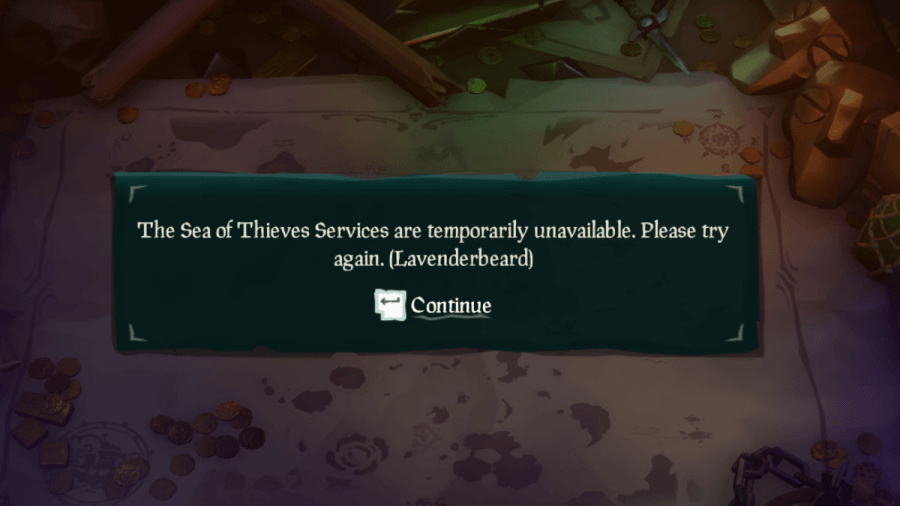
- код Lavenderbeard — проблема с подключением — проверяем статус серверов и связь у себя, а также смотрим, чтобы игру не блочили антивирус или брандмауэр Windows (если блокируют, то или добавляем exe-шник Sea of Thieves в список исключений, или отключаем антивирус на время игры).
- код Fishbeard — не получается играть командой — вероятнее всего, это баг на стороне сервера, если перезапуск не помогает, то похоже часок-другой придется поиграть самому.
- коды Lapisbeard и Daffodilbeard — сбой серверов — проверяем статус на всякий случай, читаем твиттер службы поддержки и играем в другую игру, пока саппорт проблему выявит и пофиксит.
- код Amethystbeard — сбой серверов Xbox Live — тоже проверяем статус и играем в другую игру, пока саппорт Microsoft проблему выявит и устранит.
- код Fluffybeard — технические работы на серверах (как правило, перед выходом очередного обновления).
- коды Beatnikbeard и Gulliverbeard — на момент отправки приглашения команда уже распущена — связываемся с тиммейтами и уточняем ситуацию и/или играем соло.
- коды Trimmedbeard и Emeraldbeard — выкинуло из игры и подключится уже не получается и не получится — надо заходить по-новой (разница только в том, что Trimmedbeard — код для Арены, а Emeraldbeard — для режима приключений).
- коды Llamabeard, Coralbeard, Obsidianbeard — игра вылетает по непонятным причинам — проверяем статус серверов и подключение, перезагружаемся и пробуем зайти снова.
- код Sleepybeard — тоже самое, что и Lazybeard (см. выше) — выскакивает автоматом, если система замечает длительное бездействие персонажа, или, например, во время рыбалки, когда персонаж стоит на месте, и нажимать надо всего пару кнопок. Потому стараемся хоть немного двигаться.
- коды Bernardbeard и Hopscotchbeard — проверяем ящики.
- код Pastiebeard — «отвалился интернет» в буквальном смысле, то есть, во время игры отключился кабель Ethernet — потому аккуратно продаем все, что собрались, завершаем путешествия, и только потом чиним занимается подключением.
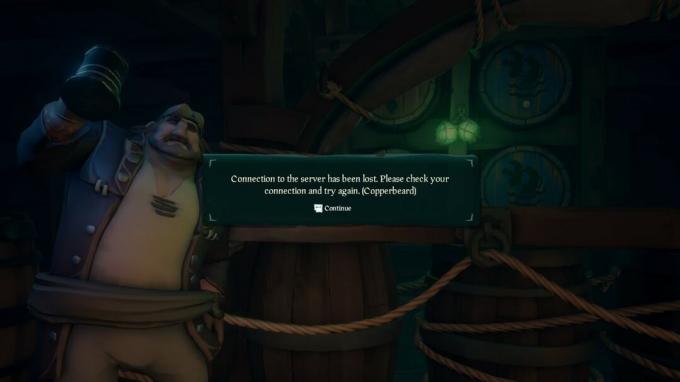
- код Copperbeard — персонаж не активен и/или окно игры свернуто — шевелимся!
- код Pythonbeard — система заметила применение макросов или многократное повторение какого-то действия — с макросами «завязываем», иначе будет ошибка Yellowbeard (см. в начале поста).
- код Crumbsbeard — попытка присоединиться к команде без приглашения — запрашиваем/отправляем приглос или создаем новую команду.
- код Bushybeard — команда укомплектована — пробуем присоединиться еще раз или ищем другую команду.
- код Mysteriousbeard — эта ошибка появляется, когда кто-то из тиммейтов выходит или подключается к сеансу, также Mysteriousbeard случается по ходу стрима, когда стример в качестве защиты от стрим-снайпинга или грубости игроков убирает свой геймтег.
- код Groomedbeard — случается в ходе командной игры, когда отключаешься или подключаешься к сеансу тиммейта — устраняется проблема перезапуском игры.
- код Coldbeard — баг в лобби перед выходом на Арену — просто пробуем зайти еще раз.
- код Granitebeard — непонятный баг игры в режиме Арены — в большинстве случаев лечится сменой режима (т.е. переходим в Приключения и потом возвращаемся в режим Арены).
- код Longbeard — проверяем настройки сети (QoS), перезагружаем роутер, перезапускаем игу.
- код Zaffrebeard — сбой подключения к серверу по ходу игры в режиме Арены — проверяем статус сервера и подключение, перезаходим в игру.
- код Tidybeard — проблема с подключением — проверяем связь, перезагружаем роутер и комп/консоль, проверяем тип NAT (должен быть «Открытый» см. выше) и порты для Xbox Live (тоже должны быть открыты), проверяем антивирус и брандмауэр Windows.
- код Cherrybeard — эта ошибка чаще всего случается, когда играешь в Sea of Thieves на Xbox, а потом заходишь в какую-то другую игру с того же аккаунта, но на компе — потому просто заходим в игру на консоли.
- код Inputbeard — ошибка указывает на то, что кто-то пытается присоединится к команде не с Xbox, а с ПК, притом к клавиатурой, а не с геймпадом — открываем настройки команды и разрешаем заходить всем, а не только пользователям Xbox.
коды Denimbeard и Cottonbeard в Sea of Thieves
Ошибка Denimbeard указывает на то, что вы пытаетесь поиграть в так называемую «инсайдерскую» версию Sea of Thieves, но без соответствующей учетной записи. Следовательно, сначала регистрируем аккаунт (из основных требований возраст 18 и старше, плюс знание игры).
Код Cottonbeard — баг из той же серии: вы пытаетесь поиграть в «инсайдерскую» версию, но учетка уже есть. В таком случае, инсайдерскую игру закрываем, запускаем обычную, играем некоторое время и выходим. После чего снова заходим в «инсайдерскую».
Ошибки CinnamonBeard и BronzeBeard
Сейчас это одни из самых частых ошибок, которые не позволяют зайти в игру или присоединиться к группе. Эти ошибки встречались и во время бета-тестов и, по словам разработчиков, указывают на то, что сервера игры заполнены. Единственное известное решение проблемы — полностью выйти из Sea of Thieves и зайти обратно.
Ошибка Lavenderbeard
Разработчики сообщили, что для решения проблемы с переполнением серверов они приостановили присоединение новых пользователей к игре. Пока неизвестно, когда геймеры смогут зайти в игру снова, но за всеми обновлениями вы можете следить в Twitter-аккаунте Sea of Thieves.
Пропали все предметы и деньги
Разработчики подтвердили, что некоторые игроки столкнулись с проблемой, когда после захода в игру они обнаружили пропажу всех купленных предметов и заработанных денег. Авторы уже работают над исправлением ошибки, а пока советуют выйти в главное меню и зайти в игру снова. Иногда это приходится делать несколько раз.
Отсутствует бонусный набор Black Dog за предзаказ
Еще одна проблема игры — отсутствие бонусного набора Black Dog за предзаказ. В своем Twitter разработчики сообщили, что предзаказавшие игру после 26 января 2018 года не получат набор автоматически. Специальный код для активации набора будет отправлен в сообщения Xbox Live скоро.
Ошибка KiwiBeard
Эта ошибка может появиться сразу по нескольким причинам. Либо сервера игры сейчас закрыты, либо к вашей консоли Xbox подключен больше чем один аккаунт (выйдите из всех лишних).
Ошибка Ashbeard
Чтобы поиграть в Sea of Thieves, вам нужно зайти в аккаунт Xbox Live. Проверьте статус своего аккаунта в Xbox Live и попробуйте войти в игру снова.
Ошибка AvocadoBeard
Чтобы поиграть в Sea of Thieves в онлайне, вам нужно иметь подписку на Xbox Live Gold. Проверьте статус своей подписки или купите новую, если нужно.
Ошибки AlabasterBeard, AllmondBeard и CyanBeard
Подключение к Xbox Live и/или серверам Sea of Thieves было потеряно. Разработчики тут не помогут: CyanBeard мешает очень многим игрокам еще с закрытых осенних тестов. Так что надо самостоятельно исправлять настройки подключения к Сети. Возможно, вам помогут советы отсюда: некоторые игроки справлялись с проблемой, отключив подключение IPv6.
Ошибка Beigebeard
Ваш клиент игры устарел. Проверьте наличие обновлений.
Ошибки DaffodilBeard и Lapisbeard
Проблема возникла на стороне разработчиков. Вам придется дождаться, пока они все не исправят.
Ошибка Lavenderbeard
Проблему могут вызвать антивирусы, брандмауэр, настройки прокси-серверов или другие программы для работы с сетью.
Ошибка Lazybeard
Вас выкинули из игры за отсутствие активности.
Hello fellow pirates.
TLDR: If you’re getting Granitebeard during load and/or server change while in voice chat with Discord, try not using Discord or switch to another app. This solved all the disconnection issues for me.
For about a month I have been experiencing Granitebeard errors (intermittent with Hazelnutbeard) upon loading into the game after a rather long «Setting sails» status. The game would simply stop loading after the splash screens and display Granitebeard. This would occur also during a server change, my crewmates being spared and noticing me leaving the crew due to getting disconnected.
I don’t know what has caused this (I switched from wireless 4G+ internet to a broadband cabled one, same thing). Background Apps active with Sea of Thieves ticked. My Windows10 is up to date.
While testing different things, suspecting that my connection might have issues with different active apps while gaming, I quit Discord voice chat and attempted to load into my friends’ crew, which worked each time, until a server change and then I’d get booted off the game once more. I’d hang up on voice chat in order to log back in again. Etc, etc…
And then, yesterday I had a seemless and Granitebeardless game for several hours because we were using voice chat not with Discord, but with Guilded. Server changes occured normally for me, displaying the blurry splash screen text. So it appears that Discord was the culprit in this situation, or that something with XboxLive servers and connectivity settings in my system are conflicting with Discord voice connections.
This may be a problem very specific to my computer in relation to XboxLive/Discord but I hope this post will be useful to other pirates, spending too much time battling against Beard monsters than skellies or other pirates out in the seas.
Beard Errors are quick reference codenames for various issues and errors that can occur in Sea of Thieves.
Solutions and causes provided below are a combination of official and user-observed information. The exact reason for a Beard Error may not be completely accurate for each occurrence, especially in the case of wide-spread server issues.
Types of Beard Errors[]
Alabasterbeard[]
A connection to Xbox live and/or the Sea of Thieves services was disrupted or lost, commonly caused by game server issues. If on Xbox One, Rare suggests to check the console’s network status via the Settings > Network menu. On a PC, determine that you have a stable Internet connection.
Allmondbeard[]
A connection to Xbox live and/or the Sea of Thieves services was disrupted or lost. If on Xbox One, Rare suggests to check the console’s network status via the Settings > Network menu. On a PC, determine that you have a stable Internet connection.
Alpacabeard[]
Error received when the Xbox Account has not purchased Sea of Thieves and tries to log in to the servers.
Amethystbeard[]
Error indicates that the player is not connected to Xbox Live due to a connection problem.
Ashbeard[]
A connection to Xbox Live is not established. Sea of Thieves requires an Xbox Live on Internet connection at all times to be played. Rare suggests the player to ensure their Xbox Live status is connected and then sign in and try again.
Averybeard[]
This error occurs when the session code is left blank when attempting to join a Custom Server.
Avocadobeard[]
An Xbox Live Gold membership was not identified on an Xbox One game client. When playing on an Xbox One console, a Player needs an Xbox Live Gold membership to play online. Rare suggests to check the subscription settings and purchase a Gold membership as needed.
Beatnikbeard[]
This error is given when the game detects that you are trying to join a crew that doesn’t exist.
Beigebeard[]
A player does not currently have the latest version of the game installed; a version mismatch. Rare suggests to check for updates. This can be done via the Microsoft Store app on Windows 10.
Beanbeard[]
Indicates that a network error has occurred. Causes of this error are unknown, but seems to be related to a session failure.
Bernardbeard[]
This error occurs when the player has a delivery crate pickup from an unknown location or when the player has a delivery crate with an unknown destination. The text «Good luck! The address has fallen off!» will appear.
Bronzebeard[]
A connection to the game was failed. Rare suggests to try the following if on console:
- Press the Guide Button on the controller.
- Highlight Sea of Thieves.
- Press the Menu Button (to the right of the Guide Button on the controller).
- Highlight «Quit» and press A.
- Re-launch Sea of Thieves from Pins, Recent or My Games & Apps areas of the console
- Navigate the menu and join a game as usual
Bushybeard[]
When trying to join a crew session when it has been filled.
Cabbagebeard[]
Details unknown. May be related to a server connection failure. This error may also be caused by antivirus/firewall settings, proxy servers or other network management/manipulation tools.
Charcoalbeard[]
Indicates a problem with matchmaking.
Cherrybeard[]
Happens when you get signed out of Xbox Live while playing.
Cinnamonbeard[]
A connection to the game was failed. Rare suggests to try the following if on console:
- Press the Guide Button on the controller.
- Highlight Sea of Thieves.
- Press the Menu Button (to the right of the Guide Button on the controller).
- Highlight «Quit» and press A.
- Re-launch Sea of Thieves from Pins, Recent or My Games & Apps areas of the console
- Navigate the menu and join a game as usual
Coarsebeard[]
A connection to Xbox Live and/or the Sea of Thieves services was disrupted or lost. If on Xbox One, Rare suggests to check the console’s network status via the Settings > Network menu. On a PC, determine that you have a stable Internet connection.
Coldbeard[]
Received when matchmaking with an Arena Game Mode Lobby fails. Try setting sail again if encountered.
Copperbeard[]
Related to inactivity, this error can occur when idle in the emporium menu for too long, can also occur if you tab out during a loading screen.
Coralbeard[]
Occurs when Sea of Thieves services are temporarily unavailable.
Crumbsbeard[]
Received when trying to join someone’s game who has limited their Crew only to invited people.
Cottonbeard[]
This error will trigger if a player hasn’t played on the retail build of Sea of Thieves for a long time and then attempts to play on the Insiders build. To solve this error the player should first log into and launch a session on the retail build.
Cyanbeard[]
A connection to Xbox Live and/or the Sea of Thieves services was disrupted or lost. If on Xbox One, Rare suggests to check the console’s network status via the Settings > Network menu. On a PC, determine that you have a stable Internet connection.
Daffodilbeard[]
Something has happened on Rare’s side that they are working to fix. Rare suggests to check the status of the game at https://www.seaofthieves.com/status for more information.
Daisybeard[]
Displayed when there are issues connecting to services. Rare suggests relaunching the game and trying again. This error may also be caused by antivirus/firewall settings, proxy servers or other network management/manipulation tools.
Denimbeard[]
Can display during the matchmaking flow on the Insider version of Sea of Thieves. Should a Player see this error it means that they are not signed up to the Insider programme. A player can sign up at https://www.seaofthieves.com/insider, providing that they are 18+ years of age and either own a Game Pass subscription or a physical or digital copy of Sea of Thieves.
Alternatively, a Player may have been removed from the old pioneer programme or the new Insider programme for breaking the Terms and Conditions agreed to when signing up. For further support on this issue Rare suggests raising a support request at https://support.seaofthieves.com/hc/en-gb.
Emeraldbeard[]
When trying to join a crew session that has been closed (usually when trying to rejoin a game when the crew/server has crashed). This one is presumably only for Adventure Mode, whereas Trimmedbeard is for Arena Mode.
Fishbeard[]
This is an issue with Sea of Thieves servers. Rare states that in this case, the team is hard at work to get everyone back in and playing as quickly as possible!
Fluffybeard[]
Rare have either taken the servers down for an update, or they are not currently running a playtest session at the time. Rare suggests to verify whether there is a scheduled playtest running in the player’s timezone.
Grandpabeard[]
This error is displayed when a player has been kicked from the game as a result of getting banned.
Granitebeard[]
Details unknown; Players have reported encountering the error during Arena.
Greybeard[]
This is an issue with Rare’s servers, the team are hard at work to get everyone back in and playing as quickly as possible!
Groomedbeard[]
An error received when trying to re-connect to a session, or connect to a crew via invite or direct from the friends list. It may also be due to a high influx of players on servers.
Possible solutions include: Starting a new session, restarting the Xbox App, or re-launching Sea of Thieves.
Gulliverbeard[]
An error received when trying to join a crew session that does not exist.
Hazelnutbeard[]
Appears to be a connection issue to the game servers. This error usually follows strange in-game behavior such as chests that cannot be opened, skeletons that cannot be killed, or random ship placement. Also can occur shortly after you sink an enemy player ship. This is believed to be caused by the server receiving too many packets.
Hopscotchbeard[]
This error occurs when the player has a delivery crate pickup from an unknown location or when the player has a delivery crate with an unknown destination. The text «Good luck! The address has fallen off!» will appear.
Inputbeard[]
The Crew you are joining is set to prefer Xbox players using Xbox controllers. The Crew leader will need to reform the Crew with the setting «Prefer to play with Xbox players using Xbox controllers» set to «No». This can be found in the «Matchmaking Preferences» setting menu.
Kiwibeard[]
This can be caused by any of the following:
- The Servers Are Closed – The game is not running a play session when a player tried to log in, so they cannot play Sea of Thieves at that moment.
- A player has more than one Gamertag signed in to their console. Rare suggests to sign all other accounts out of the console, and only launch the game with the one account that has been invited to play.
Lapisbeard[]
Something has happened on Rare’s side that they are working to fix. Rare suggests to check the status of the game at https://www.seaofthieves.com/status for more information.
Lavenderbeard[]
Can arise if new players are temporarily prevented from joining the game as part of an effort to resolve server issues. If this is the case, Rare will attempt to get everyone back in and playing as quickly as possible! This may also be caused by antivirus/firewall settings, proxy servers or other network management/manipulation tools.
This can also occur if there is an issue connecting to Xbox Live services, and has been known to happen on Steam after changing your Xbox account’s password. Signing out of Xbox Live services and back in may resolve this issue.
Lazybeard[]
The error stating that a Player has been removed from the active game session due to lack of activity. This is to prevent servers from being held open by inactive players and to give room for new players to join.
Leekbeard[]
Can occur when servers experience high server loads, such an increased amount of players logging in.
This can also be caused by version mismatch. Check that your game is updated to the current version.
Lettucebeard[]
Displayed when there are issues connecting to services. Rare suggests relaunching the game and trying again. This error may also be caused by antivirus/firewall settings, proxy servers or other network management/manipulation tools.
Lightbeigebeard[]
A player does not currently have the latest version of the game installed; a version mismatch. Rare suggests to check for updates. This can be done via the Microsoft Store app on Windows 10.
Lincolnbeard[]
This error occurs when an invalid session code is entered when attempting to join a Custom Server.
Llamabeard[]
This error occurs when Sea of Thieves Services are temporarily unavailable.
Longbeard[]
Indicates there is a problem with the player’s network setup, specifically around how it handles the game-play experience. Rare suggested making sure you don’t have QoS (Quality of Service) options enabled on your router.
Marblebeard[]
Is known to happen during a failed attempt to rejoin a session. Likely to occur after a disconnect due to another server error.
Mysteriousbeard[]
This error can appear with Replace Gamertags («Streamer Mode») enabled while crewmates join or leave your session.
Pastiebeard[]
This error occurs when the game detects a loss of connection due to Ethernet cable unplugging.
Pepperbeard[]
Has been known to occur when joining a game session through an invite. Causes unknown.
Pythonbeard[]
This error occurs when the game identifies that a player is using a macro or engaging in suspicious repetitious behavior.
Obsidianbeard[]
Occurs when Sea of Thieves server connection fails. No fix available.
Okrabeard[]
Details unknown. Players have reported encountering the error on Xbox consoles.
Redbeard[]
Occurs when the player is permanently banned from the game, usually due to a violation of the terms of service or code of conduct.
Sleepybeard[]
Related to inactivity, this error occurs after a certain amount of time not moving your character. Differs from Lazybeard as it can happen even if buttons are being pressed such as fishing in the same spot for a length of time.
Strawberrybeard[]
Most commonly caused by Sea of Thieves services being temporarily unavailable.
Has also been reported to be related to various errors including a version mismatch. Rare recommends updating your game to see if that fixes the problem. Another solution is to try logging out and then back into the Xbox account.
This error is given on the Insider Programme Client when the account has not logged into the Retail client for a few weeks. Log in to the Retail account to fix the issue.
Trimmedbeard[]
When trying to join a crew session that has been closed (usually when trying to rejoin a game when the crew/server has crashed).
Tidybeard[]
Occurs When a player’s connection is blocked by either IPV6/Teredo router settings, a closed NAT, closed Xbox Live ports, or firewall/antivirus software blocking the connection.
Yellowbeard[]
Occurs when the player is temporarily banned from the game.
Zaffrebeard[]
Occurs when connection to arena is mashed up.
В Медная борода ошибка в Море воров об этом сообщили многие игроки. Кажется, это происходит в основном, когда игроки пытаются провести онлайн-сеанс или когда они пытаются присоединиться к нему. Некоторые другие игроки сталкиваются с ошибкой каждый раз, когда нажимают кнопку Alt key — об этой ошибке обычно сообщают пользователи ПК.
В Медная борода error — это лишь одна из многих ошибок, с которыми сталкиваются игроки в игре. В прошлом мы публиковали статьи об исправлении многих из этих ошибок, в том числе: в Ошибка мраморной бороды, Ошибка лавандобороды, Ошибка пушистой бороды, Ошибки Lapisbeard и Greybeard, Ошибка FishBeard, НарциссБорода ошибка, Ошибки Lazybeard и Denimbeardи многое другое. В основном; если борода ошибка существует в Sea of Thieves, есть вероятность, что мы уже писали об этом, так что взгляните вокруг сайта на случай, если вы столкнулись с другими ошибками, кроме ошибки Меднобородой в Sea of Воры.
В Медная борода Известно, что ошибка имеет несколько причинных факторов. Прежде чем мы углубимся в то, как исправить это, давайте сначала обсудим возможные причины этой ошибки.
Оглавление
-
1 Возможные причины ошибки Copperbeard в Sea of Thieves
- 1.1 Проблемы с сервером
- 1.2 Игра не имеет разрешений на запуск в фоновом режиме
- 1.3 Проблемы с размером экрана
- 1.4 Поврежденный файл игры
-
2 Как исправить ошибку Меднобородого в Sea of Thieves
- 2.1 Проверьте наличие проблем с сервером
- 2.2 Предоставить разрешение на запуск Sea of Thieves в фоновом режиме
- 2.3 Запустить игру в оконном режиме
- 2.4 Сбросить игру из приложений и функций
Возможные причины ошибки Copperbeard в Sea of Thieves
Проблемы с сервером
Редкий Ограниченный, разработчики Sea of Thieves, без конца работали над решением этой проблемы с сервером. Эта проблема может быть вызвана либо внутренними проблемами, либо иногда для пользователей Xbox это может быть вызвано проблемой с инфраструктурой Xbox Live. Если это проблема для вас, то вы действительно мало что можете сделать, чтобы ее исправить. Наилучший доступный вариант — принять ошибку, а затем терпеливо подождать, пока Rare не найдет окончательного решения проблемы.
Игра не имеет разрешений на запуск в фоновом режиме
Если вы играете на ПК с операционной системой Windows 10, важно, чтобы вы разрешили игре Sea of Thieves запускаться в фоновом режиме. Если ваш компьютер с Windows 10 не настроен для предоставления разрешений на запуск игры в фоновом режиме, вы, вероятно, столкнетесь с Copperhead ошибка. Чтобы исправить это, просто предоставьте Sea of Thieves разрешение на работу в фоновом режиме на вашем компьютере.
Проблемы с размером экрана
Некоторые пользователи подняли вопрос о Copperhead ошибка возникает в результате проблем с размером экрана их ПК. Часто это происходит из-за осложнений, связанных с плохой заплатой. Исправить это довольно просто. Однако, если вы любитель играть в игры в полноэкранном режиме, вам это не понравится. Это связано с тем, что единственное решение этой проблемы — переключение Sea of Thieves в оконный режим сразу после открытия игры.
Поврежденный файл игры
Бывают случаи, когда Медная борода ошибка возникает просто потому, что файлы игры, присутствующие в вашей системе, содержат ошибку, поврежденный файл или несколько поврежденных файлов. Решение этой проблемы — простой сброс. Это можно сделать из Приложения и функции в настройках вашего ПК.
Теперь давайте перейдем к всестороннему обсуждению того, как решить каждую из этих отдельных проблем.
Как исправить ошибку Меднобородого в Sea of Thieves
Чтобы решить каждую из проблем, указанных в предыдущем разделе, игроки должны внимательно выполнить следующие шаги.
Проверьте наличие проблем с сервером
Вы можете попытаться выяснить, есть ли у Rare Limited какие-либо проблемы с их серверами в то время, когда у вас возникла эта ошибка. Если ошибка кажется широко распространенной и многие люди в вашем географическом регионе также испытывают аналогичные трудности, то, возможно, вы мало что можете сделать, чтобы решить проблему.
Исторически это происходило из-за конфликтов внутри инфраструктуры Xbox Live. Чтобы убедиться, что это так, вам следует посетить такие сайты, как IsTheServiceDown чтобы убедиться, что другие игроки в вашем районе также испытывают подобные трудности одновременно с вами.
Предоставить разрешение на запуск Sea of Thieves в фоновом режиме
Чтобы решить эту проблему, прежде всего, убедитесь, что Sea of Thieves, а также любые другие фоновые службы на вашем компьютере закрыты.
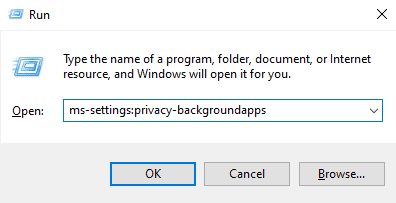
Затем нажмите кнопку Windows + Кнопки R вызвать Пробег диалоговое окно. В текстовом поле введите ms-настройки: конфиденциальность-backgroundapps, и нажмите Войти ключ. Это откроет Фоновые приложения окно на вашем ПК Настройки заявление.
Когда Фоновые приложения появится окно, включите фоновые приложения, нажав кнопку под Разрешить приложениям работать в фоновом режиме на «ВКЛ». Это позволит всем приложениям на вашем ПК работать в фоновом режиме, когда вы их сворачиваете или когда они не используются.
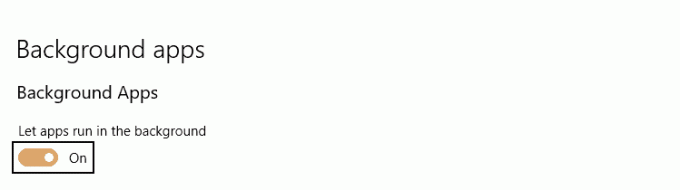
Когда вы это сделаете, прокрутите список приложений и перейдите туда, где находится игра Sea of Thieves. Убедитесь, что кнопка установлена в положение «ON». После того, как вы это подтвердите, вы можете вернуться и снова открыть игру, чтобы проверить, успешно ли решена проблема.
Запустить игру в оконном режиме
Если вы столкнетесь с Медная борода ошибка возникает в результате проблем с размером экрана вашего ПК или разрешением экрана, тогда вам может потребоваться переключить режим просмотра в оконный режим. При условии, что два вышеуказанных решения еще не помогли вам, возможно, это сработает.
Для этого просто нажмите Alt + Enter как только вы запустите игру, чтобы переключить ее в оконный режим. Возможно, вам не нравится играть в компьютерные игры в оконном режиме, но если вы действительно хотите поиграть в эту игру и описанные выше методы не помогли вам, это может быть вашим последним средством.
Однако, если вы все еще испытываете то же самое Медная борода ошибка, то вы можете попробовать последний метод ниже.
Сбросить игру из приложений и функций
Это исправление работает, если вы видите Медная борода ошибка в результате плохого или поврежденного файла среди файлов игры Sea of Thieves. Поскольку Sea of Thieves устанавливается как приложение универсальной платформы Windows (UWP), вы не сможете проверять целостность файлов, как в Origin, Steam и т. Д.
Однако вы все равно можете решить эту проблему локально. Вы можете сделать это, сбросив настройки игры через Расширенные настройки для Sea of Thieves. Это решение было протестировано и подтверждено многими другими участниками игры. Это решение восстанавливает игру в исходное состояние. Это означает, что весь кеш, данные, связанные с учетной записью, и все установленные обновления будут очищены.
Но не стоит паниковать, так как с этой процедурой не будет потери данных.
Первым шагом к выполнению этой процедуры является поднятие Пробег диалоговое окно и ввод ms-settings: возможности приложений в диалоговое окно. Затем нажмите кнопку Войти ключ.
На Приложения и функции перейдите вниз по списку приложений UWP, установленных на вашем компьютере, и найдите Sea of Thieves. Как только вы его найдете, щелкните по нему один раз, чтобы развернуть меню, а затем щелкните значок Расширенные настройки гиперссылка.
Когда откроется меню дополнительных параметров, прокрутите вниз, чтобы найти Сброс вкладка, а затем нажмите на Сброс кнопка.
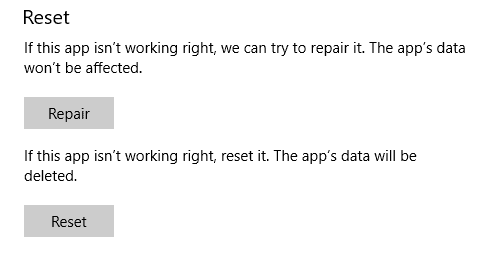
После подтверждения операции дождитесь ее завершения. После этого откройте Microsoft Store и установите все ожидающие обновления Sea of Thieves, прежде чем снова запустить игру. Наконец, откройте игру, чтобы увидеть, решена ли проблема.
Если какой-либо из этих процессов сработал для вас, оставьте комментарий в разделе комментариев ниже и сообщите нам, как это сделать. Если ни один из них не сработал, также сообщите нам. И если вам каким-то образом удалось открыть новый метод, который помог вам решить Медная борода проблема, то мы хотели бы услышать, как вы справились с ней ниже.
Quick Links
- Kiwibeard
- Yellowbeard And Grandpabeard
- Cinnamonbeard And Bronzebeard
- Redbeard
- AlapacaBeard
- Strawberrybeard And Leekbeard
- Ashbeard
- Denimbeard And Cottonbeard
- Avocadobeard
- Greybeard And Charcoalbeard
- Alabasterbeard, Allmondbeard, Cyanbeard, Coarsebeard
- Lazybeard
- BeigeBeard And LightbeigeBeard
- Lavenderbeard
- Fishbeard
- Lapisbeard and Daffodilbeard
- Amethystbeard
- Fluffybeard
- Beatnikbeard And Gulliverbeard
- Trimmedbeard And Emeraldbeard
- Llamabeard, Coralbeard, And Obsidianbeard
- Sleepybeard
- Bernardbeard And Hopscotchbeard
- Crumbsbeard
- Bushybeard
- Inputbeard
- Tidybeard
- Cherrybeard
- Longbeard
- Hazelnutbeard
- Zaffrebeard
- Granitebeard
- Marblebeard
- Coldbeard
- Groomedbeard
- Mysteriousbeard
- Pythonbeard
- Copperbeard
- Pastiebeard
It isn’t uncommon for random crashes to happen in games, and Sea of Thieves is no different as they have Beard Errors to let you know what went wrong, such as Charcoal Beard and Obsidian Beard to name a few. They stand for a variety of complications that may occur, whether it is with your own system or a problem on the developer’s end. It will help you identify the easiest way to fix the problem and the possible solutions you may be able to try.
Some Beard Errors can mean the same thing, while others were created for a specific issue. The next time you are playing Sea of Thieves and happen to run into one of these you won’t be left scratching your head in confusion.
Updated on July 10, 2021 by Rebecca O’Neill: We’ve revisited this article to add some more information — Obsidian Beard and Bernard Beard have now been expanded upon with more information on their current solutions.
39 Kiwibeard
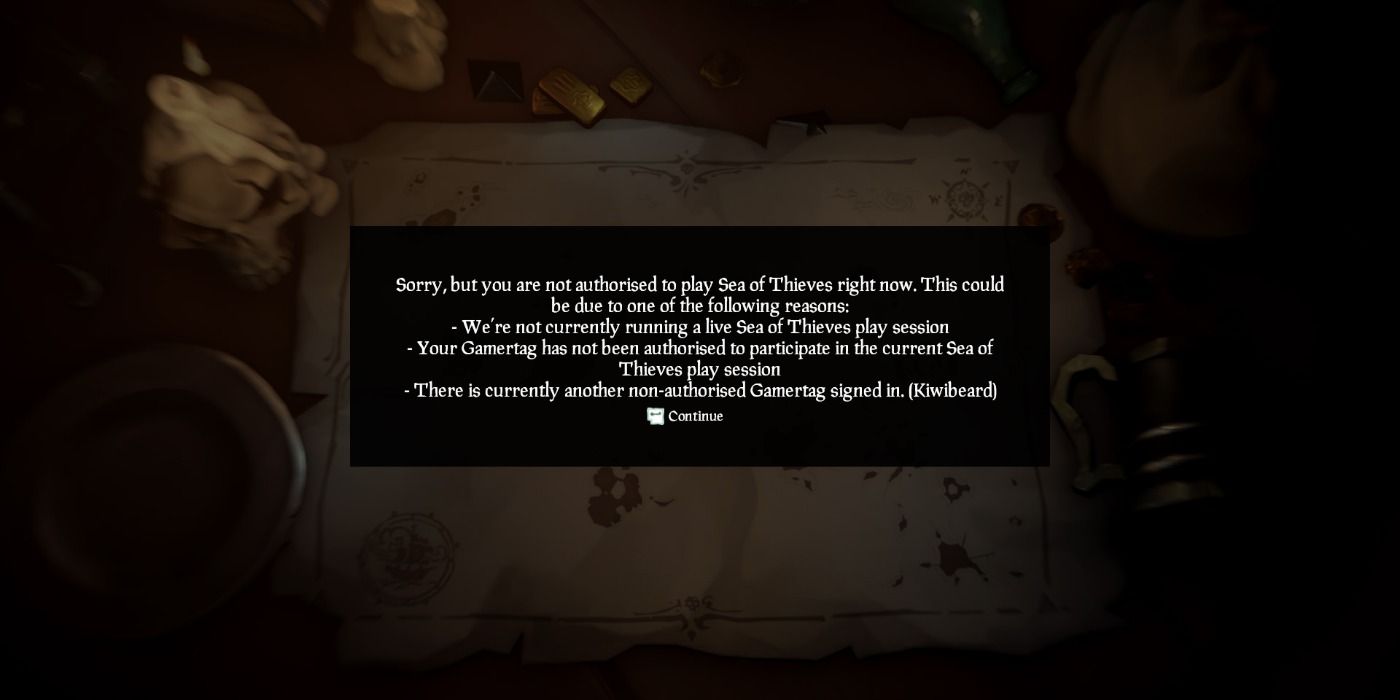
The Kiwibeard error message can appear for a number of things, but the most common reason is that more than one Gamertag is currently logged into your console. You should only have one user signed into the game at a time, so make sure to log out of all other accounts if this happens to you.
The other reason this error message might appear is when Sea of Thieves has closed their servers, and there is nothing you can do to fix this except wait and see.
38 Yellowbeard And Grandpabeard
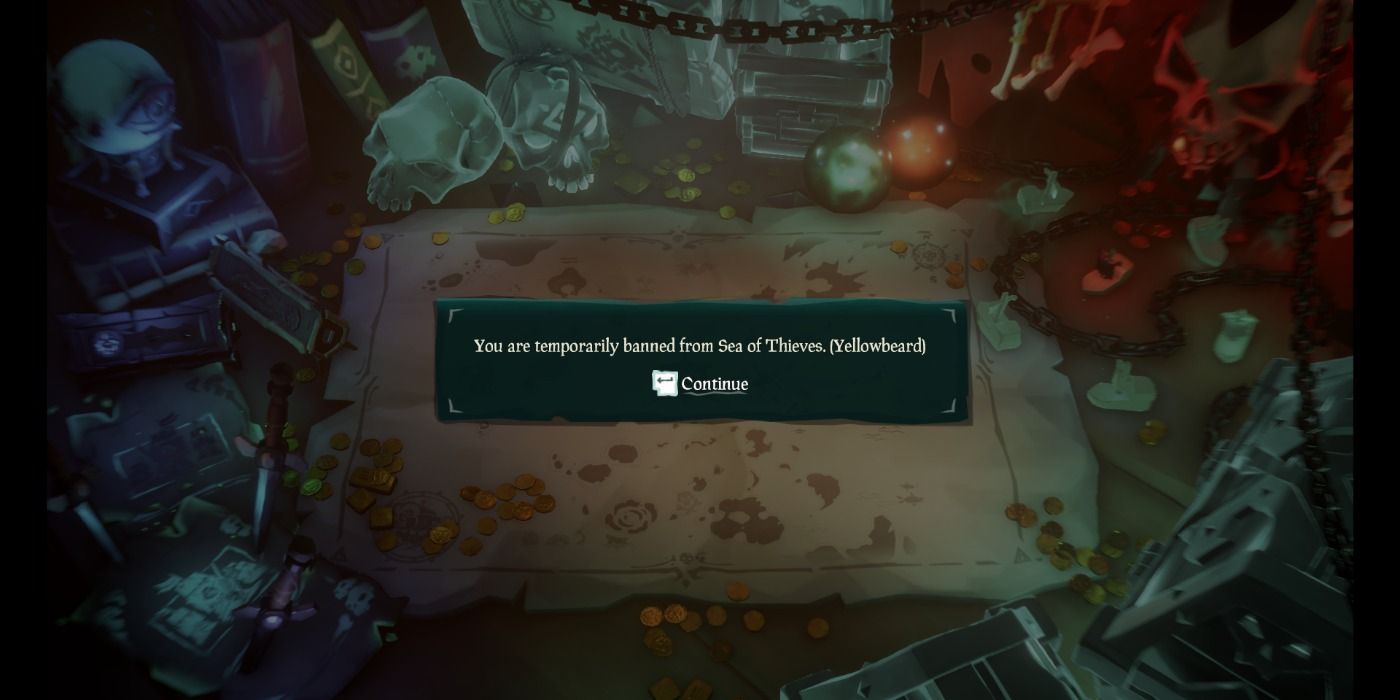
Sea of Thieves has a Code of Conduct in order to keep things civil between players. Using disrespectful language, cheating, and stream sniping can all qualify you for a ban.
If another player happens to report you for one of these offenses then you might undergo a temporary ban that will cause the Yellowbeard error message to pop up on your screen. The number of days it lasts will depend upon your offense, so keep this in mind when chatting with others.
If you are banned while you are playing Sea of Thieves then the Grandpabeard error message will occur indicating that you have been kicked for this reason.
37 Cinnamonbeard And Bronzebeard
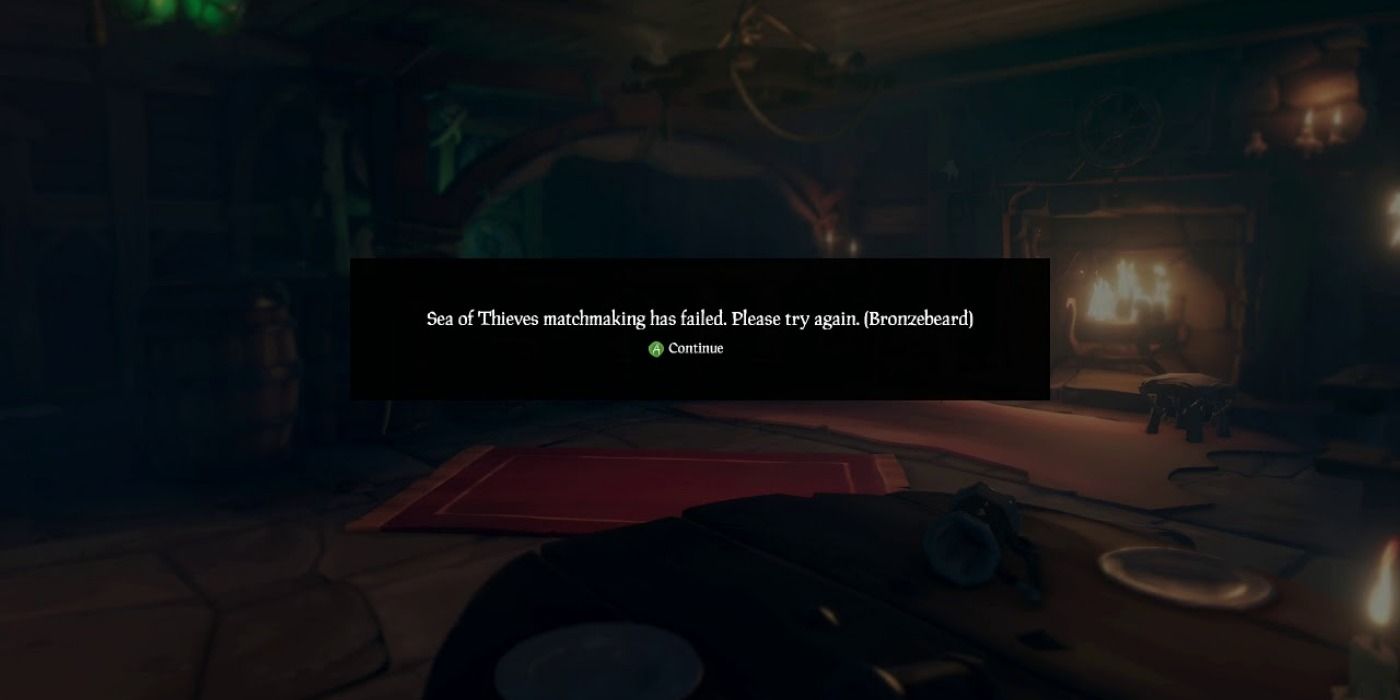
The Cinnamonbeard and Bronzebeard error messages talk about the same problem, which is that you are unable to be connected to the game. This can usually be solved by quitting the game, and sometimes just restarting your entire console will do the trick.
You should be able to load in after completing this step and be on your pirate way to earning a lot of money, and this guide lays out some ways you can accomplish this.
36 Redbeard
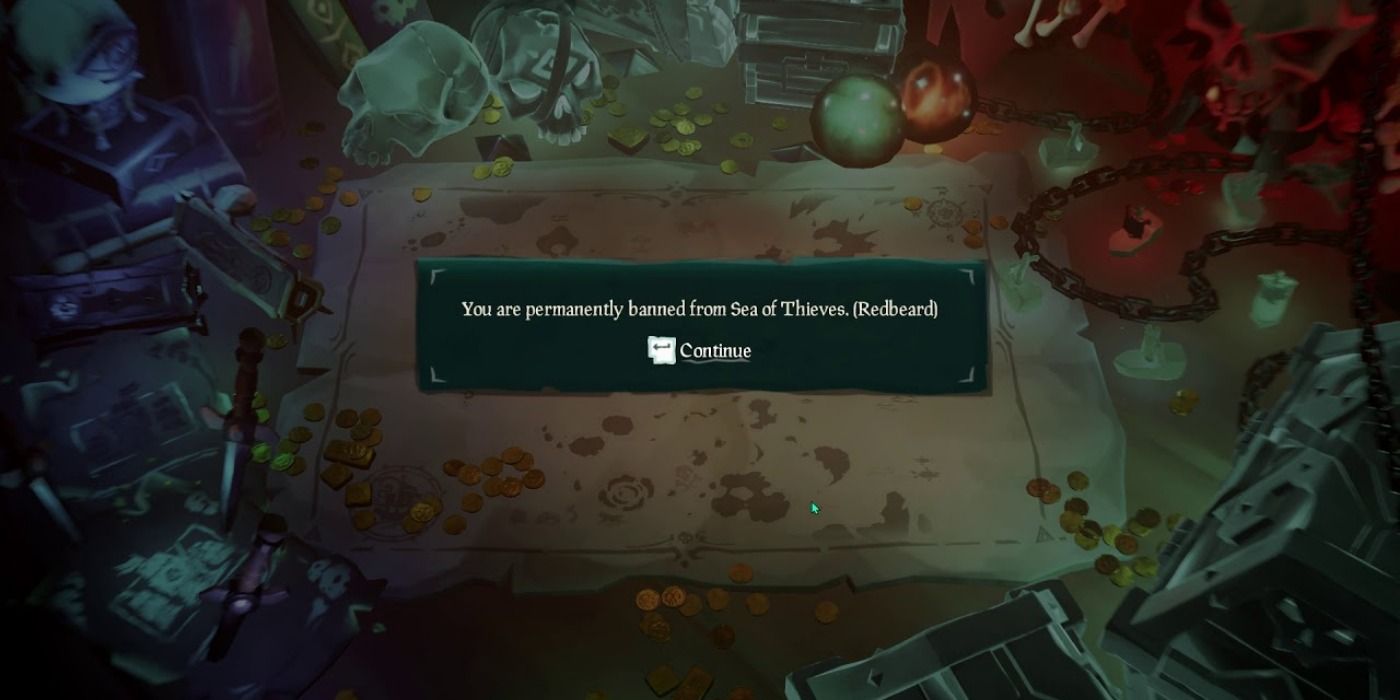
When you break the Code of Conduct it is one thing, but there are some players who take it way too far. This can lead to a permanent ban from the game, meaning you can never access your pirate or loot ever again.
Yes, you could start all over on a new account, but it is important to keep in mind the mistakes you made that caused you to be given the Redbeard error message in the first place.
35 AlapacaBeard
If you bought the game on PC through Steam then that is the only way you will see the AlpacaBeard error message. It means that something with your purchase or the platform has gone wrong, and the first thing you should do is check to make sure your payment was not denied.
Next, you should look to see that you are logged into the correct Steam account. If this still isn’t the issue then try reinstalling both the game and Steam itself to try and fix the problem.
34 Strawberrybeard And Leekbeard
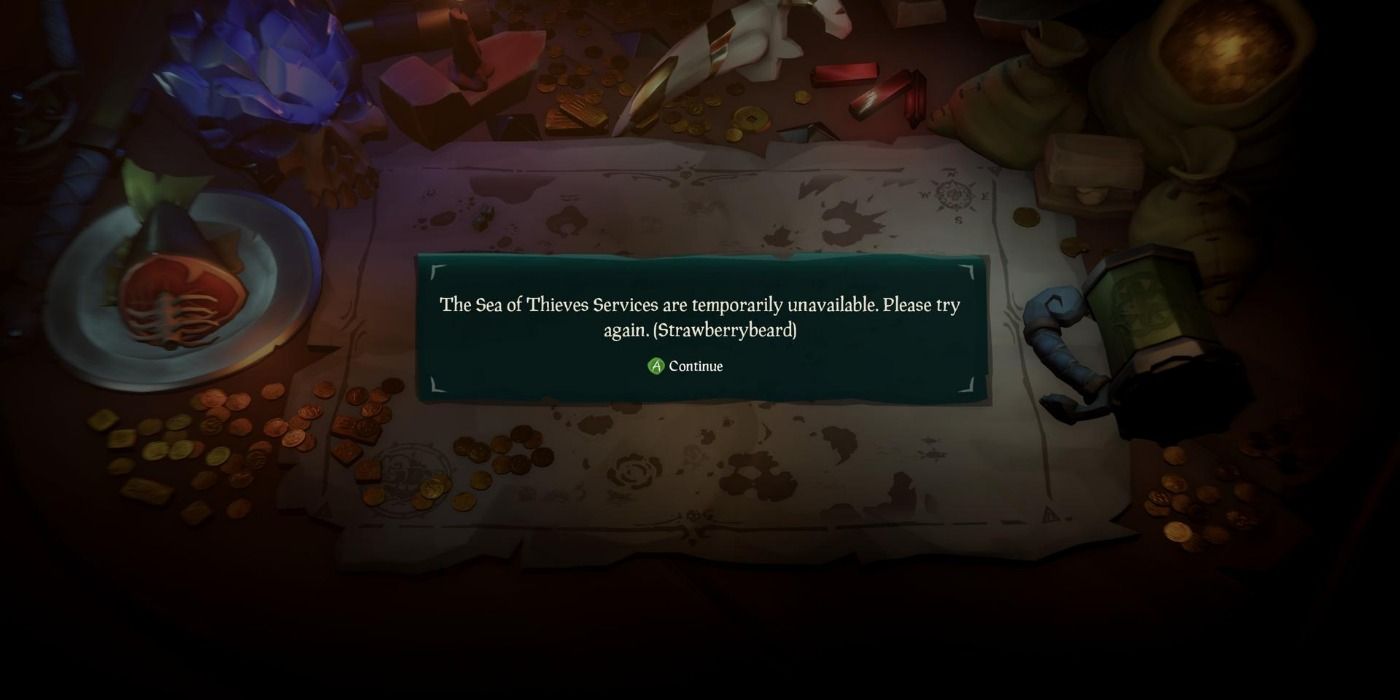
The Strawberrybeard and Leekbeard error messages usually mean that maintenance is being performed on the servers or you need to update your game. It could also be caused by your own software.
Sometimes a lack of a connection will trigger this, while other times it relates to the functionality of Xbox Live. You can try restarting your device and checking for updates as this might help you solve the problem.
33 Ashbeard
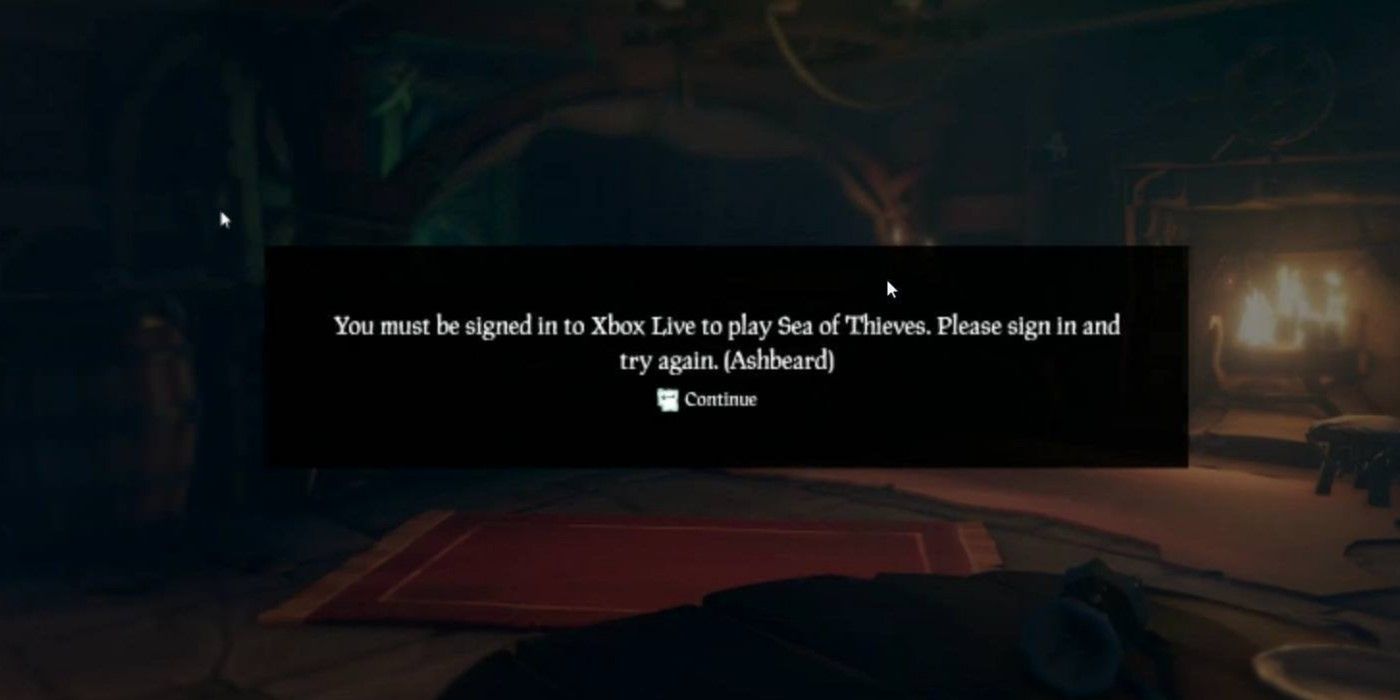
Xbox Live is required in order to play Sea of Thieves, and if you don’t log into this account then you will be unable to play. Just double-check that you are signed in and then relaunch the game in order to fix this issue with the Ashbeard error message.
If you don’t have an Xbox Live account then you will have to make one in order to play.
32 Denimbeard And Cottonbeard
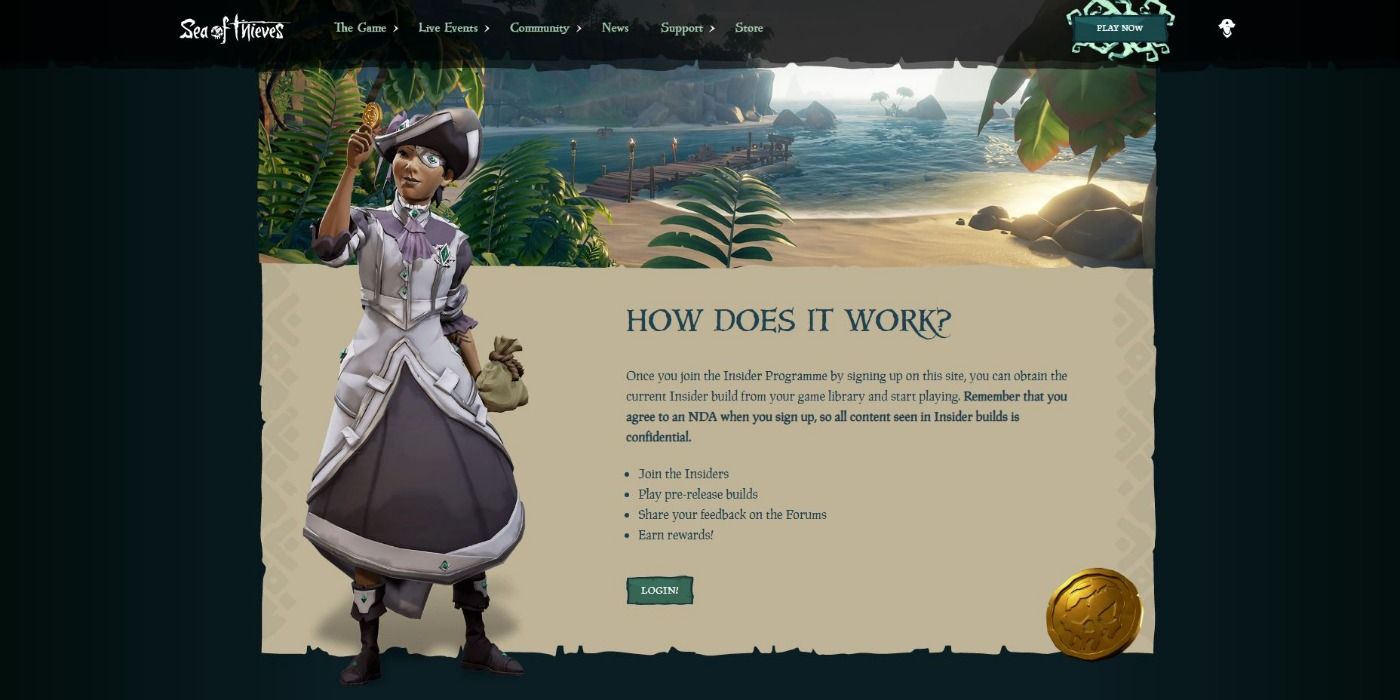
The Insider Programme is a Sea of Thieves initiative that allows you to become more directly involved in the game and its evolution. You will be granted access to upcoming news, pre-releases, forum contributions, and you will earn rewards for your efforts.
If you play the Insider version of Sea of Thieves and receive the Denimbeard error, it probably means that you have not created an account. You just have to be 18 years or older and own the game in some form in order to join.
Alternatively, if you have an account and try to play the Insider version but receive the Cottonbeard error message, you need to go back and play the retail version. All you need to do is launch a session and then it should allow you to play the Insider version the next time around.
31 Avocadobeard
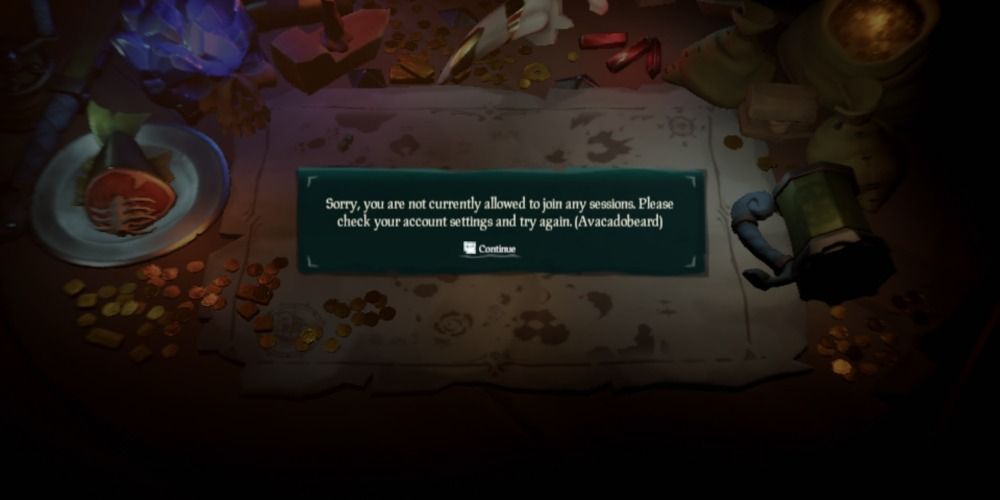
When playing on the Xbox, you are required to have an Xbox Live Gold membership in order to play games online, except for free-to-play games. You can purchase this on the console itself, or head to your local gaming store and pick it up as a physical card.
If the Avocadobeard error occurs you will need to check your subscription as chances are that you will need to renew.
30 Greybeard And Charcoalbeard
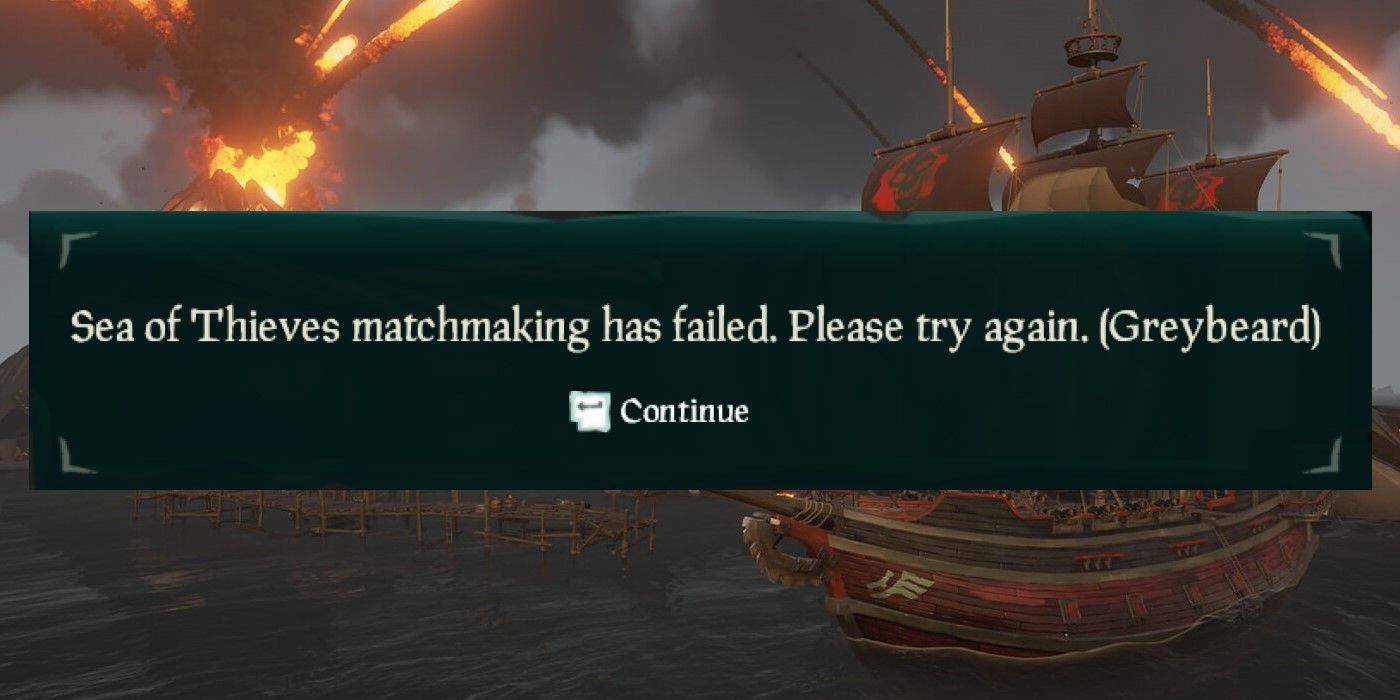
Sometimes servers have their own issues, which is when the Greybeard or Charcoalbeard error messages appear, especially when it comes to matchmaking. You will just have to wait it out until the Sea of Thieves team is able to solve the problem.
Usually, it doesn’t take too long but it can be a nuisance when you have been waiting to play all day and want to work on mastering PVP combat.
29 Alabasterbeard, Allmondbeard, Cyanbeard, Coarsebeard
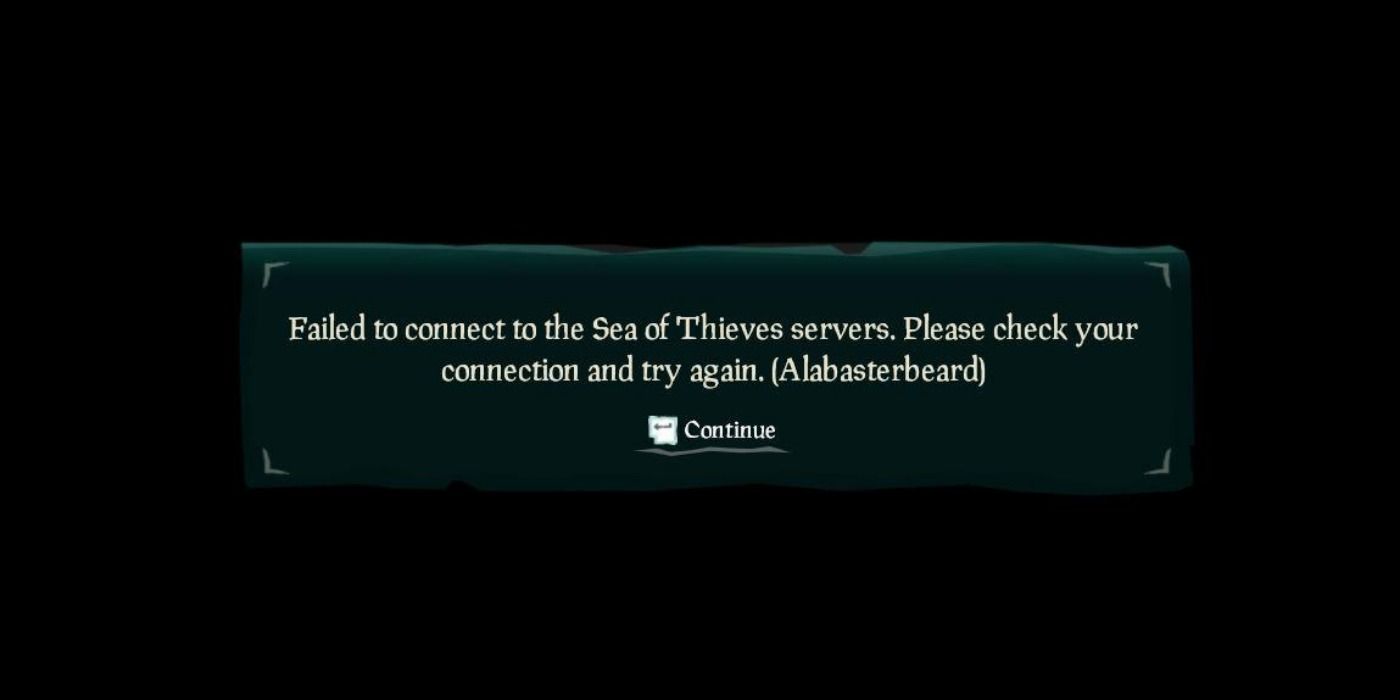
When your own system malfunctions then you will see one of these three error messages. It could say Alabasterbeard, Almondbeard, or Cyanbeard and you can fix it by checking your connection.
It often means that your internet connection has been interrupted, but this can also happen if Xbox Live happens to go down. A quick search online will tell you if it’s Xbox Live, so do this if you have tried everything with your own network connection and it’s still not working.
28 Lazybeard
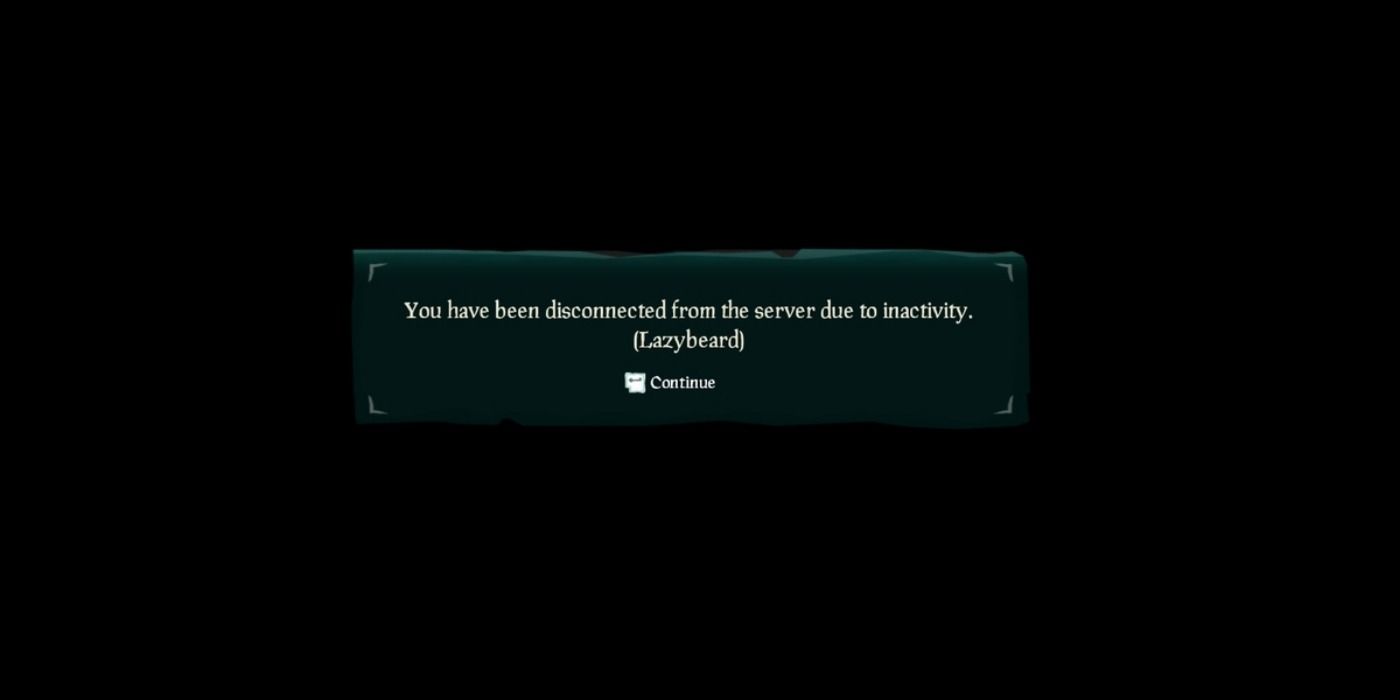
If you want to stay in your current session of Sea of Thieves, you have to remain active within the server. If you stand still for too long then you will be kicked from the game and the Lazybeard error message will appear on your screen.
If you know that you will be gone from your system for an extended period of time, just make sure to move your pirate every now and then in order to stay.
27 BeigeBeard And LightbeigeBeard
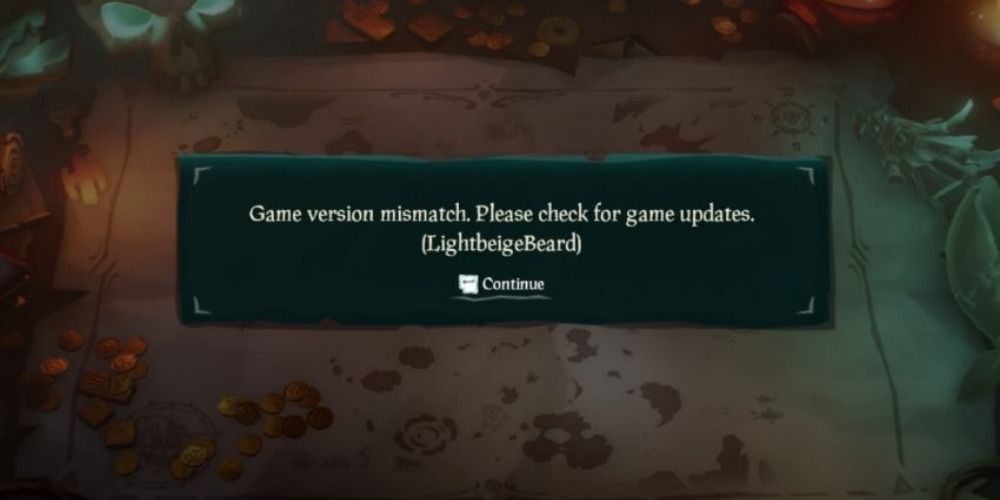
Sea of Thieves has its own periodic updates, and if your game isn’t current then you will receive the BeigeBeard or LightbeigeBeard error messages. You can check for updates before launching the game, but other players prefer to turn on automatic updates.
26 Lavenderbeard
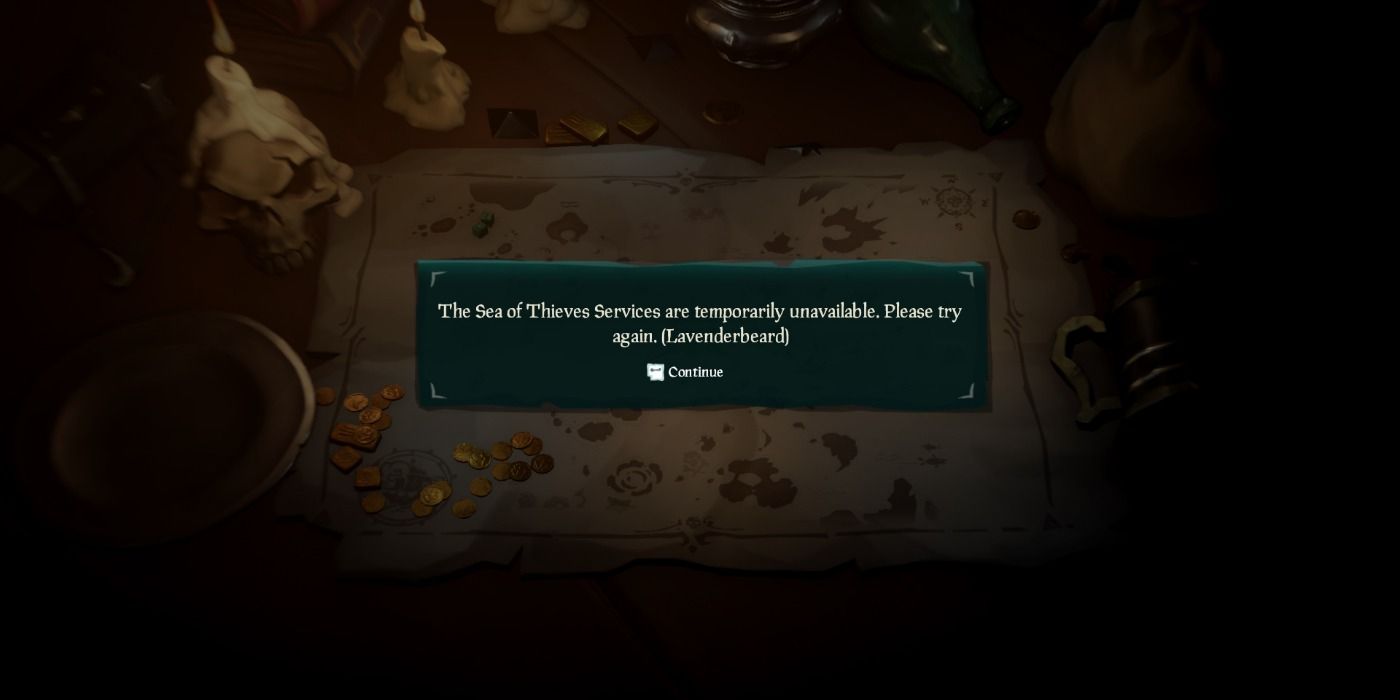
The Lavenderbeard error message relates to your connectivity to the network. It will usually appear when the servers are being worked on, but other times it has to do with your own software.
Your antivirus or firewall applications could be preventing the game from being played. The fix can sometimes be as simple as disabling these programs while you play, and then restart them once you log off.
25 Fishbeard
The Fishbeard error usually involves issues with the servers that allow you to play with friends. One fix is to try playing solo and sail alone for a while in order for the issue to resolve itself as you wait for the Sea of Thieves team to get it back up and running.
24 Lapisbeard and Daffodilbeard
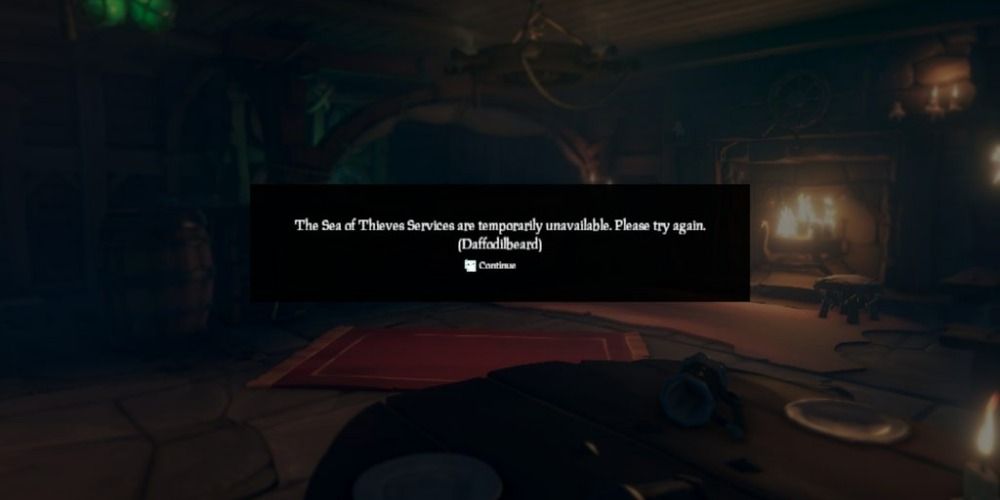
When the Lapisbeard or Daffodilbeard error message appears on your screen then you will just have to find another game to play as it is currently down. You can usually check the status on their website in order to see how long they think it will take before the servers are up and running once again.
23 Amethystbeard
Xbox Live sometimes has issues and when this happens you will receive the Amethystbeard error message. You will just have to wait for the team at Microsoft to resolve the problem before you will be able to jump into this game and start sailing the seas.
22 Fluffybeard
When the servers need to be updated they will be closed for a short period of time, during which you will see the Fluffybeard error message. It could also mean that they are running a playtest in order to make sure that everything is working as it should before releasing new content to players.
You can check to see if there is a playtest, but more than likely it is probably an update that is being implemented.
21 Beatnikbeard And Gulliverbeard
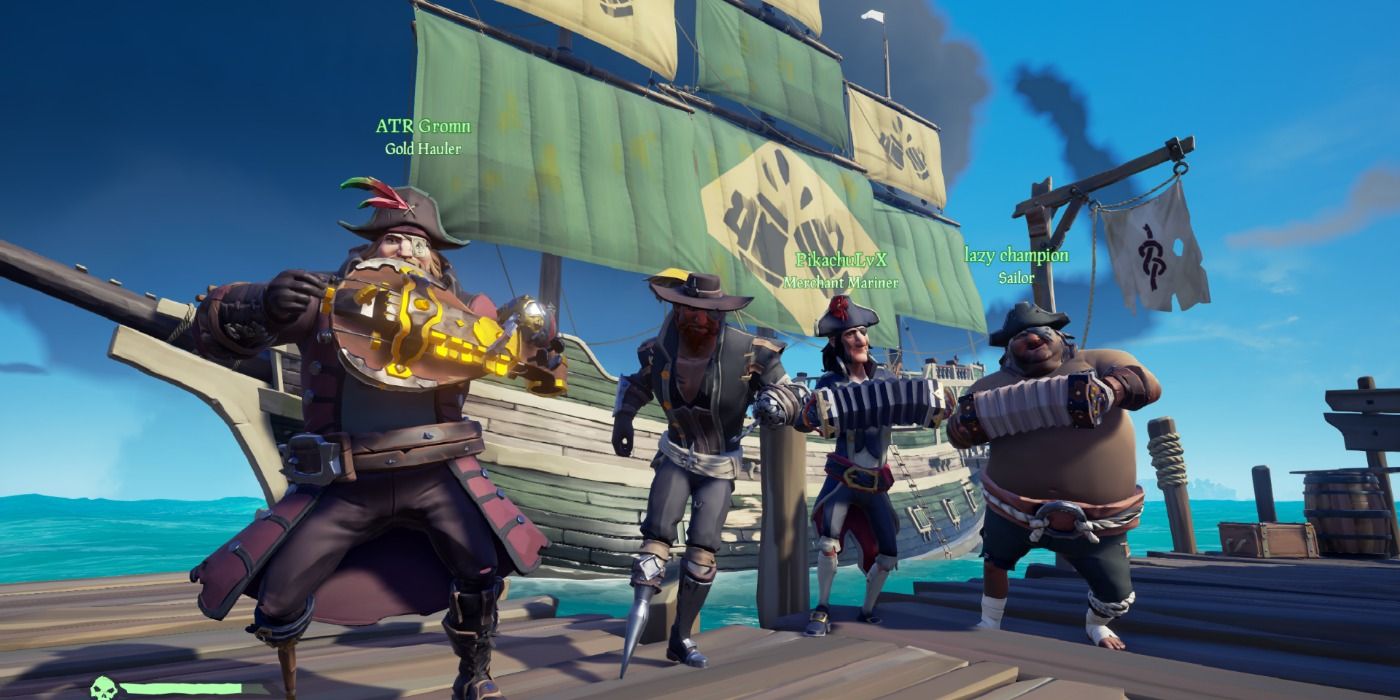
Sometimes crews disband and no longer exist after an invite is sent, and the Beatnikbeard or Gulliverbeard error message is what you will be given when this occurs. You will have to contact your friends to see what is going on or play solo until someone else decides to send you an invite.
20 Trimmedbeard And Emeraldbeard
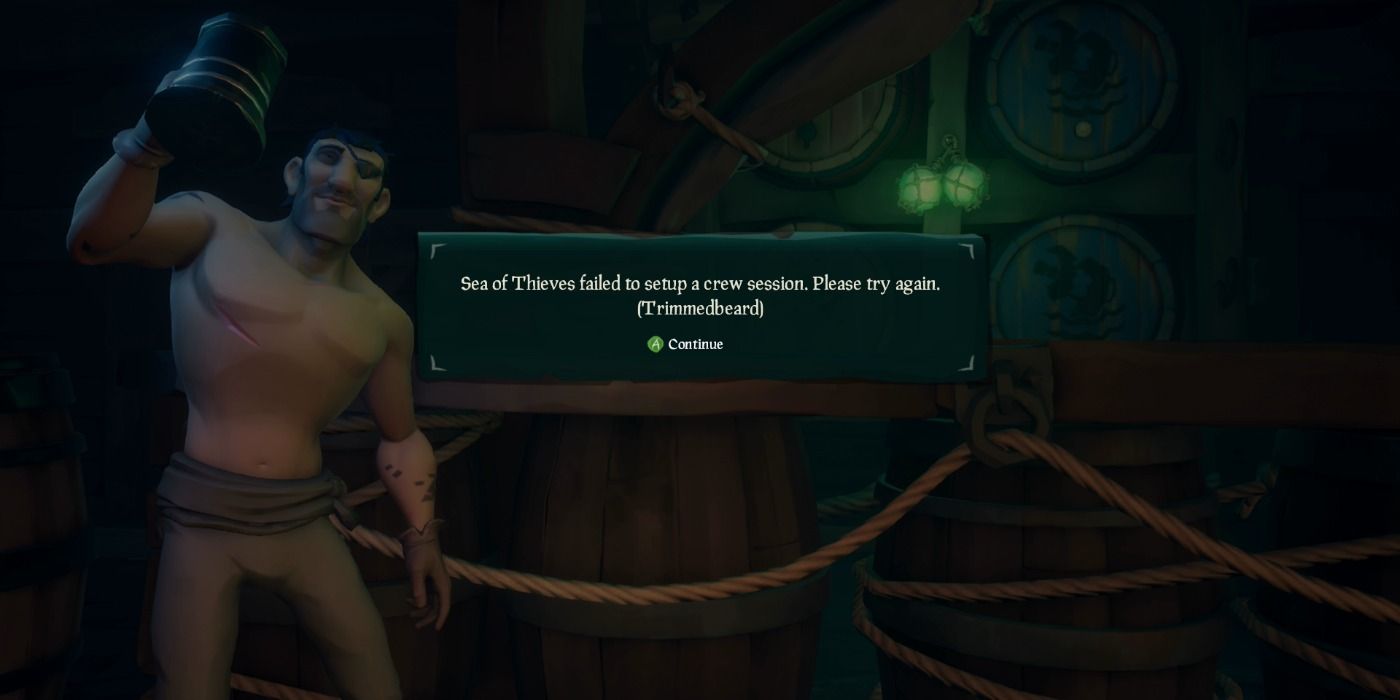
Sometimes when you are playing with a crew your session will randomly crash, which can cause it to permanently close. If you try to rejoin and receive this error message then you will have to start a new session, which can be frustrating especially if you have almost completed The Sunken Pearl Tall Tale.
However, the Trimmedbeard error message is for Arena Mode while the Emeraldbeard error message is for Adventure Mode which is where the difference in these error messages comes into play.

Будь то новый сезон контента, бесплатные или двойные выходные XP, или просто случайный наплыв игроков, Sea of Thieves во многих моментах будет падать. Игроки не смогут провести матчмейкинг, так как серверы будут бороться, а ошибка будет сопровождаться одним из многих кодов «Борода». Очень распространенной является ошибка BronzeBeard — хотя она не говорит вам ничего конкретного, она просто означает, что вы не можете подключиться к игре.
Это может показаться глупым и элементарным, но решение простое — «выключить и включить». Согласно официальному центру поддержки Sea of Thieves, пользователи Xbox должны выйти из игры. Нажмите кнопку Home на контроллере Xbox, чтобы вернуться в главное меню; выделите плитку Sea of Thieves, нажмите кнопку options (кнопка «пуск» с тремя линиями) и выберите Quit. Снова откройте игру и попробуйте войти в игру и повторить матчмейкинг.
На ПК, будь то Microsoft Store или Steam, решение аналогичное. Просто выйдите из игры и вернитесь в клиент Xbox или Steam — по желанию вы также можете перезапустить программу запуска, если это принесет вам больше душевного комфорта.
Гайды
20 сентября 2021
0

 (1 348 голосов)
Sea of Thieves has a strange, but fun way of identifying errors for players. If an issue shows up for players while they’re trying to connect, they display a Beard Error to help the player see what the problem is. In the list below, we explain what each error means and how to fix them! We’ve sorted them in alphabetical order.
AlabasterBeard, AlmondBeard, & CyanBeard
- Issue: This is a player-side internet issue that means the player’s connection to Xbox Live or the Sea of Thieves servers has been interrupted.
- Solution: Check your network to make sure it’s online and connected. If a firewall is enabled, change it to allow connection to the Sea of Thieves and Xbox Live servers.
AlpacaBeard
- Issue: This is a player-side issue that usually means the servers could not confirm you have a valid game license. It may be caused by using an illegally downloaded copy of the game or from corrupt game and Steam client files.
- Solution: Make sure your game client was purchased from a licensed platform. If you’re using Steam, make sure you’re properly logged in. If this fails, uninstall and re-install the game or Steam client.
AshBeard
- Issue: This is a player-side network issue that means you’re not properly logged in to the Xbox Live network.
- Solution: Make sure you’re logged in to Xbox Live and try to connect again. If you cannot log in to Xbox Live, contact Microsoft Support.
AvocadoBeard
- Issue: This is a player-side issue that means you do not have a Gold Membership with your Xbox Live account, which is required to play Sea of Thieves.
- Solution: Make sure you’re logged in to Xbox Live and have purchased an Xbox Live Gold Membership, then try again.
BeigeBeard & LightbeigeBeard
- Issue: This is a player-side issue that means you do not have the most recent version of the game.
- Solution: Force an update on the game on the Steam or Windows App Store. If it won’t install the updated, uninstall and re-install the game.
Related: How to Get Ancient Coins in Sea of Thieves — Pro Game Guides
BronzeBeard & CinnamonBeard
- Issue: This is a catchall error that means something interrupted your connection to the game, but the servers and game cannot determine the exact cause.
- Solution: If it happens repeatedly, a full game restart may be required. Force a shutdown of the game on your console with the following steps, then restart the game.
- Press the Guide button on your controller
- Highlight Sea of Thieves
- Press the Menu button on your controller
- Select Quit.
DaffodilBeard
- Issue: This is a server-side catchall error that means something on their end couldn’t connect your game, but the servers and game cannot determine the exact cause.
- Solution: The game servers may be down. Try again later. Use our guide to check the Sea of Thieves Server Status to know when it’s okay to try again.
DenimBeard
- Issue: This is an error that applies only to players playing the Insider version of Sea of Thieves. It means there is an issue verifying the account. It can happen if the player is not signed up for the Insider version, or if their account was removed from the program for any reason.
- Solution: Verify your account status with the Insider program and try again. If you have been removed from the program, you cannot connect to the servers for that version of the game and must inside connect to the normal servers.
FishBeard, GreyBeard, & LapisBeard
- Issue: This is a server-side error that means there is an issue on their end stopping players from joining the game.
- Solution: The game servers may be down. Try again later. Use our guide to check the Sea of Thieves Server Status to know when it’s okay to try again.
FluffyBeard
- Issue: This is a server-side error that applies only to players playing developmental versions of the game. It means they’re not playtesting the version you want to use or it could not connect to your system.
- Solution: Check to see when they are playtesting in your time-zone and try logging in at the scheduled time.
KiwiBeard
- Issue: This could be a server-side issue or a client-side issue. It means that the servers are temporarily closed or that the player is trying to log in while their account is already logged in on another device.
- Solution: Sign out of all other accounts and try again. If it happens again, then the game servers may be down. Try again later. Use our guide to check the Sea of Thieves Server Status to know when it’s okay to try again.
LavenderBeard & StrawberryBeard
- Issue: This is usually a server-side issue that means their servers are down for maintenance. It can also be caused by a player’s Firewall or Antivirus software blocking the game from connecting.
- Solution: Verify that your Firewall and Antivirus allow the game client to reach outside of the network and try again. If it happens again, then the game servers may be down for maintenance. Use our guide to check the Sea of Thieves Server Status to know when it’s okay to try again.
Related: How to Find the Shores of Gold in Sea of Thieves | Shores of Gold Tall Tale — Pro Game Guides
LazyBeard
- Issue: This simply means that you were idle in the game too long, so they disconnected you from the server.
- Solution: When you’re ready to play again, log back in.
RedBeard
- Issue: This error means your account has been permanently banned from the Sea of Thieves servers and is usually only caused by a serious breach of the Code of Conduct or Terms of Service.
- Solution: Contact Sea of Thieves Game Support if you feel your account was banned in error.
YellowBeard
- Issue: This error means your account has been temporarily banned from the Sea of Thieves servers because of a violation of their Code of Conduct or Terms of Service.
- Solution: Wait until the account is re-enabled and the suspension is lifted, then try again. Contact Sea of Thieves Game Support if you feel your account was suspended in error.
Those are all the Beard Errors currently in the game! Be sure to check out our Sea of Thieves Homepage for more great guides and content!
Once you’re connected, be sure to use our guides to help you through all the Tall Tales! You can start with The Shroudbreaker or Heart of Fire.
Follow us on Twitter and Facebook to get updates on your favorite games!
Sea of Thieves has a strange, but fun way of identifying errors for players. If an issue shows up for players while they’re trying to connect, they display a Beard Error to help the player see what the problem is. In the list below, we explain what each error means and how to fix them! We’ve sorted them in alphabetical order.
AlabasterBeard, AlmondBeard, & CyanBeard
- Issue: This is a player-side internet issue that means the player’s connection to Xbox Live or the Sea of Thieves servers has been interrupted.
- Solution: Check your network to make sure it’s online and connected. If a firewall is enabled, change it to allow connection to the Sea of Thieves and Xbox Live servers.
AlpacaBeard
- Issue: This is a player-side issue that usually means the servers could not confirm you have a valid game license. It may be caused by using an illegally downloaded copy of the game or from corrupt game and Steam client files.
- Solution: Make sure your game client was purchased from a licensed platform. If you’re using Steam, make sure you’re properly logged in. If this fails, uninstall and re-install the game or Steam client.
AshBeard
- Issue: This is a player-side network issue that means you’re not properly logged in to the Xbox Live network.
- Solution: Make sure you’re logged in to Xbox Live and try to connect again. If you cannot log in to Xbox Live, contact Microsoft Support.
AvocadoBeard
- Issue: This is a player-side issue that means you do not have a Gold Membership with your Xbox Live account, which is required to play Sea of Thieves.
- Solution: Make sure you’re logged in to Xbox Live and have purchased an Xbox Live Gold Membership, then try again.
BeigeBeard & LightbeigeBeard
- Issue: This is a player-side issue that means you do not have the most recent version of the game.
- Solution: Force an update on the game on the Steam or Windows App Store. If it won’t install the updated, uninstall and re-install the game.
Related: How to Get Ancient Coins in Sea of Thieves — Pro Game Guides
BronzeBeard & CinnamonBeard
- Issue: This is a catchall error that means something interrupted your connection to the game, but the servers and game cannot determine the exact cause.
- Solution: If it happens repeatedly, a full game restart may be required. Force a shutdown of the game on your console with the following steps, then restart the game.
- Press the Guide button on your controller
- Highlight Sea of Thieves
- Press the Menu button on your controller
- Select Quit.
DaffodilBeard
- Issue: This is a server-side catchall error that means something on their end couldn’t connect your game, but the servers and game cannot determine the exact cause.
- Solution: The game servers may be down. Try again later. Use our guide to check the Sea of Thieves Server Status to know when it’s okay to try again.
DenimBeard
- Issue: This is an error that applies only to players playing the Insider version of Sea of Thieves. It means there is an issue verifying the account. It can happen if the player is not signed up for the Insider version, or if their account was removed from the program for any reason.
- Solution: Verify your account status with the Insider program and try again. If you have been removed from the program, you cannot connect to the servers for that version of the game and must inside connect to the normal servers.
FishBeard, GreyBeard, & LapisBeard
- Issue: This is a server-side error that means there is an issue on their end stopping players from joining the game.
- Solution: The game servers may be down. Try again later. Use our guide to check the Sea of Thieves Server Status to know when it’s okay to try again.
FluffyBeard
- Issue: This is a server-side error that applies only to players playing developmental versions of the game. It means they’re not playtesting the version you want to use or it could not connect to your system.
- Solution: Check to see when they are playtesting in your time-zone and try logging in at the scheduled time.
KiwiBeard
- Issue: This could be a server-side issue or a client-side issue. It means that the servers are temporarily closed or that the player is trying to log in while their account is already logged in on another device.
- Solution: Sign out of all other accounts and try again. If it happens again, then the game servers may be down. Try again later. Use our guide to check the Sea of Thieves Server Status to know when it’s okay to try again.
LavenderBeard & StrawberryBeard
- Issue: This is usually a server-side issue that means their servers are down for maintenance. It can also be caused by a player’s Firewall or Antivirus software blocking the game from connecting.
- Solution: Verify that your Firewall and Antivirus allow the game client to reach outside of the network and try again. If it happens again, then the game servers may be down for maintenance. Use our guide to check the Sea of Thieves Server Status to know when it’s okay to try again.
Related: How to Find the Shores of Gold in Sea of Thieves | Shores of Gold Tall Tale — Pro Game Guides
LazyBeard
- Issue: This simply means that you were idle in the game too long, so they disconnected you from the server.
- Solution: When you’re ready to play again, log back in.
RedBeard
- Issue: This error means your account has been permanently banned from the Sea of Thieves servers and is usually only caused by a serious breach of the Code of Conduct or Terms of Service.
- Solution: Contact Sea of Thieves Game Support if you feel your account was banned in error.
YellowBeard
- Issue: This error means your account has been temporarily banned from the Sea of Thieves servers because of a violation of their Code of Conduct or Terms of Service.
- Solution: Wait until the account is re-enabled and the suspension is lifted, then try again. Contact Sea of Thieves Game Support if you feel your account was suspended in error.
Those are all the Beard Errors currently in the game! Be sure to check out our Sea of Thieves Homepage for more great guides and content!
Once you’re connected, be sure to use our guides to help you through all the Tall Tales! You can start with The Shroudbreaker or Heart of Fire.
Follow us on Twitter and Facebook to get updates on your favorite games!