by Loredana Harsana
Loredana is a passionate writer with a keen interest in PC software and technology. She started off writing about mobile phones back when Samsung Galaxy S II was… read more
Updated on May 26, 2022
-
Users have reported encountering the download error 0x800c0008 when trying to install Games for Windows Live.
- Removing the program and following our guidance on this matter will ensure that you’re on your way to resolving this issue efficiently.
- We also recommend using specialized software to help with this particular download error for GFWL.
- Twitching the settings of your antivirus might also prove efficient while trying to resolve this problem for good.

XINSTALL BY CLICKING THE DOWNLOAD FILE
This software will repair common computer errors, protect you from file loss, malware, hardware failure and optimize your PC for maximum performance. Fix PC issues and remove viruses now in 3 easy steps:
- Download Restoro PC Repair Tool that comes with Patented Technologies (patent available here).
- Click Start Scan to find Windows issues that could be causing PC problems.
- Click Repair All to fix issues affecting your computer’s security and performance
- Restoro has been downloaded by 0 readers this month.
Games for Windows Live was a popular online gaming service that allowed gamers from all over the world to connect and enjoy their favorite games.
And even though GFWL has been discontinued, the service itself remained operational, leaving users still able to access previously purchased content through the client profile.
If you are playing a title that requires you to use GFWL but is unable to download and install it, keep reading our article.
How can I fix error 0x800c0008 on Games for Windows Live?
1. Reinstall Games for Windows Live in compatibility mode
- Start by uninstalling Microsoft Games for Windows Marketplace and Microsoft Games for Windows Live Redistributable.
- Restart your computer after the uninstall process finished.
- Search for Microsoft Games for Windows – LIVE 3.5.95.0 and download the GFWL installer, just make sure you get a legit version.
- Right-click on the installer and choose Properties.
- Select the Compatibility tab, then check the box next to Run this program in compatibility mode in Windows 7 or Windows 8.
- While here, also check the box next to Run this program as an administrator.
- Save the settings by clicking Apply, then the OK button to exit.
- Install Games for Windows Live.
- Once installed, run your GFWL game and retrieve your Gamertag profile if necessary. If you do not have a profile, press Alt+Enter to create a private account on Windows Live.
You can also use dedicated software that will help you with the uninstall process, and additionally remove any files and Windows registry entries left behind.
The software lets you see all installed applications on your PC in one single pane. Plus, it can remove all the persistent apps you need to erase from the system.
You are able to manage different types of files, from game apps to browser extensions or plugins that are useless to you now. Hence, take action using the best uninstaller software for Windows PCs.
2. Install Games for Windows Live manually
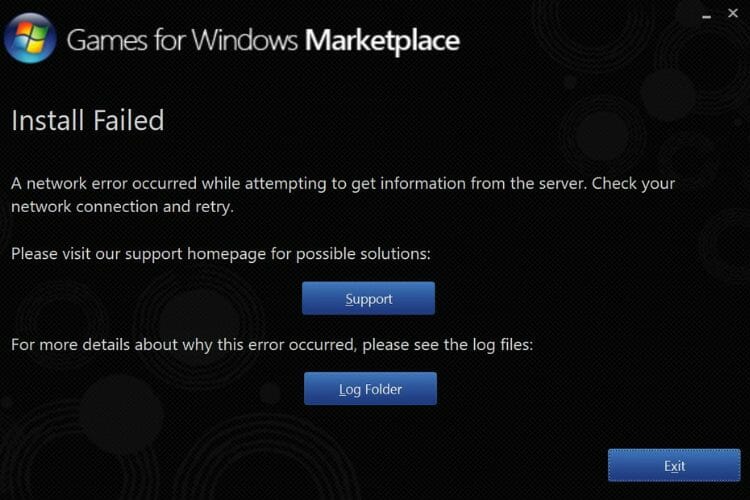
- Download the Game for Windows Live installer.
- When clicking install, you should get a network error and take you to a folder called Logs.
- Navigate to the following location on your hard drive:
C:UsersnameAppDataLocalMicrosoftGFWLive - Click on Downloads.
- Here you should find two files. Click and install both of them.
- You should now have Games for Windows Live installed and working.
3. Run Windows 7 or 8 in a VM for Windows 10
A virtual machine program for Windows 10 will allow you to run multiple operating systems on the same computer so that you’ll be able to install GFWL and play your games without any errors.
By choosing a virtual machine solution, you can avoid incompatibility errors and switch between multiple platforms. So there is no reason to use different desktops or other devices to run another OS.
Hence, you should easily run other Windows versions and fix this type of error with practical help from the best virtual machines available right now.
- Fix: Games for Windows Live install failed/not working
- USB Device Descriptor Failure on Windows: How to Fix & Cause
- Could Not Create the Java Virtual Machine: 4 Easy Fixes
4. Temporarily disable the antivirus security software
- Go to Control Panel and select System and Security.
- Click on the first option Security and Maintenance.
- From the left-hand pane, click on Change Security and Maintenance Settings to change the settings for Windows Defender and your antivirus software.
5. Perform a clean boot
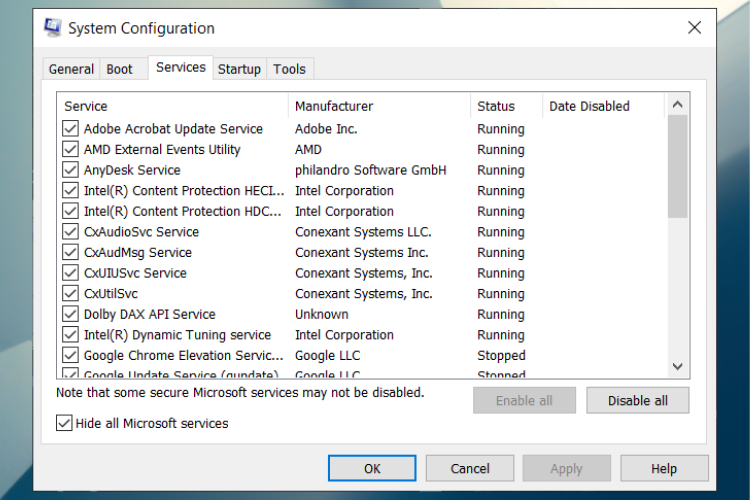
- Right-click on the Start button and select Run.
- In the run box, enter the following: msconfig
- Press Enter to open the System Configuration window.
- Go to the Services tab and click to select the Hide all Microsoft services check box, then click Disable all.
- Go to the Startup tab and click Open Task Manager.
- On the Startup tab in Task Manager, select and Disable each program, then close the window.
- Back on the Startup tab of the System Configuration box, click OK, then restart your computer.
By following these steps carefully, you should be able to resolve the download error 0x800c0008 on GFWL. If you have any questions or suggestions regarding the subject, tell us in the comments section below.

Newsletter
Содержание
- FIX: Download error 0x800c0008 on Games for Windows Live
- How can I fix error 0x800c0008 on Games for Windows Live?
- 1. Reinstall Games for Windows Live in compatibility mode
- 2. Install Games for Windows Live manually
- 3. Run Windows 7 or 8 in a VM for Windows 10
- VMware Workstation 16
- 4. Temporarily d isable the antivirus security software
- 5. Perform a clean boot
- Решение проблемы: ошибка инициализации Games for WINDOWS – LIVE
- Устраняем ошибку – «ошибка инициализации Games for WINDOWS – LIVE
- Что делать еспри установки games for windows live выдает ошибку 0x800c0008
- Fable III
FIX: Download error 0x800c0008 on Games for Windows Live


Games for Windows Live was a popular online gaming service that allowed gamers from all over the world to connect and enjoy their favorite games.
And even though GFWL has been discontinued, the service itself remained operational, leaving users still able to access previously purchased content through the client profile.
If you are playing a title that requires you to use GFWL but are unable to download and install it, keep reading our article.
How can I fix error 0x800c0008 on Games for Windows Live?
1. Reinstall Games for Windows Live in compatibility mode
You can also use a dedicated software that will help you with the uninstall process, and additionally remove any files and Windows registry entries left behind.
The below choice lets you see all installed applications on your PC in one single pane. From there, you can easily search the program you want to uninstall by using the search bar at the top.
This helpful software features include a Forced Uninstall option to remove remnants of already uninstalled programs, optimization tools, and free professional technical support.
2. Install Games for Windows Live manually

3. Run Windows 7 or 8 in a VM for Windows 10
A virtual machine program for Windows 10 will allow you to run multiple operating systems on the same computer so that you’ll be able to install GFWL and play your games without any error.
Simply download VMware Workstation 16, which gives you the possibility to install multiple VMs on the same host, in order to deploy Windows 10, 8, 7, or XP from the same computer.
This nifty software supports DirectX 10.1 and OpenGL 3.3 to provide a fluid and sensitive experience so that when you’re running 3D applications, you’ll get the most high-performance graphics.

VMware Workstation 16
Try out VMware to easily avoid getting the 0x800c0008 download error on Games for Windows Live.
4. Temporarily d isable the antivirus security software
5. Perform a clean boot

By following these steps carefully, you should be able to resolve the download error 0x800c0008 on GFWL. If you have any questions or suggestions regarding the subject, tell us in the comments section below.
Restoro has been downloaded by 0 readers this month.
Источник
Решение проблемы: ошибка инициализации Games for WINDOWS – LIVE
Хочется отметить то, что данная онлайн служба зачастую доставляет больше проблем, чем удобств, так как в играх ранее, сохранения можно было благополучно скопировать из папки с игрой куда-либо в другое место, чтоб при необходимости – вернуть их и продолжить играть. Теперь же это сделать не совсем просто, особенно тем, у кого копия игры не лицензионная, либо просто забыли логин и пароль от этой онлайн службы games for windows live. Мало того, так еще ошибка при инициализации games for windows live не позволит даже зайти в саму игру, что явно потреплет ваши нервы.
Устраняем ошибку – «ошибка инициализации Games for WINDOWS – LIVE
2. Установить программу (или же переустановить ее).
4. Затем заполняем должным образом анкету регистрации (НО! При выборе страны, не выбирайте Россию, так как у данного сервиса до сих пор неизвестные проблемы – выберите, например, США в это списке).
5. После прохождения регистрации запустите программу games for windows live и введите данные, которые вы указали при регистрации.
6. Запустите игру, нажав после заставки клавишу Home.
7. В появившемся меню games for windows live нажмите создать «Вход»
Если данная инструкция не помогла, и вы являетесь владельцем не лицензионной копии игры, то рекомендую достать другой дистрибутив игры, а то это вам не дом 2 онлайн смотреть! Так как, например, в сети блуждает поломанный дистрибутив игры Section 8, которая ни смотря, ни на что, выдает ошибку инициализации Games for WINDOWS – LIVE.
Источник
Что делать еспри установки games for windows live выдает ошибку 0x800c0008

Fable III


Вот и у меня такая же проблема, ДЛС есть а установить не могу, т.к. GFWL никак не хочет запускаться. «Ошибка входа. Неудается войти. Повторите попытку позже.Код 80131509»
Вот и у меня такая же проблема, ДЛС есть а установить не могу, т.к. GFWL никак не хочет запускаться. «Ошибка входа. Неудается войти. Повторите попытку позже.Код 80131509»
он не может создать защищенное соединение порты как то надо настраивать
он не может создать защищенное соединение порты как то надо настраивать
Теперь хотелось бы узнать как?))
Теперь хотелось бы узнать как?))
ну мне самому интересно хотя как вариант скорей всего это у них не подключает порт я свои смотрел все включены че только не пробовал
Я после того как открыл порты, он у меня точно такую же ошибку выдал.
И на сайте майкрософт в форуме было такое вот предложение
в редакторе реестра изменить значения веток:
HKEY_LOCAL_MACHINE System CurrentControlSet Control SecurityProviders Schannel DisableRenegoOnClient
HKEY_LOCAL_MACHINE System CurrentControlSet Control SecurityProviders Schannel DisableRenegoOnServer
Все заработало! Удачи, надеюсь тебе тоже поможет.
Источник
Информация о системе:
На вашем ПК работает: …
специальное предложение
0x800C0008 часто может появляться из-за неправильно настроенных параметров системы или из-за нарушений в реестре Windows. Эту ошибку относительно быстро и легко исправить, если использовать PC Repair, настроенную на решение всех распространенных проблем с реестром.

- Название ошибки: 0x800C0008
- Совместимо с: Windows 10, 11, 8, 7, Vista, XP
- 0x800C0008 появляется и начинает нарушать окно активной программы;
- 0x800C0008 появляется на экране;
- Появляется сообщение ‘Обнаружена проблема, и Windows была выключена, чтобы предотвратить повреждение компьютера. Похоже, что проблема вызвана следующим файлом…’;
- Компьютер пользователя перестает работать, выдавая ошибку 0x800C0008 при запуске программы;
- Windows работает плохо, медленно реагируя на команды;
- Компьютер пользователя часто зависает
0x800C0008 сообщения об ошибке могут появляться из-за засорения реестра Windows и ошибочных записей несуществующих программ, поскольку пользователь обычно неправильно удаляет программное обеспечение. Другими распространенными причинами являются неправильный ввод данных, отсутствие файлов, которые были случайно удалены из реестра, что вызывает проблемы в работе системы.
- 1. Скачать PC Repair.
- 2. Установить и запустить программу.
- 3. Нажмите Scan Now для обнаружения ошибок и различных отклонений от оптимального уровня.
- 4. Нажмите Repair All для устранения каждой проблемы.
Эта страница доступна на других языках:
English |
Deutsch |
Español |
Italiano |
Français |
Indonesia |
Nederlands |
Nynorsk |
Português |
Українська |
Türkçe |
Malay |
Dansk |
Polski |
Română |
Suomi |
Svenska |
Tiếng việt |
Čeština |
العربية |
ไทย |
日本語 |
简体中文 |
한국어
 |
Номер ошибки: | Ошибка 0x800C0008 |
| Название ошибки: | .NET Framework 4 Error Code 0X800C0008 | |
| Описание ошибки: | Ошибка 0x800C0008: Возникла ошибка в приложении .NET Framework. Приложение будет закрыто. Приносим извинения за неудобства. | |
| Разработчик: | Microsoft Corporation | |
| Программное обеспечение: | .NET Framework | |
| Относится к: | Windows XP, Vista, 7, 8, 10, 11 |
Описание «.NET Framework 4 Error Code 0X800C0008»
«.NET Framework 4 Error Code 0X800C0008» обычно называется формой «ошибки времени выполнения». Разработчики, такие как Microsoft Corporation, обычно проходят через несколько контрольных точек перед запуском программного обеспечения, такого как .NET Framework. К сожалению, инженеры являются людьми и часто могут делать ошибки во время тестирования, отсутствует ошибка 0x800C0008.
В выпуске последней версии .NET Framework может возникнуть ошибка, которая гласит: «.NET Framework 4 Error Code 0X800C0008». Если происходит «.NET Framework 4 Error Code 0X800C0008», разработчикам будет сообщено об этой проблеме, хотя отчеты об ошибках встроены в приложение. Затем Microsoft Corporation исправит ошибки и подготовит файл обновления для загрузки. Поэтому, когда вы сталкиваетесь с запросом на обновление .NET Framework, это обычно связано с тем, что это решение для исправления ошибки 0x800C0008 и других ошибок.
Почему происходит ошибка времени выполнения 0x800C0008?
«.NET Framework 4 Error Code 0X800C0008» чаще всего может возникать при загрузке .NET Framework. Следующие три наиболее значимые причины ошибок выполнения ошибки 0x800C0008 включают в себя:
Ошибка 0x800C0008 Crash — программа обнаружила ошибку 0x800C0008 из-за указанной задачи и завершила работу программы. Обычно это происходит, когда .NET Framework не может распознать, что ему дается неправильный ввод, или не знает, что он должен производить.
Утечка памяти «.NET Framework 4 Error Code 0X800C0008» — ошибка 0x800C0008 утечка памяти приводит к увеличению размера .NET Framework и используемой мощности, что приводит к низкой эффективности систем. Возможные причины из-за отказа Microsoft Corporation девыделения памяти в программе или когда плохой код выполняет «бесконечный цикл».
Ошибка 0x800C0008 Logic Error — Логические ошибки проявляются, когда пользователь вводит правильные данные, но устройство дает неверный результат. Обычные причины этой проблемы связаны с ошибками в обработке данных.
.NET Framework 4 Error Code 0X800C0008 проблемы часто являются результатом отсутствия, удаления или случайного перемещения файла из исходного места установки .NET Framework. Как правило, решить проблему позволяет получение новой копии файла Microsoft Corporation, которая не содержит вирусов. В качестве дополнительного шага по устранению неполадок мы настоятельно рекомендуем очистить все пути к неверным файлам и ссылки на расширения файлов Microsoft Corporation, которые могут способствовать возникновению такого рода ошибок, связанных с .NET Framework 4 Error Code 0X800C0008.
Распространенные сообщения об ошибках в .NET Framework 4 Error Code 0X800C0008
Типичные ошибки .NET Framework 4 Error Code 0X800C0008, возникающие в .NET Framework для Windows:
- «Ошибка программы .NET Framework 4 Error Code 0X800C0008. «
- «.NET Framework 4 Error Code 0X800C0008 не является приложением Win32.»
- «Возникла ошибка в приложении .NET Framework 4 Error Code 0X800C0008. Приложение будет закрыто. Приносим извинения за неудобства.»
- «Файл .NET Framework 4 Error Code 0X800C0008 не найден.»
- «Отсутствует файл .NET Framework 4 Error Code 0X800C0008.»
- «Ошибка запуска программы: .NET Framework 4 Error Code 0X800C0008.»
- «Не удается запустить .NET Framework 4 Error Code 0X800C0008. «
- «Отказ .NET Framework 4 Error Code 0X800C0008.»
- «.NET Framework 4 Error Code 0X800C0008: путь приложения является ошибкой. «
Ошибки .NET Framework 4 Error Code 0X800C0008 EXE возникают во время установки .NET Framework, при запуске приложений, связанных с .NET Framework 4 Error Code 0X800C0008 (.NET Framework), во время запуска или завершения работы или во время установки ОС Windows. Отслеживание того, когда и где возникает ошибка .NET Framework 4 Error Code 0X800C0008, является важной информацией при устранении проблемы.
Источники проблем .NET Framework 4 Error Code 0X800C0008
Эти проблемы .NET Framework 4 Error Code 0X800C0008 создаются отсутствующими или поврежденными файлами .NET Framework 4 Error Code 0X800C0008, недопустимыми записями реестра .NET Framework или вредоносным программным обеспечением.
В частности, проблемы .NET Framework 4 Error Code 0X800C0008 возникают через:
- Недопустимые разделы реестра .NET Framework 4 Error Code 0X800C0008/повреждены.
- Загрязненный вирусом и поврежденный .NET Framework 4 Error Code 0X800C0008.
- .NET Framework 4 Error Code 0X800C0008 злонамеренно или ошибочно удален другим программным обеспечением (кроме .NET Framework).
- Другое программное обеспечение, конфликтующее с .NET Framework, .NET Framework 4 Error Code 0X800C0008 или общими ссылками.
- Поврежденная установка или загрузка .NET Framework (.NET Framework 4 Error Code 0X800C0008).
Продукт Solvusoft
Загрузка
WinThruster 2022 — Проверьте свой компьютер на наличие ошибок.
Совместима с Windows 2000, XP, Vista, 7, 8, 10 и 11
Установить необязательные продукты — WinThruster (Solvusoft) | Лицензия | Политика защиты личных сведений | Условия | Удаление
Вряд-ли у кого-то возникают проблемы с системой Games for Windows Live, однако, возможно и остались те, кто не может запустить игры по типу GTA IV, Section 8: Prejudice . Я был один из тех, кто был в такой ситуации и поверьте, всё ГОРАААЗДО проще, чем кажется! (Да, этот гайд может быть бесполезным, но эй, может и нет, откуда нам знать?)
Невозможно установить Games For Windows Marketplace
Начнем с простого! Вы устанавливаете спокойно себе GfWLive(Отныне будем его сокращать), как вдруг выскакивает ТАКАЯ ОШИБКА

И казалось бы всё, жизнь окончена… Но что бы её возобновить следуйте инструкции:
- Нажмите «Папка журнала»
- Дальше идём туда

3. Далее идём в данную папку

4. Жмём на этот установщик(Если будет 2 файла, то установите оба! У меня просто осталось как анинсталлер) и устанавливаем

И ВУАЛЯ! МАРКЕТПЛЭЙС УСТАНОВЛЕН!!
(Если будут проблемы — сообщите!)
Xlive.dll проблема и как решать?
Ошибка возникает в том случае, если вы такой же как и я, удалили Marketplace, но даже с успехом его установки есть вероятность появления ошибки
Ой, да тут ещё проще!
Сначала скачайте данный файл
И теперь погнали решать:
Спойлер
НЕ ПЕРЕМЕЩАЙТЕ ФАЙЛ В ПАПКУ ИГРЫ! ЭТО НЕ ВЫХОД!
- Перенесите этот файл в папку System32(Если он там уже есть, то существующий не удаляйте, а перенесите в другую папку, это ваш резерв)
- Попытайтесь запустить то, что вам нужно, если ошибки не будет, то это значит, что получилось, если будет, то попробуйте перезапустить пк!
Games for Windows Live — популярный игровой сервис для Windows, но сообщалось, что у него есть некоторые проблемы в Windows 10.
А именно, пользователи сообщают, что игры, использующие Games for Windows Live, не будут работать в Windows 10, а в список игр входит множество популярных игр, выпущенных несколько лет назад.
У этих игр по-прежнему много поклонников, поэтому вы можете понять, почему невозможность запуска их в Windows 10 может стать проблемой для заядлых геймеров. Говоря о проблемах, вот что сообщили наши читатели в связи с GFWL.
Где может возникнуть эта ошибка и как она выглядит?
- Ошибка установки Games for Windows Marketplace
- Не удалось установить игры для Windows Live , ошибка сети или ошибка подключения в Windows 10
- Ошибка загрузки 0x800c0008 Игры для Windows Live
- Игры для Windows Live не могут подключиться к службе live
- Не удалось установить Resident Evil 5 Games для Windows Live
- Проблемы Fallout 3 с загрузкой игр для Windows Live (к счастью, мы подготовили множество исправлений, которые вы можете попробовать, если Fallout 3 не работает в Windows 10 или 11).
Поэтому, если у вас возникли проблемы с Games for Windows Live в Windows 10, обратите внимание на наши решения.
Как исправить проблемы с Games For Windows Live в Windows 10?
1. Переустановите игры для Windows Live.
- Удалите Microsoft Games for Windows Live Redistributable и Microsoft Games for Windows Marketplace со своего компьютера. Для этого мы рекомендуем специальное программное обеспечение.
- После удаления этих приложений перезагрузите компьютер.
- Загрузите установщик игр для Windows Live.
- После загрузки установщика щелкните его правой кнопкой мыши и выберите «Свойства«.
- Перейдите на вкладку «Совместимость» и установите флажок «Запустить эту программу в режиме совместимости для…» и выберите из списка Windows 7 или Windows 8.
- Пока вы находитесь на вкладке «Совместимость», убедитесь, что вы отметили «Запуск от имени администратора».
- Сохраните изменения, нажав «Применить» и «ОК«, и установите «Games for Windows Live».
- Теперь все должно работать, и ваш профиль должен быть повторно загружен и готов к использованию.
Как уже упоминалось, чтобы удалить программу в первую очередь, мы предлагаем использовать специальное программное обеспечение для удаления для чистого удаления. Это просто для того, чтобы убедиться, что процесс работает полностью, не оставляя следов в вашей системе, которые могут вызвать проблемы позже.
Стандартная деинсталляция находится в тени профессиональной деинсталляции, которая удаляет все остатки, включая проверку остатков после обычной деинсталляции.
Некоторое программное обеспечение для удаления также имеет удобный интерфейс, позволяющий просматривать все установленные приложения на вашем ПК в одном окне. Чтобы упростить задачу, вы можете быстрее и безопаснее находить и удалять нежелательные приложения.
2. Установите Live Sign-in Assistant
Если предыдущее решение не работает, попробуйте загрузить последнюю версию Live Sign-in Assistant с официальной страницы Microsoft. После загрузки и установки помощника Live Sign-in введите свои данные для входа и попробуйте запустить свои игры.
3. Перенесите все файлы xlive
- Перейдите в следующее место (если вы используете 32-разрядную версию Windows, это место может быть другим):
C:WindowsSysWOW64 - Найдите файлы xlive, xlive.dll, xlive.dll.cat, xlivefnt.dll, xliveinstall.dll, xliveinstallhost.exe и скопируйте их в
C:WindowsSystem32 - Попробуйте снова запустить игру
- Если это не сработало, попробуйте скопировать эти файлы в каталог установки вашей игры, где находится файл. exe игры.
На этом все, надеемся, что эта статья помогла вам решить проблему с Games for Windows Live в Windows 10. Если у вас есть замечания или вопросы, просто пишите их в комментариях.
by Milan Stanojevic
Milan has been enthusiastic about technology ever since his childhood days, and this led him to take interest in all PC-related technologies. He’s a PC enthusiast and he… read more
Updated on May 5, 2022
- If Games for Windows Live is not working on your Windows 10 device, uninstalling the program and reinstalling it is always a good idea.
- More on this and a few other solutions can be found in the article below.
- Having trouble with a particular game? Find out how to fix it from our Troubleshooting Gaming page.
- Also, bookmark our Windows 10 Hub where you can find how-to guides and recommendations on just about everything Windows-10-related.
XINSTALL BY CLICKING THE DOWNLOAD FILE
- Download Restoro PC Repair Tool that comes with Patented Technologies (patent available here).
- Click Start Scan to find Windows 10 issues that could be causing PC problems.
- Click Repair All to fix issues affecting your computer’s security and performance
- Restoro has been downloaded by 0 readers this month.
Games for Windows Live is a popular gaming service for Windows, but it has been reported that it has some problems on Windows 10.
Namely, users report that games that use Games for Windows Live won’t work on Windows 10, and the list of games includes many popular games that were released a few years ago.
These games still have a great number of fans, so you can see why not being able to run them on Windows 10 can be such a problem for avid gamers. Speaking of problems, here’s what our readers reported in connection to GFWL.
Where can this error occur and what does it look like?
- Games for Windows Marketplace install failed
- Games for Windows Live install failed network error or connection error in Windows 10
- Download error 0x800c0008 Games for Windows Live
- Games for Windows Live cannot connect to the live service
- Resident Evil 5 Games for Windows Live install failed
- Games for Windows Live download Fallout 3 issues (Fortunately, we have prepared plenty of fixes for you to try when Fallout 3 does not work in Windows 10 or 11).
So if you’re having issues with Games for Windows Live on Windows 10, you should have a look at our solutions.
How do I fix Games For Windows Live issues on Windows 10?
1. Reinstall Games for Windows Live
- Uninstall Microsoft Games for Windows Live Redistributable and Microsoft Games for Windows Marketplace from your computer. In order to do this, we recommend a dedicated software.
- After you’ve uninstalled these applications restart your computer.
- Download Games for Windows Live installer.
- After you’ve downloaded the installer, right-click it, and choose Properties.
- Go to Compatibility tab and check Run this program in compatibility mode for… and choose Windows 7 or Windows 8 from the list.
- While you’re in the Compatibility tab make sure that you check Run as administrator.
- Save the changes by clicking Apply and OK and install Games for Windows Live.
- Everything should work now and your profile should be redownloaded and ready to use.
As mentioned, to uninstall the program in the first place, we suggest using dedicated uninstaller software, for clean removal. This is just to make sure that the process runs completely, without leaving traces in your system, which might cause trouble later on.
A standard uninstall sits in the shadows of a professional uninstall, which removes all residues, including checking for leftovers after the regular uninstall.
Some uninstaller software also has user-friendly interfaces, allowing you to view all installed applications on your PC in a single window. To make things easier, you can locate and remove unwanted apps faster and safer.
2. Install Live Sign-in Assistant
If the previous solution doesn’t work try downloading the latest Live Sign-in Assistant from the official Microsoft page. After downloading and installing Live Sign-in assistant enter your login details and try launching your games.
- The Windows Live ID or password you entered is not valid
- How to run old games on Windows 11
- 10+ best Windows 10/11 games
- How to play Microsoft Store games on Steam
3. Transfer all xlive files
- Go to the following location (if you’re using 32-bit Windows this location might be different):
C:WindowsSysWOW64 - Find the xlive, xlive.dll, xlive.dll.cat, xlivefnt.dll, xliveinstall.dll, xliveinstallhost.exe files and copy them to
C:WindowsSystem32 - Try running the game again
- If this didn’t work, try copying those files in the installation directory of your game where the game’s .exe file is located.
That’s about it, we hope this article helped you to solve the problem with Games for Windows Live in Windows 10. If you have any comments or questions, just write them down in the comments.
Newsletter
by Milan Stanojevic
Milan has been enthusiastic about technology ever since his childhood days, and this led him to take interest in all PC-related technologies. He’s a PC enthusiast and he… read more
Updated on May 5, 2022
- If Games for Windows Live is not working on your Windows 10 device, uninstalling the program and reinstalling it is always a good idea.
- More on this and a few other solutions can be found in the article below.
- Having trouble with a particular game? Find out how to fix it from our Troubleshooting Gaming page.
- Also, bookmark our Windows 10 Hub where you can find how-to guides and recommendations on just about everything Windows-10-related.
XINSTALL BY CLICKING THE DOWNLOAD FILE
- Download Restoro PC Repair Tool that comes with Patented Technologies (patent available here).
- Click Start Scan to find Windows 10 issues that could be causing PC problems.
- Click Repair All to fix issues affecting your computer’s security and performance
- Restoro has been downloaded by 0 readers this month.
Games for Windows Live is a popular gaming service for Windows, but it has been reported that it has some problems on Windows 10.
Namely, users report that games that use Games for Windows Live won’t work on Windows 10, and the list of games includes many popular games that were released a few years ago.
These games still have a great number of fans, so you can see why not being able to run them on Windows 10 can be such a problem for avid gamers. Speaking of problems, here’s what our readers reported in connection to GFWL.
Where can this error occur and what does it look like?
- Games for Windows Marketplace install failed
- Games for Windows Live install failed network error or connection error in Windows 10
- Download error 0x800c0008 Games for Windows Live
- Games for Windows Live cannot connect to the live service
- Resident Evil 5 Games for Windows Live install failed
- Games for Windows Live download Fallout 3 issues (Fortunately, we have prepared plenty of fixes for you to try when Fallout 3 does not work in Windows 10 or 11).
So if you’re having issues with Games for Windows Live on Windows 10, you should have a look at our solutions.
How do I fix Games For Windows Live issues on Windows 10?
1. Reinstall Games for Windows Live
- Uninstall Microsoft Games for Windows Live Redistributable and Microsoft Games for Windows Marketplace from your computer. In order to do this, we recommend a dedicated software.
- After you’ve uninstalled these applications restart your computer.
- Download Games for Windows Live installer.
- After you’ve downloaded the installer, right-click it, and choose Properties.
- Go to Compatibility tab and check Run this program in compatibility mode for… and choose Windows 7 or Windows 8 from the list.
- While you’re in the Compatibility tab make sure that you check Run as administrator.
- Save the changes by clicking Apply and OK and install Games for Windows Live.
- Everything should work now and your profile should be redownloaded and ready to use.
As mentioned, to uninstall the program in the first place, we suggest using dedicated uninstaller software, for clean removal. This is just to make sure that the process runs completely, without leaving traces in your system, which might cause trouble later on.
A standard uninstall sits in the shadows of a professional uninstall, which removes all residues, including checking for leftovers after the regular uninstall.
Some uninstaller software also has user-friendly interfaces, allowing you to view all installed applications on your PC in a single window. To make things easier, you can locate and remove unwanted apps faster and safer.
2. Install Live Sign-in Assistant
If the previous solution doesn’t work try downloading the latest Live Sign-in Assistant from the official Microsoft page. After downloading and installing Live Sign-in assistant enter your login details and try launching your games.
- The Windows Live ID or password you entered is not valid
- How to run old games on Windows 11
- 10+ best Windows 10/11 games
- How to play Microsoft Store games on Steam
3. Transfer all xlive files
- Go to the following location (if you’re using 32-bit Windows this location might be different):
C:WindowsSysWOW64 - Find the xlive, xlive.dll, xlive.dll.cat, xlivefnt.dll, xliveinstall.dll, xliveinstallhost.exe files and copy them to
C:WindowsSystem32 - Try running the game again
- If this didn’t work, try copying those files in the installation directory of your game where the game’s .exe file is located.
That’s about it, we hope this article helped you to solve the problem with Games for Windows Live in Windows 10. If you have any comments or questions, just write them down in the comments.
Newsletter
Видео + Скачать How to fix the download error 0x800c0008 on Games for Windows Live
- |
- 16.07.2022


file-upd12.zip | 2mb |
28/01/2023
Пароль к архиву: 1111
Как запустить?
- Скачайте по кнопке на нашем сайте
- Запустите установку
- После установки можно спокойно использовать
- Все нужные файлы и зависимости появятся в папке
VirusTotal
Ссылка на сканирование : virustotal
Файл безопасен.
Если произошла ошибка:
- Попробуйте запустить от администратора
- Или переустановить
- Так же антивирус может блокировать запуск
- Напишите комментарий и вам могут помочь
Подпишись на нас в Telegram и скачивай приватные читы бесплатно!
Бот для скачивания читов@filecheatbot
Всё для майнкрафта — https://MineBuild.ru
Snap! Getting the download error 0x800c0008 on Games for Windows Live?
Just watch this video to fix this issue in no time.
► Check article with full guide :
▬ Contents of this video ▬▬▬▬▬▬▬▬▬▬
0:00 – Intro
0:57 – Reinstall Games for Windows Live in compatibility mode
1:52 – Install Games for Windows Live manually
2:20 – Temporarily disable the antivirus security software
2:44 – Perform a clean boot
► STAY CONNECTED:
► Got a different tech issue? Are you looking for a troubleshooting guide? Go to:
► If you found this video useful, give us a like and subscribe to our YouTube channel.
Элитные читы для игр https://FlareLand.ru/