While trying to connect to your FTP server hosted by IIS, you may run into “530 User cannot log in, home directory inaccessible” error. This error occurs whether you are using anonymous access or basic authentication.
A sample connection log from an FTP client:
530 User cannot log in, home directory inaccessible.
Critical error: Could not connect to server
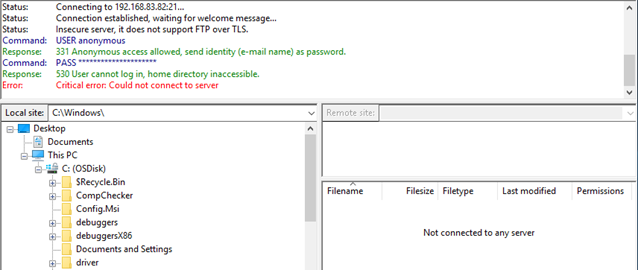
This issue may appear as “Failed to retrieve directory listing” or “Home directory inaccessible” error as well.
Depending on the FTP client, you may not see the detailed error message right away. For instance, when I tried to connect to the same site with the same configuration by using WinSCP, I received “Access Denied” error. If your FTP client doesn’t show the entire connection history, look for the log folder to get more information about the root cause.
Solution
There might be a few reasons for running into this error. Here are the most common root causes and their solutions:
- The user may not be have access to the home directory. Go to “IIS > FTP site > FTP User Isolation”. Select the directory that your users can access. More information about User Isolation settings
- IIS may not be configured to use passive mode FTP. There are two types of FTP connections: Active mode and passive mode. In active mode, the client opens a port. The server connects to this port for transferring data. In passive mode, the server opens a port. The client connects to this port to transfer data. In order to use passive mode, enter a port range and IP address in “IIS > Server name > FTP Firewall Support” page

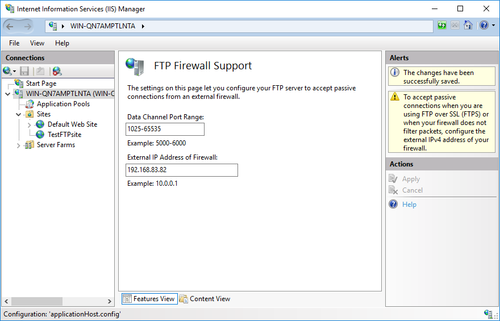
Note: You can configure your FTP client to use only the active mode if you don’t want to turn on passive mode
Less common reasons for 530 error
The items below may cause “530 User cannot log in, home directory inaccessible” as well.
- Authorization rules. Make sure to have an Authorization rule that allows the user or anonymous access. Check “IIS > FTP site > FTP Authorization Rules” page to allow or deny access for certain or all users.
- NTFS permissions. The FTP users (local or domain users) should have permissions on the physical folder. Right click the folder and go to Properties. In the Security tab, make sure the user has required permissions. You can ignore Shared tab. It is not used for FTP access.
- Locked account. If you local or domain account is locked or expired, you may end up seeing “User cannot log in” error. Check local user properties or Active Directory user settings to make sure the user account is active.
- Other permission issues. The user account may not have “Log on locally” or “Allow only anonymous connections security” rights.
If you are still seeing the issue, check IIS and FTP logs (c:inetpublogsLogFilesFTPSVC2) but don’t let it mislead you. IIS logs sometimes may show PASS. It doesn’t mean everything is well. It’s better to check FTP logs that IIS records for FTP connections

Note: In a case with “Connection closed by the server” error for FTP connection, we determined the root cause as the corruption of system files occurred during in-place server upgrade.
I spent long time looking for a solution, I’ve tried every shared answer on the internet and nothing could solve the issue. It is an issue I was ignoring for years and I never could fix.
Ok, I’ve Plesk installed and I’m not sure if it has some effect on IIS FTP to do the following behavior …
Using Process Monitor tool, and making ftp login request and watching the tool and doing your investigation using this tool, you can get a hint about the REAL reason of the problem.
For me, I found out that IIS FTP was trying to access the ftp folder from a path DIFFERENT than the actual ftp path I’ve set, I do not know why, but maybe Plesk has some effect on this.
The actual ftp path is
C:inetpubvhostszidapp
The path that IIS FTP was trying to access DURING the login process is
C:inetpubvhostsServers7localuserzid_app_ftp_user
I fixed the issue by creating a folder link from ‘actual’ folder path to the path IIS was trying to access — using the tool mklink tool
CMD command
mklink /d C:inetpubvhostsServers7localuserzid_app_ftp_user "C:inetpubvhostszidapp"
I’ve fixed the issue that way, so wen FTP is trying to access the folder from the wrong path, it is now goes to the correct one.
Please note doing folder shortcut wont work for this, you need a link like linux, not a shortcut …
I hope it will help you 🙂
Работать через FTP удобно и быстро. Этот протокол используют для обмена данными, файлами и папками. Особенно популярен этот стандарт среди вебмастеров, которые используют клиенты FTP для загрузки файлов на сервер. Но иногда случается так, что не удается подключиться к FTP-серверу на разных клиентах. В данной статье будет рассмотрена ошибка 530 login authentication failed, которая однажды может появится и у вашего клиента FileZilla при попытки войти на хост.
Откуда может появится ошибка 530 incorrect login
Эта не ошибка с загрузкой файлов через FileZilla и не сбой подключения к Интернету, а проблема, которая возникла в момент, когда вы попытались подключиться к серверу. Некоторые, не выдержав возникшей трудности, сразу бросаются к другим клиентам. Однако, не стоит этого делать, потому что со временем вы поймете, что лучше чем FileZilla сложно найти что-либо, ведь программы, которые наравне, стоят денег, а этот клиент распространяется бесплатно. Чтобы определить суть ошибки, вам следует обратиться к логам внутри клиента, которые покажут в какой конкретный момент подключение пошло не так.
В случае, если вы еще ни разу не заходили на сервер, попробуйте заново зарегистрироваться. От этого вы ничего не потеряете, ведь еще не использовали свой аккаунт. Если же раньше у вас нормально получалось заходить на FTP-сервер через FileZilla, а сегодня появилась ошибка 530 login authentication failed, значит что-то вы сделали не так.
Вообще, ошибка 530 incorrect login говорит о том, что вы ввели неверную комбинацию логина и пароля.
Но причина возникновения сбоя подключения не всегда такая простая и очевидная. Иногда из-за невнимательности пользователи пытаются зайти не на тот сервер, после чего на экране появляется надпись 530 login authentication failed — сбой авторизации. В таком случае причина неполадки банальна — на сервере, который вы пытаетесь посетить, нет такого логина, под которым вы хотите зайти. Чтобы быть уверенным, что причина кроется не в этом, сотрите все данные подключения и введите еще раз. Также уточните у админа сервера, быть может он сменил номер порта на какой-то нестандартный, а старый порт уже занял другой хост. Потому-то у вас и не получается зайти, хоть данные кажутся в порядке.
Часто пользователи из лени и нежелания тратить время не запоминают пароли от аккаунтов. Они их записывают где-то, а затем берут оттуда и копируют их в соответственное поле. Так делать категорически неправильно, ведь вы рискуете всеми своими аккаунтами, пароли которых содержатся в том или ином файле на компьютере или в Интернете. Однажды придет какой-нибудь недоброжелатель и воспользуется вашей памяткой в собственных целях. В результате вся важная информация будет украдена, в том числе и при помощи FileZilla с сервера. Кроме того, вы можете ненароком скопировать пароль неправильно и вставить уже не ту комбинацию символов, которая не пустит вас на хост. Так что записывайте такую информацию вручную и не храните ее на компьютере.
С другой стороны, проблема может быть внутри FileZilla. Возможно, ошибка 530 login authentication failed возникает из-за того, что у вас активирован какой-то неподходящий режим шифрования в настройках. Вспомните, может во время последнего сеанса вы изменяли настройки ради интереса и любопытства, что в итоге появляется надпись 530 incorrect login. Тогда зайдите в настройки в раздел «Шифрование» и установите «Использовать простой FTP». И хоть это не совсем правильно в плане безопасности, но лучше так, чем вообще не зайти на сервер.
Иногда так бывает, что ради интереса люди загружают к себе на компьютер сразу много программ, наподобие FileZilla. И если вы тоже так сделали, и создали сервер у себя на компьютере, а теперь не можете к нему подключиться, то лучше проверьте, а не установили ли вы все программы одновременно? Хотя достаточно запустить два сервера вместе, чтобы ни один из них не работал и при подключении у вас появлялась надпись: 530 login authentication failed. Устранить эту проблему очень легко: определитесь, какой сервер вам понравился больше и удалите все остальные. Как правило, многие оставляют FileZilla server, а остальные удаляют.
Также часто случается, что пользователи абсолютно не понимают, какой логин и пароль от них требуется. Особенно часто это случается с начинающими вебмастерами, которые не знают, как подключить FileZilla к хосту. В таком случае вам нужно зайти в аккаунт на хостинг-провайдер, а там вы найдете пароль от FTP, а вместе с ним и логин. Сохраните его к себе, а еще лучше запомните, и теперь попробуйте войти. Кроме того, некоторые пытаются войти на сервер под аккаунтом анонима, используя логин anonymous и скрытый пароль, но не все хосты это разрешают. Если появилась ошибка 530 login authentication failed, значит придется ввести реальный логин и пароль пользователя сервера.
В целом, причина проблем со входом связана с несоответствием данных авторизации с теми, что указаны на сервере. К примеру, вы можете вводить всю верную информацию, но на хост не попадете, если пытаетесь войти под IP-адресом, который запрещен для авторизации. В таком случае зайдите на сервер и внесите IP в таблицу допустимых. И помните, что пароль от аккаунта должен соответствовать тому, что указан в файле configuration.php. Даже после изменения его на сервере, он не всегда меняется.
THE INFORMATION IN THIS ARTICLE APPLIES TO:
- CuteFTP Home (All Versions)
- CuteFTP Pro® (All Versions)
SYMPTOMS
When attempting to log on to a remote FTP site, a 530 status code is encountered, resulting in an error message similar to one of the following examples:
530 Not logged in.
ERROR:> Not logged in.
STATUS:> Connection closed.
530 Login authentication failed.
ERROR:> Not logged in.
STATUS:> Connection closed.
530 Password rejected.
ERROR:> Not logged in.
STATUS:> Connection closed.
This error is usually accompanied by repeated requests for the FTP account username and password.
RESOLUTION
The 530 error is not caused by CuteFTP. The 530 error code and the repeated requests for the username and password are coming directly from the remote FTP server. The remote FTP server is rejecting the username and password combination that is being submitted to it.
The remote FTP server is indicating that one or more of the following three pieces of information is incorrect:
- Host address
- Username
- Password
Double-check all three items. Your FTP account details are not necessarily the same as what you might use to access other areas of your domain or Web hosting account. It is also possible that the host address has changed or your password has been reset for some reason.
GlobalSCAPE, Inc. does not provide FTP accounts and does not have access to your FTP server’s connection information. Contact the administrator of the FTP server for the information you need to connect to their server.
If you have recently changed your connection information, including host, username (email address), or password, you will have to edit your Site in the Site Manager.
- If the remote FTP site is related to your own domain or Web site then contact your Web hosting company for help. Most Web hosting companies have instructions for FTP access or technical support available on their Web site. You may even have direct access to your FTP account details via the Web hosting company’s Control Panel for your account.
- If the remote FTP site belongs to some other company then contact the technical support department at that company for help with your FTP account.
When you have the corrected FTP account login information, you can then edit the login details that are stored for that particular site in the CuteFTP Site Manager. To make changes, first open the Site Manager (press F4) and then in CuteFTP Home, click once on the name of the site and then make the necessary changes on the right side of the screen. If you are using CuteFTP Pro, right-click on the name of the site and then click Properties and make the necessary changes.
Share Article
On a scale of 1-5, please rate the helpfulness of this article
Optionally provide additional feedback to help us improve this article…
Thank you for your feedback!
Last Modified: 11 Years Ago
Last Modified By: GlobalSCAPE 5
Type: ERRMSG
Rated 2 stars based on 203 votes.
Article has been viewed 291K times.
Users can upload and download files by using FTP (File Transfer Protocol) clients such as FileZilla or WinSCP. These clients connect to an FTP server hosted by IIS (Internet Information Server) or other web server technologies. In most cases, it is easy to set up and maintain an FTP server. However, you may run into issues like “530 User cannot log in, home directory inaccessible” error while trying to connect your FTP server. In this post, I will explain how to solve this issue in IIS.
No matter if you are using anonymous access or basic authentication, you may come across this error message. Here is the full connection log from FileZilla:
Connecting to 192.168.83.82:21…
Connection established, waiting for welcome message…
Insecure server, it does not support FTP over TLS.
USER anonymous
331 Anonymous access allowed, send identity (e-mail name) as password.
PASS *
530 User cannot log in, home directory inaccessible.
Critical error: Could not connect to server
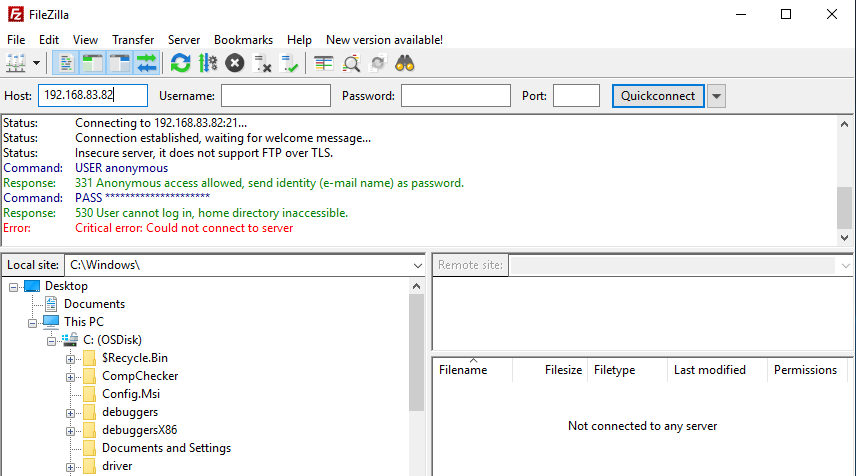
This issue may appear as “Failed to retrieve directory listing” or “Home directory inaccessible” error as well.
Depending on the FTP client, you may not see the detailed error message right away. For instance, when I tried to connect to the same site with the same configuration by using WinSCP, I received “Access Denied” error. If your FTP client doesn’t show the entire connection history, look for the log folder to get more information about the root cause.
It is not always easy to choose an FTP client that fits your requirements. Check my related post for a comparison of FTP clients: Which FTP client is better: FileZilla, CuteFTP or TotalCommander?
Root causes and solutions for “530 User cannot log in, home directory inaccessible” error
There might be a few reasons for running into this error. Here are the most common root causes and their solutions:
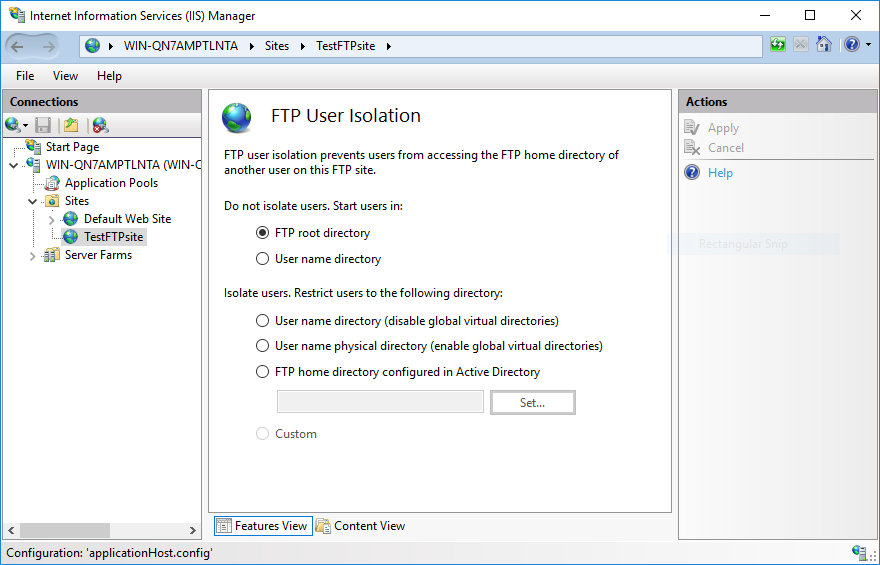
- The user is not able to access to the home directory. This is by far the most common root casue of “home directory inaccessible” error. Go to “IIS > FTP site > FTP User Isolation”. Make sure to select the directory that your users can access to. If you are not sure about what to select, select “FTP root directory”. More information: User Isolation Settings.
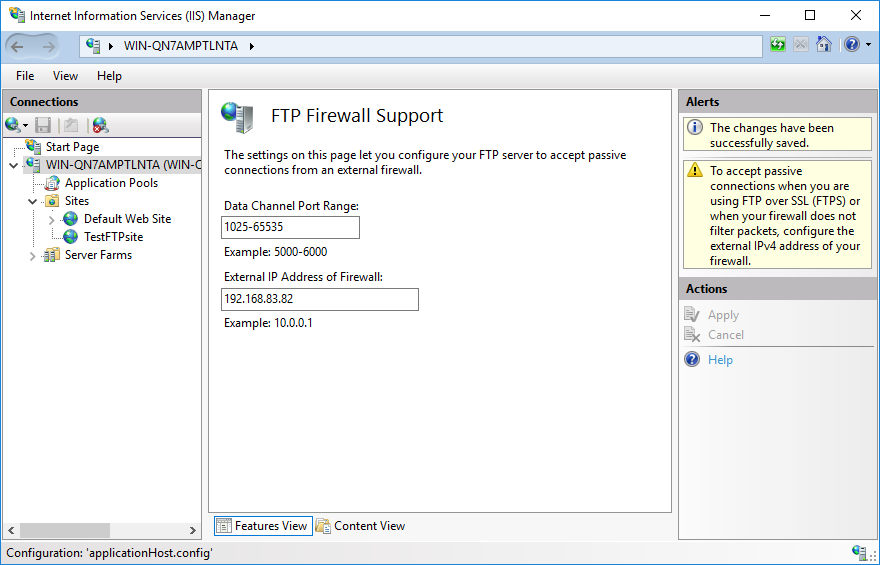
- IIS is not supporting passive mode FTP. There are two types of FTP connections: Active mode and passive mode. In active mode, the client opens a port. The server connects to this port for transferring data. In passive mode, the server opens a port. The client connects to this port to transfer data (More information: Active and Passive FTP). In order to configure IIS for supporting passive mode, enter a port range and external IP address in “IIS > Server name > FTP Firewall Support” page (More information: Using a single port for IIS FTP in passive mode).
- NTFS permissions. The issue might be simply caused by a missing NTFS permission on the FTP folder in Windows. Make sure the account you are using to connect to FTP server has permission on the folder that has FTP files.
Note: If you don’t want to turn on passive mode in IIS, you can force your FTP client to use only the active mode. In order to do this, go to “Edit > Settings > FTP” and choose “Active” in FileZilla.
Less common reasons for 530 error and how to fix them
The items below may cause “530 User cannot log in, home directory inaccessible” as well.
- Authorization rules. Make sure to have an Authorization rule that allows the user or anonymous access. Check “IIS > FTP site > FTP Authorization Rules” page to allow or deny access for certain or all users.
- NTFS permissions. The FTP users (local or domain users) should have permissions on the physical folder. Right click the folder and go to Properties. In the Security tab, make sure the user has required permissions. You can ignore Shared tab. It is not used for FTP access. A related post: Combining AD permissions with FTP.
- Locked account. If you local or domain account is locked or expired, you may end up seeing “User cannot log in” error. Check local user properties or Active Directory user settings to make sure the user account is active. A related topic: Microsoft Support.
- Other permission issues. The user account may not have “Log on locally” or “Allow only anonymous connections security” rights. More information: Microsoft Support.
Still having the issue?
It’s time to dive deep. Check IIS logs but don’t let it mislead you. IIS logs sometimes may show PASS. It doesn’t mean everything is well. It’s better to check FTP logs that IIS records for FTP connections. It is located in c:inetpublogsLogFilesFTPSVC2
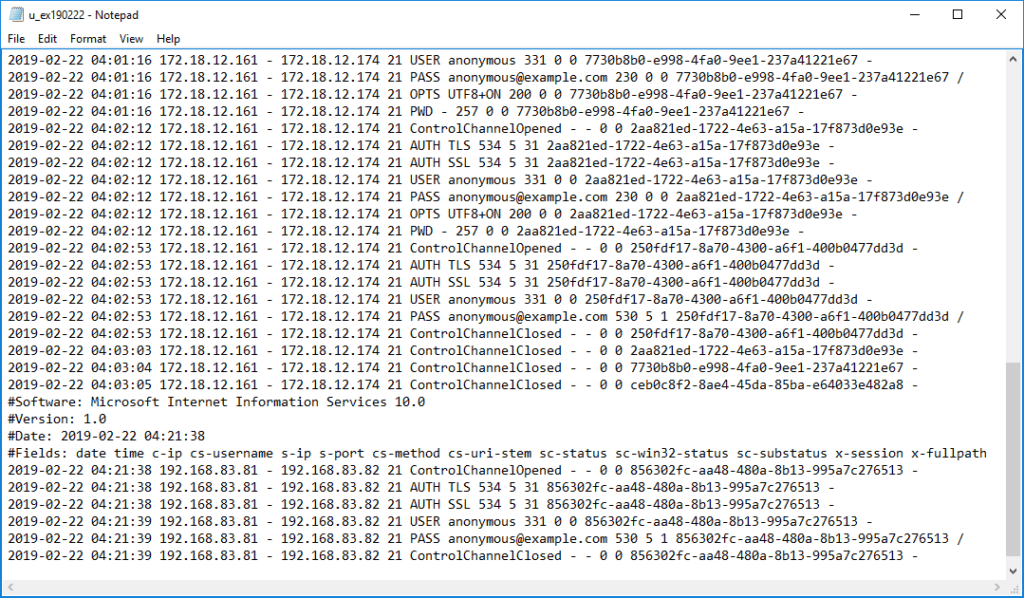
In FTP logs, you will see a status and sub-status code. Here is a list of the most common FTP status codes:
4xx- Transient Negative Completion Reply
The command was not successful, but the error is temporary. If the client retries the command, it may succeed.421 – Service not available, closing control connection. This may be a reply to any command if the service knows it must shut down.
425 – Cannot open data connection.
426 – Connection closed; transfer aborted.
431 – Need some unavailable resource to process security.
450 – Requested file action not taken. File unavailable (e.g., file busy).
451 – Requested action aborted. Local error in processing.
452 – Requested action not taken. Insufficient storage space in system.5xx- Permanent Negative Completion Reply
The command was not successful, and the error is permanent. If the client retries the command, it receives the same error.500 – Syntax error, command unrecognized. This may include errors such as command line too long.
501 – Syntax error in parameters or arguments.
502 – Command not implemented.
503 – Bad sequence of commands.
504 – Command not implemented for that parameter.
521 – Data connection cannot be opened with this PROT setting.
522 – Server does not support the requested network protocol.
530 – Not logged in.
532 – Need account for storing files.
533 – Command protection level denied for policy reasons.
534 – Request denied for policy reasons.
535 – Failed security check (hash, sequence, and so on).
536 – Requested PROT level not supported by mechanism.
537 – Command protection level not supported by security mechanism.
550 – Requested action not taken. File unavailable (for example, file not found, or no access).
551 – Requested action aborted: Page type unknown.
552 – Requested file action aborted. Exceeded storage allocation (for current directory or dataset).
553 – Requested action not taken. File name not allowed.Source
Note 1: In a case with “Connection closed by the server” error for FTP connection, we determined the root cause as the corruption of system files occurred during in-place server upgrade.
Note 2: If your FTP server is behind Azure Firewall, please check the known-issues page. For example, passive FTP may not work based on FTP configuration.
Are you trying to upload files to FTP server programmatically? Check this post out: How to upload a file via FTP in C#