
  File "C:UsersUsernameJustPysflaskapplication.py", line 1, in <module>
    from flask import flask
ImportError: cannot import name 'flask' from 'flask' (c:usersUsernameappdatalocalprogramspythonpython38libsite-packagesflask__init__.py)
``
Problem solved with editing my python file. In the Flask home page they teach you to use this line to import: "from flask import Flask"

But it didn't work for me. After bunch of errors I was saved by changing the import to: "from flask import * "

The correct way to do this is as follows:
The lowercase flask and the uppercase Flask are important. It must be exactly as shown above.
If that does not work for you, then you have an issue with your Flask installation. Your solution is not something I would recommend. Star imports are not a good practice, they should be avoided.

The correct way to do this is as follows:
The lowercase
flaskand the uppercaseFlaskare important. It must be exactly as shown above.If that does not work for you, then you have an issue with your Flask installation. Your solution is not something I would recommend. Star imports are not a good practice, they should be avoided.
this is it. the lowercase F. you are a life saver

The correct way to do this is as follows:
The lowercase
flaskand the uppercaseFlaskare important. It must be exactly as shown above.If that does not work for you, then you have an issue with your Flask installation. Your solution is not something I would recommend. Star imports are not a good practice, they should be avoided.
I tried all the possible methods, including yours, but it does not work. I even tried reinstalling flask and writing the same code that you wrote, but it’s not working.
| ImportError: cannot import name ‘Flask’ from partially initialized module | |
| FileNotFoundError: [Errno 2] No such file or directory: | |
| UnicodeDecodeError: ‘charmap’ codec can’t decode byte 0x81 in position 69: | |
| ModuleNotFoundError: No module named ‘flaskr.flaskr’ | |
| Другие статьи о Flask |

ImportError: cannot import name ‘Flask’ from partially initialized module
ImportError: cannot import name ‘Flask’ from partially initialized module ‘flask’ (most likely due to a circular import)
Эта ошибка возникает если Вы назвали свой файл flask.py. Переименуйте его во что-нибудь другое — например app.py
FileNotFoundError: [Errno 2] No such file or directory:
FileNotFoundError: [Errno 2] No such file or directory:
Эта ошибка возникает, например, если Вы хотите открыть файл в той же директории, что и скрипт в Windows, и
думаете, что можно просто написать open(‘имя_файла’)
Может быть где-то это прокатывает, но мне пришлось прописать полный путь до файла.
with open('C:UsersAndreiPycharmProjectsaredel_comaredel_com_venvaredel.json','r') as f:
UnicodeDecodeError: ‘charmap’ codec can’t decode byte 0x81 in position 69:
UnicodeDecodeError: ‘charmap’ codec can’t decode byte 0x81 in position 69: character maps to <undefined>
Скорее всего у вас в файле русский текст, а поддержка русского языка не подключена.
ModuleNotFoundError: No module named ‘flaskr.flaskr’
ModuleNotFoundError: No module named ‘flaskr.flaskr’
Скорее всего вы пытаетесь запустить flask по иструкции с официального учебника,
но делаете это из неправильной директории.
Нужно вернуться в корневую директорию flask-tutorial
и выполнить flask run в ней
| Flask | |
| Основы | |
| Python | |
| Запуск Flask на хостинге | |
| Запуск Flask на Linux сервере | |
| Flask в Docker | |
| Первый проект на Flask | |
| Шаблоны Jinja | |
| Web Forms | |
| Blueprint — Чертежи Flask | |
| Как разбить приложение Flask на части | |
| Flask FAQ | |
| Ошибки | |
| Декораторы в Python | |
| HTML | |
| CSS |
When using Python, a common error you may encounter is modulenotfounderror: no module named ‘flask’. This error occurs when Python cannot detect the Flask library in your current environment. Flask does not come with the default Python installation. This tutorial goes through the exact steps to troubleshoot this error for the Windows, Mac and Linux operating systems.
Table of contents
- ModuleNotFoundError: no module named ‘flask’
- What is ModuleNotFoundError?
- What is Flask?
- How to install Flask on Windows Operating System
- How to install Flask on Mac Operating System
- How to install Flask on Linux Operating System
- Installing pip for Ubuntu, Debian, and Linux Mint
- Installing pip for CentOS 8 (and newer), Fedora, and Red Hat
- Installing pip for CentOS 6 and 7, and older versions of Red Hat
- Installing pip for Arch Linux and Manjaro
- Installing pip for OpenSUSE
- Check Flask Version
- Installing Flask Using Anaconda
- Testing Flask
- Summary
ModuleNotFoundError: no module named ‘flask’
What is ModuleNotFoundError?
The ModuleNotFoundError occurs when the module you want to use is not present in your Python environment. There are several causes of the modulenotfounderror:
The module’s name is incorrect, in which case you have to check the name of the module you tried to import. Let’s try to import the re module with a double e to see what happens:
import ree
---------------------------------------------------------------------------
ModuleNotFoundError                       Traceback (most recent call last)
1 import ree

ModuleNotFoundError: No module named 'ree'
To solve this error, ensure the module name is correct. Let’s look at the revised code:
import re

print(re.__version__)
2.2.1
You may want to import a local module file, but the module is not in the same directory. Let’s look at an example package with a script and a local module to import. Let’s look at the following steps to perform from your terminal:
mkdir example_package

cd example_package

mkdir folder_1

cd folder_1

vi module.py
Note that we use Vim to create the module.py file in this example. You can use your preferred file editor, such as Emacs or Atom. In module.py, we will import the re module and define a simple function that prints the re version:
import re

def print_re_version():

    print(re.__version__)
Close the module.py, then complete the following commands from your terminal:
cd ../

vi script.py
Inside script.py, we will try to import the module we created.
import module

if __name__ == '__main__':

    mod.print_re_version()
Let’s run python script.py from the terminal to see what happens:
ModuleNotFoundError: No module named 'module'
To solve this error, we need to point to the correct path to module.py, which is inside folder_1. Let’s look at the revised code:
import folder_1.module as mod

if __name__ == '__main__':

    mod.print_re_version()
When we run python script.py, we will get the following result:
2.2.1
Lastly, you can encounter the modulenotfounderror when you import a module that is not installed in your Python environment.
What is Flask?
Flask is a lightweight web framework written in Python. It does not automatically come installed with Python. The simplest way to install Flask is to use the package manager for Python called pip. The following instructions to install Flask are for the major Python version 3.
How to install Flask on Windows Operating System
You can install pip on Windows by downloading the installation package, opening the command line and launching the installer. You can install pip via the CMD prompt by running the following command.
python get-pip.py
You may need to run the command prompt as administrator. Check whether the installation has been successful by typing.
pip --version
To install Flask with pip, run the following command from the command prompt.
pip3 install flask
How to install Flask on Mac Operating System
Open a terminal by pressing command (⌘) + Space Bar to open the Spotlight search. Type in terminal and press enter. To get pip, first ensure you have installed Python3:
python3 --version
Python 3.8.8
Download pip by running the following curl command:
curl https://bootstrap.pypa.io/get-pip.py -o get-pip.py
The curl command allows you to specify a direct download link. Using the -o option sets the name of the downloaded file.
Install pip by running:
python3 get-pip.py
From the terminal, use pip3 to install Flask:
pip3 install flask
How to install Flask on Linux Operating System
All major Linux distributions have Python installed by default. However, you will need to install pip. You can install pip from the terminal, but the installation instructions depend on the Linux distribution you are using. You will need root privileges to install pip. Open a terminal and use the commands relevant to your Linux distribution to install pip.
Installing pip for Ubuntu, Debian, and Linux Mint
sudo apt install python-pip3
Installing pip for CentOS 8 (and newer), Fedora, and Red Hat
sudo dnf install python-pip3
Installing pip for CentOS 6 and 7, and older versions of Red Hat
sudo yum install epel-release

sudo yum install python-pip3
Installing pip for Arch Linux and Manjaro
sudo pacman -S python-pip
Installing pip for OpenSUSE
sudo zypper python3-pip
Once you have installed pip, you can install flask using:
pip3 install flask
Check Flask Version
Once you have successfully installed Flask, you can use two methods to check the version of Flask. First, you can use pip show from your terminal.
pip show flask
Name: Flask
Version: 1.1.2
Summary: A simple framework for building complex web applications.
Home-page: https://palletsprojects.com/p/flask/
Author: Armin Ronacher
Author-email: [email protected]
License: BSD-3-Clause
Location: /Users/Yusufu.Shehu/opt/anaconda3/lib/python3.8/site-packages
Requires: Werkzeug, Jinja2, itsdangerous, click
Required-by:
Second, within your python program, you can import Flask and then reference the __version__ attribute:
import flask

print(flask.__version__
1.1.2
Installing Flask Using Anaconda
Anaconda is a distribution of Python and R for scientific computing and data science. You can install Anaconda by going to the installation instructions. Once you have installed Anaconda, you can install flask using the following command:
conda install -c anaconda flask
Testing Flask
Once you install Flask, you can test it by writing a hello world script. To do this, first, create a file called flask_test.py and add the code below to the file:
from flask import Flask

app = Flask(__name__)


@app.route('/')

def hello_world():

    return 'Hello, World!'

if __name__ == '__main__':

    app.run()
Save and close the file, then run it from the command line using:
python flask_test.py
You will get something similar to the following output:
 * Serving Flask app "flask_test" (lazy loading)
 * Environment: production
   WARNING: This is a development server. Do not use it in a production deployment.
   Use a production WSGI server instead.
 * Debug mode: off
 * Running on http://127.0.0.1:5000/ (Press CTRL+C to quit)
This output informs you that you can interact with your web application by going to the above URL. Go to http://127.0.0.1:5000/, and “Hello, World!” will appear on the page.
Summary
Congratulations on reading to the end of this tutorial!
For further reading on Flask, go to the article:
- How to Solve Python ModuleNotFoundError: no module named ‘flask_cors’
Go to the online courses page on Python to learn more about Python for data science and machine learning.
Have fun and happy researching!
Hello Guys, How are you all? Hope You all Are Fine. Today I am trying to import Flask But I am facing following error ImportError: No module named flask in python. So Here I am Explain to you all the possible solutions here.
Without wasting your time, Let’s start This Article to Solve This Error.
Contents
- How ImportError: No module named flask Error Occurs ?
- How To Solve ImportError: No module named flask Error ?
- Solution 1: For python 3.X
- Solution 2: Working with environment
- Summary
How ImportError: No module named flask Error Occurs ?
I am trying to import Flask But I am facing following error.
Traceback (most recent call last):
  File "./my_program.py", line 3, in <module>
    from app import app
  File "/Users/ssc/Desktop/Project_program/app/__init__.py", line 1, in <module>
    from flask import Flask
ImportError: No module named flask
How To Solve ImportError: No module named flask Error ?
- How To Solve ImportError: No module named flask Error ?
To Solve ImportError: No module named flask Error If You are using python 3.X version then all you need to do is just install flas module with this command: pip3 install flask.
Second solution is First of all just create a new virtualenv with this command: virtualenv flask Then open it with: cd flask. Now you have to activate the virtualenv with this command: source bin/activate. Now just install flask: pip install flask. Now your error must be solved. - ImportError: No module named flask
To Solve ImportError: No module named flask Error If You are using python 3.X version then all you need to do is just install flas module with this command: pip3 install flask.
Second solution is First of all just create a new virtualenv with this command: virtualenv flask Then open it with: cd flask. Now you have to activate the virtualenv with this command: source bin/activate. Now just install flask: pip install flask. Now your error must be solved.
Solution 1: For python 3.X
If You are using python 3.X version then all you need to do is just install flas module with this command.
pip3 install flask
Solution 2: Working with environment
First of all just create a new virtualenv with this command.
virtualenv flask
Then open it with.
cd flaskNow you have to activate the virtualenv with this command.
source bin/activateNow just install flask.
pip install flaskThen create a file named helloWorld.py and add below code in file.
from flask import Flask
app = Flask(__name__)

@app.route("/")
def hello():
    return "Hello World!"

if __name__ == "__main__":
    app.run()
and run it with:
python helloWorld.pySummary
It’s all About this issue. Hope all solution helped you a lot. Comment below Your thoughts and your queries. Also, Comment below which solution worked for you?
Also, Read
- The specified JDK folder contains JDK version “2724.0.0.0.0” while the maximum is “500.0.0.0.0”
If you are getting “ImportError: No module named flask” while running python flask hello world application, then follow this tutorial to resolve the error.
[email protected]:~/mypythonproj (sneppets-gcp)$ python app.py
********************************************************************************
Python command will soon point to Python v3.7.3.

Python 2 will be sunsetting on January 1, 2020.
See http://https://www.python.org/doc/sunset-python-2/

Until then, you can continue using Python 2 at /usr/bin/python2, but soon
/usr/bin/python symlink will point to /usr/local/bin/python3.

To suppress this warning, create an empty ~/.cloudshell/no-python-warning file.
The command will automatically proceed in  seconds or on any key.
********************************************************************************
Traceback (most recent call last):
  File "app.py", line 1, in <module>
    from flask import Flask
ImportError: No module named flask
Check flask installed or not
Whenever you get error “ImportError: No module named flask” first check whether flask is installed or not. The easiest way to check is go to ‘python terminal’ or ‘command prompt’ and try the following command >>> import flask
[email protected]:~/mypythonproj(sneppets-gcp)$ python
********************************************************************************
Python 2.7.13 (default, Sep 26 2018, 18:42:22)
[GCC 6.3.0 20170516] on linux2
Type "help", "copyright", "credits" or "license" for more information.

>>> import flask

Traceback (most recent call last):
  File "<stdin>", line 1, in <module>
ImportError: No module named flask
The above results clearly shows that flask module in not installed.
Create Virtual Environment
Note, different python applications uses packages and modules that’s not included in standard library. Also sometimes applications requires specific version of a library.
To meet the above requirement python supports virtual environments and packages. Virtual environment is a self contained directory that contains python installation for specific version of python and other supporting packages and libraries. Different applications can use different virtual environments.
The module used to create and manage virtual environments is called as venv. To install python3-venv run the following command.
$ sudo apt install python3-venv
The following additional packages will be installed:
  python3.5-venv
The following NEW packages will be installed:
  python3-venv python3.5-venv
0 upgraded, 2 newly installed, 0 to remove and 17 not upgraded.
---------------------------------------------
---------------------------------------------
To create new virtual environment run the following command
$ sudo python3 -m venv venv
$ ls
app.py venv
The above command creates a directory called venv , which contains a copy of python binary, pip package manager and other supporting files needed.
$ cd venv/
$ ls
bin  include  lib  lib64  pyvenv.cfg
You need to activate the virtual environment in order to use it. So activate the virtual environment using the following command. Once activated, you would see shell prompt will change and it will show the name of the virtual environment that you are currently using. In our case it is venv.
$ source venv/bin/activate
(venv) $
Install Flask to resolve Flask ImportError
In the above steps we activated the virtual environment, now use Python package manager pip to install Flask as shown below.
(venv) $ sudo pip install flask

Collecting flask
  Downloading Flask-1.1.1-py2.py3-none-any.whl (94 kB)
     |████████████████████████████████| 94 kB 2.8 MB/s
Requirement already satisfied: Werkzeug>=0.15 in /usr/local/lib/python2.7/dist-packages (from flask) (0.16.1)
Requirement already satisfied: click>=5.1 in /usr/local/lib/python2.7/dist-packages (from flask) (7.0)
Collecting itsdangerous>=0.24
  Downloading itsdangerous-1.1.0-py2.py3-none-any.whl (16 kB)
Collecting Jinja2>=2.10.1
  Downloading Jinja2-2.11.0-py2.py3-none-any.whl (126 kB)
     |████████████████████████████████| 126 kB 19.4 MB/s
Collecting MarkupSafe>=0.23
  Downloading MarkupSafe-1.1.1-cp27-cp27mu-manylinux1_x86_64.whl (24 kB)
Installing collected packages: itsdangerous, MarkupSafe, Jinja2, flask
Successfully installed Jinja2-2.11.0 MarkupSafe-1.1.1 flask-1.1.1 itsdangerous-1.1.0
Verify the installation
To verify the installation try running the following command to check the Flask version.
(venv) $ sudo python -m flask --version

Python 2.7.13
Flask 1.1.1
Werkzeug 0.16.1
Now try running the minimal flask application that you had created. It should run without any errors now.
(venv) $ sudo python app.py

 * Serving Flask app "app" (lazy loading)
 * Environment: production
   WARNING: This is a development server. Do not use it in a production deployment.
   Use a production WSGI server instead.
 * Debug mode: off
 * Running on http://0.0.0.0:5000/ (Press CTRL+C to quit)
Deactivate virtual environment
Once you are done with running your application, you can deactivate the virtual environment by typing the command deactivate to return back to normal shell
(venv)$ deactivate
$
Further Learning
- How to run a Jupyter Notebook .ipynb file from terminal or cmd prompt ?
- Check if object is null using Objects class static utility methods
- Terraform tutorial
- Convert from ZonedDateTime to LocalDateTime with a timezone
References
- Python Documentation venv
- GCP Python
|
vylv137 0 / 0 / 0 Регистрация: 03.04.2018 Сообщений: 14 |
||||
|
1 |
||||
|
03.04.2018, 16:10. Показов 7227. Ответов 15 Метки нет (Все метки)
Делаю первые шаги в изучении Python, постигая его по книге П.Бэрри «Изучаем программирование на Python», 2-е изд.
Но при попытке запустить этот файл из командной строки Windows, в интерпретаторе Rython, Traceback (most recent call last): В книге такой ситуации не возникает и ничего об этом не говорится. Что бы это значило и как можно выйти из такой ситуации?
__________________
0 |

|
Garry Galler
5403 / 3827 / 1214 Регистрация: 28.10.2013 Сообщений: 9,554 Записей в блоге: 1 |
||||
|
03.04.2018, 16:15 |
2 |
|||
2 |

|
0 / 0 / 0 Регистрация: 03.04.2018 Сообщений: 14 |
|
|
03.04.2018, 18:34 [ТС] |
3 |
|
Благодарю! 🙂 Вот уж воистину -«Заботься о мухах! Слоны о себе сами позаботятся!»
0 |
|
║XLR8║ 1212 / 909 / 270 Регистрация: 25.07.2009 Сообщений: 4,361 Записей в блоге: 5 |
|
|
03.04.2018, 21:31 |
4 |
|
Установил Python 3.4.3 под Windows 7 Pro, к-рая в свою очередь развернута в Virtual Box 5.1.34 Может лучше установить
0 |


|
0 / 0 / 0 Регистрация: 03.04.2018 Сообщений: 14 |
|
|
04.04.2018, 09:11 [ТС] |
5 |
|
Реально так оно и есть. 🙂
0 |
|
thematdev 14 / 14 / 1 Регистрация: 15.01.2018 Сообщений: 42 |
||||||||
|
07.04.2018, 22:33 |
6 |
|||||||
|
Добавьте
И измените
И чудесным образом проблема растворится
0 |

|
outoftime ║XLR8║ 1212 / 909 / 270 Регистрация: 25.07.2009 Сообщений: 4,361 Записей в блоге: 5 |
||||
|
07.04.2018, 22:59 |
7 |
|||
|
if ‘__name__’ == ‘__main__’: Проще написать
0 |
|
thematdev 14 / 14 / 1 Регистрация: 15.01.2018 Сообщений: 42 |
||||||||
|
07.04.2018, 23:06 |
8 |
|||||||
|
Проще написать
Может быть
?
0 |
|
outoftime ║XLR8║ 1212 / 909 / 270 Регистрация: 25.07.2009 Сообщений: 4,361 Записей в блоге: 5 |
||||
|
07.04.2018, 23:28 |
9 |
|||
|
thematdev, нет, ты сравниваешь 2 разные строки, поэтому это еквивалентно Добавлено через 1 минуту
0 |
|
thematdev 14 / 14 / 1 Регистрация: 15.01.2018 Сообщений: 42 |
||||
|
08.04.2018, 15:51 |
10 |
|||
|
thematdev, нет, ты сравниваешь 2 разные строки, поэтому это еквивалентно Добавлено через 1 минуту
Ошибся((
0 |
|
5403 / 3827 / 1214 Регистрация: 28.10.2013 Сообщений: 9,554 Записей в блоге: 1 |
|
|
08.04.2018, 16:42 |
11 |
|
app = Flask(__main__) Супер совет. Где вы откопали переменную __main__ ?
0 |
|
cdake 2 / 2 / 0 Регистрация: 11.04.2018 Сообщений: 3 |
||||
|
11.04.2018, 07:18 |
12 |
|||
|
Делаю первые шаги в изучении Python, постигая его по книге П.Бэрри «Изучаем программирование на Python», 2-е изд.
Но при попытке запустить этот файл из командной строки Windows, в интерпретаторе Rython, Traceback (most recent call last): В книге такой ситуации не возникает и ничего об этом не говорится. Что бы это значило и как можно выйти из такой ситуации? в строке 2 кода вместо одного подчеркивания d _name_ нужно указать два подчеркивания __name__
0 |
|
dmitriykyc 0 / 0 / 0 Регистрация: 25.07.2019 Сообщений: 4 |
||||
|
02.12.2019, 00:15 |
13 |
|||
|
Помогите пожалуйста и мне чайнику))) Имеется тот же код:
Но в ошибках строка 9, и еще куча других… C:UsersLenovoDesktopПрограмрованиеwebapp>py -3 hello_flask.py Спасибо большое!)
0 |
|
1039 / 574 / 242 Регистрация: 15.01.2019 Сообщений: 2,175 Записей в блоге: 1 |
|
|
02.12.2019, 11:59 |
14 |
|
dmitriykyc, какой питон?
0 |
|
0 / 0 / 0 Регистрация: 25.07.2019 Сообщений: 4 |
|
|
04.12.2019, 18:19 |
15 |
|
m0nte-cr1st0Версия 3.7.3 Единственное что получилось, прописать вот так: Тогда работает, но почему не работает так:
0 |
|
5403 / 3827 / 1214 Регистрация: 28.10.2013 Сообщений: 9,554 Записей в блоге: 1 |
|
|
06.10.2021, 23:35 |
16 |
|
Тогда работает, но почему не работает так Компьютер, наконец, переименуй в полностью латинское имя.
0 |
Quick Fix: Python raises the ImportError: No module named 'flask' when it cannot find the library flask. The most frequent source of this error is that you haven’t installed flask explicitly with pip install flask. Alternatively, you may have different Python versions on your computer, and flask is not installed for the particular version you’re using.
Problem Formulation
You’ve just learned about the awesome capabilities of the flask library and you want to try it out, so you start your code with the following statement:
import flask
This is supposed to import the Pandas library into your (virtual) environment. However, it only throws the following ImportError: No module named flask:
>>> import flask
Traceback (most recent call last):
  File "<pyshell#6>", line 1, in <module>
    import flask
ModuleNotFoundError: No module named 'flask'
Solution Idea 1: Install Library flask
The most likely reason is that Python doesn’t provide flask in its standard library. You need to install it first!
Before being able to import the Pandas module, you need to install it using Python’s package manager pip. Make sure pip is installed on your machine.
To fix this error, you can run the following command in your Windows shell:
$ pip install flask
This simple command installs flask in your virtual environment on Windows, Linux, and MacOS. It assumes that your pip version is updated. If it isn’t, use the following two commands in your terminal, command line, or shell (there’s no harm in doing it anyways):
$ python -m pip install --upgrade pip
$ pip install pandas
💡 Note: Don’t copy and paste the $ symbol. This is just to illustrate that you run it in your shell/terminal/command line.
Solution Idea 2: Fix the Path
The error might persist even after you have installed the flask library. This likely happens because pip is installed but doesn’t reside in the path you can use. Although pip may be installed on your system the script is unable to locate it. Therefore, it is unable to install the library using pip in the correct path.
To fix the problem with the path in Windows follow the steps given next.
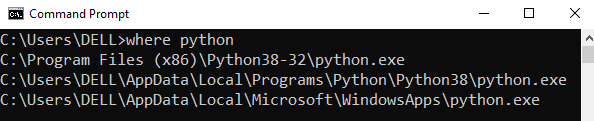
Step 1: Open the folder where you installed Python by opening the command prompt and typing where python
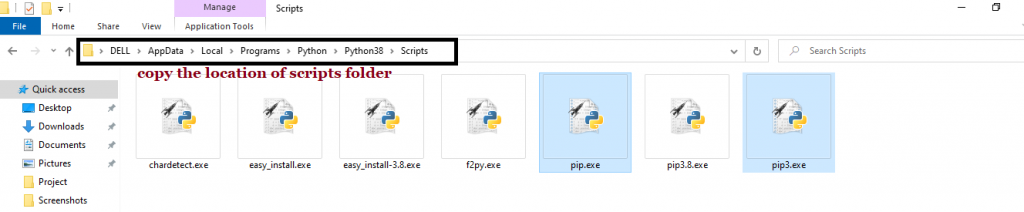
Step 2: Once you have opened the Python folder, browse and open the Scripts folder and copy its location. Also verify that the folder contains the pip file.
Step 3: Now open the Scripts directory in the command prompt using the cd command and the location that you copied previously.

Step 4: Now install the library using pip install flask command. Here’s an analogous example:
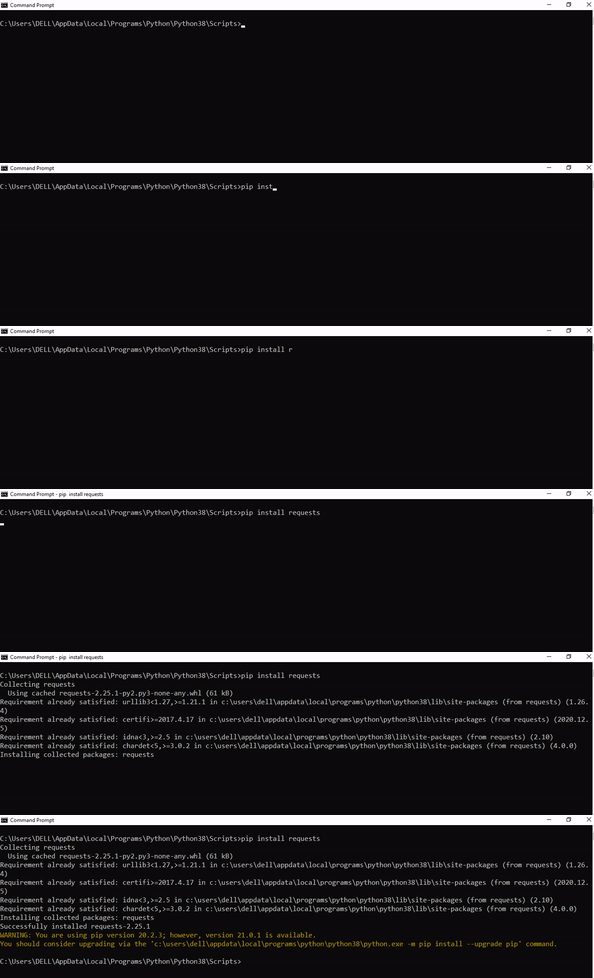
After having followed the above steps, execute our script once again. And you should get the desired output.
Other Solution Ideas
- The
ModuleNotFoundErrormay appear due to relative imports. You can learn everything about relative imports and how to create your own module in this article. - You may have mixed up Python and pip versions on your machine. In this case, to install
flaskfor Python 3, you may want to trypython3 -m pip install flaskor evenpip3 install flaskinstead ofpip install flask - If you face this issue server-side, you may want to try the command
pip install --user flask - If you’re using Ubuntu, you may want to try this command:
sudo apt install flask - You can check out our in-depth guide on installing
flaskhere. - You can also check out this article to learn more about possible problems that may lead to an error when importing a library.
Understanding the “import” Statement
import flask
In Python, the import statement serves two main purposes:
- Search the module by its name, load it, and initialize it.
- Define a name in the local namespace within the scope of the
importstatement. This local name is then used to reference the accessed module throughout the code.
What’s the Difference Between ImportError and ModuleNotFoundError?
What’s the difference between ImportError and ModuleNotFoundError?
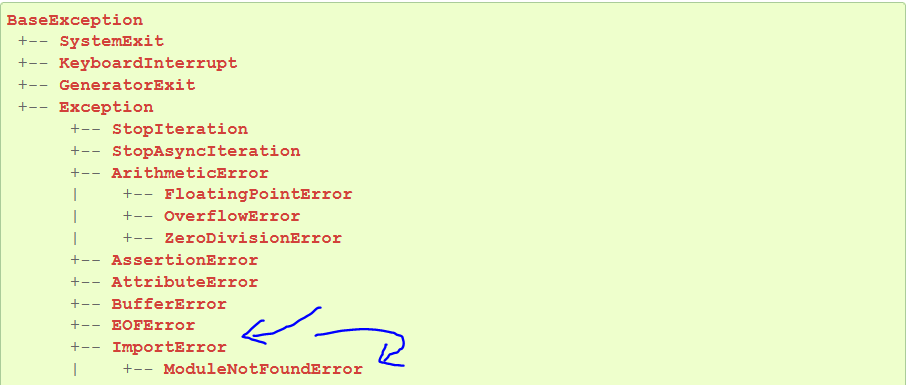
Python defines an error hierarchy, so some error classes inherit from other error classes. In our case, the ModuleNotFoundError is a subclass of the ImportError class.
You can see this in this screenshot from the docs:
You can also check this relationship using the issubclass() built-in function:
>>> issubclass(ModuleNotFoundError, ImportError)
True
Specifically, Python raises the ModuleNotFoundError if the module (e.g., flask) cannot be found. If it can be found, there may be a problem loading the module or some specific files within the module. In those cases, Python would raise an ImportError.
If an import statement cannot import a module, it raises an ImportError. This may occur because of a faulty installation or an invalid path. In Python 3.6 or newer, this will usually raise a ModuleNotFoundError.
Related Videos
The following video shows you how to resolve the ImportError:
How to Fix : “ImportError: Cannot import name X” in Python?
The following video shows you how to import a function from another folder—doing it the wrong way often results in the ModuleNotFoundError:
How to Call a Function from Another File in Python?
How to Fix “ModuleNotFoundError: No module named ‘flask’” in PyCharm
If you create a new Python project in PyCharm and try to import the flask library, it’ll raise the following error message:
Traceback (most recent call last):
  File "C:/Users/.../main.py", line 1, in <module>
    import flask
ModuleNotFoundError: No module named 'flask'

Process finished with exit code 1
The reason is that each PyCharm project, per default, creates a virtual environment in which you can install custom Python modules. But the virtual environment is initially empty—even if you’ve already installed flask on your computer!
Here’s a screenshot exemplifying this for the pandas library. It’ll look similar for flask.
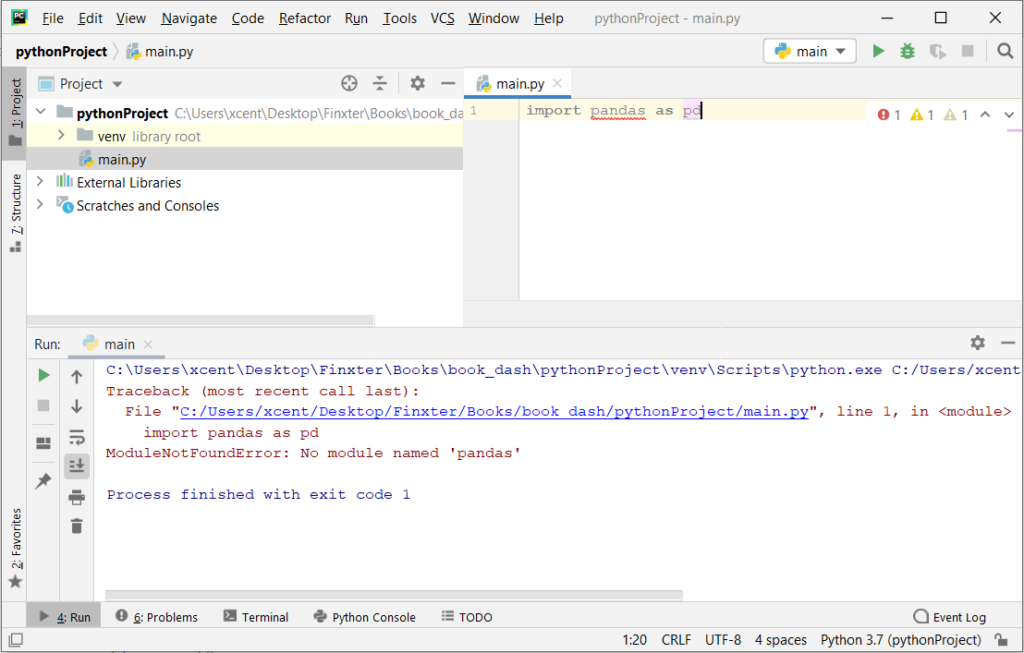
The fix is simple: Use the PyCharm installation tooltips to install Pandas in your virtual environment—two clicks and you’re good to go!
First, right-click on the pandas text in your editor:
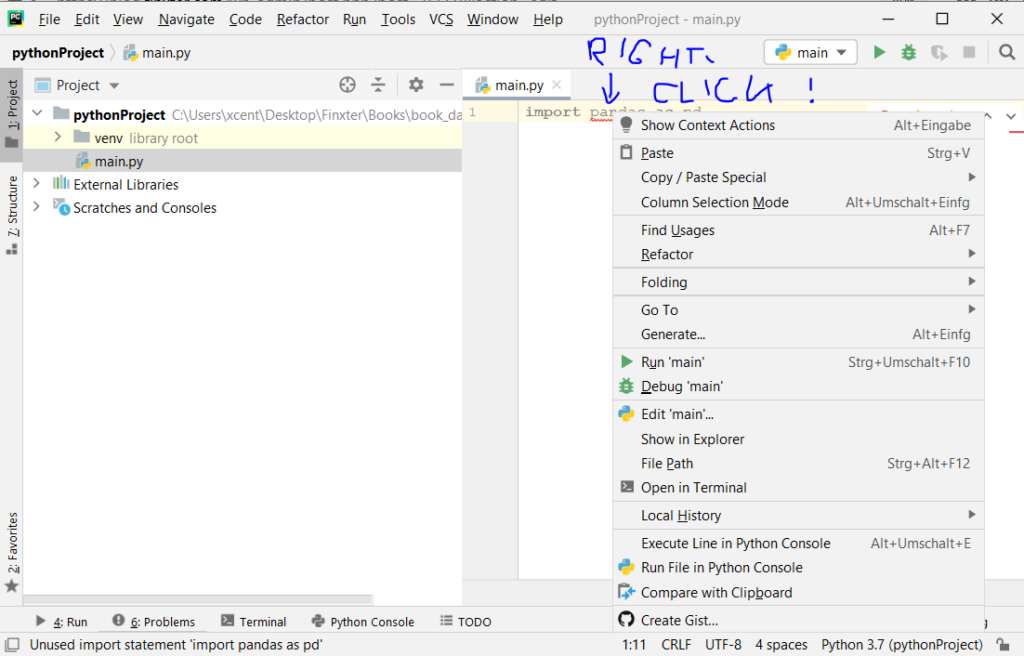
Second, click “Show Context Actions” in your context menu. In the new menu that arises, click “Install Pandas” and wait for PyCharm to finish the installation.
The code will run after your installation completes successfully.
As an alternative, you can also open the Terminal tool at the bottom and type:
$ pip install flask
If this doesn’t work, you may want to set the Python interpreter to another version using the following tutorial: https://www.jetbrains.com/help/pycharm/2016.1/configuring-python-interpreter-for-a-project.html
You can also manually install a new library such as flask in PyCharm using the following procedure:
- Open
File > Settings > Projectfrom the PyCharm menu. - Select your current project.
- Click the
Python Interpretertab within your project tab. - Click the small
+symbol to add a new library to the project. - Now type in the library to be installed, in your example Pandas, and click
Install Package. - Wait for the installation to terminate and close all popup windows.
Here’s an analogous example:
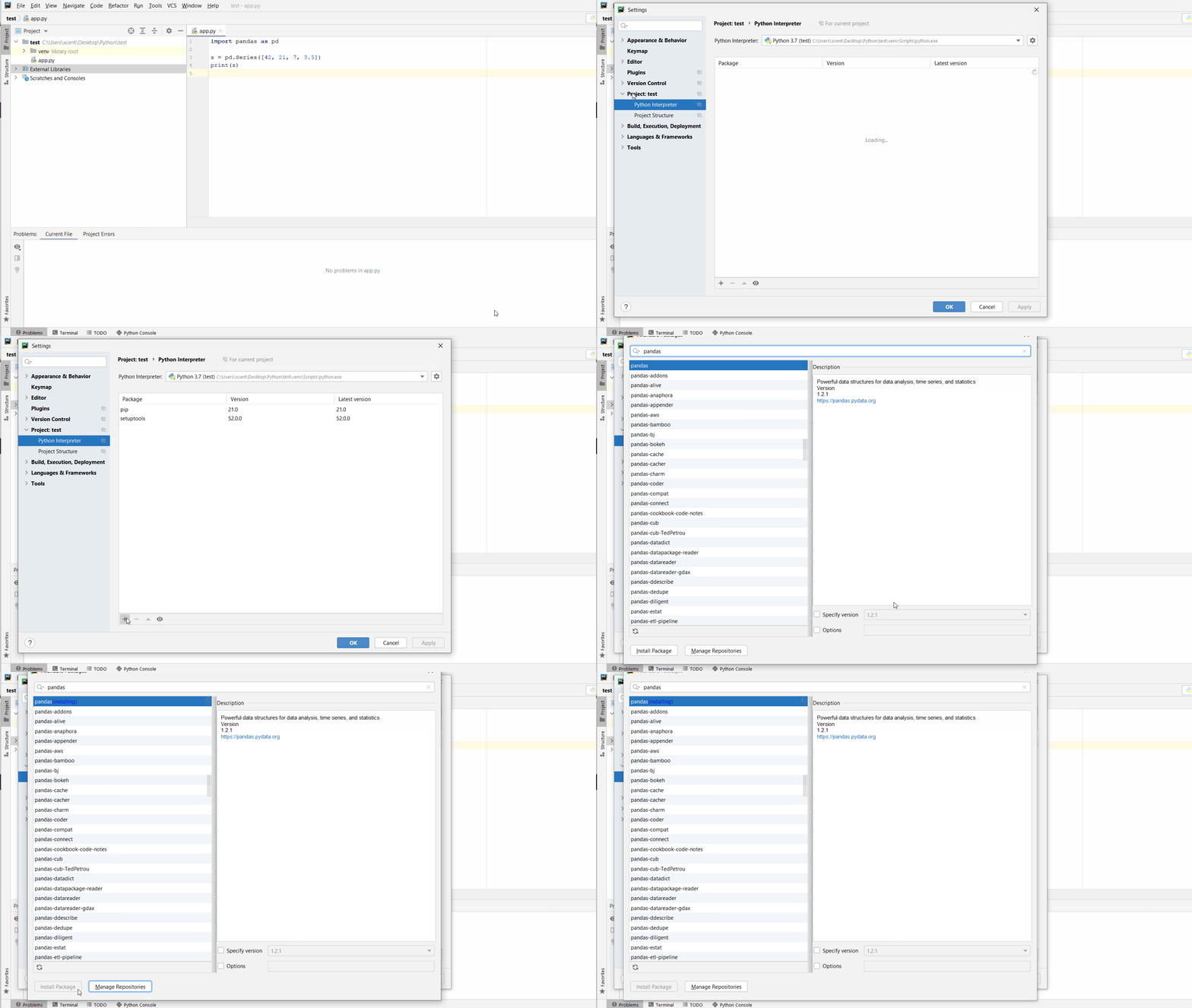
Here’s a full guide on how to install a library on PyCharm.
- How to Install a Library on PyCharm

While working as a researcher in distributed systems, Dr. Christian Mayer found his love for teaching computer science students.
To help students reach higher levels of Python success, he founded the programming education website Finxter.com. He’s author of the popular programming book Python One-Liners (NoStarch 2020), coauthor of the Coffee Break Python series of self-published books, computer science enthusiast, freelancer, and owner of one of the top 10 largest Python blogs worldwide.
His passions are writing, reading, and coding. But his greatest passion is to serve aspiring coders through Finxter and help them to boost their skills. You can join his free email academy here.