Содержание
- Причина 1: Случайный единичный сбой
- Причина 2: Плохой контакт слота и карты памяти
- Причина 3: Наличие ошибочных секторов в таблице файлов карты
- Причина 4: Физическое повреждение карты
- Вопросы и ответы
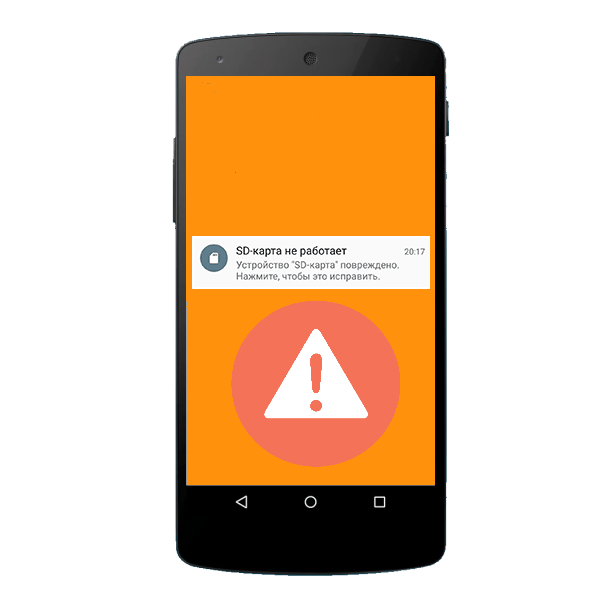
Сообщение «SD-карта не работает» или «Пустая SD-карта: требуется форматирование» может появиться в таких случаях:
Причина 1: Случайный единичный сбой
Увы, природа Андроид такова, что протестировать его работу абсолютно на всех устройствах невозможно, следовательно, имеют место ошибки и сбои. Возможно, вы переместили приложения на флешку, оно по каким-то причинам аварийно завершилось, и вследствие этого ОС не определила внешний носитель. На самом деле таких причин может быть множество, однако почти все случайные сбои исправляются перезагрузкой девайса.
Читайте также: Перезагрузка устройств Samsung под управлением Android
Причина 2: Плохой контакт слота и карты памяти
Портативное устройство вроде телефона или планшета во время эксплуатации подвергается нагрузкам, даже находясь в кармане или сумке. Вследствие этого подвижные элементы, к которым относится и карта памяти, могут сдвигаться в своих пазах. Поэтому, встретившись с ошибкой о повреждении флешки, которая не исправляется перезагрузкой, стоит вынуть карточку из девайса и осмотреть ее; также возможно загрязнение контактов пылью, которая в любом случае проникает внутрь аппарата. Контакты, кстати, можно протереть спиртовыми салфетками.
Если контакты на самой карте памяти визуально чистые, можете просто подождать некоторое время и вставить её снова — возможно, девайс или сама флешка просто нагрелись. Спустя некоторое время вставьте SD-карту обратно, и убедитесь, что она посажена до конца (но не переусердствуйте!). Если проблема была в плохом контакте, после этих манипуляций она исчезнет. Если проблема остается — читайте дальше.
Причина 3: Наличие ошибочных секторов в таблице файлов карты
Проблема, с которой чаще всего сталкиваются любители подключать девайс к ПК и вместо безопасного извлечения просто выдергивать шнур. Впрочем, от такого не застрахован никто: подобное может вызвать сбой ОС (например, выключения при разряде батареи или аварийная перезагрузка) или даже банальный перенос файлов (копирование или Ctrl+X) средствами самого телефона. В зоне риска также владельцы карточек с файловой системой FAT32.
Как правило, сообщение об ошибочном распознавании SD-карты предваряют другие неприятные симптомы: файлы с такой флешки читаются с ошибками, файлы пропадают вообще или появляются такие себе цифровые призраки. Естественно, причину такого поведения не исправят ни перезагрузка, ни попытка вытащить-вставить флешку. Действовать в такой ситуации следует так:
- Вытащите карту памяти из телефона и подключите её к компьютеру посредством специального устройства-кардридера. Если у вас ноутбук, его роль прекрасно исполнит переходник microSD-SD.
- Если ПК распознает карту корректно, то скопируйте её содержимое на жесткий диск «большого брата» и отформатируйте флешку любым предложенным способом в файловую систему exFAT — такой формат предпочтителен для Android.
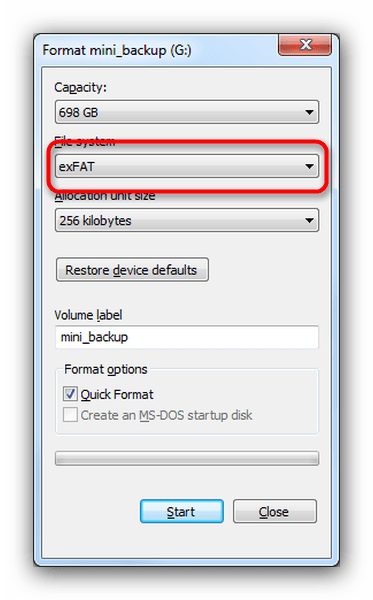
По окончании процесса отключите SD-карту от компьютера и вставьте в телефон, некоторые девайсы требуют, чтобы карточки были отформатированы их собственными средствами. Потом подключите аппарат со вставленной флешкой к компьютеру и скопируйте на носитель сделанную ранее резервную копию, затем отключите аппарат и пользуйтесь как обычно. - Если карта памяти не распознается корректно — скорее всего, её придется форматировать как есть, а затем, в случае успеха, восстанавливать файлы.
Причина 4: Физическое повреждение карты
Самый плохой вариант развития событий — флешка оказалась повреждена механически либо при контакте с водой, огнем. В таком случае мы бессильны — скорее всего, данные с такой карточки восстановить уже не получится, и вам ничего не остается, как выбросить старую SD-карту и приобрести новую.
Ошибка, сопровождаемая сообщением о повреждении карты памяти – одна из самых неприятных, которая может произойти с пользователями девайсов под управлением Android. Благо, в большинстве случаев это просто единичный сбой.
Еще статьи по данной теме:
Помогла ли Вам статья?
Карты SD — это дополнительное средство хранения данных, используемое во многих цифровых устройствах, таких как цифровые камеры, мобильные телефоны и компьютерные системы. Это удобное и выгодное средство хранения данных, которое также используется для переноса данных. Все цифровые устройства имеют бесчисленные преимущества, и по многим причинам возникает страх потерять хранящиеся в них данные. SD-карты также уязвимы, и многие внешние и внутренние факторы могут повредить их независимо от причины. Боль удваивается, если данные, хранящиеся на SD-карте, относятся к памятному событию. В этом руководстве мы покажем вам 13 способов, как исправить поврежденную SD-карту.

Часть 1: Симптомы повреждения SD-карты
Иногда SD-карта работает ненормально, что указывает на то, что ее что-то беспокоит. Различные симптомы указывают на то, что SD-карта постепенно повреждается. Обнаружение этих симптомов может снизить риск потери данных. По крайней мере, вы могли бы переместить свои важные данные до того, как они будут потеряны с поврежденной SD-карты. Признаки несоответствия на самом деле говорят в вашу пользу, предупреждая вас о необходимости извлечь свои данные и сохранить их на каком-нибудь другом устройстве. Давайте рассмотрим наиболее распространенные признаки.
- Недостающие данные:В тот момент, когда вы понимаете, что некоторые из ваших фотографий, видео, заметок, листов или любых других данных отсутствуют, это означает, что ваша SD-карта находится на грани повреждения.
- Карта не распознана: Мгновенное сообщение о том, что SD-карта не распознана, означает, что на SD-карте происходит повреждение данных.
- Сообщения об ошибках: Когда вы вставляете SD-карту и пытаетесь получить к ней доступ, она выдает предупреждения типа “Доступ запрещен” или “SD-карта не форматируется.” Это также сигнал о том, что он поврежден.
- Неизвестные файлы: При вирусной атаке, которая повреждает вашу карту, неизвестные файлы не открываются и не удаляются.
- Невозможно читать и записывать: Если у вас возникли проблемы с чтением или записью на карту, она может быть повреждена.
- Неисправность устройства: Устройство, подключенное с поврежденной SD-картой, может вызвать неисправность устройства.
- Пустая SD-карта: Поврежденная SD-карта с данными может отображаться на вашем устройстве как пустая.
Советы: Чтобы восстановить данные с нераспознанной или недоступной SD-карты, просто попробуйте средство восстановления SD-карты.
Что Означает Коррупция?
SD-карта повреждена, что означает, что вы не можете получить доступ к файлам с нее, и файлы, которые вы храните на ней, могут исчезнуть, поскольку SD-карта не может быть открыта или не может быть распознана вашим компьютером. Вы можете проверить вышеуказанные симптомы повреждения SD-карты, чтобы узнать, повреждена ли ваша SD-карта или нет.
Часть 2: Предварительные проверки для исправления поврежденной SD-карты
Попробуйте несколько элементарных проверок, которые могут сработать, прежде чем переходить к более сложным методам исправления. Эти биты работают точно так же, как первая помощь поврежденной SD-карте, и гарантируют, что SD-карта является проблемной.
1. Замените адаптер/Устройство чтения карт памяти или USB-порт
Считыватель карт также является деликатным устройством. Он может быть поврежден, поэтому важно проверить, работает ли SD-карта в другом кард-ридере; также попробуйте другой USB-порт, если порт работает неправильно.
2. Попробуйте использовать карту на другом устройстве / ПК
Попробуйте подключиться к SD-карте и получить к ней доступ с помощью другой системы, чтобы узнать, не распознает ли система карту или сама карта повреждена.
3. Защищена ли ваша SD-карта от записи?
SD-карта становится бесполезной, если она защищена от записи. Вы не можете записывать какие-либо новые данные на карту, удалять файлы или форматировать ее в любом состоянии.
Ознакомьтесь с пошаговым руководством по удалению защиты от записи с USB здесь.
Часть 3: 10 Передовых решений для Исправления поврежденной SD-карты без потери данных
Попробуйте приведенные 10 решений для исправления поврежденной SD-карты. Каждый из них предназначен для исправления различных ошибок и повреждений карты.
Исправление 1: Отображение скрытых файлов, хранящихся на поврежденной SD-карте
Иногда это отлично работает для исправления и восстановления поврежденной SD-карты, особенно если карта ничего не показывает, хотя на ней хранятся данные.
Подключите карту к вашей системе.
Откройте Проводник > Инструменты > Параметры папки > Вкладка Просмотр.
Отметьте галочкой опцию «Скрытые элементы». Проверьте, можете ли вы теперь видеть скрытые файлы.
Исправление 2: Попробуйте команду chkdsk для проверки ошибок карты памяти
Существует простая и быстро реагирующая утилита командной строки, доступная для исправления поврежденной SD-карты. CHKDSK проверяет файловую систему на наличие соответствующих физических ошибок. С его помощью невероятно легко исправить и восстановить файлы с поврежденной SD-карты.
Введите “cmd” на панели задач.
Выберите Запуск от имени администратора.
Введите: chkdsk X: /f Убедитесь, что вы заменили X буквой, присвоенной SD-карте.
Нажмите клавишу Enter.
Дайте команде CHKDSK завершиться. Это занимает время в зависимости от объема данных, содержащихся на вашей SD-карте.
Исправление 3: Назначьте новую букву диска, если SD-карта не обнаруживается ПК
Если карта не читается, вы можете назначить новую букву диска, чтобы решить эту проблему.
Перейдите в раздел Управление дисками из списка меню.
Найдите SD-карту в разделе Управление дисками.
Щелкните по нему правой кнопкой мыши и выберите «Изменить букву диска и пути» в контекстном меню.
Нажмите «Изменить» во всплывающем меню.
Выберите букву диска из выпадающего списка и нажмите кнопку ОК.
Исправление 4: Переустановите драйвер SD-карты
Переустановка драйвера для кард-ридера — это еще одно решение, которое может помочь восстановить поврежденную SD-карту.
Перейдите в диспетчер устройств в окне «Управление компьютером».
Откройте раздел «Устройства с технологией памяти».
Найдите устройство чтения карт памяти.
Укажите марку и модель устройства чтения карт памяти.
Выберите опцию «Удалить устройство».
Удалите, выбрав опцию «Удалить программное обеспечение драйвера для этого устройства».
Перезагрузите компьютер.
Загрузите последнюю версию драйвера с веб-сайта устройства чтения карт памяти и установите его.
Исправление 5: Используйте средство устранения неполадок Windows для исправления поврежденной SD-карты
Средство устранения неполадок может легко находить и исправлять ошибки, связанные с оборудованием.
Подключите SD-карту к вашей системе.
Перейдите в раздел Устранение неполадок на вкладке обновления и безопасность в настройках Windows.
Нажмите кнопку «Запустить средство устранения неполадок».
Исправление 6: Используйте решение для ремонта SD-карты, предоставленное производителем
Авторитетные производители SD-карт предоставляют услуги, помогающие пользователям устранять повреждения SD-карт. Это может быть вашим последним средством для восстановления данных с поврежденной SD-карты. Обращение за помощью к производителю может занять много времени и быть дорогостоящим, но оно того стоит, если данные являются ценными.
Исправление 7: Используйте функцию «Проверка ошибок» диска
Еще один практический способ восстановить данные с поврежденной SD-карты — запустить проверку ошибок и самостоятельно восстановить поврежденную SD-карту.
Откройте проводник Windows.
Перейдите к свойствам SD-карты.
Нажмите кнопку «Проверить» на вкладке «Инструменты».
Исправление 8: Используйте Diskpart в команде CMD
Сначала определите номер диска, присвоенный SD-карте.
Перейдите в меню «Начать», щелкните правой кнопкой мыши на компьютере и выберите «Управление дисками».
Выберите пункт Управление.
Выберите Управление дисками.
Ищите дисковод, а не вниз по номеру диска.
Чтобы разделить диск с помощью команды cmd, выполните следующие действия:
Откройте окно командной строки.
Выберите пункт Администратор во всплывающем меню.
Введите diskpart и нажмите Enter.
Запишите список дисков и нажмите Enter.
Выберите номер диска.
Введите clean и нажмите Enter.
Исправление 9: Форматирование для восстановления поврежденной SD-карты
Вы можете использовать это форматирование для восстановления поврежденной SD-карты. Это почти устраняет каждую проблему с коррупцией.
Подключите SD-карту к настольному компьютеру / ноутбуку.
Дважды щелкните Мой компьютер/ Этот компьютер, чтобы открыть проводник Windows.
Щелкните правой кнопкой мыши на вашей SD-карте в разделе Устройства и диски и выберите Формат.
Щелкните поле Файловая система. Выберите один из них — NTFS, FAT32, exFAT, который вы хотите отформатировать.
Нажмите кнопку Начать.
Исправление 10: Восстановление данных с поврежденной SD-карты, если не работает
Если ничего не работает, последний способ — использовать средство восстановления данных SD-карты для извлечения данных с поврежденной SD-карты. Программное обеспечение для восстановления данных Tenorshare 4DDiG — это замечательный инструмент для восстановления поврежденной / отформатированной SD-карты. Он поддерживает более 1000 типов данных, включая фотографии, видео, аудио, документы и многое другое с помощью простых 3 шагов. Ниже приведены его особенности:
- Восстановить нераспознанную / недоступную / поврежденную / отформатированную SD-карту.
- Восстановление данных с Windows / Mac / SD-карт / флэш-накопителей USB / внешних жестких дисков / цифровой камеры и т.д.
- Восстановить более 1000 типов типов данных.
- Поддерживает Windows 11/10/8.1/8/7.
- Восстановление данных из вышедшей из строя системы.
Выполните следующие действия, чтобы восстановить данные с поврежденной SD-карты:
- Шаг 1:Выберите SD-карту
- Шаг 2:Сканирование и предварительный просмотр
- Шаг 3:Восстановление файлов
После установки 4DDiG на ваш компьютер подключите поврежденную SD-карту к ПК и запустите программу. 4DDiG должен мгновенно обнаружить поврежденную SD-карту, чтобы вы могли выбрать SD-карту, с которой вы потеряли свои данные, и нажать «Начать», чтобы продолжить.
4DDiG быстро проверяет выбранный вами диск со всех сторон, чтобы обнаружить и восстановить поврежденную информацию. Если вы не можете отследить нужную вам утерянную информацию, вы можете нажать кнопку глубокого сканирования, что может занять много времени. После сканирования вы можете выбрать файлы для предварительного просмотра перед восстановлением данных.
Программное обеспечение для восстановления 4DDiG может просматривать и восстанавливать различные типы записей, такие как фотографии, записи, звуки или архивы. Вы можете нажать на кнопку Восстановить, чтобы вернуть их с вашего жесткого диска. После того, как вы нажмете на кнопку Восстановить, откроется диалоговое окно с запросом места, в котором вы хотите восстановить документы. Выберите область и нажмите кнопку ОК.
Часть 4: Советы по предотвращению повреждения SD-карты в будущем
Следуйте простым действиям, описанным ниже, чтобы избежать повреждения SD-карты:
- Отформатируйте новую SD-карту непосредственно перед ее использованием и делайте это часто, когда она пуста.
- Всякий раз, когда вы хотите очистить свою SD-карту, отформатируйте ее вместо того, чтобы удалять все.
- Правильно извлеките карту вместо того, чтобы вытаскивать ее напрямую.
- Используйте несколько карт вместо одной карты большого объема памяти и храните их в надежном месте.
Часть 5: Часто задаваемые вопросы о поврежденной SD-карте
1. Можно ли восстановить данные с поврежденной карты памяти без её форматирования?
Лучший способ восстановить данные с SD-карты — это запустить надежный инструмент восстановления, такой как Tenorshare 4DDiG. Это просто, быстро и бесплатно попробовать.
2. В чем разница между поврежденной SD-картой и испорченной SD-картой?
Вы не можете сказать наверняка, пока не узнаете, что карта была повреждена физически. Любая SD-карта, которая не является неузнаваемой или не работает, считается поврежденной.
3. Есть ли риск при выполнении chkdsk на SD-карте?
Запуск chkdsk сопряжен с потенциальным риском потери данных. Вам лучше сначала воспользоваться профессиональным средством восстановления данных, прежде чем запускать chkdsk на SD-карте.
Заключение:
Восстановление данных с SD-карты является сложной задачей из-за ее уязвимости и небольшого размера. Если у вас есть важные данные на вашей SD-карте, рекомендуется использовать средство восстановления для их восстановления. Лучшим инструментом восстановления, который является экспертом в восстановлении любых данных без особых усилий, является Tenorshare 4DDiG . Тем не менее, вы можете использовать другие исправления, описанные в этой статье, если вы не боитесь потерять все, что находится внутри карты.
Вам Также Может Понравиться
-
Home>>
- SD карта >>
- Как исправить поврежденную SD карту без потери данных?
Don’t worry if you can’t format SD card on phone, camera, or Windows PC. On this page, you’ll learn why you can’t format SD card, how to fix this error, and successfully format SD card on your devices.
SD card, as a type of memory card in portable electronic devices, is widely used on Android phones, tablets, cameras, and some media players. The SD card also works as extended storage for you to save or back up files. To make use of a brand new SD card or set SD card for some specific usage, you’ll need to format the SD card.
However, sometimes, due to some unknown errors, you may not be able to format the SD card. Check out the reasons why you can’t format the SD card and learn how to fix this issue from the following parts.
Why Can’t I Format an SD Card
To help you fully resolve the SD card cannot format issues, it’s a wise choice to get to know the reasons behind this error. Usually, reasons for can’t format SD card error on different devices are dissimilar.
Check the exact causes of why you can’t format an SD card on your phone, camera, or computer:
On an Android phone:
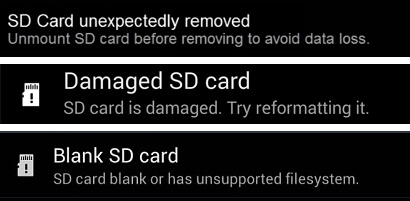
- SD card unexpectedly removed or unmounted.
- SD card is damaged. Try reformatting it.
- Blank SD card or has an unsupported file system.
On a camera:
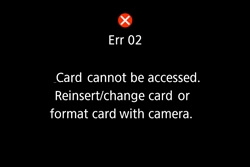
- Card cannot be accessed. Reinsert/change the card or format card with camera.
On a PC:
- Windows was unable to complete the format.
- SD is locked, encrypted, or write-protected.
- SD card is corrupted.
- SD contains an invalid file system (RAW) or file system is unsupported on Windows.
How Can I Fix Can’t Format SD Card Error (On Phone, Camera, PC)
So how do I fix an SD card that won’t format or SD card cannot format? This is what we’re going to discuss and you are also suggested to take the tips as follows:
1. Pick Up a Proper Way
As the ways to fix SD card cannot format error are distinctive, we suggest you take the specific fixes that apply to your situation:
- #1. Fix Can’t Format SD Card on Android Phone
- #2. Fix SD Card Can’t Format Issue on Camera
- #3. Fix SD Cannot Format on Windows PC
2. Back Up Essential SD Card Files in Advance
In order to avoid unnecessary file loss issue, and if you can still access the SD card, please back up all vital data from the SD card to another secure location.
If your SD card is inaccessible, don’t worry. You can first fix this error with the suggested method as presented in the next 3 parts and then turn to reliable EaseUS Data Recovery Wizard such as EaseUS Data Recovery Wizard to restore your valuable SD card files.
Part 1. Fix Can’t Format SD Card on Android Phone
When you can’t format SD card on an Android phone, you can first try the steps to make it work again:
Step 1. Remove and reconnect the SD card to your phone.
Step 2. Restart the Android phone and go to Settings.
Step 3. Tap «Storage», locate the SD card, and tap on «Mount SD Card».
Step 4. Then tap on «Format SD Card» to start formatting it on your phone.
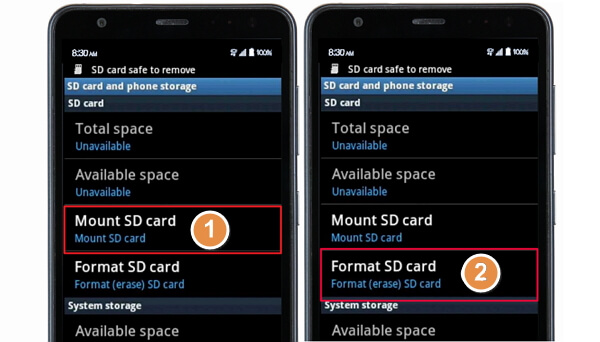
If it doesn’t work, move the SD card, connect it to your PC via an SD card reader, and format it on your PC.
After this, insert the SD card back and restart your phone, you should be able to use the card as extended storage to save music, photos, and other data by now.
Also Read: SD Won’t Mount on Android or PC
Note that if the presented method doesn’t work, it’s highly possible that the SD card is corrupted or has an unsupported file system. You need to take the card out of your phone and connect it to a computer. Then turn to the fixes in Part 3 for help.
Part 2. Fix SD Can’t Format on Camera
Mostly, when you are unable to format the SD card, you can remove and reinsert the card. And reformat the SD card again. Here are the steps to fix SD card can’t format issue on your Camera:
Step 1. Take the SD card out of your camera.
Step 2. Unlock the SD card by changing its switch.
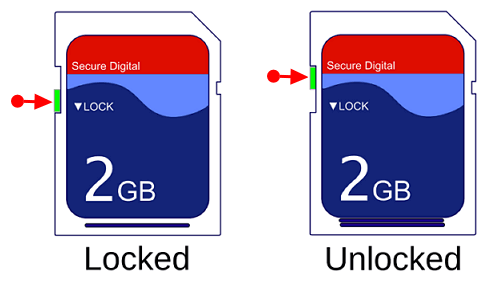
Step 3. Replace a new SD card if it’s damaged.
Step 4. Insert SD card to the camera, restart it and go to Settings.
Step 5. Select SD card and select «Format Card», click «OK»
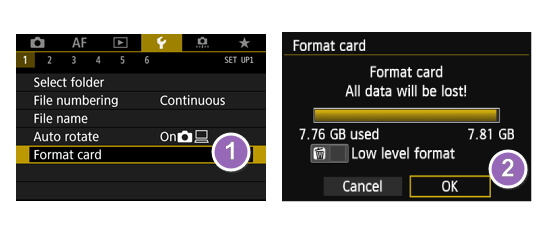
Wait for the formatting to finish. If you still can’t format it, move the card and connect it to your PC, format it on your computer instead. If you can’t format the SD card on your computer, refer to the fixes in the next part to resolve this error with ease.
Part 3. Fix SD Card Cannot Format on Windows PCs
When you can’t format SD card on Windows PC or mobile phone, camera, it’s probably that your card is containing internal errors, such as file system corruption, write-protected, unsupported file system, etc.
Here we collected * methods that you can try them one by one to fix this error and format your SD card successfully:
- #1. Remove Write Protection from SD Card
- #2. Check and Repair SD Card Error
- #3. Format SD Card with Best SD Card Formatter
Remove Write Protection from SD Card
Mostly, when you see Windows warning that it was unable to complete the format on your SD card, the first thing we suggest you do is to check if the SD card is write-protected.
Check SD Card
Step 1. Connect SD card to PC and open File Explorer.
Step 2. Check if the SD card:
- Format SD, it will pop up with the «Disk is write protected» error message.
- If the SD card is encrypted, it will be marked with a lock icon.
- If the SD card is read-only, it will show as read-only in its Properties setting.
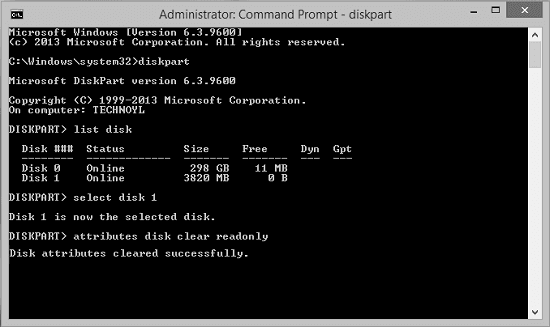
Remove Write Protection with DiskPart Command
Step 1. Connect SD card to PC.
Step 2. Press Windows + R, type cmd and hit Enter.
Step 3. Type the command lines below and hit Enter each time:
- dispart
- list disk
- select disk # (Replace # with the disk number of your SD card.)
- attributes disk clear readonly
Step 4. Type exit to close DiskPart when the process completes.
Write Protection Removal Tool
If you don’t consider yourself a pro-computer user and you’re not familiar with command-lines, don’t worry. There are graphical-based solutions to help you remove write-protection from your hard drives, USB drives, and even SD cards.
EaseUS CleanGenius is one of these tools that helps you fix aforementioned issues on your drives without knowing a thing about command-line.
Here’s an easy-to-follow guide on how to use this tool to get your issues sorted:
Step 1: DOWNLOAD and install EaseUS CleanGenius (free) on your computer.
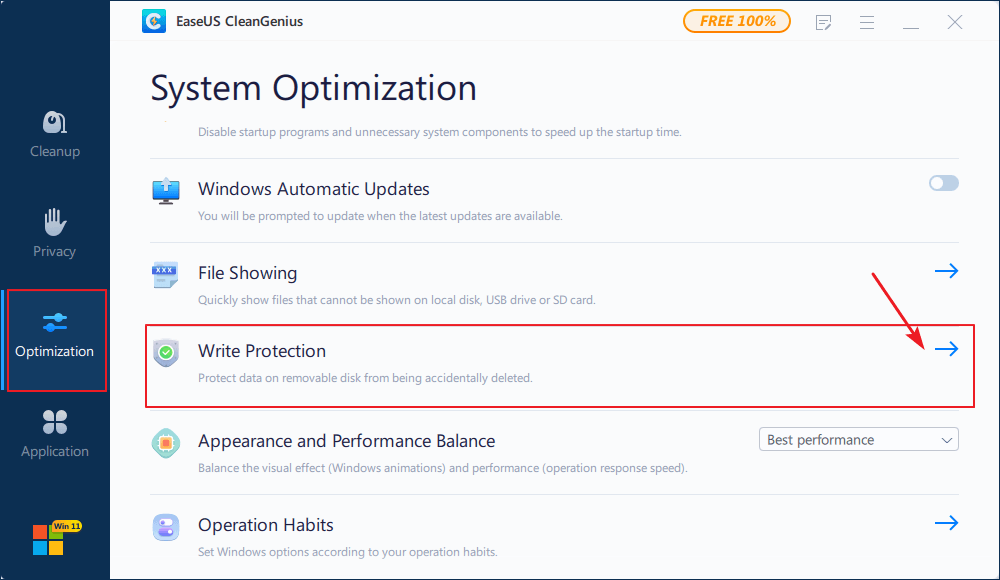
Step 2: Run EaseUS CleanGenius on your PC, select Optimization and choose the Write Protection mode.
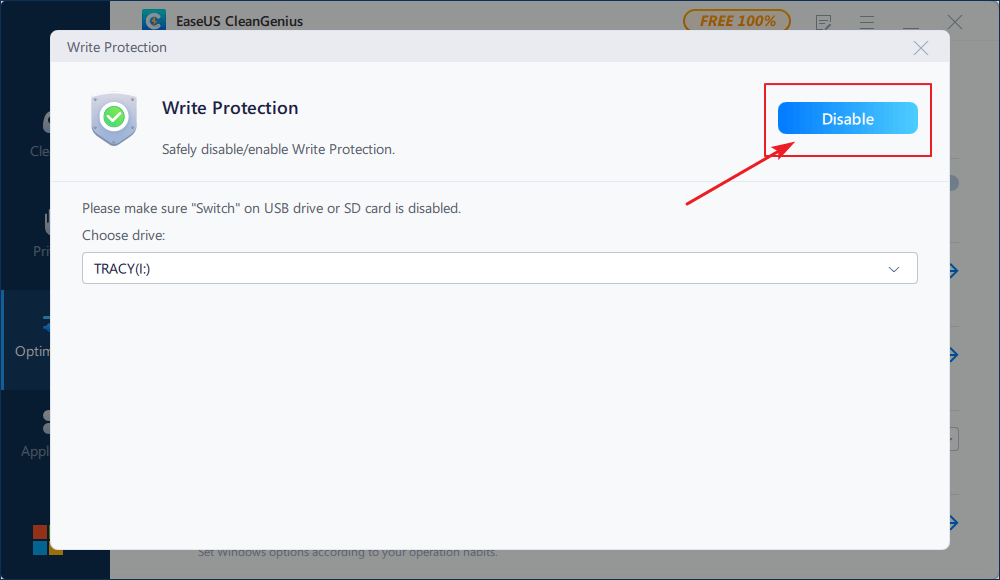
Step 3: Select the device that is write-protected and click Disable to remove the protection.
Note: If your SD card is locked by encryption software or it’s encrypted by BitLocker, see also: How to Remove Write Protection from SD Card.
Check and Repair SD Card Errors (Bad Sectors, File System Error)
As listed in the causes at the beginning of this page, bad sectors, invalid or corrupted file systems, etc., can lead to SD cards cannot format error.
The best way is to check and repair internal SD card errors with the CHKDSK command:
Step 1. Insert SD card to your PC.
Step 2. Press Windows + X keys and select «Command Prompt (Admin)».
Step 3. Type CHKDSK F: /f /r hit Enter.
(Replace F with the drive letter of your SD card.)
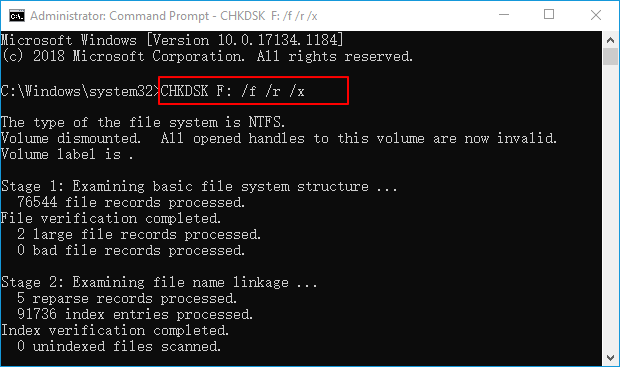
Usually, it will spend 3-4 hours. Wait for the process to complete and then all bad sectors and the corrupted file systems will be fixed by this command.
Format SD card to FAT32/NTFS
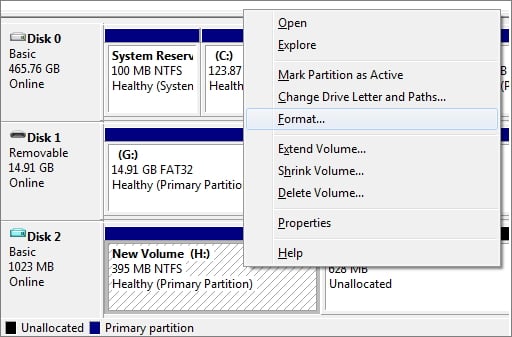
Now that you can retry to use Disk Management to format the SD card to a supported file system like FAT32 or NTFS on your computer again:
Step 1. Connect the SD card to your computer.
Step 2. Press Windows + R keys and type diskmgmt.msc and hit Enter.
Step 3. On Disk Management, right-click on SD card, and choose «Format Volume…».
Step 4. Reset the file system on your SD card into FAT32 or NTFS and click OK to confirm.
You May Also Like:
- Format SD Card using CMD
- Top 5 SD Card Formatter
Bonus Tip: Recover Lost Data from Formatted SD Card
As we know, that sometimes, when the SD card is inaccessible, you’ll have to format it first. As a result, data loss is inevitable.
In this case, you’ll need to recover data after formatting the SD card. The sooner you take action, the better chance you have for SD card format recovery.
You have two options: 1. Use SD Card Recovery Software; 2. Customize Data Recovery Service.
Option 1. Use SD Card File Recovery Software
Turning to a reliable SD card EaseUS Data Recovery Wizard is a wise choice. Here, you can try EaseUS Data Recovery Wizard that enables you to fully restore all missing and hidden files from inaccessible SD card, USB, or even external hard drive with a few simple clicks.
Just download and install it on your PC and try to recover data with the guide here.
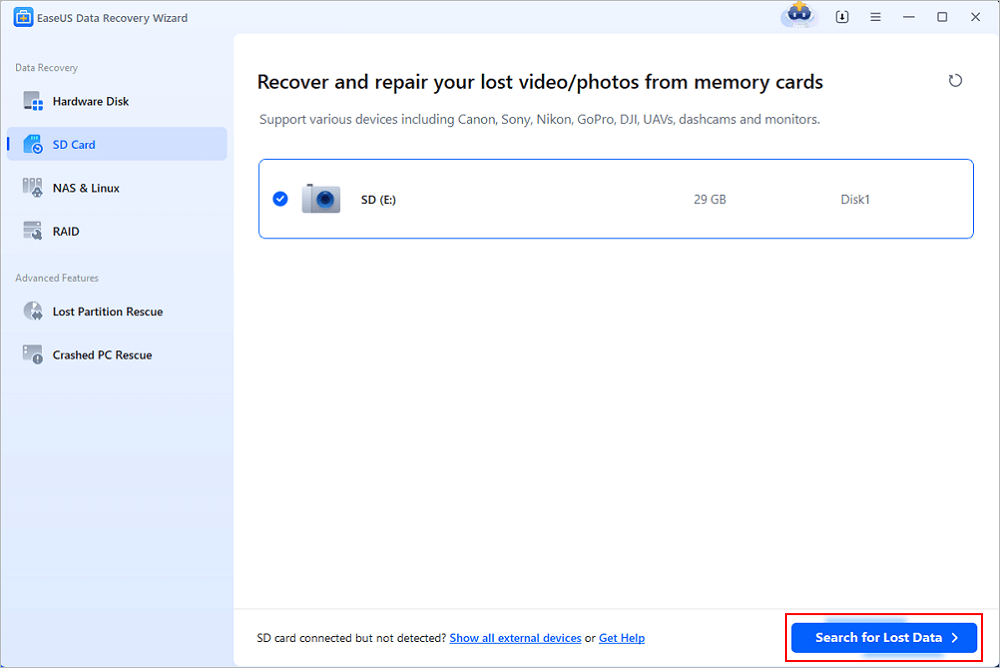
Step 1. Connect the SD card, memory card, or CF Card to your computer and launch EaseUS memory card recovery software on your PC. The SD card will be listed under the Devices section. Choose the SD card and click «Scan» to start looking for your lost data.
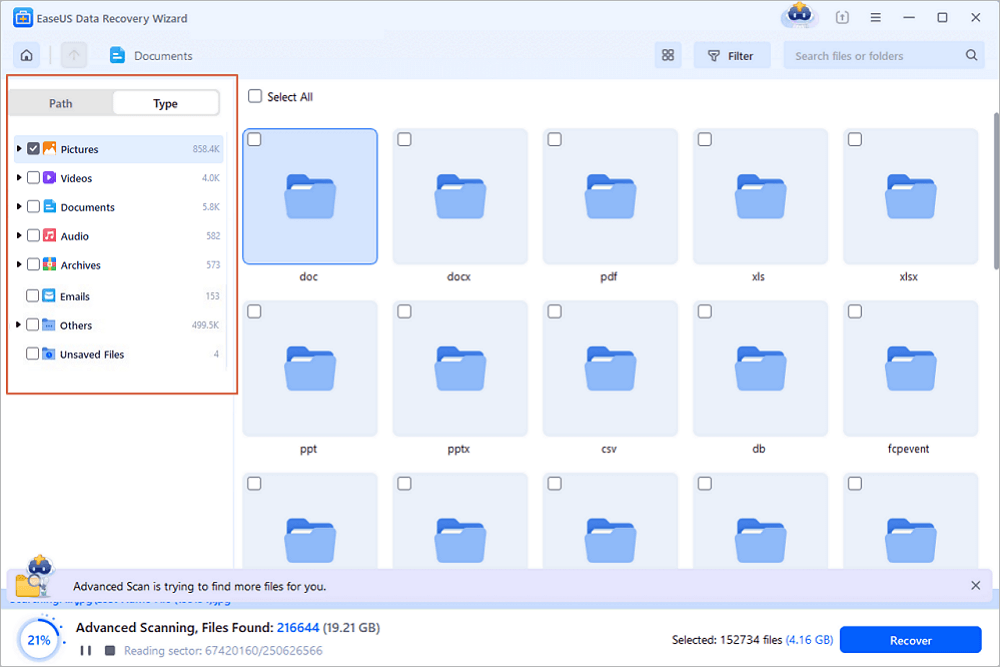
Step 2. The software will start a scan automatically. The scan is powerful enough to find all lost files that even lost file names. After the scanning process, you can find deleted items from the tree-view panel on the left. Then, click «Filter» if you are looking for a specific file type, like photos, documents, videos or emails.
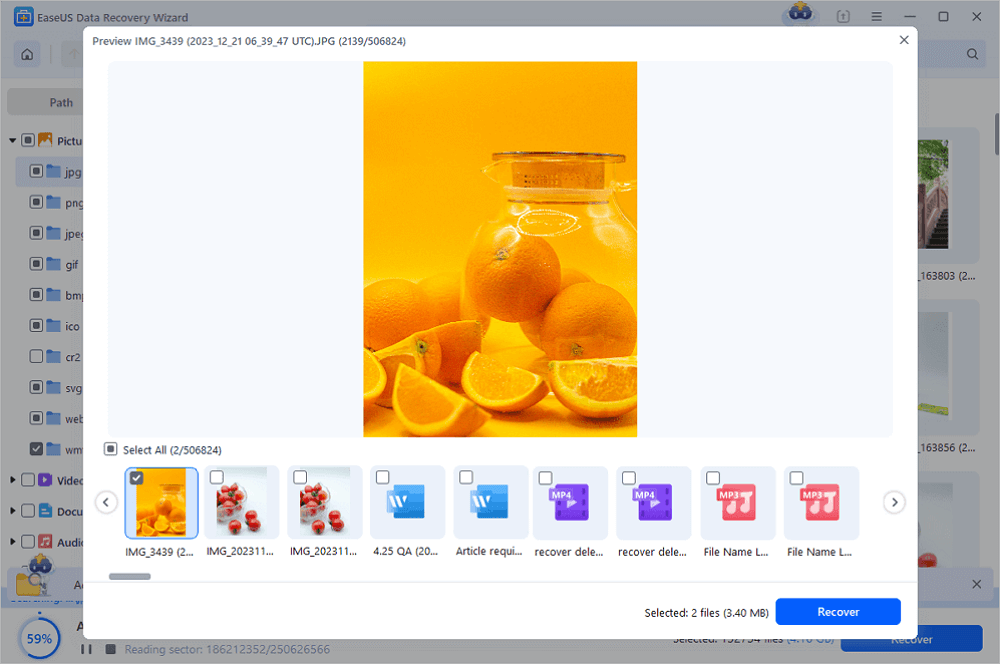
Step 3. You can directly double-click the files to preview the content. After this, you can choose wanted files and click «Recover» to restore them to a secure location on your PC or other external storage devices.
Option 2. Customize Data Recovery Service
Consult with EaseUS Data Recovery Experts for one-on-one manual recovery service. We could offer the following services after FREE diagnosis:
- Repair corrupted RAID structure, unbootable Windows OS and corrupted virtual disk file (.vmdk, .vhd, .vhdx, etc.)
- Recover/repair lost partition and re-partitioned drive
- Unformat hard drive and repair raw drive (BitLocker encrypted drive)
- Fix disks that become GPT-protected partitions
Conclusion
On this page, we explained why can’t an SD card be formatted and the complete process of fixing the «Can’t format SD card» error on your phone, camera, or computer.
Note that if your SD card is accessible, don’t forget to back up all important files first. Otherwise, you’ll need to turn to data recovery software like EaseUS Data Recovery Wizard for help after formatting the SD card.
If you have a further question related to SD card can’t format, don’t worry. Check the questions and answers here. You may find a satisfying answer.
People Also Ask
1. Why can’t I format my SD card as internal storage?
To turn to an SD card as internal storage, you must check if the card is blank. If your SD card is not blank, it must be the reason why you can’t format it as internal storage.
Follow the steps here for help:
- 1. Empty the SD card on your computer.
- 2. Insert the SD card to your Android phone.
- 3. Go to Settings, select «Storage».
- 4. Select the SD card, tap the three dots, and select «Settings»
- 5. Select «Format as internal», then select «Erase & Format».
- 6. Reboot your phone.
2. How do I fix a corrupted SD card?
When your SD Card is corrupted, turn to the steps here for a quick fix:
- 1. Reconnect the SD card to your PC or a new one.
- 2. Assign a new drive letter to the card.
- 3. Show hidden files on the SD.
- 4. Run CHKDSK to fix file system error.
- 5. Update SD card driver.
- 6. Format SD card to FAT32, exFAT, etc.
3. Can’t format/erase SD card on Mac, Help!
According to most Mac users, Disk Utility can’t format or erase SD card due to some reasons. Here are some practical fixes that you can try:
- 1. Unlock the SD card.
- 2. If the SD card contains Mac unsupported file system, format it on Windows.
- 3. Turn to a third-party SD card formatting tool.
- 4. Clear read-only from SD card and format it again.
Don’t worry if you can’t format SD card on phone, camera, or Windows PC. On this page, you’ll learn why you can’t format SD card, how to fix this error, and successfully format SD card on your devices.
SD card, as a type of memory card in portable electronic devices, is widely used on Android phones, tablets, cameras, and some media players. The SD card also works as extended storage for you to save or back up files. To make use of a brand new SD card or set SD card for some specific usage, you’ll need to format the SD card.
However, sometimes, due to some unknown errors, you may not be able to format the SD card. Check out the reasons why you can’t format the SD card and learn how to fix this issue from the following parts.
Why Can’t I Format an SD Card
To help you fully resolve the SD card cannot format issues, it’s a wise choice to get to know the reasons behind this error. Usually, reasons for can’t format SD card error on different devices are dissimilar.
Check the exact causes of why you can’t format an SD card on your phone, camera, or computer:
On an Android phone:
- SD card unexpectedly removed or unmounted.
- SD card is damaged. Try reformatting it.
- Blank SD card or has an unsupported file system.
On a camera:
- Card cannot be accessed. Reinsert/change the card or format card with camera.
On a PC:
- Windows was unable to complete the format.
- SD is locked, encrypted, or write-protected.
- SD card is corrupted.
- SD contains an invalid file system (RAW) or file system is unsupported on Windows.
How Can I Fix Can’t Format SD Card Error (On Phone, Camera, PC)
So how do I fix an SD card that won’t format or SD card cannot format? This is what we’re going to discuss and you are also suggested to take the tips as follows:
1. Pick Up a Proper Way
As the ways to fix SD card cannot format error are distinctive, we suggest you take the specific fixes that apply to your situation:
- #1. Fix Can’t Format SD Card on Android Phone
- #2. Fix SD Card Can’t Format Issue on Camera
- #3. Fix SD Cannot Format on Windows PC
2. Back Up Essential SD Card Files in Advance
In order to avoid unnecessary file loss issue, and if you can still access the SD card, please back up all vital data from the SD card to another secure location.
If your SD card is inaccessible, don’t worry. You can first fix this error with the suggested method as presented in the next 3 parts and then turn to reliable EaseUS Data Recovery Wizard such as EaseUS Data Recovery Wizard to restore your valuable SD card files.
Part 1. Fix Can’t Format SD Card on Android Phone
When you can’t format SD card on an Android phone, you can first try the steps to make it work again:
Step 1. Remove and reconnect the SD card to your phone.
Step 2. Restart the Android phone and go to Settings.
Step 3. Tap «Storage», locate the SD card, and tap on «Mount SD Card».
Step 4. Then tap on «Format SD Card» to start formatting it on your phone.
If it doesn’t work, move the SD card, connect it to your PC via an SD card reader, and format it on your PC.
After this, insert the SD card back and restart your phone, you should be able to use the card as extended storage to save music, photos, and other data by now.
Also Read: SD Won’t Mount on Android or PC
Note that if the presented method doesn’t work, it’s highly possible that the SD card is corrupted or has an unsupported file system. You need to take the card out of your phone and connect it to a computer. Then turn to the fixes in Part 3 for help.
Part 2. Fix SD Can’t Format on Camera
Mostly, when you are unable to format the SD card, you can remove and reinsert the card. And reformat the SD card again. Here are the steps to fix SD card can’t format issue on your Camera:
Step 1. Take the SD card out of your camera.
Step 2. Unlock the SD card by changing its switch.
Step 3. Replace a new SD card if it’s damaged.
Step 4. Insert SD card to the camera, restart it and go to Settings.
Step 5. Select SD card and select «Format Card», click «OK»
Wait for the formatting to finish. If you still can’t format it, move the card and connect it to your PC, format it on your computer instead. If you can’t format the SD card on your computer, refer to the fixes in the next part to resolve this error with ease.
Part 3. Fix SD Card Cannot Format on Windows PCs
When you can’t format SD card on Windows PC or mobile phone, camera, it’s probably that your card is containing internal errors, such as file system corruption, write-protected, unsupported file system, etc.
Here we collected * methods that you can try them one by one to fix this error and format your SD card successfully:
- #1. Remove Write Protection from SD Card
- #2. Check and Repair SD Card Error
- #3. Format SD Card with Best SD Card Formatter
Remove Write Protection from SD Card
Mostly, when you see Windows warning that it was unable to complete the format on your SD card, the first thing we suggest you do is to check if the SD card is write-protected.
Check SD Card
Step 1. Connect SD card to PC and open File Explorer.
Step 2. Check if the SD card:
- Format SD, it will pop up with the «Disk is write protected» error message.
- If the SD card is encrypted, it will be marked with a lock icon.
- If the SD card is read-only, it will show as read-only in its Properties setting.
Remove Write Protection with DiskPart Command
Step 1. Connect SD card to PC.
Step 2. Press Windows + R, type cmd and hit Enter.
Step 3. Type the command lines below and hit Enter each time:
- dispart
- list disk
- select disk # (Replace # with the disk number of your SD card.)
- attributes disk clear readonly
Step 4. Type exit to close DiskPart when the process completes.
Write Protection Removal Tool
If you don’t consider yourself a pro-computer user and you’re not familiar with command-lines, don’t worry. There are graphical-based solutions to help you remove write-protection from your hard drives, USB drives, and even SD cards.
EaseUS CleanGenius is one of these tools that helps you fix aforementioned issues on your drives without knowing a thing about command-line.
Here’s an easy-to-follow guide on how to use this tool to get your issues sorted:
Step 1: DOWNLOAD and install EaseUS CleanGenius (free) on your computer.
Step 2: Run EaseUS CleanGenius on your PC, select Optimization and choose the Write Protection mode.
Step 3: Select the device that is write-protected and click Disable to remove the protection.
Note: If your SD card is locked by encryption software or it’s encrypted by BitLocker, see also: How to Remove Write Protection from SD Card.
Check and Repair SD Card Errors (Bad Sectors, File System Error)
As listed in the causes at the beginning of this page, bad sectors, invalid or corrupted file systems, etc., can lead to SD cards cannot format error.
The best way is to check and repair internal SD card errors with the CHKDSK command:
Step 1. Insert SD card to your PC.
Step 2. Press Windows + X keys and select «Command Prompt (Admin)».
Step 3. Type CHKDSK F: /f /r hit Enter.
(Replace F with the drive letter of your SD card.)
Usually, it will spend 3-4 hours. Wait for the process to complete and then all bad sectors and the corrupted file systems will be fixed by this command.
Format SD card to FAT32/NTFS
Now that you can retry to use Disk Management to format the SD card to a supported file system like FAT32 or NTFS on your computer again:
Step 1. Connect the SD card to your computer.
Step 2. Press Windows + R keys and type diskmgmt.msc and hit Enter.
Step 3. On Disk Management, right-click on SD card, and choose «Format Volume…».
Step 4. Reset the file system on your SD card into FAT32 or NTFS and click OK to confirm.
You May Also Like:
- Format SD Card using CMD
- Top 5 SD Card Formatter
Bonus Tip: Recover Lost Data from Formatted SD Card
As we know, that sometimes, when the SD card is inaccessible, you’ll have to format it first. As a result, data loss is inevitable.
In this case, you’ll need to recover data after formatting the SD card. The sooner you take action, the better chance you have for SD card format recovery.
You have two options: 1. Use SD Card Recovery Software; 2. Customize Data Recovery Service.
Option 1. Use SD Card File Recovery Software
Turning to a reliable SD card EaseUS Data Recovery Wizard is a wise choice. Here, you can try EaseUS Data Recovery Wizard that enables you to fully restore all missing and hidden files from inaccessible SD card, USB, or even external hard drive with a few simple clicks.
Just download and install it on your PC and try to recover data with the guide here.
Step 1. Connect the SD card, memory card, or CF Card to your computer and launch EaseUS memory card recovery software on your PC. The SD card will be listed under the Devices section. Choose the SD card and click «Scan» to start looking for your lost data.
Step 2. The software will start a scan automatically. The scan is powerful enough to find all lost files that even lost file names. After the scanning process, you can find deleted items from the tree-view panel on the left. Then, click «Filter» if you are looking for a specific file type, like photos, documents, videos or emails.
Step 3. You can directly double-click the files to preview the content. After this, you can choose wanted files and click «Recover» to restore them to a secure location on your PC or other external storage devices.
Option 2. Customize Data Recovery Service
Consult with EaseUS Data Recovery Experts for one-on-one manual recovery service. We could offer the following services after FREE diagnosis:
- Repair corrupted RAID structure, unbootable Windows OS and corrupted virtual disk file (.vmdk, .vhd, .vhdx, etc.)
- Recover/repair lost partition and re-partitioned drive
- Unformat hard drive and repair raw drive (BitLocker encrypted drive)
- Fix disks that become GPT-protected partitions
Conclusion
On this page, we explained why can’t an SD card be formatted and the complete process of fixing the «Can’t format SD card» error on your phone, camera, or computer.
Note that if your SD card is accessible, don’t forget to back up all important files first. Otherwise, you’ll need to turn to data recovery software like EaseUS Data Recovery Wizard for help after formatting the SD card.
If you have a further question related to SD card can’t format, don’t worry. Check the questions and answers here. You may find a satisfying answer.
People Also Ask
1. Why can’t I format my SD card as internal storage?
To turn to an SD card as internal storage, you must check if the card is blank. If your SD card is not blank, it must be the reason why you can’t format it as internal storage.
Follow the steps here for help:
- 1. Empty the SD card on your computer.
- 2. Insert the SD card to your Android phone.
- 3. Go to Settings, select «Storage».
- 4. Select the SD card, tap the three dots, and select «Settings»
- 5. Select «Format as internal», then select «Erase & Format».
- 6. Reboot your phone.
2. How do I fix a corrupted SD card?
When your SD Card is corrupted, turn to the steps here for a quick fix:
- 1. Reconnect the SD card to your PC or a new one.
- 2. Assign a new drive letter to the card.
- 3. Show hidden files on the SD.
- 4. Run CHKDSK to fix file system error.
- 5. Update SD card driver.
- 6. Format SD card to FAT32, exFAT, etc.
3. Can’t format/erase SD card on Mac, Help!
According to most Mac users, Disk Utility can’t format or erase SD card due to some reasons. Here are some practical fixes that you can try:
- 1. Unlock the SD card.
- 2. If the SD card contains Mac unsupported file system, format it on Windows.
- 3. Turn to a third-party SD card formatting tool.
- 4. Clear read-only from SD card and format it again.