44
44 people found this article helpful
Fatal Error: What It Is and How to Fix It
Take these steps when a fatal exception error closes your program
A fatal error is a type of error that forces a computer program to close or the entire operating system to shut down suddenly. This type of error is commonly associated with the blue screen of death in Windows, but less severe fatal exception errors only cause a single program to close.
In some cases, fatal errors are spontaneous and temporary, and you can safely continue using the computer without any additional problems. If fatal errors persist, and especially if these errors reoccur when using the same program or performing the same task, there could be a problem with either the hardware or software on the computer.
How Fatal Errors Appear
Fatal error messages typically appear when a program suddenly shuts down because of some type of failure, or when a Windows computer suddenly displays the blue screen of death before shutting down, or when a macOS or Linux computer suffers a kernel panic.
When a fatal error occurs, a message like one of these appears:
- FATAL ERROR: Unhandled xxx Exception at xxx
- A fatal exception xx has occurred at xxxx:xxxxxxxx
- Fatal error detected, unable to continue. Terminating due to uncaught exception.
When you experience a fatal error message, whether or not it looks exactly like these examples, write down what you see. The specific type of error, and the series of numbers and letters that are often included, can help track down the problem.
What Causes a Fatal Error?
When you run a program on an operating system like Windows, and the program encounters something unexpected, it generates a message called an exception. These exceptions allow programs to run smoothly and operate normally, even when something unexpected happens.
When a program is given or generates an unknown or unexpected exception, the result is a fatal error. This same type of problem can also be referred to as a fatal exception, or a fatal exception error.
Depending on the severity of the error, you may be given the option to continue running the program, or the program may terminate automatically.
Fatal errors can be caused by a variety of unexpected interactions between different programs, between programs and drivers, between programs and the hardware, and physical faults or defects in the hardware.
Follow these fixes to get to the bottom of the fatal error.
-
Search for the error code to find specific instructions. Some fatal errors are fairly basic, but most error messages provide a code that can help you find specific information about the problem. If the error looks like this:
- A fatal exception 0E has occurred at xxxx:xxxxxxxx
The 0E is a code that might point you in the right direction. Run a search for the specific fatal exception error code, and see if you can find specific instructions.
The other code, which usually follows the format of two sets of numbers separated by a colon, may also help. This code is less likely to yield results, but it’s worth a quick search before you move on.
-
Update the software. The developers may have released a patch designed to fix the specific problem. Most programs and apps either download and install updates automatically, provide you with an option to manually download and install updates, or prompt you to visit the developer’s website and download the update.
If you can’t figure out how to update the software, check out our list of free software updater programs. These programs keep all your programs up to date.
-
Update the drivers. Unexpected interactions involving drivers can cause fatal errors, and other problems, so it’s always a good idea to keep the drivers up to date.
If the drivers are up to date, roll back the drivers to earlier versions. There’s a chance the old drivers were fine, but an automatic update introduced the fatal error. Check to see if any drivers were updated immediately before the problems started, and roll those back first.
-
Uninstall any recently installed programs. There may be an unforeseen conflict between the programs, or something could have been corrupted during the installation process. After uninstalling the recently installed programs, check to see if the fatal exception error still happens. If it doesn’t, reinstall the programs. If the problem comes back, submit a bug report to the developer.
-
Restore Windows to an earlier state. If you saved system restore points from before the fatal errors appeared, restore Windows to one of those points. This step rolls back any changes made during that time span, which will fix the fatal error problem if it isn’t related to a hardware glitch.
-
Disable unnecessary background programs. You don’t see these programs on the taskbar, but you can open the task manager to shut them down manually. In most cases, background programs can be left alone. However, there are cases where one of these programs may conflict with a different program in an unexpected way, causing a fatal error.
Don’t shut down programs you’re unfamiliar with. You can safely shut down any program you originally opened, but closing unfamiliar or system-level apps and background processes may destabilize the operating system, necessitating a reboot.
-
Delete temporary files. Temporary files save when programs are running, but sometimes these files aren’t deleted when the program closes. If corrupt temporary files are the cause of the fatal exception errors, then removing these files will fix the problem.
-
Free up space on the hard drive. Check how much space is on the hard drive, and delete old files if the drive is full. Leave about 10% of the total storage space free for smooth operation.
-
Run chkdsk. If the fatal errors are caused by a problem with the hard drive, then running chkdsk can identify the error and either fix it or at least let you know what’s going on.
-
Rule out heat problems. If your computer overheats, it generates several fatal errors in addition to a variety of other symptoms.
Verify that the fans work and aren’t clogged with dust or debris. If you’re comfortable taking the computer apart, check the internal fans and the heat sink. Carefully use canned air or a vacuum to remove any dust or debris that prevent the fans or heat sink from functioning efficiently.
If you use canned air, hold the can upright to avoid spraying liquid inside the computer. Don’t touch the components inside the computer if you aren’t wearing a properly set up ground strap. If you aren’t comfortable poking around inside a computer or laptop, seek professional assistance.
-
Test the random access memory for problems. Memory errors generate fatal errors, although you may see a memory exception or an out of memory exception error instead. Run a memory test application. If you discover that the RAM is faulty, replace the defective component or components.
-
Check the rest of the hardware. If you experience recurring fatal errors, and everything has checked out so far, you might have a subtle problem with some of the hardware in the computer. In some cases, replacing components like the hard drive or motherboard can fix fatal errors.
This level of diagnostics is complicated, so you may have to seek professional assistance.
FAQ
-
How do I fix it when my computer has a fatal error when updating?
To fix a Windows update error, close all other programs, pause any current downloads or updates, and run the Windows Update Troubleshooter. If the error occurs during an app update, uninstall and reinstall the app.
-
What does “fatal error no language file found” mean?
If you see a “no language file found” error message, it could be an issue with a startup program. Remove any recently installed programs, run SFC, and perform a System Restore if necessary.
-
What does “system error code” mean?
A system error code is a number and message that displays when Windows encounters an error. A stop code is an error message that appears when Windows completely crashes.
Thanks for letting us know!
Get the Latest Tech News Delivered Every Day
Subscribe
44
44 people found this article helpful
Fatal Error: What It Is and How to Fix It
Take these steps when a fatal exception error closes your program
A fatal error is a type of error that forces a computer program to close or the entire operating system to shut down suddenly. This type of error is commonly associated with the blue screen of death in Windows, but less severe fatal exception errors only cause a single program to close.
In some cases, fatal errors are spontaneous and temporary, and you can safely continue using the computer without any additional problems. If fatal errors persist, and especially if these errors reoccur when using the same program or performing the same task, there could be a problem with either the hardware or software on the computer.
How Fatal Errors Appear
Fatal error messages typically appear when a program suddenly shuts down because of some type of failure, or when a Windows computer suddenly displays the blue screen of death before shutting down, or when a macOS or Linux computer suffers a kernel panic.
When a fatal error occurs, a message like one of these appears:
- FATAL ERROR: Unhandled xxx Exception at xxx
- A fatal exception xx has occurred at xxxx:xxxxxxxx
- Fatal error detected, unable to continue. Terminating due to uncaught exception.
When you experience a fatal error message, whether or not it looks exactly like these examples, write down what you see. The specific type of error, and the series of numbers and letters that are often included, can help track down the problem.
What Causes a Fatal Error?
When you run a program on an operating system like Windows, and the program encounters something unexpected, it generates a message called an exception. These exceptions allow programs to run smoothly and operate normally, even when something unexpected happens.
When a program is given or generates an unknown or unexpected exception, the result is a fatal error. This same type of problem can also be referred to as a fatal exception, or a fatal exception error.
Depending on the severity of the error, you may be given the option to continue running the program, or the program may terminate automatically.
Fatal errors can be caused by a variety of unexpected interactions between different programs, between programs and drivers, between programs and the hardware, and physical faults or defects in the hardware.
Follow these fixes to get to the bottom of the fatal error.
-
Search for the error code to find specific instructions. Some fatal errors are fairly basic, but most error messages provide a code that can help you find specific information about the problem. If the error looks like this:
- A fatal exception 0E has occurred at xxxx:xxxxxxxx
The 0E is a code that might point you in the right direction. Run a search for the specific fatal exception error code, and see if you can find specific instructions.
The other code, which usually follows the format of two sets of numbers separated by a colon, may also help. This code is less likely to yield results, but it’s worth a quick search before you move on.
-
Update the software. The developers may have released a patch designed to fix the specific problem. Most programs and apps either download and install updates automatically, provide you with an option to manually download and install updates, or prompt you to visit the developer’s website and download the update.
If you can’t figure out how to update the software, check out our list of free software updater programs. These programs keep all your programs up to date.
-
Update the drivers. Unexpected interactions involving drivers can cause fatal errors, and other problems, so it’s always a good idea to keep the drivers up to date.
If the drivers are up to date, roll back the drivers to earlier versions. There’s a chance the old drivers were fine, but an automatic update introduced the fatal error. Check to see if any drivers were updated immediately before the problems started, and roll those back first.
-
Uninstall any recently installed programs. There may be an unforeseen conflict between the programs, or something could have been corrupted during the installation process. After uninstalling the recently installed programs, check to see if the fatal exception error still happens. If it doesn’t, reinstall the programs. If the problem comes back, submit a bug report to the developer.
-
Restore Windows to an earlier state. If you saved system restore points from before the fatal errors appeared, restore Windows to one of those points. This step rolls back any changes made during that time span, which will fix the fatal error problem if it isn’t related to a hardware glitch.
-
Disable unnecessary background programs. You don’t see these programs on the taskbar, but you can open the task manager to shut them down manually. In most cases, background programs can be left alone. However, there are cases where one of these programs may conflict with a different program in an unexpected way, causing a fatal error.
Don’t shut down programs you’re unfamiliar with. You can safely shut down any program you originally opened, but closing unfamiliar or system-level apps and background processes may destabilize the operating system, necessitating a reboot.
-
Delete temporary files. Temporary files save when programs are running, but sometimes these files aren’t deleted when the program closes. If corrupt temporary files are the cause of the fatal exception errors, then removing these files will fix the problem.
-
Free up space on the hard drive. Check how much space is on the hard drive, and delete old files if the drive is full. Leave about 10% of the total storage space free for smooth operation.
-
Run chkdsk. If the fatal errors are caused by a problem with the hard drive, then running chkdsk can identify the error and either fix it or at least let you know what’s going on.
-
Rule out heat problems. If your computer overheats, it generates several fatal errors in addition to a variety of other symptoms.
Verify that the fans work and aren’t clogged with dust or debris. If you’re comfortable taking the computer apart, check the internal fans and the heat sink. Carefully use canned air or a vacuum to remove any dust or debris that prevent the fans or heat sink from functioning efficiently.
If you use canned air, hold the can upright to avoid spraying liquid inside the computer. Don’t touch the components inside the computer if you aren’t wearing a properly set up ground strap. If you aren’t comfortable poking around inside a computer or laptop, seek professional assistance.
-
Test the random access memory for problems. Memory errors generate fatal errors, although you may see a memory exception or an out of memory exception error instead. Run a memory test application. If you discover that the RAM is faulty, replace the defective component or components.
-
Check the rest of the hardware. If you experience recurring fatal errors, and everything has checked out so far, you might have a subtle problem with some of the hardware in the computer. In some cases, replacing components like the hard drive or motherboard can fix fatal errors.
This level of diagnostics is complicated, so you may have to seek professional assistance.
FAQ
-
How do I fix it when my computer has a fatal error when updating?
To fix a Windows update error, close all other programs, pause any current downloads or updates, and run the Windows Update Troubleshooter. If the error occurs during an app update, uninstall and reinstall the app.
-
What does “fatal error no language file found” mean?
If you see a “no language file found” error message, it could be an issue with a startup program. Remove any recently installed programs, run SFC, and perform a System Restore if necessary.
-
What does “system error code” mean?
A system error code is a number and message that displays when Windows encounters an error. A stop code is an error message that appears when Windows completely crashes.
Thanks for letting us know!
Get the Latest Tech News Delivered Every Day
Subscribe
Значение словосочетания «фатальная ошибка»

Значение словосочетания не найдено.
Значение слова «фатальный»
-
ФАТА́ЛЬНЫЙ, —ая, —ое; —лен, —льна, —льно. Роковой, неотвратимый, неизбежный. (Малый академический словарь, МАС)
Все значения слова ФАТАЛЬНЫЙ
Значение слова «ошибка»
-
ОШИ́БКА, -и, род. мн. —бок, дат. —бкам, ж. 1. Неправильность в какой-л. работе, вычислении, написании и т. п. Допустить ошибку. Грамматическая ошибка. (Малый академический словарь, МАС)
Все значения слова ОШИБКА
Делаем Карту слов лучше вместе

Привет! Меня зовут Лампобот, я компьютерная программа, которая помогает делать
Карту слов. Я отлично
умею считать, но пока плохо понимаю, как устроен ваш мир. Помоги мне разобраться!
Спасибо! Я стал чуточку лучше понимать мир эмоций.
Вопрос: прокрыть — это что-то нейтральное, положительное или отрицательное?
Ассоциации к словосочетанию «фатальная ошибка»
Синонимы к словосочетанию «фатальная ошибка»
Предложения со словосочетанием «фатальная ошибка»
- Очарованный её красотой, он совершил фатальную ошибку – переусердствовал с любезностями.
- Очень скоро выяснилось, что эта система оказалась фатальной ошибкой.
- Простые действия и практики помогут избежать фатальных ошибок, денежных потерь, нервных срывов.
- (все предложения)
Цитаты из русской классики со словосочетанием «фатальная ошибка»
- Увы! не знал, видно, Топтыгин, что, в сфере административной деятельности, первая-то ошибка и есть самая фатальная. Что, давши с самого начала административному бегу направление вкось, оно впоследствии все больше и больше будет отдалять его от прямой линии…
- (все
цитаты из русской классики)
Сочетаемость слова «ошибка»
- большая ошибка
роковая ошибка
подобная ошибка - ошибки прошлого
ошибка природы
ошибки молодости - исправление ошибок
множество ошибок
цена ошибки - ошибка вышла
ошибки случаются
ошибка произошла - совершать ошибку
допустить ошибку
исправить ошибку - (полная таблица сочетаемости)
Понятия, связанные со словосочетанием «фатальная ошибка»
-
Кульминационный пункт (также кульминационный момент) — наибольшая высота, верхняя точка, апогей.
-
В общественных науках, непреднамеренные последствия (иногда неожиданные последствия, непредвиденные последствия или несчастные случаи) — вызванные целенаправленным действием неожиданные, непредвиденные и непреднамеренные результаты. Термин популяризовал в двадцатом веке американский социолог Роберт Кинг Мертон.Непреднамеренные последствия могут быть сгруппированы в три типа…
-
Отвлекающий удар (также ложная атака) — военная хитрость, целью которой является отвлечение сил и внимания противника от направления главного удара путём нанесения удара на второстепенном направлении.
-
Ошибка о человеке в маске (англ. masked man fallacy) — ошибка в формальной логике, при которой замена обозначения на идентичное в верном утверждении может привести к неверному выводу. Название происходит из примера «я не знаю, кто этот человек в маске». Это утверждение будет оставаться верным, даже если в маске ваш сосед, и вы знаете своего соседа.
-
Самоубийство пилота — авиационное происшествие, причиной которого стало преднамеренное столкновение или попытка столкновения с землёй в управляемом одним из пилотов или посторонних лиц, захвативших управление самолёта в полёте с целью лишения жизни себя, а в некоторых случаях также пассажиров и членов экипажа самолёта, а также людей на земле. Такое действие называется убийством-самоубийством (англ. murder–suicide). Это является вероятной причиной некоторых катастроф коммерческих авиарейсов. В таких…
- (все понятия)
Афоризмы русских писателей со словом «фатальный»
- Остается только то, что полезно для жизни; все вредное для нее рано или поздно гибнет, гибнет фатально, неотвратимо.
- (все афоризмы русских писателей)
Отправить комментарий
Дополнительно
Смотрите также
ФАТА́ЛЬНЫЙ, —ая, —ое; —лен, —льна, —льно. Роковой, неотвратимый, неизбежный.
Все значения слова «фатальный»
ОШИ́БКА, -и, род. мн. —бок, дат. —бкам, ж. 1. Неправильность в какой-л. работе, вычислении, написании и т. п. Допустить ошибку. Грамматическая ошибка.
Все значения слова «ошибка»
-
Очарованный её красотой, он совершил фатальную ошибку – переусердствовал с любезностями.
-
Очень скоро выяснилось, что эта система оказалась фатальной ошибкой.
-
Простые действия и практики помогут избежать фатальных ошибок, денежных потерь, нервных срывов.
- (все предложения)
- роковые ошибки
- непростительная ошибка
- серьёзные ошибки
- допустить ошибки
- стратегическая ошибка
- (ещё синонимы…)
- ошибка
- (ещё ассоциации…)
- фатальная ошибка
- фатальное стечение обстоятельств
- оказаться фатальным
- (полная таблица сочетаемости…)
- большая ошибка
- ошибки прошлого
- исправление ошибок
- ошибка вышла
- совершать ошибку
- (полная таблица сочетаемости…)
- Разбор по составу слова «фатальный»
- Разбор по составу слова «ошибка»
- Как правильно пишется слово «фатальный»
- Как правильно пишется слово «ошибка»
фатальная ошибка
- фатальная ошибка
-
фатальная ошибка
Ошибка аппаратуры, операционной системы или приложения, приводящая к невозможности дальнейшего выполнения приложения или всей системы.
[http://www.morepc.ru/dict/]
Тематики
- информационные технологии в целом
Справочник технического переводчика. – Интент.
2009-2013.
Смотреть что такое «фатальная ошибка» в других словарях:
-
неисправимая (фатальная) ошибка — Требует вмешательства оператора. [Е.С.Алексеев, А.А.Мячев. Англо русский толковый словарь по системотехнике ЭВМ. Москва 1993] Тематики информационные технологии в целом EN unrecoverable error … Справочник технического переводчика
-
ошибка — Большая, гибельная, глубокая, глупая, грубая, губительная, детская, досадная, жестокая, закономерная, извинительная, исправимая, коренная, кричащая, крупная, легкомысленная, маленькая, мальчишеская, мелкая, невероятная, невинная, незаметная,… … Словарь эпитетов
-
критическая ошибка — фатальная ошибка — [Л.Г.Суменко. Англо русский словарь по информационным технологиям. М.: ГП ЦНИИС, 2003.] Тематики информационные технологии в целом Синонимы фатальная ошибка EN critical error … Справочник технического переводчика
-
фатальный — ая, ое; лен, льна 1) Предопределенный роком, судьбой; загадочный, непонятный. Фатальная неизбежность. Фатальное невезение. Фатальная личность. Он [Бессонов] всегда боялся легкого везения на войне, слепого счастья удачи, фатального покровительства … Популярный словарь русского языка
-
Антипаттерн — Возможно, эта статья содержит оригинальное исследование. Добавьте ссылки на источники, в противном случае она может быть выставлена на удаление. Дополнительные сведения могут быть на странице обсуждения. (25 мая 2011) … Википедия
-
Путеводитель — Путеводитель состоит из десяти статей, суммирующих взгляды Лема по тем вопросам, к которым он неоднократно обращался в своих текстах и к которым подходил, как к проблемам. Частота обращения сама по себе не может быть аргументом у Лема есть… … Мир Лема — словарь и путеводитель
-
XML — (англ. eXtensible Markup Language) расширяемый язык разметки Расширение .xml … Википедия
-
Фокус-группа — У этого термина существуют и другие значения, см. Фокус группа (значения). Фокус группа метод качественных исследований в социологии. Исследование заключается в глубинном интервьюировании представителей целевой аудитории. Во время… … Википедия
-
Гамильтон, Джеймс, 1-й герцог Гамильтон — Джеймс Гамильтон James Hamilton … Википедия
-
Клозе, Мирослав — В Википедии есть статьи о других людях с такой фамилией, см. Клозе. Мирослав Клозе … Википедия
Одной из самых сложных в исправлении является ситуация с появлением «FATAL ERROR». Причин возникновения безумно много, даже несмотря на пояснения к ней, выявить сразу же виновный сценарий невероятно сложно. Текст в основном выглядит так: «FATAL ERROR (или же на русском языке — ФАТАЛЬНАЯ ОШИБКА) Unhandled e0434352h Exception at 00000000», данный текст будет указывать на код и адрес ошибки.
Ошибка с текстом Unhandled e0434352h Exception
На русском языке это «Не обрабатываемое исключение e0434352h по адресу awe1940dp».
Для решения можно использовать следующие рекомендации:
1. Вмешательство в работу антивирусов или повреждение «Windows .NET Framework»
К антивирусному ПО следует отнести не только установленные пользователем программы, но и встроенные защитники и брандмауэры операционной системы.
- Отключите всё антивирусное ПО.
- Проведите деинсталляцию с последующей переустановкой платформы «Windows .NET Framework». Для этого потребуется сделать следующее:
- в меню «Программы и компоненты» откройте раздел «Установка и удаление программ» и удалите все строки, начинающиеся на «Microsoft .NET», или же воспользуйтесь утилитой «NET Framework Cleanup Tool».
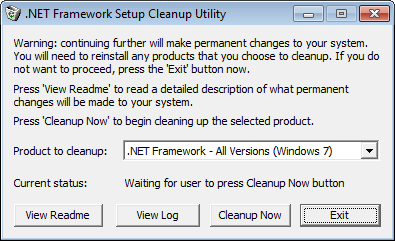
Окно программы .NET Framework Cleanup Tool
- скачайте и установите пакет «Framework» в зависимости от операционной системы.
- Удалите программное обеспечение «AutoCAD» с перезагрузкой компьютера.
- Установите заново с повторной перезагрузкой и запустите от имени администратора.
2. Ошибка при открытии базы данных DWG
«DWG TrueView™» – это программа, позволяющая осуществлять просмотр файла с расширением «.dwg» и содержащая в себе модуль «TrueConvert», для их преобразования для работы с предыдущими версиями «AutoCAD».
Для исправления ситуации, потребуется сделать следующее:
- Запустите вышеупомянутый компонент и откройте раздел «Параметры» (Options).
- Разверните узел «Путь доступа к вспомогательным файлам» (Support File Search Path) на вкладке «Файлы» (Files) и нажмите «Добавить» (Add).
- Выберите «Обзор» (Browse) и перейдите в папку «DBX» для установки адаптера объектов «Object Enabler».
Ошибка с текстом Unhandled e06d7363h Exception
Фатальная ошибка в автокаде с данным текстом — одна из самых часто встречаемых.
Ниже будут приведены четыре основных способа, применяемых для исправления
1. Наличие неправильной версии файла в DLL
Если при работе с программой при открытии вкладки «Файл» появляется ошибка и происходит закрытие приложения — значит, это именно тот случай, и проблема кроется в «Microsoft DLL», а именно в «MFC80U.dll».
- В программе выполните команду «ПАРАМЕТРЫ» и обратите внимание на вкладку «Открыть и сохранить».
- В строке «Количество последних файлов» пропишите значение «0», нажмите «ОК» и перезапустите ПО.
- Если данный вариант не решил проблему, в реестре, в ветке AutoCAD найдите и удалите ключ «Recent File List».
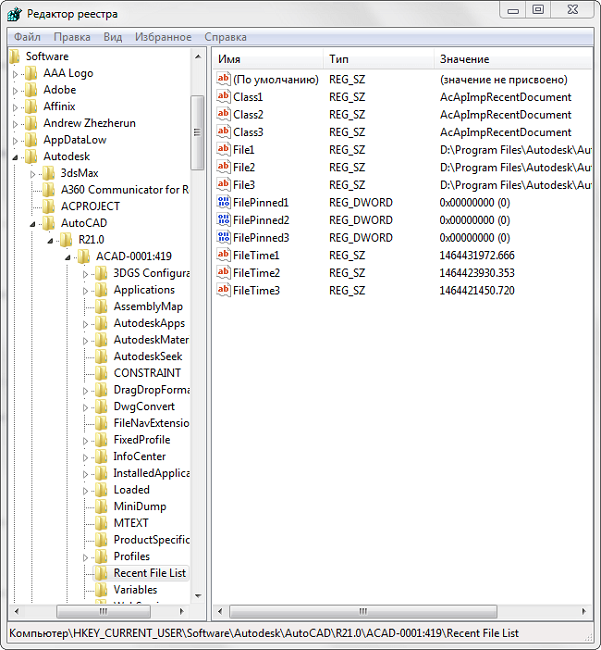
Удаление ключа «Recent File List»
- Замените повреждённую версию «MFC80U», установив заново пакет «Microsoft Visual C++».
2. Недостаточно памяти
Дело в том, что в случае, если каким-либо файлом (в данном ПО это acad.exe) используется памяти больше 2 Гб, система автоматически его закрывает.
Поэтому если недостаточно памяти в размере 2 Гб, следует увеличить объём выделенной памяти, но учитывая, что в 32-битных операционных системах максимальный объём выделяемой памяти не может превышать 3 Гб.
Делается это следующим образом:
- Для Win Vista/7/8/10:
- запустите командную строку с правами администратора;
- введите команду «bcdedit /set IncreaseUserVa 3072».

Команда bcdedit /set IncreaseUserVa 3072
- Для Win XP:
откройте «Свойство системы» и перейдите на вкладку «Дополнительно».
- откройте раздел «Загрузка операционной системы» и далее «Параметры»;
- в области «Загрузка операционной системы» выберите «Изменить»;
- в открывшемся «boot.ini» (перед изменением сохраните резервную копию) скопируйте строку «multi(0)disk(0)rdisk(0)partition(2)WINDOWS=»Microsoft Windows XP Professional» /fastdetect» и поместите её под исходную строку.
ВАЖНО. Текст «boot.ini» может различаться, поэтому копируйте именно из файла, а не приведённый текст в статье.
- в скопированной строке после «Professional» допишите 3GB и продублируйте ещё раз после кавычек, закрыв с двух сторон слэшем «/»;
- сохраните документ в том же расширении, перезагрузите компьютер и при запуске выберите «3GB».
Если недостаточно памяти и из 3 Гб, то следует перейти на 64-битную операционную систему.
3. Отключена служба FNPLicensingService
Данная служба, если пояснять простыми словами, отвечает за правомерность запуска исполняемых файлов, проверяя их на лицензирование, и обычно входит в состав продукции «Adobe».
Если служба отключена, попробуйте снова запустить её, открыв раздел «Службы» (команда «services.msc»). В свойствах службы возможно установить тип запуска в автоматическом режиме.
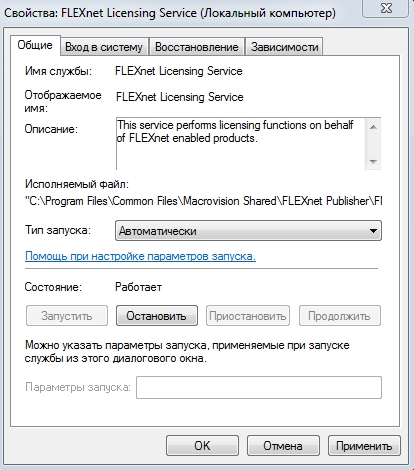
Свойства службы FNPLicensingService
4. Некорректно работает служба проверки цифровой подписи
Обычно подобная ситуация возникает при проведении инсталляции, запрашивая подтверждение цифровой подписи, дабы избежать подобного, следует отключить данный функционал.
Нажмите «WIN+R» или меню «Пуск» – «Выполнить» и введите команду «acsignopt».
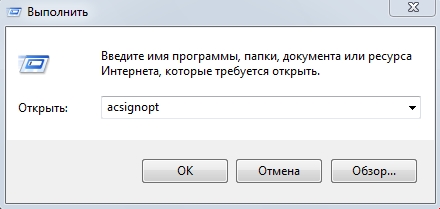
Запуск команды acsignopt
Откроется окно «Параметры проверки цифровой подписи», где необходимо снять флажок с пункта «Проверять цифровые подписи и отображать специальные значки».
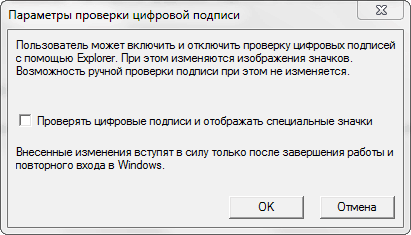
Рекомендуется после отключения, полностью удалить «Автокад» и заново провести установку.
Все эти четыре варианта применимы и к «unhandled e0434352h exception».
Дополнительные причины и варианты исправления фатальных ошибок
1. Аварийное завершение autocad при печати документа
Для исправления, удалите папки «А:UsersUZVERAppDataRoamingAutodesk» и «А:UsersUZVERAppDataLocalAutodesk» с последующей переустановкой «Автокад».
2. Изменение значения ключей в реестре
Откройте редактор реестра «Выполнить» + команда «regedit».
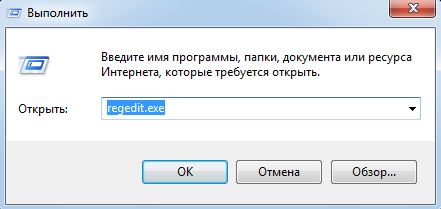
Запуск редактор реестра regedit.exe
Пройдите «HKEY_CURRENT_USERSoftwareAutodeskAutoCADR0.0ACAD-8000:409WebServicesCommunicationCenter», где «R0.0» – это версия вашего программного обеспечения.
В двух параметрах «LastUpdateTimeHiWord» и «LastUpdateTimeLoWord» измените значение на 8 нулей.
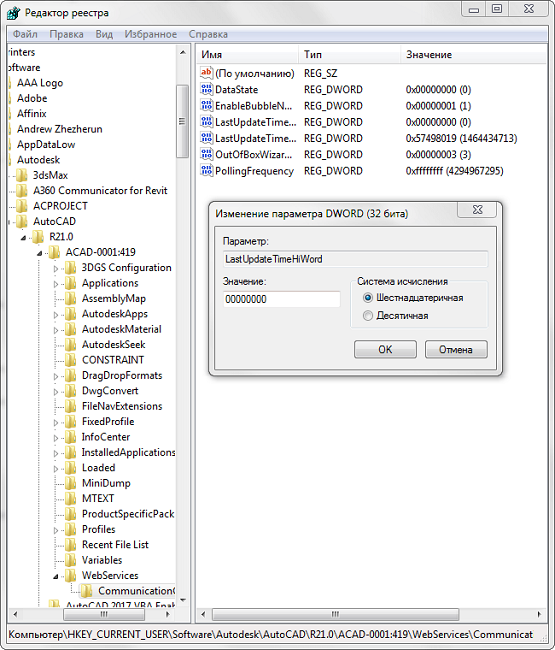
Изменение значения ключей Автокада в реестре
3. Не сертифицирована видеокарта
Маловероятная, но возможная причина.
Проверьте наличие актуальности драйверов видеокарты и обновитесь до последней версии.
Проверьте, сертифицирована ли ваша видеокарта для работы с продукцией компании «Autodesk».
Проверить это можно на официальном сайте в разделе «Сервисы», где можно также скачать проверенные версии драйверов для определённых фирм (AMD или Nvidia) и моделей видеокарт.
4. Сбой драйвера дисплея
Вызван данный сбой плотностью или установленным размером штриховки, что приводит к некорректной работе драйвера.
Для начала можно воспользоваться методом из способа выше и обновить драйверы программного обеспечения.
Далее, следует изменить значение переменной «HPMAXLINES», которая и регулирует максимальное количество линий штриховки. По умолчанию установлено значение в «1 000 000», попробуйте протестировать работу программы, убирая, к примеру, по одному «0».

Изменение значения переменной «HPMAXLINES»
5. Чрезмерное значение переменной НАСТРВИД
Системная переменная «НАСТРВИД» регулирует внешний вид дуг, окружностей, сплайнов и т. д. И если установлен высокий процент зумирования, это может в итоге привести к торможению процесса регенерации чертежа и к аварийному завершению работы.
Итак, данные перечисленные одиннадцать вариантов не являются исчерпывающим списком, некоторым пользователям помогают, на первый взгляд, абсолютно банальные решения, к примеру:
- переустановка ПО и запуск с учётной записи администратора;
- удаление обновлений «KB2859537» и «КB2872339»;
- списание проблем на недостаточную мощность компьютера (на объём видеокарты, оперативку) с проведением апгрейда;
- запуск в режиме совместимости и т. п.
В связи с этим при столкновении с сообщением в Autocad «фатальная ошибка» не стоит паниковать, решения есть, и как можно удостовериться из всего вышеописанного, их множество.