Проблема
При попытке создать PDF-файл в Adobe Acrobat Distiller вы получаете следующий журнал ошибок PostScript:
%%[ Error: undefined; OffendingCommand: setdistillerparams; ErrorInfo: CalCMYKProfile U.S. Web Coated (SWOP) v2 ]%%
%%[ Flushing: rest of job (to end-of-file) will be ignored ]%%
Error accessing color profile: U.S. Web Coated (SWOP) v2
%%[ Warning: PostScript error. No PDF file produced. ] %%
Время выполнения: 0 секунд (00:00:00)
**** Конец задания ****
При использовании PDFMaker в приложении Microsoft Office, в PDFMaker может появиться сообщение об ошибке ERROR вслед за сообщением «принтеру Adobe PDF не удалось создать файл PDF».
Решения
Используйте одно или несколько из следующих решений:
Решение 1. Переустановите профиль USWebCoatedSWOP.icc.
Чтобы загрузить и извлечь профили, выполните следующие действия:
1. Загрузите сменные профили ICC с веб-сайта Adobe по адресу www.adobe.com/support/downloads/product.jsp?product=62&platform=Windows
2. Извлеките содержимое ZIP-файла.
Примечание. Пользователи Windows 2000 могут воспользоваться отдельной утилитой, например, WinZip или WinRAR, чтобы извлечь содержимое ZIP-файла, щелкнув загруженный ZIP-файл и выбрав команду «Извлечь». Пользователи Windows XP могут щелкнуть правой кнопкой мыши ZIP-файл и выбрать команду «Извлечь все файлы».
Установка отсутствующего или поврежденного профиля:
1. Перейдите к профилю USWebCoatedSWOP.icc. (Архив AdobeICCProfiles_0805.zip содержит две папки: «Профили CMYK» и «Профили RGB». Файл USWebCoatedSWOP.icc находится в папке «Профили CMYK».)
2. Щелкните профиль правой кнопкой мыши и выберите пункт «Установить профиль».
Примечание. Перейдите к Решению 2, если доступна команда «Удалить профиль».
Решение 2. Удалите поврежденные профили и переустановите их вручную.
Перед удалением поврежденных файлов загрузите и извлеките профили на замену.
1. Загрузите профили ICC на замену с веб-сайта Adobe по адресу www.adobe.com/support/downloads/product.jsp?product=62&platform=Windows
2. Извлеките содержимое ZIP-файла.
Примечание. Пользователи Windows 2000 могут воспользоваться отдельной утилитой, например, WinZip или WinRAR, чтобы извлечь содержимое ZIP-файла, щелкнув загруженный ZIP-файл и выбрав команду «Извлечь». Пользователи Windows XP могут щелкнуть правой кнопкой мыши ZIP-файл и выбрать команду «Извлечь все файлы».
Удаление поврежденных профилей и переустановка:
1. Перейдите к профилю USWebCoatedSWOP.icc. (Архив AdobeICCProfiles_0805.zip содержит две папки: «Профили CMYK» и «Профили RGB». Файл USWebCoatedSWOP.icc находится в папке «Профили CMYK».)
2. Щелкните правой кнопкой мыши USWebCoatedSWOP.icc и выберите команду «Копировать».
3. Если используется 32-разрядная версия Windows, перейдите к папке C:Program FilesCommon FilesAdobeColorProfilesRecommended. Если используется 64-разрядная версия Windows, перейдите к папке C:Program Files (x86)Common FilesAdobeColorProfilesRecommended.
4. Удалите все записи USWebCoatedSWOP.icc.
5. Выберите «Правка» > «Вставить».
6. Если используется 32-разрядная версия Windows, перейдите к папке C:WINDOWSsystem32spooldriverscolor. Если используется 64-разрядная версия Windows, перейдите к папке C:WINDOWSsysWOW64spooldriverscolor.
7. Удалите все записи USWebCoatedSWOP.icc.
8. Выберите «Правка» > «Вставить».
Решение 3. Удалите поврежденные профили для параметра JobOption.
Примечание. В результате применения этого решения устраняется только сообщение об ошибке, но не источник проблемы. При отключении параметра JobOption может измениться восприятие цветов на экране или во время печати.
1. Выберите «Пуск» > «Программы» > Acrobat Distiller, чтобы запустить Distiller.
2. В Distiller выберите меню «Параметры» > «Изменить параметры Adobe PDF».
3. Перейдите на вкладку «Цвет».
4. Выберите для параметра «Политики управления цветом» значение «Оставить цвет без изменений».
5. Выберите «Сохранить как».
6. Присвойте имя измененному параметру JobOption, выберите «Сохранить» и нажмите кнопку «ОК».
7. Повторите шаги 2-6 для всех остальных параметров JobOption, которые используются для преобразования файлов в PDF.
8. Выберите «Файл» > «Выход».
Справочная информация
Эта ошибка возникает по причине повреждения профилей ICC. В Acrobat генерируется ошибка, если не удается получить доступ к профилям или загрузить их.
Дополнительная информация
Определите, какая используется версия ОС Windows — 32- или 64-разрядная (Техническая заметка kb407673).
@will1066
Thank you for joining the HP Support Community
To provide you with an accurate solution, I’ll need a few more details:
Is the copy working fine?
Make sure the printer and the computer are connected to the same network.
Let’s update the printer firmware and Mac software:
Update printer firmware
Update software on Mac
Restart the printer and the MAC
Then, follow the below steps to remove the printer and add the printer as AirPrint.
Step 1: Remove multiple printers from the printer list
Check for multiple devices in the Printers list, and then remove any extra entries other than one in idle status.
-
Search the Mac for Print, and then click Print & Fax, Print & Scan, or Printers & Scanners in the list of results.
-
Find the printer names that match your printer from the list of devices.
Figure : Printers and Scanner window with multiple names of a printer in the list

-
If you see multiple printer queues for the same printer, remove all extra printers by selecting them one at a time, and then clicking the minus button
 at the bottom of the list. Leave one ‘idle’ printer in the list that matches your printer if available and use this printer as the Default printer.
 -
Try printing again.
-
If the printer prints, you can stop troubleshooting.
-
If the printer remains offline or displays an error, continue to the next step.
-
Step 2: Delete the existing print queue and add the printer
Remove the printer queue from the list of printers, and then add it again. Doing so creates a new printing session.
-
Make sure your Mac is connected to the Internet.
-
In the Printers list, click your HP printer, and then click the Minus button
to delete it. -
Click the Add button
 .
. -
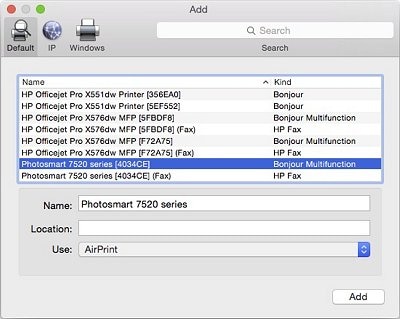
Find and select the name of your printer from the Printer list, and then click Add to add your printer. Do not select an HP Fax driver.
Figure : Example of the printer selection list
-
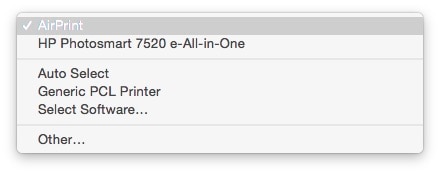
Click Print Using or Use.
-
Select the name of your printer (if available) or AirPrint.
Figure : Menu showing AirPrint selected
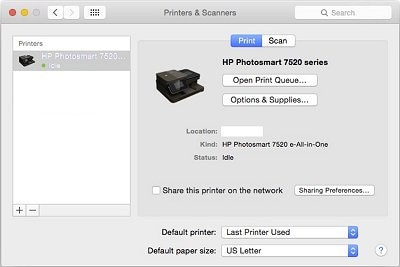
Your new printer queue displays in the Printers list in an Idle status
 .
.Figure : Example of a newly added printer in the Printers & Scanners list
-
Try printing again.
Keep me posted, how it goes!
If the information I’ve provided was helpful, give us some reinforcement by clicking the Accepted Solution and Kudos buttons, that’ll help us and others see that we’ve got the answers!
Have a great day!
Cheers:)
Raj1788
I am an HP Employee
Ошибка при печати
Автор Apo, 13.01.14, 15:52:41
« предыдущая — следующая »
0 Пользователей и 1 гость просматривают эту тему.
Скачал 3D v13 home
Пробую печатать прикрепленный фрагмент на виртуальный принтер PDF creator. Получается сбойный файл кессон.cdwЛист 1.pdf.
PDF creator — это виртуальный принтер
http://sourceforge.net/projects/pdfcreator/
При этом печать на бумагу из компаса проходит корректно.
Как быть?
Попробовал тотже файл Кессон под свежим вьюере Компас v14 — результат тотже, на выходе битый pdf
Такая же ерунда и на полной версии. В офисе настроены виртуальные принтеры через GhostScript и переадресованный порт для передачи документов в архив. Печатаем через его и обычные документы и проектную документацию. Из офиса, из автокада, из нашей корпоративной программы — без проблем. С Компас’ом не можем дать толку. Я уж думал никого не интересует эта тема.
Точно такие же строки выдает в конце
ERROR: undefined
OFFENDING COMMAND: set
STACK:
/ empty
Да проблема не печати , а в совместимости программ Автокада и Компаса…
Эти две программы одновременно корректно не работают…
Да и подходы к распечатке у программ совсем разные…
Наверное это касается и других программ…
Да. и вообще за двумя зайцами погонитесь ни одного не поймаете…
Может быть ошибаюсь…
Мне кажется, что вряд ли это связано с совместимостью Автокада и Компаса. Ни когда таких случаев не было.
Попробуйте установить программу Foxit Reader, она содержит в себе виртуальный принтер PDF и распечатать через этот принтер. Ваш приложенный файл распечатался без ошибок.
По поводу GhostScript (видимо тот, который дополнительно подкачивается во время установки) ни чего сказать не могу. Он мне просто не понравился и им больше не пользуюсь.
Цитата: Apo от 13.01.14, 15:52:41
Скачал 3D v13 homeПробую печатать прикрепленный фрагмент на виртуальный принтер PDF creator. Получается сбойный файл кессон.cdwЛист 1.pdf.
PDF creator — это виртуальный принтер
http://sourceforge.net/projects/pdfcreator/При этом печать на бумагу из компаса проходит корректно.
Как быть?
заменить виртуальный принтер PDF creator на виртуальный принтер dopdf, результат во вложении
Цитата: Cerg от 15.01.14, 07:53:48
заменить виртуальный принтер PDF creator на виртуальный принтер dopdf, результат во вложении
Виртуальных принтеров (бесплатных) огромное количество и можно выбрать из них подходящий для себя.
Не очень понял, при чем тут Автокад. Тем более на моей машине его нет, только trueview
Цитата: tramp_m от 14.01.14, 21:26:18
Да проблема не печати , а в совместимости программ Автокада и Компаса…
Эти две программы одновременно корректно не работают…
Да и подходы к распечатке у программ совсем разные…
Наверное это касается и других программ…
Да. и вообще за двумя зайцами погонитесь ни одного не поймаете…
Может быть ошибаюсь…
Ну нет так нет.
Не иначе новогодние переходы, или барабашка…
А. если просто запустить на печать, безо всяких виртуальных…
Может быть, предложение туповато не взыщите…
Чем могу…
- Форум пользователей ПО АСКОН
-
►
Смежные вопросы -
►
КОМПАС-3D Home & LT & Учебная версия -
►
Ошибка при печати
HP Printers are one of the best and pocket-friendly printers available in the market. However, efficient a printer may be it is ultimately machinery and like any other machine; even HP printers can falter at any point of time leaving us in a fix. This is exactly where our role comes in. We are a pool of technical professionals who constantly strive to solve the errors of the HP users. HP Printer errors are identified and codified in numeric or alphanumeric codes, enabling to understand which part of the printer has faltered. Most of the errors can be solved by following certain simple steps. In this article, we will discuss how to solve HP Printer Error Undefined Offending Command.
What is a PostScript Error?
A postscript is a programming language that is used to describe the pages to be printed. Postscript error occurs when the interpreter is unable to process the image to be printed leaving an error message. The Postscript error can be divided into two parts:
- The error
- The offending command
Troubleshooting Steps HP Printer Error Undefined Offending Command
How to Solve an undefined offending command HP Printer Error Message ?
The following steps need to be carried out to fix the undefined offending command error.
Step 1: Identifying the error.
The message is printed on the paper when the print is given not printing the actual print document. After identifying the error go to the next step.
Step 2: Isolate the source of error
There is no magical way to know which part of the document is causing the error. however, there are certain elements that are more likely to cause errors with the interpreters. Here is the list of common troublemakers in the postscript interpreters.
- Nested EPS image
- Complex clipping paths
- Colour Gradation
- Images rotated after placed in the publication
- Different fonts used on the same page.
- Complex fill patterns
To identify which of the aforesaid component is causing the trouble isolate each of the aforesaid elements from the document one after another and print the document.
Step 3: Steps to be carried out after identification of the error.
Once the offending reason of the error is known, the steps to be taken to eliminate the said error from the document will depend upon the type of error. Here is the list of possible offending commands and its possible solution.
| Offending Command | Check | |
| ashow | Kerned text, custom letter, word spacing, superscript/subscript text | |
| awidthdhow | Text justification, superscript/subscript text, baseline shifted | |
| Clip, eoclip | Graduated or radial fills, text effects | |
| Curveto | Complexity of curves | |
| Def | Check printer fonts, RIP memory | |
| Dict | Check printer fonts, RIP memory | |
| Fill, eofill | Complex autotraced paths, complex paths drawn with a pressure sensitive tools. | |
| Get | Imported graphics | |
| Image | Scanned or paint images | |
| Imagemask | One bit scanned or paint images | |
| Itransform | Very small elements | |
| Kshow | Kerned text | |
| Lineto | Paths with lot of points | |
| Md | Laser point was not downloaded to RIP |
The aforesaid mentioned is the identification of certain errors and their possible solution. Here are certain additional tips and tricks that may help you in resolving the undefined offending command error soon.
- Avoid the usage of low-quality fonts from a non-reputable vendor. The money saved in buying these fonts would prove to be nothing when compared to time and headache in getting them printed.
- Avoid nesting of EPS graphics. Nested EPS can cause printing problems.
- While printing from Windows make sure that WIN.INI is not nearing the 64k size limitation.
- Delete and reinstall the postscript driver using the colour span printing tools. Make sure that them, most recent version of the driver has been installed.
The identification and resolution of undefined offending command error are complex to identify and resolve. The aforesaid mentioned steps should have aided you in resolving the same. If however the error has still not been resolved or you are facing any trouble in performing any of the above steps then you can contact us at our Toll-Free Number. We are a pool of technical professionals who strive to solve the queries of our callers to the fullest.
Scope of Service
- 24X7 availability for 365 days on Printer Support Number
- 100% guaranteed solution to all our callers
- Prompt response
- Effective and efficient solution Dial now

- Renowned as the best service providers in the online forum.
June 5, 2018November 24, 2019