«We couldn’t create a new partition or locate an existing one. For more information, see the Setup log files».
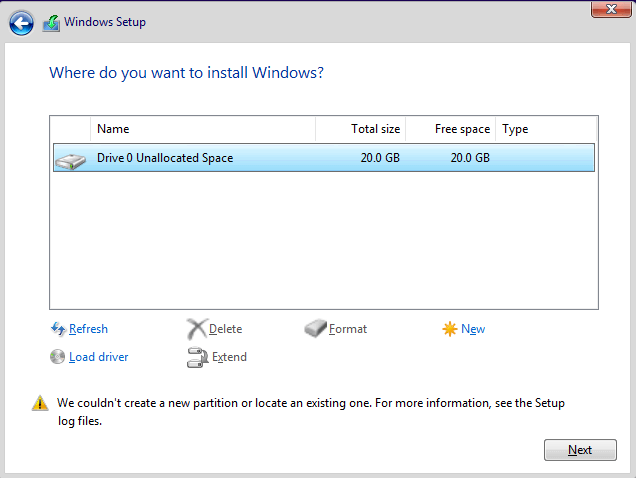
The error «we couldn’t create a new partition» would probably occur when we try to clean install the second OS using the bootable USB drive, to dual boot Windows 11/10 with Windows 7 or Windows 8. By choosing custom install and selecting the drive where the OS supposed to install, Windows says that it couldn’t create a new partition or locate an existing one.
We Couldn’t Create A New Partition Error Messages and Fixes
The following table shows a quick overview of all ‘Windows couldn’t create a new partition’ scenarios and possible solutions. Click to see the full solutions to fix ‘we could not create a new partition or locate an existing one’ Windows 11/10 USB, error 0x8004240f, 0x80042468, SSD, RAID, unallocated space, and many other related errors.
| Error Details | Workable Solutions |
|---|---|
| 1. During Windows 11/10 Installation | Try solutions one by one in this article…Full steps |
| 2. Error 0x8004240f, 0x80042468 | Format your hard drive…Full steps |
| 3. Occur to SSD, RAID, USB |
Remove additional hard drives…Full steps |
| 4. Occur to Dual Boot | Check BIOS settings, change MBR to GPT…Full steps |
Solution 1. Disconnect any peripherals with PC/Laptop
When you encountered this error message, it’s probably because there are some peripherals connected, such as an external HDD, SSD, USB thumb drive/flash drive, or an SD card. Just remove and disconnect all external storage drives from the USB port. If you’re using a USB drive containing setup files to install OS, reconnect only the bootable USB drive and start again.
Solution 2. Format the partition using Diskpart
Sometimes you need to take further steps to fix «we couldn’t create a new partition or locate an existing one» error. Generally, the partition that holds Windows setup files and boot files should be set as primary, which requires the help of Diskpart in Windows. About how to start and run Diskpart commands to fix the issue, please follow the guide carefully.
Step 1. Start Windows 11/10/8.1/8/7/XP/Vista setup using a bootable USB or DVD.
Step 2. If you get the We couldn’t create a new partition error message, close the setup and click the «Repair» button.
Step 3. Choose «Advanced tools» and then select «Command Prompt».
Step 4. When Command Prompt opens, enter start diskpart.
Step 5. Now enter list disk. You should see the list of all hard drives connected to your computer.
Step 6. Find the number that represents your hard drive and then enter select disk 0 (we used 0 as an example, so be sure to replace 0 with a number that matches your hard drive).
Step 7. Enter the following lines and press Enter after each line:
- disk 0 clean
- disk 0 create partition primary
- disk 0 active
- disk 0 format fs=ntfs quick
- disk 0 assign
Step 8. Enter exit in order to close the Command Prompt.
Step 9. Start the installation process again.
Solution 3. Make your partition active Using Diskpart
Repeat the steps (1-4) above to open the Diskpart first. Run Diskpart commands we taught as below, and try to set the partition where you want to install Windows OS as active.
Step 1. Enter list disk.
Step 2. You should see the list of available hard drives. Locate your hard drive and enter select disk 0. We used disk 0 in our example, so be sure to replace 0 with a number that represents your hard drive.
Step 3. Enter list partition.
Step 4. A list of available partitions will appear. Locate the partition on which you want to install the Windows system and enter select partition 1. Remember to replace 1 with a number that matches your partition.
Step 5. Enter active.
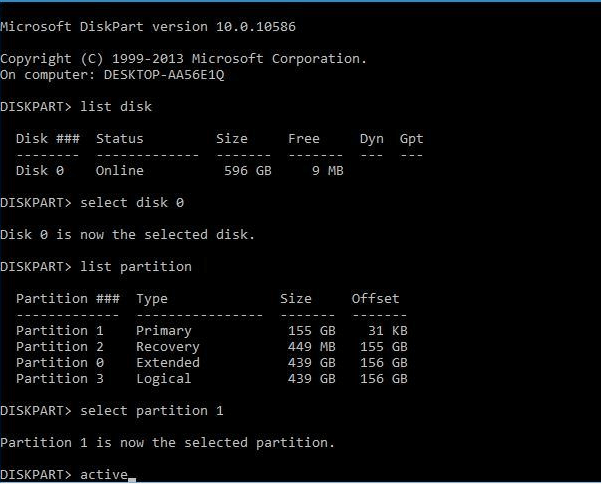
Step 6: Type exit and press «Enter“ to exit the Command Prompt.
Solution 4. Mark your partition active using third-party partition manager
Diskpart is somewhat complex to operate, users should be careful to apply it. If you want to avoid any mistake, turn to a Diskpart alternative — EaseUS Partition master. It’s a third-party disk & partition magic software, which is simple and powerful to solve the «we couldn’t create a new partition or locate an existing one» error by setting the desired partition primary & active.
Step 1. Run EaseUS partition manager software. On the disk map, right-click the target partition and choose «Advanced».
Step 2. Then, select «Set Active» from the drop-down menu. Click «Yes». And choose «Execute 1 Task(s)» and click «Apply».
Solution 5. Create a bootable USB drive using other tools
You must try to create a bootable USB drive to boot your computer and install Windows 11/10 if Windows cannot create a new partition happened to the Media Creation Tool. This kind of error would likely be solved by using third-party tools, and EaseUS Partition Master can help you create a bootable USB drive to format a hard drive, check partitions, or create a new partition on unallocated space.
Follow the steps to create the EaseUS Partition Master bootable USB drive:
Step 1. To create a bootable disk of EaseUS Partition Master, you should prepare a storage media, like a USB drive, flash drive or a CD/DVD disc. Then, correctly connect the drive to your computer.
Step 2. Launch EaseUS Partition Master, and find the «Bootable Media» feature on the left. Click on it.
Step 3. You can choose the USB or CD/DVD when the drive is available. However, if you do not have a storage device at hand, you can also save the ISO file to a local drive, and later burn it to a storage media. Once made the option, click the «Create» button to begin.
- Check the Warning message and click «Yes».
When the process finishes, you have successfully created an EaseUS Partition Master WinPE bootable disk. Now, you can manage your hard disks and partitions through the bootable drive whenever the computer fails to boot normally.
If you have RAID drives, load the RAID driver first by clicking Add Driver from the menu bar, which can help you add the driver of your device under WinPE environment, as some specific device cannot be recognized under WinPE environment without drivers installed, such as RAID or some specific hard disk.
The following video tutorial shows how to partition a hard drive with EaseUS Partition Master. You can learn how to resize the drive space, create a partition, and delete the partition.
Solution 6. Convert to partition to the GPT format
Partition styles would affect the Windows 11/10 installation result. If you know MBR and GPT for a little, you should know that MBR has a limitation that they can only work with drives that are less than 2TB in size. However, GPT doesn’t have a size limitation. You might be able to fix the We couldn’t create a new partition error by converting the MBR partition to GPT partition.
Further reading: MBR vs GPT. What’s the Difference?
- Method 1. Convert MBR to GPT with EaseUS Partition Master
- Method 2. Convert MBR to GPT using Windows Disk Management
- Method 3. Convert MBR to GPT using Diskpart command
Generally, there are three methods to convert MBR to GPT. You must be careful with the given methods because using Windows Disk Management and Diskpart will cause data loss. To fix the Windows couldn’t create a new partition error without losing data, the only choice is with EaseUS Partition Master, which converts MBR to GPT directly with nothing to be touched.
Solution 7. Set the USB drive as the first boot device in BIOS
Another chance to get the [We couldn’t create a partition or locate an existing one] is that Windows recognizes the wrong boot device. To fix this problem, you’ll need to change the hard drive sequence and set the USB drive as the first boot device.
Step 1. According to your motherboard manual, you should press the matched key to enter into BIOS. Usually, it’s F12, F10, F1, F2 or CTRL + ALT + ESC…
Step 2. Use the mouse arrow to move the connected USB drive to the top under the boot device menu.
Step 3. Restart the PC and let Windows boot from the USB drive this time. Start the installation process again.
Other Install Windows Errors and Solutions
«We couldn’t create a new partition or locate an existing one» is not the only error message we would encounter during the Windows 11/10 installation. There are other commonly known Windows installation errors that prevent us from installing a Windows 11/10 operating system from the beginning.
1. Windows cannot complete the installation
If you happen to receive the persistent «Windows could not complete the installation» error and system reboot loop over and over, you’re probably trying to install Windows 7/Windows 11/10 x64 operating system, or perhaps the fresh Windows installation is interrupted before a user account is created. You got three fixes to remove the error Windows cannot complete the installation.
2. Windows won’t install from USB
It’s the error that happened to Windows Media Creation. When the Windows won’t install from USB, you’ll try to fix it by checking if the USB drive is bootable, making sure that your computer supports to boot from USB, and set your computer to boot from the USB.
«We couldn’t create a new partition or locate an existing one. For more information, see the Setup log files».
The error «we couldn’t create a new partition» would probably occur when we try to clean install the second OS using the bootable USB drive, to dual boot Windows 11/10 with Windows 7 or Windows 8. By choosing custom install and selecting the drive where the OS supposed to install, Windows says that it couldn’t create a new partition or locate an existing one.
We Couldn’t Create A New Partition Error Messages and Fixes
The following table shows a quick overview of all ‘Windows couldn’t create a new partition’ scenarios and possible solutions. Click to see the full solutions to fix ‘we could not create a new partition or locate an existing one’ Windows 11/10 USB, error 0x8004240f, 0x80042468, SSD, RAID, unallocated space, and many other related errors.
| Error Details | Workable Solutions |
|---|---|
| 1. During Windows 11/10 Installation | Try solutions one by one in this article…Full steps |
| 2. Error 0x8004240f, 0x80042468 | Format your hard drive…Full steps |
| 3. Occur to SSD, RAID, USB |
Remove additional hard drives…Full steps |
| 4. Occur to Dual Boot | Check BIOS settings, change MBR to GPT…Full steps |
Solution 1. Disconnect any peripherals with PC/Laptop
When you encountered this error message, it’s probably because there are some peripherals connected, such as an external HDD, SSD, USB thumb drive/flash drive, or an SD card. Just remove and disconnect all external storage drives from the USB port. If you’re using a USB drive containing setup files to install OS, reconnect only the bootable USB drive and start again.
Solution 2. Format the partition using Diskpart
Sometimes you need to take further steps to fix «we couldn’t create a new partition or locate an existing one» error. Generally, the partition that holds Windows setup files and boot files should be set as primary, which requires the help of Diskpart in Windows. About how to start and run Diskpart commands to fix the issue, please follow the guide carefully.
Step 1. Start Windows 11/10/8.1/8/7/XP/Vista setup using a bootable USB or DVD.
Step 2. If you get the We couldn’t create a new partition error message, close the setup and click the «Repair» button.
Step 3. Choose «Advanced tools» and then select «Command Prompt».
Step 4. When Command Prompt opens, enter start diskpart.
Step 5. Now enter list disk. You should see the list of all hard drives connected to your computer.
Step 6. Find the number that represents your hard drive and then enter select disk 0 (we used 0 as an example, so be sure to replace 0 with a number that matches your hard drive).
Step 7. Enter the following lines and press Enter after each line:
- disk 0 clean
- disk 0 create partition primary
- disk 0 active
- disk 0 format fs=ntfs quick
- disk 0 assign
Step 8. Enter exit in order to close the Command Prompt.
Step 9. Start the installation process again.
Solution 3. Make your partition active Using Diskpart
Repeat the steps (1-4) above to open the Diskpart first. Run Diskpart commands we taught as below, and try to set the partition where you want to install Windows OS as active.
Step 1. Enter list disk.
Step 2. You should see the list of available hard drives. Locate your hard drive and enter select disk 0. We used disk 0 in our example, so be sure to replace 0 with a number that represents your hard drive.
Step 3. Enter list partition.
Step 4. A list of available partitions will appear. Locate the partition on which you want to install the Windows system and enter select partition 1. Remember to replace 1 with a number that matches your partition.
Step 5. Enter active.
Step 6: Type exit and press «Enter“ to exit the Command Prompt.
Solution 4. Mark your partition active using third-party partition manager
Diskpart is somewhat complex to operate, users should be careful to apply it. If you want to avoid any mistake, turn to a Diskpart alternative — EaseUS Partition master. It’s a third-party disk & partition magic software, which is simple and powerful to solve the «we couldn’t create a new partition or locate an existing one» error by setting the desired partition primary & active.
Step 1. Run EaseUS partition manager software. On the disk map, right-click the target partition and choose «Advanced».
Step 2. Then, select «Set Active» from the drop-down menu. Click «Yes». And choose «Execute 1 Task(s)» and click «Apply».
Solution 5. Create a bootable USB drive using other tools
You must try to create a bootable USB drive to boot your computer and install Windows 11/10 if Windows cannot create a new partition happened to the Media Creation Tool. This kind of error would likely be solved by using third-party tools, and EaseUS Partition Master can help you create a bootable USB drive to format a hard drive, check partitions, or create a new partition on unallocated space.
Follow the steps to create the EaseUS Partition Master bootable USB drive:
Step 1. To create a bootable disk of EaseUS Partition Master, you should prepare a storage media, like a USB drive, flash drive or a CD/DVD disc. Then, correctly connect the drive to your computer.
Step 2. Launch EaseUS Partition Master, and find the «Bootable Media» feature on the left. Click on it.
Step 3. You can choose the USB or CD/DVD when the drive is available. However, if you do not have a storage device at hand, you can also save the ISO file to a local drive, and later burn it to a storage media. Once made the option, click the «Create» button to begin.
- Check the Warning message and click «Yes».
When the process finishes, you have successfully created an EaseUS Partition Master WinPE bootable disk. Now, you can manage your hard disks and partitions through the bootable drive whenever the computer fails to boot normally.
If you have RAID drives, load the RAID driver first by clicking Add Driver from the menu bar, which can help you add the driver of your device under WinPE environment, as some specific device cannot be recognized under WinPE environment without drivers installed, such as RAID or some specific hard disk.
The following video tutorial shows how to partition a hard drive with EaseUS Partition Master. You can learn how to resize the drive space, create a partition, and delete the partition.
Solution 6. Convert to partition to the GPT format
Partition styles would affect the Windows 11/10 installation result. If you know MBR and GPT for a little, you should know that MBR has a limitation that they can only work with drives that are less than 2TB in size. However, GPT doesn’t have a size limitation. You might be able to fix the We couldn’t create a new partition error by converting the MBR partition to GPT partition.
Further reading: MBR vs GPT. What’s the Difference?
- Method 1. Convert MBR to GPT with EaseUS Partition Master
- Method 2. Convert MBR to GPT using Windows Disk Management
- Method 3. Convert MBR to GPT using Diskpart command
Generally, there are three methods to convert MBR to GPT. You must be careful with the given methods because using Windows Disk Management and Diskpart will cause data loss. To fix the Windows couldn’t create a new partition error without losing data, the only choice is with EaseUS Partition Master, which converts MBR to GPT directly with nothing to be touched.
Solution 7. Set the USB drive as the first boot device in BIOS
Another chance to get the [We couldn’t create a partition or locate an existing one] is that Windows recognizes the wrong boot device. To fix this problem, you’ll need to change the hard drive sequence and set the USB drive as the first boot device.
Step 1. According to your motherboard manual, you should press the matched key to enter into BIOS. Usually, it’s F12, F10, F1, F2 or CTRL + ALT + ESC…
Step 2. Use the mouse arrow to move the connected USB drive to the top under the boot device menu.
Step 3. Restart the PC and let Windows boot from the USB drive this time. Start the installation process again.
Other Install Windows Errors and Solutions
«We couldn’t create a new partition or locate an existing one» is not the only error message we would encounter during the Windows 11/10 installation. There are other commonly known Windows installation errors that prevent us from installing a Windows 11/10 operating system from the beginning.
1. Windows cannot complete the installation
If you happen to receive the persistent «Windows could not complete the installation» error and system reboot loop over and over, you’re probably trying to install Windows 7/Windows 11/10 x64 operating system, or perhaps the fresh Windows installation is interrupted before a user account is created. You got three fixes to remove the error Windows cannot complete the installation.
2. Windows won’t install from USB
It’s the error that happened to Windows Media Creation. When the Windows won’t install from USB, you’ll try to fix it by checking if the USB drive is bootable, making sure that your computer supports to boot from USB, and set your computer to boot from the USB.
В этой статье представлена ошибка с номером Ошибка 8196, известная как Ошибка мастера разделов Easeus 8196, описанная как Ошибка 8196: Возникла ошибка в приложении EaseUs Partition Manager. Приложение будет закрыто. Приносим свои извинения за неудобства.
О программе Runtime Ошибка 8196
Время выполнения Ошибка 8196 происходит, когда EaseUs Partition Manager дает сбой или падает во время запуска, отсюда и название. Это не обязательно означает, что код был каким-то образом поврежден, просто он не сработал во время выполнения. Такая ошибка появляется на экране в виде раздражающего уведомления, если ее не устранить. Вот симптомы, причины и способы устранения проблемы.
Определения (Бета)
Здесь мы приводим некоторые определения слов, содержащихся в вашей ошибке, в попытке помочь вам понять вашу проблему. Эта работа продолжается, поэтому иногда мы можем неправильно определить слово, так что не стесняйтесь пропустить этот раздел!
- Раздел . В вычислениях раздел может означать: раздел диска, раздел базы данных, логический раздел, раздел памяти, раздел двоичного пространства.
Симптомы Ошибка 8196 — Ошибка мастера разделов Easeus 8196
Ошибки времени выполнения происходят без предупреждения. Сообщение об ошибке может появиться на экране при любом запуске %программы%. Фактически, сообщение об ошибке или другое диалоговое окно может появляться снова и снова, если не принять меры на ранней стадии.
Возможны случаи удаления файлов или появления новых файлов. Хотя этот симптом в основном связан с заражением вирусом, его можно отнести к симптомам ошибки времени выполнения, поскольку заражение вирусом является одной из причин ошибки времени выполнения. Пользователь также может столкнуться с внезапным падением скорости интернет-соединения, но, опять же, это не всегда так.
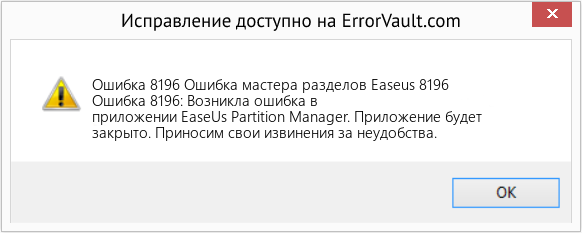
(Только для примера)
Причины Ошибка мастера разделов Easeus 8196 — Ошибка 8196
При разработке программного обеспечения программисты составляют код, предвидя возникновение ошибок. Однако идеальных проектов не бывает, поскольку ошибки можно ожидать даже при самом лучшем дизайне программы. Глюки могут произойти во время выполнения программы, если определенная ошибка не была обнаружена и устранена во время проектирования и тестирования.
Ошибки во время выполнения обычно вызваны несовместимостью программ, запущенных в одно и то же время. Они также могут возникать из-за проблем с памятью, плохого графического драйвера или заражения вирусом. Каким бы ни был случай, проблему необходимо решить немедленно, чтобы избежать дальнейших проблем. Ниже приведены способы устранения ошибки.
Методы исправления
Ошибки времени выполнения могут быть раздражающими и постоянными, но это не совсем безнадежно, существует возможность ремонта. Вот способы сделать это.
Если метод ремонта вам подошел, пожалуйста, нажмите кнопку upvote слева от ответа, это позволит другим пользователям узнать, какой метод ремонта на данный момент работает лучше всего.
Обратите внимание: ни ErrorVault.com, ни его авторы не несут ответственности за результаты действий, предпринятых при использовании любого из методов ремонта, перечисленных на этой странице — вы выполняете эти шаги на свой страх и риск.
Метод 1 — Закройте конфликтующие программы
Когда вы получаете ошибку во время выполнения, имейте в виду, что это происходит из-за программ, которые конфликтуют друг с другом. Первое, что вы можете сделать, чтобы решить проблему, — это остановить эти конфликтующие программы.
- Откройте диспетчер задач, одновременно нажав Ctrl-Alt-Del. Это позволит вам увидеть список запущенных в данный момент программ.
- Перейдите на вкладку «Процессы» и остановите программы одну за другой, выделив каждую программу и нажав кнопку «Завершить процесс».
- Вам нужно будет следить за тем, будет ли сообщение об ошибке появляться каждый раз при остановке процесса.
- Как только вы определите, какая программа вызывает ошибку, вы можете перейти к следующему этапу устранения неполадок, переустановив приложение.
Метод 2 — Обновите / переустановите конфликтующие программы
Использование панели управления
- В Windows 7 нажмите кнопку «Пуск», затем нажмите «Панель управления», затем «Удалить программу».
- В Windows 8 нажмите кнопку «Пуск», затем прокрутите вниз и нажмите «Дополнительные настройки», затем нажмите «Панель управления»> «Удалить программу».
- Для Windows 10 просто введите «Панель управления» в поле поиска и щелкните результат, затем нажмите «Удалить программу».
- В разделе «Программы и компоненты» щелкните проблемную программу и нажмите «Обновить» или «Удалить».
- Если вы выбрали обновление, вам просто нужно будет следовать подсказке, чтобы завершить процесс, однако, если вы выбрали «Удалить», вы будете следовать подсказке, чтобы удалить, а затем повторно загрузить или использовать установочный диск приложения для переустановки. программа.
Использование других методов
- В Windows 7 список всех установленных программ можно найти, нажав кнопку «Пуск» и наведя указатель мыши на список, отображаемый на вкладке. Вы можете увидеть в этом списке утилиту для удаления программы. Вы можете продолжить и удалить с помощью утилит, доступных на этой вкладке.
- В Windows 10 вы можете нажать «Пуск», затем «Настройка», а затем — «Приложения».
- Прокрутите вниз, чтобы увидеть список приложений и функций, установленных на вашем компьютере.
- Щелкните программу, которая вызывает ошибку времени выполнения, затем вы можете удалить ее или щелкнуть Дополнительные параметры, чтобы сбросить приложение.
Метод 3 — Обновите программу защиты от вирусов или загрузите и установите последнюю версию Центра обновления Windows.
Заражение вирусом, вызывающее ошибку выполнения на вашем компьютере, необходимо немедленно предотвратить, поместить в карантин или удалить. Убедитесь, что вы обновили свою антивирусную программу и выполнили тщательное сканирование компьютера или запустите Центр обновления Windows, чтобы получить последние определения вирусов и исправить их.
Метод 4 — Переустановите библиотеки времени выполнения
Вы можете получить сообщение об ошибке из-за обновления, такого как пакет MS Visual C ++, который может быть установлен неправильно или полностью. Что вы можете сделать, так это удалить текущий пакет и установить новую копию.
- Удалите пакет, выбрав «Программы и компоненты», найдите и выделите распространяемый пакет Microsoft Visual C ++.
- Нажмите «Удалить» в верхней части списка и, когда это будет сделано, перезагрузите компьютер.
- Загрузите последний распространяемый пакет от Microsoft и установите его.
Метод 5 — Запустить очистку диска
Вы также можете столкнуться с ошибкой выполнения из-за очень нехватки свободного места на вашем компьютере.
- Вам следует подумать о резервном копировании файлов и освобождении места на жестком диске.
- Вы также можете очистить кеш и перезагрузить компьютер.
- Вы также можете запустить очистку диска, открыть окно проводника и щелкнуть правой кнопкой мыши по основному каталогу (обычно это C 🙂
- Щелкните «Свойства», а затем — «Очистка диска».
Метод 6 — Переустановите графический драйвер
Если ошибка связана с плохим графическим драйвером, вы можете сделать следующее:
- Откройте диспетчер устройств и найдите драйвер видеокарты.
- Щелкните правой кнопкой мыши драйвер видеокарты, затем нажмите «Удалить», затем перезагрузите компьютер.
Метод 7 — Ошибка выполнения, связанная с IE
Если полученная ошибка связана с Internet Explorer, вы можете сделать следующее:
- Сбросьте настройки браузера.
- В Windows 7 вы можете нажать «Пуск», перейти в «Панель управления» и нажать «Свойства обозревателя» слева. Затем вы можете перейти на вкладку «Дополнительно» и нажать кнопку «Сброс».
- Для Windows 8 и 10 вы можете нажать «Поиск» и ввести «Свойства обозревателя», затем перейти на вкладку «Дополнительно» и нажать «Сброс».
- Отключить отладку скриптов и уведомления об ошибках.
- В том же окне «Свойства обозревателя» можно перейти на вкладку «Дополнительно» и найти пункт «Отключить отладку сценария».
- Установите флажок в переключателе.
- Одновременно снимите флажок «Отображать уведомление о каждой ошибке сценария», затем нажмите «Применить» и «ОК», затем перезагрузите компьютер.
Если эти быстрые исправления не работают, вы всегда можете сделать резервную копию файлов и запустить восстановление на вашем компьютере. Однако вы можете сделать это позже, когда перечисленные здесь решения не сработают.
Другие языки:
How to fix Error 8196 (Easeus Partition Master Error 8196) — Error 8196: EaseUs Partition Manager has encountered a problem and needs to close. We are sorry for the inconvenience.
Wie beheben Fehler 8196 (Easeus Partition Master-Fehler 8196) — Fehler 8196: EaseUs Partition Manager hat ein Problem festgestellt und muss geschlossen werden. Wir entschuldigen uns für die Unannehmlichkeiten.
Come fissare Errore 8196 (Easeus Partition Master Errore 8196) — Errore 8196: EaseUs Partition Manager ha riscontrato un problema e deve essere chiuso. Ci scusiamo per l’inconveniente.
Hoe maak je Fout 8196 (Easeus Partition Master Error 8196) — Fout 8196: EaseUs Partition Manager heeft een probleem ondervonden en moet worden afgesloten. Excuses voor het ongemak.
Comment réparer Erreur 8196 (Easeus Partition Master Erreur 8196) — Erreur 8196 : EaseUs Partition Manager a rencontré un problème et doit se fermer. Nous sommes désolés du dérangement.
어떻게 고치는 지 오류 8196 (Easeus 파티션 마스터 오류 8196) — 오류 8196: EaseUs Partition Manager에 문제가 발생해 닫아야 합니다. 불편을 끼쳐드려 죄송합니다.
Como corrigir o Erro 8196 (Easeus Partition Master Erro 8196) — Erro 8196: O EaseUs Partition Manager encontrou um problema e precisa fechar. Lamentamos o inconveniente.
Hur man åtgärdar Fel 8196 (Easeus Partition Master Error 8196) — Fel 8196: EaseUs Partition Manager har stött på ett problem och måste avslutas. Vi är ledsna för besväret.
Jak naprawić Błąd 8196 (Błąd główny partycji Easeus 8196) — Błąd 8196: EaseUs Partition Manager napotkał problem i musi zostać zamknięty. Przepraszamy za niedogodności.
Cómo arreglar Error 8196 (Error de maestro de partición de Easeus 8196) — Error 8196: EaseUs Partition Manager ha detectado un problema y debe cerrarse. Lamentamos las molestias.
 Об авторе: Фил Харт является участником сообщества Microsoft с 2010 года. С текущим количеством баллов более 100 000 он внес более 3000 ответов на форумах Microsoft Support и создал почти 200 новых справочных статей в Technet Wiki.
Следуйте за нами: 


Этот инструмент восстановления может устранить такие распространенные проблемы компьютера, как синие экраны, сбои и замораживание, отсутствующие DLL-файлы, а также устранить повреждения от вредоносных программ/вирусов и многое другое путем замены поврежденных и отсутствующих системных файлов.
ШАГ 1:
Нажмите здесь, чтобы скачать и установите средство восстановления Windows.
ШАГ 2:
Нажмите на Start Scan и позвольте ему проанализировать ваше устройство.
ШАГ 3:
Нажмите на Repair All, чтобы устранить все обнаруженные проблемы.
СКАЧАТЬ СЕЙЧАС
Совместимость
Требования
1 Ghz CPU, 512 MB RAM, 40 GB HDD
Эта загрузка предлагает неограниченное бесплатное сканирование ПК с Windows. Полное восстановление системы начинается от $19,95.
ID статьи: ACX03980RU
Применяется к: Windows 10, Windows 8.1, Windows 7, Windows Vista, Windows XP, Windows 2000
Совет по увеличению скорости #10
Очистка вашего реестра:
Ускорьте работу своего компьютера, удалив неработающие ярлыки, недопустимые пути, недопустимые ссылки на установщик, отсутствующие общие библиотеки DLL и многое другое из системного реестра. Однако большинство очистителей реестра не так эффективны, как вы могли бы подумать. Итак, лучше проведите небольшое исследование и выберите тот, который работает лучше всего. Кроме того, всегда создавайте резервную копию, создавая новую точку восстановления системы.
Нажмите здесь, чтобы узнать о другом способе ускорения работы ПК под управлением Windows
 |
Номер ошибки: | Ошибка 8196 |
| Название ошибки: | Easeus Partition Master Error 8196 | |
| Описание ошибки: | Ошибка 8196: Возникла ошибка в приложении EaseUs Partition Manager. Приложение будет закрыто. Приносим извинения за неудобства. | |
| Разработчик: | EaseUS | |
| Программное обеспечение: | EaseUs Partition Manager | |
| Относится к: | Windows XP, Vista, 7, 8, 10, 11 |
Фон «Easeus Partition Master Error 8196»
Как правило, специалисты по ПК называют «Easeus Partition Master Error 8196» как тип «ошибки времени выполнения». Программисты, такие как EaseUS, стремятся создавать программное обеспечение, свободное от этих сбоев, пока оно не будет публично выпущено. Как и во всем в жизни, иногда такие проблемы, как ошибка 8196, упускаются из виду.
«Easeus Partition Master Error 8196» может возникнуть у пользователей EaseUs Partition Manager даже при нормальном использовании приложения. После возникновения ошибки 8196 пользователь программного обеспечения имеет возможность сообщить разработчику об этой проблеме. EaseUS вернется к коду и исправит его, а затем сделает обновление доступным для загрузки. Если есть уведомление об обновлении EaseUs Partition Manager, это может быть решением для устранения таких проблем, как ошибка 8196 и обнаруженные дополнительные проблемы.
Что на самом деле вызывает ошибку времени выполнения 8196?
Наиболее распространенные вхождения «Easeus Partition Master Error 8196» проблемы при загрузке EaseUs Partition Manager. Следующие три наиболее значимые причины ошибок выполнения ошибки 8196 включают в себя:
Ошибка 8196 Crash — ошибка 8196 блокирует любой вход, и это может привести к сбою машины. Обычно это происходит, когда EaseUs Partition Manager не может обработать данные в удовлетворительной форме и поэтому не может получить ожидаемый результат.
Утечка памяти «Easeus Partition Master Error 8196» — когда происходит утечка памяти EaseUs Partition Manager, это приведет к вялой работе операционной системы из-за нехватки системных ресурсов. Потенциальные триггеры могут быть «бесконечным циклом», или когда программа выполняет «цикл» или повторение снова и снова.
Ошибка 8196 Logic Error — Логическая ошибка возникает, когда ПК производит неправильный вывод, даже когда пользователь вводит правильный вход. Он материализуется, когда исходный код EaseUS ошибочен из-за неисправного дизайна.
EaseUS проблемы файла Easeus Partition Master Error 8196 в большинстве случаев связаны с повреждением, отсутствием или заражением файлов EaseUs Partition Manager. Обычно, установка новой версии файла EaseUS позволяет устранить проблему, из-за которой возникает ошибка. В качестве последней меры мы рекомендуем использовать очиститель реестра для исправления всех недопустимых Easeus Partition Master Error 8196, расширений файлов EaseUS и других ссылок на пути к файлам, по причине которых может возникать сообщение об ошибке.
Классические проблемы Easeus Partition Master Error 8196
Частичный список ошибок Easeus Partition Master Error 8196 EaseUs Partition Manager:
- «Ошибка приложения Easeus Partition Master Error 8196.»
- «Easeus Partition Master Error 8196 не является программой Win32. «
- «Извините за неудобства — Easeus Partition Master Error 8196 имеет проблему. «
- «К сожалению, мы не можем найти Easeus Partition Master Error 8196. «
- «Отсутствует файл Easeus Partition Master Error 8196.»
- «Проблема при запуске приложения: Easeus Partition Master Error 8196. «
- «Easeus Partition Master Error 8196 не выполняется. «
- «Easeus Partition Master Error 8196 выйти. «
- «Неверный путь к приложению: Easeus Partition Master Error 8196.»
Проблемы Easeus Partition Master Error 8196 с участием EaseUs Partition Managers возникают во время установки, при запуске или завершении работы программного обеспечения, связанного с Easeus Partition Master Error 8196, или во время процесса установки Windows. При появлении ошибки Easeus Partition Master Error 8196 запишите вхождения для устранения неполадок EaseUs Partition Manager и чтобы HelpEaseUS найти причину.
Причины проблем Easeus Partition Master Error 8196
Заражение вредоносными программами, недопустимые записи реестра EaseUs Partition Manager или отсутствующие или поврежденные файлы Easeus Partition Master Error 8196 могут создать эти ошибки Easeus Partition Master Error 8196.
Точнее, ошибки Easeus Partition Master Error 8196, созданные из:
- Поврежденная или недопустимая запись реестра Easeus Partition Master Error 8196.
- Загрязненный вирусом и поврежденный Easeus Partition Master Error 8196.
- Easeus Partition Master Error 8196 злонамеренно удален (или ошибочно) другим изгоем или действительной программой.
- Другая программа, конфликтующая с Easeus Partition Master Error 8196 или другой общей ссылкой EaseUs Partition Manager.
- Поврежденная установка или загрузка EaseUs Partition Manager (Easeus Partition Master Error 8196).
Продукт Solvusoft
Загрузка
WinThruster 2022 — Проверьте свой компьютер на наличие ошибок.
Совместима с Windows 2000, XP, Vista, 7, 8, 10 и 11
Установить необязательные продукты — WinThruster (Solvusoft) | Лицензия | Политика защиты личных сведений | Условия | Удаление