Всем привет! Сегодня я расскажу вам, как исправить достаточно распространённую ошибку в Discord с текстом «Installation has failed». В первую очередь проверьте, чтобы сам exe-установщик был скачен с официального сайта. Не стоит качать программу со сторонних ресурсов. Во-первых, вы рискуете скачать вредоносное ПО. Во-вторых, вы можете получить очень старую версию приложения, которое не будет у вас работать. Так что на всякий случай оставлю ссылку на официальный сайт – скачиваем последнюю версию программы.
Скачать Discord
Если же вы точно скачали приложение с официального сайта, но не знаете, почему не устанавливается Дискорд на Виндовс 10, 11, 7 или 8 – читаем инструкции ниже. Если у вас возникнут какие-то дополнительные вопросы, пишите в комментариях.
Содержание
- Способ 1: Завершение старых процессов
- Способ 2: Запуск с Админ правами
- Способ 3: Отключение защиты антивируса
- Способ 4: Удаление остаточных файлов
- Способ 5: Обновление ОС
- Способ 6: Скачиваем последнюю версию Discord
- Способ 7: Комплексные меры
- Задать вопрос автору статьи
Способ 1: Завершение старых процессов
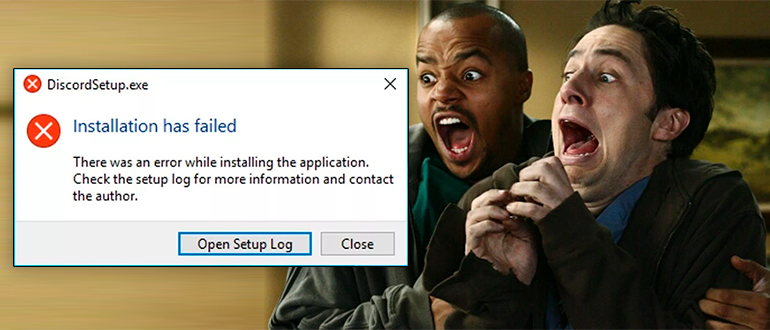
Возможно, вы уже ранее запускали программу установки и что-то пошло не так. Если вы вновь запустите эту же программу, то она может выдать ошибку из-за того, что в операционной системе процесс еще висит. Он не завершился по каким-то причинам – возможно, из-за банального зависания или бесконечного зацикливания какой-то из функций. Поэтому этот процесс нужно прекратить.
- В первую очередь полностью закройте все программы и приложения, которые запущены на вашем компьютере.
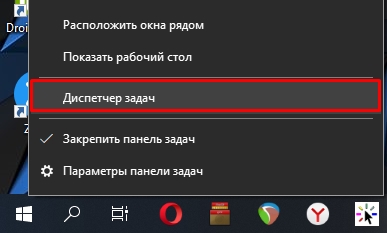
- Зайдите в «Диспетчер задач» – для этого кликните правой кнопкой мыши по кнопке «Пуск» в Windows.
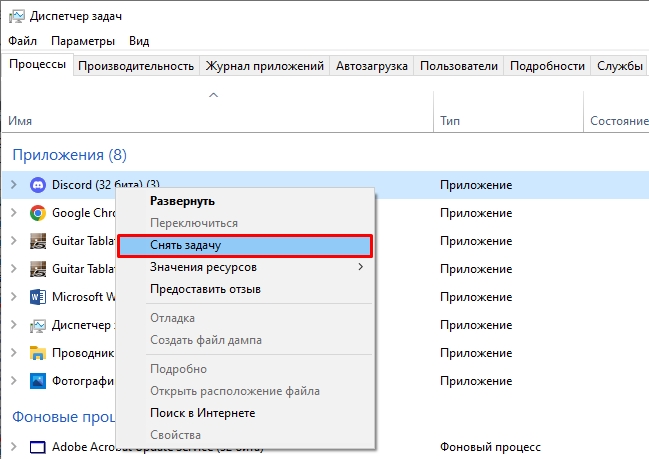
- Найдите Discord процесс, кликните ПКМ и выберите команду «Снять задачу». Если есть какие-то дополнительные процессы от Discord их также стоит снять.
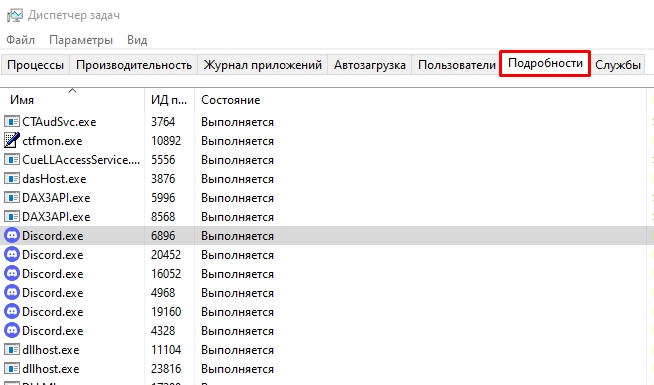
- То же самое делаем на вкладке «Подробности». После этого повторно пробуем установить программу.
Способ 2: Запуск с Админ правами
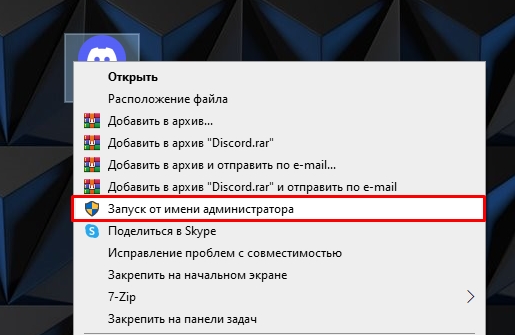
Давайте попробуем запустить приложение с правами администратора. Для этого найдите установщик, кликните по нему ПКМ и в контекстном меню выберите соответствующую команду. Возможно, до этого были проблемы с запуском программы именно из прав, которые предоставляет система.
Читаем и про другие способы запустить программу от имени администратора.
Способ 3: Отключение защиты антивируса
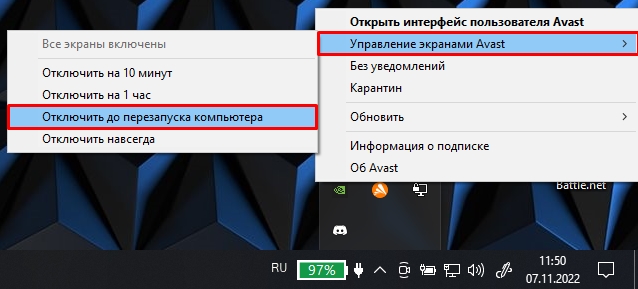
Сторонняя антивирусная программа тоже может мешать установочному процессу. Поэтому давайте попробуем на время отключить защиту. В трее найдите значок вашего антивируса, нажмите ПКМ и в контекстном меню найдите команду отключения защиты. После этого снова попробуйте запустить установщик.
Способ 4: Удаление остаточных файлов
Возможно, после деинсталляции программы остались какие-то остаточные файлы, которые могут мешать установщику. Поэтому в Discord вы и видите ошибку «Installation has failed». Давайте посмотрим, что же нам нужно делать. Кстати, некоторые файлы могли остаться после неудачной остановки.
ВНИМАНИЕ! Если у вас на компьютере уже есть установленный Discord, но вы его не удалили – сделай это. Читаем инструкцию – как полностью без следов удалить программу с компьютера.
- Одновременно зажимаем кнопки на клавиатуре:
+ R
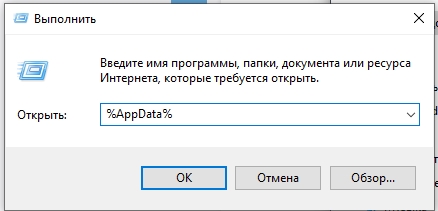
- Вводим команду:
%appdata%
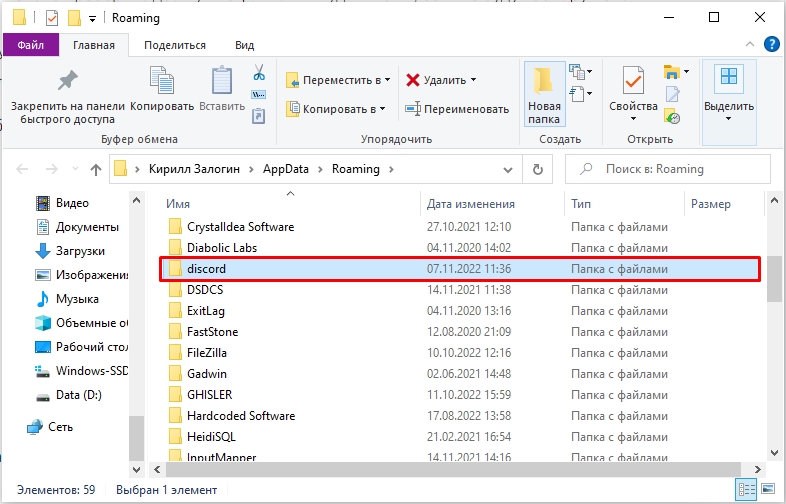
- Найдите папку «discord» и удалите её. Можно удалить в обход корзины с помощью клавиш:
Shift + Delete
- Еще раз используем кнопки:
+ R
- Используем команду:
%localappdata%
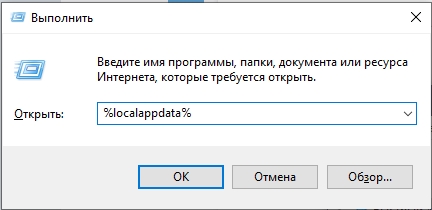
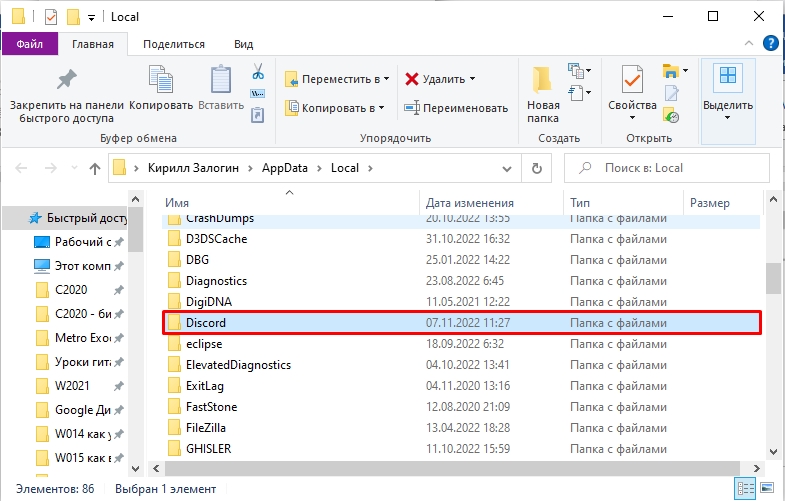
- Находим и удаляем такую же папку.
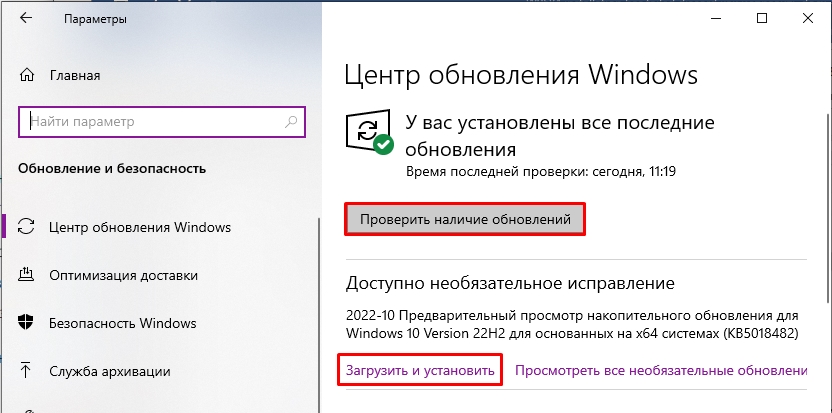
Возможно, у вас установлена очень старая версия операционной системы. Или в нынешнем обновлении есть какие-то определенные баги, которые мешают установке программы. В любом случае нам нужно выполнить полное обновление Windows.
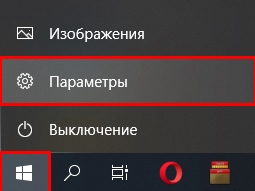
- «Пуск».
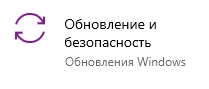
- «Обновление и безопасность».
- На вкладке «Центр обновления Windows» проверяем наличие обновлений и устанавливаем ВСЕ пакеты.
Способ 6: Скачиваем последнюю версию Discord
Я знаю, что некоторые не любят читать вступление, и оно и понятно. Но я все же повторюсь – нам нужно скачать установщик программы с официального сайта. Никаких сторонних ресурсов. Ведь программа полностью бесплатная. Даже если вы качали её пару часов назад. Еще раз, удалите старый установщик и скачайте программу повторно. Ссылку на официальный сайт можно увидеть в начале этой статье.
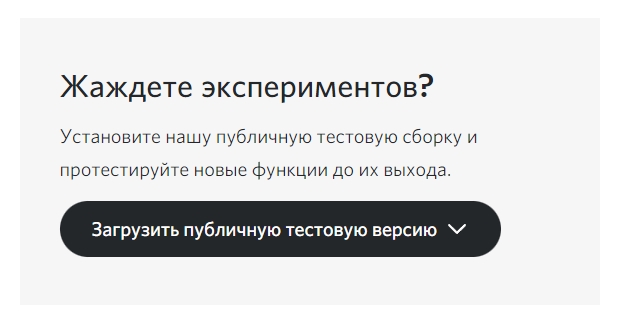
Если и новая скаченная версия откажется запускаться, можно попробовать скачать публичную тестовую версию. Ссылка на загрузку можно найти на той же официальной страничке – просто пролистайте в самый низ.
Способ 7: Комплексные меры
Итак, мы проделали почти все возможное, но при установке Discord (и запуске Discordsetup.exe) вылезает ошибка «Installation has failed», а мы не знаем почему так происходит и что нам нужно делать. Возможно с установочных файлов все в порядке, но есть проблемы в самой ОС. Вот ряд советов, которые вам могут помочь:
- Проверьте целостности системных файлов и восстановите их.
- Выполните комплексную чистку системы.
- Если у вас пиратская сборка Windows – стоит выполнить чистую установку официальной версии ОС.
- Попробуйте скачать сам установщик с другого браузера. Во время скачивания отключите защиту антивируса.
На этом все, дорогие друзья портала WiFiGiD.RU. Если проблема все же не решилась и ничего не помогло – подробно опишите свой вариант в комментариях в самом низу статьи. Всем добра и берегите себя!
Захотели стримить в Дискорде, но не смогли даже установить приложение? Ошибку installation has failed Discord выдаёт часто, это распространённая и простая ошибка при установке программы. Рассказываем, что с ней делать. Спойлер: проблема решается довольно легко и быстро.

Что значит, причины
Дискорд ошибка Installation has failed – это ошибка установки приложения. Уведомление появляется, если на вашем компьютере остались файлы Дискорда. Система не хочет устанавливать приложение поверх них. И чаще всего проблема возникает у пользователей Windows 10.
Решение
Как исправить Installation has failed в Discord?
- Кликните правой кнопкой мыши на Пуск.
- Зайдите в Панель управления.

- Найдите Параметры проводника и зайдите в эту папку.

- Перейдите во вкладку Вид.
- Прокрутите открывшийся список вниз и отметьте пункт Показывать скрытые файлы и папки.

- Зайдите в Проводник и перейдите на диск C.
- Кликните на фолдер с именем своего пользователя.

- Найдите AppData.
- Теперь вам нужно будет удалить две папки. Войдите в Roaming и в ней снесите фолдер Discord. С ней проблем возникнуть не должно.
- Вернитесь в AppData и зайдите в Local. В ней также нужно снести Discord.

Если она не удалится, нужно отключить автозапуск мессенджера:
- переместитесь в Диспетчер задач, нажав Ctrl+Alt+Delete;
- перейдите во вкладку Автозагрузка ;

- нажмите правой клавишей на Дискорд и отключите;
- перезагрузите компьютер и удалите Discord из Local.
Готово! Ошибка при установке Дискорда решена.
Второй вариант
Для второго варианта решения проблемы failed to extract installer вам понадобится ZIP-архиватор, скачать можно здесь.
- Переместите установочный файл мессенджера в Мои документы;
- запустите архиватор и найдите в нём наш ярлык;

- выделите его и нажмите Извлечь;

- появится одноимённая папка, зайдите в неё;

- вы увидите три ярлыка, выделите верхний и снова нажмите Извлечь;

- снова появится одноимённая папка, найдите её в Мои документы и откройте;

- перейдите в lib;

- прокрутите список вниз, найдите установочный discordsetupexe, installation has failed скоро решится. Кликните по файлу два раза.
Приложение должно запуститься.
Если вы попробовали указанные выше способы, а приложение всё равно не устанавливается, попробуйте откатить Винду к предыдущему обновлению. Возможно, оно просто несовместимо с мессенджером.
Рекомендуем:

How To Fix Discord Installation has Failed Windows 10? Is this what you are searching for then your search ends here. Here in this tutorial, we will discuss the entire solutions (confirmed by other users) to fix the “Installation has failed” while installing Discord on Windows 11 and 10 easily.
In recent times, Discord’s popularity has increased exponentially. However, like any other app, Discord is also not an exception and not a stranger to errors and issues.
Many users reported they are unable to install Discord and seeing the error message on their screen DiscordSetup.exe installation has failed, with a short message accompanied with a few solutions that won’t be effective in solving the error.
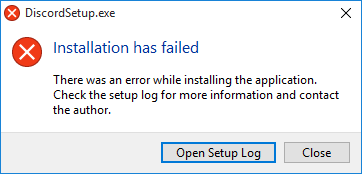
So, here in this guide, we shared the list of possible solutions you need to try when Discord installation failed in Windows 10 and 11, along with the list of possible culprits causing the error.
First, learn the common reasons why you can’t install Discord on your Windows system.
What Causes “Discord Setup Installation Has Failed” Error?
There are plenty of different reasons responsible for the Discord installation issues. Below check out some of the most common ones:
- Sometimes during installation, some of the files get corrupted or damaged and this causes issues during installing Discord.
- If you are not running the Discord as an administrator then this can also cause the error
- The 3rd party installed application can also be interfering with the Discord packages and cause problems while installing.
- Previously running the Discord program can also cause the installation process to fail
- The recently installed Windows update files might be conflicting with the Discord packages, leading to the Discord installation’s failed error message.
So, these are some of the common reasons causing issues when installing Discord, now follow the fixes given to solve the problem in your case.
Solution 1: Run the Discord set up as an Administrator
Many software requires administrative privilege to run properly without any issue, so this can be a cause why you are unable to install the discord on your Windows system. So you are logged in as an administrator and then try installing the Discord.
Follow the steps to do so:
- Press the Windows key on your keyboard and type discord.exe
- Right-click on the Discord setup file > choose the Run as administrator option.
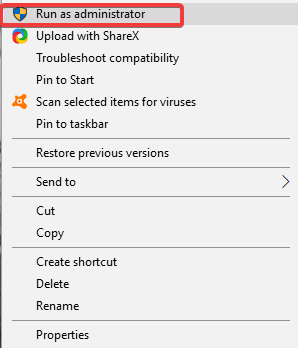
- Click on the Yes button and follow the on-screen instructions to install Discord.
Solution 2: Run SFC and DISM Scan
In some cases, it is found that corrupted system files affect the installation process of the application and cause errors. Hence, to fix the corrupted system files, run the Windows inbuilt utilities – SFC and DISM.
These utilities will scan your PC to find the damaged system file and will replace it with a healthy copy. First, we will run the SFC command:
- Press Windows + X keys and click on the Command Prompt (Admin).
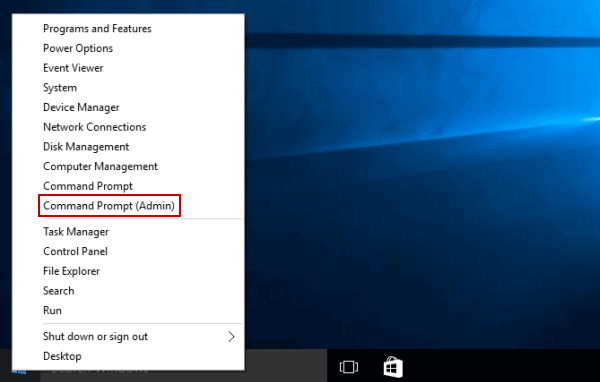
- In the Command Prompt window, type this command and press the Enter key to execute it:
sfc /scannow
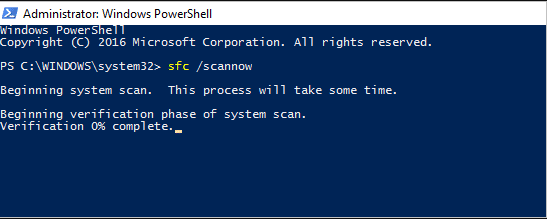
- Now, wait for the process to complete.
Once the scanning process is finished, check if you are able to install Discord or not. If you are still experiencing the DiscordSetup.exe installation has failed, then run the DISM tool.
- First, open the Command Prompt and type this command, and to execute it, press the Enter key:
DISM /Online /Cleanup-Image /RestoreHealth
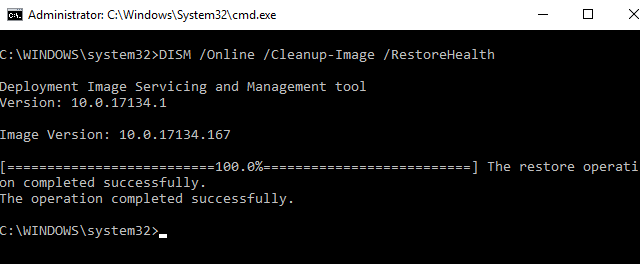
- Once the scanning is completed, restart the PC and check if the issue is resolved or not.
Solution 3: End Discord Process Running in Background
If the Discord related processes are already running in the background then this can also cause the issues. So, disable the entire process running in the background from the task manager.
Follow the steps to do so:
- Press Ctrl+Shift+Esc to open Task Manager.
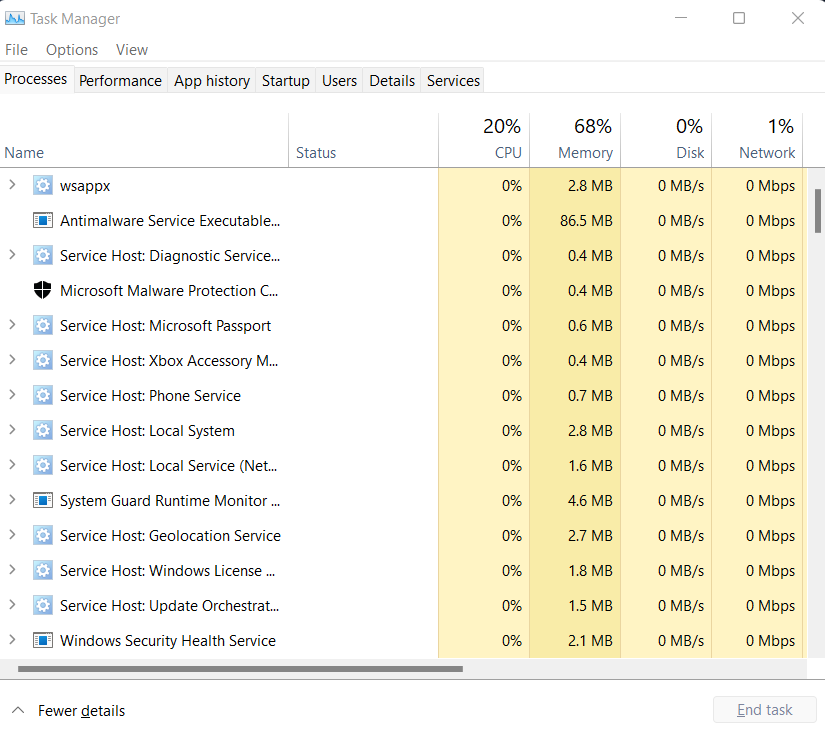
- Then under Background Processes locate the entry related to Discord.
- And right-click on it to select > click the End Task button.
Also, disable the 3rd party applications running in the background and check if the Discord installation failed problem is fixed or else follow the next solution.
Also Read: Top 9 Fixes Discord Lagging Windows 10/11 [2022 GUIDE]
Solution 4: Set the Discord Compatibility
Another reason that could cause the “Discord installation failed on Windows 10” is a compatibility issue with the OS. To fix this problem, you need to set custom compatibility settings for Discord.
Here is how to do that:
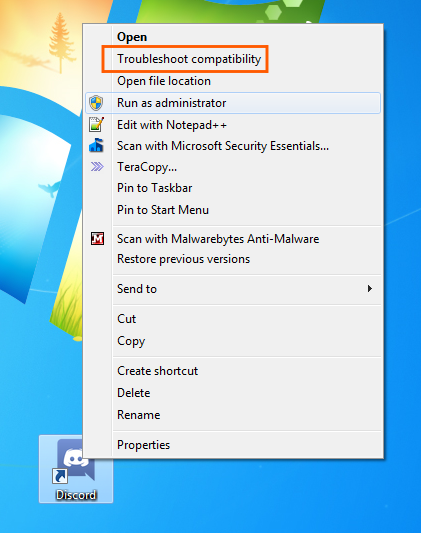
- Right-click on the Discord icon located on the Desktop.
- Select the Troubleshoot compatibility option.
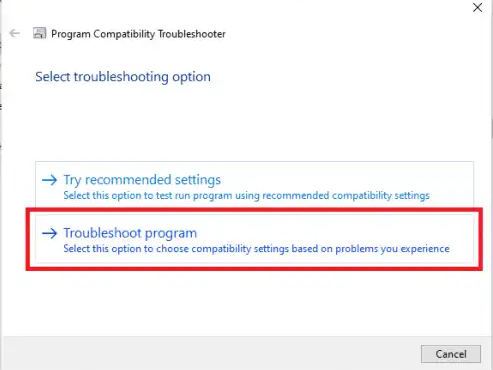
- Click on the Troubleshoot program.
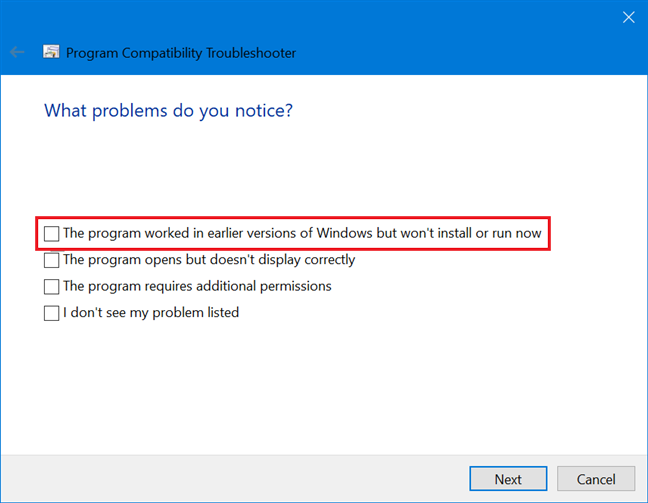
- Select the “The program worked in earlier versions of Windows but won’t install or run now” option in the next window.
- Click on the Next button.
- Select the compatibility either to Windows 8 or 7.
- Click on the Test the program button.
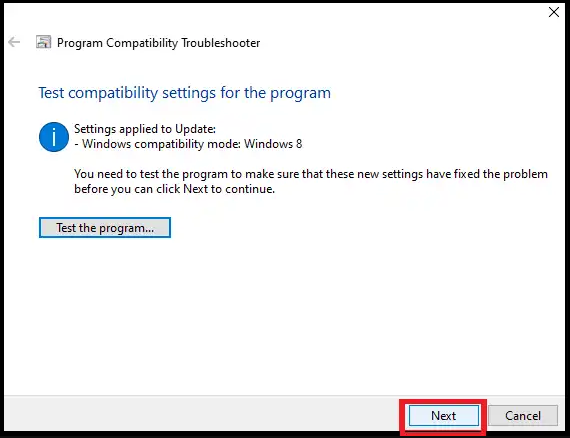
- Click on the Next button.
- Now, check if you can install Discord or not. If you can, then select Yes, save these settings for this program option.
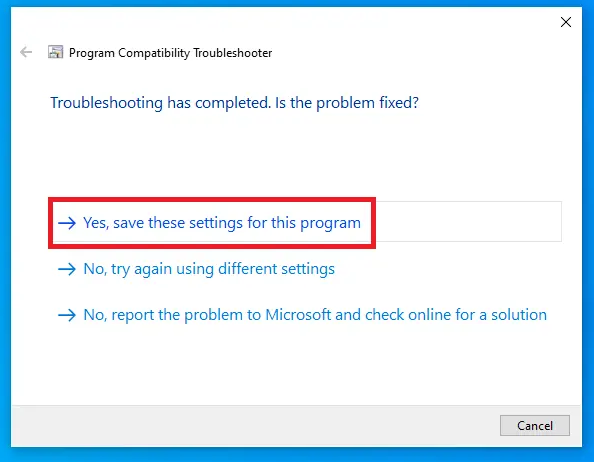
- But, if you can’t install Discord on your PC, then select the “No, try again using different settings” option and set the compatibility to another version of Windows.
Now check if the Discord won’t open problem is resolved, if not then head to the next fix.
Solution 5: Uninstall Recent Windows Update
Though updating Windows is crucial for system performance and security, sometimes certain updates create issues.
So, if the Discord installation has failed error starts appearing after updating your Windows 10 system, then uninstalling the recent update might work for you. To do this, follow these steps:
- Go to the Windows Start button > click on the Settings icon to open the Windows Settings.
- On the app Settings window, click on the Update & Security.
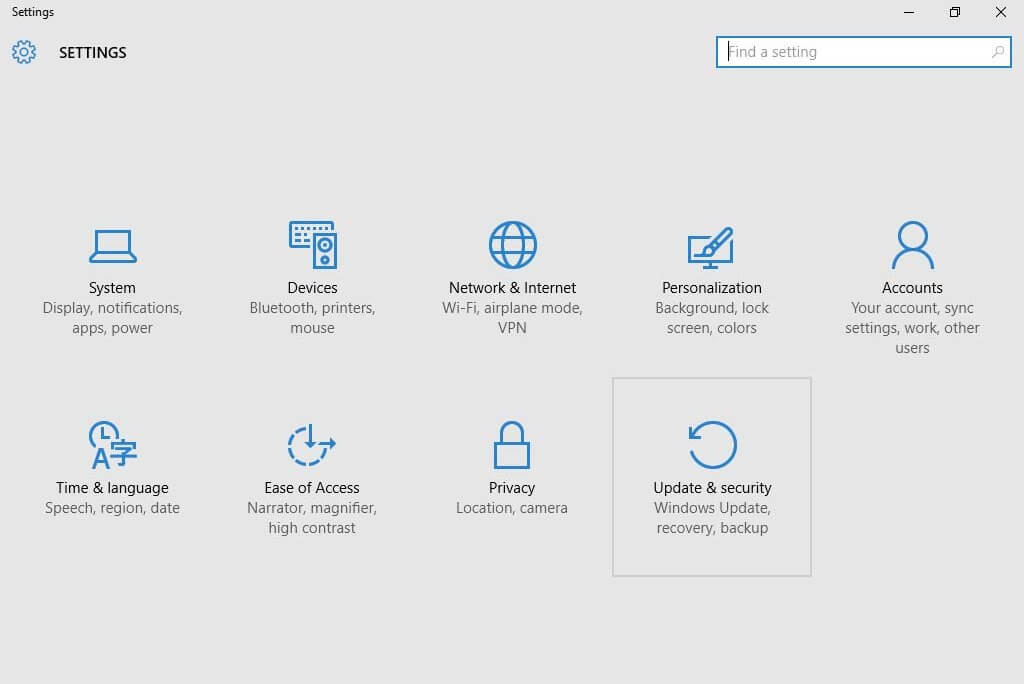
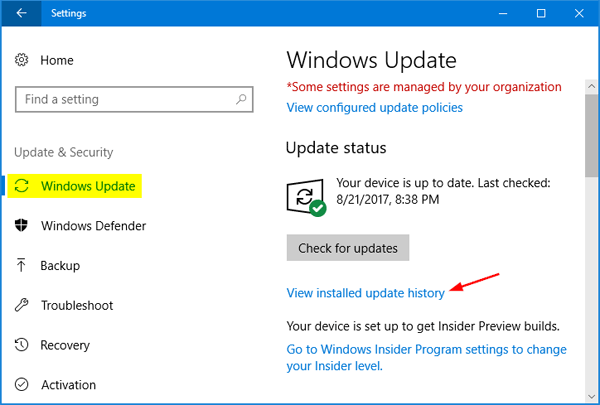
- Go to the Windows Update > click on the View Installed Update History.
- Click on Uninstall Updates.
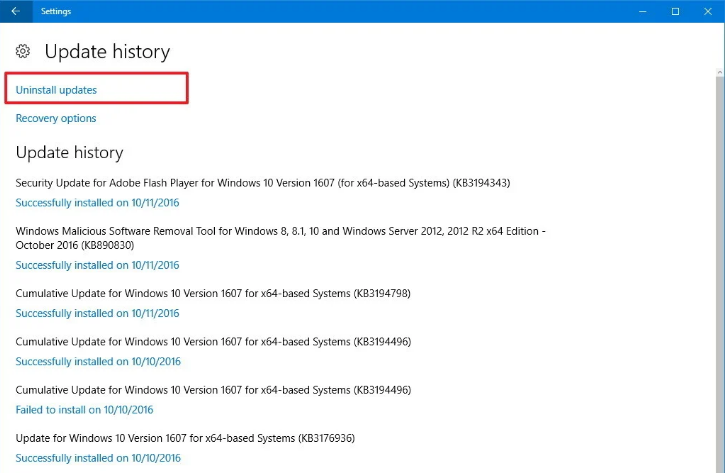
- Now, search for the recently installed updates.
- Right-click on the update and select Uninstall.
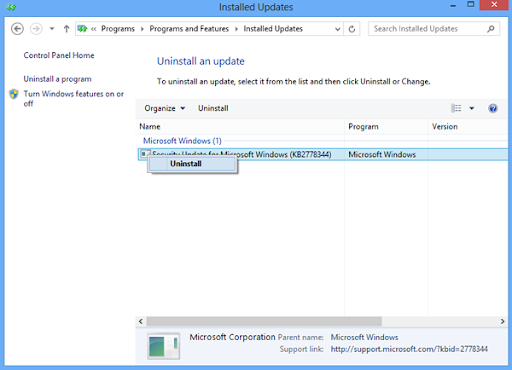
- After removing the recent update and trying to reinstall Discord.
Solution 6: Disable Antivirus
In many cases, the security program installed on your system conflict with the installation process and blocks the program from installing. So, check if you have third party antivirus installed on your PC, then disable it temporarily and then try to install Discord.
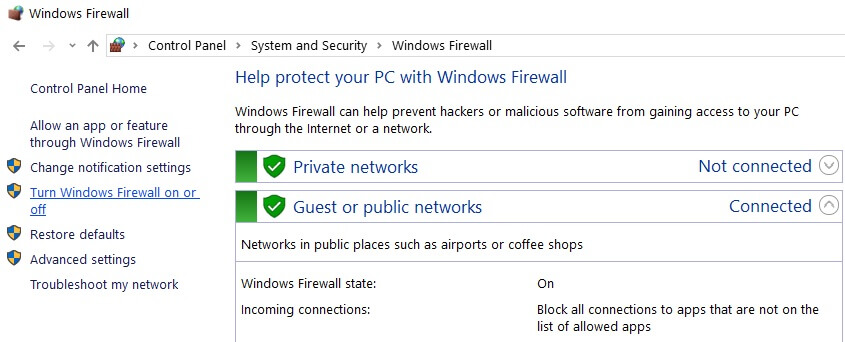
Moreover, if you don’t have any third-party antivirus, then also default antivirus Windows Defender Firewall keeps working in the background. In this case, you must disable the firewall for some time. To disable it, you can follow the below-given steps:
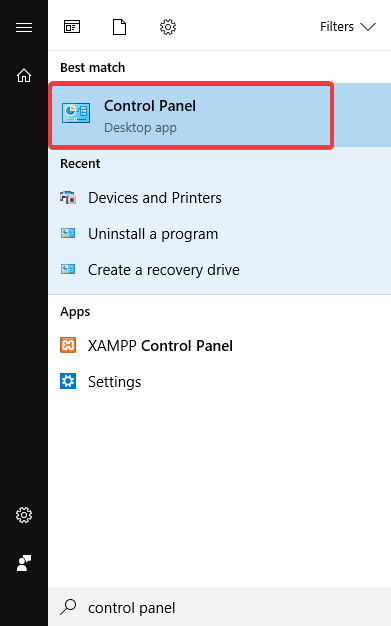
- Go to the Windows Search box, type here control panel, and click on the Control Panel.
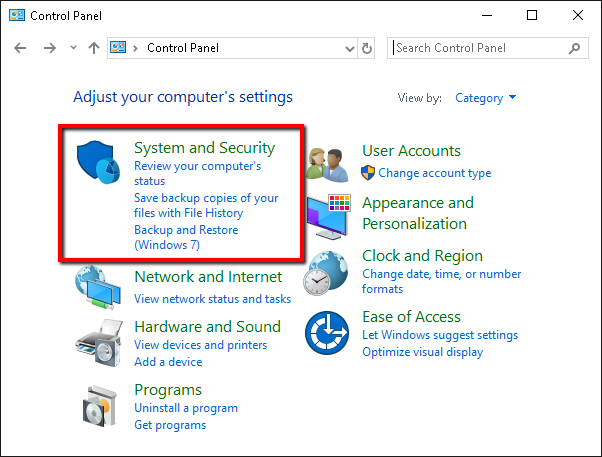
- On the Control Panel window, click on the System and Security.
- Click on the Windows Defender Firewall.
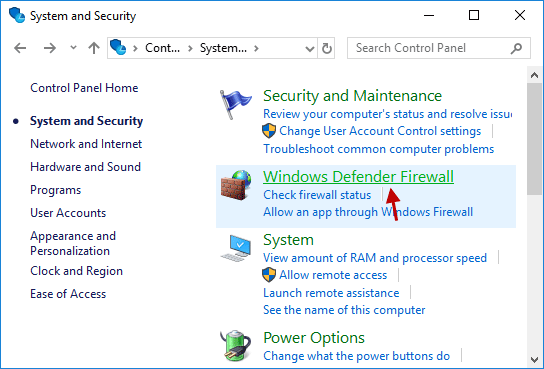
- Now, click on the “Turn Windows Firewall on or off” option located at the window’s left pane.
- Next, select the Turn off Windows Firewall (not recommended) option under both the “Private network settings” and “Public network settings” sections.
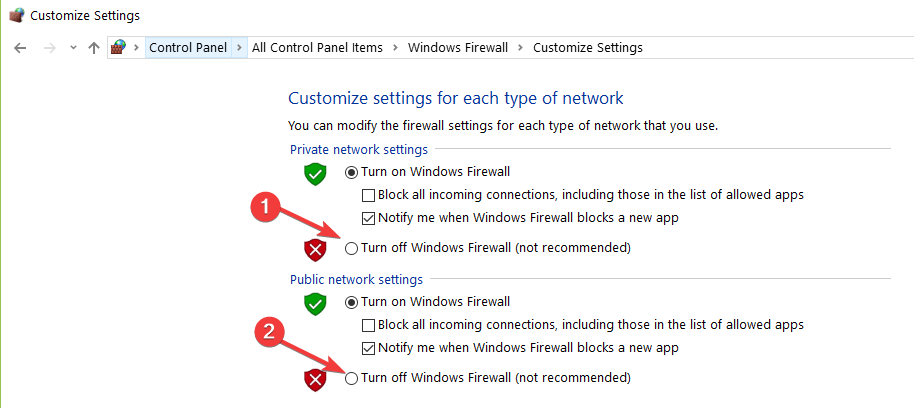
- Click on the OK button to save the changes.
Now for disabling the 3rd party antivirus program, right-click on the antivirus icon in the taskbar and disable it temporarily. After that try installing the Discord app and check if the problem is resolved.
Solution 7: Reinstall the Discord App
If none of the above-given methods fixed the Discord installation failed error, then try reinstalling the Discord app.
Before uninstalling the Discord, we will first end all Discord related tasks in the Task Manager.
- Press Ctrl + Shift +Esc key together to open the Task Manager.
- In the Task Manager window, go to the Process tab.
- Right-click on the Discord related tasks and click on the End Task button.
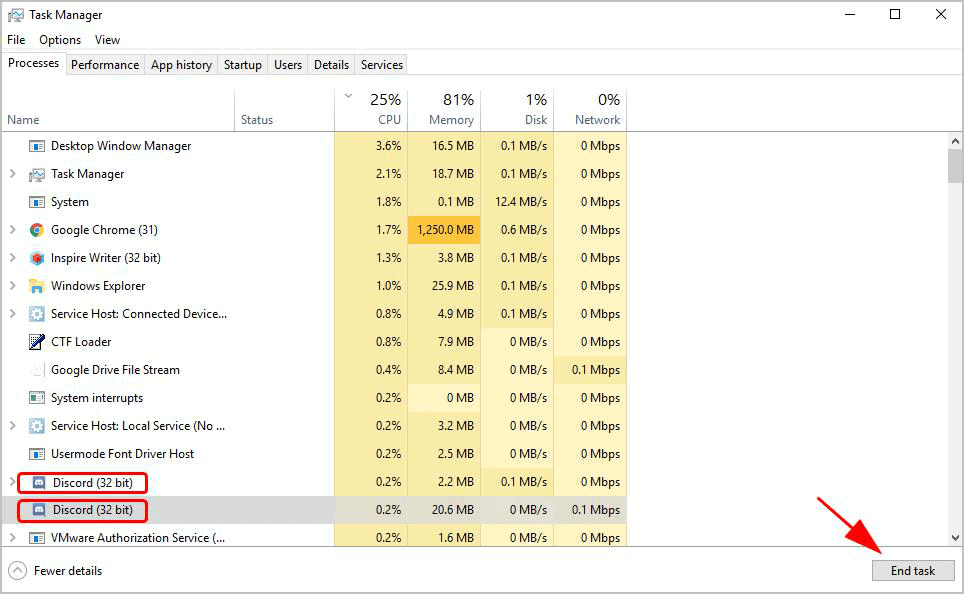
After doing this, uninstall Discord using these instructions:
- Press Windows + X key > click on the Programs and Features.
- Go to the Discord app > select it > click on the Uninstall button.
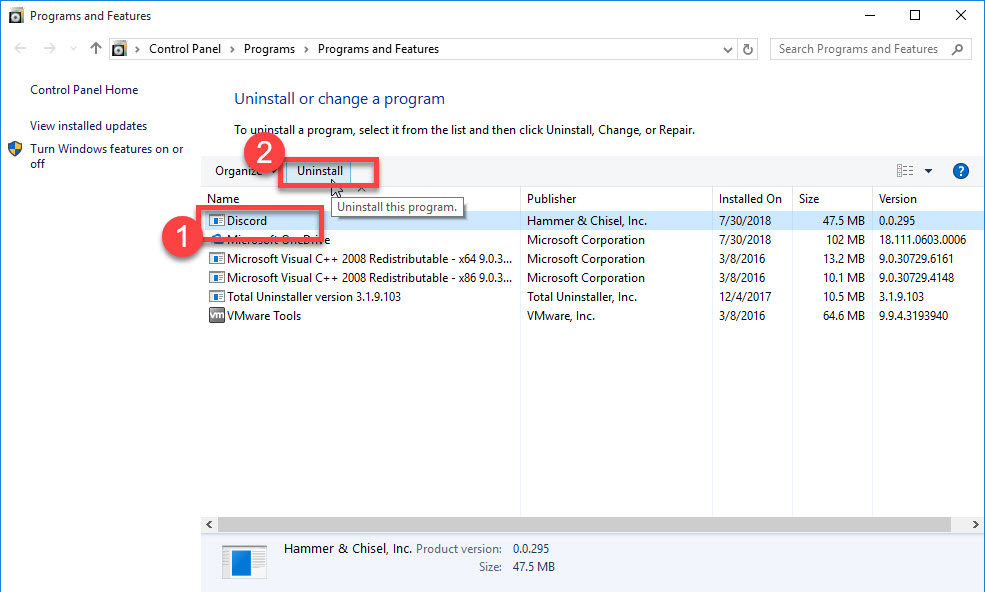
- Click on the Yes button when you will ask to confirm to uninstall the app.
- Next, follow the on-screen instructions.
Now, remove all Discord files and folders from your PC:
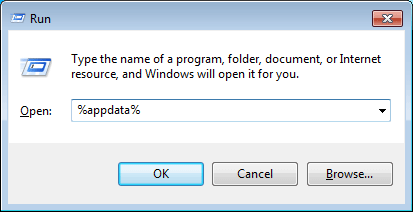
- Press Windows + R keys > type %AppData% on the Run dialog box > press the Enter key.
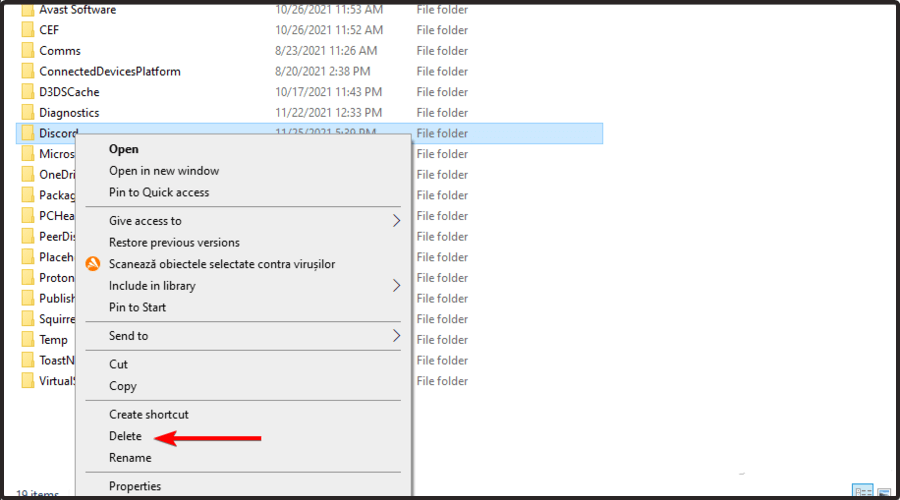
- On the next window, search for the Discord folder and right-click on it, then select the Delete option.
- Again open the Run window, type %LocalAppData% and click on the OK. button
- Go to the Discord folder, then right-click on it and click on the Delete option.
- Restart your PC.
After removing the Discord completely from your computer, it’s time to reinstall it.
- To install Discord, go to its official website.
- Download the setup file of Discord for Windows.
- Right-click on the Discord setup file > choose the Run as administrator option.
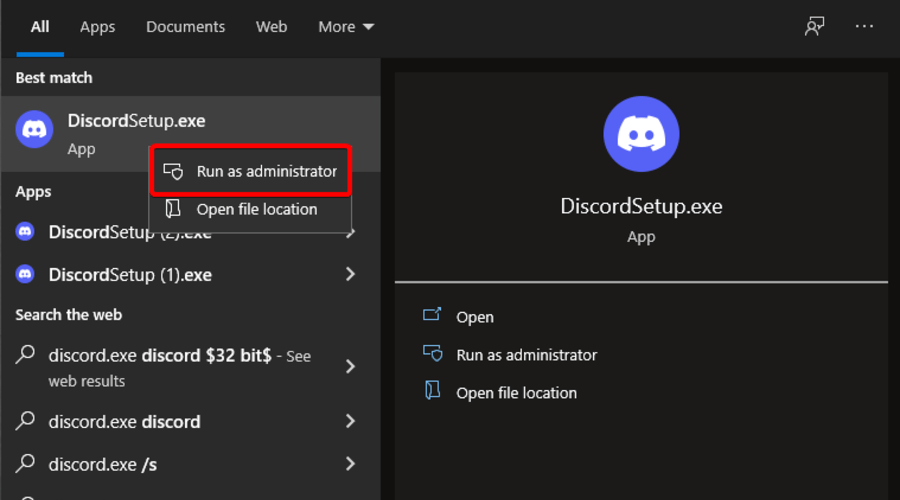
- Click on the Yes button and follow the on-screen instructions to install Discord.
Recommended Solution to Fix Discord Installation has Failed Error
Sometimes due to the PC’s internal issues you start facing issues during installing any program or are unable to install any program so here it is suggested to scan your system with the PC Repair Tool.
This is a multifunctional advanced repair tool that just by scanning once repair the corrupted Windows system files and protects your system from virus or malware.
With this tool, you can fix DLL errors, game errors, BSOD errors, registry errors, application issues, and much more. Not only this you can also optimize your Windows PC performance.
Get PC Repair Tool to fix Various Windows PC Errors
Conclusion
So, this is all about the Discord installation has failed error on Windows 10 and 11 PC.
Here I tried my best to list down the entire possible solutions to get past the error and install Discord without any error.
Now, it’s your turn to follow the fixes given carefully and solve the problem in your case.
Let us know whether this guide helped you in fixing the problem. You can share your experience and suggestions with us on Facebook or Twitter page. We would love to hear back from you.
Good Luck..!

Hardeep has always been a Windows lover ever since she got her hands on her first Windows XP PC. She has always been enthusiastic about technological stuff, especially Artificial Intelligence (AI) computing. Before joining PC Error Fix, she worked as a freelancer and worked on numerous technical projects.