После выхода Call of Duty: Warzone многие игроки столкнулись с уведомлением «Произошла неустранимая ошибка DirectX» после этого уведомления игра закрывается. Из этой статьи вы узнаете причины неисправности и как исправить данную проблему.
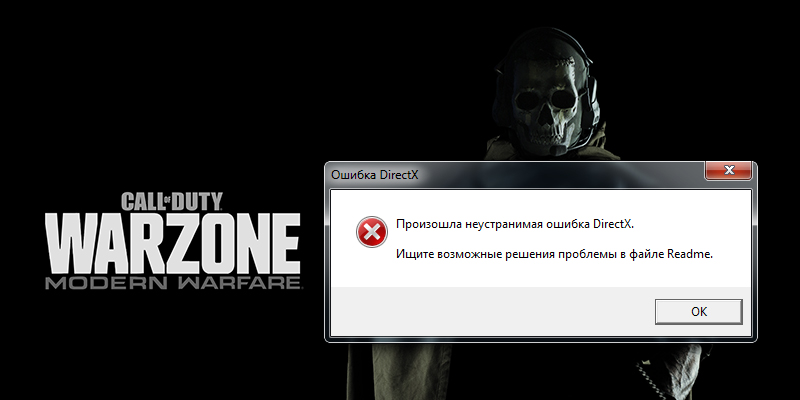
Что значит ошибка и причины её появления
Подобная проблема появляется как при запуске, так и во время игры. Основной причиной возникновения проблемы, это где-то в программном обеспечении, используемым вашим графическим процессом, обнаружена проблема. Иногда в уведомлении говорится, что-то «Ваша версия драйвера графического процессора не соответствует минимальным требования». В других случаях говорится, что ваш графический процессор совершенно несовместим.
Рассмотрим основное решения этой ошибки. Вам необходимо восстановить игру через официальное приложение Battle.net. Для этого:
- Откройте клиент Battle.net.
- Выберите из списка игру Call of Duty: Warzone.
- Нажмите кнопку настройки.
- Далее выберите «Проверка и восстановление».
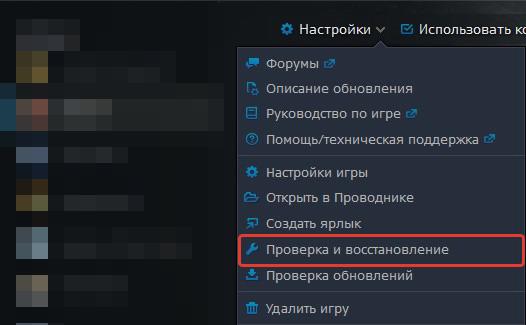
После этого перезагружаем свой компьютер и пытаемся запустить игру.
Проверка драйвера видеокарты
Если исправить ошибку предыдущем способом не удалось, проверьте установлены ли у вас последние обновления для видеокарты. Для этого сделайте следующие:
- Нажмите комбинацию клавиш WIN + PAUSE.
- Слева выберите диспетчер устройств.
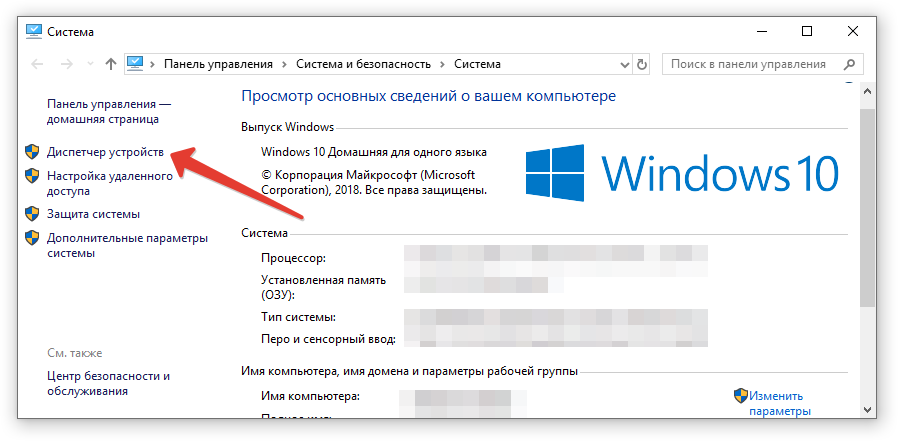
- Откройте вкладку «Видеоадаптеры». Кликните на стрелочку, чтобы открыть список видеокарт.
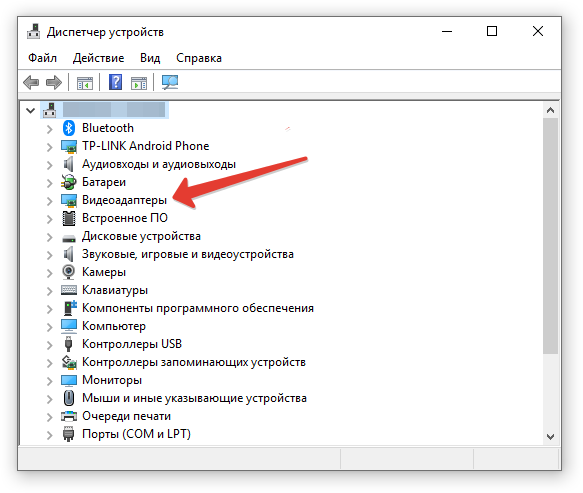
- Теперь нажмите ПКМ на вашу видеокарту.
- Далее выбираем пункт «Обновить драйвер».
- Выберите вариант поиска «Автоматически».
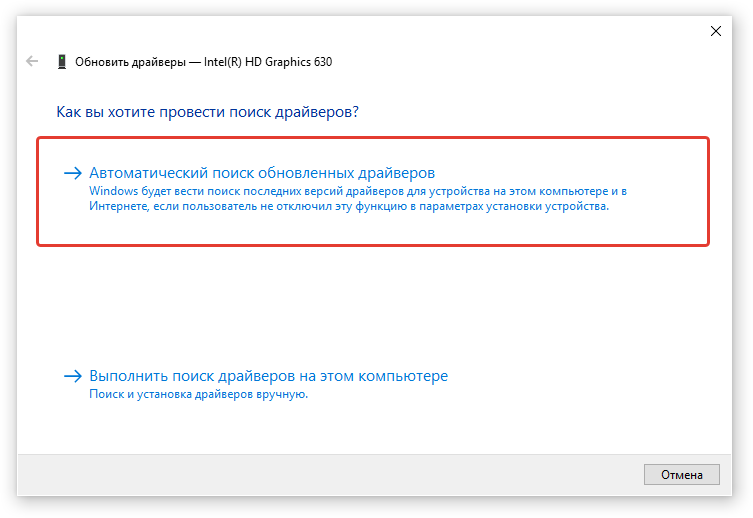
Запустите повторную проверку графических драйверов через NVIDIA GeForce Experience. Если у вас эта программа не установлена, рекомендуемым установить. Так как это приложение автоматически обновляет все необходимые компоненты.
Переустановка DirectX
Возможно вы используйте устаревшую версию, из-за этого происходить вылет с проблемой Директ Икс. Чтобы переустановить устаревшие компоненты, необходимо скачать инсталлятор с официального сайта Microsoft.
- Запустите браузер и введите адрес https://www.microsoft.com/ru-RU/download/35.
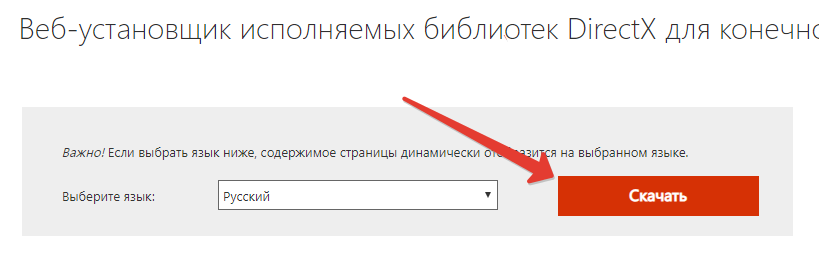
- Затем нажмите на оранжевую кнопку скачать.
- Дождитесь загрузки файла, после этого запустите его.
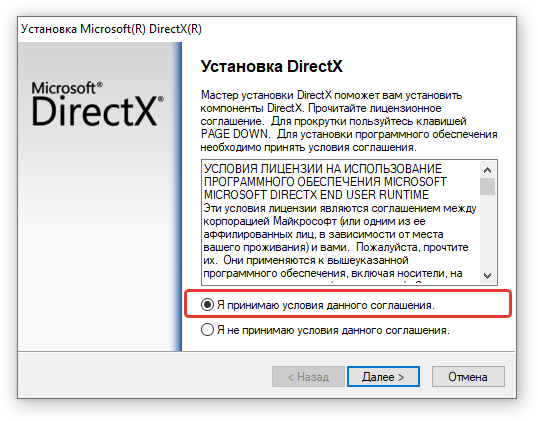
- Соглашаемся с условиями лицензии.
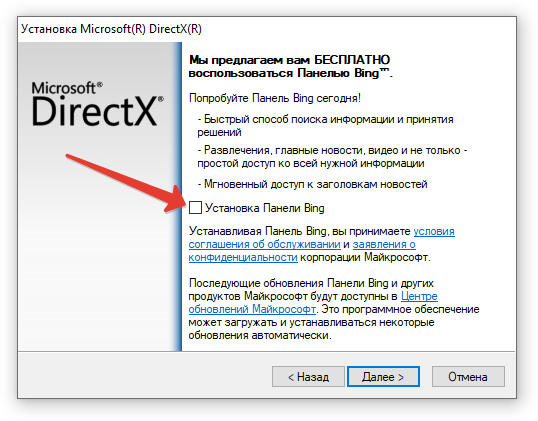
- Уберите птичку с Bing и нажмите «Далее».
- Начнется процесс файлов. После завершения вы увидите сообщение.
- Нажимаем на кнопку «Готово».
После этого перезагрузите компьютер, чтобы убедиться, что все работает.
Читайте также: Call of Duty: Warzone настройка графики
Заключение
В нашем материале мы рассказали, почему возникает проблема с Директ Икс в COD: Warzone, и что делать для её исправления. Рекомендуем проделать выше перечисленные советы. Задавайте свои вопросы в комментарии, мы постараемся вам помочь.
Оценка статьи:
 Загрузка…
Многопользовательские шутеры — это всегда развлечение и игра (простите за каламбур), пока вы не перестанете думать о надоедливой ошибке, мешающей вам играть. То же самое и в случае ошибки разработчика Modern Warfare 6070, которая появляется, но не говорит о том, что исчезнет. Если эта досадная проблема недавно мешала вашей игре, мы в eXputer составили для вас лишь список решений, так что будьте уверены и продолжайте читать.
Call of Duty: Modern Warfare занимает особое место в сердце каждого поклонника COD. Это одна из самых заманчивых игр во всей франшизе, которая может похвастаться большим разнообразием оружия и потрясающими визуальными эффектами. Кампания также заслуживает особого внимания, не говоря уже об острых ощущениях от классической многопользовательской игры Call of Duty.
В отличие от некоторых заведомо нелюбимых игр COD, Modern Warfare — одна из самых любимых итераций в серии. Мы не можем винить вас, если в эту игру просто невозможно перестать играть. А пока давайте перейдем непосредственно к решениям ошибки разработчика 6070 и вернем вас к игре на полную катушку.
Примечание: Помните, что ошибка Modern Warfare Dev 6065 имеет другую природу и требует других исправлений, поэтому обязательно дважды проверьте тип ошибки, с которой вы столкнулись. Кроме того, обновление графических драйверов также является частью 13 способов исправить ошибку 6068 разработчиков Modern Warfare, если вы решите проверить ее.
Содержание
- Как исправить ошибку Modern Warfare Dev 6070
- Перезагрузите компьютер
- Очистить ресурсоемкие процессы
- Проверить наличие всех актуальных обновлений
- Обновление графических драйверов
- Оптимизация Nvidia GeForce Experience
- Добавьте команду в аргумент командной строки Blizzard
- Отключить разгон для вашего графического процессора
- Попробуйте использовать полноэкранный дисплей без полей Режим
- Переустановите Программа запуска
- Заключение
- Часто задаваемые вопросы
Как исправить ошибку Modern Warfare Dev 6070
Хорошо бы сначала понять проблему, прежде чем приступать к ее устранению. Это практический совет для всех, кто связан с технологиями, когда мы часто сталкиваемся со сложностью и трудными для понимания деталями.
Ошибка Modern Warfare Dev 6070 появляется, когда Microsoft DirectX сталкивается с проблемой. Последний представляет собой набор интерфейсов прикладного программирования (API), предназначенных для рендеринга игр и связанных с мультимедийным программированием.
Подобное чтение: Valorant Error Code 39
Ниже показано, как проблема появляется на экране. Он проявляется в виде подсказки и внезапно завершает работу игры.
Как и большинство первых- шутеры, Modern Warfare не чужды ошибкам разработчиков, поэтому знайте, что вы не одиноки во всей этой неразберихе. На самом деле существует множество подобных проблем, связанных с единомышленниками, которые могут возникнуть в любой момент во время прохождения игры, но разработчик усердно работает над тем, чтобы это не случалось слишком часто.
Иногда незначительные жалобы, такие как ошибка разработчика 6070 , могут просочиться сквозь уровни безопасности и снежным комом помешать вам играть.
Однако не беспокойтесь, потому что Ниже приведен ряд исправлений, которые помогли исправить ошибку для людей, которые были в той же лодке, что и вы. Мы советуем попробовать каждый из них для достижения наилучших результатов. Давайте начнем без лишних слов.
Интересное чтение: Valorant Error Code Van 6
Перезагрузите компьютер
Давайте начнем с простого, но эффективного. Перезагрузка ПК с Windows — один из самых тонких способов устранения ошибки разработчика. Мы рекомендуем выполнить перезагрузку, прежде чем приступать к более сложным решениям проблемы. Это связано с тем, что это потенциально может сэкономить вам много времени и усилий.
Нажмите кнопку “Пуск в Windows.” меню и выберите “Питание” кнопку, чтобы перезагрузить компьютер. Следующим шагом будет выбор “Перезагрузить” и подождите, пока ваш компьютер снова включится.
![Modern Warfare Dev Ошибка 6070 [РЕШЕНО]](https://votguide.ru/wp-content/uploads/2022/05/5f257deb955cfa9c6105c5e73ea7e91d.png)
Попробуйте запустить Modern Warfare как только ваш компьютер снова заработает. Продолжайте читать, чтобы узнать о других исправлениях, если перезагрузка компьютера не решила проблему. У нас есть гораздо больше, откуда это взялось.
Очистить ресурсоемкие процессы
The Call of Duty: ошибка разработчика Modern Warfare 6070может всплывать, потому что вы не слишком хорошо заботитесь о своем ПК. Если вы, как и большинство людей, не тратите время на техническое обслуживание, подобные проблемы неизбежно будут возникать время от времени. Оцените, сколько приложений, системных приложений, программ и другого программного обеспечения одновременно запущено на вашем устройстве с помощью Диспетчера задач. Если полученную вами цифру нельзя отнести к норме, то определенно лучше сразу начать очистку ресурсоемких процессов.
Подробнее от Exputer: Valorant, код ошибки 57
Как уже упоминалось ранее, диспетчер задач очень поможет вам в этом отношении. Все, что вам нужно сделать, это запустить его с помощью сочетания клавиш “Ctrl,” “Сдвиг” и “Esc” и это должно сделать это. После того, как он откроется, проверьте, как загружен ваш процессор и оперативная память. Вы должны знать об этих важных системных компонентах, прежде чем запускать что-либо с интенсивным использованием графики, не говоря уже о Modern Warfare. Как только вы обнаружите что-то, что не стоит хранить, выберите это и нажмите “Завершить задачу.” Это должно вам помочь.
![Modern Warfare Dev Error 6070 [РЕШЕНО]](https://votguide.ru/wp-content/uploads/2022/05/b0ab0342268564d929ff2d90270c94d1.png)
Попробуйте сыграть в игру снова после удаления нежелательных приложений из Диспетчера задач. Если ошибка разработчика 6070 все еще не исчезла, продолжайте пробовать другие исправления, которые мы изложили в этом руководстве.
Проверить наличие всех актуальных обновлений
Единственный способ играть Call of Duty: Modern Warfare запускается через программу запуска Battle.net. Это собственная платформа Blizzard Entertainment для всех ее игр, включая относительно недавнюю Call of Duty: Vanguard. Поэтому, если у вас есть ожидающее обновление программы запуска, установка его приоритета перед чем-либо еще может исправить ошибку 6070.
После того, как вы закончите с этим, может оказаться полезным проверить операционную систему на наличие обновлений. Windows любит регулярные обновления, поэтому ознакомьтесь с разделом “Обновление и безопасность” раздел «Проверить наличие обновлений» и посмотрите, сможете ли вы ускорить работу системы.
Обычно вам нужно нажать на кнопку “Проверить наличие обновлений” кнопку в “Центре обновления Windows” раздел для продолжения. На следующем снимке экрана показано, где щелкнуть.
![Modern Warfare Dev Error 6070 [РЕШЕНО] ]](https://votguide.ru/wp-content/uploads/2022/05/83c36cbcb14ecabd3e8146a8a78565dd.png)
Последняя часть этого раздела, конечно же, относится к обновлению игры. Официальный блог Call of Duty — отличный способ быть в курсе всей актуальной информации о Modern Warfare. Если выходит новый патч, обновите игру соответствующим образом. Проверьте свою копию игры в программе запуска Battle.net, чтобы узнать, не требует ли она каких-либо обновлений на данный момент.
Если все связанные программы обновлены до последней минуты, попробуйте снова запустить игру, чтобы проверить,  ;ошибка разработчика 6070все еще сохраняется. Есть значительный шанс, что теперь вы будете играть без ошибок, но продолжайте читать, чтобы узнать больше об исправлениях, если проблема еще не исчезла.
Обновление графических драйверов
Мы посчитали целесообразным отделить обновление графических драйверов от раздела выше, поскольку это один из самых критические исправления ошибки 6070. Эта проблема связана с DirectX в основном это системный процесс, который тесно связан с вашим графическим процессором. Проверка ваших графических драйверов и проверка того, отсутствуют ли они в каком-либо аспекте, может оказаться стоящей вашего времени.
Здесь также важно отметить, что у Modern Warfare есть определенные системные требования, которые Разработчик четко указал, что игроки должны выполнить. Из всего остального оборудования, которое должно быть на должном уровне, GPU, необходимый для успешной работы Modern Warfare, должен быть эквивалентен NVIDIA GeForce GTX 670/GeForce GTX 1650 или Radeon HD 7950.
Вам придется получить обновление, а не обновление, если ваша графика или видеокарта не подходят. Однако, если у вас уже есть аппаратное обеспечение, необходимое для запуска Modern Warfare, то, возможно, здесь поможет обновление. Следующие шаги помогут вам выполнить обновление графических драйверов на ПК с Windows.
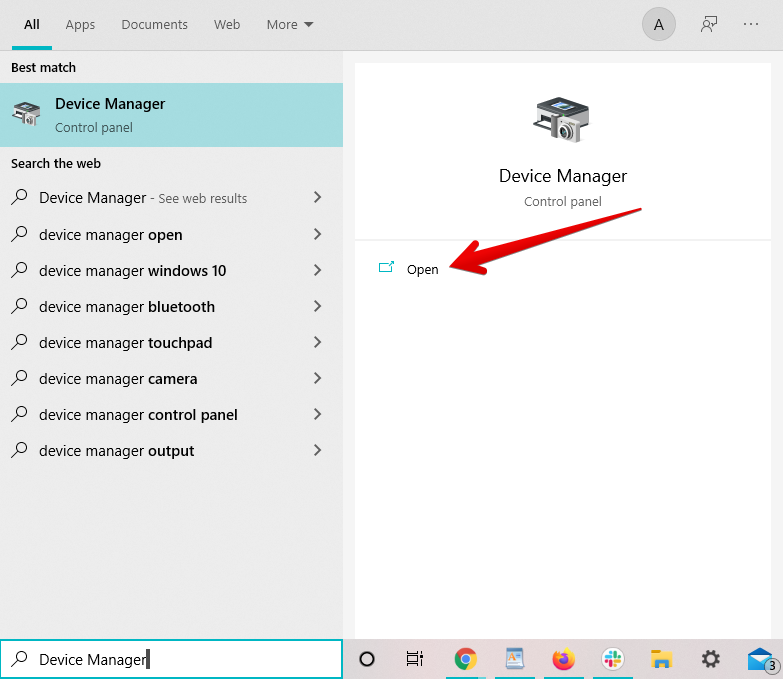
1. Первый шаг — запустить “Диспетчер устройств.” системное приложение на ПК. Самый простой способ сделать это — щелкнуть правой кнопкой мыши значок “Windows” значок в верхнем левом углу интерфейса операционной системы, а затем щелкните нужное приложение. Кроме того, вы также можете просто найти его через панель Поиска Windows. Следующий снимок экрана должен иллюстрировать последнее.
![Modern Warfare Dev Error 6070 [РЕШЕНО]](https://votguide.ru/wp-content/uploads/2022/05/d4d3807fc8675a4dd95872f231dddfab.png)
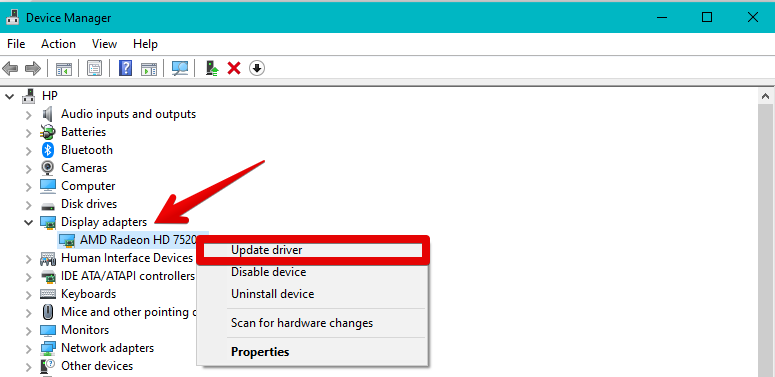
2. Отдельное окно откроется, как только вы нажмете “Диспетчер устройств.” Здесь вы без труда сможете обновить свои графические драйверы. Нажмите на значок “Адаптеры дисплея” запись, чтобы показать ваш GPU. Щелкните правой кнопкой мыши на последнем, чтобы расширить область. После этого нажмите “Обновить драйвер” и вы должны быть готовы к следующему шагу.
![Modern Warfare Dev Error 6070 [РЕШЕНО]](https://votguide.ru/wp-content/uploads/2022/05/52b551729b16e0a84ecba1b6545ed97b.png)
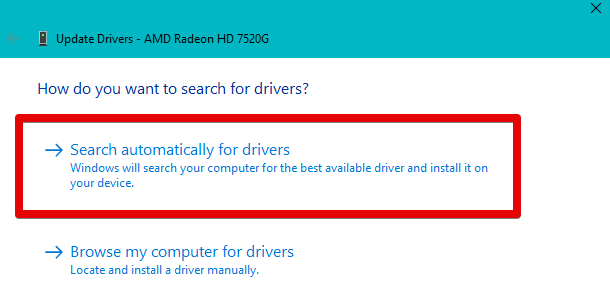
3. Появится подсказка с вопросом “Как вы хотите искать драйверы?” Просто выберите первый вариант, а именно “Автоматический поиск драйверов..” Таким образом, система начнет поиск любых ожидающих обновлений, которые ваш графический процессор еще не получил. Ваши графические драйверы будут обновлены, если Windows обнаружит что-нибудь работоспособное. Через некоторое время вы увидите, что начнется процесс обновления.
![Modern Warfare Dev Error 6070 [РЕШЕНО]](https://votguide.ru/wp-content/uploads/2022/05/0d5aa7e31cd39e7bcea4cef00c1db72a.png)
Вот и все, что касается обновления графических драйверов в Windows 10. Обязательно наличие актуального графического процессора -fire способ предотвращения ошибки разработчика 6070 от выскакивания, не говоря уже о его исправлении. Мы рекомендуем вам загрузить специальное программное обеспечение для оптимизации и ухода за графическими драйверами на вашем устройстве. Это облегчит вам установку обновлений всякий раз, когда они выпускаются со стороны разработчика.
Программное обеспечение зависит от производителя, чей графический процессор установлен на ПК. Например, вы можете установить программное обеспечение AMD Radeon, чтобы заботиться о графических драйверах AMD.
С другой стороны, вы можете выбрать приложение Nvidia GeForce Experience для графических процессоров Nvidia. Даже если обновление ваших графических драйверов до последней версии не решило проблему, или ваши драйверы были обновлены в первую очередь, для начала продолжайте читать, чтобы узнать о других исправлениях, которые можно попробовать. Со временем вы добьетесь этого, если повезет и приложите усилия.
Оптимизация Nvidia GeForce Experience
Владение видеокарта Nvidia — это не что иное, как захватывающая работа, пока прилагаемое к ней специальное приложение не становится основной причиной ошибки разработчика 6070.. Мы говорим о GeForce Experience , который гарантирует, что игры, работающие на вашем ПК, останутся безупречными. Это требует большой работы по оптимизации игр, поэтому они всегда подходят для вашего оборудования, но время от времени что-то может пойти не так.
Поэтому, если у вас есть графический процессор Nvidia и вы в настоящее время не можете играть в Modern Warfare из-за этой неприятной проблемы, возможно, стоит попытаться оптимизировать Приложение GeForce Experience. Мы собираемся сделать именно это в этом разделе, так что следуйте инструкциям, перечисленным выше, и, возможно, вернитесь к игре.
- Первый шаг – запустить сопутствующее приложение Nvidia GeForce Experience. . Вы можете легко сделать это, нажав “Alt” и “Z” вместе. Это комбинация клавиш для открытия приложения Experience. После этого нажмите на кнопку “Настройки” значок в форме шестеренки.
![Ошибка разработчика Modern Warfare 6070 [РЕШЕНО]](https://votguide.ru/wp-content/uploads/2022/05/a443e02b4e3b2c3ef5c547be5acdacc4.png)
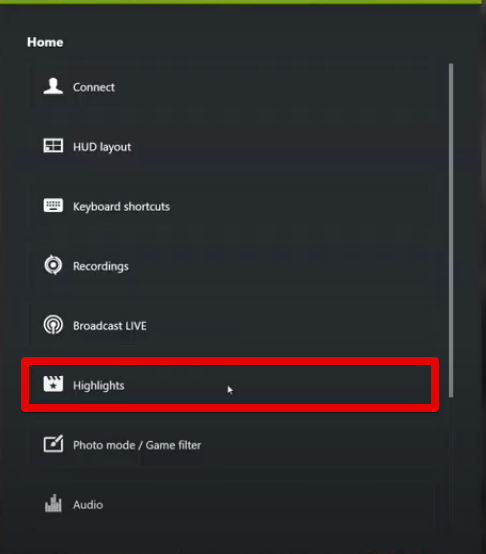
2. Выполнение последнего шага приведет вас прямо на страницу настроек приложения-компаньона GeForce Experience. Здесь вы увидите несколько вариантов, на которые можно нажать, но для устранения ошибки разработчика 6070., мы собираемся выбрать “Основные моменты” На следующем снимке экрана показано, где щелкнуть.
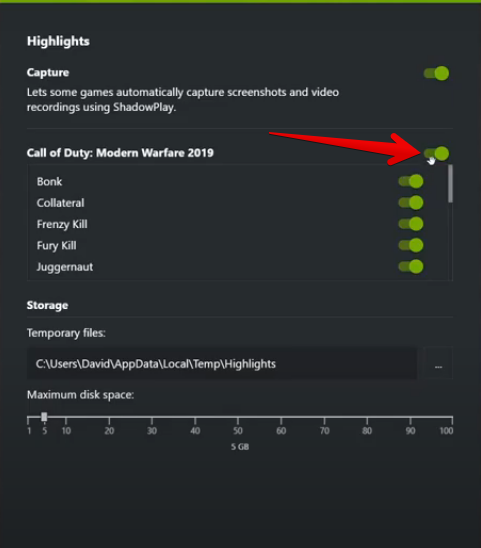
![Modern Warfare Dev Error 6070 [РЕШЕНО]](https://votguide.ru/wp-content/uploads/2022/05/33c8adb6d15025982aa4f357cdb5940b.png) <р>3. Как только вы окажетесь на сайте “Highlights” разделе приложения GeForce Experience вы увидите настройки захвата для Call of Duty: Modern Warfare 2019.. Рядом с заголовком будет переключатель. Нажмите на нее, чтобы отключить “Capture” функция для этого, которая автоматически делает скриншоты и записывает видео ваших прохождений. alt=»Ошибка разработчика Modern Warfare 6070 [РЕШЕНО]» />
<р>3. Как только вы окажетесь на сайте “Highlights” разделе приложения GeForce Experience вы увидите настройки захвата для Call of Duty: Modern Warfare 2019.. Рядом с заголовком будет переключатель. Нажмите на нее, чтобы отключить “Capture” функция для этого, которая автоматически делает скриншоты и записывает видео ваших прохождений. alt=»Ошибка разработчика Modern Warfare 6070 [РЕШЕНО]» />
4. Выполнив предыдущее, вернитесь обратно на главную страницу настроек и нажмите «Готово». чтобы завершить процесс.
![Modern Warfare Dev Error 6070 [РЕШЕНО]](https://votguide.ru/wp-content/uploads/2022/05/1a63e4fe70fe0fe7870ee64dfb19f2c7.png)
Поздравляем! это далеко! Вы успешно научились отключать “Highlights” для Modern Warfare и оптимизировать сопутствующее приложение GeForce Experience. Кажется, самое время запустить игру и проверить, помогло ли это потенциальное решение устранить ошибку разработчика 6070 в Modern Warfare.
Если проблема не устранена или у вас изначально не было графического процессора Nvidia, продолжайте читать, чтобы узнать о других лучших решениях. Пока не теряйте надежду.
Добавьте команду в аргумент командной строки Blizzard
Средство запуска Battle.net не лишено множества функций.и инструменты, облегчающие игрокам и помогающие им получить гладкий опыт. Одна уникальная функция, представленная на платформе, позволяет пользователям изменять аргумент командной строки для каждой игры. Это позволяет реализовать инструкции в заголовке, такие как изменение его поведения при запуске и многое другое.
Команда, которую мы собираемся добавить в указанную область, позволит нам запустите Modern Warfare с DirectX11. Вам придется пойти на компромисс с графикой премиум-класса и визуальными эффектами, но, по крайней мере, вы сможете устранить ошибку разработчика 6070 в Call of Duty., поэтому мы считаем, что компромисс вполне правдоподобен. DirectX12 печально известен тем, что вызывает массу проблем у игроков не только в Modern Warfare, но и в других играх. также. Поэтому давайте посмотрим, поможет ли нам решить проблему запуск последнего без него.
Следующие шаги проиллюстрируют, как вы можете самостоятельно добавить команду в “Command строковый аргумент” функцию и заменить DirectX12 на DirectX11.
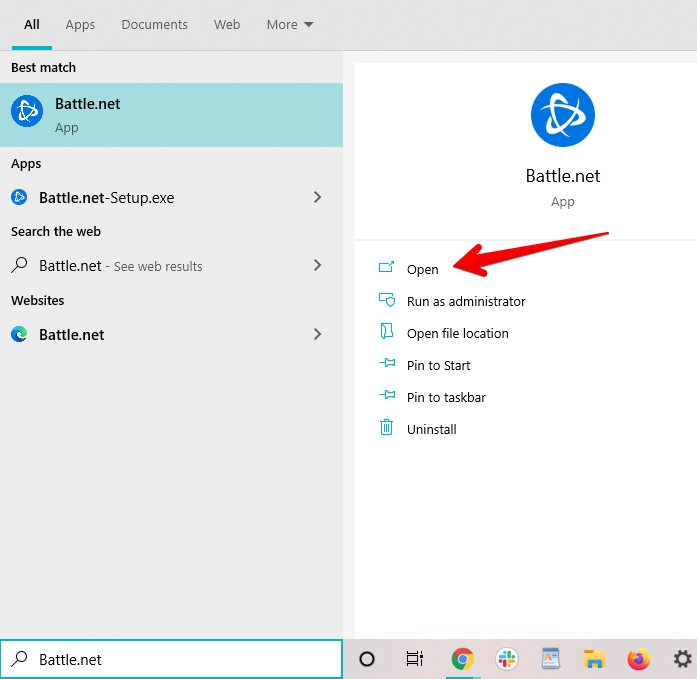
- Первый шаг — запустить программу запуска Battle.net на ПК с Windows. Это можно легко сделать через меню Windows Пуск. На следующем снимке экрана показано, как выполнить этот шаг.

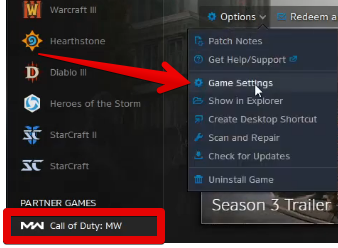
2. Следующим шагом будет поиск Call of Duty: Modern Warfare.в вашем списке загруженных игр. Область слева от основного интерфейса Battle.net поможет вам найти стрелка. Щелкните правой кнопкой мыши Modern Warfare, как только найдете его, чтобы открыть связанные с ним параметры. Выберите “Настройки игры” впоследствии. Это должно открыть другое окно на вашем конце. Теперь все готово для перехода к следующему шагу.
![Modern Warfare Dev Error 6070 [РЕШЕНО]](https://votguide.ru/wp-content/uploads/2022/05/a77c5ba87558cd1a79219fe57a84e49d.png)
3. Теперь вы будете перенесены прямо в “Настройки игры” часть следующего окна. Здесь вы увидите панель аргументов командной строки с флажком рядом с ней для включения функции. Вы знаете, как это будет продолжаться дальше. Просто нажмите на поле, включите панель и введите внутри нее следующую команду. Когда вы закончите, нажмите “Готово” в нижней части этого окна, чтобы завершить процесс.
-D3D11
![Modern Warfare Dev Error 6070 [РЕШЕНО]](https://votguide.ru/wp-content/uploads/2022/05/d38767d6571c1cbb2caa814f08d50204.png)
Все отлично! Вам удалось добавить дополнительный аргумент командной строки в Modern Warfare, используя описанные выше шаги. Ошибка разработчика Modern Warfare 6070 уже должна быть устранена, так что сообщите Battle.net запустите хорошую перезагрузку и перезапустите игру, чтобы проверить, работает ли она теперь нормально. Если проблема по-прежнему представляет угрозу, продолжайте читать, чтобы попробовать другие решения.
Отключить разгон для вашего графического процессора
Разгон графических процессоров сверх их стандартных возможностей является обычной практикой в играх на ПК.. Это позволяет вывести видеокарту за предел своих возможностей, оказать на нее большее давление и заставить ее работать лучше в ваших играх. Разгон — довольно безопасная процедура, поскольку большинство современных графических процессоров рассчитаны на то, чтобы справиться с самими собой, поэтому вам должно хватить существенного увеличения производительности.
Однако, что не так Хорошо, что эта функция приводит к утомительной ошибке. Некоторые игроки, у которых на видеокарте был включен разгон, могли решить эту проблему DirectX .проблему, просто отключив последний. Пожертвовав производительностью ради игрового процесса, пользователи могут снова заставить свою копию Modern Warfare работать должным образом.
Конечно, это означает, что вы нагружаете свой графический процессор почти до предела. предел, если простой разгон не позволяет Modern Warfare работать спокойно. Вы можете проверить, так это или нет, сразу же отключив эту функцию повышения производительности на вашем ПК с Windows.
GPU TWEAK III от Asus — заслуживающая похвалы программа, которая может помочь вам на мгновение отключить разгон в целях проверки. Он имеет ручное управление, которое может по желанию снизить производительность, поэтому вы должны хорошо работать с программным обеспечением.
Загрузите его с официального сайта, чтобы начать. Пользовательский интерфейс программы интуитивно понятен и прост для понимания, поэтому не должно возникнуть особых трудностей с отключением разгона графического процессора.
Если вам удалось отключить его, попробуйте перезапустить Modern Warfare, чтобы проверить, не вызывает ли ошибка по-прежнему сбой игры. Если вы не можете играть в игру даже сейчас, продолжайте читать, чтобы узнать о других решениях.
Попробуйте использовать полноэкранный дисплей без полей Режим
Это может показаться немного странным, но нишевая группа игроков сообщила об исправлении ошибки разработчика Modern Warfare с помощью “Полноэкранный режим без полей” режим отображения из игровых настроек. Нет никакой гарантии, что это решит проблему, но как минимум мы можем сказать, что это стоит попробовать.
Все, что вам нужно сделать для этого потенциального решения, это чтобы войти в настройки игры, нажмите кнопку “Показать” и выберите “Полноэкранный режим без полей” как “Режим отображения.” Следующий снимок экрана должен иллюстрировать этот шаг.
![Modern Warfare Dev Error 6070 [РЕШЕНО]](https://votguide.ru/wp-content/uploads/2022/05/bdd2c419696561b61703df8515d949b3.png)
В дополнение к этому , также стоит сохранить параметр “Синхронизировать каждый кадр” или параметр V-Sync включен для Modern Warfare. Это важный метод оптимизации, который берет на себя тяжелую задачу согласования частоты обновления монитора и частоты кадров в вашей игре.
После настройки этих параметров перезапустите игру и попробуйте сыграть в нее. еще раз, чтобы убедиться, что Call of Duty ошибка разработчика 6070 перестала выходить или нет. У вас есть только одно последнее потенциальное исправление, и мы опасаемся, что игра по-прежнему вызывает у вас проблемы.
Переустановите Программа запуска
Переустановка программы запуска Battle.net также является потенциальным исправлением ошибки Modern Warfare Dev 6178, которая также является ошибкой DirectX.проблема. Похоже, что у вас остался только этот подход, если все остальные не сработали. Убедитесь, что вы удалили Modern Warfare , прежде чем переустанавливать программу запуска для достижения наилучших результатов.
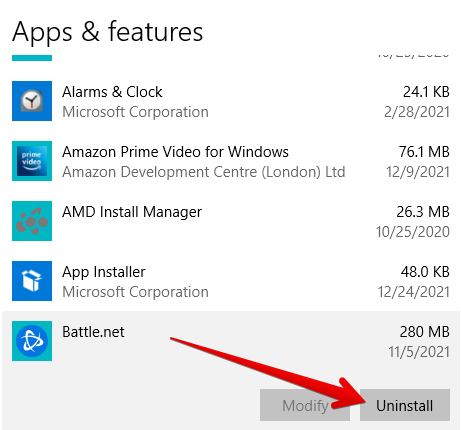
Просто перейдите на страницу “Установка и удаление программ&# 8221; раздел, найдя его в Поиске Windows .бар. Оказавшись там, прокрутите список установленных приложений, пока не найдете Battle.net. Нажмите на нее, чтобы открыть кнопку удаления, а затем нажмите на нее, выбрав последнюю. Это должно быстро удалить программу из системы.
![Modern Warfare Dev Error 6070 [РЕШЕНО]](https://votguide.ru/wp-content/uploads/2022/05/08b9ed949e6b389e6184fffe183ddf62.png)
Вы можете снова загрузить программу запуска Battle.net с официального сайта Blizzard Entertainment. Используйте эту прямую ссылку для начала. Установите платформу на свой ПК и снова загрузите игру. Надеемся, что это должно исправить ошибку разработчика 6070, так что это больше не беспокоит вас. Все это не что иное, как чрезвычайно трудоемкий процесс, но, к сожалению, это единственный способ решить проблему с ошибкой разработчика, когда ничего другого не окупается.
Заключение
Call of Duty: Modern Warfare — один из лучших шутеров от первого лица в индустрии, который’ ;s склонен сталкиваться с изрядной долей ошибок, с ошибкой разработчика быть должным образом одним из них. Однако не беспокойтесь, потому что исправления, перечисленные выше в этом руководстве, так или иначе сделают вашу копию игры безошибочной. Просто неукоснительно следуйте письменным инструкциям для достижения наилучших результатов.
Если вы нашли это руководство полезным, сообщите нам и коллегам, ищущим решения, какой метод решил проблему для вас. ты. Мы будем рады прочитать ваши отзывы об этом. Как всегда, eXputer желает вам приятной игры!
Часто задаваемые вопросы
Почему я продолжаю получать сообщение об ошибке разработчика в Modern Warfare?
Ошибка разработчика в Modern Warfare обычно возникает по ряду причин, включая отсутствие или повреждение файлов конфигурации, устаревшие графические драйверы и проблемы с Microsoft DirectX.
Что означает ошибка разработчика 6070?
Ошибка разработчика 6070 появляется, когда вы получаете сообщение “DirectX обнаруживает неисправимую ошибку.” сообщение, указывающее, что один из системных API, связанных с графическими драйверами, столкнулся с проблемой и должен быть исправлен соответствующим образом.
Как исправить ошибку разработчика в Call of Duty?
Возможные исправления ошибки разработчика в Call of Duty включает перезагрузку компьютера, обновление всего соответствующего программного обеспечения, такого как Windows, Battle.net, и отключение Nvidia GeForce Experience.
Как предотвратить появление ошибки разработчика 6070?
Ошибку разработчика 6070 можно предотвратить. следите за тем, чтобы ваша игра и все соответствующее программное обеспечение оставались в актуальном состоянии, поэтому вам следует использовать последние обновления для вашего графического драйвера.
Multiplayer shooters are all fun and games (pardon the pun) until you can’t wrap your head around an irksome error preventing you from playing. The same is the case with the Modern Warfare dev error 6070 that comes but doesn’t talk about going away. If you’ve had your play recently hindered by this vexing issue, we at eXputer have laid out just the list of solutions for you, so rest assured and keep on reading.
Call of Duty: Modern Warfare holds a special place in every COD fan’s heart. It is one of the most enticing titles in the entirety of the franchise that boasts a wide variety of weapons and terrific visuals. The campaign is also a facet to write home about, not to mention the thrill of the classic Call of Duty multiplayer experience.
As opposed to some of the notoriously disliked titles of COD, Modern Warfare is one of the most beloved iterations in the series. We cannot blame you if there’s just no stopping playing this game. As for now, let’s dive right into the solutions of the dev error 6070 and get you back to playing at full tilt.
Note: Remember that the Modern Warfare Dev Error 6065 is of a different nature and necessitates other fixes, so be sure to double-check the error type you’re facing. Also, updating your graphics drivers is also a part of the 13 Ways to Fix Modern Warfare Dev Error 6068, should you choose to check it out.
How To Fix Modern Warfare Dev Error 6070
It’s a good idea to understand a problem first before venturing on to fixing it. It is practical advice for all things technology, where we’re often faced with complexity and hard-to-grasp details.
The Modern Warfare Dev Error 6070 spurts when Microsoft DirectX runs into an issue. The latter is a bundle of Application Programming Interfaces (APIs) that tends to game rendering and deals with multimedia programming.
A Similar Read: Valorant Error Code 39
The following is how the issue appears on the screen. It reveals itself in the form of a prompt and crashes the game abruptly in its wake.
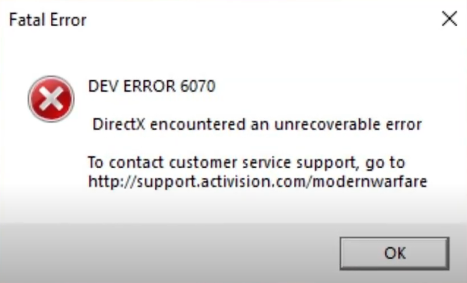
Like most first-person shooters, Modern Warfare is no stranger to dev errors, so you should know that you’re not alone in this whole mess. There are actually tons of these like-minded issues that can pop up at any given time during your playthroughs, but the developer keeps hard at work to make sure that doesn’t happen too often.
At times, minor grievances like the dev error 6070 can seep through the layers of security and snowball into preventing you from playing.
However, don’t worry because the following is a series of fixes that have helped fix the error for people who’ve been in the same boat as you. We advise trying each of them for the best results. Let’s get started without any further ado.
An Interesting Read: Valorant Error Code Van 6
Restart The PC
Let’s start off with something basic yet effective here. Restarting your Windows PC is one of the most subtle ways of approaching the dev error. We advise performing a reboot before getting into the more complicated fixes of the problem at hand. This is because doing so can potentially save you a lot of time and effort.
Click on the “Windows Start” menu and select the “Power” button to restart your PC. The next step is to choose “Restart” and wait for your PC to turn back on.
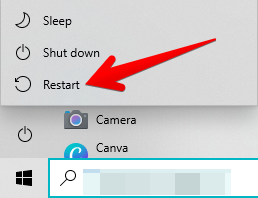
Try launching Modern Warfare once your PC is up and running again. Continue reading for more fixes if restarting your PC hasn’t solved the issue. We’ve got plenty more where that came from.
Clear Resource-Heavy Processes
The Call of Duty: Modern Warfare dev error 6070 can be surfacing because you’re not taking care of your PC too well. If you’re like most people who don’t take some time out for maintenance, issues like the latter are bound to pop up from time to time. Evaluate how many applications, system apps, programs, and other software are running on your device concurrently with the help of the Task Manager. If the figure you calculate cannot be classified as normal, then it’s definitely for the best that you start clearing resource-heavy processes right away.
More From Exputer: Valorant Error Code 57
As iterated earlier, the Task Manager will help you highly in this regard. All you have to do is launch it using the shortcut key combination of “Ctrl,” “Shift,” and “Esc” and that should do it. Once it’s opened up, check what your CPU and RAM utilization is. You need to be aware of these crucial system components before running anything graphics-intensive, let alone Modern Warfare. As soon as you’ve found something that’s not worth keeping, select it and then click on “End task.” That should do the trick for you.
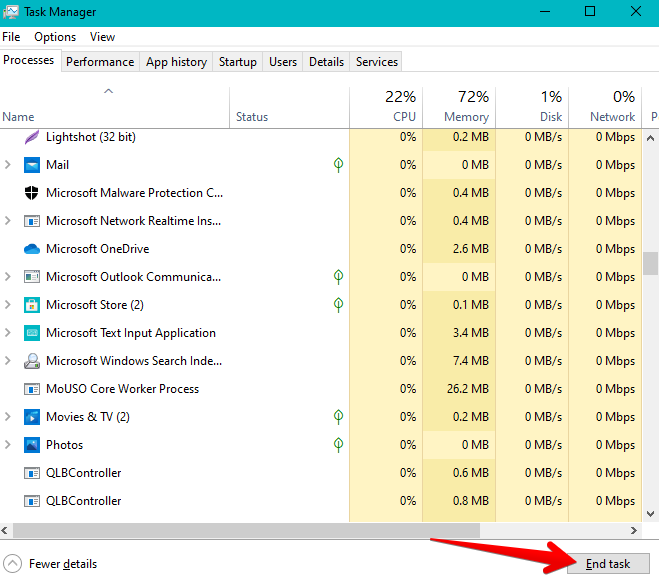
Try playing the game again after clearing out unwanted applications from the Task Manager. If the dev error 6070 still hasn’t bitten the dust, keep on trying more fixes that we have laid out in this guide.
Check For All Relevant Updates
The only way to play Call of Duty: Modern Warfare is through the Battle.net launcher. It is Blizzard Entertainment’s very own platform for all of its games, including the relatively recent Call of Duty: Vanguard. Therefore, if you have a pending launcher update, prioritizing it before anything else could possibly fix the error 6070.
Once you’re done with that, it might pay off to check your operating system for updates as well. Windows is keen on regular updates, so check out the “Update and Security” section right away and see if you can get the system up to speed.
You will typically need to click on the “Check for updates” button in the “Windows Update” section to proceed. The following screenshot specifies where to click.
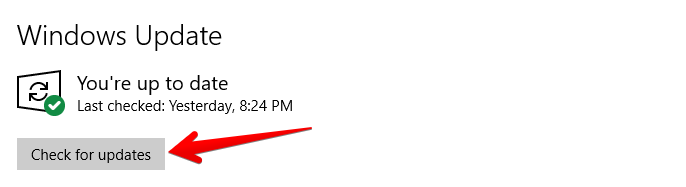
The last bit of this section relates to updating the game, of course. The official Call of Duty blog is a great way to stay up-to-date on all relevant information concerning Modern Warfare. If there’s a new patch coming out, update the game accordingly. Check your copy of the title in the Battle.net launcher to see if it requires any update for now.
If all related programs are up to the minute, try playing the game again to see if the dev error 6070 still persists. There’s a sizable chance that you’re going to play error-free now, but keep on reading for more fixes if the problem hasn’t ceased to exist just yet.
Update The Graphics Drivers
We thought it fit to separate the update of graphics drivers from the section above because this is one of the most critical fixes of the error 6070. This issue results from DirectX mainly, which is a system process that closely relates to your GPU. Checking your graphics drivers and verifying if they are lacking in some aspect can turn out to be worth your while.
It’s also important to note here that Modern Warfare has particular system requirements that the developer has clearly stated for players to fulfill. Out of all the other hardware that needs to be up to the mark, the GPU that Modern Warfare needs to run successfully should be the equivalent of NVIDIA GeForce GTX 670/GeForce GTX 1650 or Radeon HD 7950.
You will have to get an upgrade rather than an update if your graphics or video card doesn’t make the cut. However, if you already have the hardware required to run Modern Warfare, then, perhaps, an update just might do the trick here. The following steps are going to walk you through the process of updating the graphics drivers on a Windows PC.
1. The first step is to fire up the “Device Manager” system application on the PC. An easy way of doing that is by right-clicking the “Windows” icon in the top-left corner of the operating system’s interface, followed by clicking on the app in question. Alternatively, you can just search for it through the Windows Search bar as well. The following screenshot should illustrate the latter.
2. A separate window will launch as soon as you click on “Device Manager.” This is where you’ll be effortlessly able to get your graphics drivers up to speed. Click on the “Display adapters” entry to reveal your GPU. Right-click on the latter to expand the area. Once done, click on “Update driver” and you should be good to go until the next step.
3. A prompt will appear asking you, “How do you want to search for drivers?” Simply select the first option, which is, “Search automatically for drivers.” That way, the system will commence the hunt for any pending updates that your GPU hasn’t received yet. Your graphics drivers will be updated if Windows detects anything workable. After a brief moment, you’ll see that the update process will begin.
That’s about it for updating your graphics drivers on Windows 10. Having an up-to-date GPU is a sure-fire way of preventing the dev error 6070 from popping up, let alone fixing it. We recommend that you download dedicated software to optimize and take care of your graphics drivers on your device. That will make it easier for you to install updates whenever they are released from the developer’s end.
The software depends on the manufacturer whose GPU you have on the PC. For instance, you can install AMD Radeon Software to take good care of AMD graphics drivers.
On the other hand, you can opt for the Nvidia GeForce Experience application for Nvidia GPUs. Even if updating your graphics drivers to the latest version hasn’t solved the issue, or your drivers were updated in the first place, to begin with, keep on reading for more fixes to try. You’ll get there eventually with some luck and effort.
Optimize Nvidia GeForce Experience
Owning an Nvidia graphics card is nothing but exciting until the dedicated companion app that comes with it becomes the root cause of the dev error 6070. We’re talking about GeForce Experience that makes sure titles running on your PC remain to be buttery smooth. It takes up the big job of optimizing games, so they’re always suited to your hardware, but things can mess up here and there at times.
Therefore, if you have an Nvidia GPU and you’re currently unable to play Modern Warfare because of this vexing issue, it might be worth a shot to optimize the GeForce Experience application. We’re going to do just that in this section, so follow along the steps listed ahead and get possibly back to playing.
- The first step is to launch the Nvidia GeForce Experience companion application. You can do that effortlessly by pressing “Alt” and “Z” together. It is a shortcut key combination for opening the Experience app. Once done, click on the “Settings” icon that’s shaped like a cog.

2. Completing the last step will take you straight to the GeForce Experience companion app’s settings page. This is where you’ll see multiple options to click on, but to resolve the dev error 6070, we’re going to select “Highlights.” The following screenshot specifies where to click.
3. Once you’re at the “Highlights” section of the GeForce Experience application, you’ll see capture settings for Call of Duty: Modern Warfare 2019. There will be a toggle right beside the title. Click on it to disable the “Capture” feature for it that automatically takes screenshots and makes videos of your playthroughs.
4. Having the previous completed, return back to the main page of the settings and click on “Done” to finalize the process.
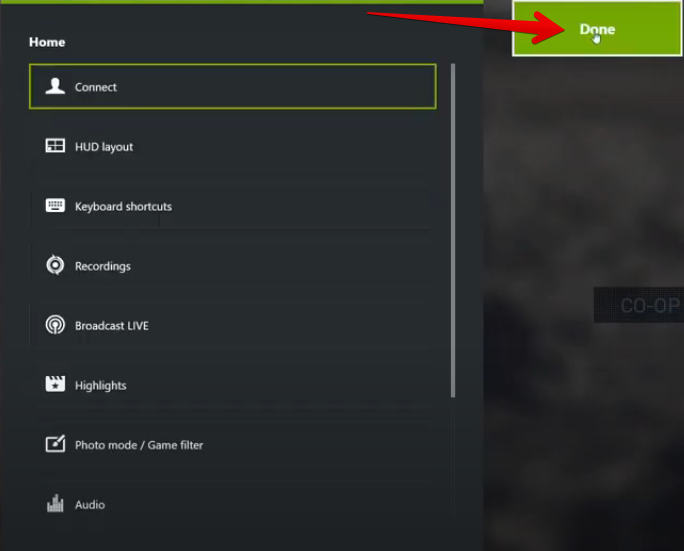
Congratulations on making it this far! You’ve successfully learned how to disable the “Highlights” feature for Modern Warfare and optimize the GeForce Experience companion application. Now seems like a good time to launch the game and verify whether this potential solution has resolved the Modern Warfare dev error 6070 for you.
If the issue still persists or you didn’t have an Nvidia GPU to begin with, continue reading for more tip-top solutions. Don’t lose hope just yet.
Add a Command In Blizzard’s Command Line Argument
The Battle.net launcher isn’t without its fair share of features and tools to facilitate players and help them have a smooth experience. One unique functionality introduced on the platform lets users modify the command line argument for each game. This makes it possible for instructions to be implemented in a title, such as changing its startup behavior and more.
The command that we’re going to add in the specified area will allow us to start Modern Warfare with DirectX11. You will have to compromise on premium-level graphics and visual effects, but at least you will be able to resolve the Call of Duty dev error 6070, so we fair the trade-off is pretty plausible. DirectX12 is notorious for stirring up tons of issues for players in not just Modern Warfare but in other titles as well. Therefore, let’s see if launching the latter without it helps us fix the issue.
The following steps are going to illustrate how you can add a command yourself in the “Command line argument” feature and replace DirectX12 with DirectX11.
- The first step is to fire up the Battle.net launcher on your Windows PC. That can be done seamlessly through the Windows Start menu. The following screenshot depicts how to complete this step.
2. The next step is to locate Call of Duty: Modern Warfare in your list of downloaded games. The area on the left of the main Battle.net interface will help you find the shooter. Right-click on Modern Warfare as soon as you’ve found it to reveal options related to it. Select “Game Settings” subsequently. Doing so should open another window on your end. You should now be all set to get to the next step.
3. You’ll now be transported directly to the “Game Settings” portion of the next window. This is where you’ll see the command line argument bar with a checkbox beside it for enabling the functionality. You know how it’ll go from here on out. Simply click on the box, turn the bar on, and type in the following command inside it. When you’re finished, click on “Done” near the bottom of this window to finalize the process.
-D3D11
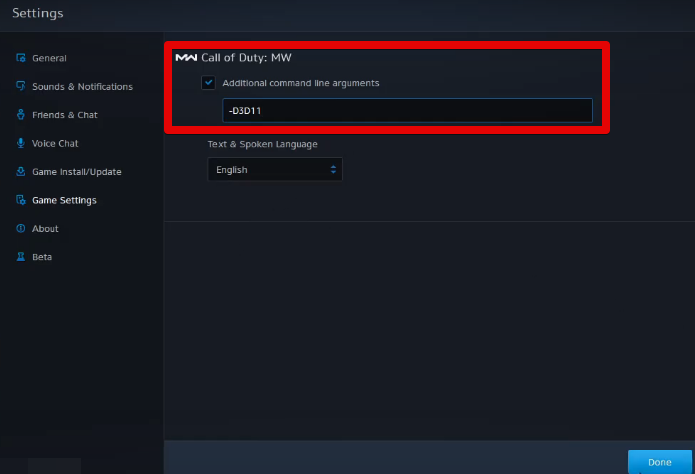
Great going so far! You’ve successfully managed to incorporate an additional command-line argument in Modern Warfare using the steps given above. The Modern Warfare dev error 6070 should be out the door by now, so give the Battle.net launcher a good reboot and relaunch the title to see if it works fine now. If the issue continues to be a menace, keep on reading to try other solutions.
Disable Overclocking For Your GPU
Overclocking GPUs beyond their standard capability is a common practice in PC gaming. Doing so makes it possible to push the graphics card ahead of its limit, put more pressure on it, and compel it to perform better for your games. Overclocking is a fairly safe procedure since most modern-day GPUs are built to handle themselves quite profoundly, so you should be good with a substantial performance increase that way.
However, what’s not good is this feature giving rise to the tedious error. Some players who had overclocking enabled on their graphics card could solve this DirectX problem by simply disabling the latter. By sacrificing performance over playability, users could get their copy of Modern Warfare to run properly again.
Of course, this means that you’re pushing your GPU near its absolute breaking limit if mere overclocking does not let Modern Warfare run in peace. You can confirm whether this is the case or not by disabling this performance-boosting functionality on your Windows PC right away.
GPU TWEAK III by Asus is a commendable program that can help you turn off overclocking momentarily for verification purposes. It features manual controls that can turn down the performance at will, so you should be good to go with the software.
Download it from the official website to get started. The user interface of the program is intuitive and easy to grasp, so there shouldn’t be an awful lot of difficulty in disabling your GPU’s overclocking.
If you’ve managed to turn it off, try rerunning Modern Warfare to see if the error is still causing the game to crash. If you can’t play the game even now, continue reading for more solutions.
Try Using the Fullscreen Borderless Display Mode
This might come off as a tad bit peculiar, but a niche group of players has reported fixing the Modern Warfare dev error issue by using the “Fullscreen Borderless” display mode from the in-game settings. There is no guarantee that doing this will solve the issue for you, but the least we can say is that it’s worth a try.
All you have to do for this potential fix is to go into the game’s settings, click on the “Display” tab, and choose “Fullscreen Borderless” as the “Display Mode.” The following screenshot should illustrate this step.
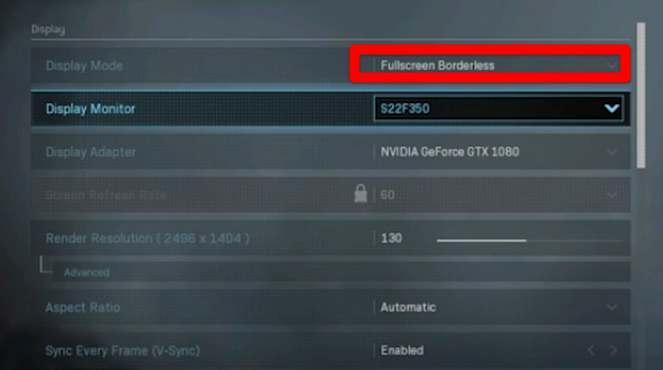
In addition to this, it’s also worth keeping your “Sync Every Frame” or V-Sync setting enabled for Modern Warfare. This is an important optimization technique that takes up the hefty task of matching the refresh rate of the monitor and the frame rate of the game that you have.
After tweaking these parameters, restart the game and try playing it again to see if the Call of Duty dev error 6070 has ceased to exit or not. You only have one last potential fix, and we’re afraid that the game is still giving you issues.
Reinstall the Launcher
Reinstalling the Battle.net launcher is also a potential fix of the Modern Warfare Dev Error 6178, which also happens to be a DirectX issue. It appears that you have only this approach left to pursue if all else has failed to work. Make sure that you uninstall Modern Warfare as well before reinstalling the launcher for the best results.
Simply head over to the “Add or remove programs” section by looking it up in your Windows Search bar. Once you’re there, scroll down the list of installed applications until you find Battle.net. Click on it to reveal the uninstall button and then follow it up by selecting the latter. Doing so should rid the program off from the system promptly.
You can grab the Battle.net launcher again from the official website of Blizzard Entertainment. Use this direct link for a head start. Install the platform on your PC and download the game again. Hopefully, doing so should fix the dev error 6070, so it no longer stays a bother for you. All of this is nothing but an exceedingly time-consuming process, but it’s, unfortunately, the only way of solving the dev error issue when doing nothing else pays off.
Conclusion
Call of Duty: Modern Warfare is one of the best first-person shooters in the industry that’s prone to run into its fair share of errors, with the dev error being duly one of them. Fret not, though, because the fixes listed above in this guide are bound to get your copy of the game error-free in one way or the other. Just be sure to follow the written instructions meticulously to achieve the best results.
If you’ve found this guide to be helpful, do let us and fellow solution-seekers know which method solved the issue for you. We’d love to read your feedback on this one. As always, eXputer wishes you happy gaming!
Frequently Asked Questions
Why do I keep getting Dev Error in Modern Warfare?
The dev error in Modern Warfare usually results from a number of reasons, including missing or corrupted configuration files, outdated graphics drivers, and issues with Microsoft DirectX.
What Does Dev Error 6070 mean?
The dev error 6070 appears when you get the “DirectX encounters an unrecoverable error.” message, indicating that one of the system APIs related to the graphics drivers has run into an issue and needs to be fixed accordingly.
How do I fix Dev Error in Call of Duty?
The potential fixes for dev error in Call of Duty include restarting your PC, updating all relevant software such as Windows, Battle.net, and disabling Nvidia GeForce Experience.
How to prevent Dev Error 6070 from appearing?
The dev error 6070 can be prevented by making sure your game and all relevant software stay up to date, which is why you should use the latest updates for your graphics driver.
Next: Guardians of Galaxy Crashing
Was this article helpful?
Thanks! Do share your feedback with us. ⚡
How could we improve this post? Please Help us. ✍
Multiplayer shooters are all fun and games (pardon the pun) until you can’t wrap your head around an irksome error preventing you from playing. The same is the case with the Modern Warfare dev error 6070 that comes but doesn’t talk about going away. If you’ve had your play recently hindered by this vexing issue, we at eXputer have laid out just the list of solutions for you, so rest assured and keep on reading.
Call of Duty: Modern Warfare holds a special place in every COD fan’s heart. It is one of the most enticing titles in the entirety of the franchise that boasts a wide variety of weapons and terrific visuals. The campaign is also a facet to write home about, not to mention the thrill of the classic Call of Duty multiplayer experience.
As opposed to some of the notoriously disliked titles of COD, Modern Warfare is one of the most beloved iterations in the series. We cannot blame you if there’s just no stopping playing this game. As for now, let’s dive right into the solutions of the dev error 6070 and get you back to playing at full tilt.
Note: Remember that the Modern Warfare Dev Error 6065 is of a different nature and necessitates other fixes, so be sure to double-check the error type you’re facing. Also, updating your graphics drivers is also a part of the 13 Ways to Fix Modern Warfare Dev Error 6068, should you choose to check it out.
How To Fix Modern Warfare Dev Error 6070
It’s a good idea to understand a problem first before venturing on to fixing it. It is practical advice for all things technology, where we’re often faced with complexity and hard-to-grasp details.
The Modern Warfare Dev Error 6070 spurts when Microsoft DirectX runs into an issue. The latter is a bundle of Application Programming Interfaces (APIs) that tends to game rendering and deals with multimedia programming.
A Similar Read: Valorant Error Code 39
The following is how the issue appears on the screen. It reveals itself in the form of a prompt and crashes the game abruptly in its wake.
Like most first-person shooters, Modern Warfare is no stranger to dev errors, so you should know that you’re not alone in this whole mess. There are actually tons of these like-minded issues that can pop up at any given time during your playthroughs, but the developer keeps hard at work to make sure that doesn’t happen too often.
At times, minor grievances like the dev error 6070 can seep through the layers of security and snowball into preventing you from playing.
However, don’t worry because the following is a series of fixes that have helped fix the error for people who’ve been in the same boat as you. We advise trying each of them for the best results. Let’s get started without any further ado.
An Interesting Read: Valorant Error Code Van 6
Restart The PC
Let’s start off with something basic yet effective here. Restarting your Windows PC is one of the most subtle ways of approaching the dev error. We advise performing a reboot before getting into the more complicated fixes of the problem at hand. This is because doing so can potentially save you a lot of time and effort.
Click on the “Windows Start” menu and select the “Power” button to restart your PC. The next step is to choose “Restart” and wait for your PC to turn back on.
Try launching Modern Warfare once your PC is up and running again. Continue reading for more fixes if restarting your PC hasn’t solved the issue. We’ve got plenty more where that came from.
Clear Resource-Heavy Processes
The Call of Duty: Modern Warfare dev error 6070 can be surfacing because you’re not taking care of your PC too well. If you’re like most people who don’t take some time out for maintenance, issues like the latter are bound to pop up from time to time. Evaluate how many applications, system apps, programs, and other software are running on your device concurrently with the help of the Task Manager. If the figure you calculate cannot be classified as normal, then it’s definitely for the best that you start clearing resource-heavy processes right away.
More From Exputer: Valorant Error Code 57
As iterated earlier, the Task Manager will help you highly in this regard. All you have to do is launch it using the shortcut key combination of “Ctrl,” “Shift,” and “Esc” and that should do it. Once it’s opened up, check what your CPU and RAM utilization is. You need to be aware of these crucial system components before running anything graphics-intensive, let alone Modern Warfare. As soon as you’ve found something that’s not worth keeping, select it and then click on “End task.” That should do the trick for you.
Try playing the game again after clearing out unwanted applications from the Task Manager. If the dev error 6070 still hasn’t bitten the dust, keep on trying more fixes that we have laid out in this guide.
Check For All Relevant Updates
The only way to play Call of Duty: Modern Warfare is through the Battle.net launcher. It is Blizzard Entertainment’s very own platform for all of its games, including the relatively recent Call of Duty: Vanguard. Therefore, if you have a pending launcher update, prioritizing it before anything else could possibly fix the error 6070.
Once you’re done with that, it might pay off to check your operating system for updates as well. Windows is keen on regular updates, so check out the “Update and Security” section right away and see if you can get the system up to speed.
You will typically need to click on the “Check for updates” button in the “Windows Update” section to proceed. The following screenshot specifies where to click.
The last bit of this section relates to updating the game, of course. The official Call of Duty blog is a great way to stay up-to-date on all relevant information concerning Modern Warfare. If there’s a new patch coming out, update the game accordingly. Check your copy of the title in the Battle.net launcher to see if it requires any update for now.
If all related programs are up to the minute, try playing the game again to see if the dev error 6070 still persists. There’s a sizable chance that you’re going to play error-free now, but keep on reading for more fixes if the problem hasn’t ceased to exist just yet.
Update The Graphics Drivers
We thought it fit to separate the update of graphics drivers from the section above because this is one of the most critical fixes of the error 6070. This issue results from DirectX mainly, which is a system process that closely relates to your GPU. Checking your graphics drivers and verifying if they are lacking in some aspect can turn out to be worth your while.
It’s also important to note here that Modern Warfare has particular system requirements that the developer has clearly stated for players to fulfill. Out of all the other hardware that needs to be up to the mark, the GPU that Modern Warfare needs to run successfully should be the equivalent of NVIDIA GeForce GTX 670/GeForce GTX 1650 or Radeon HD 7950.
You will have to get an upgrade rather than an update if your graphics or video card doesn’t make the cut. However, if you already have the hardware required to run Modern Warfare, then, perhaps, an update just might do the trick here. The following steps are going to walk you through the process of updating the graphics drivers on a Windows PC.
1. The first step is to fire up the “Device Manager” system application on the PC. An easy way of doing that is by right-clicking the “Windows” icon in the top-left corner of the operating system’s interface, followed by clicking on the app in question. Alternatively, you can just search for it through the Windows Search bar as well. The following screenshot should illustrate the latter.
2. A separate window will launch as soon as you click on “Device Manager.” This is where you’ll be effortlessly able to get your graphics drivers up to speed. Click on the “Display adapters” entry to reveal your GPU. Right-click on the latter to expand the area. Once done, click on “Update driver” and you should be good to go until the next step.
3. A prompt will appear asking you, “How do you want to search for drivers?” Simply select the first option, which is, “Search automatically for drivers.” That way, the system will commence the hunt for any pending updates that your GPU hasn’t received yet. Your graphics drivers will be updated if Windows detects anything workable. After a brief moment, you’ll see that the update process will begin.
That’s about it for updating your graphics drivers on Windows 10. Having an up-to-date GPU is a sure-fire way of preventing the dev error 6070 from popping up, let alone fixing it. We recommend that you download dedicated software to optimize and take care of your graphics drivers on your device. That will make it easier for you to install updates whenever they are released from the developer’s end.
The software depends on the manufacturer whose GPU you have on the PC. For instance, you can install AMD Radeon Software to take good care of AMD graphics drivers.
On the other hand, you can opt for the Nvidia GeForce Experience application for Nvidia GPUs. Even if updating your graphics drivers to the latest version hasn’t solved the issue, or your drivers were updated in the first place, to begin with, keep on reading for more fixes to try. You’ll get there eventually with some luck and effort.
Optimize Nvidia GeForce Experience
Owning an Nvidia graphics card is nothing but exciting until the dedicated companion app that comes with it becomes the root cause of the dev error 6070. We’re talking about GeForce Experience that makes sure titles running on your PC remain to be buttery smooth. It takes up the big job of optimizing games, so they’re always suited to your hardware, but things can mess up here and there at times.
Therefore, if you have an Nvidia GPU and you’re currently unable to play Modern Warfare because of this vexing issue, it might be worth a shot to optimize the GeForce Experience application. We’re going to do just that in this section, so follow along the steps listed ahead and get possibly back to playing.
- The first step is to launch the Nvidia GeForce Experience companion application. You can do that effortlessly by pressing “Alt” and “Z” together. It is a shortcut key combination for opening the Experience app. Once done, click on the “Settings” icon that’s shaped like a cog.
2. Completing the last step will take you straight to the GeForce Experience companion app’s settings page. This is where you’ll see multiple options to click on, but to resolve the dev error 6070, we’re going to select “Highlights.” The following screenshot specifies where to click.
3. Once you’re at the “Highlights” section of the GeForce Experience application, you’ll see capture settings for Call of Duty: Modern Warfare 2019. There will be a toggle right beside the title. Click on it to disable the “Capture” feature for it that automatically takes screenshots and makes videos of your playthroughs.
4. Having the previous completed, return back to the main page of the settings and click on “Done” to finalize the process.
Congratulations on making it this far! You’ve successfully learned how to disable the “Highlights” feature for Modern Warfare and optimize the GeForce Experience companion application. Now seems like a good time to launch the game and verify whether this potential solution has resolved the Modern Warfare dev error 6070 for you.
If the issue still persists or you didn’t have an Nvidia GPU to begin with, continue reading for more tip-top solutions. Don’t lose hope just yet.
Add a Command In Blizzard’s Command Line Argument
The Battle.net launcher isn’t without its fair share of features and tools to facilitate players and help them have a smooth experience. One unique functionality introduced on the platform lets users modify the command line argument for each game. This makes it possible for instructions to be implemented in a title, such as changing its startup behavior and more.
The command that we’re going to add in the specified area will allow us to start Modern Warfare with DirectX11. You will have to compromise on premium-level graphics and visual effects, but at least you will be able to resolve the Call of Duty dev error 6070, so we fair the trade-off is pretty plausible. DirectX12 is notorious for stirring up tons of issues for players in not just Modern Warfare but in other titles as well. Therefore, let’s see if launching the latter without it helps us fix the issue.
The following steps are going to illustrate how you can add a command yourself in the “Command line argument” feature and replace DirectX12 with DirectX11.
- The first step is to fire up the Battle.net launcher on your Windows PC. That can be done seamlessly through the Windows Start menu. The following screenshot depicts how to complete this step.
2. The next step is to locate Call of Duty: Modern Warfare in your list of downloaded games. The area on the left of the main Battle.net interface will help you find the shooter. Right-click on Modern Warfare as soon as you’ve found it to reveal options related to it. Select “Game Settings” subsequently. Doing so should open another window on your end. You should now be all set to get to the next step.
3. You’ll now be transported directly to the “Game Settings” portion of the next window. This is where you’ll see the command line argument bar with a checkbox beside it for enabling the functionality. You know how it’ll go from here on out. Simply click on the box, turn the bar on, and type in the following command inside it. When you’re finished, click on “Done” near the bottom of this window to finalize the process.
-D3D11
Great going so far! You’ve successfully managed to incorporate an additional command-line argument in Modern Warfare using the steps given above. The Modern Warfare dev error 6070 should be out the door by now, so give the Battle.net launcher a good reboot and relaunch the title to see if it works fine now. If the issue continues to be a menace, keep on reading to try other solutions.
Disable Overclocking For Your GPU
Overclocking GPUs beyond their standard capability is a common practice in PC gaming. Doing so makes it possible to push the graphics card ahead of its limit, put more pressure on it, and compel it to perform better for your games. Overclocking is a fairly safe procedure since most modern-day GPUs are built to handle themselves quite profoundly, so you should be good with a substantial performance increase that way.
However, what’s not good is this feature giving rise to the tedious error. Some players who had overclocking enabled on their graphics card could solve this DirectX problem by simply disabling the latter. By sacrificing performance over playability, users could get their copy of Modern Warfare to run properly again.
Of course, this means that you’re pushing your GPU near its absolute breaking limit if mere overclocking does not let Modern Warfare run in peace. You can confirm whether this is the case or not by disabling this performance-boosting functionality on your Windows PC right away.
GPU TWEAK III by Asus is a commendable program that can help you turn off overclocking momentarily for verification purposes. It features manual controls that can turn down the performance at will, so you should be good to go with the software.
Download it from the official website to get started. The user interface of the program is intuitive and easy to grasp, so there shouldn’t be an awful lot of difficulty in disabling your GPU’s overclocking.
If you’ve managed to turn it off, try rerunning Modern Warfare to see if the error is still causing the game to crash. If you can’t play the game even now, continue reading for more solutions.
Try Using the Fullscreen Borderless Display Mode
This might come off as a tad bit peculiar, but a niche group of players has reported fixing the Modern Warfare dev error issue by using the “Fullscreen Borderless” display mode from the in-game settings. There is no guarantee that doing this will solve the issue for you, but the least we can say is that it’s worth a try.
All you have to do for this potential fix is to go into the game’s settings, click on the “Display” tab, and choose “Fullscreen Borderless” as the “Display Mode.” The following screenshot should illustrate this step.
In addition to this, it’s also worth keeping your “Sync Every Frame” or V-Sync setting enabled for Modern Warfare. This is an important optimization technique that takes up the hefty task of matching the refresh rate of the monitor and the frame rate of the game that you have.
After tweaking these parameters, restart the game and try playing it again to see if the Call of Duty dev error 6070 has ceased to exit or not. You only have one last potential fix, and we’re afraid that the game is still giving you issues.
Reinstall the Launcher
Reinstalling the Battle.net launcher is also a potential fix of the Modern Warfare Dev Error 6178, which also happens to be a DirectX issue. It appears that you have only this approach left to pursue if all else has failed to work. Make sure that you uninstall Modern Warfare as well before reinstalling the launcher for the best results.
Simply head over to the “Add or remove programs” section by looking it up in your Windows Search bar. Once you’re there, scroll down the list of installed applications until you find Battle.net. Click on it to reveal the uninstall button and then follow it up by selecting the latter. Doing so should rid the program off from the system promptly.
You can grab the Battle.net launcher again from the official website of Blizzard Entertainment. Use this direct link for a head start. Install the platform on your PC and download the game again. Hopefully, doing so should fix the dev error 6070, so it no longer stays a bother for you. All of this is nothing but an exceedingly time-consuming process, but it’s, unfortunately, the only way of solving the dev error issue when doing nothing else pays off.
Conclusion
Call of Duty: Modern Warfare is one of the best first-person shooters in the industry that’s prone to run into its fair share of errors, with the dev error being duly one of them. Fret not, though, because the fixes listed above in this guide are bound to get your copy of the game error-free in one way or the other. Just be sure to follow the written instructions meticulously to achieve the best results.
If you’ve found this guide to be helpful, do let us and fellow solution-seekers know which method solved the issue for you. We’d love to read your feedback on this one. As always, eXputer wishes you happy gaming!
Frequently Asked Questions
Why do I keep getting Dev Error in Modern Warfare?
The dev error in Modern Warfare usually results from a number of reasons, including missing or corrupted configuration files, outdated graphics drivers, and issues with Microsoft DirectX.
What Does Dev Error 6070 mean?
The dev error 6070 appears when you get the “DirectX encounters an unrecoverable error.” message, indicating that one of the system APIs related to the graphics drivers has run into an issue and needs to be fixed accordingly.
How do I fix Dev Error in Call of Duty?
The potential fixes for dev error in Call of Duty include restarting your PC, updating all relevant software such as Windows, Battle.net, and disabling Nvidia GeForce Experience.
How to prevent Dev Error 6070 from appearing?
The dev error 6070 can be prevented by making sure your game and all relevant software stay up to date, which is why you should use the latest updates for your graphics driver.
Next: Guardians of Galaxy Crashing
Was this article helpful?
Thanks! Do share your feedback with us. ⚡
How could we improve this post? Please Help us. ✍
Sometimes Call of Duty: Modern Warfare and Warzone simply refuse to launch. In many cases, the game will throw up a dev error code with a short message detailing the problem. This is the case with dev error 6070, which states that DirectX has encountered an unrecoverable error. If you’re getting hit with error code 6070, here’s what you can do to fix the problem.
Modern Warfare & Warzone | How to fix dev error 6070
Dev error 6070 in Call of Duty: Modern Warfare and Warzone is another DirectX unrecoverable error. However, despite the DirectX message that displays when launching the game, this problem often tends to appear due to faulty GPU drivers, graphics settings, or in-game overlays.
To fix dev error 6070, you’ll first want to go through a few common troubleshooting steps. These are the things you should try first:
- Update your graphics card drivers to the latest version
- Check to make sure you’re using a compatible version of DirectX — Modern Warfare and Warzone use the latest version of DirectX 12
- Run Windows Update
- Disable any software with in-game overlays, such as MSI Afterburner or NZXT Cam
With luck, one of these common solutions will fix the problem. However, there’s one more fix that involves moving or clearing problematic Call of Duty data. Here’s how it works:
First, navigate to the Call of Duty: Modern Warfare folder in your computer’s Documents folder. In there you should find one or two folders labeled player. Rename or delete them, then try launching the game again. If it works, you’ll find that your settings have been reset, including whichever settings that caused the 6070 error. It’s a small price to pay to be able to get back into the game.
Dev error 6070 is one of practically countless Call of Duty error codes without any formal definition. If the fixes above don’t work for you, you should consider reaching out to the Activision Support for an answer.
«Обнаружена неисправимая ошибка DirectX» – такое сообщение от операционной системы (или при запуске игры) не сулит ничего приятного. Это говорит о том, что какой-то компонент данной библиотеки поврежден и работает неправильно. Из-за этого невозможен запуск игр и приложений, для которых она требуется. И приятного в этом мало. Пользователям придется устранять ошибку. Иначе никакой нормальной работы за компьютером не получится.
Содержание
- Доступные решения
- Шаг №1: Проверяем ПК на вирусы
- Шаг №2: Восстанавливаем файлы ОС
- Шаг №3: Отключение защиты антивируса
- Шаг №4: Установка DirectX
- Заключение
Доступные решения
Загвоздка в том, что определить сразу конкретную причину данного сбоя Директ Икс не всегда представляется возможным. Поэтому приходится перебирать все возможные варианты решения проблемы. И среди них могут попасться несколько запутанные решения.
Однако весьма высока вероятность того, что вам поможет самый простой способ. Но даже если придется использовать сложные варианты, паниковать не стоит. Просто нужно все выполнять в строгом соответствии с инструкциями. Итак, начнем.
Описываемые действия могут несколько различаться в зависимости от версии Windows, но общая процедура везде одинаковая, поэтому запутаться весьма затруднительно.
Шаг №1: Проверяем ПК на вирусы
Вирусная активность – это очень распространенная причина того, что DirectX выдает такую ошибку. Различные вредоносные объекты, хозяйничающие на компьютере, вполне могут блокировать работу некоторых компонентов системы. Включая библиотеки. А если вирусы не удалять, то последствия могут быть еще более плачевными.
Поэтому нужно периодически проверять ПК на наличие потенциальных угроз. Поможет нам в этом любой антивирус, который вам нравится. Для примера мы возьмем ESET Smart Security. Данная программа быстро выполняет проверку и удаляет угрозы без особых проблем. Скачать ее можно на сайте разработчика (выбирайте бесплатную версию).
Инструкция по использованию:
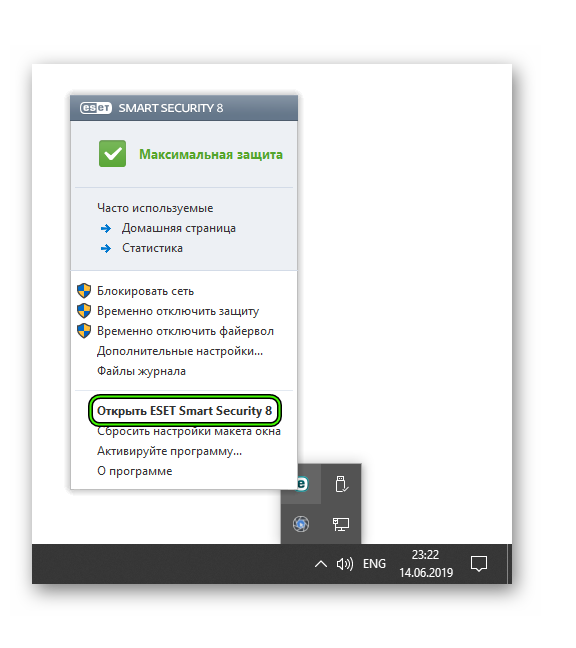
- Ищем в системном трее Windows иконку с изображением буквы e. Это и есть логотип антивируса. Кликаем по ней правой кнопкой мыши.
- Появится меню с набором возможных действий. Здесь выбираем «Открыть ESET Smart…».
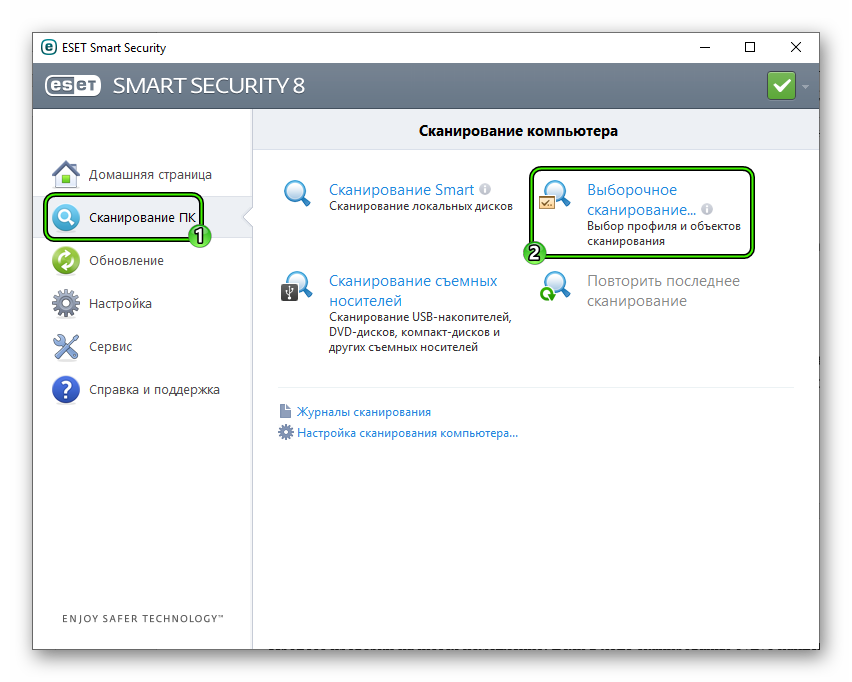
- Далее, в левом столбце главного окна щелкаем переходим в «Сканирование ПК».
- Теперь кликаем по плитке «Выборочное…».
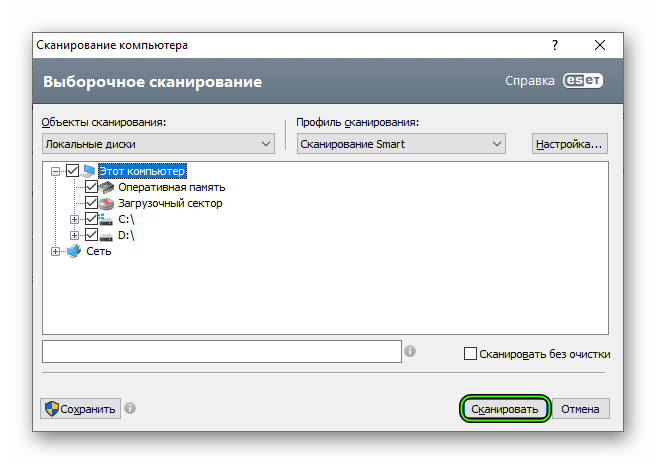
- Откроется окошко для выбора объектов проверки. Отмечаем все пункты кроме приводов компакт-дисков. Не забываем про загрузочный сектор и оперативную память.
- Жмем на кнопку запуска («Сканировать» или «Сканировать как админ», если она доступна).
Процесс проверки начнется немедленно. Если в ходе сканирования будут найдены какие-то вредоносные объекты, то они будут немедленно удалены или изолированы. После проверки можно будет просмотреть подробный журнал.
Ничто не мешает вам использовать любой другой антивирусный продукт на свое усмотрение (Kaspersky, Avast и т. д.).
После окончания процедуры стоит перезагрузить компьютер. Это нужно для того, чтобы все сделанные изменения вступили в силу. И только потом можно будет приступать к следующему шагу.
Шаг №2: Восстанавливаем файлы ОС
Понятно, что раз DirectX уже выдает такую ошибку, то его нужно переустанавливать. Но перед этим стоит починить системные файлы, которые тоже были повреждены в результате вирусной деятельности или по другим причинам. Это исключит возможные ошибки при переустановке библиотек. А если вирусы действительно были, то системные файлы точно повреждены, хоть это и не единственная причина.
Мы будем использовать возможности командной строки. Бояться ее не нужно. Вот подробная инструкция, рассказывающая о том, как нужно восстанавливать системные файлы:
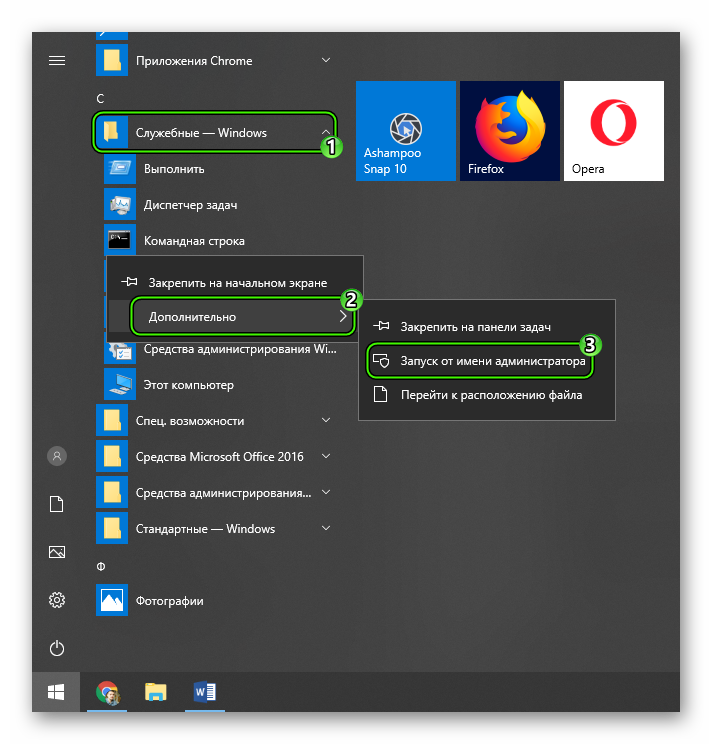
- Открываем меню «Пуск» при помощи щелчка по соответствующей кнопке в панели задач.
- Перемещаемся в каталог «Служебные – Windows».
- Ищем там пункт «Командная строка». Работать мы будем именно с ней.
- Кликаем правой кнопкой мыши по командной строке по этой графе и выбираем опцию «Запуск от имени администратора».
- После запуска консоли вводим команду sfc /scannow и нажимаем на кнопку Enter.
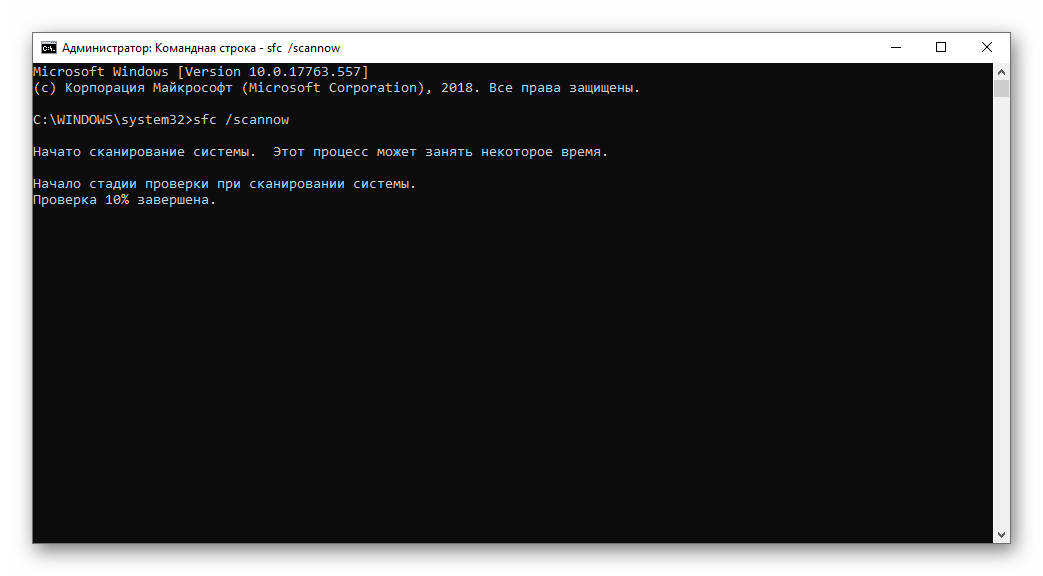 Это действие запустит сканирование файлов Windows. Если каких-то компонентов будет не хватать, то система восстановит их. После завершения работы консоли потребуется закрыть все окна и перезагрузить компьютер или ноутбук.
Стоит отметить, что такая проверка (вместе с восстановлением) может занять от 5 до 10 минут времени. Зато велика вероятность, что после рестарта с установкой библиотек ДиректХ не возникнет никаких проблем.
Шаг №3: Отключение защиты антивируса
Часто установка библиотек может блокироваться сторонней антивирусной программой (если она установлена) или Брандмауэром Windows. Такое случается весьма часто, потому стоит знать, как этому противодействовать.
Начнем с деактивации Брандмауэра:
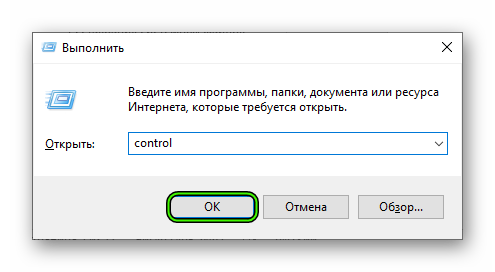
- Откройте Панель управления любым удобным способом. Универсальный вариант: нажать Win + R и в появившемся окошке выполнить команду control.
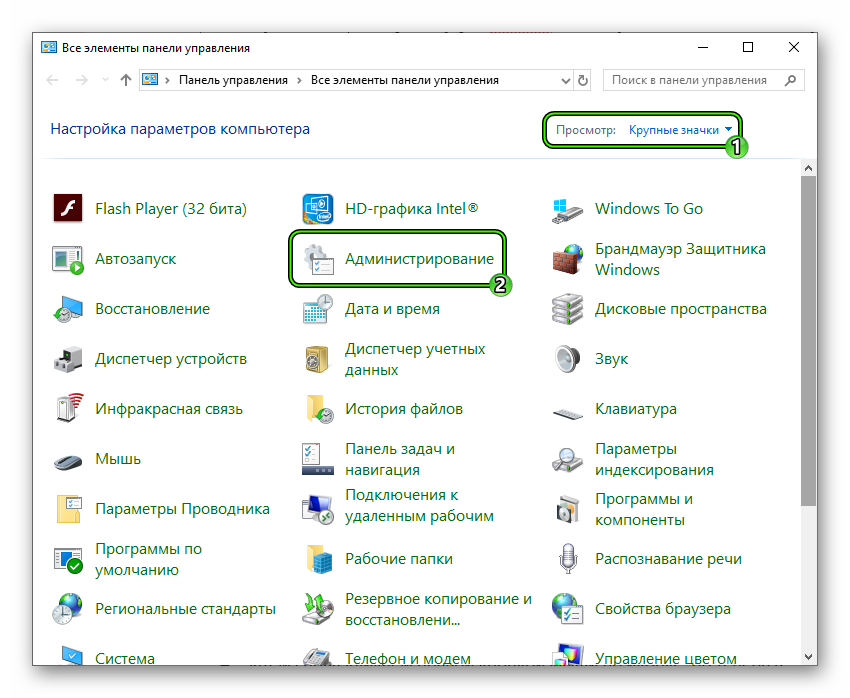
- Переключитесь на отображение значков, если стоит другой вариант.
- Откройте пункт «Администрирование».
- Далее – «Службы».
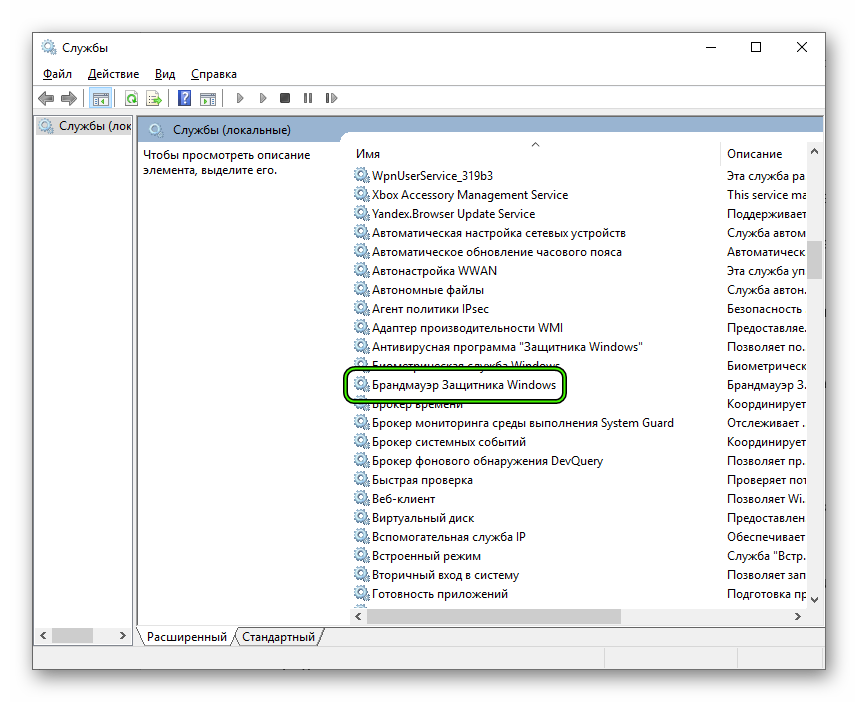
- Откроется список запущенных служб. Нам нужно найти ту, которая называется «Брандмауэр Windows» (в последних версиях ОС – «Брандмауэр Защитника…») и дважды кликнуть по ней.
- Теперь нужно нажать на кнопку «Остановить» и в графе «Тип запуска» выбрать «Отключена».
- После этого остается только последовательно нажать на кнопки «Применить» и «ОК».
Вот так отключается пресловутый Брандмауэр Windows. После того, как с ним разобрались можно приступать к отключению антивируса. Мы рассмотрим этот процесс на примере Smart Security от компании ESET:
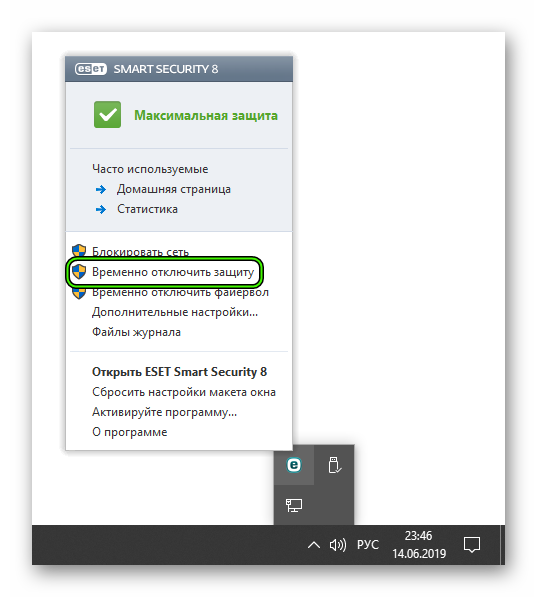
- Щелкаем на значок в трее ПКМ
- Появится контекстное меню с возможными действиями. Здесь выбираем «Временно отключить защиту».
- Соглашаемся с выполнением действия.
- Выставьте значение «до следующей перезагрузки» и нажмите «ОК».
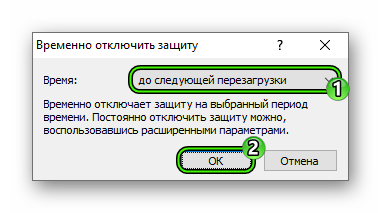
- Это же сделайте для пункта «Временно отключить файервол».
- В соответствующем окошке выставляем получасовой временной промежуток и опять нажимаем на «ОК».
Прочие антивирусные программы тоже можно временно деактивировать похожим способом.
Теперь после отключения всех блокирующих программ можно попробовать заново скачать и инсталлировать библиотеки DirectX. Вполне возможно, что после этого все пройдет нормально. Но после завершения инсталляции придется вернуть всю защиту на место, ибо велик риск заражения операционной системы вирусами. К счастью, для этого достаточно перезапустить ПК.
Шаг №4: Установка DirectX
Все предыдущие действия были подготовкой, теперь же нужно заново установить библиотеки. Делается это следующим образом:
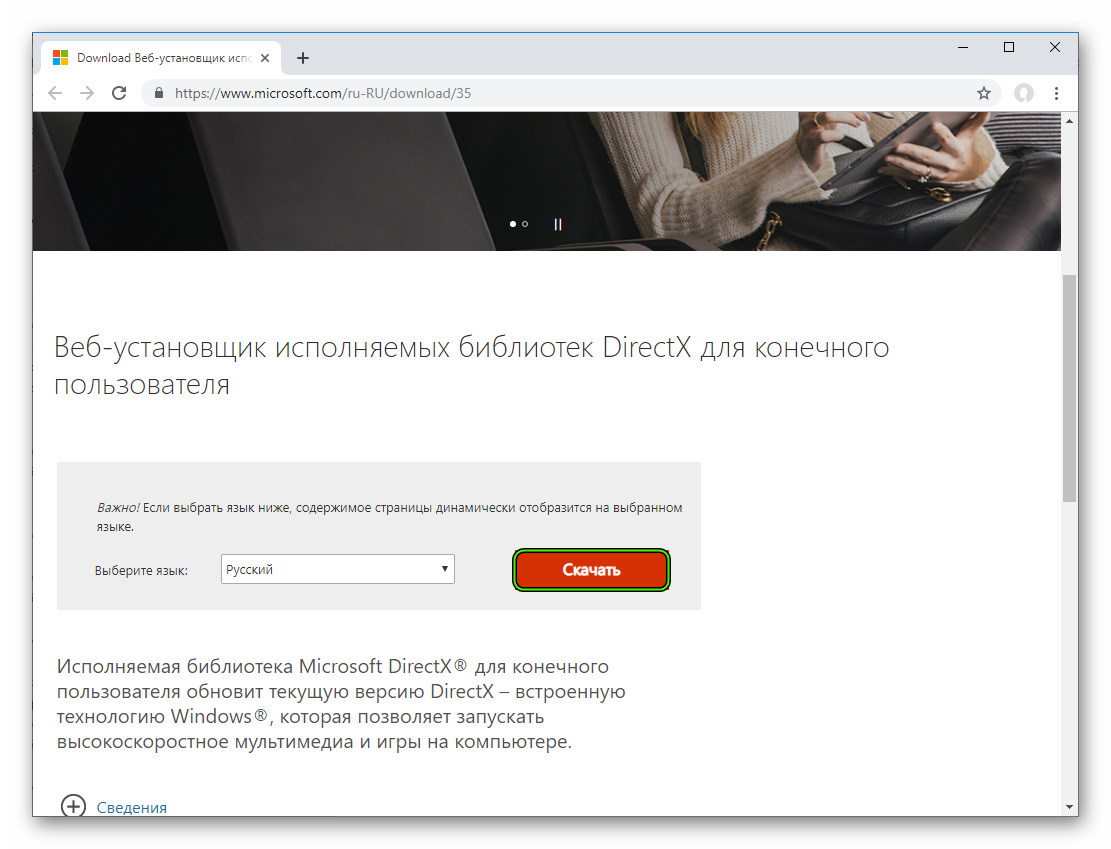
- В браузере открываем страницу https://www.microsoft.com/ru-RU/download/35, которая ведет на загрузку веб-установщика Директ Икса на официальном сайте.
- Затем нажимаем на большую кнопку «Скачать».
- Отказываемся от дополнительного софта, если его предложат.
- Открываем полученный файл под названием dxwebsetup.exe.
- Соглашаемся с условиями лицензии.
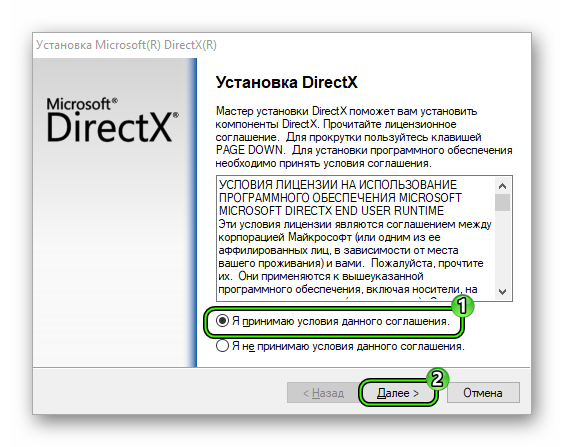
- Снимаем галочку с пункта установки панели Bing и нажимаем «Далее».
- Дожидаемся проведения всех проверок.
- Вновь кликаем на кнопку продолжения.
- Начнется процесс загрузки и распаковки недостающих компонентов. По его завершении мастер выдаст соответствующее сообщение. Жмем на кнопку «Готово».
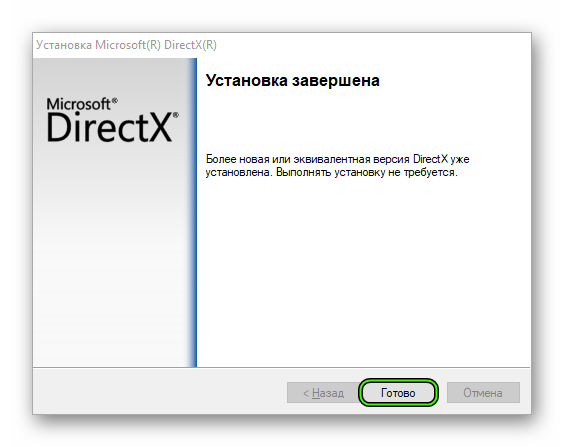
Теперь вам остается только перезапустить ПК, чтобы восстановить антивирусную защиту. Все компоненты сразу же будут готовы к работе. Можно запускать какую-нибудь игрушку и проверять работоспособность библиотек. Сам процесс настолько прост, что не вызовет проблем ни у кого. После этого ошибка больше не должна появляться.
Заключение
Итак, выше мы рассмотрели вопрос о том, что делать, если на компьютере вдруг появилась неустранимая ошибка DirectX. Теперь подведем итоги и сделаем соответствующие выводы. Способ для исправления ошибки только один: переустановка библиотек.
Однако перед инсталляцией необходимо должным образом настроить операционную систему, чтобы избежать появления каких-либо сбоев в процессе установки. О том, как это сделать, мы подробно рассказали выше. Вам останется только следовать инструкциям.
Всем привет, недавно Warzone начала вылетать с такими ошибками.
Что делал:
1) сканирование системы на битые файлы
2) проверка на ошибки файловой системы HDD и SSD
3) память видеоадаптера проверял — все чисто
4) переустановка драйвера
5) обновление винды
6) в параметрах -d3d11 писал
7) VideoMemoryScale = 0.05 писал (по мне странное решение)
8) переустановка игры (временно отсрочило на десяток каток)
9) оверлеи отключены (Discord, Xbox, GeForce)
Никто не знает как это исправить?
Железо: Ryzen 1700X, GTX1080, 16GB RAM, стоит это чудо на HDD.

Разбираем ошибки DEV ERROR 6071, DEV ERROR 5759, DEV ERROR 6068, DEV ERROR 6070 в Call of Duty: Warzone
Сразу отмечу у меня была ошибка DEV ERROR 6068 и мне помогло отключение MSI Afterburner и Rivatuner

Поскольку после выхода новой CoD: Warzone игроки столкнулись с массой технических нюансов, то видимо нужно рассмотреть и группу ошибок DEV ERROR 5759, 6068, 6070, 6071
Исключить эти проблемы вам поможет что-то из списка ниже
- Понизить настройки графики – в игре наблюдается утечка оперативной памяти, это могут подправить только сами разработчики
- Отключить кроссплатформу в настройках игры
- Выключить «разгон вашего ПК» в настройках Bios и вашей видеокарты
- Очень важно — выключить фоновые приложение, такие как MSI Afterburner, AutoHotKey, EVGA Precision X1Punto Switcher, ASUS GPU Tweak II (если они включены)
- Попробуйте выключить АМД Радеон Relive (ну или какое там приложение будет от Радеонов) внизу справа, проверьте что их нет
- Тоже самое, отключить «Панель управления nVidia» возле часов
- Отключите «игровой режим» в Windows 10, если он у вас задействован
- Переустановка шейдеров — в настройках игры есть «Повторная установка шейдеров»
- Проверить игру на битые файлы, а лучше удалить игровые файлы кроме папок (они весят 200мб), зато они перекачаются и. возможно, нужные будут работоспособные
- Ниже буду добавлять решения этих ошибок, пока не решим этот тип проблемы полностью
Интересные статьи по игре
- Call of Duty: Warzone вылетает
- Call of Duty: Warzone на слабом ПК
Rempc.by
-
10
Мне понравилось
-
2
Мне непонравилось
- 14 Марта 2020
Error message “DirectX Encountered An Unrecoverable Error”

If this is the first time you have encountered a deviation error, you should take some respite in the fact that it’s a widespread problem with Call of Duty Modern Warfare and Warzone. The COD Modern Warfare and Warzone dev error 6070 is one among a long-list of dev errors. Luckily, there are several proven fixes for the problem. Here are some of the fixes we recommend to solve this error.
Fix 1: Uninstall Nvidia Drivers and Reinstall
As with most dev errors, the driver software is among the culprits. Uninstalling the driver completely and reinstalling it has proven to fix the error. You can uninstall the program from Program and Features. Once the uninstall is complete, restart the computer, visit the graphics card manufacturers website and download a fresh copy of the software, install and play the game. Additionally, for Nvidia users, you can try installing the Studio drivers instead of the Game Ready Drivers. It’s known to resolve the error. You can download the Studio drivers from the GeForce Experience.
Fix 2: Disable Nvidia Highlights
After you have installed the software and the game is still not working, try disabling Nvidia Highlights. Here are the steps to disable or turn off Nvidia Highlights.
- Open GeForce Experience
- Go to the Setting (click on the gear icon on the top right)
- Scroll-down to locate Highlights and toggle it off.
Fix 3: Force the Game to Start with DirectX 11
As the Call of Duty Modern Warfare Warzone dev error 6070 mostly occurs on Windows 10 and Xbox One, both using the new DirectX 12, which itself has been known to be broken. Hence, switching back to DirectX 11 to play the game has worked for a lot of users. DirectX 11 is more stable version, but you will have to sacrifice some features which DirectX 12 brings; however, not extreme. So, let’s force the game to run in DirectX 11 mode. Here are the steps.
- Open Battle.Net Client on the PC.
- Open the game COD Modern Warfare
- Go to Options
- Check Additional Command Line Arguments and type -d3d11
- Exit and try playing the game.
Fix 4: Revert Overclock
If you have overclocked the GPU, revert back as it might be making the game unstable and leading to the Call of Duty: Modern Warfare: Warzone Dev Error 6070. A lot of players were able to resolve the error by reverting back the overclock.
Fix 5: Tune-down the Game Settings
A number of players on Reddit and other platform reported they were able to resolve the dev error 6070 after rejecting the parameters. Limiting the FPS to 60 instead of 70 can also be solution to this problem. So, until there is a fixed released by Activation, you can do the following to play the game.
- Limit the FPS to 60
- Rotate the texture from the top to bottom
Fix 6: Run Warzone on Fullscreen Borderless
As we browsed through forums investigating the dev error 6070, we found a number of users who resolved the error by setting the game to Fullscreen Borderless. There is no technical explanation to this fix, for some reason these settings have proven to skip past the 6070 error.
You can set this setting only via the game, so follow the below process to replicate the fix when you encounter the error. However, this fix only works when you try to join the multiplayer lobby and not for the error that arise during startup. Here are the steps.
- Open the game and once you are at the main menu, click on Settings > Graphics tab
- Click on the Display Mode and change from Windowed to Fullscreen Borderless.
- Scroll-down and locate Sync Every Frame (V-Sync), enable it.
- From Advanced menu set the V-Sync frequency to 60 Hz.
- Save the changes and play the game check if the error still occurs. If it does, try our next fix.
Fix 7: Remove Second Monitor
If you have a second monitor installed, remove it and the error will disappear. As with other dev errors, the second screen could be causing the problem.