This can be caused by bad internet and/or cable connections or even overly aggressive firewalls
Updated on December 1, 2022
Shortcut Options
- Test the IPv6 connection to determine the default gateway IP, then compare it to the device’s configured gateway via netshell IP settings.
- Add a gateway: LAN settings > Internet Protocol Version 6 (TCP/IPv6) > Properties. Change Default Gateway to the correct address.
- To check if the error is resolved, enter a ping test in Command Prompt: C:UsersMe>ping -6 151.101.194.114.
This article explains how to fix a destination host unreachable error on Windows devices, as well as how to add the correct gateway address for a destination host, and how to confirm the error is resolved.
What Causes a Destination Host Unreachable Error?
There are many possible reasons for getting a “destination host unreachable” error, including things as simple as erroneously connected cables or an overly aggressive firewall.
As you can see from the details below, we’re trying to ping a specific network device IP address, but the response we’re getting doesn’t provide much detail beyond the error itself:
C:UsersMe>ping 151.101.194.114
Pinging 151.101.194.114 with 64 bytes of data:
Reply from 151.101.194.114: Destination host unreachable
So, what’s going on here? In simple terms, we’re trying to communicate with a device at the specified IP address, but the remote gateway is unable to direct our ping request to the host itself, and so it sends an echo message back to say that it can’t be found.
How to Fix a Destination Host Unreachable Error
In diagnosing the error, it’s useful to follow the steps to fix an IPv6 error first to see if they resolve your networking issues. If the problem persists, you need to look at your network infrastructure to establish where the issue is.
For this example, we’re going to check our Default Gateway settings, then follow the steps to fix them.
-
To start, we need to check our internet connection via a browser. For this example, we’ll check google.com to see if it loads on our device. If it does, we know there’s a problem on our local network, rather than a broader connection issue.
-
Next, we’re going to test our IPv6 connection to see if that’s where the issue lies. To do this, open the Command Prompt and use the following command to ping your original IP address, but type «ping -6» to isolate the IPv6 line.
C:UsersMe>ping -6 151.101.194.114
-
You should get a reply in the Command Prompt, which looks like this:
Pinging 151.101.194.114 with 64 bytes of data:
Reply from 151.101.194.1.241: Destination host unreachable.
Reply from 151.101.194.1.241: Destination host unreachable.
Reply from 151.101.194.1.241: Destination host unreachable.
Reply from 151.101.194.1.241: Destination host unreachable.
-
The above reply comes from IP address 151.101.194.1.241, which seems to relate to the remote gateway handling our request. To check this, run a traceroute using the following command:
C:UsersMe>tracert -6 -d 151.101.194.114
-
You should get a response, and it should resemble the following:
Tracing route 151.101.194.114 over a maximum of 30 hops:
1 1 ms 1 ms 1 ms 151.101.194.1.241
2 151.101.194.1.241 reports: Destination host unreachable.
Trace complete.
-
From this, we can make a judgment that 151.101.194.1.241 is configured as the default gateway. To check if this is as it should be, we can look at our IP settings via the netshell. To launch netshell, enter the following command:
C:UsersMe>netsh
-
With netshell open, enter this command:
netshell>interface ipv6
netshell interface ipv6>showconfig
-
The response will show our Local Area Connection details, with a reference line for the Default Gateway. In our example we see the following:
Default Gateway 151.101.194.1.241
This confirms that 151.101.194.1.241 is currently configured as the default gateway, but when we look at our actual device’s IP address, we see it’s slightly different: 151.101.194.1.244.
How to Add the Correct Gateway Address for a Destination Host
From the information gained above, we can see we need to add the correct gateway address via our Local Area Network (LAN) settings. To do this, follow these steps.
-
Select Settings > Network and Internet > Network Connections.
-
Right-click the relevant Local Area Network. Then, select Properties.
-
From the list, select Internet Protocol Version 6 (TCP/IPv6). Next, select Properties.
-
In the Properties tab, change the Default Gateway to the correct address. So, in this example, we change «151.101.194.1.241» to «151.101.194.1.244.»
-
Press OK to save the changes.
Extra: How to Check if Destination Host Unreachable Error Is Resolved
-
To check if the issue is resolved, go back to the Command Prompt and exit the netshell using the following command:
netsh interface ipv6>exit
-
Now, we’re ready to try our ping test once more, using this command:
C:UsersMe>ping -6 151.101.194.114
-
Just as before, the ping should come back with a reply showing the new Default Gateway.
Pinging 151.101.194.114 with 64 bytes of data:
64 bytes from 151.101.194.114: icmp_seq=0 ttl=57 time=27.205 ms
64 bytes from 151.101.194.114: icmp_seq=1 ttl=57 time=14.109 ms
64 bytes from 151.101.194.114: icmp_seq=2 ttl=57 time=13.887 ms
64 bytes from 151.101.194.114: icmp_seq=3 ttl=57 time=13.954 ms
64 bytes from 151.101.194.114: icmp_seq=4 ttl=57 time=18.269 ms
-
As we can see, our ping test is now working and our connection is running as expected.
FAQ
-
What is the difference between “request time out” and “destination host unreachable?”
A request timeout error means that your request was received, but the host took too long to respond. A destination host unreachable error, on the other hand, means that your request couldn’t reach the host.
-
How does the ping command work?
The ping command is used to test the ability of the source computer to reach a specified destination computer. It sends Internet Control Message Protocol (ICMP) Echo request messages to the destination computer and waits for a response.
-
How do I ping a website?
To ping a website, open the command prompt and enter ping followed by the URL (i.e. ping lifewire.com). Alternatively, use a computer name or an IP address with the ping command.
Thanks for letting us know!
Get the Latest Tech News Delivered Every Day
Subscribe
This can be caused by bad internet and/or cable connections or even overly aggressive firewalls
Updated on December 1, 2022
Shortcut Options
- Test the IPv6 connection to determine the default gateway IP, then compare it to the device’s configured gateway via netshell IP settings.
- Add a gateway: LAN settings > Internet Protocol Version 6 (TCP/IPv6) > Properties. Change Default Gateway to the correct address.
- To check if the error is resolved, enter a ping test in Command Prompt: C:UsersMe>ping -6 151.101.194.114.
This article explains how to fix a destination host unreachable error on Windows devices, as well as how to add the correct gateway address for a destination host, and how to confirm the error is resolved.
What Causes a Destination Host Unreachable Error?
There are many possible reasons for getting a “destination host unreachable” error, including things as simple as erroneously connected cables or an overly aggressive firewall.
As you can see from the details below, we’re trying to ping a specific network device IP address, but the response we’re getting doesn’t provide much detail beyond the error itself:
C:UsersMe>ping 151.101.194.114
Pinging 151.101.194.114 with 64 bytes of data:
Reply from 151.101.194.114: Destination host unreachable
So, what’s going on here? In simple terms, we’re trying to communicate with a device at the specified IP address, but the remote gateway is unable to direct our ping request to the host itself, and so it sends an echo message back to say that it can’t be found.
How to Fix a Destination Host Unreachable Error
In diagnosing the error, it’s useful to follow the steps to fix an IPv6 error first to see if they resolve your networking issues. If the problem persists, you need to look at your network infrastructure to establish where the issue is.
For this example, we’re going to check our Default Gateway settings, then follow the steps to fix them.
-
To start, we need to check our internet connection via a browser. For this example, we’ll check google.com to see if it loads on our device. If it does, we know there’s a problem on our local network, rather than a broader connection issue.
-
Next, we’re going to test our IPv6 connection to see if that’s where the issue lies. To do this, open the Command Prompt and use the following command to ping your original IP address, but type «ping -6» to isolate the IPv6 line.
C:UsersMe>ping -6 151.101.194.114
-
You should get a reply in the Command Prompt, which looks like this:
Pinging 151.101.194.114 with 64 bytes of data:
Reply from 151.101.194.1.241: Destination host unreachable.
Reply from 151.101.194.1.241: Destination host unreachable.
Reply from 151.101.194.1.241: Destination host unreachable.
Reply from 151.101.194.1.241: Destination host unreachable.
-
The above reply comes from IP address 151.101.194.1.241, which seems to relate to the remote gateway handling our request. To check this, run a traceroute using the following command:
C:UsersMe>tracert -6 -d 151.101.194.114
-
You should get a response, and it should resemble the following:
Tracing route 151.101.194.114 over a maximum of 30 hops:
1 1 ms 1 ms 1 ms 151.101.194.1.241
2 151.101.194.1.241 reports: Destination host unreachable.
Trace complete.
-
From this, we can make a judgment that 151.101.194.1.241 is configured as the default gateway. To check if this is as it should be, we can look at our IP settings via the netshell. To launch netshell, enter the following command:
C:UsersMe>netsh
-
With netshell open, enter this command:
netshell>interface ipv6
netshell interface ipv6>showconfig
-
The response will show our Local Area Connection details, with a reference line for the Default Gateway. In our example we see the following:
Default Gateway 151.101.194.1.241
This confirms that 151.101.194.1.241 is currently configured as the default gateway, but when we look at our actual device’s IP address, we see it’s slightly different: 151.101.194.1.244.
How to Add the Correct Gateway Address for a Destination Host
From the information gained above, we can see we need to add the correct gateway address via our Local Area Network (LAN) settings. To do this, follow these steps.
-
Select Settings > Network and Internet > Network Connections.
-
Right-click the relevant Local Area Network. Then, select Properties.
-
From the list, select Internet Protocol Version 6 (TCP/IPv6). Next, select Properties.
-
In the Properties tab, change the Default Gateway to the correct address. So, in this example, we change «151.101.194.1.241» to «151.101.194.1.244.»
-
Press OK to save the changes.
Extra: How to Check if Destination Host Unreachable Error Is Resolved
-
To check if the issue is resolved, go back to the Command Prompt and exit the netshell using the following command:
netsh interface ipv6>exit
-
Now, we’re ready to try our ping test once more, using this command:
C:UsersMe>ping -6 151.101.194.114
-
Just as before, the ping should come back with a reply showing the new Default Gateway.
Pinging 151.101.194.114 with 64 bytes of data:
64 bytes from 151.101.194.114: icmp_seq=0 ttl=57 time=27.205 ms
64 bytes from 151.101.194.114: icmp_seq=1 ttl=57 time=14.109 ms
64 bytes from 151.101.194.114: icmp_seq=2 ttl=57 time=13.887 ms
64 bytes from 151.101.194.114: icmp_seq=3 ttl=57 time=13.954 ms
64 bytes from 151.101.194.114: icmp_seq=4 ttl=57 time=18.269 ms
-
As we can see, our ping test is now working and our connection is running as expected.
FAQ
-
What is the difference between “request time out” and “destination host unreachable?”
A request timeout error means that your request was received, but the host took too long to respond. A destination host unreachable error, on the other hand, means that your request couldn’t reach the host.
-
How does the ping command work?
The ping command is used to test the ability of the source computer to reach a specified destination computer. It sends Internet Control Message Protocol (ICMP) Echo request messages to the destination computer and waits for a response.
-
How do I ping a website?
To ping a website, open the command prompt and enter ping followed by the URL (i.e. ping lifewire.com). Alternatively, use a computer name or an IP address with the ping command.
Thanks for letting us know!
Get the Latest Tech News Delivered Every Day
Subscribe
‘Destination Host Unreachable’ is one of the usual but unexpected errors that flow out while carrying a network ping test.
It is a type of Troubleshooting IP Default Gateway Issues that induce incorrect default gateway, which further leads to halt in a network ping test. This error occurs in an environment of all internet protocol utilizing products where network ping tests with two hosts and a receiver are involved.
An example of a Destination Host Unreachable error:

C:UsersMe>ping 192.168.225.45Pinging 192.168.225.45 with 32 bytes of data:Reply from 192.168.225.47: Destination host unreachable.Reply from 192.168.225.47: Destination host unreachable.Reply from 192.168.225.47: Destination host unreachable.Reply from 192.168.225.47: Destination host unreachable.
It can be annoying for a command Prompt network ping check to obtain a “destination host unreachable” error. As you can see in the error above, there is an attempt to ping a particular IP address on a network computer and the response received is in the form above that does not provide the exact details about the error.
What’s the cause of the error?
A “Destination Host Unreachable” ping response is a strong indication that the initiating PC has a default gateway misconfiguration. Besides, there are other possible potential explanations for this error, including issues like cables that are incorrectly connected or firewalls that are too violent.
Apart from it, the simple answer to this problem may be whether you don’t have a device with an IP address system or you have a broken ARP table on your computer.
In order to fix this issue, you will have to analyze the network resources and determine where the issue is.
There are two scenarios for solving this error. Either of the technique can be used to resolve the error depending on the what is the actual cause of the error.
#1 Scenario – Default Gateway Misconfiguration
In case of a default gateway misconfiguration, we need to check and ensure our Default Gateway settings.
After that, the following steps are to be followed:
Step 1) To start with, our internet connectivity must be verified by a browser. We must visit google.com to see if it is running on our computer for this post. For post. If so, we realize that there is not a wider communication issue on our local network.
Step 2) Now, we have to check our IPv6 link to see if this is the issue. To do this, open the Prompt command and use the following code, but type “ping-6” for the isolation of the IPv6 line to insert your original IP address.
C:UsersMe>ping 192.168.225.45
Step 3) We will then receive a reply in the command prompt like below:
Pinging 192.168.225.45 with 32 bytes of data:Reply from 192.168.225.47: Destination host unreachable.Reply from 192.168.225.47: Destination host unreachable.Reply from 192.168.225.47: Destination host unreachable.Reply from 192.168.225.47: Destination host unreachable.
Step 4) The above message comes from IP address 192.168.225.47 which seems to be connected to our request for remote gateway handling. To verify this, we need to run a traceroute using the following command:
C:UsersMe>tracert -6 -d 192.168.225.45
Step 5) Followingly, you will get another response that must resemble the given below:
Tracing route 192.168.225.45 over a maximum of 30 hops:1 1 ms 1 ms 1 ms 192.168.225.472 192.168.225.47 reports: Destination host unreachable.Trace complete.
Step 6) From this, we can judge that the default gateway is 192.168.225.47. We may test our IP settings through a netshell to see if this is how it ought to be. Use the following order to open netshell:
C:UsersMe>netsh
Step 7) After opening the netshell, run the following command;
netshell>interface ipv6netshell interface ipv6>showconfig
Step 8) The response should display our local area connection details, with the default gateway reference thread. We see the following in our example:
Default Gateway 192.168.225.47
This verifies that the default gateway is actually designed for 192.168.225.47, but by examining the IP address of our new computer, you will note that it is somewhat different: 192.168.225.50.
How to check if the issue is resolved?
- Go back to Command Prompt to test if the problem has been fixed and exit Netshell using the following command:
netsh interface ipv6>exit
- For once more we are in a position to run the ping test using the command:
C:UsersMe>ping -6 192.168.225.45
Same like before, we will again receive the response, in the same way, showcasing the new Default Gateway:
Pinging 192.168.225.45 with 32 bytes of data:32 bytes from 192.168.225.45: icmp_seq=0 ttl=57 time=27.205 ms32 bytes from 192.168.225.45: icmp_seq=1 ttl=57 time=14.109 ms32 bytes from 192.168.225.45: icmp_seq=2 ttl=57 time=13.887 ms32 bytes from 192.168.225.45: icmp_seq=3 ttl=57 time=13.954 ms32 bytes from 192.168.225.45: icmp_seq=4 ttl=57 time=18.269 ms
And now you can see our ping test, as well as connection, are working successfully.
#2 Scenario – Corrupted ARP Table
It is a situation where you cannot send packets to an IP Address before finding the MAC address (physical address) of the destination device. The MAC address of appliances with a different IP Address can be seen in the ARP table.
In this case, the computer was not able to find the ARP address mapped to the IP address 192.168.225.45 in the ARP table. That could also be the reason why it displayed a reply from 192.168.225.47: Destination host unreachable as the response.
- Delete ARP Cache
One move to resolving the solution from 192.168.225.47 is to uninstall all ARP table entries on your machine. The target host is an unachievable mistake.
- Open the Command Prompt as Administrator
- Click on the Windows Search and type cmd.
- Now, right-click on the Command Prompt from the Search Window.
- After that click on ‘Run as Administrator’ option.
- Type the given below command and press enter
netsh interface ip delete arpcache
- Try again to collect the same IP address and to test the issue
2. Run a Traceroute
If the problem continues, a traceroute will be performed to identify the issue.
- Open Command Prompt
- Type the given below command and press the enter key.
tracert 192.168.225.45 - Check the result to understand the reason for the Destination Host Unreachable message.
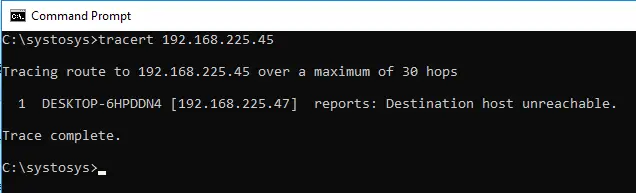
The traceroute result gives the result that there is no such destination device.
3. Disable PC Firewall
Many users have claimed that the target host unreachable error had been triggered by defective firewall settings. It is also, therefore, suggested that you switch off your laptop firewall and check for the problem.
4. Test the connection
Ensure that the system is on if the target device is open to you. Test and make sure that now the network connection is working. To check the link status, you should unplug and replug the network cable.
How to check if the issue is resolved?
For this, you need to ping the same IP address. However, if the error is occurring from the IP address side, then you must try to ping a different IP Address or domain name. To check whether the ‘destination host unreachable’ error has been solved, run the following command:
ping www.systosys.com
Fact Check:
Reasons for Destination Host Unreachable:
- Network Cable Connection Issues
- Destination Host Down
- Packet Routing Issues in Remote Gateway
- Corrupted ARP Table
- Default Gateway Misconfiguration
Ways to solve the error:
- Ensure that the destination computer/device is up.
- Try to disable Firewall and check for the issue.
- Perform a traceroute to the destination IP address and check where the problem is occurring.
- Make sure that the localhost is configured correctly.
Final Words
If you are facing this error while ping testing the network, first, ensure that you have a stable network cable connection. After that, you should look for other ways to solve the error. Resolving ‘destination host unreachable’ error can be an easy task if you know the actual cause of the issue.
Try out the ways we have mentioned above and still if you are not able to resolve it, please let us know in the comment box below and we will help you.
Changing your Default Gateway should fix this issue quickly
by Vlad Constantinescu
Vlad might have a degree in Animal Husbandry and Livestock Management, but he’s currently rocking anything software related, ranging from testing programs to writing in-depth reviews about them…. read more
Updated on January 20, 2023
Reviewed by
Alex Serban

After moving away from the corporate work-style, Alex has found rewards in a lifestyle of constant analysis, team coordination and pestering his colleagues. Holding an MCSA Windows Server… read more
- If you are getting a destination host unreachable error while trying to ping a host, ti might be because of your firewall.
- Another possible cause of this issue is an inactive destination host.
- One effective way to solve this problem is to change your Default Gateway.
XINSTALL BY CLICKING THE DOWNLOAD FILE
This software will repair common computer errors, protect you from file loss, malware, hardware failure and optimize your PC for maximum performance. Fix PC issues and remove viruses now in 3 easy steps:
- Download Restoro PC Repair Tool that comes with Patented Technologies (patent available here).
- Click Start Scan to find Windows issues that could be causing PC problems.
- Click Repair All to fix issues affecting your computer’s security and performance
- Restoro has been downloaded by 0 readers this month.
Sometimes, not even the Internet is perfect. Realistically speaking, it fails our expectations many times. And to top it off, sometimes it even throws some confusing errors.
For instance, when you can’t reach a device, so you try pinging it. The ping test shows the host as unreachable and zero packet loss. Even if you’re tech-savvy, this situation might put a huge question mark above your head.
However, we’re here to demystify this issue once and for all.
What does it mean when ping says destination host unreachable?
The destination host unreachable error message denotes that the host you are trying to ping is down. This error might also mean the host is not returning to ICMP echo requests.
Why is the destination host unreachable?
There are many reasons why a host can be or become unreachable. Even if you’re on the same network, the target device (host) might have different connection settings then you, an aggressive firewall, or even some spoofing, so you can’t exactly pinpoint the main cause.
Here’s a list of the most common reasons why the host might be unreachable:
- The target computer might be off
- An overly-protective firewall that blocks any incoming requests
- Improper cable connection
- Spoofing
- Misconfiguration of Default Gateway on the source PC (yours)
The point is that if you can’t reach a host, it’s mainly because there’s no route from the local device (yours) to the remote one (host). Either that or something blocks your attempts to connect to the hosts.
Nevertheless, your pings never reach their destination, and still, there’s no reported packet loss.
Destination host unreachable but no packet loss
Ping and packet loss are somewhat tied, but they’re entirely different. For once, ping tests the reachability of certain devices (hosts), whereas packet loss is the percentage of packets that didn’t reach the destination.
So why there’s no packet loss even though the ping destination host is unreachable? The answer is quite simple. If there’s no route from the local system (yours), then the packets you sent were never placed on the route.
Therefore, the requests will always have a 0% packet loss since nothing was sent. Trivia fact: on most Linux systems, pinging reports 100% packet loss.
Destination host unreachable routing issue
If you’ve encountered this issue before, you’ve most likely seen one of these two errors:
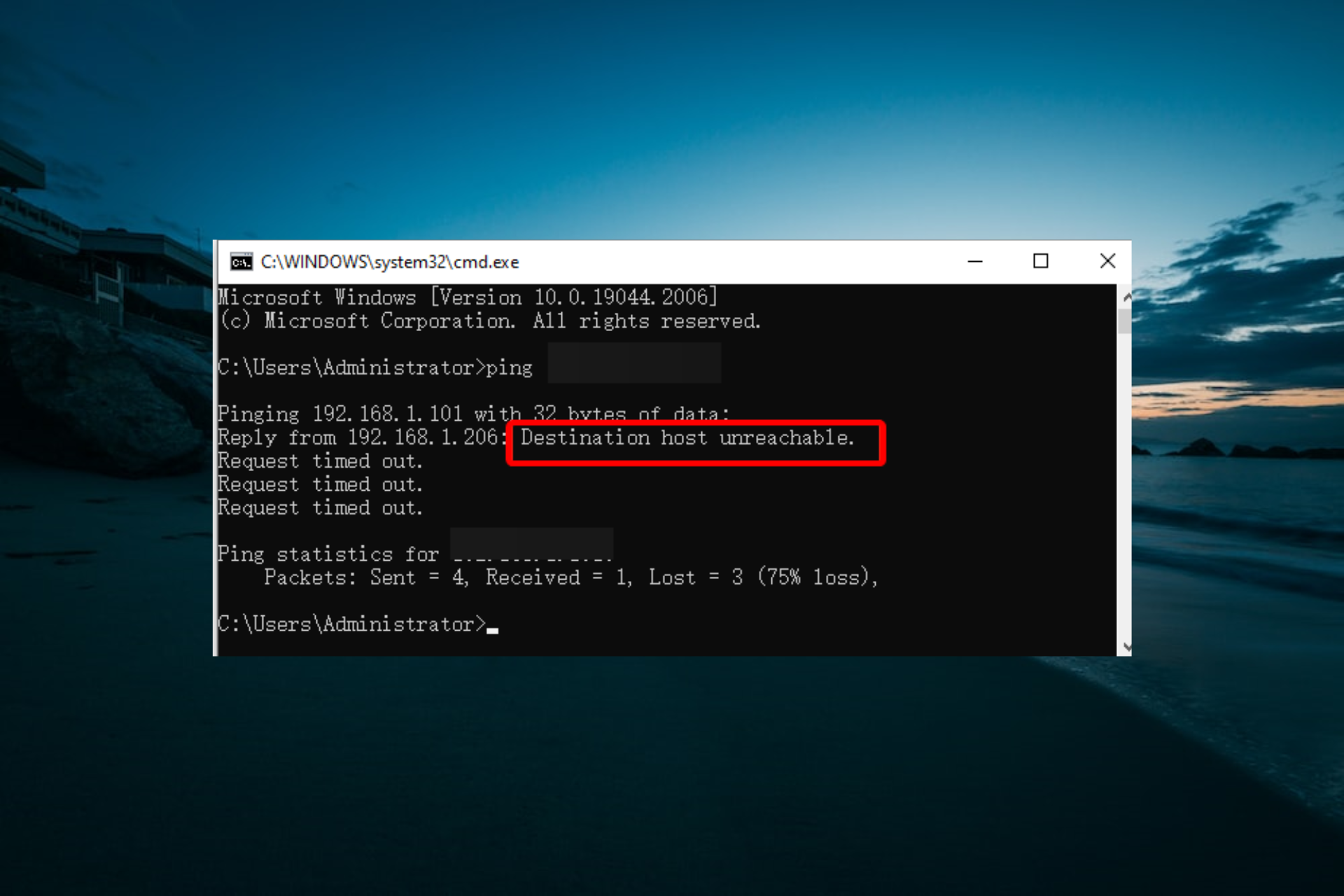
- Destination Host Unreachable – this error occurs whenever there’s no route between the local system and the destination
- Reply from x.x.x.x: Destination Host Unreachable – there’s something wrong with a remote router (x.x.x.x is the IP address of the troublesome router)
Some PC issues are hard to tackle, especially when it comes to corrupted repositories or missing Windows files. If you are having troubles fixing an error, your system may be partially broken.
We recommend installing Restoro, a tool that will scan your machine and identify what the fault is.
Click here to download and start repairing.
There’s yet another scenario when your request time out. After sending echo requests, the PC starts listening for echo replies. The default waiting time for an echo reply is one second.
If the device doesn’t receive the reply within 1 second, the request will time out, and you’ll receive a suggestive error message (i.e., Request Timed Out). This situation is mainly caused by network congestion but can also have other causes.
For instance, silent discards, poorly routed networks, or packet filtering can contribute to request timeouts.
How to fix destination host unreachable ping?
If the cause of the error is improper Default Gateway configuration, we’ll show you how to fix it. Perform the following steps:
1. Confirm your default gateway
- Launch your browser, access any non-local website (such as google.com), and check if it goes through.
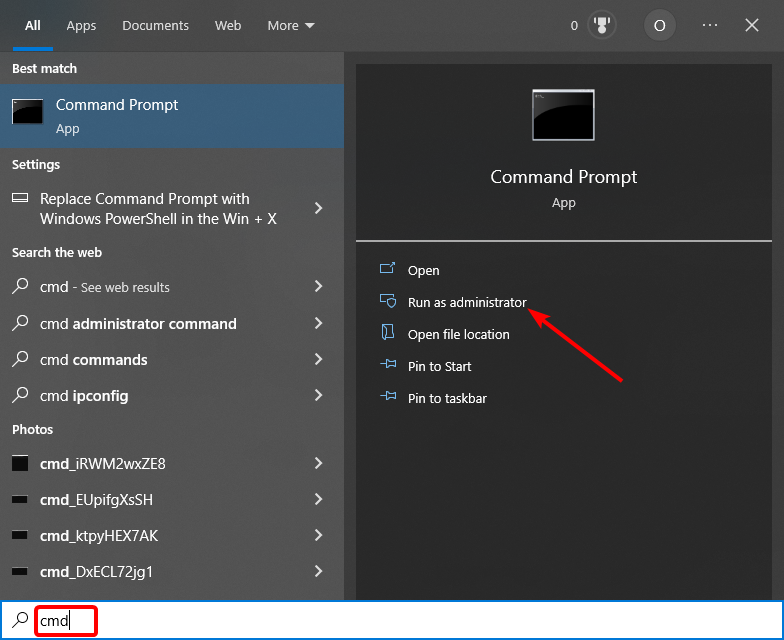
- Press the Windows key, type cmd, and click Run as administrator under Command Prompt.
- Now, type the command below (replace x.x.x.x with the IP address of the unreachable host) and hit Enter to run it:
ping -6 x.x.x.x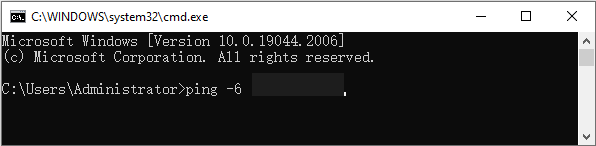
- If you are still getting the destination host unreachable error, run the traceroute command below to trace the remote gateway handling your requests:
tracert -6 -d x.x.x.x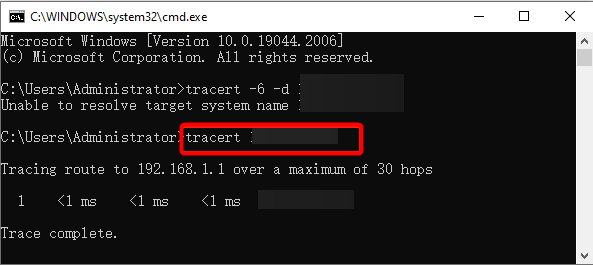
- If you notice a second IP address (shown with the time of the request) in the traceroute, you need to confirm which addresses are set as the Default Gateway.
- To do that, type the commands below and hit Enter after each:
netshinterface ipv6interface ipv6>showconfig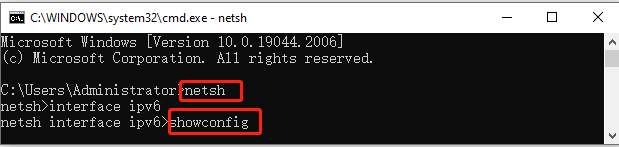
- Finally, check if the Default Gateway shown differs from your IP.
If the Default Gateway shown is different from your IP address, you need to proceed to the next stage to change it.
- Chassis Intruded Fatal Error System Halted: How to Fix
- How to Fix Continuous Beeping When Computer is Turned On
- Werfault.exe Error on Windows 10: How to Fix & Main Causes
- USB Device Descriptor Failure on Windows: How to Fix & Cause
- Fix: Windows Could not Find a Driver for your Network Adapter
2. Change Default Gateway
- Right-click the Internet icon on your taskbar and select Open Network & Internet settings.
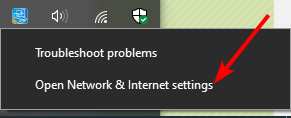
- Select Change adapter options.
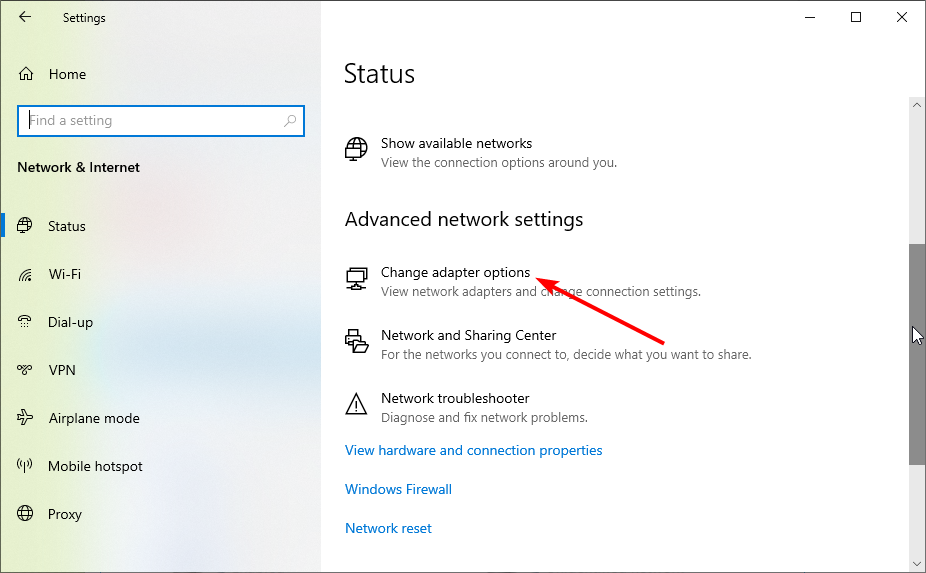
- Now, right-click the LAN network you want to change the gateway for and select Properties.
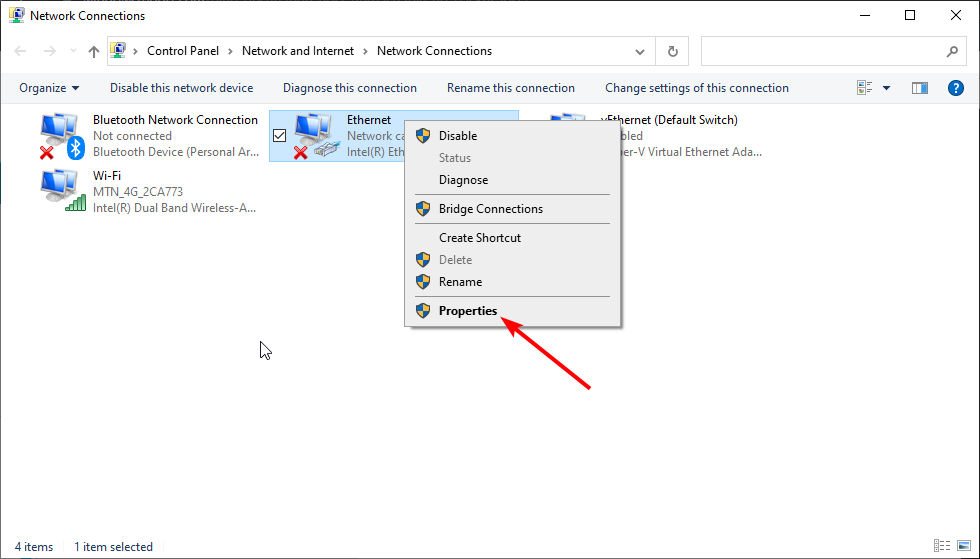
- Next, choose the Internet Protocol Version 6 (TCP/IPv6) option and click the Properties button.
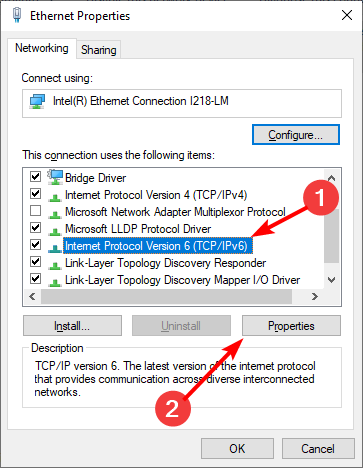
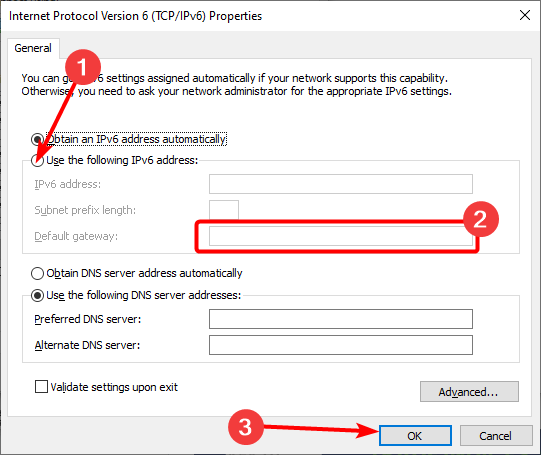
- Tick the radio button for Use the following IPv6 address.
- Type your correct IP address in the Default Gateway box.
- Finally, click the OK button and restart your PC.
After restarting your PC, try to ping the host again and check if you still get the Destination host unreachable error.
If you are still getting the error, you should disable your firewall and check if the host device is on and connected. You can also check the network cables to be sure they are fine.
You can get 0% packet loss, even when hosts are unreachable
Long story short, you shouldn’t stress over a simple semantics issue. Even if Windows’ ping tool reports 0% packet loss, it’s because there’s no connection and no packets are being sent.
Just try using the ping tool in Linux, and you’ll probably receive a 100% packet loss. The important thing is to understand why such an error occurs and find ways to fix it.
With this, we can conclude this extensive guide on how to fix the destination host unreachable error.
If you are facing a similar issue in Hyper-V guest cannot ping the host, check our detailed guide to fix it quickly.
Feel free to let us know how you fixed this issue in the comments below.
Still having issues? Fix them with this tool:
SPONSORED
If the advices above haven’t solved your issue, your PC may experience deeper Windows problems. We recommend downloading this PC Repair tool (rated Great on TrustPilot.com) to easily address them. After installation, simply click the Start Scan button and then press on Repair All.

Newsletter
To totally unlock this section you need to Log-in
Login
The error message «Destination Host Unreachable«, during a ping test, tells that the ping request from our computer cannot find the route to the destination IP address (destination host).
It means the packet sent from your computer reached the destination network successfully but the remote gateway failed to find the destination host. So the remote gateway sends an Echo message «Destination host unreachable«. One major possibility for this error is there is no route listed in the remote gateway, for the packet send from your computer, to destination host.
If there is no route available, it is impossible to find the destination host and your computer will receive an error message «Destination host unreachable» from remote gateway. So one of the reason for this can be faulty routing table. If the destination host is down at the time the packet send, it may result destination host unreachable error message.
If the message is simply «Destination Host Unreachable«, then there is no route from the local system, and the packets to be sent were never put on the wire. Use the route utility to check the local routing table.
You may get Destination Host Unreachable message even if you ping to a host in the same subnet. When you ping to a host in the same subnet, your computer sends an ARP request for the MAC address of the destination host. If the host does not exist, you will get destination host unreachable message.
It is because without completing ARP request, ICMP echo cannot be sent.
Destination Host Unreachable — Reasons and Fixes
Reasons getting destination host unreachable message
- The ping packet find the destination network but failed to find the destination host
- Packet Routing issue on Remote gateway
- Destination host might be down
- Connection issues
Analyzing Destination Host Unreachable message
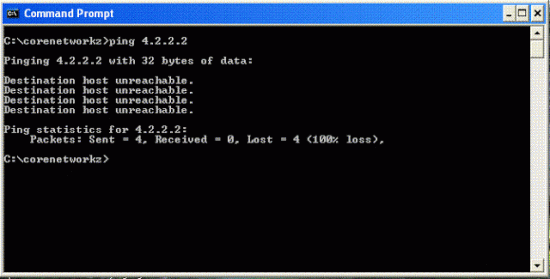
Microsoft Windows [Version 6.1.7600]
Copyright (c) 2009 Microsoft Corporation. All rights reserved.C:example>ping 4.2.2.2
Pinging 4.2.2.2 with 32 bytes of data:
Destination host unreachable.
Destination host unreachable.
Destination host unreachable.
Destination host unreachable.Ping statistics for 4.2.2.2:
Packets: Sent = 4, Received = 0, Lost = 4 (100% loss),C:example>
When you ping to an IP address in a different network, ping packets reach default gateway. Your default gateway sends the packet to remote gateway. So ping packet finally reaches the remote network. However, if the remote gateway failed to find the remote host, it will send an echo Destination host unreachable. If default gateway does not know the path to desired network, your computer will get «Destination net (or host) Unreachable» message. This can happen in two cases:
- If the route to specific network is down
- No such network address is listed in default gateway’s routing table
How to Resolve Destination Host Unreachable
The possible fix for the ICMP error message «Destination Host Unreachable«:
- Make sure that local host is configured correctly
- Make sure Destination Computer/Device is up
- Disable the Firewall and check for the issue
- Perform a tracert to the destination IP and check where the problem lies
When the packet is received by remote gateway but it failed to find remote host, you will receive ICMP Echo Destination Host Unreachable message.
NOTE: If your local address is returned as 169.254.y.z, you have been assigned an IP address by the Automatic Private IP Addressing (APIPA) feature of Windows NT systems. This means that the local DHCP server is not configured properly or cannot be reached from your computer, and an IP address has been assigned automatically with a subnet mask of 255.255.0.0. Enable or correct the DHCP server, restart the local computer, and see if the networking problem persists.
|
|
|

