Deathloop, шутер от первого лица, выпущенный в 2021 году, получил огромный отклик в игровом сообществе. Однако многие пользователи сообщают, что Deathloop время от времени дает сбой на их ПК.
У некоторых пользователей Deathloop вылетала при запуске, и они вообще не могли играть в игру. Здесь проблема может заключаться в игре, Steam (если вы играли в Deathloop) или в самом компьютере.
Если сбои Deathloop на ПК участились, попробуйте решения, представленные в следующих разделах.
Почему Deathloop не загружается?
Если вы видите, что Deathloop зависает на экране загрузки вашего компьютера, скорее всего, ваш компьютер не соответствует минимальным требованиям для игры. Кроме того, проблема может заключаться в конфликтующем приложении. Большинству пользователей здесь помогала простая перезагрузка компьютера.
Некоторые другие ошибки Deathlop включают:
- Ошибка Deathloop DirectX 12
- Deathloop вылетает из-за ошибки 0xc0000005
- Ошибка Void Engine в Deathloop
Как исправить игру Steam, которая постоянно вылетает при запуске?
Существуют различные способы исправить игру в Steam, которая мгновенно вылетает, но в большинстве случаев сработала проверка целостности игровых файлов. Также вы можете установить последнюю версию Steam и самой игры.
Если на ПК установлен сторонний антивирус, отключите его, так как известно, что он приводит к сбою Deathloop и другим играм в Windows 11.
Как исправить сбои Deathloop?
1. Запуск от имени администратора
- Найдите программу запуска Steam или Deathloop, щелкните ее правой кнопкой мыши и выберите «Свойства». Программа запуска Steam хранится в следующем месте:
C:Program Files (x86)Steam

- Перейдите на вкладку «Совместимость» сверху.

- Теперь установите флажок «Запустить эту программу от имени администратора» и нажмите «ОК», чтобы сохранить изменения.

Часто для запуска программам требуются определенные разрешения, и приложение может аварийно завершать работу при их отсутствии. Итак, запустите Steam и/или игру от имени администратора и проверьте, устраняет ли это проблему сбоев Deathloop на вашем ПК.
2. Проверить целостность файлов игры
- Запустите Steam и перейдите в библиотеку.

- Щелкните правой кнопкой мыши Deathloop слева и выберите «Свойства».

- Перейдите на вкладку «Локальные файлы».

- Нажмите «Проверить целостность файлов игры».

- Дождитесь завершения процесса.
Если это проблема с самим Deathloop, Steam предлагает встроенную опцию для проверки файлов игры и замены поврежденных. После этого сбои Deathloop должны прекратиться на вашем ПК.
3. Обновите графический драйвер
- Нажмите Windows+ S, чтобы запустить меню поиска, введите «Диспетчер устройств» и откройте его.

- Дважды щелкните запись Адаптеры дисплея.

- Щелкните правой кнопкой мыши графический адаптер и выберите «Обновить драйвер».

- Далее выберите Автоматический поиск драйверов.

После обновления драйвера все должно работать нормально, и Deathloop больше не будет зависать на вашем ПК. Если этот метод не работает, вы можете попробовать другие способы обновления графического драйвера в Windows 11.
Если Windows не может идентифицировать драйверы или вы просто хотите ускорить процесс, используйте DriverFix. Этот драйвер отслеживает все новые выпуски и может быстро загрузить и установить их для вас.
Deathloop — требовательная игра?
Deathloop — требовательная игра, когда дело касается графического процессора, в то время как требования к процессору очень похожи на другие игры. Средний ПК сможет запустить Deathloop, но графика, частота кадров и скорость не будут оптимальными.
Итак, убедитесь, что ваш компьютер соответствует рекомендуемым требованиям для наилучшего игрового процесса.
Сколько гигабайт занимает Deathloop?
Для установки и оптимальной работы Deathloop требуется не менее 30 ГБ свободного места. Тем не менее, мы рекомендуем иметь больше свободного места для хранения, чтобы предотвратить замедление работы ПК после установки Deathloop.
Можно ли играть в Deathloop без интернета?
Директор Deathloop подтвердил, что в игру можно играть в автономном режиме. Все, что вам нужно сделать, это переключиться в однопользовательский режим, в котором вы будете играть с ИИ, вместо многопользовательского режима, в котором вы играете с другими.
Можно ли играть в Deathloop с 8 ГБ ОЗУ?
Минимальные системные требования для Deathloop составляют 12 ГБ ОЗУ, а рекомендуемые настройки требуют 16 ГБ ОЗУ. Хотя вы, возможно, сможете запустить игру после внесения определенных изменений, мы бы не рекомендовали этого.
Вот об этом! Deathloop больше не должен вылетать на вашем ПК. Если это все еще не так, вы можете попробовать другие способы решения проблем с играми Steam.
Расскажите нам, какое исправление сработало для вас, в разделе комментариев ниже.
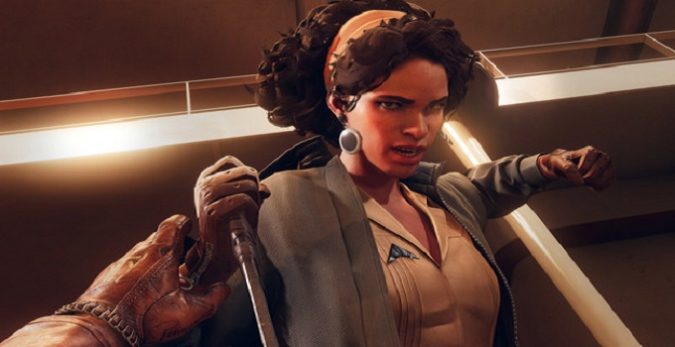
Deathloop is a great game until it stops working. The title is plagued by a long list of glitches and errors and can sometimes render it completely unplayable.
This guide lists some of the most common Deathloop issues, as well as a few potential fixes.
Solutions to fix Deathloop bugs
⇒ Important Notes
- Check Bethesda’s official server status for Deathloop to see if the issue you’re experiencing is on their end.
- Install the latest Deathloop updates. They often pack useful hotfixes to patch the issues players have complained about.
Fix Deathloop Void Engine errors
- Install the latest Windows updates on your machine.
- Update DirectX to the latest version.
- Ensure you have the latest graphics drivers installed on your computer.
- Disable overclocking.
- Free up some space on your hard drive.
- On Steam, verify the integrity of your game files to repair corrupted game files.
- Run Deathloop with Admin rights. Right-click on the game shortcut, and select Run as Admin.
- Uninstall and reinstall the game.
Fix Deathloop stuttering
- Unplug your router, leave it unplugged for one minute and then plug it back in.
- Disconnect the devices connected to the same network to reduce competition for bandwidth.
- If you’re on a wireless connection, switch to a wired one.
- Install the latest OS, and GPU updates.
- Update DirectX tot he latest version.
- Disable overclocking software.
- Cap the frame rate to 60FPS. Go to your graphics card control panel, and tweak the settings.
- On Windows, enable Game mode, and set the game on High Priority in the Task Manager.
- On PS5, enable Performance Mode.
If any of the issues above persists, submit a ticket to Bethesda Support.
Other Deathloop issues reported by players
Players have complained about many other issues apart from stuttering and Void Engine errors. Unfortunately, there are no fixes in sight for the issues listed below.
- Audio keeps cutting out randomly.
- Game saves mysteriously get deleted.
- Some achievements won’t unlock. For example, the Die, Die, And Die achievement won’t unlock despite players dying three times.
- Deathloop won’t start on PC. The game doesn’t even pop up in Task Manager. Sometimes, restarting Steam or signing out of Windows fixes it.
- If you click “Reset Colt’s Progress” in Settings, the game will delete your progress regardless of if you press “Yes” or “No”.
Have you experienced other issues while playing Deathloop? Let me know in the comments below.
⇒ Learn more:
- Deathloop: How to kill Julianna in style
- Where to find batteries in Deathloop
- Fix: Deathloop stuck after LPP
- Deathloop: How to level up Hunter rank fast
Deathloop is the latest game from developer Arkane released for PlayStation 5 and PC. Due to being a timed exclusive for PS5, the game fully utilizes Dualsense and other features and overall it’s an optimized game. However, the Deathloop PC version is facing errors and issues like error 0xC0000005 (Access Violation), error 0xC0000001D (Illegal Instruction), in-game crash, audio stuttering, crash at startup, and more. Here I have compiled a list of errors and issues that PC players are experiencing with the game along with their possible fixes and workarounds like how to fix error 0xC0000005, how to fix error 0xC0000001D, and more.
Deathloop Crash, Stuttering, And Fixes
The game is the latest from the respectable Arkane Studios who are known for its elaborate level design that gives players the freedom to approach the objective according to their play style. Deathloop is no different in this regard and allows players to complete the objective the way they want to but this time, they have included rogue-like elements.
The game is developed using Arkane’s own Void Engine and the PC version is well-optimized. However, PC players are reporting errors and issues with Deathloop like error 0xC0000005 (Access Violation), error 0xC0000001D (Illegal Instruction), in-game crash, audio stuttering, crash at startup, and more.
The following are the errors and issues that PC players are experiencing along with their possible fixes and workarounds.
Error 0xC0000005 (Access Violation) Fix
PC players are reporting that they are unable to play the game as they are experiencing the Deathloop Error 0xC0000005 (Access Violation) error. The following is the full error message and here is how to fix the Error 0xC0000005.
Crash summary : Error 0xC0000005 (Access Violation) occurred in thread ‘worker3’ at instruction location 0x00007FFDFFB743EF.
GPU device removed error code : 0x887A0006
One reason why the Error 0xC0000005 is popping up is due to Ray Tracing. Disable ray tracing and the game will stop crashing with error 0xC0000005. However, if you are experiencing the error with the crash at launch. Open GeForce Experience, install it if you haven’t, select Deathloop and select optimal settings. Hopefully, it’ll disable Ray Tracing and the game won’t crash anymore.
If the above fix didn’t work, then try to validate game files from Steam. Right-click Deathloop in Steam > Properties > Local Files > Verify integrity of game files. Chances are, you are missing a file and it’ll download it for you. The error will be fixed.
Another reason for the Deathloop Error 0xC0000005 (Access Violation) is the use of RTSS (rivatuner), which is installed with MSI Afterburner, try to disable or uninstall it and the Error 0xC0000005 will be fixed. Also, disable Steam in-game overlay and Geforce Experience overlay.
Deathloop requires the latest build of Windows 10 to work. Chances are you haven’t updated your OS and the game needs at least Windows 10 May 2021 Update to work. Install the May 2021 update and Deathloop will launch and won’t crash with Error 0xC0000005 (Access Violation).
Another fix for the Error 0xC0000005 is to open the command prompt (CMD) and run it as administrator. Type sfc /scannow and press enter. Let the scan complete and the error will get fixed.
Error 0xC0000001D (Illegal Instruction) Fix
This is another error that PC players are experiencing with Deathloop. This particular error is occurring for players who have installed RivaTuner Statistics Server. Open it and under “Application Detection Level” select Medium. Launch Deathloop and Error 0xC0000001D (Illegal Instruction) will be fixed.
How To Boost FPS, Stuttering Fix
Performance issues are a common occurrence in PC video games and Deathloop is no exception. PC players are reporting low FPS and stuttering issues with the game and here is how to fix them and get 60 FPS. First, install the latest GPU driver and do a clean installation.
If your system has both integrated and dedicated GPU, the game could be running on the iGPU by default and causing performance issues. Go to the game’s menu and make sure Deathloop is using the dedicated GPU.
Open Nvidia Control Panel > Manage 3D Settings > Program Settings > select Deathloop. Make the following changes to boost FPS and fix stuttering.
Anti-aliasing-FXAA – “Off”
Anti-aliasing-Gamma Correction – “Off”
CUDA GPUs – “All”
Low Latency Mode – Ultra (if locked at 30 FPS, otherwise, player choice)
Set Power Management to “Prefer Maximum Performance”
Shader Cache – “On” only if you are using an HDD. Don’t need to enable it for an SSD.
Set Texture filtering – Quality to “High Performance”
Triple Buffering – “Off”
Set Vertical Sync to “Use the 3D application setting”
Apply these settings and players will notice a significant improvement to the game’s performance and stuttering will be fixed.
How To Get 60 FPS
However, if you want to squeeze more FPS out of the game, then use the in-game “AMD FidelityFX Super Resolution” option. Enabling it will render the game at a lower resolution and then upscale it to your native resolution. While the upscaled image isn’t as crisp as the native one but, you’ll barely notice the difference until you do a side-by-side comparison. Go to the options > Visuals > Upscaling > select AMD FidelityFX Super Resolution and apply changes.
Below the Upsaling option, is the “AMD FSR Mode”. Here players have the option to prioritize quality or performance or keep it balanced. Choose whichever suits you the best. This will really boost Deathloop’s FPS on your PC.
In case you don’t want to use “AMD FidelityFX Super Resolution”, Adaptive Resolution is a good alternative. Adaptive Resolution allows players to manually set the FPS target for Deathloop and only renders the game at a lower resolution when the GPU can’t keep up the FPS target that players have set. For example, if you set 60 FPS as your target, the game will only render at a lower resolution when it can’t maintain 60 FPS at native resolution. Players then have to set “Adaptive Resolution Mode” and they have three options. Choose the one that suits you the best.
Game Not Launching, Crash At Startup Fix
Deathloop PC players are reporting that the game is crashing at launch or not starting at all. Here is how to fix the Deathloop crash at launch issue.
The game requires Windows 10 64-bit with the May 2021 update installed. If you are using another OS or 32-bit Win 10 or an old version of Win 10, then you need to upgrade/update your OS to at least May 2021 Update and it’ll launch without any crash.
In case RivaTuner Statistics Server is installed on your PC, set the Application Detection Level to Medium. Disable “Resizable Bar” support if you have an Nvidia GPU. If you have VRR or Gsync enabled, disable it. These tweaks will get Deathloop to launch.
Your anti-virus/Windows Defender is probably blocking important game files and causing Deathloop to crash at launch. Either disable real-time protection or exclude the game’s folder from the anti-virus and I recommend the latter. After that, verify game files from Steam, launch the game and it won’t crash.
RivaTuner Statistics Server is also causing the Deathloop crash at launch. Open RivaTuner Statistics Server and under Application Detection Level, select Medium or Low. This fixes the crash at startup issue with the game.
Audio Cutting, Audio Stutter Fix
PC players are reporting that Deathloop’s audio cuts or stutters randomly. One reason for this audio issue is you have a controller or any peripheral plugged that is causing the random audio cuts.
If the above fix doesn’t resolve the problem, launch Deathloop and disable in-game Vsync. Close the game and open Nvidia Control panel > Manage 3D Settings > Program Settings > select Deathloop. Scroll down and set “Fast” for Vertical Sync. Apply the change and the random audio cut issue is now fixed.
Crash Fix
Crashing in-game often occurs in PC games and Deathloop is no different. PC Players are reporting that the game is crashing randomly. Players using third-party software like RivaTuner Statistics Server or RGB Software are often the ones facing this issue. Disable any third-party software you have installed and the game won’t crash. Also, disable Steam in-game overlay and Geforce Experience overlay.
Your GPU is probably the culprit why Deathloop is crashing. First, update or reinstall GPU drivers and make sure to do a clean installation.
If your GPU is overclocked, revert it to its default GPU clock. In case the GPU isn’t overclocked, use MSI Afterburner and reduce the GPU clock by 100 MHz or lower the graphics settings. Alternatively, players can try capping the game’s max FPS as it reduces GPU and CPU load and keeps the game from crashing.
That is all for our Deathloop fixes for errors and issues like the crash at launch, error 0xC0000005 (Access Violation), error 0xC0000001D (Illegal Instruction), stuttering, and more. If you are facing errors and issues with other PC games or your PC then also see our hub for commonly occurring PC errors and their fixes.