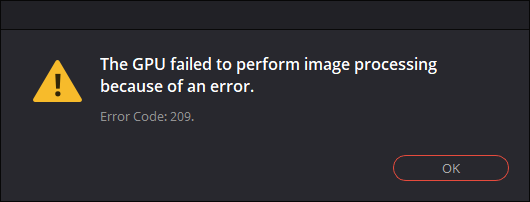
Открываю проект в DaVinci Resolve 16.2.8, он открывается, но появляется окошко с сообщением об ошибке:
The GPU failed to perform image processing because of an error.
Error Code: 209.
Накануне я обновил DaVinci Resolve. Скорее всего из неё обрали поддержку CUDA (в моём случае минимум Compute Capability of 3.0).
Посмотрел логи:
«C:UsersDenisAppDataRoamingBlackmagic DesignDaVinci ResolveSupportlogsResolveDebug.txt»
Там была такая запись:
[0x0000323c] | GPUManager           | INFO  | 2021-02-04 13:33:04,843 | Flushing GPU memory...
[0x0000323c] | DVIP                 | ERROR | 2021-02-04 13:33:04,845 | C:/jenkins/workspace/dvip/DaVinciIP/DaVinciIP/Unpacker/Unpacker_kernel.cu:226: CUDA error cudaErrorNoKernelImageForDevice (209)
[0x0000323c] | GPUManager           | ERROR | 2021-02-04 13:33:04,851 | Exception caught while running GPU algorithms:
[0x0000323c] | DVIP                 | ERROR | 2021-02-04 13:33:04,851 |
DVIP Exception: At position C:/jenkins/workspace/dvip/DaVinciIP/DaVinciIP/Unpacker/Unpacker_kernel.cu:226
 - API: CUDA
 - API Error Code: cudaErrorNoKernelImageForDevice (209)
Как всегда для решения подобной проблемы у пользователя аж 3 варианта:
1. Купить видео-карту помощнее
2. Установить старую версию DaVinci (16.2.6)
3. Переключить режим работы программы на OpenCL:
▶ ▶
GPU Processing Mode = OpenCL
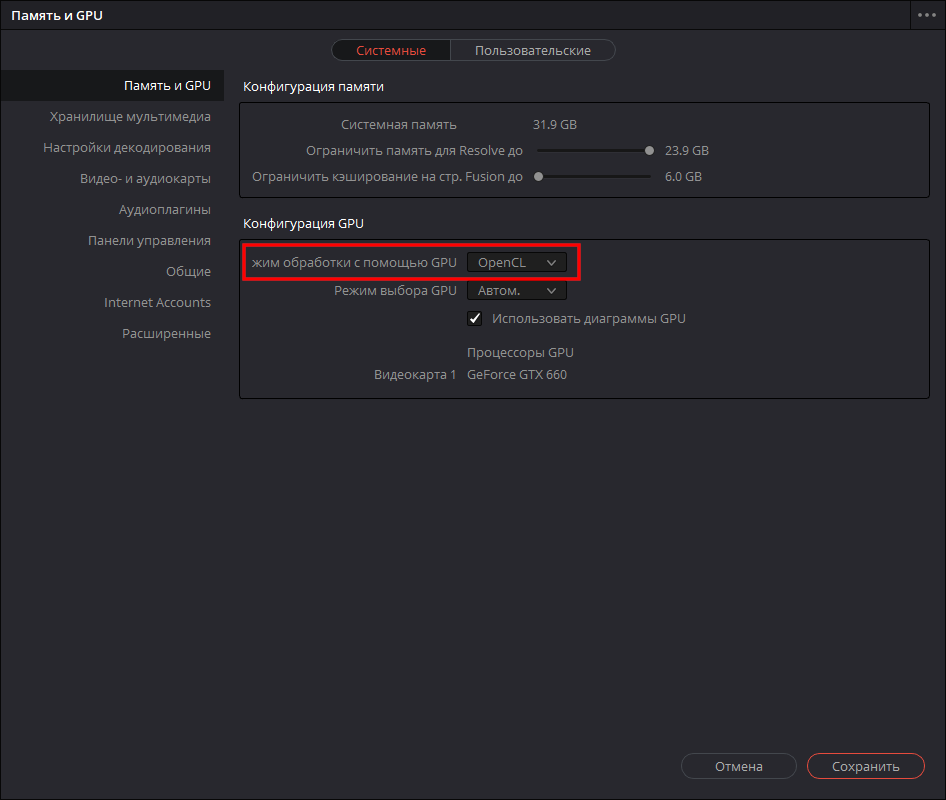
Придётся воспользоваться вторым вариантом, т.к. вариант (3) почему-то замедляет производительность программы (судя по некоторым отзывам, хотя по идее не должен), а тратить деньги на новую видюху я не хочу. К тому же сейчас из-за ажиотажа вокруг майнинга криптовалют, видео-карты стоят нереальных денег.
Текущий драйвер NVIDIA GeForce: 461.40.
Попробовал драйверы:
461.09 — проблема не решилась
460.89 — аналогично
460.79 — та же ошибка при открытии проекта
457.61 — увы
457.30 — не сработало
457.09 — ошибка осталась
456.71 — нет
456.55 — тоже нет
456.38 — и этот драйвер не сработал.
Таким образом рекомендация с форума, в которой предлагалось попробовать старый драйвер, мне не помогла.
Зато проблема решилась установкой DaVinci Resolve версии 16.2.6.005
- Об авторе
- Недавние публикации

DaVinci Resolve от Blackmagic Design — популярный бесплатный видеоредактор, доступный на нескольких платформах. Однако некоторые пользователи сообщают, что DaVinci Resolve продолжает падать при редактировании видео.
В отличие от Adobe Premier Pro, популярный видеоредактор DaVinci Resolve лучше работает с системой с выделенным графическим процессором. Отсутствие которых может привести к случайным сбоям.
В этой статье мы рассмотрим несколько шагов по устранению неполадок, которые помогут вам навсегда решить проблемы сбоев DaVinci Resolve.
Как исправить сбой DaVinci Resolve при запуске?
1. Изменить приоритет процесса

- Убедитесь, что DaVinci Resolve запущен.
- Щелкните правой кнопкой мыши на панели задач и выберите «Диспетчер задач».
- Откройте детали
- Прокрутите вниз и щелкните правой кнопкой мыши Разрешить. исполняемый файл
- Перейдите в «Установить приоритет» и выберите «Высокий».
Вот и все. Попробуйте поработать над любым из ваших проектов и проверьте, решена ли проблема. Обратите внимание, что при каждом перезапуске DaVinci Resolve вам, возможно, придется устанавливать высокий приоритет.
2. Установите драйвер Nvidia Studio

- Запустите опыт Nvidia GeForce.
- Нажмите на значок меню (три точки в правом верхнем углу).
- Выберите Студийный драйвер.
- GeForce Experience загрузит и установит драйвер Nvidia Studio.
Если у вас уже установлены драйверы Studio, попробуйте выполнить чистую установку.

- Загрузите и установите программу удаления драйвера дисплея.
- Запустите инструмент и выберите графическую карту,
- Нажмите «Очистить» и перезапустите.
- После удаления загрузите последнюю версию драйвера NVIDA Studio.
- Запустите установщик и установите необходимые пакеты через выборочную установку.
- Перезагрузите компьютер и перезапустите DaVinci Resolve.
Драйвер Nvidia Studio также может вызывать сбои DaVinci Resolve. Попробуйте выполнить чистую установку драйверов, чтобы устранить проблемы.
Если вам нужно правильно установить этот драйвер Nvidia, не вызывая серьезных проблем, лучше попробуйте специальный инструмент обновления драйверов и эффективно установите или обновите любые драйверы на вашем ПК.
3. Какая версия DaVinci Resolve лучше всего подходит для предотвращения сбоев?
Начнем с наиболее распространенной причины сбоев DaVinci Resolve. DaVinci Resolve 15 был пронизан несколькими сбоями и ошибками, которые приводили к частым сбоям.
Эти сбои также происходили в системе, в которой было достаточно оборудования для запуска видеоредактора. Тем не менее, установка последней версии DaVinci Resolve 16, похоже, устранила многие проблемы с программным обеспечением.
Обновить DaVinci Resolve

- Запустите приложение Разрешение.
- Щелкните DaVinci Resolve.
- Выберите Проверить наличие обновлений.
- Загрузите и установите все ожидающие обновления.
После установки перезапустите приложение и проверьте, решена ли проблема сбоя. Если нет, возможно, вам придется удалить, а затем переустановить последнюю версию, чтобы устранить проблему. Вот как это сделать.

- Нажмите клавишу Windows + R.
- Введите appwiz. cpl и нажмите OK.
- В Панели управления выберите DaVinci Resolve.
- Нажмите «Удалить», а затем подтвердите действие.
- После удаления загрузите последнюю версию DaVinci Resolve отсюда.
- Запустите установщик и проверьте наличие улучшений.
4. Включите мультимониторинг IGPU

- Выключите компьютер.
- Нажмите кнопку питания, чтобы перезагрузить компьютер. При перезапуске начните нажимать клавишу настройки (F2) на клавиатуре, чтобы войти в BIOS.
Примечание. Клавиша настройки обычно отображается на начальном экране. Обратитесь к руководству пользователя для вашего ноутбука или материнской платы (в случае настольного компьютера), чтобы найти ключ настройки. - В меню BIOS откройте вкладку Advanced.
- Найдите IGPU Multi-Monitoring и убедитесь, что он включен.
- Сохраните изменения и выйдите.
5. Проверьте совместимость графического процессора
Отключить встроенный графический процессор

- Нажмите клавишу Windows + R.
- Введите devmgmt.msc и нажмите OK.
- В диспетчере устройств разверните раздел «Адаптер дисплея».
- Щелкните правой кнопкой мыши встроенный графический процессор Intel.
- Выберите Отключить устройство.
- Откройте DaVinci Resolve и проверьте, не возникают ли сбои по-прежнему.
Обновление графического процессора
Как обсуждалось ранее, DaVinci Resolve — это приложение, интенсивно использующее GPU. Для стабильной работы рекомендуется установить достойную дискретную видеокарту. Если у вас есть только интегрированный графический процессор Intel, самое время подумать о переходе на выделенный графический процессор.
Решение DaVinci продолжает давать сбой. Обычно это происходит из-за несовместимости драйвера графического процессора или ошибки в самом программном обеспечении. Выполните шаги один за другим, чтобы диагностировать и устранить проблемы, вызывающие сбои.
Can you clarify what the system is doing now? Is it hanging before it gets to the Project Manager page? That’s my assumption.
The AMD driver you previously had loaded is identical to my Windows system with an RX580 card. And the Windows versions are identical. So that should have worked. Hopefully the AMD driver you installed since then still works.
EDIT: Forget all that stuff below, and first try this:
In an Explorer window, go to this folder:
C:UserscadlaAppDataRoamingBlackmagic DesignDaVinci ResolvePreferences
Make a copy of the config.dat file and call it config.dat.orig
Right click config.dat and select Edit. That should open the file in Notepad. Scroll about 3/4 of the way down the file, until you see this line:
Local.GPU.Mode = Unknown
EDIT 2: Sorry! Looking at your most recent log file, that line has gone away. If you don’t see a Local.GPU.Mode = line in your current config.dat file, then add this line at the end of the file:
Local.GPU.Mode = OpenCL
Then File — Save and File — Exit.
If the Local.GPU.Mode = Unknown IS back, for some reason, then:
Change Unknown to OpenCL
So it looks like this:
Local.GPU.Mode = OpenCL
Then do a File -Save then a File — Exit.
Launch Resolve. What happens?
If that didn’t help, THEN try all the stuff below.
You said unplugging all the USB stuff didn’t help. That’s step one of diagnosing a Resolve hang.
Step 2 is the firewall. Please remove the system from the Internet, and as a test turn off the firewall. Does that help. If not, try the following:
Step 3. Open a Powershell in Run as administrator mode. Then enter this:
netsh int ipv4 show dynamicportrange tcp
You should get what is shown in the image below:
- dynamic_port_range.PNG (10.83 KiB) Viewed 85837 times
If you see that, jump to step 4. If you don’t see that, enter this command:
netsh int ipv4 set dynamicportrange protocol=tcp startport=49152 numberofports=16384
then press enter, and then reboot the system. Now does Resolve launch?
Step 4. Enter this in the same Powershell window:
Get-NetTCPConnection | Where-Object { $_.State -eq «Listen» -and $_.LocalPort -eq 1144 } | ForEach-Object { (get-process -id $_.OwningProcess).Description }
and hit Enter. It should just return to a prompt. If not, it will report any apps using that port. Are there any? Fusion related would be OK.
by Tashreef Shareef
Tashreef Shareef is a software developer turned tech writer. He discovered his interest in technology after reading a tech magazine accidentally. Now he writes about everything tech from… read more
Updated on January 25, 2023
- DaVinci Resolve may encounter crashes when editing high-quality video projects.
- In this article, we explore the main reasons for these problems occurring and how to fix them quickly.

XINSTALL BY CLICKING THE DOWNLOAD FILE
This software will keep your drivers up and running, thus keeping you safe from common computer errors and hardware failure. Check all your drivers now in 3 easy steps:
- Download DriverFix (verified download file).
- Click Start Scan to find all problematic drivers.
- Click Update Drivers to get new versions and avoid system malfunctionings.
- DriverFix has been downloaded by 0 readers this month.
Blackmagic Design’s DaVinci Resolve is a popular free video editor available on multiple platforms. However, some users have reported the DaVinci Resolve keeps crashing issue when editing a video.
Unlike Adobe’s Premier Pro, the popular DaVinci Resolve video editor works better with a system that has a dedicated GPU. Lack of which can result in occasional crashes.
In this article, we explore a few troubleshooting steps to help you resolve the DaVinci Resolve crashing issues for good.
How can I fix DaVinci Resolve crashing on startup?
1. Change process priority
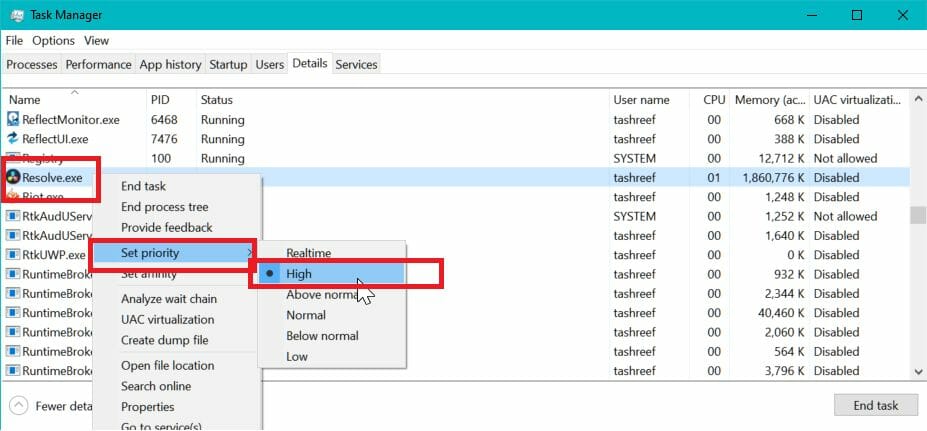
- Make sure DaVinci Resolve is running.
- Right-click on the Taskbar and select Task Manager.
- Open the Details
- Scroll down and right-click on Resolve.exe.
- Go to Set Priority and select High.
That’s it. Try working on any of your projects and check if the problem is resolved. Note that you may have to set the Priority to High every time you restart DaVinci Resolve.
2. Install Nvidia Studio Driver
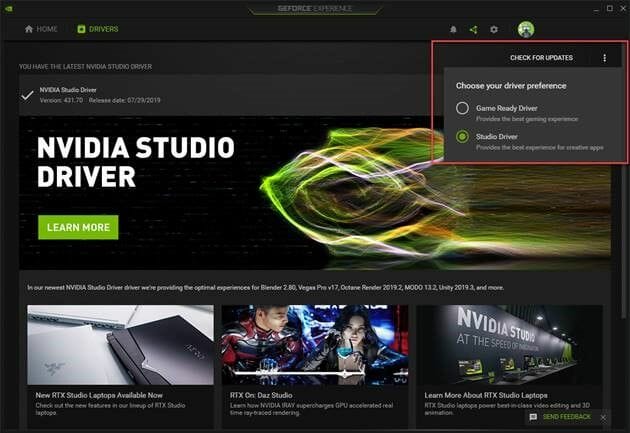
- Launch Nvidia GeForce experience.
- Click the menu icon (three dots in the top right corner).
- Select Studio Driver.
- GeForce Experience will download and install the Nvidia Studio Driver.
If you already have the Studio Drivers installed, try performing a clean install.
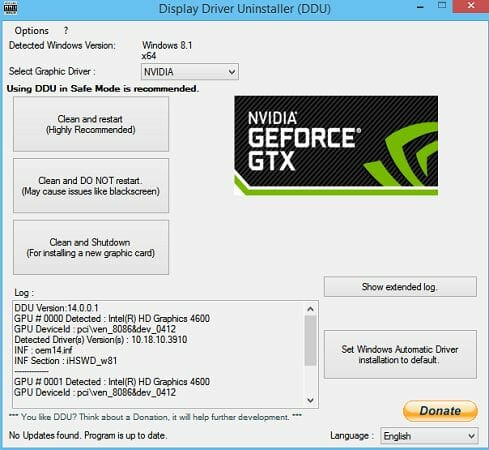
- Download and install the Display Driver Uninstaller.
- Run the tool and select the graphic card,
- Click on Clean and restart.
- Once uninstalled, download the latest version of NVIDA Studio Driver.
- Run the installer and install the necessary packages through custom installation.
- Restart the computer and relaunch DaVinci Resolve.
Nvidia Studio driver can also trigger DaVinci Resolve crashes. Try clean installing the drivers to fix the issues.
If you need to install this Nvidia driver correctly, without causing major issues, better try the dedicated update driver tool and efficiently install or update any drivers on your PC.
⇒ Get DriverFix
3. Which version of DaVinci resolve is best to avoid crashing?
Let’s begin with the most common reason for DaVinci Resolve crashing issues. DaVinci Resolve 15 was riddled with a few glitches and bugs that were causing frequent crashes.
These crashes also occurred on a system that had sufficient hardware to run the video editor. That said, installing the latest version, DaVinci Resolve 16, seems to have fixed many issues with the software.
Update DaVinci Resolve
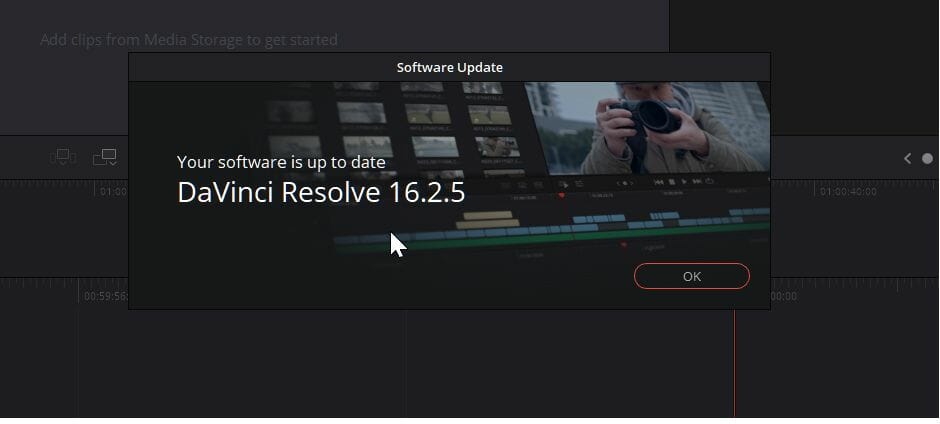
- Launch the Resolve app.
- Click on DaVinci Resolve.
- Select Check for updates.
- Download and install any pending updates.
Once installed, relaunch the app and check if the crashing issue is resolved. If not, you may have to uninstall, then reinstall the latest version to fix the issue. Here’s how to do it.
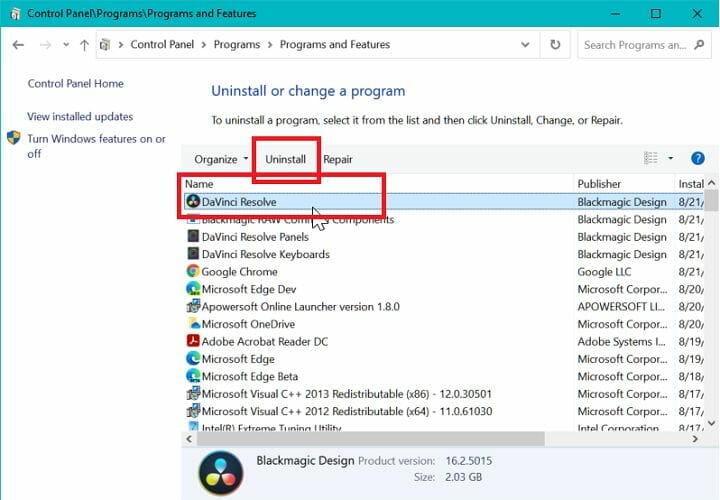
- Press Windows key + R.
- Type appwiz.cpl and click OK.
- In Control Panel, select DaVinci Resolve.
- Click on Uninstall, and then confirm the action.
- Once uninstalled, download the latest version of DaVinci Resolve from here.
- Run the installer and check for any improvements.
4. Enable IGPU Multi-Monitoring
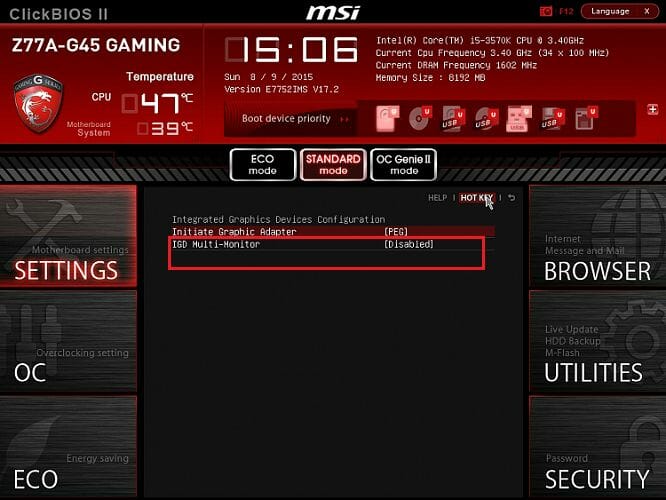
- Shut down your computer.
- Press the power button to restart the computer. When restarting, start pressing the Setup key (F2) on your keyboard to enter BIOS.
Note: The setup key is usually displayed on the initial screen. Check the user manual for your Laptop or motherboard manual (in case of the desktop) to find the Setup key. - In the BIOS menu, open the Advanced tab.
- Locate IGPU Multi-Monitoring and make sure it is enabled.
- Save the changes and exit.
5. Check for GPU compatibility
Disable integrated GPU
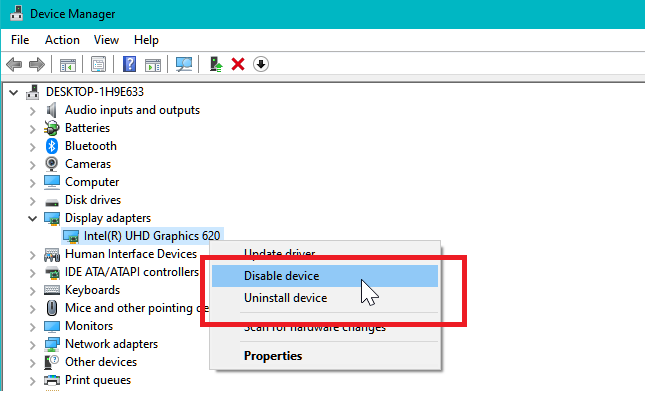
- Press the Windows key + R.
- Type devmgmt.msc and click OK.
- In Device Manager, expand the Display Adapter section.
- Right-click on your Integrated Intel GPU.
- Select Disable Device.
- Open DaVinci Resolve and check if you are still encountering crashes.
Upgrade GPU
As discussed earlier, DaVinci Resolve is a GPU-heavy application. It is recommended to have a decent dedicated graphics card installed for stable performance. If you only have an Intel Integrated GPU, time to consider upgrading to a dedicated GPU.
The DaVinci resolve keeps crashing issue usually occurs due to GPU driver incompatibility or a bug in the software itself. Follow the steps one by one to diagnose and fix the issues triggering crashes.

Newsletter
by Tashreef Shareef
Tashreef Shareef is a software developer turned tech writer. He discovered his interest in technology after reading a tech magazine accidentally. Now he writes about everything tech from… read more
Updated on January 25, 2023
- DaVinci Resolve may encounter crashes when editing high-quality video projects.
- In this article, we explore the main reasons for these problems occurring and how to fix them quickly.
XINSTALL BY CLICKING THE DOWNLOAD FILE
This software will keep your drivers up and running, thus keeping you safe from common computer errors and hardware failure. Check all your drivers now in 3 easy steps:
- Download DriverFix (verified download file).
- Click Start Scan to find all problematic drivers.
- Click Update Drivers to get new versions and avoid system malfunctionings.
- DriverFix has been downloaded by 0 readers this month.
Blackmagic Design’s DaVinci Resolve is a popular free video editor available on multiple platforms. However, some users have reported the DaVinci Resolve keeps crashing issue when editing a video.
Unlike Adobe’s Premier Pro, the popular DaVinci Resolve video editor works better with a system that has a dedicated GPU. Lack of which can result in occasional crashes.
In this article, we explore a few troubleshooting steps to help you resolve the DaVinci Resolve crashing issues for good.
How can I fix DaVinci Resolve crashing on startup?
1. Change process priority
- Make sure DaVinci Resolve is running.
- Right-click on the Taskbar and select Task Manager.
- Open the Details
- Scroll down and right-click on Resolve.exe.
- Go to Set Priority and select High.
That’s it. Try working on any of your projects and check if the problem is resolved. Note that you may have to set the Priority to High every time you restart DaVinci Resolve.
2. Install Nvidia Studio Driver
- Launch Nvidia GeForce experience.
- Click the menu icon (three dots in the top right corner).
- Select Studio Driver.
- GeForce Experience will download and install the Nvidia Studio Driver.
If you already have the Studio Drivers installed, try performing a clean install.
- Download and install the Display Driver Uninstaller.
- Run the tool and select the graphic card,
- Click on Clean and restart.
- Once uninstalled, download the latest version of NVIDA Studio Driver.
- Run the installer and install the necessary packages through custom installation.
- Restart the computer and relaunch DaVinci Resolve.
Nvidia Studio driver can also trigger DaVinci Resolve crashes. Try clean installing the drivers to fix the issues.
If you need to install this Nvidia driver correctly, without causing major issues, better try the dedicated update driver tool and efficiently install or update any drivers on your PC.
⇒ Get DriverFix
3. Which version of DaVinci resolve is best to avoid crashing?
Let’s begin with the most common reason for DaVinci Resolve crashing issues. DaVinci Resolve 15 was riddled with a few glitches and bugs that were causing frequent crashes.
These crashes also occurred on a system that had sufficient hardware to run the video editor. That said, installing the latest version, DaVinci Resolve 16, seems to have fixed many issues with the software.
Update DaVinci Resolve
- Launch the Resolve app.
- Click on DaVinci Resolve.
- Select Check for updates.
- Download and install any pending updates.
Once installed, relaunch the app and check if the crashing issue is resolved. If not, you may have to uninstall, then reinstall the latest version to fix the issue. Here’s how to do it.
- Press Windows key + R.
- Type appwiz.cpl and click OK.
- In Control Panel, select DaVinci Resolve.
- Click on Uninstall, and then confirm the action.
- Once uninstalled, download the latest version of DaVinci Resolve from here.
- Run the installer and check for any improvements.
4. Enable IGPU Multi-Monitoring
- Shut down your computer.
- Press the power button to restart the computer. When restarting, start pressing the Setup key (F2) on your keyboard to enter BIOS.
Note: The setup key is usually displayed on the initial screen. Check the user manual for your Laptop or motherboard manual (in case of the desktop) to find the Setup key. - In the BIOS menu, open the Advanced tab.
- Locate IGPU Multi-Monitoring and make sure it is enabled.
- Save the changes and exit.
5. Check for GPU compatibility
Disable integrated GPU
- Press the Windows key + R.
- Type devmgmt.msc and click OK.
- In Device Manager, expand the Display Adapter section.
- Right-click on your Integrated Intel GPU.
- Select Disable Device.
- Open DaVinci Resolve and check if you are still encountering crashes.
Upgrade GPU
As discussed earlier, DaVinci Resolve is a GPU-heavy application. It is recommended to have a decent dedicated graphics card installed for stable performance. If you only have an Intel Integrated GPU, time to consider upgrading to a dedicated GPU.
The DaVinci resolve keeps crashing issue usually occurs due to GPU driver incompatibility or a bug in the software itself. Follow the steps one by one to diagnose and fix the issues triggering crashes.
Newsletter
Loading up DaVinci Resolve only to be met with an error stating that there’s no OpenCL GPU? This might be a harsh thing to know, but it might potentially be time to upgrade.
OpenCL is the alternative to NVIDIA’s CUDA, a system designed to support other graphics cards from AMD or Intel.
NVIDIA cards can do OpenCL, but it’s always just best to choose CUDA.
OpenCL is a framework developed and maintained by Khronos Group. It’s intended for use in multiple applications to use the computing power available in a graphics card.
Most commonly, it’s found in various video and graphics software, or 3D programs like Blender.
NVIDIA’s CUDA is simply an alternative, but the proprietary version of it with its own benefits.
But what do you do if you see DaVinci Resolve to throw up an error about not finding a card?
DaVinci Resolve requires OpenCL 1.2 minimum, meaning that if you don’t have hardware that’s from at least 2012, you’re probably out of luck.
The earliest date and hardware that supported OpenCL 1.2 is AMD’s A-5 Series APUs from 2012, which, if you do still run these and are currently trying to load up Resolve, please just stop and look at our specifications page for our recommendations for whole upgrades.
This is the main issue with a lot of hardware that is currently trying to load up Resolve. Just because it’s free, a lot of people assume it’s going to be easy to run and that’s far from the truth.
Though, what happens if you have a compatible system? Here are some steps to take: