Иногда Valorant не устанавливается или не запускается с различными уведомлениями (кодами ошибок). Одной из таких ситуаций является ошибка при запуске Valorant «Couldn’t start».
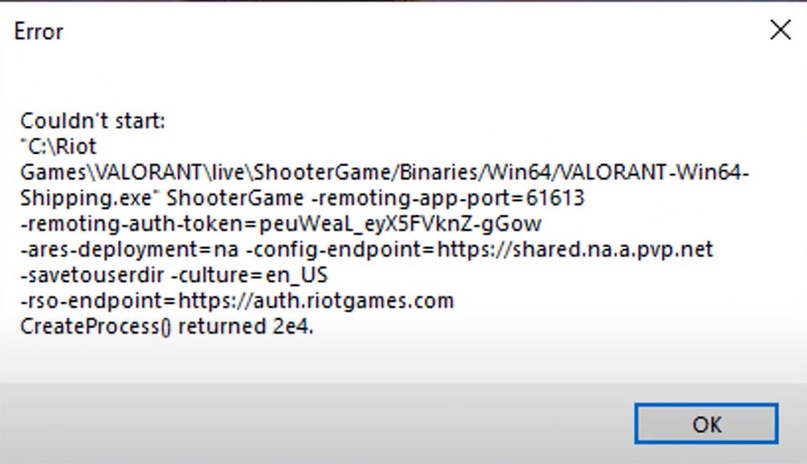
Полностью ошибка выглядит следующим образом:
«Couldn’t start *:Riot GamesVALORANTliveShooterGame/Binaries/Win64/VALORANT-Win64-Shipping.exe” ShooterGame -remoting-app-port=55944 -remoting-auth-token -ares-deployment=na -config-endpoint=https://shared.na.a.pvp.net -savetousrdir -cultur=en_US -rso-endpoint=https://auth.riotgames.com CreateProcess() returned 5»
Ошибка возникает при попытке запустить игру. Исправить ситуацию довольно легко и в большинстве случаев не потребуется сложных действий.
Что делать
- После возникновения ошибки перезагрузите компьютер и попробуйте запустить Валорант еще раз. Чаще всего перезапуск системы помогает.
- Переустановите античитинговую систему Riot Vanguard. Запустите античит, после чего в правом нижнем углу панели задач (трей) появится иконка Vanguard. Нажмите на иконку правой кнопкой мыши и выберите пункт «Удалить Vanguard». Далее зайдите в Валорант, чтобы установщик еще раз инсталлировал античит. Сделайте перезагрузку ПК.
- Действуйте аналогично предыдущему пункту, только после удаления античита запустите Valorant от имени администратора (нажмите по ярлыку ПКМ и выберите нужный пункт в самом верху контекстного меню).
- Кардинальным решением является полное удаление Valorant вместе с античитом и чистая установка с нуля.
Переустановку делайте с самой свежей версии установочного файла. Скачать Valorant надо с официального сайта.
Перечисленные действия должны помочь решить проблему при запуске, которая сопровождается ошибкой «Couldn’t start createprocess() returned 5».
Действия для каждого игрока индивидуальны. Кому-то поможет обычная перезагрузка, кому-то придется переустановить игру с Vanguard.
Если игра все равно не запускается, и ошибка появляется вновь, тогда поддержка рекомендует написать им в Discord.
В этой статье мы собрали всю информацию про текущие ошибки в игре Valorant, а так же перевели для вас решения этих проблем. Для более удобного поиска нужно вам ошибки воспользуйтесь содержанием.
couldn t start valorant
В переводе эта ошибка означает: «НЕ УДАЛОСЬ ЗАПУСТИТЬ». Вот несколько решений. которые помогут исправить эту проблему:
- Перезагрузка компьютера.
- Если перезагрузка не помогла, удалите иконку игры в трее, запустите игру и позвольте игры переустановить античит. После чего перезапустите ПК.
- Если это не помогло, то попробуйте запустить игру от имени администратора. Делается это с помощью ПКМ.
Код ошибки
| # кода | Расшифровка | Решение |
|---|---|---|
| 4 | Вы используете запрещенное имя | С вашим Riot ID возникла проблема. Вы можете сменить его здесь. |
| 5 | Ваша учетная запись используется на другом устройстве. | Вам нужно выйти из своей учетной записи на других устройствах. |
| 7 | Не удалось подключиться к сервису. | Возможно, ваша учетная запись заблокирована. Пожалуйста, проверьте свою почту, там может находиться дополнительная информация. Ошибка также может быть вызвана самой платформой. Дополнительную информацию можно найти на сервере Discord VALORANT и баннерах сайта поддержки. |
| 8 – 21 | Возникла проблема с клиентом Riot. | Перезагрузите клиент Riot. |
| 31 | Не удалось получить информацию об имени игрока. | Перезагрузите клиент Riot. |
| 33 | Работа клиента Riot была завершена. | Перезагрузите клиент Riot. |
| 43 | Истекло время ожидания системы. | Перезагрузите клиент Riot. |
| 44 | Программа Vanguard не была запущена. | Перезагрузите клиент Riot. Если ошибка не будет устранена, то удалите Riot Vanguard и перезапустите VALORANT. |
| 45 | Необходим перезапуск Vanguard. | Перезагрузите клиент Riot. Если ошибка не будет устранена, то удалите Riot Vanguard и перезапустите VALORANT. |
| 46 | Ведется техническое обслуживание платформы. | В данный момент инженеры проводят запланированное техобслуживание наших систем. Пожалуйста, зайдите в игру позже. |
| 49 | Внутриигровой чат не работает. | Похоже, у вас возникла проблема с чатом. Перезагрузите клиент Riot. |
| 50 | Голосовой чат не работает. | Похоже, у вас возникла проблема с чатом. Перезагрузите клиент Riot. |
| 51 | Не удается создать группу. | Похоже, у вас возникла проблема с созданием группы. Перезагрузите клиент Riot. |
| 52 | Не удалось получить информацию об уровне мастерства игроков. | Перезагрузите клиент Riot. |
| 53 | Возникла проблема с чатом клиента Riot. | Похоже, у вас возникла проблема с чатом клиента Riot. Перезагрузите клиент Riot. |
| 54 | Сбой в работе контент-сервиса. | VALORANT не удалось получить информацию о вашем контенте. Перезагрузите клиент Riot. |
VALORANT не запускается на вашем ПК с Windows? Вот рабочие исправления для решения этой проблемы. Valorant — видеоигра-шутер от первого лица, разработанная Riot Games. Это бесплатная игра. Как и в любой другой программе, в ней есть ряд ошибок и проблем, которые пользователи обнаруживают с течением времени.
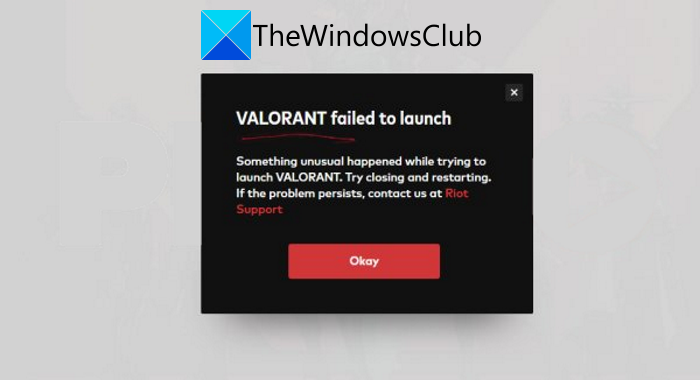
VALORANT не удалось запустить
Что-то произошло при попытке запустить VALORANT. Попробуйте закрыть и перезапустить. Если проблема не исчезнет, свяжитесь с нами в службе поддержки Riot.
Ранее мы рассмотрели коды ошибок VALORANT Vanguard 128, 57, VALORANT коды ошибок подключения VAN 135, 68, 81 и т. Д. Теперь некоторые пользователи сообщали об ошибке «VALORANT не удалось запустить» при попытке открыть программу Valorant на ПК. . Если вы также столкнулись с той же проблемой, этот пост должен помочь вам ее исправить. В этой статье мы собираемся перечислить некоторые рабочие решения, которые помогут вам решить эту проблему.
Почему мой Valorant не открывается правильно?
Хотя нет четкой причины, по которой Valorant не открывается для вас правильно. Тем не менее, это все еще новая игра, и многие ее функции находятся на стадии бета-тестирования. Таким образом, вы можете столкнуться с различными ошибками во время игры. Проблема с тем, что Valorant некорректно запускается на вашем компьютере, может быть вызвана следующими причинами:
- Возможно, вам не удастся правильно открыть Valorant из-за некоторой ошибки в программе запуска Valorant.
- Убедитесь, что ваш компьютер соответствует минимальным требованиям Valorant. В противном случае Valorant не откроется правильно.
- Это может произойти из-за программных сбоев, таких как устаревшие графические драйверы, неправильная установка программы и т. Д.
- Если ваша учетная запись находится на каком-то другом устройстве, это может вызвать эту ошибку.
- Другой причиной этой ошибки может быть разгон видеокарт.
- Возможен сбой в системе античита Vanguard.
Как исправить ошибку Valorant Couldn’t Start
Проблема, из-за которой Valorant не может запуститься, может быть решена с помощью методов, перечисленных в этом посте. Вы можете просто перезагрузить компьютер и посмотреть, исправит ли он ошибку за вас. Это эффективно в случае временного сбоя. В противном случае вам, возможно, придется попробовать некоторые расширенные советы и приемы по устранению неполадок, чтобы устранить ошибку. Мы подробно обсудили методы, с которыми вы можете ознакомиться ниже.
Вот исправления, которые вы можете попытаться исправить, ошибка Valorant не запускалась на ПК с Windows:
- Перезагрузите компьютер.
- Проверьте технические характеристики вашего ПК.
- Запустите Valorant в совместимом режиме.
- Запустите Valorant от имени администратора.
- Обновите свой графический драйвер.
- Закройте задачи с интенсивным использованием ЦП.
- Удалите и переустановите Valorant и Riot Vanguard.
- Чистая установка игры и авангарда.
Давайте теперь подробно обсудим вышеперечисленные решения!
1]Перезагрузите компьютер
В большинстве случаев простая перезагрузка решает проблемы на вашем компьютере, вызванные временным сбоем. Следовательно, прежде чем пытаться что-то еще, перезагрузите компьютер, а затем проверьте, можете ли вы запустить Valorant, и посмотрите, решена ли проблема. Если нет, попробуйте другой метод решения проблемы.
2]Проверьте технические характеристики вашего ПК.
Убедитесь, что ваш компьютер соответствует минимальным требованиям для запуска Valorant или нет. На недорогих ПК вы можете столкнуться с множеством проблем, в том числе и с этой, при запуске Valorant. Согласно официальному веб-сайту, минимальные требования и рекомендуемые для запуска Valorant на ПК следующие:
Минимальные спецификации для Valorant (30 FPS):
- Операционная система: Windows 10/8/7 64-бит
- Оперативная память: 4 ГБ
- VRAM: 1 ГБ
- Процессор: Intel Core 2 DUO E8400
- Видеокарта: Intel HD 4000
Рекомендуемые характеристики для Valorant (60 FPS):
- Операционная система: Windows 10/8/7 64-бит
- Оперативная память: 4 ГБ
- VRAM: 1 ГБ
- Процессор: Intel Core i3-4150
- Видеокарта: NVIDIA GeForce GT 730
Если ваш компьютер соответствует минимальным требованиям, но вам по-прежнему не удается запустить Valorant на своем ПК, попробуйте другое исправление из этого сообщения.
3]Запустите Valorant в режиме совместимости
Попробуйте запустить Valorant в режиме совместимости и посмотрите, правильно ли запускается программа. В случае, если обновление Windows конфликтует с Valorant или есть проблема с совместимостью VALORANT игрового клиента, это может исправить это. Вы можете попробовать запустить средство устранения неполадок совместимости программ и посмотреть, решит ли оно проблему.
4]Запустите Valorant от имени администратора
Попробуйте запустить Valorant с правами администратора и посмотрите, сможете ли вы запустить его на своем ПК. Ограниченный доступ и разрешения могут помешать вам правильно запустить программу Valorant на вашем компьютере. Итак, щелкните правой кнопкой мыши значок программы Valorant, а затем нажмите кнопку «Запуск от имени администратора» и посмотрите, сможете ли вы запустить ее правильно без каких-либо ошибок.
5]Обновите графический драйвер
Если вы используете устаревшие графические драйверы, это может вызвать проблемы при запуске Valorant на вашем ПК. Многие пользователи сообщают, что им не удалось запустить Valorant из-за устаревших графических драйверов. Итак, обновите все графические драйверы, а затем перезапустите Valorant, чтобы проверить, правильно ли он запускается.
Читайте: Исправьте коды ошибок VALORANT игрового клиента 43, 7.
6]Закройте все Riot Process и CPU Intensive Tasks.
Если процесс Riot не работает должным образом, вы можете столкнуться с ошибкой запуска Valorant. Итак, попробуйте закрыть все процессы, связанные с Riot, и перезапустить Valorant.
Кроме того, вы не сможете запустить Valorant на своем ПК, если на вашем компьютере запущено несколько процессов или задач, интенсивно использующих ЦП. Если есть другие высокопроизводительные программы, которые занимают место в памяти, вы можете попробовать завершить все задачи, интенсивно использующие ЦП, чтобы исправить это.
Чтобы завершить все процессы Riot Process и CPU Intensive Tasks, попробуйте выполнить следующие шаги:
- Нажмите горячую клавишу Ctrl + Shift + Esc, чтобы открыть диспетчер задач.
- Проверьте процессы или задачи, занимающие более 25% пространства ЦП, и процессы Rio и выберите их.
- Нажмите на кнопку «Завершить задачу».
- Попробуйте запустить Valorant и посмотрите, решена ли проблема.
Совет: как убить несколько процессов или завершить сразу несколько задач.
7]Удалите и переустановите Valorant и Riot Vanguard
Если ни одно из вышеперечисленных решений у вас не работает, переустановка программы может сработать. Итак, сначала полностью удалите программы Valorant и Rio Vanguard. Рекомендуется использовать стороннюю программу удаления, чтобы полностью удалить эти программы вместе с их остаточными файлами. А затем перейдите на официальный сайт Valorant и загрузите его последнюю версию. Запустите установщик и следуйте инструкциям по установке на экране, чтобы установить программу на свой компьютер.
Посмотрите, решит ли это проблему для вас.
8]Чистая установка Valorant и Vanguard
Если простая переустановка программ не работает, вам может потребоваться чистая установка программ Valorant и Vanguard. Для этого вы можете выполнить следующие шаги:
- Во-первых, отключите и завершите все задачи, связанные с Valorant, запущенными на вашем компьютере. Итак, откройте диспетчер задач, выберите процессы Valorant и нажмите кнопку «Завершить задачу».
- Теперь полностью удалите программы Valorant и Vanguard и Riot Valorant и Vanguard, как описано в методе (7).
- Затем запустите командную строку от имени администратора.
- После этого введите следующую команду: sc delete vgc
- Затем введите команду sc delete vgk и нажмите кнопку Enter.
- Наконец, перезагрузите компьютер и установите последнюю версию программы Valorant.
Запустите программу Valorant и, надеюсь, вы не увидите Valorant не удалось запустить ошибка больше.
Вот и все!
.
Does VALORANT fail to launch on your Windows PC? Here are the working fixes to resolve this issue. Valorant is a first-person hero shooter video game which is developed by Riot Games. It is a free-to-play game. Like any other program, it has its shares of errors and issues that are discovered by users over time.
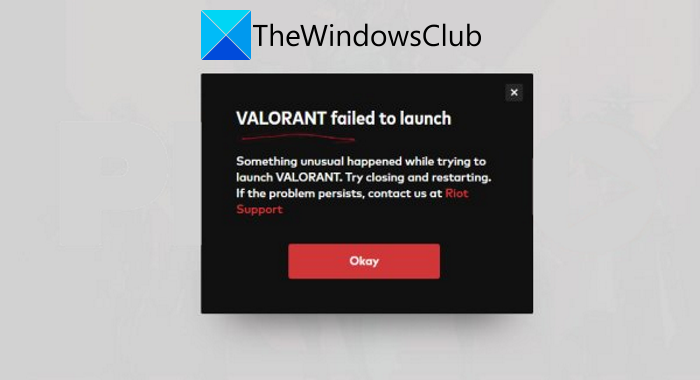
VALORANT failed to launch
Something happened while trying to launch VALORANT. Try closing and restarting. If the problem persists, contact us at Riot Support.
Earlier, we covered VALORANT Vanguard error codes 128, 57, VALORANT Connection Error codes VAN 135, 68, 81, etc. Now, some users have reported being experiencing the “VALORANT failed to launch” error when trying to open the Valorant program on PC. If you are also experiencing the same problem, this post should help you fix it up. In this article, we are going to list some working solutions that will guide you to resolve this issue.
Why is my Valorant not opening correctly?
Although, there is no clear cause why Valorant is not opening correctly for you. However, it still is a new game, and a lot of its features are in the beta phase. So, you might experience various errors while playing this game. Now, the problem that Valorant is not starting correctly on your PC might be caused due the following reasons:
- You might be unable to open Valorant correctly due to some Valorant launcher bug.
- Make sure your PC meets the minimum requirements for Valorant. If it doesn’t, Valorant won’t open correctly.
- It might occur due to software glitches, like outdated graphics drivers, incorrect installation of the program, etc.
- If your account is logged in to some other device, it might cause this error.
- Overclocking graphics cards can be another reason for this error.
- There might be some Vanguard anti-cheat system glitch.
How To Fix Valorant Couldn’t Start Error
The problem that Valorant couldn’t start can be fixed using the methods listed in this post. You can simply restart your computer and see if it fixes up the error for you. This is effective in case there is some temporary glitch. If not, you might need to try some advanced troubleshooting tips and tricks to resolve the error. We have discussed the methods in detail that you can check out below.
Here are the fixes that you can try to fix Valorant failed to launch error on Windows PC:
- Restart your PC.
- Check your PC’s specifications.
- Run Valorant in compatible mode.
- Run Valorant as Administrator.
- Update your Graphics Driver.
- Close CPU Intensive Tasks.
- Uninstall and Reinstall Valorant and Riot Vanguard.
- Clean Install the Game and Vanguard.
Let us discuss the above-listed solutions in detail now!
1] Restart your PC
Most of the time a simple restart resolves the problems on your PC caused due to some temporary glitch. Hence, before trying something else, restart your PC and then check if you are able to launch Valorant and see if the problem is resolved. If not, try some other method to fix the issue.
2] Check your PC’s specifications
Do check whether your PC meets the minimum specs to run Valorant or not. In low-end PCs, you might face a lot of problems including this one while running Valorant. As per its official website, the minimum requirements and recommended to run Valorant on PC are as follows:
Minimum specs for Valorant (30 FPS):
- Operating System: Windows 10/8/7 64-bit
- RAM: 4GB
- VRAM: 1GB
- CPU: Intel Core 2 DUO E8400
- Graphics Card: Intel HD 4000
Recommended specs for Valorant (60 FPS):
- Operating System: Windows 10/8/7 64-bit
- RAM: 4GB
- VRAM: 1GB
- CPU: Intel Core i3-4150
- Graphics Card: NVIDIA GeForce GT 730
If your PC meets the minimum requirement and you still fail to launch Valorant on your PC, then try some other fix from this post.
3] Run Valorant in compatiblity mode
Try running Valorant in compatibility mode and see if the program launches properly or not. In case Windows update is conflicting with Valorant or there is some VALORANT game client compatibility issue, this might fix it up. You can try running the Program Compatibility Troubleshooter and see if it resolves the problem.
4] Run Valorant as Administrator
Do try running Valorant with administrator privilege and see if you are able to launch it on your PC. Limited access and permissions may prevent you from running the Valorant program correctly on your PC. So, right-click on the Valorant program icon and then tap on the Run as administrator option and see if you are able to launch it correctly without any error.
See: How to make Program always Run as Administrator.
5] Update your Graphics Driver
If you are using outdated graphics drivers, it might cause problems in launching Valorant on your PC. Many users have reported that they were unable to launch Valorant due to their out-of-date graphics drivers. So, update all your graphics drivers and then restart Valorant to check it launches properly or not.
Read: Fix VALORANT game client error codes 43, 7.
6] Close all Riot Process and CPU Intensive Tasks
If a Riot process is not running properly, you might experience the Valorant launch error. So, try shutting down all the Riot-related processes and relaunch Valorant.
Also, you might not be able to launch Valorant on your PC if there are multiple CPU-intensive processes or tasks running on your computer. If there are some other heavy-duty programs that are taking up memory space, you can try terminating all CPU-intensive tasks to fix this up.
To terminate all Riot Process and CPU Intensive Tasks, try the below steps:
- Click Ctrl + Shift + Esc hotkey to open Task Manager.
- Check for processes or tasks consuming more than 25% of CPU space and Rio processes, and select them.
- Tap on the End Task button.
- Try launching Valorant and see if the issue is fixed.
Tip: How to kill multiple Processes or end several Tasks at once.
7] Uninstall and Reinstall Valorant and Riot Vanguard
If none of the above solutions work for you, reinstalling the program might work. So, first, uninstall Valorant and Rio Vanguard programs completely. It is recommended to use a third-party uninstaller to completely remove these programs with their residual files. And then, go to the official website of Valorant and download its latest version. Run the installer and follow the onscreen installation instruction to install the program on your PC.
See if this fixes up the problem for you.
8] Clean Install Valorant and Vanguard
If simple reinstalling the programs doesn’t work, you might need to clean install Valorant and Vanguard programs. To do that, you can follow the below-listed steps:
- Firstly, disable and end all tasks related to Valorant running on your PC. So, open Task Manager and select Valorant processes, and tap on the End Task button.
- Now, completely uninstall the Valorant and Vanguard and Riot Valorant and Vanguard programs as discussed in method (7).
- Next, run the Command Prompt as administrator.
- After that, enter the following command:
sc delete vgc - Then, type the
sc delete vgkcommand and press the Enter button. - Finally, restart your computer and then install the latest version of the Valorant program.
Start the Valorant program and hopefully, you won’t see the Valorant failed to launch error anymore.
That’s it!
Does VALORANT fail to launch on your Windows PC? Here are the working fixes to resolve this issue. Valorant is a first-person hero shooter video game which is developed by Riot Games. It is a free-to-play game. Like any other program, it has its shares of errors and issues that are discovered by users over time.
VALORANT failed to launch
Something happened while trying to launch VALORANT. Try closing and restarting. If the problem persists, contact us at Riot Support.
Earlier, we covered VALORANT Vanguard error codes 128, 57, VALORANT Connection Error codes VAN 135, 68, 81, etc. Now, some users have reported being experiencing the “VALORANT failed to launch” error when trying to open the Valorant program on PC. If you are also experiencing the same problem, this post should help you fix it up. In this article, we are going to list some working solutions that will guide you to resolve this issue.
Why is my Valorant not opening correctly?
Although, there is no clear cause why Valorant is not opening correctly for you. However, it still is a new game, and a lot of its features are in the beta phase. So, you might experience various errors while playing this game. Now, the problem that Valorant is not starting correctly on your PC might be caused due the following reasons:
- You might be unable to open Valorant correctly due to some Valorant launcher bug.
- Make sure your PC meets the minimum requirements for Valorant. If it doesn’t, Valorant won’t open correctly.
- It might occur due to software glitches, like outdated graphics drivers, incorrect installation of the program, etc.
- If your account is logged in to some other device, it might cause this error.
- Overclocking graphics cards can be another reason for this error.
- There might be some Vanguard anti-cheat system glitch.
How To Fix Valorant Couldn’t Start Error
The problem that Valorant couldn’t start can be fixed using the methods listed in this post. You can simply restart your computer and see if it fixes up the error for you. This is effective in case there is some temporary glitch. If not, you might need to try some advanced troubleshooting tips and tricks to resolve the error. We have discussed the methods in detail that you can check out below.
Here are the fixes that you can try to fix Valorant failed to launch error on Windows PC:
- Restart your PC.
- Check your PC’s specifications.
- Run Valorant in compatible mode.
- Run Valorant as Administrator.
- Update your Graphics Driver.
- Close CPU Intensive Tasks.
- Uninstall and Reinstall Valorant and Riot Vanguard.
- Clean Install the Game and Vanguard.
Let us discuss the above-listed solutions in detail now!
1] Restart your PC
Most of the time a simple restart resolves the problems on your PC caused due to some temporary glitch. Hence, before trying something else, restart your PC and then check if you are able to launch Valorant and see if the problem is resolved. If not, try some other method to fix the issue.
2] Check your PC’s specifications
Do check whether your PC meets the minimum specs to run Valorant or not. In low-end PCs, you might face a lot of problems including this one while running Valorant. As per its official website, the minimum requirements and recommended to run Valorant on PC are as follows:
Minimum specs for Valorant (30 FPS):
- Operating System: Windows 10/8/7 64-bit
- RAM: 4GB
- VRAM: 1GB
- CPU: Intel Core 2 DUO E8400
- Graphics Card: Intel HD 4000
Recommended specs for Valorant (60 FPS):
- Operating System: Windows 10/8/7 64-bit
- RAM: 4GB
- VRAM: 1GB
- CPU: Intel Core i3-4150
- Graphics Card: NVIDIA GeForce GT 730
If your PC meets the minimum requirement and you still fail to launch Valorant on your PC, then try some other fix from this post.
3] Run Valorant in compatiblity mode
Try running Valorant in compatibility mode and see if the program launches properly or not. In case Windows update is conflicting with Valorant or there is some VALORANT game client compatibility issue, this might fix it up. You can try running the Program Compatibility Troubleshooter and see if it resolves the problem.
4] Run Valorant as Administrator
Do try running Valorant with administrator privilege and see if you are able to launch it on your PC. Limited access and permissions may prevent you from running the Valorant program correctly on your PC. So, right-click on the Valorant program icon and then tap on the Run as administrator option and see if you are able to launch it correctly without any error.
See: How to make Program always Run as Administrator.
5] Update your Graphics Driver
If you are using outdated graphics drivers, it might cause problems in launching Valorant on your PC. Many users have reported that they were unable to launch Valorant due to their out-of-date graphics drivers. So, update all your graphics drivers and then restart Valorant to check it launches properly or not.
Read: Fix VALORANT game client error codes 43, 7.
6] Close all Riot Process and CPU Intensive Tasks
If a Riot process is not running properly, you might experience the Valorant launch error. So, try shutting down all the Riot-related processes and relaunch Valorant.
Also, you might not be able to launch Valorant on your PC if there are multiple CPU-intensive processes or tasks running on your computer. If there are some other heavy-duty programs that are taking up memory space, you can try terminating all CPU-intensive tasks to fix this up.
To terminate all Riot Process and CPU Intensive Tasks, try the below steps:
- Click Ctrl + Shift + Esc hotkey to open Task Manager.
- Check for processes or tasks consuming more than 25% of CPU space and Rio processes, and select them.
- Tap on the End Task button.
- Try launching Valorant and see if the issue is fixed.
Tip: How to kill multiple Processes or end several Tasks at once.
7] Uninstall and Reinstall Valorant and Riot Vanguard
If none of the above solutions work for you, reinstalling the program might work. So, first, uninstall Valorant and Rio Vanguard programs completely. It is recommended to use a third-party uninstaller to completely remove these programs with their residual files. And then, go to the official website of Valorant and download its latest version. Run the installer and follow the onscreen installation instruction to install the program on your PC.
See if this fixes up the problem for you.
8] Clean Install Valorant and Vanguard
If simple reinstalling the programs doesn’t work, you might need to clean install Valorant and Vanguard programs. To do that, you can follow the below-listed steps:
- Firstly, disable and end all tasks related to Valorant running on your PC. So, open Task Manager and select Valorant processes, and tap on the End Task button.
- Now, completely uninstall the Valorant and Vanguard and Riot Valorant and Vanguard programs as discussed in method (7).
- Next, run the Command Prompt as administrator.
- After that, enter the following command:
sc delete vgc - Then, type the
sc delete vgkcommand and press the Enter button. - Finally, restart your computer and then install the latest version of the Valorant program.
Start the Valorant program and hopefully, you won’t see the Valorant failed to launch error anymore.
That’s it!

This error happens when you try to launch VALORANT. But no worries, if you run into the VALORANT error “Couldn’t Start … CreateProcess() returned 5”, then the solution might be easier than you think.
Full Error Message:
Couldn't start *:Riot GamesVALORANTliveShooterGame/Binaries/Win64/VALORANT-Win64-Shipping.exe" ShooterGame -remoting-app-port=55944 -remoting-auth-token -ares-deployment=na -config-endpoint=https://shared.na.a.pvp.net -savetousrdir -cultur=en_US -rso-endpoint=https://auth.riotgames.com CreateProcess() returned 5.Try one of the potential fixes for this problem.
Potential fixes for: Couldn’t Start – CreateProcess() returned 5
- Restart your computer! That should be an easy fix and solution for this specific VALORANT error.
- If a simple restart did not fix your problem, uninstall Vanguard via tray icon, start VALORANT and let it re-install Vanguard anti-cheat. The PC then needs another restart and it might work again for you.
- Try the same from the previous step, but this time run VALORANT as administrator. You can do that by right-clicking the shortcut and choosing “Run as Administrator.”
- Last but not least you can always try a fresh installation of VALORANT. Make sure you get the latest VALORANT installer from the website.
We hope one of those steps was able to get your game running again after you experienced the “CreateProcess() Returned” error.
Unfortunately, those fix don’t seem to work for every player. If all of those fixes did not help you, please let us know in our Discord to collect more possible solutions.

