При попытке загрузить игру или обновить старую игру вы можете столкнуться с повреждением диска на вашем клиенте Steam. Это распространенная ошибка, которая может возникнуть по нескольким причинам.
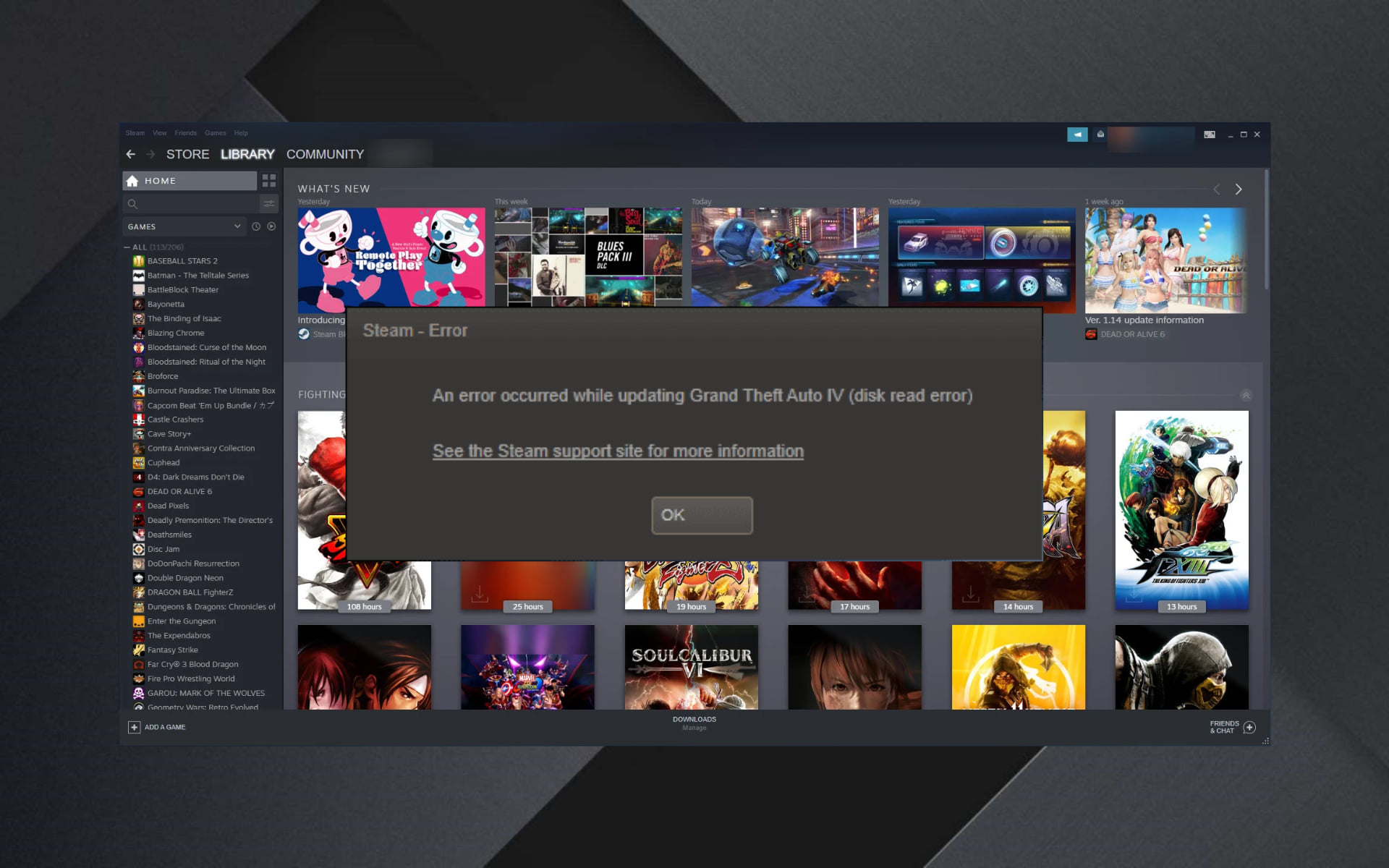
Полная ошибка чтения. Произошла ошибка при обновлении (ошибка чтения диска) (ошибка повреждения диска), см. Сайт поддержки steam для получения дополнительной информации. Для тех, кто пострадал от этой ошибки, вот как вы можете устранить эту ошибку на вашем компьютере с Windows.
Как исправить ошибку Steam Corrupt Disk
- Удалить папку Active Download
- Переустановите клиент Steam
- Проверьте целостность файлов игры
- Восстановить папку библиотеки Steam
- Изменить папку загрузки / папку библиотеки Steam
1. Удалить Active Download папку
Прежде чем перейти к расширенному устранению неполадок, рассмотрите возможность временного отключения брандмауэра и антивируса. Попробуйте еще раз, и если это не поможет, перейдите к дополнительным действиям по устранению неполадок.
Другой причиной ошибки поврежденного диска могут быть поврежденные файлы игры. Вы можете попытаться удалить загружаемые файлы игры, а затем возобновить загрузку из клиента Steam. Вот как это сделать.
- Откройте «Проводник» и перейдите в следующую папку.
C: -> Программные файлы -> Steam-> Steamapps-> Загрузка
- Steam хранит каждую игру с уникальным номером. Откройте первую папку, которую вы видите внутри папки загрузки с номером. Проверьте, относится ли это к проблемной игре.
- Удалите проблемную папку.

- Выйдите из Steam, если он все еще работает. Перезапустите Steam и попробуйте установить игру снова.
Если это не работает и проблема не устранена, переименуйте папку загрузки во что-то другое и создайте новую папку с именем download.
- Найдите папку «Загрузка» в Steamapps, перейдя в « Program Files (x86)»> «Steam»> «Steamapps».
- Щелкните правой кнопкой мыши папку « Загрузка » и выберите « Переименовать». Переименуйте папку как Downloading12.

- Затем создайте новую папку в папке Steamapps и назовите ее « Загрузка».

- Запустите Steam и попробуйте установить игру, из-за которой возникла проблема. Вы должны быть в состоянии загрузить и установить игру сейчас.
В крайнем случае, вы можете попробовать переустановить клиент Steam. При удалении клиента Steam не удаляются игровые данные и установленные игры, а только клиент. Как только вы переустановите клиент Steam, он заберет игровые данные и файлы из папки.
Однако, чтобы быть в безопасности, сделайте резервную копию папки Steamapps, перейдя в C: -> Program Files (x86) -> Папка Steam.
Когда резервная копия папки Steamapps будет готова, приступите к удалению клиента Steam.
- Перейдите в Панель управления> Программа> Программы и компоненты. Выберите «Steam», выберите « Удалить».

- Перезагрузите систему и переустановите Steam с официального сайта. Запустите Steam, и вы должны сохранить все данные игры без изменений. Если нет, переместите папку Steamapps с резервного диска в C: -> Program Files (x86) -> Папка Steam.
3. Проверьте целостность файлов игры
Повреждение диска может также произойти, если файлы игры повреждены или отсутствуют. Steam предлагает встроенный инструмент, который проверяет и проверяет целостность файлов Игры в клиенте. Вот как это использовать.
- Запустите Steam. Нажмите на библиотеку и выберите Игры.
- Щелкните правой кнопкой мыши проблемную игру и выберите « Свойства».
- В разделе «Свойства» щелкните вкладку « Локальные файлы».
- Здесь нажмите « Проверить целостность файлов игры».
- Steam проверит файл игры на наличие повреждений. Если проверка прошла успешно, перейдите к следующему шагу.
4. Восстановить папку библиотеки Steam
Если проблема связана с папкой библиотеки Steam по умолчанию, попробуйте исправить ее с помощью параметра Восстановить папку библиотеки Steam. Вот как это сделать.
- Запустите Steam.
- Нажмите на Steam и выберите Настройки.
- В разделе «Настройки» перейдите на вкладку « Загрузки ».
- В разделе «Библиотеки содержимого» нажмите «Папки библиотеки Steam».
- Щелкните правой кнопкой мыши папку библиотеки Steam (или папку пользовательской библиотеки) и выберите « Восстановить папку библиотеки Steam».
- Steam проверит папку и попытается восстановить ее, если обнаружится какая-либо проблема.
- Попробуйте скачать игры и посмотреть, устранена ли ошибка.
- Читайте также: 8 лучших игровых ноутбуков с Windows 10 на 2019 год
5. Изменить папку загрузки / папку библиотеки Steam
Steam-клиент позволяет вам изменить Библиотеку Steam и установить пользовательское место для загрузки и установки игр. Если библиотека Steam по умолчанию или раздел жесткого диска повреждены, вы можете изменить диск, чтобы исправить ошибку.
- Запустите Steam и нажмите Steam> Настройки.
- Нажмите на вкладку Загрузки.
- Нажмите на « Папка библиотеки Steam ».
- Затем нажмите кнопку «Добавить папку библиотеки» во всплывающем диалоговом окне.
- Выберите другой диск в вашей системе и нажмите « Выбрать».
- Закройте окно настроек и попробуйте скачать и установить игру с повреждением диска.
Загрузка или обновление игры в Steam может неожиданно прерваться сообщением об ошибке «Диск поврежден». Она появляется в случае, когда процесс загрузки перед этим был прерван синим экраном BSOD или отключением питания, но также происходит без видимой причины. В результате сбой может препятствовать запуску игр, которые не удалось обновить.
Содержание
- 1 Чем вызвана ошибка?
- 2 Переименование папки загрузки
- 3 Очистка кэша
- 4 Средство проверки ошибок
- 5 Изменение параметров электропитания
Чем вызвана ошибка?
Ошибка повреждения диска при обновлении игры в Steam может произойти по следующим причинам:
- Загружаемые файлы повреждены, когда загрузка была прервана синим экраном или отключением питания. В этом случае нужно очистить загруженные файлы и начать все сначала.
- Отсутствует место на жестком диске или в месте сохранения игры образовались сбойные сектора.
- Система отключает определенные устройства после некоторого времени бездействия для экономии энергии. Если этот параметр включен для дискового устройства, то приводит к указанной проблеме.
Переименование папки загрузки
Загружаемые файлы могут быть повреждены при внезапном отключении питания или в результате сбоев системы, сопровождающихся синим экраном BSOD. При следующей попытке обновить игру загрузка продолжается до поврежденного файла и прерывается ошибкой. Поэтому все, что нужно сделать – это переименовать папку Downloading.
В Проводнике Windows перейдите в папку Steam. Если при установке клиента не изменили папку, предлагаемую установщиком по умолчанию, то она расположена в Program Files.
Если есть ярлык программы на рабочем столе, щелкните на него правой кнопкой мыши и выберите «Расположение файла».
Перейдите в папку steamapps. Найдите в ней downloading, щелкните на ней правой кнопкой мыши и выберите «Переименовать». Например, добавьте к ее окончанию приставку «.old».
После открытия клиента обнаружите, что загрузки были сброшены. Попробуйте обновить игру в Steam, которая была прервана ошибкой диска, указывающей, что он поврежден.
Очистка кэша
Сбой при обновлении часто происходит из-за повреждения кэша. Для очистки выполните следующие шаги.
В клиенте щелкните на меню Steam и перейдите в пункт Настройки.
На вкладке «Загрузка» кликните на кнопку «Очистить кэш загрузки» и подтвердите это действие на «ОК».
Затем вернитесь в меню Steam и кликните на «Выход». Снова откройте клиента и запустите загрузку.
Средство проверки ошибок
Сбой также возникает из-за проблем с диском, в том числе, если в месте записи игры образовались сбойные сектора. В результате при ее обновлении система не может перезаписать файл и указывает, что диск был поврежден. Попробуйте ее устранить встроенной утилитой.
Откройте Проводник нажатием на Win + E, кликните на локальный диск, на котором установлена игра, и выберите Свойства.
На вкладке Сервис выполните проверку диска на наличие ошибок нажатием на соответствующую кнопку. Следуйте инструкции до завершения диагностики.
Изменение параметров электропитания
Во время обновления игры в Steam жесткий диск может быть выключен и этого вполне достаточно, чтобы повредить загружаемый файл. Отключите опцию выключения дискового устройства для экономии энергии в схеме электропитания.
Откройте Панель управления командой control, запущенной из окна «Выполнить» (Win + R).
Переключите просмотр на крупные значки и перейдите в раздел Электропитание.
Выберите схему электропитания, которую используете в данный момент, и нажмите на «Изменить дополнительные параметры питания».
Разверните вкладку «Жесткий диск» и установите значение от сети и батареи в положение «Никогда».
Повторите действия для всех активных схем питания, так как компьютер иногда переключается между ними автоматически. После перезагрузки систему.
На чтение 4 мин. Просмотров 855 Опубликовано 03.09.2019
При попытке загрузить игру или обновить старую игру вы можете столкнуться с повреждением диска на вашем клиенте Steam. Это распространенная ошибка, которая может возникнуть по нескольким причинам.
Полная ошибка: Произошла ошибка при обновлении [вашей игры] (ошибка чтения диска) (ошибка повреждения диска), дополнительную информацию можно найти на сайте поддержки steam . Для тех, кто пострадал от этой ошибки, вот как вы можете устранить эту ошибку на вашем компьютере с Windows.
Содержание
- Как исправить ошибку Steam Corrupt Disk
- 1. Удалить Active Download папку
- 2. Переустановите клиент Steam
- 3. Проверьте целостность файлов игры
- 4. Восстановить папку библиотеки Steam
- 5. Изменить папку загрузки/папку библиотеки Steam
Как исправить ошибку Steam Corrupt Disk
- Удалить активную папку загрузки
- Переустановите клиент Steam
- Проверка целостности файлов игры
- Восстановить папку библиотеки Steam
- Изменить папку загрузки/папку библиотеки Steam
1. Удалить Active Download папку
Прежде чем перейти к расширенному устранению неполадок, рассмотрите возможность временного отключения брандмауэра и антивируса. Попробуйте еще раз, и если это не поможет, перейдите к дополнительным действиям по устранению неполадок.
Другой причиной ошибки поврежденного диска могут быть поврежденные файлы игры. Вы можете попытаться удалить загружаемые файлы игры, а затем возобновить загрузку из клиента Steam. Вот как это сделать.
-
Откройте «Проводник» и перейдите в следующую папку.
C: -> Программные файлы -> Steam-> Steamapps-> Загрузка
. - Steam хранит каждую игру с уникальным номером. Откройте первую папку, которую вы видите внутри папки загрузки с номером. Проверьте, относится ли это к проблемной игре.
-
Удалите проблемную папку.

- Выйдите из Steam, если он все еще работает. Перезапустите Steam и попробуйте установить игру снова.
Если это не работает и проблема не устранена, переименуйте папку загрузки во что-то другое и создайте новую папку с именем download.
- Найдите папку «Загрузка» в Steamapps, перейдя в раздел Программные файлы (x86)> Steam> Steamapps.
-
Нажмите правой кнопкой мыши папку Загрузка и выберите Переименовать. Переименуйте папку как Загрузка12 .

-
Затем создайте новую папку в папке Steamapps и назовите ее Загрузка.

- Запустите Steam и попробуйте установить игру, из-за которой возникла проблема. Вы должны быть в состоянии загрузить и установить игру сейчас.
2. Переустановите клиент Steam
В крайнем случае, вы можете попробовать переустановить клиент Steam. При удалении клиента Steam не удаляются игровые данные и установленные игры, а только клиент. Как только вы переустановите клиент Steam, он заберет игровые данные и файлы из папки.
Однако для большей безопасности создайте резервную копию папки Steamapps, перейдя в раздел C: -> Program Files (x86) -> Папка Steam.
Когда резервная копия папки Steamapps будет готова, приступите к удалению клиента Steam.
-
Перейдите в Панель управления> Программа> Программы и компоненты. Выберите «Steam» и выберите Удалить.

- Перезагрузите систему и переустановите Steam с официального сайта. Запустите Steam, и вы должны сохранить все данные игры без изменений. Если нет, переместите папку Steamapps с резервного диска в папку C: -> Program Files (x86) -> Папка Steam.
3. Проверьте целостность файлов игры
Повреждение диска может также произойти, если файлы игры повреждены или отсутствуют. Steam предлагает встроенный инструмент, который проверяет и проверяет целостность файлов Игры в клиенте. Вот как это использовать.
-
Запустите Steam. Нажмите Библиотека и выберите Игры.

- Нажмите правой кнопкой мыши на проблемную игру и выберите Свойства.
-
В разделе «Свойства» перейдите на вкладку Локальные файлы.

- Здесь нажмите « Проверить целостность игровых файлов».
- Steam проверит файл игры на наличие повреждений. Если проверка прошла успешно, перейдите к следующему шагу.
4. Восстановить папку библиотеки Steam
Если проблема связана с папкой библиотеки Steam по умолчанию, попробуйте исправить ее с помощью параметра Восстановить папку библиотеки Steam. Вот как это сделать.
- Запустите Steam.
- Нажмите Steam и выберите Настройки.
-
В разделе “Настройки” перейдите на вкладку Загрузки .

- В разделе «Библиотеки контента» нажмите «Папки библиотеки Steam» .
-
Щелкните правой кнопкой мыши по папке библиотеки Steam (или папке с пользовательской библиотекой) и выберите « Восстановить папку библиотеки Steam».

- Steam проверит папку и попытается восстановить ее, если обнаружится какая-либо проблема.
- Попробуйте скачать игры и посмотреть, устранена ли ошибка.
- Также читайте: 8 лучших игровых ноутбуков с Windows 10 на 2019 год
5. Изменить папку загрузки/папку библиотеки Steam
Steam-клиент позволяет вам изменять библиотеку Steam и устанавливать пользовательское местоположение для загрузки и установки игр. Если библиотека Steam по умолчанию или раздел жесткого диска повреждены, вы можете изменить диск, чтобы исправить ошибку.
- Запустите Steam и нажмите Steam> Настройки.
-
Нажмите на вкладку Загрузки .

-
Нажмите « Папка библиотеки Steam ».

- Затем нажмите кнопку «Добавить папку библиотеки» во всплывающем диалоговом окне.
-
Выберите другой диск в своей системе и нажмите Выбрать.

- Закройте окно настроек и попробуйте скачать и установить игру с повреждением диска.
Easily solve the Steam paused corrupt disk issue with our solutions
by Tashreef Shareef
Tashreef Shareef is a software developer turned tech writer. He discovered his interest in technology after reading a tech magazine accidentally. Now he writes about everything tech from… read more
Published on August 25, 2022
Reviewed by
Vlad Turiceanu

Passionate about technology, Windows, and everything that has a power button, he spent most of his time developing new skills and learning more about the tech world. Coming… read more
- The Steam corrupt disk download error can occur when downloading or updating a game.
- You can solve this problem quickly by deleting the active download folder.
- Reinstalling the Steam client can fix this issue fast so make sure you try it.
- Verify the integrity of the game files because this may bring things back to normal.
XINSTALL BY CLICKING THE DOWNLOAD FILE
This software will repair common computer errors, protect you from file loss, malware, hardware failure and optimize your PC for maximum performance. Fix PC issues and remove viruses now in 3 easy steps:
- Download Restoro PC Repair Tool that comes with Patented Technologies (patent available here).
- Click Start Scan to find Windows issues that could be causing PC problems.
- Click Repair All to fix issues affecting your computer’s security and performance
- Restoro has been downloaded by 0 readers this month.
While trying to download a game or update an old game, you may encounter a corrupt disk error on your Steam client. This is a common error and can occur due to several reasons.
The full error reads as follows:
An error occurred while updating [your game] (disk read error) (disk corruption error), see the Steam support site for more information.
For those affected by this error, here is how to fix the corrupt disk Steam error on your Windows machine.
What does corrupt disk mean on Steam?
The data included within a file or storage device can become corrupted if that data is changed from the condition in which it was initially stored, which can cause the data to behave unexpectedly or make it altogether unreachable.
When this happens in Steam, you will have to check the app’s or game’s file integrity as we have shown below.
Why does Steam say corrupt disk?
Keep in mind that in case a BSOD or power outage interrupted the Steam game downloading process, it might have corrupted your download files.
Hence, you’ll probably get the corrupt update files error. If there are problems on your hard disk drive where you have installed Steam, it might result in this error.
In case you’re wondering what exactly is a corrupt disk, do not forget that hard drive data corruption appears when a system cannot finish writing data to a file or when segments of the file become inaccessible.
Moreover, you may encounter one of the following error variations, that are still solvable with the solutions below:
- Steam corrupt disk while downloading – Delete the active download folder or rename it in order to start anew.
- Steam corrupt update files – Uninstalling an update in Steam is not as easy as simply uninstalling the app altogether and reinstalling it.
- Steam disk write error – Verify the integrity of the game you are trying to play as we have shown below or by going to our dedicated guide on this issue.
- Steam download corrupt image Mac – Mac users can also apply some of the solutions below in order to fix this issue.
- Steam corrupt disk download error – Repair the Steam folder library in order to get rid of any corrupt files.
- Steam keeps saying corrupt disk – If nothing works, you may want to rely on a third-party specialized tool that will fix this error for you.
- Steam download stopped corrupt disk – Reinstalling Steam is one of the best solutions that you can try if nothing else works.
How do I fix a corrupt disk on Steam?
- Why does Steam say corrupt disk?
- How do I fix a corrupt disk on Steam?
- 1. Delete the active download folder or rename it
- 2. Verify the integrity of the game files
- 3. Repair the Steam Library folder
- 4. Use a specialized tool to repair Steam corrupted files
- 5. Change the download folder / Steam Library folder
- 6. Reinstall the Steam client
- Why am I getting corrupt update files on Steam?
- Can I recover a corrupted hard drive?
1. Delete the active download folder or rename it
1.1 Delete the folder
- Use the following keyboard shortcut to open File Explorer: Windows + E.
- and navigate to the following location:
C:Program FilesSteamSteamappsDownloading - Steam stores every game with a unique number. Open the first folder you see inside the downloading folder with a number. Check if it belongs to the problematic game.
- Delete the folder.
- Exit Steam if still running. Relaunch Steam and try to install the game again.
Before moving to advanced troubleshooting, consider temporarily disabling the Firewall and antivirus. Try again, and if that doesn’t help, move to additional troubleshooting steps.
Another reason for the corrupt disk error can be the corrupt game’s files. You can try to delete the game’s files that are downloading and then restart the download from the Steam client.
1.2 Rename the folder
- Locate the Downloading folder in Steamapps by navigating to the following path:
C:Program Files (x86)SteamSteamapps - Right-click on Downloading folder and select Rename. Rename the folder as Downloading12.
- Next, create a new folder in the Steamapps folder and name it as Downloading.
- Launch Steam and try to install the game that was giving the issue. You should be able to download and install the game now.
Rename the download folder to something else and create a new folder named downloading as shown in the steps above.
2. Verify the integrity of the game files
The corrupt disk error can also occur if the game files are corrupted or missing. Steam offers a built-in tool that checks and verifies the integrity of Game files within the client.
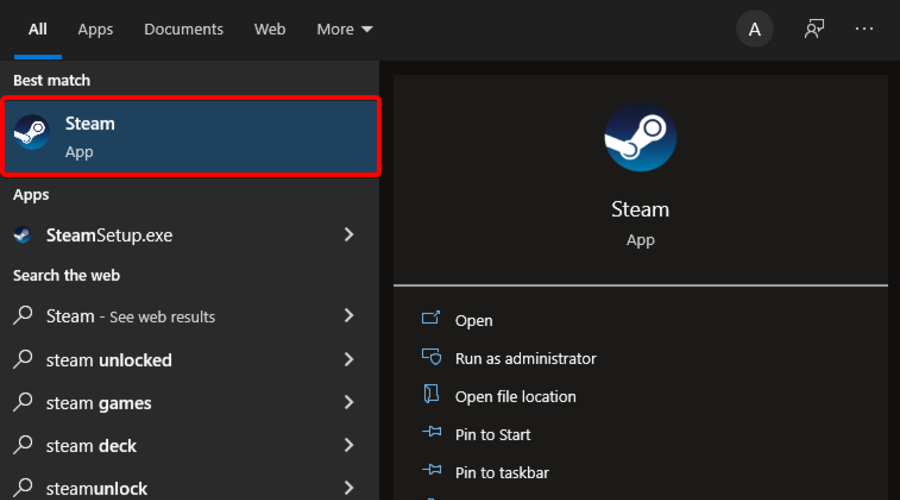
- Hit the Windows key, type Steam, then open the desktop client.
2. Click on Library.
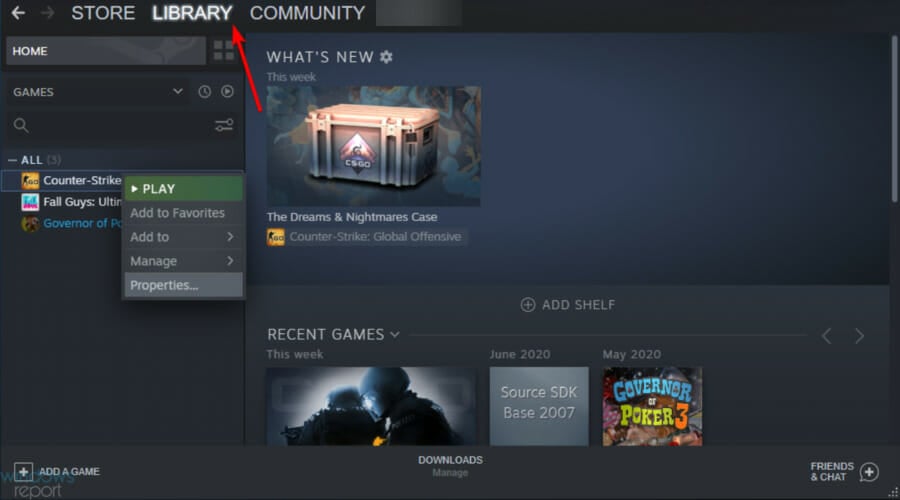
3. Right-click on the problematic game and select Properties.
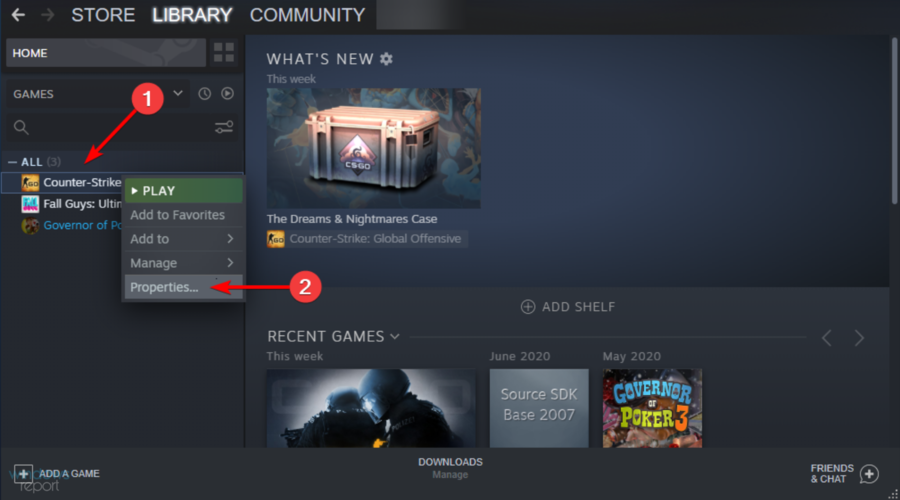
4. Under Properties, click on the Local Files tab.
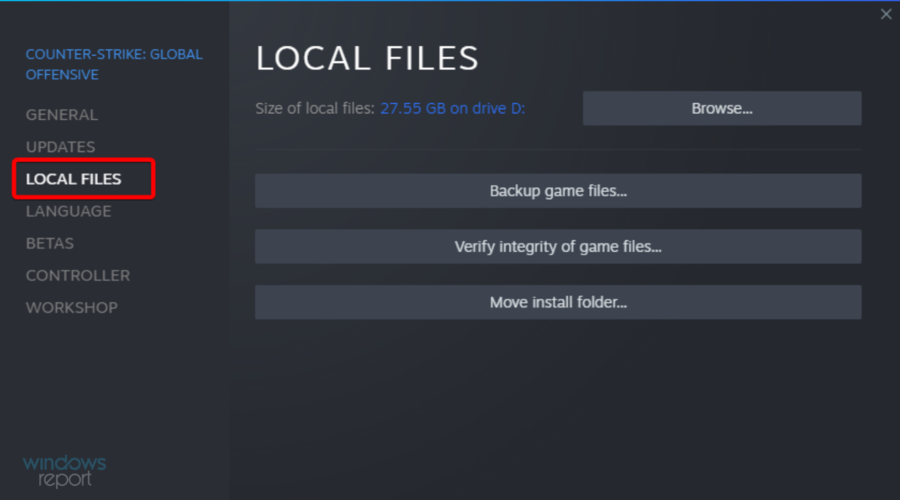
5. Here, click on Verify integrity of game files.
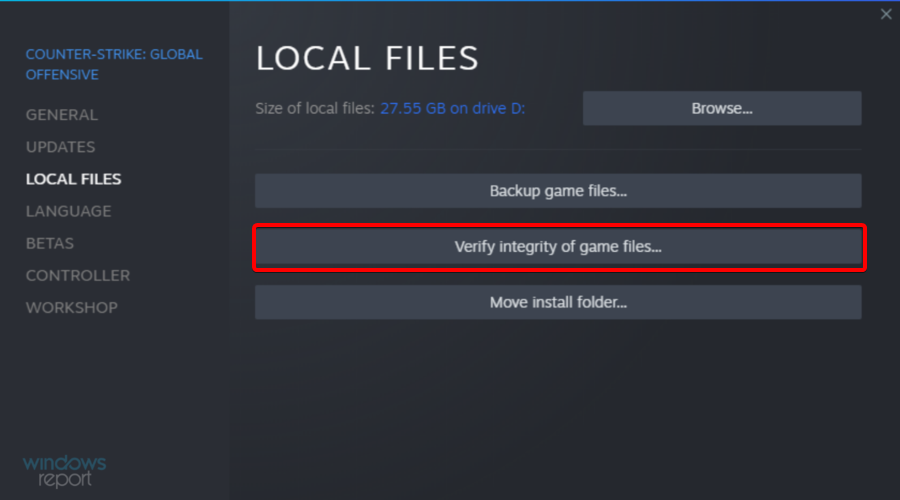
6. Steam will scan the game file for any corruption. If the verification is successful proceed with the next step.
3. Repair the Steam Library folder
- Press on the Windows key, type Steam, then open the app.
- From the top-left corner of the window, click on Steam.
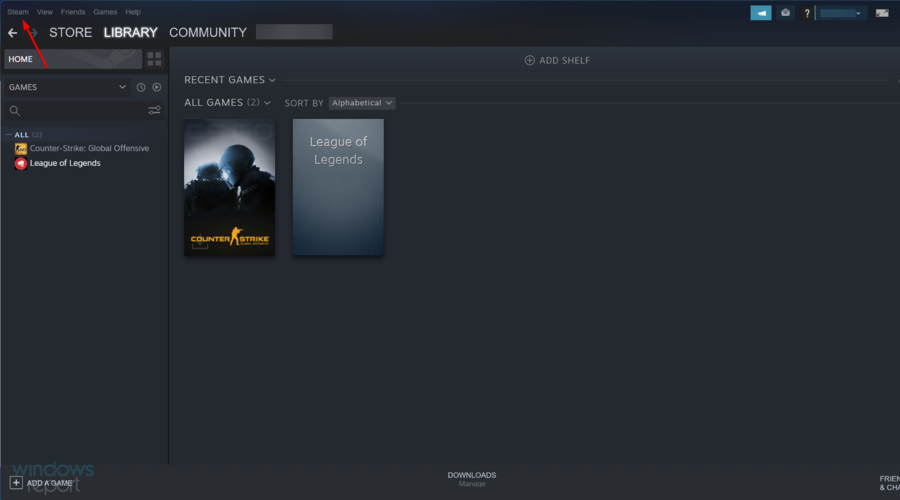
- Go to Settings.
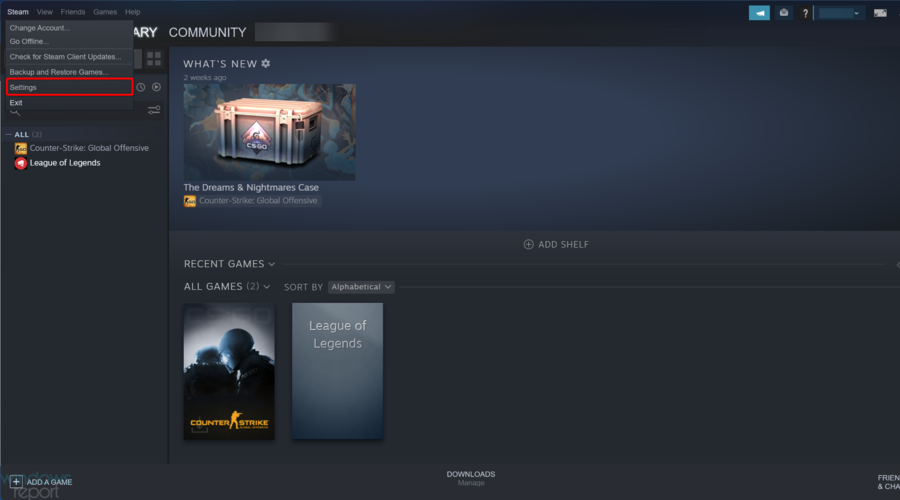
- Click on the Downloads tab, then select Steam Library Folders.
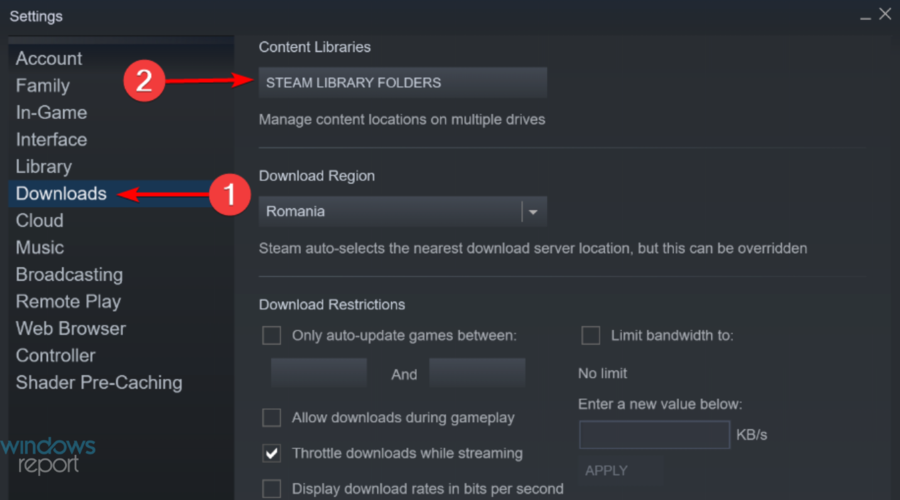
- Right-click on the Steam Library Folder (or custom library folder) and select Repair Library Folder.
- Steam will scan the folder and try to repair it if any problem is detected.
- Try to download the games and see if the error is resolved.
If the problem is due to the default Steam Library folder, try fixing it using the Repair Steam Library Folder option. Here is how to do it.
4. Use a specialized tool to repair Steam corrupted files
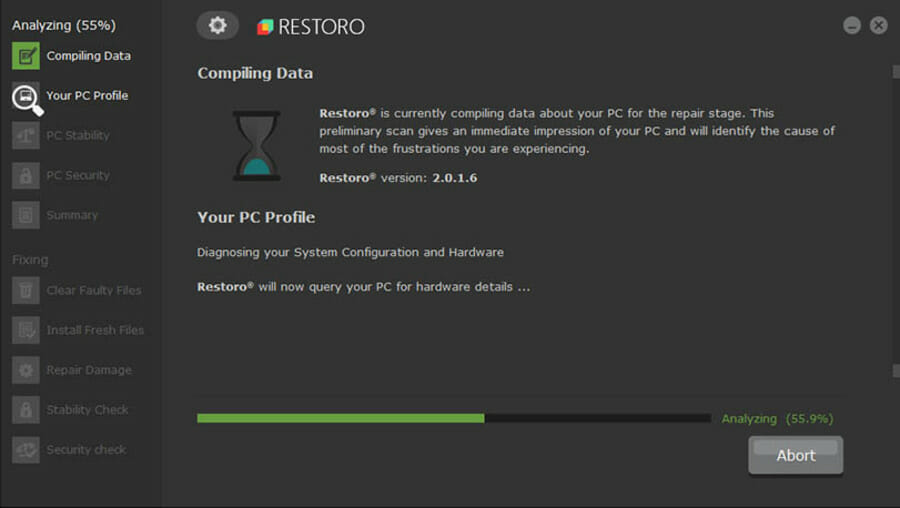
Another great option you should try is a specialized program that will help you protect your system, by removing malware and repairing corrupted files from your PC.
Some PC issues are hard to tackle, especially when it comes to corrupted repositories or missing Windows files. If you are having troubles fixing an error, your system may be partially broken.
We recommend installing Restoro, a tool that will scan your machine and identify what the fault is.
Click here to download and start repairing.
Restoro is the best solution you can find on the market, so you should definitely give it a try.
It will offer convenient preparation processes at any time, restoring and replacing DLL files, with an impressive database of new and up-to-date replacement files.
Over the years, Restoro was constantly improved and its database has grown to have over 25 million updated, pristine, Microsoft files that are ready to repair any Windows device.
It will automatically clean and replace the duplicated or corrupted files. All you have to do in this situation is click the Start button, wait for the results, and then start the fixing process.
Check out some other great features of Restoro:
- It repairs and rebuild Windows OSs
- Offers a complete virus protection
- Repairs virus damage
- Fixes various error messages
Restoro
If you want to repair Steam-related corrupted files in no time, you should go for Restoro.
5. Change the download folder / Steam Library folder
- Hit the Windows key, type Steam, then click on the app to open it.
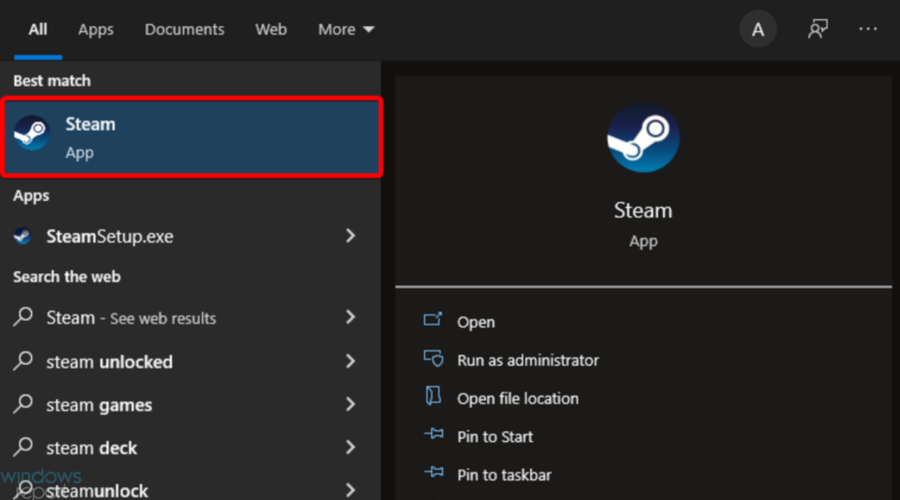
- From the upper-left corner of the window, click on Steam.
- Now, navigate to Settings.
- Click on the Downloads tab, then choose the Steam Library Folders option.
- Next, click on Add Library Folder button on the pop-up dialog box.
- Select a different drive on your system and click Select.
- Close the Setting window and try to download and install the game with a corruption disk error.
The Steam client allows you to change the Steam Library and set a custom location to download and install games.
If the default Steam Library or the hard disk partition is corrupt, you can switch the drive to fix the error.
- Fix disk space errors on Steam [Simplest methods]
- Outlook Keeps Highlighting Words: 2 Best Ways to Fix That
- I2C HID Device Driver Download & Install on Windows 11
6. Reinstall the Steam client
- Press on the Windows key, type Control Panel, then open it.
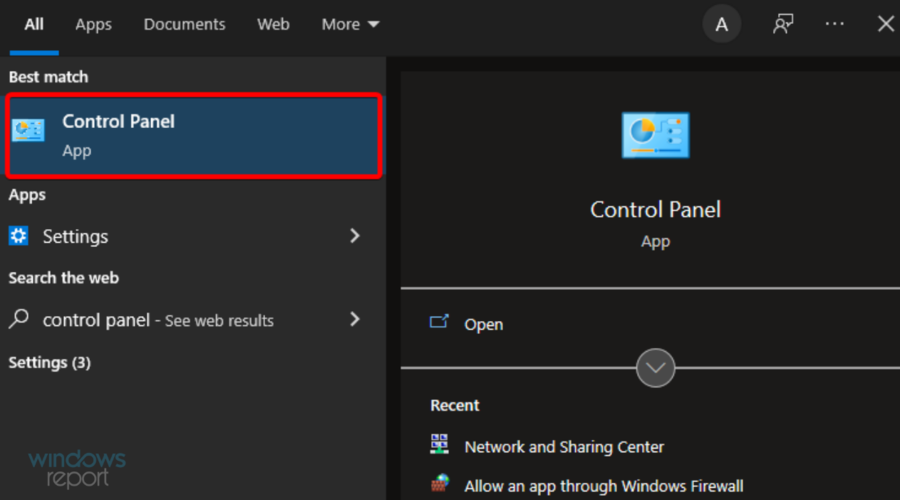
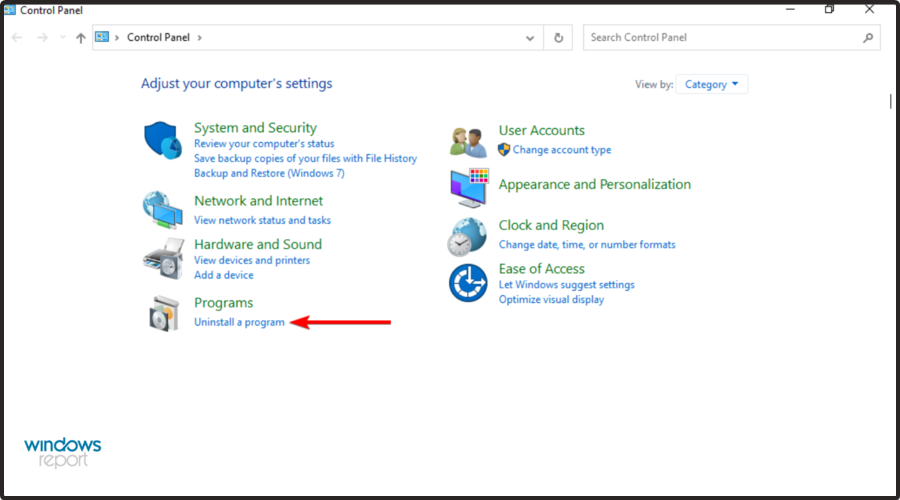
- Click on Uninstall a program.
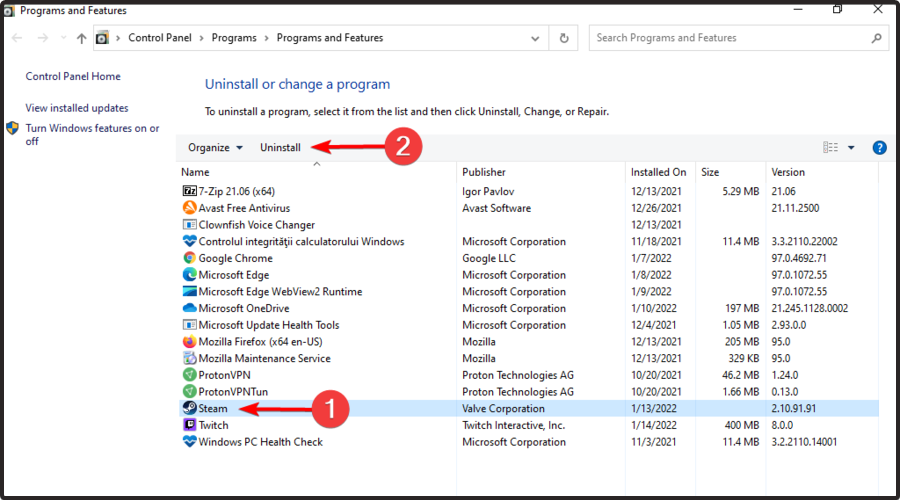
- Find Steam within the list of programs, click on it and select Uninstall.
- Reboot your system.
- Now, navigate to the Steam official page.
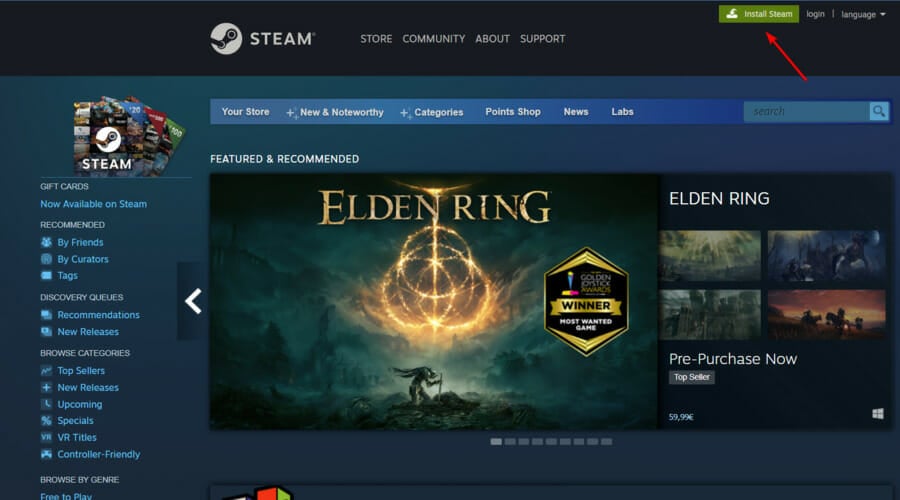
- From the upper-right corner of the window, click on the Install Steam button.
- Follow the on-screen instructions to complete the process.
- Launch Steam and you should have all the game data intact.
- If not, move the Steamapps folder from the backup drive to the following path:
C:Program Files (x86)Steam folder
As a last resort, you can try to reinstall the Steam client. Uninstalling your Steam client does not delete the game data and installed games but only the client.
Once you reinstall the Steam client, it will pick up the game data and files from the folder.
However, just to be on the safer side, take a backup of the Steamapps folder by navigating to the following folder: C:Program Files (x86)Steam
Once the backup of the Steamapps folder is ready, proceed with uninstalling the Steam client.
- Outlook Keeps Highlighting Words: 2 Best Ways to Fix That
- I2C HID Device Driver Download & Install on Windows 11
- How to Install Windows 11 Without TPM [Bypass TPM 2.0]
- Can A Power Outage Damage Your PC? [4 Preventive Tips]
- Kodi Not Working / Not Opening on Windows 10 & 11: Why & Fix
Why am I getting corrupt update files on Steam?
Well, if you really must know, the corrupt update files error is only one of the many errors faced by Steam users in general.
It usually happens when you attempt to download a new game that you just bought or update an existing game on Steam.
That being said, know that it may also occur as a result of a power cut or a corrupted download. So there really isn’t just one cause that can trigger this.
Can I recover a corrupted hard drive?
Because many users are wondering whether or not they can recover a corrupted hard drive, we consider properly delivering some useful answers.
Well, if you’re in the same situation, keep in mind that files can be recovered from a failed hard drive by using a skilled data recovery service.
Failed hard drives cannot be salvaged with recovery software since the operating system cannot access the device to allow the application to recover the data.
We hope that our solutions helped you fix the Steam corrupt disk while downloading error and you are able to play now.
You should also read our expert article on how to fix an error that has occurred while updating a certain Steam game.
After reading this article you will be a lot more prepared to deal with Steam corrupt disk downloads. Remember that Steam corrupt downloads can be fixed with this guide.
Every time you or your friends have to put up with Steam corrupt update files, make sure you do the right thing and refer to this article.
Even if you get the Lost Ark corrupt disk error, the same troubleshooting steps will help you get out of the situation.
For more potential solutions, check out how to fix common Steam errors on Windows 10/11 in a few easy steps.
If you also know other possible solutions or advice, don’t hesitate to leave them in a comment below for your fellow users.

Newsletter
Easily solve the Steam paused corrupt disk issue with our solutions
by Tashreef Shareef
Tashreef Shareef is a software developer turned tech writer. He discovered his interest in technology after reading a tech magazine accidentally. Now he writes about everything tech from… read more
Published on August 25, 2022
Reviewed by
Vlad Turiceanu
Passionate about technology, Windows, and everything that has a power button, he spent most of his time developing new skills and learning more about the tech world. Coming… read more
- The Steam corrupt disk download error can occur when downloading or updating a game.
- You can solve this problem quickly by deleting the active download folder.
- Reinstalling the Steam client can fix this issue fast so make sure you try it.
- Verify the integrity of the game files because this may bring things back to normal.
XINSTALL BY CLICKING THE DOWNLOAD FILE
This software will repair common computer errors, protect you from file loss, malware, hardware failure and optimize your PC for maximum performance. Fix PC issues and remove viruses now in 3 easy steps:
- Download Restoro PC Repair Tool that comes with Patented Technologies (patent available here).
- Click Start Scan to find Windows issues that could be causing PC problems.
- Click Repair All to fix issues affecting your computer’s security and performance
- Restoro has been downloaded by 0 readers this month.
While trying to download a game or update an old game, you may encounter a corrupt disk error on your Steam client. This is a common error and can occur due to several reasons.
The full error reads as follows:
An error occurred while updating [your game] (disk read error) (disk corruption error), see the Steam support site for more information.
For those affected by this error, here is how to fix the corrupt disk Steam error on your Windows machine.
What does corrupt disk mean on Steam?
The data included within a file or storage device can become corrupted if that data is changed from the condition in which it was initially stored, which can cause the data to behave unexpectedly or make it altogether unreachable.
When this happens in Steam, you will have to check the app’s or game’s file integrity as we have shown below.
Why does Steam say corrupt disk?
Keep in mind that in case a BSOD or power outage interrupted the Steam game downloading process, it might have corrupted your download files.
Hence, you’ll probably get the corrupt update files error. If there are problems on your hard disk drive where you have installed Steam, it might result in this error.
In case you’re wondering what exactly is a corrupt disk, do not forget that hard drive data corruption appears when a system cannot finish writing data to a file or when segments of the file become inaccessible.
Moreover, you may encounter one of the following error variations, that are still solvable with the solutions below:
- Steam corrupt disk while downloading – Delete the active download folder or rename it in order to start anew.
- Steam corrupt update files – Uninstalling an update in Steam is not as easy as simply uninstalling the app altogether and reinstalling it.
- Steam disk write error – Verify the integrity of the game you are trying to play as we have shown below or by going to our dedicated guide on this issue.
- Steam download corrupt image Mac – Mac users can also apply some of the solutions below in order to fix this issue.
- Steam corrupt disk download error – Repair the Steam folder library in order to get rid of any corrupt files.
- Steam keeps saying corrupt disk – If nothing works, you may want to rely on a third-party specialized tool that will fix this error for you.
- Steam download stopped corrupt disk – Reinstalling Steam is one of the best solutions that you can try if nothing else works.
How do I fix a corrupt disk on Steam?
- Why does Steam say corrupt disk?
- How do I fix a corrupt disk on Steam?
- 1. Delete the active download folder or rename it
- 2. Verify the integrity of the game files
- 3. Repair the Steam Library folder
- 4. Use a specialized tool to repair Steam corrupted files
- 5. Change the download folder / Steam Library folder
- 6. Reinstall the Steam client
- Why am I getting corrupt update files on Steam?
- Can I recover a corrupted hard drive?
1. Delete the active download folder or rename it
1.1 Delete the folder
- Use the following keyboard shortcut to open File Explorer: Windows + E.
- and navigate to the following location:
C:Program FilesSteamSteamappsDownloading - Steam stores every game with a unique number. Open the first folder you see inside the downloading folder with a number. Check if it belongs to the problematic game.
- Delete the folder.
- Exit Steam if still running. Relaunch Steam and try to install the game again.
Before moving to advanced troubleshooting, consider temporarily disabling the Firewall and antivirus. Try again, and if that doesn’t help, move to additional troubleshooting steps.
Another reason for the corrupt disk error can be the corrupt game’s files. You can try to delete the game’s files that are downloading and then restart the download from the Steam client.
1.2 Rename the folder
- Locate the Downloading folder in Steamapps by navigating to the following path:
C:Program Files (x86)SteamSteamapps - Right-click on Downloading folder and select Rename. Rename the folder as Downloading12.
- Next, create a new folder in the Steamapps folder and name it as Downloading.
- Launch Steam and try to install the game that was giving the issue. You should be able to download and install the game now.
Rename the download folder to something else and create a new folder named downloading as shown in the steps above.
2. Verify the integrity of the game files
The corrupt disk error can also occur if the game files are corrupted or missing. Steam offers a built-in tool that checks and verifies the integrity of Game files within the client.
- Hit the Windows key, type Steam, then open the desktop client.
2. Click on Library.
3. Right-click on the problematic game and select Properties.
4. Under Properties, click on the Local Files tab.
5. Here, click on Verify integrity of game files.
6. Steam will scan the game file for any corruption. If the verification is successful proceed with the next step.
3. Repair the Steam Library folder
- Press on the Windows key, type Steam, then open the app.
- From the top-left corner of the window, click on Steam.
- Go to Settings.
- Click on the Downloads tab, then select Steam Library Folders.
- Right-click on the Steam Library Folder (or custom library folder) and select Repair Library Folder.
- Steam will scan the folder and try to repair it if any problem is detected.
- Try to download the games and see if the error is resolved.
If the problem is due to the default Steam Library folder, try fixing it using the Repair Steam Library Folder option. Here is how to do it.
4. Use a specialized tool to repair Steam corrupted files
Another great option you should try is a specialized program that will help you protect your system, by removing malware and repairing corrupted files from your PC.
Some PC issues are hard to tackle, especially when it comes to corrupted repositories or missing Windows files. If you are having troubles fixing an error, your system may be partially broken.
We recommend installing Restoro, a tool that will scan your machine and identify what the fault is.
Click here to download and start repairing.
Restoro is the best solution you can find on the market, so you should definitely give it a try.
It will offer convenient preparation processes at any time, restoring and replacing DLL files, with an impressive database of new and up-to-date replacement files.
Over the years, Restoro was constantly improved and its database has grown to have over 25 million updated, pristine, Microsoft files that are ready to repair any Windows device.
It will automatically clean and replace the duplicated or corrupted files. All you have to do in this situation is click the Start button, wait for the results, and then start the fixing process.
Check out some other great features of Restoro:
- It repairs and rebuild Windows OSs
- Offers a complete virus protection
- Repairs virus damage
- Fixes various error messages
Restoro
If you want to repair Steam-related corrupted files in no time, you should go for Restoro.
5. Change the download folder / Steam Library folder
- Hit the Windows key, type Steam, then click on the app to open it.
- From the upper-left corner of the window, click on Steam.
- Now, navigate to Settings.
- Click on the Downloads tab, then choose the Steam Library Folders option.
- Next, click on Add Library Folder button on the pop-up dialog box.
- Select a different drive on your system and click Select.
- Close the Setting window and try to download and install the game with a corruption disk error.
The Steam client allows you to change the Steam Library and set a custom location to download and install games.
If the default Steam Library or the hard disk partition is corrupt, you can switch the drive to fix the error.
- Fix disk space errors on Steam [Simplest methods]
- Outlook Keeps Highlighting Words: 2 Best Ways to Fix That
- I2C HID Device Driver Download & Install on Windows 11
- How to Install Windows 11 Without TPM [Bypass TPM 2.0]
- Can A Power Outage Damage Your PC? [4 Preventive Tips]
6. Reinstall the Steam client
- Press on the Windows key, type Control Panel, then open it.
- Click on Uninstall a program.
- Find Steam within the list of programs, click on it and select Uninstall.
- Reboot your system.
- Now, navigate to the Steam official page.
- From the upper-right corner of the window, click on the Install Steam button.
- Follow the on-screen instructions to complete the process.
- Launch Steam and you should have all the game data intact.
- If not, move the Steamapps folder from the backup drive to the following path:
C:Program Files (x86)Steam folder
As a last resort, you can try to reinstall the Steam client. Uninstalling your Steam client does not delete the game data and installed games but only the client.
Once you reinstall the Steam client, it will pick up the game data and files from the folder.
However, just to be on the safer side, take a backup of the Steamapps folder by navigating to the following folder: C:Program Files (x86)Steam
Once the backup of the Steamapps folder is ready, proceed with uninstalling the Steam client.
- Outlook Keeps Highlighting Words: 2 Best Ways to Fix That
- I2C HID Device Driver Download & Install on Windows 11
- How to Install Windows 11 Without TPM [Bypass TPM 2.0]
- Can A Power Outage Damage Your PC? [4 Preventive Tips]
Why am I getting corrupt update files on Steam?
Well, if you really must know, the corrupt update files error is only one of the many errors faced by Steam users in general.
It usually happens when you attempt to download a new game that you just bought or update an existing game on Steam.
That being said, know that it may also occur as a result of a power cut or a corrupted download. So there really isn’t just one cause that can trigger this.
Can I recover a corrupted hard drive?
Because many users are wondering whether or not they can recover a corrupted hard drive, we consider properly delivering some useful answers.
Well, if you’re in the same situation, keep in mind that files can be recovered from a failed hard drive by using a skilled data recovery service.
Failed hard drives cannot be salvaged with recovery software since the operating system cannot access the device to allow the application to recover the data.
We hope that our solutions helped you fix the Steam corrupt disk while downloading error and you are able to play now.
You should also read our expert article on how to fix an error that has occurred while updating a certain Steam game.
After reading this article you will be a lot more prepared to deal with Steam corrupt disk downloads. Remember that Steam corrupt downloads can be fixed with this guide.
Every time you or your friends have to put up with Steam corrupt update files, make sure you do the right thing and refer to this article.
Even if you get the Lost Ark corrupt disk error, the same troubleshooting steps will help you get out of the situation.
For more potential solutions, check out how to fix common Steam errors on Windows 10/11 in a few easy steps.
If you also know other possible solutions or advice, don’t hesitate to leave them in a comment below for your fellow users.
Newsletter
Ошибка Corrupt Disk в Steam обычно возникает, когда пользователи пытаются загрузить только что купленную игру или обновить игру, уже установленную на их компьютерах. Это часто появляется, если что-то прерывает процесс загрузки, например BSOD или отключение электроэнергии, но часто может просто появиться из ниоткуда.
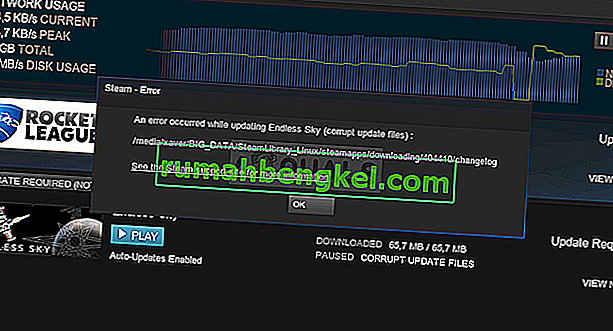
В игры Steam невозможно играть, пока не будут установлены все обновления, что делает эту проблему довольно серьезной. Однако вы должны быть рады узнать, что проблему можно решить множеством различных методов, перечисленных ниже. Убедитесь, что вы внимательно следуете инструкциям.
Что вызывает ошибку Steam Corrupt Disk в Windows?
Есть несколько вещей, которые могли пойти не так, что привело к появлению этой проблемы. Мы выбрали наиболее распространенные среди пользователей, чтобы помочь вам узнать о вашем сценарии и наилучшем способе решения проблемы. Ознакомьтесь со списком ниже:
- Поврежденные файлы загрузки — если ваш процесс загрузки был прерван из-за BSOD, отключения электроэнергии или чего-то подобного, вполне возможно, что загружаемый файл был поврежден. В этом случае хорошо сбросить загружаемые файлы и начать заново.
- Проблемы с жестким диском . Вполне возможно, что на вашем жестком диске возникли проблемы, и вам следует проверить наличие ошибок с помощью встроенного инструмента проверки ошибок.
- Жесткий диск включается — есть возможность выключить жесткий диск после некоторого времени бездействия для экономии энергии, и, возможно, это вызвало проблему. Убедитесь, что вы отключили этот параметр.
Решение 1. Переименуйте папку загрузки
Эта проблема часто возникает, если загружаемый файл внезапно оказывается поврежденным из-за различных причин, таких как сбой системы или случайное выключение компьютера. В этом случае загрузка не может продолжаться за пределами поврежденного файла, и появляется сообщение об ошибке Corrupt Disk. Выполните следующие действия, чтобы перезапустить все загрузки, переименовав папку «загрузка».
- Перейдите в папку установки Steam . Если вы не настроили какие-либо изменения в процессе установки в отношении требуемой папки для установки, это должен быть Локальный диск >> Программные файлы или Локальный диск >> Программные файлы (x86) .
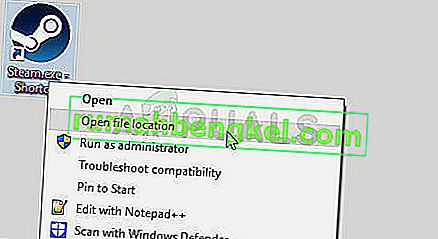
- Однако, если у вас есть ярлык программы Steam на рабочем столе, вы можете просто щелкнуть его правой кнопкой мыши и выбрать опцию Открыть расположение файла в появившемся контекстном меню.
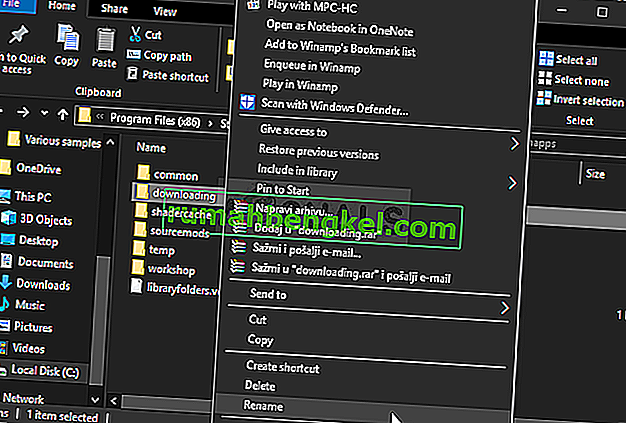
- Найдите папку steamapps в основной папке, откройте ее и найдите внутри нее папку для загрузки . Щелкните его правой кнопкой мыши и выберите параметр « Переименовать» в появившемся контекстном меню. Измените имя папки на что-нибудь вроде старого.
- Снова откройте Steam, и вы увидите, что все загрузки были сброшены. Проверьте, появляется ли проблема по-прежнему при попытке загрузить или обновить имеющуюся у вас проблему!
Решение 2. Очистите кеш загрузки
Второй метод аналогичен первому, но он пытается удалить файлы загрузки, которые больше не нужны и которые не прерывают процесс загрузки. Это не так эффективно, как первый метод, но он также помог многим пользователям.
- Убедитесь, что вы запустили клиент Steam , дважды щелкнув его на рабочем столе или выполнив поиск в открытом меню «Пуск» и нажав на первый результат.
- Щелкните параметр Steam в меню в верхней части экрана клиента и выберите « Настройки» . В окне «Настройки» убедитесь, что вы перешли на вкладку « Загрузки » и в нижней части окна проверьте наличие кеша для загрузки.
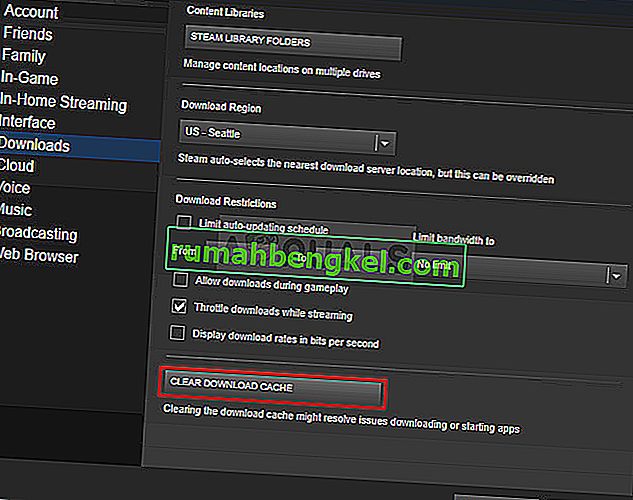
- Должно открыться новое окно, предлагающее вам подтвердить свой выбор, и теперь все ненужные файлы загрузки должны быть удалены.
- Щелкните параметр Steam в верхней левой части клиента Steam и выберите « Выход», чтобы полностью выйти из Steam (не нажимайте просто кнопку x в правом верхнем углу). Снова откройте Steam, перезапустите загрузку и проверьте, появляется ли ошибка поврежденного диска.
Решение 3. Запустите утилиту проверки ошибок
Запуск утилиты проверки ошибок для диска, на котором установлена игра, творит чудеса с этим сообщением об ошибке, поскольку позволяет исправить ошибки файлов и решить проблемы с диском, когда дело доходит до управления файлами. Устранение этих ошибок для диска, на котором находится игра, должно немедленно решить вашу проблему.
- Откройте запись « Библиотеки» на своем ПК или откройте любую папку на своем компьютере и нажмите « Этот компьютер» в меню слева. Если вы используете старую версию Windows (Windows 7 и старше), просто откройте «Мой компьютер» со своего рабочего стола.
- Щелкните правой кнопкой мыши диск, на котором установлена ваша игра, и выберите параметр « Свойства» в появившемся контекстном меню.
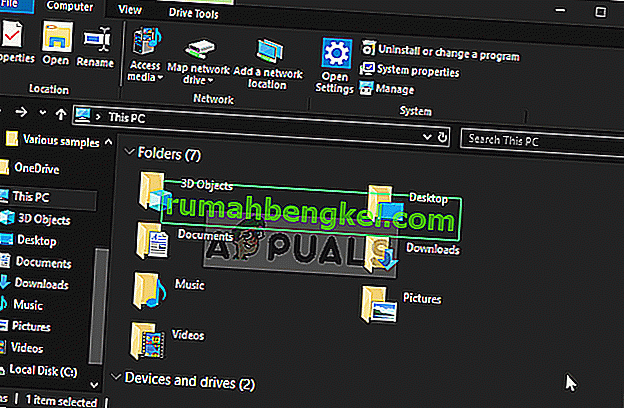
- Перейдите на вкладку « Инструменты » в окне «Свойства» и нажмите кнопку « Проверить» под полем «Проверка ошибок». Следуйте инструкциям, которые появятся на экране, и процесс не займет более нескольких минут. Проверьте, сохраняется ли проблема.
Решение 4. Измените параметры питания
Проблема может быть вызвана проблемами с жестким диском, когда жесткий диск выключен в неподходящий момент, ровно настолько, чтобы повредить загружаемый файл. Это вызывает ошибку Corrupt Disk и препятствует дальнейшей загрузке файла. Попробуйте отключить параметр выключения жесткого диска для экономии энергии в параметрах электропитания!
- Щелкните правой кнопкой мыши значок батареи на панели задач и выберите « Электропитание» . Если вы не используете Windows 10, щелкните меню «Пуск» и найдите « Панель управления» . Измените параметр « Просмотр по» на « Большие значки» и нажмите « Электропитание».
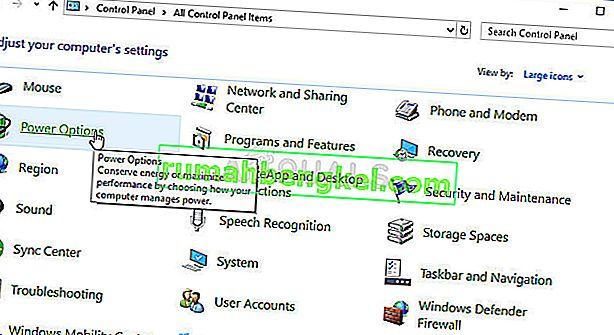
- Выберите план управления питанием, который вы используете в настоящее время (обычно сбалансированный или режим энергосбережения), и нажмите « Изменить настройки плана». В открывшемся новом окне нажмите « Изменить дополнительные настройки питания» .
- В этом окне нажмите маленькую кнопку с плюсом рядом с записью Жесткий диск в списке, чтобы развернуть его. Сделайте то же самое для параметра « Выключать жесткий диск после изменения параметра настройки» на « Никогда », щелкнув по нему.
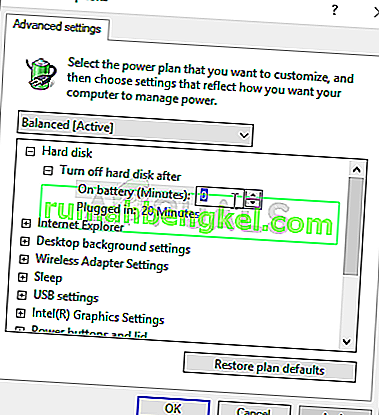
- Сделайте то же самое для всех активных планов батареи, поскольку ваш компьютер иногда переключается между ними автоматически. Убедитесь, что на вашем компьютере все еще появляется ошибка поврежденного диска .
Решение 5. Переустановите Steam
Переустановка Steam — один из наименее популярных методов, и не зря он находится так низко в нашем списке. Этот метод решил проблему для очень многих пользователей, но он должен быть последним средством, поскольку есть множество более простых методов, которые вы должны попробовать, прежде чем делать это.
- Убедитесь, что вы сделали резервную копию каждой папки библиотеки, которую хотите сохранить на своем компьютере, и запомните их правильное расположение, чтобы вы могли добавить их обратно после переустановки Steam.
- Щелкните меню «Пуск» и откройте панель управления, выполнив поиск. Кроме того, вы можете щелкнуть значок шестеренки, чтобы открыть настройки, если вы используете Windows 10.
- В панели управления выберите « Просмотреть как: Категория» в правом верхнем углу и нажмите « Удалить программу» в разделе «Программы».
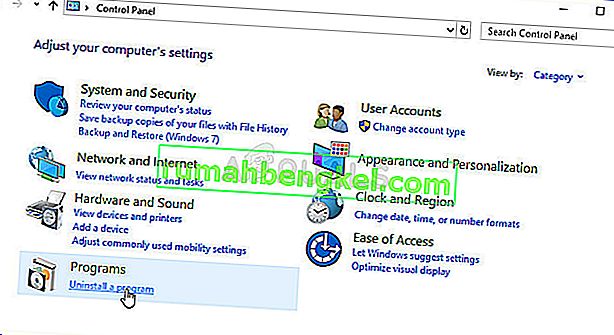
- Если вы используете приложение «Настройки», при нажатии на « Приложения» немедленно откроется список всех установленных программ на вашем компьютере.
- Найдите запись Steam в списке и щелкните по ней один раз. Нажмите кнопку « Удалить» над списком и подтвердите все диалоговые окна, которые могут появиться. Следуйте инструкциям на экране, чтобы удалить Steam и после этого перезагрузить компьютер.
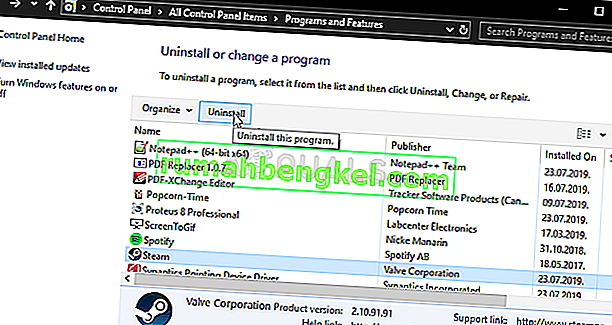
- Повторно загрузите клиент Steam, перейдя по этой ссылке, и запустите загруженный исполняемый файл на своем компьютере, найдя его в папке « Загрузки » и дважды щелкнув по нему. Следуйте инструкциям на экране, чтобы снова установить Steam, и проверьте, не появится ли та же проблема на вашем компьютере снова!
The Corrupt Disk error in Steam usually occurs when users are trying to download the game they have just purchased or to update a game already installed on their computers. It often appears if something interrupts the downloading process such as a BSOD or a power outage but it can often simply appear out of nowhere.
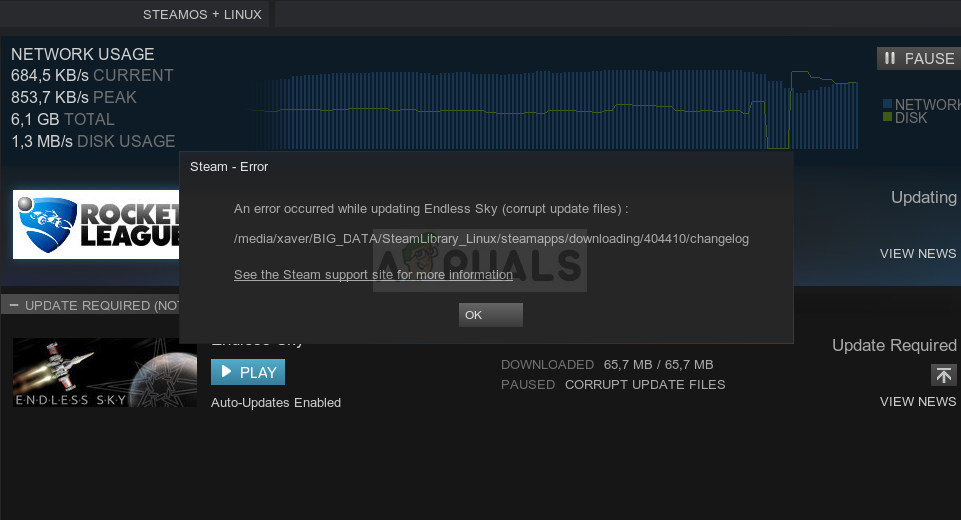
Steam games can’t be played unless all updates are installed, which makes this problem quite serious. However, you should be relieved to hear that the problem can be resolved by many different methods listed below. Make sure you follow the instructions carefully.
There are several things which might have gone wrong and caused this problem to appear. We have chosen the most common ones among users to help you find out about your scenario and the best way to resolve the problem. Check out the list below:
- Corrupt download files – If your downloading process was interrupted by a BSOD, a power outage, or something similar, it’s quite possible that the file being downloaded went corrupt. In that case, it’s good to reset the files being downloaded and start again.
- Hard drive problems – It’s quite possible that your hard drive has run into problems and you should check for errors using the built-in error-checking tool.
- The hard drive is being turned on – There is an option to turn off the hard drive after some time of inactivity to save power and it’s possible that this caused the problem. Make sure you disable this setting.
Solution 1: Rename the Downloading Folder
This problem often occurs if a file being downloaded becomes corrupted all of a sudden due to various reasons such as system crashes or random computer shutdowns. If that is the case, the download can’t proceed beyond the corrupted file and the Corrupt Disk error message appears. Follow the steps below to restart all downloads by renaming the “downloading” folder.
- Navigate to your Steam installation folder. If you haven’t configured any changes during the process of installation regarding the required installation folder, it should be Local Disk >> Program Files or Local Disk >> Program Files (x86).
- However, if you have the Steam program’s shortcut on the desktop, you can simply right-click on it and choose the Open file location option from the context menu which will appear.
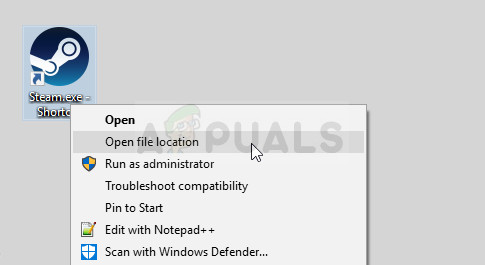
- Locate the steamapps folder in the main folder, open it, and locate the downloading folder inside. Right-click on it and choose the Rename option from the context menu which will appear. Change the folder’s name to something like old.
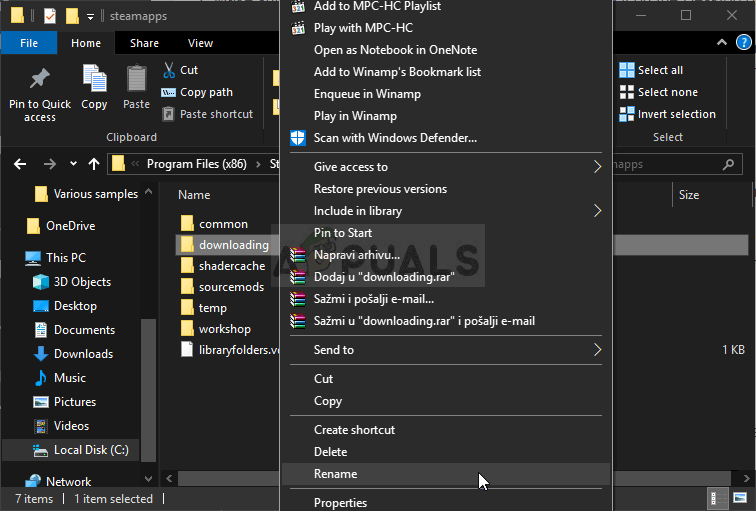
- Reopen Steam and you should see that all downloads have been reset. Check to see if the problem still appears when trying to download or update the have which was giving you problems!
Solution 2: Clear Download Cache
The second method is similar to the first one but this one looks to clear download files which are no longer necessary and which won’t interrupt the downloading process. It’s not as effective as the first method but it has also helped plenty of users.
- Make sure you start the Steam client by double-clicking it on the Desktop or by searching for it with your Start menu open and clicking on the first result.
- Click the Steam option from the menu at the top of the client’s screen and choose Settings. In the Settings window make sure you navigate to the Downloads tab and check the bottom of the window for the Clear Download Cache.
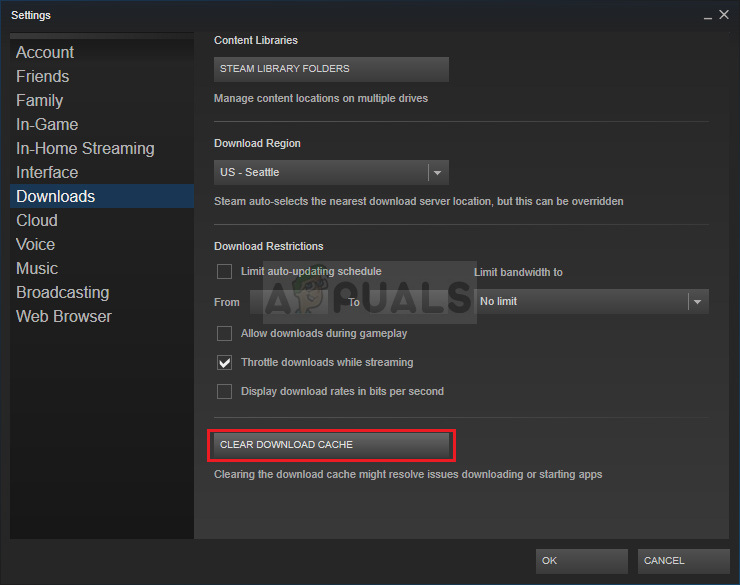
- A new window should open prompting you to confirm your choice and all unnecessary download files should now be deleted.
- Click the Steam option at the top left part of the Steam client and choose Exit to exit Steam completely (don’t just click the x button at the top right corner). Reopen Steam, relaunch the download, and check to see if the Corrupt Disk error appears.
Solution 3: Run the Error Checking Utility
Running the Error Checking utility for the drive where your game is installed does wonders for this error message as it manages to fix file errors and resolve drive issues when it comes to file management. Resolving these errors for the drive where the game is located should resolve your problem immediately.
- Open your Libraries entry on your PC or open any folder on your computer and click on This PC option from the left side menu. If you are using an older version of Windows (Windows 7 and older), simply open My Computer from your Desktop.
- Right-click on the drive where your game is installed and choose the Properties option from the context menu which will appear.
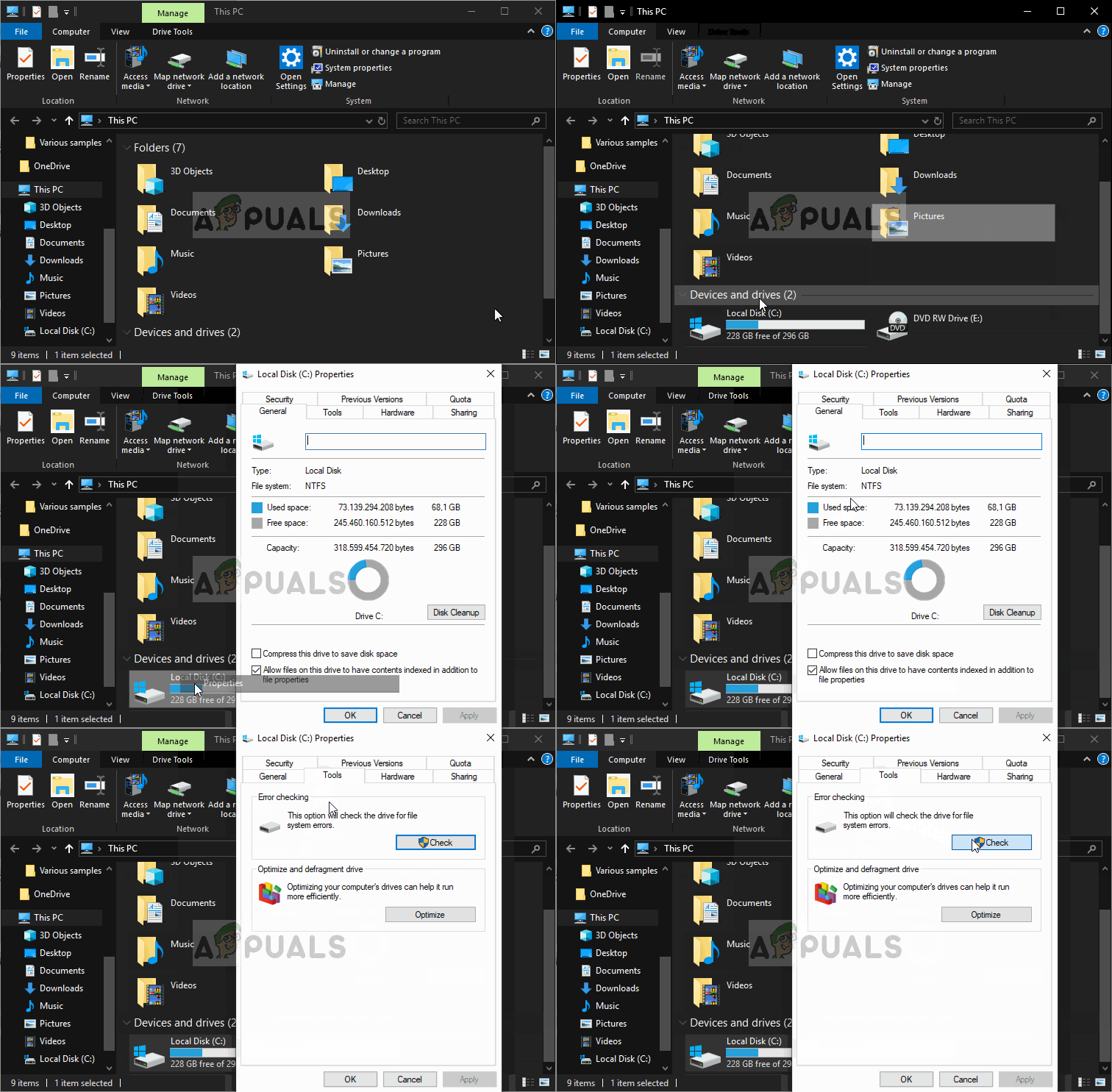
- Navigate to the Tools tab in the Properties window and click the Check button under the Error-checking Follow the instructions which will appear on-screen and the process shouldn’t take more than a few minutes. Check to see if the problem still appears.
Solution 4: Change Power Settings
The problem may be caused by hard disk problems when the HDD is turned off at the wrong moment, just enough to corrupt the file being downloaded. This causes the Corrupt Disk error and it prevents the file from downloading further. Try disabling the option to turn off the hard drive to save power in Power Options!
- Right-click on the battery icon located in the system tray and click on Power Options. If you are not using Windows 10, click on the Start menu and search for Control Panel. Change the View by option to Large icons and click on the Power Options.
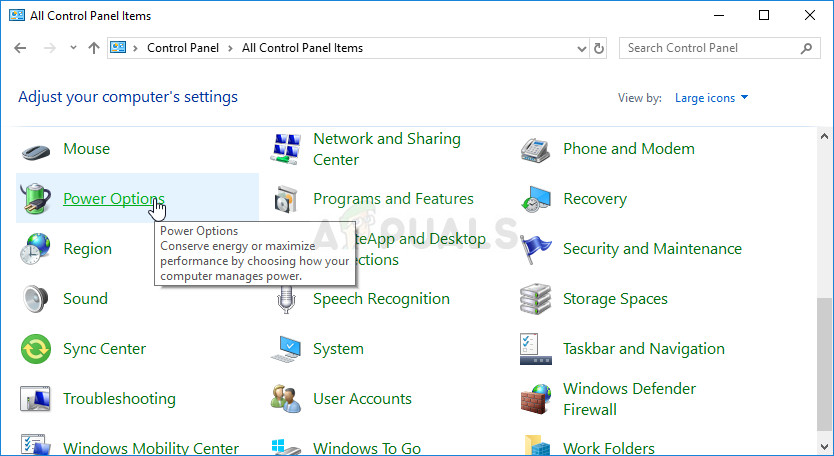
- Choose the power plan you are currently using (usually Balanced or Power saver) and click on the Change plan settings In the new window which opens, click on Change advanced power settings.
- In this window, click the small plus button next to the Hard disk entry on the list to expand it. Do the same for the Turn off hard disk after Change the Setting option to Never by clicking on it.
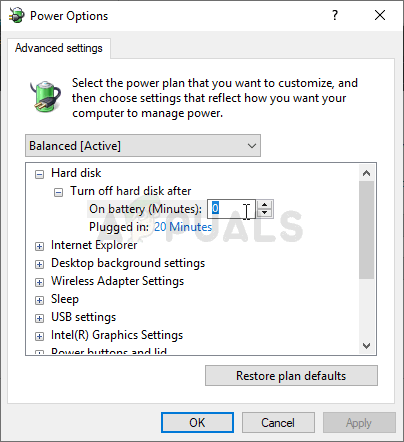
- Do the same for all active battery plans since your computer will sometimes switch between them automatically. Check to see if the Corrupt Disk error still appears on your computer.
Solution 5: Reinstall Steam
Reinstalling Steam is one of the least popular methods and there is a reason why it’s placed so low on our list. The method has solved the problem for so many users but it should be a last resort as there are plenty of simpler methods you should try out before doing this.
- Make sure you backup every library folder you wish to preserve on your computer and take note of their proper locations so that you can add them back once Steam is reinstalled.
- Click on the Start menu and open Control Panel by searching for it. Alternatively, you can click the cog icon to open Settings if you are using Windows 10.
- In Control Panel, select to View as: Category at the top right corner and click on Uninstall a Program under the Programs section.
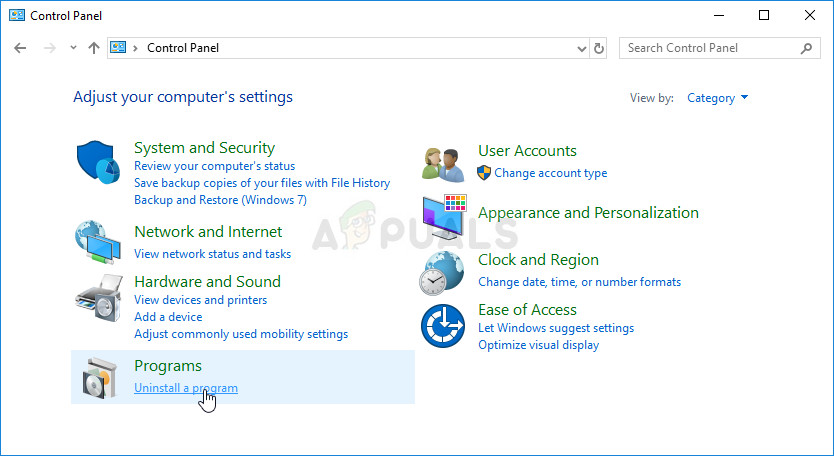
- If you are using the Settings app, clicking on Apps should immediately open a list of all installed programs on your PC.
- Locate the Steam entry on the list and click on it once. Click on the Uninstall button above the list and confirm any dialog boxes which may appear. Follow the instructions on-screen to uninstall Steam and restart your computer afterward.
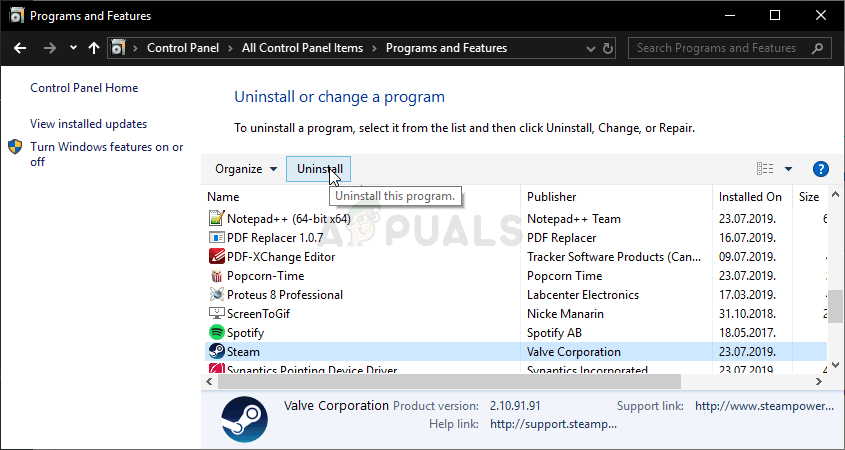
- Redownload the Steam client by navigating to this link and run the downloaded executable on your computer by locating it in the Downloads folder and double-clicking on it. Follow the instructions on the screen to install Steam again and check to see if the same problem appears on your computer again!

Kevin Arrows
Kevin is a dynamic and self-motivated information technology professional, with a Thorough knowledge of all facets pertaining to network infrastructure design, implementation and administration. Superior record of delivering simultaneous large-scale mission critical projects on time and under budget.
Steam users have been recently coming to us with the Steam Corrupt Disk while Downloading an error that shows them the “An error occurred while updating Game (Disk Read Error)” or any other error message with the Steam Corrupt Disk Error. This is mostly triggered due to any interruption or failure while Steam is downloading a game or an update.

In this article, we have dedicated ourselves to fixing this error and have also listed the reasons due to which it is triggered in the first place. Also, we have listed the fixes that the user can implement on their own which will allow them to completely get rid of the error from their PC.
What Causes the Steam Corrupt Disk Error?
After going through a bunch of different users’ feedback, we concluded that the following must be the most prominent reasons due to which this error occurs in the first place.
- Steam Installation: It is possible that your Steam installation has been corrupted due to which you are running into the Steam Corrupt Disk Error and to circumvent this, you can try to relocate the Steam installation and to do this, follow the steps that have been mentioned below.
- Outdated Operating System: The Operating system, if outdated, can also cause this error message. Therefore, we recommend that you try and install the latest available updates to the operating system and then check to see if doing so fixes the Steam Corrupt Disk issue.
- Outdated Drivers: It is also possible that the Drivers installed on your computer might have been outdated and they can sometimes cause this issue because Steam can face errors while trying to scan your Storage device. Therefore, we recommend that you install all the available updates.
- Antivirus Issue: The Antivirus installed on your computer might not be allowing the Steam app from being able to properly read your drives. Therefore, we recommend that you either let the app through your Antivirus or disable it temporarily to fix the Steam Corrupt Disk Error.
- Game File Integrity: The integrity of your game files might be damaged due to which you are getting this issue. Therefore, we recommend that you try and check your game file integrity as mentioned in the solution below and check to see if verifying it lets you fix this issue.
- Steam Beta: The Steam app might be running in the beta mode which uses some unconfirmed updates from Steam to test out new features and this can sometimes cause this error message. Therefore, we recommend that you opt-out of beta and check to see if doing so fixes the issue.
- App Cache: The App cache folder that contains all the cache created by the applications installed on your system might have acquired some corrupted cache. Therefore, we recommend that you clear out the app cache folder and then check to see if doing so fixes your issue.
- Steam Library Folder: The Steam Library folder might not be set properly due to which this error might be triggered. Therefore, we recommend that you repair this folder and confirm that you are able to fix the Steam Download corrupt Windows 10 issue.
- Driver Issue: The Drivers installed on your system might be interfering with some Steam features and due to this the error message can sometimes be seen. Therefore, we recommend that you rollback or reinstall certain drivers that are known to cause conflicts with Steam.
Now that you have been taken through almost all the reasons behind this error, we can finally move on towards implementing the solutions.
Fixing the steam corrupt disk while downloading issue:
Solution 1: Relocate Steam Installation and Game Files
- First, launch the “Steam Client” and click on the “Steam tab” in the upper left corner. Click on the “Settings” option and navigate to the “Downloads” in the left menu pane.
- Click on the “Add Library Folder” option and select a new location for your Steam on your Hard drive. Once selected, click on “Move Folder” to move all your files.

Add library folder - Now press the “Window + E” keys together on your keyboard, and switch to “This PC”. Navigate to the folder where Steam is downloaded. By default, you can find it at “C:Program Files (x86)Steam.”
- Now leaving the “SteamApps, UserData and .exe files and folders,” delete all the other content present in the directory.
- Then press the “Ctrl + X” keys simultaneously on your keyboard to cut the files. Navigate to the new directory of Steam and press “Ctrl + V” to paste these files.
- Afterward, “Restart“ your computer and launch Steam again to check if the corrupt disk steam error got removed.
Solution 2: Update Your Windows
- Go to the “Start Menu” located on the bottom left of the screen, here search for “Settings” and click to select it from the list of search results.
- Then proceed to select “Updates and Security” and in the following window click to select the “Windows Update” option.
- Here click on the “Check For Updates” option available and install any latest updates available if they are present and afterward restart your computer.

Check for updates - When your PC gets updated now proceed to verify if the steam corrupt disk error got resolved.
Solution 3: Update Your Graphics Cards Driver
For this step, you have to know the graphics card you are using on your PC. If you already know this, skip Step 1 and Step 2.
- Press the “Window + R” keys together on your keyboard to open up the “Run” prompt. In the Run prompt type in or paste “devmgmt.msc” to open the “Device Manager” window.
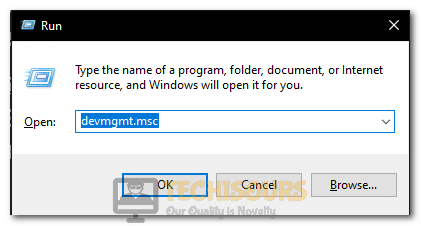
Typing devmgmt.msc in the Run prompt - Here locate the “Display Adapters” option and double click on it to extend it further. This will show you the particular graphics card installed on your PC.
- Once you know your graphics card, open your browser and type in “[your graphics card name] drivers.” Fill in the bracket with the name of your graphics card. If you are directed to your graphics card manufacturer website, navigate to the “Drivers & Utility or Drivers & Support” section, browse for your Graphics Card and download the latest driver present.
- Once downloaded, get back to the “Device Manager” and right-click on your “Graphics Card,” and proceed by clicking on “Update Drivers” in the menu. Then proceed by clicking on “Search Automatically For Updated Driver Software” and wait for a while until the computer finds and installs the updated drivers.
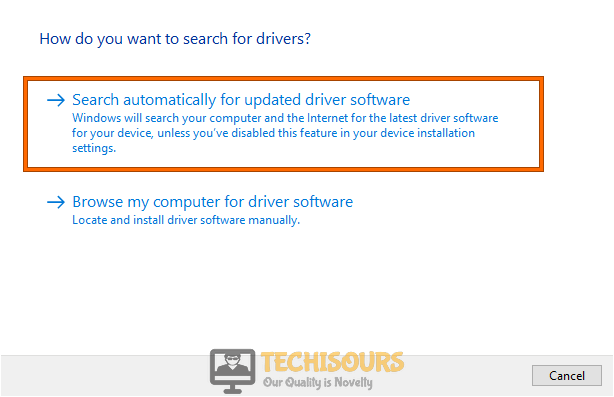
Search automatically for updated driver - It is recommended to “Restart” your computer and try running the game after it restarts.
Solution 4: Disable Antivirus Temporarily
- Open your desktop and right-click on the antivirus icon.
- From the popup context menu, choose to select “Disable”.

Disable antivirus - Once disabled, you can then “Install” or “Update” your game and enable the antivirus back once complete.
Solution 5: Whitelist Steam In Windows Firewall
- Press the “Window + R” keys together on your keyboard to open up the “Run” dialog box. In the Run prompt type in “control firewall.cpl” and press “Enter” to open “Windows Defender Firewall”.

Typing Control firewall Command - Next click on “Allow An App Or Feature Through Windows Defender Firewall” in the menu pane on the left.
- Then click on the “Change Settings” option in the “Allowed Apps” window. Click to select “YES” if you come across any permission prompts.
- Next click on “Allow Another App” at the bottom of the window in the “Allowed apps” and browse the “Steam.exe” file in the “Add An App” window. Typically it is located in “C:Program FilesSteambin.” Do the same with the .exe file of the game causing the problem.
- Then check the “Private and Public” boxes of both of the entries and click to select “OK”.
- Get back to the “Windows Defender Firewall” window and click on “Advanced Settings” in the menu pane on the left. Click on “YES” if you come across any permission prompts.
- Navigate to click the “Inbound Rules,” located on the left side of the window, and under the “Inbound Rules” drop-down menu on the left proceed to select “New Rule” under the “Actions” menu.

Clicking on the “New Rule” option - The “New Inbound Rule Wizard” dialogue box will open up. Click on the “Port” option and click on “Next.”
- At the “Protocols and Ports” step, choose the “TCP” option and then select the “Specific Local Ports” option.
- Now paste the following ports in the order as listed and select “Allow the Connection” each time you press “Next”. Do this for all the following entries:
27015--27030

27036

27015
- Similarly, add another rule for UDP and select the “UDP” and “Specific Local Ports” option instead of “TCP,” this time following the same previous steps:
27015--27030

27000--27100

27031-2703

4380

27015

3478

4379

4380
- Once all the ports are added, click on “Next” and make sure that all three options, “Domain,” “Public,” and “Private,” are checked.
- Hit “Next” and name your rules. Proceed by clicking on “Finish” and finally restart your computer.
Solution 6: Verify Integrity of Game Files
- Right-click on Steam and unselect “Run As Administrator.” Then navigate to the game that failed to update in the “Steam Library.”
- Right-click on the game, select “Properties,” and move to the “Local Files” tab. Click to select the “Verify Integrity of Game Files.”

Verify Integrity of the Game Files - Launch and play the game like normal and check to see if the steam corrupt disk reddit error got eradicated.
Solution 7: Repair Partitions
- Press the “Window + E” keys simultaneously on your keyboard to open up the “File Explorer” window and navigate to “This PC”.
- Right-click on each of the storage drives and select “Properties” from the drop-down menu.
- Move to the “Tools” tab and click on “Check” to start the Error Checking process. Then click on “YES” if you receive any system permissions.

Clicking on Check Option
Solution 8: Run Steam In Admin Mode
- Open the “Steam directory” where you have downloaded Steam, typically the location is “C:Program Files (x86)Steam.”
- Locate the executable file named “steam.exe” and right-click on the file to select “Properties” from the drop-down menu.
- Switch to the “Compatibility” tab and check the “Run This Program As Administrator” option under the “Settings” tab.
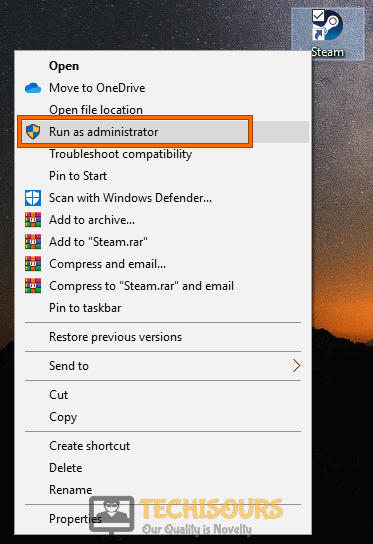
Run Steam as administrator - Click on “Apply” for the changes to take effect and now click on the same “steam.exe” file to see if the steam download corrupt windows 10 problem is resolved.
Solution 9: Update the Steam To Beta Client
- First, launch the “Steam client” and click on the “Steam tab” in the upper left corner.
- Next, click on the “Settings” option and navigate to the “Accounts” tab in the left menu pane.
- Under the “Beta Participation” section click to select the “Change” button.
- Then choose the “Steam Beta Update” option in the context menu and click on “OK”.
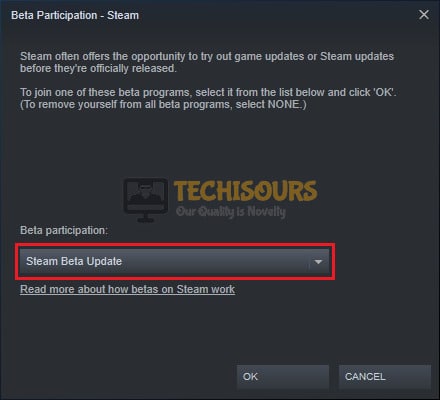
Choose Steam Beta Update - Finally, click on the “Restart Steam” option to allow the settings to take effect.
Solution 10: Opt Out Of Steam Beta
- First, launch the “Steam client” and click on the “Steam tab” in the upper left corner.
- Click on the “Settings” option and navigate to the “Accounts” tab in the left menu pane.
- Under the “Beta Participation” section click on the “Change” button.
- Choose the “NOTE – Opt-out of all beta programs” option in the context menu and click to select “OK”.
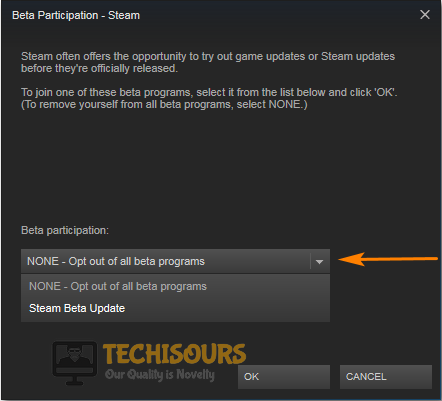
Opt-Out Of All Beta Programs - Restart your computer which will save you from the hassle of ending all steam-related tasks (Steam Client Bootstrapper, Steam Client Web helper, Steam Client Service) individually from the task manager.
- Once your computer has been restarted, open the “Steam Client” again and launch your game from the “Library” tab again.
Solution 11: Delete the Contents Of Downloading Folder For CSGO
Though this only works for CSGO players, you can try the same for any Steam game that is giving you this error. Follow the below-listed steps:
- Press the “Window + E” keys together on your keyboard to open up the “File Explorer” window and navigate to “C:Program Files (x86)Steamsteamappsdownloading”.
- Select all the contents from the “Downloading” folder and hit the “Shift + Delete” keys together on your keyboard to delete that folder. You can also name it “download.old” and delete it later after updating.
- Open Steam again and try to update “CSGO” back again. If the error still persists, then you are advised to “Restart” your PC.
- Upon reboot, launch Steam again and try to update. This will re-download the complete “CSGO Update”.
- Once the update is finished, “Verify Integrity of Game Files” by following the steps in “Solution 6” above and then launch CSGO.
Solution 12: Change Download Region and Delete Local Content
- First, launch the “Steam client” and click on the “Steam tab” in the upper left corner. Click on the “Settings” option and navigate to the “Downloads” in the left menu pane.
- Select the region “Closest to You” under the “Download Region” section. Or you can test out different regions to find out what region gives you the best download speed.
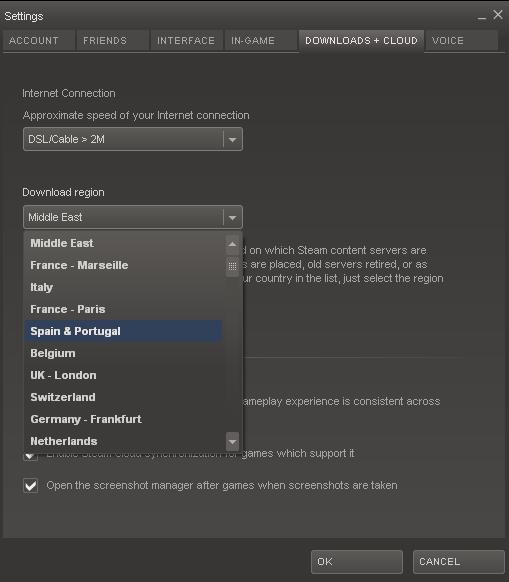
Select the Download Region - Also, scroll to the bottom and click on the “Clear Download Cache” button.
- Now move over to the “Steam Library” and right-click on the problematic game.
- Next, click on “Delete Local Content” from the context menu and select “Delete” to confirm.

Delete Local Content - Now select the game again and redownload it once again. Don’t forget to “Verify Game Files” afterward as mentioned in “Solution 6” above.
Solution 13: Run CHKDSK Command to Check Disk Error
- Right-click on the “Windows icon” and select “PowerShell (Admin)” from the drop-down menu.
- Paste the command “chkdsk /f /r” ” in the window and hit the “Enter” key.
- Lastly, “Restart” your computer to see if the error exists or not.
Solution 14: Delete the App cache Folder
- Press the “Window + E” keys together on your keyboard, and switch to “This PC”. Navigate to the “appcache folder”. By default, you can find it at the “C:Program Files (x86)Steam” location.
- Locate and delete the “appcache” folder and restart your computer.
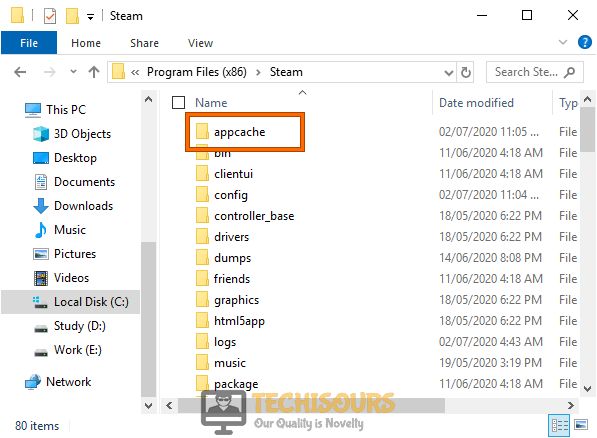
Delete the appcache folder - Upon restart, launch Steam again and try updating the problematic game.
- Check to see if the Steam Corrupt Disk Error is gone.
Solution 15: Tweak Power Setting
- Press the “Window + R” keys simultaneously on your keyboard to open up the “Run” dialog box. Here paste or type “powercfg.cpl” in the dialog box and press “Enter” to open up the “Power Options”.

Typing in “powercfg.cpl” - Then click on the “Change Plan Settings” in front of your selected “Power Plan” and then click on the “Change Advanced Power Settings” from the “Edit Plan Settings” window.
- In the pop-up “Power Options” window click on the “Hard Disk” to expand it and then click on “Turn Off Hard Disk After”.
- Now change this value to “Never” and follow the same steps for each “Power Plan” present on your computer.
- Once done now proceed to verify if the steam corrupt disk while downloading error got removed completely.
Solution 16: Backup and Reinstall Steam
Backup Steam:
- First, launch the “Steam client” and click on the “Steam tab” at the upper left. Then click on the “Settings” option, navigate to the “Downloads” in the left menu pane and click on “Steam Library Folders” under the “Settings” window. This will tell you all the libraries you have to backup.
- Next press the “Window + E” keys together on your keyboard, and switch to “This PC.” Locate the “Downloading” folder inside the “steamapps” folder. By default, it is present in “C: program files (x86)Steam steamapps”.
- Select the steamapps folder and right-click on it to select “Copy” from the context menu.
- Navigate on the desktop or in a drive to make another folder. Right-click on your desired location and select “New > Folder” from the context menu. Name the folder as “Steamapps Backup”.
- Repeat the same process for all your game libraries.
Reinstall Steam:
- Press the “Window + X” keys together on your keyboard and in the pop-up menu, click on “Apps and Features/Programs and Features”.
- In the “Apps and Features/Programs and Features” window, locate “Steam”.
- Right-click on it and select “Uninstall or Uninstall/Change”. Click to select “YES” on the “permission prompt” and follow the onscreen instructions to uninstall.
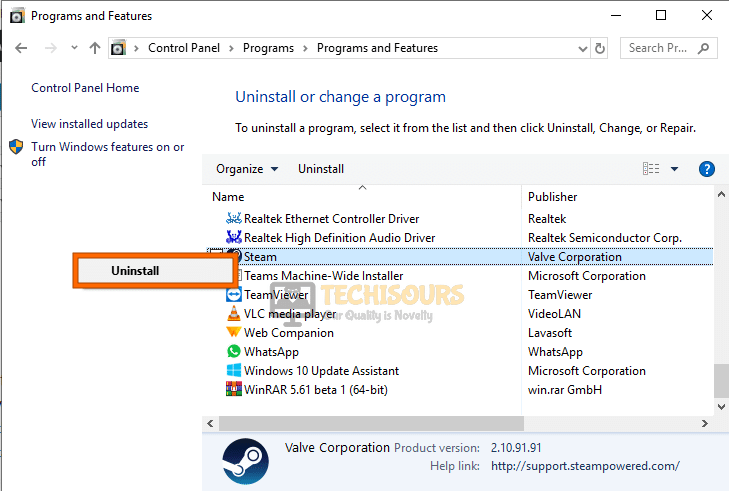
Uninstall Steam - Once uninstalled, click on “Finish” to exit the “Uninstallation Wizard” and download Steam again.
- Execute the “steam.exe” file from the downloaded folder and follow the onscreen instructions to reinstall it.
- After successful installation “Log In” back, launch your game and hopefully steam corrupt disk issue would be resolved by now.
Solution 17: Repair Steam Library Folder
- First, launch the “Steam client” and click on the “Steam tab” at the upper left. Click on the “Settings” option and navigate to the “Downloads” in the left menu pane.
- Click on “Steam Library Folders” located under the “Content Libraries Option.”

Steam library folder - In the “Steam Library Folder” dialogue box, right-click on the default folder and click on “Repair Library Folder.”
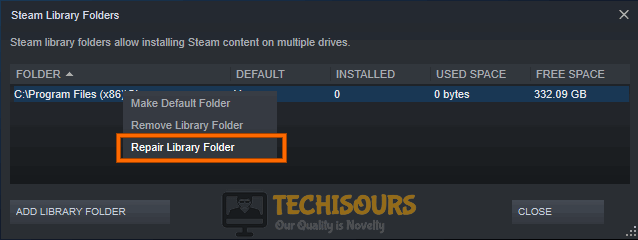
Repair Library Folder - Once scanned, try downloading the games again to check whether the steam corrupt disk problem still exists.
Solution 18: Roll Back Your Drivers
- Press the “Window + S” keys simultaneously on your keyboard to open up the “Search” menu. Type or paste “Device Manager” in the search bar to open up the “Device Manager” window.

Typing in Device Manager - Locate the “Display Drivers” menu and double click on it to extend it further. Right-click on the extended option which would technically be your “Graphics card” and then proceed to “Properties”.
- Switch to the “Driver” tab on the “Properties” window, click on “Roll-Back Drivers” and press “OK”.
- Check to see if doing so lets you fix the Steam Corrupt Disk Error.
Solution 19: Turn Off Windows Defender Firewall
- Open the “Start menu” on the bottom left corner of your screen or simply press the “Windows” button on your keyboard. From here locate and open “Settings.”
- Once in the Settings window locate the “Update and Security” option and click to select it. Then select the “Windows Security” from the left menu pane.

Choose Update and Security - Then proceed to “Virus and Threat Protection” under the “Protection Areas” section. In the new dialogue box, navigate to “Virus and Threat Protection Settings” and click on “Manage Settings.”
- Now turn “OFF” the button located under the “Realtime Protection.” Click on “YES” when the permission dialogue box pops up, and you’re good to go.
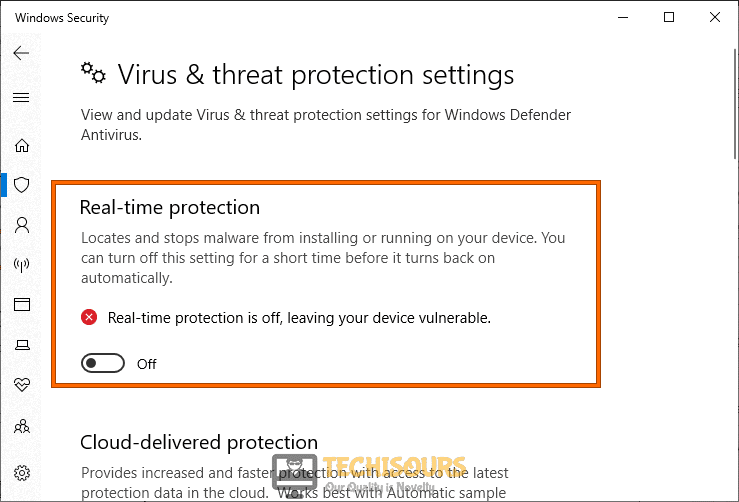
Disable Real-time protection
Solution 20: Delete 0 kb Files
- Press the “Window + E” keys together on your keyboard, and switch to “This PC”. Navigate to the “steamapps folder”. By default, it is present in “C: program files (x86)Steam steamapps.”
- Once you have reached the “steamapps folder”, delete any files having “0 Kb” size. You can check it by looking into the “Size” column.
- Afterward, check to see if the steam download corrupt disk error got fixed.
Solution 21: Uninstall the Problematic Software
Any recently installed software might be interfering with Steam and causing it to crash. To avoid such instances, simply uninstall any program that has recently been installed on your computer.
Hopefully, the list of detailed fixes indexed above would be enough to get through the error easily but still if you face any difficulty in resolving it completely you may Contact Us here for assistance.
Ошибка записи на диск Стим — распространенная ошибка, которая часто вызывает недоумение пользователей. Сбои в работе проявляют себя появлением сообщения при попытке загрузить / установить / обновить / запустить игру. Причиной ошибки записи на диск Steam может защит от записи, физические дефекты, действие антивируса или другие проблемы. Ниже приведем основные способы, позволяющие своими силами восстановить работоспособность софта.
Перезагрузите приложение и ПК
Первое, что нужно сделать, если не идет запись на диск в Steam — перезапустить компьютер / ноутбук и приложение. Такие действия спасают в ситуации, если проблема носит временный характер и вызвана незначительными сбоями в работе системы. Сначала перезапустите Стим, а если это не помогло, сделайте такое же действие с ПК. При отсутствии результата переходите к следующему шагу.

Уберите защиту от записи
Ошибка при записи на диск Стим может быть вызвана защитой от выполнения таких действий. В результате на компьютере или ноутбуке физически нельзя добавить или изменить файлы в папку или на весь диск. При наличии защиты появляется надпись, мол, произошла ошибка записи на диск Steam. Для устранения проблемы снимите защиту записи с того диска, где хранится интересующая игра.
Запустите программу от имени администратора
При поиске выходов из сложившейся ситуации нельзя отметать наиболее простой путь — запуск Стим от имени администратора. Метод выручает в ситуации, когда приложению по какой-то причине не хватает необходимых разрешений. Во многих случаях ошибка при записи на диск Steam исчезает, если дать приложению расширенные права.

Отключите настройку «Только для чтения»
Применение на ПК или ноутбуке операционной системы Виндовс позволяет использовать опцию «Только для чтения». Этот параметр можно активировать применительно к отдельным файлам или папкам. При появлении ошибки записи на диск в Стиме обратите внимание, какое разрешение установлено на каталоге. При наличии опции «Только для чтения», это неизбежно вызывает сбои в работе программы. Для решения проблемы сделайте следующее:
- Найдите папку Стим.
- Жмите по ней правой кнопкой мышки.
- Выключите пункт Только для чтения.
После этого еще раз запустите приложение и проверьте, подействовал указанный способ или нет.
Удалите поврежденные файлы
При поиске ответов на вопрос, что делать, если в Steam появляется ошибка записи на диск, попробуйте убрать поврежденные элементы. Когда при загрузке возникают трудности, Стим начинает автоматически подгружать некорректный файл. В результате возникают сбои в запуске приложения. Для решения ситуации сделайте следующее:
- Войдите в каталог Стим.
- Перейдите в папку Steamapps.
- Войдите в Common.
- Отыщите файл с таким же названием, как и имя игры, которую вы пытаетесь запустить.
- Проверьте размер документа. Самый плохой вариант — появление показателя 0 кБ, что значит, что ошибка записи на диск в Стиме вызвана именно этим файлом. Удалите его и попробуйте снова запустить игру.
Не бойтесь удалять поврежденные файлы, ведь при очередном входе система должна загрузить их в автоматическом режиме. Если при обновлении произошла ошибка записи на диск Стим, проблему можно исправить и в ручном режиме. Для этого сделайте следующее:
- Войдите в Стим и отыщите игру, которую вам нужно обновить или запустить.
- Жмите правой кнопкой мышки и выберите Свойства.

- Перейдите в Локальные файлы и жмите Проверить целостность файлов игры.

После выполненных шагов Стим проверяет файлы и при наличии повреждений он загружает новые при очередном пуске. Помните, если в игре применяется средство запуска, и оно грузит дополнительные обновления, не проверяйте целостность файлов. В таком случае обновленная игра будет заменена на стандартный лаунчер, и тогда придется снова загружать обновления.
Поменяйте безопасность папки
Распространенная причина, почему не идет запись на диск в Стиме — неправильные настройки записи и чтения. Как результат, появляется ошибка при загрузке. Для исправления ситуации сделайте следующие шаги:
- Войдите на диск, где установлен Стим.
- Жмите по папке правой кнопкой мышки.
- Выберите Свойства.

- Войдите в раздел Безопасность.
- Выберите каждого пользователя в разделе Группы или пользователи.

- Обратите внимание на наличие запрета касательно записи и чтения.
При обнаружении запрета кликните на Изменить и уберите ограничение. После этого снова жмите по папке Стим правой кнопкой мышки и перейдите в Свойства. Там найдите Атрибуты и снимите отметку Только для чтения (если вы не сделали это ранее).
Почистите кэш
На вопрос, что делать, если пишет «Ошибка записи на диск» в Стиме, многие пользователи рекомендуют почистить кэш. Такое действие помогает спасти ситуацию, если кэш поврежден или занимает слишком много оперативного пространства. Алгоритм действий имеет следующий вид:
- Войдите в Steam.
- Перейдите в категорию Вид слева вверху, а там Настройки.

- Зайдите в загрузки и жмите Очистить кэш загрузок.

После этого подтвердите действия и проверьте, ушла ошибка записи на диск Стим или нет. При отсутствии результата переходите к следующему шагу.
Поменяйте регион загрузки
Хороший способ, позволяющий исправить проблему — поменять регион сервера для загрузки. Как правило, программа определяет его автоматически, но иногда в этом процессе происходят сбои. Как вариант, правильный сервер может быть перегружен, из-за чего и возникают ошибки. Для решения проблемы сделайте следующее:
- Зайдите в Steam.
- Перейдите во вкладку Вид, а там Настройки.
- Зайдите в Загрузки и укажите другой регион.

После этого сохраните настройки, перезапустите приложение и проверьте, ушла ли прежняя ошибка.
Переместите Steam на другой диск
Сложнее обстоит ситуация, когда при установке произошла ошибка записи на диск Steam. В таком случае может помочь перенос программы на диск с большим количеством места. Если на основном диске места не хватает, возникает ошибка записи. В случае, когда такой шаг помогает с решением проблемы, это свидетельство проблем с элементом для хранения информации. Не бросайте ситуацию на самотек, ведь в дальнейшем с этим могут возникнуть другие проблемы.
Проверьте дисковое пространство на ошибки
Одна из причин, почему возникла ошибка записи на диск в Стиме — проблемы с дисковым пространством. Для устранения проблемы проверьте изделие на возможные проблемы. Кроме того, такие проверки полезны при наличии нескольких разделов на одном диске или, когда перемещение папки со Steam не дало результата. Если проблема с ошибками дискового пространства повторяется в будущем, может потребоваться замена HDD.
Отключите антивирус / брандмауэр или добавьте софт в исключения
Ошибка записи в Стим может свидетельствовать о действии антивирусной программы или брандмауэра. Причина в том, что некоторое ПО идентифицирует Steam в качестве вредоносной программы и блокирует ее. Если прежние шаги не исправили ошибку, попробуйте временно отключить антивирус на время загрузки приложения. При наличии результата добавьте Стим в исключения.
Это же правило касается брандмауэра (сетевого экрана), который также может блокировать работу Steam. Как и в прошлом случае, попробуйте временно отключить блокирующий софт и проверьте, появляется ли после этого ошибка записи. Если нет, добавьте Стим в исключения и спокойно работайте дальше.
В Стим бывают и другие ошибки, как их «лечить» читайте в соответствующих статьях:
- ошибка при запуске «Appname can`not run…»;
- ошибка подтверждения аккаунта.
Сбросьте конфигурацию до настроек по умолчанию
Во многих случаях может спасти сброс конфигурации Steam до первоначальных настроек, установленных по умолчанию. Для этого жмите на комбинацию Win+R, а после введите команду steam://flushconfig. После завершения выполненных шагов убедитесь, что они подействовали.
Предотвратите выполнение DEP-данных
В случае, когда появляется ошибка записи на диск Стим, может помочь предотвращение исполнения DEP-данных. Для решения этой задачи сделайте следующее:
- Кликните на сочетание кнопок Win+R.
- Пропишите команду sysdm.cpl для открытия свойств системы.

- Перейдите в раздел Дополнительно.
- Во вкладке Быстродействие жмите Параметры.

- В новой вкладке жмите на Предотвращение выполнения данных.

- Убедитесь, что функция включена. Если она выключена, жмите Добавить и укажите путь к исполнительному файлу Стим (steam.exe).
Итоги
В большинстве случаев рассмотренные шаги помогают справиться с ошибкой записи на диск Стим. При отсутствии результата всегда можно обратиться в сообщество для консультации и написать в службу поддержки. Но при выполнении рассмотренных в статье шагов в этом не возникает необходимости.