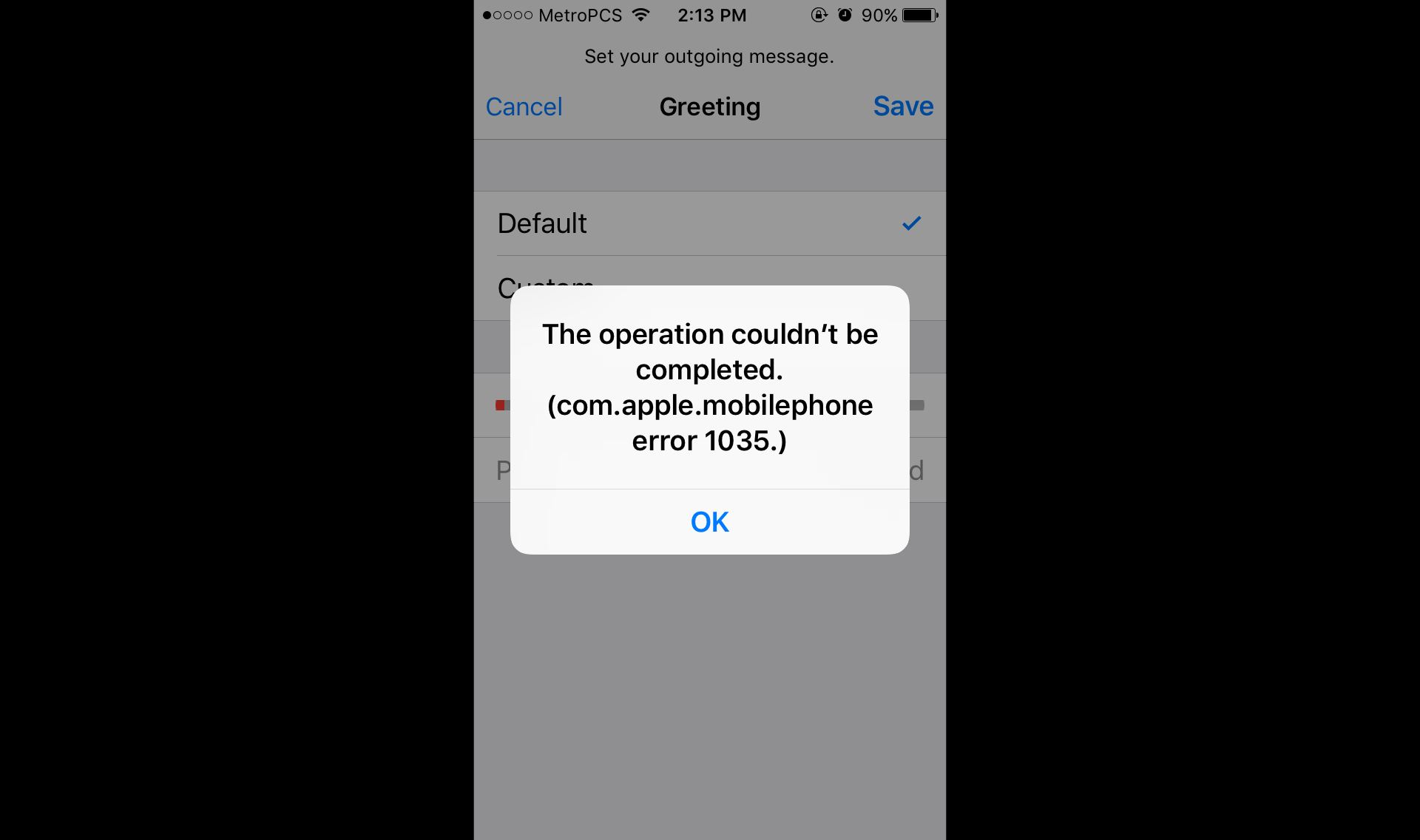
Некоторые пользователи iPhone сталкиваются с ошибкой «com apple mobilephone ошибка 1035», когда они пытаются обновить или настроить свой визуальный автоответчик. В этой статье мы посмотрим с вами, что может вызывать эту ошибку и как ее можно исправить.
Содержание
- Что вызывает «com apple mobilephone ошибка 1035»?
- Исправляем «com apple mobilephone ошибка 1035»
- Решение №1 Активация «Авиарежима»
- Решение №2 Переход на сотовую связь с Wi-Fi
- Решение №3 Настройка визуального автоответчика
- Решение №4 Сброс сетевых настроек
Что вызывает «com apple mobilephone ошибка 1035»?
Изучив многочисленные сообщения от пользователей на различных форумах и тематических сайтах, мы смогли сложить небольшой список причин, которые могут вызывать появление данной проблемы.
- Проблемы с сетевыми настройками iPhone. Проблемы в работе автоответчика могут возникнуть из-за сетевых настроек на iPhone. Некоторые пользователи утверждают, что им удалось исправить проблему, сбросив сетевые настройки.
- Использование Wi-Fi вместо мобильного интернет-подключения. Оказывается, ошибка «com apple mobilephone ошибка 1035» может возникать при использовании беспроводного Wi-Fi подключения на iPhone.
- Не произведена настройка визуального автоответчика. Данная ошибка может банально возникать по причине не выставленных настроек для визуального автоответчика на iPhone пользователя. Выставляем настройки — ошибка исчезнет.
- Проблемы в работе сотовой сети. Порой неполадки с автоответчиком могут возникать из-за проблем с подключением к вашему оператору сотовой связи. У определенных пользователей получилось разрешить проблему, включив и выключив на своем iPhone «Авиарежим».
Исправляем «com apple mobilephone ошибка 1035»
Решение №1 Активация «Авиарежима»
Давайте попробуем для начала самое элементарное решение — включение «Авиарежима» на iPhone. Войдя в данный режим, на вашем устройстве будут деактивированы все беспроводные функции, включая Wi-Fi и сотовую связь. Для включения «Авиарежима» сделайте следующее:
- откройте «Настройки» на своем iPhone;
- перейдите в раздел «Авиарежим» и выставьте ползунок в активное положение;
- подождите секунд тридцать и деактивируйте «Авиарежим».
Альтернативно, вы можете воспользоваться Пунктом управления, чтобы включить и выключить «Авиарежим», нажав на значок в виде самолета.
Решение №2 Переход на сотовую связь с Wi-Fi
Ошибка «com apple mobilephone ошибка 1035» с автоответчиком может возникать из-за использования беспроводного Wi-Fi подключения вместо мобильного интернет-подключения.
- Отключите Wi-Fi на своем iPhone, если он включен;
- откройте «Настройки» и перейдите в раздел «Сотовая связь»;
- передвиньте ползунок «Сотовые данные» в активный режим.
Проверьте, была ли решена проблема с визуальным автоответчиком на вашем iPhone.
Решение №3 Настройка визуального автоответчика
Если вы не можете настроить автоответчик через настройки своего iPhone, то можно попробовать сделать это через оператора сотовой связи. Даже рекомендуется, чтобы вы делали это через своего оператора. Итак, попробуйте сделать следующее:
- деактивируйте Wi-Fi, если от включен;
- нажмите на значок телефонной трубки в левом нижнем углу;
- удерживайте единицу (1) для настройки автоответчика;
- введите пароль от автоответчика и задайте для него необходимое сообщение;
- повесьте трубку и перезагрузите iPhone.
Проверяем, получилось ли избавиться от ошибки «com apple mobilephone ошибка 1035» или нет.
Решение №4 Сброс сетевых настроек
Последнее, что можно попробовать — сброс настроек сети iPhone. Возможно, именно они и не позволяют вам нормально пользоваться автоответчиком. Чтобы сбросить настройки сети, сделайте следующее:
- откройте «Настройки» своего iPhone;
- перейдите в раздел «Основные» и подраздел «Сброс»;
- выберите опцию «Сбросить настройки сети» и впишите свой пароль;
- дождитесь перезагрузки телефона и проверьте наличие проблемы с визуальным автоответчиком.
Мы надеемся, что статья помогла вам в решении «com apple mobilephone ошибка 1035» на iPhone.

Ошибка com.apple.mobilephone 1035 — это уникальная ошибка iPhone. Он не появляется в настольной системе, когда вы пытаетесь синхронизировать или создать резервную копию своего iPhone. Вместо этого эта ошибка появляется на самом iPhone. Похоже, это ошибка iOS, но на самом деле это проблема с вашей голосовой почтой.
Ошибка 1035 com.apple.mobilephone появляется в одном из двух случаев; ваша голосовая почта не была настроена, или ваша голосовая почта была сброшена. Если в настройках вашей сети произошли изменения, которые повлияли на вашу голосовую почту, или вы переключились на другую сеть. В большинстве случаев вам придется заново настроить голосовую почту. Вот несколько вещей, которые вы можете попробовать в дополнение к настройке голосовой почты, чтобы решить эту проблему.
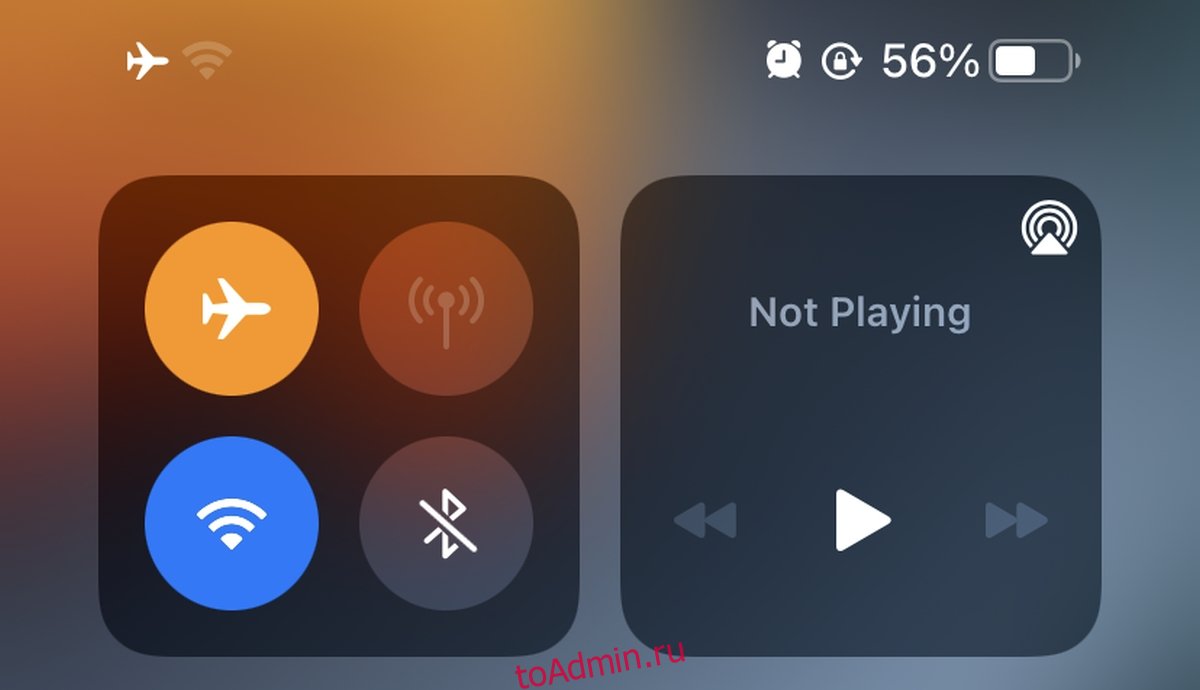
1. Включите режим полета.
На вашем устройстве могут возникнуть проблемы с подключением. Первый и самый простой способ исправить это — переключить режим полета.
Проведите пальцем вниз от правого верхнего угла, чтобы открыть Центр управления.
Коснитесь переключателя режима полета, чтобы включить режим полета.
Подождите 1-2 минуты.
Коснитесь переключателя режима полета, чтобы выключить режим полета.
2. Переключитесь на мобильные данные.
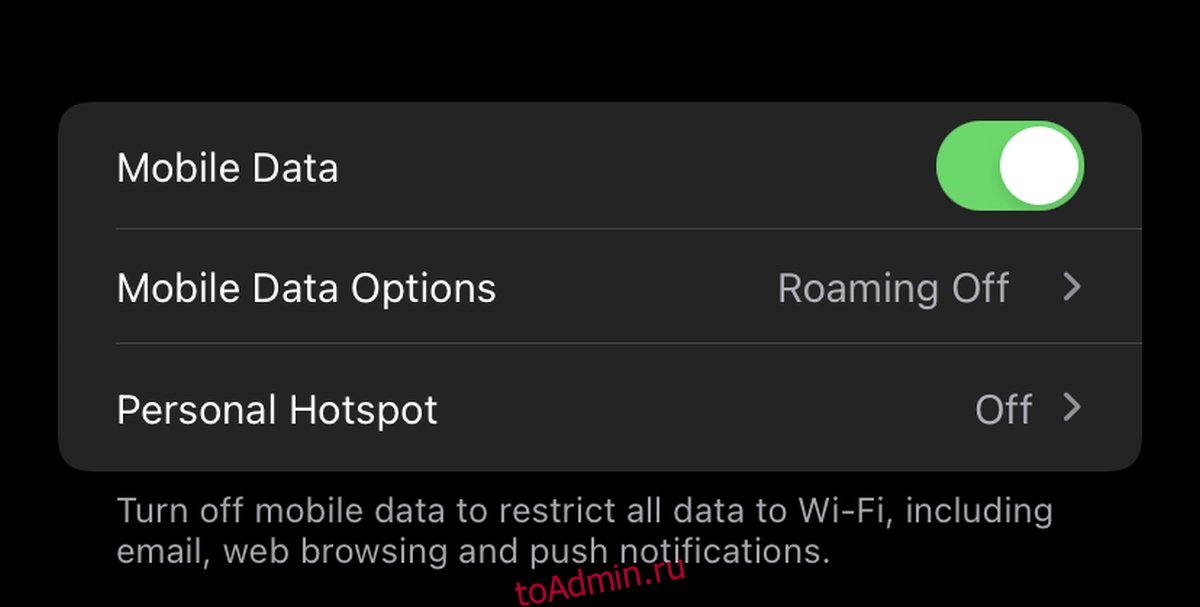
Если вы подключены к сети Wi-Fi, попробуйте переключиться на мобильные данные, чтобы увидеть, исчезнет ли проблема. Если это так, ваша сеть Wi-Fi вызывает проблемы с подключением к голосовой почте.
Откройте приложение «Настройки» на своем iPhone.
Коснитесь Wi-Fi и выключите переключатель.
Нажмите на Мобильные данные.
Включите переключатель «Мобильные данные».
3. Настройте голосовую почту.
Если ничего не помогает, настройте голосовую почту. Рекомендуется убедиться, что в вашей сети есть голосовая почта, она поддерживается на iPhone и что ваш план подписки включает голосовую почту.
Включите Wi-Fi на вашем iPhone.
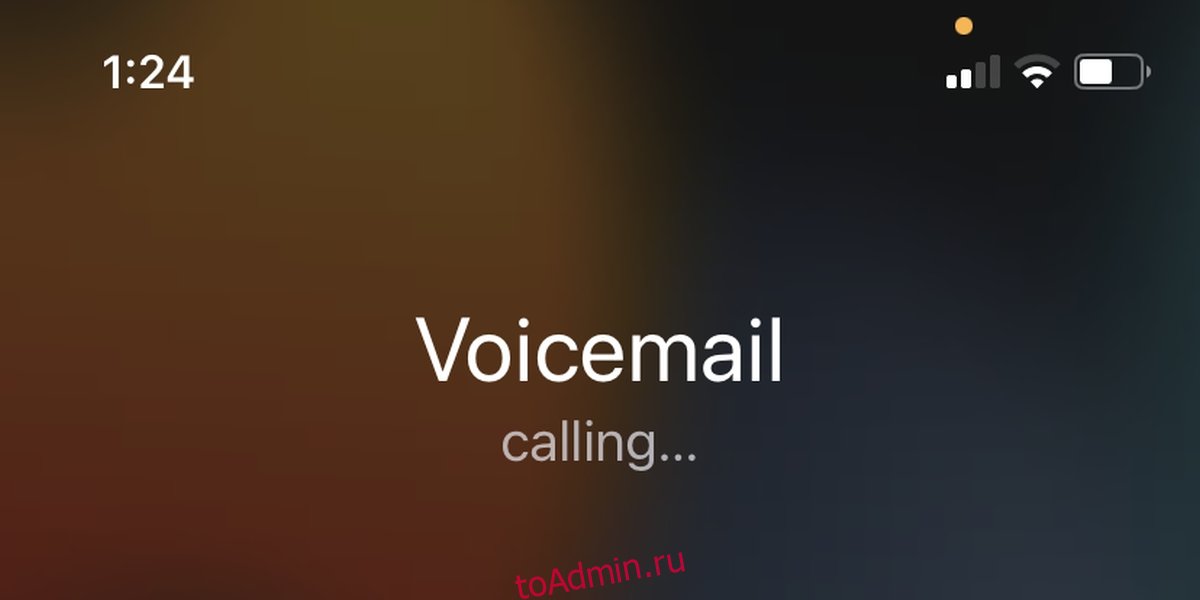
Откройте приложение «Телефон».
Нажмите и удерживайте кнопку 1.
Начнется настройка голосовой почты (она будет проходить как звонок).
Следуйте инструкциям по настройке.
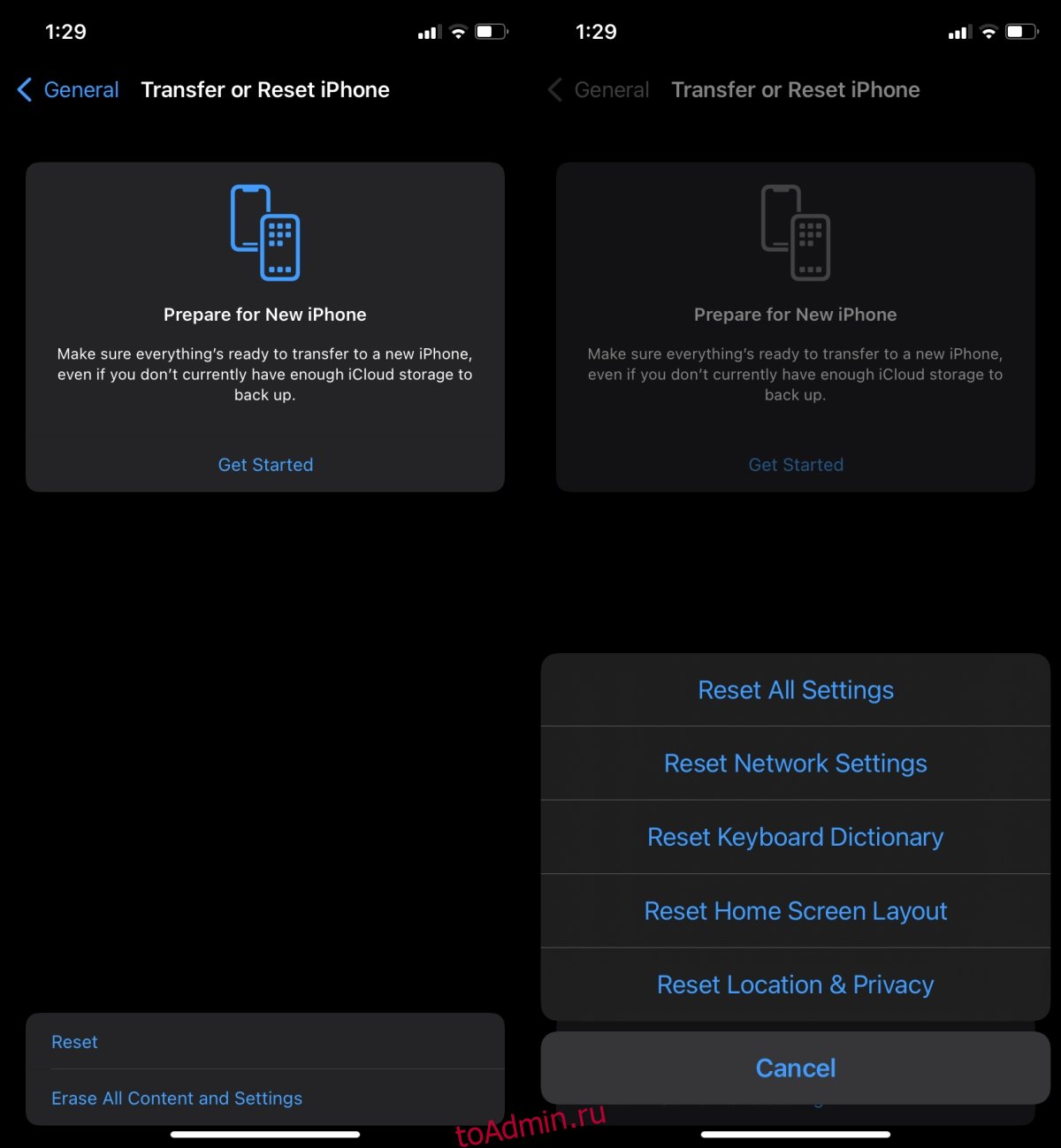
4. Сбросить настройки сети.
Ошибка 1035 com.apple.mobilephone может быть просто проблемой с настройками вашей сети. Сетевые настройки можно сбросить, и это решит любые проблемы с ними. Сброс настроек сети приведет к удалению всех сохраненных сетей, к которым вы когда-либо подключались, но при этом нет риска потери данных.
Откройте приложение «Настройки» на своем iPhone.
Идите к Генералу.
Прокрутите вниз и нажмите «Перенести» или «Сбросить iPhone».
Коснитесь Сбросить.
В меню выберите Сбросить настройки сети.
Ваш iPhone перезагрузится.
Заключение
Известно, что в некоторых сетях возникают проблемы с голосовой почтой; AT&T — одна из таких сетей, но в большинстве случаев настройка голосовой почты решает проблему. Если вы не хотите использовать голосовую почту, попросите оператора отключить ее.
Что вы думаете об этой статье?
На чтение 4 мин. Просмотров 37 Опубликовано 27.04.2021
Некоторые пользователи получают ошибку « com.apple.mobilephone error 1035 » в своей визуальной голосовой почте всякий раз, когда они пытаются обновить или настроить свои визуальные приветствия голосовой почты. Визуальная голосовая почта позволяет просматривать полученное сообщение голосовой почты. Приветствие голосовой почты – это сообщение, которое абоненты слышат до того, как им будет предложена возможность оставить вам сообщение. Однако из-за этой ошибки пользователи не смогут настроить свои приветствия. Полное сообщение об ошибке будет иметь вид « Операция не может быть завершена (ошибка com.apple.mobilephone 1035) ». 
Содержание
- Что вызывает проблему ‘com.apple.mobilephone error 1035’?
- Метод 1: Включение режима полета
- Метод 2: переход с Wi-Fi на сотовые данные
- Метод 3: Настройте визуальную голосовую почту
- Метод 4. Сброс настроек сети
Что вызывает проблему ‘com.apple.mobilephone error 1035’?
Нам удалось обнаружите некоторые из наиболее распространенных причин, которые вызывают именно эту проблему. Мы сделали это, изучив различные отчеты пользователей и стратегии ремонта, которые они использовали для решения проблемы. Вот краткий список с типичными сценариями, которые могут вызвать это конкретное сообщение об ошибке:
- Неправильные настройки сети – В некоторых случаях эта проблема возникает из-за сетевых настроек вашего телефона, которые не позволяют вашей голосовой почте работать должным образом. Несколько пользователей, оказавшихся в аналогичной ситуации, сообщили, что им удалось решить проблему, сбросив настройки сети.
- Использование Wi-Fi по сотовой сети – оказывается вне, эта проблема также может возникнуть, если устройство, на котором вы пытаетесь использовать голосовую почту; использует соединение Wi-Fi. Если этот сценарий применим, вы можете решить проблему, отключив Wi-Fi и используя сотовые данные.
- Голосовая почта не настроена – еще один потенциальный случай, когда эта ошибка возникает, когда вы не настроили голосовую почту через оператора связи. Это также относится к тем, кто не может настроить голосовую почту через настройки телефона.
- Сбой сотовой связи – иногда подключение к вашему оператору связи может прерываться из-за по нескольким разным причинам. Большинство пользователей смогли решить эту проблему, отключив свой телефон от всех доступных сотовых служб в режиме полета.
Эта статья поможет вам с различными методами решения проблемы « com.apple.mobilephone error 1035 ». Мы начнем с наиболее распространенного и простого метода к более подробному.
Метод 1: Включение режима полета
В большинстве случаев эта ошибка вызвана подключением вашего телефона к сотовой сети или Wi-Fi. Самый простой способ решить эту проблему – включить режим полета . На главном экране телефона вы можете переместить панель уведомлений вниз и нажать на опцию Авиарежим . Когда он станет ON , все подключения к вашему телефону будут отключены.. Вы можете подождать 30 секунд , а затем снова выключить его тем же способом. Этот параметр может отличаться в зависимости от используемого вами устройства. Для некоторых устройств вам нужно перейти в настройки или использовать кнопку питания на телефоне, чтобы перейти в режим полета. После применения этого метода вы можете попробовать обновить или настроить приветствие голосовой почты на своем телефоне.

Метод 2: переход с Wi-Fi на сотовые данные
Существует вероятность того, что ваш Wi-Fi является причиной того, что вы не можете настроить приветствие для голосовой почты. Многие пользователи решили свою проблему, изменив свою сеть с Wi-Fi на сотовую передачу данных. Ваш оператор предоставляет сотовые данные, и это может быть лучшим выбором для настроек голосовой почты.
- Сначала выключите WiFi на вашем телефоне, если он включен.
- Поехали на свой телефон Настройки и откройте параметр Сотовая связь
- Теперь нажмите переключить для параметра Сотовые данные .

- Попробуйте использовать голосовую почту и посмотрите, сохраняется ли проблема.
Метод 3: Настройте визуальную голосовую почту
Если вам не удается настроить голосовую почту через настройки телефона, вы можете попробовать настроить ее через своего оператора. Голосовая почта связана с вашим оператором связи, и это лучше всего сделать именно так. Это может не работать для всех типов операторов связи. Вы можете легко применить этот метод, выполнив следующие действия:
- Сначала вам нужно выключить вашего WiFi , если он включен.
- Нажмите значок телефона на главном экране iPhone.
- Нажмите и удерживайте 1 на клавиатуре, чтобы ввести настройки голосовой почты.
- Введите текущий пароль голосовой почты . и настройте вашу голосовую почту.

- Завершите настройку и перезагрузите телефон.
- Откройте голосовую почту и проверьте, появляется ли сообщение об ошибке.
Метод 4. Сброс настроек сети
Ваша сеть может быть причиной проблемы для приложения. Иногда сеть может блокировать использование приложения для вашего телефона. Несколько пользователей решили эту проблему, сбросив настройки сети. Сброс настроек сети обновит всю информацию, относящуюся к сети, которую вы используете на своем телефоне. Вы можете сбросить настройки сети, выполнив следующие действия:
- Перейдите на свой телефон Настройки и откройте Общие .
- Прокрутите вниз и коснитесь параметра Сброс ..
- Теперь нажмите на опцию Сбросить настройки сети и введите пин-код для подтверждения.

- Ваш телефон перезагрузится , и после этого вы можете попробовать обновить или настроить приветствия голосовой почты.
by Vlad Turiceanu
Passionate about technology, Windows, and everything that has a power button, he spent most of his time developing new skills and learning more about the tech world. Coming… read more
Updated on May 27, 2022
- You may experience issues while setting up or updating your visual voicemail settings.
- The com.apple.mobilephone error 1035 is usually caused by network connectivity glitches and misconfigured voicemail settings.
- Find more easy-to-follow fixes for common device errors in our thorough Fix hub.
- For some more useful information on this topic, don’t hesitate to explore our iPhone webpage.

XINSTALL BY CLICKING THE DOWNLOAD FILE
This software will keep your drivers up and running, thus keeping you safe from common computer errors and hardware failure. Check all your drivers now in 3 easy steps:
- Download DriverFix (verified download file).
- Click Start Scan to find all problematic drivers.
- Click Update Drivers to get new versions and avoid system malfunctionings.
- DriverFix has been downloaded by 0 readers this month.
Visual voicemail allows you to view voicemails that you receive on your iPhone, which can come in very handy in some situations.
Voicemail greetings are the short messages that your callers listen to before they record voicemail messages.
The com.apple.mobilephone error 1035 pops up sometimes when you attempt to configure or update your iPhone’s visual voicemail greetings.
This software issue comes with a prompt that says:
The operation couldn’t be completed. (com.apple.mobilephone error 1035.)
This problem arises due to network connectivity misconfiguration. It also comes up mostly when you are connected to a Wi-Fi network, and not mobile data.
In this guide, we’ll teach you how to get rid of this com.apple.mobilephone error 1035 quickly.
1. Put your device in Airplane Mode
Before we go into more in-depth troubleshooting procedures, first make sure that the com.apple.mobilephone error 1035 is not caused by a minor connectivity issue.
To check this, disable all your connectivity options using the Airplane Mode.
Swipe your screen and tap on the Airplane Mode icon. Leave Airplane Mode enabled for around a minute and then disable it back.
When your network connections come back on, recreate the error, and see if it still shows up. If it does, continue to the next solution.
2. Configure the visual voicemail

- Swipe your screen and enable your Wi-Fi connection.
- Open the Call applet on your iPhone.
- Dial 1 and hold it until you are taken to the voicemail settings screen.
- Put in your voicemail password.
- Continue to set up your voicemail.
- When done, hang up the phone.
- Restart your device.
When your iPhone comes up fully, return to your voicemail, and confirm if the solution worked.
3. Switch to your mobile data

- Go to the Settings app and tap on Cellular.
- Toggle on the switch to enable Cellular data.
- Return to the previous screen and tap on Wi-Fi.
- Switch off your Wi-Fi connection.
4. Reset your iPhone network
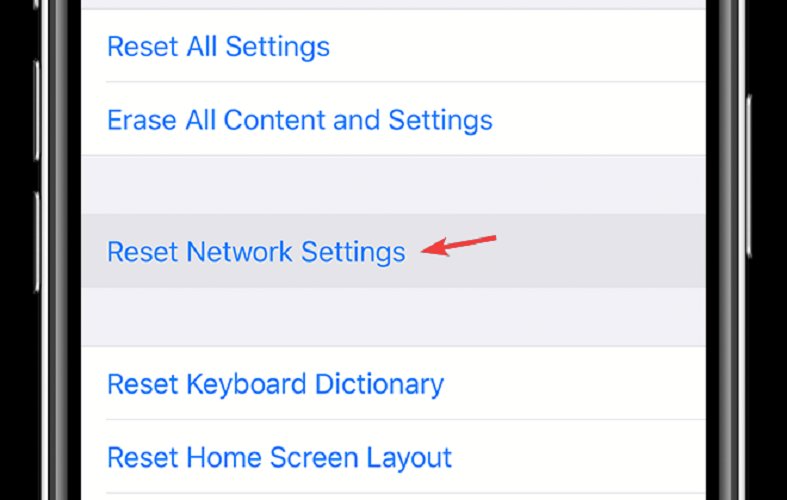
- Open the Settings app.
- Tap on General.
- Go to Reset > Reset Network Settings.
- Allow the phone to restart.
Putting your iPhone in airplane mode and then disabling airplane mode is the most straightforward fix for the com.apple.mobilephone error 1035.
Switching to mobile data and resetting your network also help.
However, if the problem is caused by configuration in your voicemail, you have to set it up properly.
Still having issues? Fix them with this tool:
SPONSORED
If the advices above haven’t solved your issue, your PC may experience deeper Windows problems. We recommend downloading this PC Repair tool (rated Great on TrustPilot.com) to easily address them. After installation, simply click the Start Scan button and then press on Repair All.

Newsletter
by Vlad Turiceanu
Passionate about technology, Windows, and everything that has a power button, he spent most of his time developing new skills and learning more about the tech world. Coming… read more
Updated on May 27, 2022
- You may experience issues while setting up or updating your visual voicemail settings.
- The com.apple.mobilephone error 1035 is usually caused by network connectivity glitches and misconfigured voicemail settings.
- Find more easy-to-follow fixes for common device errors in our thorough Fix hub.
- For some more useful information on this topic, don’t hesitate to explore our iPhone webpage.
XINSTALL BY CLICKING THE DOWNLOAD FILE
This software will keep your drivers up and running, thus keeping you safe from common computer errors and hardware failure. Check all your drivers now in 3 easy steps:
- Download DriverFix (verified download file).
- Click Start Scan to find all problematic drivers.
- Click Update Drivers to get new versions and avoid system malfunctionings.
- DriverFix has been downloaded by 0 readers this month.
Visual voicemail allows you to view voicemails that you receive on your iPhone, which can come in very handy in some situations.
Voicemail greetings are the short messages that your callers listen to before they record voicemail messages.
The com.apple.mobilephone error 1035 pops up sometimes when you attempt to configure or update your iPhone’s visual voicemail greetings.
This software issue comes with a prompt that says:
The operation couldn’t be completed. (com.apple.mobilephone error 1035.)
This problem arises due to network connectivity misconfiguration. It also comes up mostly when you are connected to a Wi-Fi network, and not mobile data.
In this guide, we’ll teach you how to get rid of this com.apple.mobilephone error 1035 quickly.
1. Put your device in Airplane Mode
Before we go into more in-depth troubleshooting procedures, first make sure that the com.apple.mobilephone error 1035 is not caused by a minor connectivity issue.
To check this, disable all your connectivity options using the Airplane Mode.
Swipe your screen and tap on the Airplane Mode icon. Leave Airplane Mode enabled for around a minute and then disable it back.
When your network connections come back on, recreate the error, and see if it still shows up. If it does, continue to the next solution.
2. Configure the visual voicemail
- Swipe your screen and enable your Wi-Fi connection.
- Open the Call applet on your iPhone.
- Dial 1 and hold it until you are taken to the voicemail settings screen.
- Put in your voicemail password.
- Continue to set up your voicemail.
- When done, hang up the phone.
- Restart your device.
When your iPhone comes up fully, return to your voicemail, and confirm if the solution worked.
3. Switch to your mobile data
- Go to the Settings app and tap on Cellular.
- Toggle on the switch to enable Cellular data.
- Return to the previous screen and tap on Wi-Fi.
- Switch off your Wi-Fi connection.
4. Reset your iPhone network
- Open the Settings app.
- Tap on General.
- Go to Reset > Reset Network Settings.
- Allow the phone to restart.
Putting your iPhone in airplane mode and then disabling airplane mode is the most straightforward fix for the com.apple.mobilephone error 1035.
Switching to mobile data and resetting your network also help.
However, if the problem is caused by configuration in your voicemail, you have to set it up properly.
Still having issues? Fix them with this tool:
SPONSORED
If the advices above haven’t solved your issue, your PC may experience deeper Windows problems. We recommend downloading this PC Repair tool (rated Great on TrustPilot.com) to easily address them. After installation, simply click the Start Scan button and then press on Repair All.
Newsletter
Unfortunately, several users come across the com.apple.mobilephone error 1035 on their mobile devices. When they face this specific voicemail error, they do not exactly know what they have to do next to resolve it.
Here, we are going to mention why this error shows up and how you can resolve this frustrating voicemail error.
Sometimes, users get this com.apple.mobilephone error 1035 on the visual voicemail when they try to set up or update the greetings of the visual voicemail. The complete error message that you see is, “The operation couldn’t be completed (com.apple.mobilephone error 1035).”
This voicemail allows you to see all the received voicemail messages on your device. Voicemail greetings are the messages that your callers hear before leaving a message for you. So, this issue prevents users from updating or setting up greetings.

The iTunes error 1035 or iPhone error 1035 is related to voicemail, which is often faced by several iOS users when they update or set up voicemail greetings on their iOS devices.
When the error com.apple.mobilephone error 1035 appears on the phone; you would not be able to employ the feature of voicemail. The error iTunes 1035 is associated with the mobile network, and there are different ways to fix this annoying error based on your network carrier.
Fortunately, we have discovered some common triggers regarding this error that can help you resolve this specific issue.
- Network Settings: In several cases, when this error shows up on the iPhone, it occurs due to some glitch in the network settings. This issue did not let users employ the voicemail feature. To resolve this, you should restore the network settings.
- Voicemail Setup: If you did not set up voicemail on the device through the method suggested by the network carrier, then you may face this error 1035. This even applies to users who could not set up voicemail via their phone settings.
- Employing Wi-Fi: The error com.apple.mobilephone error 1035 comes up on the iOS device if users are using the voicemail app over a Wi-Fi connection. If users face this issue, they can resolve this issue by disabling their Wi-Fi. To use voicemail, try using your cellular data.
- Glitched Cellular Service: This could happen rarely, but your network carrier could be responsible for this error. In case your network connection is glitched for some reason, you may come across the com.apple.mobilephone error 1035. You can resolve this issue by disconnection of your device using Airplane Mode.
PS: if you are looking for the best MDM bypass tools, here you are.
So, the error com.apple.mobilephone error 1035 can occur because of several reasons. Here, we will talk about different solutions that you can try to fix this error.
Method 1: Switch the Cellular Data Off/On
In case you are employing the cellular data but still struggling with the voicemail error, com.apple.mobilephone error 1035, then toggle the option of voicemail. To do this, follow some simple steps, as listed below.
1: First, visit the ‘Settings’ on your iPhone. Next, click on the option ‘Cellular.’
2: After that, you will come across a tab, toggle this tab for changing the status of the cellular data.

Once you have switched off the cellular data, you have to switch it on. Now, you need to check whether your voicemail is working or not.
Method 2: Reset or Setup Voicemail on your Device
It is quite simple to set up voicemail on your iOS device. For setting up the voicemail feature, go through the following instructions.
1: In the first place, switch off your Wi-Fi option if you are using a Wi-Fi connection.
2: After this, click on the icon ‘Phone’ on your phone screen. Then, the press holds the ‘1’ tab. Now, you can enter the voicemail settings on your device.
3: Next, you have to enter the password of your voicemail. Once done, you can set up the voicemail with the help of your phone’s keypad.

After you have completed this procedure, restart your iPhone. Now, check if the voicemail error on your device has been successfully resolved.
Besides, if you are facing issues like Apple ID locked, here are the best solutions.
Method 3: Fix com.apple.mobilephone error 1035 Through Airplane Mode
With Airplane mode, you can fix errors like com.apple.mobilephone error 1035 and bring your device back to normal. It follows a very basic idea that this Airplane mode interrupts your connection with the cellular network.
So, you have to save the connection first and then switch off this Airplane Mode to get connected once again. To do this, follow below simple guide.
1: First, swipe up your iPhone screen from the bottom. By doing so, you will come across the control panel of your device.
2: On your control panel, you will see the option of Airplane Mode. Click on this option and switch it on. After that, wait for some seconds and then click on it once again to switch it off.

After you have toggled this Airplane Mode, you can use the voicemail feature on your device without facing any error like com.apple.mobilephone error 1035.
Method 4: Try Resetting Network Settings on your Device
In several cases, the error com.apple.mobilephone error 1035 shows up just after you have updated the voicemail feature. So, after resetting your network, the situation may get transformed completely.
1: Visit ‘Settings’ on your device and then click on the General tab.
2: After that, look for ‘Reset’ and then click on the Reset Network Settings option.
3: Now, you need to enter your device’s passcode if asked. Once entered, you have to reset your network settings.

Now, voicemail on your device will work fine after resolving the error com.apple.mobilephone error 1035successfully using this method.
Method 5: Resolve the Issue by Resetting the Voicemail Password
To fix this frustrating error, you can reset your voicemail password. Usually, this error helps to fix several errors related to voicemail. So, let’s have a look at the steps you need to follow!
1: Initially, you need to go to the ‘Phone’ option through ‘Settings’ on your device.
2: After that, click on the option ‘Change Voicemail Password.’

Once you have tapped on this option, you have to enter a new password. After that, you can use your voicemail again without facing the com.apple.mobilephone error 1035.
Method 6: Fix com.apple.mobilephone error 1035 by Resetting the Voicemail
To resolve the error, you can also try resetting the voicemail. This solution works most of the time. Also, the steps to perform this action are very simple.
1: Firstly, click on the icon ‘Dialer/Phone’ on your iPhone screen. After that, you will see a numeric pad.
2: Now, click on the ‘1’ tab and keep holding it to make the call.
3: Next, you have to click on the key ‘*‘ to enter the main menu. Once done, you have to click on the ‘3’ key.
4: After this, click on ‘2’ and try recording a new voicemail greeting. You have to press ‘#’ after you get prompted to confirm the greeting.
5: Lastly, click ‘1’ to set your voicemail greeting.

Once you have followed these instructions, you can use your voicemail.
Method 7: Try Restarting the iPhone XS/XR/11/12/13/14
Suppose the above methods do not work for you in resolving the error com.apple.mobilephone error 1035, then restart your device.
By doing so, you may eliminate this annoying error from your iPhone.
1: In the first place, you have just to press and hold the Power tab and any Volume tab for some seconds simultaneously.

2: You will now see a slider on your iPhone screen. Now, drag this slide to the screen’s edge for switching off your device.
3: Once done, wait for some seconds before you switch on your phone using this same method.
Method 8: Update the Device to the Latest iOS Version
If these above-mentioned solutions do not help you fix the error com.apple.mobilephone error 1035, then update your device. Usually, a system update helps to fix various iOS-related issues in no time.
Mostly, users carry out this update process through the iTunes application. However, this process is very slow, buggy, and complicated too.
So, the best option to go for a system update is to employ professional software. You can use a professional tool like Tenorshare ReiBoot to accomplish this task hassle-free.
This tool is very simple to use and capable of performing this action effortlessly. Go through the instructions below to update your device to the latest version using ReiBoot.
Get Tenorshare ReiBoot
Steps to fix com.apple.mobilephone error 1035 with Tenorshare ReiBoot:
1: First, download Tenorshare ReiBoot and install the same on your system. Launch it and connect your device to the system. From the home interface, tap on ‘Reset Device.’

2: Next, tap on the ‘Factory Reset’ option to proceed further.

3: Now, you will enter the firmware download page. Tap on the option ‘Browse’ to save the path and then tap on ‘Download’ to download the firmware.

4: Once you have downloaded the firmware, choose ‘Start Reset,’ and this program will fix and update the device to the latest iOS version.
This entire process will not take over 10 minutes to end. After the device has been updated, you can check if the voicemail app is working fine or not.


So, it is quite possible to resolve the voicemail-related com.apple.mobilephone error 1035 error on your device easily. Here, we have mentioned some of the effective fixes to eliminate this annoying error.
If every solution fails to work, then it is best to update the device. If you are looking for a hassle-free experience, then use Tenorshare ReiBoot instead of iTunes to update your device’s iOS.
This tool is great for fixing all kinds of iOS-related errors. Now, download Tenoshare ReiBoot and fix the com.apple.mobilephone error 1035 error effortlessly.
Try Tenorshare ReiBoot
This website uses cookies to ensure you get the best experience on our website
Ошибка com.apple.mobilephone 1035 является уникальной ошибкой iPhone. Она возникает, когда iOS не может нормально работать с голосовой почтой вашего мобильного оператора.
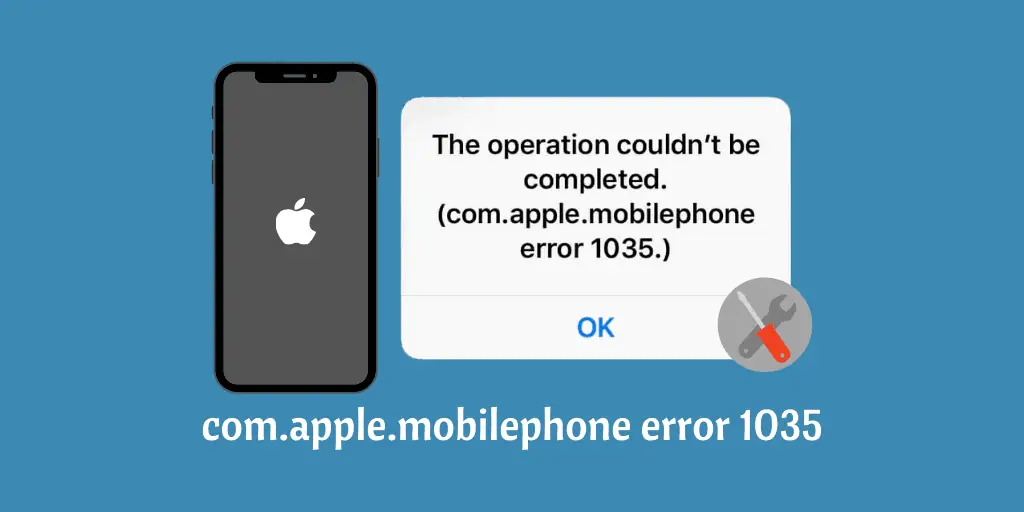
Известно, что трудности с голосовой почтой появляются в определенных сетях. Если вы не хотите использовать голосовую почту, можно попросить оператора отключить ее.
Ошибка com.apple.mobilephone 1035 возникает в одном из двух случаев. Она может появиться потому, что голосовая почта не настроена или голосовая почта сброшена. Это может произойти, например, если произошли изменения в настройках сотовой сети, которые повлияли на голосовую почту или пользователь перешел в другую сеть.
Вот несколько вещей, которые можно попробовать, чтобы решить проблему:
1. Включите режим полета, чтобы устранить возможные проблемы с подключением. Для этого проведите пальцем вниз от верхнего правого угла, чтобы открыть Центр управления. Коснитесь переключателя режима полета, чтобы включить его. Подождите 1-2 минуты и активируйте сотовую связь.
2. Выделите мобильные данные. Попытайтесь перейти на мобильные данные, если вы подключены к сети Wi-Fi, чтобы проверить, исчезнет ли проблема.
3. Настройте голосовую почту. Убедитесь, что ваш мобильный оператор предоставляет голосовую почту, которую она поддерживает на iPhone, а также, что ваш тарифный план включает услуги голосовой почты.
4. Сбросьте настройки сети. Ошибка com.apple.mobilephone 1035 может быть просто проблемой с настройками сети. Сброс настроек сети приведет к удалению всех сохраненных сетей, к которым вы когда-либо подключались. Для этого в общих настройках iPhone коснитесь передачи или сброса iPhone, затем в меню выберите сброс настройки сети. iPhone перезагрузится.
Возможно, вам будет интересно:
The ‘com.apple.mobilephone error 1035’ appears on the iPhone primarily due to an issue with the voicemail settings. The 1035 error indicates that either your voicemail box isn’t setup or has been reset after a recent update.
The error prevents users from settings up a greeting message — what callers hear — for their visual voicemail on the iPhone, among other issues. In such a case, you’ll see the following error message.
The operation couldn’t be completed. (com.apple.mobilephone error 1035.)
In this article, we’ve listed six ways using which you can fix the ‘com.apple.mobilephone error 1035’ on your iPhone.
As mentioned above, the voicemail 1035 error on iPhone is mainly caused due to an issue with the voicemail settings, and a fresh setup is the best way to go. However, users have also reported the following things to cause the error.
- WiFi: The most common reason you see the ‘com.apple.mobilephone error 1035’ is an issue caused by your WiFi network. While you can try restarting your WiFi router, the best solution is to switch to cellular data.
- Spotty connection: A spotty internet connection — WiFi or Mobile data — can also hinder voicemail on your iPhone and show the aforementioned error.
- Network settings: The network settings on your phone could also be buggy or outdated. Resetting these settings should help in fixing the issue.
Now that it’s clear why you’re seeing the ‘com.apple.mobilephone error 1035’ on your iPhone, check out the fixes below to resolve the issue.
Also read: How to fix the ‘Screen Recording Not Working’ issue on iPhone and iPad?
You can use any of the six methods to fix the voicemail error on your iPhone, beginning with the simplest.
Restart your iPhone
Restarting your device can go a long way in fixing a lot of issues you might be having. A simple restart can help clear any cache files or background processes that might be hindering iPhone’s voicemail from running smoothly.
Moreover, since it’s one of the most elementary ways to fix the ‘com.apple.mobilephone error 1035’. we recommend that you try restarting your iPhone before moving on to the relatively more complex fixes.
Shift to Mobile (cellular) data
Voicemail errors are common when your iPhone is connected to the WiFi, and one of the most common fixes to the issue is switching to mobile data and then turning off WiFi on your phone.
Open the Settings on your iPhone and follow the steps mentioned below to switch on mobile data.
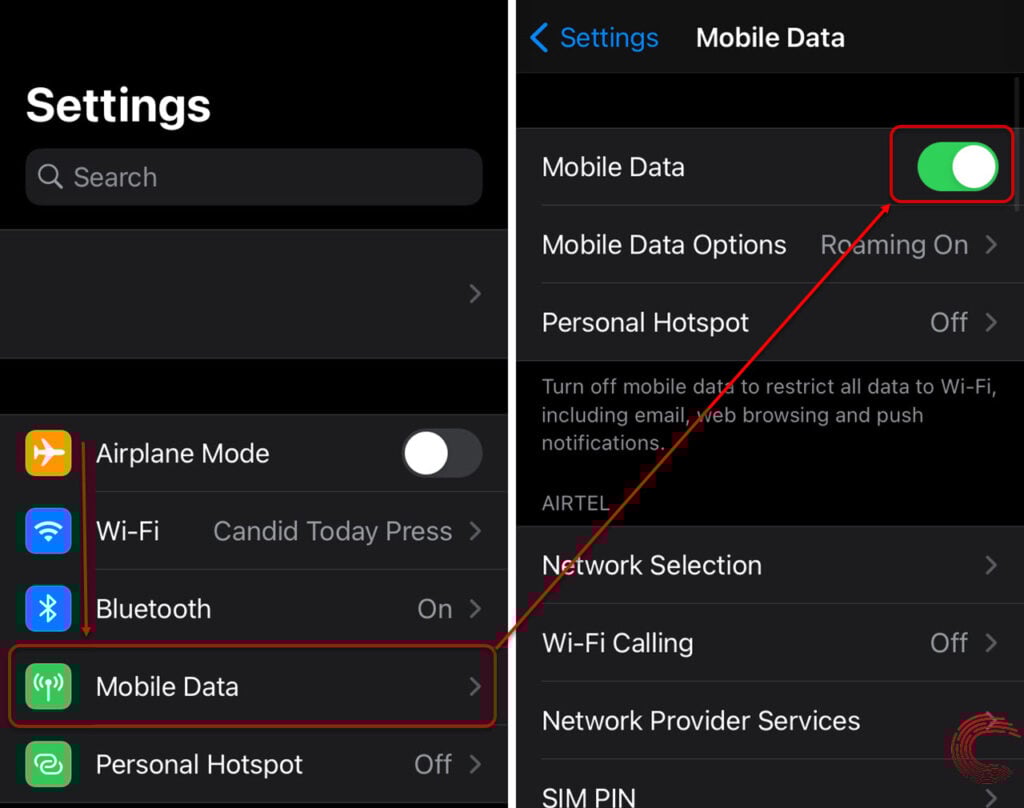
- Tap on Mobile Data (or Cellular Data).
- On the next page, tap on the toggle button beside Mobile Data.
Now turn off your iPhone’s WiFi so that it uses only the cellular data and see if this fixes ‘com.apple.mobilephone error 1035’.
If this method doesn’t fix the error, keep your phone on cellular data and continue with the methods below.
Also read: How to fix ‘iTunes could not connect to iPhone error 0xE800000A’?
Setup Visual Voicemail
As mentioned above, the error is usually caused due to issues with the voicemail on iPhone. Follow the steps mentioned below to check your voicemail settings or to set it up.

- Go to the Phone app.
- Then to Keypad.
- Press and Hold 1.
If your voicemail isn’t set, you’ll be given instructions to do so. Once the voicemail setup is complete, it’s recommended to restart the iPhone.
Enable Airplane mode
Enable Airplane mode on your iPhone for approximately 15 seconds and then disable it to resolve any network issues.
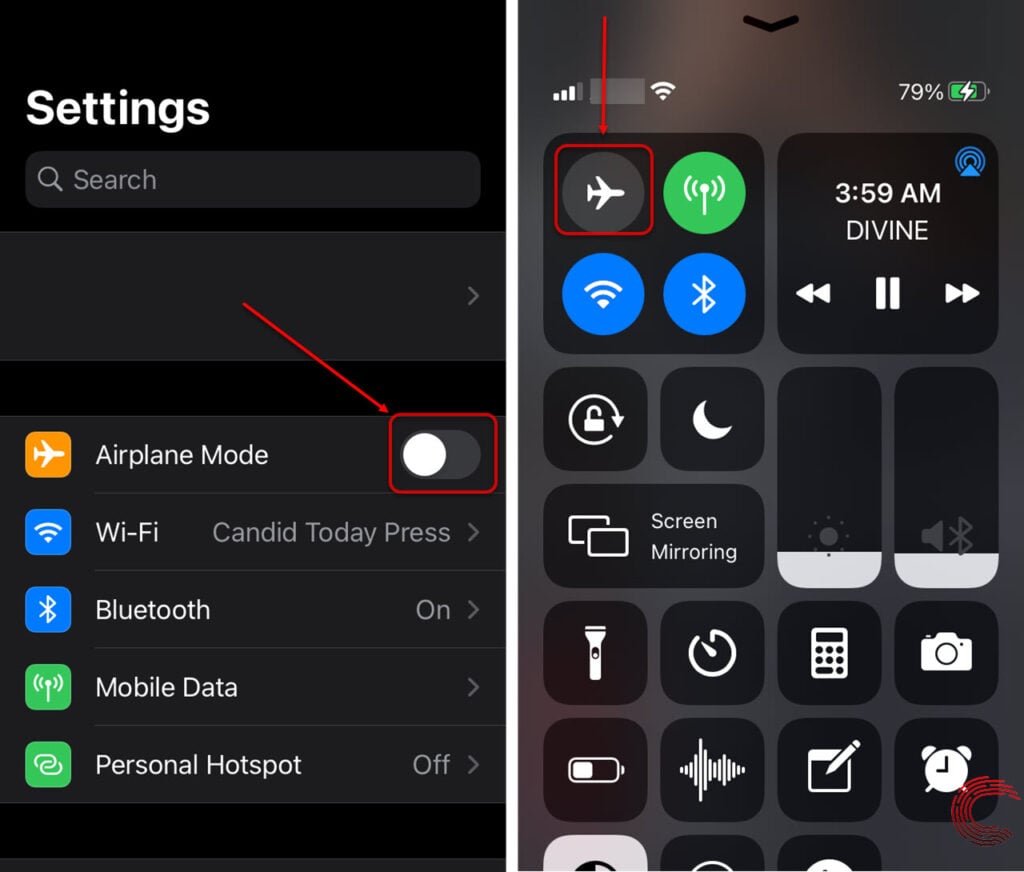
You can either enable and disable Airplane mode on your iPhone using the phone settings or through the Control Centre (as shown above).
Also read: How to fix ‘Err_Internet_Disconnected’ error?
Reset Network settings
If toggling the Airplane mode doesn’t help fix the ‘com.apple.mobilephone error 1035’ on your iPhone, you’ll need to reset the network settings, which will only reset the Carrier and WiFi settings
Open your iPhone’s settings and follow the steps mentioned below to reset network settings.
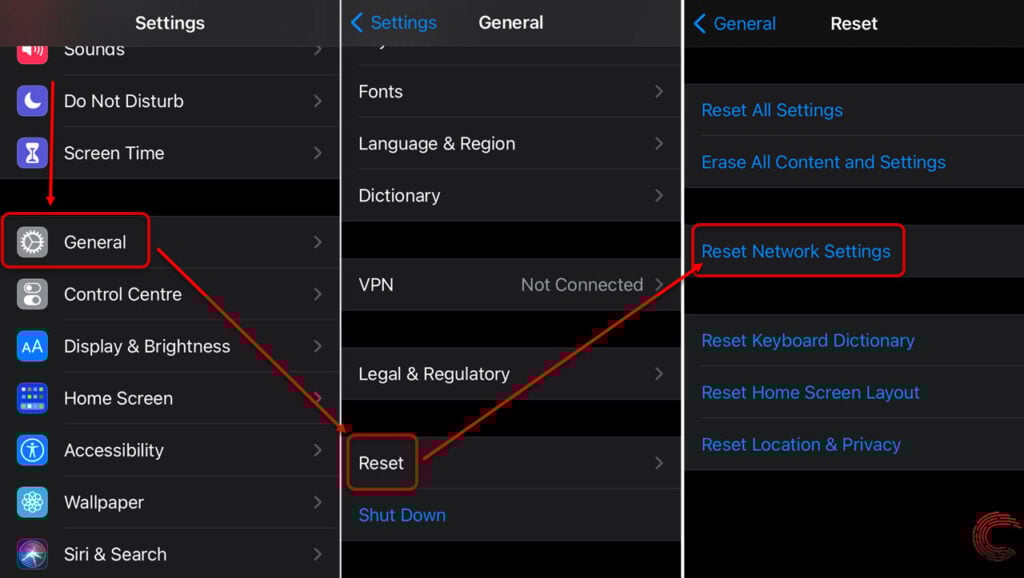
- Scroll down and tap on General.
- Tap on Reset.
- Then tap on Reset Network Settings on the next page.
Update your iPhone
If nothing fixes the issue, you should consider updating your iPhone. Updates could address specific bugs that could be causing software or hardware incompatibility issues and potentially fix the ‘com.apple.mobilephone error 1035’.
Follow the steps mentioned below to update your iPhone.
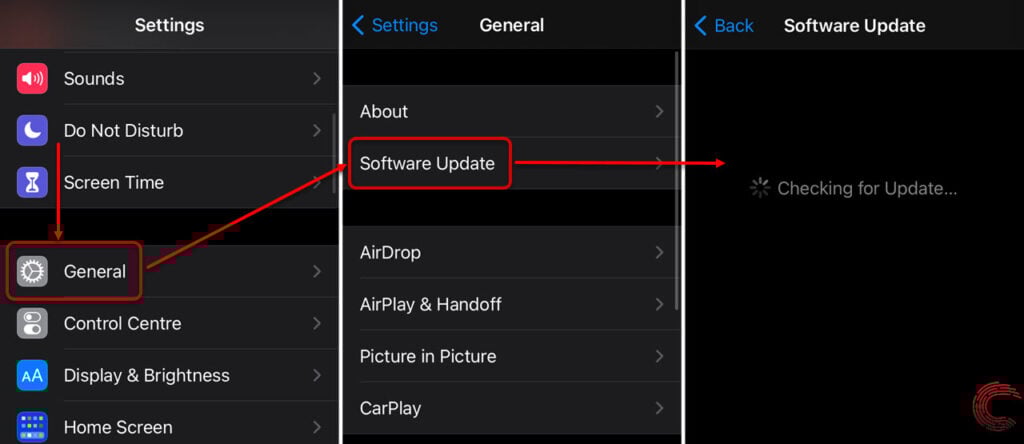
- Tap on General.
- Then tap on Software Update.
- If an update is available, you’ll see that on the next page.
- Tap on Download and Install to proceed.
Also read: How to fix ‘Snapchat black loading screen stuck on tap to load’ issue?

Writes news mostly and edits almost everything at Candid.Technology. He loves taking trips on his bikes or chugging beers as Manchester United battle rivals.
Contact Prayank via email: [email protected]