Перенаправление ввода-вывода в cmd
Перенаправление стандартных ввода-вывода и ошибок
С помощью переназначения устройств ввода/вывода одна программа может направить свой вывод на вход другой или перехватить вывод другой программы, используя его в качестве своих входных данных. Таким образом, имеется возможность передавать информацию от процесса к процессу при минимальных программных издержках. Практически это означает, что для программ, которые используют стандартные входные и выходные устройства, операционная система позволяет:
- выводить сообщения программ не на экран (стандартный выходной поток), а в файл или на принтер (перенаправление вывода);
- читать входные данные не с клавиатуры (стандартный входной поток), а из заранее подготовленного файла (перенаправление ввода);
- передавать сообщения, выводимые одной программой, в качестве входных данных для другой программы (конвейеризация или композиция команд).
Из командной строки эти возможности реализуются следующим образом. Для того, чтобы перенаправить текстовые сообщения, выводимые какой-либо командой из командной строки, в текстовый файл, нужно использовать конструкцию команда > имя_файла. Если при этом заданный для вывода файл уже существовал, то он перезаписывается (старое содержимое теряется), если не существовал создается. Можно также не создавать файл заново, а дописывать информацию, выводимую командой, в конец существующего файла. Для этого команда перенаправления вывода должна быть задана так: команда >> имя_файла. С помощью символа < можно прочитать входные данные для заданной команды не с клавиатуры, а из определенного (заранее подготовленного) файла: команда < имя_файла
Примеры перенаправления ввода/вывода в командной строке
Приведем несколько примеров перенаправления ввода/вывода.
1. Вывод результатов команды ping в файл ping ya.ru > ping.txt
2. Добавление текста справки для команды XCOPY в файл copy.txt: XCOPY /? >> copy.txt
В случае необходимости сообщения об ошибках (стандартный поток ошибок) можно перенаправить в текстовый файл с помощью конструкции команда 2> имя_файла В этом случае стандартный вывод будет производиться на экран. Также имеется возможность информационные сообщения и сообщения об ошибках выводить в один и тот же файл. Делается это следующим образом: команда > имя_файла 2>&1
Например, в приведенной ниже команде стандартный выходной поток и стандартный поток ошибок перенаправляются в файл copy.txt: XCOPY A:1.txt C: > copy.txt 2>&1
Background info from Microsoft documentation
While the accepted answer to this question is correct, it really doesn’t do much to explain why it works, and since the syntax is not immediately clear I did a quick www search to find out what was actually going on. In the hopes that this information is helpful to others, I’m posting it here.
Taken from the Microsoft documentation page:
Redirecting error messages from Command Prompt: STDERR/STDOUT
Summary
When redirecting output from an application using the
>symbol, error messages still print to the screen. This is because error messages are often sent to the Standard Error stream instead of the Standard Out stream.Output from a console (Command Prompt) application or command is often sent to two separate streams. The regular output is sent to Standard Out (STDOUT) and the error messages are sent to Standard Error (STDERR). When you redirect console output using the
>symbol, you are only redirecting STDOUT. In order to redirect STDERR, you have to specify2>for the redirection symbol. This selects the second output stream that is STDERR.Example
The command
dir file.xxx(where file.xxx does not exist) will display the following output:Volume in drive F is Candy Cane Volume Serial Number is 34EC-0876
File Not FoundIf you redirect the output to the NUL device using
dir file.xxx > nul, you will still see the error message:File Not Found
To redirect the error message to NUL, use the following command:
dir file.xxx 2> nulOr, you can redirect the output to one place, and the errors to another.
dir file.xxx 1> output.msg 2>&1You can print the errors and standard output to a single file by using the
&1command to redirect the output for STDERR to STDOUT and then sending the output from STDOUT to a file:dir file.xxx 1> output.msg 2>&1
To expand on davor’s answer, you can use PowerShell like this:
powershell "dir | tee test.txt"
If you’re trying to redirect the output of an exe in the current directory, you need to use . on the filename, eg:
powershell ".something.exe | tee test.txt"

answered Dec 31, 2013 at 8:59

Saxon DruceSaxon Druce
17.3k5 gold badges48 silver badges71 bronze badges
12
I was able to find a solution/workaround of redirecting output to a file and then to the console:
dir > a.txt | type a.txt
where dir is the command which output needs to be redirected, a.txt a file where to store output.

answered Jul 17, 2009 at 6:59

11
Check this out: wintee
No need for cygwin.
I did encounter and report some issues though.
Also you might check unxutils because it contains tee (and no need for cygwin), but beware that output EOL’s are UNIX-like here.
Last, but not least, is if you have PowerShell, you could try Tee-Object. Type get-help tee-object in PowerShell console for more info.
answered Sep 15, 2012 at 14:57

Davor JosipovicDavor Josipovic
5,0481 gold badge37 silver badges55 bronze badges
3
@tori3852
I found that
dir > a.txt | type a.txt
didn’t work (first few lines of dir listing only — suspect some sort of process forking and the second part, the ‘type’ command terminated before the dire listing had completed? ),
so instead I used:
dir > z.txt && type z.txt
which did — sequential commands, one completes before the second starts.

Brian Webster
29.6k48 gold badges150 silver badges224 bronze badges
answered Feb 2, 2011 at 5:25

Andy WelchAndy Welch
5374 silver badges2 bronze badges
1
A simple C# console application would do the trick:
using System;
using System.Collections.Generic;
using System.IO;

namespace CopyToFiles
{
    class Program
    {
        static void Main(string[] args)
        {
            var buffer = new char[100];
            var outputs = new List<TextWriter>();

            foreach (var file in args)
                outputs.Add(new StreamWriter(file));

            outputs.Add(Console.Out);

            int bytesRead;
            do
            {
                bytesRead = Console.In.ReadBlock(buffer, 0, buffer.Length);
                outputs.ForEach(o => o.Write(buffer, 0, bytesRead));
            } while (bytesRead == buffer.Length);

            outputs.ForEach(o => o.Close());
        }
    }
}
To use this you just pipe the source command into the program and provide the path of any files you want to duplicate the output to. For example:
dir | CopyToFiles files1.txt files2.txt
Will display the results of dir as well as store the results in both files1.txt and files2.txt.
Note that there isn’t much (anything!) in the way of error handling above, and supporting multiple files may not actually be required.

T.S.
17.6k11 gold badges57 silver badges78 bronze badges
answered Apr 28, 2009 at 7:01

RichardRichard
1,1696 silver badges8 bronze badges
9
Unfortunately there is no such thing.
Windows console applications only have a single output handle. (Well, there are two STDOUT, STDERR but it doesn’t matter here) The > redirects the output normally written to the console handle to a file handle.
If you want to have some kind of multiplexing you have to use an external application which you can divert the output to. This application then can write to a file and to the console again.

answered Apr 28, 2009 at 6:48

Daniel RikowskiDaniel Rikowski
70.2k57 gold badges250 silver badges324 bronze badges
1
This works, though it’s a bit ugly:
dir >_ && type _ && type _ > a.txt
It’s a little more flexible than some of the other solutions, in that it works statement-by-statement so you can use it to append as well. I use this quite a bit in batch files to log and display messages:
ECHO Print line to screen and log to file. >_ && type _ && type _ >> logfile.txt
Yes, you could just repeat the ECHO statement (once for the screen and the second time redirecting to the logfile), but that looks just as bad and is a bit of a maintenance issue. At least this way you don’t have to make changes to messages in two places.
Note that _ is just a short filename, so you’ll need to make sure to delete it at the end of your batch file (if you’re using a batch file).
answered Mar 17, 2011 at 1:49

MTSMTS
1,8232 gold badges17 silver badges15 bronze badges
5
I’d like to expand a bit on Saxon Druce’s excellent answer.
As stated, you can redirect the output of an executable in the current directory like so:
powershell ".something.exe | tee test.txt"
However, this only logs stdout to test.txt. It doesn’t also log stderr.
The obvious solution would be to use something like this:
powershell ".something.exe 2>&1 | tee test.txt"
However, this won’t work for all something.exes. Some something.exes will interpret the 2>&1 as an argument and fail. The correct solution is to instead only have apostrophes around the something.exe and its switches and arguments, like so:
powershell ".something.exe --switch1 --switch2 … arg1 arg2 …" 2^>^&1 ^| tee test.txt
Notice though, that in this case you have to escape the special cmd-shell characters «>&|» with a «^» each so they only get interpreted by powershell.

answered Jun 18, 2016 at 11:07

アリスターアリスター
3322 silver badges7 bronze badges
5
mtee is a small utility which works very well for this purpose. It’s free, source is open, and it Just Works.
You can find it at http://www.commandline.co.uk.
Used in a batch file to display output AND create a log file simultaneously, the syntax looks like this:
someprocess | mtee /+ mylogfile.txt
Where /+ means to append output.
This assumes that you have copied mtee into a folder which is in the PATH, of course.
answered Oct 21, 2011 at 20:36

MarkMark
1811 silver badge2 bronze badges
2
I agree with Brian Rasmussen, the unxutils port is the easiest way to do this. In the Batch Files section of his Scripting Pages Rob van der Woude provides a wealth of information on the use MS-DOS and CMD commands. I thought he might have a native solution to your problem and after digging around there I found TEE.BAT, which appears to be just that, an MS-DOS batch language implementation of tee. It is a pretty complex-looking batch file and my inclination would still be to use the unxutils port.
answered Apr 28, 2009 at 7:06

Steve CraneSteve Crane
4,2405 gold badges37 silver badges63 bronze badges
2
If you have cygwin in your windows environment path you can use:
dir > a.txt | tail -f a.txt
answered May 16, 2014 at 13:12

jkdbajkdba
2,2283 gold badges21 silver badges32 bronze badges
2
dir 1>a.txt 2>&1 | type a.txt
This will help to redirect both STDOUT and STDERR
answered Nov 2, 2011 at 15:23

rashokrashok
12.3k14 gold badges85 silver badges99 bronze badges
2
I know this is a very old topic, but in previous answers there is not a full implementation of a real time Tee written in Batch. My solution below is a Batch-JScript hybrid script that use the JScript section just to get the output from the piped command, but the processing of the data is done in the Batch section. This approach have the advantage that any Batch programmer may modify this program to fit specific needs. This program also correctly process the output of CLS command produced by other Batch files, that is, it clear the screen when CLS command output is detected.
@if (@CodeSection == @Batch) @then


@echo off
setlocal EnableDelayedExpansion

rem APATee.bat: Asynchronous (real time) Tee program, Batch-JScript hybrid version
rem Antonio Perez Ayala

rem The advantage of this program is that the data management is written in Batch code,
rem so any Batch programmer may modify it to fit their own needs.
rem As an example of this feature, CLS command is correctly managed

if "%~1" equ "" (
   echo Duplicate the Stdout output of a command in the screen and a disk file
   echo/
   echo anyCommand ^| APATee teeFile.txt [/A]
   echo/
   echo If /A switch is given, anyCommand output is *appended* to teeFile.txt
   goto :EOF
)

if "%2" equ ":TeeProcess" goto TeeProcess

rem Get the output of CLS command
for /F %%a in ('cls') do set "cls=%%a"

rem If /A switch is not provided, delete the file that receives Tee output
if /I "%~2" neq "/A" if exist %1 del %1

rem Create the semaphore-signal file and start the asynchronous Tee process
echo X > Flag.out
if exist Flag.in del Flag.in
Cscript //nologo //E:JScript "%~F0" | "%~F0" %1 :TeeProcess
del Flag.out
goto :EOF

:TeeProcess
   rem Wait for "Data Available" signal
   if not exist Flag.in goto TeeProcess
   rem Read the line sent by JScript section
   set line=
   set /P line=
   rem Set "Data Read" acknowledgement
   ren Flag.in Flag.out
   rem Check for the standard "End Of piped File" mark
   if "!line!" equ ":_EOF_:" exit /B
   rem Correctly manage CLS command
   if "!line:~0,1!" equ "!cls!" (
      cls
      set "line=!line:~1!"
   )
   rem Duplicate the line in Stdout and the Tee output file
   echo(!line!
   echo(!line!>> %1
goto TeeProcess


@end


// JScript section

var fso = new ActiveXObject("Scripting.FileSystemObject");
// Process all lines of Stdin
while ( ! WScript.Stdin.AtEndOfStream ) {
   // Read the next line from Stdin
   var line = WScript.Stdin.ReadLine();
   // Wait for "Data Read" acknowledgement
   while ( ! fso.FileExists("Flag.out") ) {
      WScript.Sleep(10);
   }
   // Send the line to Batch section
   WScript.Stdout.WriteLine(line);
   // Set "Data Available" signal
   fso.MoveFile("Flag.out", "Flag.in");
}
// Wait for last "Data Read" acknowledgement
while ( ! fso.FileExists("Flag.out") ) {
      WScript.Sleep(10);
}
// Send the standard "End Of piped File" mark
WScript.Stdout.WriteLine(":_EOF_:");
fso.MoveFile("Flag.out", "Flag.in");
answered May 20, 2013 at 3:07

AaciniAacini
63.7k12 gold badges70 silver badges105 bronze badges
2
I was also looking for the same solution, after a little try, I was successfully able to achieve that in Command Prompt. Here is my solution :
@Echo off
for /f "Delims=" %%a IN (xyz.bat) do (
%%a > _ && type _ && type _ >> log.txt
)
@Echo on
It even captures any PAUSE command as well.
answered Dec 2, 2014 at 19:50

Koder101Koder101
82416 silver badges28 bronze badges
Something like this should do what you need?
%DATE%_%TIME% > c:a.txt & type c:a.txt
ipconfig >> c:a.txt & type c:a.txt
ping localhost >> c:a.txt & type c:a.txt
pause

LarsTech
80.1k14 gold badges150 silver badges222 bronze badges
answered Apr 5, 2016 at 13:40

Richard KRichard K
511 silver badge1 bronze badge
1
Here’s a sample of what I’ve used based on one of the other answers
@echo off
REM SOME CODE
set __ERROR_LOG=c:errors.txt
REM set __IPADDRESS=x.x.x.x

REM Test a variable
if not defined __IPADDRESS (
     REM Call function with some data and terminate
     call :TEE %DATE%,%TIME%,IP ADDRESS IS NOT DEFINED
     goto :EOF
)

REM If test happens to be successful, TEE out a message and end script.
call :TEE Script Ended Successful
goto :EOF


REM THE TEE FUNCTION
:TEE
for /f "tokens=*" %%Z in ("%*") do (
     >  CON ECHO.%%Z
     >> "%__ERROR_LOG%" ECHO.%%Z
     goto :EOF
)
answered Nov 2, 2011 at 18:17

send output to console, append to console log, delete output from current command
dir >> usb-create.1 && type usb-create.1 >> usb-create.log | type usb-create.1 && del usb-create.1

Andreas
5,2468 gold badges44 silver badges52 bronze badges
answered Jan 23, 2015 at 18:46

DennisDennis
1043 bronze badges
1
This is a variation on a previous answer by MTS, however it adds some functionality that might be useful to others. Here is the method that I used:
- A command is set as a variable, that can be used later throughout the code, to output to the command window and append to a log file, using
set _Temp_Msg_Cmd=- the command has escaped redirection using the carrot
^character so that the commands are not evaluated initially
- the command has escaped redirection using the carrot
- A temporary file is created with a filename similar to the batch file being run called
%~n0_temp.txtthat uses command line parameter extension syntax%~n0to get the name of the batch file. - The output is appended to a separate log file
%~n0_log.txt
Here is the sequence of commands:
- The output and error messages are sent to the temporary file
^> %~n0_temp.txt 2^>^&1 - The content of the temporary file is then both:
- appended to the logfile
^& type %~n0_temp.txt ^>^> %~n0_log.txt - output to the command window
^& type %~n0_temp.txt
- appended to the logfile
- The temporary file with the message is deleted
^& del /Q /F %~n0_temp.txt
Here is the example:
set _Temp_Msg_Cmd= ^> %~n0_temp.txt 2^>^&1 ^& type %~n0_temp.txt ^>^> %~n0_log.txt ^& type %~n0_temp.txt ^& del /Q /F %~n0_temp.txt
This way then the command can simply be appended after later commands in a batch file that looks a lot cleaner:
echo test message %_Temp_Msg_Cmd%
This can be added to the end of other commands as well. As far as I can tell it will work when messages have multiple lines. For example the following command outputs two lines if there is an error message:
net use M: /D /Y %_Temp_Msg_Cmd%
answered Jul 27, 2015 at 16:36

Just like unix.
dir | tee a.txt
Does work On windows XP, it requires mksnt installed.
It displays on the prompt as well as appends to the file.

Corey
1,1573 gold badges21 silver badges37 bronze badges
answered May 3, 2013 at 12:47

This is not another answer, but more an overview and clarification to the already existed answers like
Displaying Windows command prompt output and redirecting it to a file
and others
I’ve found for myself that there is a set of issues what makes a set of tee implementations are not reliable in the Windows (Windows 7 in mine case).
I need to use specifically a tee implementation because have already uses a batch script with self redirection:
@echo off

setlocal


... some conditions here ..

rem the redirection
"%COMSPEC%" /C call %0 %* 2>&1 | "<path_to_tee_utililty>" ".log<log_file_name_with_date_and_time>.%~nx0.log"
exit /b

:IMPL
... here the rest of script ...
The script and calls to some utilities inside the script can break the output if used together with a tee utility.
- The gnuwin32 implementation:
http://gnuwin32.sourceforge.net/packages/coreutils.htm
Pros:
- Correctly handles standard output together with a console progress bar, where the
rcharacter is heavily used.
Cons:
- Makes console progress bars to draw only in a log file, but it has not duplicated or visible in the console window.
- Throws multiple error messages
Cwrite error: No such file or directorybecause seems the cmd interpreter closes the pipe/stdout too early and can not self close after that (spamming until termination). - Does not duplicate/print the output from the
pausecommand (Press any key to continue...) in the console window.
- The wintee implementation:
https://code.google.com/archive/p/wintee/
https://github.com/rbuhl/wintee
Pros:
- Shows a console progress bar both in the console window and in a log file (multiple prints).
- Does duplicate/print the output from the
pausecommand (Press any key to continue...) in the console window.
Cons:
- Incorrectly handles the
rcharacter, output is mixed and messed (https://code.google.com/archive/p/wintee/issues/7 ). - Having other issues: https://code.google.com/archive/p/wintee/issues
- The UnxUtils implementation:
http://unxutils.sourceforge.net/
https://sourceforge.net/projects/unxutils/files/unxutils/current/
Pros
- Shows a console progress bar both in the console window and in a log file (multiple prints).
- Correctly handles the
rcharacter. - Does duplicate/print the output from the
pausecommand (Press any key to continue...) in the console window.
Cons
Not yet found
- The ss64.net implementation:
http://ss64.net/westlake/nt
http://ss64.net/westlake/nt/tee.zip
Pros:
- Shows a console progress bar both in the console window and in a log file (multiple prints).
Cons:
- Incorrectly handles the
rcharacter, output is mixed and messed - For some reason does duplicate/print the output from the
pausecommand (Press any key to continue...) in the console window AFTER a key press.
- The ritchielawrence mtee implementation:
https://ritchielawrence.github.io/mtee
https://github.com/ritchielawrence/mtee
Pros
- Shows a console progress bar both in the console window and in a log file (multiple prints).
- Correctly handles the
rcharacter. - Does duplicate/print the output from the
pausecommand (Press any key to continue...) in the console window. - The error code retain feature w/o a need to use workaround with the
doskey(/Eflag, Windows command interpreter: how to obtain exit code of first piped command )
Cons
-
Does not support forward slash characters in the path to a log file (https://github.com/ritchielawrence/mtee/issues/6 )
-
Has a race condition issue, when can not extract a pipe process exit code because it has closed before it’s access (https://github.com/ritchielawrence/mtee/issues/4 )
So, if you are choosing the tee utility implementation between the above, then a better choice is the UnxUtils or mtee.
If you are searching for a better implementation with more features and less issues, then you can use callf utility:
https://github.com/andry81/contools/blob/trunk/Utilities/src/callf/help.tpl
You can run instead of:
call test.bat | mtee /E 1.log
This:
callf.exe /ret-child-exit /tee-stdout 1.log /tee-stdout-dup 1 "" "cmd.exe /c call test.bat"
It is better because it can pipe stdout separately from stderr and you can even pipe between processes with Administrator privileges isolation using named pipes.
answered Jul 7, 2020 at 9:09

AndryAndry
2,00227 silver badges27 bronze badges
2
@echo on

set startDate=%date%
set startTime=%time%

set /a sth=%startTime:~0,2%
set /a stm=1%startTime:~3,2% - 100
set /a sts=1%startTime:~6,2% - 100


fullprocess.bat > C:LOGS%startDate%_%sth%.%stm%.%sts%.LOG | fullprocess.bat
This will create a log file with the current datetime and you can the console lines during the process

Vladimir
170k36 gold badges384 silver badges312 bronze badges
answered Dec 3, 2010 at 14:15

1
I use a batch subroutine with a «for» statement to get the command output one line at a time and both write that line to a file and output it to the console.
@echo off
set logfile=test.log

call :ExecuteAndTee dir C:Program Files

Exit /B 0

:ExecuteAndTee
setlocal enabledelayedexpansion
echo Executing '%*'
  for /f "delims=" %%a in ('%* 2^>^&1') do (echo.%%a & echo.%%a>>%logfile%)
endlocal
Exit /B 0
answered Feb 27, 2014 at 21:45

Cody BarnesCody Barnes
3583 silver badges8 bronze badges
1
If you’re on the CLI, why not use a FOR loop to «DO» whatever you want:
for /F "delims=" %a in ('dir') do @echo %a && echo %a >> output.txt
Great resource on Windows CMD for loops: https://ss64.com/nt/for_cmd.html
The key here is setting the delimeters (delims), that would break up each line of output, to nothing. This way it won’t break on the default of white-space. The %a is an arbitrary letter, but it is used in the «do» section to, well… do something with the characters that were parsed at each line. In this case we can use the ampersands (&&) to execute the 2nd echo command to create-or-append (>>) to a file of our choosing. Safer to keep this order of DO commands in case there’s an issue writing the file, we’ll at least get the echo to the console first. The at sign (@) in front of the first echo suppresses the console from showing the echo-command itself, and instead just displays the result of the command which is to display the characters in %a. Otherwise you’d see:
echo Volume in drive [x] is Windows
Volume in drive [x] is Windows
UPDATE: /F skips blank lines and only fix is to pre-filter the output adding a character to every line (maybe with line-numbers via the command find). Solving this in CLI isn’t quick or pretty. Also, I didn’t include STDERR, so here’s capturing errors as well:
for /F "delims=" %a in ('dir 2^>^&1') do @echo %a & echo %a >> output.txt
Redirecting Error Messages
The carets (^) are there to escape the symbols after them, because the command is a string that’s being interpreted, as opposed to say, entering it directly on the command-line.
answered Feb 6, 2019 at 20:37

I just found a way to use the perl as alternative, e.g.:
CMD1 | perl -ne "print $_; print STDERR $_;" 2> OUTPUT.TEE
answered Jul 2, 2020 at 11:05

Following helps if you want something really seen on the screen — even if the batch file was redirected to a file. The device CON maybe used also if redirected to a file
Example:
ECHO first line on normal stdout. maybe redirected
ECHO second line on normal stdout again. maybe redirected
ECHO third line is to ask the user. not redirected  >CON
ECHO fourth line on normal stdout again. maybe redirected
Also see good redirection description: http://www.p-dd.com/chapter7-page14.html
answered Jul 8, 2009 at 8:52
Baresi der LiberoBaresi der Libero
How do I display and redirect output
to a file. Suppose if I use dos
command, dir > test.txt ,this command
will redirect output to file test.txt
without displaying the results. how to
write a command to display the output
and redirect output to a file using
DOS i.e., windows command prompt, not
in UNIX/LINUX.
You may find these commands in biterscripting ( http://www.biterscripting.com ) useful.
var str output
lf > $output
echo $output                            # Will show output on screen.
echo $output > "test.txt"               # Will write output to file test.txt.
system start "test.txt"                 # Will open file test.txt for viewing/editing.
answered Jan 10, 2010 at 21:35

This works in real time but is also kind a ugly and the performance is slow. Not well tested either:
@echo off
cls
SET MYCOMMAND=dir /B
ECHO File called 'test.bat' > out.txt
for /f "usebackq delims=" %%I in (`%MYCOMMAND%`) do (
  ECHO %%I
  ECHO %%I >> out.txt
)
pause
answered Sep 20, 2012 at 17:48

djangofandjangofan
27.6k57 gold badges188 silver badges282 bronze badges
1
An alternative is to tee stdout to stderr within your program:
in java:
System.setOut(new PrintStream(new TeeOutputStream(System.out, System.err)));
Then, in your dos batchfile: java program > log.txt
The stdout will go to the logfile and the stderr (same data) will show on the console.
answered Nov 23, 2012 at 19:50

The CoordinatorThe Coordinator
12.8k11 gold badges43 silver badges73 bronze badges
I install perl on most of my machines so an answer using perl: tee.pl
my $file = shift || "tee.dat";
open $output, ">", $file or die "unable to open $file as output: $!";
while(<STDIN>)
{
    print $_;
    print $output $_;
}
close $output;
dir | perl tee.pl
or
dir | perl tee.pl dir.bat
crude and untested.
answered Feb 19, 2014 at 15:39

DannyKDannyK
1,33216 silver badges23 bronze badges
To expand on davor’s answer, you can use PowerShell like this:
powershell "dir | tee test.txt"
If you’re trying to redirect the output of an exe in the current directory, you need to use . on the filename, eg:
powershell ".something.exe | tee test.txt"
answered Dec 31, 2013 at 8:59
Saxon DruceSaxon Druce
17.3k5 gold badges48 silver badges71 bronze badges
12
I was able to find a solution/workaround of redirecting output to a file and then to the console:
dir > a.txt | type a.txt
where dir is the command which output needs to be redirected, a.txt a file where to store output.
answered Jul 17, 2009 at 6:59
11
Check this out: wintee
No need for cygwin.
I did encounter and report some issues though.
Also you might check unxutils because it contains tee (and no need for cygwin), but beware that output EOL’s are UNIX-like here.
Last, but not least, is if you have PowerShell, you could try Tee-Object. Type get-help tee-object in PowerShell console for more info.
answered Sep 15, 2012 at 14:57
Davor JosipovicDavor Josipovic
5,0481 gold badge37 silver badges55 bronze badges
3
@tori3852
I found that
dir > a.txt | type a.txt
didn’t work (first few lines of dir listing only — suspect some sort of process forking and the second part, the ‘type’ command terminated before the dire listing had completed? ),
so instead I used:
dir > z.txt && type z.txt
which did — sequential commands, one completes before the second starts.
Brian Webster
29.6k48 gold badges150 silver badges224 bronze badges
answered Feb 2, 2011 at 5:25
Andy WelchAndy Welch
5374 silver badges2 bronze badges
1
A simple C# console application would do the trick:
using System;
using System.Collections.Generic;
using System.IO;

namespace CopyToFiles
{
    class Program
    {
        static void Main(string[] args)
        {
            var buffer = new char[100];
            var outputs = new List<TextWriter>();

            foreach (var file in args)
                outputs.Add(new StreamWriter(file));

            outputs.Add(Console.Out);

            int bytesRead;
            do
            {
                bytesRead = Console.In.ReadBlock(buffer, 0, buffer.Length);
                outputs.ForEach(o => o.Write(buffer, 0, bytesRead));
            } while (bytesRead == buffer.Length);

            outputs.ForEach(o => o.Close());
        }
    }
}
To use this you just pipe the source command into the program and provide the path of any files you want to duplicate the output to. For example:
dir | CopyToFiles files1.txt files2.txt
Will display the results of dir as well as store the results in both files1.txt and files2.txt.
Note that there isn’t much (anything!) in the way of error handling above, and supporting multiple files may not actually be required.
T.S.
17.6k11 gold badges57 silver badges78 bronze badges
answered Apr 28, 2009 at 7:01
RichardRichard
1,1696 silver badges8 bronze badges
9
Unfortunately there is no such thing.
Windows console applications only have a single output handle. (Well, there are two STDOUT, STDERR but it doesn’t matter here) The > redirects the output normally written to the console handle to a file handle.
If you want to have some kind of multiplexing you have to use an external application which you can divert the output to. This application then can write to a file and to the console again.
answered Apr 28, 2009 at 6:48
Daniel RikowskiDaniel Rikowski
70.2k57 gold badges250 silver badges324 bronze badges
1
This works, though it’s a bit ugly:
dir >_ && type _ && type _ > a.txt
It’s a little more flexible than some of the other solutions, in that it works statement-by-statement so you can use it to append as well. I use this quite a bit in batch files to log and display messages:
ECHO Print line to screen and log to file. >_ && type _ && type _ >> logfile.txt
Yes, you could just repeat the ECHO statement (once for the screen and the second time redirecting to the logfile), but that looks just as bad and is a bit of a maintenance issue. At least this way you don’t have to make changes to messages in two places.
Note that _ is just a short filename, so you’ll need to make sure to delete it at the end of your batch file (if you’re using a batch file).
answered Mar 17, 2011 at 1:49
MTSMTS
1,8232 gold badges17 silver badges15 bronze badges
5
I’d like to expand a bit on Saxon Druce’s excellent answer.
As stated, you can redirect the output of an executable in the current directory like so:
powershell ".something.exe | tee test.txt"
However, this only logs stdout to test.txt. It doesn’t also log stderr.
The obvious solution would be to use something like this:
powershell ".something.exe 2>&1 | tee test.txt"
However, this won’t work for all something.exes. Some something.exes will interpret the 2>&1 as an argument and fail. The correct solution is to instead only have apostrophes around the something.exe and its switches and arguments, like so:
powershell ".something.exe --switch1 --switch2 … arg1 arg2 …" 2^>^&1 ^| tee test.txt
Notice though, that in this case you have to escape the special cmd-shell characters «>&|» with a «^» each so they only get interpreted by powershell.
answered Jun 18, 2016 at 11:07
アリスターアリスター
3322 silver badges7 bronze badges
5
mtee is a small utility which works very well for this purpose. It’s free, source is open, and it Just Works.
You can find it at http://www.commandline.co.uk.
Used in a batch file to display output AND create a log file simultaneously, the syntax looks like this:
someprocess | mtee /+ mylogfile.txt
Where /+ means to append output.
This assumes that you have copied mtee into a folder which is in the PATH, of course.
answered Oct 21, 2011 at 20:36
MarkMark
1811 silver badge2 bronze badges
2
I agree with Brian Rasmussen, the unxutils port is the easiest way to do this. In the Batch Files section of his Scripting Pages Rob van der Woude provides a wealth of information on the use MS-DOS and CMD commands. I thought he might have a native solution to your problem and after digging around there I found TEE.BAT, which appears to be just that, an MS-DOS batch language implementation of tee. It is a pretty complex-looking batch file and my inclination would still be to use the unxutils port.
answered Apr 28, 2009 at 7:06
Steve CraneSteve Crane
4,2405 gold badges37 silver badges63 bronze badges
2
If you have cygwin in your windows environment path you can use:
dir > a.txt | tail -f a.txt
answered May 16, 2014 at 13:12
jkdbajkdba
2,2283 gold badges21 silver badges32 bronze badges
2
dir 1>a.txt 2>&1 | type a.txt
This will help to redirect both STDOUT and STDERR
answered Nov 2, 2011 at 15:23
rashokrashok
12.3k14 gold badges85 silver badges99 bronze badges
2
I know this is a very old topic, but in previous answers there is not a full implementation of a real time Tee written in Batch. My solution below is a Batch-JScript hybrid script that use the JScript section just to get the output from the piped command, but the processing of the data is done in the Batch section. This approach have the advantage that any Batch programmer may modify this program to fit specific needs. This program also correctly process the output of CLS command produced by other Batch files, that is, it clear the screen when CLS command output is detected.
@if (@CodeSection == @Batch) @then


@echo off
setlocal EnableDelayedExpansion

rem APATee.bat: Asynchronous (real time) Tee program, Batch-JScript hybrid version
rem Antonio Perez Ayala

rem The advantage of this program is that the data management is written in Batch code,
rem so any Batch programmer may modify it to fit their own needs.
rem As an example of this feature, CLS command is correctly managed

if "%~1" equ "" (
   echo Duplicate the Stdout output of a command in the screen and a disk file
   echo/
   echo anyCommand ^| APATee teeFile.txt [/A]
   echo/
   echo If /A switch is given, anyCommand output is *appended* to teeFile.txt
   goto :EOF
)

if "%2" equ ":TeeProcess" goto TeeProcess

rem Get the output of CLS command
for /F %%a in ('cls') do set "cls=%%a"

rem If /A switch is not provided, delete the file that receives Tee output
if /I "%~2" neq "/A" if exist %1 del %1

rem Create the semaphore-signal file and start the asynchronous Tee process
echo X > Flag.out
if exist Flag.in del Flag.in
Cscript //nologo //E:JScript "%~F0" | "%~F0" %1 :TeeProcess
del Flag.out
goto :EOF

:TeeProcess
   rem Wait for "Data Available" signal
   if not exist Flag.in goto TeeProcess
   rem Read the line sent by JScript section
   set line=
   set /P line=
   rem Set "Data Read" acknowledgement
   ren Flag.in Flag.out
   rem Check for the standard "End Of piped File" mark
   if "!line!" equ ":_EOF_:" exit /B
   rem Correctly manage CLS command
   if "!line:~0,1!" equ "!cls!" (
      cls
      set "line=!line:~1!"
   )
   rem Duplicate the line in Stdout and the Tee output file
   echo(!line!
   echo(!line!>> %1
goto TeeProcess


@end


// JScript section

var fso = new ActiveXObject("Scripting.FileSystemObject");
// Process all lines of Stdin
while ( ! WScript.Stdin.AtEndOfStream ) {
   // Read the next line from Stdin
   var line = WScript.Stdin.ReadLine();
   // Wait for "Data Read" acknowledgement
   while ( ! fso.FileExists("Flag.out") ) {
      WScript.Sleep(10);
   }
   // Send the line to Batch section
   WScript.Stdout.WriteLine(line);
   // Set "Data Available" signal
   fso.MoveFile("Flag.out", "Flag.in");
}
// Wait for last "Data Read" acknowledgement
while ( ! fso.FileExists("Flag.out") ) {
      WScript.Sleep(10);
}
// Send the standard "End Of piped File" mark
WScript.Stdout.WriteLine(":_EOF_:");
fso.MoveFile("Flag.out", "Flag.in");
answered May 20, 2013 at 3:07
AaciniAacini
63.7k12 gold badges70 silver badges105 bronze badges
2
I was also looking for the same solution, after a little try, I was successfully able to achieve that in Command Prompt. Here is my solution :
@Echo off
for /f "Delims=" %%a IN (xyz.bat) do (
%%a > _ && type _ && type _ >> log.txt
)
@Echo on
It even captures any PAUSE command as well.
answered Dec 2, 2014 at 19:50
Koder101Koder101
82416 silver badges28 bronze badges
Something like this should do what you need?
%DATE%_%TIME% > c:a.txt & type c:a.txt
ipconfig >> c:a.txt & type c:a.txt
ping localhost >> c:a.txt & type c:a.txt
pause
LarsTech
80.1k14 gold badges150 silver badges222 bronze badges
answered Apr 5, 2016 at 13:40
Richard KRichard K
511 silver badge1 bronze badge
1
Here’s a sample of what I’ve used based on one of the other answers
@echo off
REM SOME CODE
set __ERROR_LOG=c:errors.txt
REM set __IPADDRESS=x.x.x.x

REM Test a variable
if not defined __IPADDRESS (
     REM Call function with some data and terminate
     call :TEE %DATE%,%TIME%,IP ADDRESS IS NOT DEFINED
     goto :EOF
)

REM If test happens to be successful, TEE out a message and end script.
call :TEE Script Ended Successful
goto :EOF


REM THE TEE FUNCTION
:TEE
for /f "tokens=*" %%Z in ("%*") do (
     >  CON ECHO.%%Z
     >> "%__ERROR_LOG%" ECHO.%%Z
     goto :EOF
)
answered Nov 2, 2011 at 18:17
send output to console, append to console log, delete output from current command
dir >> usb-create.1 && type usb-create.1 >> usb-create.log | type usb-create.1 && del usb-create.1
Andreas
5,2468 gold badges44 silver badges52 bronze badges
answered Jan 23, 2015 at 18:46
DennisDennis
1043 bronze badges
1
This is a variation on a previous answer by MTS, however it adds some functionality that might be useful to others. Here is the method that I used:
- A command is set as a variable, that can be used later throughout the code, to output to the command window and append to a log file, using
set _Temp_Msg_Cmd=- the command has escaped redirection using the carrot
^character so that the commands are not evaluated initially
- the command has escaped redirection using the carrot
- A temporary file is created with a filename similar to the batch file being run called
%~n0_temp.txtthat uses command line parameter extension syntax%~n0to get the name of the batch file. - The output is appended to a separate log file
%~n0_log.txt
Here is the sequence of commands:
- The output and error messages are sent to the temporary file
^> %~n0_temp.txt 2^>^&1 - The content of the temporary file is then both:
- appended to the logfile
^& type %~n0_temp.txt ^>^> %~n0_log.txt - output to the command window
^& type %~n0_temp.txt
- appended to the logfile
- The temporary file with the message is deleted
^& del /Q /F %~n0_temp.txt
Here is the example:
set _Temp_Msg_Cmd= ^> %~n0_temp.txt 2^>^&1 ^& type %~n0_temp.txt ^>^> %~n0_log.txt ^& type %~n0_temp.txt ^& del /Q /F %~n0_temp.txt
This way then the command can simply be appended after later commands in a batch file that looks a lot cleaner:
echo test message %_Temp_Msg_Cmd%
This can be added to the end of other commands as well. As far as I can tell it will work when messages have multiple lines. For example the following command outputs two lines if there is an error message:
net use M: /D /Y %_Temp_Msg_Cmd%
answered Jul 27, 2015 at 16:36
Just like unix.
dir | tee a.txt
Does work On windows XP, it requires mksnt installed.
It displays on the prompt as well as appends to the file.
Corey
1,1573 gold badges21 silver badges37 bronze badges
answered May 3, 2013 at 12:47
This is not another answer, but more an overview and clarification to the already existed answers like
Displaying Windows command prompt output and redirecting it to a file
and others
I’ve found for myself that there is a set of issues what makes a set of tee implementations are not reliable in the Windows (Windows 7 in mine case).
I need to use specifically a tee implementation because have already uses a batch script with self redirection:
@echo off

setlocal


... some conditions here ..

rem the redirection
"%COMSPEC%" /C call %0 %* 2>&1 | "<path_to_tee_utililty>" ".log<log_file_name_with_date_and_time>.%~nx0.log"
exit /b

:IMPL
... here the rest of script ...
The script and calls to some utilities inside the script can break the output if used together with a tee utility.
- The gnuwin32 implementation:
http://gnuwin32.sourceforge.net/packages/coreutils.htm
Pros:
- Correctly handles standard output together with a console progress bar, where the
rcharacter is heavily used.
Cons:
- Makes console progress bars to draw only in a log file, but it has not duplicated or visible in the console window.
- Throws multiple error messages
Cwrite error: No such file or directorybecause seems the cmd interpreter closes the pipe/stdout too early and can not self close after that (spamming until termination). - Does not duplicate/print the output from the
pausecommand (Press any key to continue...) in the console window.
- The wintee implementation:
https://code.google.com/archive/p/wintee/
https://github.com/rbuhl/wintee
Pros:
- Shows a console progress bar both in the console window and in a log file (multiple prints).
- Does duplicate/print the output from the
pausecommand (Press any key to continue...) in the console window.
Cons:
- Incorrectly handles the
rcharacter, output is mixed and messed (https://code.google.com/archive/p/wintee/issues/7 ). - Having other issues: https://code.google.com/archive/p/wintee/issues
- The UnxUtils implementation:
http://unxutils.sourceforge.net/
https://sourceforge.net/projects/unxutils/files/unxutils/current/
Pros
- Shows a console progress bar both in the console window and in a log file (multiple prints).
- Correctly handles the
rcharacter. - Does duplicate/print the output from the
pausecommand (Press any key to continue...) in the console window.
Cons
Not yet found
- The ss64.net implementation:
http://ss64.net/westlake/nt
http://ss64.net/westlake/nt/tee.zip
Pros:
- Shows a console progress bar both in the console window and in a log file (multiple prints).
Cons:
- Incorrectly handles the
rcharacter, output is mixed and messed - For some reason does duplicate/print the output from the
pausecommand (Press any key to continue...) in the console window AFTER a key press.
- The ritchielawrence mtee implementation:
https://ritchielawrence.github.io/mtee
https://github.com/ritchielawrence/mtee
Pros
- Shows a console progress bar both in the console window and in a log file (multiple prints).
- Correctly handles the
rcharacter. - Does duplicate/print the output from the
pausecommand (Press any key to continue...) in the console window. - The error code retain feature w/o a need to use workaround with the
doskey(/Eflag, Windows command interpreter: how to obtain exit code of first piped command )
Cons
-
Does not support forward slash characters in the path to a log file (https://github.com/ritchielawrence/mtee/issues/6 )
-
Has a race condition issue, when can not extract a pipe process exit code because it has closed before it’s access (https://github.com/ritchielawrence/mtee/issues/4 )
So, if you are choosing the tee utility implementation between the above, then a better choice is the UnxUtils or mtee.
If you are searching for a better implementation with more features and less issues, then you can use callf utility:
https://github.com/andry81/contools/blob/trunk/Utilities/src/callf/help.tpl
You can run instead of:
call test.bat | mtee /E 1.log
This:
callf.exe /ret-child-exit /tee-stdout 1.log /tee-stdout-dup 1 "" "cmd.exe /c call test.bat"
It is better because it can pipe stdout separately from stderr and you can even pipe between processes with Administrator privileges isolation using named pipes.
answered Jul 7, 2020 at 9:09
AndryAndry
2,00227 silver badges27 bronze badges
2
@echo on

set startDate=%date%
set startTime=%time%

set /a sth=%startTime:~0,2%
set /a stm=1%startTime:~3,2% - 100
set /a sts=1%startTime:~6,2% - 100


fullprocess.bat > C:LOGS%startDate%_%sth%.%stm%.%sts%.LOG | fullprocess.bat
This will create a log file with the current datetime and you can the console lines during the process
Vladimir
170k36 gold badges384 silver badges312 bronze badges
answered Dec 3, 2010 at 14:15
1
I use a batch subroutine with a «for» statement to get the command output one line at a time and both write that line to a file and output it to the console.
@echo off
set logfile=test.log

call :ExecuteAndTee dir C:Program Files

Exit /B 0

:ExecuteAndTee
setlocal enabledelayedexpansion
echo Executing '%*'
  for /f "delims=" %%a in ('%* 2^>^&1') do (echo.%%a & echo.%%a>>%logfile%)
endlocal
Exit /B 0
answered Feb 27, 2014 at 21:45
Cody BarnesCody Barnes
3583 silver badges8 bronze badges
1
If you’re on the CLI, why not use a FOR loop to «DO» whatever you want:
for /F "delims=" %a in ('dir') do @echo %a && echo %a >> output.txt
Great resource on Windows CMD for loops: https://ss64.com/nt/for_cmd.html
The key here is setting the delimeters (delims), that would break up each line of output, to nothing. This way it won’t break on the default of white-space. The %a is an arbitrary letter, but it is used in the «do» section to, well… do something with the characters that were parsed at each line. In this case we can use the ampersands (&&) to execute the 2nd echo command to create-or-append (>>) to a file of our choosing. Safer to keep this order of DO commands in case there’s an issue writing the file, we’ll at least get the echo to the console first. The at sign (@) in front of the first echo suppresses the console from showing the echo-command itself, and instead just displays the result of the command which is to display the characters in %a. Otherwise you’d see:
echo Volume in drive [x] is Windows
Volume in drive [x] is Windows
UPDATE: /F skips blank lines and only fix is to pre-filter the output adding a character to every line (maybe with line-numbers via the command find). Solving this in CLI isn’t quick or pretty. Also, I didn’t include STDERR, so here’s capturing errors as well:
for /F "delims=" %a in ('dir 2^>^&1') do @echo %a & echo %a >> output.txt
Redirecting Error Messages
The carets (^) are there to escape the symbols after them, because the command is a string that’s being interpreted, as opposed to say, entering it directly on the command-line.
answered Feb 6, 2019 at 20:37
I just found a way to use the perl as alternative, e.g.:
CMD1 | perl -ne "print $_; print STDERR $_;" 2> OUTPUT.TEE
answered Jul 2, 2020 at 11:05
Following helps if you want something really seen on the screen — even if the batch file was redirected to a file. The device CON maybe used also if redirected to a file
Example:
ECHO first line on normal stdout. maybe redirected
ECHO second line on normal stdout again. maybe redirected
ECHO third line is to ask the user. not redirected  >CON
ECHO fourth line on normal stdout again. maybe redirected
Also see good redirection description: http://www.p-dd.com/chapter7-page14.html
answered Jul 8, 2009 at 8:52
Baresi der LiberoBaresi der Libero
How do I display and redirect output
to a file. Suppose if I use dos
command, dir > test.txt ,this command
will redirect output to file test.txt
without displaying the results. how to
write a command to display the output
and redirect output to a file using
DOS i.e., windows command prompt, not
in UNIX/LINUX.
You may find these commands in biterscripting ( http://www.biterscripting.com ) useful.
var str output
lf > $output
echo $output                            # Will show output on screen.
echo $output > "test.txt"               # Will write output to file test.txt.
system start "test.txt"                 # Will open file test.txt for viewing/editing.
answered Jan 10, 2010 at 21:35
This works in real time but is also kind a ugly and the performance is slow. Not well tested either:
@echo off
cls
SET MYCOMMAND=dir /B
ECHO File called 'test.bat' > out.txt
for /f "usebackq delims=" %%I in (`%MYCOMMAND%`) do (
  ECHO %%I
  ECHO %%I >> out.txt
)
pause
answered Sep 20, 2012 at 17:48
djangofandjangofan
27.6k57 gold badges188 silver badges282 bronze badges
1
An alternative is to tee stdout to stderr within your program:
in java:
System.setOut(new PrintStream(new TeeOutputStream(System.out, System.err)));
Then, in your dos batchfile: java program > log.txt
The stdout will go to the logfile and the stderr (same data) will show on the console.
answered Nov 23, 2012 at 19:50
The CoordinatorThe Coordinator
12.8k11 gold badges43 silver badges73 bronze badges
I install perl on most of my machines so an answer using perl: tee.pl
my $file = shift || "tee.dat";
open $output, ">", $file or die "unable to open $file as output: $!";
while(<STDIN>)
{
    print $_;
    print $output $_;
}
close $output;
dir | perl tee.pl
or
dir | perl tee.pl dir.bat
crude and untested.
answered Feb 19, 2014 at 15:39
DannyKDannyK
1,33216 silver badges23 bronze badges

Display & Redirect Output
On this page I’ll try to explain how redirection works.
To illustrate my story there are some examples you can try for yourself.
For an overview of redirection and piping, view my original redirection page.
Display text
To display a text on screen we have the ECHO command:
ECHO Hello world
This will show the following text on screen:
Hello world
When I say «on screen», I’m actually referring to the «DOS Prompt», «console» or «command window», or whatever other «alias» is used.
Streams
The output we see in this window may all look alike, but it can actually be the result of 3 different «streams» of text, 3 «processes» that each send their text to thee same window.
Those of you familiar with one of the Unix/Linux shells probably know what these streams are:
- Standard Output
- Standard Error
- Console
Standard Output is the stream where all, well, standard output of commands is being sent to.
The ECHO command sends all its output to Standard Output.
Standard Error is the stream where many (but not all) commands send their error messages.
And some, not many, commands send their output to the screen bypassing Standard Output and Standard Error, they use the Console.
By definition Console isn’t a stream.
There is another stream, Standard Input: many commands accept input at their Standard Input instead of directly from the keyboard.
Probably the most familiar example is MORE:
DIR /S | MORE
where the MORE command accepts DIR‘s Standard Output at its own Standard Input, chops the stream in blocks of 25 lines (or whatever screen size you may use) and sends it to its own Standard Output.
(Since MORE‘s Standard Input is used by DIR, MORE must catch its keyboard presses (the «Any Key») directly from the keyboard buffer instead of from Standard Input.)
Redirection
You may be familiar with «redirection to NUL» to hide command output:
ECHO Hello world>NUL
will show nothing on screen.
That’s because >NUL redirects all Standard Output to the NUL device, which does nothing but discard it.
Now try this (note the typo):
EHCO Hello world>NUL
The result may differ for different operating system versions, but in Windows XP I get the following error message:
'EHCO' is not recognized as an internal or external command, operable program or batch file.
This is a fine demonstration of only Standard Output being redirected to the NUL device, but Standard Error still being displayed.
Redirecting Standard Error in «true» MS-DOS (COMMAND.COM) isn’t possible (actually it is, by using the CTTY command, but that would redirect all output including Console, and input, including keyboard).
In Windows NT 4 and later (CMD.EXE) and in OS/2 (also CMD.EXE) Standard Error can be redirected by using 2> instead of >
A short demonstration. Try this command:
ECHO Hello world 2>NUL
What you should get is:
Hello world
You see? The same result you got with ECHO Hello world without the redirection.
That’s because we redirected the Standard Error stream to the NUL device, but the ECHO command sent its output to the Standard Output stream, which was not redirected.
Now make a typo again:
EHCO Hello world 2>NUL
What did you get?
Nothing
That’s because the error message was sent to the Standard Error stream, which was in turn redirected to the NUL device by 2>NUL
When we use > to redirect Standard Output, CMD.EXE interprets this as 1>, as can be seen by writing and running this one-line batch file «test.bat»:
DIR > NUL
Now run test.bat in CMD.EXE and watch the result:
C:>test.bat

C:>DIR  1>NUL

C:>_
It looks like CMD.EXE uses 1 for Standard Output and 2 for Standard Error.
We’ll see how we can use this later.
Ok, now that we get the idea of this concept of «streams», let’s play with it.
Copy the following code into Notepad and save it as «test.bat»:
@ECHO OFF
ECHO This text goes to Standard Output
ECHO This text goes to Standard Error 1>&2
ECHO This text goes to the Console>CON
Run test.bat in CMD.EXE, and this is what you’ll get:
C:>test.bat
This text goes to Standard Output
This text goes to Standard Error
This text goes to the Console

C:>_
Now let’s see if we can separate the streams again.
Run:
test.bat > NUL
and you should see:
C:>test.bat
This text goes to Standard Error
This text goes to the Console

C:>_
We redirected Standard Output to the NUL device, and what was left were Standard Error and Console.
Next, run:
test.bat 2> NUL
and you should see:
C:>test.bat
This text goes to Standard Output
This text goes to the Console

C:>_
We redirected Standard Error to the NUL device, and what was left were Standard Output and Console.
Nothing new so far. But the next one is new:
test.bat > NUL 2>&1
and you should see:
C:>test.bat
This text goes to the Console

C:>_
This time we redirected both Standard Output and Standard Error to the NUL device, and what was left was only Console.
It is said Console cannot be redirected, and I believe that’s true.
I can assure you I did try!
To get rid of screen output sent directly to the Console, either run the program in a separate window (using the START command), or clear the screen immediately afterwards (CLS).
In this case, we could also have used test.bat >NUL 2>NUL
This redirects Standard Output to the NUL device and Standard Error to the same NUL device.
With the NUL device that’s no problem, but when redirecting to a file one of the redirections will lock the file for the other redirection.
What 2>&1 does, is merge Standard Error into the Standard Output stream, so Standard output and Standard Error will continue as a single stream.
Redirect «all» output to a single file:
Run:
test.bat > test.txt 2>&1
and you’ll get this text on screen (we’ll never get rid of this line on screen, as it is sent to the Console and cannot be redirected):
This text goes to the Console
You should also get a file named test.txt with the following content:
This text goes to Standard Output
This text goes to Standard Error
| Note: | The commandstest.bat > test.txt 2>&1test.bat 1> test.txt 2>&1test.bat 2> test.txt 1>&2all give identical results. |
Redirect errors to a separate error log file:
Run:
test.bat > testlog.txt 2> testerrors.txt
and you’ll get this text on screen (we’ll never get rid of this line on screen, as it is sent to the Console and cannot be redirected):
This text goes to the Console
You should also get a file named testlog.txt with the following content:
This text goes to Standard Output
and another file named testerrors.txt with the following content:
This text goes to Standard Error
Nothing is impossible, not even redirecting the Console output.
Unfortunately, it can be done only in the old MS-DOS versions that came with a CTTY command.
The general idea was this:
CTTY NUL
ECHO Echo whatever you want, it won't be displayed on screen no matter what.
ECHO By the way, did I warn you that the keyboard doesn't work either?
ECHO I suppose that's why CTTY is no longer available on Windows systems.
ECHO The only way to get control over the computer again is a cold reboot,
ECHO or the following command:
CTTY CON
A pause or prompt for input before the CTTY CON command meant one had to press the reset button!
Besides being used for redirection to the NUL device, with CTTY COM1 the control could be passed on to a terminal on serial port COM1.
Escaping Redirection (not to be interpreted as «Avoiding Redirection»)
Redirection always uses the main or first command’s streams:
START command > logfile
will redirect START‘s Standard Output to logfile, not command‘s!
The result will be an empty logfile.
A workaround that may look a bit intimidating is grouping the command line and escaping the redirection:
START CMD.EXE /C ^(command ^> logfile^)
What this does is turn the part between parentheses into a «literal» (uninterpreted) string that is passed to the command interpreter of the newly started process, which then in turn does interpret it.
So the interpretation of the parenthesis and redirection is delayed, or deferred.
| Note: | Be careful when using workarounds like these, they may be broken in future (or even past) Windows versions. |
A safer way to redirect STARTed commands’ output would be to create and run a «wrapper» batch file that handles the redirection.
The batch file would look like this:
command > logfile
and the command line would be:
START batchfile
Some «best practices» when using redirection in batch files:
- Use
>filename.txt 2>&1to merge Standard Output and Standard Error and redirect them together to a single file.
Make sure you place the redirection «commands» in this order. - Use
>logfile.txt 2>errorlog.txtto redirect success and error messages to separate log files. - Use
>CONto send text to the screen, no matter what, even if the batch file’s output is redirected.
This could be useful when prompting for input even if the batch file’s output is being redirected to a file. - Use
1>&2to send text to Standard Error.
This can be useful for error messages. - It’s ok to use spaces in redirection commands.
Note however, that a space between an ECHO command and a>will be redirected too.
DIR>filename.txtandDIR > filename.txtare identical,ECHO Hello world>filename.txtandECHO Hello world > filename.txtare not, even though they are both valid.
It is not ok to use spaces in>>or2>or2>&1or1>&2(before or after is ok). - In Windows NT 4, early Windows 2000 versions, and OS/2 there used to be some ambiguity with ECHOed lines ending with a 1 or 2, immediately followed by a
>:
ECHO Hello world2>file.txtwould result in an empty file file.txt and the textHello world(without the trailing «2») on screen (CMD.EXE would interpret it asECHO Hello world 2>file.txt).
In Windows XP the result is no text on screen and file.txt containing the lineHello world2, including the trailing «2» (CMD.EXE interprets it asECHO Hello world2 >file.txt).
To prevent this ambiguity, either use parentheses or insert an extra space yourself:
ECHO Hello World2 >file.txt

(ECHO Hello World2)>file.txt - «Merging» Standard Output and Standard Error with
2>&1can also be used to pipe a command’s output to another command’s Standard Input:
somecommand 2>&1 | someothercommand
- Redirection overview page
- Use the TEE command to display on screen and simultaneously redirect to file
page last modified: 2016-09-19
|
2 / 2 / 0 Регистрация: 05.06.2012 Сообщений: 37 |
|
|
1 |
|
Перенаправить поток ошибок программы в переменную19.03.2013, 15:13. Показов 12061. Ответов 16
Требуется перенаправить вывод программы в переменную. Код @ECHO OFF SET a="" TASKKILL /IM calc.exe 2> file.txt ECHO a is: %a% PAUSE В этом примере я пытаюсь убить процесс калькулятор и вывод ошибок перенаправляю в файл. Решение с выводом во временный файл и последующим его чтением в переменную не подходит, т.к. доступ к файловой системе на запись запрещен.
__________________
0 |

|
2 / 2 / 0 Регистрация: 05.06.2012 Сообщений: 37 |
|
|
19.03.2013, 16:33 [ТС] |
3 |
|
а текст ошибок как получить?
0 |
|
17951 / 7587 / 889 Регистрация: 25.12.2011 Сообщений: 11,317 Записей в блоге: 17 |
|
|
19.03.2013, 18:55 |
4 |
|
Я и не говорил, что Вам нужен Errorlevel.
0 |


|
2 / 2 / 0 Регистрация: 05.06.2012 Сообщений: 37 |
|
|
19.03.2013, 22:39 [ТС] |
5 |
|
Тот пример у меня не запускается.
0 |
|
Dragokas
17951 / 7587 / 889 Регистрация: 25.12.2011 Сообщений: 11,317 Записей в блоге: 17 |
||||
|
19.03.2013, 22:45 |
6 |
|||
1 |
|
2 / 2 / 0 Регистрация: 05.06.2012 Сообщений: 37 |
|||||
|
20.03.2013, 10:44 [ТС] |
7 |
||||
|
А как убрать ошибку не подскажете?
0 |

|
17951 / 7587 / 889 Регистрация: 25.12.2011 Сообщений: 11,317 Записей в блоге: 17 |
|
|
20.03.2013, 13:47 |
8 |
|
Некая ошибка в синтаксисе.
0 |
|
2 / 2 / 0 Регистрация: 05.06.2012 Сообщений: 37 |
|
|
20.03.2013, 13:58 [ТС] |
9 |
|
Вот
0 |
|
Dragokas
17951 / 7587 / 889 Регистрация: 25.12.2011 Сообщений: 11,317 Записей в блоге: 17 |
||||
|
20.03.2013, 14:46 |
10 |
|||
|
Все верно. У меня правильно отрабатывает. Проблемы с виндой? Порасследуем. Замените первую строку батника на такую:
Приведите сюда текст из созданного рядом с батником файла log.txt
0 |
|
2644 / 1711 / 172 Регистрация: 05.06.2011 Сообщений: 4,911 |
|
|
20.03.2013, 16:25 |
11 |
|
Какие ж-то там есть расширенный и обычный режим cmdшника. Может, оно?
2 |
|
2 / 2 / 0 Регистрация: 05.06.2012 Сообщений: 37 |
|
|
20.03.2013, 17:04 [ТС] |
12 |
|
log.txt D:Automatization>set u_comm=taskkill /IM calc.exe D:Automatization>for /f «delims=» %A in (‘taskkill /IM calc.exe 1^>nul 2^>^&3’) do set StdErr=%A Какие ж-то там есть расширенный и обычный режим cmdшника. Может, оно? пробовал — не помогло
0 |
|
Dragokas
17951 / 7587 / 889 Регистрация: 25.12.2011 Сообщений: 11,317 Записей в блоге: 17 |
||||
|
20.03.2013, 17:34 |
13 |
|||
|
Точно в начало бат-файла пробовали подставлять? :
Какая версия операционной системы?
1 |
|
2 / 2 / 0 Регистрация: 05.06.2012 Сообщений: 37 |
|
|
20.03.2013, 17:48 [ТС] |
14 |
|
Вчера ставил в начало батника SETLOCAL ENABLEDELAYEDEXPANSION — не сработало. Сегодня поставил — сработало!
0 |
|
17951 / 7587 / 889 Регистрация: 25.12.2011 Сообщений: 11,317 Записей в блоге: 17 |
|
|
20.03.2013, 17:52 |
15 |
|
Дык, все же, какая ОСь?
0 |
|
2 / 2 / 0 Регистрация: 05.06.2012 Сообщений: 37 |
|
|
20.03.2013, 17:52 [ТС] |
16 |
|
Windows 7, x32
0 |
|
17951 / 7587 / 889 Регистрация: 25.12.2011 Сообщений: 11,317 Записей в блоге: 17 |
|
|
20.03.2013, 18:14 |
17 |
|
Значит отключено через реестр. Полностью отключить или включить расширенную обработку на данном компьютере или для конкретного пользователя можно в реестре, в соответствующих нужному контексту разделах [HKEY_LOCAL_MACHINE Software Microsoft Command Processor] и [HKEY_CURRENT_USER Software Microsoft Command Processor]. Параметр «EnableExtensions»=dword:00000001 в этих разделах включает расширения, а «EnableExtensions»=dword:00000000 — отключает, при этом параметры пользователя имеют приоритет над параметрами компьютера Добавлено через 1 минуту
2 |
С помощью переназначения устройств ввода/вывода одна программа может направить свой вывод на вход другой или перехватить вывод другой программы, используя его в качестве своих входных данных. Таким образом, имеется возможность передавать информацию от процесса к процессу при минимальных программных издержках.
Есть 3 файловых дескриптора: stdin — стандартный ввод, stdout — стандартный вывод и stderr — стандартный поток ошибок. В скриптах 1 означает stdout, а 2 — stderr.
Практически это означает, что для программ, которые используют стандартные входные и выходные устройства, операционная система позволяет:
- перенаправлять
stdoutв файл - перенаправлять
stderrв файл - перенаправлять
stdoutвstderr - перенаправлять
stderrвstdout - перенаправлять
stderrиstdoutв файл - перенаправлять
stderrиstdoutвstdout - перенаправлять
stderrиstdoutвstderr - перенаправление
stderrиstdoutпо конвейеру
Все вышесказанное является привычной обыденностью для любого пользователя любой nix системы, но в среде Windows, данные возможности применяются крайне редко, хотя на самом деле они там есть и всё практически идентично.
А теперь примеры:
1. Перенаправление стандартного потока программы в файл с заменой содержимого файла
ping ya.ru -t > log.txt
ping ya.ru -t 1> log.txt
при этом на экран ничего кроме ошибок не выводится, а все записывается в лог. Если остановить пинг, и запустить заново, предыдущий лог полностью затирается новым.
2. Перенаправление стандартного потока программы в файл с до записью содержимого лога
ping ya.ru -t >> log.txt
Тоже самое, но при прерывание пинга и начале нового, старое содержимое лога не затрется, а новое дописывается в конец
ping ya.ru -t 1>> log.txt
3. Перенаправление потока ошибок программы в фаил с заменой содержимого
ping ya.ru -t 2> log.txt
при этом, стандартный поток программы пойдет на экран, а ошибки будут записаны в лог, с заменой содержимого.
4. То же самое, но с до записью содержимого лога.
ping ya.ru -t 2>> log.txt
5. Следующая конструкция позволяет перенаправить информацию между потоками (между стандартным потоком и потоком ошибок, или наоборот).
ping ya.ru > log.txt 2>&1
или с до записью лога
ping ya.ru >> log.txt 2>&1
В данном примере стандартный поток ошибок пересылается в стандартный поток (конструкция 2>&1) а потом стандартный поток (уже с завернутым в него потоком ошибок) посылается в лог.
6. В этом примере все наоборот, стандартный поток, пересылается в поток ошибок и уже поток ошибок перенаправляется в лог:
ping ya.ru > log.txt 1>&2
или с до записью лога
ping ya.ru >> log.txt 1>&2
7. По аналогии с Linux системами в Windows можно перенаправить весь или часть вывода программы в виртуальное устройство, а проще говоря слить в мусор.
Таким устройством является nul, и делать перенаправление в него можно используя все выше представленные комбинации. Например
ping ya.ru > nul
В Linux есть еще одна конструкция перенаправления, а именно &>/var/log/log.txt, она перенаправляет ВСЕ без исключения потоки программы в указанное место, по сути являясь более коротким и более грамотным аналогом конструкции >log.txt 1>&2. Но к сожалению в Windows это не работает.
А теперь давайте немного разберемся в прикладных различиях между работой данных методов. В нормальных приложениях все разбито на потоки, но у большинства виндовых утилит это не так, пинг например, пишет все в стандартный поток (на экран), поэтому для него конструкция вида 2> не имеет смысла. Но есть еще не виндовые утилиты, для примера возьмем curl (мой любимый).
Он разделяет 3 вида вывода, вывод полезной информации, вывод служебной информации и вывод ошибок. Если перенаправить вывод так: > или >> или 1> или 1>> то по завершению запроса отобразится служебная информация о запросе, а вся полезная информация уйдет в лог (это именно то, что уходит по конвейеру |).
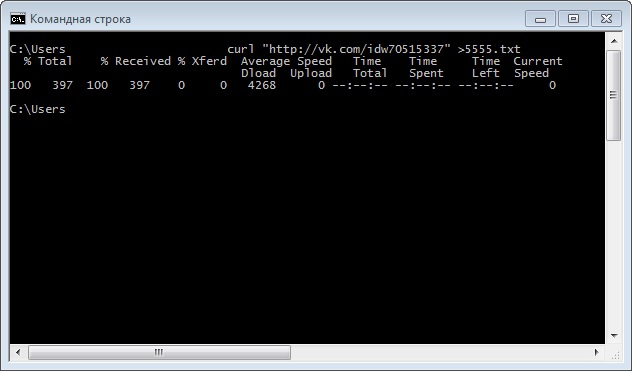
А теперь сделаем заведомо ошибочный запрос, изменив протокол http на http3 не меняя вывода в лог. В итоге мы получим ошибку на экране.
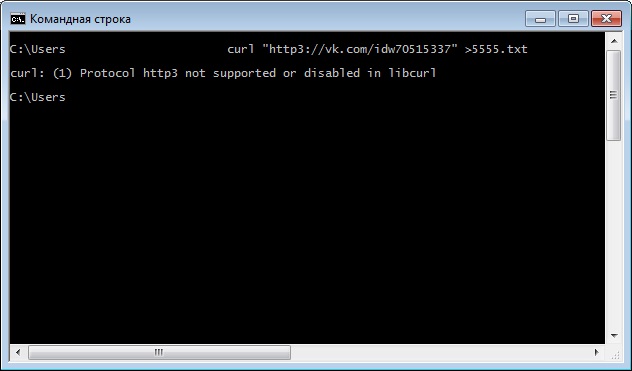
Изменим вывод в лог на один из этих: 2> или 2>> ошибка ранее выводившаяся на экран, попала в лог, и на экране ничего не будет (служебной информации нет, так как запрос произведен не был).
Вернемся к первому скриншоту на котором мы видим вывод служебной информации, по сути, не будь у курла ключа -s который подавляет вывод служебной информации, нам пришлось бы пользоваться конструкциями из пятого и шестого примеров.
И вывод был бы таким:
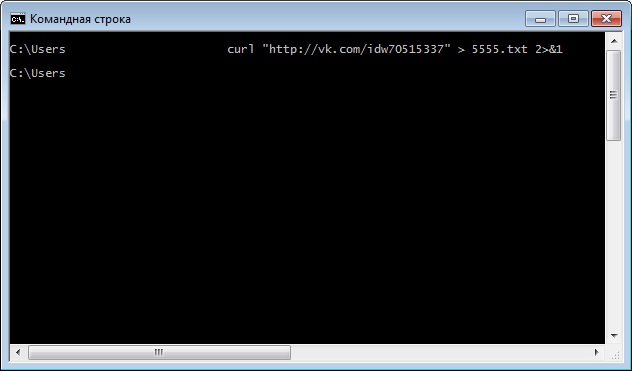
То есть, полная тишина, вся информация, как то полезный вывод, ошибки программы, служебная информация, все ушло в лог.
На данном скриншоте, конструкцией 2>&1 мы завернули поток ошибок в стандартный поток, а конструкцией > 5555.txt стандартный поток перенаправили в лог. Если вместо > 5555.txt использовать 2> 5555.txt, то есть перенаправить в лог стандартный поток ошибок, мы увидим весь вывод программы (и ошибки, и служебную информацию и полезный вывод) на экране. Конструкция 2>&1 имеет больший приоритет, а по ней уже все завернуто в стандартный поток.
Делать пример с заворотом стандартного потока в поток ошибок (1>&2) я не буду, ибо там все точно так же.
Надеюсь логика понятна…
Так же с помощью символа < можно прочитать входные данные для заданной команды не с клавиатуры, а из определенного (заранее подготовленного) файла. Для примера возьмем реальный и вполне полезный случай. Например, у нас есть файл log.txt и нам надо посчитать сколько в нем строк. Сделать это можно с помощью такой конструкции
find /c /v "" log.txt
но вывод будет не совсем приемлемым.
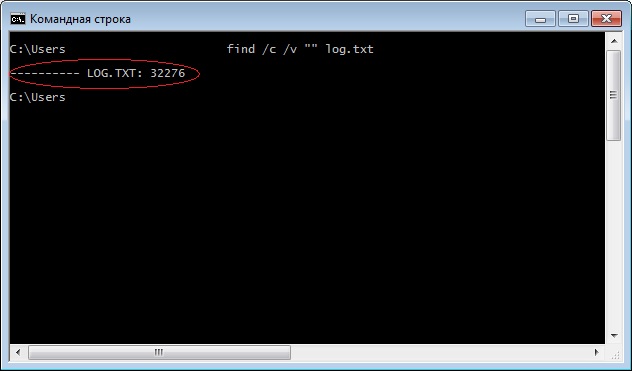
А вот если сделать так:
find /c /v "" < log.txt
то все будет именно так как надо.
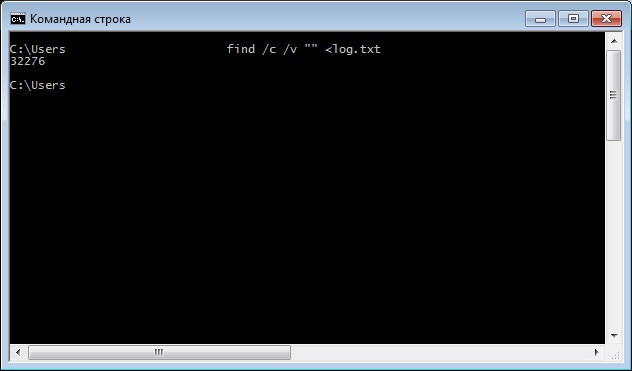
Это происходит потому что в первом случае, файл обрабатывается как файл, а во втором, как поток (аналог линуксового конвейера cat log.txt |) в общем, < это виндовый аналог cat со всеми вытекающими.
Источник
Каталог оборудования
Lorem ipsum dolor sit amet, consectetur adipiscing elit, sed do eiusmod tempor incididunt ut labore et dolore magna aliqua.
Производители
Lorem ipsum dolor sit amet, consectetur adipiscing elit, sed do eiusmod tempor incididunt ut labore et dolore magna aliqua.
Функциональные группы
Lorem ipsum dolor sit amet, consectetur adipiscing elit, sed do eiusmod tempor incididunt ut labore et dolore magna aliqua.
Перевод документации Microsoft TechNet, где описаны основные принципы работы с командной строкой.
Командная оболочка — это отдельный программный продукт, который обеспечивает прямую связь между пользователем и операционной системой. Текстовый пользовательский интерфейс командной строки предоставляет среду, в которой выполняются приложения и служебные программы с текстовым интерфейсом. В командной оболочке выполняются программы и результат выполнения отображается на экране в виде, сходном с интерпретатором Command.com MS-DOS. Командная оболочка операционной системы W2K использует для перевода введенной команды в формат, понятный системе, интерпретатор команд Cmd.exe, который загружает приложения и распределяет поток данных между приложениями.
Имеется возможность использовать командную оболочку для создания и редактирования пакетных файлов (также называемых сценариями, обычно пишутся на Basic, расширение файла vbs), что позволит автоматизировать выполнение обычных задач. Например, сценарии можно использовать для автоматизации управления учетными записями пользователей и ежедневной архивацией в нерабочие часы. Также можно использовать вариант сервера сценариев Windows, запускаемый из командной строки — CScript.exe (или GUI-версия wscript.exe), чтобы выполнить в командной оболочке более сложные сценарии.
Если запустить файл сценария (например, двойным щелчком или из командной строки), то по умолчанию используется wscript.exe (это поведение по умолчанию можно изменить, см. подсказку по команде CScript.exe, она выводится, если запустить CScript.exe без параметров).
Выполнение операций с помощью пакетных файлов является более эффективным, чем с помощью интерфейса пользователя. Пакетные файлы принимают все команды, доступные из командной строки.
Имеется возможность настроить окно командной строки для облегчения просмотра и для увеличения контроля за выполнением программ (системное меню консоли командной строки, Свойства).
1. Запуск командной строки — ПускВыполнить…cmd
2. Выход из командной строки — exit.
3. Если набрать в командной строке cmd и нажать Enter, то запускается вложенный интерпретатор cmd, т. е. теперь для выхода надо дважды набрать команду exit.
4. Можно использовать операторы перенаправления команд (см. далее).
Операторы перенаправления команд используются для изменения местоположений потоков ввода и вывода команд, заданных по умолчанию, на какие-либо другие. Местоположение потоков ввода и вывода называется дескриптором.
В следующей таблице представлены доступные дескрипторы.
| Дескриптор | Числовой эквивалент дескриптора | Описание |
| STDIN | 0 | Ввод с клавиатуры. |
| STDOUT | 1 | Вывод в окно командной строки. |
| STDERR | 2 | Вывод ошибок в окно командной строки. |
| UNDEFINED | 3 .. 9 | Дескрипторы определяются индивидуально для каждой прикладной программы. |
Номера от 0 до 9 представляют первые 10 дескрипторов. Для запуска программы и перенаправления любого из 10 дескрипторов используется интерпретатор команд Cmd.exe. Для задания требуемого дескриптора перед оператором перенаправления введите его номер. Если дескриптор не определен, то по умолчанию оператором перенаправления ввода «<» будет ноль (0), а оператором перенаправления вывода «>» будет единица (1). После ввода оператора «<» или «>» необходимо определить, откуда нужно читать или куда нужно записывать данные. Можно задать имя файла или любой из существующих дескрипторов.
Чтобы определить перенаправление для существующих дескрипторов, используйте знак амперсанд (&), за которым идет номер перенаправляемого дескриптора (то есть, &номер_дескриптора). Например, для перенаправления дескриптора 2 (STDERR) в дескриптор 1 (STDOUT) введите:
2>&1
В следующей таблице описаны операторы перенаправления потоков ввода и вывода.
| Оператор перенаправления | Описание |
| > | Записывает данные на выходе команды вместо окна командной строки или дескриптора в файл или на устройство, например, на принтер. |
| < | Читает поток входных данных команды из файла, а не с клавиатуры или дескриптора. |
| >> | Добавляет выходные данные команды в конец файла, не удаляя при этом существующие данные файла. |
| >& | Считывает данные на выходе одного дескриптора как входные данные для другого дескриптора. |
| <& | Считывает входные данные одного дескриптора как выходные данные другого дескриптора. |
| | | Считывает выходные данные одной команды и записывает их на вход другой команды. Эта процедура известна под названием «канал». |
По умолчанию входные данные команды (дескриптор STDIN) отсылаются с клавиатуры интерпретатору команд Cmd.exe, и Cmd.exe отправляет выходные данные команды (дескриптор STDOUT) в окно командной строки.
Перенаправление ввода (<). Чтобы перенаправить вход с клавиатуры в файл или на устройство, используйте оператор «<». Например, для ввода данных в команду sort из файла File.txt введите:
sort
Содержимое файла File.txt появится в командной строке в виде списка в алфавитном порядке.
Оператор «<» открывает файл с заданным именем только для чтения. Поэтому с его помощью нельзя записывать в файл. Например, при запуске программы с помощью перенаправления <&2 все попытки прочитать дескриптор 0 заканчиваются неудачей, так как дескриптор 2 первоначально открыт с доступом только для чтения.
Примечание: 0 это дескриптор по умолчанию для оператора перенаправления ввода <.
Перенаправления вывода (>). Выходные данные практически всех команд высвечиваются в окне командной строки. Даже команды, выводящие данные на диск или принтер, выдают сообщения и запросы в окне командной строки. Чтобы перенаправить вывод из окна командной строки в файл или на устройство, используется оператор «>». Этот оператор используется с большинством команд. Например, для перенаправления вывода команды dir в файл dirlist.txt введите:
Если файл dirlist.txt не существует, интерпретатор команд Cmd.exe создаст его. Если файл существует, Cmd.exe заменит информацию в файле на данные, полученные от команды dir.
Для запуска команды netsh routing dump и отправки результатов ее работы в файл Route.cfg введите:
netsh routing dump>c:route.cfg
Оператор > открывает указанный файл только для записи. Поэтому с помощью данного оператора файл прочитать нельзя. Например, при запуске программы с перенаправлением >&0 все попытки записать дескриптор 1 заканчиваются неудачей, так как дескриптор 0 первоначально открыт с доступом только для чтения.
Примечание: 1 является дескриптором по умолчанию для оператора перенаправления вывода >.
Дублирование дескрипторов. Оператор перенаправления & дублирует выходные или входные данные с одного заданного дескриптора на другой заданный дескриптор. Например, для отправки выводимых данных команды dir в файл File.txt и отправки ошибки вывода в файл File.txt введите:
При дублировании дескриптора происходит копирование всех его исходных характеристик. Например, если дескриптор доступен только для записи, то все его дубликаты будут доступны только для записи. Нельзя продублировать дескриптор с доступом только для чтения в дескриптор с доступом только для записи.
Использование оператора & для перенаправления ввода и дублирования. Чтобы использовать оператор перенаправления ввода (<) с оператором дублирования (&), указанный файл должен существовать. Если входной файл существует, Cmd.exe открывает его только для чтения и отправляет его содержимое в файл, как если бы ввод выполнялся с клавиатуры. При задании дескриптора интерпретатор команд Cmd.exe дублирует его в дескриптор, существующий в системе.
Например, для считывания файла File.txt на вход в дескриптор 0 (STDIN) введите:
Для открытия файла File.txt, сортировки его содержимого и последующей отправки в окно командной строки (т. е. в поток STDOUT) введите:
Для того чтобы найти файл file.txt и перенаправить дескриптор 1 (STDOUT) и дескриптор 2 (STDERR) в search.txt введите:
findfile file.txt > search.txt 2 < &1
Для дублирования определенного пользователем дескриптора 3 в качестве входной информации для дескриптора 0 (STDIN) введите:
Использование оператора & для перенаправления вывода и дублирования. При перенаправлении вывода в файл и задании существующего имени файла интерпретатор команд Cmd.exe открывает файл с доступом только для записи и переписывает его содержимое. Если дескриптор задан, интерпретатор команд Cmd.exe дублирует файл в существующий дескриптор. Для дублирования определенного пользователем дескриптора 3 в дескриптор 1 введите:
Для перенаправления всех выходных данных, включая выходные данные дескриптора 2 (поток STDERR), из команды ipconfig в дескриптор 1 (поток STDOUT) и последующего перенаправления выходных данных в файл Output.log, введите:
ipconfig.exe >> output.log 2 > &1
Использование оператора >> для добавления вывода. Для добавления вывода в файл без потери содержащихся в нем данных используется двойной символ «больше» (то есть >>). Например, следующая команда добавляет список каталогов, созданный командой dir, в файл dirlist.txt:
Для добавления выходных данных команды netstat в конец файла tcpinfo.txt введите:
Использование оператора канала (|) — pipe. Оператор канала «вертикальная линия» (|) забирает выходные данные одной команды (по умолчанию STDOUT) и направляет их на вход другой команды (по умолчанию STDIN). Например, следующая команда сортирует каталог:
В данном примере обе команды запускаются одновременно, но команда sort приостанавливает работу до получения выходных данных команды dir. Команда sort использует выходные данные команды dir в качестве своих входных данных, а затем свои выходные данные отправляет в дескриптор 1 (STDOUT).
Комбинирование команд с операторами перенаправления. Комбинируя команды-фильтры с другими командами и именами файлов, можно создавать команды на заказ. Например, для сохранения имен файлов, содержащих строку «log», используется следующая команда:
dir /b | find "log" loglist.txt
Выход команды dir отсылается в команду-фильтр find. Имена файлов, содержащие строку «LOG», хранятся в файле loglist.txt в виде списка (например, NetshConfig.log, Logdat.svd и Mylog.bat).
При использовании более одного фильтра в одной команде их необходимо отделять с помощью канала (|). Например, следующая команда ищет в каждом каталоге диска C файлы, в названии которых присутствует строка «Log», и выводит их постранично на экран:
dir c: /s /b | find "log" | more
Наличие канала (|) указывает Cmd.exe, что выход команды dir нужно отправить команде-фильтру find. Команда find выбирает только те имена файлов, в которых содержится строка «LOG». Команда more выводит на экран имена файлов, полученные командой find с паузой после заполнения каждого экрана.
5. Для командной строки возможно использование фильтров, что позволяет управлять выводом информации. Всего есть 3 команды-фильтра:
More Отображает содержимое файла или вывода команды в одном окне командной строки за раз.
Find Поиск указанных символов в файлах и выходе команды.
Sort Сортировка файлов и выхода команды по алфавиту.
6. Использование нескольких команд и символов условной обработки.
Можно выполнять несколько команд из одной командной строки или сценария с помощью символов условной обработки. При использовании нескольких команд, содержащих символы условной обработки, выполнение команд, стоящих справа от символа условной обработки, будет проводиться в зависимости от результатов выполнения команды, стоящей слева от символа. Например, требуется, чтобы команда выполнялась, только если предыдущая команда не была выполнена успешно. Или требуется, чтобы команда выполнялась, только если предыдущая команда была выполнена успешно.
Для передачи нескольких команд можно использовать специальные символы, перечисленные в следующей таблице.
| Символ | Синтаксис | Определение |
| & […] | команда1 & команда2 | Используется для разделения нескольких команд в одной командной строке. В Cmd.exe выполняется первая команда, затем вторая команда. |
| && […] | команда1 && команда2 | Запускает команду, стоящую за символом &&, только если команда, стоящая перед этим символом, была выполнена успешно (вернула значение 0). В Cmd.exe выполняется первая команда. Вторая команда выполняется, только если первая была выполнена успешно. |
| || […] | команда1 || команда2 | Запускает команду, стоящую за символом ||, только если команда, стоящая перед символом || не была выполнена. В Cmd.exe выполняется первая команда. Вторая команда выполняется, только если первая не была выполнена (полученный код ошибки превышает ноль). |
| ( ) […] | (команда1 & команда2) | Используется для группировки или вложения команд. |
| ; или , | команда1 параметр1;параметр2 | Используется для разделения параметров команды. |
Примечания:
• Амперсанд (&), вертикальная черта (|) и скобки ( ) являются специальными символами, которым должен предшествовать управляющий символ (^) или кавычки, если эти символы передаются в качестве аргументов.
• Если команда завершает операцию успешно, возвращается нулевой (0) код ошибки или не возвращается никакого кода. Дополнительные сведения о кодах завершения см. в разделе Использование пакетов Windows Deployment Kit и Windows Resource Kit.
7. Использование оператора канала (|) в скрипте vbs. Создайте файл test.vbs с таким содержимым:
Наберите в командной строке:
cscript test.vbs //Nologo | cmd
После нажатия Enter запустится калькулятор.