Contents
Introduction
This document describes how to resolve the Error — Login Failed. The client cannot connect to the Authentication service error message on the Cisco Security Manager (CSM).
Note: This document focuses on a common problem that is encountered on the CSM Version 4.3 (CSM 4.3); however, it is possible that the same problem and solution applies to other versions as well.
Problem
Users are unable to log into the CSM client application and encounter one or both of these error messages:
- Error — Login Failed. The client cannot connect to the Authentication service
- Login URL access is forbidden
Additionally, attempts to log into the CiscoWorks/Prime web GUI might generate this error message:
403 — Forbidden Error
Solution
Complete the steps that are described in this section in order to re-register the Apache service on the CSM server. The CSM client application uses the Apache service in order to log in.
- On the CSM server, navigate to Start > Run… > services.msc in order to open the Microsoft Windows Services console.
- Ensure that the Startup Type for all of the CSM services is set to Manual (except for the Cisco Security Manager Daemon Manager (CRMDmgtd) service, which should be set to Automatic).
- Stop the Cisco Security Manager Daemon Manager (CRMDmgtd) service, and wait for it to stop all of the dependent services.
- Navigate to Start > All Programs > Accessories > Command Prompt, right-click the Command Prompt shortcut, and choose Run as administrator in order to open a privileged command prompt.
- Enter this command in order to manually unregister the CSM Apache service:
pdreg -u Apache
- Enter this command in order to manually re-register the CSM Apache service:
pdreg -r Apache -e "C:PROGRA~2CSCOpxMDCApachebinApache.exe" -f "-d
C:PROGRA~2CSCOpxMDCApache -D SSL" -d TomcatNote: The path must be input in DOS 8.11 format. For example, C:PROGRA~2 instead of C:Program Files (x86). On 64-bit versions of Microsoft Windows, the CSM root directory default location is C:PROGRA~2CSCOpx; on 32-bit versions of Microsoft Windows, the CSM root directory default location is C:PROGRA~1CSCOpx.
- Enter this command in order to re-generate the Secure Sockets Layer (SSL) certificate for the CSM:
cd C:Progra~2CSCOpx/MDC/Apache
gencert.bat - Restart the Cisco Security Manager Daemon Manager (CRMDmgtd) service, and wait for it to restart all of the dependent services.
Related Information
- Installation Guide for Cisco Security Manager 4.3
- Technical Support & Documentation — Cisco Systems

My company recently took over IT operations for another company. We have next to no documentation to go off of.
Users use CiscoAnyconnect for VPN and we need to be able to manage this system for them.
One user is getting «Login Failed» when trying to connect and I cannot find a way to get their password reset. I can confirm that their AD environment is not integrated with Cisco VPN.
Any guidance will be appreciated. where to start especially. We have access to their servers and domain controllers.
Исправление: AnyConnect не смог установить соединение с указанным безопасным шлюзом.
Сообщение об ошибке « AnyConnect не смог установить соединение с указанным безопасным шлюзом » появляется, когда пользователи пытаются подключиться к VPN с помощью клиента AnyConnect. Эта проблема возникает из-за того, что VPN-клиент AnyConnect не может успешно выполнить процесс соединения с удаленным сервером, и на его пути есть некоторые блокировки. Сегодня мы рассмотрим указанное сообщение об ошибке, включая причины появления сообщения об ошибке и различные решения, которые вы можете реализовать, чтобы избавиться от ошибки.

Что вызывает сообщение об ошибке «AnyConnect не смог установить соединение с указанным безопасным шлюзом»?
Это может быть связано с множеством причин. Иногда это блокировка антивируса или брандмауэра, а иногда это может быть вызвано плохим подключением к Интернету. Следующие будут основными причинами; упомянуть вкратце —
- Проблема с антивирусом или брандмауэром: антивирусное программное обеспечение может время от времени мешать процессу подключения AnyConnect Client VPN и не позволять ему подключаться к внешним сетям или серверам из соображений безопасности. Часто он блокирует множество входящих и исходящих соединений. Таким образом, вы не сможете подключиться к своей любимой VPN с помощью Anyconnect.
- Неправильная конфигурация клиента: если вы неправильно настроили свой клиент Anyconnect и хранящиеся в нем конфигурации VPN неверны, то вы столкнетесь с проблемами при установлении успешных соединений.
- Интернет-ограничения: иногда IP-адреса некоторых стран могут быть заблокированы вашим интернет-провайдером, и вы можете сознательно не пытаться подключиться к VPN той же страны, которая была заблокирована вашим интернет-провайдером. Тогда вы столкнетесь с проблемами.
Чтобы обойти сообщение об ошибке, вы можете следовать приведенным ниже решениям, но обязательно перезагрузите компьютер и приложение, прежде чем переходить к другим исправлениям.
Решение 1. Отключение антивируса
Перво-наперво. В большинстве случаев проблема возникает из-за блокировки антивируса, что является распространенным сценарием. Следовательно, в таком случае вы должны попытаться отключить любой сторонний антивирус, который вы установили в своей системе, а затем попытаться подключиться к VPN с помощью AnyConnect. Надеюсь, это решит проблему.

Решение 2. Остановите службу подключения к Интернету
Время от времени служба ICS работает, что вызывает проблемы для клиента AnyConnect при подключении к VPN. Вам нужно будет отключить его, чтобы решить проблему. Вот как отключить службу:
- Нажмите Windows + R и введите services.msc.
- Когда откроется окно со службами, найдите службу общего доступа к подключению Интернета . Щелкните его правой кнопкой мыши и выберите « Остановить» .

- Затем выйдите из окна служб , закрыв его.
Решение 3. Отключите общий доступ к подключению к Интернету (ICS)
Было несколько случаев, когда, если в Windows был включен ICS, пользователи сталкивались с этой проблемой. Чтобы отключить ICS, следуйте приведенным ниже инструкциям:
- Откройте панель управления
- Перейдите в раздел «Сеть и общий доступ к Интернету» и нажмите « Изменить настройки адаптера» .

- После этого вам нужно будет щелкнуть правой кнопкой мыши по общему сетевому подключению , а затем выбрать « Свойства» .
- В окне свойств нажмите на Совместное использование
- Оказавшись там, вам нужно снять флажок с надписью « Разрешить другим пользователям сети подключаться через подключение к Интернету этого компьютера ».
- После этого нажмите ОК.
Если ваша проблема была вызвана включением ICS, это должно было исправить ее.
Решение 4. Выберите параметр Подключиться к текущей сети в AnyConnect VPN.
Иногда клиентский VPN Any Connect колеблется между разными сетями, поэтому вам нужно выбрать вариант подключения только к текущей сети. Это может решить проблему для вас. Вот как это сделать:
- Откройте клиент AnyConnect и там, где вы видите написанную сеть , щелкните ее правой кнопкой мыши.
- Щелкните « Подключиться только к текущей сети ».

Решение 5. Попробуйте другое подключение
Иногда используемое вами интернет-соединение может иметь некоторые ограничения или может работать неправильно, что является причиной проблемы. В таком сценарии вам придется использовать альтернативное соединение, такое как Wi-Fi или мобильная точка доступа, чтобы узнать, можете ли вы подключиться к VPN.
AnyConnect VPN Client Troubleshooting Guide — Common Problems
The documentation set for this product strives to use bias-free language. For the purposes of this documentation set, bias-free is defined as language that does not imply discrimination based on age, disability, gender, racial identity, ethnic identity, sexual orientation, socioeconomic status, and intersectionality. Exceptions may be present in the documentation due to language that is hardcoded in the user interfaces of the product software, language used based on RFP documentation, or language that is used by a referenced third-party product. Learn more about how Cisco is using Inclusive Language.
Contents
Introduction
This document describes a troubleshooting scenario which applies to applications that do not work through the Cisco AnyConnect VPN Client.
Prerequisites
Requirements
There are no specific requirements for this document.
Components Used
The information in this document is based on a Cisco Adaptive Security Appliance (ASA) that runs Version 8.x.
The information in this document was created from the devices in a specific lab environment. All of the devices used in this document started with a cleared (default) configuration. If your network is live, make sure that you understand the potential impact of any command.
Troubleshooting Process
This typical troubleshooting scenario applies to applications that do not work through the Cisco AnyConnect VPN Client for end-users with Microsoft Windows-based computers. These sections address and provide solutions to the problems:
Installation and Virtual Adapter Issues
Complete these steps:
- Obtain the device log file:
- Windows XP / Windows 2000:
Note: Hidden folders must be made visible in order to see these files.
If you see errors in the setupapi log file, you can turn up verbosity to 0x2000FFFF.
If this is an initial web deploy install, this log is located in the per-user temp directory.
- Windows XP / Windows 2000:
If this is an automatic upgrade, this log is in the temp directory of the system:
The filename is in this format: anyconnect-win-x.x.xxxx-k9-install-yyyyyyyyyyyyyy.log. Obtain the most recent file for the version of the client you want to install. The x.xxxx changes based on the version, such as 2.0.0343, and yyyyyyyyyyyyyy is the date and time of the install.
- From a Command Prompt/DOS box, type this:
- Windows XP / Windows 2000:
Note: After you type into this prompt, wait. It can take between two to five minutes for the file to complete.
Windows XP and Windows Vista:
Refer to AnyConnect: Corrupt Driver Database Issue in order to debug the driver issue.
Disconnection or Inability to Establish Initial Connection
If you experience connection problems with the AnyConnect client, such as disconnections or the inability to establish an initial connection, obtain these files:
- The configuration file from the ASA in order to determine if anything in the configuration causes the connection failure:
From the console of the ASA, type write net x.x.x.x:ASA-Config.txt where x.x.x.x is the IP address of a TFTP server on the network.
From the console of the ASA, type show running-config . Let the configuration complete on the screen, then cut-and-paste to a text editor and save.
- In order to enable logging on the ASA for auth, WebVPN, Secure Sockets Layer (SSL), and SSL VPN Client (SVC) events, issue these CLI commands:
- Choose Start > Run.
Note: Always save it as the .evt file format.
If the user cannot connect with the AnyConnect VPN Client, the issue might be related to an established Remote Desktop Protocol (RDP) session or Fast User Switching enabled on the client PC. The user can see the AnyConnect profile settings mandate a single local user, but multiple local users are currently logged into your computer. A VPN connection will not be established error message error on the client PC. In order to resolve this issue, disconnect any established RDP sessions and disable Fast User Switching. This behavior is controlled by the Windows Logon Enforcement attribute in the client profile, however currently there is no setting that actually allows a user to establish a VPN connection while multiple users are logged on simultaneously on the same machine. Enhancement request CSCsx15061 was filed to address this feature.
Note: Make sure that port 443 is not blocked so the AnyConnect client can connect to the ASA.
When a user cannot connect the AnyConnect VPN Client to the ASA, the issue might be caused by an incompatibility between the AnyConnect client version and the ASA software image version. In this case, the user receives this error message: The installer was not able to start the Cisco VPN client, clientless access is not available .
In order to resolve this issue, upgrade the AnyConnect client version to be compatible with the ASA software image.
When you log in the first time to the AnyConnect, the login script does not run. If you disconnect and log in again, then the login script runs fine. This is the expected behavior.
When you connect the AnyConnect VPN Client to the ASA, you might receive this error: User not authorized for AnyConnect Client access, contact your administrator .
This error is seen when the AnyConnect image is missing from the ASA. Once the image is loaded to the ASA, AnyConnect can connect without any issues to the ASA.
This error can be resolved by disabling Datagram Transport Layer Security (DTLS). Go to Configuration > Remote Access VPN > Network (Client) Access > AnyConnect Connection Profiles and uncheck the Enable DTLS check box. This disables DTLS.
The dartbundle files show this error message when the user gets disconnected: TUNNELPROTOCOLDPDMGR_ERROR_NO_DPD_RESPONSE:The secure gateway failed to respond to Dead Peer Detection packets . This error means that the DTLS channel was torn due to Dead Peer Detection (DPD) failure. This error is resolved if you tweak the DPD keepalives and issue these commands:
The svc keepalive and svc dpd-interval commands are replaced by the anyconnect keepalive and anyconnect dpd-interval commands respectively in ASA Version 8.4(1) and later as shown here:
Problems with Passing Traffic
When problems are detected with passing traffic to the private network with an AnyConnect session through the ASA, complete these data-gathering steps:
- Obtain the output of the show vpn-sessiondb detail svc filter name <username> ASA command from the console. If the output shows Filter Name: XXXXX , then gather the output for show access-list XXXXX. Verify that the access-list XXXXX does not block the intended traffic flow.
For example, if the VPN Client needs to access a resource which is not in the routing table of the VPN Gateway, the packet is routed through the standard default gateway. The VPN gateway does not need the complete internal routing table in order to resolve this. The tunneled keyword can be used in this instance.
AnyConnect Crash Issues
Complete these data-gathering steps:
- Ensure that the Microsoft Utility Dr Watson is enabled. In order to do this, choose Start > Run, and run Drwtsn32.exe. Configure this and click OK:
When the crash occurs, gather the .log and .dmp files from C:Documents and SettingsAll UsersApplication DataMicrosoftDr Watson. If these files appear to be in use, then use ntbackup.exe.
- Choose Start > Run.
Note: Always save it as the .evt file format.
Fragmentation / Passing Traffic Issues
Some applications, such as Microsoft Outlook, do not work. However, the tunnel is able to pass other traffic such as small pings.
This can provide clues as to a fragmentation issue in the network. Consumer routers are particularly poor at packet fragmentation and reassembly.
Try a scaling set of pings in order to determine if it fails at a certain size. For example, ping -l 500, ping -l 1000, ping -l 1500, ping -l 2000.
It is recommended that you configure a special group for users that experience fragmentation, and set the SVC Maximum Transition Unit (MTU) for this group to 1200. This allows you to remediate users who experience this issue, but not impact the broader user base.
Problem
TCP connections hang once connected with AnyConnect.
Solution
In order to verify if your user has a fragmentation issue, adjust the MTU for AnyConnect clients on the ASA.
Uninstall Automatically
Problem
The AnyConnect VPN Client uninstalls itself once the connection terminates. The client logs show that keep installed is set to disabled.
Solution
AnyConnect uninstalls itself despite that the keep installed option is selected on the Adaptive Security Device Manager (ASDM). In order to resolve this issue, configure the svc keep-installer installed command under group-policy.
Issue Populating the Cluster FQDN
Problem: AnyConnect client is pre-populated with the hostname instead of the cluster Fully Qualified Domain Name (FQDN).
When you have a load-balancing cluster set up for SSL VPN and the client attempts to connect to the cluster, the request is redirected to the node ASA and the client logs in successfully. After some time, when the client tries to connect to the cluster again, the cluster FQDN is not seen in the Connect to entries. Instead, the node ASA entry to which the client has been redirected is seen.
Solution
This occurs because the AnyConnect client retains the host name to which it last connected. This behavior is observed and a bug has been filed. For complete details about the bug, refer to Cisco bug ID CSCsz39019. The suggested workaround is to upgrade the Cisco AnyConnect to Version 2.5.
Backup Server List Configuration
A backup server list is configured in case the main server selected by the user is not reachable. This is defined in the Backup Server pane in the AnyConnect profile. Complete these steps:
- Download the AnyConnect Profile Editor (registered customers only) . The file name is AnyConnectProfileEditor2_4_1.jar.
- Go to the server list tab.
- In ASDM, choose Configuration > Remote Access VPN > Network (Client) Access > AnyConnect Connection Profiles.
AnyConnect: Corrupt Driver Database Issue
This entry in the SetupAPI.log file suggests that the catalog system is corrupt:
W239 driver signing class list «C:WINDOWSINFcertclas.inf» was missing or invalid. Error 0xfffffde5: Unknown Error. , assuming all device classes are subject to driver signing policy.
You can also receive this error message: Error(3/17): Unable to start VA, setup shared queue, or VA gave up shared queue .
You can receive this log on the client: «The VPN client driver has encountered an error» .
Repair
This issue is due to Cisco bug ID CSCsm54689. In order to resolve this issue, make sure that Routing and Remote Access Service is disabled before you start AnyConnect. If this does not resolve the issue, complete these steps:
- Open a command prompt as an Administrator on the PC (elevated prompt on Vista).
Failed Repair
If the repair fails, complete these steps:
- Open a command prompt as an Administrator on the PC (elevated prompt on Vista).
Analyze the Database
You can analyze the database at any time in order to determine if it is valid.
- Open a command prompt as an Admimistrator on the PC.
Error Messages
Error: Unable to Update the Session Management Database
While the SSL VPN is connected through a web browser, the Unable to Update the Session Management Database. error message appears, and the ASA logs show %ASA-3-211001: Memory allocation Error. The adaptive security appliance failed to allocate RAM system memory .
Solution 1
This issue is due to Cisco bug ID CSCsm51093. In order to resolve this issue, reload the ASA or upgrade the ASA software to the interim release mentioned in the bug. Refer to Cisco bug ID CSCsm51093 for more information.
Solution 2
This issue can also be resolved if you disable threat-detection on ASA if threat-detection is used.
Error: «Module c:Program FilesCiscoCisco AnyConnect VPN Clientvpnapi.dll failed to register»
When you use the AnyConnect client on laptops or PCs, an error occurs during the install:
When this error is encountered, the installer cannot move forward and the client is removed.
Solution
These are the possible workarounds to resolve this error:
- The latest AnyConnect client is no longer officially supported with Microsoft Windows 2000. It is a registry problem with the 2000 computer.
- vpnapi.dll
- vpncommon.dll
- vpncommoncrypt.dll
The log message related to this error on the AnyConnect client looks similar to this:
Error: «An error was received from the secure gateway in response to the VPN negotiation request. Please contact your network administrator»
When clients try to connect to the VPN with the Cisco AnyConnect VPN Client, this error is received.
This message was received from the secure gateway:
«Illegal address class» or «Host or network is 0» or «Other error»
Solution
The issue occurs because of the ASA local IP pool depletion. As the VPN pool resource is exhausted, the IP pool range must be enlarged.
Cisco bug ID is CSCsl82188 is filed for this issue. This error usually occurs when the local pool for address assignment is exhausted, or if a 32-bit subnet mask is used for the address pool. The workaround is to expand the address pool and use a 24-bit subnet mask for the pool.
Error: Session could not be established. Session limit of 2 reached.
When you try to connect more than two clients with the AnyConnect VPN Client, you receive the Login Failed error message on the Client and a warning message in the ASA logs that states Session could not be established. Session limit of 2 reached . I have the AnyConnect essential license on the ASA, which runs Version 8.0.4.
Solution 1
This error occurs because the AnyConnect essential license is not supported by ASA version 8.0.4. You need to upgrade the ASA to version 8.2.2. This resolves the error.
Note: Regardless of the license used, if the session limit is reached, the user will receive the login failed error message.
Solution 2
This error can also occur if the vpn-sessiondb max-anyconnect-premium-or-essentials-limit session-limit command is used to set the limit of VPN sessions permitted to be established. If the session-limit is set as two, then the user cannot establish more than two sessions even though the license installed supports more sessions. Set the session-limit to the number of VPN sessions required in order to avoid this error message.
Error: Anyconnect not enabled on VPN server while trying to connect anyconnect to ASA
You receive the Anyconnect not enabled on VPN server error message when you try to connect AnyConnect to the ASA.
Solution
This error is resolved if you enable AnyConnect on the outside interface of the ASA with ASDM. For more information on how to enable AnyConnect on the outside interface, refer to Configure Clientless SSL VPN (WebVPN) on the ASA.
Error:- %ASA-6-722036: Group client-group User xxxx IP x.x.x.x Transmitting large packet 1220 (threshold 1206)
The %ASA-6-722036: Group < client-group > User < xxxx > IP < x.x.x.x> Transmitting large packet 1220 (threshold 1206) error message appears in the logs of the ASA. What does this log mean and how is this resolved?
Solution
This log message states that a large packet was sent to the client. The source of the packet is not aware of the MTU of the client. This can also be due to compression of non-compressible data. The workaround is to turn off the SVC compression with the svc compression none command. This resolves the issue.
Error: The secure gateway has rejected the agent’s vpn connect or reconnect request.
When you connect to the AnyConnect Client, this error is received: «The secure gateway has rejected the agent’s vpn connect or reconnect request. A new connection requires re-authentication and must be started manually. Please contact your network administrator if this problem persists. The following message was received from the secure gateway: no assigned address» .
This error is also received when you connect to the AnyConnect Client: «The secure gateway has rejected the connection attempt. A new connection attempt to the same or another secure gateway is needed, which requires re-authentication. The following message was received from the secure gateway:Host or network is 0» .
This error is also received when you connect to the AnyConnect Client: «The secure gateway has rejected the agent’s vpn connect or reconnect request. A new connection requires a re-authentication and must be started manually. Please contact the network administrator if the problem persists. The following message was received from the secure gateway: No License» .
Solution
The router was missing pool configuration after reload. You need to add the concerned configuration back to the router.
The «The secure gateway has rejected the agent’s vpn connect or reconnect request. A new connection requires a re-authentication and must be started manually. Please contact the network administrator if the problem persists. The following message was received from the secure gateway: No License» error occurs when the AnyConnect mobility license is missing. Once the license is installed, the issue is resolved.
Error: «Unable to update the session management database»
When you try to authenticate in WebPortal, this error message is received: «Unable to update the session management database» .
Solution
This problem is related to memory allocation on the ASA. This issue is mostly encountered when the ASA Version is 8.2.1. Originally, this requires a 512MB RAM for its complete functionality.
As a permanent workaround, upgrade the memory to 512MB.
As a temporary workaround, try to free the memory with these steps:
- Disable the threat-detection.
Error: «The VPN client driver has encountered an error»
This is an error message obtained on the client machine when you try to connect to AnyConnect.
Solution
In order to resolve this error, complete this procedure in order to manually set the AnyConnect VPN agent to Interactive:
- Right-click My Computer > Manage > Services and Applications > Services > and select the Cisco AnyConnect VPN Agent.
This sets the registry Type value DWORD to 110 (default is 010) for the HKEY_LOCAL_MACHINESYSTEMCurrentControlSetServicesvpnagent.
Note: If this is to be used, then the preference would be to use the .MST transform in this instance. This is because if you set this manually with these methods, it requires that this be set after every install/upgrade process. This is why there is a need to identify the application that causes this problem.
Error: «Unable to process response from xxx.xxx.xxx.xxx»
AnyConnect clients fail to connect to a Cisco ASA. The error in the AnyConnect window is «Unable to process response from xxx.xxx.xxx.xxx» .
Solution
In order to resolve this error, try these workarounds:
- Remove WebVPN from the ASA and reenable it.<
For more information on how to enable WebVPN and change the port for WebVPN, refer to this Solution.
Error: «Login Denied , unauthorized connection mechanism , contact your administrator»
AnyConnect clients fail to connect to a Cisco ASA. The error in the AnyConnect window is «Login Denied , unauthorized connection mechanism , contact your administrator» .
Solution
This error message occurs mostly because of configuration issues that are improper or an incomplete configuration. Check the configuration and make sure it is as required to resolve the issue.
Error: «Anyconnect package unavailable or corrupted. Contact your system administrator»
This error occurs when you try to launch the AnyConnect software from a Macintosh client in order to connect to an ASA.
Solution
In order to resolve this, complete these steps:
- Upload the Macintosh AnyConnect package to the flash of the ASA.
The svc image command is replaced by the anyconnect image command in ASA Version 8.4(1) and later as shown here:
Error: «The AnyConnect package on the secure gateway could not be located»
This error is caused on the user’s Linux machine when it tries to connect to the ASA by launching AnyConnect. Here is the complete error:
Solution
In order to resolve this error message, verify whether the Operating System (OS) that is used on the client machine is supported by the AnyConnect client.
If the OS is supported, then verify if the AnyConnect package is specified in the WebVPN configuration or not. See the Anyconnect package unavailable or corrupted section of this document for more information.
Error: «Secure VPN via remote desktop is not supported»
Users are unable to perform a remote desktop access. The Secure VPN via remote desktop is not supported error message appears.
Solution
This issue is due to these Cisco bug IDs: CSCsu22088 and CSCso42825. If you upgrade the AnyConnect VPN Client, it can resolve the issue. Refer to these bugs for more information.
Error: «The server certificate received or its chain does not comply with FIPS. A VPN connection will not be established»
When you attempt to VPN to the ASA 5505, the The server certificate received or its chain does not comply with FIPS. A VPN connection will not be established error message appears.
Solution
In order to resolve this error, you must disable the Federal Information Processing Standards (FIPS) in the AnyConnect Local Policy file. This file can usually be found at C:ProgramDataCiscoCisco AnyConnect VPN ClientAnyConnectLocalPolicy.xml . If this file is not found in this path, then locate the file at a different directory with a path such as C:Documents and SettingsAll UsersApplication DataCisco AnyConnectVPNClientAnyConnectLocalPolicy.xml . Once you locate the xml file, make changes to this file as shown here:
Change the phrase:
<FipsMode>true</FipsMode>
<FipsMode>false</FipsMode>
Then, restart the computer. Users must have administrative permissions in order to modify this file.
Error: «Certificate Validation Failure»
Users are unable to launch AnyConnect and receive the Certificate Validation Failure error.
Solution
Certificate authentication works differently with AnyConnect compared to the IPSec client. In order for certificate authentication to work, you must import the client certificate to your browser and change the connection profile in order to use certificate authentication. You also need to enable this command on your ASA in order to allow SSL client-certificates to be used on the outside interface:
ssl certificate-authentication interface outside port 443
Error: «VPN Agent Service has encountered a problem and needs to close. We are sorry for the inconvenience»
When AnyConnect Version 2.4.0202 is installed on a Windows XP PC, it stops at updating localization files and an error message shows that the vpnagent.exe fails.
Solution
This behavior is logged in Cisco bug ID CSCsq49102. The suggested workaround is to disable the Citrix client.
Error: «This installation package could not be opened. Verify that the package exists»
When AnyConnect is downloaded, this error message is received:
«Contact your system administrator. The installer failed with the following error: This installation package could not be opened. Verify that the package exists and that you can access it, or contact the application vendor to verify that this is a valid Windows Installer package.»
Solution
Complete these steps in order to fix this issue:
- Remove any anti-virus software.
Error: «Error applying transforms. Verify that the specified transform paths are valid.»
This error message is recieved during the auto-download of AnyConnect from the ASA:
This is the error message received when connecting with AnyConnect for MacOS:
Solution
Complete one of these workarounds in order to resolve this issue:
- The root cause of this error might be due to a corrupted MST translation file (for example, imported). Perform these steps to fix this:
- Remove the MST translation table.
If neither of these workarounds resolve the issue, contact Cisco Technical Support.
Error: «The VPN client driver has encountered an error»
This error is received:
Solution
This issue can be resolved when you uninstall the AnyConnect Client, and then remove the anti-virus software. After this, reinstall the AnyConnect Client. If this resolution does not work, then reformat the PC in order to fix this issue.
Error: «A VPN reconnect resulted in different configuration setting. The VPN network setting is being re-initialized. Applications utilizing the private network may need to be restored.»
This error is received when you try to launch AnyConnect:
Solution
In order to resolve this error, use this:
The svc mtu command is replaced by the anyconnect mtu command in ASA Version 8.4(1) and later as shown here:
AnyConnect Error While Logging In
Problem
The AnyConnect receives this error when it connects to the Client:
Solution
The issue can be resolved if you make these changes to the AnyConnect profile:
Add this line to the AnyConnect profile:
IE Proxy Setting is Not Restored after AnyConnect Disconnect on Windows 7
Problem
In Windows 7, if the IE proxy setting is configured for Automatically detect settings and AnyConnect pushes down a new proxy setting, the IE proxy setting is not restored back to Automatically detect settings after the user ends the AnyConnect session. This causes LAN issues for users who need their proxy setting configured for Automatically detect settings.
Solution
This behavior is logged in Cisco bug ID CSCtj51376. The suggested workaround is to upgrade to AnyConnect 3.0.
Error: AnyConnect Essentials can not be enabled until all these sessions are closed.
This error message is received on Cisco ASDM when you attempt to enable the AnyConnect Essentials license:
Solution
This is the normal behavior of the ASA. AnyConnect Essentials is a separately licensed SSL VPN client. It is entirely configured on the ASA and provides the full AnyConnect capability, with these exceptions:
- No Cisco Secure Desktop (CSD) (including HostScan/Vault/Cache Cleaner)
This license cannot be used at the same time as the shared SSL VPN premium license. When you need to use one license, you need to disable the other.
Error: Connection tab on Internet option of Internet Explorer hides after getting connected to the AnyConnect client.
The connection tab on the Internet option of Internet Explorer hides after you are connected to the AnyConnect client.
Solution
This is due to the msie-proxy lockdown feature. If you enable this feature, it hides the Connections tab in Microsoft Internet Explorer for the duration of an AnyConnect VPN session. If you disable the feature, it leaves the display of the Connections tab unchanged.
Error: Few users getting Login Failed Error message when others are able to connect successfully through AnyConnect VPN
A few users receive the Login Failed Error message when others can connect successfully through the AnyConnect VPN.
Solution
This issue can be resolved if you make sure the do not require pre-authentication checkbox is checked for the users.
Error: The certificate you are viewing does not match with the name of the site you are trying to view.
During the AnyConnect profile update, an error is shown that says the certificate is invalid. This occurs with Windows only and at the profile update phase. The error message is shown here:
Solution
This can be resolved if you modify the server list of the AnyConnect profile in order to use the FQDN of the certificate.
This is a sample of the XML profile:
Note: If there is an existing entry for the Public IP address of the server such as <HostAddress> , then remove it and retain only the FQDN of the server (for example, <HostName> but not <Host Address> ).
Cannot Launch AnyConnect From the CSD Vault From a Windows 7 Machine
When the AnyConnect is launched from the CSD vault, it does not work. This is attempted on Windows 7 machines.
Solution
Currently, this is not possible because it is not supported.
AnyConnect Profile Does Not Get Replicated to the Standby After Failover
The AnyConnect 3.0 VPN client with ASA Version 8.4.1 software works fine. However, after failover, there is no replication for the AnyConnect profile related configuration.
Solution
This problem has been observed and logged under Cisco bug ID CSCtn71662. The temporary workaround is to manually copy the files to the standby unit.
AnyConnect Client Crashes if Internet Explorer Goes Offline
When this occurs, the AnyConnect event log contains entries similar to these:
Solution
This behavior is observed and logged under Cisco bug ID CSCtx28970. In order to resolve this, quit the AnyConnect application and relaunch. The connection entries reappear after relaunch.
Error Message: TLSPROTOCOL_ERROR_INSUFFICIENT_BUFFER
The AnyConnect client fails to connect and the Unable to establish a connection error message is received. In the AnyConnect event log, the TLSPROTOCOL_ERROR_INSUFFICIENT_BUFFER error is found.
Solution
This occurs when the headend is configured for split-tunneling with a very large split-tunnel list (approximately 180-200 entries) and one or more other client attributes are configured in the group-policy, such as dns-server.
In order to resolve this issue, complete these steps:
- Reduce the number of entries in the split-tunnel list.
For more information, refer to Cisco bug ID CSCtc41770.
Error Message: «Connection attempt has failed due to invalid host entry»
The Connection attempt has failed due to invalid host entry error message is received while AnyConnect is authenticated with the use of a certificate.
Solution
In order to resolve this issue, try either of these possible solutions:
- Upgrade the AnyConnect to Version 3.0.
- Disable Cisco Secure Desktop on your computer.
For more information, refer to Cisco bug ID CSCti73316.
Error: «Ensure your server certificates can pass strict mode if you configure always-on VPN»
When you enable the Always-On feature on AnyConnect, the Ensure your server certificates can pass strict mode if you configure always-on VPN error message is received.
Solution
This error message implies that if you want to use the Always-On feature, you need a valid sever certificate configured on the headend. Without a valid server certificate, this feature does not work. Strict Cert Mode is an option that you set in the AnyConnect local policy file in order to ensure the connections use a valid certificate. If you enable this option in the policy file and connect with a bogus certificate, the connection fails.
Error: «An internal error occurred in the Microsoft Windows HTTP Services»
This Diagnostic AnyConnect Reporting Tool (DART) shows one failed attempt:
Also, refer to the event viewer logs on the Windows machine.
Solution
This could be caused due to a corrupted Winsock connection. Reset the connection from the command promt with this command and restart your windows machine:
netsh winsock reset
Error: «The SSL transport received a Secure Channel Failure. May be a result of a unsupported crypto configuration on the Secure Gateway.»
This Diagnostic AnyConnect Reporting Tool (DART) shows one failed attempt:
Solution
Windows 8.1 does not support RC4 according to the following KB update:
Either configure DES/3DES ciphers for SSL VPN on the ASA using the command «ssl encryption 3des-sha1 aes128-sha1 aes256-sha1 des-sha1» OR edit the Windows Registry file on the client machine as mentioned below:
Step-by-Step to fix Cisco Anyconnect Authentication failed errors
- Takes long time for AnyConnect client to complete VPN Login.
- Cisco anyconnect login failed
- Cisco AnyConnect takes long time to initiate connection and Authentication failed.
- Unable to Proceed, Cannot Connect to the VPN Service.
- VPN Client Driver Encounters Errors after a Microsoft Windows Update.
- Your environment does not meet the access criteria defined by your administrator
- cisco anyconnect login failed
Table Of Contents
- 1 Method 1 : Step-by-Step to fix VPN Authentication failed Error.
- 2 Method 2 : Step-by-Step to fix Cisco Anyconnet VPN Authentication
- 3 Method 3 : Download the Latest Cisco anyconnect secure mobility client
- 4 Why Cisco anyconnect login failed
- 5 Why cisco anyconnect vpn service not available ?
Method 1 : Step-by-Step to fix VPN Authentication failed Error.
Follow the below steps in your Windows 10 computer
Step 1
In the search field, type in Command Prompt, or just CMD.
Right click the top result, and select Run as Administrator.
Step 2
Enter net stop CryptSvc.
Step 3
Analyze the database to verify its validity by entering
|
esentutl /g %systemroot%System32catroot2{F750E6C3—38EE—11D1—85E5—00C04FC295EE}catdb |
Step 4
When prompted, choose OK to attempt the repair. Exit the command prompt and reboot the computer.
Method 2 : Step-by-Step to fix Cisco Anyconnet VPN Authentication
Step 1
In the search field, type in Command Prompt, or just CMD.
Right click the top result, and select Run as Administrator.
Step 2
Enter net stop CryptSvc.
Step 3
Rename the following directory:
|
rename %/WINDIR%system32catroot2 to catroot2_old |
Step 4
Exit the command prompt and reboot the computer.
Method 3 : Download the Latest Cisco anyconnect secure mobility client
Cisco anyconnect for windows download and Cisco anyconnect secure mobility client mac Click here
Steps to install Cisco anyconnect secure mobility client on Windows and Mac
Extract the zip file and click on Setup.exe
Select the list of services required that your corporate network supports
Please note : Do not install all services as this may not require and will cause lot of problem in connecting to vpn
After selecting the required services click installed services.
Latest version Cisco anyconnect secure mobility client will be installed
Note : When upgrading to version Cisco anyconnect secure mobility client, old version will be removed automatically no need to do manual uninstallation
Why Cisco anyconnect login failed
Check for Windows update, if any patches waiting for update or reboot, apply and reboot.
If the computer was in sleep mode or Hibernation mode, Reboot your computer.
Open Task manager, go to Details tab> search for vpngui.exe, end task.
Connect your laptop to Mobile hotspot and try connecting to Cisco anyconnect.
Above Steps will resolve Cisco anyconnect login failed Problem.
Why cisco anyconnect vpn service not available ?
In Windows 10 search type in Task Manager, open the app, then Go to Details scroll down to look for vpnui.exe , select and click on End task.
Scroll down look for vpnagent.exe, select and click on End task
In Windows 10 Search type in services, open the app, scroll down and look for
Cisco AnyConnect Secure Mobility Agent for Windows check services are running or not, if not start the service
Cisco Secure Operations Check services are running or not, if not start the service
You Might Also like To Know….
Содержание
- Basic Troubleshooting on Cisco AnyConnect Secure Mobility Client Errors
- Available Languages
- Download Options
- Objective
- Software Version
- Basic Troubleshooting on Cisco AnyConnect Secure Mobility Client Errors
- 1. Problem: Network Access Manager fails to recognize your wired adapter.
- 2. Problem: When AnyConnect attempts to establish a connection, it authenticates successfully and builds the Secure Socket Layer (SSL)session, but then the AnyConnect client crashes in the vpndownloader if using Label-Switched Path (LSP) or NOD32 Antivirus.
- 3. Problem: If you are using an AT&T Dialer, the client operating system sometimes experiences a blue screen, which causes the creation of a mini dump file.
- 4. Problem: When using McAfee Firewall 5, a User Datagram Protocol (UDP)Datagram Transport Layer Security (DTLS) connection cannot be established.
- 5. Problem: The connection fails due to lack of credentials.
- 6. Problem: The AnyConnect client fails to download and produces the following error message:
- 7. Problem: If you are using Bonjour Printing Services, the AnyConnect event logs indicate a failure to identify the IP forwarding table.
- 8. Problem: An error indicates that the version of TUN or network tunnel is already installed on this system and is incompatible with the AnyConnect client.
- 9. Problem: If a Label-Switched Path (LSP) module is present on the client, a Winsock catalog conflict may occur.
- 10. Problem: If you are connecting with a Digital Subscriber Line (DSL) router, DTLS traffic may fail even if successfully negotiated.
- 11. Problem: When using AnyConnect on some Virtual Machine Network Service devices, performance issues have resulted.
- 12. Problem: You receive an “Unable to Proceed, Cannot Connect to the VPN Service” message. The VPN service for AnyConnect is not running.
- 13. Problem: When Kaspersky 6.0.3 is installed (even if disabled), AnyConnect connections to the ASA fail right after CSTP state = CONNECTED. The following message appears:
- 14. Problem: If you are using Routing and Remote Access Service (RRAS), the following termination error is returned to the event log when AnyConnect attempts to establish a connection to the host device:
- 15. Problem: If you are using a EVDO wireless card and Venturi driver while a client disconnect occurred, the event log reports the following:
- IT Services
- Campus and 2-factor VPN
- Need help?
- Available Languages
- Download Options
- Contents
- Introduction
- Prerequisites
- Requirements
- Components Used
- Troubleshooting Process
- Installation and Virtual Adapter Issues
- Disconnection or Inability to Establish Initial Connection
- Problems with Passing Traffic
- AnyConnect Crash Issues
- Fragmentation / Passing Traffic Issues
- Uninstall Automatically
- Issue Populating the Cluster FQDN
- Backup Server List Configuration
- AnyConnect: Corrupt Driver Database Issue
- Repair
- Failed Repair
- Analyze the Database
- Error Messages
- Error: Unable to Update the Session Management Database
- Solution 1
- Solution 2
- Error: «Module c:Program FilesCiscoCisco AnyConnect VPN Clientvpnapi.dll failed to register»
- Solution
- Error: «An error was received from the secure gateway in response to the VPN negotiation request. Please contact your network administrator»
- Solution
- Error: Session could not be established. Session limit of 2 reached.
- Solution 1
- Solution 2
- Error: Anyconnect not enabled on VPN server while trying to connect anyconnect to ASA
- Solution
- Error:- %ASA-6-722036: Group client-group User xxxx IP x.x.x.x Transmitting large packet 1220 (threshold 1206)
- Solution
- Error: The secure gateway has rejected the agent’s vpn connect or reconnect request.
- Solution
- Error: «Unable to update the session management database»
- Solution
- Error: «The VPN client driver has encountered an error»
- Solution
- Error: «Unable to process response from xxx.xxx.xxx.xxx»
- Solution
- Solution
- Solution
- Error: «The server certificate received or its chain does not comply with FIPS. A VPN connection will not be established»
- Solution
- Error: «Certificate Validation Failure»
- Solution
- Error: «VPN Agent Service has encountered a problem and needs to close. We are sorry for the inconvenience»
- Solution
- Error: «This installation package could not be opened. Verify that the package exists»
- Solution
- Error: «Error applying transforms. Verify that the specified transform paths are valid.»
- Solution
- Error: «The VPN client driver has encountered an error»
- Solution
- Error: «A VPN reconnect resulted in different configuration setting. The VPN network setting is being re-initialized. Applications utilizing the private network may need to be restored.»
- Solution
- AnyConnect Error While Logging In
- Solution
- IE Proxy Setting is Not Restored after AnyConnect Disconnect on Windows 7
- Solution
- Error: AnyConnect Essentials can not be enabled until all these sessions are closed.
- Solution
- Error: Connection tab on Internet option of Internet Explorer hides after getting connected to the AnyConnect client.
- Solution
- Error: Few users getting Login Failed Error message when others are able to connect successfully through AnyConnect VPN
- Solution
- Error: The certificate you are viewing does not match with the name of the site you are trying to view.
- Solution
- Cannot Launch AnyConnect From the CSD Vault From a Windows 7 Machine
- Solution
- AnyConnect Profile Does Not Get Replicated to the Standby After Failover
- Solution
- AnyConnect Client Crashes if Internet Explorer Goes Offline
- Solution
- Error Message: TLSPROTOCOL_ERROR_INSUFFICIENT_BUFFER
- Solution
- Error Message: «Connection attempt has failed due to invalid host entry»
- Solution
- Error: «Ensure your server certificates can pass strict mode if you configure always-on VPN»
- Solution
- Error: «An internal error occurred in the Microsoft Windows HTTP Services»
- Solution
- Error: «The SSL transport received a Secure Channel Failure. May be a result of a unsupported crypto configuration on the Secure Gateway.»
- Solution
Basic Troubleshooting on Cisco AnyConnect Secure Mobility Client Errors
Available Languages
Download Options
Objective
The objective of this document is to show you basic troubleshooting steps on some common errors on the Cisco AnyConnect Secure Mobility Client. When installing the Cisco AnyConnect Secure Mobility Client, errors may occur and troubleshooting may be needed for a successful setup.
Note that the errors discussed in this document is not an exhaustive list and varies with the configuration of the device used.
For additional information on AnyConnect licensing on the RV340 series routers, check out the article AnyConnect Licensing for the RV340 Series Routers.
Software Version
Basic Troubleshooting on Cisco AnyConnect Secure Mobility Client Errors
Note: Before attempting to troubleshoot, it is recommended to gather some important information first about your system that might be needed during the troubleshooting process. To learn how, click here.
1. Problem: Network Access Manager fails to recognize your wired adapter.
Solution: Try unplugging your network cable and reinserting it. If this does not work, you may have a link issue. The Network Access Manager may not be able to determine the correct link state of your adapter. Check the Connection Properties of your Network Interface Card (NIC) driver. You may have a «Wait for Link» option in the Advanced Panel. When the setting is On, the wired NIC driver initialization code waits for auto negotiation to complete and then determines if a link is present.
2. Problem: When AnyConnect attempts to establish a connection, it authenticates successfully and builds the Secure Socket Layer (SSL)session, but then the AnyConnect client crashes in the vpndownloader if using Label-Switched Path (LSP) or NOD32 Antivirus.
Solution: Remove the Internet Monitor component in version 2.7 and upgrade to version 3.0 of ESET NOD32 AV.
3. Problem: If you are using an AT&T Dialer, the client operating system sometimes experiences a blue screen, which causes the creation of a mini dump file.
Solution: Upgrade to the latest 7.6.2 AT&T Global Network Client.
4. Problem: When using McAfee Firewall 5, a User Datagram Protocol (UDP)Datagram Transport Layer Security (DTLS) connection cannot be established.
Solution: In the McAfee Firewall central console, choose Advanced Tasks > Advanced options and Logging and uncheck the Block incoming fragments automatically check box in McAfee Firewall.
5. Problem: The connection fails due to lack of credentials.
Solution: The third-party load balancer has no insight into the load on the Adaptive Security Appliance (ASA) devices. Because the load balance functionality in the ASA is intelligent enough to evenly distribute the VPN load across the devices, using the internal ASA load balancing instead is recommended.
6. Problem: The AnyConnect client fails to download and produces the following error message:

Solution: Upload the patch update to version 1.2.1.38 to resolve all dll issues.
7. Problem: If you are using Bonjour Printing Services, the AnyConnect event logs indicate a failure to identify the IP forwarding table.
Solution: Disable the Bonjour Printing Service by typing net stop “bonjour service” at the command prompt. A new version of mDNSResponder (1.0.5.11) has been produced by Apple. To resolve this issue, a new version of Bonjour is bundled with iTunes and made available as a separate download from the Apple web site.
8. Problem: An error indicates that the version of TUN or network tunnel is already installed on this system and is incompatible with the AnyConnect client.
Solution: Uninstall the Viscosity OpenVPN Client.
9. Problem: If a Label-Switched Path (LSP) module is present on the client, a Winsock catalog conflict may occur.
Solution: Uninstall the LSP module.
10. Problem: If you are connecting with a Digital Subscriber Line (DSL) router, DTLS traffic may fail even if successfully negotiated.
Solution: Connect to a Linksys router with factory settings. This setting allows a stable DTLS session and no interruption in pings. Add a rule to allow DTLS return traffic.
11. Problem: When using AnyConnect on some Virtual Machine Network Service devices, performance issues have resulted.
Solution: Uncheck the binding for all IM devices within the AnyConnect virtual adapter. The application dsagent.exe resides in C:WindowsSystemdgagent. Although it does not appear in the process list, you can see it by opening sockets with TCPview (sysinternals). When you terminate this process, normal operation of AnyConnect returns.
12. Problem: You receive an “Unable to Proceed, Cannot Connect to the VPN Service” message. The VPN service for AnyConnect is not running.
Solution: Determine if another application conflicted with the service by going to the Windows Administration Tools then make sure that the Cisco AnyConnect VPN Agent is not running. If it is running and the error message still appears, another VPN application on the workstation may need to be disabled or even uninstalled. After taking that action, reboot, and repeat this step.
13. Problem: When Kaspersky 6.0.3 is installed (even if disabled), AnyConnect connections to the ASA fail right after CSTP state = CONNECTED. The following message appears:

Solution: Uninstall Kaspersky and refer to their forums for additional updates.
14. Problem: If you are using Routing and Remote Access Service (RRAS), the following termination error is returned to the event log when AnyConnect attempts to establish a connection to the host device:

Solution: Disable the RRAS service.
15. Problem: If you are using a EVDO wireless card and Venturi driver while a client disconnect occurred, the event log reports the following:

Solutions:
If you encounter other errors, contact the support center for your device.
For further information and community discussion on AnyConnect licensing updates, click here.
Источник
IT Services
Campus and 2-factor VPN
Campus VPN:
Login authorization requirements: Single Sign-On credentials only
If you are connecting to the Campus VPN service, your connection should be campusvpn.warwick.ac.uk
The “Login failed” error message appears when you have entered an incorrect or invalid username or password combination, when trying to log into the Campus or 2-factor VPN services, via the Web VPN gateway with your browser, or via the Cisco AnyConnect client.
Make sure you enter your single sign-on (SSO) username and password credentials correctly.
Note: the “Login failed error message window/s will keep appearing if you continually enter your SSO credentials incorrectly.
Using Web browser connection URL: https://campusvpn.warwick.ac.uk
Unsuccessful SSO credentials entered: “Login failed”
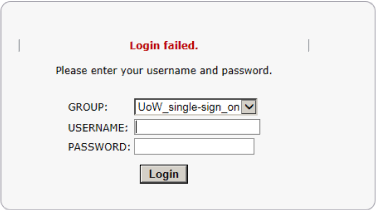
Using Cisco AnyConnect client connection: campusvpn.warwick.ac.uk
When connecting via the Cisco AnyConnect client, make sure that campusvpn.warwick.ac.uk is the connection you are connecting to, and displayed in the ‘Connect’ box. If you continually get the “Login failed” error message, first ensure you are entering your correct SSO credentials. If still failing, you may need to change/reset your password.
Unsuccessful SSO credentials entered: “Login failed”
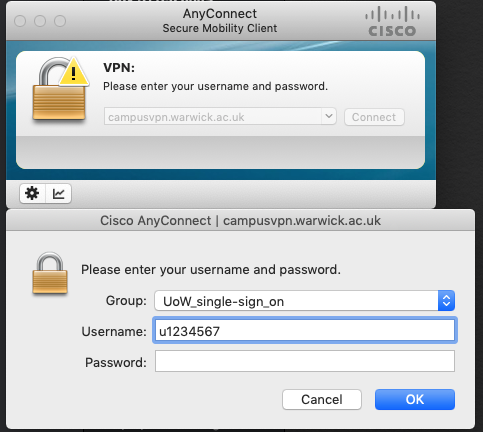
2-factor VPN:
Login Authorization requirements: Single Sign-On credentials + 2-factor Token Key-Fob code or One Time Password (OTP)
If you are connecting to a 2-factor VPN service, your connection should be vpn.warwick.ac.uk/name.
E.g. vpn.warwick.ac.uk/its = the 2-factor VPN service for IT Services staff only.
Note:
Using Web browser connection URL: https://vpn.warwick.ac.uk/its
Successful SSO credentials entered: OTP prompt
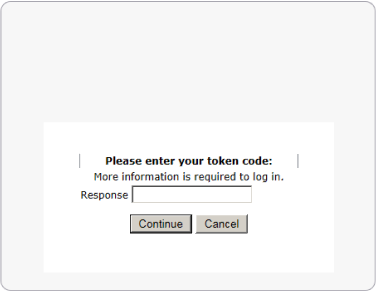
Unsuccessful SSO credentials entered: “Login failed”
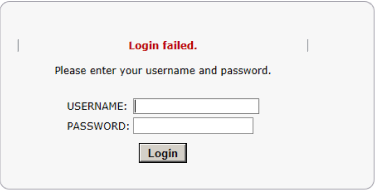
Using Cisco AnyConnect client connection: vpn.warwick.ac.uk/its
Successful SSO credentials entered: OTP prompt
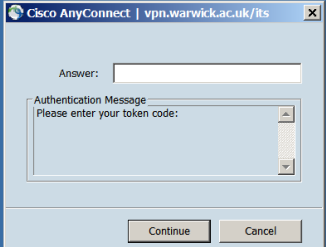
Unsuccessful SSO credentials entered: “Login failed”
Password Resets:
Occasionally your password can get out of sync across the centrally managed systems, which can prevent you from logging in. Try changing your password and log in again.
Need help?
Call the helpdesk on 024 765 73737 Available 9:00 to 17:00 Monday to Friday
Use our online Help Desk at any time to ask a question or track your requests.
Источник
Available Languages
Download Options
Contents
Introduction
This document describes a troubleshooting scenario which applies to applications that do not work through the Cisco AnyConnect VPN Client.
Prerequisites
Requirements
There are no specific requirements for this document.
Components Used
The information in this document is based on a Cisco Adaptive Security Appliance (ASA) that runs Version 8.x.
The information in this document was created from the devices in a specific lab environment. All of the devices used in this document started with a cleared (default) configuration. If your network is live, make sure that you understand the potential impact of any command.
Troubleshooting Process
This typical troubleshooting scenario applies to applications that do not work through the Cisco AnyConnect VPN Client for end-users with Microsoft Windows-based computers. These sections address and provide solutions to the problems:
Installation and Virtual Adapter Issues
Complete these steps:
Note: Hidden folders must be made visible in order to see these files.
If you see errors in the setupapi log file, you can turn up verbosity to 0x2000FFFF.
If this is an initial web deploy install, this log is located in the per-user temp directory.
If this is an automatic upgrade, this log is in the temp directory of the system:
The filename is in this format: anyconnect-win-x.x.xxxx-k9-install-yyyyyyyyyyyyyy.log. Obtain the most recent file for the version of the client you want to install. The x.xxxx changes based on the version, such as 2.0.0343, and yyyyyyyyyyyyyy is the date and time of the install.
Note: After you type into this prompt, wait. It can take between two to five minutes for the file to complete.
Windows XP and Windows Vista:
Refer to AnyConnect: Corrupt Driver Database Issue in order to debug the driver issue.
Disconnection or Inability to Establish Initial Connection
If you experience connection problems with the AnyConnect client, such as disconnections or the inability to establish an initial connection, obtain these files:
From the console of the ASA, type write net x.x.x.x:ASA-Config.txt where x.x.x.x is the IP address of a TFTP server on the network.
Note: Always save it as the .evt file format.
If the user cannot connect with the AnyConnect VPN Client, the issue might be related to an established Remote Desktop Protocol (RDP) session or Fast User Switching enabled on the client PC. The user can see the AnyConnect profile settings mandate a single local user, but multiple local users are currently logged into your computer. A VPN connection will not be established error message error on the client PC. In order to resolve this issue, disconnect any established RDP sessions and disable Fast User Switching. This behavior is controlled by the Windows Logon Enforcement attribute in the client profile, however currently there is no setting that actually allows a user to establish a VPN connection while multiple users are logged on simultaneously on the same machine. Enhancement request CSCsx15061  was filed to address this feature.
Note: Make sure that port 443 is not blocked so the AnyConnect client can connect to the ASA.
In order to resolve this issue, upgrade the AnyConnect client version to be compatible with the ASA software image.
When you log in the first time to the AnyConnect, the login script does not run. If you disconnect and log in again, then the login script runs fine. This is the expected behavior.
This error is seen when the AnyConnect image is missing from the ASA. Once the image is loaded to the ASA, AnyConnect can connect without any issues to the ASA.
This error can be resolved by disabling Datagram Transport Layer Security (DTLS). Go to Configuration > Remote Access VPN > Network (Client) Access > AnyConnect Connection Profiles and uncheck the Enable DTLS check box. This disables DTLS.
The svc keepalive and svc dpd-interval commands are replaced by the anyconnect keepalive and anyconnect dpd-interval commands respectively in ASA Version 8.4(1) and later as shown here:
Problems with Passing Traffic
When problems are detected with passing traffic to the private network with an AnyConnect session through the ASA, complete these data-gathering steps:
For example, if the VPN Client needs to access a resource which is not in the routing table of the VPN Gateway, the packet is routed through the standard default gateway. The VPN gateway does not need the complete internal routing table in order to resolve this. The tunneled keyword can be used in this instance.
AnyConnect Crash Issues
Complete these data-gathering steps:
When the crash occurs, gather the .log and .dmp files from C:Documents and SettingsAll UsersApplication DataMicrosoftDr Watson. If these files appear to be in use, then use ntbackup.exe.
Note: Always save it as the .evt file format.
Fragmentation / Passing Traffic Issues
Some applications, such as Microsoft Outlook, do not work. However, the tunnel is able to pass other traffic such as small pings.
This can provide clues as to a fragmentation issue in the network. Consumer routers are particularly poor at packet fragmentation and reassembly.
It is recommended that you configure a special group for users that experience fragmentation, and set the SVC Maximum Transition Unit (MTU) for this group to 1200. This allows you to remediate users who experience this issue, but not impact the broader user base.
Problem
TCP connections hang once connected with AnyConnect.
Solution
In order to verify if your user has a fragmentation issue, adjust the MTU for AnyConnect clients on the ASA.
Uninstall Automatically
Problem
The AnyConnect VPN Client uninstalls itself once the connection terminates. The client logs show that keep installed is set to disabled.
Solution
AnyConnect uninstalls itself despite that the keep installed option is selected on the Adaptive Security Device Manager (ASDM). In order to resolve this issue, configure the svc keep-installer installed command under group-policy.
Issue Populating the Cluster FQDN
Problem: AnyConnect client is pre-populated with the hostname instead of the cluster Fully Qualified Domain Name (FQDN).
When you have a load-balancing cluster set up for SSL VPN and the client attempts to connect to the cluster, the request is redirected to the node ASA and the client logs in successfully. After some time, when the client tries to connect to the cluster again, the cluster FQDN is not seen in the Connect to entries. Instead, the node ASA entry to which the client has been redirected is seen.
Solution
This occurs because the AnyConnect client retains the host name to which it last connected. This behavior is observed and a bug has been filed. For complete details about the bug, refer to Cisco bug ID CSCsz39019. The suggested workaround is to upgrade the Cisco AnyConnect to Version 2.5.
Backup Server List Configuration
A backup server list is configured in case the main server selected by the user is not reachable. This is defined in the Backup Server pane in the AnyConnect profile. Complete these steps:
AnyConnect: Corrupt Driver Database Issue
This entry in the SetupAPI.log file suggests that the catalog system is corrupt:
Repair
This issue is due to Cisco bug ID CSCsm54689. In order to resolve this issue, make sure that Routing and Remote Access Service is disabled before you start AnyConnect. If this does not resolve the issue, complete these steps:
Failed Repair
If the repair fails, complete these steps:
Analyze the Database
You can analyze the database at any time in order to determine if it is valid.
Error Messages
Error: Unable to Update the Session Management Database
Solution 1
This issue is due to Cisco bug ID CSCsm51093. In order to resolve this issue, reload the ASA or upgrade the ASA software to the interim release mentioned in the bug. Refer to Cisco bug ID CSCsm51093 for more information.
Solution 2
This issue can also be resolved if you disable threat-detection on ASA if threat-detection is used.
Error: «Module c:Program FilesCiscoCisco AnyConnect VPN Clientvpnapi.dll failed to register»
When you use the AnyConnect client on laptops or PCs, an error occurs during the install:
When this error is encountered, the installer cannot move forward and the client is removed.
Solution
These are the possible workarounds to resolve this error:
The log message related to this error on the AnyConnect client looks similar to this:
Error: «An error was received from the secure gateway in response to the VPN negotiation request. Please contact your network administrator»
When clients try to connect to the VPN with the Cisco AnyConnect VPN Client, this error is received.
This message was received from the secure gateway:
«Illegal address class» or «Host or network is 0» or «Other error»
Solution
The issue occurs because of the ASA local IP pool depletion. As the VPN pool resource is exhausted, the IP pool range must be enlarged.
Cisco bug ID is CSCsl82188 is filed for this issue. This error usually occurs when the local pool for address assignment is exhausted, or if a 32-bit subnet mask is used for the address pool. The workaround is to expand the address pool and use a 24-bit subnet mask for the pool.
Error: Session could not be established. Session limit of 2 reached.
Solution 1
This error occurs because the AnyConnect essential license is not supported by ASA version 8.0.4. You need to upgrade the ASA to version 8.2.2. This resolves the error.
Note: Regardless of the license used, if the session limit is reached, the user will receive the login failed error message.
Solution 2
This error can also occur if the vpn-sessiondb max-anyconnect-premium-or-essentials-limit session-limit command is used to set the limit of VPN sessions permitted to be established. If the session-limit is set as two, then the user cannot establish more than two sessions even though the license installed supports more sessions. Set the session-limit to the number of VPN sessions required in order to avoid this error message.
Error: Anyconnect not enabled on VPN server while trying to connect anyconnect to ASA
You receive the Anyconnect not enabled on VPN server error message when you try to connect AnyConnect to the ASA.
Solution
This error is resolved if you enable AnyConnect on the outside interface of the ASA with ASDM. For more information on how to enable AnyConnect on the outside interface, refer to Configure Clientless SSL VPN (WebVPN) on the ASA.
Error:- %ASA-6-722036: Group client-group User xxxx IP x.x.x.x Transmitting large packet 1220 (threshold 1206)
The %ASA-6-722036: Group User IP Transmitting large packet 1220 (threshold 1206) error message appears in the logs of the ASA. What does this log mean and how is this resolved?
Solution
This log message states that a large packet was sent to the client. The source of the packet is not aware of the MTU of the client. This can also be due to compression of non-compressible data. The workaround is to turn off the SVC compression with the svc compression none command. This resolves the issue.
Error: The secure gateway has rejected the agent’s vpn connect or reconnect request.
Solution
The router was missing pool configuration after reload. You need to add the concerned configuration back to the router.
The «The secure gateway has rejected the agent’s vpn connect or reconnect request. A new connection requires a re-authentication and must be started manually. Please contact the network administrator if the problem persists. The following message was received from the secure gateway: No License» error occurs when the AnyConnect mobility license is missing. Once the license is installed, the issue is resolved.
Error: «Unable to update the session management database»
Solution
This problem is related to memory allocation on the ASA. This issue is mostly encountered when the ASA Version is 8.2.1. Originally, this requires a 512MB RAM for its complete functionality.
As a permanent workaround, upgrade the memory to 512MB.
As a temporary workaround, try to free the memory with these steps:
Error: «The VPN client driver has encountered an error»
This is an error message obtained on the client machine when you try to connect to AnyConnect.
Solution
In order to resolve this error, complete this procedure in order to manually set the AnyConnect VPN agent to Interactive:
This sets the registry Type value DWORD to 110 (default is 010) for the HKEY_LOCAL_MACHINESYSTEMCurrentControlSetServicesvpnagent.
Note: If this is to be used, then the preference would be to use the .MST transform in this instance. This is because if you set this manually with these methods, it requires that this be set after every install/upgrade process. This is why there is a need to identify the application that causes this problem.
When Routing and Remote Access Service (RRAS) is enabled on the Windows PC, AnyConnect fails with the The VPN client driver has encountered an error. error message. In order to resolve this issue, make sure that Routing and RRAS is disabled before starting AnyConnect. Refer to Cisco bug ID CSCsm54689 for more information.
Error: «Unable to process response from xxx.xxx.xxx.xxx»
Solution
In order to resolve this error, try these workarounds:
Solution
This error message occurs mostly because of configuration issues that are improper or an incomplete configuration. Check the configuration and make sure it is as required to resolve the issue.
Secure VPN via remote desktop is not supported error message appears.
Solution
This issue is due to these Cisco bug IDs: CSCsu22088 and CSCso42825. If you upgrade the AnyConnect VPN Client, it can resolve the issue. Refer to these bugs for more information.
Error: «The server certificate received or its chain does not comply with FIPS. A VPN connection will not be established»
When you attempt to VPN to the ASA 5505, the The server certificate received or its chain does not comply with FIPS. A VPN connection will not be established error message appears.
Solution
true
false
Then, restart the computer. Users must have administrative permissions in order to modify this file.
Error: «Certificate Validation Failure»
Users are unable to launch AnyConnect and receive the Certificate Validation Failure error.
Solution
Certificate authentication works differently with AnyConnect compared to the IPSec client. In order for certificate authentication to work, you must import the client certificate to your browser and change the connection profile in order to use certificate authentication. You also need to enable this command on your ASA in order to allow SSL client-certificates to be used on the outside interface:
ssl certificate-authentication interface outside port 443
Error: «VPN Agent Service has encountered a problem and needs to close. We are sorry for the inconvenience»
When AnyConnect Version 2.4.0202 is installed on a Windows XP PC, it stops at updating localization files and an error message shows that the vpnagent.exe fails.
Solution
This behavior is logged in Cisco bug ID CSCsq49102. The suggested workaround is to disable the Citrix client.
Error: «This installation package could not be opened. Verify that the package exists»
When AnyConnect is downloaded, this error message is received:
«Contact your system administrator. The installer failed with the following error: This installation package could not be opened. Verify that the package exists and that you can access it, or contact the application vendor to verify that this is a valid Windows Installer package.»
Solution
Complete these steps in order to fix this issue:
Error: «Error applying transforms. Verify that the specified transform paths are valid.»
This error message is recieved during the auto-download of AnyConnect from the ASA:
This is the error message received when connecting with AnyConnect for MacOS:
Solution
Complete one of these workarounds in order to resolve this issue:
If neither of these workarounds resolve the issue, contact Cisco Technical Support.
Error: «The VPN client driver has encountered an error»
This error is received:
Solution
This issue can be resolved when you uninstall the AnyConnect Client, and then remove the anti-virus software. After this, reinstall the AnyConnect Client. If this resolution does not work, then reformat the PC in order to fix this issue.
Error: «A VPN reconnect resulted in different configuration setting. The VPN network setting is being re-initialized. Applications utilizing the private network may need to be restored.»
This error is received when you try to launch AnyConnect:
Solution
In order to resolve this error, use this:
The svc mtu command is replaced by the anyconnect mtu command in ASA Version 8.4(1) and later as shown here:
AnyConnect Error While Logging In
Problem
The AnyConnect receives this error when it connects to the Client:
Solution
The issue can be resolved if you make these changes to the AnyConnect profile:
Add this line to the AnyConnect profile:
IE Proxy Setting is Not Restored after AnyConnect Disconnect on Windows 7
Problem
In Windows 7, if the IE proxy setting is configured for Automatically detect settings and AnyConnect pushes down a new proxy setting, the IE proxy setting is not restored back to Automatically detect settings after the user ends the AnyConnect session. This causes LAN issues for users who need their proxy setting configured for Automatically detect settings.
Solution
This behavior is logged in Cisco bug ID CSCtj51376. The suggested workaround is to upgrade to AnyConnect 3.0.
Error: AnyConnect Essentials can not be enabled until all these sessions are closed.
This error message is received on Cisco ASDM when you attempt to enable the AnyConnect Essentials license:
Solution
This is the normal behavior of the ASA. AnyConnect Essentials is a separately licensed SSL VPN client. It is entirely configured on the ASA and provides the full AnyConnect capability, with these exceptions:
This license cannot be used at the same time as the shared SSL VPN premium license. When you need to use one license, you need to disable the other.
Error: Connection tab on Internet option of Internet Explorer hides after getting connected to the AnyConnect client.
The connection tab on the Internet option of Internet Explorer hides after you are connected to the AnyConnect client.
Solution
This is due to the msie-proxy lockdown feature. If you enable this feature, it hides the Connections tab in Microsoft Internet Explorer for the duration of an AnyConnect VPN session. If you disable the feature, it leaves the display of the Connections tab unchanged.
Error: Few users getting Login Failed Error message when others are able to connect successfully through AnyConnect VPN
A few users receive the Login Failed Error message when others can connect successfully through the AnyConnect VPN.
Solution
This issue can be resolved if you make sure the do not require pre-authentication checkbox is checked for the users.
Error: The certificate you are viewing does not match with the name of the site you are trying to view.
During the AnyConnect profile update, an error is shown that says the certificate is invalid. This occurs with Windows only and at the profile update phase. The error message is shown here:
Solution
This can be resolved if you modify the server list of the AnyConnect profile in order to use the FQDN of the certificate.
This is a sample of the XML profile:
Cannot Launch AnyConnect From the CSD Vault From a Windows 7 Machine
When the AnyConnect is launched from the CSD vault, it does not work. This is attempted on Windows 7 machines.
Solution
Currently, this is not possible because it is not supported.
AnyConnect Profile Does Not Get Replicated to the Standby After Failover
The AnyConnect 3.0 VPN client with ASA Version 8.4.1 software works fine. However, after failover, there is no replication for the AnyConnect profile related configuration.
Solution
This problem has been observed and logged under Cisco bug ID CSCtn71662. The temporary workaround is to manually copy the files to the standby unit.
AnyConnect Client Crashes if Internet Explorer Goes Offline
When this occurs, the AnyConnect event log contains entries similar to these:
Solution
This behavior is observed and logged under Cisco bug ID CSCtx28970. In order to resolve this, quit the AnyConnect application and relaunch. The connection entries reappear after relaunch.
Error Message: TLSPROTOCOL_ERROR_INSUFFICIENT_BUFFER
The AnyConnect client fails to connect and the Unable to establish a connection error message is received. In the AnyConnect event log, the TLSPROTOCOL_ERROR_INSUFFICIENT_BUFFER error is found.
Solution
This occurs when the headend is configured for split-tunneling with a very large split-tunnel list (approximately 180-200 entries) and one or more other client attributes are configured in the group-policy, such as dns-server.
In order to resolve this issue, complete these steps:
For more information, refer to Cisco bug ID CSCtc41770.
Error Message: «Connection attempt has failed due to invalid host entry»
The Connection attempt has failed due to invalid host entry error message is received while AnyConnect is authenticated with the use of a certificate.
Solution
In order to resolve this issue, try either of these possible solutions:
For more information, refer to Cisco bug ID CSCti73316.
Error: «Ensure your server certificates can pass strict mode if you configure always-on VPN»
When you enable the Always-On feature on AnyConnect, the Ensure your server certificates can pass strict mode if you configure always-on VPN error message is received.
Solution
This error message implies that if you want to use the Always-On feature, you need a valid sever certificate configured on the headend. Without a valid server certificate, this feature does not work. Strict Cert Mode is an option that you set in the AnyConnect local policy file in order to ensure the connections use a valid certificate. If you enable this option in the policy file and connect with a bogus certificate, the connection fails.
Error: «An internal error occurred in the Microsoft Windows HTTP Services»
This Diagnostic AnyConnect Reporting Tool (DART) shows one failed attempt:
Also, refer to the event viewer logs on the Windows machine.
Solution
This could be caused due to a corrupted Winsock connection. Reset the connection from the command promt with this command and restart your windows machine:
netsh winsock reset
Error: «The SSL transport received a Secure Channel Failure. May be a result of a unsupported crypto configuration on the Secure Gateway.»
This Diagnostic AnyConnect Reporting Tool (DART) shows one failed attempt:
Solution
Windows 8.1 does not support RC4 according to the following KB update:
Either configure DES/3DES ciphers for SSL VPN on the ASA using the command «ssl encryption 3des-sha1 aes128-sha1 aes256-sha1 des-sha1» OR edit the Windows Registry file on the client machine as mentioned below:
Источник
The CiscoVPN solution is working rather nicely if we look at the reports. The most prominent issues appear only after the major updates which tend to break the application.
These are not common, but then again, they seemingly render the VPN client completely unusable. At least that was the case with the Fall Creators Update and April Update.
BEST VPN RECOMMENDATIONS — VETTED BY OUR EXPERTS
However, there’s no need to worry. We found some applicable steps and enlisted them below so make sure to check them out.
Why is Cisco VPN not connecting?
Users report that an error message appears while trying to connect to the Cisco VPN Client.
When the VPN client is launched, an error message reads The necessary VPN sub-system is not available. You cannot connect to remote VPN server displays.
These three factors can cause this warning to appear:
- The VPN client service has not yet been launched
- Installation issues with the VPN, possibly caused by corrupted or duplicated files
- A firewall or antivirus software may be interfering with the VPN connection
Additionally, a VPN client is more prone to lose Dead Peer Detection while it is having connectivity problems. If your system’s firmware is outdated, it could affect DPD issues.
How do I get my Cisco AnyConnect to work?
- Repair the installation
- Perform a clean installation
- Allow VPN through firewall
- Tweak the registry
1. Repair the installation
- In the Windows Search bar, type Control and open Control Panel.
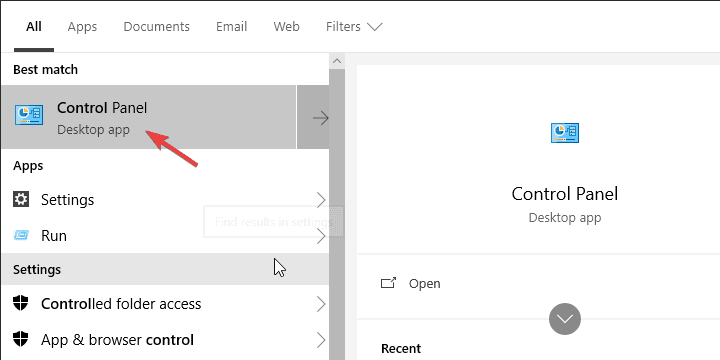
- Click Uninstall a program in the bottom left corner.
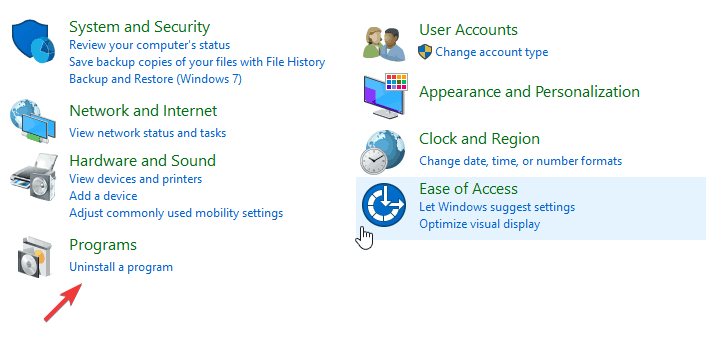
- Click on the Cisco System VPN client and choose Repair.
- Follow the instructions until the installation is repaired.
Let’s start by repairing the installation. Lots of third-party applications tend to break after a major update is administered. That’s why it is always recommended to reinstall them after the update is installed.
Even better, if you want to avoid one of the numerous update/upgrade errors, uninstalling is a viable choice.
However, if you’ve not uninstalled Cisco VPN prior to an update, instead of reinstallation, you should try out repairing the present installation first.
If you’re not sure how to repair the Cisco VPN, follow the steps we provided above.
2. Perform a clean reinstallation
Time needed: 3 minutes.
-
Navigate to Control Panel and open Uninstall a program.
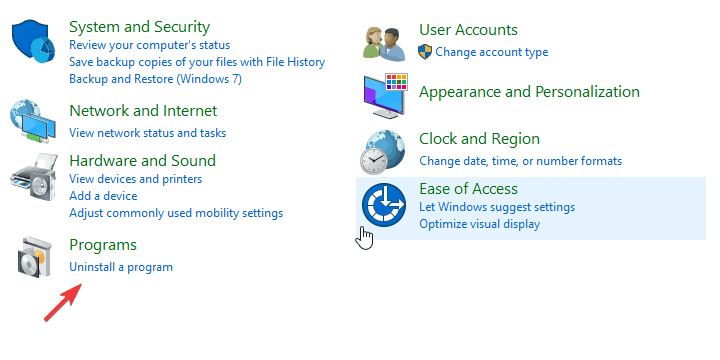
-
Search and select the Cisco AnyConnect Secure Mobility Client.
-
Uninstall the Cisco AnyConnect Secure Mobility Client.
-
Next, open up File Explorer by typing it in the Windows Search Bar.
-
Go to the following path: C:ProgramDataCisco. The ProgramData folder may be hidden so click View at the top-left > Check Hidden items.

-
Delete the folder named Cisco AnyConnect Secure Mobility Client.
-
Lastly, go to the following path: C:Users<username>AppDataLocalCisco. The AppData folder may be hidden so click View at the top-left > Check Hidden items.

-
Delete the folder named Cisco AnyConnect Secure Mobility Client.
-
Restart your PC.
-
Download the Cisco VPN client.
-
Install the client and try running it
Finally, if none of the previous solutions got Cisco VPN to work, the only remaining solution we can suggest is performing a clean reinstallation.
Ideally, this will require a clean slate install where you’ll clear all remaining associated files from your PC prior to installing Cisco VPN again.
Follow the above steps to perform a clean reinstallation and fix Cisco VPN on Windows 10. If Cisco VPN is not working on windows 11 the steps for fixing the error are the same.
3. Allow VPN to freely communicate through Firewall
- In the Windows Search bar, type Allow an app and open Allow an app through Windows Firewall.
- Click Change settings.
- Make sure that Cisco VPN is on the list, and it’s allowed to communicate through Windows Firewall.
- If that’s not the case, click Allow another app and add it.
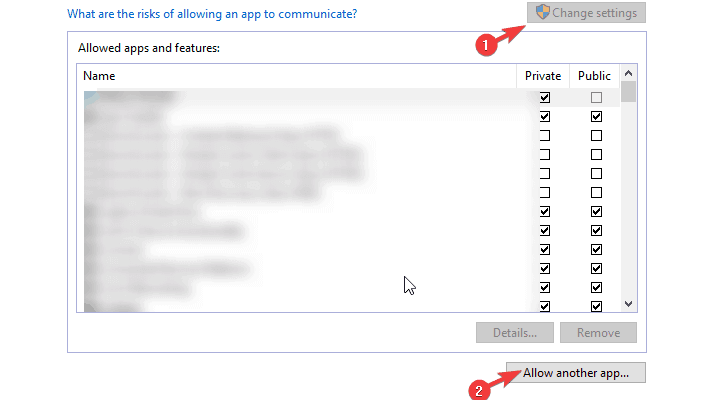
- If that’s not the case, click Allow another app and add it.
- Check both Private and Publicrong> network boxes.
- Confirm changes and open the Cisco VPN.
System updates can, quite frequently, change the system settings and preferences to default values. This misdeed, of course, can affect Windows Defender settings as well.
If that’s the case, chances are that lots of third-party apps that require free traffic through the Firewall won’t work. Including the Cisco VPN client.
That’s why we encourage you to check the settings and confirm that the app is indeed allowed in Windows Firewall settings.
4. Tweak the Registry
- Right-click on the Start button and open Device Manager.
- Expand Network adapters.

- Right-click on Virtual Adapter and update it.
- Restart your PC.
Like many other integrating VPN solutions, Cisco VPN comes with the specific associated Virtual Network Adapter. The failure of this device is another common occurrence, and it’s accompanied by error code 442.
The first thing you can do if this error occurs is to check the Virtual Adapter driver in the Device Manager.
Now, if that fails to resolve the issue, you can try a Registry tweak which seems to address it fully. This requires administrative permission, in order to make changes to Registry.
Furthermore, we strongly suggest treading carefully since untaught meddling with the Registry can result in a system failure.
Follow these steps to tweak Registry and repair Cisco VPN:
- Type Regedit in the Windows Search bar and open Registry Editor.
- Copy-paste the following path in the address bar:
HKEY_LOCAL_MACHINE/SYSTEM/Current/Control/SetServices/CVirtA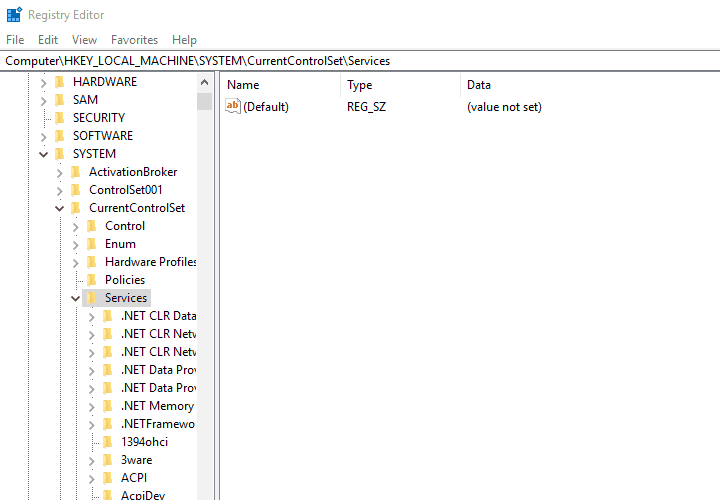
- Right-click on the DisplayName registry entry and choose Modify.
- Under the Value Data section, make sure that the only body of text which stands is the Cisco Systems VPN Adapter.
- For the 64bit version, the text is the Cisco Systems VPN Adapter for 64-bit Windows.
- Save changes and try running Cisco VPN again.
Why is Cisco AnyConnect not opening?
Common errors include Cisco AnyConnect VPN Login Failed, which can happen for a variety of reasons. The VPN client’s inability to connect to the VPN server is the most frequent cause of this problem. Incorrect VPN settings, firewall configuration, or problems with network connectivity are just a few causes of this.
By navigating to the Windows Administration Tools and making sure that the Cisco AnyConnect VPN Agent is not running, you can determine whether another program interfered with the service.
It might be necessary to disable or even uninstall another VPN application on the desktop if it is already operating and the error message still shows. Verify if you have more than one VPN service installed on your PC, this might be the core problem for Cisco AnyConnect not opening.
If Cisco VPN is still not working on Windows 10 and 11, try contacting the support as they would more likely assist you in the best manner, you can also check our guide on what to do if your Cisco Anyconnect is not working through RDP.
That’s it. If you have any alternative solutions you care to share with us, feel free to do so in the comments section below.
The following user messages appear on the AnyConnect client GUI. A description follows each message, along with recommended user and administrator responses if applicable. The recommended administrator responses apply to IT representatives with monitoring and configuration access to the secure gateway configured to provide VPN access.
A new PIN has been generated for you: PIN.
Description The server generated a new personal identification number (PIN) for use with the SDI authentication token.
Recommended User Response None.
 A security threat has been detected in the received server certificate. A VPN
connection will not be established.
Description A security threat was detected in the received server certificate. The threat is likely the result of a null character prefix attack.
Recommended User Response Report the issue to your organization’s technical support.
Recommended Administrator Response Provide instructions to obtain the certificate required for VPN access.
 A user other than the one who started the VPN connection has logged into the
computer locally. The VPN connection has been disconnected. Close all sensitive
networked applications.
Description AnyConnect disconnected from the VPN because another user logged into the local console, the AnyConnect client profile Retain VPN on Logoff parameter is enabled, and the associated User Enforcement parameter is set to «Same user only.» Thus, the client is configured to retain the VPN connection following the logoff of the local console user, and to disconnect from the VPN if a different user logs into the local console. The different user was not authenticated by the secure gateway for access to the private network, so the VPN connection has been disconnected to ensure the protection of the private network.
Recommended User Response Ask the unauthenticated user to log off, then try a new VPN connection.
Account expired.
Description Message originated from the Cisco ASA. The ASA rejected the VPN access request because your account is locked or expired.
Recommended User Response Report the issue to your organization’s technical support.
An internal error occurred while creating the DART bundle. Please try again later.
Description Creation of the DART bundle failed due to an internal processing error.
Recommended User Response Restart the computer. Install the latest release of DART and run it to attempt the collection of another DART bundle. (See Using DART to Gather Troubleshooting Information.) If the problem persists, report the error to your organization’s technical support.
Recommended Administrator Response Open a case with the Cisco Technical Assistance Center (TAC).
An unknown error has occurred in the VPN client service while trying to reconnect.
Description The VPN connection was terminated without a reconnect reason code because of a flaw in the client software.
Recommended User Response Try starting a new VPN connection. Run DART. (See Using DART to Gather Troubleshooting Information.) Report the error to your organization’s technical support and include the DART bundle.
Recommended Administrator Response Open a case with the Cisco Technical Assistance Center (TAC) and include the DART bundle.
 An unknown error occurred while creating the DART bundle, possibly due to
restricted file permissions. Please try again later.
Description Creation of the DART bundle failed. Common causes may include a failure to write to, read from, or move a file, possibly due to restricted user access to it.
Recommended User Response Try recreating the DART bundle.
An unknown reconnect error has occurred in the VPN client service.
Description The client was attempting to establish a VPN connection, but the connection was terminated without a reason code because of a flaw in the client software. Typically, a reason code is generated, exposing a more detailed message.
Recommended User Response Restart the computer and device, then try starting a new VPN connection. If the error reoccurs, run DART. (See Using DART to Gather Troubleshooting Information.) Report the error to your organization’s technical support and include the DART bundle.
Recommended Administrator Response Open a case with the Cisco Technical Assistance Center (TAC) and include the DART bundle if you cannot resolve the issue.
An unknown termination error has occurred in the client service.
Description The VPN connection or AnyConnect client service was terminated without a termination reason code, due to a flaw in the client software. Typically, a reason code is generated, exposing a more detailed message.
Recommended User Response Restart the computer and device, then try starting a new VPN connection. If the error reoccurs, run DART. (See Using DART to Gather Troubleshooting Information.) Report the error to your organization’s technical support and include the DART bundle.
Recommended Administrator Response Open a case with the Cisco Technical Assistance Center (TAC) and include the DART bundle if you cannot resolve the issue.
 Another user has logged into your computer locally, and only one local user is
allowed. The VPN connection has been disconnected. Close all sensitive networked
applications.
Description AnyConnect disconnected from the VPN because another user logged into the local console, the AnyConnect client profile Retain VPN on Logoff parameter is enabled, and the associated User Enforcement parameter is set to «Same user only.» Thus, the client is configured to retain the VPN connection following the logoff of the local console user, and to disconnect from the VPN if a different user logs into the local console. The different user was not authenticated by the secure gateway for access to the private network, so the VPN connection has been disconnected to ensure the protection of the private network.
Recommended User Response Ask the unauthenticated user to log off, then try a new VPN connection.
 Another user has logged into your computer, and only one user is allowed. The VPN
connection has been disconnected. Close all sensitive networked applications.
Description AnyConnect disconnected from the VPN because another user logged into the local console, the AnyConnect client profile Retain VPN on Logoff parameter is enabled, and the associated User Enforcement parameter is set to «Same user only.» Thus, the client is configured to retain the VPN connection following the logoff of the local console user, and to disconnect from the VPN if a different user logs into the local console. The different user was not authenticated by the secure gateway for access to the private network, so the VPN connection has been disconnected to ensure the protection of the private network.
Recommended User Response Ask the unauthenticated user to log off, then try a new VPN connection.
 AnyConnect cannot confirm it is connected to your secure gateway. The local network
may not be trustworthy. Please try another network.
Description AnyConnect cannot validate the secure gateway server certificate. The local network may not be trustworthy or the secure gateway certificate may not be trusted.
–
–
Recommended User Response Try moving to a different network, then try a new VPN connection. If the problem persists, report the error to your organization’s technical support.
Recommended Administrator Response Ensure the secure gateway is provisioned with a valid server certificate from a proper certificate authority (CA).
AnyConnect is not enabled on the VPN server.
Description Message originated from the Cisco ASA. Access to the secure gateway through AnyConnect is not allowed.
Recommended User Response Try connecting to another secure gateway.
Recommended Administrator Response Make sure that AnyConnect is enabled on the secure gateway and the user is authorized to use AnyConnect.
 AnyConnect profile settings mandate a single local user, but multiple local users
are currently logged into your computer. A VPN connection will not be established.
Description AnyConnect is configured to permit access only to the local console user whom the secure gateway authenticated. AnyConnect disconnected from the VPN to protect it from unauthorized use by another user who logged into the local console.
Recommended User Response Ask the remote users to log off, then retry the VPN connection.
 AnyConnect was not able to establish a connection to the specified secure gateway.
Please try connecting again.
Description A network connectivity problem caused a VPN connection attempt to fail after a successful authentication.
Recommended User Response Retry the VPN connection.
Authentication failed.
Description Message originated from the Cisco ASA. The VPN connection could not be established, most likely because of invalid credentials.
Recommended User Response Confirm your credentials and retry the VPN connection.
 Automatic profile updates are disabled and the local VPN profile does not match
the secure gateway VPN profile.
Description The secure gateway is configured to upload an AnyConnect XML profile. AnyConnect is configured to skip profile updates, but cannot update to this version of the profile. Because the profile can specify a security policy, AnyConnect cannot establish a connection. The most common cause of this condition is connecting to a secure gateway with a version of AnyConnect, such as the Palm Pre, that does not support profile updates, or connecting with the BypassDownloader setting configured in the local policy file.
Recommended Administrator Response Configure a group policy that does not require an AnyConnect profile.
 Cannot verify required local security policy. This device is not supported. Please
contact your network administrator.
Description The AnyConnect profile requires the endpoint to be protected by a mobile device policy, but the endpoint OS could not be identified.
Recommended Administrator Response To ensure maximum device compatibility, ensure that the endpoint is running the latest version of the AnyConnect client, and the ASA is running the latest software release.
Certificate Enrollment - Certificate import has failed.
Description AnyConnect failed to import the just-enrolled certificate. This failure can occur if the user declined a certificate store provider prompt, such as one for a password or a permission request.
Certificate Validation Failure
Description Message originated from the Cisco ASA. The ASA declined to accept the certificate provided by AnyConnect because it could not be validated. Please verify that the correct certificate is available in the certificate store.
Recommended User Response Report the error to your organization’s technical support and ask for the proper certificate.
Recommended Administrator Response Provide instructions to obtain the certificate required for VPN access.
 Certificate enrollment succeeded. Your session will be disconnected. Please login
again.
Description Certificate enrollment through SCEP succeeded.
Recommended User Response To use the new certificate, start a new VPN connection.
Clientless (browser) SSL VPN access is not allowed.
Description Message originated from the Cisco ASA. The ASA requires the user of a full tunnel client such as AnyConnect for network access.
Recommended User Response Report the problem to your organization’s technical support.
 Connect not available. Another AnyConnect application is running or the
functionality was not requested by this application.
Description AnyConnect is connected in a diminished mode. This can be the result of a specific request by a custom application or because of another AnyConnect client already running.
Recommended User Response Try restarting the computer or device, then try a new VPN connection.
Connecting via a proxy is not supported with Always On.
Description AnyConnect is configured for Always-on VPN, which does not support connecting through a proxy.
Recommended User Response Remove the local proxy and try a new VPN connection. To access the proxy settings on Windows, choose the Control Panel > Internet Options > Connections tab, and go to LAN Settings.
Connection attempt failed. Please try again.
Description An initialization error caused the VPN connection to fail.
Recommended User Response Try establishing a new VPN connection.
Connection attempt has failed (error in response data).
Description Communication with the secure gateway failed because it detected an error in the HTTP response body it received.
Recommended User Response Try starting a new VPN connection. Run DART. (See Using DART to Gather Troubleshooting Information.) Report the error to your organization’s technical support and include the DART bundle.
Recommended Administrator Response Open a case with the Cisco Technical Assistance Center (TAC) and include the DART bundle.
Connection attempt has failed (error in response header).
Description Communication with the secure gateway failed because it detected an error in the HTTP response header it received.
Recommended User Response Try starting a new VPN connection. Run DART. (See Using DART to Gather Troubleshooting Information.) Report the error to your organization’s technical support and include the DART bundle.
Recommended Administrator Response Open a case with the Cisco Technical Assistance Center (TAC) and include the DART bundle.
Connection attempt has failed due to invalid host entry.
Description A profile URL or user-entered address does not resolve to a valid secure gateway.
Recommended User Response Choose another gateway from the VPN list or request the URL from your organization’s technical support.
Connection attempt has failed due to network or PC issue.
Description An unexpected error in the HTTP protocol was detected. This error is unlikely and indicates an error state on the endpoint, such as loss of either connectivity to the secure gateway or network connectivity in general.
Recommended User Response Ensure your computer or device has network access. Restart it if necessary. Then try a new VPN connection.
 Connection attempt has failed due to server communication errors. Please retry the
connection.
Description Thee connection attempt was terminated for one of a number of reasons. These can include too many redirects at the secure gateway, a host changed from one connection to the next, etc.
Recommended Administrator Response Look for additional errors in the log.
Connection attempt has failed.
Description The VPN connection could not be established.
Recommended User Response Look for additional error message that identifies the cause.
 Connection attempt has failed: Gateway/proxy received an invalid response from the
host or was unable to contact the host. Verify the host is valid.
Description The failed connection attempt was done through a proxy. Possible causes of this failure are that the proxy could not resolve the selected host, the selected host does not exist, or the host is unavailable and therefore the proxy did not get a response.
Connection attempt has timed out. Please verify Internet connectivity.
Description AnyConnect canceled the connection attempt because the wait for a response exceeded an internal time-out value.
Recommended User Response Try a new VPN connection.
Connections to this secure gateway are not permitted.
Description The VPN connection to the selected secure gateway is not allowed because the Always On feature is enabled, which restricts VPN connections to only secure gateways found in the profiles.
Recommended User Response Choose another gateway from the VPN list or request the URL from your organization’s technical support.
Cookies must be enabled to log in.
Description Message originated from the Cisco ASA. In order to log into the secure gateway, cookies must be enabled. The secure gateway detects that it is unable to correctly set a cookie.
Recommended User Response Add the domain to the browser list of trusted sites.
 Could not connect to server. Please verify Internet connectivity and server
address.
Description AnyConnect could not contact the secure gateway. This error indicates a failure to establish a network connection. Possible causes of this failure include:
–
–
–
Recommended User Response Verify network connectivity. Check whether other applications, such as a web browser or a ping tool, can contact the secure gateway.
Recommended Administrator Response Check whether other applications, such as a web browser or a ping tool, can contact the secure gateway.
Error retrieving username from CSD data.
Description The username from the certificate feature is configured to use the Cisco Secure Desktop Host Scan data when a certificate is unavailable. The secure gateway failed to get the username from the host scan data in the absence of a certificate.
Recommended User Response Try starting a new VPN connection. Report the error to your organization’s technical support.
Recommended Administrator Response Open a case with the Cisco Technical Assistance Center (TAC).
Error saving preferences. Please retry, or restart AnyConnect.
Description An unexpected error occurred while saving the user or global preferences file.
Recommended User Response Restart AnyConnect.
Recommended Administrator Response Reattempting to store preferences might solve the issue.
Exiting. Bypassing start before logon.
Description The start before logon GUI is exiting because of one of the following reasons:
–
–
Recommended User Response None necessary if you are in the corporate network. Otherwise, start a web browser and satisfy the conditions of the local Internet service provider, then try to connect to the VPN.
 FIPS compliant algorithms for encryption, hashing, and signing have not been
enabled on this system.
Description As part of the AnyConnect FIPS verification process, the Windows operating system FIPS registry key is checked to ensure that the system is in a FIPS compliant mode. The registry key value is not set to enable FIPS.
FIPS mode requires TLS to be enabled to establish a VPN connection
Description FIPS mode requires that the TLS protocol be enabled. AnyConnect failed to enable the TLS protocol through the registry key setting.
Recommended User Response Choose the Control Panel > Internet Options > Advanced tab, and check Use TLS 1.0 under «Security.»
 Failed accessing AnyConnect package. This may be due to IE security settings that
are set too high.
Description An error occurred while trying to download contents from the AnyConnect package located on the secure gateway. An Internet Explorer security setting could be blocking HTTP file downloads.
Recommended User Response Change the Internet Explorer security settings to permit downloads.
Failed to load preferences.
Description An unexpected error occurred while reading the profiles or preferences files. The files might be corrupt or an initialization failure may have occurred.
Recommended User Response Restart AnyConnect and try a new VPN connection.
Failed to verify FIPS mode.
Description An unexpected error occurred during the AnyConnect FIPS verification process. The most likely cause is an AnyConnect flaw.
Recommended User Response Try starting a new VPN connection. If the problem reoccurs, run DART. (See Using DART to Gather Troubleshooting Information.) Report the error to your organization’s technical support and include the DART bundle.
Recommended Administrator Response Open a case with the Cisco Technical Assistance Center (TAC) and include the DART bundle.
 Failed to verify required local security policy. Please contact your network
administrator.
Description The following table shows the explanations of this message and the recommended actions.
|
Explanation |
Recommended Administrator Response |
|---|---|
|
A generic error occurred when attempting to verify the mobile device security policy specified by the AnyConnect profile. This error occurs when AnyConnect attempts to monitor the Windows Mobile device registry to ensure it conforms with settings in the AnyConnect profile. |
NA |
|
The AnyConnect profile requires the mobile device to be protected by a device lock such as a personal identification number (PIN), but the device does not conform to the specified policy. |
Make sure the value of the DeviceLockRequired element under MobilePolicy in the AnyConnect profile is correct. |
|
The AnyConnect profile requires the mobile device to be protected by a device lock with a minimum password length, but the device is either not configured with a password, or has a password that is too short. |
Make sure the value of the MinimumPasswordLength attribute of the DeviceLockRequired element under MobilePolicy in the AnyConnect profile is correct. |
|
The AnyConnect profile requires the mobile device to be protected by a device lock with a minimum device lock time-out, and the device is configured with a time-out that is too short. |
Make sure the value of the MaximumTimeoutMinutes attribute of the DeviceLockRequired element under MobilePolicy in the AnyConnect profile is correct. |
|
The policy for the device lock password is usually set only after the device synchronizes with an enterprise exchange server. One of the following is true:
•
• |
Make sure the value of the PasswordComplexity attribute of the DeviceLockRequired element under MobilePolicy in the AnyConnect profile is correct. |
|
AnyConnect detected that the device is not synchronized with an Exchange server configured with a security policy. The AnyConnect profile requires the mobile device to be protected by a mobile device policy set when the device synchronizes with an enterprise exchange server. |
Make sure the MobilePolicy settings in the AnyConnect profile are correct. |
Recommended User Response Report the issue to your organization’s technical support.
Recommended Administrator Response See the previous table.
 Firefox certificate libraries could not be loaded. VPN connection cannot be
established.
Description AnyConnect could not access the Firefox certificate store and there was no alternative store located. A failure to verify server certificates results in the inability to verify the identity of the secure gateway. Also, AnyConnect cannot respond to certificate requests.
Hostscan Configuration error.
Description The Host Scan module could not be configured properly. Possible causes include errors loading the DLL or errors setting up the command line parameters to launch the stub executable for Host Scan.
Hostscan Initialize error.
Description Host Scan could not launch. Possible causes include the Host Scan executable stub as well as the Host Scan initialization routines.
Recommended User Response Report the issue to your organization’s technical support.
Recommended Administrator Response Open a case with the Cisco Technical Assistance Center (TAC).
Hostscan Installation error.
Description Host Scan could not be loaded to perform the system scan. Possible errors occurred when loading the DLL and errors finding the stub executable for Host Scan.
Recommended User Response Report the issue to your organization’s technical support.
Recommended Administrator Response Open a case with the Cisco Technical Assistance Center (TAC).
Hostscan Prelogin error.
Description During the pre-login check, Host Scan detected the local violation of a rule configured on the secure gateway. Examples of pre-login checks include:
–
–
Recommended User Response Restart the computer or device and try a new VPN connection.
Hostscan Run error.
Description Host Scan experienced an error while scanning the endpoint.
Recommended User Response Try a new VPN connection.
Invalid authentication handle.
Description Message originated from the Cisco ASA. The authentication ticket was removed before the user responded.
Recommended User Action Try logging on again.
Invalid host entry. Please re-enter.
Description The URL requested was not found.
Recommended User Action Verify that the URL is correct and try again.
Recommended User Action Verify the URL in the secure gateway configuration.
Invalid session/bad session parameters while processing Config Request
Description Message originated from the Cisco ASA. The session cookie is invalid and cannot be used to request parameters needed to establish a VPN tunnel.
Recommended User Action Try a new VPN connection.
It may be necessary to connect via a proxy, which is not supported with Always On.
Description AnyConnect is configured for Always-on VPN, which does not support connecting through a proxy.
Recommended User Response Remove the local proxy and try a new VPN connection. To access the proxy settings on Windows, choose the Control Panel > Internet Options > Connections tab, and go to LAN Settings.
Leave both boxes blank to continue using current password
Description Message originated from the Cisco ASA. The user password will expire soon. The user has the opportunity to change the password immediately.
Recommended User Action Enter a new password into the text boxes or leave them blank if you want to defer the password change for later.
Login denied, unauthorized connection mechanism, contact your administrator.
Description The secure gateway is not permitting AnyConnect or clientless access by the user.
Recommended User Response Report the issue to your organization’s technical support.
Login denied. Message
Description Message originated from the Cisco ASA. The secure gateway enforced a dynamic access policy that rejects the login credentials.
Recommended User Response Report the issue to your organization’s technical support.
Login error.
Description Message originated from the Cisco ASA. The secure gateway detected an error during login.
Recommended User Response Try a new VPN connection.
Login failed.
Description Message originated from the Cisco ASA. The VPN connection could not be established. The most likely cause of this error is invalid credentials.
Recommended User Response Verify your login credentials and try a new VPN connection.
Login failed: Message
Description Message originated from the Cisco ASA. The VPN connection could not be established. The message following «Login failed:» indicates the reason.
Recommended User Response Try using the reason in the message to resolve the issue and try a new VPN connection.
 Network access is restricted due to an administrator configured timer expiration.
The connection must be retried manually.
Description AnyConnect is configured with a connect failure policy of «closed» and a captive portal remediation time-out setting expired. You may be located at a coffee shop, airport or hotel, where an Internet service provider is restricting access to the Internet. AnyConnect grants full network access for a limited period specified by the remediation time-out so you can attempt to satisfy the Internet service provider requirements. To protect the endpoint, AnyConnect restricts access after the timer expires.
Recommended User Response Start a web browser and satisfy the conditions of the service provider. The remediation timer restarts. Retry the connection.
New PIN way too big.
Description Message originated from the Cisco ASA. The length of the personal identification number (PIN) entered exceeds the maximum length allowed.
Recommended User Response Consult your corporate guidelines to change your PIN or report the issue to your organization’s technical support.
New Password Required but user not allowed to change
Description Message originated from the Cisco ASA. A password change is required to log in. An expired password is most likely the cause. The user does not have permission to change his/her own password.
Recommended User Response Report the issue to your organization’s technical support.
New password way too big.
Description Message originated from the Cisco ASA. The length of the password entered exceeds the maximum length allowed.
Recommended User Response Consult your corporate guidelines to change your password.
No certificate store has been found. VPN connection cannot be established.
Description AnyConnect could not access the certificate store, resulting in the inability to verify the identity of the secure gateway by performing verification of server certificates. Also, AnyConnect cannot respond to certificate requests.
Recommended User Response Make sure Firefox is installed or the file store is provisioned with certificates.
Recommended Administrator Response Make sure the Local Policy file does not exclude all potential certificate stores. Ensure the user has Firefox installed or the file store is provisioned with certificates.
No valid certificates available for authentication.
Description The secure gateway did not accept any of the certificates AnyConnect provided. No more certificates remain.
Password change required.
Description Message originated from the Cisco ASA. A password change is required to log in. An expired password is most likely the cause.
Recommended User Response Report the issue to your organization’s technical support and request an account for VPN access.
 Please establish an Internet connection. If a browser or other application opened
a connections dialog window, please respond so that AnyConnect can proceed.
Description If Internet Explorer is configured to always dial, or dial if no other connection is present, when the browser is launched the user is prompted to select a connection. If the user does not connect, or cancels the dialog and opens AnyConnect, the connection becomes unresponsive while AnyConnect contacts the secure gateway.
Recommended User Response Dismiss the connection dialog box. AnyConnect displays a new dialog box and proceeds with the connection.
Posture Assessment: Failed
Description A Host Scan error occurred. Common causes include failures to download or launch the Host Scan components, and the system scan exceeded 10 minutes to complete.
Recommended User Response Try a new VPN connection.
Posture assessment with authenticating proxy is not implemented.
Description Host Scan could not perform posture assessment of the endpoint because AnyConnect is configured to use an authenticating proxy. Host Scan does not have access to the credentials for the authenticating proxy.
Recommended User Response Try to bypass or disable the proxy, then try a new VPN connection.
Recommended User Response Disable authentication completely, or selectively when accessing the ASA.
Server reboot pending, new logins disabled. Try again later.
Description The secure gateway is being restarted.
Session terminated.
Description Message originated from the Cisco ASA. The authentication ticket was removed before the user responded.
Recommended User Response Try logging on again.
 System configuration settings could not be applied. A VPN connection will not be
established.
Description AnyConnect attempted to apply system configuration settings received from the secure gateway. The error occurred in the System Network Abstraction Kit (SNAK) layer, which could indicate an error with vendor-supplied plug-ins external to AnyConnect.
Recommended User Response Restart the computer or device, then try starting a new VPN connection. If the problem persists, run DART (See Using DART to Gather Troubleshooting Information) and report the error to your organization’s technical support and include the DART bundle.
Recommended Administrator Response If the problem persists, open a case with the Cisco Technical Assistance Center (TAC) and include the DART bundle.
 The AnyConnect package on the secure gateway could not be located. You may be
experiencing network connectivity issues. Please try connecting again.
Description The AnyConnect package file could not be located on the secure gateway.
Recommended User Response Make sure you have network connectivity, then try a new VPN connection.
Recommended Administrator Response Make sure an AnyConnect package file for the user’s operating system is present on the ASA configuration.
 The AnyConnect protection settings must be lowered for you to log on with the
service provider. Your current enterprise security policy does not allow this.
Description You may be located at a coffee shop, airport or hotel, where an Internet service provider is restricting access to the Internet. Corporate policies do not permit VPN access in this setting.
Recommended User Response Retry after relocating.
Recommended Administrator Action Change the AnyConnect client profile Always-on VPN ConnectFailurePolicy setting if you want to permit captive portal access.
 The Connect Failure Policy will not be applied because the Secure Gateway could
not be found in the profile.
Description AnyConnect could not apply the Always-on VPN connect failure policy specified by the ConnectFailurePolicy profile setting, despite the connection failure. The target secure gateway is not present in the profile. AnyConnect permits connections only to the hosts specified in the profile because the Always-on VPN policy restricts traffic to other destinations.
 The FIPS verification of the OpenSSL libraries have failed. Reinstalling
AnyConnect might fix this issue.
Description AnyConnect failed to configure OpenSSL into FIPS mode. The OpenSSL shared libraries installed with AnyConnect could have been tampered with or might be corrupt.
Recommended User Response Reinstall AnyConnect and try a new VPN connection.
 The MTU of the physical adapter is too small. An MTU of at least 1374 bytes is
required for an IPv6 connection. Please contact your network administrator.
Description The Maximum Transmission Unit (MTU) of the endpoint system physical network interface is too small to support IPv6 data through a VPN connection.
Recommended User Response Use the SetMTU utility that comes with the legacy Cisco VPN Client to set the MTU to 1374, the minimum MTU for IPv6 on the physical adapter, or set it to a greater value. You will likely need to consult with your organization’s technical support to perform this task.
The VPN GUI and Agent Process are not both in FIPS Mode.
Description Both the VPN GUI and VPN Agent are not operating in FIPS mode when configured to do so.
Recommended User Response Restart the computer or device and AnyConnect to synchronize the operating modes of both processes.
 The VPN client agent SSL engine encountered an error. Please retry, or restart
AnyConnect.
Description AnyConnect encountered an unexpected and unrecoverable error in the SSL protocol stack. One possible cause is an AnyConnect flaw.
Recommended User Response Restart the computer or device, then try starting a new VPN connection. If the problem persists, run DART (See Using DART to Gather Troubleshooting Information) and report the error to your organization’s technical support and include the DART bundle.
Recommended Administrator Response If the problem persists, open a case with the Cisco Technical Assistance Center (TAC) and include the DART bundle.
The VPN client agent attempt to signal readiness to the plugin thread failed.
Description The AnyConnect service experienced an unexpected and unrecoverable error while initializing the main thread of the AnyConnect for Apple iOS VPN plug-in.
Recommended User Response Try restarting the device and starting a new VPN connection. Run DART. (See Using DART to Gather Troubleshooting Information.) Report the error to your organization’s technical support and include the DART bundle.
Recommended Administrator Response Open a case with the Cisco Technical Assistance Center (TAC) and include the DART bundle.
The VPN client agent decryption engine encountered an error.
Description AnyConnect service encountered an unexpected and unrecoverable error in the protocol decryption engine.
Recommended Administrator Response Open a case with the Cisco Technical Assistance Center (TAC) and include the DART bundle.
The VPN client agent encountered a secure gateway protocol failure.
Description The AnyConnect service encountered an unexpected and unrecoverable protocol error in an exchange with the secure gateway.
Recommended Administrator Response Open a case with the Cisco Technical Assistance Center (TAC) and include the DART bundle.
The VPN client agent encryption engine encountered an error.
Description The AnyConnect service encountered an unexpected and unrecoverable error in the protocol encryption engine.
Recommended Administrator Response Open a case with the Cisco Technical Assistance Center (TAC) and include the DART bundle.
The VPN client agent experienced a failure initializing a required timer.
Description The AnyConnect service experienced an unexpected and unrecoverable error while initializing a required internal timer object.
Recommended Administrator Response Open a case with the Cisco Technical Assistance Center (TAC) and include the DART bundle.
The VPN client agent experienced a failure initializing trusted network detection.
Description The AnyConnect service experienced an unexpected and unrecoverable error while initializing the trusted network detection subsystem.
Recommended Administrator Response Open a case with the Cisco Technical Assistance Center (TAC) and include the DART bundle.
 The VPN client agent experienced an internal failure with the interprocess
communication depot.
Description The AnyConnect service experienced an unexpected and unrecoverable error with its inter-process communication subsystem.
Recommended Administrator Response Open a case with the Cisco Technical Assistance Center (TAC) and include the DART bundle.
 The VPN client agent experienced an unexpected internal error. The VPN connection
has been disconnected. Please restart your computer or device, then try again.
Description The client has experienced an unexpected and unrecoverable error. The error is possibly due to one of the following:
•
•
•
Recommended User Response Please restart your computer or device, then try a new VPN connection. If the problem persists, run DART (See Using DART to Gather Troubleshooting Information) and report the error to your organization’s technical support and include the DART bundle.
Recommended Administrator Response If the problem persists, open a case with the Cisco Technical Assistance Center (TAC) and include the DART bundle.
 The VPN client agent failed in receiving a message from an IPC peer requesting the
creation of a VPN connection.
Description The AnyConnect service experienced an unexpected and unrecoverable error while processing a request from another client process to initiate a VPN connection.
Recommended User Response Try restarting the VPN connection. Run DART. (See Using DART to Gather Troubleshooting Information.) Report the error to your organization’s technical support and include the DART bundle.
Recommended Administrator Response Open a case with the Cisco Technical Assistance Center (TAC) and include the DART bundle.
 The VPN client agent failed in receiving a message from an IPC peer requesting the
launch of an application.
Description The AnyConnect service experienced an unexpected and unrecoverable error while processing a request from another client process to launch a client application.
Recommended Administrator Response Open a case with the Cisco Technical Assistance Center (TAC) and include the DART bundle.
 The VPN client agent failed to create a necessary processing component and cannot
continue.
Description The AnyConnect service experienced an unexpected and unrecoverable error while attempting to create its main execution thread.
Recommended Administrator Response Open a case with the Cisco Technical Assistance Center (TAC) and include the DART bundle.
 The VPN client agent failed to create an event necessary for agent service
notification processing.
Description The AnyConnect service experienced an unexpected and unrecoverable error while attempting to create a required internal event object for internal notification processing.
Recommended Administrator Response Open a case with the Cisco Technical Assistance Center (TAC) and include the DART bundle.
 The VPN client agent failed to create an event necessary for agent termination
processing.
Description The AnyConnect service experienced an unexpected and unrecoverable error while attempting to create a required internal event object for internal termination processing.
Recommended Administrator Response Open a case with the Cisco Technical Assistance Center (TAC) and include the DART bundle.
 The VPN client agent failed to create an event necessary for network adapter change
processing.
Description AnyConnect experienced an unexpected and unrecoverable error while attempting to create a required event object for local network adapter change notifications.
Recommended Administrator Response Open a case with the Cisco Technical Assistance Center (TAC) and include the DART bundle.
 The VPN client agent failed to create an event necessary for system suspend
processing.
Description The AnyConnect service experienced an unexpected and unrecoverable error while attempting to create a required internal event objects for local suspend processing.
Recommended Administrator Response Open a case with the Cisco Technical Assistance Center (TAC) and include the DART bundle.
The VPN client agent failed to launch the client user interface application.
Description The VPN connection was started via a web browser, requiring the start of the AnyConnect UI, but it failed to start.
Recommended User Response Restart the computer or device and try again. If the problem reoccurs, report the error to your organization’s technical support.
Recommended Administrator Response Try using the same OS to initiate a WebLaunch of AnyConnect. If it fails, open a case with the Cisco Technical Assistance Center (TAC).
 The VPN client agent failed to load the SNAK system plugin required by this version
of AnyConnect.
Description The AnyConnect service experienced an unexpected and unrecoverable error while attempting to initialize its System/Network Abstraction Kit (SNAK) subsystem.
Recommended Administrator Response Open a case with the Cisco Technical Assistance Center (TAC) and include the DART bundle.
The VPN client agent was unable create the plugin loader.
Description The AnyConnect service experienced an unexpected and unrecoverable error while attempting to create its plug-in loader subsystem.
Recommended Administrator Response Open a case with the Cisco Technical Assistance Center (TAC) and include the DART bundle.
The VPN client agent was unable to create a necessary timer.
Description The AnyConnect service experienced an unexpected and unrecoverable error while attempting to create a required internal timer object.
Recommended Administrator Response Open a case with the Cisco Technical Assistance Center (TAC) and include the DART bundle.
The VPN client agent was unable to create the client VPN configuration manager.
Description The AnyConnect service experienced an unexpected and unrecoverable error while attempting to create its VPN connection configuration management subsystem.
Recommended Administrator Response Open a case with the Cisco Technical Assistance Center (TAC) and include the DART bundle.
The VPN client agent was unable to create the client host configuration manager.
Description AnyConnect experienced an unexpected and unrecoverable error while attempting to create its local configuration management subsystem.
Recommended Administrator Response Open a case with the Cisco Technical Assistance Center (TAC) and include the DART bundle.
The VPN client agent was unable to create the client preferences manager.
Description The AnyConnect service experienced an unexpected and unrecoverable error while attempting to create its preferences management subsystem.
Recommended Administrator Response Open a case with the Cisco Technical Assistance Center (TAC) and include the DART bundle.
The VPN client agent was unable to create the interprocess communication depot.
Description The AnyConnect service experienced an unexpected and unrecoverable error while attempting to create a required internal interprocess communication object.
Recommended Administrator Response Open a case with the Cisco Technical Assistance Center (TAC) and include the DART bundle.
The VPN client agent was unable to create the network environment component.
Description The AnyConnect service experienced an unexpected and unrecoverable error while attempting to create its network environment monitoring subsystem.
Recommended Administrator Response Open a case with the Cisco Technical Assistance Center (TAC) and include the DART bundle.
The VPN client agent was unable to create the trusted network detection component.
Description The AnyConnect service experienced an unexpected and unrecoverable error while attempting to create its trusted network detection subsystem.
Recommended Administrator Response Open a case with the Cisco Technical Assistance Center (TAC) and include the DART bundle.
The VPN client agent was unable to enable FIPS Mode.
Description The AnyConnect service experienced an unexpected and unrecoverable error while attempting to initialize its Federal Information Processing Standards (FIPS) operation mode.
Recommended Administrator Response Open a case with the Cisco Technical Assistance Center (TAC) and include the DART bundle.
The VPN client agent was unable to initialize the system network socket support.
Description AnyConnect experienced an unexpected and unrecoverable error while attempting to initialize its local network socket subsystem.
Recommended Administrator Response Open a case with the Cisco Technical Assistance Center (TAC) and include the DART bundle.
 The VPN client agent was unable to send a failure response to an IPC peer
requesting the creation of a VPN connection.
Description The AnyConnect service received a request from another client process to initiate a VPN connection. The service encountered an unexpected and unrecoverable failure while attempting to send an error notification back to the requesting client process.
Recommended User Response Try restarting the VPN connection. Run DART. (See Using DART to Gather Troubleshooting Information.) Report the error to your organization’s technical support and include the DART bundle.
Recommended Administrator Response Open a case with the Cisco Technical Assistance Center (TAC) and include the DART bundle.
 The VPN client agent was unable to send a failure response to an IPC peer
requesting the launch of an application.
Description The AnyConnect service received a request from another client process to launch a client application. The service encountered an unexpected and unrecoverable failure while attempting to send an error notification back to the requesting client process.
Recommended Administrator Response Open a case with the Cisco Technical Assistance Center (TAC) and include the DART bundle.
 The VPN client agent was unable to send a success response to an IPC peer
requesting the creation of a VPN connection.
Description The AnyConnect service received a request from another client process to initiate a VPN connection. The service encountered an unexpected and unrecoverable failure while attempting to send a success notification back to the requesting client process.
Recommended Administrator Response Open a case with the Cisco Technical Assistance Center (TAC) and include the DART bundle.
 The VPN client agent was unable to send a success response to an IPC peer
requesting the launch of an application.
Description The AnyConnect service received a request from another client process to launch a client application. The service encountered an unexpected and unrecoverable failure while attempting to send a success notification back to the requesting client process.
Recommended Administrator Response Open a case with the Cisco Technical Assistance Center (TAC) and include the DART bundle.
 The VPN client driver has encountered an error. Please restart your computer or
device, then try again.
Description The AnyConnect service could not configure or start the virtual adapter driver needed to perform a VPN connection. A likely cause is a problem with the virtual adapter installation or registry settings.
Recommended User Response Restart your computer or device, then try a new VPN connection. If the problem persists, run DART. (See Using DART to Gather Troubleshooting Information.) Report the error to your organization’s technical support and include the DART bundle.
Recommended Administrator Response See «Microsoft Windows Updates» in the Cisco AnyConnect Secure Mobility Client Administrator Guide, Release 2.5.
 The VPN client driver has encountered an error. Close all sensitive networked
applications. Please restart your computer or device, then try again.
Description AnyConnect received a notification from its virtual adapter indicating it is terminating communication. The likely cause of the error is a virtual adapter driver failure.
Recommended User Response Restart your computer or device, then try a new VPN connection. If the problem persists, run DART. (See Using DART to Gather Troubleshooting Information.) Report the error to your organization’s technical support and include the DART bundle.
Recommended Administrator Response Open a case with the Cisco Technical Assistance Center (TAC) and include the DART bundle.
The VPN client failed to establish a connection.
Description The AnyConnect service failed to establish a secured connection to the secure gateway. Possible causes include the following:
–
–
–
–
Recommended User Response Retry the VPN connection. Run DART. (See Using DART to Gather Troubleshooting Information.) Report the error to your organization’s technical support and include the DART bundle.
Recommended Administrator Response Open a case with the Cisco Technical Assistance Center (TAC) and include the DART bundle.
 The VPN client service has been stopped. The VPN connection has been disconnected.
Close all sensitive networked applications.
Description AnyConnect disconnected from the VPN because it received a stop notification from the endpoint.
Recommended User Response Restart AnyConnect and retry the VPN connection. If the problem persists, run DART. (See Using DART to Gather Troubleshooting Information.) Report the error to your organization’s technical support and include the DART bundle.
Recommended Administrator Response If the problem persists, open a case with the Cisco Technical Assistance Center (TAC) and include the DART bundle.
 The VPN client was unable to modify the IP forwarding table. A VPN connection will
not be established. Please restart your computer or device, then try again.
Description AnyConnect failed to apply all the VPN configuration settings to the endpoint IP forwarding table. A VPN connection is not permitted because this failure could compromise both its security and operation. This error is unrecoverable.
Recommended User Response Restart your computer or device, then try a new VPN connection. If the problem persists, run DART. (See Using DART to Gather Troubleshooting Information.) Report the error to your organization’s technical support and include the DART bundle.
Recommended Administrator Response Open a case with the Cisco Technical Assistance Center (TAC) and include the DART bundle.
 The VPN client was unable to setup IP filtering. A VPN connection will not be
established.
Description AnyConnect failed to apply the VPN configuration settings to its IP filtering subsystem. A VPN connection is not permitted because this failure could compromise both its security and data integrity. This error is unrecoverable.
Recommended User Response Restart the computer or device. Restart the VPN connection. Run DART. (See Using DART to Gather Troubleshooting Information.) Report the error to your organization’s technical support and include the DART bundle.
Recommended Administrator Response Open a case with the Cisco Technical Assistance Center (TAC) and include the DART bundle.
 The VPN client was unable to successfully verify the IP forwarding table
modifications. A VPN connection will not be established.
Description AnyConnect could not verify the successful application of all the VPN configuration settings to the local IP forwarding table. A VPN connection is not permitted because settings that are not applied could compromise both its security and operation. Other software running on the endpoint might also be actively altering the IP forwarding table, interfering with the AnyConnect configuration.
Recommended User Response Restart the computer or device. Exit all applications. Restart the VPN connection. If necessary, report the error to your organization’s technical support.
 The VPN configuration received from the secure gateway has an invalid format.
Please contact your network administrator.
Description AnyConnect received a VPN connection configuration from the secure gateway containing an invalid format. The secure gateway could be malfunctioning.
Recommended User Response Report the error to your organization’s technical support.
Recommended Administrator Response Make sure the AnyConnect profile is an .xml file.
 The VPN configuration received from the secure gateway is invalid. Please contact
your network administrator.
Description AnyConnect received a VPN connection configuration from the secure gateway containing invalid or conflicting information.
Recommended User Response Report the error to your organization’s technical support.
Recommended Administrator Response Examine and correct the VPN configuration settings on the secure gateway. Try using the AnyConnect profile editor to open and validate the AnyConnect profile.
 The VPN connection could not be automatically re-established following a mobile
device wakeup. A new connection is necessary, which requires re-authentication.
Description Automatic VPN reconnection attempts failed after a local OS sleep-and-wake-up cycle.
Recommended User Response Verify the device network connectivity. Try a new VPN connection.
 The VPN connection could not be automatically re-established following a system
resume from standby or hibernate. A new connection is necessary, which requires
re-authentication.
Description Automatic VPN reconnection attempts failed after a local OS suspend-and-resume cycle.
Recommended User Response Verify the computer or device network connectivity. Then try a new VPN connection.
 The VPN connection could not be re-established when attempting to resume from the
paused connection state.
Description Automatic VPN reconnection attempts failed after a local pause-and-continue cycle.
Recommended User Response Try a new VPN connection.
 The VPN connection has been disconnected due to the mobile device sleeping. The
reconnect capability is disabled. A new connection is necessary, which requires
re-authentication.
Description In accordance with the AnyConnect configuration, AnyConnect disconnected because the endpoint went to sleep.
Recommended User Response Try a new VPN connection.
Recommended Administrator Response Because mobile devices sleep more frequently than portable computers, consider configuring a different profile and group for mobile devices with the DisconnectOnSuspend preference set to «Reconnect on resume» if mobile device end-users encounter this message frequently.
 The VPN connection has been disconnected due to the system suspending. The
reconnect capability is disabled. A new connection is necessary, which requires
re-authentication.
Description In accordance with the AnyConnect configuration, AnyConnect disconnected because an endpoint system suspend occurred.
Recommended User Response Try a new VPN connection.
Recommended Administrator Response None. Change the AnyConnect client profile Auto Reconnect Behavior value to another value if you want to change the reconnect policy.
 The VPN connection is not allowed via a local proxy. This can be changed through
AnyConnect profile settings.
Description In accordance with the AnyConnect configuration, AnyConnect prevented the use of a local proxy to establish a VPN connection.
Recommended User Response Remove the local proxy and try a new VPN connection.
Recommended Administrator Response None. Check Allow Local Proxy Connections on the AnyConnect client profile if you want to permit the use of a local proxy.
 The VPN connection to the secure gateway was disrupted and could not be
automatically re-established. A new connection is necessary, which requires
re-authentication.
Description Automatic VPN reconnection attempts failed. The VPN connection required an automatic reconnection because of a connection failure or disruption. Possible causes include a local network failure, internet device failure, or secure gateway failure.
Recommended User Response Verify network connectivity, then try a new VPN connection.
 The VPN connection was re-established but the secure gateway assigned a new
configuration that could not be successfully applied. A new connection is
necessary, which requires re-authentication.
Description Automatic VPN reconnection attempts failed. A modified VPN connection configuration from the secure gateway requires another automatic reconnection.
Recommended User Response Verify network connectivity, then try a new VPN connection.
 The VPN connection was started by a remote desktop user whose remote console has
been disconnected. It is presumed the VPN routing configuration is responsible for
the remote console disconnect. The VPN connection has been disconnected to allow
the remote console to connect again. A remote desktop user must wait 90 seconds
after VPN establishment before disconnecting the remote console to avoid this
condition.
Description AnyConnect detected a remote console disconnect within 90 seconds of the establishment of a VPN session. AnyConnect terminated the session because it detected an interruption of the remote console session, indicating the necessity of restoring the local IP forwarding table to permit the re-establishment of the remote console session.
Recommended User Response Remote console users should wait more than 90 seconds following VPN connection establishment before disconnecting the remote console session to avoid this condition.
 The VPN connection was terminated by the secure gateway and could not be
automatically re-established. A new connection is necessary, which requires
re-authentication.
Description Automatic VPN reconnection attempts failed. The VPN connection required an automatic reconnection because the secure gateway closed the connection.
Recommended User Response Remote console users should wait more than 90 seconds following VPN connection establishment before disconnecting the remote console session to avoid this condition.
 The VPN connection was terminated due to a Windows connection manager failure. A
new connection is necessary, which requires re-authentication.
Description Automatic VPN reconnection attempts failed because of a Windows connection manager failure. The VPN connection requires an automatic reconnection.
Recommended User Response Repair the network connection or restart the device. Verify network connectivity, then establish a new VPN connection.
 The VPN connection was terminated due to a different client IP address assignment
by the secure gateway and could not be automatically re-established. A new
connection is necessary, which requires re-authentication.
Description Automatic VPN reconnection attempts failed. The VPN connection required an automatic reconnection because the secure gateway returned a different private network IP address in response to an IP address renewal request.
Recommended User Response Try to start a new VPN connection.
 The VPN connection was terminated due to a rekey failure and could not be
automatically re-established. A new connection is necessary, which requires
re-authentication.
Description Automatic VPN reconnection attempts failed because of a failure to rekey the encryption protocol.
Recommended User Response Try to start a new VPN connection.
 The VPN connection was terminated due to a system routing table modification and
could not be automatically re-established. A new connection is necessary, which
requires re-authentication.
Description The local host configuration management subsystem could not correct a change in the local IP forwarding table. Automatic VPN reconnection attempts failed.
Recommended User Response Try to start a new VPN connection.
 The VPN connection was terminated due to an IP address renewal failure and could
not be automatically re-established. A new connection is necessary, which requires
re-authentication.
Description A failure to perform a DHCP renewal of the private network IP address used by AnyConnect requires a new VPN connection. Automatic VPN reconnection attempts failed.
Recommended User Response Try to start a new VPN connection.
 The VPN connection was terminated due to incorrect tunnel MTU and could not be
automatically re-established. A new connection is necessary, which requires
re-authentication.
Description AnyConnect detected that the tunnel MTU is incorrect. The VPN connection was torn down, but a new connection to enforce the correct tunnel MTU could not be established.
Recommended User Response Try a new VPN connection. If the problem persists, report the error to your organization’s technical support.
Recommended Administrator Response Change the secure gateway group-policy svc-mtu setting. To do so using ASDM, go to the MTU parameter on the Configuration > Group Policies > Add or Edit > Advanced > AnyConnect Client panel.
 The VPN connection was terminated due to the loss of the network interface used
for the VPN connection.
Description The endpoint network interface used for the VPN connection lost its network connectivity. The interface either disconnected or no longer has a usable IP address. As a result, the VPN connection attempt failed, or the VPN session or idle time-out expired, halting VPN reconnect attempts.
Recommended User Response Repair the network connection or restart the device. Verify network connectivity, then establish a new VPN connection.
 The VPN connection was terminated due to the loss of the network interface. A new
connection is necessary, which requires re-authentication.
Description The VPN connection lost its physical network interface, requiring a new VPN connection.
Recommended User Response Repair the network connection or restart the device. Verify network connectivity, then establish a new VPN connection.
 The Windows Routing and Remote Access service is not compatible with the VPN
client. The VPN client cannot operate correctly when this service is running. You
must disable this service in order to use the VPN client.
Description The Windows Routing and Remote Access service lets Microsoft Windows Server 2000, 2003 and 2008 function as a router, and as such it actively monitors and modifies the system IP forwarding table. AnyConnect cannot coexist with a running Routing and Remote Access service because it interferes with the AnyConnect configuration of the endpoint IP forwarding table for VPN connections and, if configured, the security of Always-on VPN.
Recommended User Response Disable Routing and Remote Access. To do so, choose Start > Administrative Tools >Routing and Remote Access, right-click the server icon, choose Disable Routing and Remote Access, and click Yes in the confirmation dialog box. Then establish a VPN connection.
 The certificate on the secure gateway is invalid. A VPN connection will not be
established.
Description A rare problem was encountered with the server certificate.
Recommended User Response Report the error to your organization’s technical support.
Recommended Administrator Response Check the validity of the secure gateway server certificate.
The client agent has encountered an error.
Description AnyConnect encountered an unexpected and unrecoverable initialization failure.
Recommended User Response Try restarting the computer or device, then start a new VPN connection. Run DART. (See Using DART to Gather Troubleshooting Information.) Report the error to your organization’s technical support and include the DART bundle.
Recommended Administrator Response Report the problem to Cisco TAC and include the DART bundle.
 The client could not connect because of a secure gateway address resolution
failure. Please verify Internet connectivity and server address.
Description The client was unable to connect due to a DNS resolution error. Common causes can include a hostname that does not properly resolve to an IP address, incorrect DNS settings on the client, or unreachable or non-responsive DNS servers on the client.
Recommended User Response Report the error to your organization’s technical support.
Recommended Administrator Response Work with the user to verify local access to a DNS server.
 The client service has encountered an error and is stopping. Close all sensitive
networked applications.
Description AnyConnect encountered an unexpected and unrecoverable failure while interfacing with the local control subsystem.
Recommended User Response Try restarting the computer or device, then start a new VPN connection. Run DART. (See Using DART to Gather Troubleshooting Information.) Report the error to your organization’s technical support and include the DART bundle.
Recommended Administrator Response Report the problem to Cisco TAC and include the DART bundle.
The configuration of the VPN Server has changed. Please try again.
Description The secure gateway configuration changed after AnyConnect first contacted the secure gateway.
Recommended User Response Start a new VPN connection.
Recommended Administrator Response Try starting a new VPN connection from another location.
 The required license for this type of VPN client is not available on the secure
gateway. Please contact your network administrator.
Description AnyConnect attempted to establish a VPN session with a secure gateway that is not activated with an AnyConnect license.
Recommended User Response Report the error to your organization’s technical support.
Recommended Administrator Response Obtain an AnyConnect Essentials or Premium license from your Cisco Sales Engineer and activate it on the ASA.
 The secure gateway failed to reply to a connection initiation message and may be
malfunctioning. Please try connecting again. If this problem persists, please
contact your network administrator.
Description An extended timer expired while AnyConnect was establishing a VPN connection with the secure gateway. The secure gateway probably failed to respond to a protocol handshake request. A flaw in the secure gateway software could be the cause.
Recommended User Response Try starting a new VPN connection. Run DART. (See Using DART to Gather Troubleshooting Information.) Report the error to your organization’s technical support and include the DART bundle.
Recommended Administrator Response Report the problem to Cisco TAC and include the DART bundle.
 The secure gateway has rejected the connection attempt. A new connection attempt
to the same or another secure gateway is needed, which requires re-authentication.
Description AnyConnect received an error response (that is, an HTTP error code) from the secure gateway during the negotiation for a VPN session. AnyConnect logged the error code and any error description text provided in the secure gateway error response.
Recommended User Response Try starting a new VPN connection. If the problem persists, run DART. (See Using DART to Gather Troubleshooting Information.) Report the error to your organization’s technical support and include the DART bundle.
Recommended Administrator Response Examine the log. If you cannot resolve the problem, report it to Cisco TAC and include the DART bundle.
The secure gateway has terminated the VPN connection.
Description The secure gateway terminated the VPN connection. In the case of SSL, the message displayed to the user from the secure gateway indicates the reason for the termination.
Recommended User Response Try starting a new VPN connection. If the problem persists, run DART. (See Using DART to Gather Troubleshooting Information.) Report the error to your organization’s technical support and include the DART bundle.
Recommended Administrator Response Examine the log. If you cannot resolve the problem, report it to Cisco TAC and include the DART bundle.
 The secure gateway is responding, but AnyConnect could not establish a VPN session.
Please retry.
Description The Always-on VPN connect failure policy specified via the ConnectFailurePolicy profile setting will not be applied, despite the connection failure. While the UI failed to connect, AnyConnect could not contact the target secure gateway. Thus, the connection failure could not be confirmed and any existing network restrictions are maintained.
Recommended User Response Try starting a new VPN connection.
 The server certificate received or its chain does not comply with FIPS. A VPN
connection will not be established.
Description In accordance with the AnyConnect configuration, AnyConnect disconnected from the VPN because the server certificate received from the secure gateway or the certificate in the server certificate chain is not compliant with Federal Information Processing Standards (FIPS).
Recommended User Response Report the error to your organization’s technical support.
Recommended Administrator Response Verify the secure gateway server certificate uses both the FIPS-required minimum RSA public key length and a FIPS compliant signature algorithm.
 The service provider in your current location is restricting access to the
Internet.
Description The user may be located at a coffee shop, airport or hotel, where an Internet service provider is restricting access to the Internet. A VPN connection cannot be established.
Recommended User Response Look for a second message for actions to correct the situation. Open a web browser and satisfy the conditions of the service provider. Then retry the connection.
 The service provider in your current location is restricting access to the secure
gateway.
Description The user may be located at a coffee shop, airport or hotel, where an Internet service provider is restricting access to the Internet. A VPN connection cannot be established.
Recommended User Response Look for a second message for actions to correct the problem. Open a web browser and satisfy the conditions of the local Internet service provider. Then retry the connection.
Unable to complete connection: Cisco Secure Desktop not installed on the client
Description A login was attempted but no CSD data was sent for the connection. There may have been an error installing or running CSD.
Recommended User Response Report the error to your organization’s technical support.
Recommended Administrator Response Install CSD or verify that it is installed.
Unable to contact SecureGateway.
Description The secure gateway could not be contacted because of a DNS resolution error or an unreachable or non-responsive secure gateway.
Recommended User Response Check for an additional error message for more detail about the cause.
Unable to establish connection with newly imported Certificate.
Description AnyConnect could not locate a certificate recently obtained via enrollment. Common causes include the following:
–
–
Recommended User Response Report the error to your organization’s technical support.
Recommended Administrator Response Verify the secure gateway configuration and certificate date.
 Unable to proceed.

Cannot contact the VPN service.
Description A user attempted to perform an action such as connect and AnyConnect is not able to communicate with the AnyConnect agent. An alert message informing the user of this condition precedes this one.
Recommended User Response Restart the computer or device, then start a new VPN connection. If the problem persists, run DART. (See Using DART to Gather Troubleshooting Information.) Report the error to your organization’s technical support and include the DART bundle.
Recommended Administrator Response Examine the log. If you cannot resolve the problem, report it to Cisco TAC and include the DART bundle.
Unable to process remote proxy request. Please try again.
Description An unexpected error occurred while processing the user response to proxy authentication.
Recommended User Response Remove the local proxy and try a new VPN connection.
 Unable to re-register for IP forwarding table change notifications. The VPN
connection has been disconnected.
Description AnyConnect encountered an unrecoverable error when it attempted to re-register for local IP forwarding table change notifications. The VPN was disconnected because the error prevents AnyConnect from ensuring both its security and correct operation.
Recommended User Response Restart the computer or device, then start a new VPN connection. If the problem persists, run DART. (See Using DART to Gather Troubleshooting Information.) Report the error to your organization’s technical support and include the DART bundle.
Recommended Administrator Response Report the error to Cisco TAC and include the DART bundle.
 Unable to retrieve logon information to verify compliance with AnyConnect logon
enforcement and VPN establishment profile settings. A VPN connection will not be
established.
Description AnyConnect cannot enforce the user logon limit settings configured in the client profile because it cannot retrieve the local user login information. To ensure the protection of the private network, the VPN connection is not permitted.
Recommended User Response Report the error to your organization’s technical support.
Recommended Administrator Response Verify secure gateway access to the AAA server.
Unable to send authentication message.
Description There was an error communicating with the authentication server.
Recommended User Response Report the error to your organization’s technical support.
Recommended Administrator Response Verify secure gateway access to the AAA server.
Unable to send authorization message.
Description There was an error communicating with the authorization server.
Recommended User Response Report the error to your organization’s technical support.
Recommended Administrator Response Verify secure gateway access to the AAA server.
Unable to update the session management database
Description The secure gateway encountered an error when attempting to add the VPN connection to the session database.
Recommended User Response Try a new VPN connection. If the problem persists, report it to your organization’s technical support.
Recommended Administrator Response Try a new VPN connection.
Unable to verify the necessary registry keys for FIPS
Description The AnyConnect client could not access the local registry keys needed to verify FIPS compliance.
Recommended User Response Report the problem to your organization’s technical support.
Recommended Administrator Response Try a new VPN connection.
Unknown challenge.
Description The authentication server returned an unrecognized challenge code.
Recommended User Response Report the problem to your organization’s technical support.
Recommended Administrator Response Verify secure gateway access to the AAA server.
Unknown error.
Description The secure gateway experienced an unknown error.
Recommended User Response Try restarting the VPN connection. Run DART. (See Using DART to Gather Troubleshooting Information.) Report the error to your organization’s technical support and include the DART bundle.
Recommended Administrator Response Open a case with the Cisco Technical Assistance Center (TAC) and include the DART bundle.
Unknown login status.
Description The secure gateway did not perform one of the expected actions (accept, reject, or challenge the login, or return an error).
Recommended User Response Retry the VPN connection. Report the problem to your organization’s technical support.
Recommended Administrator Response Verify secure gateway access to the AAA server.
Unwilling to perform password change.
Description Message originated from the Cisco ASA. A password change is required to log in. An expired password is the likely cause. The server cannot modify the password.
Recommended User Response Report the problem to your organization’s technical support.
VPN Server could not parse request.
Description The secure gateway could not parse the request sent by the VPN client.
Recommended User Response Try restarting the VPN connection. Run DART. (See Using DART to Gather Troubleshooting Information.) Report the error to your organization’s technical support and include the DART bundle.
Recommended Administrator Response Open a case with the Cisco Technical Assistance Center (TAC) and include the DART bundle.
VPN Server internal error.
Description The secure gateway encountered an internal error such as low memory.
Recommended User Response Try restarting the VPN connection. Report the error to your organization’s technical support.
Recommended Administrator Response Open a case with the Cisco Technical Assistance Center (TAC) if you cannot resolve the memory issue.
VPN Service not available.
Description The AnyConnect agent is not communicating. Likely causes include one of the following:
–
–
Recommended User Response Ask your organization’s technical support for instructions on how to reinstall AnyConnect, then start a new VPN connection. If the problem persists, run DART. (See Using DART to Gather Troubleshooting Information.) Report the error to your organization’s technical support and include the DART bundle.
Recommended Administrator Response Report the problem to Cisco TAC and include the DART bundle.
VPN Service not available. Exiting.
Description The AnyConnect agent is not communicating. Likely causes include one of the following:
–
–
Recommended User Response Try a new VPN connection. If the problem persists, ask your organization’s technical support for instructions on how to reinstall AnyConnect, then start a new VPN connection. If the problem continues to persist, run DART. (SeeUsing DART to Gather Troubleshooting Information.) Report the error to your organization’s technical support and include the DART bundle.
Recommended Administrator Response Report the problem to Cisco TAC and include the DART bundle.
VPN connection terminated, Smartcard removed from reader.
Description The smartcard used to authenticate the VPN connection was removed from the Smartcard reader. The VPN was disconnected to ensure the protection of the private network.
Recommended User Response Re-insert the smartcard and try a new VPN connection.
VPN established. Continuing with login.
Description The start before logon components established a VPN connection. The GUI exits to let the user log in to the OS.
Recommended User Response Log in.
 VPN establishment capability from a remote desktop is disabled. A VPN connection
will not be established.
Description AnyConnect is not configured to permit the establishment of a VPN connection from within a remote desktop session on the endpoint.
Recommended User Response Log in directly, then connect to the VPN.
Recommended Administrator Response Refer to «Allowing a Windows RDP Session to Launch a VPN Session» in the Cisco AnyConnect Secure Mobility Client Administrator Guide, Release 2.5 if you want to enable VPN access from an RDP session.
Warning: The following Certificate received from the Server could not be verified:
Description The certificate presented by the secure gateway could not be verified. Possible causes include:
–
–
–
–
Recommended User Response Report the error to your organization’s technical support and include the DART bundle.
Recommended Administrator Response Validate or replace the certificate.
 When in the Secure Vault, use the "Launch Login Page" button on the desktop to
relaunch the client.
Description Cisco Secure Desktop was detected as running on the endpoint.
Recommended User Response Click Launch Login Page inside the Secure Desktop to launch the client inside the Secure Desktop to continue using the VPN connection.
You have no dial-in permission.
Description The user’s account does not have permission to access the network remotely.
Recommended User Response Report the error to your organization’s technical support.
 You need to log on with the service provider before you can establish a VPN
session. You can try this by visiting any website with your browser.
Description The user may be located at a coffee shop, airport, or hotel, where an internet service provider is restricting access to the Internet. A VPN connection cannot be established.
Recommended User Response Look for a second message for actions to correct the situation. Open a web browser to see if you can satisfy the conditions for Internet access. Then retry the VPN connection.
 Your VPN connection has exceeded the session time limit. A new connection is
necessary, which requires re-authentication.
Description The VPN session was terminated because it exceeded the time permitted by the secure gateway for a VPN session. This feature helps protect the private network by requiring the user to re-authenticate with the secure gateway.
Recommended User Response Start a new VPN session.
Your account is disabled.
Description The user’s account is disabled and cannot be used to access the VPN.
Recommended User Response Report the error to your organization’s technical support.
Your certificate is invalid for the selected group
Description The secure gateway validated the certificate provided by AnyConnect, however, the applied connection policy (tunnel group) does not permit the certificate. The certificate might be valid for another connection policy configured on the secure gateway.
Recommended User Response Report the error to your organization’s technical support and ask for the proper certificate.
Recommended Administrator Response Provide instructions to obtain the certificate required for VPN access.
Your client certificate will be used for authentication
Description Certificate-only authentication is in use. Instead of providing a username and password as credentials, the user’s certificate will be used for authentication.
Recommended User Response None.
 Your connection to the secure gateway has been suspended longer than the allotted
time limit. A new connection is necessary, which requires re-authentication.
Description The VPN session was terminated because it exceeded the VPN session idle timer limit configured on the secure gateway. This feature helps protect the private network by requiring the user to re-authenticate with the secure gateway.
Recommended User Response Start a new VPN session.
Recommended Administrator Response None.
Campus Staff and Other University 2-factor VPNs
Campus Staff VPN:
Login authorization requirements: Single Sign-On credentials only
If you are connecting to the Campus VPN service, using the Cisco Any Connect Secure Mobility Client, your connection should be campusvpn.warwick.ac.uk/staff
The “Login failed” error message appears when you have entered an invalid username or password combination.
Make sure you enter your single sign-on (SSO) username and password credentials correctly.
Note: the “Login failed error message window/s will keep appearing if you continually enter your SSO credentials incorrectly.
Campus VPN Login:
Using Web browser connection URL: https://campusvpn.warwick.ac.uk/staff
Unsuccessful SSO credentials entered: “Login failed”
Using Cisco AnyConnect client connection: campusvpn.warwick.ac.uk/staff
When connecting via the Cisco AnyConnect client, make sure that campusvpn.warwick.ac.uk is the connection you are connecting to, and displayed in the ‘Connect’ box. If you continually get the “Login failed” error message, first ensure you are entering your correct SSO credentials. If still failing, you may need to change/reset your password.
Unsuccessful SSO credentials entered: “Login failed”
Other University 2-factor VPNs:
Login Authorization requirements: Single Sign-On credentials + 2-factor Token Key-Fob code or One Time Password (OTP)
If you are connecting to a 2-factor VPN service, your connection should be campusvpn.warwick.ac.uk/name.
E.g. campusvpn.warwick.ac.uk/its = the 2-factor VPN service for IT Services staff only.
Note:
- You will only see the 2-factor login prompt window if you have entered your SSO credentials correctly
- After entering your OTP Token code, you are still unable to connect; you may need your Token Key-fob resynchronized with the FortiAuthenticator 2-factor system. Contact the Service Desk to resynchronize your 2-factor Token.
Using Web browser connection URL: https://campusvpn.warwick.ac.uk/its
Successful SSO credentials entered: OTP prompt
Unsuccessful SSO credentials entered: “Login failed”
Using Cisco AnyConnect client connection: campusvpn.warwick.ac.uk/its
Successful SSO credentials entered: OTP prompt
Unsuccessful SSO credentials entered: “Login failed”
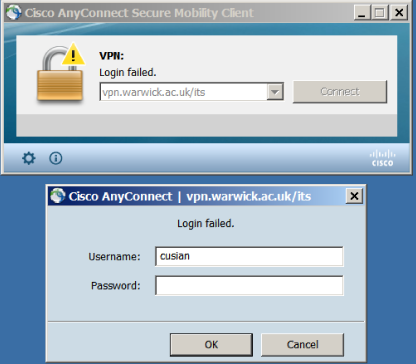
Password Resets:
Occasionally your password can get out of sync across the centrally managed systems, which can prevent you from logging in. Try changing your password and log in again.
You can change your password using the Password Self-Service System.
205 популярных ошибок при работе с сервисом CISCO VPN. Описание на русском языке, способы устранения неисправности.
У пользователей CISCO VPN, нередко возникают ошибки при работе с сервисом. Здесь собраны все коды ошибок CISCO с детальным описанием на русском языке. Приведённого описания достаточно для понимания причины возникновения неисправности и их решения.
Когда пользователь обращается в службу поддержки CISCO за дополнительной информацией по неисправности, специалисты службы поддержки, используют в своей работе именно эту информацию в таком же виде (только на английском) для помощи пользователям.
Ошибка 1
Параметр командной строки нельзя использовать в сочетании другим параметром. Два параметра, указанные в кавычках, конфликтуют друг с другом.
Ошибка 2
Недопустимое имя подключения. Недопустимый символ был введен в поле имени соединения в диалоговом окне при создании новых или изменении существующих записей соединений.
Ошибка 3
Указан неверный порт TCP. Введен недопустимый номер порта TCP в диалогового окне для создания новых или изменения существующих записей соединений.
Ошибка 4
Указан неверный таймаут ожидания ответа от узла Указан неверный таймаут ожидания ответа от узла в диалоговом окне для создания новых или изменения существующих записей соединений.
Ошибка 5
Имя хоста не существует для этого соединения. Невозможно создать VPN подключение Попытка установить соединение была сделана с помощью соединения, которое не содержит имя узла/адрес записи. Имя хоста или адрес должно быть указано в записи соединения при попытке VPN-подключения.
Ошибка 6
Подключение не существует. Командная строка указала, какая запись подключения не существует.
Ошибка 7
Пароли не совпадают. Введите одинаковый пароль в оба поля Пароли в диалоговое окне для создания новых или изменения существующих записей соединений, имеют разные значения. В полях пароль и подтверждение пароля должны быть одни и те же значения
Ошибка 8
Не удается обновить информацию в настройках «Начать до до входа в систему» Проверьте свойства файла vpnclient.ini. Должно быть атрибуты файла выставлены «только на чтение» или может быть проблема с файловой системой.
Ошибка 9
Не удается обновить информацию в настройках об отключении VPN-соединения Проверьте свойства файла vpnclient.ini. Должно быть атрибуты файла выставлены «только на чтение» или может быть проблема с файловой системой.
Ошибка 10
Не удается обновить информацию в настройках о разрешении запуска сторонних приложений Пользователь должен иметь права администратора, чтобы сохранить эту настройку или может быть системная проблема с реестром.
Ошибка 11
Регистрация CSGINA.DLL не удалась. VPN-клиент не смог зарегистрировать CSGINA.DLL в ОС Windows. DLL может быть изменены или повреждены.
Ошибка 12
Не удается получить статус авто-инициации. VPN-клиент не смог получить текущий статус автоматическое VPN инициации. Служба VPN-клиента остановлена, зависла, или не запущена
Ошибка 13
Не удается обновить информацию в настройках об автоматической VPN инициации Проверьте свойства файла vpnclient.ini. Должно быть атрибуты файла выставлены «только на чтение» или может быть проблема с файловой системой.
Ошибка 14
Не удается обновить информацию в настройках об интервале повтора автоматической VPN инициации Проверьте свойства файла vpnclient.ini. Должно быть атрибуты файла выставлены «только на чтение» или может быть проблема с файловой системой.
Ошибка 15
Указан недопустимый интервал для повтора. Допустимый диапазон от до %2. Введен недопустимый интервал повтора . Значение должно быть в пределах диапазона, указанного в сообщении об ошибке.
Ошибка 16
Подключение уже существует. Выберите другое имя. Пользователь пытается создать новое подключение записи с тем же именем, что и существующая запись подключения.
Ошибка 17
Не удается создать подключение. VPN-клиент не смог сохранить новую запись подключения к файлу на жестком диске. Может быть проблема с файловой системой.
Ошибка 18
Не удается переименовать подключение. VPN-клиент не смог переименовать запись соединения. Новые записи соединения с данным именем уже существует, или может быть проблема с файловой системой.
Ошибка 19
Не удается сохранить измененную запись подключения. VPN-клиент не смог сохранить измененную запись подключения в свой файл, расположенный на жестком диске. Атрибуты файла стоят «только на чтение» или может быть проблема с файловой системой.
Ошибка 20
Не удается дублировать запись соединения. VPN-клиент был не в состоянии дублировать запись подключения. Подключение с данным именем уже существует или может быть проблема с файловой системой.
Ошибка 21
Невозможно удалить запись подключения. VPN-клиент не смог удалить запись подключения. Файл, содержащий запись подключения, больше не существует или защищен, или могут быть проблемы с файловой системой.
Ошибка 22
Не удается импортировать записи соединения. VPN-клиент не смог импортировать записи соединения. Либо запись не существует. Либо такое соединение с таким именем уже существует. Может быть проблема с файловой системой.
Ошибка 23
Не удается очистить зашифрованный пароль для соединения. VPN-клиенту не удалось удалить зашифрованный пароль пользователя в записи соединения. Либо атрибуты файла «Только для чтения», либо может быть проблема с файловой системой.
Ошибка 24
Невозможно обновить запись соединения. VPN клиент не смог сохранить изменения записи соединения на жесткий диск. Либо атрибуты файла «только на чтение», либо может быть проблема с файловой системой.
Ошибка 25
%1() Для короткого пути файла %2 ошибка с %3. Функция, указанная в сообщение об ошибке пыталась создать короткий путь к файлу VPN Client GUI для конкретной записи соединения. Шестнадцатеричное число в сообщении об ошибке-ошибка функции
Ошибка 26
Невозможно создать полный путь к файлу при создании пути. VPN-клиент не смог получить полный путь к файлу ярлыка файла. Может быть проблема с файловой системой.
Ошибка 27
Не удается создать ярлык файла. VPN-клиент не смог получить указатель на интерфейс IShellLink из системы, чтобы создать ярлык файла.
Ошибка 28
Достигнут конец журнала, нет ни одного совпадения, VPN-клиент не может найти искомую информацию в логе.
Ошибка 29
Сторонняя программа дозвона не может быть запущена VPN-клиент не смог запустить сторонние dial-up программы, указанные в записи соединения, чтобы установить VPN-подключение.
Ошибка 30
Выбранные записи соединения используют хранилище сертификатов Microsoft CryptoAPI. Эта запись соединения не может быть использована до тех пор, пока вы не войдете на рабочую станцию. Пользователь пытается установить соединение VPN до входа в систему с помощью подключения, которое настроено на использование Microsoft CryptoAPI сертификата для проверки подлинности. Такой сертификат не может быть использован до тех пор, пока пользователь не вошел на станцию.
Ошибка 31
Сертификата, связанного с данным соединением не существует или не удалось его открыть. Пожалуйста, выберите другой сертификат. Пользователь пытается установить VPN-соединение с помощью соединения, которое настроено на использование сертификата для проверки подлинности, который не существует или не может быть открыт.
Ошибка 32
Не удается проверить сертификат. Выбранный сертификат не может быть проверен. Возможно проблема с проверкой подлинности сертификата (CA) сервера.
Ошибка 33
Не удается удалить сертификат из хранилища сертификатов. VPN-клиенту не удалось успешно удалить выбранный сертификат из хранилища сертификатов.
Ошибка 34
Не удается показать данные для сертификата. VPN-клиент не смог открыть и получить доступ к выбранным сертификатом, чтобы отобразить сведения о сертификате.
Ошибка 35
Невозможно экспортировать сертификат. Некорректный путь Путь экспорта, предусмотренный сертификатом недействителен.
Ошибка 36
Невозможно экспортировать сертификат. Путь назначения или источника для экспорта сертификата недействительный и сертификат не может быть экспортирован.
Ошибка 37
Должен быть указан путь для экспорта Пользователь не предоставил путь файла для экспорта выбранного сертификата
Ошибка 38
Пароли сертификата не совпадают. Введите один и тот же пароль в оба поля. Поля пароль и подтверждение пароля для экспортао сертификата должны содержать одинаковые значения.
Ошибка 39
Не удается импортировать сертификат. VPN-клиенту не удалось импортировать сертификат. Путь к файлу сертификата может быть неправильный, или может быть проблема с файловой системой.
Ошибка 40
Должен быть указан путь для импорта Пользователь не указал путь к файлу для импорта сертификата.
Ошибка 41
Пароли сертификата не совпадают. Введите один и тот же пароль в оба поля. Новый пароль и подтверждение пароля для импорта сертификата должны содержать одинаковые значения.
Ошибка 42
Невозможно создать запрос регистрации сертификата VPN-клиент не смог создать запрос регистрации, чтобы зарегистрировать сертификат в центре сертификации.
Ошибка 43
Регистрация сертификатов не удалась, или не была одобрена Регистрация сертификат не удалась или не утверждена сертифицирующим органом.
Ошибка 44
Сертификат не действителен Пользователь попытался возобновить подачу заявок, но сертификат не действителен
Ошибка 45
Пароли не совпадают. Попробуйте еще раз. Значение, введенное в поле » подтверждение нового пароля » не соответствует значению, введенному в поле » введите новый пароль в диалоговом окне изменения пароля сертификата.
Ошибка 46
Изменить пароль для сертификата не удалось. VPN-клиент не смог изменить пароль для сертификата.
Ошибка 47
Не удалось загрузить ipseclog.exe. VPN-клиент не смог запустить ipseclog.exe приложения. Сообщения не будут сохранены в файл журнала.
Ошибка 48
Не в состоянии остановить службу/демон. VPN-клиент не смог остановить службу/демон. Сервис/демон может быть подвис или есть проблема с системой сервиса/демона управления.
Ошибка 49
GI_VPNStop не удалось. Не в состоянии разъединить. VPN-клиенту не удалось отправить запрос stop для прекращения VPN-подключение сервиса/демона. Сервис/демон может быть остановлен, завис, или не работает. Общение с сервисом/демоном не удалось.
Ошибка 50
Сервис/демон не работает. VPN-клиент сервис/демон не работает. VPN-соединения не могут быть установлены/прекращены через GUI.
Ошибка 51
Выделение сокета IPC закончилось ошибкойч. Выделение сокета для связи с сервисом/демоном не удалось. VPN-соединения не могут быть установлены/прекращены через GUI. Обратитесь к информации, с ссылкой для поиска на Cisco bug ID CSCed05004.
Ошибка 52
Освобождение сокета IPC закончилось ошибкойч. VPN-клиенту не удалось закрыть IPC сокет, который используется для взаимодействия со службой/daemon-при прекращении. Последующее использование GUI может быть не в состоянии общаться с сервисом/демоном
Ошибка 53
Безопасное соединение было неожиданно разорвано. VPN-соединение было прервано, не пользователем. Может быть потеряно подключение к интернет.
Ошибка 54
Аутентификационные пароли не совпадают. Введите один и тот же пароль в оба поля. Пользователю было предложено ввести новый пароль в диалоге аутентификации. Однако он ввёл разные значения. Оба поля должны содержать одинаковые значения.
Ошибка 55
PIN не совпадают. Введите один и тот же PIN-код в оба текстовых поля. Пользователю было предложено ввести новый PIN-код и подтверждение PIN-кода.Были введены разные значения. Оба поля должны содержать одинаковые значения.
Ошибка 56
Не удается запустить VPN-подключение. VPN-клиенту не удалось отправить запрос на запуск, для установления VPN-соединения для сервиса/демона. Сервис/демон может быть остановлен, завис, или не работает. Связь с сервисом/демоном, не удалась
Ошибка 401
Неизвестная ошибка при установке VPN-соединения. VPN-подключение не установлено, причина неизвестна. Пожалуйста, проверьте файлы журналов (логов)
Ошибка 402
Диспетчер подключений не смог прочитать записи соединений, или соединение отсутствует или неверные сведения. Либо профиль соединений отсутствует или не содержит всей необходимой информации. Чтобы устранить эту проблему, можно либо выбрать другой профиль подключения, или исправить текущие записи соединения. Соединение профилей расположенном в <Папке с установленной программой>. На большинстве машин, это C:Program FilesCisco SystemsVPN Clientprofiles. Чтобы устранить эту проблему, замените профиль файла из каталога профилей. Этот файл можно скопировать с машины, которая имеет правильную запись этого файла
Ошибка 403
Не удается связаться с сервером шлюза безопасности. Это может произойти из-за нескольких причин. Одной из причин того, что пользователи могут получить это сообщение, потому что IKE переговоры не увенчались успехом. Проверьте файлы журналов клиента
Ошибка 404
Удаленным узлом прекращено подключение во время переговоров в политике безопасности. Проверьте журналы удаленного узла, чтобы определить причину этой неудачи.
Ошибка 405
Удаленным узлом прекращено подключения в процессе проверки подлинности пользователя. Не используется
Ошибка 406
Невозможно установить безопасный канал связи. Не используется
Ошибка 407
Аутентификация пользователя была отменена пользователем. Пользователь нажал кнопку отмена (вместо ОК) в диалоговом окне проверки подлинности
Ошибка 408
VPN-соединение уже находится в процессе создания. Соединение уже в процессе.
Ошибка 409
VPN-соединение уже существует. VPN-соединение уже существует.
Ошибка 410
Диспетчер подключений не смог направить запрос проверки подлинности пользователя. Не используется
Ошибка 411
Удаленный узел не поддерживает требуемые VPN-клиентом протоколы Удаленный узел, либо не устройство Cisco или он не поддерживает VPN Client protocol specification.
Ошибка 412
Удаленный компьютер долго не отвечает Удаленный одноранговый узел не отвечает на запрос клиента, чтобы установить соединение. Убедитесь, что вы можете проверить связь с удаленным узлом, или проверить журналы удаленного компьютера, почему он не отвечает на клиента.
Ошибка 413
Ошибка аутентификации пользователя Либо пользователь ввел неправильные данные, или клиент не смог запустить XAuth (user authentication) процесса.
Ошибка 414
Не удалось установить TCP-соединение. VPN-клиент не смог установить IPSec поверх TCP-подключения. Попробуйте, пожалуйста, IPSec поверх UDP
Ошибка 415
Обязательный компонент PPPTool.exe отсутствует на клиенте. Пожалуйста, убедитесь, что ppptool.exe присутствует в директории установки клиента (как правило, это C:Program FilesCisco SystemsVPN Client если этот файл не существует, удалите и переустановите клиент
Ошибка 416
Удаленный узел балансирует нагрузку. Удаленный узел рекомендовал вам использовать другой шлюз
Ошибка 417
Необходимое программное обеспечение брандмауэра не работает Необходимый брандмауэр не запущен.
Ошибка 418
Не удается настроить брандмауэр. Удаленный клиент прислал неизвестное firewall сообщение.
Ошибка 419
Подключение не существует. Это непредвиденная ошибка. Пожалуйста, проверьте файлы журналов клиента для деталей.
Ошибка 420
Приложению не удалось выделить некоторые ресурсы системы и оно не может работать. Системе не хватает памяти. Если вы думаете, что в системе достаточно памяти, перезагрузите машину и попробуйте снова.
Ошибка 421
Не удалось установить соединение с провайдером. Не удалось установить соединение dialup. Просмотрите клиентские журналы для деталей.
Ошибка 422
Потеряна связь с шлюзом безопасности. Проверьте подключение к сети. IP-адрес машины изменился или машина не подключена к интернету. Примечание: VPN-клиент, отключает VPN-туннель, по соображениям безопасности, если машины IP-адрес изменился.
Ошибка 423
Ваше VPN соединение было разорвано. Либо пользователь отключил VPN-туннель, или возникла непредвиденная ошибка.
Ошибка 424
Подключение к клиент потерял удаленным узлом Подключение отключено удаленным узлом. Проверьте журналы удаленного узла для деталей.
Ошибка 425
Вручную отключено администратором. Администратор вручную отключил VPN-туннеля.
Ошибка 426
Превышение срока максимальной жизни VPN-клиент превысил установленное максимальное время жизни сессии
Ошибка 427
Неизвестная ошибка на узле. Удаленный узел закрыл туннель. Проверьте журналы удаленного узла для деталей.
Ошибка 428
Узел был закрыт. Удаленный узел завершил работу
Ошибка 429
Неизвестная серьезная ошибка на узле. Проверьте журналы удаленного узла для деталей.
Ошибка 430
Превышено установленное максимальное время соединения VPN-клиент подключен дольше, чем позволяет удаленный узел
Ошибка 431
Превышено установленное максимальное время бездействия сессии VPN соединение было в простое больше времени, чем это разрешено администратором.
Ошибка 432
Удаленный узле был перезагружен. Удаленный узел был перезагружен.
Ошибка 433
Причина не указана удаленный узлом Удаленный узел не дал никаких пояснений при отключении туннеля. Проверьте журналы удаленного узла для деталей.
Ошибка 434
Политика переговоров не удалась. Политики клиента и удаленного узла не совпадают. Попробуйте изменить политики удаленного узла (попробуйте использовать 3DES, AES и так далее), а затем попробуйте снова.
Ошибка 435
Несоответствие политики брандмауэра Политики брандмауэра не совпадают с теми, что настроены у удаленного узла.
Ошибка 436
Истекли используемые сертификаты Сертификат, используемый в профиле подключения истек. Обновите сертификат, настроенного в профиле клиента, а затем попробуйте снова.
Ошибка 437
Указан недопустимый параметр Проверьте правописание и синтаксис профиля или параметры командной строки.
Ошибка 438
Различные компоненты клиента не могут общаться. Попробуйте остановить любой персональный брандмауэр, который может быть установлен на клиентском компьютере, а затем попробуйте снова. VPN GUI клиент использует порты для связи с VPN-клиентом, драйвера и службы. Брандмауэры лежат между этими двумя компонентами и могут блокировать трафик. Разрешить весь трафик для адреса 127.0.0.1.
Ошибка 439
Запуск сервиса Cisco VPN Это может быть сделано путем _net начать cvpnd_ на командной строке, либо через службу диспетчера и запуск VPN-сервис. _net начать cvpnd_ и _net остановить cvpnd_ используются для запуска и остановки службы VPN. Системный журнал Windows также могут быть проверены, чтобы увидеть, почему, возможно, служба не запущена. Примечание: не вводите символ_, при вводе этих команд.
Ошибка 440
Не удается запустить драйвер. Убедитесь, что DNE установлен правильно. Убедитесь, что _cvpndrva_ установлен правильно. Убедитесь, что DNE драйвер. Откройте окно командной строки и введите _net остановить dne_. Он не должен быть в состоянии остановить. Однако, если он не найден, то он не установлен. Если установлен, попробуйте _net остановить cvpndrva_ и _net начать cvpndrva_. Это не может быть сделано с помощью service manager. Примечание: не вводите символ_, при вводе этих команд.
Ошибка 441
Недоступны сервера резервного копирования. Пытались связаться всеми серверами резервного копирования (если есть), но безрезультатно VPN-клиент не смог наладить контакт с головного конца устройства после проверки всех серверов резервного копирования. Обеспечения доступа и разрешения имен для головного конца устройства с АРМ.
Ошибка 442
Ошибка включения виртуального адаптера Для начала перезагрузитесь, прежде чем пытаться снова. Или зайдите в сетевые подключения, далее свойства адаптера и попробуйте вручную включить/отключить Cisco Systems VPN Adapter. Также попробуйте добавить следующую строку vpnclient.ini: [main] VAEnableAlt=0.
Ошибка 443
Смарт-карты, связанные с сертификатом, были изъяты. Пожалуйста, вставьте смарт-карту. Сертификаты, проживающих за пределами станции должно оставаться на связи во время VPN сессии клиента.
Ошибка 201
Необходимая VPN подсистема недоступна. Вы не можете подключиться к удаленному VPN-серверу. VPN Client GUI обнаружила, что он не сможет связаться с клиентом службы/демона. Сервис/демон может быть остановлена, висел, или не работает. Общение с сервиса/демона, возможно, не удалось. Удалите VPN-клиента(см. информацию по ссылке) и anitvirus на компьютере, а затем переустановить VPN-клиент.
Ошибка 202
Если вы отключите эту функцию не будет автоматически отключать VPN-соединение при выходе из системы. Как результат, ваш компьютер может оставаться включенным после выхода из системы. Пользователь отключил отключение VPN соединение
Ошибка 203
Вы не имеете права на запись для этой записи соединения. Она будет открыта только для чтения. Пользователь пытается изменить подключение, запись, файл для которого заданы атрибуты » только чтение».
Ошибка 204
Сертификат, связанный с данным не найден. Пожалуйста, выберите другой сертификат, или кнопку «отмена». Пользователь пытается изменить запись подключения, сертификат, связанный с ним. Но сертификат, связанный с профилем не найден. Это может быть то, что сертификат расположен на смарт-карте, которая не подключена к системе прямо сейчас.
Ошибка 205
Вы должны использовать смарт-карты с этого соединения. Пожалуйста, вставьте смарт-карту, прежде чем пытаться установить соединение. Это предупреждение означает, что данный профиль требует использования смарт-карт и смарт-карта присутствует в системе. Пользователь должен вставить правильную смарт-карте и должен повторно подключиться, или пользователь должен выбрать другой профиль для подключения.